display MERCEDES-BENZ E-CLASS COUPE 2018 Owners Manual
[x] Cancel search | Manufacturer: MERCEDES-BENZ, Model Year: 2018, Model line: E-CLASS COUPE, Model: MERCEDES-BENZ E-CLASS COUPE 2018Pages: 593, PDF Size: 10.63 MB
Page 328 of 593
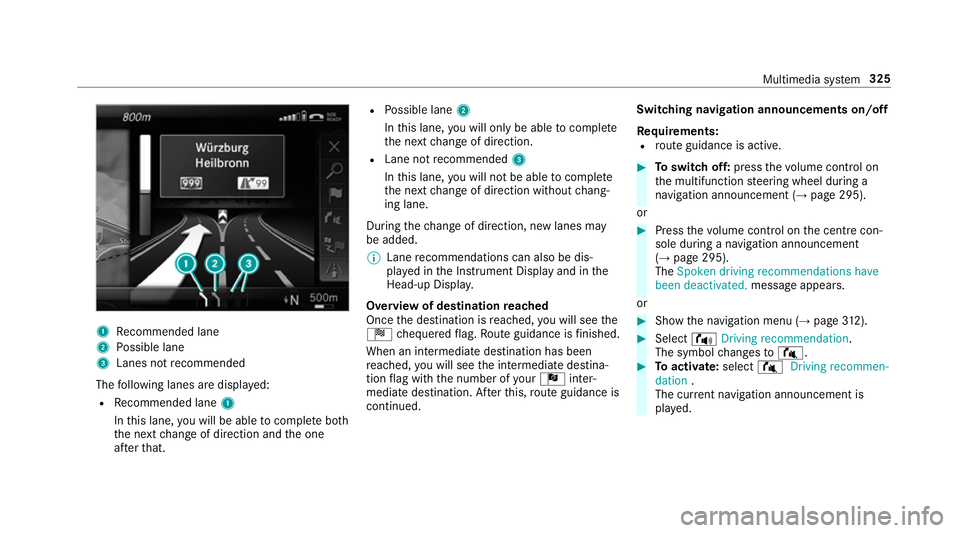
1
Recommended lane
2 Possible lane
3 Lanes not recommended
The following lanes are displa yed:
R Recommended lane 1
In this lane, you will be able tocompl ete bo th
th e next change of direction and the one
af te rth at. R
Possible lane 2
In this lane, you will on lybe able tocompl ete
th e next change of direction.
R Lane not recommended 3
In this lane, you will not be able tocompl ete
th e next change of direction without chang‐
ing lane.
During thech ange of direction, new lanes may
be added.
% Lane recommendations can also be dis‐
pl ay ed in the Instrument Display and in the
Head-up Displa y.
Overview of destination reached
Once the destination is reached, you will see the
Í chequered flag. Route guidance is finished.
When an intermedia tedestination has been
re ached, you will see the intermediate destina‐
tion flag with the number of your Î inter‐
mediate destination. Af terth is, route guidance is
continued. Swit
ching navigation announcements on/off
Re quirements:
R route guidance is active. #
Toswitch off: pressthevo lume control on
th e multifunction steering wheel during a
navigation announcement (→ page 295).
or #
Press thevo lume control on the cent recon‐
sole du ring a navigation announcement
(→ page 295).
The Spoken driving recommendations have
been deactivated. messageappears.
or #
Show the navigation menu (→ page312). #
Select !Driving recommendation .
The symbol changes to# . #
Toactivate: select#Driving recommen-
dation .
The cur rent navigation announcement is
pl ay ed. Multimedia sy
stem 325
Page 334 of 593
-
warning messages
The symbols for traf fic incidents are dis‐
pl ay ed in colour (on thero ute) or grey (off
th ero ute).
R traf fic flow information:
- traf fic jam (red line)
- slow-moving traf fic (orange line)
- heavy traf fic (yellow line)
- free-flowing traf fic (green line)
R displ ayfor traf fic del ays on thero ute lasting
at least one minute
R warning message symbols:
- d symbol
- additional road saf ety no tes when
approaching a traf fic incident, e.g. the
end of a traf fic jam
If th eve hicle approaches a danger area
on thero ute, a warning message is dis‐
pla yed on the map. A warning message
may also be issued (→ page 331).Displaying traf
fic incidents
Multimedia sy stem:
Navigation ZOption sM ap content #
Activate OTraffic incidents.
Ro adwor ks,ro ad bloc ks, local area reports
(e.g. fog) and warning messages are dis‐
pla yed.
Ac tivating free flow and traffic display #
Activate OFree-flowing traffic andTraffic
delays.
% The traf fic del ayis displa yedfo rth e cur rent
ro ute. Traf fic del ays lasting one minute or
longer are take n into conside ration.
Displ aying details #
Displaying the tra ffic map (→ page 330). #
Moving the map (→ page 333). #
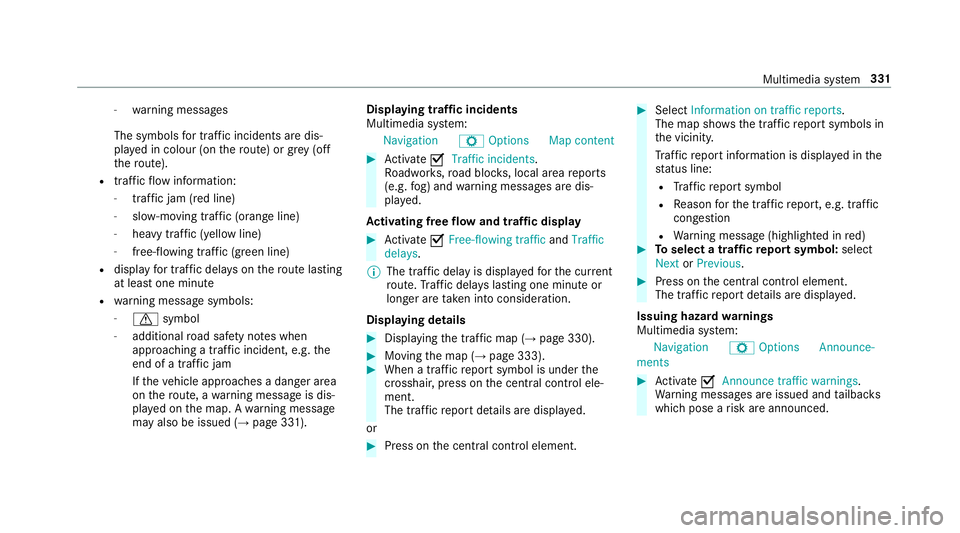
When a tra ffic report symbol is under the
crosshair, press on the cent ral control ele‐
ment.
The traf fic re port de tails are displa yed.
or #
Press on the cent ral control element. #
Select Information on traffic reports .
The map sho ws the traf fic re port symbols in
th e vicinit y.
Tr af fic re port information is displa yed in the
st atus line:
R Traf fic re port symbol
R Reason forth e traf fic re port, e.g. tra ffic
con gestion
R Warning message (highligh ted in red) #
Toselect a traf fic re port symbol: select
Next orPrevious. #
Press on the cent ral control element.
The traf fic re port de tails are displa yed.
Issuing hazard warnings
Multimedia sy stem:
Navigation ZOption sAnnounce-
ments #
Activate OAnnounce traffic warnings .
Wa rning messages are issued and tailbac ks
which pose a risk are announced. Multimedia sy
stem 331
Page 335 of 593
Map and compass
Map and compass
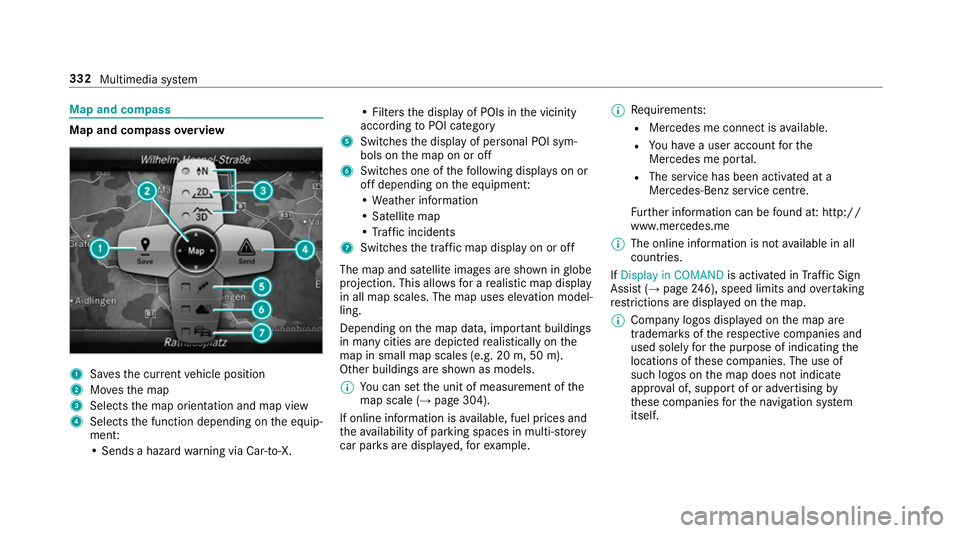
overview 1
Savesth e cur rent vehicle position
2 Movesth e map
3 Selects the map orientation and map view
4 Selects the function depending on the equip‐
ment:
• Sends a hazard warning via Car-to-X. • Filters
the display of POIs in the vicinity
according toPOI category
5 Switches the display of personal POI sym‐
bols on the map on or off
6 Switches one of thefo llowing displa yson or
off depending on the equipment:
• We ather information
• Satellite map
• Traf fic incidents
7 Switches the tra ffic map display on or off
The map and satellite images are shown in globe
projection. This allo wsfor a realistic map display
in all map scales. The map uses ele vation model‐
ling.
Depending on the map data, impor tant buildings
in ma nycities are depicted realistically on the
map in small map scales (e.g. 20 m, 50 m).
Other buildings are shown as models.
% You can set the unit of measurement of the
map scale (→ page 304).
If online information is available, fuel prices and
th eav ailability of parking spaces in multi-s torey
car pa rks are displa yed, forex ample. %
Requirements:
R Mercedes me connect is available.
R You ha vea user account forthe
Mercedes me por tal.
R The service has been activated at a
Mercedes-Benz service centre.
Fu rther information can be found at: http://
www.mercedes.me
% The online information is not available in all
countries.
If Display in COMAND is activated inTraf fic Sign
Assi st (→page 246), speed limits and overtaking
re strictions are displ ayed on the map.
% Company logos displa yed on the map are
trademar ksofthere spective companies and
used solely forth e purpose of indicating the
locations of these companies. The use of
such logos on the map does not indicate
appr oval of, suppo rtof or advertising by
th ese companies forth e navigation sy stem
itself. 332
Multimedia sy stem
Page 337 of 593
Standard
displays symbols of predefined cat‐
egories on the map.
User defined allowsyouto personally select
th e symbols forth eav ailable categories.
None switches the display off. #
Select a setting. #
User defined : select categories.
The POI symbols of the selected categories
are displa yedO or not displa yedª.
Selecting the display of text information in
th e map
Multimedia sy stem:
Navigation ZOption sText informa-
tion #
Select text information.
Current street showsthest re et you are cur‐
re ntly driving on at the bottom of the displa y.
When the map is mo ved, thefo llowing infor‐
mation appears under the crosshair:
R stre et name
R POI name
R area name Geo-coordinates
displaysth efo llowing infor‐
mation:
R longitude and latitude
R elevation
The el evation shown may deviate from
th e actual ele vation.
R number of sa tellites from which a signal
can be recei ved
When the map is mo ved, this information
does not appear.
Climate control displays the cur rent clima te
control settings.
None switches the display off.
Displaying the next intersecting stre et
Re quirements:
R Route guidance is not active.
Multimedia sy stem:
Navigation ZOptions #
Activate ONext intersecting street .
The name of the next intersecting stre et will
be displa yed at the upper edge of the displa y.Displaying
the map version
Multimedia sy stem:
Navigation ZOptions #
Select Map version . #
Select Details.
% Information about new versions of the digital
map can be obtained from a Mercedes-Benz
service cent re.
Overview of avoiding an area
Yo u can define areas along a route that you
wo uld like toavoid.
The route can include an area that is tobe avoi‐
ded in thefo llowing situations:
R the destination is located in an area that is to
be avo ided
R if mo torw ays are located within the area that
is to be avoided
Mo torw ays are alw aysta ke n into account for
th ero ute.
R there is no sensible alternative route 334
Multimedia sy stem
Page 340 of 593
Displaying
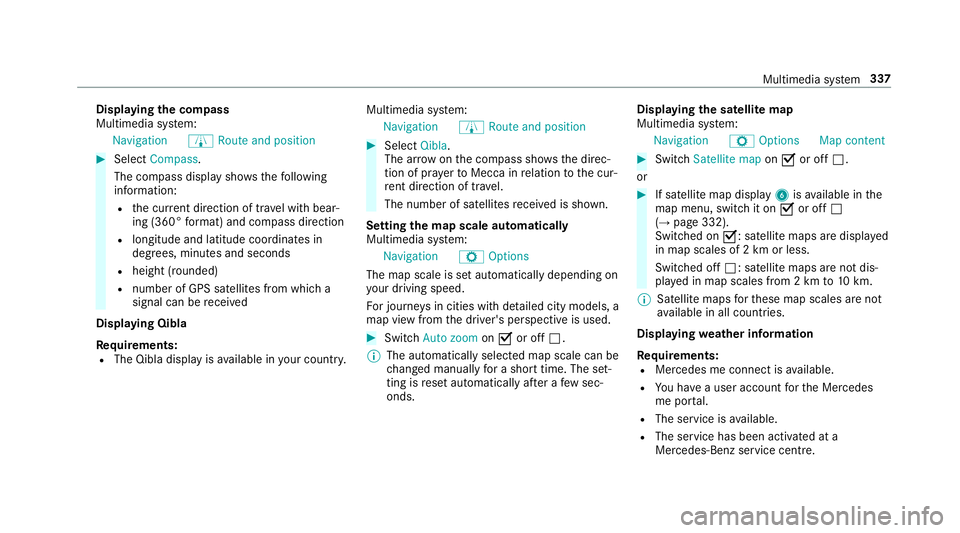
the compass
Multimedia sy stem:
Navigation ÀRoute and position #
Select Compass.
The compass display sho wsthefo llowing
information:
R the cur rent di rection of tr avel with bear‐
ing (360° form at) and compass direction
R longitude and latitude coo rdinates in
degrees, minutes and seconds
R height (rounded)
R number of GPS satellites from which a
signal can be recei ved
Displaying Qibla
Requ irements:
R The Qibla display is available in your count ry.Multimedia sy
stem:
Navigation ÀRoute and position #
Select Qibla.
The ar rowonthe compass sho wsthe direc‐
tion of pr ayer toMecca in relation tothe cur‐
re nt di rection of tr avel.
The number of satellites recei ved is shown.
Setting the map scale automatically
Multimedia sy stem:
Navigation ZOptions
The map scale is set automatically depending on
yo ur driving speed.
Fo r journe ysin cities with de tailed city models, a
map view from the driver's perspective is used. #
Switch Auto zoom onO or off ª.
% The automatically selected map scale can be
changed manually for a short time. The set‐
ting is reset automatically af ter a few sec‐
onds. Displaying
the satellite map
Multimedia sy stem:
Navigation ZOption sM ap content #
Swit chSatellite map onO or off ª.
or #
If sa tellite map display 6isavailable in the
map menu, switch it on Oor off ª
(→ page 332).
Switched on O: satellite maps are displa yed
in map scales of 2 km or less.
Swit ched off ª: satellite maps are not dis‐
pla yed in map scales from 2 km to10 km.
% Satelli temaps forth ese map scales are not
av ailable in all countries.
Displ aying weather information
Re quirements:
R Mercedes me connect is available.
R You ha vea user account forth e Mercedes
me por tal.
R The service is available.
R The service has been activated at a
Mercedes-Benz service centre. Multimedia sy
stem 337
Page 341 of 593
Fu
rther information can be found at: http://
www.mercedes.me
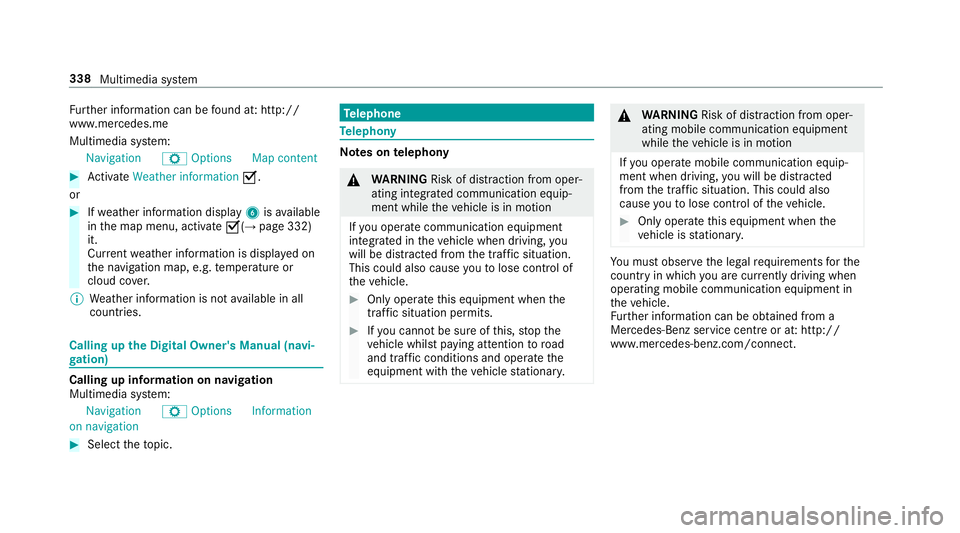
Multimedia sy stem:
Navigation ZOption sM ap content #
Activate Weather information O.
or #
Ifwe ather information display 6isavailable
in the map menu, activate O(→page 332)
it.
Cur rent we ather information is displa yed on
th e navigation map, e.g. temp erature or
cloud co ver.
% Weather information is not available in all
countries. Calling up
the Digital Owner's Manual (navi‐
ga tion) Calling up in
form ation on navigation
Multimedia sy stem:
Navigation ZOption sInformation
on navigation #
Select theto pic. Te
lephone Te
lephony Note
s ontelephony &
WARNING Risk of di stra ction from oper‐
ating integrated communication equip‐
ment while theve hicle is in motion
If yo u operate communication equipment
integrated in theve hicle when driving, you
will be distracted from the tra ffic situation.
This could also cause youto lose control of
th eve hicle. #
Only operate this equipment when the
traf fic situation permits. #
Ifyo u cannot be sure of this, stop the
ve hicle whilst paying attention toroad
and traf fic conditions and ope rate the
equipment with theve hicle stationar y. &
WARNING Risk of di stra ction from oper‐
ating mobile communication equipment
while theve hicle is in motion
If yo u operate mobile communication equip‐
ment when driving, you will be distracted
from the tra ffic situation. This could also
cause youto lose control of theve hicle. #
Only operate this equipment when the
ve hicle is stationar y. Yo
u must obse rveth e legal requirements forthe
country in whi chyou are cur rently driving when
operating mobile communication equipment in
th eve hicle.
Fu rther information can be obtained from a
Mercedes-Benz service centre or at: http://
www.mercedes-benz.com/connect. 338
Multimedia sy stem
Page 353 of 593
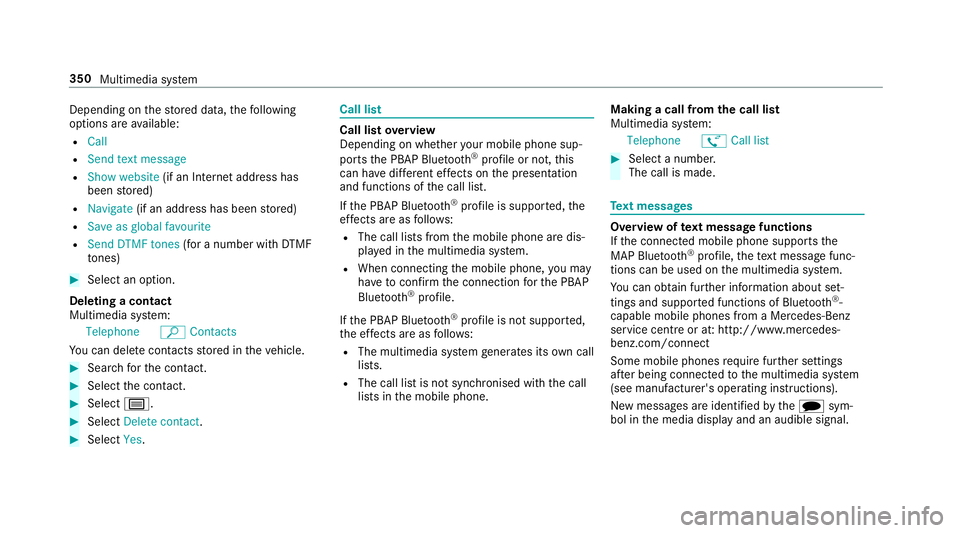
Depending on
thestored data, thefo llowing
options are available:
R Call
R Send text message
R Show website (if an Intern et address has
been stored)
R Navigate (if an address has been stored)
R Save as global favourite
R Send DTMF tones (for a number with DTMF
to nes) #
Select an option.
Deleting a contact
Multimedia sy stem:
Telephone ªContacts
Yo u can dele tecontacts stored in theve hicle. #
Sear chforth e conta ct. #
Select the conta ct. #
Select p. #
Select Delete contact .#
Select Yes. Call li
st Call list
overview
Depending on whe ther your mobile phone sup‐
ports the PBAP Blue tooth®
profile or not, this
can ha vediffere nt ef fects on the presentation
and functions of the call list.
If th e PBAP Blue tooth ®
profile is suppor ted, the
ef fects are as follo ws:
R The call lists from the mobile phone are dis‐
pla yed in the multimedia sy stem.
R When connecting the mobile phone, you may
ha ve toconfirm the connection forth e PBAP
Blue tooth ®
profile.
If th e PBAP Blue tooth ®
profile is not suppor ted,
th e ef fects are as follo ws:
R The multimedia sy stem generates its own call
li st s.
R The call list is not synchronised with the call
lists in the mobile phone. Making a call from
the call list
Multimedia sy stem:
Telephone øCall list #
Select a number.
The call is made. Te
xt messages Overview of
text message functions
If th e connected mobile phone supports the
MAP Blue tooth®
profile, thete xt messa gefunc‐
tions can be used on the multimedia sy stem.
Yo u can obtain fur ther information about set‐
tings and suppor ted functions of Blue tooth ®
-
capable mobile phones from a Mercedes-Benz
service centre or at: http://www.mercedes-
benz.com/connect
Some mobile phones require fur ther settings
af te r being connected tothe multimedia sy stem
(see manufacturer's operating instructions).
New messages are identified bythei sym‐
bol in the media display and an audible signal. 350
Multimedia sy stem
Page 354 of 593
Depending on
the mobile phone, the multimedia
sy stem only displa ysnew incoming text mes‐
sa ge s or the10 0 ne west text messa ges.
The ú symbol is displa yed when the mobile
phone's message memory is full.
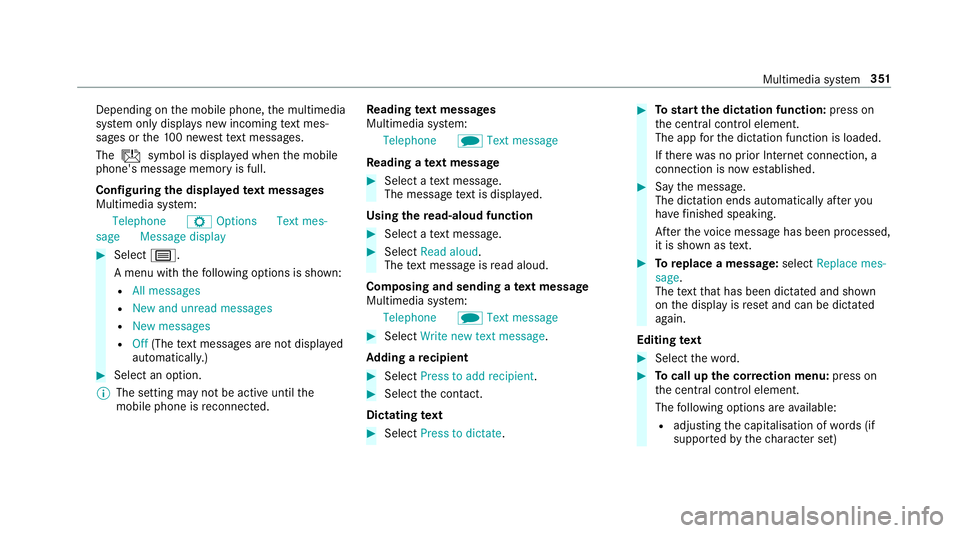
Configuring the displa yedte xt messages
Multimedia sy stem:
Telephone ZOption sText mes-
sage Message display #
Select p.
A menu with thefo llowing options is shown:
R All messages
R New and unread messages
R New messages
R Off (The text messa ges are not displa yed
automaticall y.) #
Select an option.
% The setting may not be acti veuntil the
mobile phone is reconnected. Re
ading text messages
Multimedia sy stem:
Telephone iText message
Re ading a text message #
Select a text messa ge.
The message text is displ ayed.
Using there ad-aloud function #
Select a text messa ge. #
Select Read aloud .
The text messa geisread aloud.
Composing and sending a text message
Multimedia sy stem:
Telephone iText message #
Select Write new text message.
Ad ding a recipient #
Select Press to add recipient. #
Select the conta ct.
Dictating text #
Select Press to dictate. #
Tostart the dictation function: press on
th e cent ral control element.
The app forth e dictation function is loaded.
If th ere was no prior Internet connection, a
connection is now es tablished. #
Say the message.
The dictation ends automatically af teryou
ha ve finished speaking.
Af terth evo ice message has been processed,
it is shown as text. #
Toreplace a message: selectReplace mes-
sage.
The text that has been dictated and shown
on the display is reset and can be dictated
again.
Editing text #
Select thewo rd. #
Tocall up the cor rection menu: press on
th e cent ral control element.
The following options are available:
R adjusting the capitalisation of words (if
suppor tedby thech aracter set) Multimedia sy
stem 351
Page 355 of 593
R
expanding thech oice of words
R deleting the selection
R recording a new dictation #
Tolea vethe menu: selectDone.
Sending text messages #
Select Send text message .
Re plying toate xt message
Multimedia sy stem:
Telephone iText message #
Open thete xt messa ge. #
Select p. #
Select Reply.
Calling a text message sender
Multimedia sy stem:
Telephone iText message #
Open thete xt messa ge. #
Select p. #
Select Call sender. Deleting
text messages
Multimedia sy stem:
Telephone iText message #
Select p. #
Todel ete a text message: selectDelete. #
Outbox
or #
Select Drafts. In Car Of
fice "In Car Of
fice" functions
Using "In Car Of fice", you can connect your
online services with the multimedia sy stem.
The following functions are available:
R Display of upcoming meetings in the calen‐
dar
R Selection of a meeting as a destination in the
navigation
R Display of upcoming telephone con fere nces
R Selection of telephone con fere nces for auto‐
matic dialling R
Display of participants in a telephone con fer‐
ence
R Display and selection of calls tobe made
% Please no tethat cer tain functions are only
av ailable when theve hicle is stationar y.
% Ifth e! symbol appears in thest atus
line, the "In Car Of fice" service is available in
th eve hicle.
Calling up "In Car Of fice"
Re quirements:
R A mobile phone is connec tedto the multime‐
dia sy stem.
R You ha vea user account on the Mercedes
me por tal (https://me.me rcedes-benz-com).
R The "In Car Of fice" service is acti vated in the
Mercedes me por tal.
R You ha vean account with an online service,
fo rex ample Of fice 365. #
Select In Car Office . 352
Multimedia sy stem
Page 356 of 593
Switching automatic
start of "In Car Of fice"
on/off
Multimedia sy stem:
System In Car Office #
Switch Start In Car Office automatically on
O or off ª.
If th e automatic start of "In Car Of fice" is
switched on, displ ays with options rega rding
upcoming appointments automatically
appear in the media displa y.
If th e automatic start of "In Car Of fice“ is
switched off, you can call up the application
via the main menu.
Selecting "In Car Of fice" functions
Multimedia sy stem
In Car Office #
Select an appointment.
Depending on the appointment and the
st ored information, thefo llowing functions
are available:
R Start route guidance/ Cancel route guid.
R Display participants R
Set up call /Connect now #
Select a function.
Ma rking an entry in theto -do list as comp le‐
ted
Multimedia sy stem
In Car Office #
Select an entry intheto -do li stO .
The following functions are available:
R Mark the selected entry as concluded or
st ill open
R Call up the selected entry w
R Tostart automatic processing of theto-
do lis t:Start to-do items
No ting an incoming call
When youre cei vean incoming call a prom pt
appears asking whe ther the call should be
accep ted, rejected or no ted. #
Select Reminder.
The call is rejected and au tomatical lyadded
to the "In Car Of fice" to-do li st. Mercedes-Benz link
Overview of Mercedes-Benz Link
Using Mercedes-Benz Link,
various functions
and selected mobile phone apps can be transfer‐
re dto the media displa y.
The Mercedes-Benz Link contro l box supplemen‐
ta ry equipment is requiredforth is. You can
obtain this at a Mercedes-Benz Service Cent re.
% The Mercedes-Benz Link contro l box uses
th e Android operating sy stem.
% The service pr ovider is responsible forth ese
apps and the services and conte nt connec‐
te dto it.
Connecting Mercedes-Benz Link with the
mu ltimedia sy stem #
Connect the Mercedes-Benz Link control box
with theç USB port of the multimedia
connection unit using a suitable connecting
cable.
% A suitable connecting cable is available sep‐
arately at a Mercedes-Benz Service Cent re. Multimedia sy
stem 353