display MERCEDES-BENZ E-CLASS COUPE 2018 Owners Manual
[x] Cancel search | Manufacturer: MERCEDES-BENZ, Model Year: 2018, Model line: E-CLASS COUPE, Model: MERCEDES-BENZ E-CLASS COUPE 2018Pages: 593, PDF Size: 10.63 MB
Page 365 of 593
Displa
ysinthe media displa y:
SOS READY : emergency call available
SOS NOT READY: the ignition is not on or there
is a malfunction with the emer gency call sy stem.
During an active emer gency call, Gappears
in the displa y.
Yo u can find more information on there gional
av ailability of the Mercedes-Benz emer gency call
sy stem at: http://www.mercedes-benz.com/
connect_ecall.
% Ifth ere is a malfunction in the emer gency
call sy stem (e.g. a fault with the speaker,
microphone, airbag, SOS button), a cor re‐
sponding message appears inthe multifunc‐
tion display of the instrument clus ter.
Tr iggering an automatic emer gency call
Re quirements:
R The ignition is switched on.
R The star ter battery is suf ficiently charge d.
If re stra int sy stems such as airbags or seat belt
te nsioners ha vebeen activated af ter an acci‐ dent,
the Mercedes-Benz emer gency call sy stem
may automatically initiate an emer gency call.
The emergency call has been made:
R Avo ice connection is made tothe Mercedes-
Benz emer gency call centre.
R A messa gewith accident data is transmitted
to the Mercedes-Benz emer gency call centre.
The Mercedes-Benz emergency call centre
can transmit theve hicle position data toone
of the public emer gency services call cen‐
tres.
R In cer tain situations data is also transmitted
in thevo ice channel tothe Mercedes-Benz
emer gency call centre.
This allo wsmeasu resfo rre scue, reco very or
to wing toa Mercedes-Benz Service Cent reto
be initiated quickl y.
The SOS button in theov erhead control panel
fl ashes until the emer gency call is finished.
It is not possible toimmediately end an auto‐
matic emer gency call.
If th e Mercedes-Benz emer gency call sy stem
cann otconnect tothe Mercedes-Benz emer‐ ge
ncy call centre, the emer gency call is au tomat‐
ical lysent tothe public emer gency services call
centre.
If no connection can be made tothe public
emer gency services, a cor responding message
appears inthe displa y. #
Dial the emer gency call number 11 2onyour
mobile phone.
If an eme rgency call has been initiated:
R Remain in theve hicle if thero ad and traf fic
conditions permit youto do so until a voice
connection is es tablished with the emer‐
ge ncy call centre operator.
R Based on the call, the operator decides
whe ther it is necessary tocall rescue teams
and/or the police tothe accident site.
R If no vehicle occupant answers, an ambu‐
lance is sent totheve hicle immediately.
Tr iggering a manual emer gency call #
Press and hold the SOS button in theove r‐
head control panel for at least one second. 362
Multimedia sy stem
Page 367 of 593
Fu
nction of the emer gency call sy stem self-
diagnosis (Russia)
Yo ur car verifies the operability of the emer‐
ge ncy call sy stem each time the ignition is ON.
In case of sy stem failure, you will be informed
with text messa geon the instrument clus ter and
with red indicator SOS NOT READY onthe media
displa y.
Please, make sure, that during 30 seconds af ter
switching ignition ON there d indicator SOS
NOT READY inthe upper right corner of the
media display is switched OFF, this means the
emer gency call sy stem passed diagnostics suc‐
cessfully. If necessar y,switch ON the media dis‐
pla y,if it was switched OFF before.
St arting/ending ERA-GLONASS test mode
(Russia)
Re quirements:
R The star ter battery is suf ficiently charge d.
R The ignition is switched on.
R The vehicle has been stationary for at least
one minute. #
Tostart thete st mode: press and hold the
~ button on the multifunction steering
wheel for at least five seconds.
The test mode is star ted and automatically
ends af terth e language test has been per‐
fo rm ed. #
Toend thete st mode manuall y:switch off
th e ignition.
The test mode is ended. Online and Internet functions
Internet connection
Information on connecting
tothe Internet &
WARNING Risk of di stra ction from infor‐
mation sy stems and communications
equipment
If yo u operate information and communica‐
tion equipment integ rated in theve hicle
when driving, you will be distracted from the
traf fic situation. This could also cause youto
lose control of theve hicle. #
Only operate this equipment when the
traf fic situation permits. #
Ifyo u cannot be sure of this, stop the
ve hicle whilst paying attention toroad
and traf fic conditions and ope rate the
equipment with theve hicle stationar y. Yo
u must obse rveth e legal requirements forthe
country in whi chyou are cur rently driving when
operating the multimedia sy stem. &
WARNING Risk of di stra ction from oper‐
ating mobile communication equipment
while theve hicle is in motion
If yo u operate mobile communication equip‐
ment when driving, you will be distracted
from the tra ffic situation. This could also
cause youto lose control of theve hicle. #
Only operate this equipment when the
ve hicle is stationar y. Yo
u must obse rveth e legal requirements forthe
country in whi chyou are cur rently driving when 364
Multimedia sy stem
Page 370 of 593
#
Toswitch from PANto DUN: select the
mobile phone. #
Select ¥. #
Select Change configuration. #
Deactivate ªAutomatic configuration. #
Select Configure settings using COMAND .#
Configuri ngthe Internet connection using
preset or manual access data (→ page 366).
% While using business telephon y,it is not pos‐
sible toswitch Blue tooth ®
profiles.
Editing access data
Requ irements:
R The mobile phone supports the Blue tooth®
DUN profile.
Multimedia sy stem:
System öConnectivit yInternet set-
tings #
Highlight the mobile phone. #
Select ¥. #
Select Change configuration . #
For mobile phones with PAN and DUN:
select Configure settings using COMAND. #
Configure the Internet connection using pre‐
set or manual access data (→ page 366).
Cancelling Internet access permission for a
mobile phone
Multimedia sy stem:
System öConnectivit yInternet set-
tings #
Highlight the mobile phone. #
Select ¥. #
Select Delete configuration. #
Select Yes.
Displaying mobile phone details
Multimedia sy stem:
System öConnectivit yInternet set-
tings #
Highlight the mobile phone. #
Select ¥. #
Select Details. Establishing an Internet connection
Multimedia sy
stem:
Connect #
Forex ample, select zBrowser .
% The multimedia sy stem usually es tablishes
th e Internet connection automaticall y.Ifthe
multimedia sy stem is not connected tothe
Internet, the Internet connection is es tab‐
lished when an Internet application is used.
% The availability of web br ows ers is count ry-
dependent. Multimedia sy
stem 367
Page 371 of 593
Connection
status Connection
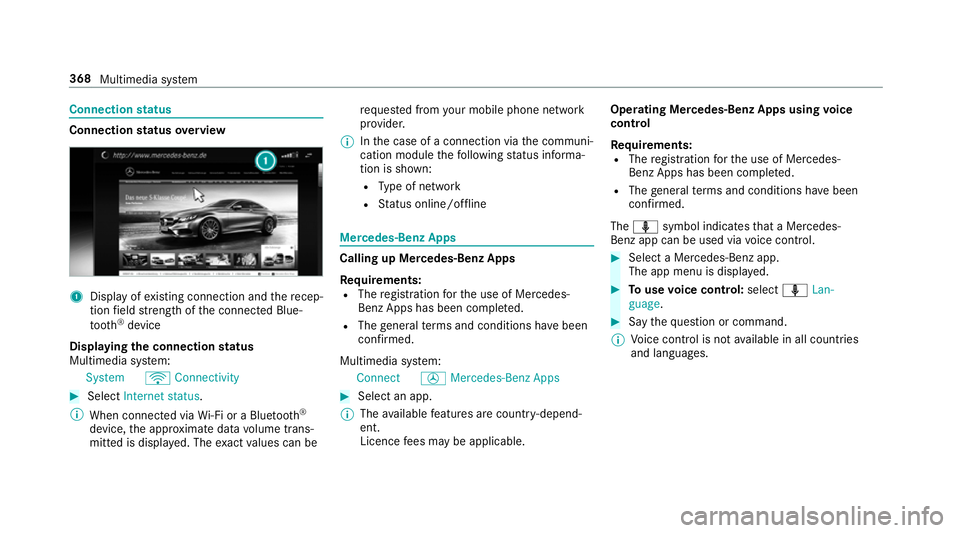
status overview 1
Display of existing connection and there cep‐
tion field stre ngth of the connected Blue‐
tooth ®
device
Displaying the connection status
Multimedia sy stem:
System öConnectivity #
Select Internet status .
% When connected via Wi-Fi or a Blu etoo th®
device, the appr oximate data volume trans‐
mit ted is displa yed. The exact values can be re
qu ested from your mobile phone network
pr ov ider.
% Inthe case of a connection via the communi‐
cation module thefo llowing status informa‐
tion is shown:
R Type of network
R Status online/of fline Mercedes-Benz Apps
Calling up Mercedes-Benz Apps
Re
quirements:
R The registration forth e use of Mercedes-
Benz Apps has been comple ted.
R The general term s and conditions ha vebeen
con firm ed.
Multimedia sy stem:
Connect ÚMercedes-Benz Apps #
Select an app.
% The available features are countr y-depend‐
ent.
Licence fees may be applicable. Operating Mercedes-Benz Apps using
voice
control
Re quirements:
R The registration forth e use of Mercedes-
Benz Apps has been comple ted.
R The general term s and conditions ha vebeen
con firm ed.
The o symbol indicates that a Mercedes-
Benz app can be used via voice control. #
Select a Mercedes-Benz app.
The app menu is displa yed. #
Touse voice control: selectoLan-
guage. #
Say thequ estion or command.
% Voice control is not available in all countries
and languages. 368
Multimedia sy stem
Page 374 of 593
Internet
radio Calling up In
ternetradio
Re quirements:
R There is an account on http://
www.me rcedes.me.
R The Internet radio service is activated.
R The data volume is available.
Depending on the count ry, data volume may
need tobe pur chased.
R Afast Internet connection for data transmis‐
sion free of inter fere nce.
The services are countr y-dependent.
Fo r more information, consult a Mercedes-
Benz service centre.
Multimedia sy stem:
Radio ÞRadio source #
Select TuneIn radio.
The Internet radio display appears. The last
st ation set starts playing.
% The connection quality depends on the local
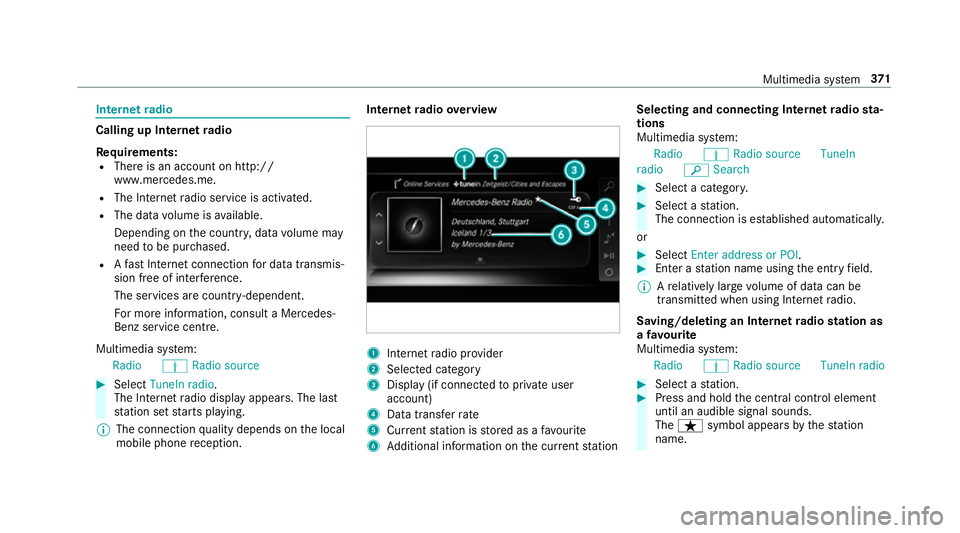
mobile phone reception. In
tern etradio overview 1
Inte rn et radio pr ovider
2 Selec ted category
3 Display (if connec tedto private user
account)
4 Data transfer rate
5 Current station is stored as a favo urite
6 Additional information on the cur rent station Selecting and connecting Internet
radio sta‐
tions
Multimedia sy stem:
Radio ÞRadio source TuneIn
radio èSearch #
Select a categor y. #
Select a station.
The connection is es tablished automaticall y.
or #
Select Enter address or POI. #
Enter a station name using the entry field.
% Arelatively lar gevolume of data can be
transmitte d when using Internet radio.
Saving/deleting an Internet radio station as
a fa vo urite
Multimedia sy stem:
Radio ÞRadio source TuneIn radio #
Select a station. #
Press and hold the cent ral control element
until an audible signal sounds.
The ß symbol appears bythest ation
name. Multimedia sy
stem 371
Page 379 of 593
Connecting USB devices
* NO
TEDama gecaused byhigh temp era‐
tures High
temp eratures can damage USB devices. #
Remo vethe USB device af ter use and
ta ke it out of theve hicle. The multimedia connection unit is
found in the
stow age compartment under the armrest and
has two USB ports.
Depending on theve hicle's equipment, addi‐
tional USB ports can be found in thestow age
compartment of the cent reconsole and in the
re ar passenger compartment. #
Connect the USB device tothe USB port.
Pla yable music files are pla yed back only if
th e cor responding media display is activated.
% Use the USB port identified byç touse
Apple CarPlay™ and Android Auto.
% Depending on theve hicle equipment there is
an additional USB port in there ar passenger
compartment. Ports th at are labelled with a bat
tery symbol can only be used tocharge
USB devices.
Selecting a track in the media playba ck
Multimedia sy stem:
Media
Selecting a track byskipping toa track #
Toskip backwards or forw ards toa
track: navigate up or down.
Selecting a track using the cur rent track list #
Select è. #
Select Current track list. #
Select a tra ck.
Selecting playback options
Multimedia sy stem:
Media ZOptions
Playing back similar trac ks #
Select Play similar tracks.
A track li stwith similar trac ksis created and
pla yed bac k. Playback mode #
Select Random playback of the current track
list.
The cur rent track li stis pla yed in random
orde r. #
Select Random playback of the current
medium.
All trac kson the active data storage medium
are pla yed in random orde r. #
Select Normal track sequence .
The cur rent track li stis pla yed in the order it
appears on the data storage medium.
Controlling media playback
Multimedia sy stem:
Media YPlayback control
A bar with playback controls is shown. #
Topause playback: select and confirm
Y with th e cent ral control element.
The Ë symbol is displa yed. #
Toresume playback: select and confirm
Y again with the cent ral control element.
The Ì symbol is displa yed. 376
Multimedia sy stem
Page 388 of 593
Ra
dio Switching on the
radio Multimedia sy
stem:
Radio #
Alternatively: press the$ button.
The radio display appears. You will hear the
last station pla yed on the last frequency
band selected. Multimedia sy
stem 385
Page 391 of 593
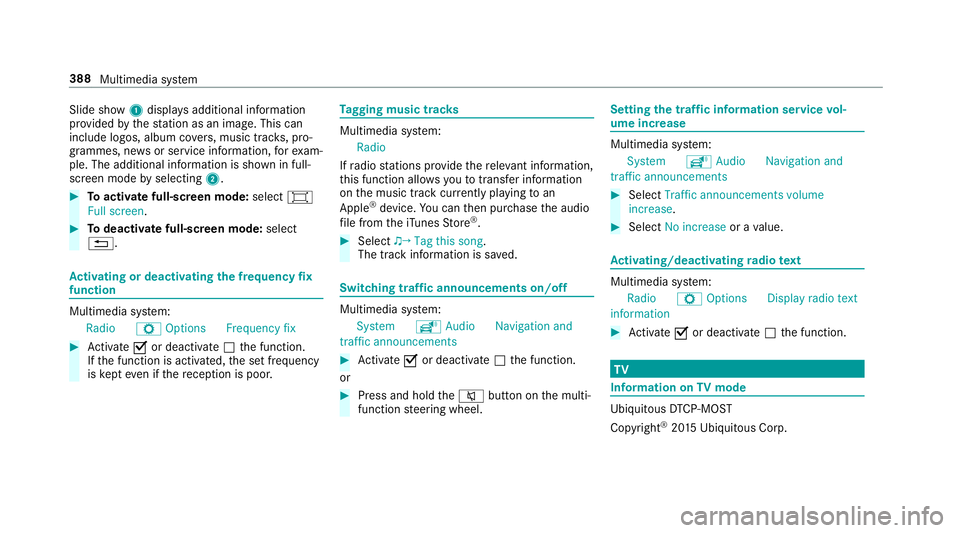
Slide show
1displ ays additional information
pr ov ided bythest ation as an image. This can
include logos, album co vers, music trac ks, pro‐
grammes, ne wsor service information, forex am‐
ple. The additional information is shown in full-
sc reen mode byselecting 2. #
Toactivate full-screen mode: select#
Full screen. #
Todeactivate full-sc reen mode: select
%. Ac
tivating or deactivating the frequency fix
function Multimedia sy
stem:
Radio ZOption sFrequency fix #
Activate Oor deacti vate ª the function.
If th e function is activated, the set frequency
is ke pt eve n ifthere ception is poo r. Ta
gging music trac ks Multimedia sy
stem:
Radio
If ra dio stations pr ovide there leva nt information,
th is function allo wsyouto trans fer information
on the music track cur rently pl aying toan
Apple ®
device. You can then pur chase the audio
fi le from theiTunes Store ®
. #
Select ♫→ Tag this song.
The track information is sa ved. Switching traf
fic announcements on/off Multimedia sy
stem:
System õAudio Navigation and
traffic announcements #
Activate Oor deacti vate ª the function.
or #
Press and hold the8 button on the multi‐
function steering wheel. Setting
the traf fic information service vol‐
ume increase Multimedia sy
stem:
System õAudio Navigation and
traffic announcements #
Select Traffic announcements volume
increase. #
Select No increase or avalue. Ac
tivating/deactivating radio text Multimedia sy
stem:
Radio ZOption sDisplay radio text
information #
Activate Oor deacti vate ª the function. TV
Information on
TVmode Ubiquito
usDTCP-MOST
Copyright ®
20 15 Ubiquitous Corp. 388
Multimedia sy stem
Page 396 of 593
#
Press theD button on theto uchpad.
The media menu is called up. #
Navigate up or down.
The next or pr evious TVchannel is selec ted.
Displaying cur rent prog ramme in form ation
fo r the selected channel (EPG)
Multimedia sy stem:
Media àMedia sour-
ces TV ZOptions #
Select Electronic Program Guide.
EPG displa ys thefo llowing information (if
av ailable):
R broadcast times
R names of the cur rent and upcoming pro‐
grammes #
Select programme information and confirm.
The de tails are displa yed. #
Toscroll: swipe up or down on theto uch‐
pad. #
Toexitth e detailed displa y:press the%
button. Fu
nction of thech annel fix setting
Channel fix is switched on
The channel is not changed. This is useful if, for
ex ample, you drive theve hicle thro ugh reception
re gions that ove rlap. It pr events frequent switch‐
ing ba ckand forth between channels.
The FIXindicator is displa yed af terth e name of
th eTV channel.
Channel fix is switched off
Depending on reception qualit y,theTV tuner
au tomatical lyswitches toan alternative channel
with the same programme conte nt but better
re ception. Using this function, the best possible
te levision picture can be found, rega rdless of the
re ception qualit y.
Ac tivating/deactivating channel fix
Multimedia sy stem:
Media àMedia sour-
ces TV ZOptions #
Switch Channel fix onO or off ª. Channel list
overview The
TVtuner sho wsthe cur rent programme on
th e digital TVchannels or radio stations with
adequate reception in its ownch annel list.
The order of thech annel lists is alphabetical or
countr y-specific.
The TVtuner requ ires a short amount of time to
update the information.
The channel lists show thefo llowing information:
R recei vable channel names
R programme title
The information is shown under thefo llowing
conditions:
R it is broadcast bythe digital channel
R there ception conditions are adequate Favo
urites Overview of
TVprog rammes (f avourites)
Yo u can create a total of 40 digital TVchannel
fa vo urites. Multimedia sy
stem 393
Page 403 of 593

ASS
YST PLUS se rvice inter val display Fu
nction of the ASS YST PLUS se rvice inter val
displ ay The ASS
YST PLUS service inter val display on the
instrument display pr ovides information on the
re maining time or dis tance be fore the next
service due date.
Yo u can hide this service message using the
back button on the left-hand side of thesteering
wheel.
Depending on how theve hicle is used, the
ASS YST PLUS service inter val display may
shor tenth e service inter val, e.g. in thefo llowing
cases:
R mainly short-dis tance driving
R when the engine is of ten le ftidling for long
periods
R intheeve nt of frequent cold start phases
R Vehicles with a diesel particulate filter: in
th eev ent of frequently inter rupted rege nera‐
tion of the diesel particulate filter Mercedes-Benz
recommends avoiding such
operating conditions.
Yo u can obtain fur ther information concerning
th e servicing of your vehicle from a qualified
specialist workshop, e.g. a Mercedes-Benz
Service Centre. Displaying
the service due da te On-board computer:
Service ASSYST PLUS
The next service due date is displa yed. #
Toexitth e displa y:press the back button
on the left-hand side of thesteering wheel.
Make sure toobser vethefo llowing fur ther rela‐
te d subjec t:
R Operating the on-board computer
(→ page 262). Information on
regular maintenance work *
NO
TEPremature wearthro ugh failure to
obser veservice due dates Service
workwhich is not car ried out at the
ri ght time or incomple tely can lead to
inc reased wear and damage totheve hicle. #
Alw ays obser vethe prescribed service
inter vals. #
Alw ays ha vethe prescribed service
wo rkcar ried out at a qualified specialist
wo rkshop. Special service
requ irements The prescribed service inter
val is based on nor‐
mal operation of theve hicle. Maintenance work
will need tobe per form ed more of ten if theve hi‐
cle is operated under arduous conditions or
increased loads.
The ASS YST PLUS service inter val display is only
an aid. The driver of theve hicle bears responsi‐
bility as rega rdsto whe ther maintenance work
needs tobe per form ed more of tenth an speci‐ 400
Maintenance and care