navigation MERCEDES-BENZ E-CLASS ESTATE 2017 User Guide
[x] Cancel search | Manufacturer: MERCEDES-BENZ, Model Year: 2017, Model line: E-CLASS ESTATE, Model: MERCEDES-BENZ E-CLASS ESTATE 2017Pages: 585, PDF Size: 11.8 MB
Page 280 of 585
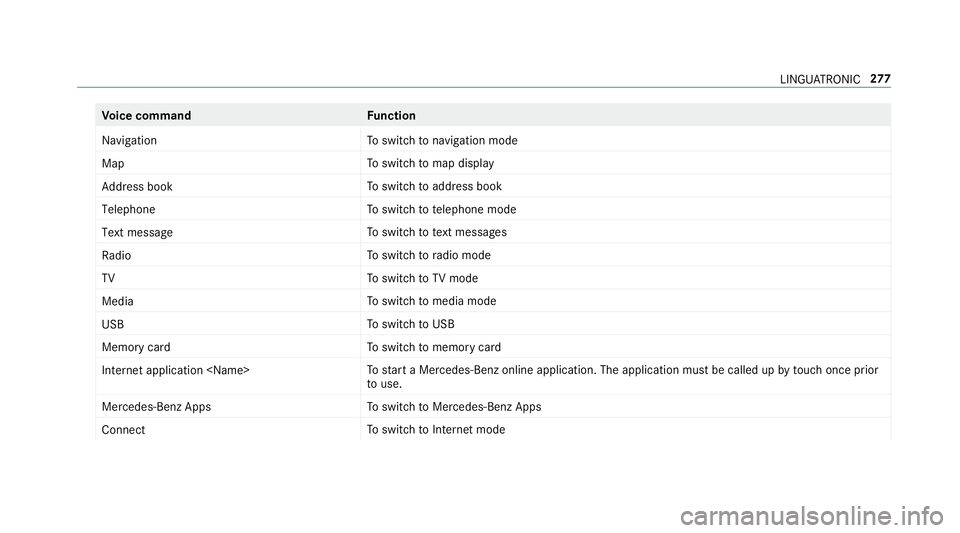
Vo
ice command Function
Navigation To
switc hton avigation mode
Map To
switc htom ap display
Address book To
switc htoa ddress book
Telephone To
switc htot elephone mode
Text message To
switc htot extm essa ges
Radio To
switc htor adio mode
TV To
switc htoTVm ode
Media To
switc htom edia mode
USB To
switc htoU SB
Memory card To
switc htom emorycard
Internet application
star taM ercedes-Ben zonline application. The applicatio nmustbec alledupbyt ouchoncep rior
to use.
Mercedes-Ben zApps To
switc htoM ercedes-BenzA pps
Connect To
switc htoInterne tmode LINGU
ATRO NIC 277
Page 281 of 585
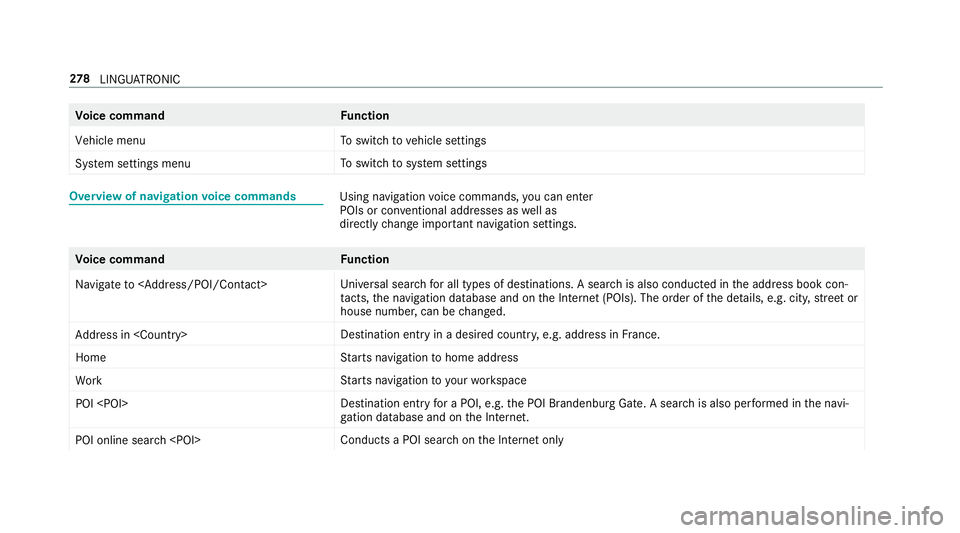
Vo
ice command Function
Vehicle menu To
switc htov ehicle settings
System settings menu To
switc htos ystems ettings Overvie
wofnavigation voice commands Usin
gnavigation voice commands, youc an en ter
POIs or con ventional addresses as well as
directly chang eimp ortant navigation settings. Vo
ice command Function
Navigate to
versal sear chfora ll types of destinations. Asearc hisa lsoc onducted in thea ddress book con‐
ta cts, then avigation database and on theI nterne t(POIs). The order of thed etails, e.g. cit y,stre et or
house number ,can be changed.
Addres sin
stination ent ryinad esired countr y,e.g. address in France.
Home St
arts navigatio ntohome address
Work St
arts navigatio ntoyourworkspace
POI
yfor aP OI, e.g. theP OI Brandenbur gGate. Asear chis also per form ed in then avi‐
ga tio nd atabas eand on theI nternet.
POI online search
saPOI sear chon theI nterne tonly 278
LINGU ATRO NIC
Page 294 of 585
5
Ø button
To setv ehicle functions #
Alternatively: press the© button on the
controller ,the touchpad or theT ouc hCon‐
trol.
The main function saredispl ayed. #
Select them ain function.
Calling up lists and menus on them ultimedia
sy stem
Call up alist #
Call up amain function (→ page290). #
Toopen alist: swipe lef tonthetouchpad. #
Toclose alist: swipe right on thet ouchpad. #
Toselect amenu item: swipe up or down
on thet ouchpad. #
Press thet ouchpad. Favo
urites Overvie
woffavourites
Fa vourites of fery ou quicka ccess tofrequently
use dapplications. It is possible tocrea te20
fa vo urites in tota l.
The following function sareavailable:
R add pre-defined favo urites fromthef ollow‐
ing categories (→ page291):
- Navigation
- Entertainment
- Telephone
- Connect
- Vehicle
- System settings
R add your ow nfavourites (→pag e291).
R renam eafavourite(→pag e292).
R moveafavo urite(→pag e292).
R dele teafavo urite(→pag e292).
R rese ta llfa vo urites (→ page292). Calling up
favo urites #
Press the© button.
The main function saredispla yed. #
Navigat edownwards once.
Na vigating means:
R Swiping on Touc hC ontrol or thet ouch‐
pad
R Sliding thec ontroller
Leaving thef avourites menu #
Press the© button.
Ad ding afavourite
Ad ding apre-de fined favo urite #
Press the© button.
The main function saredispla yed. #
Navigat edownwards twice.
The Favourites men uappears. #
Select New favourite.
The categories ar edispl ayed. #
Select acategor y.
The favo urites ar edispl ayed. #
Select afavo urite. Multimedia sy
stem 291
Page 296 of 585
#
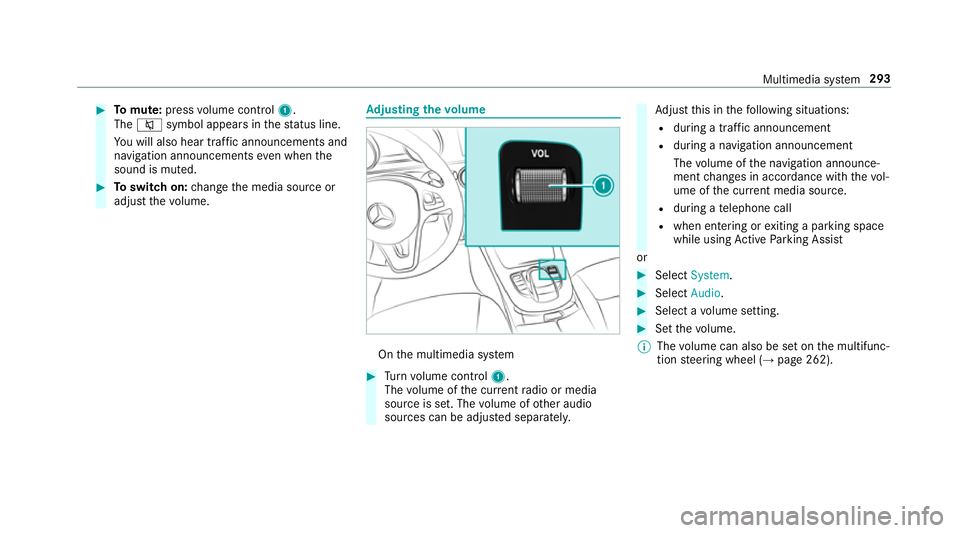
Tomute: pressvolume control 1.
The 8 symbol appear sinthestatus line.
Yo uw ill also hear traf fica nnouncements and
navigation announcements even when the
sound is muted. #
Toswitc hon:chang ethe media source or
adjus tthe volume. Ad
justin gthe volume On
them ultimedia sy stem #
Turn volume control 1.
The volume of thec urrent radio or media
source is set. The volume of other audio
sources can be adjus teds eparatel y. Ad
jus tthis in thef ollowing situations:
R during atraf fica nnouncement
R during anavigation announcement
The volume of then avigation announce‐
ment changes in accordanc ewitht he vol‐
ume of thec urrent media sou rce.
R during atelephone call
R when entering or exitin gap arkin gspace
while using ActiveP arking Assist
or #
Select System. #
Select Audio. #
Selec tavolume setting. #
Setthe volume.
% The volume can also be se tonthe multifunc‐
tion steering wheel (→ page262). Multimedia sy
stem 293
Page 298 of 585
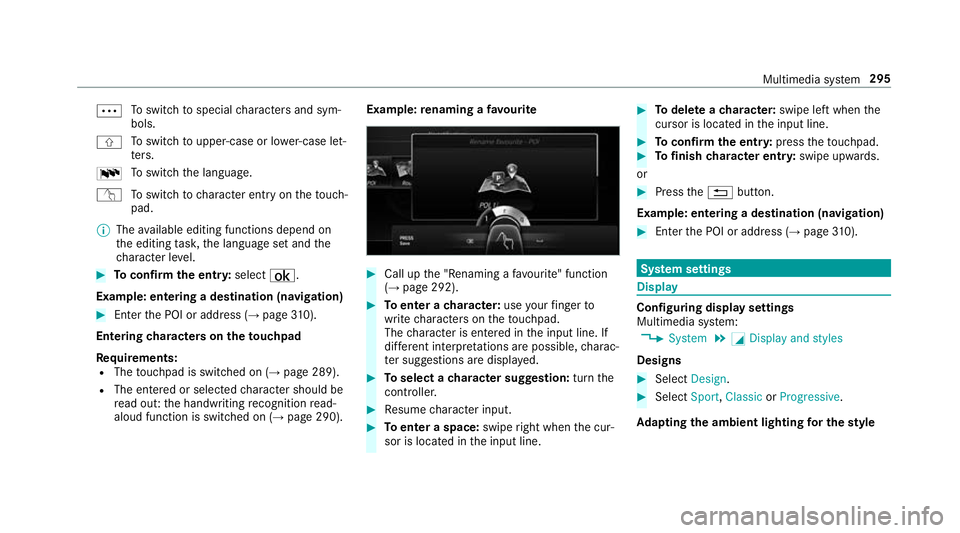
Ä
To
switc htos pecial character sand sym‐
bols.
X To
switc htou pper-case or lo wer-case let‐
te rs.
B To
switc hthe language.
v Toswitc htoc haracter entr yonthetouch‐
pad.
% The available editing function sdepen don
th ee diting task ,the languag esetand the
ch aracter le vel. #
Toconfir mthe ent ry:select ¡.
Example: entering adestination (navigation) #
Enter theP OI or address (→ page310).
Entering character sonthetouchpad
Re quirements:
R The touchpad is swit ched on (→ page289).
R The entered or selected character shoul dbe
re ad out :the handwriting recognition read-
aloud function is swit ched on (→ page290). Example:
renaming afavo urite #
Call up the" Renaming afavo urite" function
(→ pag e292). #
Toenter acharacter: useyour finger to
writ echaracter sonthetouchpad.
The character is entered in thei np ut line. If
dif fere nt interpr etations ar epossible, charac‐
te rs uggestions ar edispla yed. #
Toselect acharacter suggestion: turnthe
controller. #
Resume character input. #
Toenter aspace: swiperight when thec ur‐
sor is located in thei np ut line. #
Todel eteac haracter: swipe leftwhent he
cursor is loc ated in thei np ut line. #
Toconfir mthe ent ry:press thet ouchpad. #
Tofinish character entr y:swipe upwards.
or #
Press the% button.
Example: entering adestination (navigation) #
Ente rthe POI or address (→ page310). Sy
stem settings Display
Configuring displa
ysettings
Multimedia sy stem:
, System .
G Display and styles
Designs #
Select Design. #
Select Sport,Classic orProgressive.
Ad apting thea mb ient lighting fort he style Multimedia sy
stem 295
Page 299 of 585
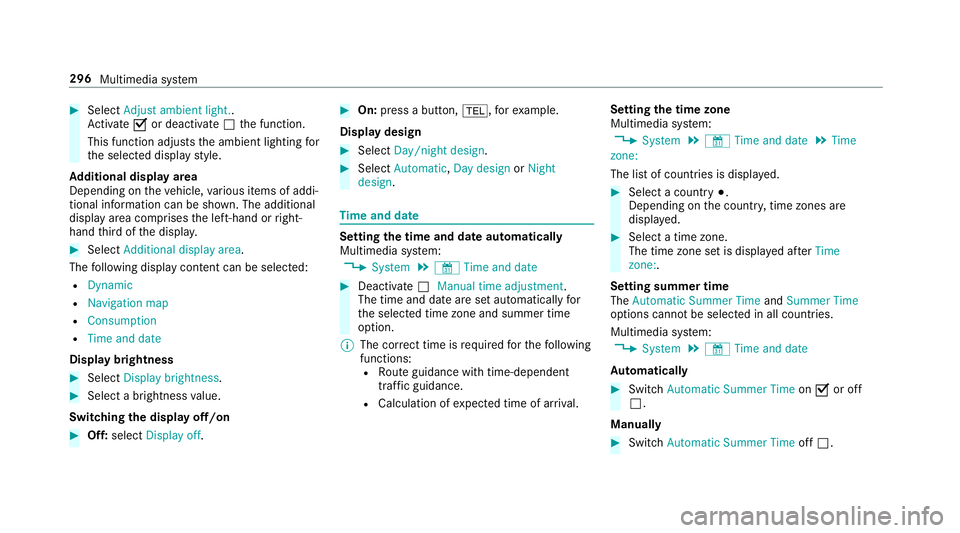
#
Select Adjust ambient light. .
Ac tivate Oor deacti vate ª thef unction.
This function adjusts thea mbient lighting for
th es elected displa ystyle.
Ad ditional displ ayarea
Depending on thev ehicle, various items of addi‐
tional information can be shown. The additional
displa yareac omprises thel eft-hand or right-
hand thirdoft he displa y. #
Select Additiona ldisplay area .
The following displa ycontent can be selected:
R Dynamic
R Navigation map
R Consumption
R Time and date
Displ aybrightness #
Select Display brightness .#
Select abrightness value.
Switching thed ispla yoff/on #
Off: select Display off . #
On: press abutton, %,f orexample.
Displ aydesign #
Select Day/nigh tdesign. #
Select Automatic, Day design orNight
design. Time and date
Setting the time and dat
eautomatical ly
Multimedia sy stem:
, System .
& Time and date #
Deactivate ªManual time adjustment.
The time and dat eareseta utomaticall yfor
th es elected time zonea nd summer time
option.
% The cor rect time is requ ired fort he following
functions: R Routeg uidance wit htime-dependent
traf ficg uida nce.
R Calculation of expected time of ar riva l. Setting
thet imez one
Multimedia sy stem:
, System .
& Time and date .
Time
zone:
The lis tofcountries is displa yed. #
Select acount ry#.
Depending on thec ount ry,t ime zones are
displa yed. #
Select atime zone.
The time zon esetis displa yeda fter Time
zone:.
Settin gsummer time
The Automatic Summer Time andSummer Time
options canno tbeselected in all countries.
Multimedi asystem:
, System .
& Time and date
Au tomatically #
Switch Automatic Summer Time onO or off
ª.
Manual ly #
Switch Automati cSummer Time offª. 296
Multimedia sy stem
Page 304 of 585
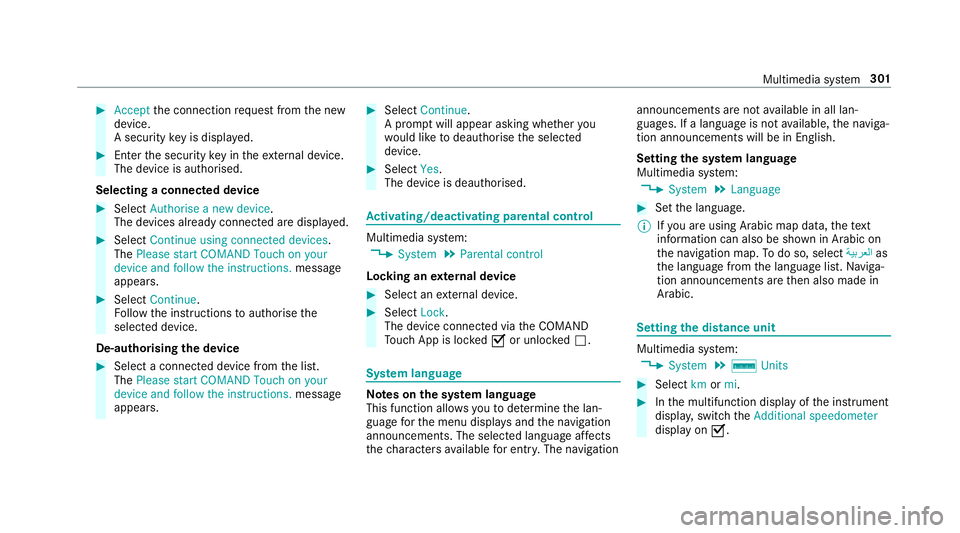
#
Accept thec onnection requ estfromt he new
device.
As ecurity keyisd isplayed. #
Ente rthe security keyint he extern al device.
The devic eisauthorised.
Selecting aconnected device #
Select Authorise anew device.
The devices already connec teda redispla yed. #
Select Continue using connected devices.
The Please start COMAND Touch on your
device and follow the instructions. message
appears. #
Select Continue.
Fo llowt he instructions toauthorise the
selected device.
De-authorising thed evice #
Select aconnec tedd evice from thel ist.
The Please start COMAND Touch on your
device and follow the instructions. message
appears. #
Select Continue.
Ap romp twill appear asking whe ther you
wo uld lik etodeauthorise thes elected
device. #
Select Yes.
The device is deauthorised. Ac
tivating/deactivatin gparenta lcon trol Multimedia sy
stem:
, System .
Parental control
Locking an extern al device #
Select an extern al device. #
Select Lock.
The devic econnec tedv iatheC OMAND
To uc hA ppis loc kedOor unloc kedª. Sy
stem language Note
sont he system language
This function allo wsyoutod etermine thel an‐
guag efor them enu displa ysand then avigation
announcements. The selected languag eaffects
th ec haracter savailable fore ntr y.The navigation announcement
sarenota vailable in all lan‐
guages. If alanguag eisnotavailable, then aviga‐
tion announcements will be in Engl ish.
Setting thes ysteml anguage
Multimedia sy stem:
, System .
Language #
Setthe language.
% Ifyo ua reusin gArabic map data, thet ext
information can also be shown in Arabic on
th en avigation map. Todo so, select ةيبرعلاas
th el anguag efromt he languag elist. Naviga‐
tion announcements ar ethen also made in
Arabic. Setting
thed istance unit Multimedia sy
stem:
, System .
% Units #
Select kmormi. #
Inthem ultifunction displa yofthe instrument
displa y,switc hthe Additional speedometer
displa yonO. Multimedia sy
stem 301
Page 307 of 585
R
settings in theTVt uner's channel list
R Navigation and traf fici nformation
The settings di ffer depending on thev ehicle
equipment.
Importing/exporting user profiles
Requ irements:
R Ther eisanI nternetconnection .
R AM ercedes me account exists at http://
www.me rcedes.me.
R The Personalisation service is active.
Multimedia sy stem:
, System .
g Personalisation .
Man-
ual export/import
This function is no tavailable in all countries.
On lyindividual profiles can be impor tedor
ex por ted.
The individual profiles ar ealway sc ollectively
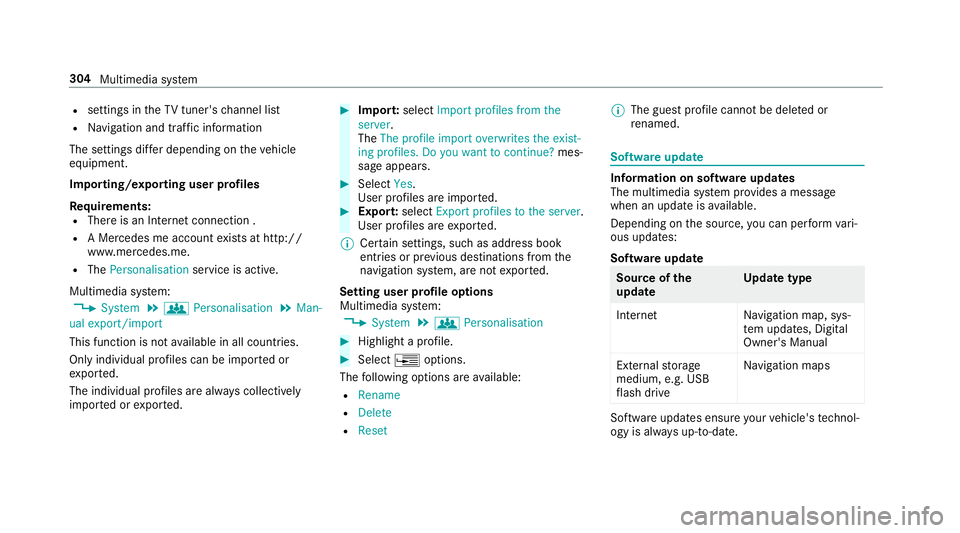
impor tedore xported. #
Impor t:select Import profiles from the
server.
The The profile import overwrites the exist-
ing profiles. Do you want to continue? mes‐
sag eappears. #
Select Yes.
Use rprofile sa reimpor ted. #
Expor t:select Export profiles to the server.
User profiles ar eexpo rted.
% Certain settings ,suc hasa ddress book
ent ries or pr evious destination sfromt he
navigation sy stem, ar enot ex ported.
Setting user profile options
Multimedia sy stem:
, System .
g Personalisation #
Highlight aprofile. #
Select ¥options.
The following option sareavailable:
R Rename
R Delete
R Reset %
The gues tprofile canno tbedeletedor
re named. So
ftwa reupdate Information on softwar
eupdates
The multimedi asystemp rovide sam essage
when an updat eisavailable.
Dependin gonthe source, youc an per form vari‐
ous updates:
Softwar eupdate Source of
the
update Up
dat etype
Interne tN avigation map, sys‐
te mu pdates, Digital
Owner's Manual
External storage
medium, e.g. USB
fl ash drive Na
vigation maps Softwar
eupdates ensur eyour vehicle's tech nol‐
ogy is al ways up-to-date. 304
Multimedia sy stem
Page 312 of 585
Na
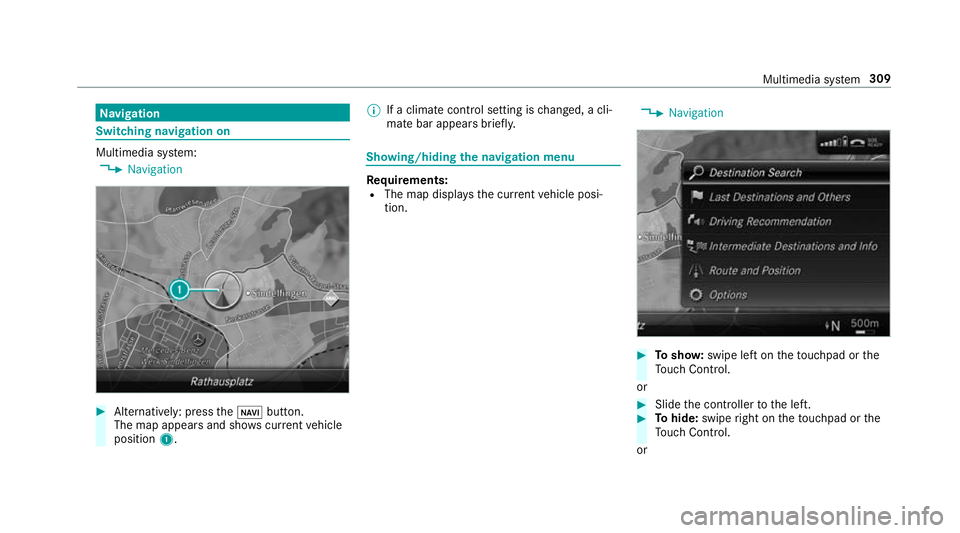
vigation Switching navigation on
Multimedia sy
stem:
, Navigation #
Alternatively: press theß button.
The map appear sand sho wscurrent vehicle
position 1. %
Ifac limat econt rols etting is changed, acli‐
mat ebar appear sbrief ly. Showing/hiding
then avigation menu Re
quirements:
R The map displa ys thecurrent vehicle posi‐
tion. ,
Navigation #
Tosho w:swipe lef tonthetouchpad or the
To uc hC ontrol.
or #
Slid ethe controller tothel eft. #
Tohide: swipe right on thet ouchpad or the
To uc hC ontrol.
or Multimedia sy
stem 309
Page 313 of 585
#
Slide thec ontroller tother ight.
% Tosho worh ide lowerm enu le vels, swipe or
slide tothel eftorr ight as man ytimes as
necessar y. Destination ent
ryEntering
aPOI or address
Multimedia sy stem:
, Navigation #
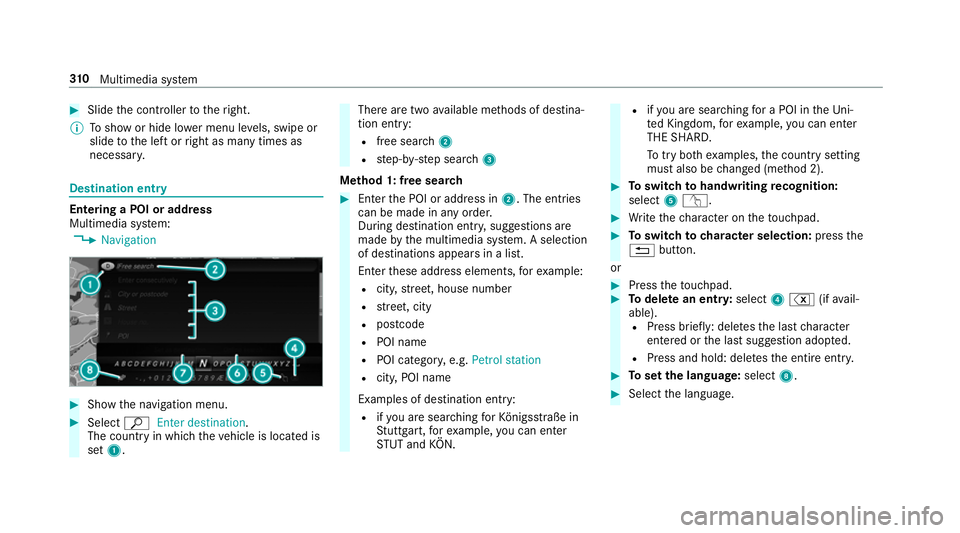
Sho wthe navigation menu. #
Select ªEnter destination .
The countr yinwhichthe vehicle is located is
set 1. Ther
earetwoa vailable me thods of destina‐
tion entry:
R free sear ch2
R step-b y-step sear ch3
Me thod 1: free sear ch #
Enter theP OI or address in 2.The entri es
can be made in an yorder.
During destination entry ,suggestion sare
made bythem ultimedia sy stem. Aselection
of destinations appear sinalist.
Ente rthese address elements, fore xamp le:
R city,stre et,h ouse number
R stre et,c ity
R postcode
R POI name
R POI categor y,e.g. Petrol station
R city,POI name
Examples of destination entry: R ifyo ua resear ching forK önigsstraße in
St utt gart,f or example, youc an en ter
ST UT and KÖN. R
ifyo ua resear ching foraP OI in theU ni‐
te dK ingdom ,for example, youc an en ter
THE SHARD.
To tryb othe xamp les,thec ount rysetting
mus talso be changed (me thod 2). #
Toswitc htoh andwriting recognition:
select 5v. #
Writet he character on thet ouchpad. #
Toswitc htoc harac ters election: pressthe
% button.
or #
Press thet ouchpad. #
Todel eteane ntry:select 4% (ifavail‐
able). R Press brief ly:delet es thel astc haracter
entered or thel asts uggestion adop ted.
R Press and hold: dele test he entir eentry. #
Tosetthe language: select8. #
Select thel anguage. 310
Multimedia sy stem