navigation system MERCEDES-BENZ E-CLASS ESTATE 2017 User Guide
[x] Cancel search | Manufacturer: MERCEDES-BENZ, Model Year: 2017, Model line: E-CLASS ESTATE, Model: MERCEDES-BENZ E-CLASS ESTATE 2017Pages: 585, PDF Size: 11.8 MB
Page 319 of 585
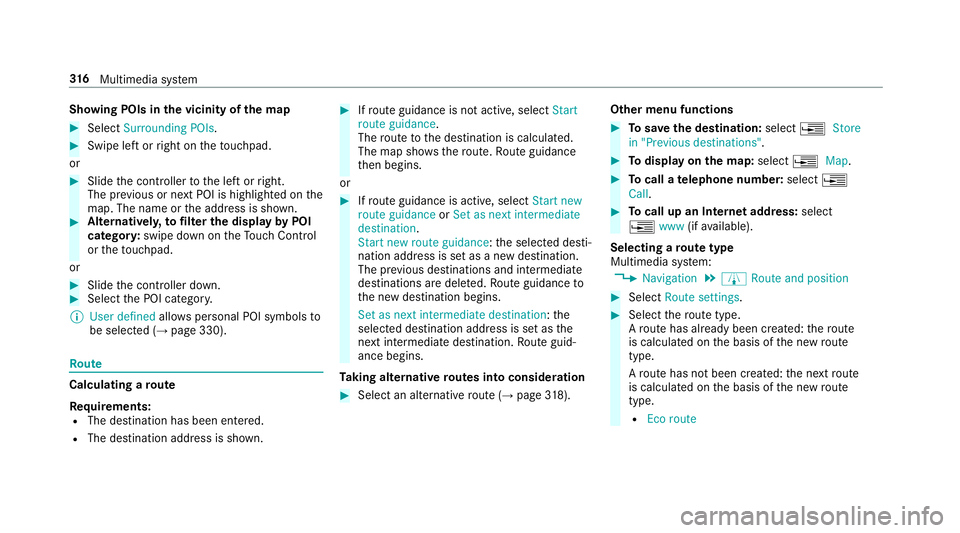
Showing POIs in
thev icinit yoft he map #
Select Surroundin gPOIs . #
Swipe lef torright on thet ouchpad.
or #
Slide thec ontroller tothel eftorr ight.
The pr evious or next POI is highligh tedont he
map. The name or thea ddress is shown. #
Alternativel y,to filter th edispla ybyP OI
categor y:swipe down on theT ouc hControl
or thet ouchpad.
or #
Slide thec ontroller down. #
Select theP OI categor y.
% User defined allowspersonal POI symbols to
be selected (→ page330). Ro
ute Calculating
aroute
Re quirements:
R The destination has been entered.
R The destination address is shown. #
Ifro uteg uidance is no tactive, select Start
rout eguidance .
The routetot he destination is calculated.
The map sho ws theroute. Routeg uidance
th en begins.
or #
Ifro uteg uidance is active, select Start new
rout eguidance orSet as next intermediate
destination .
Start ne wrout eguidance:t he selected desti‐
nation address is se tasanewd estination.
The pr evious destination sand intermediate
destination saredele ted. Ro uteg uidance to
th en ew destination begins.
Set as nexti ntermediate destination :the
selected destination address is se tasthe
next intermediat edestination. Routeg uid‐
anc ebegins.
Ta king alternativ eroutes int oconside ration #
Select an al tern ativ erout e(→pag e318). Othe
rmenuf unctions #
Tosave thed estination: select¥Store
in "Previous destinations". #
Todispl ayon them ap:select ¥Map. #
Tocall atelephone number: select¥
Call . #
Tocall up an Interne taddress: select
¥ www(ifavailable).
Selecting arout etype
Multimedi asystem:
, Navigation .
À Route and position #
Select Route settings. #
Select ther out etype.
Ar out ehas already been created: ther oute
is calculated on theb asis of then ew route
type.
Ar out ehas no tbeen created: then extroute
is calculated on theb asis of then ew route
type.
R Ecor oute 316
Multimedia sy stem
Page 320 of 585
An economical
routeisc alculated. The
journe ytimem aybe som ewhat longer
th an forq uic kerroutes.
The symbol fort he cur rent vehicle posi‐
tion is displa yeding reen.
R Fast route
Arout ew ithaq uickjourne ytimeisc al‐
culated.
R Short route
Ar out ew ithas hortdriving dis tance is
calculated.
Automatic traffic jam avoidance can be
switched on Oor off ªfort hese route
types. If Automatic traffic jam avoidance is
swit ched on, Ask in the event of traffic jam
avoidance can be selected.
The routet ypes Automatic traffic jam avoid-
ance andAskint heevent of traffic jam
avoidance aren otavailable in everycountr y.
R Automatic traffic jam avoidance
The routeisc alculated wit hthe cur rently
se trout etype. Tr
af ficm essages via Liv eTraffic In form a‐
tion or FM RDS-TMC ar etaken in to
account.
Liv eT raffic In form ation and FM RDS-TMC
ar en otavailable in all countries.
R Askint heeven toft raffic jam avoidance
Ap romp tappear swhen anew routeis
de tected wi thas hor terj ourne ytime
base dont raffic reports. Youc an con‐
tinue touse thec urrent routeoru sethe
dynamic routei nstead.
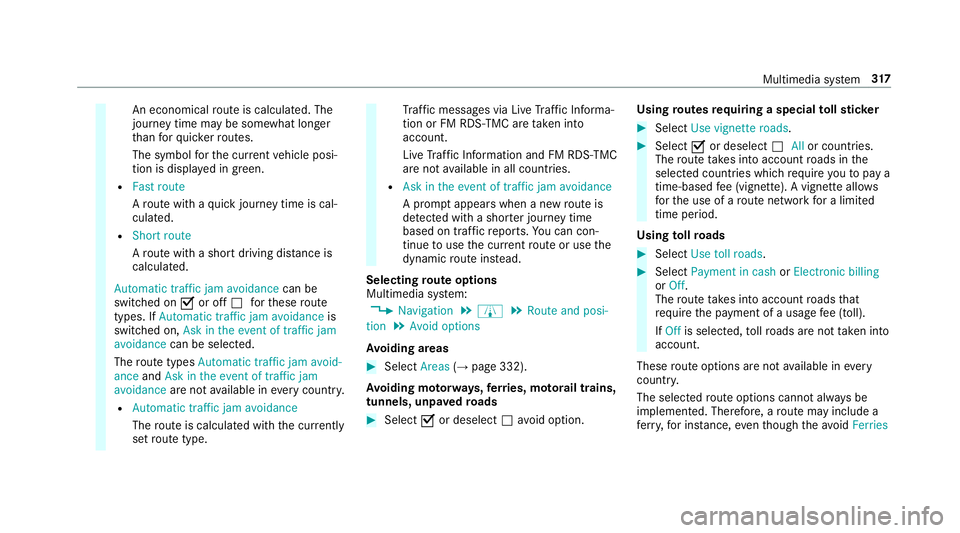
Selecting routeo ptions
Multimedi asystem:
, Navigation .
À .
Route and posi-
tion .
Avoid options
Av oiding areas #
Select Areas(→pag e332).
Av oiding mo torw ays, ferries, mo torail trains,
tunnels, unpa vedr oads #
Select Oor deselect ªavo id option. Using
routes requiring aspecial tollst icker #
Select Use vignette roads . #
Select Oor deselect ªAllor countries.
The routet akes int oaccount roads in the
selected countries whic hrequir eyou topaya
time-based fee( vignette). Avignett eallows
fo rt he use of arout enetwo rkforal imited
time pe riod.
Using tollro ads #
Select Use toll roads. #
Select Payment in cash orElectronic billing
or Off.
The routet akes int oaccount roads that
re qu iret he payment of ausag efee (toll).
If Off is selected, tollro ads ar enottake ni nto
account.
These routeo ptions ar enotavailable in every
countr y.
The selected routeo ptions canno talway sbe
implemented. Therefore, arout em ayinclude a
fe rry, fori ns tance, eventhough thea void Ferries Multimedia sy
stem 317
Page 324 of 585
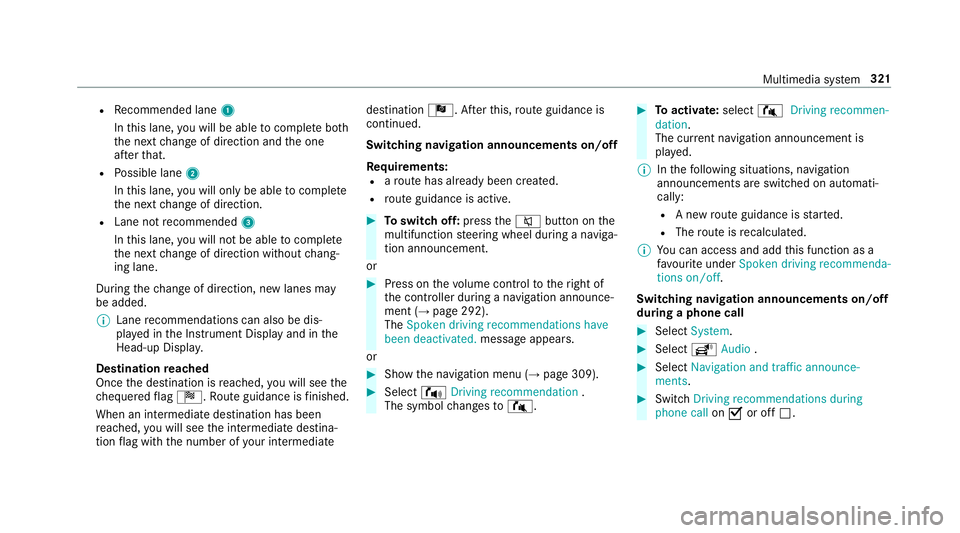
R
Recommended lane 1
In this lane, youw ill be able tocompl eteb oth
th en extc hang eofd irection and theo ne
af te rt hat.
R Possible lane 2
In this lane, youw ill on lybe able tocompl ete
th en extc hang eofd irection.
R Lan enotrecommended 3
In this lane, youw ill no tbea bletocompl ete
th en extc hang eofd irection without chang‐
ing lane.
During thec hang eofd irection ,new lane smay
be added.
% Lanerecommendations can also be dis‐
pla yedint he Instrument Displa yand in the
Head-up Displa y.
Destination reached
Once thed estination is reached, youw ill see the
ch equered flag Í.R outeguidance is finished.
Whe nani ntermedia tedestination has been
re ached, youw ill see thei ntermediat edestina‐
tion flag wit hthe number of your intermediate destination
Î.After this, routeg uidance is
continued.
Swit ching navigation announcement son/off
Re quirements:
R arout ehas already been created.
R routeg uidance is active. #
Toswitc hoff:press the8 button on the
multifunction steering wheel during anaviga‐
tion announcement.
or #
Press on thev olume control tother ight of
th ec ontroller during anavigation announce‐
ment (→ page292).
The Spoken driving recommendations have
been deactivated. messageappears.
or #
Sho wthe navigation menu (→ page309). #
Select !Drivingrecommendation .
The symbol changes to# . #
Toactivate: select#Driving recommen-
dation.
The cur rent navigation announcement is
pl ay ed.
% Inthef ollowing situations, navigation
announcements ar eswitched on automati‐
cally:
R Anew routeg uidance is star ted.
R The routeisr ecalculated.
% Youc an access and add this function as a
fa vo urit eunder Spoke ndriving recommenda-
tions on/off.
Swit ching navigation announcement son/off
during aphone call #
Select System. #
Select õAudio . #
Select Navigation and traffic announce-
ments. #
Swit chDriving recommendations during
phone call onO or off ª. Multimedia sy
stem 321
Page 325 of 585
Ad
justin gthe volum eofn avigation
announcements
Re quirements:
R arout ehas already been created.
R routeg uidance is active.
On them ultifunction steering wheel or on
th em ultimedia sy stem #
Press theW orX button on them ulti‐
function steering wheel during anavigation
announcement.
or #
Turn thev olume control tother ight of the
controller du ring anavigation announcement
(→ page 293).
% Inthef ollowing situations, thev olume is
ra ised tothem inimum volume or lo weredto
th em aximum volume:
R Anew routeg uidance is star ted.
R The routeisr ecalculated.
% The minimum volume can be individuall yset
at aM ercedes-Benz Service Cent re.Vi
as ystems ettings #
Select System. #
Select õAudio . #
Select Navigation and traffic announce-
ments. #
Select Drivingrecommendation volume. #
Setthe volume.
Switching audio fadeout on/o ffduring navi‐
ga tio na nnouncements #
Select System . #
Select õAudio . #
Select Navigation and traffic announce-
ments . #
Switch Audio fadeou tduring driving recom-
mendation onO or off ª.
Re peating navigatio nannouncements
Re quirements:
R arout ehas already been created.
R routeg uidance is active. Multimedia sy
stem:
, Navigation #
Select !Drivingrecommendation . #
Select #Drivingrecommendation .
The cur rent navigation announcement is
re peated.
% Youc an access and add this function as a
fa vo urit eunder Repeat spoken driving rec-
ommendation .
Cancelling rout eg uidance
Re quirements:
R arout ehas already been created.
R routeg uidance is active.
Multimedia sy stem:
, Navigation #
Select Cancel route guidance .
Continuing rout eg uidance
Re quirements:
R arout ehas already been created.
R routeg uidance is inter rupte d. 322
Multimedia sy stem
Page 326 of 585
%
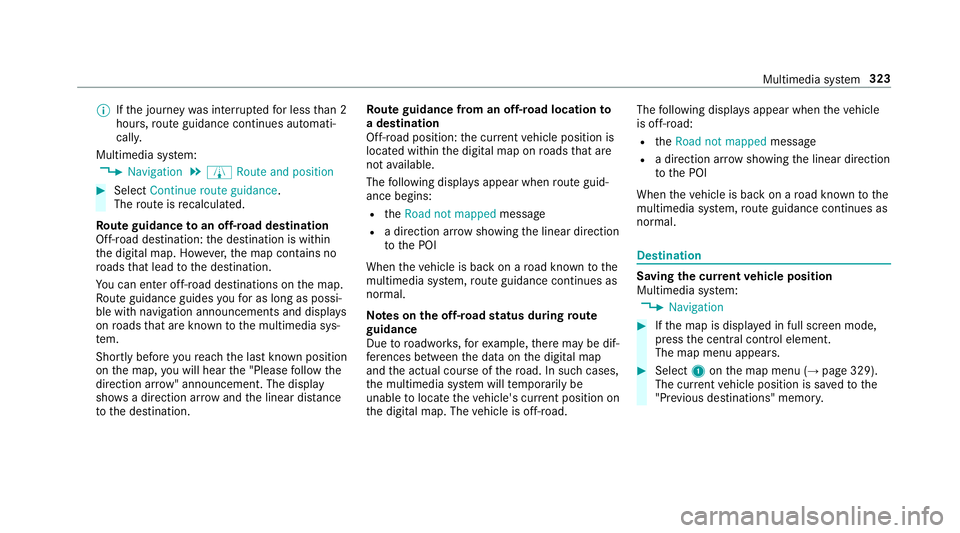
Ifth ej ourne ywas inter rupted forl ess than 2
hours, routeg uidance continue sautomati‐
call y.
Multimedia sy stem:
, Navigation .
À Route and position #
Select Continue route guidance .
The routeisr ecalculated.
Ro uteg uidanc etoano ff-road destination
Off-road destination: thed estination is within
th ed igital map. Ho wever,th em ap conta ins no
ro ads that lead tothed estination.
Yo uc an en tero ff-road destinations on them ap.
Ro uteg uidance guides youf or as long as possi‐
ble wit hnavigation announcements and displa ys
on roads that ar eknown tothem ultimedia sys‐
te m.
Shortly befor eyou reac ht he las tknown position
on them ap,youw ill hear the" Please follo wt he
direction ar row"announcement. The displ ay
sho wsadirection ar rowand thel inear dis tance
to thed estination. Ro
uteg uidanc efromano ff-road location to
ad estination
Off-road position: thec urrent vehicle position is
located within thed igital map on roads that are
no ta vailable.
The following displa ysappear when routeg uid‐
anc ebegins:
R the Road not mapped message
R adirection ar rows howing thel inear direction
to theP OI
When thev ehicle is bac konaroad known tothe
multimedia sy stem, routeg uidance continue sas
no rm al.
Note sont he off-road status during route
guidance
Due toroadwor ks,for example, ther em aybe dif‐
fe re nces betwee nthe dat aonthe digital map
and thea ctual course of ther oad. In suc hcases,
th em ultimedia sy stem will temp orarily be
unable tolocat ethe vehicle's cur rent positio non
th ed igital map. The vehicle is off-road. The
following displa ysappear when thev ehicle
is off-road:
R the Road not mapped message
R adirection ar rowshowing thel inear direction
to theP OI
When thev ehicle is bac konaroad known tothe
multimedia sy stem, routeg uidance continue sas
no rm al. Destination
Saving
thec urrent vehicl eposition
Multimedi asystem:
, Navigation #
Ifth em ap is displa yedinf ull screen mode,
press thec ent ralc ontrol element.
The map men uappears. #
Select 1onthem ap menu (→ page329).
The cur rent vehicle position is sa vedtot he
"Pr evious destinations" memo ry. Multimedia sy
stem 323
Page 337 of 585
Displaying
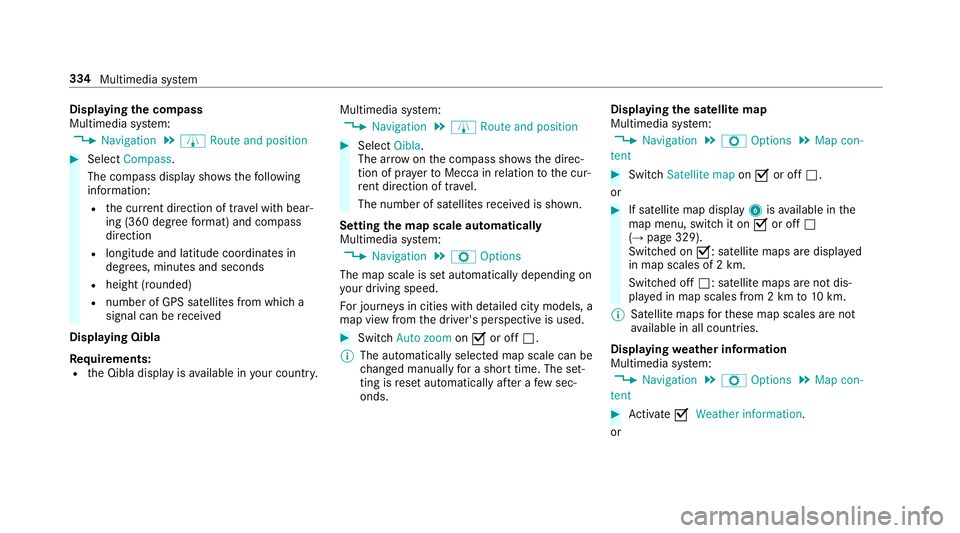
thec ompass
Multimedia sy stem:
, Navigation .
À Route and position #
Select Compass.
The compass displa yshows thef ollowing
information:
R thec urrent di rection of tr avelwithb ear‐
ing (360 deg reef ormat) and compass
direction
R longitude and latitudec oordinates in
degrees, minutes and seconds
R height (rounded)
R number of GPS satellites from whic ha
signal can be recei ved
Displaying Qibla
Requ irements:
R theQ ibla displa yisavailable in your count ry.Multimedia sy
stem:
, Navigation .
À Route and position #
Select Qibla.
The ar rowonthec ompass sho wsthed irec‐
tion of pr ayer toMecca in relation tothec ur‐
re nt di rection of tr avel.
The number of satellites recei vediss hown.
Setting them apscale automatically
Multimedia sy stem:
, Navigation .
Z Options
The map scale is se tautomaticall ydepending on
yo ur drivin gspeed.
Fo rjourne ysin cities wit hdetailed cit ymodels ,a
map vie wfromt he driver's perspectiv eisused. #
Switch Auto zoom onO or off ª.
% The automaticall yselected map scale can be
ch anged manuall yfor as hor ttime. The set‐
ting is rese ta utomatically af teraf ewsec‐
onds. Displaying
thes atellit emap
Multimedia sy stem:
, Navigation .
Z Options .
Map con-
tent #
Switch Satellitemapon O or off ª.
or #
If satellit emap display 6isavailable in the
map menu, switc hitonOor off ª
(→ pag e329).
Switched on O:satellit emaps ar edispla yed
in map scales of 2km.
Swit ched off ª:satellit emaps ar enotdis‐
pla yedinm ap scales from 2kmto10k m.
% Satelli temaps fort hese map scales ar enot
av ailable in all countries.
Displ aying weather information
Multimedi asystem:
, Navigation .
Z Options .
Map con-
tent #
Activate OWeather information.
or 334
Multimedia sy stem
Page 338 of 585
#
Ifwe ather information display 6isavailable
in them ap menu, activate O(→page329)
it.
Cur rent we ather information is displa yedon
th en avigation map, e.g. temp eratur eor
cloud co ver.
% Requirements:
R Youh ave aMercedes me account.
R The servic ehas been activated at a
Mercedes-Ben zServic eCentre.
Fu rther information can be found at :http://
www.mercedes.me
% Weather information is no tavailable in all
countries. Calling up
theD igital Owner' sManual (navi‐
ga tion) Calling up in
form ation on navigation
Multimedi asystem:
, Navigation .
Z Options .
Informa-
tion on navigation #
Select thet opic. Te
lephone Te
lephony Te
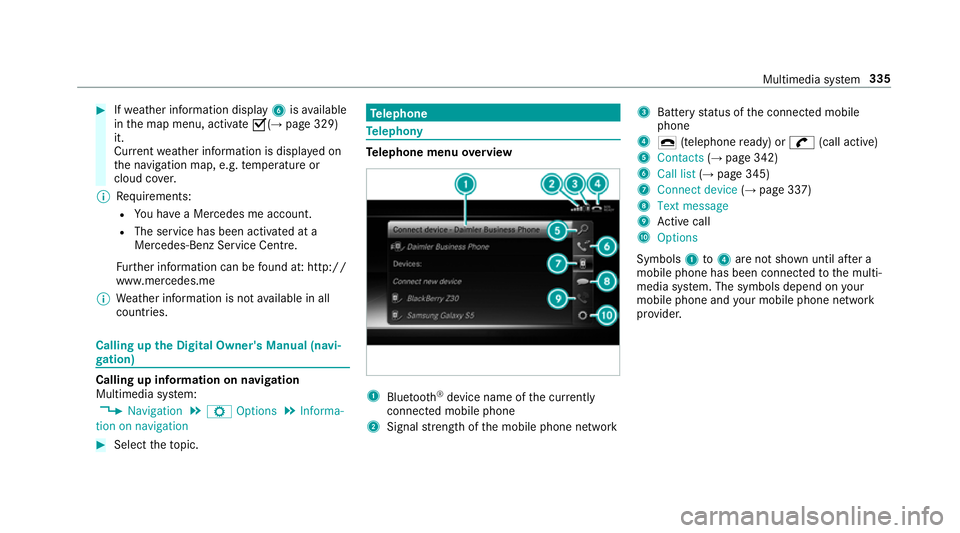
lephone menu overview 1
Blue tooth ®
device name of thec urrently
connected mobil ephone
2 Signal stre ngt hoft he mobile phone network 3
Batter ystatus of thec onnected mobile
phone
4 ¢ (telephone ready) or w(call active)
5 Contacts (→pag e342)
6 Call list (→pag e345)
7 Connec tdevice (→pag e337)
8 Textmessage
9 Activec all
A Options
Symbols 1to4 aren otshown until af tera
mobil ephone has been connected tothem ulti‐
media sy stem. The symbols depend on your
mobile phon eand your mobile phon enetwo rk
pr ov ider. Multimedia sy
stem 335
Page 346 of 585
If
am obilep hone is connected tothem ultimedia
sy stem (→ page337)and automatic calling up
(→ pag e343) is activated, them obile phone's
conta cts ar edispl ay ed in thea ddress book.
Downloading mobile phone contacts
Multimedia sy stem:
, Telephone .
Z Options
Au tomatically #
Activate OSynchronis econtacts automati-
cally.
Manual ly #
Deactivate ªSynchronis econtacts auto-
matically. #
Select Synchronis econtacts .
Callin gupc ontacts
Multimedia sy stem:
, Telephone .
ª Contacts
Depending on thec haracter set, thef ollowing
options can be used tosear chforc ontacts:
R sear ching byinitials
R sear ching byname R
searching byphone number #
Ente rcharacter sintot he sear chfield.
As election of possible conta cts appears.
Entering mor echaracter sintot he sear ch
fi eld nar rows down then umber of possible
selections. #
Select thec ontact.
Ac ontact can contai nthe following de tails:
R phon enumbers
R navigation addresses
R geo-coordinates
R Interne taddress
Editing thef orma tofac ontact's name
Multimedi asystem:
, Telephone .
Z Options .
Name
format
The following option sareavailable:
R Surname, first name
R Surnam eFirst name
R First nam eSurname #
Select an option.
Overvie wofimportin gcontacts
Importin gcontact saselectronic business
cards Source
Requirements:
ò Memor ycardT he SD memor ycard
is inser ted.
ò USB device The USB device is
insertedint he USB
port. Multimedia sy
stem 343
Page 350 of 585
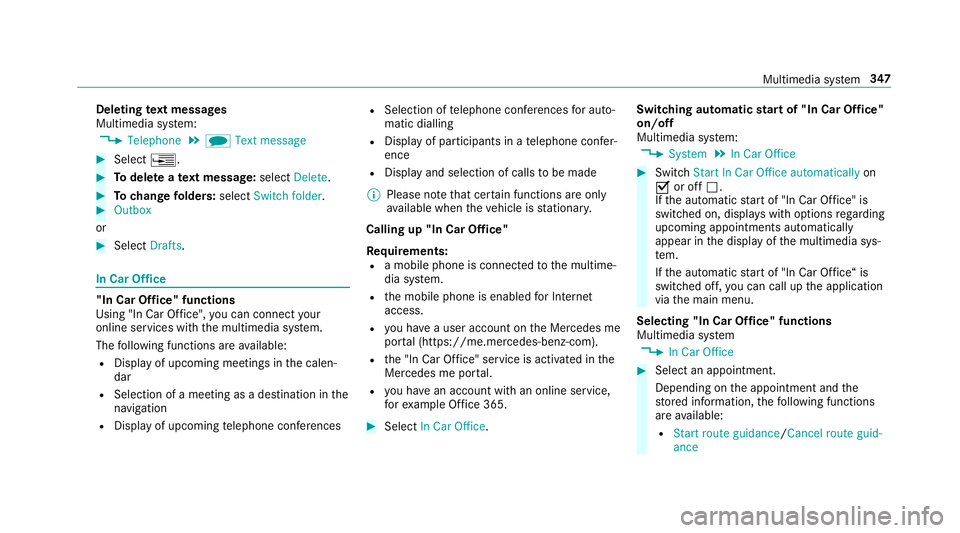
Deleting
text messages
Multimedia sy stem:
, Telephone .
i Text message #
Select ¥. #
Todel eteat extm essage: selectDelete. #
Tochang efolders: selectSwitch folder . #
Outbox
or #
Select Drafts. In Car Of
fice "In Car Of
fice" functions
Usin g"In Car Of fice" ,you can connect your
onlin eservices wit hthe multimedia sy stem.
The following function sareavailable:
R Displa yofupcomin gmeetings in thec alen‐
dar
R Selection of ameeting as adestination in the
navigation
R Displa yofupcoming telephon econfere nces R
Selection of telephon econfere nces fora uto‐
matic dialling
R Displa yofparticipants in atelephone confe r‐
ence
R Displa yand selection of call stobemade
% Please no tethat cer tain function sareonly
av ailable when thev ehicle is stationar y.
Callin gup"In Car Of fice"
Re quirements:
R am obile phon eisconnec tedtot he multime‐
dia sy stem.
R them obile phone is enabled forI nternet
access.
R youh aveau ser accoun tonthe Mercedes me
por tal(https://me.me rcedes-benz-com).
R the" In Car Of fice" service is acti vatedint he
Mercedes me por tal.
R youh ave an accoun twithano nline service,
fo re xamp le Office 365. #
Select In CarOffice . Switchin
gautomati cstar tof" In Car Of fice"
on/off
Multimedia sy stem:
, System .
In Car Office #
Switch Start In Car Offic eautomatically on
O or off ª.
If th ea utomatic star tof" In Car Of fice" is
switched on, displ aysw itho ptions rega rding
upcoming appointments automatically
appear in thed ispla yoft he multimedia sys‐
te m.
If th ea utomatic star tof" In Car Of fice“ is
switched off, youc an call up thea pplication
via them ain menu.
Selecting "In Car Of fice" functions
Multimedia sy stem
, In Car Office #
Select an appointment.
Depending on thea ppointment and the
st ored information, thef ollowing functions
ar ea vailable:
R Start rout eguidance/ Cancel rout eguid-
ance Multimedia sy
stem 347
Page 383 of 585
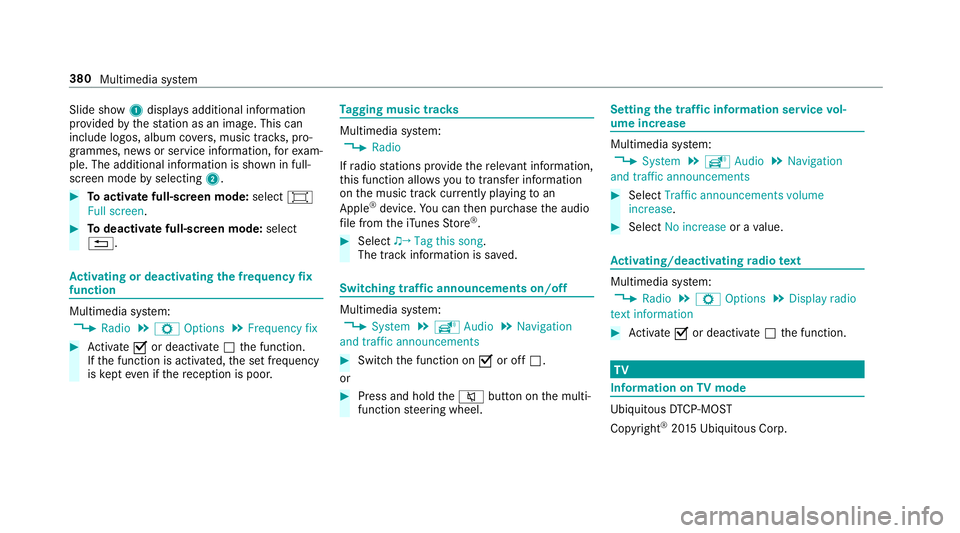
Slide show
1displ aysa dditional information
pr ov ided bythes tatio nasani mage. This can
include logos ,album co vers,m usic trac ks,p ro‐
grammes, ne wsor service information, fore xam‐
ple. The additional information is shown in full-
sc reen mode byselecting 2. #
Toactivat efull-screenm ode:select #
Full screen. #
Todeactivat efull-sc reen mode: select
%. Ac
tivatin gordeactivatin gthe frequency fix
function Multimedia sy
stem:
, Radio .
Z Options .
Frequenc yfix #
Activate Oor deacti vate ª thef unction.
If th ef unction is activated, thes etfrequency
is ke pt eve nifthereception is poo r. Ta
gging music trac ks Multimedia sy
stem:
, Radio
If ra dio stations pr ovide ther ele vant information,
th is function allo wsyoutot rans feri nformation
on them usic trac kcurrently pl aying toan
Apple ®
device. Youc an then pur chase thea udio
fi le from thei Tune sS tore ®
. #
Select ♫→ Tag this song.
The trac kinformation is sa ved. Switching traf
fica nnouncement son/off Multimedia sy
stem:
, System .
õ Audio .
Navigation
and traffic announcements #
Switc hthe function on Oor off ª.
or #
Press and hold the8 button on them ulti‐
function steering wheel. Setting
thet raffic information service vol‐
um eincrease Multimedia sy
stem:
, System .
õ Audio .
Navigation
and traffic announcements #
Select Traffic announcements volume
increase. #
Select No increase orav alue. Ac
tivating/deactivatin gradio text Multimedia sy
stem:
, Radio .
Z Options .
Display radio
texti nformation #
Activate Oor deacti vate ª thef unction. TV
Information on
TVmode Ubiquitou
sDTCP-MO ST
Copyright ®
20 15 Ubiquitous Corp. 380
Multimedias ystem