phone MERCEDES-BENZ E-CLASS ESTATE 2017 Owner's Guide
[x] Cancel search | Manufacturer: MERCEDES-BENZ, Model Year: 2017, Model line: E-CLASS ESTATE, Model: MERCEDES-BENZ E-CLASS ESTATE 2017Pages: 585, PDF Size: 11.8 MB
Page 278 of 585
Conductin
gadialogue #
Tostar torc ontinue adialogue: pressthe
ó button on them ultifunction steering
wheel.
Yo uc an sa yavoice command af teran
acou stic signal. #
Tocor rect an ent ry:sayt he Correction
vo ice command. #
Toselect an entr yfromt he selection lis t:
sa yt he line number or thec ontents. #
Tobrows ethe selection lis t:sa yt he Next
or Back voice command. #
Tointer rupt thed ialogue: sayt he Pause
vo ice command. #
Tocancel thed ialogue: sayt he Cancel
vo ice command or press the8 button on
th em ultifunction steering wheel. Operable functions
Yo
uc an use theL INGU ATRO NIC voice control
sy stem tooperat ethe following equipment
depending on thef eatures: R
Telephone
R Text messa ges
R Navigation
R Address book
R Radio
R Audio (memor ycard, Media Inter face, USB
and Blu etoo th®
audio)
R TV
R Vehicle Overvie
woftypes of voice commands Ad
istinction is made between thef ollowing
vo ice commands:
R Global voice commands can be said at any
time and rega rdless of thec urrent applica‐
tion, e.g .the voice commands Navigateto,
Call orText message to.
R Application-specific voice commands are
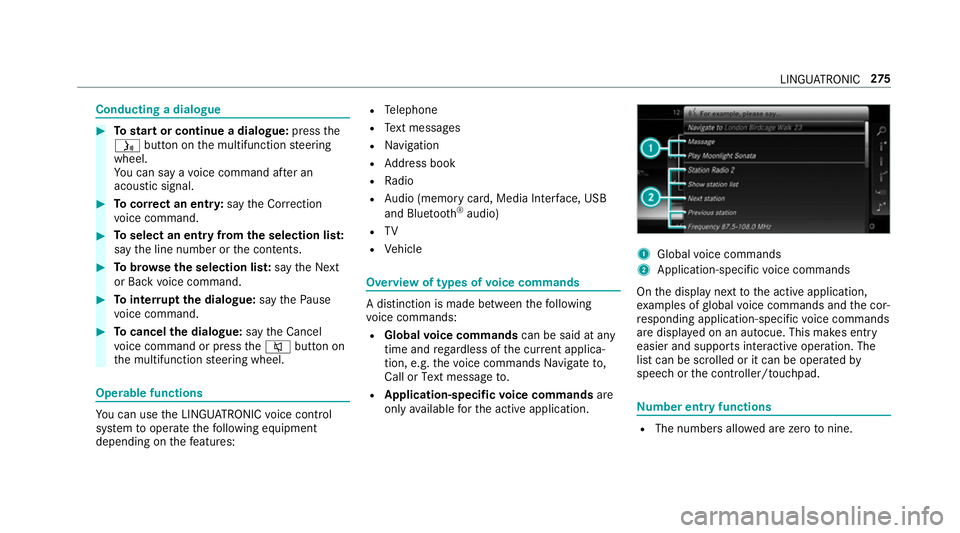
onl yavailable fort he activ eapplication. 1
Global voice commands
2 Application-specific voice commands
On thed ispla ynexttot he activ eapplication,
ex amples of global voice command sand thec or‐
re sponding application-specific voice commands
ar ed ispla yedonana utocue. This makes ent ry
easier and supports interactiv eoperation. The
lis tc an be scrolled or it can be operated by
speec horthe controller/touchpad. Nu
mbe rentry functions R
The numbe rsallo weda rezero tonine . LING
UATRONIC 275
Page 279 of 585
R
Telephon enumber scan be entered as single
digits. Information on
thel anguag esetting Yo
uc an chang ethe languag eofLINGUATRO NIC
via thes ysteml anguag esettings. If thes etsys‐
te ml anguag eisnotsuppor tedbyL INGUA‐
TRONIC, English willbes elected.
LINGU ATRO NIC is available in thef ollowing lan‐
guages:
R German
R English
R French
R Italian
R Dutch
R Polish
R Portuguese
R Russian
R Swedish
R Spanish
R Czech R
Turkish Using LINGU
ATRO NIC ef fectively Fe
atures of audibl ehelp functions Yo
ur eceiv einformatio nand help for:
R Optima loperation: sayt he Help voice con-
trol system voice command.
R Cur rent application: onthem ultifunction
st eering wheel, press theó rocker switch
up and sa ythe Help voice command.
R Continued dialogue: sayt he Help voice
command during avoice dialogue.
R Aspecific sy stem: sayt he voice commands
fo rt he desired sy stem, e.g. Help telephone. Note
sonh owtoimpr ovespeec hquality If LING
UATRONI Cdoesn otunde rstan dyou:
R onlyoperat eLINGU ATRO NIC from thed riv‐
er's seat.
R sayt he voice command scohe rently and
clear ly,b ut do no texaggerat ethe words. R
avoid loud noises, e.g. theb lowe r,th at cause
inter fere nce whil emakin gav oice command
entr y.
R sayt he voice tagw itht he same intonation
when creating voice tags.
If an addre ss book entr yvoice tag is no trec‐
ognised:
R onlycreates ensible address book entries in
th es ystem/mobile phone, e.g. enter sur‐
name and firs tn am eint he cor rect field.
R do no tuse an yabbr eviations, unnecessary
spaces or special characters.
If as tatio nliste ntr yisn otrecognised:
R sayt he Read out station list voice command. Essentia
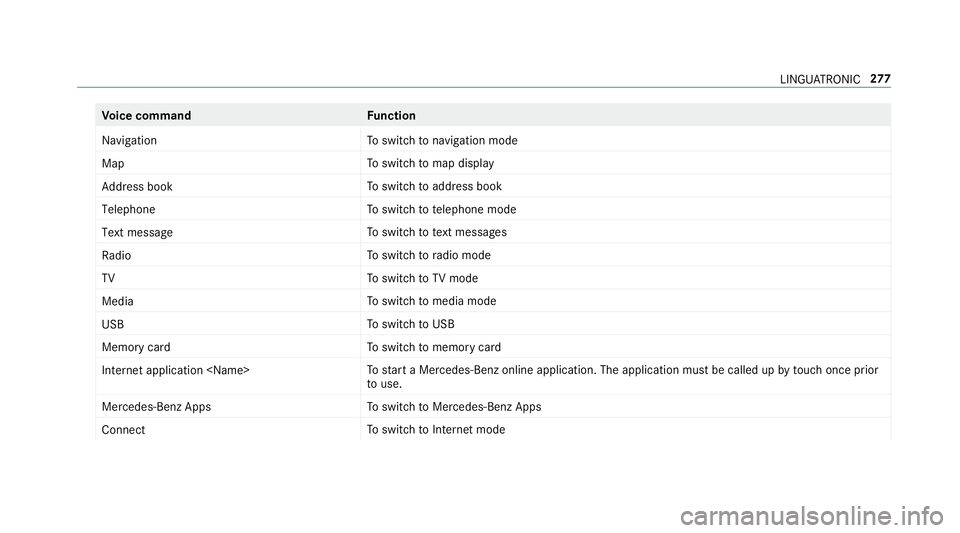
lvoice commands Overvie
wofswitchvoice commands Swit
chvoice command scan be used toopen
cer tain applications .The voice command selec‐
tion can be used rega rdless of thea pplication
th at is cur rently acti ve. 276
LINGU ATRO NIC
Page 280 of 585
Vo
ice command Function
Navigation To
switc hton avigation mode
Map To
switc htom ap display
Address book To
switc htoa ddress book
Telephone To
switc htot elephone mode
Text message To
switc htot extm essa ges
Radio To
switc htor adio mode
TV To
switc htoTVm ode
Media To
switc htom edia mode
USB To
switc htoU SB
Memory card To
switc htom emorycard
Internet application
star taM ercedes-Ben zonline application. The applicatio nmustbec alledupbyt ouchoncep rior
to use.
Mercedes-Ben zApps To
switc htoM ercedes-BenzA pps
Connect To
switc htoInterne tmode LINGU
ATRO NIC 277
Page 283 of 585
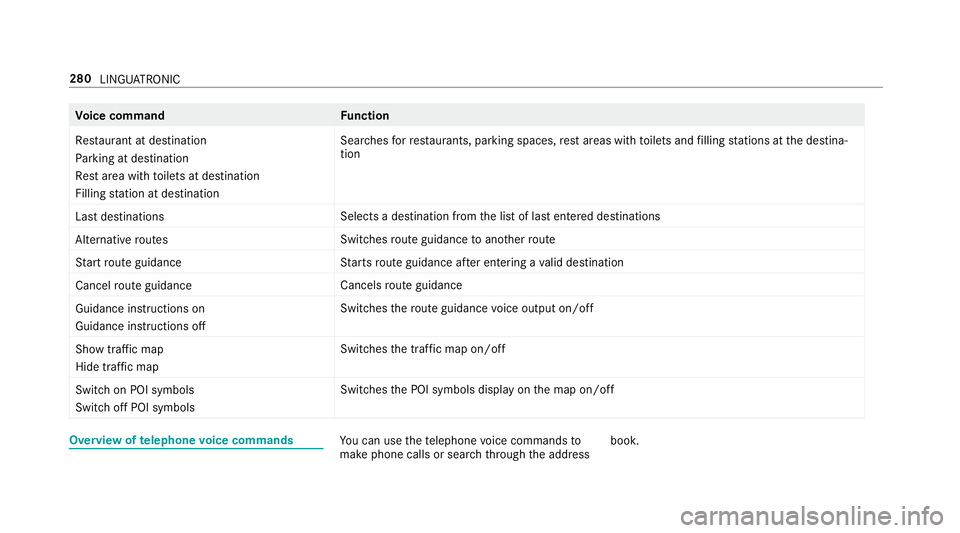
Vo
ice command Function
Restaurant at destination
Parking at destination
Rest area with toilets at destination
Filling station at destination Sear
ches forr es taurants, parkin gspaces, rest areas wit htoilets and filling stations at thed estina‐
tion
Last destinations Select
sadestination from thel istofl aste ntered destinations
Alternativ eroutes Switches
routeg uidance toano ther route
Start rout eguidance St
arts routeg uidance af tere ntering avalid destination
Cance lrout eguidance Cancels
routeg uidance
Guidance instruction son
Guidance instruction soff Swit
ches ther out eguidance voice output on/off
Sho wtraffic map
Hide traffic map Swit
ches thet raffic map on/off
Switch on POI symbols
Switch off POI symbols Swit
ches theP OI symbols displa yonthe map on/off Overvie
woftelephone voice commands Yo
uc an use thet elephone voice command sto
mak ephone call sorsearchthro ugh thea ddress book. 280
LINGU ATRO NIC
Page 284 of 585
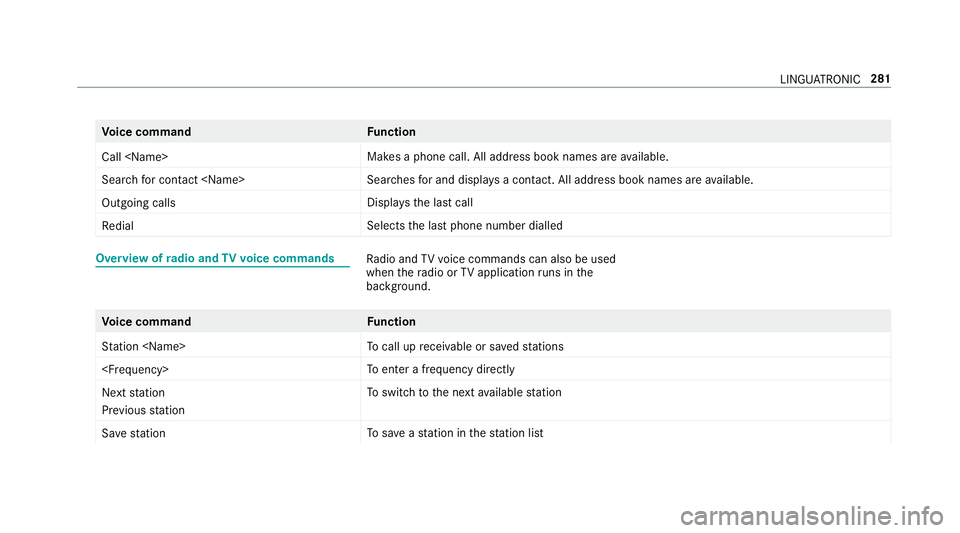
Vo
ice command Function
Call
aphone call. All address book names ar eavailable.
Search for contac t
ches fora nd displa ysac ontact. All address boo kname sareavailable.
Outgoin gcalls Displa
ys thelastc all
Redial Select
sthe las tphone number dialled Overvie
wofradio and TVvoice commands Ra
dio and TVvoice command scan also be used
when ther adio or TVapplicatio nruns in the
bac kground. Vo
ice command Function
Station
cal lupr eceivable or sa veds tations
enter afrequ ency directly
Next station
Previouss tation To
switc htot he next available station
Sav estation To
save as tatio nint hestatio nlist LINGU
ATRO NIC 281
Page 293 of 585
Setting
thes ensitivit yfor th etouchpad
Multimedia sy stem:
, System .
w Input #
Select Touchpad sensitivity .#
Select Fast,Medium orSlow . #
Tosetthe pressur esensitivit y:switch
Touchpad tap onO or off ª.
If th ef unction is switched on O,atap on
th et ouchpad is enough toselect amenu
item.
Handwriting recognition: swit ching ther ead-
alou dfunction on/off
Multimedi asystem:
, System .
õ Audio .
System feed-
back #
Switch Read out handwritin grecognition on
O or off ª. Ac
tivating/deactivatin ghaptic feedba ckfor
operation on thet ouchpad
Multimedia sy stem:
, System .
w Input
The function supports youw hen making entries
on thet ouchpad and when selecting menus. #
Switch Haptic operating feedback on or off.
When thef unction is activated, atactile feed‐
bac kint heform ofav ibration is ef fected
whe nthe touchpad is operated.
Selecting astatio nand trac kusingthe
to uchpad #
Press theD button on thet ouchpad.
or #
Swipe upwards using tw ofinger sont he
to uchpad.
The cont rolm enua ppear sfor thea udio
source that wa slasts elected. #
Use one finger toswipe up or down.
Ra dio: thep reviou sort he next statio niss et.
Media source: thep reviou sort he next music
tra ck is selec ted. #
Tohide thec ontrol menu: swipe down on
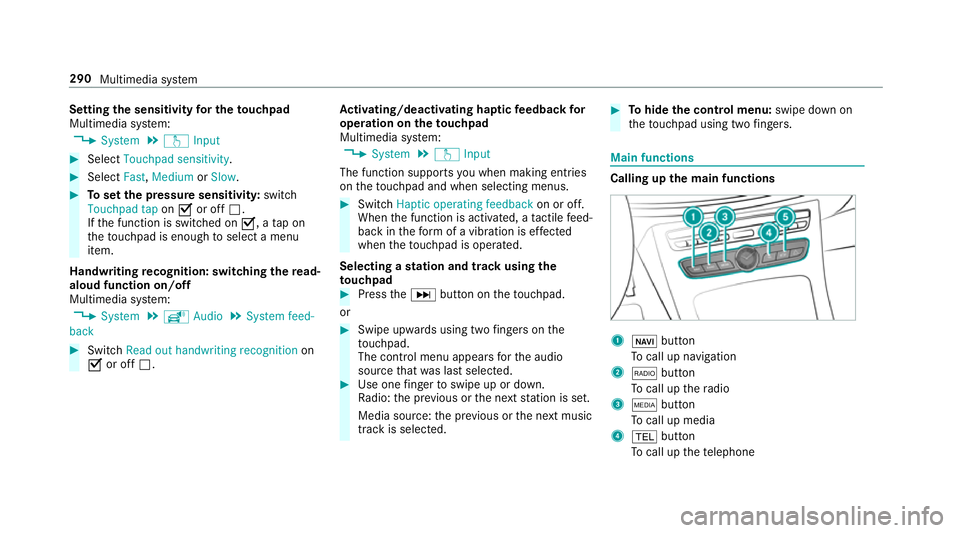
th et ouchpad using tw ofingers. Main functions
Calling up th
emain functions 1
ß button
To cal lupn avigation
2 $ button
To cal lupt heradio
3 Õ button
To cal lupm edia
4 % button
To cal lupt hetelephone 290
Multimedia sy stem
Page 294 of 585
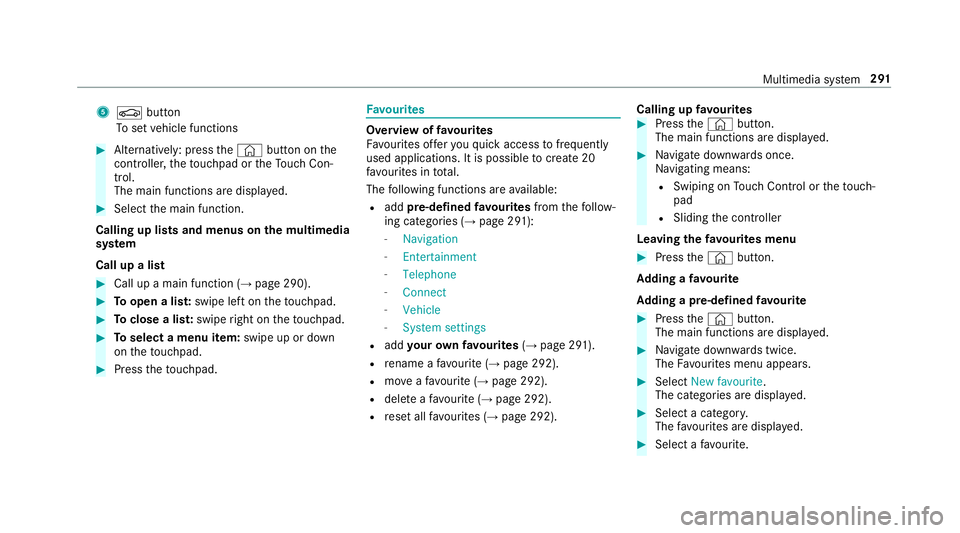
5
Ø button
To setv ehicle functions #
Alternatively: press the© button on the
controller ,the touchpad or theT ouc hCon‐
trol.
The main function saredispl ayed. #
Select them ain function.
Calling up lists and menus on them ultimedia
sy stem
Call up alist #
Call up amain function (→ page290). #
Toopen alist: swipe lef tonthetouchpad. #
Toclose alist: swipe right on thet ouchpad. #
Toselect amenu item: swipe up or down
on thet ouchpad. #
Press thet ouchpad. Favo
urites Overvie
woffavourites
Fa vourites of fery ou quicka ccess tofrequently
use dapplications. It is possible tocrea te20
fa vo urites in tota l.
The following function sareavailable:
R add pre-defined favo urites fromthef ollow‐
ing categories (→ page291):
- Navigation
- Entertainment
- Telephone
- Connect
- Vehicle
- System settings
R add your ow nfavourites (→pag e291).
R renam eafavourite(→pag e292).
R moveafavo urite(→pag e292).
R dele teafavo urite(→pag e292).
R rese ta llfa vo urites (→ page292). Calling up
favo urites #
Press the© button.
The main function saredispla yed. #
Navigat edownwards once.
Na vigating means:
R Swiping on Touc hC ontrol or thet ouch‐
pad
R Sliding thec ontroller
Leaving thef avourites menu #
Press the© button.
Ad ding afavourite
Ad ding apre-de fined favo urite #
Press the© button.
The main function saredispla yed. #
Navigat edownwards twice.
The Favourites men uappears. #
Select New favourite.
The categories ar edispl ayed. #
Select acategor y.
The favo urites ar edispl ayed. #
Select afavo urite. Multimedia sy
stem 291
Page 296 of 585
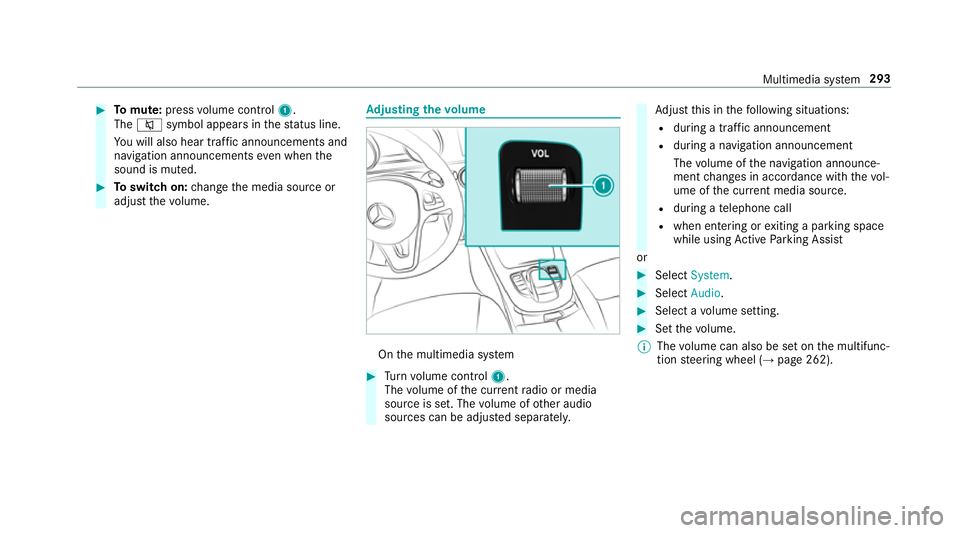
#
Tomute: pressvolume control 1.
The 8 symbol appear sinthestatus line.
Yo uw ill also hear traf fica nnouncements and
navigation announcements even when the
sound is muted. #
Toswitc hon:chang ethe media source or
adjus tthe volume. Ad
justin gthe volume On
them ultimedia sy stem #
Turn volume control 1.
The volume of thec urrent radio or media
source is set. The volume of other audio
sources can be adjus teds eparatel y. Ad
jus tthis in thef ollowing situations:
R during atraf fica nnouncement
R during anavigation announcement
The volume of then avigation announce‐
ment changes in accordanc ewitht he vol‐
ume of thec urrent media sou rce.
R during atelephone call
R when entering or exitin gap arkin gspace
while using ActiveP arking Assist
or #
Select System. #
Select Audio. #
Selec tavolume setting. #
Setthe volume.
% The volume can also be se tonthe multifunc‐
tion steering wheel (→ page262). Multimedia sy
stem 293
Page 300 of 585
#
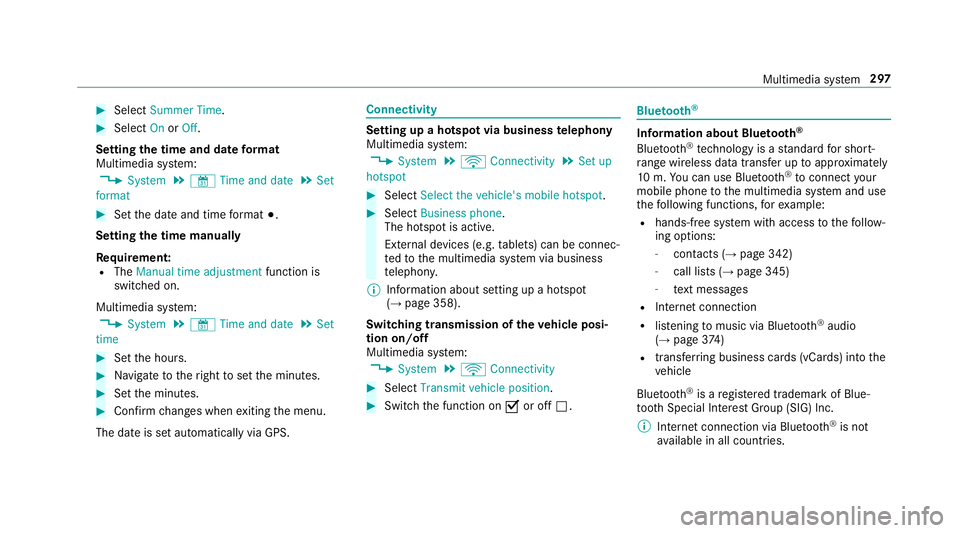
Select Summer Time. #
Select OnorOff.
Setting the time and dat eformat
Multimedia sy stem:
, System .
& Time and date .
Set
format #
Setthe dat eand time form at#.
Setting thet imem anually
Re quirement:
R The Manual time adjustment function is
switched on.
Multimedia sy stem:
, System .
& Time and date .
Set
time #
Setthe hours. #
Navigat etot heright tosetthe minutes. #
Setthe minutes. #
Confir mchanges when exitin gthe menu.
The dat eissetautomaticall yvia GPS. Connectivity
Setting up
ahotspo tvia business telephony
Multimedia sy stem:
, System .
ö Connectivity .
Set up
hotspot #
Select Select the vehicle's mobile hotspot . #
Select Business phone.
The hotspo tisactive.
Exte rnal devices (e.g. tablets) can be connec‐
te dtot he multimedia sy stem via business
te lephon y.
% Information abouts etting up ahotspot
(→ pag e358).
Switching transmission of thev ehicle posi‐
tio no n/off
Multimedi asystem:
, System .
ö Connectivity #
Select Transmit vehicle position . #
Switc hthe function on Oor off ª. Blue
tooth ® Information abou
tBluet oo th®
Bl ue tooth ®
tech nology is astandar dfor short-
ra ng ew ireles sdatat ransfer up toappr oximately
10 m.Youc an use Blue tooth®
to connect your
mobile phon etothe multimedia sy stem and use
th ef ollowing functions, fore xamp le:
R hands-free sy stem wit haccess tothef ollow‐
ing options:
- contacts (→ page342)
- call lists (→ page345)
- text messa ges
R Interne tconnection
R listening tomusi cvia Blue tooth®
audio
(→ pag e374 )
R transfer ring business cards (vCards) int othe
ve hicle
Blue tooth ®
is ar egis tere dt rademar kofBlue‐
toot hSpecial Interes tGroup (SIG) Inc.
% Interne tconnection via Blue tooth®
is not
av ailable in all countries. Multimedia sy
stem 297
Page 301 of 585
Ac
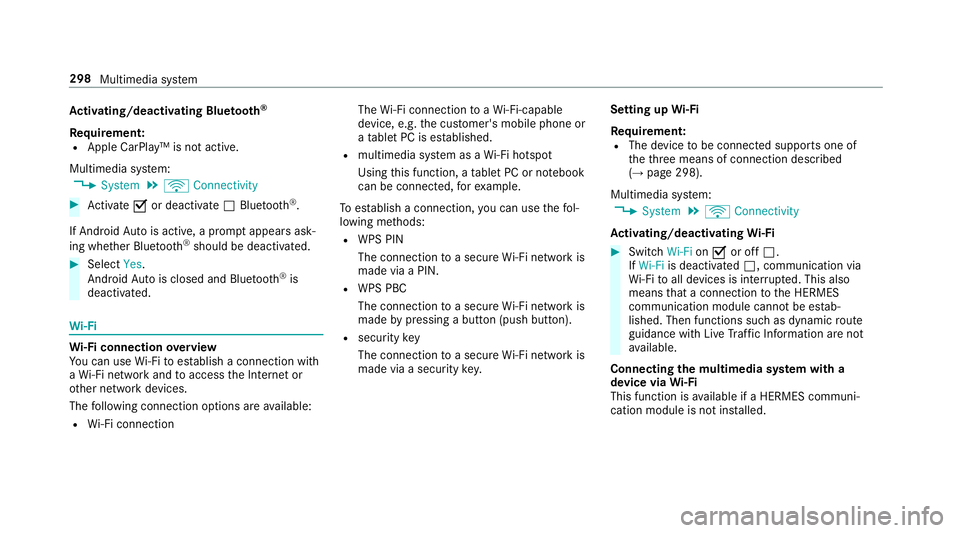
tivating/deactivatin gBluetooth ®
Requ irement:
R Apple CarPlay™ is no tactive.
Multimedia sy stem:
, System .
ö Connectivity #
Activate Oor deacti vate ª Bluetoo th®
.
If Android Autois active, apromp tappear sask‐
ing whe ther Blue tooth®
should be deactivated. #
Select Yes.
Android Autois closed and Blue tooth®
is
deactivated. Wi
-Fi Wi
-Fic on nectio noverview
Yo uc an use Wi-Fi toestablish aconnection with
aW i-Finetwo rkand toaccess theI nterne tor
ot her networ kdevices.
The following connection option sareavailable:
R Wi-Fi connection The
Wi-Fi connectio ntoaWi-Fi-capable
device ,e.g.t he cus tomer's mobil ephone or
at able tPCise stablished.
R multimedia sy stem as aWi-Fihotspot
Using this function ,atable tPCorn otebook
can be connected, fore xamp le.
To establish aconnection ,you can use thef ol‐
lowing me thods:
R WPS PIN
The connection toas ecur eWi-Finetwo rkis
mad eviaaP IN.
R WPS PBC
The connectio ntoasecureWi-Finetwo rkis
mad ebyp ressing abutton (push button).
R security key
The connection toas ecur eWi-Finetwo rkis
mad eviaas ecu rity key. Setting up
Wi-Fi
Requ irement:
R The device tobe connec teds upports one of
th et hree means of connection described
(→ pag e298).
Multimedia sy stem:
, System .
ö Connectivity
Ac tivating/deactivatin gWi-Fi #
Switch Wi-FionO or off ª.
If Wi-Fi is deacti vatedª,communicatio nvia
Wi -Fi toall devices is inter rupte d. This also
means that ac onnectio ntothe HERMES
communication module canno tbeestab‐
lished. Then function ssuchasd ynamic route
guidance wit hLiveT raffic In form ation ar enot
av ailable.
Connecting them ultimedia sy stem wit ha
device via Wi-Fi
Thi sfunction is available if aHERME Scommuni‐
cation modul eisnotins talled. 298
Multimedia sy stem