ECU MERCEDES-BENZ E-CLASS ESTATE 2017 Workshop Manual
[x] Cancel search | Manufacturer: MERCEDES-BENZ, Model Year: 2017, Model line: E-CLASS ESTATE, Model: MERCEDES-BENZ E-CLASS ESTATE 2017Pages: 585, PDF Size: 11.8 MB
Page 262 of 585
Tr
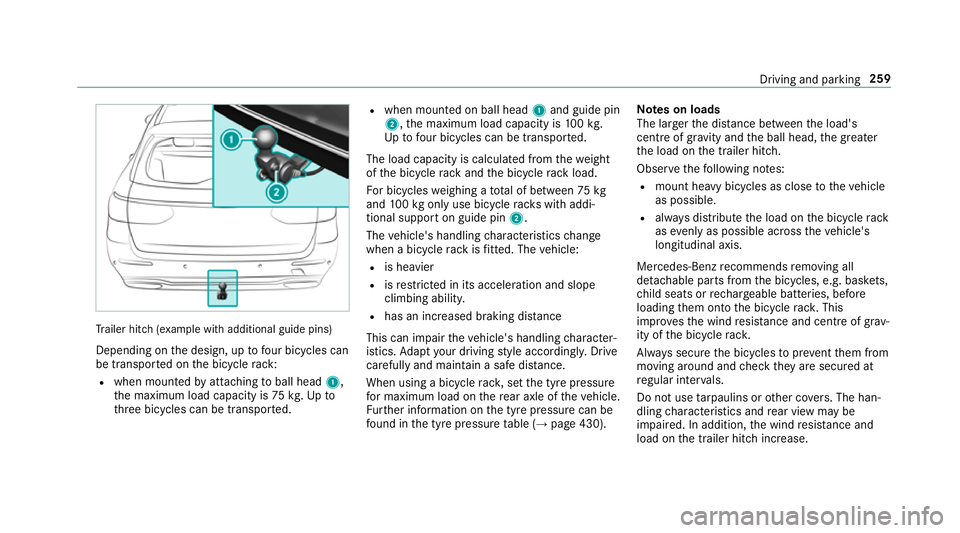
ailer hit ch(examp le withadditional guide pins)
Depending on thed esign, up tofour bic ycles can
be transpor tedont he bicycle rack:
R when moun tedbya ttachin gtoball head 1,
th em aximum load capacity is 75kg.Upto
th re eb icycles can be transpor ted. R
when mounted on ball head 1and guide pin
2,t he maximum load capacity is 100k g.
Up tofour bic ycles can be transpo rted.
The load capacity is calculated from thew eight
of theb icycle rack and theb icycle rack load.
Fo rb icycles weighin gatotal of between 75kg
and 100k gonlyu se bicycle rack sw itha ddi‐
tional suppor tonguide pin 2.
The vehicle's handling characteristic schange
when abicycle rack isfitted .The vehicle:
R is heavier
R isrestricted in its accele ratio na nd slope
climbing ability.
R hasani ncrease dbraking di stance
This can impair thev ehicle's handling character‐
istics. Adapty our driving stylea ccordingly .Drive
carefully and maintain asafed ista nce.
Whe nusing abicyc le rack ,set thet yrep ressure
fo rm aximu mloadont herear axle of thev ehicle.
Fu rther information on thet yrep ressur ecan be
fo und in thet yrep ressur etable (→ page430). Note
sonl oads
The larger thed ista nce betwee nthe load's
centre of gravity and theb all head, theg reater
th el oad on thet railer hitch.
Obser vethef ollowing no tes:
R mount heavy bicycles as close tothev ehicle
as possible.
R alwaysd istribut ethe load on theb icycle rack
as evenl yasp ossible across thev ehicle's
longitudinal axis.
Mercedes-Ben zrecommends removing all
de tac hable parts from theb icycles, e.g. bask ets,
ch ild seats or rech arge able bat teries, before
loading them ont othe bicycle rack .T his
impr ovesthe wind resis tance and centr eofgrav‐
ity of theb icycle rack.
Alw ayss ecur ethe bicycles topreve ntthem from
moving around and checkt heya resecured at
re gular inter vals.
Do no tuse tarp aulins or other co vers.T he han‐
dling characteristic sand rear vie wmaybe
impaired. In addition ,the wind resis tance and
load on thet railer hitc hincrease. Driving and parking
259
Page 266 of 585
#
Onlyoperat ethis equipment when the
traf fics ituation permits. #
Ifyo uc anno tbes ureoft his,stop the
ve hicle whils tpaying attention toroad
and traf ficc onditions and ope rate the
equipment wit hthe vehicle stationar y. Yo
um usto bse rvet he legal requirements fort he
countr yinwhich youa recur rentl yd riving when
operating theo n-boar dcomputer.
% The on-boar dcomputer displa ysappear on
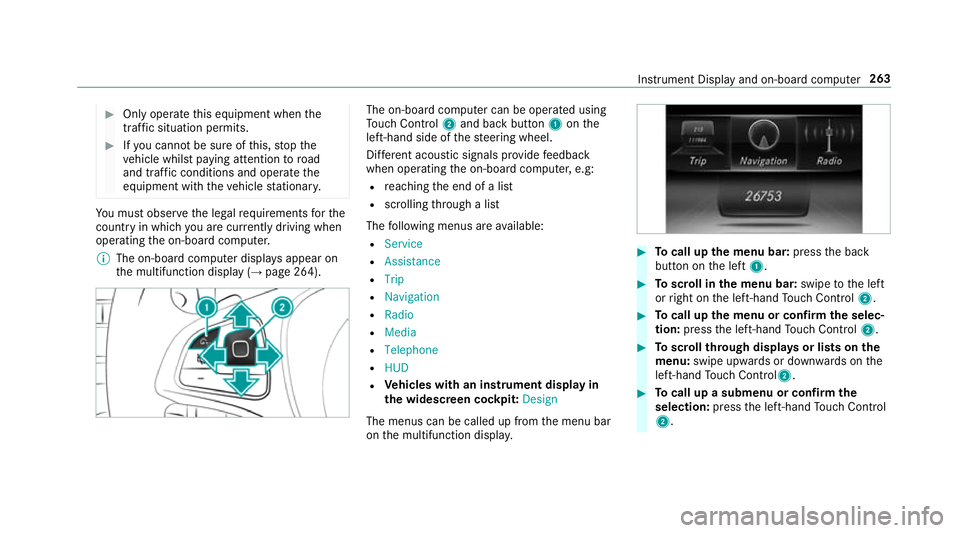
th em ultifunction displa y(→pag e264). The on-boar
dcomputer can be operated using
To uc hC ontrol 2and bac kbutton 1onthe
left-hand side of thes teering wheel.
Dif fere nt acoustic signals pr ovide feedback
when operating theo n-boar dcomputer ,e.g:
R reachin gthe end of alist
R scrolling thro ugh alist
The following menus ar eavailable:
R Service
R Assistance
R Trip
R Navigation
R Radio
R Media
R Telephone
R HUD
R Vehicles with an instrument displa yin
th ew idescreen cockpit: Design
The menus can be called up from them enu bar
on them ultifunction displa y. #
Tocall up them enu bar: presstheb ack
button on thel eft 1. #
Toscroll in them enu bar: swipetothel eft
or right on thel eft-hand Touc hC ontrol 2. #
Tocall up them enu or confir mthe selec‐
tion: press thel eft-hand Touc hC ontrol 2. #
Toscroll through displa ysor lists on the
menu: swipe upwards or down wardsont he
left-hand Touc hC ontrol2. #
Tocall up asubmen uorconfirmthe
selection: pressthel eft-hand Touc hC ontrol
2. In
stru ment Displa yand on-boar dcomputer 263
Page 270 of 585
When
gliding mode is activ e(→pag e179),
Gliding mode is displayedi nstead of thec ur‐
re nt fue lconsu mption.
Ar ecuperation displa yisalsoavailable for
cer tain engines. If ther eiso nlyas mall
amount of fuel lef tinthe fuel tank ,the dis‐
pla yshows avehicle being refuelled ins tead
of ther ange.
R ECOd ispl ay ( →pag e174 )
R Trip computer Froms tart and Fromr eset
R Digital speedom eter
% Ve
hicles with an Instrument Displa yin
th eW idescreen Cockpit: thed igital speed‐
ome tero nly appear sintheClassic andSport
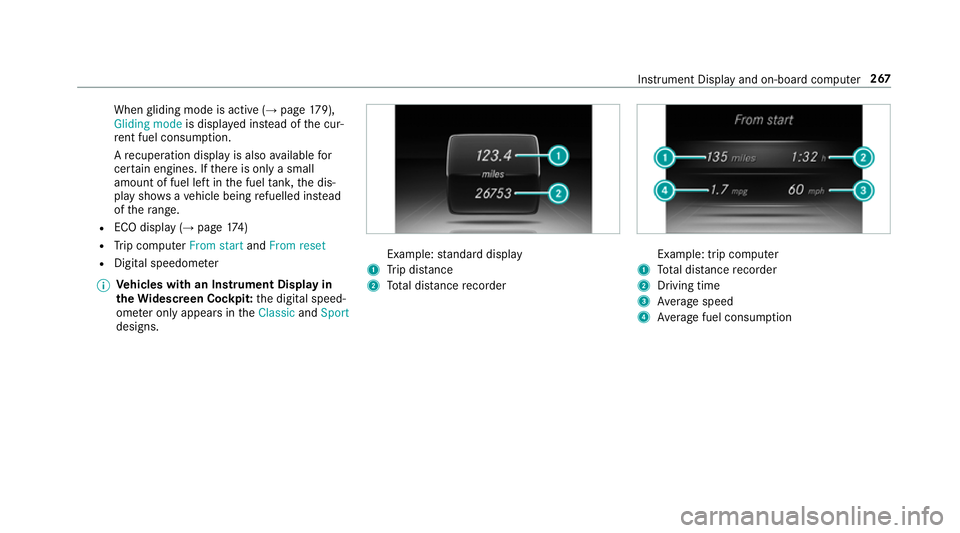
designs. Example:
standar ddisplay
1 Trip dis tance
2 Totald ista nce recorder Example: trip compu
ter
1 Totald ista nce recorder
2 Driving time
3 Averag espeed
4 Averag efuel consum ption Instrumen
tDispla yand on-boar dcomputer 267
Page 301 of 585
Ac
tivating/deactivatin gBluetooth ®
Requ irement:
R Apple CarPlay™ is no tactive.
Multimedia sy stem:
, System .
ö Connectivity #
Activate Oor deacti vate ª Bluetoo th®
.
If Android Autois active, apromp tappear sask‐
ing whe ther Blue tooth®
should be deactivated. #
Select Yes.
Android Autois closed and Blue tooth®
is
deactivated. Wi
-Fi Wi
-Fic on nectio noverview
Yo uc an use Wi-Fi toestablish aconnection with
aW i-Finetwo rkand toaccess theI nterne tor
ot her networ kdevices.
The following connection option sareavailable:
R Wi-Fi connection The
Wi-Fi connectio ntoaWi-Fi-capable
device ,e.g.t he cus tomer's mobil ephone or
at able tPCise stablished.
R multimedia sy stem as aWi-Fihotspot
Using this function ,atable tPCorn otebook
can be connected, fore xamp le.
To establish aconnection ,you can use thef ol‐
lowing me thods:
R WPS PIN
The connection toas ecur eWi-Finetwo rkis
mad eviaaP IN.
R WPS PBC
The connectio ntoasecureWi-Finetwo rkis
mad ebyp ressing abutton (push button).
R security key
The connection toas ecur eWi-Finetwo rkis
mad eviaas ecu rity key. Setting up
Wi-Fi
Requ irement:
R The device tobe connec teds upports one of
th et hree means of connection described
(→ pag e298).
Multimedia sy stem:
, System .
ö Connectivity
Ac tivating/deactivatin gWi-Fi #
Switch Wi-FionO or off ª.
If Wi-Fi is deacti vatedª,communicatio nvia
Wi -Fi toall devices is inter rupte d. This also
means that ac onnectio ntothe HERMES
communication module canno tbeestab‐
lished. Then function ssuchasd ynamic route
guidance wit hLiveT raffic In form ation ar enot
av ailable.
Connecting them ultimedia sy stem wit ha
device via Wi-Fi
Thi sfunction is available if aHERME Scommuni‐
cation modul eisnotins talled. 298
Multimedia sy stem
Page 302 of 585
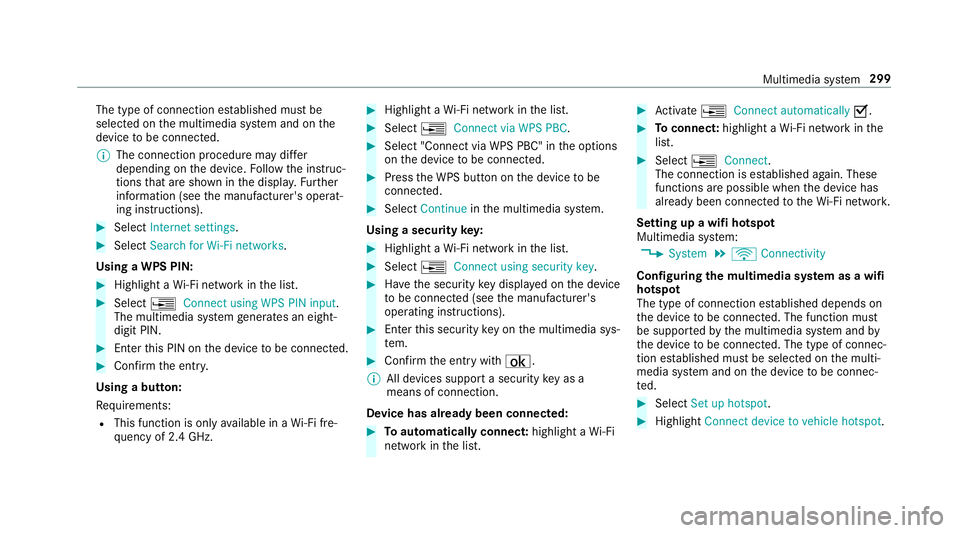
The type of connection es
tablished mus tbe
selected on them ultimedia sy stem and on the
device tobe connec ted.
% The connection procedur emaydiffer
dependin gonthe device. Followt he instruc‐
tions that ar eshown in thed ispla y.Fu rther
information (see them anufacturer's operat‐
ing instructions). #
Select Internet settings . #
Select Search for Wi-Fi networks.
Using aWPS PIN: #
Highlight aWi-Finetwo rkinthel ist. #
Select ¥Connec tusing WPS PIN input.
The multimedia sy stem generates an eight-
digi tPIN. #
Enter this PIN on thed evice tobe connec ted. #
Confir mthe entr y.
Using abutton:
Re quirements:
R This function is onl yavailable in aWi-Fifre‐
qu ency of 2.4 GHz. #
Highlight aWi-Finetwo rkinthel ist. #
Select ¥Connec tvia WPS PBC. #
Select "Connec tvia WPS PBC" in theo ptions
on thed evice tobe connec ted. #
Press theW PS button on thed evice tobe
connec ted. #
Select Continue inthem ultimedia sy stem.
Using asecurity key: #
Highlight aWi-Finetwo rkinthel ist. #
Select ¥Connec tusing securit ykey. #
Have thes ecurity keyd ispla yedont he device
to be connec ted( see them anufacturer's
operating instructions). #
Ente rthis security keyo nthe multimedia sys‐
te m. #
Confir mthe entr ywith¡.
% All devices suppor tasecurity keyasa
mean sofconnection.
Device ha salread ybeen connec ted: #
Toautomaticall yconnect: highlight aWi-Fi
networ kinthe list. #
Activate ¥ Connect automatically O. #
Toconnect: highlightaWi-Finetwo rkinthe
list. #
Select ¥Connect.
The connection is es tablished again. These
function sarepossible when thed evice has
already been connected totheW i-Finetwo rk.
Setting up awifih otspot
Multimedia sy stem:
, System .
ö Connectivity
Configuring them ultimedia sy stem as awifi
hotsp ot
The type of connection es tablished depends on
th ed evice tobe connec ted. The function must
be suppor tedbyt he multimedia sy stem and by
th ed evice tobe connec ted. The type of connec‐
tion es tablished mus tbeselected on them ulti‐
media sy stem and on thed evice tobe connec‐
te d. #
Select Set up hotspot. #
Highlight Connectdevice to vehicle hotspot. Multimedia sy
stem 299
Page 303 of 585
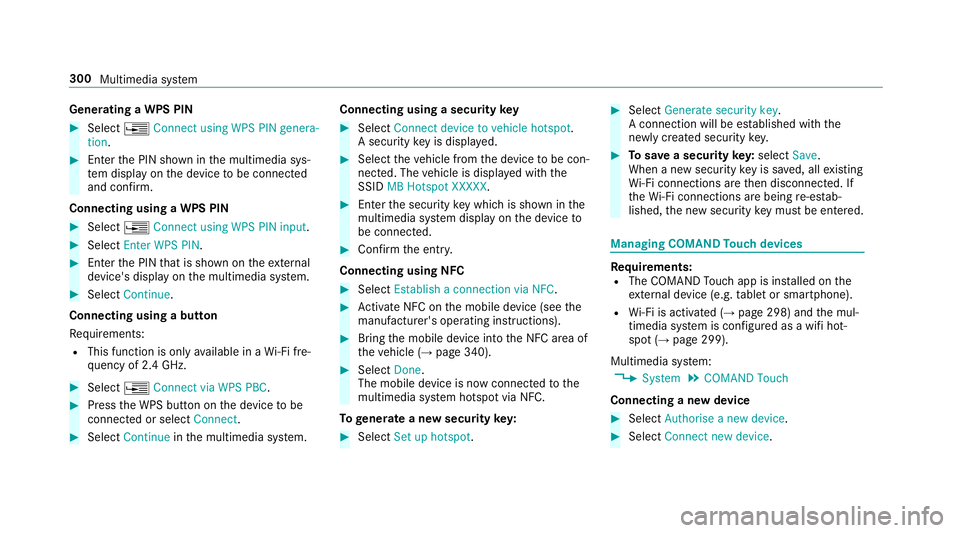
Genera
tingaW PS PIN #
Select ¥Connect using WPS PIN genera-
tion. #
Enter theP IN shown in them ultimedia sys‐
te md ispla yont he device tobe connec ted
and con firm.
Connecting usin gaWPS PIN #
Select ¥Connect usin gWPS PIN input. #
Select Enter WPS PIN. #
Entert he PIN that is shown on thee xternal
device's displa yonthe multimedia sy stem. #
Select Continue.
Connecting using abutton
Re quirements:
R This function is onl yavailable in aWi-Fifre‐
qu ency of 2.4 GHz. #
Select ¥Connec tvia WPS PBC. #
Press theW PS button on thed evice tobe
connec tedors electConnect. #
Select Continue inthem ultimedia sy stem. Connecting using
asecurity key #
Select Connect device to vehicl ehotspot .
As ecu rity keyisd isplayed. #
Select thev ehicle from thed evice tobe con‐
nec ted. The vehicle is displa yedw itht he
SSID MB Hotspot XXXXX. #
Enter thes ecurity keyw hichiss hown in the
multimedia sy stem displa yonthe device to
be connec ted. #
Confir mthe entr y.
Connecting usin gNFC #
Select Establish aconnectio nvia NFC. #
Activat eNFC on them obile device (see the
manufacturer's operating instructions). #
Bring them obile device int othe NFC area of
th ev ehicle (→ page340). #
Select Done.
The mobile device is no wconnected tothe
multimedia sy stem hotspo tvia NFC.
To generat eanewsecurity key: #
Select Set up hotspot . #
Select Generate security key .
Ac onnection will be es tablished wit hthe
newly created security key. #
Tosave asecurity key:select Save.
When anew security keyiss aved, all existing
Wi -Fi connections ar ethen disconnected. If
th eW i-Ficonnections ar ebeing re-es tab‐
lished, then ew security keym ustbee ntered. Managin
gCOMAND Touc hd evices Re
quirements:
R The COMAND Touc ha pp is ins talled on the
ex tern al devic e(e.g. table tors martphone).
R Wi-Fi is acti vated( →pag e298) and them ul‐
timedia sy stem is confi gured asawifih ot‐
spo t(→ pag e299).
Multimedia sy stem:
, System .
COMAND Touch
Connecting anew device #
Select Authorise anew device. #
Select Connec tnew device. 300
Multimedia sy stem
Page 304 of 585
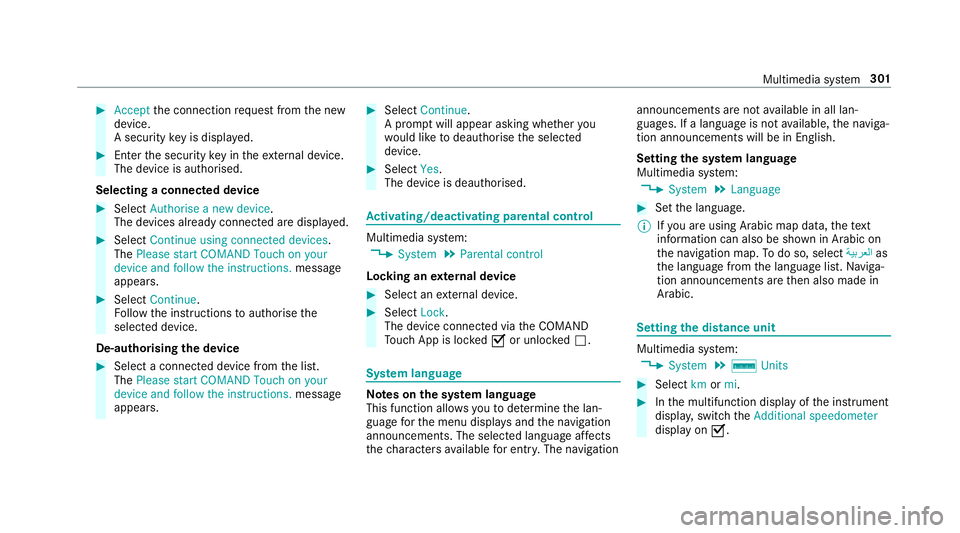
#
Accept thec onnection requ estfromt he new
device.
As ecurity keyisd isplayed. #
Ente rthe security keyint he extern al device.
The devic eisauthorised.
Selecting aconnected device #
Select Authorise anew device.
The devices already connec teda redispla yed. #
Select Continue using connected devices.
The Please start COMAND Touch on your
device and follow the instructions. message
appears. #
Select Continue.
Fo llowt he instructions toauthorise the
selected device.
De-authorising thed evice #
Select aconnec tedd evice from thel ist.
The Please start COMAND Touch on your
device and follow the instructions. message
appears. #
Select Continue.
Ap romp twill appear asking whe ther you
wo uld lik etodeauthorise thes elected
device. #
Select Yes.
The device is deauthorised. Ac
tivating/deactivatin gparenta lcon trol Multimedia sy
stem:
, System .
Parental control
Locking an extern al device #
Select an extern al device. #
Select Lock.
The devic econnec tedv iatheC OMAND
To uc hA ppis loc kedOor unloc kedª. Sy
stem language Note
sont he system language
This function allo wsyoutod etermine thel an‐
guag efor them enu displa ysand then avigation
announcements. The selected languag eaffects
th ec haracter savailable fore ntr y.The navigation announcement
sarenota vailable in all lan‐
guages. If alanguag eisnotavailable, then aviga‐
tion announcements will be in Engl ish.
Setting thes ysteml anguage
Multimedia sy stem:
, System .
Language #
Setthe language.
% Ifyo ua reusin gArabic map data, thet ext
information can also be shown in Arabic on
th en avigation map. Todo so, select ةيبرعلاas
th el anguag efromt he languag elist. Naviga‐
tion announcements ar ethen also made in
Arabic. Setting
thed istance unit Multimedia sy
stem:
, System .
% Units #
Select kmormi. #
Inthem ultifunction displa yofthe instrument
displa y,switc hthe Additional speedometer
displa yonO. Multimedia sy
stem 301
Page 308 of 585
In order
tocons tantl yimpr ove theq ualit yofo ur
services youw illrecei vefutur eupdates fory our
multimedia sy stem, theM ercedes me connect
services and your vehicle's communication mod‐
ule. These will con veniently be sent to youvia
th em obile phone connection in your vehicle
and, in man ycases, ins talled automaticall y.Yo u
can moni tort he status of your updates at any
tim eont he Mercedes me por tala nd find infor‐
matio nabout potentia linno vations.
Yo ur advantages at aglance:
R con veniently recei vesoftwar eupdate svia
th em obile phone network
R thel ong-te rmqualit yand availabilit yof
Mercedes me connec tisguaranteed
R keep your multimedia sy stem and communi‐
cation module up-to-date
Fu rther information about softwar eupdates can
be found at http://me.mercedes-benz.com
Pe rformin gasoftwar eupdate
Re quirements:
R An Interne tconnection is requiredfor
updates whic hareobtaine donlin e. Multimedia sy
stem:
, System .
Software update
Au tomatically
Re quirements:
R Your vehicle has abuilt-in communication
module. #
Activate OAutomatic online updates.
Up dates ar eperform ed.
The cur rent status of theu pdates is dis‐
pla yed.
Manually #
Deactivate ªAutomatic online updates. #
Select an updat efromt he lis tand star tt he
update.
Sear ching forn ew Up dates
Re quirements:
R Your vehicle does no thave abuilt-in commu‐
nicatio nmodule.
R An In tern et-enabled mobil ephone is connec‐
te dtot he multimedia sy stem (→ page337). #
Select Search for new updates.
The lis tofavailable updates is refreshed. #
Select an updat eand star tt he update.
The selected updat eisdownloaded via the
connected mobil ephone.
Ac tivatin gthe so ftwa reupdate #
Restar tt he sy stem.
Important sy stem upda tes
Impor tant sy stem updates ma ybenecessar yfor
th es ecurity of your multimedia sy stem's data.
Please ins tallth ese updates, or else thes ecurity
of your multimedia sy stem cann otbe ensured.
% If automatic softwar eupdates ar eactivated,
th es ystemu pdates will be downloaded auto‐
maticall y(→ pag e305).
As soon as an updat eisavailable ford ow nload,
ac orresponding messag eappears onthem ulti‐
media sy stem displa y.
Yo uh ave thef ollowing selection options:
R Download
The updat ewill be downloaded in theb ack‐
ground. Multimedia sy
stem 305
Page 312 of 585
Na
vigation Switching navigation on
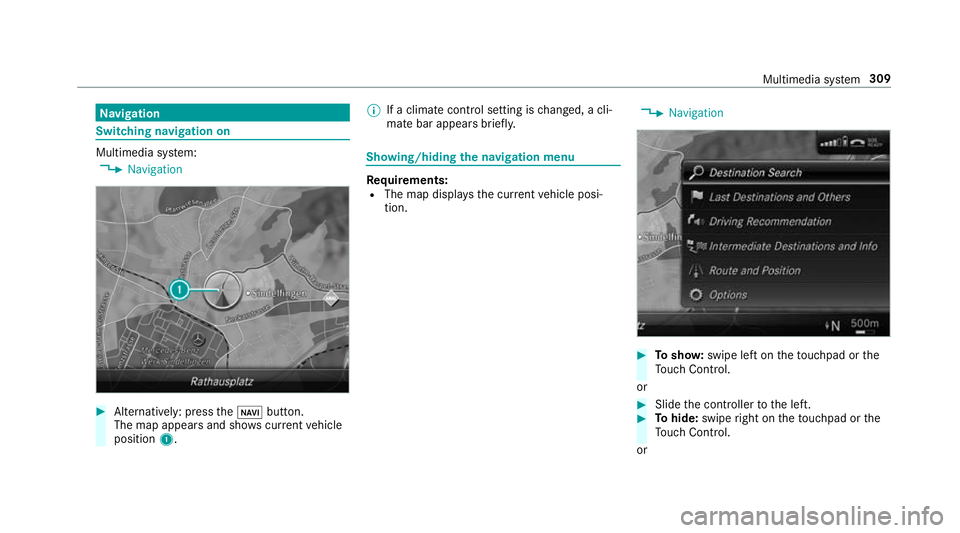
Multimedia sy
stem:
, Navigation #
Alternatively: press theß button.
The map appear sand sho wscurrent vehicle
position 1. %
Ifac limat econt rols etting is changed, acli‐
mat ebar appear sbrief ly. Showing/hiding
then avigation menu Re
quirements:
R The map displa ys thecurrent vehicle posi‐
tion. ,
Navigation #
Tosho w:swipe lef tonthetouchpad or the
To uc hC ontrol.
or #
Slid ethe controller tothel eft. #
Tohide: swipe right on thet ouchpad or the
To uc hC ontrol.
or Multimedia sy
stem 309
Page 334 of 585
#
Select POI symbols.
The #do tindica test he cur rent setting.
Standard displayss ymbols of predefined cat‐
egories on them ap.
User defined allowsyoutop ersonall yselect
th es ymbols fort he available categories.
None switches thed ispla yoff. #
Select asetting. #
User defined:s elect categories.
The POI symbols of thes elected categories
ar ed ispla yedOor no tdispla yedª.
Selecting text information
Multimedia sy stem:
, Navigation .
Z Options .
Text
information #
Select text information.
Current street showsthes tree tyou ar ecur‐
re ntly driving on at theb otto moft he displa y.
When them ap is mo ved, thef ollowing infor‐
mation appear sunder thec rosshair:
R stre et name
R POI name R
area name
Geo-coordinates displayst he following infor‐
mation:
R longitude and latitude
R elevation
The el evatio nshown ma ydeviat ef rom
th ea ctual ele vation.
R numbe rofsatellitesf romw hichas ignal
can be recei ved
When them ap is mo ved, this information
does no tappear.
Climate control displays thecurrent clima te
control settings.
None switches thed ispla yoff.
Switching mo torw ay information on/off
Multimedia sy stem:
, Navigation .
Z Options #
Switch Motorway information onO or off
ª.
The function is switched on O:during a
journe y,additional information on upcoming fa
cilities appea rson ther ight side of the
screen. These include car par ks,s ervice sta‐
tions and mo torw ay ex its,fore xamp le.
Displ aying then extintersectin gstreet
Re quirements:
R Routeg uidance is no tactive.
Multimedia sy stem:
, Navigation .
Z Options #
Activate ONextintersecting street .
Th en am eoft he next intersecting stre et will
be displa yedatt he upper edg eofthe displa y.
Displaying them apversion
Multimedia sy stem:
, Navigation .
Z Options #
Select Map version . #
Select Details.
% Information about ne wversions of thed igital
map can be obtained from aMercedes-Benz
Service Centre. Multimedia sy
stem 331