service MERCEDES-BENZ E-CLASS ESTATE 2020 Owner's Manual
[x] Cancel search | Manufacturer: MERCEDES-BENZ, Model Year: 2020, Model line: E-CLASS ESTATE, Model: MERCEDES-BENZ E-CLASS ESTATE 2020Pages: 489, PDF Size: 9.15 MB
Page 191 of 489
#
App lythe electric parking brake. #
Enga getransmission position jin a station‐
ary vehicle with the brake pedal applied
(/ page 178). #
Switch off the engine and the ignition by
pressing the1 button. #
Release the service brake slowl y.#
Get out of theve hicle and lock it.
% When you park theve hicle, you can still
opera tethe side windo wsand the sliding
sunroof for appro ximately five minutes if the
driver's door is closed.
% When you park theve hicle, you can still
opera tethe side windo wsand the panorama
sliding sunroof for appro ximately five
minutes if the driver's door is closed. Garage door opener
Prog
ramming buttons for the garage door
opener &
DANG ER Risk of death caused by
ex haust gases
Combustion engines emit poisonous exhaust
ga ses such as carbon monoxide. Inhaling
th ese exhaust gases is hazardous tohealth
and leads topoisoning. #
Never lea vethe engine or, if present,
th e auxiliary heating running in an
enclosed space wi thout suf ficient venti‐
lation. &
WARNING Risk of inju rywhen opening
or closing a door with thega rage door
opener
When you operate or program the door with
th e integrated garage door opener, persons
in thera nge of mo vement of the door may
become trapped or be stru ck bythe door. #
Alw ays make sure that nobody is within
th era nge of mo vement of the door. Re
quirements:
R The vehicle has been par ked outside the
ga rage or outside thera nge of mo vement of
th e door.
R The engine is switched off.
R The ignition is switched on.
% The garage door opener function is alw ays
av ailable when the ignition is switched on. 18 8
Driving and pa rking
Page 196 of 489
R
the electric parking brake is not applied Note
s on parking up theve hicle If
yo u lea vetheve hicle par ked up for longer than
six weeks, it may suf fer dama gethro ugh disuse.
The 12V battery may also be impaired or dam‐
aged byheavy discharging.
% Further information can be obtained at a
qu alified specialist workshop.
* NO
TEPlug-in hybrid #
Obser vethe no tes about the high-volt‐
age battery in the Supplement. Yo u
could otherwise failto recognise dan‐
ge rs. St
andby mode (extension of the star ter bat‐
te ry 's period out of use) St
andby mode function
% This function is not available for all models. If
standby mode is activated, ene rgy loss will be
minimised during extended pe riods of non-oper‐
ation.
St andby mode is characterised bythefo llowing:
R thest ar ter battery is preser ved.
R the maximum non-operational time appears
in the media displa y.
R the connection toonline services is inter rup‐
te d.
R theAT A (anti-theft alarm sy stem) is not avail‐
able.
R the interior pr otection and tow- aw ay protec‐
tion functions are not available.
R the function for de tecting collisions on a
pa rked vehicle is not available.
If th efo llowing conditions are fulfilled, standby
mode can be activated or deactivated using the
multimedia sy stem:
R The engine is switched off.
R The ignition is switched on.
Exceeding theve hicle's displa yed non-opera‐
tional time may cause incon venience, i.e. it can‐ not be guaranteed
that thest ar ter battery will
re liably start the engine.
The star ter battery must be charge dfirs t in the
fo llowing situations:
R The vehicle's non-operational time must be
ex tended.
R The Battery charge insufficient for standby
mode messa geappears in the media displa y.
% Standby mode is automatically deactivated
when the ignition is switched on.
Ac tivating/deactivating standby mode (park‐
ing up theve hicle)
Re quirements:
R The engine is switched off.
Multimedia sy stem:
4 © 5
Settings 5
Vehicle #
Activate or deacti vate Standby mode. #
Select Yes. Driving and pa
rking 19 3
Page 262 of 489
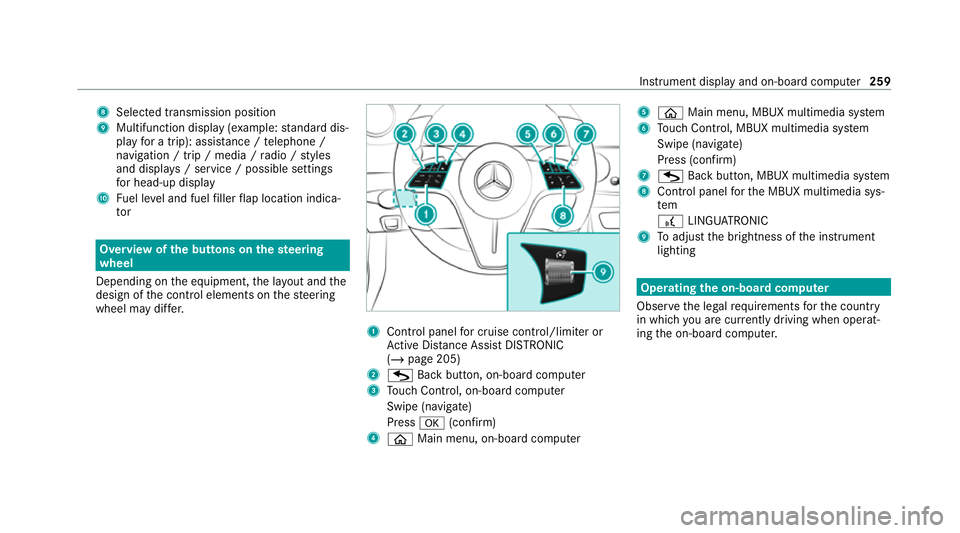
8
Selected transmission position
9 Multifunction displ ay(exa mp le:standard dis‐
play for a trip): assi stance / telephone /
navigation / trip / media / radio / styles
and displa ys/ service / possible settings
fo r head-up display
A Fuel le vel and fuel filler flap location indica‐
tor Overview of
the but tons on thest eering
wheel
Depending on the equipment, the la yout and the
design of the control elements on thesteering
wheel may dif fer. 1
Control panel for cruise control/limiter or
Ac tive Dis tance Assi stDISTRONIC
(/ page 205)
2 G Back button, on-boa rdcompu ter
3 Touch Control, on-board co mputer
Swipe (navigate)
Press a(confirm)
4 ò Main menu, on-board co mputer 5
ò Main menu, MBUX multimedia sy stem
6 Touch Control, MBUX multimedia sy stem
Swipe (navigate)
Press (confirm)
7 G Back button, MBUX multimedia sy stem
8 Control panel forth e MBUX multimedia sys‐
tem
£ LINGU ATRO NIC
9 Toadjust the brightness of the instrument
lighting Operating
the on-boa rdcompu ter
Obser vethe legal requ irements forth e count ry
in which you are cur rently driving when operat‐
ing the on-board computer. Instrument display and on-board computer
259
Page 263 of 489
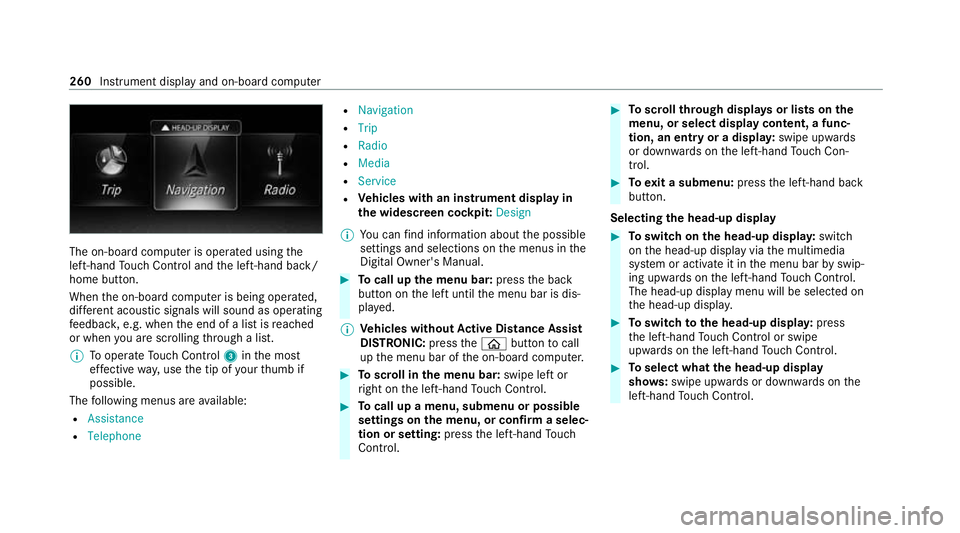
The on-board computer is operated using
the
left-hand Touch Control and the left-hand back/
home button.
When the on-board computer is being operated,
dif fere nt acoustic signals will sound as operating
fe edbac k,e.g. when the end of a list is reached
or when you are sc rolling thro ugh a list.
% Tooperate Touch Control 3inthe most
ef fective way,use the tip of your thumb if
possible.
The following menus are available:
R Assistance
R Telephone R
Navigation
R Trip
R Radio
R Media
R Service
R Vehicles with an instrument display in
th e widescreen cockpit: Design
% You can find information about the possible
settings and selections on the menus in the
Digital Owner's Manual. #
Tocall up the menu bar: pressthe back
button on the left until the menu bar is dis‐
pla yed.
% Ve
hicles without Active Di stance Assist
DISTRO NIC:press theò button tocall
up the menu bar of the on-board computer. #
Toscroll in the menu bar: swipe left or
ri ght on the left-hand Touch Control. #
Tocall up a menu, submenu or possible
settings on the menu, or confirm a selec‐
tion or setting: pressthe left-hand Touch
Control. #
Toscroll through displa ysor lists on the
menu, or select display content, a func‐
tion, an entry or a displa y:swipe upwards
or down wards on the left-hand Touch Con‐
trol. #
Toexit a submenu: pressthe left-hand back
button.
Selecting the head-up display #
Toswitch on the head-up displa y:switch
on the head-up display via the multimedia
sy stem or activate it in the menu bar byswip‐
ing upwards on the left-hand Touch Control.
The head-up displ aymenu will be selected on
th e head-up displa y. #
Toswitch tothe head-up displa y:press
th e left-hand Touch Control or swipe
upwards on the left-hand Touch Control. #
Toselect what the head-up display
sho ws:swipe up wards or down wards on the
left-hand Touch Control. 260
Instru ment display and on-board computer
Page 270 of 489
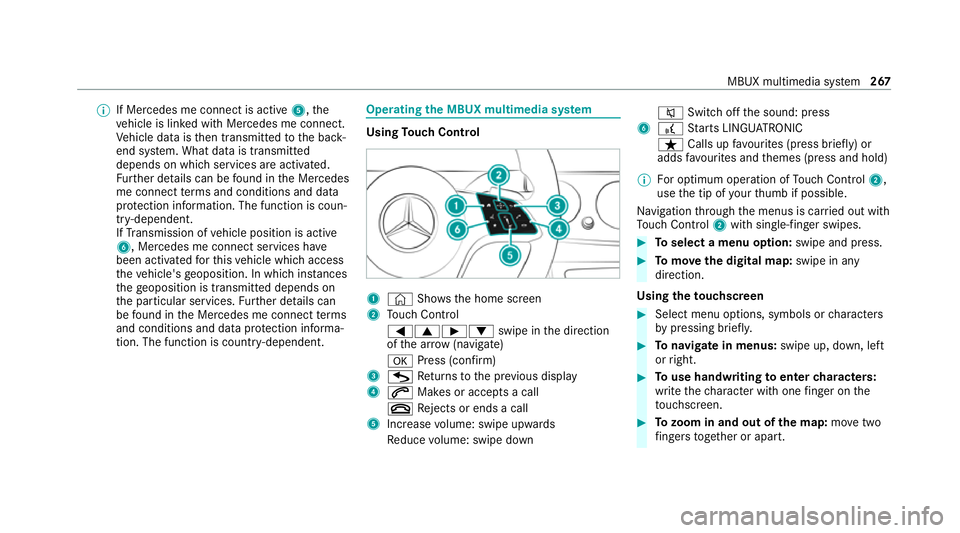
%
If Mercedes me connect is active 5,the
ve hicle is linked with Mercedes me connect.
Ve hicle data is then transmit tedto the bac k-
end sy stem. What data is transmit ted
depends on which services are activated.
Fu rther de tails can be found in the Mercedes
me connect term s and conditions and data
pr otection information. The function is coun‐
tr y- dependent.
If Transmission of vehicle position is active
6, Mercedes me connect services ha ve
been activated forth is vehicle which access
th eve hicle's geoposition. In which ins tances
th ege oposition is transmitted depends on
th e particular services. Further de tails can
be found in the Mercedes me connect terms
and conditions and data pr otection informa‐
tion. The function is count ry-dependent. Ope
rating the MBUX multimedia sy stem Using
Touch Control 1
© Shows th e home screen
2 Touch Control
=9Ì :swipe in the direction
of the ar row (navigate)
a Press (con firm)
3 G Returns tothe pr evious display
4 6 Makes or accepts a call
~ Rejects or ends a call
5 Increase volume: swipe upwards
Re duce volume: swipe down 8
Switchoff the sound: press
6 £ Starts LINGU ATRO NIC
ß Calls up favo urites (press brief ly) or
adds favo urites and themes (press and hold)
% For optimum operation of Touch Control 2,
use the tip of your thumb if possible.
Na vigation thro ugh the menus is car ried out with
To uch Control 2with sin gle-finger swipes. #
Toselect a menu option: swipe and press. #
Tomo vethe digital map: swipe in any
direction.
Using theto uchscreen #
Select menu options, symbols or characters
by pressing briefly. #
Tonavigate in menus: swipe up, down, left
or right. #
Touse handwriting toenter characters:
write thech aracter with one finger on the
to uchsc reen. #
Tozoom in and out of the map: movetwo
fi ngers toget her or apart. MBUX multimedia sy
stem 267
Page 273 of 489
Overview of
the MBUX Interior Assistant &
WARNING Risk of inju ryfrom the cam‐
era's laser radiation
This product uses a classification 1 laser sys‐
te m. If the housing is opened or damaged,
laser radiation may damage your retina. #
Do not open the housing. #
Alw ays ha vemaintenance workand
re pairs car ried out byaqu alified spe‐
cialist workshop. This device is a class 1 laser product in accord‐
ance with DIN EN 60825-1:20 14
The camera is located in theove rhead control
panel.
If th eve hicle is fitted wi th the MBUX Interior
Assis tant, selected functions of the multimedia sy
stem can be operated conta ct-free. The MBUX
Interior Assi stant can dif fere ntia tebetween
driver and front passenger interactions and
de tects specific hand positions (poses).
Sy stem limits, display messages and no tes
fo rre ctification
The sy stem may be impaired or may not function
in thefo llowing situations:
R The camera in theove rhead control panel
may heat up due tooperating conditions. As
a re sult the camera may switch off temp ora‐
ri ly , particular lyduring longer periods of
operation and at high outside temp eratures.
Do not touch or co verth e camera and wait
until the camera has cooled down and is
av ailable again. R
The camera is co vered or dirty, mis ted up or
scratched.
Wa it until the camera has cooled down
before cleaning the camera lens.
Clean the outside of the camera lens with a
dry or damp cotton clo th. Do not use microfi‐
bre clo ths. Do notremo vethe co ver when
cleaning.
R Recognition can be impaired byreflective
clo thing, an adverse colour of clo thing or by
accesso ries, forex ample.
R Clothing being worn(hat, shawl, scarf) may
be limiting the de tection area of the camera.
Ke ep the camera's field of vision clear.
R The camera is not operational.
Consult a Mercedes-Benz service cent re.270
MBUX multimedia sy stem
Page 284 of 489
#
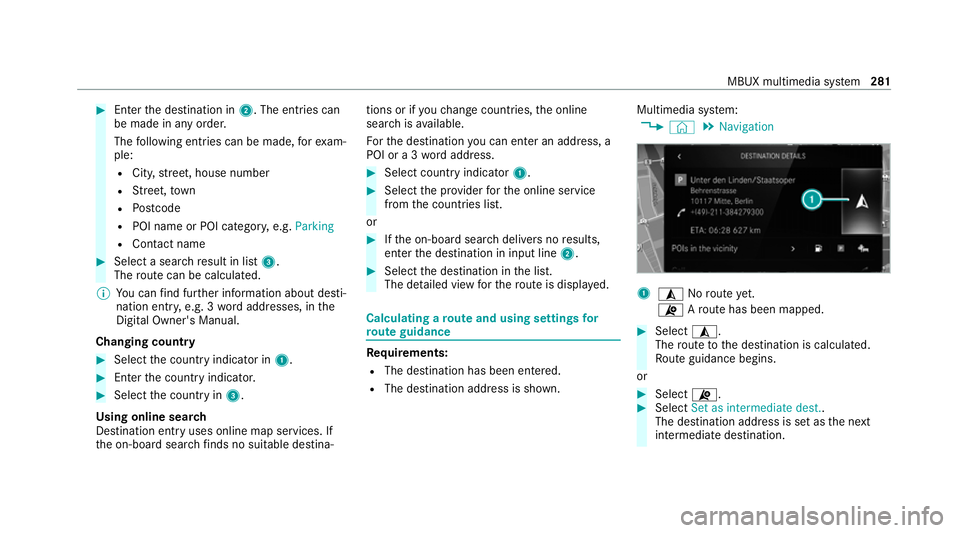
Enter the destination in 2. The entries can
be made in any order.
The following ent ries can be made, forex am‐
ple:
R City, stre et, house number
R Street,to wn
R Postcode
R POI name or POI catego ry, e.g. Parking
R Contact name #
Select a sear chresult in list 3.
The route can be calculated.
% You can find fur ther information about desti‐
nation entry , e.g. 3wordaddresses, in the
Digital Owner's Manual.
Changing country #
Select the count ryindicator in 1. #
Enterth e count ryindicator. #
Select the count ryin3.
Using online sear ch
Destination entry uses online map services. If
th e on-board sear chfinds no suitable de stina‐ tions or if
youch ange countries, the online
sear chisavailable.
Fo rth e destination you can en ter an addre ss, a
POI or a 3 wordaddress. #
Select country indicator 1. #
Select the pr ovider forth e online service
from the count ries list.
or #
Ifth e on-board sear chdelivers no results,
enter the destination in input line 2. #
Select the destination in the list.
The de tailed view forth ero ute is displ ayed. Calculating a
route and using settings for
ro ute guidance Re
quirements:
R The destination has been entered.
R The destination address is shown. Multimedia sy
stem:
4 © 5
Navigation 1
¥ Noroute yet.
¦ Aro ute has been mapped. #
Select ¥.
The route tothe destination is calculated.
Ro ute guidance begins.
or #
Select ¦. #
Select Set as intermediate dest..
The destination address is set as the next
intermediate destination. MBUX multimedia sy
stem 281
Page 286 of 489
#
Switch Motorway information on or off.Using se
rvices Re
quirements:
R There is an Internet connection.
R Mercedes me connect is available.
R You ha veset up a user account in the
Mercedes me Portal.
R The vehicle is connected toa user account
and you ha veaccep tedth e conditions of use
fo rth e service.
Fu rther information can be found at:
https://www.mercedes.me
R The service is available and has been activa‐
te d.
Multimedia sy stem:
4 © 5
Navigation
Displaying the traf fic situation with Live Traf‐
fi c Information #
Select Z. #
Activate Traffic. #
Select Advanced . #
Select View. #
Select Map elements. #
Switch on Traffic incidents ,Free-flowing traf-
fic and Delay.
If traf fic information has been recei ved, then
tra ffic incidents such as roadwor ks,ro ad
bloc ks, local area reports (e.g. fog) and warn‐
ing messages are displa yed.
The tra ffic delay is displa yedfo rth e cur rent
ro ute. Traf fic del ays lasting one minute or
longer are take n into conside ration.
Displ aying hazard warnings with Car-to-X-
Communication
If hazard warnings are available these can be
shown as symbols on the map. The display
depends on the settings forth eTraffic andTraf-
fic incidents options. #
Set the options.
If Traffic is switched off and Traffic incidents
is switched on, the symbols are shown on
th e prospective route. Displaying
weather information and other
map contents #
Select Z. #
Select Advanced . #
Select View. #
Select Map elements. #
Scroll up and show theONLINE MAP CON-
TENTS categor y. #
Switch on a service, e.g. Weather.
Cu rrent weather information is displa yed on
th e navigation map, e.g. temp erature or
cloud co ver. MBUX multimedia sy
stem 283
Page 288 of 489
Obser
vethe additional information on stowing
mobile communications devices cor rectly:
R Loading theve hicle (/ page115)
Blue tooth ®
connection:
The menu view and theav ailable functions in the
te lephone menu are in part dependent on the
Blu etoo th®
profile of the connected mobile
phone. Full functionality is only available if the
mobile phone supports bo thofthefo llowing
Blue tooth ®
profiles:
R PBAP (Phone Book Access Profile)
- The contacts on the mobile phone are
shown automatically on the multimedia
sy stem.
R MAP (Message Access Profile)
- The mobile phone message functions can
be used on the multimedia sy stem.
Ir re spective of this, Blue tooth ®
audio functional‐
ity can byused with any mobile radio unit.
Fo r information on thera nge of functions of the
mobile radio unit tobe connec ted, see the man‐
ufacturer's operating instructions. Ne
twork connection:
The following cases can lead tothe call being
disconnected while theve hicle is in motion:
R You swit chinto a transmission/reception
st ation, in which no communication channel
is free.
R The SIM card used is not compatible with the
network available
R a mobile phone with "Twincard" is logged into
th e network with the second SIM card at the
same time
The multimedia sy stem supports calls in HD
Vo ice ®
for impr oved speech qualit y.Arequ ire‐
ment forth is is that the mobile phone and the
mobile phone network pr ovider of the person
yo u are calling suppo rtHD Voice ®
.
Depending on thequ ality of the connection, the
vo ice quality may fluctuate.
Fu rther information can be obtained from a
Mercedes-Benz service centre or at: https://
www.mercedes-benz.com/connect MBUX multimedia sy
stem 285
Page 290 of 489

R
Two mobile phones are connected with the
multimedia sy stem via Blue tooth®
(two
phone mode).
- You can use all the functions of the multi‐
media sy stem with the mobile phone in
th efo re ground.
- You can recei veincoming calls and mes‐
sages with the mobile phone in the back‐
ground.
Yo u can inter change the mobile phone in
th efo re ground and bac kground.
R A mobile phone is connected as the car
phone.
Connecting a mobile phone
Re quirements:
R Blue tooth ®
is activated on the mobile phone
(see the manufacturer's operating instruc‐
tions).
R Blue tooth ®
is activated on the multimedia
sy stem. Multimedia sy
stem:
4 © 5
Phone
Sear ching for a mobile phone #
Select í. #
Select Connect new device .
Connecting a mobile phone
Auth orisation follo ws using secure simple pair‐
ing. #
Select a mobile phone.
A code is displ ayed in the multimedia sy stem
and on the mobile phone. #
If bo thcodes match, confirm the code on the
mobile phone.
Fu nctions in thete lephony menu
In thete lephony menu you ha vethefo llowing
functions, forex ample:
R Making calls, e.g.:
-
R Accept a call
- k End call
- i Create conferen. call -
Accepting or rejecting a waiting call
R Managing con tacts, e.g.:
- Downloading mobile phone contacts
- Managing thefo rm at of a con tact's name
- Saving a contact as a favo urite
R Receiving and sending messages, e.g.:
- Using there ad-aloud function
- Dictating a new message Mercedes me and apps
Mercedes me connect
Information on Mercedes me connect
% Mercedes me connect or individual
Mercedes me connect services are not avail‐
able in everycountr y.Find out at a
Mercedes-Benz service centre if these func‐
tions are available in your count ry.
Mercedes me connect consists of multiple serv‐
ices. MBUX multimedia sy
stem 287