phone MERCEDES-BENZ E-CLASS SALOON 2008 User Guide
[x] Cancel search | Manufacturer: MERCEDES-BENZ, Model Year: 2008, Model line: E-CLASS SALOON, Model: MERCEDES-BENZ E-CLASS SALOON 2008Pages: 401, PDF Size: 6.89 MB
Page 125 of 401
On-board computer
122 Multi-function steering wheel
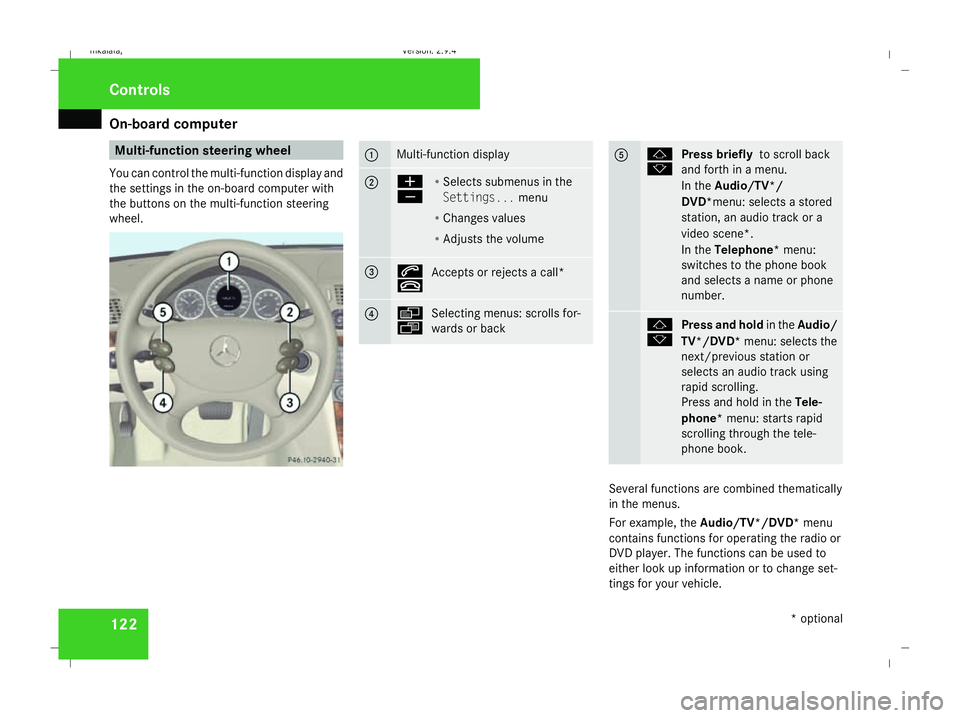
You can control the multi-function display and
the settings in the on-board computer with
the buttons on the multi-function steering
wheel. 1 Multi-function display
2 æ
ç
R
Selects submenus in the
Settings... menu
R Changes values
R Adjusts the volume 3 s
t
Accepts or rejects a call* 4 è
ÿ
Selecting menus: scrolls for-
wards or back 5 j
k
Press briefly
to scroll back
and forth in a menu.
In the Audio/TV*/
DVD*menu: selects a stored
station, an audio track or a
video scene*.
In the Telephone* menu:
switches to the phone book
and selects a name or phone
number. j
k
Press and hold
in theAudio/
TV*/DVD* menu: selects the
next/previous station or
selects an audio track using
rapid scrolling.
Press and hold in the Tele-
phone* menu: starts rapid
scrolling through the tele-
phone book. Several functions are combined thematically
in the menus.
For example, the Audio/TV*/DVD* menu
contains functions for operating the radio or
DVD player. The functions can be used to
either look up information or to change set-
tings for your vehicle. Controls
* optional
211_AKB; 2; 5, en-GB
mkalafa,
Version: 2.9.4 2008-02-29T16:57:07+01:00 - Seite 122Dateiname: 6515_3416_02_buchblock.pdf; preflight
Page 128 of 401
On-board computer
125Function
1 Basic display
menu (Ypage 125)
R Digital speedometer 17
(Y page 126)
R Outside tempera-
ture 17
(Y page 126)
R ASSYST PLUS service display
(Y page 243)
R Engine oil level* (Y page 223)
R Tyre pressure loss warning system
(Y page 230) or tyre pressure mon-
itor* (Y page 232) 2
AMG* menu (Y
page 126) 3
Audio/TV*/DVD*
(Ypage 129)
menu
R Radio station ( Ypage 129)
R Audio drive or media (Y page 129)
R TV* (Y page 130)
R DVD video* (Y page 130) Function
4
Navigation* menu (Y
page 130) 5
Distronic
* menu (distance display)
(Y page 145) 6
Message memory
menu18
(fault and
warning messages) (Y page 131) 7 Settings
menu (Ypage 131)
R Resetting to factory settings
(Y page 132)
R Selecting a submenu (Y page 132) 8 Trip computer
menu
R Consumption statistics
(Y page 140)
R Range (Y page 140) 9
Telephone*
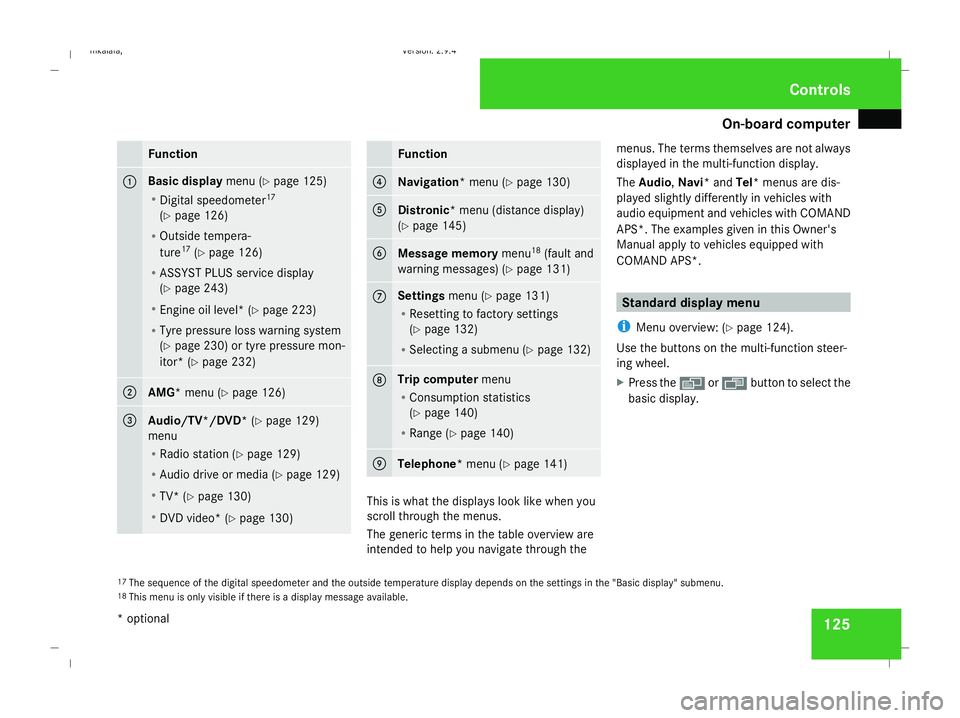
menu (Ypage 141) This is what the displays look like when you
scroll through the menus.
The generic terms in the table overview are
intended to help you navigate through themenus. The terms themselves are not always
displayed in the multi-function display.
The Audio, Navi* and Tel* menus are dis-
played slightly differently in vehicles with
audio equipment and vehicles with COMAND
APS*. The examples given in this Owner's
Manual apply to vehicles equipped with
COMAND APS*. Standard display menu
i Menu overview: (Y page 124).
Use the buttons on the multi-function steer-
ing wheel.
X Press the èor· button to select the
basic display.
17 The sequence of the digital speedometer and the outside temperature display depends on the settings in the "Basic display" submenu.
18 This menu is only visible if there is a display message available. Controls
* optional
211_AKB; 2; 5, en-GB
mkalafa,
Version: 2.9.4
2008-02-29T16:57:07+01:00 - Seite 125 ZDateiname: 6515_3416_02_buchblock.pdf; preflight
Page 144 of 401
On-board computer
141Telephone menu*
Functions and displays are dependent on the
optional equipment installed in your vehicle.
You can place your mobile phone in the
mobile phone bracket* (Y page 211), or set
up a Bluetooth connection to the audio sys-
tem or COMAND APS* (see the separate
operating instructions). G
Risk of accident
Observe the legal requirements of the
country in which you are currently driving
regarding the use of mobile phones in the
vehicle.
If it is permitted to use mobile phones while
the vehicle is in motion, you should only use
them when the road and traffic conditions
allow. You may otherwise be distracted
from the traffic conditions, cause an acci-
dent and injure yourself and others.
i Menu overview: (Y page 124).
Use the buttons on the multi-function steer-
ing wheel. X
Switch on the mobile phone and audio sys-
tem or COMAND APS*; see the separate
operating instructions.
X Press the èor· button to select the
Telephone menu.
Mobile phone on PIN code not yet entered
Once you have inserted the mobile phone into
the mobile phone bracket*, the following
message appears in the multi-function dis-
play Please enter PIN.
X Enter the PIN using the mobile phone, Lin-
guatronic*, the audio systemor COMAND
APS*.
The mobile phone will search for a network.
Mobile phone operational
The multi-function display shows Readyor
the name of the GSM network provider. If the
operational readiness symbol goes out, your
vehicle is outside the transmission and recep-
tion range. In this case, No Serviceappears
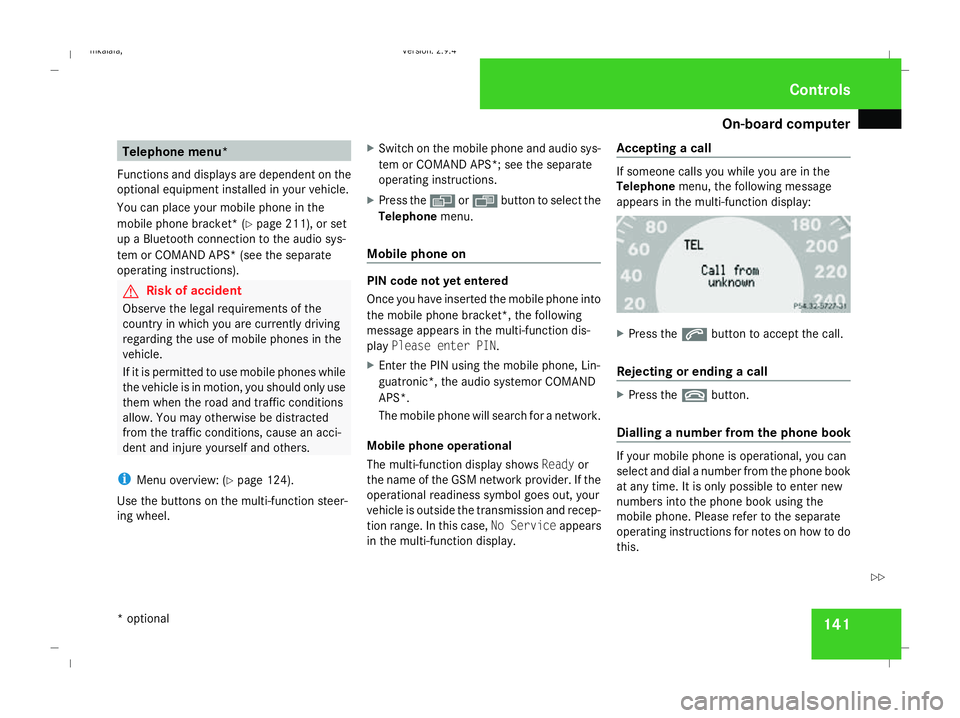
in the multi-function display. Accepting a call If someone calls you while you are in the
Telephone
menu, the following message
appears in the multi-function display: X
Press the sbutton to accept the call.
Rejecting or ending a call X
Press the tbutton.
Dialling a number from the phone book If your mobile phone is operational, you can
select and dial a number from the phone book
at any time. It is only possible to enter new
numbers into the phone book using the
mobile phone. Please refer to the separate
operating instructions for notes on how to do
this. Controls
* optional
211_AKB; 2; 5, en-GB
mkalafa,
Version: 2.9.4 2008-02-29T16:57:07+01:00 - Seite 141 ZDateiname: 6515_3416_02_buchblock.pdf; preflight
Page 145 of 401
Driving sys
tems 142
X
Press the èor· button to select the
Telephone menu.
X Press the jork button to call up
the phone book.
X Press the jork button to select the
desired name. To scroll through the tele-
phone book faster, press and hold the
j ork button for longer than 1 sec-
ond.
X Press the sbutton to start dialling.
The multi-function display shows the Con-
necting call...message.
The number dialled is stored in the redial
memory.
When there is a connection, the name of
the person called – if stored in the phone
book – or the number dialled appears in the
multi-function display.
or
X If you do not wish to make a call, press the
t button.
Redialling The on-board computer stores the last phone
numbers which were dialled. X
Press the èor· button to select the
Telephone menu.
X Press the sbutton to call up the most
recently dialled number in the redial mem-
ory.
X Press the jork button to select the
desired name or number.
X Press the sbutton to start dialling. Driving systems
Overview of driving systems
The vehicle's driving systems are described
on the following pages:
R Cruise control, Distronic* and Speedtronic,
which are used to control the speed of the
vehicle
R HOLD, which makes pulling away easier,
particularly on steep uphill gradients
R Vehicle level setting and AIRMATIC DC*,
which are used to adjust the vehicle's sus-
pension system
R 4*MATIC (permanent four-wheel drive), for
optimum traction
R Parktronic*, which assists you in parking
and manoeuvring
The ABS, BAS, adaptive brake lights, ESP ®
,
EBV (electronic brake-power distribution) and
ADAPTIVE BRAKE driving safety systems are
described in the "Driving safety systems" sec-
tion (Y page 58). Controls
* optional
211_AKB; 2; 5, en-GB
mkalafa
,V ersion: 2.9.4
2008-02-29T16:57:07+01:00 - Seite 142 Dateiname: 6515_3416_02_buchblock.pdf; preflight
Page 208 of 401
Loading and stowing
205
Installing the stowage box
X
Fold the two backrests 3forward
(Y page 198).
X Guide stowage box 1into the luggage
compartment through one of the rear doors
with the opening facing towards the front
of the vehicle.
X Press catches 4on stowage box 1into
the gap between backrest 3and the lug-
gage compartment floor.
X Fold backrest 3back (Y page 200).
i Stowage box 1is also held in place from
above by the combined luggage cover and
net.
Loading the stowage box
X Fold backrest 3forward (Y page 198).
X Load stowage box 1through the opening
on the front.
i Stowage box 1in the luggage compart-
ment is closed off by the rear bench seat
and can carry a maximum load of 20 kg.
X Fold backrest 3back (Y page 200). Removing the stowage box
X
Fold double backrest 3forward
(Y page 198).
X Slide stowage box 1with catches 4for-
wards to remove it from the mountings.
X Remove stowage box 1sideways through
a rear door.
X Fold backrest 3back (Y page 200). Stowage compartments
G
Risk of injury
The stowage compartments must be closed
when items are stored in them. Luggage
nets are not designed to secure heavy
items of luggage.
You or other vehicle occupants could be
injured by objects being thrown around if
you:
R brake sharply
R change direction suddenly
R have an accident
Sharp-edged and fragile objects must not
be carried in the luggage net. Do not carry hard objects in the ruffled
pockets. Objects must not protrude over
the top of the ruffled pockets.
i You will find an overview of the stowage
compartments on (Y page 36).
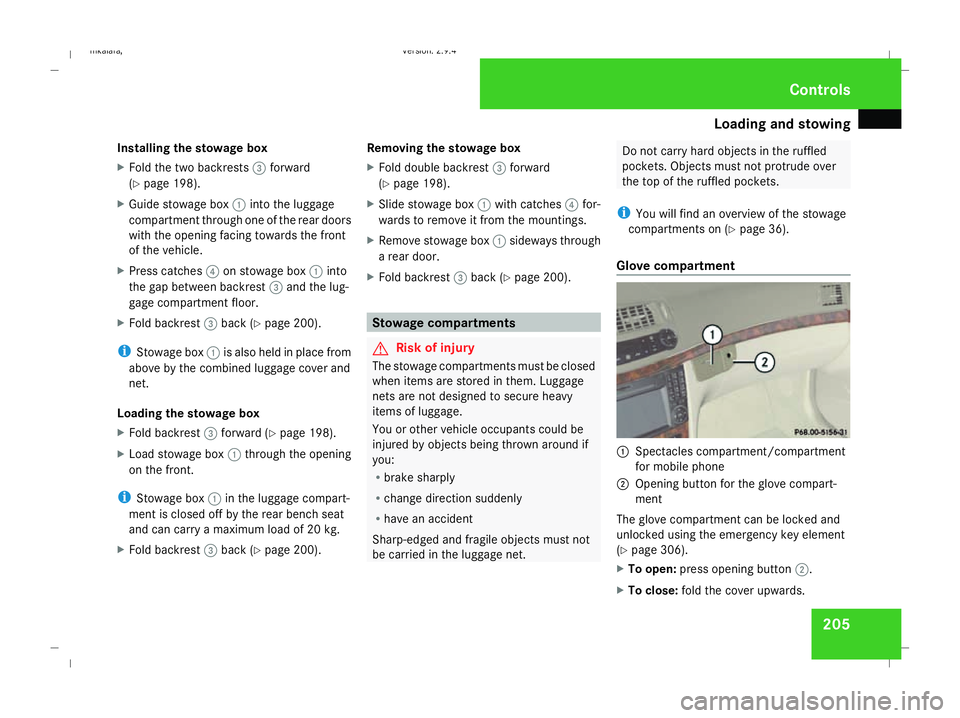
Glove compartment 1
Spectacles compartment/compartment
for mobile phone
2 Opening button for the glove compart-
ment
The glove compartment can be locked and
unlocked using the emergency key element
(Y page 306).
X To open: press opening button 2.
X To close: fold the cover upwards. Controls
211_AKB; 2; 5, en-GB
mkalafa,
Version: 2.9.4 2008-02-29T16:57:07+01:00 - Seite 205 ZDateiname: 6515_3416_02_buchblock.pdf; preflight
Page 209 of 401
Loading and stowing
206
Spectacles compartment/compartment
for mobile phone
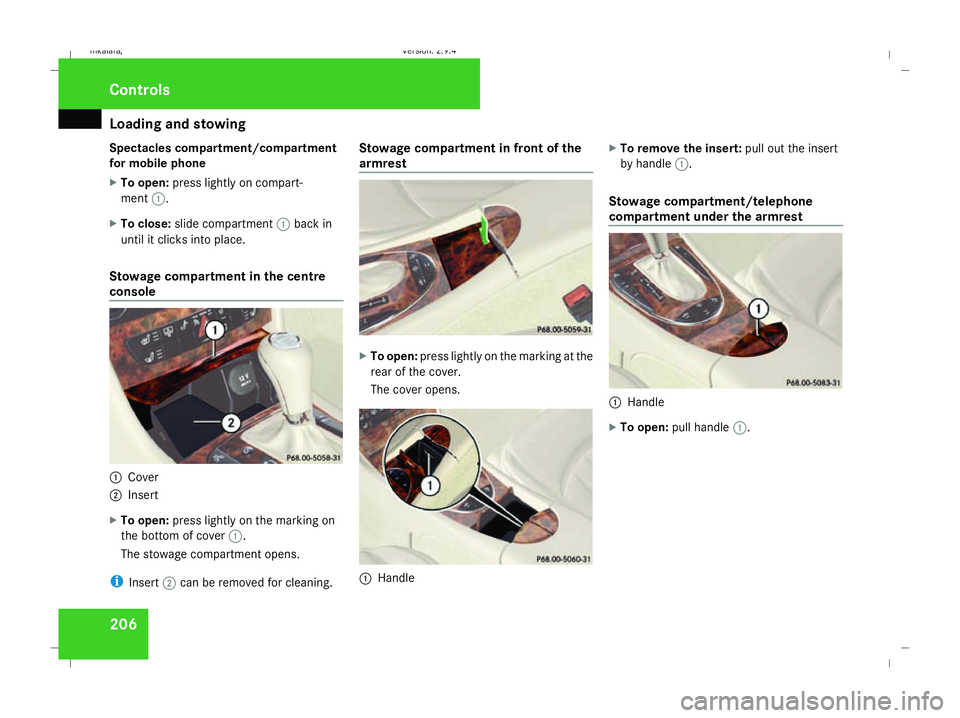
X To open: press lightly on compart-
ment 1.
X To close: slide compartment 1back in
until it clicks into place.
Stowage compartment in the centre
console 1
Cover
2 Insert
X To open: press lightly on the marking on
the bottom of cover 1.
The stowage compartment opens.
i Insert 2can be removed for cleaning. Stowage compartment in front of the
armrest
X
To open: press lightly on the marking at the
rear of the cover.
The cover opens. 1
Handle X
To remove the insert: pull out the insert
by handle 1.
Stowage compartment/telephone
compartment under the armrest 1
Handle
X To open: pull handle 1. Controls
211_AKB; 2; 5, en-GB
mkalafa,
Version: 2.9.4 2008-02-29T16:57:07+01:00 - Seite 206Dateiname: 6515_3416_02_buchblock.pdf; preflight
Page 214 of 401
Features
211Mobile phone*
G
Risk of accident
Observe the legal requirements of the
country in which you are currently driving
regarding operating mobile communica-
tions equipment in a vehicle.
If it is permitted by law to operate commu-
nications equipment while the vehicle is in
motion, you must only do so when the traf-
fic situation allows. You could otherwise be
distracted from the traffic conditions,
cause an accident and injure yourself and
others.
Two-way radios and fax equipment used
without low-reflection exterior aerials can
interfere with the vehicle's electronics and
thereby jeopardise the operating safety of
the vehicle and your safety. You must there-
fore only use this equipment if it is correctly
connected to a separate reflection-free
exterior aerial. G
Risk of injury
Excessive electromagnetic radiation may
cause damage to your health and the health
of others. Using an exterior aerial takes into
account current scientific discussions relating to the possible health risk posed by
electromagnetic fields.
i In order to ensure optimum signal quality
for mobile phones and to minimise mutual
interference between the vehicle electron-
ics and mobile phones, Mercedes-Benz rec-
ommends the use of an approved exterior
aerial. An exterior aerial conducts the elec-
tromagnetic fields generated by a wireless
device to the exterior of the vehicle; the
field strength within the vehicle interior is
lower than in a vehicle that does not have
an exterior aerial.
i There are various mobile phone brackets
that may be fitted to your vehicle; in some
cases these are country-specific. You can
obtain these mobile phone brackets from a
qualified specialist workshop, e.g. a
Mercedes-Benz Service Centre. The func-
tions and services available when you use
the phone depend on your mobile phone
model and service provider.
The mobile phone bracket is in the armrest.
X Open the telephone compartment
(Y page 206). Inserting the mobile phone into the
mobile phone bracket If the mobile phone is inserted into the mobile
phone bracket, you can only speak to the per-
son you are calling using the hands-free sys-
tem.
! Do not attempt to remove the mobile
phone and the telephone bracket together.
You could otherwise damage the mobile
phone bracket.
X Remove the cover of the aerial plug from
the back of the mobile phone and keep it in
a safe place. Cont
rols
* optional
211_AKB; 2; 5, en-GB
mkalafa ,V ersion: 2.9.4
2008-02-29T16:57:07+01:00 - Seite 211 ZDateiname: 6515_3416_02_buchblock.pdf; preflight
Page 215 of 401
Features
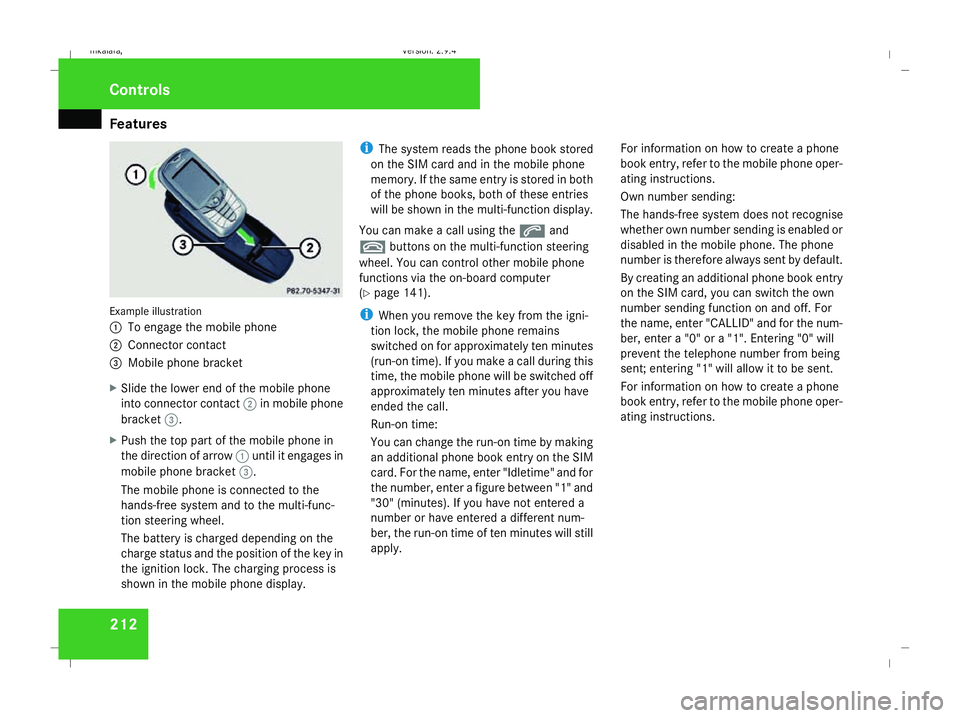
212Example illustration
1
To engage the mobile phone
2 Connector contact
3 Mobile phone bracket
X Slide the lower end of the mobile phone
into connector contact 2in mobile phone
bracket 3.
X Push the top part of the mobile phone in
the direction of arrow 1until it engages in
mobile phone bracket 3.
The mobile phone is connected to the
hands-free system and to the multi-func-
tion steering wheel.
The battery is charged depending on the
charge status and the position of the key in
the ignition lock. The charging process is
shown in the mobile phone display. i
The system reads the phone book stored
on the SIM card and in the mobile phone
memory. If the same entry is stored in both
of the phone books, both of these entries
will be shown in the multi-function display.
You can make a call using the sand
t buttons on the multi-function steering
wheel. You can control other mobile phone
functions via the on-board computer
(Y page 141).
i When you remove the key from the igni-
tion lock, the mobile phone remains
switched on for approximately ten minutes
(run-on time). If you make a call during this
time, the mobile phone will be switched off
approximately ten minutes after you have
ended the call.
Run-on time:
You can change the run-on time by making
an additional phone book entry on the SIM
card. For the name, enter "Idletime" and for
the number, enter a figure between "1" and
"30" (minutes). If you have not entered a
number or have entered a different num-
ber, the run-on time of ten minutes will still
apply. For information on how to create a phone
book entry, refer to the mobile phone oper-
ating instructions.
Own number sending:
The hands-free system does not recognise
whether own number sending is enabled or
disabled in the mobile phone. The phone
number is therefore always sent by default.
By creating an additional phone book entry
on the SIM card, you can switch the own
number sending function on and off. For
the name, enter "CALLID" and for the num-
ber, enter a "0" or a "1". Entering "0" will
prevent the telephone number from being
sent; entering "1" will allow it to be sent.
For information on how to create a phone
book entry, refer to the mobile phone oper-
ating instructions.Controls
211_AKB; 2; 5, en-GB
mkalafa,
Version: 2.9.4 2008-02-29T16:57:07+01:00 - Seite 212Dateiname: 6515_3416_02_buchblock.pdf; preflight
Page 216 of 401
Features
213
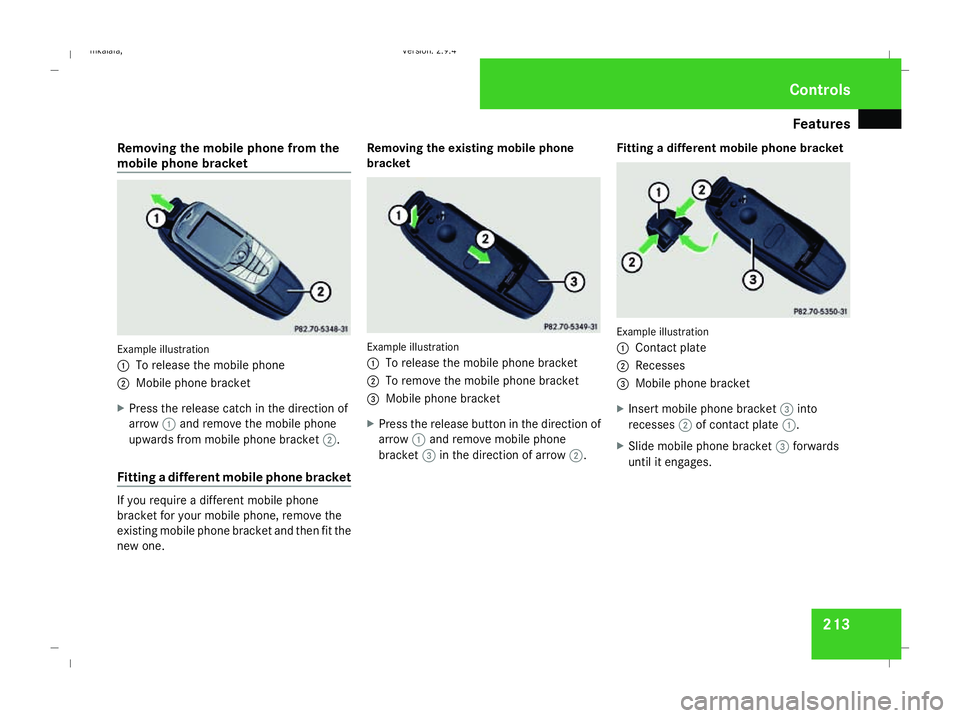
Removing the mobile phone from the
mobile phone bracket Example illustration
1
To release the mobile phone
2 Mobile phone bracket
X Press the release catch in the direction of
arrow 1and remove the mobile phone
upwards from mobile phone bracket 2.
Fitting a different mobile phone bracket If you require a different mobile phone
bracket for your mobile phone, remove the
existing mobile phone bracket and then fit the
new one. Removing the existing mobile phone
bracket
Example illustration
1 To release the mobile phone bracket
2 To remove the mobile phone bracket
3 Mobile phone bracket
X Press the release button in the direction of
arrow 1and remove mobile phone
bracket 3in the direction of arrow 2.Fitting a different mobile phone bracket Example illustration
1
Contact plate
2 Recesses
3 Mobile phone bracket
X Insert mobile phone bracket 3into
recesses 2of contact plate 1.
X Slide mobile phone bracket 3forwards
until it engages. Cont
rols
211_AKB; 2; 5, en-GB
mkalafa
,V ersion: 2.9.4
2008-02-29T16:57:07+01:00 - Seite 213 ZDateiname: 6515_3416_02_buchblock.pdf; preflight
Page 227 of 401
Engine compartment
224
R
Add 1.5 litres to reach maximum oil
level
R Add 2.0 litres to reach maximum oil
level
X Top up the oil if necessary ( Ypage 225).
Other messages in the multi-function dis-
play
If the engine is at normal operating tempera-
ture and there is too much oil, you will see the
following message:
Eng. oil level
Reduce oil level
X Have excess oil siphoned off.
! There is a risk of damage to the engine or
the catalytic converter if there is excess oil
in the engine.
If the Switch ignition on to check
engine oil level message appears:
X Turn the key to position 2in the ignition
lock (Y page 76).
You will see the following message if you did
not observe the required waiting time:
Observe waiting period X
Repeat the measurement after about five
minutes if the engine is at normal operating
temperature.
X Repeat the measurement after about
30 minutes if the engine is not at normal
operating temperature (if the engine was
only started briefly).
The following message appears if the engine
is running:
Engine oil level Not when engine on
X Switch off the engine and wait for five
minutes if the engine is at normal operating
temperature, or for about 30 minutes if the
engine is not at normal operating temper-
ature (if the engine was only started
briefly), before measuring.
i If you wish to cancel the measurement,
press the korj button on the multi-
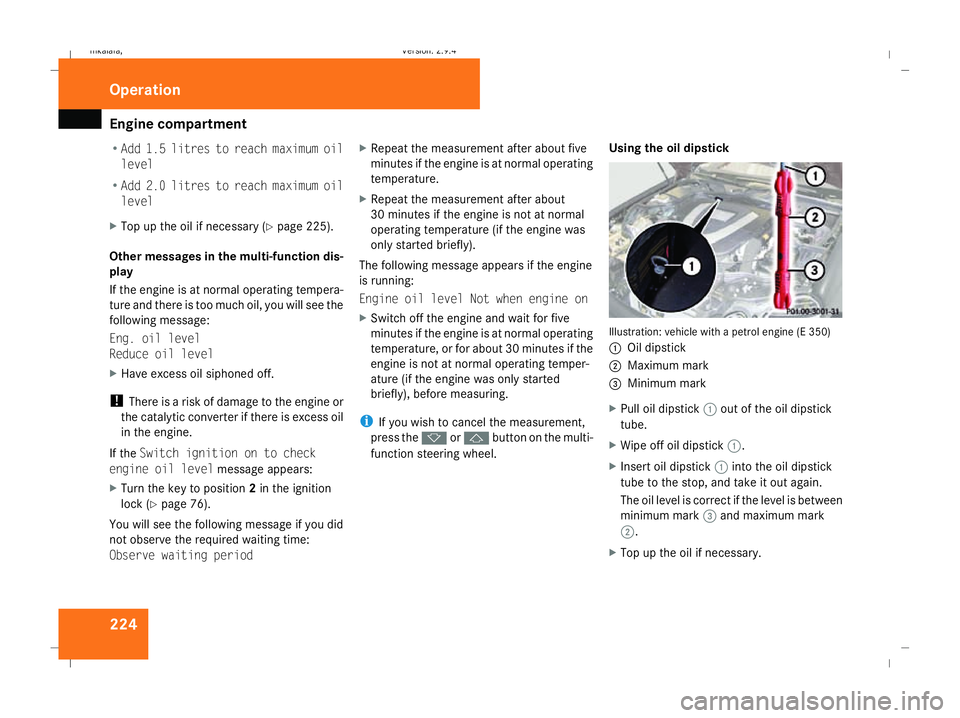
function steering wheel. Using the oil dipstick Illustration: vehicle with a petrol engine (E 350)
1
Oil dipstick
2 Maximum mark
3 Minimum mark
X Pull oil dipstick 1out of the oil dipstick
tube.
X Wipe off oil dipstick 1.
X Insert oil dipstick 1into the oil dipstick
tube to the stop, and take it out again.
The oil level is correct if the level is between
minimum mark 3and maximum mark
2.
X Top up the oil if necessary. Operation
211_AKB; 2; 5, en-GB
mkalafa,
Version: 2.9.4
2008-02-29T16:57:07+01:00 - Seite 224 Dateiname: 6515_3416_02_buchblock.pdf; preflight