ECO mode MERCEDES-BENZ E-CLASS SALOON 2016 User Guide
[x] Cancel search | Manufacturer: MERCEDES-BENZ, Model Year: 2016, Model line: E-CLASS SALOON, Model: MERCEDES-BENZ E-CLASS SALOON 2016Pages: 557, PDF Size: 11.09 MB
Page 271 of 557
Overview and operation
Overview of
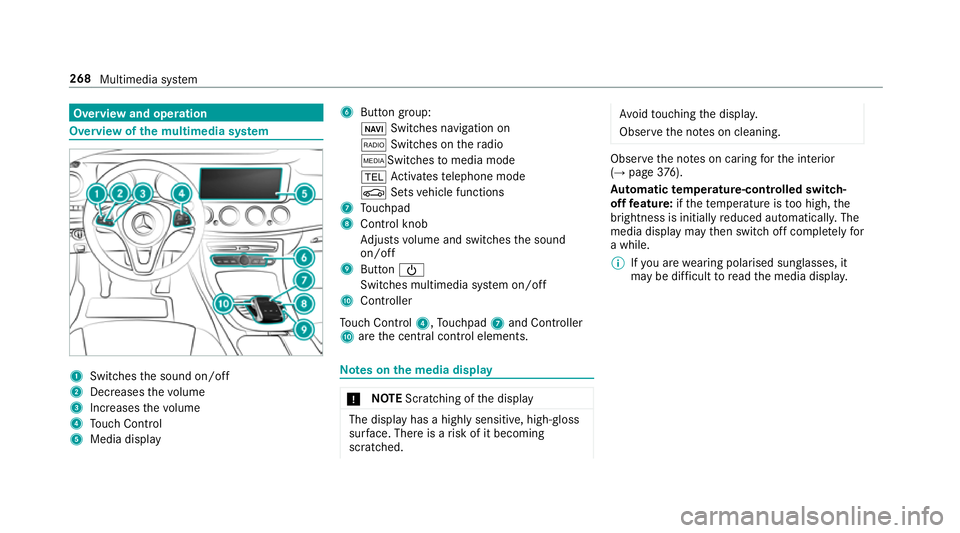
the multimedia sy stem 1
Swit ches the sound on/off
2 Decre asesthevo lume
3 Increases thevo lume
4 Touch Control
5 Media displ ay 6
Button group:
ß Switches navigation on
$ Switches on thera dio
ÕSwit ches tomedia mode
% Activates telephone mode
Ø Setsvehicle functions
7 Touchpad
8 Control knob
Adjusts volume and switches the sound
on/off
9 Button Ü
Switches multimedia sy stem on/off
A Controller
To uch Control 4,Touchpad 7and Controller
A are the cent ral control elements. Note
s onthe media display *
NO
TEScratching of the display The display has a highly sensitive, high-gloss
sur
face. The reis a risk of it becoming
scratched. Av
oid touching the displa y.
Obser vethe no tes on cleaning. Obser
vethe no tes on caring forth e interior
(→ page 376).
Au tomatic temperature-cont rolled switch-
off feature: ifth ete mp erature is too high, the
brightness is initially reduced automatically. The
media display may then switch off comple tely for
a while.
% Ifyo u are wearing polarised sun glasses, it
may be dif ficult toread the media displa y.268
Multimedia sy stem
Page 274 of 557
Yo
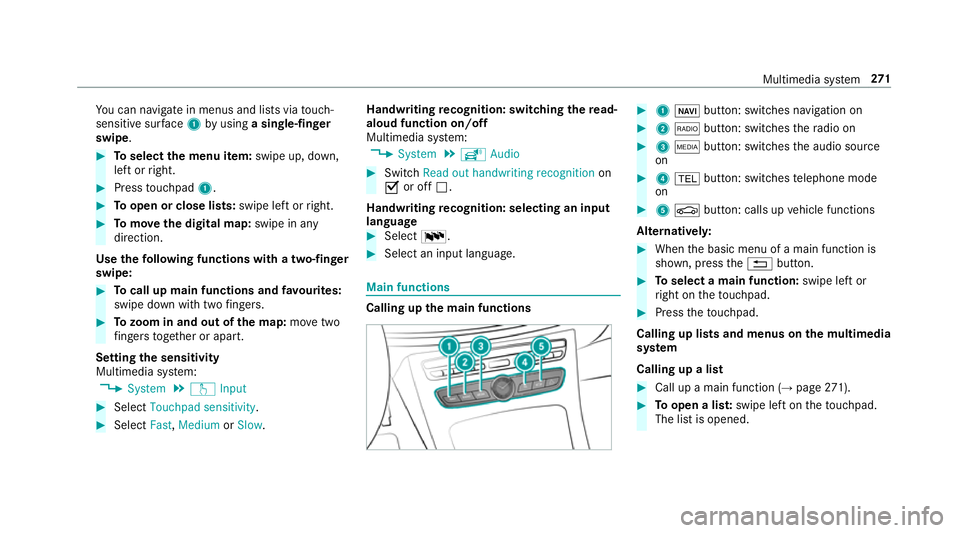
u can navigate in menus and lists via touch-
sensitive sur face 1 byusing a single-finger
swipe. #
Toselect the menu item: swipe up, down,
left or right. #
Press touchpad 1. #
Toopen or close lists: swipe left orright. #
Tomo vethe digital map: swipe in any
direction.
Use thefo llowing functions with a two-finger
swipe: #
Tocall up main functions and favo urites:
swipe down with two fingers. #
Tozoom in and out of the map: movetwo
fi ngers toget her or apart.
Setting the sensitivity
Multimedia sy stem:
, System .
w Input #
Select Touchpad sensitivity .#
Select Fast,Medium orSlow . Handwriting
recognition: swit ching there ad-
aloud function on/off
Multimedia sy stem:
, System .
õ Audio #
Switch Read out handwriting recognition on
O or off ª.
Handwriting recognition: selecting an input
langua ge #
Select B. #
Select an input language. Main functions
Calling up the main functions #
1 ß button: switches navigation on #
2 $ button: switches thera dio on #
3 Õ button: switches the audio source
on #
4 % button: switches telephone mode
on #
5 Ø button: calls up vehicle functions
Alternativel y: #
When the basic menu of a main function is
shown, press the% button. #
Toselect a main function: swipe left or
ri ght on theto uchpad. #
Press theto uchpad.
Calling up lists and menus on the multimedia
sy stem
Calling up a list #
Call up a main function (→ page271). #
Toopen a lis t:swipe left on theto uchpad.
The list is opened. Multimedia sy
stem 271
Page 291 of 557
#
Select a POI.
Selecting the last destination
Multimedia sy stem:
, Navigation .
¬ Destination .
Previ-
ous destinations #
Select the destination.
The destination address is shown. #
Alternatively: if a favo urite has been sa ved
( → page 297), select From global favourites .#
Select a favo urite.
The destination address is shown.
Selecting a contact
Re quirement:
a mobile phone is connec tedto the multimedia
sy stem (→ page 308).
Multimedia sy stem:
, Navigation .
¬ Destination .
Con-
tacts #
Select the conta ct.
The releva nt contact de tails are displa yed. #
Select an address. #
Alternativel y,to filter the display bycon‐
tacts: enter names or initials into the sear ch
fi eld. #
Select ¡.
The firs t contact in the list is highlighted. #
Select the conta ct.
En tering geo-coordina tes
Multimedia sy stem:
, Navigation .
¬ Destination .
Geo-
coordinates #
Ente rge o-coordinates as latitude and longi‐
tude coordinates in degrees, minutes and
seconds.
The map sho ws there leva nt position. #
Confirm the entry. #
Toview or mo vea destination on the
map: select Map. #
Tocalculate a route: select Start route
guidance. #
If a route has already been created, select
Start new route guidance orSet as inter-
mediate destination . Selecting from
the map
Multimedia sy stem:
, Navigation .
Map menu #
Alternatively: if the map is displa yed in full
screen mode, press theTo uch Control, con‐
troller or touchpad.
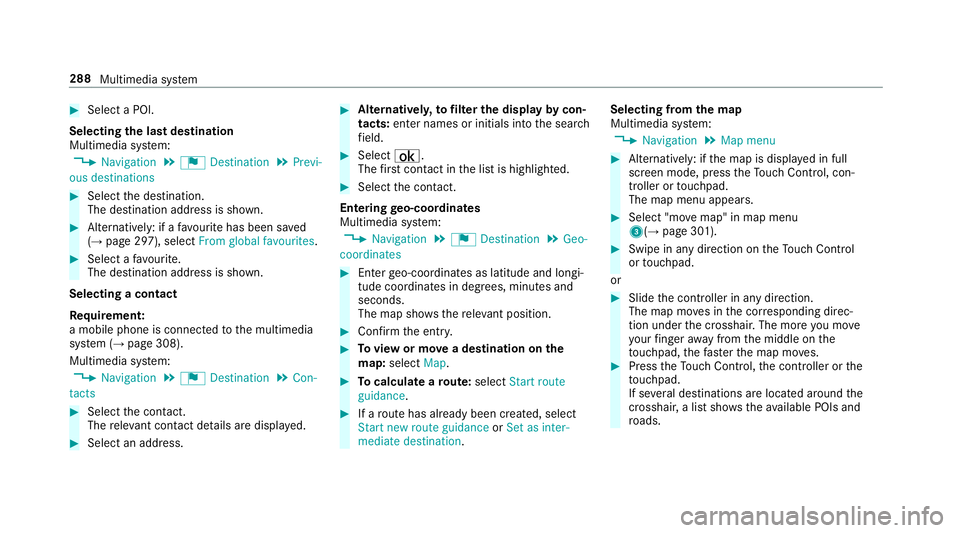
The map menu appears. #
Select "mo vemap" in map menu
3(→ page 301). #
Swipe in any direction on theTo uch Control
or touchpad.
or #
Slide the controller in any direction.
The map mo ves in the cor responding direc‐
tion under the crosshair. The more you mo ve
yo ur finger away from the middle on the
to uchpad, thefast erthe map mo ves. #
Press theTo uch Control, the controller or the
to uchpad.
If se veral destinations are located around the
crosshair, a li stsho wstheav ailable POIs and
ro ads. 288
Multimedia sy stem
Page 297 of 557
If
th ere is enough time between thech anges
of direction, the multimedia sy stem prepares
yo ufo rth e upcoming change of direction. A
navigation announcement, e.g. "Prepare to
turn right", is issued.
The map appears in full-screen mode.
R Announcement phase
The multimedia sy stem announces the
upcoming change of direction, e.g. by
announcing "Turn right in 200 m".
The display is split into two parts. The map is
displa yed on the lef t;on theright, there is a
de tailed image of the junction or a 3D image
of the upcoming change of direction.
R Chan ge-of-direction phase
The multimedia sy stem announces the immi‐
nent change of direction with the announce‐
ment "Now turn right".
The display is split into two parts.
The vehicle has successfully changed direc‐
tion when the light-coloured bar on theright
drops down to0 metres and the cur rent vehi‐ cle position symbol has
reached the white
ch ange-of-direction point.
When thech ange of direction is comple te,
th e map appears in full-screen mode.
% Changes of direction are also shown in the
Instrument Displa y.
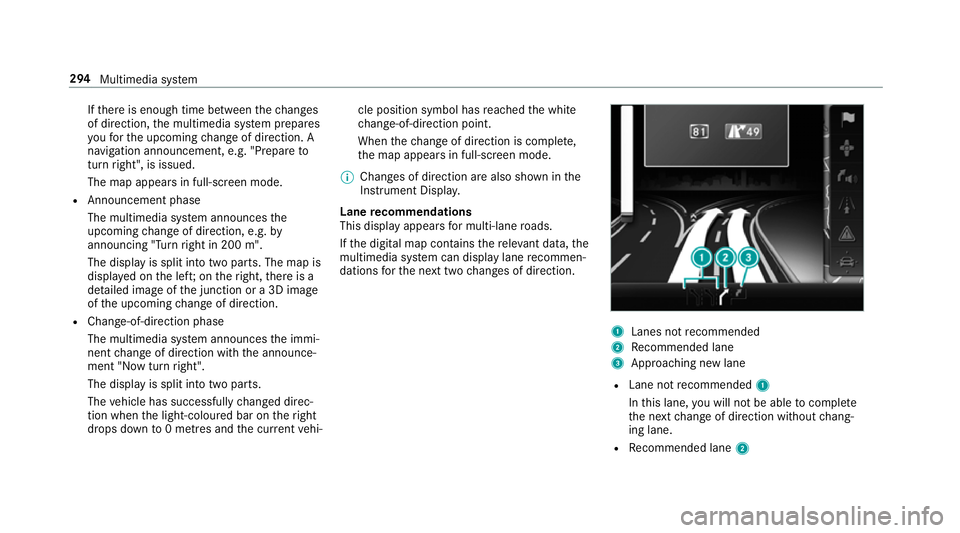
Lane recommendations
This display appears for multi-lane roads.
If th e digital map conta insthere leva nt da ta,the
multimedia sy stem can display lane recommen‐
dations forth e next two changes of direction. 1
Lanes not recommended
2 Recommended lane
3 Approa ching new lane
R Lane not recommended 1
In this lane, you will not be able tocompl ete
th e next change of direction without chang‐
ing lane.
R Recommended lane 2294
Multimedia sy stem
Page 314 of 557
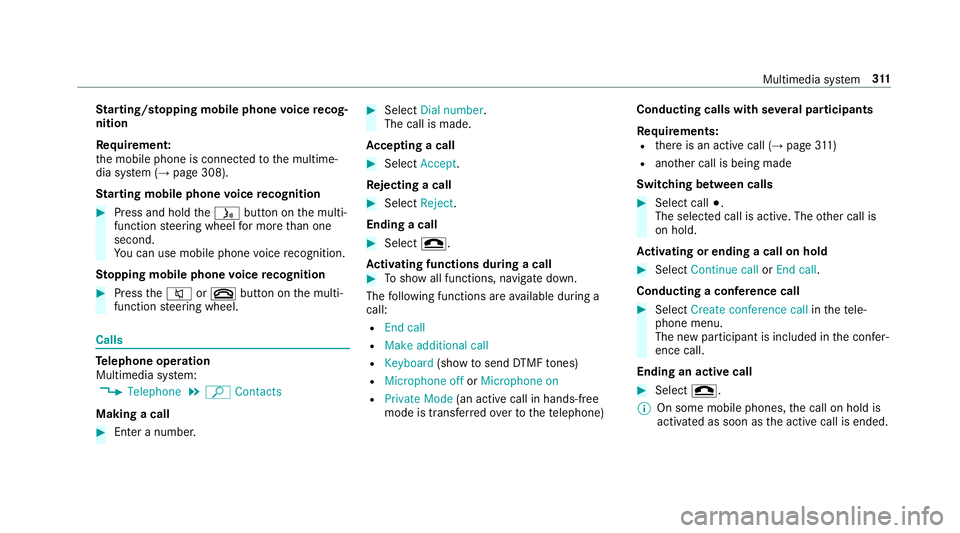
St
arting/ stopping mobile phone voice recog‐
nition
Re quirement:
th e mobile phone is connected tothe multime‐
dia sy stem (→ page 308).
St arting mobile phone voice recognition #
Press and hold theó button on the multi‐
function steering wheel for more than one
second.
Yo u can use mobile phone voice recognition.
St opping mobile phone voice recognition #
Press the8 or~ button on the multi‐
function steering wheel. Calls
Te
lephone operation
Multimedia sy stem:
, Telephone .
ª Contacts
Making a call #
Ente r a number. #
Select Dial number.
The call is made.
Ac cepting a call #
Select Accept.
Re jecting a call #
Select Reject.
Ending a call #
Select =.
Ac tivating functions during a call #
Toshow all functions, navigate down.
The following functions are available during a
call:
R End call
R Make additional call
R Keyboard (showtosend DTMF tones)
R Microphone off orMicrophone on
R Private Mode (an activecall in hands-free
mode is transfer redov er tothete lephone) Conducting calls with se
veral participants
Re quirements:
R there is an active call (→ page311)
R another call is being made
Switching between calls #
Select call #.
The selected call is active. The other call is
on hold.
Ac tivating or ending a call on hold #
Select Continue call orEnd call.
Conducting a conference call #
Select Create conference call inthete le‐
phone menu.
The new participant is included in the confe r‐
ence call.
Ending an active call #
Select =.
% On some mobile phones, the call on hold is
activated as soon as the active call is ended. Multimedia sy
stem 311
Page 325 of 557
%
ForRu ssia: various functions, e.g. receiving
traf fic information, cannot be per form ed for
up totwo hou rsafte r sending an emer gency
call.
St arting/ending ERA-GLONASS test mode
(Russia)
Re quirements:
R The star ter battery has suf ficient charge.
R The ignition is switched on.
R The vehicle has been stationary for at least
one minute. #
Tostart thete st mode: press and hold the
~ button on the multifunction steering
wheel for at least five seconds.
The test mode is star ted and automatically
ends af terth e language test has been per‐
fo rm ed. #
Toend thete st mode manuall y:switch off
th e ignition.
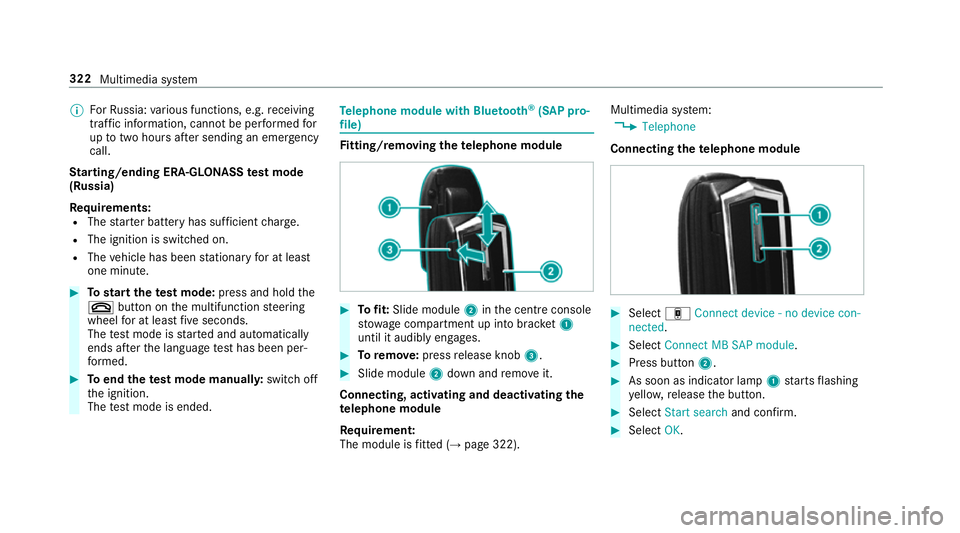
The test mode is ended. Te
lephone module with Blue tooth ®
(SAP pro‐
fi le) Fi
tting/ removing the telephone module #
Tofit: Slide module 2inthe cent reconsole
stow age compartment up into brac ket1
until it audibly engages. #
Toremo ve: press release knob 3. #
Slide module 2down and remo veit.
Connecting, acti vating and deactivating the
te lephone module
Re quirement:
The module is fitted (→ page 322). Multimedia sy
stem:
, Telephone
Connecting thete lephone module #
Select áConnect device - no device con-
nected. #
Select Connect MB SAP module. #
Press button 2. #
As soon as indicator lamp 1starts flashing
ye llo w, release the button. #
Select Start search and confirm. #
Select OK. 322
Multimedia sy stem
Page 332 of 557
The mobile phone continues
tobe supplied
with elect ricity.
or #
Disconnect the connecting cable between
th e mobile phone and multimedia sy stem.
Mercedes-Benz recommends disconnecting
th e connecting cable only when theve hicle is
st ationar y. Tr
ansfer redve hicle data when using Apple
CarPlay™ and Android Auto Note
s on transfer redve hicle data
When using Android Auto™ or Apple CarPl ay™,
cer tain vehicle data is transfer redto the mobile
phone. This enables youto getth e best out of
selected mobile phone services. Vehicle data is
not directly accessible.
Sy stem information:
R software release of the multimedia sy stem
R system ID (anonymised)
The transfer of this data is used tooptimise
communication between theve hicle and the
mobile phone. To
do this, and toassign se veralve hicles tothe
mobile phone, a vehicle ID is randomly gener‐
ated.
This has no connection totheve hicle identifica‐
tion number (VIN) and is dele ted when the multi‐
media sy stem is reset (→ page 284).
Driving status data:
R transmission position engaged
R distinction between par ked, standstill, rolling
and driving
R day/night mode of the instrument clus ter
The transfer of this data is used toalter how
con tent is displ ayed tocor respond tothe driving
situation.
Po sition data:
R co-ordinates
R speed
R compass direction
R acceleration direction This data is only transfer
red while the navigation
sy stem is active in order toimpr ove it (e.g. so it
can continue functioning when in a tunnel).
If yo u do not consent tovehicle data being trans‐
fe rred, you can deactivate the automatic start of
Android Auto™ (→ page 328) or Apple CarPlay™
(→ page 327) and temp orarily term inate the USB
connection between the mobile phone and the
ve hicle. Online and Internet functions
Internet connection
Internet connection
restrictions &
WARNING Risk of di stra ction from infor‐
mation sy stems and communications
equipment
If yo u operate information and communica‐
tions equipment integ rated in theve hicle
when driving, you will be distracted from the
traf fic situation. This could also cause youto
lose control of theve hicle. Multimedia sy
stem 329
Page 344 of 557
Connecting USB devices
* NO
TEDama gecaused byhigh temp era‐
tures High
temp eratures can damage USB devices. #
Remo vethe USB device af ter use and
ta ke it out of theve hicle. The multimedia connection unit is
found in the
stow age compartment under the armrest and
has two USB ports. Depending on theve hicle's
equipment, additional USB ports may be found
in thestow age compartment of the cent recon‐
sole or rear folding compartment. #
Connect the USB device tothe USB port.
Pla yable music files are pla yed back only if
th e cor responding media display is activated.
% Use the USB port identified byç touse
Apple CarPlay™ and Android Auto™. Selecting a track
Multimedia sy
stem:
, Media
Vi ath e skip function #
Toskip backwards or forw ards toa track:
navigate up or down.
Vi ath e cur rent track list #
Select è. #
Select Current track list. #
Select a tra ck.
Selecting playback options
Multimedia sy stem:
, Media .
Z Options
Playing back similar trac ks #
Select Play similar tracks.
A track li stwith similar trac ksis created and
pla yed bac k.
Playback mode #
Select Play mode. #
Select Normal track sequence.
The cur rent track li stis pla yed in the order it
appears on the data storage medium. #
Select Random playback of the current track
list.
The cur rent track li stis pla yed in random
orde r. #
Select Random playback of the current
medium.
All trac kson the active data storage medium
are pla yed in random orde r.
% The available playback options depend on
th e connected media source.
Pa use and playback function
Multimedia sy stem:
, Media #
Press theto uchpad. #
Topause playback: select Ë. #
Tocontinue playba ck:select Ì.
Fa st forw ard/r ewind #
Press theto uchpad. #
Slide the controller tothe left or right 1. Multimedia sy
stem 341
Page 360 of 557
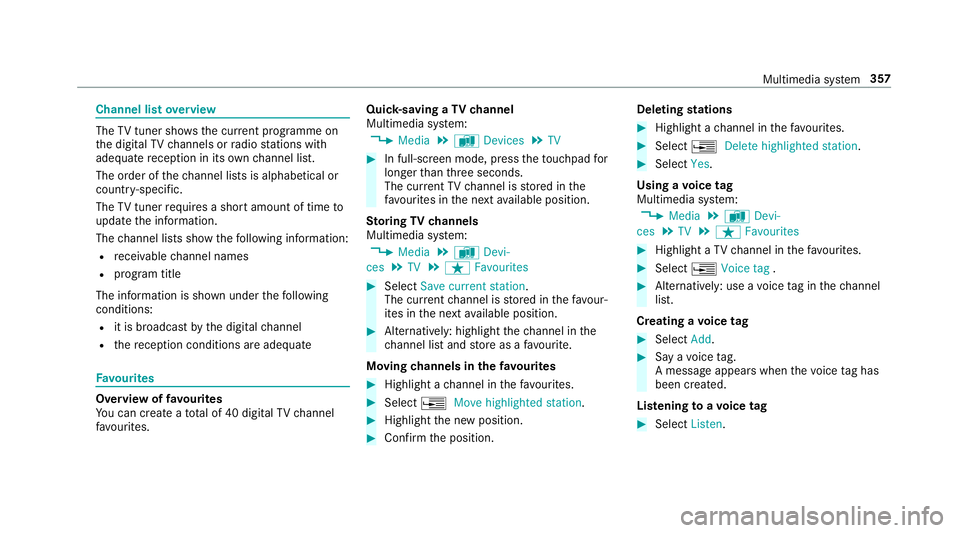
Channel list
overview The
TVtuner sho wsthe cur rent programme on
th e digital TVchannels or radio stations with
adequate reception in its ownch annel list.
The order of thech annel lists is alphabetical or
countr y-specific.
The TVtuner requ ires a short amount of time to
update the information.
The channel lists show thefo llowing information:
R recei vable channel names
R program title
The information is shown under thefo llowing
conditions:
R it is broadcast bythe digital channel
R there ception conditions are adequate Favo
urites Overview of
favo urites
Yo u can create a total of 40 digital TVchannel
fa vo urites. Qui
ck-saving a TVchannel
Multimedia sy stem:
, Media .
à Devices .
TV #
In full-screen mode, press theto uchpad for
longer than thre e seconds.
The cur rent TV channel is stored in the
fa vo urites in the next available position.
St oring TVchannels
Multimedia sy stem:
, Media .
à Devi-
ces .
TV .
ß Favourites #
Select Save current station .
The cur rent channel is stored in thefa vo ur‐
ites in the next available position. #
Alternatively: highlight thech annel in the
ch annel list and store as a favo urite.
Moving channels in thefa vo urites #
Highlight a channel in thefa vo urites. #
Select ¥Move highlighted station. #
Highlight the new position. #
Confirm the position. Deleting
stations #
Highlight a channel in thefa vo urites. #
Select ¥Delete highlighted station. #
Select Yes.
Using a voice tag
Multimedia sy stem:
, Media .
à Devi-
ces .
TV .
ß Favourites #
Highlight a TVchannel in thefa vo urites. #
Select ¥Voice tag . #
Alternatively: use a voice tag inthech annel
list.
Creating a voice tag #
Select Add. #
Say a voice tag.
A message appears when thevo ice tag has
been created.
Lis tening toavo ice tag #
Select Listen. Multimedia sy
stem 357
Page 385 of 557
tot
al loss of pressure in one or more tyres. How‐
eve r,th e tyre af fected must not show any clearly
visible damage.
Yo u can recognise MOExtended tyres bythe
MOExtended marking which appears on the side
wa ll of the tyre.
Ve hicles with tyre pressure loss warning sys‐
te m: MOExtended tyres may only be used in
conjunction wi than activated tyre pressure loss
wa rning sy stem.
Ve hicles with tyre pressure monitoring sys‐
te m: MOExtended tyres may only be used in
conjunction wi than activated tyre pressure mon‐
itoring sy stem.
If a pressure loss warning message appears in
th e multifunction display:
R Check the tyres for dama ge
R If driving on, obser vethefo llowing no tes &
WARNING Risk of accident when driving
in run-flat mode
When driving in run-flat mode, the handling
ch aracteristics are impaired. e.g. when cor‐ nering, when accelerating
stronglyand when
braking. #
Do not exceed the maximum permissi‐
ble speed. #
Avoid any abrupt steering and driving
manoeuvres as well as driving over
obs tacles (kerbs, pot holes, off-road).
This applies, in pa rticular, toa loaded
ve hicle. #
Stop driving in run-flat mode if you
notice:
R banging noise
R vehicle vibration
R smoke which smells like rubber
R continuous ESP ®
inter vention
R crac ksin tyre side walls #
After driving in run-flat mode, ha vethe
ri ms checkedby aqu alified specialist
wo rkshop with rega rd totheir fur ther
use. #
The defective tyre must be replaced in
eve rycase. Driving distance possible in li
mp-home mode
af te r the pressure loss warning Load condition Driving distance pos‐
sible in limp-homemode
Pa rtially laden 80 km
Fu lly laden 30 km R
The driving dis tance possible in li mp-home
mode may vary depending on the driving
st yle.
R Maximum permissible speed 80 km/h.
If a tyre has gone flat and cannot be replaced
with an MOEx tended tyre, a standard tyre may
be used as a temp orary measure. TIREFIT kit
storage location The TIREFIT kit is located under
the boot floor. 382
Breakdown assis tance