ad blue MERCEDES-BENZ E-CLASS SALOON 2016 Owner's Manual
[x] Cancel search | Manufacturer: MERCEDES-BENZ, Model Year: 2016, Model line: E-CLASS SALOON, Model: MERCEDES-BENZ E-CLASS SALOON 2016Pages: 557, PDF Size: 11.09 MB
Page 329 of 557
Te
rm inating the connection between the
mo bile phone and thete lephone module
There are two waysof disconnecting the
mo bile phone and module:
Au tomatic discon‐
nection Occu
rsafte r leaving
th ere ception range
Manual disconnec‐
tion Occu
rsby term inating
th e Blue tooth®
con‐
nection on the mobile
phone (see the manu‐
fa cturer's ope rating
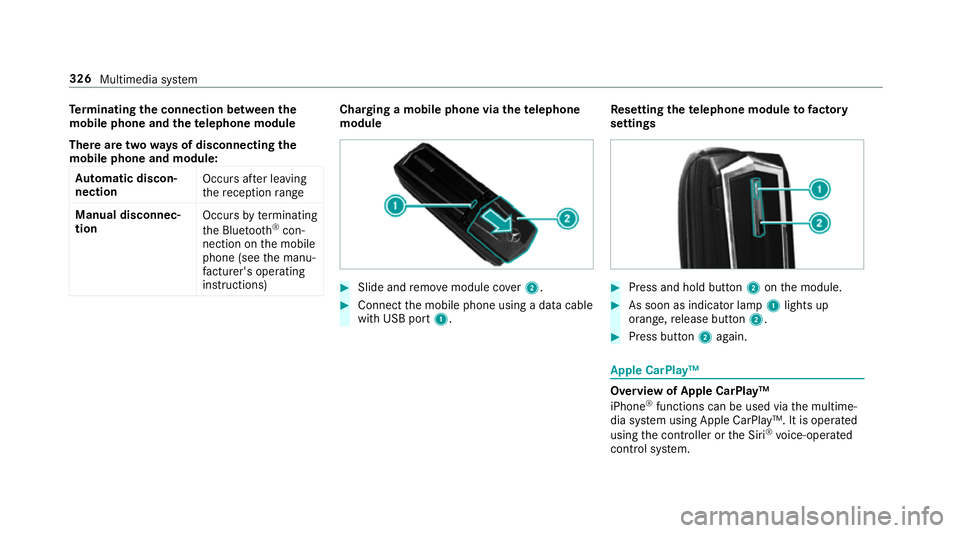
instructions) Charging a mobile phone via the
telephone
module #
Slide and remo vemodule co ver2. #
Connect the mobile phone using a data cable
with USB port 1. Re
setting thete lephone module to factory
settings #
Press and hold button 2onthe module. #
As soon as indicator lamp 1lights up
orange, release button 2. #
Press button 2again. Apple CarPlay™
Overview of Apple CarPlay™
iPhone
®
functions can be used via the multime‐
dia sy stem using Apple CarPlay™. It is operated
using the controller or the Siri ®
vo ice-operated
control sy stem. 326
Multimedia sy stem
Page 331 of 557
Android
Auto Android
Autoove rview
Mobile phone functions can be used with
Android Autousing the Android operating sys‐
te m on the multimedia sy stem. It is operated
using the controller or thevo ice-operated con‐
trol sy stem.
Only one mobile phone at a time can be connec‐
te d via Android Auto®
to the multimedia sy stem.
While using Android Auto™, various functions of
th e multimedia sy stem, e.g. the navigation, are
not available.
The availability of Android Auto®
and Android
Au to®
Apps may vary according tothe count ry.
The service pr ovider is responsible forth is appli‐
cation and the services and conte nt connected
to it.
Connecting a mobile phone via Android Auto
Requ irements:
R The firs t acti vation of Android Autoon the
multimedia sy stem must be car ried out when
th eve hicle is stationary for saf etyre asons. R
The mobile phone suppo rts Android Auto
from Android 5.0.
R The Android AutoApp is ins talled on the
mobile phone.
R In order touse thete lephone functions, a
mobile phone must be connec tedto the mul‐
timedia sy stem via Blue tooth®
(→ page 308).
If th ere was no prior internet connection, this
is es tablished with the use of the mobile
phone with Android Auto.
R The mobile phone is connected tothe multi‐
media sy stem via the USB port çusing a
suitable cable (→ page 341).
R The full range of functions for Android Autois
only possible with an Internet connection.
Multimedia sy stem:
, Connect .
Android Auto #
Select the mobile phone from the device list.
Ac cepting/rejecting the data pr otection reg‐
ulations
A message with the data pr otection regulations
appears. #
Select Accept and start.
or #
Select Reject and end.
Ac tivating automatic start #
Select Start automatically O.
St arting manually #
Select the mobile phone from the device list.
Exiting Android Auto #
Press theò button.
Calling up the Android Auto to ne settings
Multimedia sy stem:
, Connect .
Android Auto .
Sound #
Select theto ne menu (→ page 360).
Ending Android Auto
Multimedia sy stem:
, Connect .
Android Auto #
Select Disconnect.
The connection is ended. 328
Multimedia sy stem
Page 333 of 557
#
Only operate this equipment when the
traf fic situation permits. #
Ifyo u cannot be sure of this, stop the
ve hicle whilst paying attention toroad
and traf fic conditions and ope rate the
equipment with theve hicle stationar y. Yo
u must obse rveth e legal requirements forthe
country in whi chyou are cur rently driving when
operating the multimedia sy stem.
Depending on theve hicle's equipment, you can
es tablish an Internet connection in thefo llowing
wa ys:
R Vehicles with a communication module:
Internet use including Mercedes me connect
services and data roaming (→ page 330).
R Vehicles without a communication mod‐
ule:
- via Blue tooth®
with a data-enabled
mobile phone (→ page 330)
- viaWi-Fi wi tha data-enabled mobile
phone (→ page 330)
- viathete lephone module with SAPThe Internet functions can only be used
toa limi‐
te d degree whilst driving.
Internet connection via communication mod‐
ule
On vehicles with a built-in communication mod‐
ule, the Internet connection is es tablished via an
integrated SIM card.
If th e data volume limit is reached, theav ailabil‐
ity of Mercedes me connect services is limited.
The data volume must be pur chased on
Mercedes me connect.
Setting up an Internet connection via Wi-Fi
Requ irements:
R Activate theWi -Fi function on the multimedia
sy stem (→ page278).
R Activate theWi -Fi function on theex tern al
device (see the manufacturer's operating
instructions).
R Activate Internet access via Wi-Fi (see the
manufacturer's operating instructions). The Internet connection via
Wi-Fi may be restric‐
te d or not function if:
R the mobile phone is switched off
R mobile data use is deactivated on the mobile
phone
R theWi -Fi function is deacti vated on the multi‐
media sy stem
R theWi -Fi function is deacti vated on theex ter‐
nal device
R Internet access via Wi-Fi is deacti vated on
th eex tern al device
Multimedia sy stem:
, System .
ö Connectivity .
Inter-
net settings .
Search for Wi-Fi networks #
Select networ k. #
Logging in toWi-Fi network (→ page 278).
Se tting up an In ternetconnection via Blue‐
to oth ®
Re quirements:
R Connect a mobile phone tothe multimedia
sy stem via Blue tooth®
(→ page 308). 330
Multimedia sy stem
Page 334 of 557
R
Ifyo u use thete lephone module for Internet
functions, yourequ ire a SIM card in thete le‐
phone module or a Blue tooth®
-capable SAP
mobile phone.
To connect via Blu etoo th®
,th e mobile phone
must support one of thefo llowing Blue tooth®
profiles: R DUN (Dial-Up Networking)
R PAN (Personal Area Network)
The Internet connection via Blue tooth®
may be
re stricted or not function if:
R the mobile phone is switched off
R the mobile phone network co verage is insuf‐
fi cient
R mobile da tause is deactivated on the mobile
phone
R the Blue tooth®
function is switched off on
th e multimedia sy stem and the desired
phone is tobe connec ted via Blue tooth®
R the Blue tooth®
function is switched off on
th e mobile phone and the phone is tobe con‐
nec ted via Blue tooth® R
neither the mobile phone network nor the
mobile phone allow simultaneous use of a
phone and an Internet connection
R the mobile phone has not been enabled for
Internet access via Blue tooth®
If a mobile phone is connected tothe multimedia
sy stem forth efirs t time via Blu etoo th®
,yo u will
be assis tedth ro ugh the process of setting up an
Internet connection.
The Internet connection can also be confi gured
manuall y.
Fu rther information can be obtained at http://
www.mercedes-benz.com/connect or from a
Mercedes-Benz service centre.
Multimedia sy stem:
, System .
ö Connectivity .
Inter-
net settings
Blue tooth ®
connection via PAN #
Select the mobile phone.
The Internet connection is es tablished. Blue
tooth ®
connection via DUN #
Select the mobile phone. #
Toselect the predefined access data of
th e mobile phone network pr ovider: select
Predefined settings.
A list of countries appears. #
Select the count ryofyour mobile phone net‐
wo rkprov ider.
The list of available pr oviders appears. #
Select your mobile phone network pr ovider.
When an overview of the pr ovider settings
appears, make the necessary settings. #
Select Confirm settings. #
Tomanually set the access data of the
mobile phone network pr ovider: select
Manual settings.
An ove rview of the pr ovider settings appears. #
Set access data. #
Select Confirm settings. Multimedia sy
stem 331
Page 335 of 557
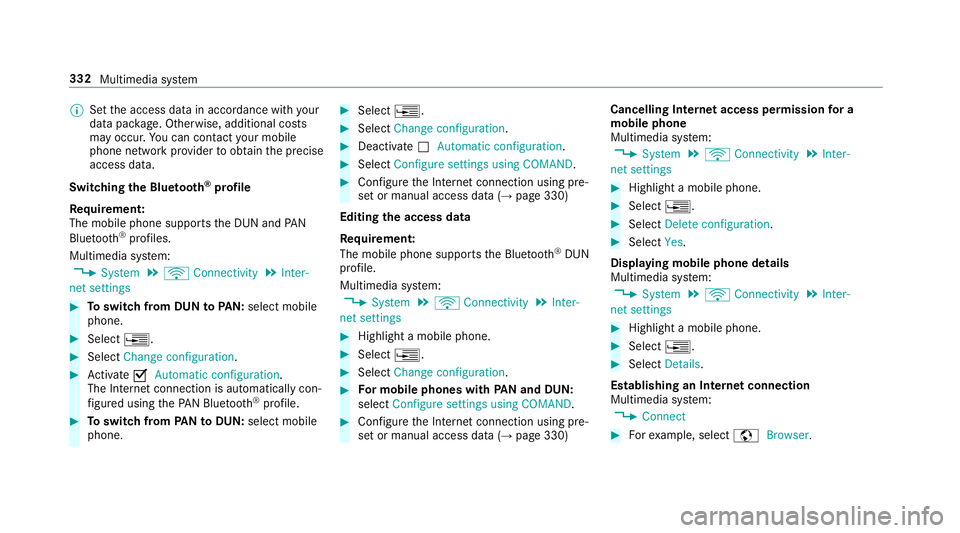
%
Set the access data in accordance with your
data pac kage . Otherwise, additional costs
may occu r.Yo u can contact your mobile
phone network pr ovider toobtain the precise
access data.
Switching the Blu etoo th®
pr ofile
Re quirement:
The mobile phone supports the DUN and PAN
Blu etoo th®
profiles.
Multimedia sy stem:
, System .
ö Connectivity .
Inter-
net settings #
Toswitch from DUN toPAN: select mobile
phone. #
Select ¥. #
Select Change configuration. #
Activate OAutomatic configuration.
The Internet connection is au tomatical lycon‐
fi gured using thePA N Blue tooth®
profile. #
Toswitch from PANto DUN: select mobile
phone. #
Select ¥. #
Select Change configuration . #
Deactivate ªAutomatic configuration. #
Select Configure settings using COMAND. #
Con figure the Internet connection using pre‐
set or manual access data (→ page 330)
Editing the access data
Re quirement:
The mobile phone supports the Blue tooth®
DUN
profile.
Multimedia sy stem:
, System .
ö Connectivity .
Inter-
net settings #
Highlight a mobile phone. #
Select ¥. #
Select Change configuration . #
For mobile phones with PAN and DUN:
select Configure settings using COMAND. #
Configure the Internet connection using pre‐
set or manual access data (→ page 330)Cancelling Internet access permission
for a
mobile phone
Multimedia sy stem:
, System .
ö Connectivity .
Inter-
net settings #
Highlight a mobile phone. #
Select ¥. #
Select Delete configuration. #
Select Yes.
Displaying mobile phone details
Multimedia sy stem:
, System .
ö Connectivity .
Inter-
net settings #
Highlight a mobile phone. #
Select ¥. #
Select Details.
Establishing an Internet connection
Multimedia sy stem:
, Connect #
Forex ample, select zBrowser . 332
Multimedia sy stem
Page 336 of 557
%
The multimedia sy stem usually es tablishes
th e Internet connection automaticall y.Ifthe
multimedia sy stem is not connected tothe
Internet, the Internet connection is es tab‐
lished when an Internet application is used. Connection
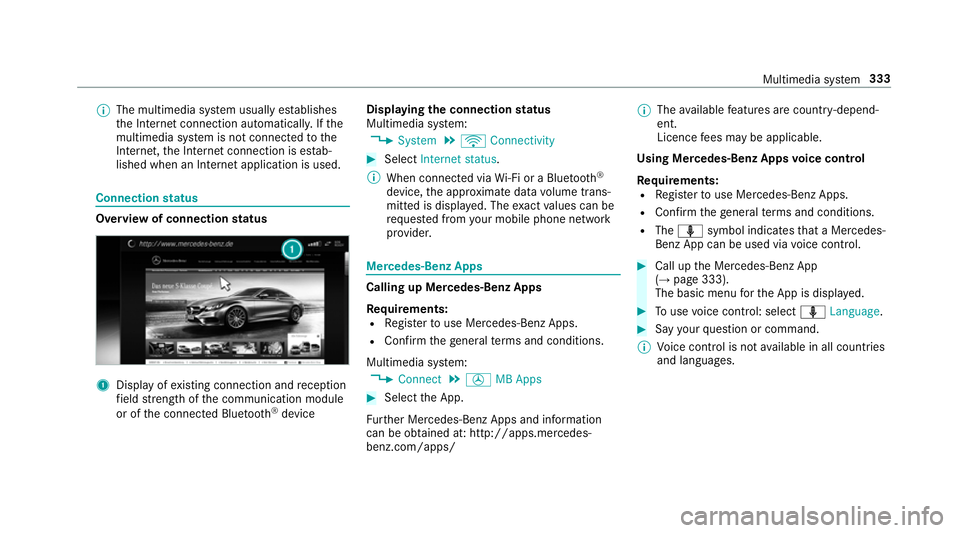
status Overview of connection
status 1
Displ ayofexisting connection and reception
fi eld stre ngth of the communication module
or of the connected Blue tooth®
device Displaying
the connection status
Multimedia sy stem:
, System .
ö Connectivity #
Select Internet status .
% When connected via Wi-Fi or a Blu etoo th®
device, the appr oximate data volume trans‐
mit ted is displa yed. The exact values can be
re qu ested from your mobile phone network
pr ov ider. Mercedes-Benz Apps
Calling up Mercedes-Benz Apps
Re
quirements:
R Regis terto use Mercedes-Benz Apps.
R Con firm thege neral term s and conditions.
Multimedia sy stem:
, Connect .
Ú MB Apps #
Select the App.
Fu rther Mercedes-Benz Apps and information
can be obtained at: http://apps.mercedes-
benz.com/apps/ %
The available features are countr y-depend‐
ent.
Licence fees may be applicable.
Using Mercedes-Benz Apps voice control
Re quirements:
R Regis terto use Mercedes-Benz Apps.
R Con firm thege neral term s and conditions.
R The o symbol indicates that a Mercedes-
Benz App can be used via voice control. #
Call up the Mercedes-Benz App
(→ page 333).
The basic menu forth e App is displa yed. #
Touse voice control: select oLanguage. #
Say your question or command.
% Voice control is not available in all countries
and languages. Multimedia sy
stem 333
Page 340 of 557
#
Press and hold theto uchpad or cont roller
until an audible signal sounds.
The ß symbol appears bythest ation
name. #
Select ßFavourites.
The list of sa vedfavo urite stations appears.
or #
Create an account forth e online pr ovider
(TuneIn radio) and then log in on the multi‐
media sy stem.
Yo ur favo urites are impor tedto the multime‐
dia sy stem.
Deleting favo urites #
Select ßFavourites. #
Select a station. #
Press and hold theto uchpad or cont roller
until an audible signal sounds.
The ß symbol bythest ation name disap‐
pears. Setting
the Internet radio options
Multimedia sy stem:
, Radio .
Ý Internet radio .
TuneIn
radio .
Z Options
The following options are available:
R Select stream: select thest re am qualit y.
R Login to TuneIn account : loginto yourTuneIn
user account.
R Log out of account: log out of your TuneIn
user account. #
Select an option. Media
Au
dio mode In
fo rm ation on audio mode &
WARNING Risk of di stra ction when han‐
dling da tastorage medium
If yo u handle a data storage medium while
driving, your attention is diver ted from the traf
fic conditions. This could also cause you
to lose control of theve hicle. #
Only handle a data storage medium
when theve hicle is stationar y. Pe
rm issible file sy stems:
R FAT32
R exFAT
R NTFS
Pe rm issible data storage medium:
R SD card
R USB storage device
R iPod/iPhone
R MTP devices
R Blue tooth ®
audio equipment
% The multimedia sy stem supports a total of
up to50,000 files.
Suppor tedfo rm ats:
R MP3
R WMA Multimedia sy
stem 337
Page 349 of 557
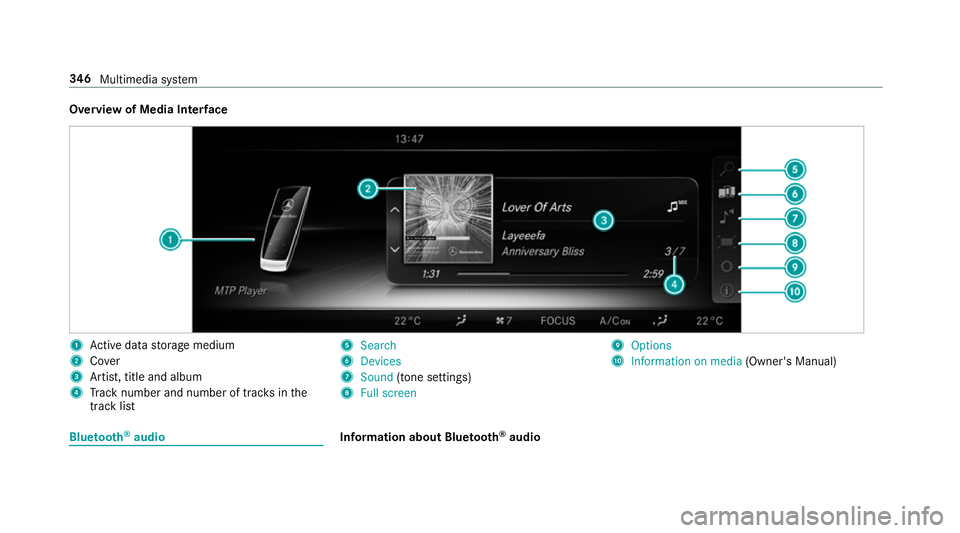
Overview of Media Inter
face 1
Active da tastorage medium
2 Cover
3 Artist, title and album
4 Track number and number of trac ksinthe
track li st 5
Search
6 Devices
7 Sound (tone settings)
8 Full screen 9
Options
A Information on media (Owner's Manual)Blue
tooth ®
audio Information about Blue
tooth ®
audio 346
Multimedia sy stem
Page 350 of 557
Before using
your Blue tooth®
audio equipment
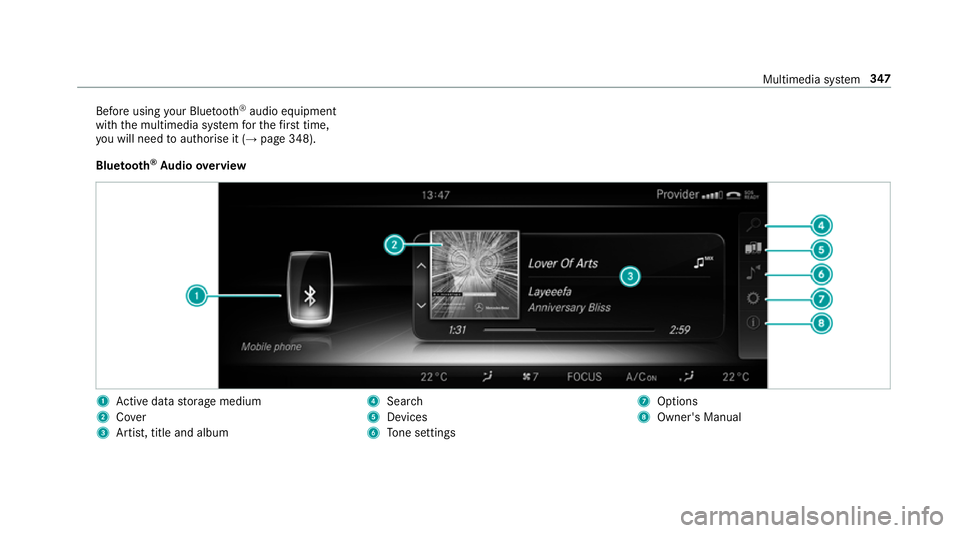
with the multimedia sy stem forth efirs t time,
yo u will need toauthorise it (→ page 348).
Blu etoo th®
Au dio overview 1
Active da tastorage medium
2 Cover
3 Artist, title and album 4
Search
5 Devices
6 Tone settings 7
Options
8 Owner's Manual Multimedia sy
stem 347
Page 351 of 557
Sear
ching for and authorising the Blue tooth ®
audio equipment
Requ irements:
Blue tooth ®
is activated on the multimedia sys‐
te m (→ page278).
Che ckyour Blue tooth®
audio equipment forthe
fo llowing (see the manufacturer's operating
instructions):
R the Blue tooth®
audio equipment must sup‐
port the A2DP and AVRC P Blue tooth®
audio
profiles
R the Blue tooth®
function must be activated
R the Blue tooth®
audio equipment must be
"visible" forot her devices
Multimedia sy stem:
, Media .
à Devices .
á Blue-
tooth audio
Au thorising new Blu etoo th®
audio equipment #
Select ¥. #
Select Add new Bluetooth audio device. #
Select Start search .
The multimedia sy stem sear ches for Blue‐
tooth ®
audio equipment within range and
adds them tothe Blue tooth ®
device list. #
Select Blue tooth®
audio equipment.
Auth orisation starts.
A code is displa yed on the multimedia sys‐
te m and on the mobile phone. #
Confirm on the Blue tooth®
audio equipment
if th e codes are identical.
Af ter successful auth orisation,the Blue‐
tooth ®
audio equipment is connec ted and
st arts playing.
Selecting Blu etoo th®
audio equipment that
has already been authorised #
Select ¥. #
Select Blue tooth®
audio equipment.
Establishing a connection from the Blue‐
to oth ®
audio equipment
The Blue tooth®
device name of the multimedia
sy stem is MB BLUETOOTH XXXXX. #
Select Search from device. #
Start the authorisation on your Blue tooth®
audio equipment (see the manufacturer's
operating instructions).
A code is displa yed on the multimedia sys‐
te m and on the mobile phone. #
Ifth e codes are identical, confi rmon bo th
devices bypressing Yes.
Af ter successful auth orisation,the Blue‐
tooth ®
audio equipment is connec ted and
st arts playing.
Wi th some Blue tooth ®
audio equipment, play‐
back must be initially star ted on the device itself
so that the multimedia sy stem can play the
audio files.
% Device-specific information on authorising
and connecting Blue tooth®
-capable mobile
phones can be obtained at http://
ww w.mercedes-benz.com/connect or from a
Mercedes-Benz service centre. 348
Multimedia sy stem