ad blue MERCEDES-BENZ E-CLASS SALOON 2017 User Guide
[x] Cancel search | Manufacturer: MERCEDES-BENZ, Model Year: 2017, Model line: E-CLASS SALOON, Model: MERCEDES-BENZ E-CLASS SALOON 2017Pages: 497, PDF Size: 10.38 MB
Page 282 of 497
Fu
rther information can be obtained from a
Mercedes-Benz service centre or at: http://
www.mercedes-benz.com/connect.
HD Voice ®
R Toimpr ove vo icequalit y,the multimedia sys‐
te m supports telephone calls in HD Voice ®
.
R In order touse this function, the mobile
phones and the mobile phone network pro‐
vider of the person you are calling must sup‐
port HD Voice ®
.
Depending on thequ ality of the connection, the
vo ice quality may fluctuate.
The following situations can lead tothe call
being disconnected while theve hicle is in
motion:
R there is insuf ficient network co verage inthe
area
R you mo vefrom one GSM or UMTS transmit‐
te r/receiver area (cell) into ano ther and no
communication channels are free
R the SIM card used is not compatible with the
network available R
a mobile phone with "Twincard" is logged into
th e network with the second SIM card at the
same time
Information on telephony
The following situations can lead tothe call
being disconnected while theve hicle is in
motion:
R there is insuf ficient network co verage inthe
area
R you mo vefrom one GSM or UMTS transmit‐
te r/receiver area (cell) into ano ther and no
communication channels are free
R the SIM card used is not compatible with the
network available
R a mobile phone with "Twincard" is logged into
th e network with the second SIM card at the
same time
HD Voice ®
R Toimpr ovevoice qualit y,the multimedia sys‐
te m supports telephone calls in HD Voice ®
.
R In order touse this function, the mobile
phones and the mobile phone network pro‐ vider of
the person you are calling must sup‐
port HD Voice ®
.
Depending on thequ ality of the connection, the
vo ice quality may fluctuate.
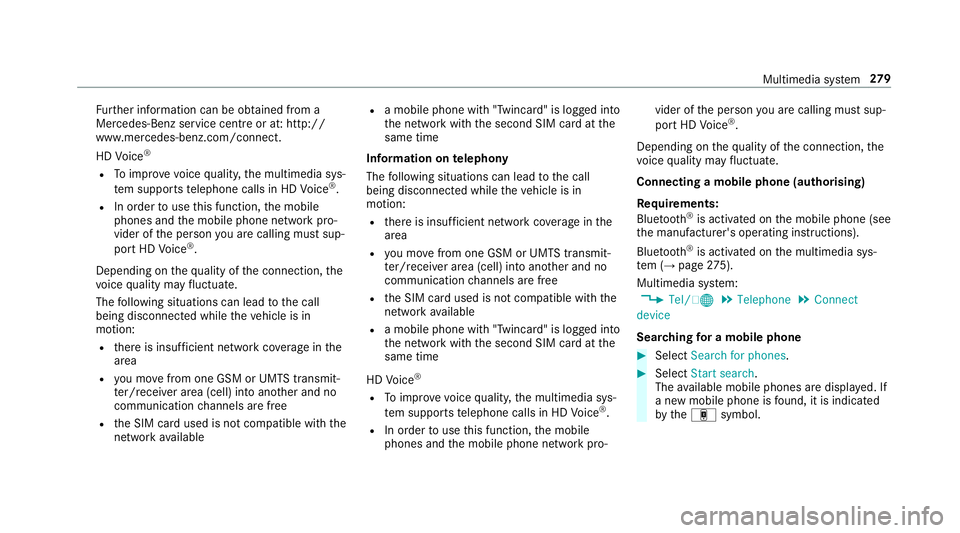
Connecting a mobile phone (au thorising)
Requ irements:
Blue tooth ®
is activated on the mobile phone (see
th e manufacturer's operating instructions).
Blue tooth ®
is activated on the multimedia sys‐
te m (→ page275).
Mul timedia sy stem:
, Tel/ ®.
Telephone .
Connect
device
Sear ching for a mobile phone #
Select Search for phones . #
Select Start search .
The available mobile phones are displa yed. If
a new mobile phone is found, it is indicated
by theá symbol. Multimedia sy
stem 279
Page 283 of 497
Connecting a mobile phone (au
thorisation
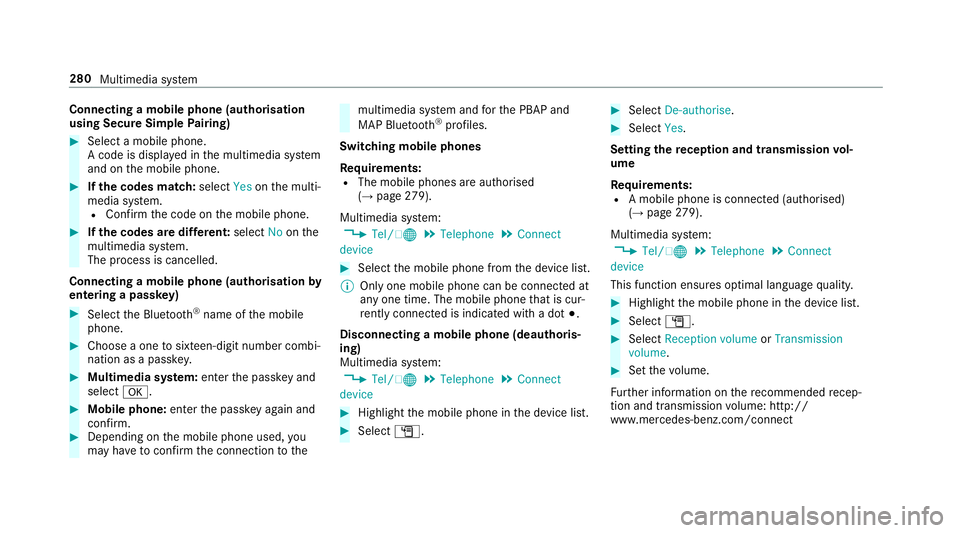
using Secure Simple Pairing) #
Select a mobile phone.
A code is displa yed in the multimedia sy stem
and on the mobile phone. #
Ifth e codes match: selectYesonthe multi‐
media sy stem.
R Confirm the code on the mobile phone. #
Ifth e codes are dif fere nt: select Noonthe
multimedia sy stem.
The process is cancelled.
Connecting a mobile phone (authorisation by
entering a passk ey)#
Select the Blue tooth®
name of the mobile
phone. #
Choose a one tosixteen-digit number combi‐
nation as a passk ey.#
Multimedia sy stem: enter the passk eyand
select a. #
Mobile phone: enterthe passk eyagain and
con firm. #
Depending on the mobile phone used, you
may ha vetoconfirm the connection tothe multimedia sy
stem and forth e PBAP and
MAP Blue tooth®
profiles.
Switching mobile phones
Requ irements:
R The mobile phones are authorised
(→ page 279).
Mul timedia sy stem:
, Tel/ ®.
Telephone .
Connect
device #
Select the mobile phone from the device list.
% Only one mobile phone can be connected at
any one time. The mobile phone that is cur‐
re ntly connected is indica ted with a dot #.
Disconnecting a mobile phone (deauthoris‐
ing)
Multimedia sy stem:
, Tel/ ®.
Telephone .
Connect
device #
Highlight the mobile phone in the device list. #
Select G. #
Select De-authorise. #
Select Yes.
Setting there ception and transmission vol‐
ume
Re quirements:
R A mobile phone is connec ted (authorised)
(→ page 279).
Mul timedia sy stem:
, Tel/ ®.
Telephone .
Connect
device
This function ensures optimal language qualit y. #
Highlight the mobile phone in the device list. #
Select G. #
Select Reception volume orTransmission
volume . #
Set thevo lume.
Fu rther information on there commended recep‐
tion and transmission volume: http://
www.me rcedes-benz.com/connect 280
Multimedia sy stem
Page 286 of 497
%
On some mobile phones, the call on hold is
activated as soon as the active call is ended.
Incoming call during an existing call (call
wa iting)
Re quirements:
R There is an active call (→ page 282).
If yo ure cei vea call while already in a call, a
message is displa yed. An acoustic signal also
sounds. #
Select wAccept.
The incoming call is active. The pr evious call
is on hold. #
Select =Reject.
% This function and behaviour depends on your
mobile phone network pr ovider and the
mobile phone (see the manufacturer's oper‐
ating instructions). Phone book
Overview of
the phone book
The phone book of the mobile phone is automat‐
ically displa yed in the multimedia sy stem af ter
th e connection is es tablished.
R 2,000 ent ries are reser vedfo r permanently
sa ve d con tacts in the multimedia sy stem.
R 2,000 entri es arereser vedfo r contacts loa‐
ded from the mobile phone.
In thete lephone book, you can car ryout thefo l‐
lowing actions:
R sear ching for contacts (→ page 284).
R storing contacts (→ page 284).
R deleting contacts (→ page 285).
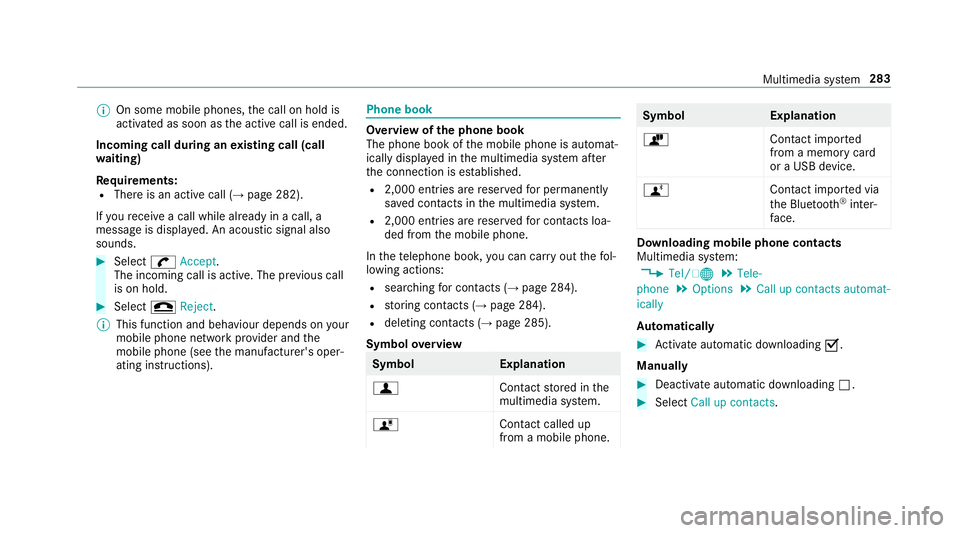
Symbol overview Symbol
Explanation
f Contactstored in the
multimedia sy stem.
ó Contact called up
from a mobile phone. Symbol
Explanation
ò Contact imported
from a memory card
or a USB device.
ñ Contact imported via
th e Blue tooth®
inter‐
fa ce. Downloading mobile phone contacts
Multimedia sy
stem:
, Tel/ ®.
Tele-
phone .
Options .
Call up contacts automat-
ically
Au tomatically #
Activate au tomatic downloading O.
Manually #
Deactivate auto matic downloading ª. #
Select Call up contacts. Multimedia sy
stem 283
Page 287 of 497
Sear
ching for a contact in the phone book
Multimedia sy stem:
, Tel/ ®.
Telephone .
Phone book #
Select thech aracters. #
Select ¬.
The con tact is displ ayed.
Changing the display and the sorting criteria
fo r contacts
Multimedia sy stem:
, Tel/ ®.
Tele-
phone .
Options .
Name representation
The following options are available:
R Surname, first name
R Surname First name
R First name Surname #
Select an option. Saving a mobile phone contact
Multimedia sy
stem:
, Tel/ ®.
Telephone .
Phone book #
Sear ching for a mobile phone contact
(→ page 284). #
Select G. #
Select Save.
The contact is identified bythef symbol
in the phone book.
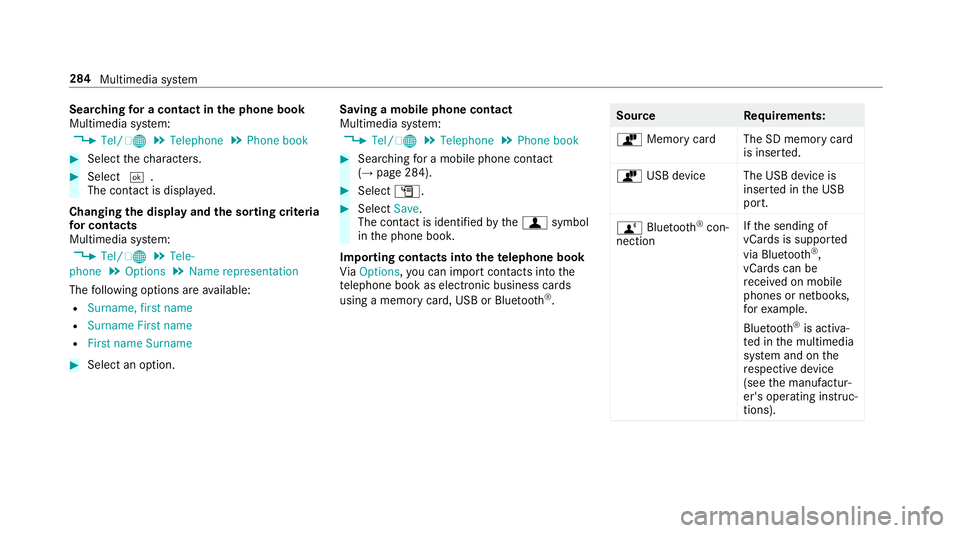
Importing contacts into thete lephone book
Vi aOptions, you can import contacts into the
te lephone book as elect ronic business cards
using a memory card, USB or Blu etoo th®
. Source
Requirements:
ò Memory car dThe SD memory card
is inser ted.
ò USB device The USB device is
inserted in the USB
port.
ñ Bluetooth ®
con‐
nection If
th e sending of
vCards is suppor ted
via Blue tooth®
,
vCard s can be
re cei ved on mobile
phones or netbooks,
fo rex ample.
Blue tooth ®
is activa‐
te d in the multimedia
sy stem and on the
re spective device
(see the manufactur‐
er's operating instruc‐
tions). 284
Multimedia sy stem
Page 288 of 497
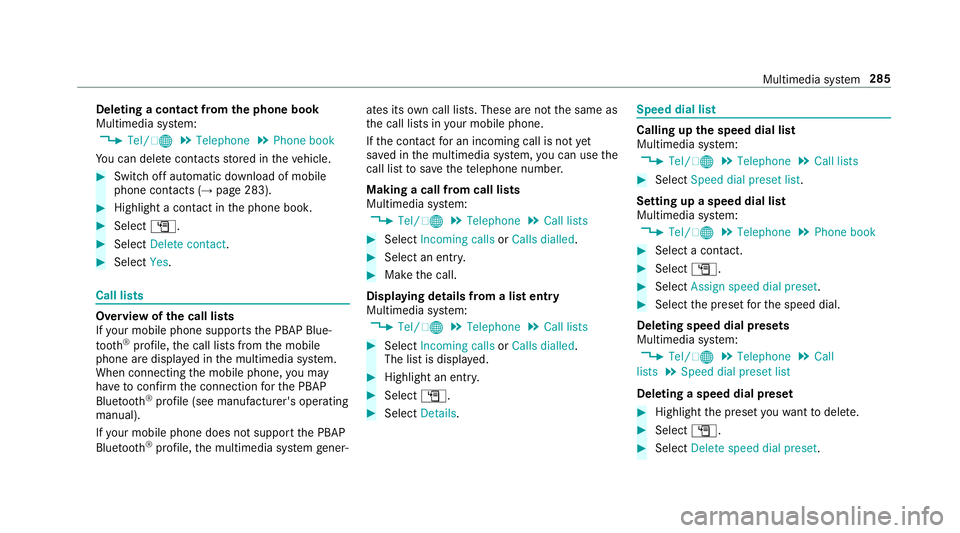
Deleting a contact from
the phone book
Multimedia sy stem:
, Tel/ ®.
Telephone .
Phone book
Yo u can dele tecontacts stored in theve hicle. #
Switch off automatic download of mobile
phone contacts (→ page 283).#
Highlight a contact in the phone book. #
Select G. #
Select Delete contact. #
Select Yes. Call lists
Overview of
the call lists
If yo ur mobile phone suppo rts th e PBAP Blue‐
tooth ®
profile, the call lists from the mobile
phone are displa yed in the multimedia sy stem.
When connecting the mobile phone, you may
ha ve toconfirm the connection forth e PBAP
Blue tooth ®
profile (see manufacturer's operating
manual).
If yo ur mobile phone does not suppo rtthe PBAP
Blue tooth ®
profile, the multimedia sy stem gener‐ ates its
own call li sts. These are not the same as
th e call lists in your mobile phone.
If th e conta ctfor an incoming call is not yet
sa ve d in the multimedia sy stem, you can use the
call li stto save thete lephone number.
Making a call from call lists
Multimedia sy stem:
, Tel/ ®.
Telephone .
Call lists #
Select Incoming calls orCalls dialled . #
Select an entry. #
Make the call.
Displaying details from a list entry
Multimedia sy stem:
, Tel/ ®.
Telephone .
Call lists #
Select Incoming calls orCalls dialled .
The list is displa yed. #
Highlight an ent ry. #
Select G. #
Select Details. Speed dial li
st Calling up
the speed dial list
Multimedia sy stem:
, Tel/ ®.
Telephone .
Call lists #
Select Speed dial preset list .
Setting up a speed dial list
Multimedia sy stem:
, Tel/ ®.
Telephone .
Phone book #
Select a conta ct. #
Select G. #
Select Assign speed dial preset. #
Select the preset forth e speed dial.
Deleting speed dial presets
Multimedia sy stem:
, Tel/ ®.
Telephone .
Call
lists .
Speed dial preset list
Deleting a speed dial preset #
Highlight the preset youwa nttodele te. #
Select G. #
Select Delete speed dial preset. Multimedia sy
stem 285
Page 289 of 497
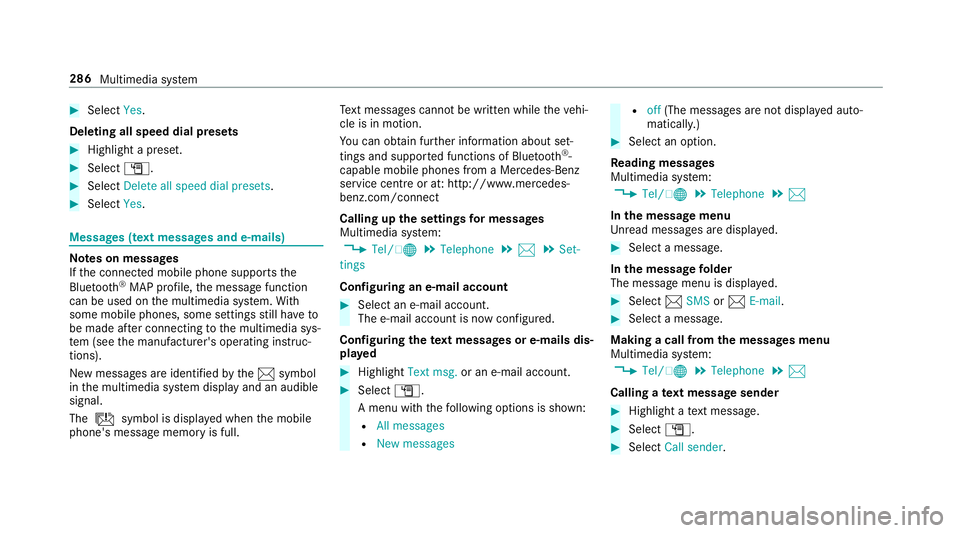
#
Select Yes.
Deleting all speed dial pres ets#
Highlight a preset. #
Select G. #
Select Delete all speed dial presets .#
Select Yes. Messages (t
ext messages and e-mails) Note
s on messages
If th e connected mobile phone supports the
Blu etoo th®
MAP profile, the message function
can be used on the multimedia sy stem. With
some mobile phones, some settings still ha veto
be made af ter connecting tothe multimedia sys‐
te m (see the manufacturer's operating instruc‐
tions).
New messages are identified bythe1 symbol
in the multimedia sy stem display and an audible
signal.
The ú symbol is displa yed when the mobile
phone's message memory is full. Te
xt messa ges cannot be written while theve hi‐
cle is in motion.
Yo u can obtain fur ther information about set‐
tings and suppor ted functions of Blue tooth®
-
capable mobile phones from a Mercedes-Benz
service centre or at: http://www.mercedes-
benz.com/connect
Calling up the settings for messages
Multimedia sy stem:
, Tel/ ®.
Telephone .
1 .
Set-
tings
Configuring an e-mail account #
Select an e-mail account.
The e-mail account is now confi gured.
Configuring thete xt messages or e-mails dis‐
pla yed #
Highlight Text msg. or an e-mail account. #
Select G.
A menu wi th thefo llowing options is shown:
R All messages
R New messages R
off(The messages are not displa yed auto‐
maticall y.) #
Select an option.
Re ading messages
Multimedia sy stem:
, Tel/ ®.
Telephone .
1
In the message menu
Unr ead messages are displa yed. #
Select a message.
In the message folder
The message menu is displa yed. #
Select 1SMS or1 E-mail. #
Select a message.
Making a call from the messages menu
Multimedia sy stem:
, Tel/ ®.
Telephone .
1
Calling a text message sender #
Highlight a text messa ge. #
Select G. #
Select Call sender. 286
Multimedia sy stem
Page 296 of 497
Online and Internet functions
Internet connection
Internet connection
restrictions &
WARNING Risk of di stra ction from infor‐
mation sy stems and communications
equipment
If yo u operate information and communica‐
tion equipment integ rated in theve hicle
when driving, you will be distracted from the
traf fic situation. This could also cause youto
lose control of theve hicle. #
Only operate this equipment when the
traf fic situation permits. #
Ifyo u cannot be sure of this, stop the
ve hicle whilst paying attention toroad
and traf fic conditions and ope rate the
equipment with theve hicle stationar y. Yo
u must obse rveth e legal requirements forthe
country in whi chyou are cur rently driving when
operating the multimedia sy stem. Internet access may be
restricted or not function
if:
R the mobile phone is switched off
R the mobile phone network co verage is insuf‐
fi cient
R the mobile phone is not enabled for Internet
access
R the Blue tooth®
function is switched off on
th e multimedia sy stem and the desired tele‐
phone is tobe connec ted via Blue tooth®
R the Blue tooth®
function is switched off on
th e mobile phone and thete lephone is tobe
connec ted via Blue tooth®
R neither the mobile phone network nor the
mobile phone allow simultaneous use of a
te lephone and an Internet connection
R the mobile phone has not been enabled for
Internet access via Blue tooth®
The Internet functions can only be used toa limi‐
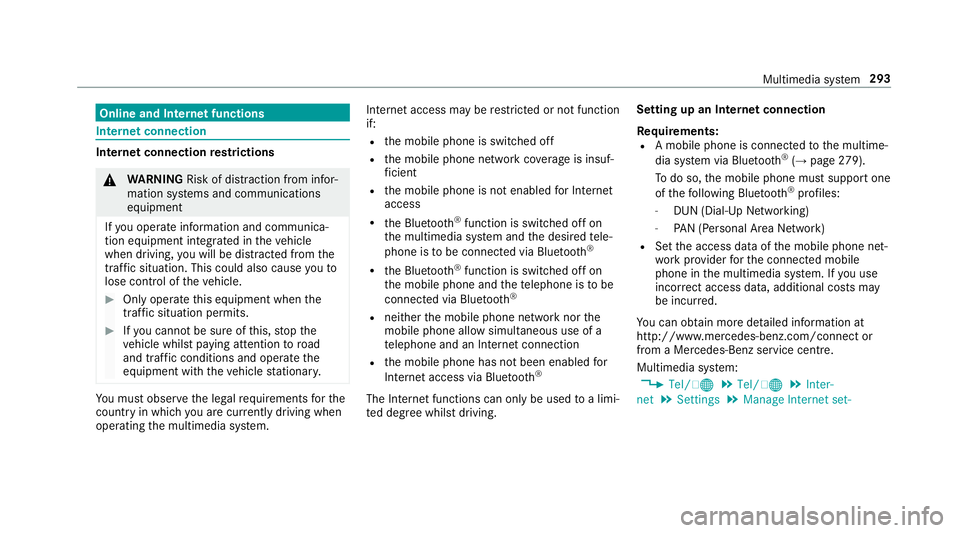
te d deg ree whilst driving. Setting up an Internet connection
Re quirements:
R A mobile phone is connec tedto the multime‐
dia sy stem via Blue tooth®
(→ page 279).
To do so, the mobile phone must support one
of thefo llowing Blue tooth®
profiles:
- DUN (Dial-Up Networking)
- PAN (Personal Area Network)
R Set the access data of the mobile phone net‐
wo rkprov ider forth e connected mobile
phone in the multimedia sy stem. If you use
incor rect access da ta, additional costs may
be incur red.
Yo u can obtain more de tailed information at
http://www.me rcedes-benz.com/connect or
from a Mercedes-Benz service cent re.
Multimedia sy stem:
, Tel/ ®.
Tel/ ®.
Inter-
net .
Settings .
Manage Internet set- Multimedia sy
stem 293
Page 297 of 497
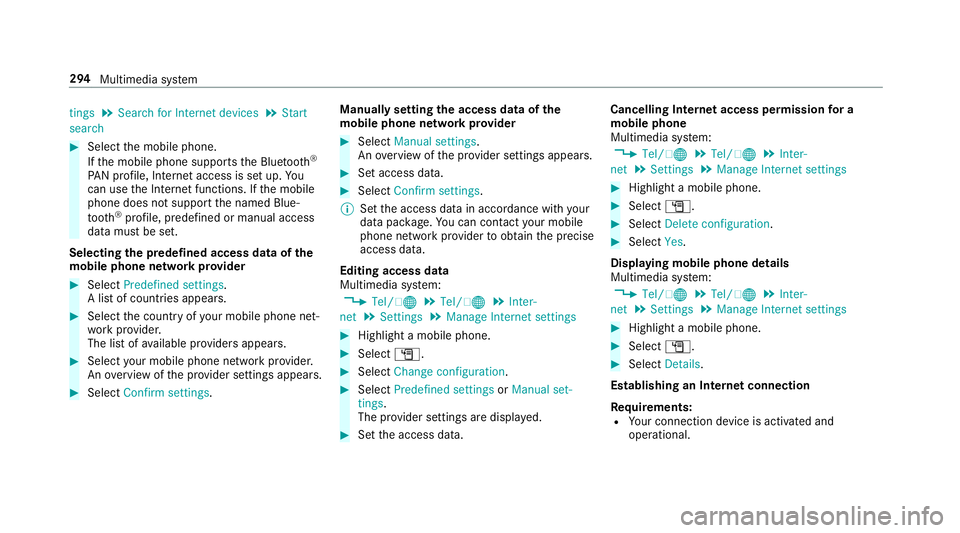
tings
.
Search for Internet devices .
Start
search #
Select the mobile phone.
If th e mobile phone supports the Blue tooth®
PA N profile, Internet access is set up. Yo u
can use the Internet functions. If the mobile
phone does not support the named Blue‐
tooth ®
profile, predefined or manual access
data must be set.
Selecting the predefined access data of the
mo bile phone network pr ovider #
Select Predefined settings.
A list of countries appears. #
Select the count ryofyour mobile phone net‐
wo rkprov ider.
The list of available pr oviders appears. #
Select your mobile phone network pr ovider.
An ove rview of the pr ovider settings appears. #
Select Confirm settings. Manually setting
the access data of the
mo bile phone network pr ovider #
Select Manual settings.
An ove rview of the pr ovider settings appears. #
Set access data. #
Select Confirm settings.
% Set the access data in accordance with your
data pac kage .Yo u can contact your mobile
phone network pr ovider toobtain the precise
access data.
Editing access data
Multimedia sy stem:
, Tel/ ®.
Tel/ ®.
Inter-
net .
Settings .
Manage Internet settings #
Highlight a mobile phone. #
Select G. #
Select Change configuration . #
Select Predefined settings orManual set-
tings.
The pr ovider settings are displa yed. #
Set the access data. Cancelling Internet access permission
for a
mobile phone
Multimedia sy stem:
, Tel/ ®.
Tel/ ®.
Inter-
net .
Settings .
Manage Internet settings #
Highlight a mobile phone. #
Select G. #
Select Delete configuration. #
Select Yes.
Displaying mobile phone details
Multimedia sy stem:
, Tel/ ®.
Tel/ ®.
Inter-
net .
Settings .
Manage Internet settings #
Highlight a mobile phone. #
Select G. #
Select Details.
Establishing an Internet connection
Re quirements:
R Your connection device is activated and
operational. 294
Multimedia sy stem
Page 299 of 497
%
The multimedia sy stem supports up to a
tot al of 15,000 files.
Suppor tedfo rm ats:
R MP3
R WMA
R AAC form ats
% Due tothe lar gevariet y of available music
fi les rega rding encoders, sampling rates and
data rates, playback cannot alw ays be guar‐
anteed.
% Due tothe wide range of USB devices availa‐
ble on the mar ket, pl ayback cann otbe guar‐
anteed for all brands of USB devices.
% Cop y-pr otected music files or DRM enc ryp‐
te dfiles cannot be pla yed bac k.
% MP3 pla yers must support Media Trans fer
Pr oto col (MTP).
Note s on copyright
Au dio files that you create or reproduce yourself
fo r playback aregeneral lysubject tocopyright
pr otection. In many count ries, reproductions,
eve nfo r private use, are not permitted without th
e prior consent of the copyright holder. Make
sure that you kn owabout the applicable copy‐
ri ght regulations and that you co mply withthese.
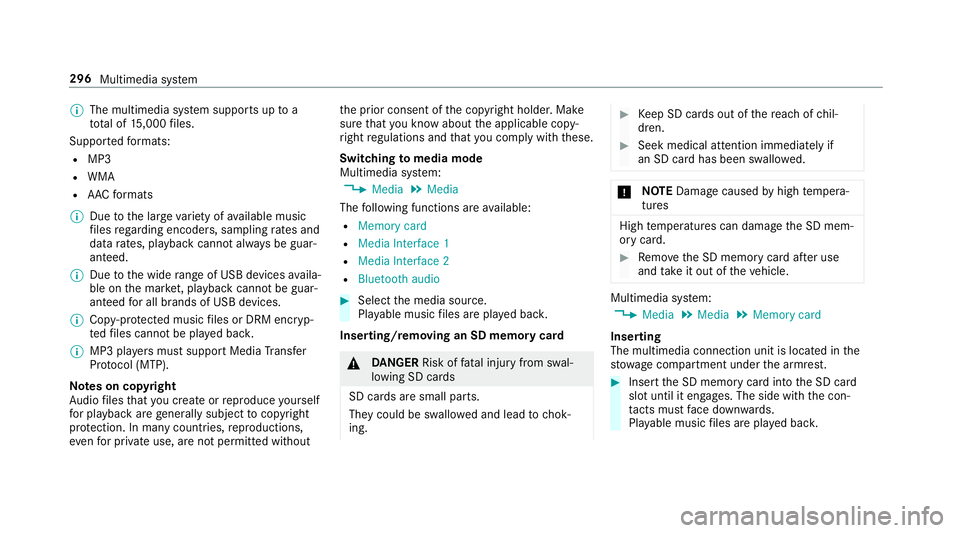
Switching tomedia mode
Multimedia sy stem:
, Media .
Media
The following functions are available:
R Memory card
R Media Interface 1
R Media Interface 2
R Bluetooth audio #
Select the media source.
Pla yable music files are pla yed bac k.
Inserting/removing an SD memory card &
DANG ER Risk of fata l injury from swal‐
lowing SD cards
SD cards are small parts.
They could be swallo wed and lead tochok‐
ing. #
Keep SD cards out of there ach of chil‐
dren. #
Seek medical attention immediately if
an SD card has been swallo wed. *
NO
TEDama gecaused byhigh temp era‐
tures High
temp eratures can damage the SD mem‐
ory card. #
Remo vethe SD memory card af ter use
and take it out of theve hicle. Multimedia sy
stem:
, Media .
Media .
Memory card
Inserting
The multimedia connection unit is located in the
stow age compartment under the armrest. #
Insert the SD memory card into the SD card
slot until it engages. The side with the con‐
ta cts must face down wards.
Pla yable music files are pla yed bac k. 296
Multimedia sy stem
Page 302 of 497
Switching
toMedia Inter face
Multimedia sy stem:
, Media .
Media .
Media Interface 1 #
Connect the data storage medium with the
USB port (→ page 297).
Pla yable music files are pla yed bac k.
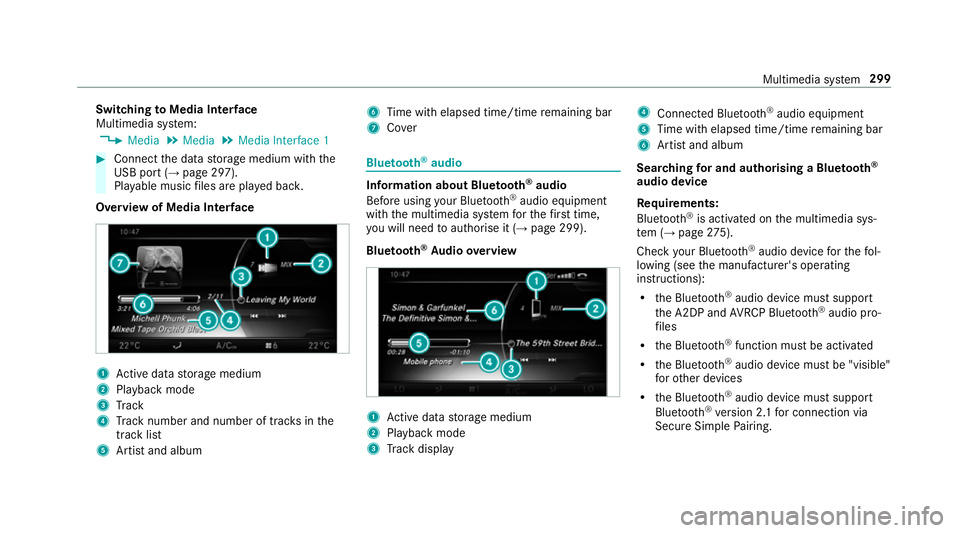
Overview of Media Inter face 1
Active da tastorage medium
2 Playback mode
3 Track
4 Track number and number of trac ksinthe
track li st
5 Artist and album 6
Time with elapsed time/time remaining bar
7 Cover Blue
tooth ®
audio Information about Blue
tooth ®
audio
Before using your Blue tooth®
audio equipment
with the multimedia sy stem forth efirs t time,
yo u will need toauthorise it (→ page 299).
Blu etoo th®
Au dio overview 1
Active da tastorage medium
2 Playback mode
3 Track display 4
Connec ted Blue tooth®
audio equipment
5 Time with elapsed time/time remaining bar
6 Artist and album
Sear ching for and authorising a Blue tooth ®
audio device
Requ irements:
Blue tooth ®
is activated on the multimedia sys‐
te m (→ page275).
Che ckyour Blue tooth®
audio device forth efo l‐
lowing (see the manufacturer's operating
instructions):
R the Blue tooth®
audio device must suppo rt
th e A2DP and AVRC P Blue tooth®
audio pro‐
fi les
R the Blue tooth®
function must be activated
R the Blue tooth®
audio device must be "visible"
fo rot her devices
R the Blue tooth®
audio device must suppo rt
Blu etoo th®
ve rsion 2.1 for connection via
Secure Simple Pairing. Multimedia sy
stem 299