reset MERCEDES-BENZ E-CLASS SALOON 2017 User Guide
[x] Cancel search | Manufacturer: MERCEDES-BENZ, Model Year: 2017, Model line: E-CLASS SALOON, Model: MERCEDES-BENZ E-CLASS SALOON 2017Pages: 497, PDF Size: 10.38 MB
Page 262 of 497
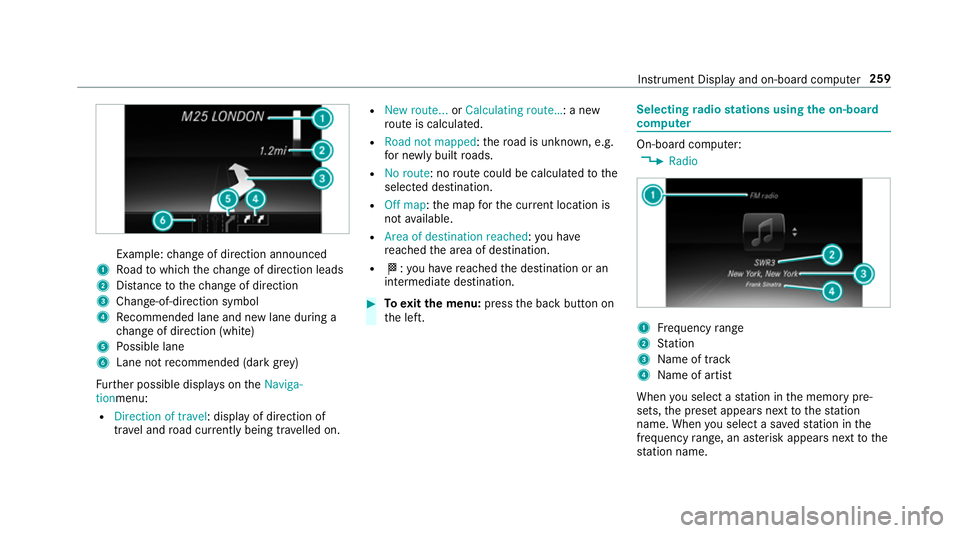
Example:
change of direction announced
1 Road towhich thech ange of direction leads
2 Distance tothech ange of direction
3 Chan ge-of-direction symbol
4 Recommended lane and new lane du ring a
ch ange of direction (white)
5 Possible lane
6 Lane not recommended (da rkgrey)
Fu rther possible displa yson theNaviga-
tionmenu:
R Direction of travel: display of direction of
tra vel and road cur rently being tr avelled on. R
New route... orCalculating route… : a new
ro ute is calculated.
R Road not mapped :th ero ad is unknown, e.g.
fo r newly built roads.
R No route: no route could be calculated tothe
selected destination.
R Off map: the map forth e cur rent location is
not available.
R Area of destination reached :yo u ha ve
re ached the area of destination.
R O: you ha vereached the destination or an
intermediate destination. #
Toexitth e menu: pressthe back button on
th e left. Selecting
radio stations using the on-boa rd
compu ter On-board computer:
, Radio 1
Frequency range
2 Station
3 Name of track
4 Name of artist
When you select a station in the memory pre‐
sets, the preset appears next tothest ation
name. When you select a sa vedstation in the
frequency range, an as terisk appears nexttothe
st ation name. In
stru ment Display and on-board computer 259
Page 268 of 497
-
calls up a li st
R slide 4 up or down
- highlights a preset in thest ation
- selects a sy stem language
R slide 2 diagonally
- movesth e crosshair across the map
R turn 3
- sound: sets the treble, mid-range and
bass
- Selecting a favo urite
- connects a mobile phone: selects a
mobile phone from the list of de tected
mobile phones
R press 7
- Storing radio stations
- con firm s a selection or entry
To uch Control and touchpad (sin gle-finger swipe)
R swipe left orright
- selects a radio station
- calls up a list R
swipe up or down
- highlights a preset in thest ation
- selects a sy stem language
R swipe diagonally
- movesth e crosshair across the map
R press
- Storing radio stations
- con firm s a selection or entry
To uchpad (t wo-finger swipe)
R turn right or left using two fingers
- tone settings: adjusts the treble, mid-
ra nge and bass
R movetwo fingers apart ortoge ther
- changes the map scale (zoom in or out) To
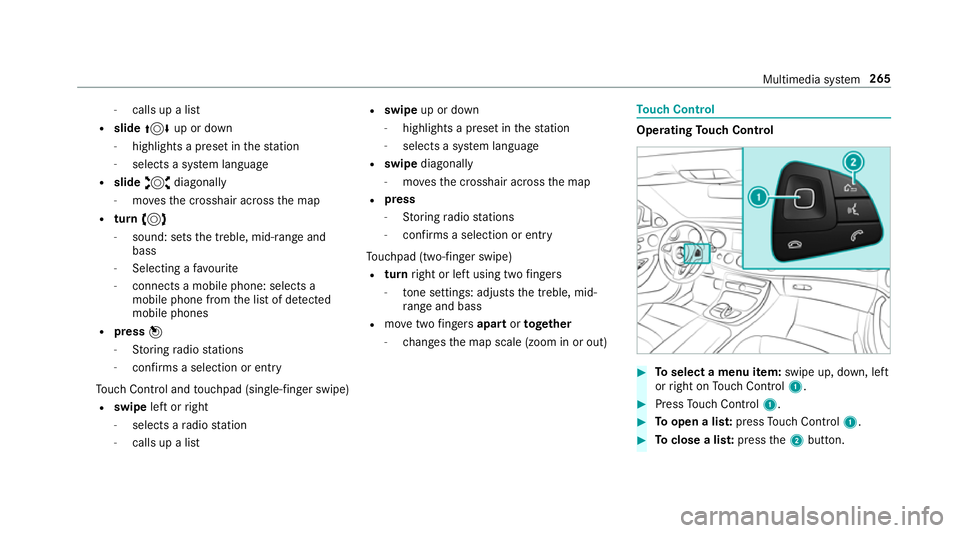
uch Control Operating
Touch Control #
Toselect a menu item: swipe up, down, left
or right on Touch Control 1. #
Press Touch Control 1. #
Toopen a lis t:press Touch Control 1. #
Toclose a lis t:press the2 button. Multimedia sy
stem 265
Page 279 of 497
Exporting
If PIN pr
otection is activated, the PIN is reques‐
te d. #
Ente rth efo ur-digit PIN. #
Select a data storage medium.
The data is expor ted. The data export may
ta ke several minutes.
Ac tivating/deactivating PIN pr otection for
data export
Multimedia sy stem:
, Vehicle .
System settings .
Import/
export data #
Toactivate: activateActivate PIN protection
O. #
Enter your four-digit PIN. #
Enteryo ur four-digit PIN again.
PIN pr otection is activated when bo thPINs
match. #
Todeactivate: deactivateActivate PIN pro-
tection ª. #
Enter your four-digit PIN. %
Ifyo u ha veforg ottenyo ur PIN, a Mercedes-
Benz service centre can deactivate your PIN
pr otection foryo u.
Alternatively: you can deactivate PIN pr otec‐
tion byresetting your personal data
(→ page 276). Re
set function Multimedia sy
stem:
, Vehicle .
System settings .
Reset
The multimedia sy stem is reset tothefa ctory
settings.
Pe rsonal data is dele ted, forex ample:
R station presets
R connec ted mobile phones #
Select Yes.
A qu ery appears asking if you are sure that
yo uwa nttoreset.
No selected: the process is cancelled. #
Select Yes.
The multimedia sy stem is reset tofactory
settings and restar ted. Garmin
®
MAP PIL OTnavigation module Overview of Garmin
®
MAP PIL OTnavigation
module &
DANG ER Risk of fata l injury from swal‐
lowing SD cards
SD cards are small parts.
They could be swallo wed and lead tochok‐
ing. #
Keep SD cards out of there ach of chil‐
dren. #
Seek medical attention immediately if
an SD card has been swallo wed. &
WARNING Risk of di stra ction from infor‐
mation sy stems and communications
equipment
If yo u operate information and communica‐
tion equipment integ rated in theve hicle
when driving, you will be distracted from the
traf fic situation. This could also cause youto
lose control of theve hicle. 276
Multimedia sy stem
Page 288 of 497
Deleting a contact from
the phone book
Multimedia sy stem:
, Tel/ ®.
Telephone .
Phone book
Yo u can dele tecontacts stored in theve hicle. #
Switch off automatic download of mobile
phone contacts (→ page 283).#
Highlight a contact in the phone book. #
Select G. #
Select Delete contact. #
Select Yes. Call lists
Overview of
the call lists
If yo ur mobile phone suppo rts th e PBAP Blue‐
tooth ®
profile, the call lists from the mobile
phone are displa yed in the multimedia sy stem.
When connecting the mobile phone, you may
ha ve toconfirm the connection forth e PBAP
Blue tooth ®
profile (see manufacturer's operating
manual).
If yo ur mobile phone does not suppo rtthe PBAP
Blue tooth ®
profile, the multimedia sy stem gener‐ ates its
own call li sts. These are not the same as
th e call lists in your mobile phone.
If th e conta ctfor an incoming call is not yet
sa ve d in the multimedia sy stem, you can use the
call li stto save thete lephone number.
Making a call from call lists
Multimedia sy stem:
, Tel/ ®.
Telephone .
Call lists #
Select Incoming calls orCalls dialled . #
Select an entry. #
Make the call.
Displaying details from a list entry
Multimedia sy stem:
, Tel/ ®.
Telephone .
Call lists #
Select Incoming calls orCalls dialled .
The list is displa yed. #
Highlight an ent ry. #
Select G. #
Select Details. Speed dial li
st Calling up
the speed dial list
Multimedia sy stem:
, Tel/ ®.
Telephone .
Call lists #
Select Speed dial preset list .
Setting up a speed dial list
Multimedia sy stem:
, Tel/ ®.
Telephone .
Phone book #
Select a conta ct. #
Select G. #
Select Assign speed dial preset. #
Select the preset forth e speed dial.
Deleting speed dial presets
Multimedia sy stem:
, Tel/ ®.
Telephone .
Call
lists .
Speed dial preset list
Deleting a speed dial preset #
Highlight the preset youwa nttodele te. #
Select G. #
Select Delete speed dial preset. Multimedia sy
stem 285
Page 289 of 497
#
Select Yes.
Deleting all speed dial pres ets#
Highlight a preset. #
Select G. #
Select Delete all speed dial presets .#
Select Yes. Messages (t
ext messages and e-mails) Note
s on messages
If th e connected mobile phone supports the
Blu etoo th®
MAP profile, the message function
can be used on the multimedia sy stem. With
some mobile phones, some settings still ha veto
be made af ter connecting tothe multimedia sys‐
te m (see the manufacturer's operating instruc‐
tions).
New messages are identified bythe1 symbol
in the multimedia sy stem display and an audible
signal.
The ú symbol is displa yed when the mobile
phone's message memory is full. Te
xt messa ges cannot be written while theve hi‐
cle is in motion.
Yo u can obtain fur ther information about set‐
tings and suppor ted functions of Blue tooth®
-
capable mobile phones from a Mercedes-Benz
service centre or at: http://www.mercedes-
benz.com/connect
Calling up the settings for messages
Multimedia sy stem:
, Tel/ ®.
Telephone .
1 .
Set-
tings
Configuring an e-mail account #
Select an e-mail account.
The e-mail account is now confi gured.
Configuring thete xt messages or e-mails dis‐
pla yed #
Highlight Text msg. or an e-mail account. #
Select G.
A menu wi th thefo llowing options is shown:
R All messages
R New messages R
off(The messages are not displa yed auto‐
maticall y.) #
Select an option.
Re ading messages
Multimedia sy stem:
, Tel/ ®.
Telephone .
1
In the message menu
Unr ead messages are displa yed. #
Select a message.
In the message folder
The message menu is displa yed. #
Select 1SMS or1 E-mail. #
Select a message.
Making a call from the messages menu
Multimedia sy stem:
, Tel/ ®.
Telephone .
1
Calling a text message sender #
Highlight a text messa ge. #
Select G. #
Select Call sender. 286
Multimedia sy stem
Page 304 of 497
Displaying Blu
etoo th®
audio equipment
details
Multimedia sy stem:
, Media .
Media .
Bluetooth
audio .
Options .
Bluetooth audio devices #
Highlight Blue tooth®
audio equipment and
navigate totheright. #
Select Details. Ra
dio Switching on the
radio Multimedia sy
stem:
, Radio #
Alternatively: press the$ button.
The radio display appears. You will hear the
last station pla yed on the last frequency
band selected. Ra
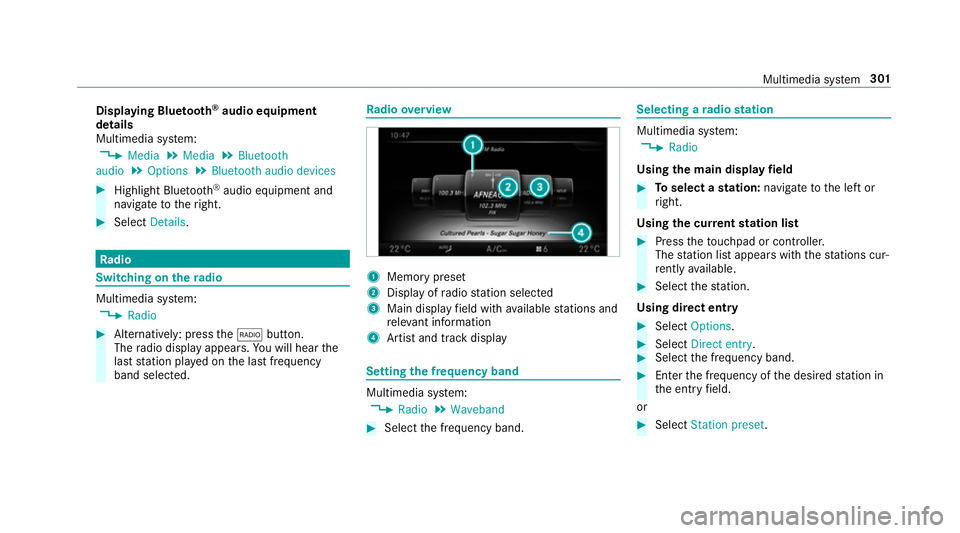
dio overview 1
Memory preset
2 Display of radio station selec ted
3 Main display field with available stations and
re leva nt information
4 Artist and track displ ay Setting
the frequency band Multimedia sy
stem:
, Radio .
Waveband #
Select the frequency band. Selecting a
radio station Multimedia sy
stem:
, Radio
Using the main display field #
Toselect a station: navigate tothe left or
ri ght.
Using the cur rent station list #
Press theto uchpad or cont roller.
The station list appears with thest ations cur‐
re ntly available. #
Select thest ation.
Using direct ent ry #
Select Options . #
Select Direct entry . #
Select the frequency band. #
Ente rth e frequency of the desired station in
th e entry field.
or #
Select Station preset. Multimedia sy
stem 301
Page 305 of 497
#
Enter thest ation preset of the desired sta‐
tion. #
Select ¬.
Using the preset position #
Select Preset. #
Select Enter preset. #
Enterth est ation preset of the desired sta‐
tion. #
Select ¬.
Using the sear chfunction #
Select è. #
Enter the sear chterm. #
Select ¬.
The results are displa yed. #
Select thest ation. Calling up
thera dio station list Multimedia sy
stem:
, Radio #
Press theto uchpad or cont roller.
The station list appears.
% Each frequency range has its ownstation list
with thest ations that can cur rently be
re cei ved.
Ra dio station list with EPG (FM/DABradio
mode) #
Select Options . #
Select Current station list with EPG . #
Select a station. #
Toswitch between Current programme and
Programme preview: navigate tothe left or
th eright. Sorting
thera dio station list Multimedia sy
stem:
, Radio .
Options #
Select Sort station list . #
Select a sorting option. St
oring radio stations Multimedia sy
stem:
, Radio #
Select Preset. #
Select Save current station . #
Select a location forst oring thest ation.
or #
Inradio mode, press and hold theto uchpad
or cont roller until the preset list appears. #
Select a location forst oring thest ation. 302
Multimedia sy stem
Page 306 of 497
Editing
radio station presets Multimedia sy
stem:
, Radio .
Preset .
Edit station preset
Deleting stations #
Highlight a preset entry and navigate tothe
ri ght. #
Select Delete highlighted station/channel .#
Select Yes.
Moving stations #
Highlight a preset entry and navigate tothe
ri ght. #
Select Move highlighted station/channel. #
Select a location forst oring thest ation. Ac
tivating/deactivating the pres ets view Multimedia sy
stem:
, Radio .
Preset #
Select Station presets view: on .
The radio station preset appears. #
Toswitch between stored stations: navi‐
ga te to the left or right.
or #
Select Station presets view: off.
The frequency band of thest ation cur rently
being pl ayed appears. Setting
station tracking Multimedia sy
stem:
, Radio .
Options .
Station tracking
The following options are available:
R Automatic: the multimedia sy stem switches
to alternative frequencies across all fre‐
qu ency bands.
R Digital : switches toalternative frequencies in
th eDA B frequency band.
R Analogue: switches toalternative frequencies
in the FM frequency band.
R Fix frequency: an alternative frequency is not
set. The multimedia sy stem maintains the set
frequency when reception is poo r. #
Select an option.
% The settings are usually stored and taken
into account when calling up a preset again. Switching on
the frequency fix function (FM
ra dio mode) Multimedia sy
stem:
, Radio .
Options #
Select Fix frequency .
The multimedia sy stem maintains the set fre‐
qu ency when reception is poo r. Ta
gging music trac ks Multimedia sy
stem:
, Radio .
Options
If ra dio stations pr ovide there leva nt information,
th is function allo wsyouto trans fer information
on the music track cur rently pl aying toan
Apple ®
device. You can then pur chase the audio
fi le from theiTunes Store ®
. #
Select Tag this track.
The track information is sa ved. Multimedia sy
stem 303
Page 310 of 497
Battery disconnection periods
The AS
SYST PLUS service inter val display
can only calculate the service due da tewhen
th e bat tery is connected. #
Notedown the service due date displa yed on
th e instrument display before disconnecting
th e battery (→ page 306). Engine compartment
Ac
tive bonn et(pedestrian pr otection) Operation of
the active bonnet (pedestrian
pr otection)
In cer tain accident situations, therisk of injury
to pedestrians can be reduced bythe actuation
of the active bonn et. The rear area of the engine
bonn etisraised byappr oximately 85 mm.
Fo rth e drive tothewo rkshop, reset the trig‐
ge red active bonn etyourself. If the active bonn et
has been triggered, pedestrian pr otection may
be limited.
A qu alified specialist workshop must re-ins tate
th e full functionality of the active bonn et. The active bonnet is not
available in all coun‐
tries.
Re setting the active bonnet &
WARNING Danger of bu rns from hot
component parts in the engine compart‐
ment
Cer tain component parts in the engine com‐
partment may be very hot, e.g. the engine,
th era diator and parts of theex haust sy stem. #
Let the engine cool down and only
to uch the component parts described
below: #
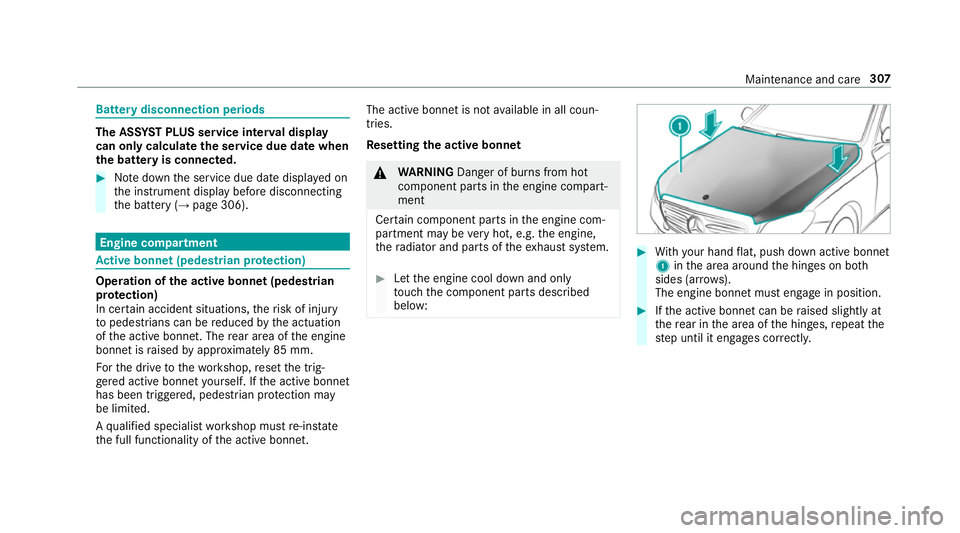
With your hand flat, push down active bonnet
1 inthe area around the hinges on bo th
sides (ar rows).
The engine bonnet must engage in position. #
Ifth e active bonn etcan be raised slight lyat
th ere ar in the area of the hinges, repeat the
st ep until it engages cor rectl y. Maintenance and care
307
Page 463 of 497
Boot box
see EAS Y-PA CK boot box
Boot lid Activating/deactivating the boot lid
opening limiter ....................................... 81
Closing .................................................. 77
HANDS-FREE ACCESS .......................... .79
Locking separa tely ................................. 81
Opening .................................................76
Opening dimensions ............................3 76
Brake Assi stSystem
see BAS (Brake Assi stSystem)
Brake fluid
No tes ................................................... 374
Brake forc e distribution
EBD (Elect ronic Brake forc e Distribu‐
tion) ..................................................... 19 6
Brakes ABS (Anti-lock Braking Sy stem) ........... 191
Ac tive Brake Assi st.............................. 19 6
Ad aptive brake lights .......................... .201
BA S (Brake Assi stSystem) ...................1 91
Driving tips .......................................... 16 4EBD (Electronic Brake
forc e Distribu‐
tion) ..................................................... 19 6
HOLD function .................................... .212
Limited braking ef fect (salt-trea ted
ro ads) .................................................. 16 4
New/replaced brake linings/brake
discs .................................................... 16 4
Ru nning-in no tes ..................................1 64
Braking assistance see BAS (Brake Assi stSystem)
Breakdown Assis tance overview .............................. 18
To w- starting ........................................ 340
To wing away ........................................ 336
Tr ansporting theve hicle ......................3 38
Wheel change ...................................... 357
Breakdown see Flat tyre
Breakdown assistance call see Service call
Breakdown management see Service call
Bu rm ester ®
sur round sound sy stem .....3 05
Ad justing the balance/fader ............... 305 Ad
justing the sound optimisation ........ 305
Ad justing treble, mid and bass ............ 305
Calling up the sound menu .................. 305
Information .......................................... 305
Switching the sur round sound on/off
............................................................ .305
Buttons Steering wheel .................................... 252 C
Call lists Calling up the speed dial list ............... 285
Deleting speed dial presets ................. 285
Displaying de tails from a list ent ry...... 285
Making a call ....................................... 285
Overview ............................................. 285
Setting up a speed dial li st.................. 285
Calling up the sound menu Burmes ter®
sur round sound sy stem ... 305
Calls ..........................................................2 82
Ac cepting ............................................ 282
Ac tivating functions du ring a call ........ 282
Calls wi thseveral participants ............ .282
Declining ............................................. 282 460
Index