Side MERCEDES-BENZ E-Class SEDAN 2010 W212 Comand Manual
[x] Cancel search | Manufacturer: MERCEDES-BENZ, Model Year: 2010, Model line: E-Class SEDAN, Model: MERCEDES-BENZ E-Class SEDAN 2010 W212Pages: 224, PDF Size: 7.4 MB
Page 158 of 224
General Information
Safety Notes
GWarning
COMAND is classified as a Class 1 laser
product. You must not open the casing. There
is a risk of exposure to invisible laser radiation
if you open the casing, or if the casing is faulty
or damaged.
COMAND does not contain any parts that you
are able to maintain yourself. For safety
reasons, all maintenance work must be
exclusively carried out by qualified
technicians.
GWarning
Only carry out the following when the vehicle
is stationary:
R Inserting a disc
R Ejecting a disc
There is a risk of accident by being distracted
from road and traffic conditions if you load a
CD/DVD while the vehicle is in motion.
Vehicle Equipment
i This Operator’s Manual describes all
features, standard or optional, potentially
available for your vehicle at the time of
purchase. Please be aware that your
vehicle might not be equipped with all
features described in this manual.
Automatic Picture Switch-off
The video picture is only displayed if the
gearshift lever is in “P” position.
When the gearshift lever is moved out of the
“P” position, the following message is
displayed: In order not to distract
you from the traffic situation, the
picture is faded out while the
vehicle is in motion.
When the gearshift lever is moved back into
the “P” position, the picture switches back
on.
Notes on Storage Media
i When playing copied discs, problems may
occur with the playback. A wide variety of
disc-writing software and writers are
available. Due to this variety we cannot
guarantee that the system will be able to
play discs that you have written/copied
yourself.
! Do not affix stickers or labels to the discs,
as they could peel off and damage
COMAND. Stickers can cause the disc to
bend, which can result in read errors and
disc recognition problems.
! COMAND is designed to hold discs which
comply with the EN 60908 standard. You
can therefore only use discs with a
maximum thickness of 1.3 mm.
If you insert thicker discs, e.g. those that
contain data on both sides (DVD on one
side and audio data on the other), they
cannot be ejected and can damage
COMAND.
Do not use discs with a diameter of 8 cm,
even with an adapter. Only use round discs
with a diameter of 12 cm.
Notes on the Care of Discs
R Only hold discs by the edge.
R Handle discs with care in order to prevent
malfunctions during playback.
R Avoid scratching, leaving fingerprints and
dust on the discs.
R Clean the discs occasionally with a
commercially available cleaning cloth.
Always wipe in a straight line from the
inside outwards, never in a circular motion.
156General InformationVideo
Page 165 of 224
The way you can control the actions depends
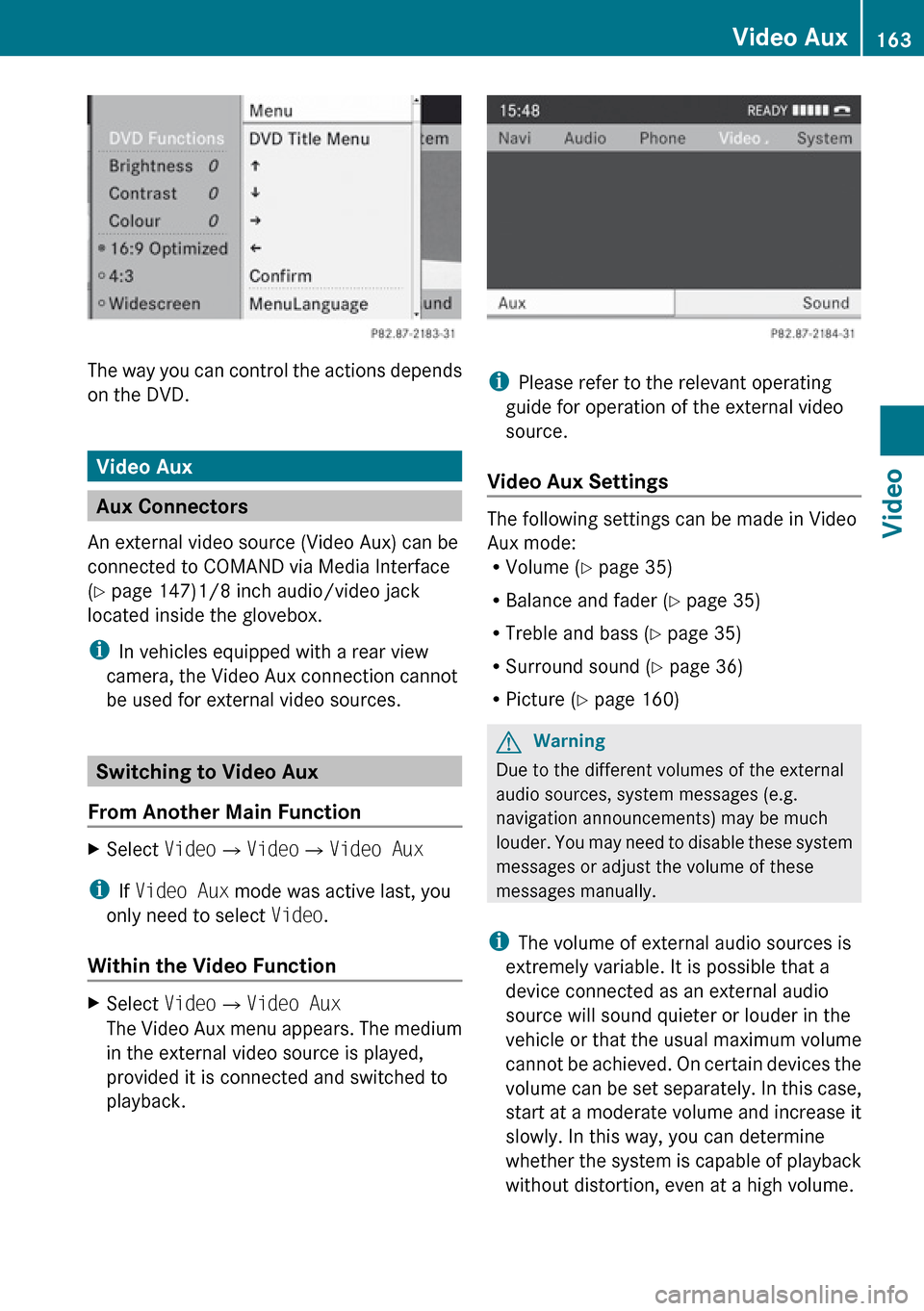
on the DVD.
Video Aux
Aux Connectors
An external video source (Video Aux) can be
connected to COMAND via Media Interface
( Y page 147)1/8 inch audio/video jack
located inside the glovebox.
i In vehicles equipped with a rear view
camera, the Video Aux connection cannot
be used for external video sources.
Switching to Video Aux
From Another Main Function
XSelect Video£Video £Video Aux
i
If Video Aux mode was active last, you
only need to select Video.
Within the Video Function
XSelect Video£Video Aux
The Video Aux menu appears. The medium
in the external video source is played,
provided it is connected and switched to
playback.
i Please refer to the relevant operating
guide for operation of the external video
source.
Video Aux Settings
The following settings can be made in Video
Aux mode:
R Volume ( Y page 35)
R Balance and fader ( Y page 35)
R Treble and bass ( Y page 35)
R Surround sound ( Y page 36)
R Picture ( Y page 160)
GWarning
Due to the different volumes of the external
audio sources, system messages (e.g.
navigation announcements) may be much
louder. You may need to disable these system
messages or adjust the volume of these
messages manually.
i The volume of external audio sources is
extremely variable. It is possible that a
device connected as an external audio
source will sound quieter or louder in the
vehicle or that the usual maximum volume
cannot be achieved. On certain devices the
volume can be set separately. In this case,
start at a moderate volume and increase it
slowly. In this way, you can determine
whether the system is capable of playback
without distortion, even at a high volume.
Video Aux163VideoZ
Page 175 of 224
Adjusting the Brightness XSelect System settings £
Brightness .
A scale appears.XTo set the brightness: Press the n or
ý button.
The brightness bar moves up or down. The
image dims or brightens according to the
bar position on the scale.XTo confirm the setting: Press the 9
button on the remote control.
Switching the Display Screen On/ Off
Switching Off the Display
XSelect Display off from the system
menu.
Switching On the Display
XPress the 9 button on the remote control.
CD/DVD Audio and MP3 Operation
Safety Instructions
GWarning
The RSE CD/DVD player is a Class 1 laser
product. There is a danger of invisible laser
radiation when you open or damage the cover.
Do not remove the cover. The RSE CD/DVD
player does not contain any parts which can
be serviced by the user. For safety reasons,
have any necessary service work performed
by qualified personnel.
Notes on CDs/DVDs
Please refer to the chapter ”Audio” for
general information about CD/DVD discs and
on the MP3 format ( Y page 133) and
( Y page 132).
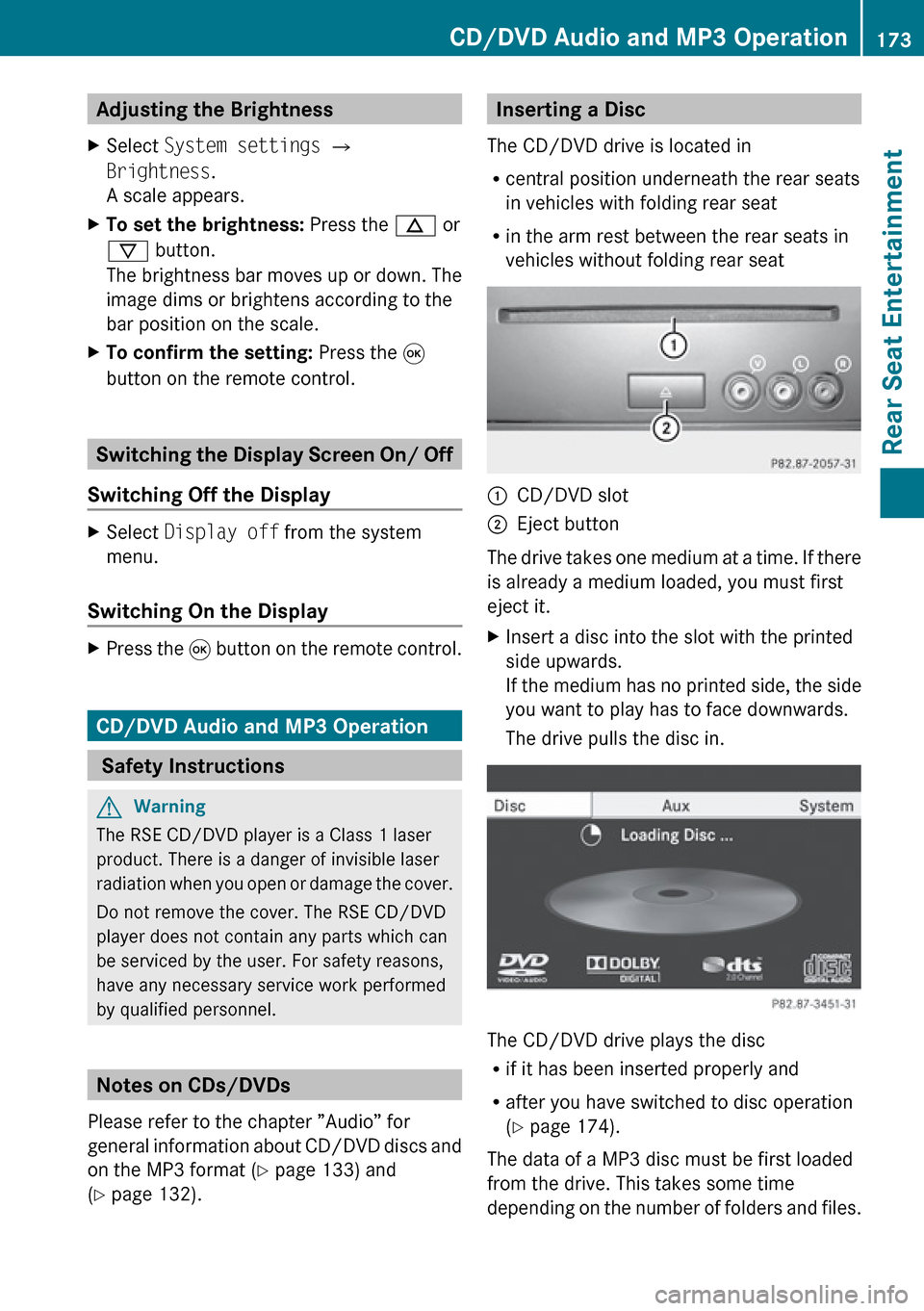
Inserting a Disc
The CD/DVD drive is located in
R central position underneath the rear seats
in vehicles with folding rear seat
R in the arm rest between the rear seats in
vehicles without folding rear seat1CD/DVD slot2Eject button
The drive takes one medium at a time. If there
is already a medium loaded, you must first
eject it.
XInsert a disc into the slot with the printed
side upwards.
If the medium has no printed side, the side
you want to play has to face downwards.
The drive pulls the disc in.
The CD/DVD drive plays the disc
R if it has been inserted properly and
R after you have switched to disc operation
( Y page 174).
The data of a MP3 disc must be first loaded
from the drive. This takes some time
depending on the number of folders and files.
CD/DVD Audio and MP3 Operation173Rear Seat EntertainmentZ
Page 184 of 224
For further information on external video
sources please refer to the operating guide
of the device.
Connecting an Aux Source
Drive Aux
The Aux connectors of the drive are beside
the Eject button on the front panel of the DVD
drive ( Y page 168).
Display Aux
The display Aux jacks are located on the side
of the screen ( Y page 167).
Connecting an Audio or Video Source
XInsert the audio jacks for the left and the
right signal into the respective connectors
labeled L and R.XInsert the video jack (yellow) into the
connector with the V label.
Switching to AUX Mode
Disc Drive Aux
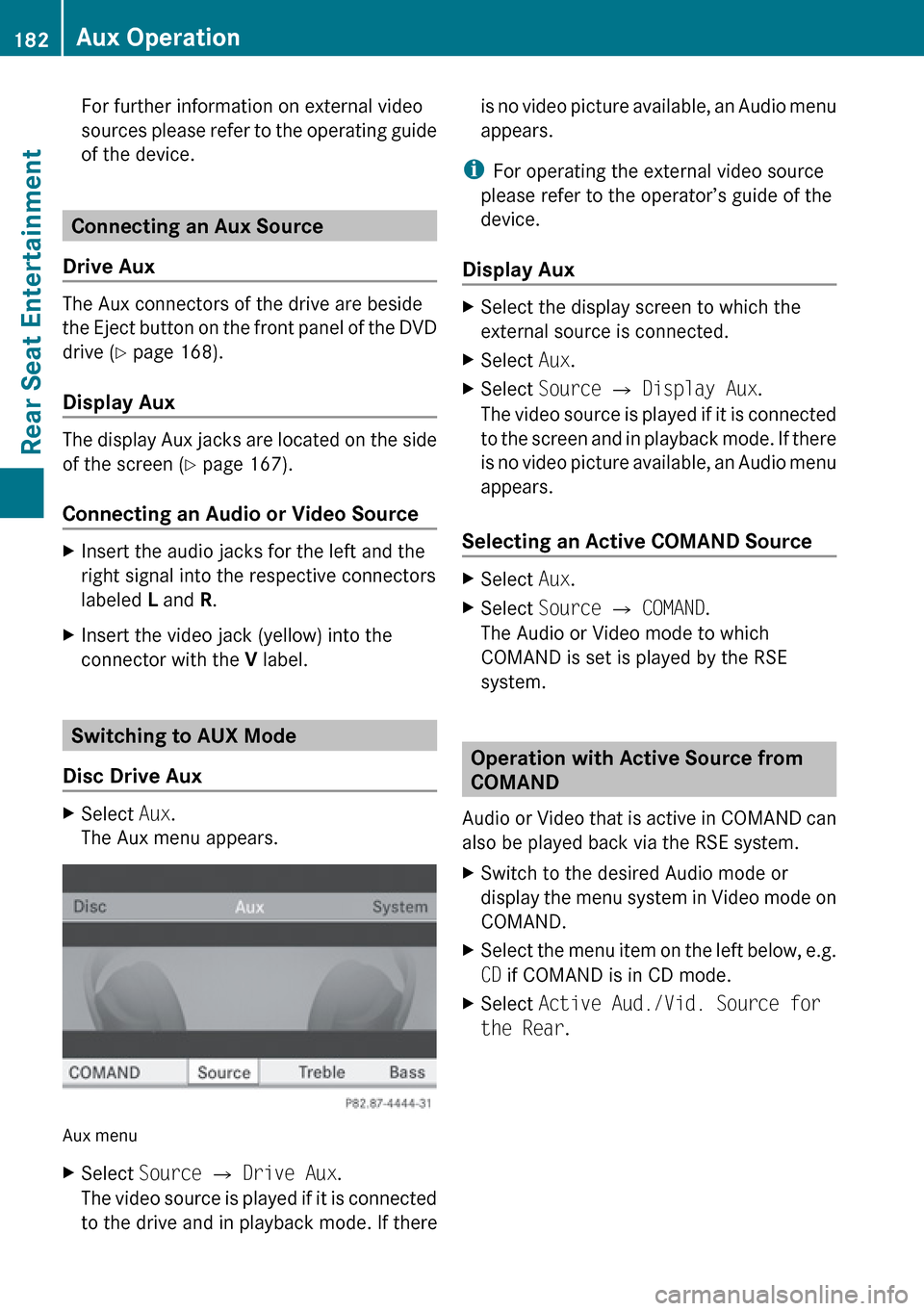
XSelect Aux.
The Aux menu appears.
Aux menu
XSelect Source £ Drive Aux .
The video source is played if it is connected
to the drive and in playback mode. If thereis no video picture available, an Audio menu
appears.
i For operating the external video source
please refer to the operator’s guide of the
device.
Display Aux
XSelect the display screen to which the
external source is connected.XSelect Aux.XSelect Source £ Display Aux .
The video source is played if it is connected
to the screen and in playback mode. If there
is no video picture available, an Audio menu
appears.
Selecting an Active COMAND Source
XSelect Aux.XSelect Source £ COMAND .
The Audio or Video mode to which
COMAND is set is played by the RSE
system.
Operation with Active Source from
COMAND
Audio or Video that is active in COMAND can
also be played back via the RSE system.
XSwitch to the desired Audio mode or
display the menu system in Video mode on
COMAND.XSelect the menu item on the left below, e.g.
CD if COMAND is in CD mode.XSelect Active Aud./Vid. Source for
the Rear .182Aux OperationRear Seat Entertainment
Page 217 of 224
Overview ............................................ 216
Emergency Calls ............................... 216
Roadside Assistance ........................216
Information Calls .............................. 217
Search & Send ................................... 217215Tele Aid
Page 218 of 224
Overview
Vehicle Equipment
i This Operator’s Manual describes all
features, standard or optional, potentially
available for your vehicle at the time of
purchase. Please be aware that your
vehicle might not be equipped with all
features described in this manual.
The Tele Aid System
(Tele Aid – Telematic Alarm Identification on
Demand)
The Tele Aid system offers a variety of
services, e.g.:
R Automatic and manual emergency
R Roadside Assistance
R Information
R Search & Send
Emergency Calls
Automatically
An emergency call is initiated automatically
following an accident in which the emergency
tensioning devices (ETDs) or air bags deploy.
Initiating an Emergency Call ManuallyXBriefly press SOS button cover to open.XPress SOS button (for longer than 2
seconds).
The indicator lamp in the SOS button will
flash until the emergency call is concluded.XWait for a voice connection to the
Response Center.XClose cover after the emergency call is
concluded.
i During the emergency call message
Emergency Call Connected is displayed,
operation from COMAND is not possible.
For a complete description and additional
information on Emergency calls please refer
to the vehicle Operator's Manual.
Roadside Assistance
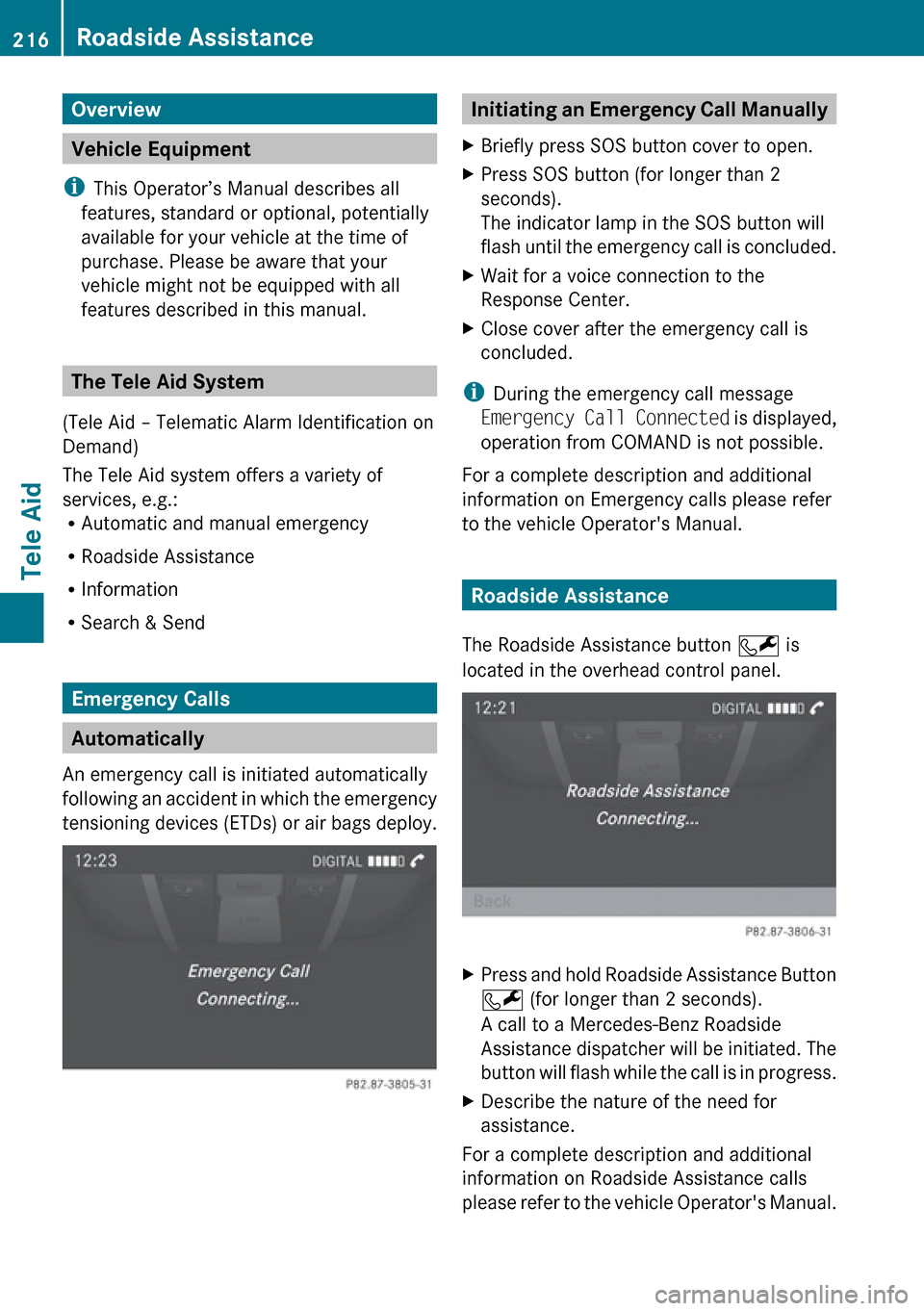
The Roadside Assistance button F is
located in the overhead control panel.
XPress and hold Roadside Assistance Button
F (for longer than 2 seconds).
A call to a Mercedes-Benz Roadside
Assistance dispatcher will be initiated. The
button will flash while the call is in progress.XDescribe the nature of the need for
assistance.
For a complete description and additional
information on Roadside Assistance calls
please refer to the vehicle Operator's Manual.
216Roadside AssistanceTele Aid