button MERCEDES-BENZ E-Class SEDAN 2017 W213 Repair Manual
[x] Cancel search | Manufacturer: MERCEDES-BENZ, Model Year: 2017, Model line: E-Class SEDAN, Model: MERCEDES-BENZ E-Class SEDAN 2017 W213Pages: 446, PDF Size: 6.23 MB
Page 219 of 446
Overviewand operation
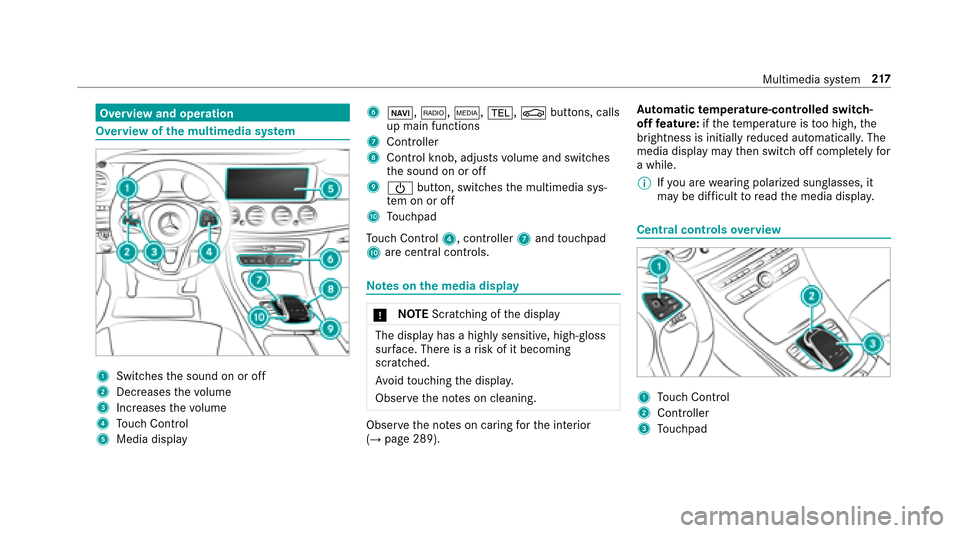
Overvie wofthe multi media sy stem
1Swit ches thes ound on or off
2Dec reases thev olume
3Incre ases thev olume
4Touc hC ontrol
5Media display
6ß, $,Õ,%, Øbuttons, calls
up main functions
7Cont roller
8Cont rolk no b, adjusts volume and switches
th es ound on or off
9Ü button, switches them ultimedia sys‐
te monoro ff
ATouchpad
To uc hC ontrol 4,controlle r7 andt ouchpad
A arec entral cont rols.
Note sont he media dis play
* NO
TEScratching of thed isplay
The displa yhasah ighly sensitive, high-gloss
sur face. The reisar isk of it becoming
scratched.
Av oid touchingt he displa y.
Obser vethen otes on cleaning.
Obser vethen otes on caring fort he interior
(→pag e289). Au
tomatic temperature-cont rolled switch-
of ff eature: ifth et emperatur eistoo high, the
brightness is initiall yreduced automatically .The
media displa ymaythen switc hoffcomple tely for
aw hile.
% Ifyo ua rewe aring polarize dsungl asses,i t
ma ybed ifficul ttor eadthem edia displa y.
Central controls overview
1To uc hC ontrol
2Controller
3Touchpad
Multimedia sy stem 217
Page 220 of 446
Touc hC ontrol
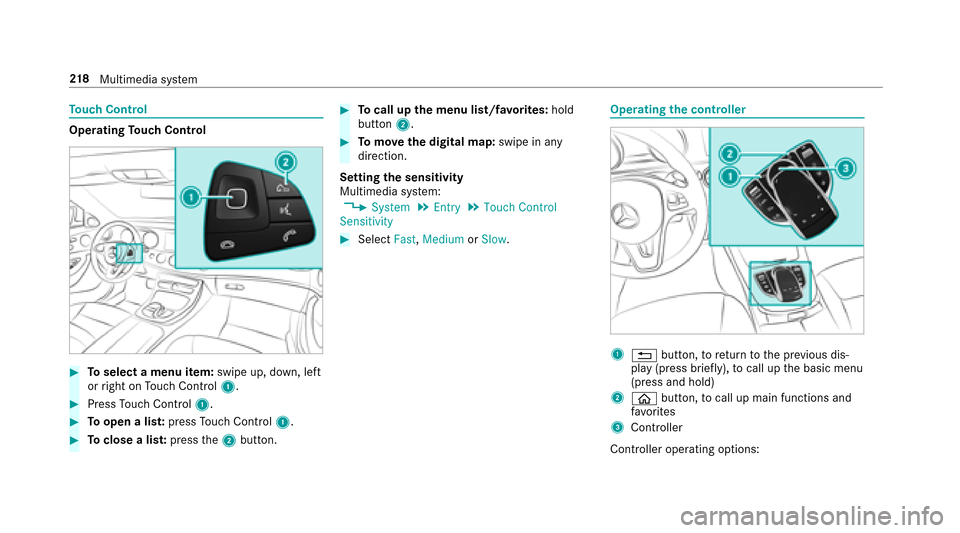
Operating Touc hC ontrol
#Toselect amenu item: swipe up, down, left
or right on Touc hC ontrol 1.
#PressTouc hC ontrol 1.
#Toopen alist: press Touc hC ontrol 1.
#Toclose alist: press the2 button.
#Tocall up them enu list/f avorite s: hold
button 2.
#Tomo vethed igita lmap:swipe in any
direction.
Setting thes ensitivity
Multimedia sy stem:
,System.Entry.Touch Control
Sensitivity
#Select Fast,Medium orSlow .
Operating thec ontroller
1% button, toretur ntot he previous dis‐
pla y(press brief ly), to cal lupt he basic menu
(press and hold)
2ò button, tocal lupm ainf unctions and
fa vo rite s
3Controller
Controller operatin goptions:
21 8
Multimedia sy stem
Page 221 of 446
#Turn 3 leftorr ight.
#Slide 1 leftorr ight.
#Slide 4 up or down.
#Slide2 diagonally.
#Press 7brief lyor press and hold.
To uchpad
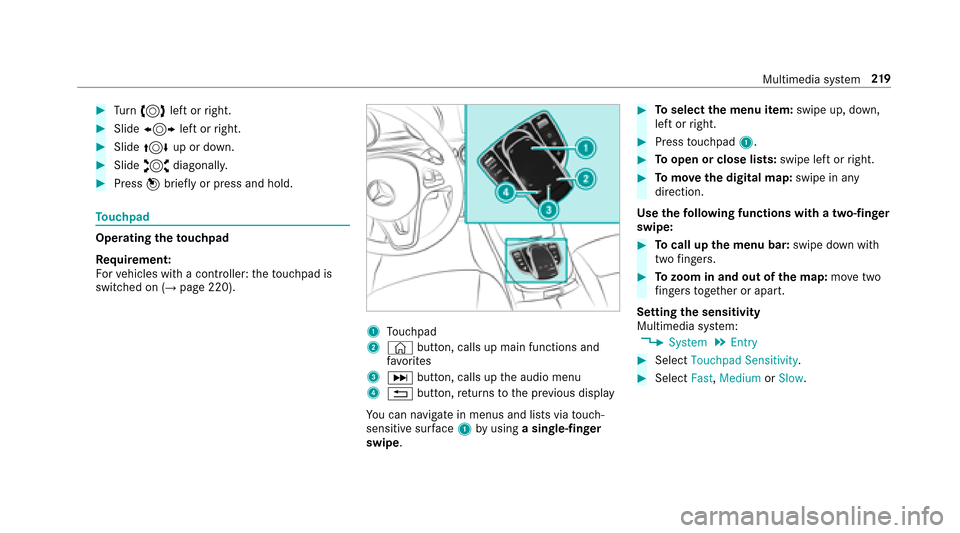
Operating thet ouchpad
Re quirement:
Fo rv ehicles wit hacontro ller:the touchpad is
swit ched on (
→pag e220).
1Touchpad
2© button, calls up main functions and
fa vo rite s
3D button, calls up thea udio menu
4% button, returns tothep reviou sdisplay
Yo uc an navigat einmenus and lists via touch-
sensitiv esurface 1 byusing asingle-finger
swipe.
#To select them enu item: swipe up, down,
lef torr ight.
#Press touchpad 1.
#Toopen or close lists: swipe leftorright.
#Tomo vethed igita lmap:swipe in any
direction.
Use thef ollowing functions wit hatwo-finger
swipe:
#To call up them enu bar: swipe down with
tw of ingers.
#To zoo minand out of the map: movetwo
fi nger stogether or apart.
Setting thes ensitivity
Multimedia sy stem:
,System.Entry
#Select Touchpad Sensitivity.
#SelectFast,Medium orSlow .
Multimedia sy stem 21
9
Page 222 of 446
Handwritingrecognition: switch ingther ead-
alou dfunction on/off
Multimedi asystem:
,System.Audio
#Ac tivate Oor deacti vate ª Read Out
Handwriting Recognition .
Handwriting recognition: selecting an input
langua ge
#Pressthet ouchpad when entering charac‐
te rs.
#Select B.
#Select an inpu tlan guage.
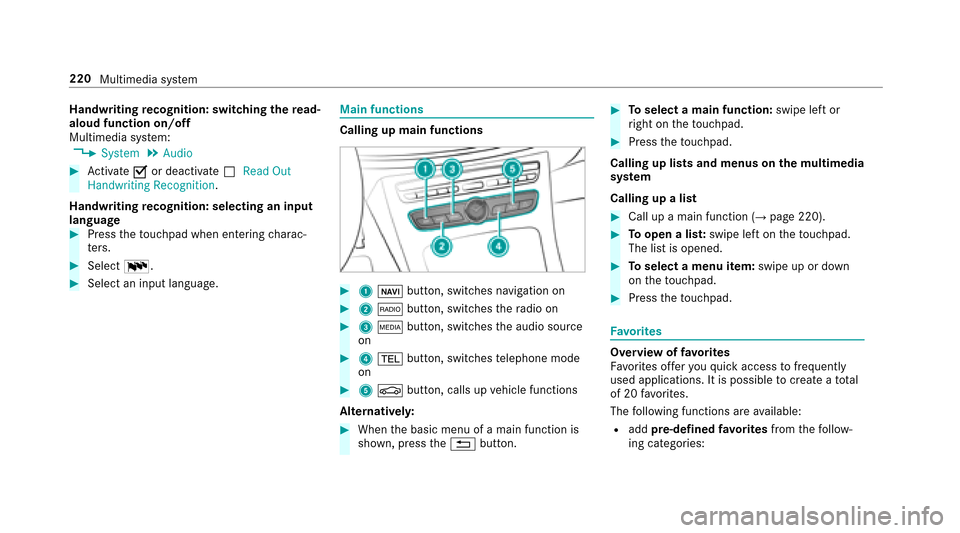
Main functions
Calling up main functions
#1 ß button, switches navigation on
#2$ button, switches ther adio on
#3 Õ button, switches thea udio source
on
#4 % button, switches telephonem ode
on
#5 Ø button, calls up vehicle functions
Alternativel y:
#Whentheb asic menu of amain function is
shown, press the% button.
#Toselect amain function: swipe leftor
ri ght on thet ouchpad.
#Press thet ouchpad.
Calling up lists and menus on them ultimedia
sy stem
Calling up alist
#Call up amain function (→page220).
#To open alist: swipe lef tonthetouchpad.
The lis tisopened.
#Toselect amenu item: swipe up or down
on thet ouchpad.
#Press thet ouchpad.
Favo rite s
Overvie woffavorites
Fa vorite so ffer youq uicka ccess tofrequently
use dapplications. It is possible tocreate atotal
of 20 favo rite s.
The following function sareavailable:
Radd pre-defined favo rite sfrom thef ollow‐
ing categories:
220 Multimedia sy stem
Page 223 of 446
-Navigation
-Phone
-Media
-Radio
-Connect
-Vehicle
-System
Raddyour ow nfavorites
Rrenam eafavorite
Rmo veafavo rite
Rdele teafavorite
Rrestor ea llFa vorite ss ettings
Calling up favo rite s
#Press the© button.
The main function saredispla yed.
#Na vigat edownwards once.
Leavingt heFavo rite sm enu
#Press the© button. Ad
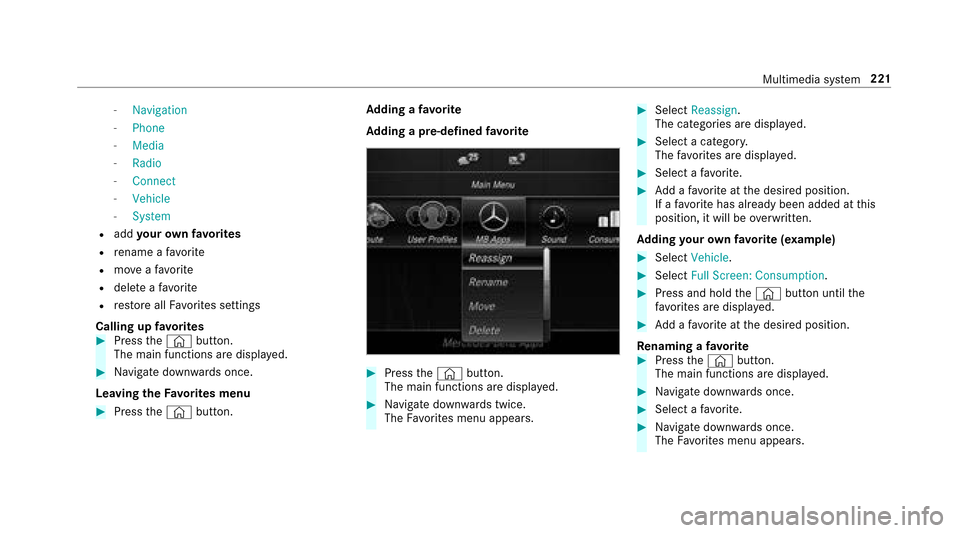
ding afavorite
Ad ding apre-de fined favo rite
#Press the© button.
The main function saredispla yed.
#Na vigat edownwards twice.
The Favorite sm enu appears .
#SelectReassign.
The catego ries ar edispla yed.
#Select acategor y.
The favo rite sa redispla yed.
#Select afavo rite .
#Ad daf avorit eatt he desired position.
If af avo rite has already been added at this
position, it will be overwritten.
Ad ding your ow nfavo rite (exa mp le)
#Select Vehicle.
#SelectFull Screen:C onsumption.
#Press and hold the© button until the
fa vo rite sa redispla yed.
#Ad daf avorit eatt he desired position.
Re naming afavorite
#Press the© button.
The main function saredispla yed.
#Na vigat edownwards once.
#Select afavo rite .
#Na vigat edownwards once.
The Favorite sm enu appears .
Multimedia sy stem 221
Page 224 of 446
#SelectRename .
#Entercharacters.
#To confir mthe ent ry:select ¡.
Moving afavo rite
#Press the© button.
The main function saredispla yed.
#Na vigat edownwards once.
#Select afavo rite .
#Na vigat edownwards once.
The Favorite sm enu appears .
#SelectMove.
#Movethef avo rite to thed esired position.
Deleting afavo rite
#Press the© button.
The main function saredispla yed.
#Na vigat edownwards once.
#Select afavo rite .
#Na vigat edownwards once.
The Favorite sm enu appears .
#Todel ete: select Delete.
#Select Yes.
#Toresto reall favo rite s: select Reset All.
Ap romp tappears.
#Select Yes.
Fa vorite sw ill be restored tofactor ysettings.
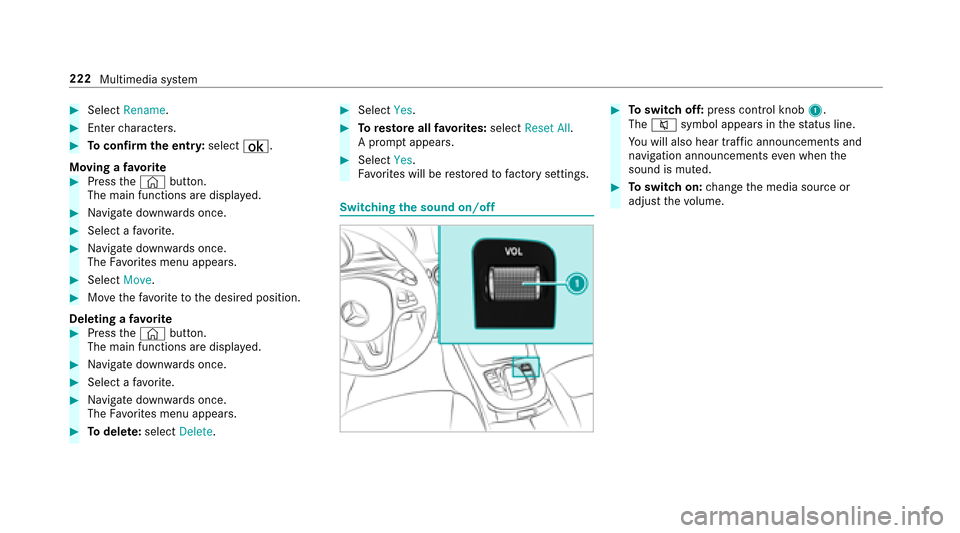
Switchin gthe sound on/o ff
#Toswitc hoff:press cont rolk no b1.
The 8 symbol appear sinthestatus line.
Yo uw ill also hear traf fica nnouncements and
navigation announcements even when the
sound is muted.
#To switc hon:chang ethe media source or
adjus tthe volume.
222
Multimedia sy stem
Page 227 of 446
Confirminganentry
#Pressthet ouchpad.
Sy stem settings
Display
Configuring displa ysettings
Multimedia sy stem:
,System.G Display and Designs
Designs
#Select Designs.
#SelectSport,Classic orProgressive.
Ad ditional displ ayarea
Depending on thev ehicle, various items of addi‐
tional information can be shown. The additional
displa yareac omprises thel eft-hand or right-
hand thirdoft he displa y.
#SelectAdditiona lDisp .Area .
The following displa ycontent can be selected:
RDynamic
RNavigation Map
RConsumption
RTime and Date
Displ aybrightness
#Select Display Brightness.
#Selectabrightness value.
Switching thed ispla yoff/on
#Off: select Display off .
#Switchon setting.
#On: press abutton, e.g. %.
Displa ydesign
#Select Day/Night Design.
#SelectAutomatic, Day Design orNight
Design.
Time and date
Setting thet imea nd da teautomatically
Multimedi asystem:
,System.Time and Date.Automatic
Time Settings
The cor rect time is requ ired fort he following
functions:
RRo uteg uidance wit htime-dependentt raffic
guidance
RCalcul ation of expected time of ar riva l
#Ac tivate Oor deacti vate ª thef unction.
Setting thet imez one
Multimedia sy stem:
,System.Time and Date.Time Zone:
Al istofc ountri es is displa yed.
#Select acount ry#.
Depending on thec ount ry,t ime zones are
displa yed.
#Select atime zone.
The time zon esetis displa yeda fter Time
Zone:.
Multimedia sy stem 225
Page 229 of 446
TheWi-Fi connectio nise stablished wit ha
Wi -Fi-enable ddevice ,e.g.tot he cus tomer's
mobilep hone ortable tPC.
RMultimedia sy stem as aWi-Fihotspot
Using this function ,atable tPCorn otebook
fo re xamp le can be connec ted.
To establish aconnection ,you can use thef ol‐
lowing me thods:
RWPS PIN
The connection toas ecur eWi-Finetwo rkis
mad eviaaP IN.
RWPS PBC
The connectio ntoasecureWi-Finetwo rkis
mad ebyp ressing abutton (push button).
RSecurity key
The connection toas ecur eWi-Finetwo rkis
mad eviaas ecu rity key.
Setting up Wi-Fi
Re quirement:
The device tobe connec teds upports one of the
th re em eans of connection described. Multimedia sy
stem:
,System.ö Connectivity
Ac tivating/deactivatin gWi-Fi
#Activate Oor deacti vate ª Wi-Fi.
If Wi-Fi is deactivated ª,communication via
Wi -Fi toall devices is inter rupte d. This also
means that ac onnectio ntothe HERMES
communication module canno tbeestab‐
lished. Functions such as dynamicroute
guidance wit hLiveT raffic Info rmation are
th en una vailable.
Connecting them ultimedia sy stem wit ha
device via Wi-Fi
Thisf unction is available if aHERMESc ommuni‐
cation moduleisn otins talled.
The type of connection es tablished mus tbe
selected on them ultimedia sy stem and on the
device tobe connec ted.
% The connection procedur emaydiffer
dependin gonthe device. Followt he instruc‐
tions that ar eshown in thed ispla y.Fu rther
information (see them anufacturer's operat‐
ing instructions).
#Select Internet Settings .
#SelectSearch for Wi-Fi Networks.
#ViaW PS PIN: highlight aWi-Finetwo rkin
th el ist.
#Select ¥Connec tvia WPS PIN.
The multimedia sy stem generates an eight-
digitP IN.
#Enterthis PIN on thed evice tobe connec ted.
#Confir mthe entr y.
#By pressing abutton: highlight aWi-Finet‐
wo rkinthel ist.
#Select ¥Connec tvia WPS PBC.
#Select "Connec tvia WPS PBC" in theo ptions
on thed evice tobe connec ted.
#Press theW PS button on thed evice tobe
connec ted.
#Select Continue inthem ultimedia sy stem.
#Using asecurity key:highlight aWi-Finet‐
wo rkinthel ist.
#Select ¥Connec tUsing SecurityK ey.
Multimedia system 227
Page 230 of 446
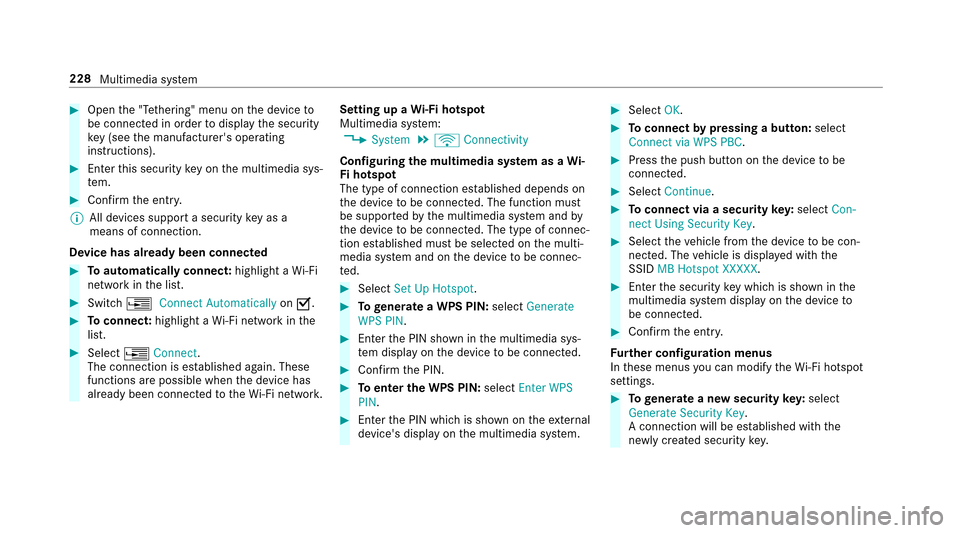
#Openthe" Tethering" menu on thed evice to
be connec tedino rder todispla ythe security
ke y( see them anufacturer's operating
instructions).
#En tert his security keyo nthe multimedia sys‐
te m.
#Confir mthe entr y.
% All device ssuppo rtas ecurity keyasa
mean sofconnection.
Device ha salread ybeen connec ted
#To automaticall yconnect: highlight aWi-Fi
networ kinthe list.
#Switch ¥Connect Automatically onO.
#Toconnect: highlightaWi-Finetwo rkinthe
list.
#Select ¥Connect .
The connection is es tablished again. These
function sarepossible when thed evice has
already been connected totheW i-Finetwo rk. Setting up
aWi-Fih otspot
Multimedia sy stem:
,System.ö Connectivity
Configuring them ultimedia sy stem as aWi-
Fi hotspot
The type of connection es tablished depends on
th ed evice tobe connec ted. The function must
be suppor tedbyt he multimedia sy stem and by
th ed evice tobe connec ted. The type of connec‐
tion es tablished mus tbeselected on them ulti‐
media sy stem and on thed evice tobe connec‐
te d.
#Select Set Up Hotspot .
#Togenerat eaW PS PIN: selectGenerate
WPS PIN.
#En tert he PIN shown in them ultimedia sys‐
te md ispla yont he device tobe connec ted.
#Confir mthe PIN.
#Toenter theW PS PIN: selectEnter WPS
PIN.
#En tert he PIN whic hisshown on thee xternal
device's displa yonthe multimedia sy stem.
#Select OK.
#Toconnect bypressin gabutton: select
Connect via WPS PBC.
#Press thep ush button on thed evice tobe
connec ted.
#Select Continue.
#Toconnect via asecurity key:select Con-
nect Using Security Key .
#Selectthev ehicle from thed evice tobe con‐
nec ted. The vehicle is displa yedw itht he
SSID MB Hotspot XXXXX.
#Enter thes ecurity keyw hichiss hown in the
multimedia sy stem displa yonthe device to
be connec ted.
#Confir mthe entr y.
Fu rther configuration menus
In these menus youc an modify theW i-Fihotspot
settings.
#To generat eanewsecurity key:select
Generate Security Key .
Ac onnection will be es tablished wit hthe
newly created security key.
228
Multimedia sy stem
Page 235 of 446
Navigation
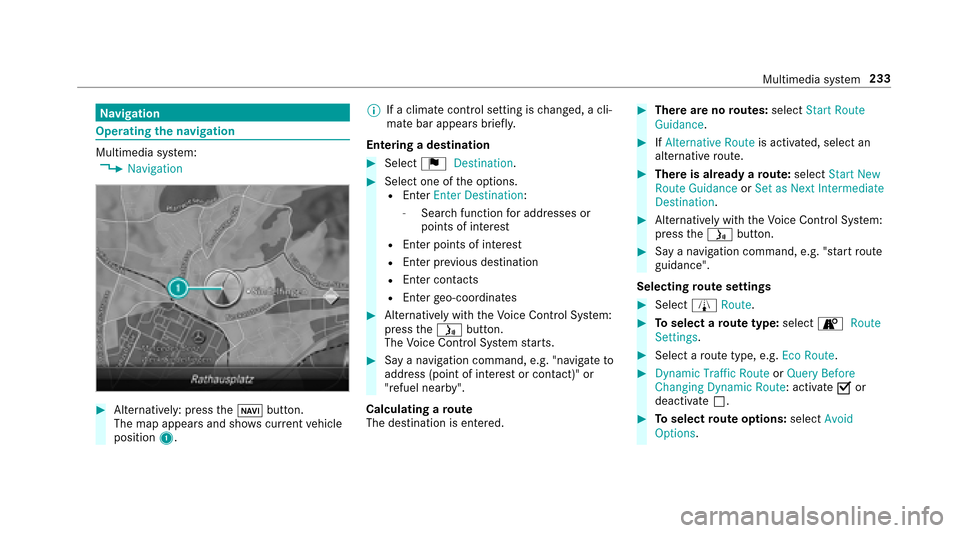
Operating then avigation
Multimedia sy stem:,Navigation
#Alternatively: press theß button.
The map appear sand sho wscurrent vehicle
position 1. %
Ifac limat econtro lsetting is changed, acli‐
mat ebar appear sbrief ly.
Entering adestination
#Select ¬Destination .
#Select one of theo ptions.REn terEnter Destination :
-Searchfunction fora ddresses or
points of interest
REnter points of interest
REnter pr evious destination
REn terc ontacts
REnter geo-coordinates
#Alternatively wit hthe Voice Cont rolS ystem:
press theó button.
The Voice Cont rolS ystems tarts.
#Sa yan avigatio ncommand, e.g ."navigat eto
address (pointofi nterestorcontact)" or
"refuel nearby".
Calculating aroute
The destination is entered.
#The rearenor outes: selectStart Route
Guidance .
#IfAlternative Route is activated, select an
alternativ eroute.
#Ther eisa lreadyaroute: select Start New
Route Guidance orSet as NextI ntermediate
Destination.
#Alternatively wit hthe Voice Cont rolS ystem:
press theó button.
#Sayan avigation command, e.g. "s tart route
guidance".
Selecting rout es ettings
#Select ÀRoute.
#Toselect arout etype: select ÌRoute
Settings .
#Selectarout etype ,e.g. EcoR oute.
#Dynamic Traffic Route orQuer yBefore
ChangingD ynamic Route :activate Oor
deactivate ª.
#Toselect routeo ptions: select Avoid
Options.
Multimedi asyst em 233