steering MERCEDES-BENZ E-SEDAN 2014 Repair Manual
[x] Cancel search | Manufacturer: MERCEDES-BENZ, Model Year: 2014, Model line: E-SEDAN, Model: MERCEDES-BENZ E-SEDAN 2014Pages: 430, PDF Size: 5.8 MB
Page 225 of 430
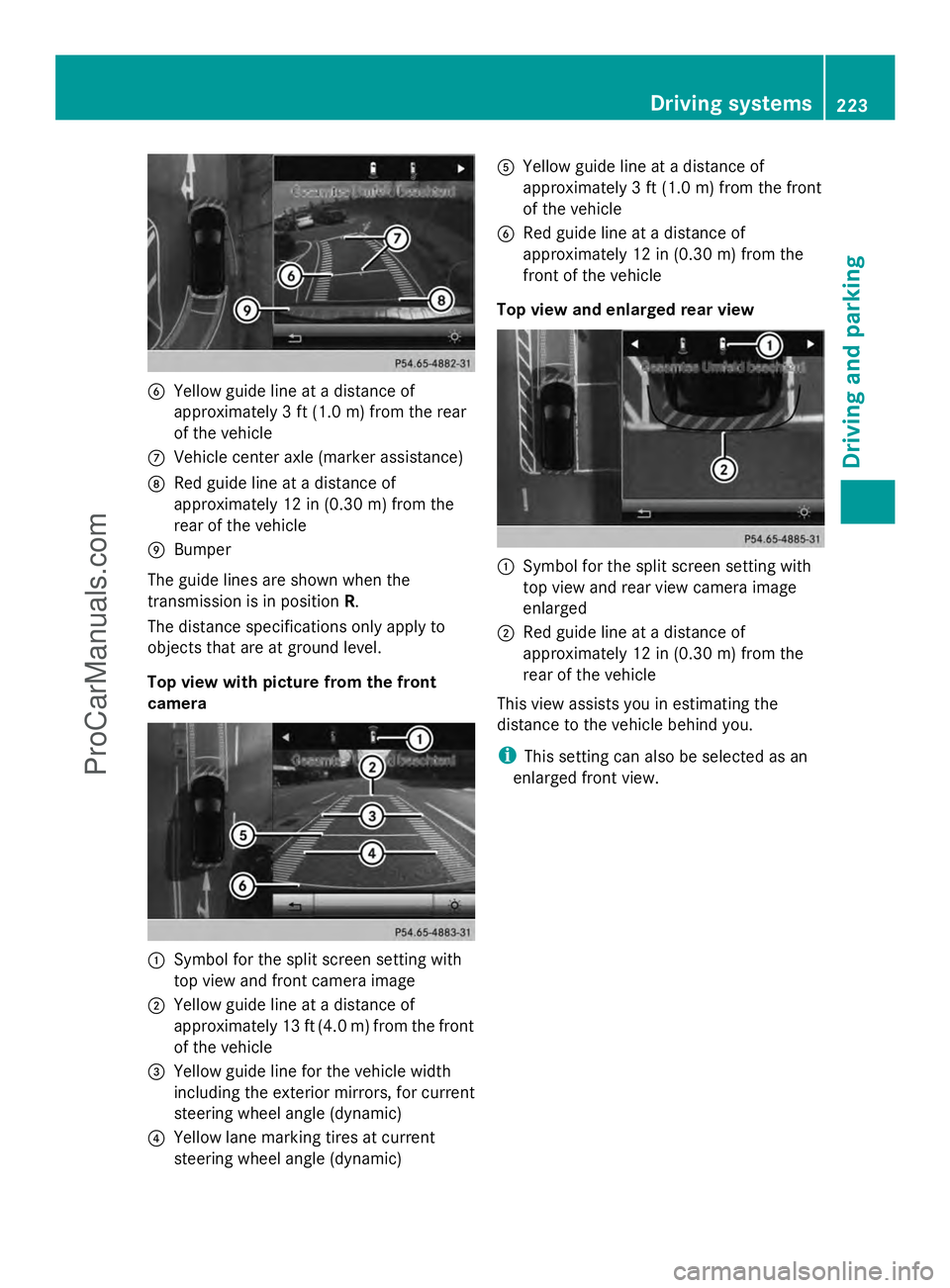
B
Yellow guide line at a distance of
approximately 3 ft (1.0 m) from the rear
of the vehicle
C Vehicle center axle (marker assistance)
D Red guide line at a distance of
approximately 12 in (0.30 m) from the
rear of the vehicle
E Bumper
The guide lines are shown when the
transmission is in position R.
The distance specifications only apply to
objects that are at ground level.
Top view with picture from the front
camera :
Symbol for the split screen setting with
top view and front camera image
; Yellow guide line at a distance of
approximately 13 ft (4.0 m) from the front
of the vehicle
= Yellow guide line for the vehicle width
including the exterior mirrors, for current
steering wheel angle (dynamic)
? Yellow lane marking tires at current
steering wheel angle (dynamic) A
Yellow guide line at a distance of
approximately 3 ft (1.0 m) from the front
of the vehicle
B Red guide line at a distance of
approximately 12 in (0.30 m) from the
front of the vehicle
Top view and enlarged rear view :
Symbol for the split screen setting with
top view and rear view camera image
enlarged
; Red guide line at a distance of
approximately 12 in (0.30 m) from the
rear of the vehicle
This view assists you in estimating the
distance to the vehicle behind you.
i This setting can also be selected as an
enlarged front view. Driving systems
223Driving and parking Z
ProCarManuals.com
Page 228 of 430
Activating ATTENTION ASSIST
X
Activate ATTENTION ASSIST using the on-
board computer (Y page 248).
The system determines the attention level
of the driver depending on the setting
selected:
Standard selected: the sensitivity with
which the system determines the attention
level is set to normal.
Sensitive selected: the sensitivity is set
higher. The attention level detected by
Attention Assist is adapted accordingly and
the driver is warned earlier.
When ATTENTION ASSIST is deactivated, the
À symbol and OFF appear in the
multifunction display in the assistance
display when the engine is running.
When ATTENTION ASSIST has been
deactivated, it is automatically reactivated
after the engine has been stopped. The
sensitivity selected corresponds to the last
selection activated (standard/sensitive).
Warning in the multifunction display If fatigue or increasing lapses in
concentration are detected, a warning
appears in the multifunction display:
Attention Assist: Take a Break!
Attention Assist: Take a Break!
In addition to the message shown in the
multifunction display, you will then hear a
warning tone.
X If necessary, take a break.
X Confirm the message by pressing the
a button on the steering wheel.
On long journeys, take regular breaks in good
time to allow yourself to rest properly. If you
do not take a break and ATTENTION ASSIST
still detects increasing lapses in
concentration, you will be warned again after
15 minutes at the earliest. This will only
happen if ATTENTION ASSIST still detects
typical indicators of fatigue or increasing
lapses in concentration. Lane Tracking package
General notes The Lane Tracking package consists of Blind
Spot Assist (Y page 226) and Lane Keeping
Assist (Y page 228).
Blind Spot Assist General notes
Blind Spot Assist uses a radar sensor system
to monitor the areas on both sides of your
vehicle. It supports you from a speed of
approximately 20 mph (30 km/h). A warning
display in the exterior mirrors draws your
attention to vehicles detected in the
monitored area. If you then switch on the
corresponding turn signal to change lanes,
you will also receive a visual and audible
collision warning. Blind Spot Assist uses
sensors in the rear bumper for monitoring
purposes.
Important safety notes G
WARNING
Blind Spot Assist does not react to:
R vehicles overtaken too closely on the side,
placing them in the blind spot area
R vehicles which approach with a large speed
differential and overtake your vehicle
As a result, Blind Spot Assist may not give
warnings in such situations. There is a risk of
an accident.
Always observe the traffic conditions
carefully, and maintain a safe lateral distance.
Blind Spot Assist is only an aid. It may fail to
detect some vehicles and is no substitute for
attentive driving. Always ensure that there is
sufficient distance to the side for other road
users and obstacles.
i USA only:
This device has been approved by the FCC
as a "Vehicular Radar System". The radar
sensor is intended for use in an automotive
radar system only. Removing, tampering 226
Driving systemsDriving and parking
ProCarManuals.com
Page 230 of 430
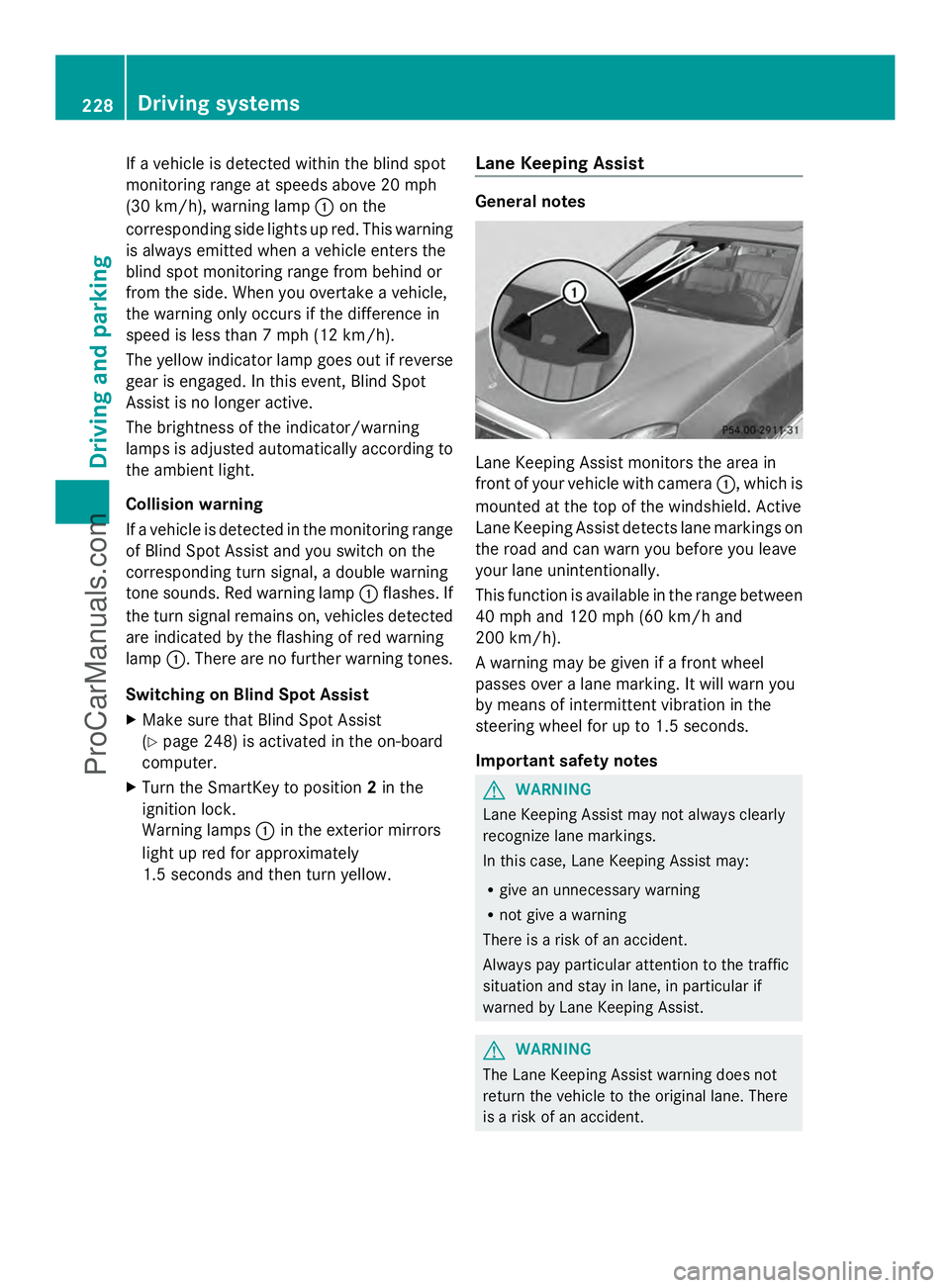
If a vehicle is detected within the blind spot
monitoring range at speeds above 20 mph
(30 km/h), warning lamp :on the
corresponding side lights up red. This warning
is always emitted when a vehicle enters the
blind spot monitoring range from behind or
from the side. When you overtake a vehicle,
the warning only occurs if the difference in
speed is less than 7 mph (12 km/h).
The yellow indicator lamp goes out if reverse
gear is engaged. In this event, Blind Spot
Assist is no longer active.
The brightness of the indicator/warning
lamps is adjusted automatically according to
the ambient light.
Collision warning
If a vehicle is detected in the monitoring range
of Blind Spot Assist and you switch on the
corresponding turn signal, a double warning
tone sounds. Red warning lamp :flashes. If
the turn signal remains on, vehicles detected
are indicated by the flashing of red warning
lamp :. There are no further warning tones.
Switching on Blind Spot Assist
X Make sure that Blind Spot Assist
(Y page 248) is activated in the on-board
computer.
X Turn the SmartKey to position 2in the
ignition lock.
Warning lamps :in the exterior mirrors
light up red for approximately
1.5 seconds and then turn yellow. Lane Keeping Assist General notes
Lane Keeping Assist monitors the area in
front of your vehicle with camera
:, which is
mounted at the top of the windshield. Active
Lane Keeping Assist detects lane markings on
the road and can warn you before you leave
your lane unintentionally.
This function is available in the range between
40 mph and 120 mph (60 km/h and
200 km/h).
A warning may be given if a front wheel
passes over a lane marking. It will warn you
by means of intermittent vibration in the
steering wheel for up to 1.5 seconds.
Important safety notes G
WARNING
Lane Keeping Assist may not always clearly
recognize lane markings.
In this case, Lane Keeping Assist may:
R give an unnecessary warning
R not give a warning
There is a risk of an accident.
Always pay particular attention to the traffic
situation and stay in lane, in particular if
warned by Lane Keeping Assist. G
WARNING
The Lane Keeping Assist warning does not
return the vehicle to the original lane. There
is a risk of an accident. 228
Driving systemsDriving and parking
ProCarManuals.com
Page 236 of 430
If no vehicle is detected in the adjacent lane
and there are broken lane markings detected,
no lane-correcting brake application is made.
Warning vibration in the steering wheel
A warning may be given if a front wheel
passes over a lane marking. It will warn you
by means of intermittent vibration in the
steering wheel for up to 1.5 seconds.
Lane-correcting brake application G
WARNING
A lane-correcting brake application cannot
always bring the vehicle back into the original
lane. There is a risk of an accident.
Always steer, brake or accelerate yourself,
especially if Active Lane Keeping Assist warns
you or makes a lane-correcting brake
application. G
WARNING
Active Lane Keeping Assist only detects
traffic conditions or road users to a limited
extent. In very rare cases, the system may
make an inappropriate brake application, e.g.
after intentionally driving over a solid lane
marking. There is a risk of an accident.
An inappropriate brake application may be
interrupted at any time if you steer slightly in
the opposite direction. Always make sure that
there is sufficient distance on the side for
other traffic or obstacles. If you leave your lane, under certain
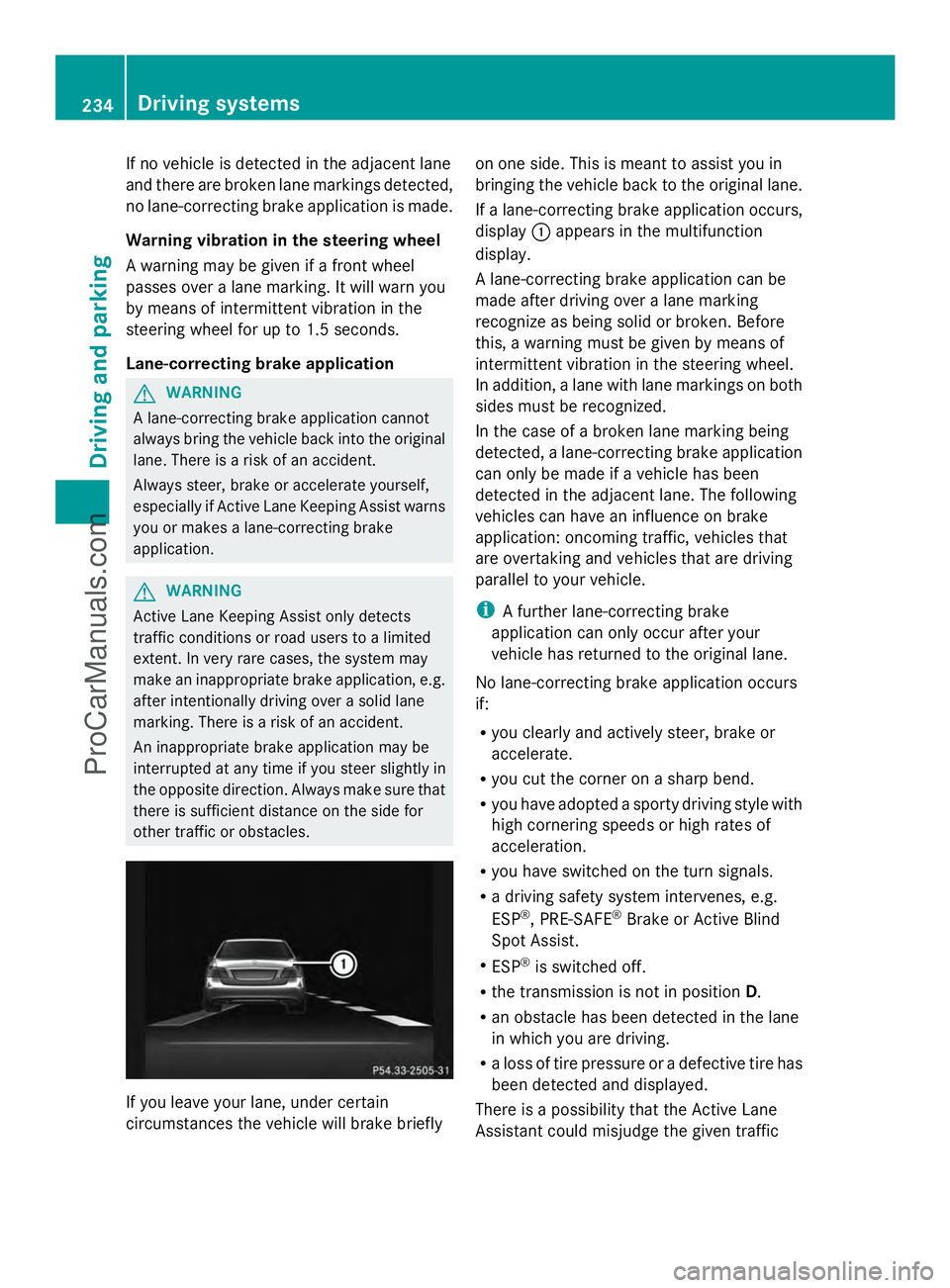
circumstances the vehicle will brake briefly on one side. This is meant to assist you in
bringing the vehicle back to the original lane.
If a lane-correcting brake application occurs,
display
:appears in the multifunction
display.
A lane-correcting brake application can be
made after driving over a lane marking
recognize as being solid or broken. Before
this, a warning must be given by means of
intermittent vibration in the steering wheel.
In addition, a lane with lane markings on both
sides must be recognized.
In the case of a broken lane marking being
detected, a lane-correcting brake application
can only be made if a vehicle has been
detected in the adjacent lane. The following
vehicles can have an influence on brake
application: oncoming traffic, vehicles that
are overtaking and vehicles that are driving
parallel to your vehicle.
i A further lane-correcting brake
application can only occur after your
vehicle has returned to the original lane.
No lane-correcting brake application occurs
if:
R you clearly and actively steer, brake or
accelerate.
R you cut the corner on a sharp bend.
R you have adopted a sporty driving style with
high cornering speeds or high rates of
acceleration.
R you have switched on the turn signals.
R a driving safety system intervenes, e.g.
ESP ®
, PRE-SAFE ®
Brake or Active Blind
Spot Assist.
R ESP ®
is switched off.
R the transmission is not in position D.
R an obstacle has been detected in the lane
in which you are driving.
R a loss of tire pressure or a defective tire has
been detected and displayed.
There is a possibility that the Active Lane
Assistant could misjudge the given traffic 234
Driving systemsDriving and parking
ProCarManuals.com
Page 241 of 430
The fuel supply is interrupted to protect the
engine when the red band is reached. Outside temperature display
You should pay special attention to road
conditions when temperatures are around
freezing point.
The outside temperature display is in the
multifunction display (Y page 240).
Changes in the outside temperature are
displayed after a short delay. Speedometer with segments
The segments in the speedometer indicate
which speed range is available.
R Cruise control activated (Y page 189):
The segments light up from the stored
speed to the maximum speed.
R DISTRONIC PLUS activated (Y page 191):
One or two segments in the set speed
range light up.
R DISTRONIC PLUS detects a vehicle in front:
The segments between the speed of the
vehicle in front and the stored speed light
up. Operating the on-board computer
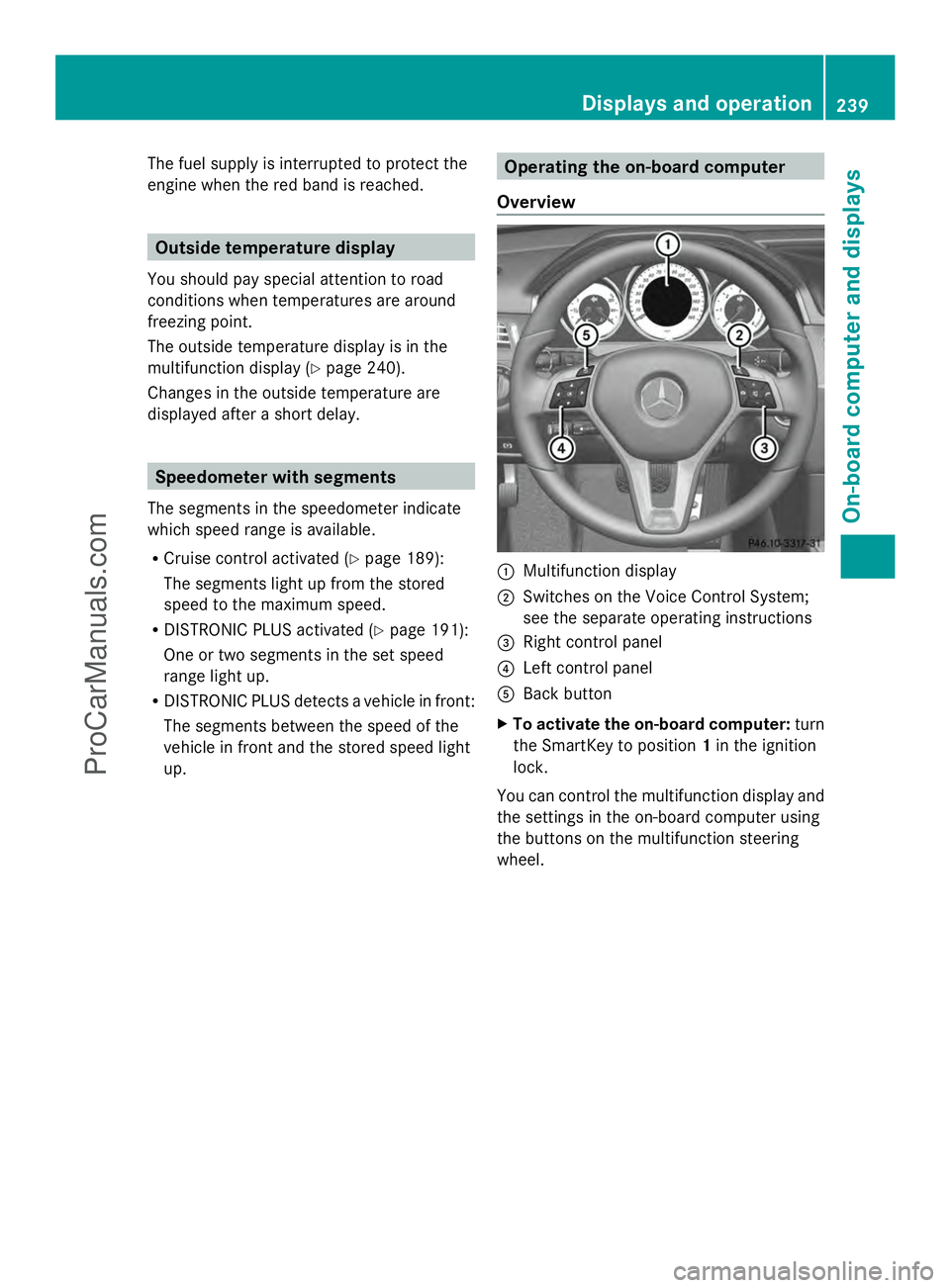
Overview :
Multifunction display
; Switches on the Voice Control System;
see the separate operating instructions
= Right control panel
? Left control panel
A Back button
X To activate the on-board computer: turn
the SmartKey to position 1in the ignition
lock.
You can control the multifunction display and
the settings in the on-board computer using
the buttons on the multifunction steering
wheel. Displays and operation
239On-board computer and displays Z
ProCarManuals.com
Page 242 of 430
Left control panel
=
; R
Calls up the menu and menu bar 9
:
Press briefly:
R
Scrolls in lists
R Selects a submenu or function
R In the Audio Audio menu: selects a
stored station, an audio track or
a video scene
R In the Tel Tel(telephone) menu:
switches to the phone book and
selects a name or telephone
number 9
:
Press and hold:
R
In the Audio Audio menu: selects the
previous/next station or selects
an audio track or a video scene
using rapid scrolling
R In the Tel Tel(Telephone) menu:
starts rapid scrolling if the phone
book is open a R
Confirms a selection/display
message
R In the Tel Tel(telephone) menu:
switches to the telephone book
and starts dialing the selected
number
R In the Audio Audio menu: stops the
station search function at the
desired station Right control panel
~ R
Rejects or ends a call
R Exits phone book/redial
memory 6 R
Makes or accepts a call
R Switches to the redial memory W
X R
Adjusts the volume 8 R
Mute Back button
%
Press briefly:
R
Back
R Switches off the Voice Control
System; see the separate
operating instructions
R Hides display messages/calls
up the last Trip Tripmenu function
used
R Exits the telephone book/redial
memory %
Press and hold:
R
Calls up the standard display in
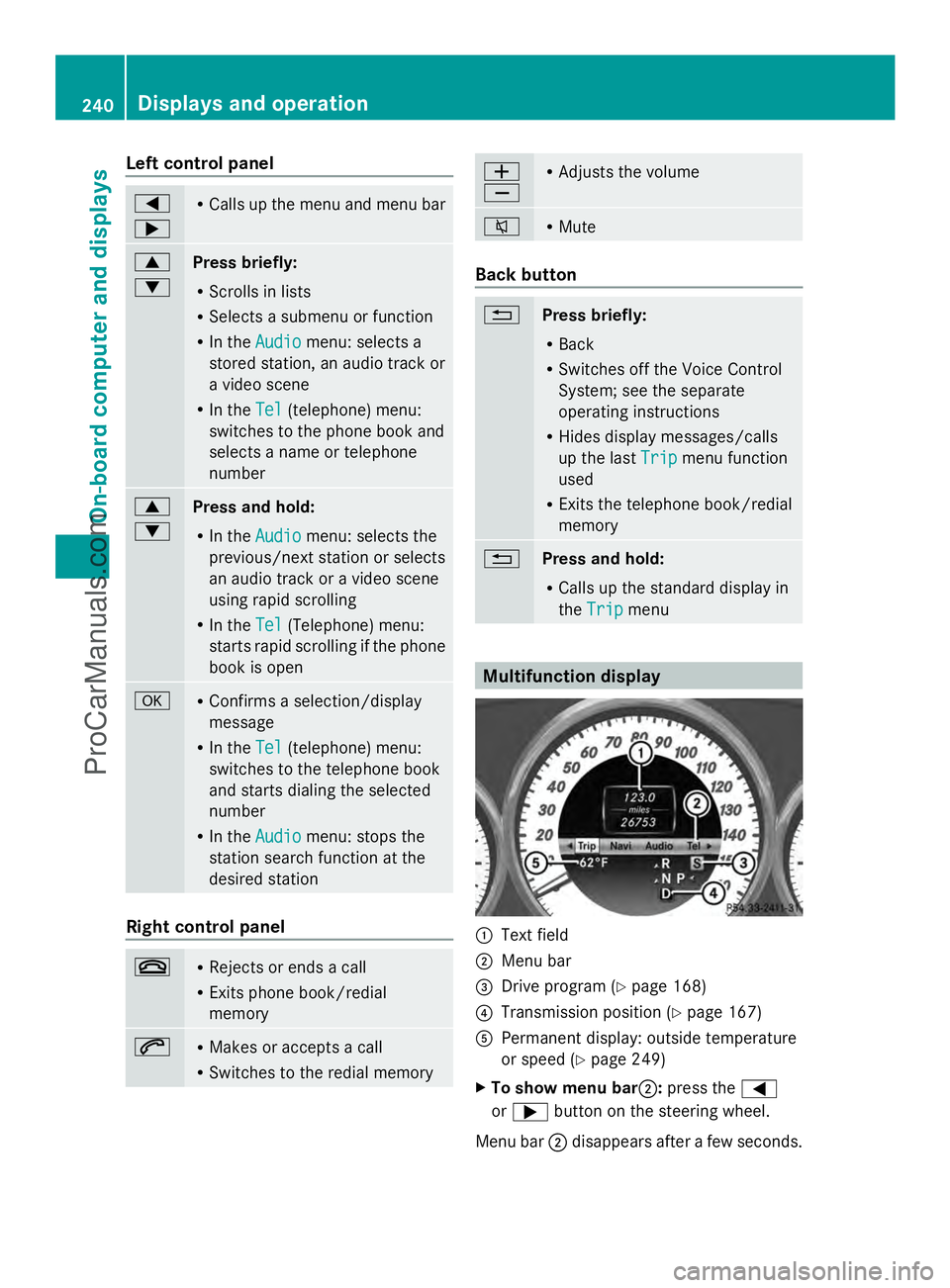
the Trip Trip menu Multifunction display
:
Text field
; Menu bar
= Drive program (Y page 168)
? Transmission position (Y page 167)
A Permanent display: outside temperature
or speed (Y page 249)
X To show menu bar ;:press the =
or ; button on the steering wheel.
Menu bar ;disappears after a few seconds. 240
Displays and operationOn-board computer and displays
ProCarManuals.com
Page 243 of 430
Text field
:shows the selected menu or
submenu as well as display messages.
The following messages may appear in the
multifunction display:
Z Shift recommendation
(Ypage 172)
XjY Active Parking Assist (Y page 212)
CRUISE
CRUISE Cruise control (Y
page 189)
_ Adaptive Highbeam Assist
(Ypage 134)
¤ ECO start/stop function
(Ypage 163)
ë HOLD function (Y page 202) Menus and submenus
Menu overview
Press the =or; button on the
steering wheel to call up the menu bar and
select a menu.
Operating the on-board computer
(Y page 239).
Depending on the equipment installed in the
vehicle, you can call up the following menus:
R Trip Trip menu (Y page 241)
R Navi
Navi menu (navigation instructions)
(Y page 243)
R Audio
Audio menu (Y page 244)
R Tel
Tel menu (telephone) (Y page 245)
R DriveAssist
DriveAssist menu (assistance)
(Y page 246)
R Serv.
Serv. menu (Y page 249)
R Settings
Settings menu (settings) (Y page 249)
R AMG
AMG menu in AMG vehicles (Y page 253) Trip menu
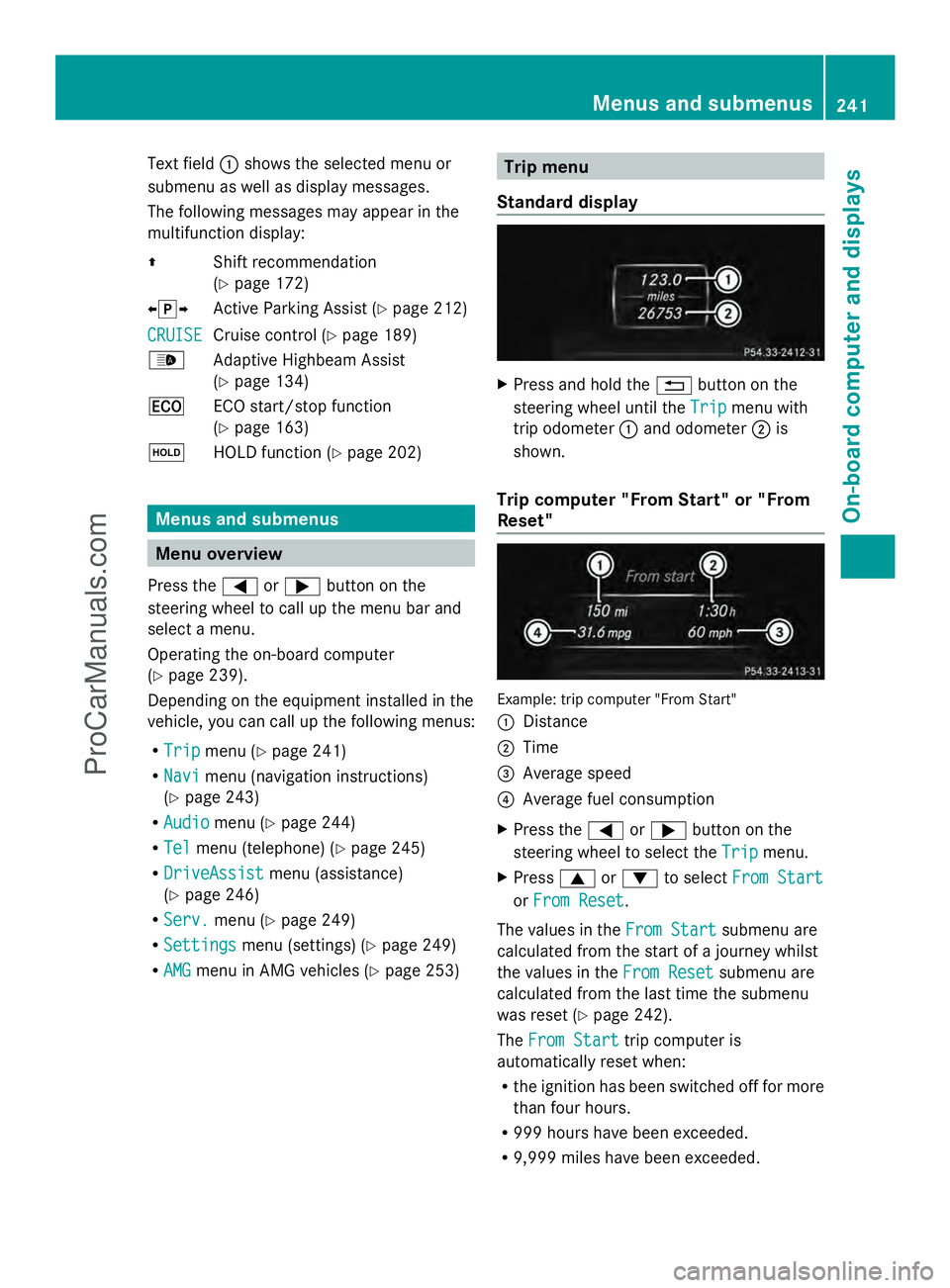
Standard display X
Press and hold the %button on the
steering wheel until the Trip
Trip menu with
trip odometer :and odometer ;is
shown.
Trip computer "From Start" or "From
Reset" Example: trip computer "From Start"
:
Distance
; Time
= Average speed
? Average fuel consumption
X Press the =or; button on the
steering wheel to select the Trip
Trip menu.
X Press 9or: to select From Start From Start
or From Reset
From Reset .
The values in the From Start
From Startsubmenu are
calculated from the start of a journey whilst
the values in the From Reset From Resetsubmenu are
calculated from the last time the submenu
was reset (Y page 242).
The From Start From Start trip computer is
automatically reset when:
R the ignition has been switched off for more
than four hours.
R 999 hours have been exceeded.
R 9,999 miles have been exceeded. Menus and submenus
241On-board computer and displays Z
ProCarManuals.com
Page 244 of 430
The
From Reset
From Reset trip computer is
automatically reset if the value exceeds
9999 hours or 99,999 miles.
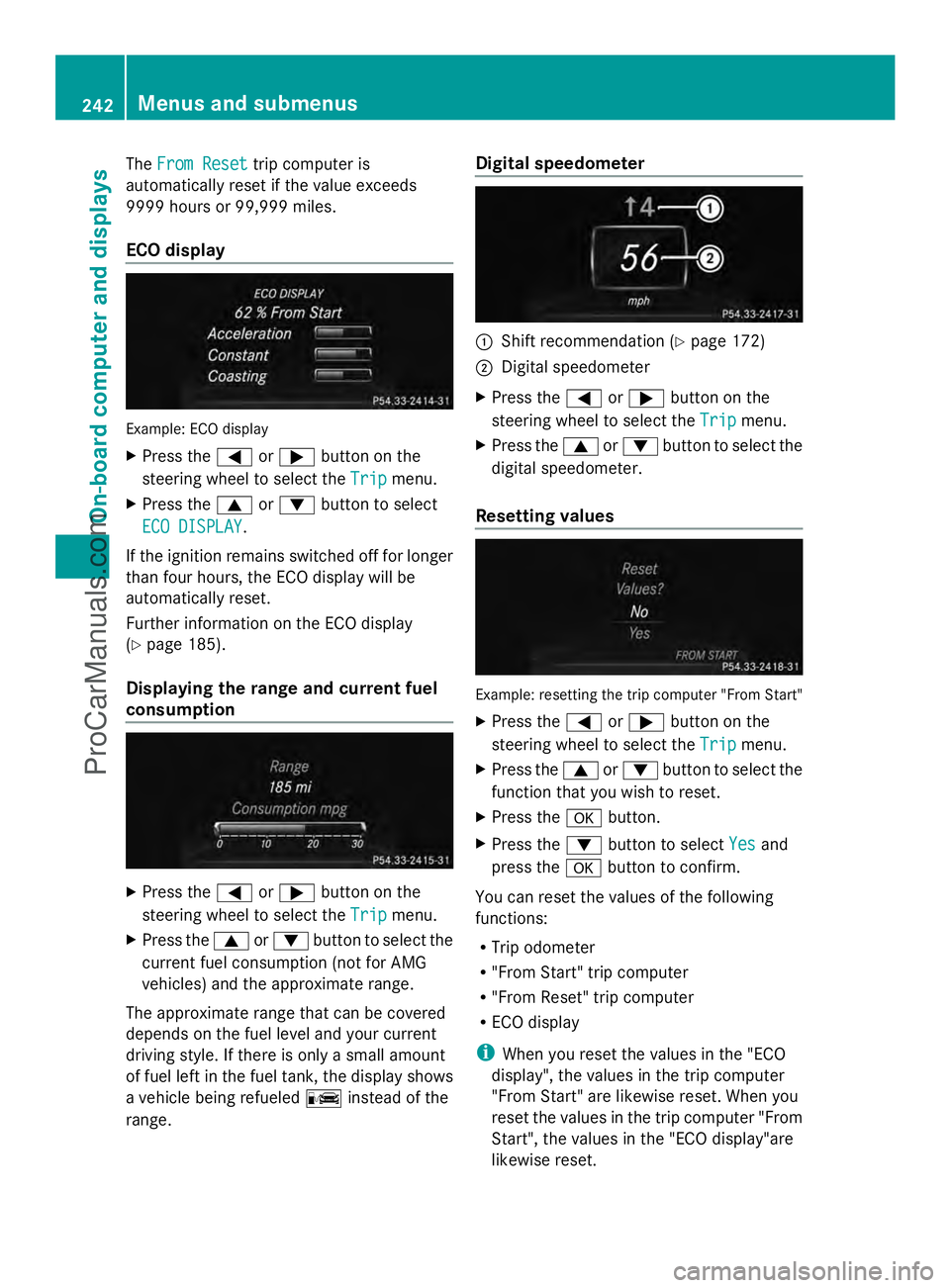
ECO display Example: ECO display
X
Press the =or; button on the
steering wheel to select the Trip
Trip menu.
X Press the 9or: button to select
ECO DISPLAY ECO DISPLAY .
If the ignition remains switched off for longer
than four hours, the ECO display will be
automatically reset.
Further information on the ECO display
(Y page 185).
Displaying the range and current fuel
consumption X
Press the =or; button on the
steering wheel to select the Trip
Trip menu.
X Press the 9or: button to select the
current fuel consumption (not for AMG
vehicles) and the approximate range.
The approximate range that can be covered
depends on the fuel level and your current
driving style. If there is only a small amount
of fuel left in the fuel tank, the display shows
a vehicle being refueled Cinstead of the
range. Digital speedometer
:
Shift recommendation (Y page 172)
; Digital speedometer
X Press the =or; button on the
steering wheel to select the Trip Tripmenu.
X Press the 9or: button to select the
digital speedometer.
Resetting values Example: resetting the trip computer "From Start"
X Press the =or; button on the
steering wheel to select the Trip
Tripmenu.
X Press the 9or: button to select the
function that you wish to reset.
X Press the abutton.
X Press the :button to select Yes
Yes and
press the abutton to confirm.
You can reset the values of the following
functions:
R Trip odometer
R "From Start" trip computer
R "From Reset" trip computer
R ECO display
i When you reset the values in the "ECO
display", the values in the trip computer
"From Start" are likewise reset. When you
reset the values in the trip computer "From
Start", the values in the "ECO display"are
likewise reset. 242
Menus and submenusOn-board computer and displays
ProCarManuals.com
Page 245 of 430
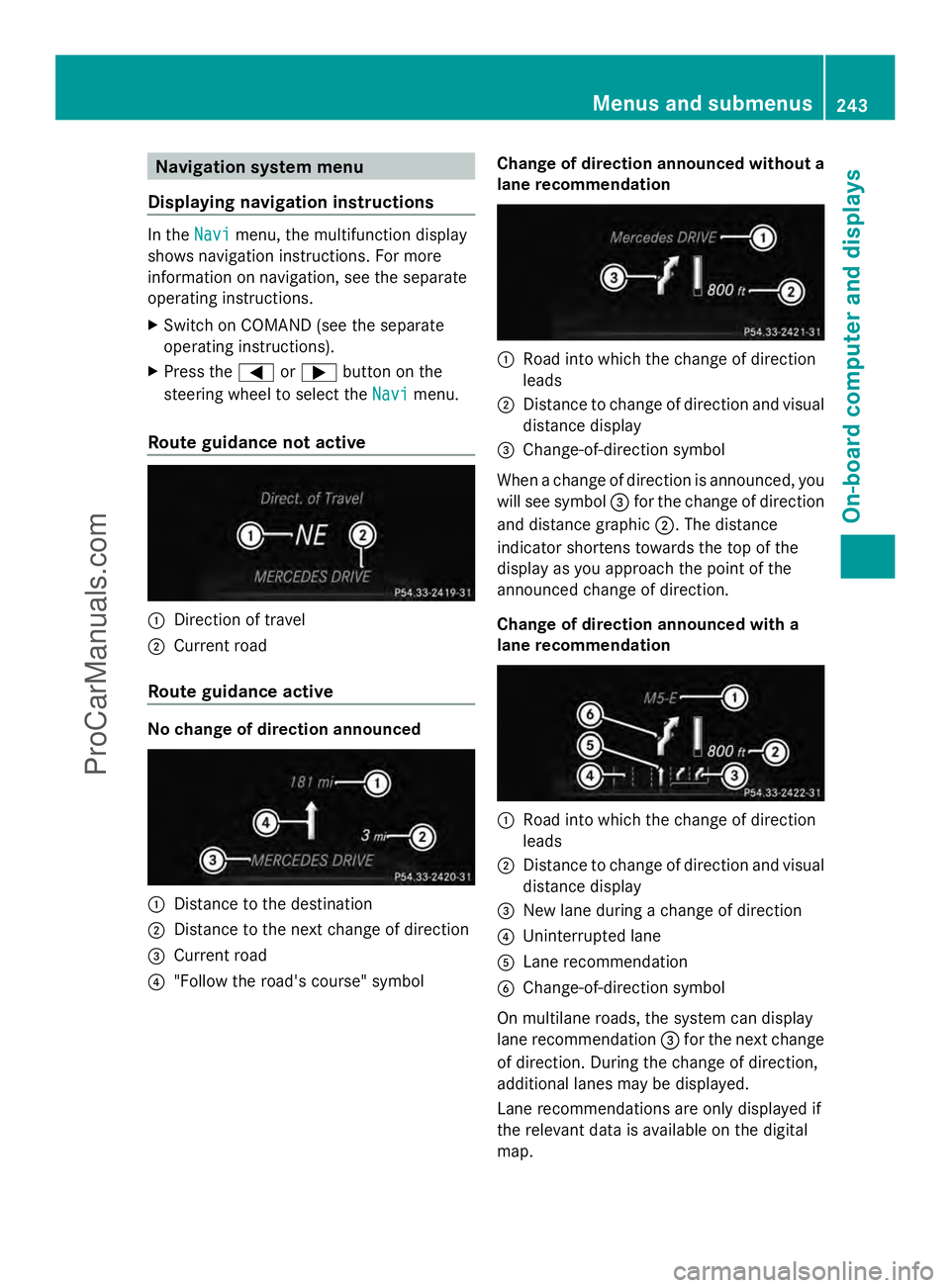
Navigation system menu
Displaying navigation instructions In the
Navi
Navimenu, the multifunction display
shows navigation instructions. For more
information on navigation, see the separate
operating instructions.
X Switch on COMAND (see the separate
operating instructions).
X Press the =or; button on the
steering wheel to select the Navi
Navi menu.
Route guidance not active :
Direction of travel
; Current road
Route guidance active No change of direction announced
:
Distance to the destination
; Distance to the next change of direction
= Current road
? "Follow the road's course" symbol Change of direction announced without a
lane recommendation :
Road into which the change of direction
leads
; Distance to change of direction and visual
distance display
= Change-of-direction symbol
When a change of direction is announced, you
will see symbol =for the change of direction
and distance graphic ;. The distance
indicator shortens towards the top of the
display as you approach the point of the
announced change of direction.
Change of direction announced with a
lane recommendation :
Road into which the change of direction
leads
; Distance to change of direction and visual
distance display
= New lane during a change of direction
? Uninterrupted lane
A Lane recommendation
B Change-of-direction symbol
On multilane roads, the system can display
lane recommendation =for the next change
of direction. During the change of direction,
additional lanes may be displayed.
Lane recommendations are only displayed if
the relevant data is available on the digital
map. Menus and submenus
243On-board computer and displays Z
ProCarManuals.com
Page 246 of 430
Other status indicators of the
navigation system
R
O: you have reached the destination or an
intermediate destination.
R New Route...
New Route... orCalculating Route Calculating Route :
calculating a new route
R Off Map
Off Map orOff
Off Mapped
Mapped Road
Road: the vehicle
position is outside the area of the digital
map (off-map position).
R No Route
No Route : no route could be calculated to
the selected destination. Audio menu
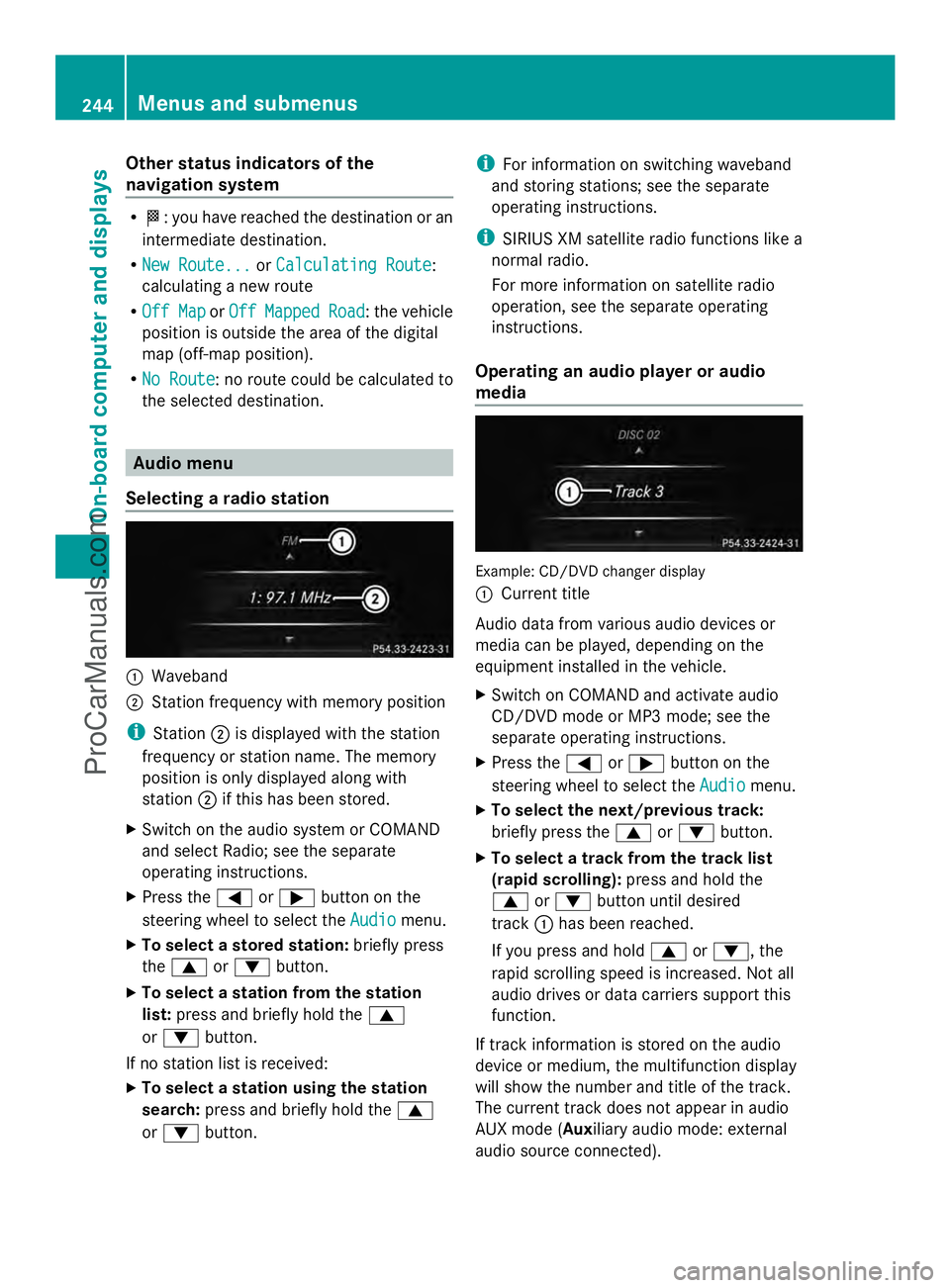
Selecting a radio station :
Waveband
; Station frequency with memory position
i Station ;is displayed with the station
frequency or station name. The memory
position is only displayed along with
station ;if this has been stored.
X Switch on the audio system or COMAND
and select Radio; see the separate
operating instructions.
X Press the =or; button on the
steering wheel to select the Audio
Audio menu.
X To select a stored station: briefly press
the 9 or: button.
X To select a station from the station
list: press and briefly hold the 9
or : button.
If no station list is received:
X To select a station using the station
search: press and briefly hold the 9
or : button. i
For information on switching waveband
and storing stations; see the separate
operating instructions.
i SIRIUS XM satellite radio functions like a
normal radio.
For more information on satellite radio
operation, see the separate operating
instructions.
Operating an audio player or audio
media Example: CD/DVD changer display
:
Current title
Audio data from various audio devices or
media can be played, depending on the
equipment installed in the vehicle.
X Switch on COMAND and activate audio
CD/DVD mode or MP3 mode; see the
separate operating instructions.
X Press the =or; button on the
steering wheel to select the Audio Audiomenu.
X To select the next/previous track:
briefly press the 9or: button.
X To select a track from the track list
(rapid scrolling): press and hold the
9 or: button until desired
track :has been reached.
If you press and hold 9or:, the
rapid scrolling speed is increased. Not all
audio drives or data carriers support this
function.
If track information is stored on the audio
device or medium, the multifunction display
will show the number and title of the track.
The current track does not appear in audio
AUX mode (Auxiliary audio mode: external
audio source connected). 244
Menus and submenusOn-board computer and displays
ProCarManuals.com