phone MERCEDES-BENZ G-Class 2010 W251 Comand Manual
[x] Cancel search | Manufacturer: MERCEDES-BENZ, Model Year: 2010, Model line: G-Class, Model: MERCEDES-BENZ G-Class 2010 W251Pages: 224, PDF Size: 7 MB
Page 29 of 224
Ending a Call or Rejecting an Incoming
Call XPress button ~.
Dialing a Number from the Phone Book
If your mobile phone is ready to receive calls,
you may select and dial a number from the
phone book at any time.
XPress button V or U repeatedly until
the TEL menu appears in the multifunction
displayXPress button * or & repeatedly until
the desired name or number appears in the
multifunction display.XTo scroll through the list of names or
numbers using the quick search mode:
Press and hold button * or & for
longer than one second.
The system scrolls rapidly through the list
of names or numbers until you release the
button.
The stored names are displayed in
ascending or descending alphabetical
order.X To cancel the quick search mode: Press
button ~
i
If no contacts have been downloaded
from the mobile phone, No entries
appears in the multifunction display when
* or & is pressed.
XPress button 6.
The system dials the selected phone
number.
If the connection is successful and this
feature is supported by your network
provider, the name of the party you are
calling (if stored in your phone book) will
appear in the multifunction display.
If no connection is made, the control
system stores the dialed number in the
Calls dialed memory.Redialing
The control system stores the most recently
dialed phone numbers. This eliminates the
need to search through your entire phone
book.XPress button V or U repeatedly until
the TEL menu appears in the multifunction
display.
You will see the READY message.XPress button 6.
In the multifunction display you see the first
number in the Calls dialed memory.XPress button * or & repeatedly until
the desired name appears in the
multifunction display.XPress button 6.
The control system dials the selected
phone number.
Operating COMAND
Opening Menu of a Main Function
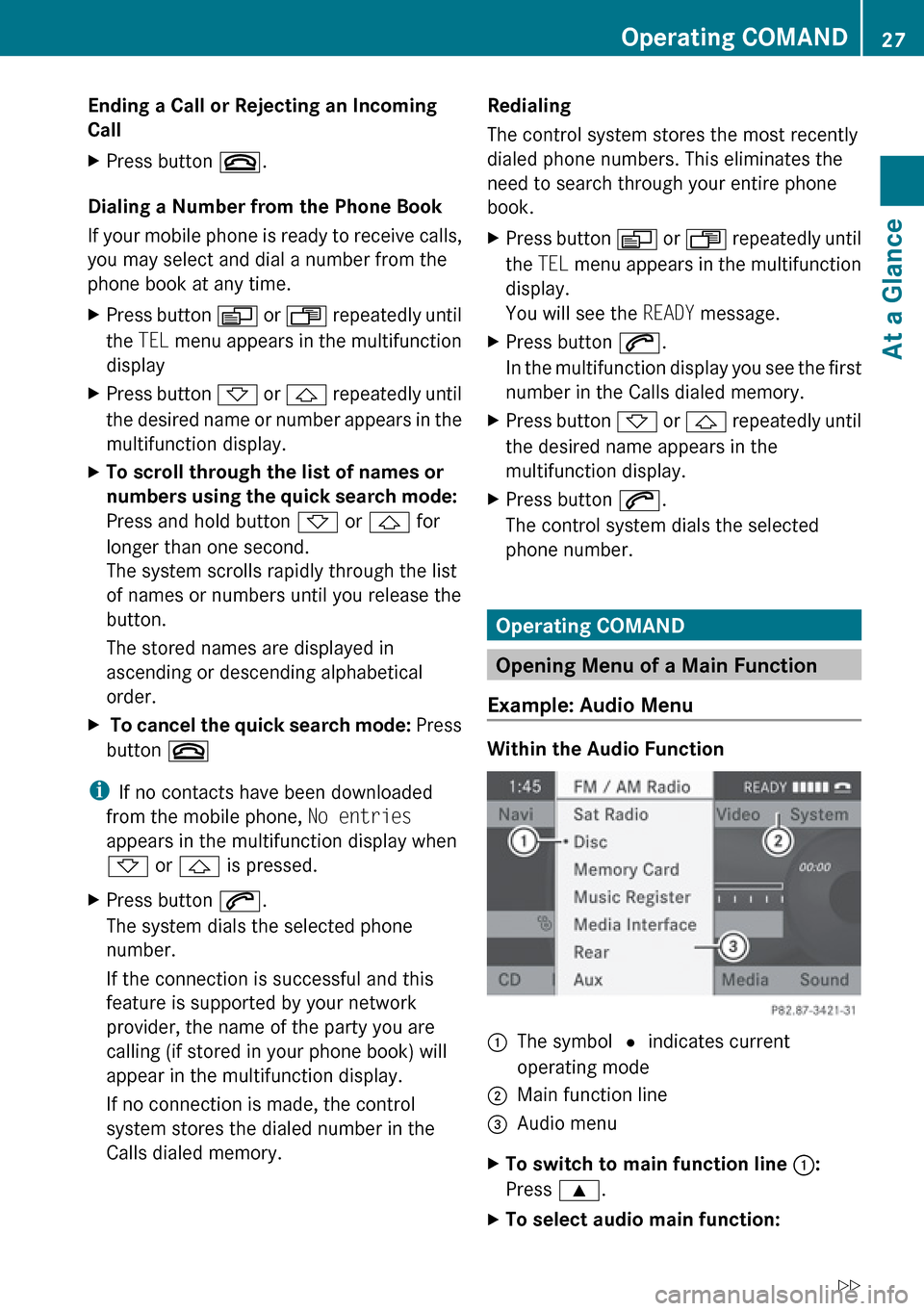
Example: Audio Menu
Within the Audio Function
1The symbol R indicates current
operating mode2Main function line3Audio menuXTo switch to main function line 1:
Press 9.XTo select audio main function:Operating COMAND27At a GlanceZ
Page 32 of 224
Destination menu appears automatically with
the selected list entry.
Switching to the List Without Predictive
Speller
If other entries for a town exist, or the name
exists more than once in the system, then
d is highlighted in the speller.XPress 9.
You can switch to the list at any point while
entering characters.
XPress 9 repeatedly until the list appears
without the speller.
or
XSelect d and press 9.
COMAND will complete your entry if the
name is unambiguous. In this case it is not
necessary to switch to the list, the Enter
Destination menu will appear.
Selecting a list entry
Town list in navigation mode
XTo select a town: Press 9 or : .XTo confirm selection: Press 9.
Operating Example
Switching to Radio Mode and Calling up
the Station List
Initial situation:
You would like to switch, for example, from
the phone function to radio mode and request
the presets list from there.
i In this guide, the path to a menu item is
shown as an action in a special typeface.
Audio £Audio £FM/AM Radio
£ Radio £Presets .
i Depending on the initial situation, this
sequence of actions may be shorter.
If radio mode was active last, it is sufficient
to select Audio£Radio £Presets .
The individual steps for the above example
are described below.
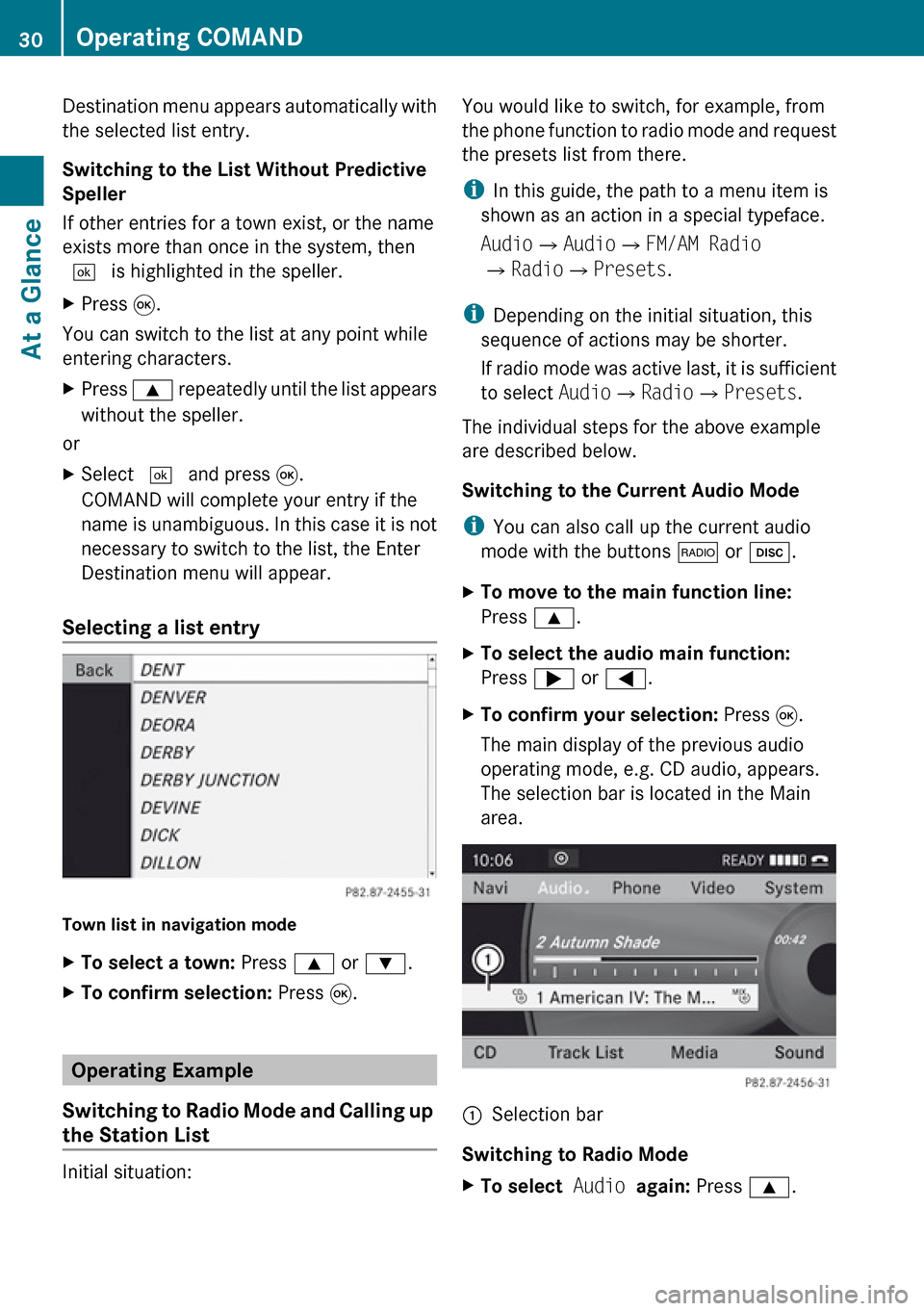
Switching to the Current Audio Mode
i You can also call up the current audio
mode with the buttons $ or h .XTo move to the main function line:
Press 9.XTo select the audio main function:
Press ; or = .XTo confirm your selection: Press 9.
The main display of the previous audio
operating mode, e.g. CD audio, appears.
The selection bar is located in the Main
area.1Selection bar
Switching to Radio Mode
XTo select Audio again: Press 9.30Operating COMANDAt a Glance
Page 34 of 224
issued. As soon as the navigation
announcement has ended, the audio
source will be played with the previous
volume ( Y page 61).
Switching Navigation Announcements
On/Off XPress x during the announcement.
The navigation announcements are switched
on again if you start a new route guidance or
if COMAND is switched off and on with the
q button.
i The navigation announcements can also
be switched back on by selecting the
softkey + in the navigation menu.
Setting the Volume
XTo set: Turn the q rotary/push button.
or
XPress the W or X button on the multi-
function steering wheel.
The volume of the selected audio or video
source changes.
Volume of Navigation Announcements
You can set the volume for navigation
announcements independently of the volume
for the active audio or video source.
During a navigation announcement:
XTurn the q rotary/push button.
or
XPress the W or X button on the multi-
function steering wheel.
Audio Fadeout
The Audio Fadeout function, if activated,
lowers the volume of the current audio source
when a navigation announcement is issued.
As soon as the navigation announcement has
ended, the audio source will be played with
the previous volume ( Y page 61).
Setting Volume for Phone Calls
You can adjust the volume for hands-free
mode during a telephone call.
During a telephone call:
XTurn the q rotary/push button.
or
XPress the W or X button on the multi-
function steering wheel.
Sound Settings
You can select different sound settings for
each audio and video source. The sound
menu can be opened from the submenu of the
desired operating mode.
Examples:
R Audio £FM/AM Radio £Sound
R Audio £Disc £Sound
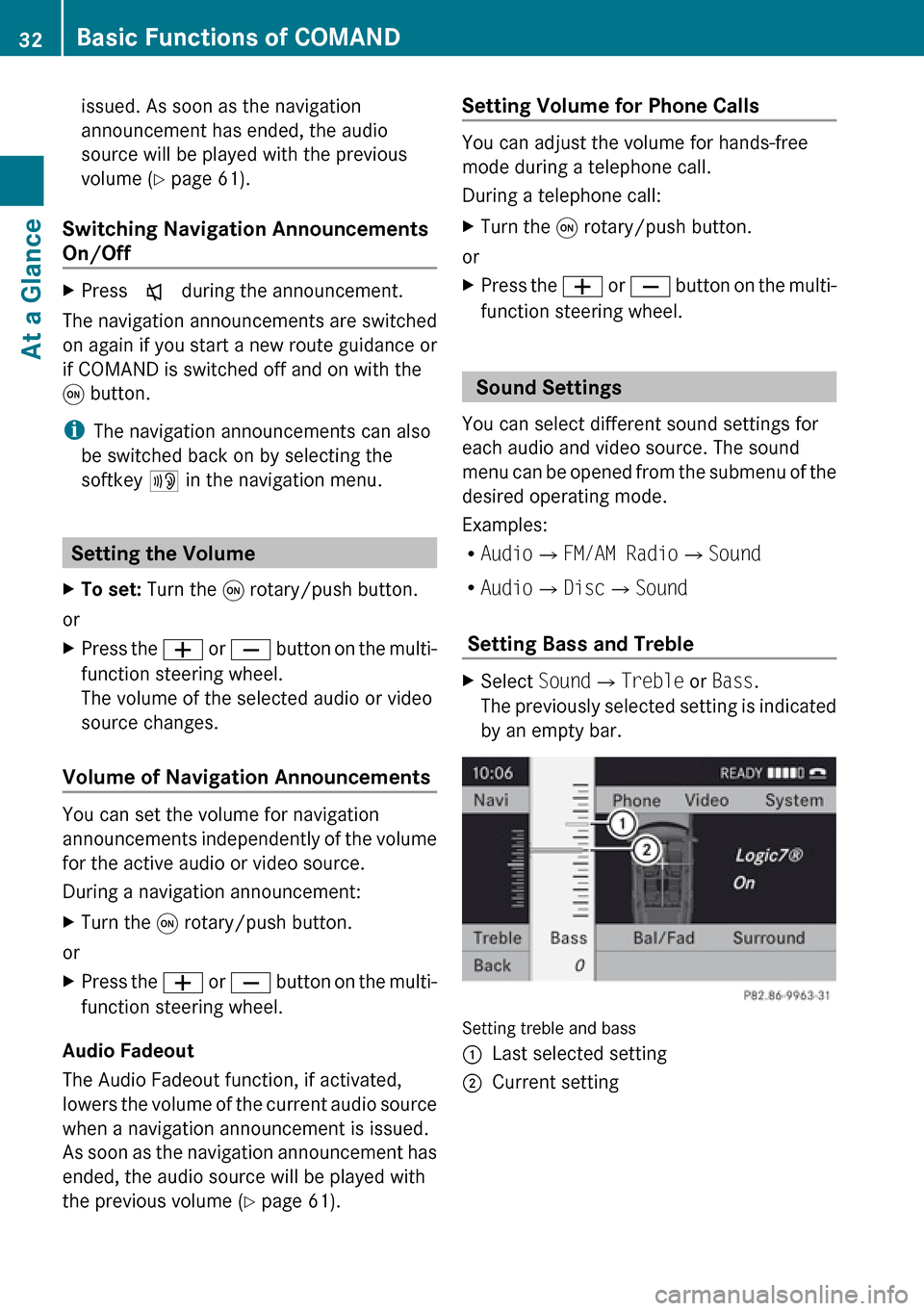
Setting Bass and Treble
XSelect Sound£Treble or Bass .
The previously selected setting is indicated
by an empty bar.
Setting treble and bass
1Last selected setting2Current setting32Basic Functions of COMANDAt a Glance
Page 45 of 224
Switching Bluetooth®
On or Off XSelect System £Settings
£ Bluetooth £Activate Bluetooth .
Bluetooth is switched on Ç or off c.
Connecting Bluetooth Devices
i To connect a Bluetooth device, the
Bluetooth function must be switched on in
COMAND and on the particular device. The
Bluetooth device must also be “visible” to
COMAND in order for COMAND to find and
display it. For the setting procedures,
please see the operating instructions for
the Bluetooth device.
It is possible to establish a Bluetooth
connection between COMAND and the
following types of device:
R Mobile phone
i Bluetooth-enabled mobile phones must
correspond to particular profiles to be
connected to COMAND.
Further information on suitable mobile
phones and connecting Bluetooth-enabled
mobile phones to COMAND is available via
the Internet at www.mbusa-mobile.com . Or
call the Mercedes-Benz Customer
Assistance Center at 1-800-FOR-
MERCedes (1-800-367-6372) (US), or
Customer Relations at 1-800-387-0100
(Canada).
The volume of telephone conversations can
change after the phone has been
connected.
R Portable personal computer
You can connect up to ten devices to
COMAND.
The connection process includes searching
for the device and its subsequent
authorization.
Opening the Bluetooth Device List
and Searching for a Device
i You must first switch on Bluetooth to be
able to call up the list of Bluetooth devices
( Y page 43).XTo open the list: Select System
£ Settings £Bluetooth £
Bluetooth Device List .XTo start the search: Select Update .
COMAND starts the search for devices
within reception range. The device list
appears after a short time.
i If you open the device list again, it may
not display all devices as you may have
removed one from the car for a while, for
example. In this case, start a new search to
update the device list.
XTo cancel search: Select Cancel.
The device list can contain the following
devices:
R All (available) devices found, regardless of
whether they have been authorized or not.
R All authorized devices, regardless of
whether they have been found (are
available) or not.
The device list may show the following icons
immediately after manual updating:
Bluetooth43System SettingsZ
Page 46 of 224
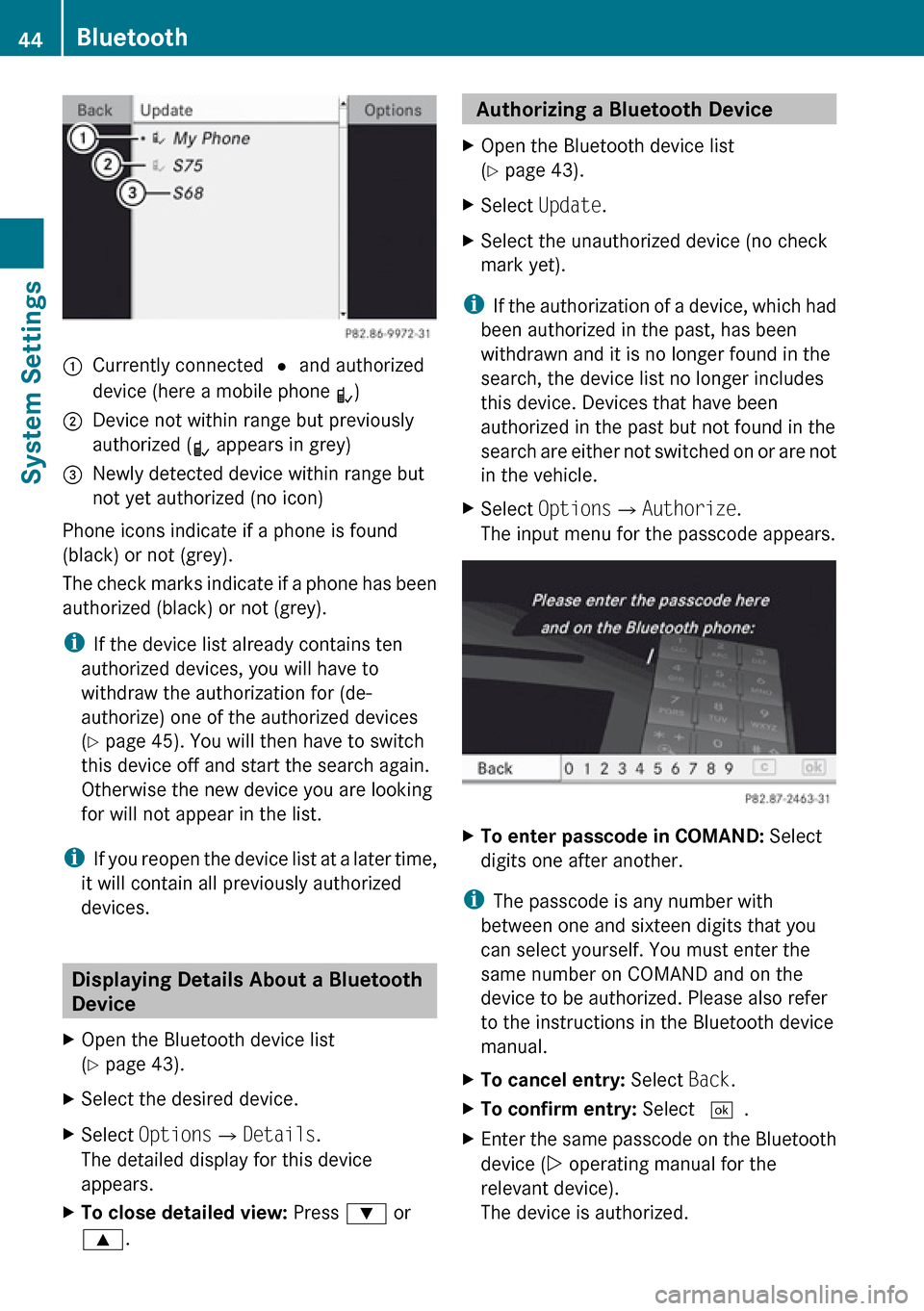
1Currently connected R and authorized
device (here a mobile phone L)2Device not within range but previously
authorized ( ¿ appears in grey)3Newly detected device within range but
not yet authorized (no icon)
Phone icons indicate if a phone is found
(black) or not (grey).
The check marks indicate if a phone has been
authorized (black) or not (grey).
i If the device list already contains ten
authorized devices, you will have to
withdraw the authorization for (de-
authorize) one of the authorized devices
( Y page 45). You will then have to switch
this device off and start the search again.
Otherwise the new device you are looking
for will not appear in the list.
i If you reopen the device list at a later time,
it will contain all previously authorized
devices.
Displaying Details About a Bluetooth
Device
XOpen the Bluetooth device list
( Y page 43).XSelect the desired device.XSelect Options £Details .
The detailed display for this device
appears.XTo close detailed view: Press : or
9 . Authorizing a Bluetooth Device XOpen the Bluetooth device list
( Y page 43).XSelect Update .XSelect the unauthorized device (no check
mark yet).
i If the authorization of a device, which had
been authorized in the past, has been
withdrawn and it is no longer found in the
search, the device list no longer includes
this device. Devices that have been
authorized in the past but not found in the
search are either not switched on or are not
in the vehicle.
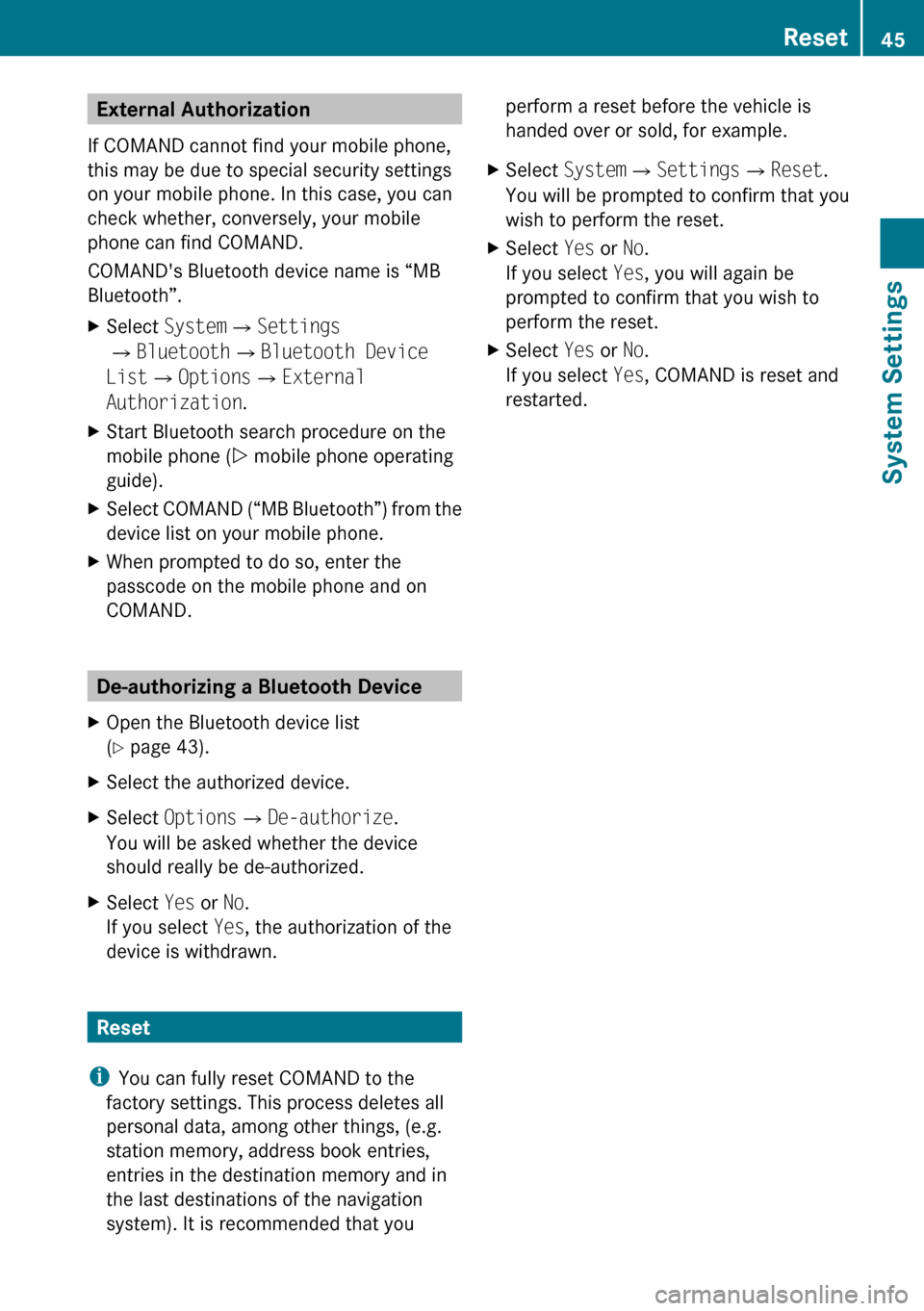
XSelect Options £Authorize .
The input menu for the passcode appears.XTo enter passcode in COMAND: Select
digits one after another.
i The passcode is any number with
between one and sixteen digits that you
can select yourself. You must enter the
same number on COMAND and on the
device to be authorized. Please also refer
to the instructions in the Bluetooth device
manual.
XTo cancel entry: Select Back.XTo confirm entry: Select ¬.XEnter the same passcode on the Bluetooth
device ( Y operating manual for the
relevant device).
The device is authorized.44BluetoothSystem Settings
Page 47 of 224
External Authorization
If COMAND cannot find your mobile phone,
this may be due to special security settings
on your mobile phone. In this case, you can
check whether, conversely, your mobile
phone can find COMAND.
COMAND's Bluetooth device name is “MB
Bluetooth”.XSelect System £Settings
£ Bluetooth £Bluetooth Device
List £Options £External
Authorization .XStart Bluetooth search procedure on the
mobile phone ( Y mobile phone operating
guide).XSelect COMAND (“MB Bluetooth”) from the
device list on your mobile phone.XWhen prompted to do so, enter the
passcode on the mobile phone and on
COMAND.
De-authorizing a Bluetooth Device
XOpen the Bluetooth device list
( Y page 43).XSelect the authorized device.XSelect Options £De-authorize .
You will be asked whether the device
should really be de-authorized.XSelect Yes or No.
If you select Yes, the authorization of the
device is withdrawn.
Reset
i You can fully reset COMAND to the
factory settings. This process deletes all
personal data, among other things, (e.g.
station memory, address book entries,
entries in the destination memory and in
the last destinations of the navigation
system). It is recommended that you
perform a reset before the vehicle is
handed over or sold, for example.XSelect System £Settings £Reset .
You will be prompted to confirm that you
wish to perform the reset.XSelect Yes or No.
If you select Yes, you will again be
prompted to confirm that you wish to
perform the reset.XSelect Yes or No.
If you select Yes, COMAND is reset and
restarted.Reset45System SettingsZ
Page 76 of 224
Entering a POI in the Vicinity of the
Location XIn the map display with the menu system
displayed, select Destination£From
POIs £Current Position .XContinue by selecting the POI category
( Y page 74).
Entering a POI in the Vicinity of a
Specific Location
Option 1
XIn the map display with the menu system
displayed, select Destination£From
POIs £Other City .XIf necessary proceed as described under
“Selecting a State/Province” ( Y page 62).XTo enter a city: Select City.
The city input menu appears.XProceed as described in the “Entering a
City” section ( Y page 63)XAfter entering the city, continue by
selecting the POI category ( Y page 74).
Option 2
XEnter an address in the Enter Destination
menu ( Y page 62).XSelect POI.XContinue by selecting the POI category
( Y page 74).
Entering POIs via Name Search
i This function gives you access to all POIs
that are available in the digital map.
XIn the map display with the menu system
displayed (Y page 53), select Destination
£ From POIs £Search By Name .
This displays a list of all POIs in the digital
map and the predictive speller.XContinue as described in the “POI List with
Predictive Speller” section ( Y page 77).Entering a POI via Phone Number
Search
i This function gives you access to all POIs
in the digital map stored with a phone
number.XIn the map display with the menu system
displayed (Y page 53), select Destination
£ From POIs £ Search By Phone
Number .
This displays a list of all POIs in the digital
map sorted by phone number and the
predictive speller.XContinue as described in the “POI List with
Predictive Speller” section ( Y page 77).
Choosing a POI Category
The categories and POIs available depend on
the area for which you wish to enter set for
the POI.
R POI in local area of destination:
Alphabetically sorted categories and POIs
sorted by distance in the vicinity of the
destination location are available.
R POI in the vicinity of the location:
Alphabetically sorted categories and POIs
sorted by distance in the vicinity of the
vehicle location are available.
R POI in a particular city:
If you have only entered the country and the
city, alphabetically sorted categories and
alphabetically sorted POIs within the city
limits are available.
If you have entered more than the country
and the city, alphabetically sorted
categories and POIs sorted by distance in
the vicinity of the address entered are
available.
R POI via name search:
An alphabetically sorted list of all POIs is
available.
R POIs via phone number:
74POI InputNavigation
Page 79 of 224
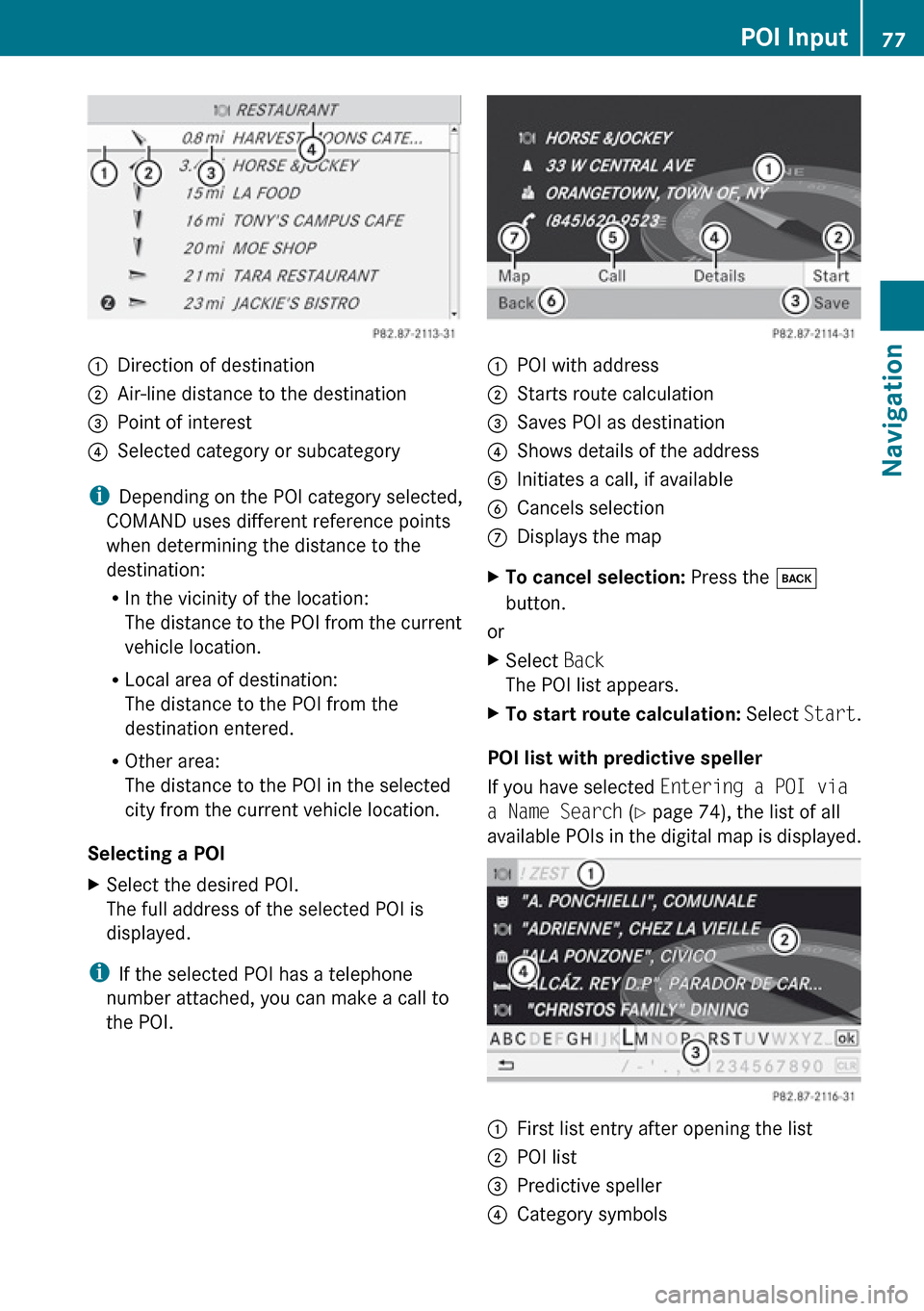
1Direction of destination2Air-line distance to the destination3Point of interest4Selected category or subcategory
iDepending on the POI category selected,
COMAND uses different reference points
when determining the distance to the
destination:
R In the vicinity of the location:
The distance to the POI from the current
vehicle location.
R Local area of destination:
The distance to the POI from the
destination entered.
R Other area:
The distance to the POI in the selected
city from the current vehicle location.
Selecting a POI
XSelect the desired POI.
The full address of the selected POI is
displayed.
i If the selected POI has a telephone
number attached, you can make a call to
the POI.
1POI with address2Starts route calculation3Saves POI as destination4Shows details of the address5Initiates a call, if available6Cancels selection7Displays the mapXTo cancel selection: Press the k
button.
or
XSelect Back
The POI list appears.XTo start route calculation: Select Start.
POI list with predictive speller
If you have selected Entering a POI via
a Name Search (Y page 74), the list of all
available POIs in the digital map is displayed.
1First list entry after opening the list2POI list3Predictive speller4Category symbolsPOI Input77NavigationZ
Page 86 of 224
the distance to the destination. The arrow
indicates the direction of the actual
destination.
The blue marking for the route on the map
starts from the point where the road known
to the system has been left.
As soon as the vehicle is travelling again on a
road known to the system, route guidance
continues in the usual manner.
Route Guidance from an Off-map
Location to a Destination
If the vehicle location is outside the area
covered by the digital map, then the vehicle
is in an off-map position. COMAND can guide
you from such a position to a destination.
At the start of route guidance you will see the
message Off Map, an arrow and the distance
to the destination. The arrow indicates the
direction of the actual destination.
The blue marking for the route on the map
starts from the point where the road known
to the system has been left.
As soon as the vehicle is travelling again on a
road known to the system, route guidance
continues in the usual manner.
Off-road During Route Guidance
The actual path of the road may deviate from
the data in the digital map due to road works.
In cases like this, the system is temporarily
not able to locate the vehicle location on the
digital map; the vehicle is thus in an off-road
position.
The display then shows the message Off
Mapped Road , an arrow and the distance to
the destination. The arrow indicates the
direction of the actual destination.
As soon as the vehicle location is found again,
route guidance continues in the usual
manner.
Navigation Announcements GWarning
Navigation announcements are intended to
direct you while driving without diverting your
attention from the road and driving.
Please always use this feature instead of
consulting the map display for directions.
Consulting the symbols or map display for
directions may cause you to divert your
attention from driving and increase your risk
of an accident.
i During an active telephone call, the
navigation announcements are
suppressed.
If you have missed an announcement, you can
call up the current announcement at any
time.
XTo request current announcement:
select Navi £ 6 .
or
XIn map view with the menu system
( Y page 53) displayed, select 6.XTo switch off navigation
announcements: During the
announcement, press the , button.
You will briefly see the message: The
driving instructions have been
muted .XTo switch navigation announcements
back on manually: Select Navi£6 .
or
XSelect 6 in map view with the menu
system displayed.
or
XStart a new route calculation ( Y page 69).
or
XIf COMAND is switched on again.84Route GuidanceNavigation
Page 95 of 224
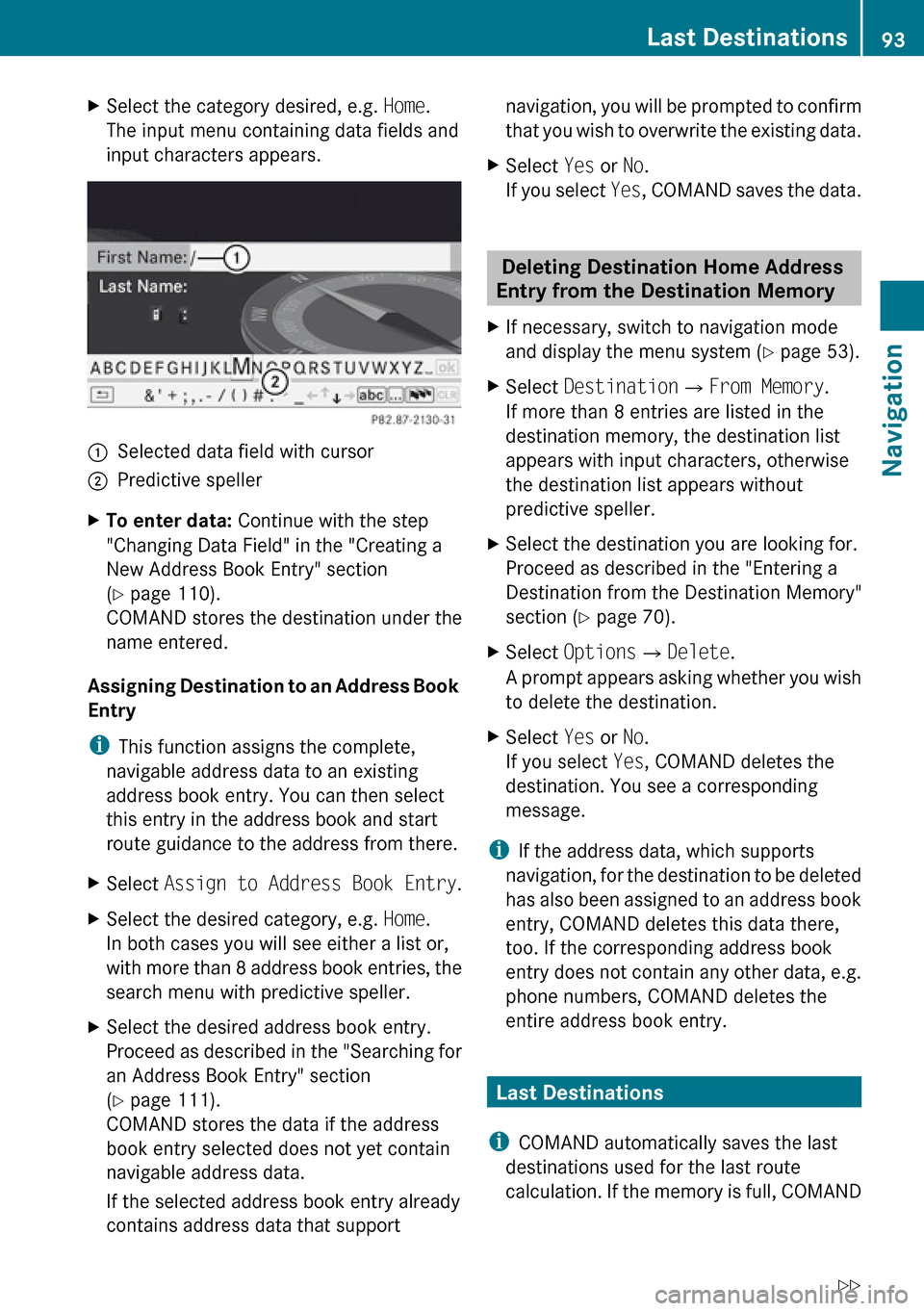
XSelect the category desired, e.g. Home.
The input menu containing data fields and
input characters appears.1Selected data field with cursor2Predictive spellerXTo enter data: Continue with the step
"Changing Data Field" in the "Creating a
New Address Book Entry" section
( Y page 110).
COMAND stores the destination under the
name entered.
Assigning Destination to an Address Book
Entry
i This function assigns the complete,
navigable address data to an existing
address book entry. You can then select
this entry in the address book and start
route guidance to the address from there.
XSelect Assign to Address Book Entry .XSelect the desired category, e.g. Home.
In both cases you will see either a list or,
with more than 8 address book entries, the
search menu with predictive speller.XSelect the desired address book entry.
Proceed as described in the "Searching for
an Address Book Entry" section
( Y page 111).
COMAND stores the data if the address
book entry selected does not yet contain
navigable address data.
If the selected address book entry already
contains address data that supportnavigation, you will be prompted to confirm
that you wish to overwrite the existing data.XSelect Yes or No.
If you select Yes, COMAND saves the data.
Deleting Destination Home Address
Entry from the Destination Memory
XIf necessary, switch to navigation mode
and display the menu system ( Y page 53).XSelect Destination £From Memory .
If more than 8 entries are listed in the
destination memory, the destination list
appears with input characters, otherwise
the destination list appears without
predictive speller.XSelect the destination you are looking for.
Proceed as described in the "Entering a
Destination from the Destination Memory"
section ( Y page 70).XSelect Options £Delete .
A prompt appears asking whether you wish
to delete the destination.XSelect Yes or No.
If you select Yes, COMAND deletes the
destination. You see a corresponding
message.
i If the address data, which supports
navigation, for the destination to be deleted
has also been assigned to an address book
entry, COMAND deletes this data there,
too. If the corresponding address book
entry does not contain any other data, e.g.
phone numbers, COMAND deletes the
entire address book entry.
Last Destinations
i COMAND automatically saves the last
destinations used for the last route
calculation. If the memory is full, COMAND
Last Destinations93NavigationZ