phone MERCEDES-BENZ G-Class 2017 W463 Comand Manual
[x] Cancel search | Manufacturer: MERCEDES-BENZ, Model Year: 2017, Model line: G-Class, Model: MERCEDES-BENZ G-Class 2017 W463Pages: 198, PDF Size: 4.53 MB
Page 123 of 198
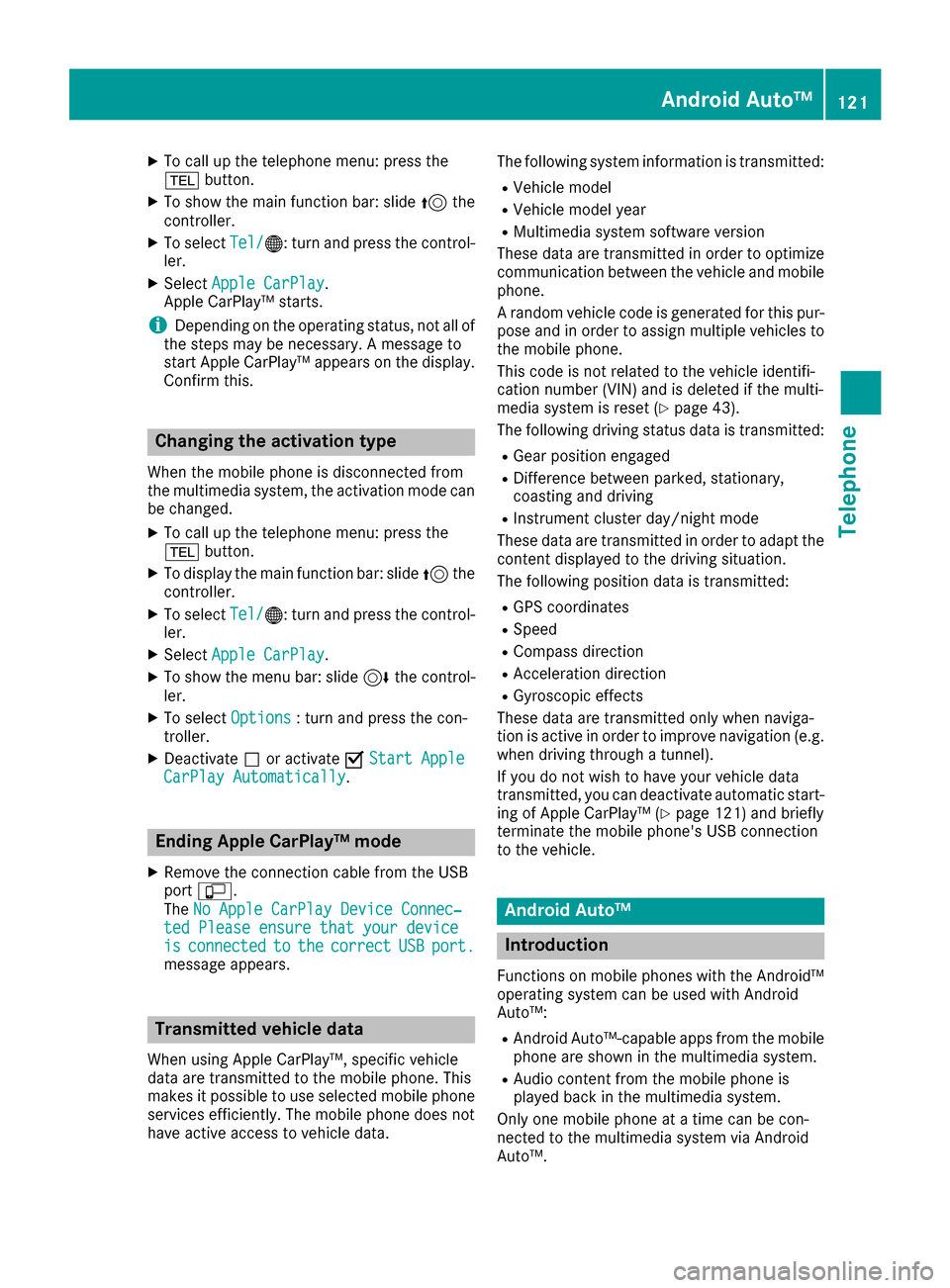
XTo call up the telephone menu: press the
%button.
XTo show the main function bar: slide 5the
controller.
XTo select Tel/®: turn and press the control-
ler.
XSelect Apple CarPlay.
Apple CarPlay™ starts.
iDepending on the operating status, not all of
the steps may be necessary. A message to
start Apple CarPlay™ appears on the display.
Confirm this.
Changing the activation type
When the mobile phone is disconnected from
the multimedia system, the activation mode can
be changed.
XTo call up the telephone menu: press the
% button.
XTo display the main function bar: slide 5the
controller.
XTo select Tel/®: turn and press the control-
ler.
XSelect Apple CarPlay.
XTo show the menu bar: slide 6the control-
ler.
XTo select Options: turn and press the con-
troller.
XDeactivate ªor activate OStart AppleCarPlay Automatically.
Ending Apple CarPlay™ mode
XRemove the connection cable from the USB
port ç.
The No Apple CarPlay Device Connec‐
ted Please ensure that your deviceisconnectedtothecorrectUSBport.message appears.
Transmitted vehicle data
When using Apple CarPlay™, specific vehicle
data are transmitted to the mobile phone. This
makes it possible to use selected mobile phone
services efficiently. The mobile phone does not
have active access to vehicle data. The following system information is transmitted:
RVehicle model
RVehicle model year
RMultimedia system software version
These data are transmitted in order to optimize
communication between the vehicle and mobile
phone.
A random vehicle code is generated for this pur-
pose and in order to assign multiple vehicles to the mobile phone.
This code is not related to the vehicle identifi-
cation number (VIN) and is deleted if the multi-
media system is reset (
Ypage 43).
The following driving status data is transmitted:
RGear position engaged
RDifference between parked, stationary,
coasting and driving
RInstrument cluster day/night mode
These data are transmitted in order to adapt the
content displayed to the driving situation.
The following position data is transmitted:
RGPS coordinates
RSpeed
RCompass direction
RAcceleration direction
RGyroscopic effects
These data are transmitted only when naviga-
tion is active in order to improve navigation (e.g.
when driving through a tunnel).
If you do not wish to have your vehicle data
transmitted, you can deactivate automatic start-
ing of Apple CarPlay™ (
Ypage 121) and briefly
terminate the mobile phone's USB connection
to the vehicle.
Android Auto™
Introduction
Functions on mobile phones with the Android™
operating system can be used with Android
Auto™:
RAndroid Auto™-capable apps from the mobile
phone are shown in the multimedia system.
RAudio content from the mobile phone is
played back in the multimedia system.
Only one mobile phone at a time can be con-
nected to the multimedia system via Android
Auto™.
Android Auto™121
Telephone
Z
Page 124 of 198
Various multimedia system functions such as
the navigation system are not available while
using Android Auto™.
The availability of Android Auto™ and Android
Auto™ apps may vary from country to country
and depending on the equipment in the vehicle.
The provider is responsible for its application
and related services and content.
Connecting a mobile phone via
Android Auto™
Requirements:
RFor safety reasons, the first time Android
Auto™ is activated on the multimedia system,
the vehicle must be stationary.
RThe mobile phone supports Android Auto™
from Android™ 5.0.
RThe Android Auto™ app is installed on the
mobile phone.
RIn order to use the telephone functions, a
mobile phone needs to be connected with the
multimedia system via Bluetooth
®.
RThe full range of functions for Android Auto™
is only possible with an Internet connection.
RThe mobile phone is connected to the USB
portç on the multimedia system via a USB
cable.
The multimedia system automatically estab-
lishes a connection to the mobile phone via
Bluetooth
®. If this is unsuccessful, an error mes-
sage will appear. In this case, you should con-
nect the mobile phone manually via Bluetooth
®
(Ypage 92).
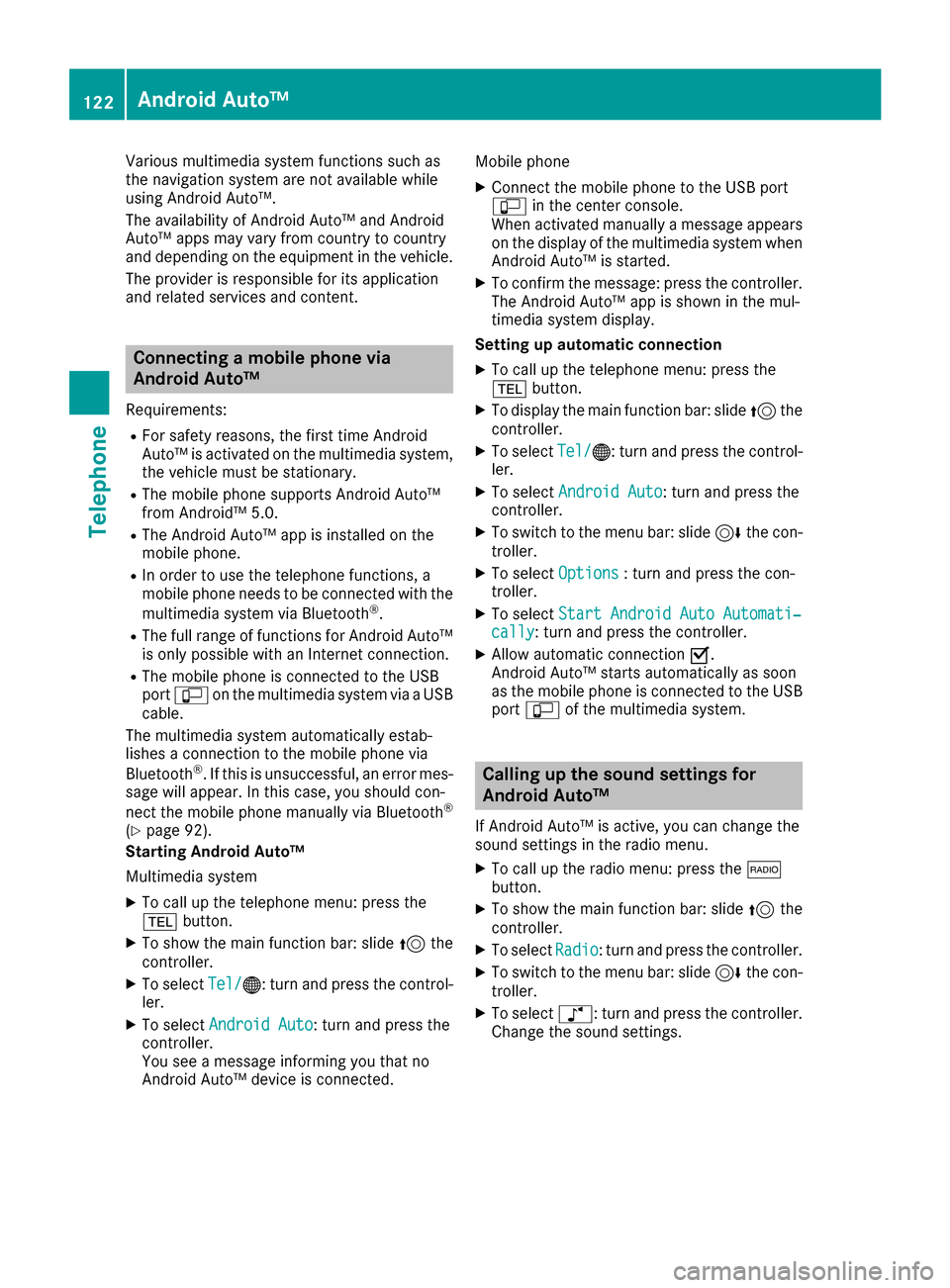
Starting Android Auto™
Multimedia system
XTo call up the telephone menu: press the
% button.
XTo show the main function bar: slide 5the
controller.
XTo select Tel/®: turn and press the control-
ler.
XTo select Android Auto: turn and press the
controller.
You see a message informing you that no
Android Auto™ device is connected. Mobile phone
XConnect the mobile phone to the USB port
ç
in the center console.
When activated manually a message appears
on the display of the multimedia system when
Android Auto™ is started.
XTo confirm the message: press the controller.
The Android Auto™ app is shown in the mul-
timedia system display.
Setting up automatic connection
XTo call up the telephone menu: press the
% button.
XTo display the main function bar: slide 5the
controller.
XTo select Tel/®: turn and press the control-
ler.
XTo select Android Auto: turn and press the
controller.
XTo switch to the menu bar: slide 6the con-
troller.
XTo select Options: turn and press the con-
troller.
XTo select Start Android Auto Automati‐cally: turn and press the controller.
XAllow automatic connection O.
Android Auto™ starts automatically as soon
as the mobile phone is connected to the USB
port ç of the multimedia system.
Calling up the sound settings for
Android Auto™
If Android Auto™ is active, you can change the
sound settings in the radio menu.
XTo call up the radio menu: press the $
button.
XTo show the main function bar: slide 5the
controller.
XTo select Radio: turn and press the controller.
XTo switch to the menu bar: slide 6the con-
troller.
XTo select à: turn and press the controller.
Change the sound settings.
122Android Auto™
Telephone
Page 125 of 198
Activating the voice controlsystem
for Androi d Auto™
If Android Auto™ is active ,you can start th e
mobile phone's voice control system.
XPress and hold th e? buttonon th emulti-
function steering wheel.
Dependin gon th emobile phone atone
sounds.
Ending Androi d Auto™
XTerminate th eUS Bconnection between th e
mobile phone and th emultimedia system.
The No
Androi dAutoDeviceConnectedPlease ensure tha tyou rdevice isconnected to the correc tUSB port.message appear sin th emultifunction display
Trans mitted vehicle data
When usin gAndroid Auto™ ,specific vehicl e
dat aare transmitte dto th emobile phone .This
makes it possibl eto use selected mobile phone
services efficiently. The mobile phone does no t
hav eactive access to vehicl edata.
The followin gsystem information is transmitted:
RVehicl emodel
RVehicl emodel year
RMultimedia system software version
These dat aare transmitte din order to optimiz e
communication between th evehicl eand mobile
phone .
A random vehicl ecode is generated for this pur-
pos eand in order to assign multiple vehicles to
th emobile phone .
This code is no trelate dto th evehicl eidentifi-
cation number (VIN) and is delete dif th emulti-
media system is reset (
Ypage 43).
The followin gdrivin gstatus dat ais transmitted:
RGear position engage d
RDifferencebetween parked, stationary,
coasting and drivin g
RInstrumentcluste rday/night mod e
These dat aare transmitte din order to adapt th e
conten tdisplayed to th edrivin gsituation .
The followin gposition dat ais transmitted:
RGPS coordinate s
RSpeed
RCompass direction
RAcceleration direction
RGyroscopic effects
These dat aare transmitte donly when naviga-
ti on i
s active in order to improve navigation (e.g.
when drivin gthroug h atunnel).
If you do no twish to hav eyour vehicl edat a
transmitted, you can deactivat eautomatic start -
ing of Android Auto™ (
Ypage 122) and briefly
terminate th emobile phone's US Bconnection
to th evehicle.
Android Auto™123
Telephone
Z
Page 126 of 198
Your multimediasyste mequipment
These operatin ginstruction sdescribe all th e
standar dan doptional equipment of your multi-
media system, as available at th etime of going
to press. Country-specifi cdifference sare pos -
sible. Bear in min dthat your vehicle may no t
feature all function sdescribed here. Thi salso
applies to safety-relevan tsystems an dfunc-
tions.
Read th einformation on qualifie dspecialis t
workshop sin th evehicle Operator's Manual.
Important safet ynotes
GWARNING
If you operat einformation systems an dcom-
munication equipment integrated in th evehi-
cl e whil edriving, you will be distracted from
traffic conditions. You could also los econtro l
of th evehicle. There is aris kof an accident.
Only operat eth eequipment when th etraffic
situation permits. If you are no tsur ethat this
is possible, par kth evehicle payin gattention
to traffic condition san doperat eth eequip-
men twhen th evehicle is stationary.
You mus tobserv eth elegal requirements fo rth e
country in whic hyou are drivin gwhen operatin g
th esystem.
General notes
Connection difficulties whil eth evehi-
cle is in motion
The connection may be los tif:
Rth emobile phone networ kcoverage is insuf -
ficien t
Rthevehicle has moved into amobile phone
cell wit hno free channels
Rth eSI M car dused is no tcompatible wit hth e
networ kavailable
Function restrictions (Canada)
You will no tbe able to use th eMercedes-Ben z
Apps an dInternet connection ,or will no longer
be able to use them, or may hav eto wait befor e
usin gthem, in th efollowin gsituations:
Rif your mobile phone is switched of f
Rif your mobile phone has notbee nenable dfo r
Internet access
Rif th eBluetoot h®function is switched of fon
th emultimedia syste mandth edesire d
mobile phone is suppose dto be connecte d
via Bluetoot h
®
Rif theBluetoot h®function is switched of fon
th emobile phone an dth ephone is suppose d
to be connecte dvia Bluetoot h
®
Rif either themobile phone networ kor th e
mobile phone doe sno tallo wsimultaneous
use of aphone an dan Internet connection
Rif th emobile phone has no tbee nenable dfo r
Internet access via Bluetoot h®
The driver is notpermitte dto cal lup websites
whil edrivin gan duse of th eMercedes-Ben z
Apps is restricted.
iIt is possible that you may no tbe able to
receiv ecalls when an Internet connection is
active .Thi sdepends on th emobile phone an d
th emobile phone networ kused .
Conditions for access
USA: to use Mercedes-Ben zApps an dInternet
access ,mbrace mus tbe activated an dopera-
tional. Furthermore, mbrace mus tbe activated
fo rMercedes-Ben zApps an dInternet access .
Tak enote of th econnection priorities .An emer-
gency cal lhas th ehighes tpriority. Whe n aser-
vic ecall, e.g. abreakdown servic ecal lor th eMB
Info Call, is active ,an emergency cal lcan still be
initiated. Aservic ecall, on th eother hand, has
priorit yover acurren tInternet connection .
Therefore, you canno testablis han Internet con-
nection durin g aservic ecall.
Canada: amobile phone mus tbe connecte dvia
Bluetoot h
®(Ypage 92) wit hth emultimedia sys -
tem. Furthermore, you need avalid mobile ser -
vic econtrac twit h a dat aoption ,whic his used to
calculat eth eassociated connection costs.
124Conditions for access
Online and Internet functions
Page 127 of 198
Conditions for a Bluetooth®connection:
RThe mobile phone supports at least one of the
Bluetooth®profiles DUN ( Dial-UpNetwork-
ing) or PAN (Personal AreaNetwork).
The Bluetooth
®profiles DUN and PAN enable
the Internet connection of the mobile phone
to be made available to the system.
The terms of use are shown when the system is used for the first time and then once a year
thereafter. Only read and accept the terms of
use when the vehicle is stationary.
The driver is not permitted to call up websites
while driving and use of the Mercedes-Benz
Apps is restricted.
iThe availability of individual Mercedes-Benz
Apps may vary depending on the country.
Setting up an Internet connection
(Canada)
Procedure and general information
USA: to use Mercedes-Benz Apps and Internet
access, mbrace must be activated and opera-
tional. Furthermore, mbrace must be activated
for Mercedes-Benz Apps and Internet access.
No further settings are required.
Canada: in order to set up a mobile phone for
Internet access, your mobile phone must be
connected via Bluetooth
®(Ypage 92) to the
multimedia system. If you are using Internet
access for the first time, you must enable the
connected mobile phone for Internet access
(
Ypage 125). If the connected mobile phone
supports the Bluetooth®PAN profile, you do not
need to make additional settings. The Internet
connection is established. If the connected
mobile phone does not support the named Blue-
tooth
®profile, predefined (Ypage 126) or man-
ual access data (Ypage 126) must be set.
Enabling the mobile phone for Inter-
net access
XTo call up the telephone menu: press the
% button.
XTo switch to the main function bar: slide 5
the controller.
XTo select Tel/®: press the controller.
XTo selectInternet: turn and press the con-
troller.
The menu with the Internet functions is dis-
played.
XTo switch to the menu bar: slide 6the con-
troller.
XTo select Settings: turn and press the con-
troller.
XTo select Configure Internet Settings:
turn and press the controller.
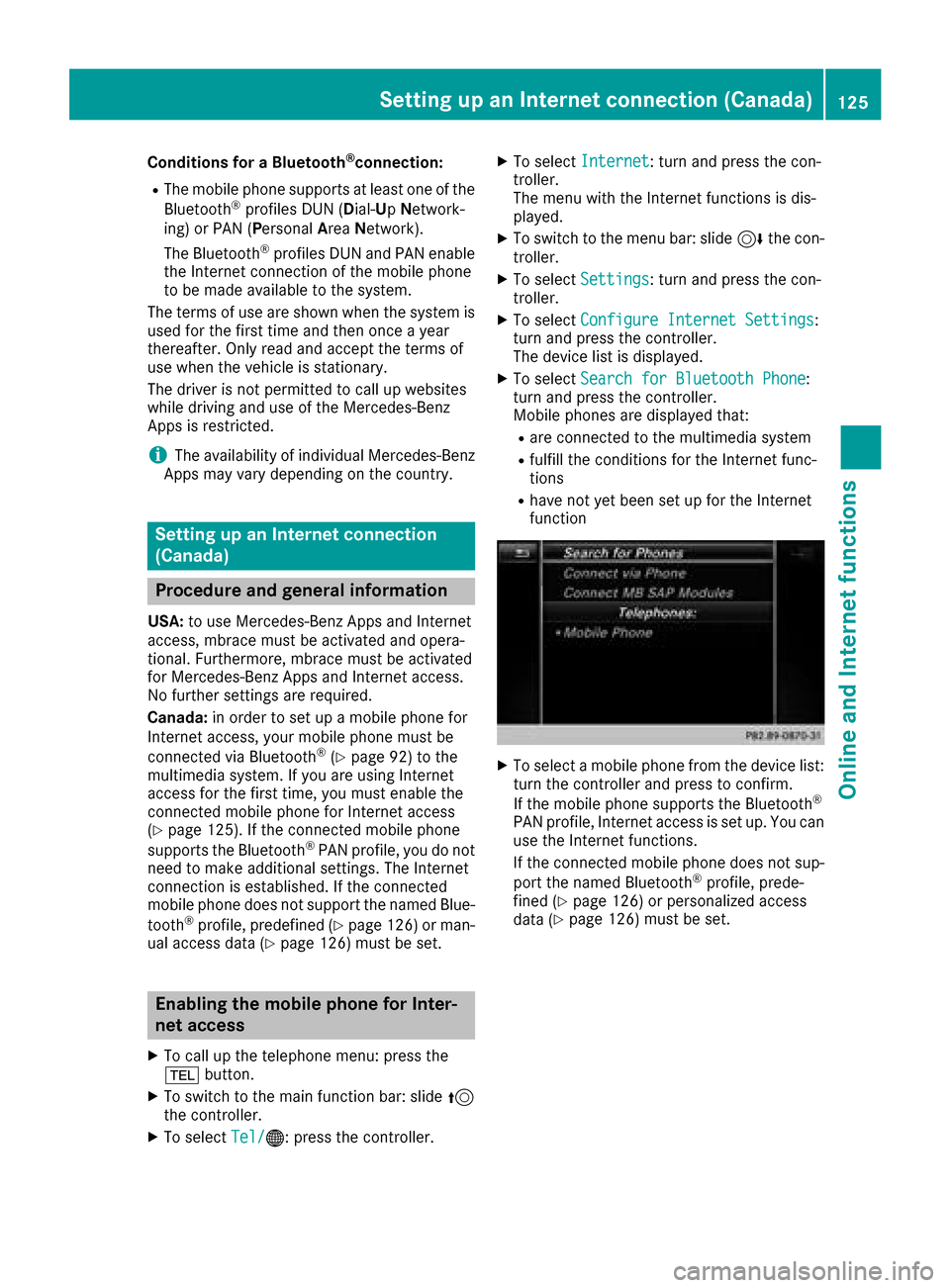
The device list is displayed.
XTo select Search for Bluetooth Phone:
turn and press the controller.
Mobile phones are displayed that:
Rare connected to the multimedia system
Rfulfill the conditions for the Internet func-
tions
Rhave not yet been set up for the Internet
function
XTo select a mobile phone from the device list: turn the controller and press to confirm.
If the mobile phone supports the Bluetooth
®
PAN profile, Internet access is set up. You can
use the Internet functions.
If the connected mobile phone does not sup-
port the named Bluetooth
®profile, prede-
fined (Ypage 126) or personalized access
data (Ypage 126) must be set.
Setting up an Internet connection (Canada)125
Online and Internet functions
Z
Page 128 of 198
Setting access data of the mobile
phone network provider
Selecting the predefined access data of
the mobile phone network provider
XTo select Predefined Settings: turn and
press the controller.
A list of countries appears.
XTo select ConfirmSettings: turn and press
the controller.
If the data is not correct, you can edit the set-
tings (
Ypage 127).
If the mobile phone network provider provides
multiple access data options, the relevant
access data still has to be selected. This
depends on the data package used, for example.
The access data for the mobile phone network
provider is selected once for the mobile phone
connected and is loaded again each time the
mobile phone is connected. Establishing a con-
nection (
Ypage 128).
You must set the access data of the mobile
phone network provider who provides the SIM
card and the associated data package (access
settings) for the connected mobile phone. The
access data remains the same when you are in a
different country (roaming). The access data of
another network is notselected.
Manually setting the access data of the
mobile phone network provider
XTo select Manual Settings: turn and press
the controller.
An overview of the provider settings appears.
XSet access data (Ypage 126).
XTo select ConfirmSettings: turn and press
the controller.
The access data for the mobile phone network
provider is selected once for the mobile phone
connected and is loaded again each time the
mobile phone is connected.
You must set the access data of the mobile
phone network provider who provides the SIM
card and the associated data package (access
settings) for the connected mobile phone. The
access data remains the same when you are in a
different country (roaming). The access data of
another network is notselected.
Setting access data
Set the access data in accordance with your
data package. You can contact your mobile
phone network provider to obtain the precise
access data.
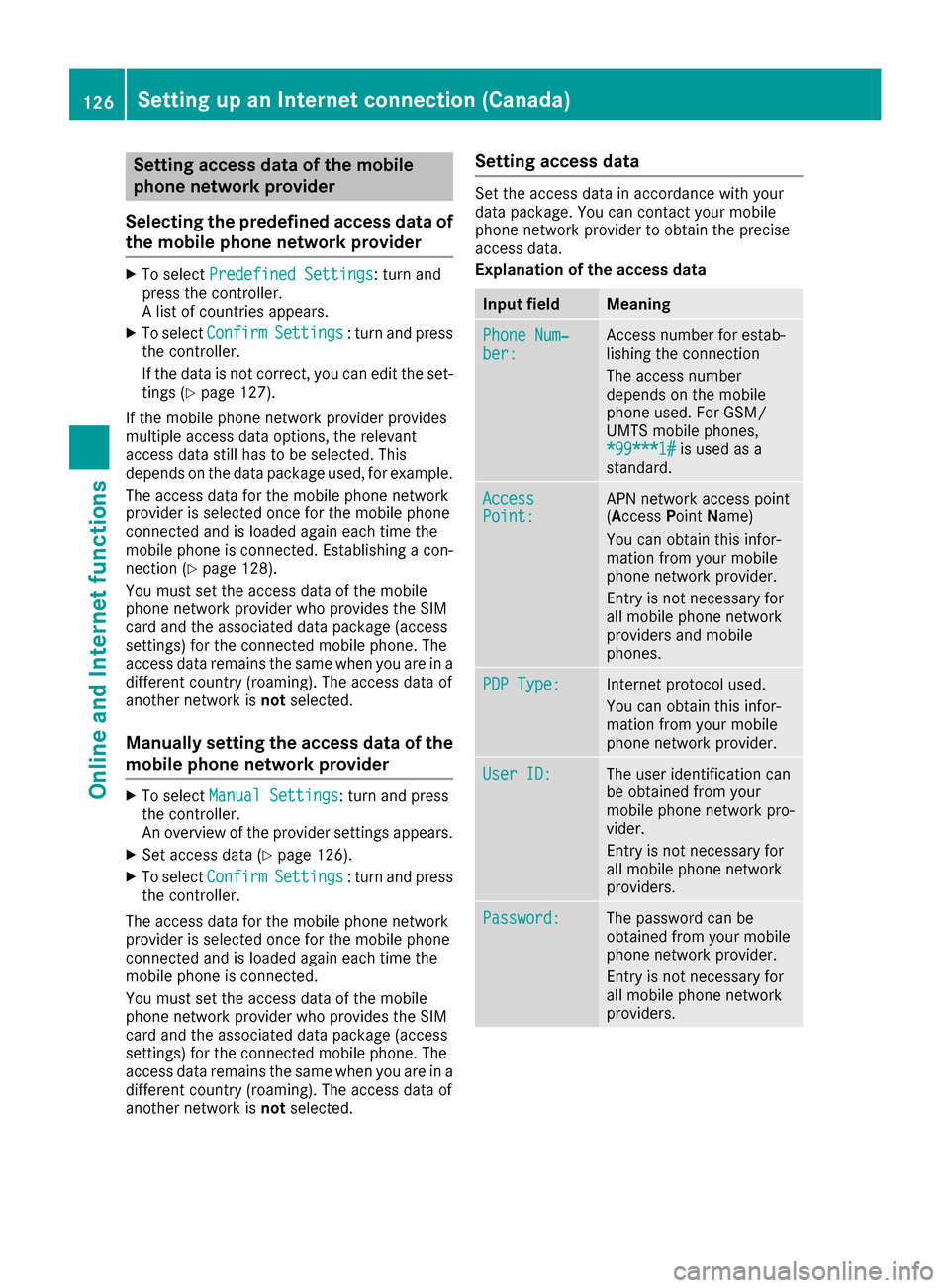
Explanation of the access data
Input fieldMeaning
Phone Num‐ber:Access number for estab-
lishing the connection
The access number
depends on the mobile
phone used. For GSM/
UMTS mobile phones,
*99***1#
is used as a
standard.
AccessPoint:APN network access point
(Access PointName)
You can obtain this infor-
mation from your mobile
phone network provider.
Entry is not necessary for
all mobile phone network
providers and mobile
phones.
PDP Type:Internet protocol used.
You can obtain this infor-
mation from your mobile
phone network provider.
User ID:The user identification can
be obtained from your
mobile phone network pro-
vider.
Entry is not necessary for
all mobile phone network
providers.
Password:The password can be
obtained from your mobile
phone network provider.
Entry is not necessary for
all mobile phone network
providers.
126Setting up an Internet connection (Canada)
Online and Internet functions
Page 129 of 198
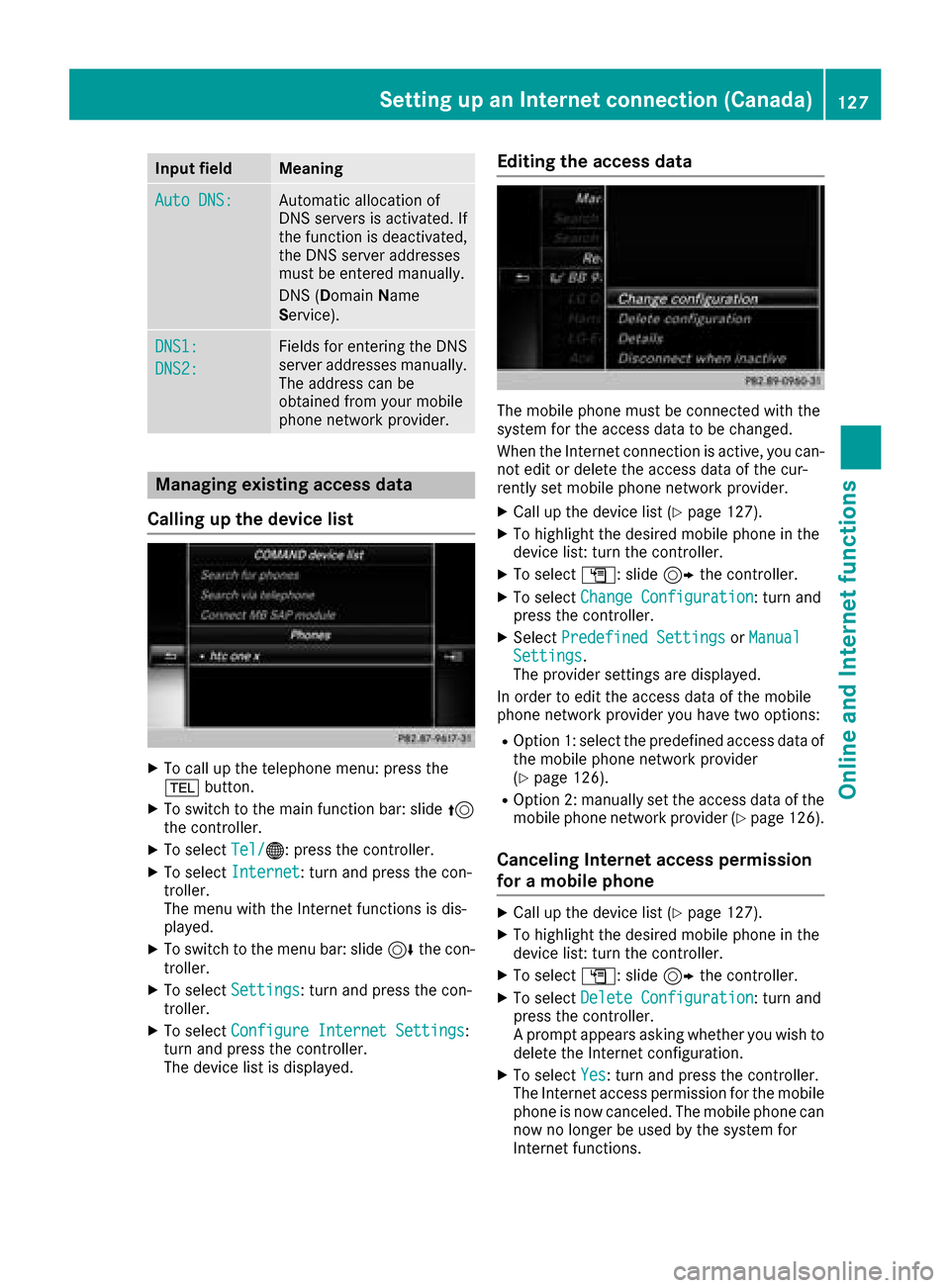
Input fieldMeaning
Auto DNS:Automatic allocation of
DNS servers is activated. If
the function is deactivated,
the DNS server addresses
must be entered manually.
DNS (DomainName
Service).
DNS1:
DNS2:
Fields for entering the DNS
server addresses manually.
The address can be
obtained from your mobile
phone network provider.
Managing existing access data
Calling up the device list
XTo call up the telephone menu: press the
% button.
XTo switch to the main function bar: slide 5
the controller.
XTo select Tel/®: press the controller.
XTo selectInternet: turn and press the con-
troller.
The menu with the Internet functions is dis-
played.
XTo switch to the menu bar: slide 6the con-
troller.
XTo select Settings: turn and press the con-
troller.
XTo select Configure Internet Settings:
turn and press the controller.
The device list is displayed.
Editing the access data
The mobile phone must be connected with the
system for the access data to be changed.
When the Internet connection is active, you can-
not edit or delete the access data of the cur-
rently set mobile phone network provider.
XCall up the device list (Ypage 127).
XTo highlight the desired mobile phone in the
device list: turn the controller.
XTo select G: slide 9the controller.
XTo select Change Configuration: turn and
press the controller.
XSelect Predefined SettingsorManualSettings.
The provider settings are displayed.
In order to edit the access data of the mobile
phone network provider you have two options:
ROption 1: select the predefined access data of
the mobile phone network provider
(
Ypage 126).
ROption 2: manually set the access data of the
mobile phone network provider (Ypage 126).
Canceling Internet access permission
for a mobile phone
XCall up the device list (Ypage 127).
XTo highlight the desired mobile phone in the
device list: turn the controller.
XTo select G: slide 9the controller.
XTo select Delete Configuration: turn and
press the controller.
A prompt appears asking whether you wish to
delete the Internet configuration.
XTo select Yes: turn and press the controller.
The Internet access permission for the mobile
phone is now canceled. The mobile phone can
now no longer be used by the system for
Internet functions.
Setting up an Internet connection (Canada)127
Online and Internet functions
Z
Page 130 of 198
Establishing/ending the connection
Establishing the connection
Read the conditions for establishing a connec-
tion (Ypage 124).
A connection can be established, for example
by:
Rentering a web address
Rcalling up a Mercedes-Benz App
Rcalling up a favorite
Ending the connection
XPress Cancelin the connections window.
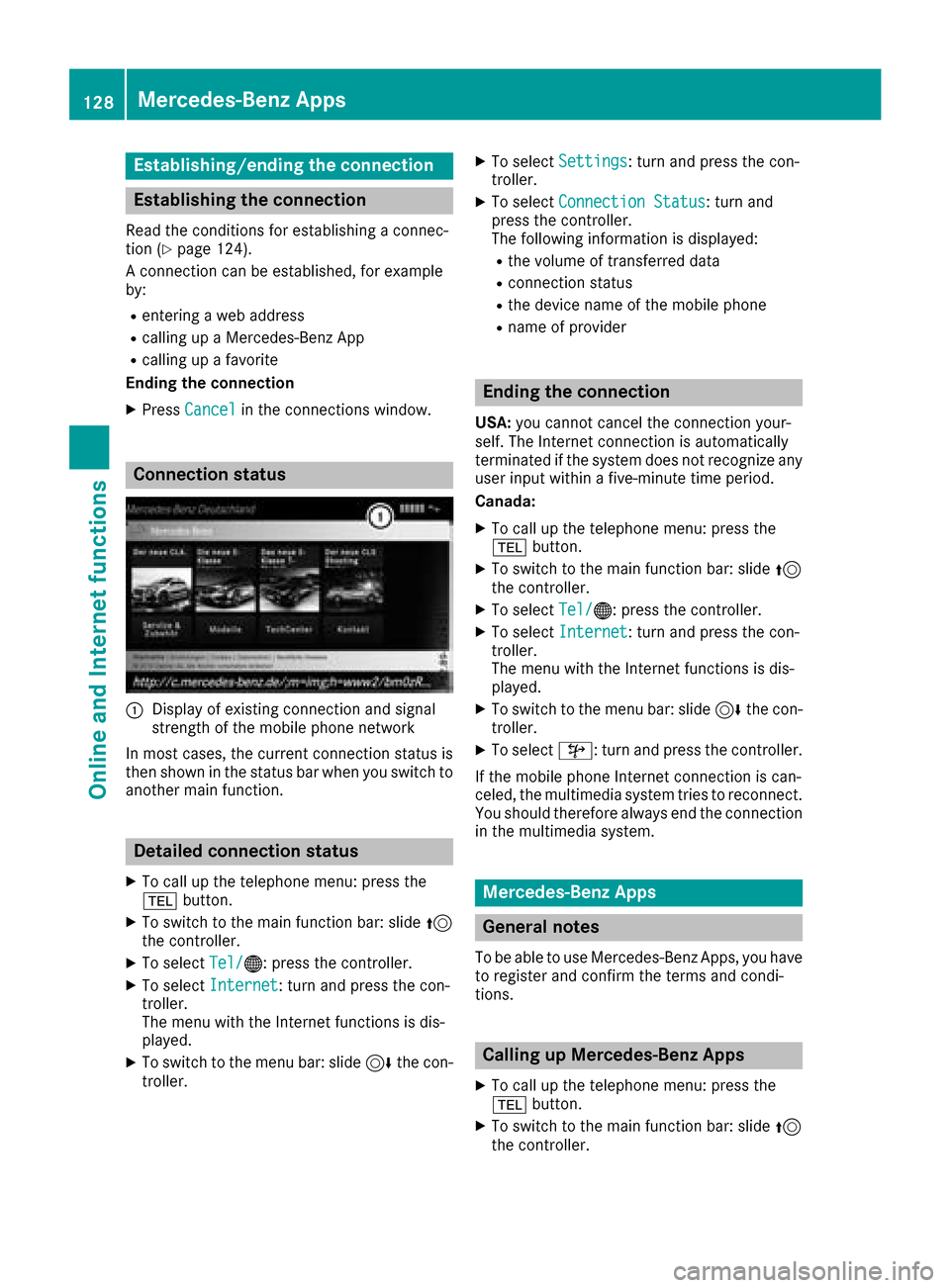
Connection status
:Display of existing connection and signal
strength of the mobile phone network
In most cases, the current connection status is
then shown in the status bar when you switch to
another main function.
Detailed connection status
XTo call up the telephone menu: press the
% button.
XTo switch to the main function bar: slide 5
the controller.
XTo select Tel/®: press the controller.
XTo selectInternet: turn and press the con-
troller.
The menu with the Internet functions is dis-
played.
XTo switch to the menu bar: slide 6the con-
troller.
XTo select Settings: turn and press the con-
troller.
XTo select Connection Status: turn and
press the controller.
The following information is displayed:
Rthe volume of transferred data
Rconnection status
Rthe device name of the mobile phone
Rname of provider
Ending the connection
USA: you cannot cancel the connection your-
self. The Internet connection is automatically
terminated if the system does not recognize any
user input within a five-minute time period.
Canada:
XTo call up the telephone menu: press the
% button.
XTo switch to the main function bar: slide 5
the controller.
XTo select Tel/®: press the controller.
XTo selectInternet: turn and press the con-
troller.
The menu with the Internet functions is dis-
played.
XTo switch to the menu bar: slide 6the con-
troller.
XTo select ©: turn and press the controller.
If the mobile phone Internet connection is can-
celed, the multimedia system tries to reconnect.
You should therefore always end the connection
in the multimedia system.
Mercedes-Benz Apps
General notes
To be able to use Mercedes-Benz Apps, you have
to register and confirm the terms and condi-
tions.
Calling up Mercedes-Benz Apps
XTo call up the telephone menu: press the
% button.
XTo switch to the main function bar: slide 5
the controller.
128Mercedes-Benz Apps
Online and Internet functions
Page 131 of 198
XTo selectTel/®: press the controller.
XTo selectInternet: turn and press the con-
troller.
XTo select Mercedes-Benz Apps: turn and
press the controller.
XTo call up the app: turn and press the con-
troller.
You can find further Mercedes-Benz Apps and
information under:
http://apps.mercedes-benz.com/apps/
iThe available features are country-depend-
ent.
License fees may be applicable.
Voice-operated control of Mercedes-
Benz Apps
The following apps can be operated using the
voice-operated control system:
RWeather
ROnline search
RTuneIn Radio
XCall up a Mercedes-Benz app (Ypage 128).
XTo use voice-operated control: select o.
XSay the question or prompt.
iThe voice-operated control system is not
available in all countries.
Web browser
Calling up a website
Function restrictions
Internet pages cannot be shown while the vehi-
cle is in motion.
Entering a web address
XTo call up the telephone menu: press the
% button.
XTo switch to the main function bar: slide 5
the controller.
XTo select Tel/®: press the controller.
XTo selectInternet: turn and press the con-
troller.
The menu with the Internet functions is dis-
played.
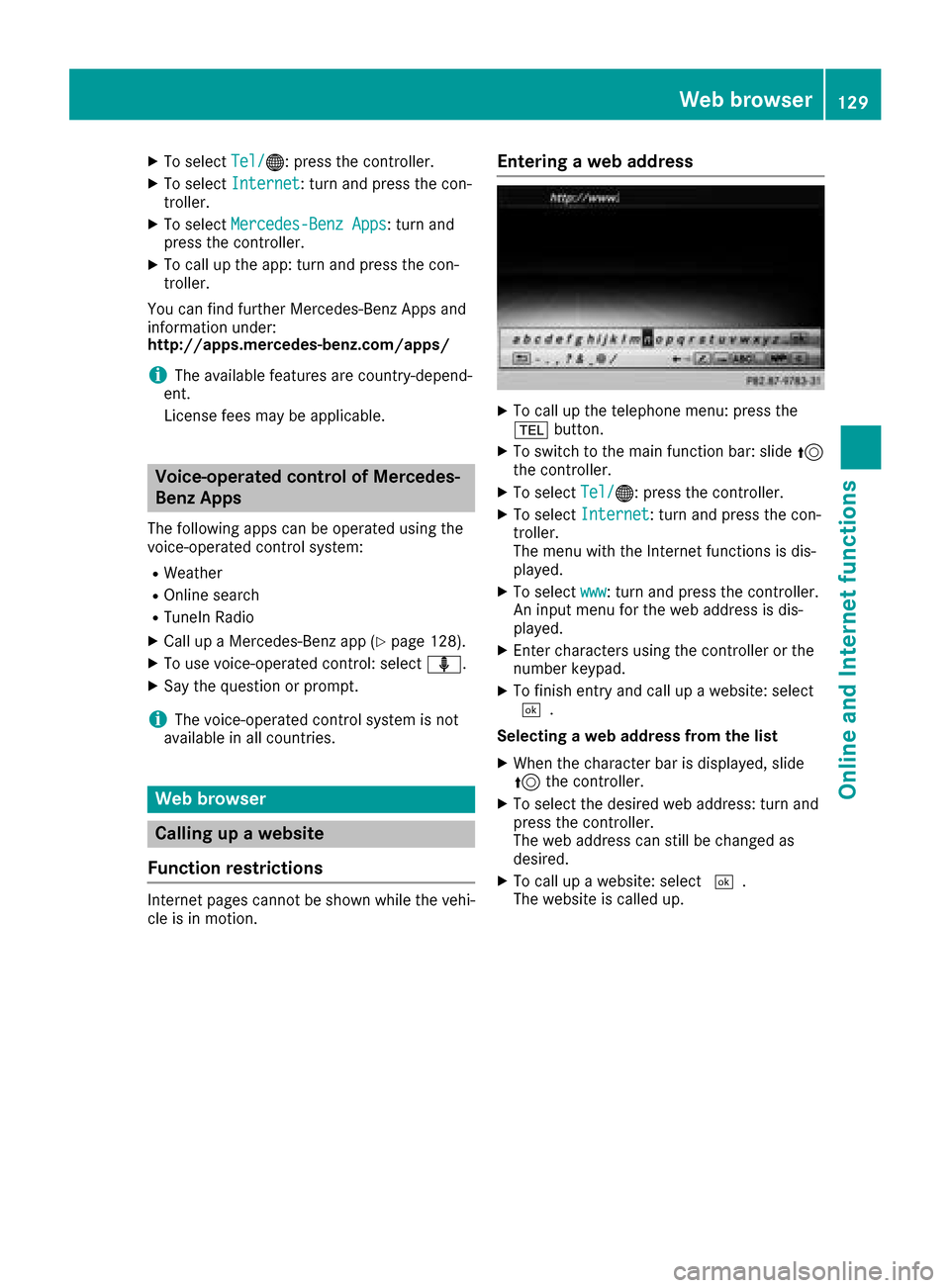
XTo select www: turn and press the controller.
An input menu for the web address is dis-
played.
XEnter characters using the controller or the
number keypad.
XTo finish entry and call up a website: select
¬.
Selecting a web address from the list
XWhen the character bar is displayed, slide
5 the controller.
XTo select the desired web address: turn and
press the controller.
The web address can still be changed as
desired.
XTo call up a website: select ¬.
The website is called up.
Web browser129
Online and Internet functions
Z
Page 140 of 198
Sirius XM®Satellite Radio uses a fleet of high-
performance satellites to broadcast around the
clock throughout the USA and Canada.
The satellite radio program is available for a
monthly fee. Details are available from the Sirius
XM
®Service Center and at
http://www.siriusxm.com (USA) or
http://www.siriusxm.ca (Canada).
Your new Mercedes-Benz vehicle comes with
Sirius XM
®Satellite Radio pre-installed at the
factory. This service is free for a six-month trial
period. About a month before the trial period
ends, information will be provided on how to
extend this subscription. An acoustic signal
sounds and a message is shown, describing how
the subscription can be extended.
iSirius, XM and all related marks and logos
are trademarks of Sirius XM Radio Inc. and its
subsidiaries. All other marks, channel names
and logos are the property of their respective
owners. All rights reserved.
Registering satellite radio
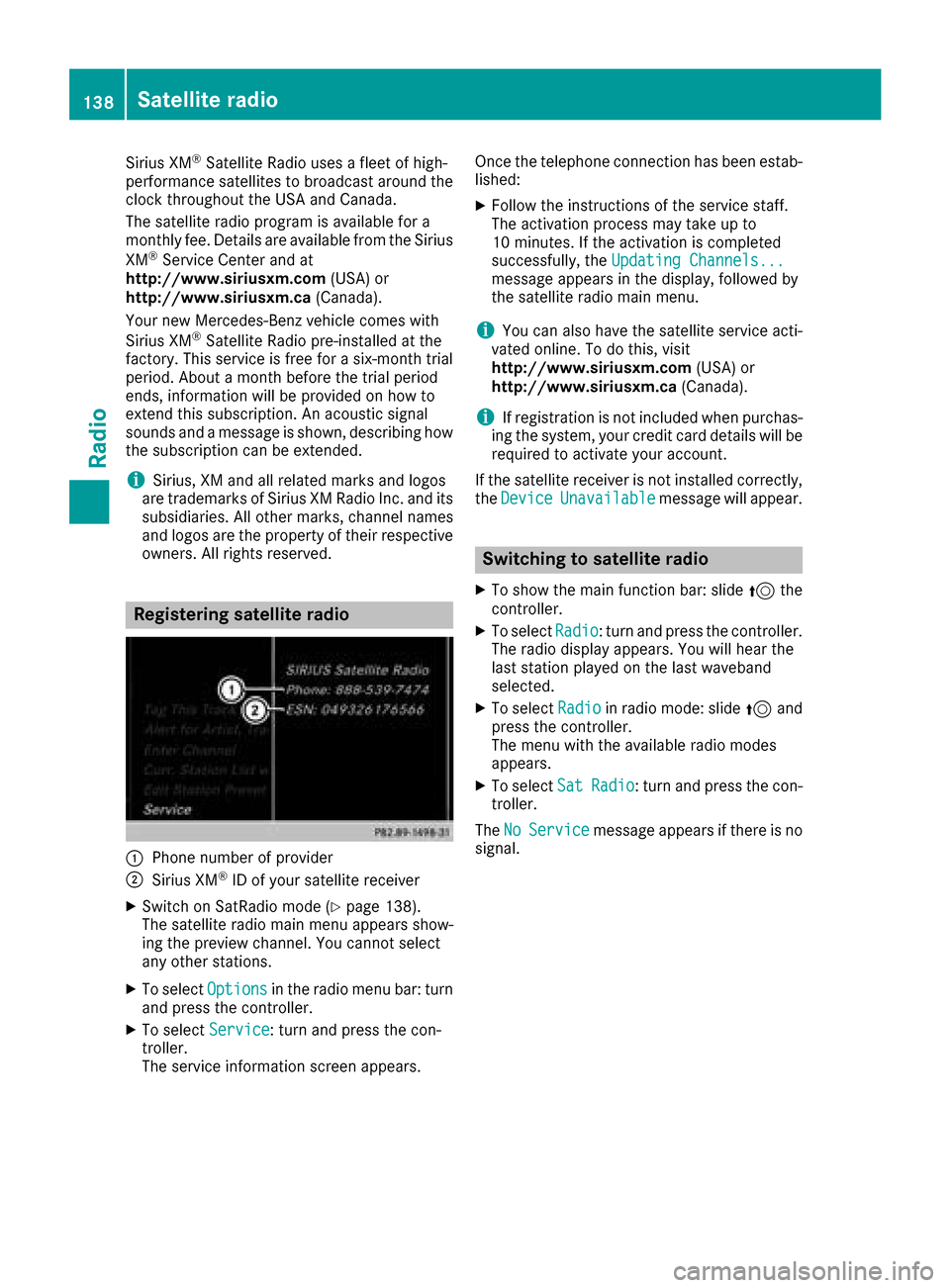
:Phone number of provider
;Sirius XM®ID of your satellite receiver
XSwitch on SatRadio mode (Ypage 138).
The satellite radio main menu appears show-
ing the preview channel. You cannot select
any other stations.
XTo select Optionsin the radio menu bar: turn
and press the controller.
XTo select Service: turn and press the con-
troller.
The service information screen appears. Once the telephone connection has been estab-
lished:
XFollow the instructions of the service staff.
The activation process may take up to
10 minutes. If the activation is completed
successfully, the
Updating Channels...
message appears in the display, followed by
the satellite radio main menu.
iYou can also have the satellite service acti-
vated online. To do this, visit
http://www.siriusxm.com (USA) or
http://www.siriusxm.ca (Canada).
iIf registration is not included when purchas-
ing the system, your credit card details will be
required to activate your account.
If the satellite receiver is not installed correctly,
the Device
Unavailablemessage will appear.
Switching to satellite radio
XTo show the main function bar: slide 5the
controller.
XTo select Radio: turn and press the controller.
The radio display appears. You will hear the
last station played on the last waveband
selected.
XTo select Radioin radio mode: slide 5and
press the controller.
The menu with the available radio modes
appears.
XTo select SatRadio: turn and press the con-
troller.
The No
Servicemessage appears if there is no
signal.
138Satellite radio
Radio