navigation MERCEDES-BENZ G-Class 2017 W463 Owner's Manual
[x] Cancel search | Manufacturer: MERCEDES-BENZ, Model Year: 2017, Model line: G-Class, Model: MERCEDES-BENZ G-Class 2017 W463Pages: 286, PDF Size: 4.91 MB
Page 15 of 286
Connecting another mobile
phone........................................... .203
Frequencie s................................... 27 4
Instal latio n..................................... 274
Menu (on-board computer) ............ 163
Transmissiono utput (maximum ).... 274
Modifying the programming
(SmartKey) ...........................................6 4
Mountingw heels
Lowering the vehicle. ..................... 272
Mounting anew wheel. .................. 272
Preparing the vehicle. ....................270
Raising the vehicle ......................... 270
Removing awheel .......................... 272
Securing the vehicle against roll-
ing away ........................................ 270
MP3
Operation ....................................... 162
see also Digita lOperator's Man-
ua l..................................................1 98
see separate operating instructions
Multifunctio ndisplay
Function/notes .............................1 59
Permanent display. ........................ 165
Multifunctio nsteering wheel
Operating the on-board computer .. 158
Overview .......................................... 33
Music files
see also Digita lOperator's Man-
ua l..................................................1 98
N
Navigation
Entering adestination .................... 200
Menu (on-board computer) ............ 161
see also Digita lOperator's Man-
ua l..................................................1 98
see separate operating instructions
NECK-PRO head restraints
Operation ......................................... 48
Resetting triggered .......................... 48
NECK-PRO luxury head restraints
Important safety notes .................... 48
Operation ......................................... 48
Resetting whe ntriggered ................. 49
Notes on breaking-inan ew vehi-
cle ....................................................... 103
O
Occupant safety
Air bag s...........................................4 3
Automatic measures after an acci-
dent ................................................. 49
BabySmart™ ai rbag deactivation
system ............................................. 53
Childre ninthe vehicl e..................... 49
Important safety notes. ................... 38
Introduction to the restraint sys-
tem .................................................. 38
PASSENGER AIR BAG indicator
lamps ............................................... 39
Pets in the vehicl e........................... 57
Restraint system warning lamp ........ 38
Seatb elt. ......................................... 39
Odometer ........................................... 160
Off-road
Differential locks ............................ 147
Off-road ABS .................................... 58
Off-road driving
Checklist afte rdriving off-road ...... 129
Checklist before driving off-road .... 128
Driving on sand .............................. 129
Generali nformation ....................... 127
Important safety notes .................. 127
Traveling uphill ............................... 130
Off-road fording ................................. 126
Off-road system
Permanent all-wheeld rive ............. 139
Oil
see Engine oil
On-board computer
AMG menu ..................................... 167
Assistance menu ........................... 164
Audio menu ................................... 162
Convenience submenu .................. 166
Displa ymessages .......................... 169
Factory settings submenu ............. 167
Important safety notes .................. 157
Instrument cluster submenu .......... 165
Lighting submenu .......................... 165
Menu overview .............................. 159
Message memory .......................... 170
Navigation menu ............................ 161
Operation ....................................... 158
RACETIMER ................................... 168
Index13
Page 17 of 286
Stopping ........................................ 168
Radiato rcover ................................... 226
Radio
Selecting astation ......................... 162
Radio mode
see also Digital Operator's Man-
ual.................................................. 198
Radio-wave reception/transmis-
sion in the vehicle
Declaration of conformity ................ 26
Rear benchs eat
Folding forward .............................. 208
Rear compartment
Setting the ai rvents ...................... 102
Rear door
Closing ............................................. 69
Displa ymessage ............................ 186
Important safety notes .................... 68
Opening ........................................... 68
Rear fog lamp
Displa ymessage ............................ 176
Replacing bulb s............................... 91
Switching on/off. ............................. 86
Rear seat bench
Folding into an upright position ..... 208
Rear vie wcamera
Cleaning instructions ..................... 235
Displa yinthe multimedi asystem .. 143
Function/note s............................. 143
Generaln otes ................................ 143
Switching on/off. .......................... 143
Rear windowd efroster
Problem (malfunction) ................... 100
Switching on/off. .......................... 100
Rear windoww iper
Replacing the wipe rblade ................ 93
Switching on/off. ............................. 93
Rear-vie wmirror
Dipping (automatic) ......................... 83
Refrigerant (air-conditioning sys-
tem)
Important safety notes .................. 280
Refueling
Fuelgauge ....................................... 32
Important safety notes .................. 118
Refueling process .......................... 118
see Fuel Remote control
Programming (garage door
opener) .......................................... 222
Replacing bulbs
Backu plam p.................................... 91
Brake lamp ...................................... 91
Important safety notes .................... 88
Overview of bulb types .................... 89
Rear fog lamp .................................. 91
Tail lamp .......................................... 91
Turn signal (rear) .............................. 91
Turn signals (front) ........................... 90
Reporting safety defects .................... 27
Rescue card ......................................... 28
Re
serve (fuel tank)
see Fuel
Reserve fuel
Displa ymessage ............................ 179
Warning lamp ................................. 194
Residual heat
Switching on/off. .......................... 101
Restrain tsystem
Displa ymessage ............................ 173
Introduction ..................................... 38
Warning lamp ................................. 193
Warning lamp (function) ................... 38
Reversin glamps (display mes-
sage) ................................................... 176
Roadside Assistance (breakdown) .... 25
Roo flinin gand carpets (cleaning
guidelines) ......................................... 237
Route (navigation)
see Route guidance (navigation)
Route guidance
see also Digital Operator's Man-
ual.................................................. 198
Route guidance( navigation) ............ 161
S
Safety
Childre ninthe vehicl e..................... 49
see Occupant safety
Safety system
see Driving safety systems
SD card
Inserting ........................................ 203
Inserting/removing ........................ 203
Index15
Page 161 of 286
8RMute
?RSwitches on the Voice Control Sys-
tem (see the separate operating
instructions)
Back button
%Press briefly:
RBack
RSwitches off the Voice Control
System
RHides display messages/calls up
the lastTripmenu function used
RExitsthe telephone book/redial
memory
%Press and hold:
RCallsupt he standard display in the
Tripmenu
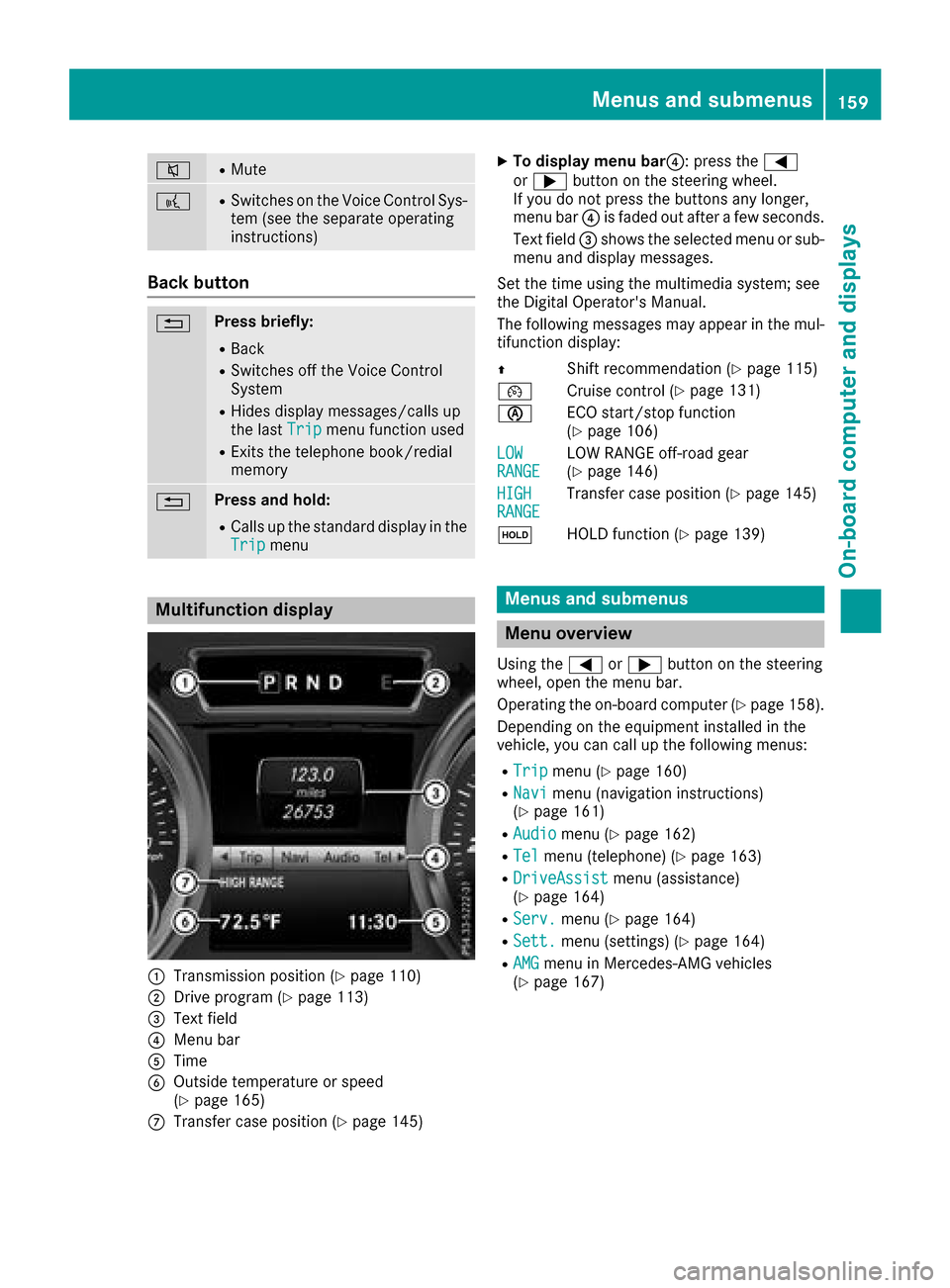
Multifunction display
:Transmission position (Ypage 110)
;Drive program (Ypage 113)
=Text field
?Menu bar
ATime
BOutside temperature or speed
(Ypage 165)
CTransfer case position (Ypage 145)
XTo display menu bar ?:press the =
or ; button on the steering wheel.
If you do not press the buttons any longer,
menu bar ?is faded out after afew seconds.
Text field =shows the selected menu or sub-
menu and display messages.
Set the time using the multimedia system; see
the Digital Operator's Manual.
The following messages may appear in the mul-
tifunction display:
Z Shift recommendation (
Ypage 115)
¯ Cruise control (
Ypage 131)
è ECO start/stop function
(
Ypage 106)
LOW
RANGELOW RANGE off-road gear
(Ypage 146)
HIGH
RANGETransfer case position (Ypage 145)
ë HOLD function (
Ypage 139)
Menus and submenus
Menu overview
Using the =or; button on the steering
wheel, open the menu bar.
Operating the on-board computer (
Ypage 158).
Depending on the equipment installed in the
vehicle, you can call up the following menus:
RTripmenu (Ypage 160)
RNavimenu (navigation instructions)
(Ypage 161)
RAudiomenu (Ypage 162)
RTelmenu (telephone) (Ypage 163)
RDriveAssistmenu (assistance)
(Ypage 164)
RServ.menu (Ypage 164)
RSett.menu (settings) (Ypage 164)
RAMGmenu in Mercedes-AMG vehicles
(Ypage 167)
Menus and submenus159
On-board computer and displays
Z
Page 163 of 286
Navigation systemmenu
Displaying navigatio ninstructions
In the Navimenu, the multifunctio ndisplay
shows navigation instructions.
Furtheri nformation abou tnavigation (see the
Digita lOperator' sManual).
XSwitch on the multimedia syste m(seet he
Digita lOperator' sManual)
XPress the =or; button on the steering
whee ltoselect theNavimenu.
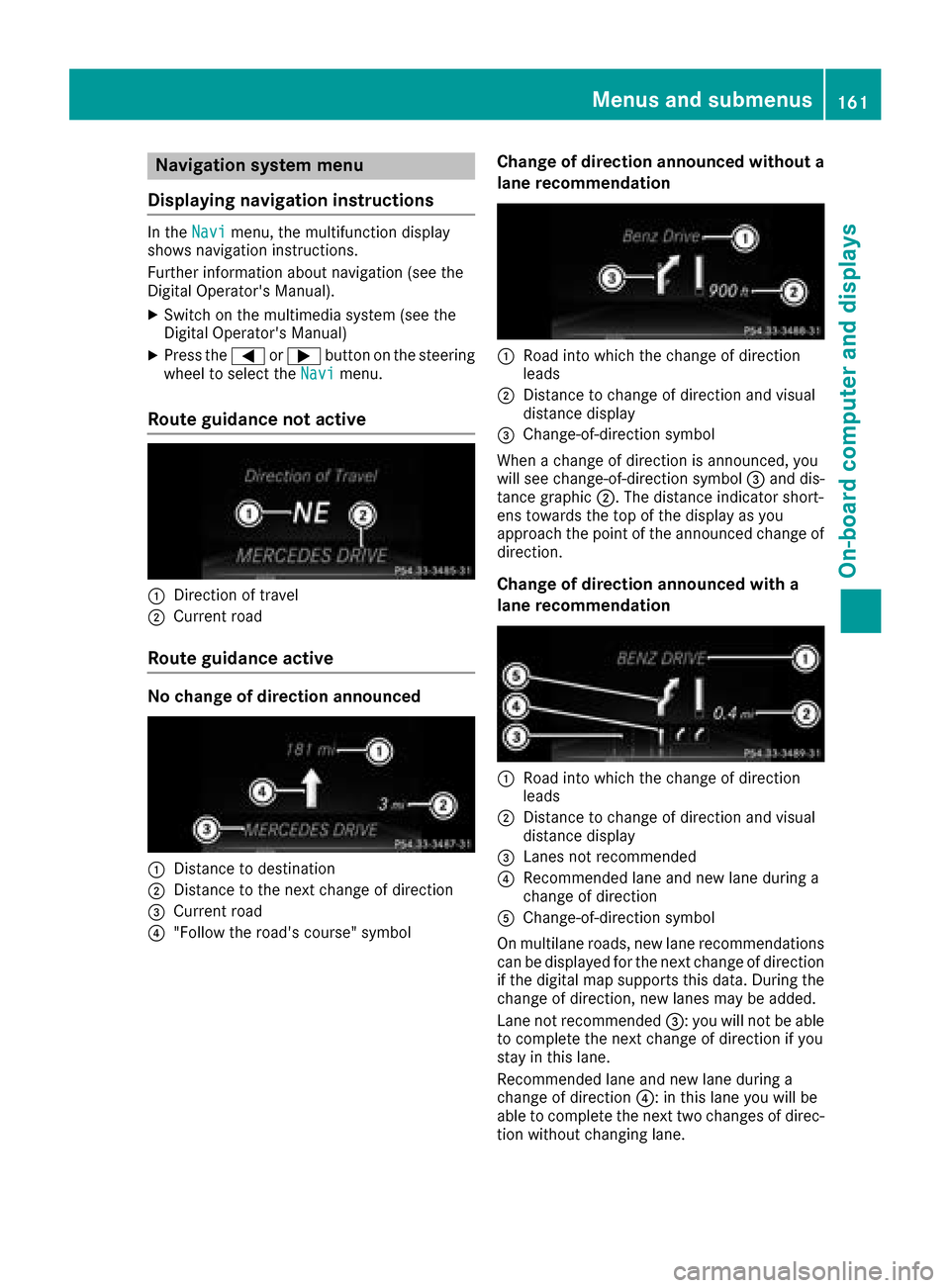
Route guidanc enotactive
:Direction of travel
;Current road
Route guidanc eactive
No chang eofdirection announced
:Distanc etodestination
;Distanc etothe next change of direction
=Current road
?"Follo wthe road' scourse"s ymbol
Chang eofdirection announced without a
lan erecommendation
:Road into which the change of direction
leads
;Distanc etochange of directio nand visual
distance display
=Change-of-directio nsym bol
When achange of directio nisa nnounced ,you
will seec hange-of-direction symbol =and dis-
tanc egraphic ;.The distance indicator short-
ens towards the top of the displa yasyou
approach the point of the announced change of
direction.
Chang eofdirection announced with a
lan erecommendation
:Road into which the change of direction
leads
;Distanc etochange of directio nand visual
distance display
=Lanes not recommended
?Recommende dlan ea nd new lane during a
change of direction
AChange-of-directio nsym bol
On multilane roads ,new lane recommendations
can be displaye dfor the next change of direction
if the digital maps upports thi sdata. During the
change of direction, new lanes maybea dded.
Lane not recommended =:you will not be able
to complete the next change of directio nifyou
stayint hisl an e.
Recommende dlan ea nd new lane during a
change of direction ?:int hisl an ey ou will be
able to complete the next two change sofdirec-
tio nw ithout changing lane.
Menus and submenus161
On-board computer and displays
Z
Page 164 of 286
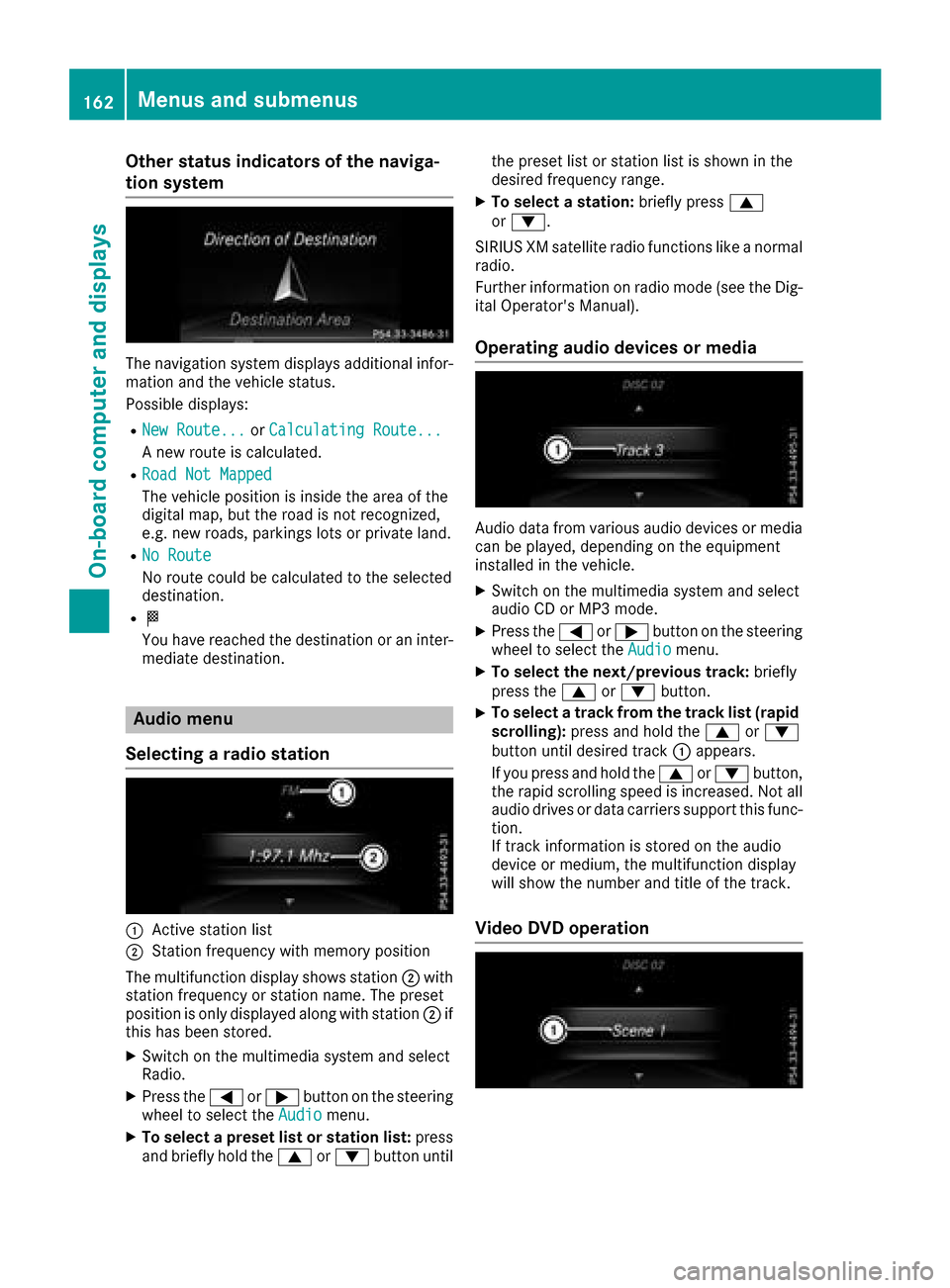
Other status indicatorsofthe naviga-
tion system
The navigation system displays additional infor- mation and the vehicle status.
Possible displays:
RNew Route...or Calculating Route...
An ew route is calculated.
RRoad Not Mapped
The vehicle position is inside the area of the
digital map, but the road is not recognized,
e.g. new roads, parking slots or private land.
RNo Route
No route could be calculated to the selected
destination.
RO
You have reached the destination or an inter-
mediate destination.
Audio menu
Selecting aradio station
:Active station list
;Station frequenc ywith memory position
The multifunction display shows station ;with
station frequenc yorstation name. The preset
position is only displayed along with station ;if
this has been stored.
XSwitc hont he multimedia system and select
Radio.
XPress the =or; button on the steering
wheel to select the Audiomenu.
XTo selectapreset list or station list: press
and briefly hold the 9or: button until the preset list or station list is shown in the
desired frequenc
yrange.
XTo select astation: briefly press 9
or :.
SIRIUS XM satellite radio function slike anormal
radio.
Further information on radio mode (see the Dig-
ital Operator's Manual).
Operating audio devices or media
Audio data from various audio devices or media
can be played, depending on the equipment
installed in the vehicle.
XSwitc hont he multimedia system and select
audio CD or MP3 mode.
XPress the =or; button on the steering
wheel to select the Audiomenu.
XTo select the next/previous track: briefly
press the 9or: button.
XTo select atrack from the track list (rapid
scrolling): press and hold the 9or:
button until desired track :appears.
If you press and hold the 9or: button,
the rapid scrollin gspeed is increased. Not all
audio drives or data carriers support this func-
tion.
If trac kinformation is stored on the audio
device or medium, the multifunction display
will show the number and title of the track.
Video DVD operation
162Menus and submenus
On-boardc omputer and displays
Page 192 of 286
Warning/
indicator
lampNSignal type
Possiblec auses/consequences and M
Solutions
!NThe yellow ABS warning lamp is lit while the engine is running.
ABS (anti-lock braking system) is malfunctioning.
If there is an additionalw arning tone, the EBD (electronic brake force distribution)
is malfunctioning.
Other driving systems and driving safety systems may als omalfunction.
GWARNING
The brake system continues to function normally, but without the functions listed
above. The front and rear wheels coul dtherefore lock if you brake hard ,for exam-
ple.
The steerability and braking characteristics may be severely affected. The braking
distance in an emergency braking situation can increase.
If ESP
®is not operational ,ESP®is unable to stabilize the vehicle.
There is an increased risk of skidding and an accident.
XObserve the additionald isplay messages in the multifunction display.
XDrive on carefully.
XVisitaqualified specialist workshopi mmediately.
If the ABS control unit is faulty, there is als oapossibility that other systems ,such
as the navigation system or the automatic transmission, wil lnot be available.
!N The yellow ABS warning lamp is lit while the engine is running.
ABS is temporarily unavailable.
Other driving and driving safety systems may als obeunavailable.
Possible causes are:
RSelf-diagnosi sisnot yet complete.
RThe on-board voltag emay be insufficient.
GWARNING
The brake system continues to function normally, but without the functions listed
above. The wheels coul dtherefore lock if you brake hard ,for example.
The steerability and braking characteristics may be severely affected. The braking
distance in an emergency braking situation can increase.
If ESP
®is not operational ,ESP®is unable to stabilize the vehicle.
There is arisk of an accident.
XCarefully drive on asuitable stretch of road ,making gentle steering movements
at speeds of above 12 mph (20 km/h).
The functions mentioned above are available again when the warning lamp goes
out.
If the warning lamp is still on:
XObserve the additiona ldisplay messages in the multifunction display.
XDrive on carefully.
XVisitaq ualified specialist workshop.
190Warning and indicator lamps in the instrument cluster
On-board computer and displays
Page 200 of 286
General notes
The multimedia system section in this Opera-
tor's Manualdescribes the basi cprinciples for
operation. More information can be found in the Digital Operator's Manual.
Important safety notes
GWARNING
If you operate information systems and com-
municatio nequipment integrated in the vehi-
cle whiled riving, you willbed istracted from
traffic conditions. You could also lose control
of the vehicle.T here isarisk of an accident.
Only operate the equipment when the traffic
situation permits. If you are not sure that this
is possible, park the vehicle paying attention
to traffic conditions and operate the equip-
ment when the vehicle is stationary.
You must observe the legalr equirements for the
country in which you are currently driving when
operating the multimedia system.
The multimedia system calculates the route to
the destination withoutt aking the following into
account, for example:
Rtraffic lights
Rstop and yield signs
Rparking or stopping restrictions
Rroad narrowing
Rother road and traffic rule sand regulations
The multimedia system may give incorrect nav-
igation recommendations if the actual street/
traffic situation does not correspond with the
digital map's data.
For example:
Rad iverted route
Rthe road layout or the direction of aone-way
street has been changed
For this reason, you must alwayso bserve road
and traffic rule sand regulations during your
journey. Roa dand traffic rule sand regulations
alwaysh ave priority over multimedia system
driving recommendations.
Navigation announcements are intended to
direct you whil edriving withoutd iverting your
attention from the road and driving. Please alwaysu
se this feature instead of con-
sulting the map display for directions. Looking
at the icons or map display can distract you from
traffic conditions and driving, and increase the
risk of an accident.
This equipment complies with FCC radiation
exposure limits set forth for uncontrolled equip-
ment and meets the FCC radiof requency (RF)
Exposure Guidelines in Supplement CtoOET65.
This equipment has very low levelsofRFe nergy
that is deemedtoc omply withoutmaximum
permissive exposure evaluation (MPE). How-
ever, it is recommended to insta
ll it at
adistance
of at least 8inches (approx. 20 cm) betweent he
radiation source and aperson's body (not
including limbss uch as hands, wrists, feet and
legs).
GWARNING
Modifications to electronic components, their software as wellasw iring can impair their
function and/or the function of other net-
worked components. In particular, systems
relevant to safety could also be affected. As a
result, these may no longer function as inten-
ded and/or jeopardize the operating safety of
the vehicle.T here is an increasedr isk of an
accident and injury.
Never tamper with the wiring as wellase lec-
tronic components or their software .You
shoul dhave all work to electricala nd elec-
tronic equipment carried out at aqualified
specialist workshop.
Function restrictions
For safety reasons, some functions are restric-
ted or unavailable whilet he vehicle is in motion.
You willn otice this, for example, because either
you willn ot be abletos elect certain menu items
or am essag ewillappear to this effect.
198Function restrictions
Multimedia system
Page 201 of 286
Operating system
Overview
General notes
!Do not use the space in frontoft he display
for storage. Objects placed here could dam-
age the display or impair its function .Avoid
any direct contact with the display surface.
Pressure on the display surface may result in
impairment stothe display, which could be
irreversible.
Wearing polarized sunglasses may impair your
ability to read the display.
The display has an automatic temperature-con-
trolled switch-off feature. The brightness is
automatically reduced if the temperature is too
high. The display may temporarily switch off
completely.
Cleaning instructions
!Do not touch the display. The display has a
very sensitive high-gloss surface; there is a
risk of scratching .Ifyou have to clean the
screen,h owever, use amild cleanin gagent
and asoft,l int-free cloth.
The display must be switched off and have
cooled down before you start cleaning. Do not
apply pressure to the display surface when
cleanin git, as this could cause irreversible dam-
age to the display.
Switching the multimedia system
on/off
XPress the qcontrol knob.
Adjusting the volume
XTurn the qcontrol knob.
The volume is adjusted:
Rfor the currently selected media source
Rduring traffic or navigation announcements
Rin hands-free mode during an active call
Switching the sound on or off
XPress the 8button on the control panel.
If the audio output is switched off, the status
line will show the 8symbol. If you switch the media source or set the volume, the sound
is automatically switched on.
iNavigation announcements will be heard
even if the sound is muted.
Functions
The multimedia system has the following func-
tions:
RRadio mode
RMedia mode with media search
RSound systems
RNavigation system
RCommunication functions
RSIRIUS Weather
RVehicle function swith system settings
RFavorites functions
Controller
The controller in the center console lets you:
Rselect menu items on the display
Renter characters
Rselect adestination on the map
Rsave entries
The controller can be:
Rturned 3
Rslid left or right 1
Rslid forwards or back 4
Rslid diagonally2
Rpressed briefly or pressed and held 7
Back button
You can use the%button to exit amenu or to
call up the basic display of the currento perating
mode.
XTo exit the menu: briefly press the%
button.
The multimedia system changes to the next
higher menu level in the currento perating
mode.
XTo call up the basic display: press the%
button for longer than two seconds.
The multimedia system changes to the basic
display of the currento peratingmode.
Operating system199
Multimedia system
Z
Page 202 of 286
Favorites
Calling up and exiting favorites
XTo call up :press th eg buttonont hecon-
troller .
XSelectafavorite ,e.g.Vehicl e.
The favorite sare displayed.
XTo exit :press th eg buttonagain .
Adding favorites
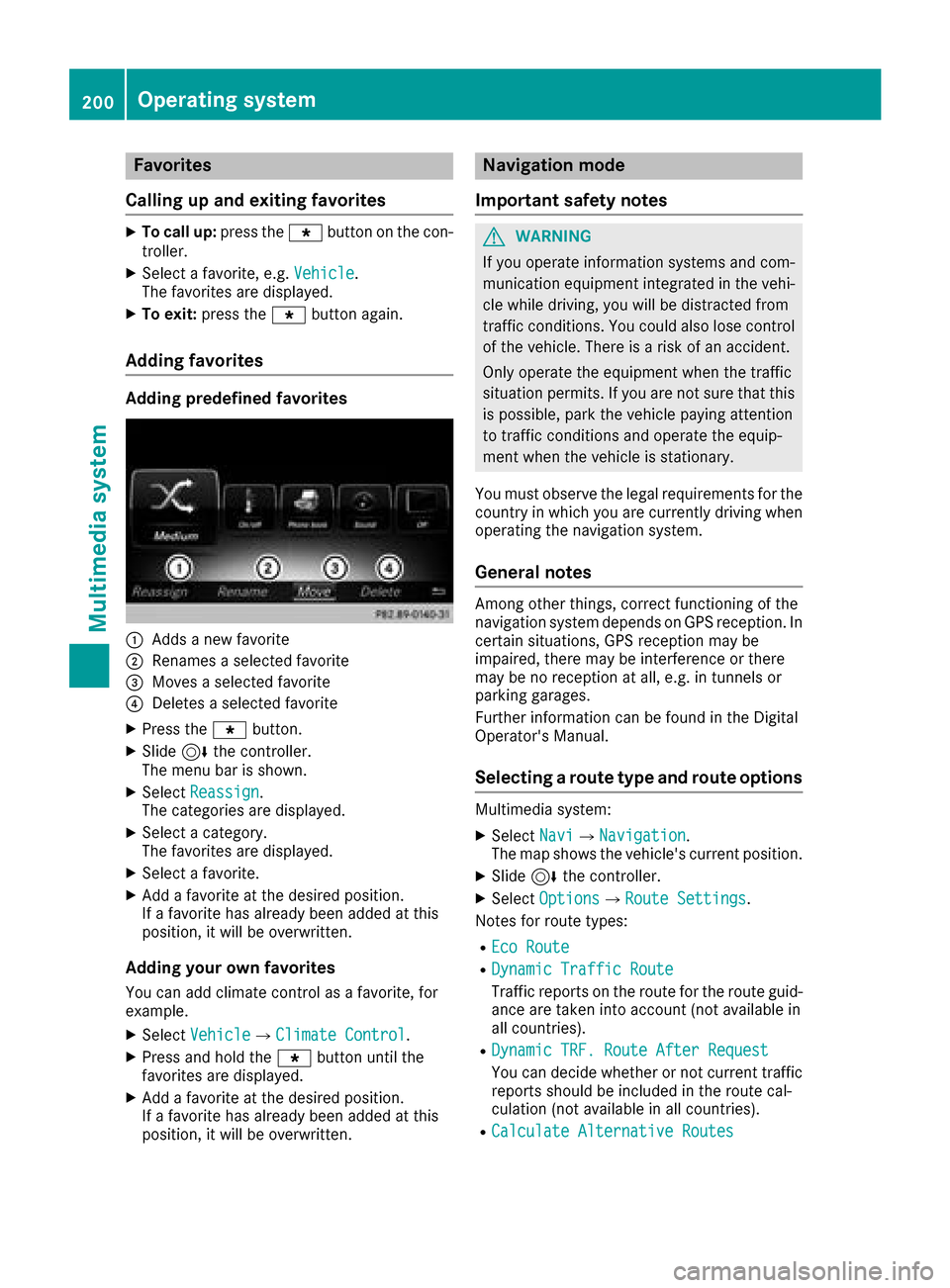
Adding predefined favorites
:Adds anew favorite
;Renames aselected favorite
=Moves aselected favorite
?Deletes aselected favorite
XPress th eg button.
XSlide6thec ontroll er.
The men ubar is shown.
XSelec tReassign.
The categories are displayed.
XSelec tacategory.
The favorite sare displayed.
XSelec tafavorite .
XAddaf avorite at th edesired position .
If af avorite has already been added at this
position ,itwill be overwritten.
Adding youro wn favorites
You can add climat econtro lasa favorite ,for
example.
XSelec tVehicl eQClimate Contro l.
XPress and hold th eg buttonuntil th e
favorite sare displayed.
XAddaf avorite at th edesired position .
If af avorite has already been added at this
position ,itwill be overwritten.
Navigation mode
Important safety notes
GWARNIN G
If you operate information systems and com-
munication equipmen tintegrate dinthevehi-
cle while driving ,you will be distracte dfrom
traffic conditions. You could also lose control
of th evehicle. Ther eisariskofana ccident.
Only operate th eequipmen twhen th etraffic
situation permits. If you are no tsure that this
is possible ,park th evehicl epayin gattention
to traffic condition sand operate th eequip-
men twhen th evehicl eiss tationary.
You must observ ethe legal requirements for th e
country in whic hyou are currentl ydriving when
operating th enavigation system.
General notes
Amon gother things, correct functioning of th e
navigation system depend sonGPS reception .In
certai nsituations, GPS reception may be
impaired ,the re may be interferenc eorthere
may be no reception at all, e.g. in tunnels or
parking garages.
Further information can be foun dintheDigital
Operator's Manual.
Selecting aroute type and route options
Multimedia system:
XSelec tNav iQNa vigation.
The map shows th evehicle's curren tposition .
XSlide6thec ontroll er.
XSelectOption sQRouteS ettings.
Notes for rout etypes:
REco Route
RDynami cTraffi cRoute
Traffic report sontherout efor th erout eguid-
anc eare taken int oaccoun t(no ta vailable in
all countries).
RDynami cTRF.R oute After Reques t
You can decide whether or no tcurren ttraffic
report sshould be included in th erout ecal-
culation (not available in all countries).
RCalculate Alternative Routes
200Operating system
Multimedia system
Page 203 of 286
Different routes arebeing calculated. In order
to do so, instea dofStart,s elect the menu
item Continue.
XTo avoid/use rout eoptions: selectAvoid
Options.
XSelect aroute option.
Notesf or route options:
RUse TollR oads
The route calculation includes roads which
require youtopayau sage fee (toll).
RNumber of Occupants in the Vehicle:(only availabl einthe USA)
Prerequisite: your vehicl emeets the access
conditions for carpool lanes.
Carpool lanes will be included if the carpool
lanes optio nisa ctivated.
Entering an address
Multimedia system:
XSelect NaviQNavigation.
The maps hows the vehicle's current position.
XSlide6the controller.
XSelect DestinationQAddressE ntry.
Enter an address, e.g .asfollows:
Rcity or ZI Pcode, street, house number
Rstate/province ,city or ZI Pcode
Rcity or ZI Pcode, center
Rstreet, city or ZI Pcode, intersection
XSelect City.
The city in which the vehicl eiscurrentl yloc a-
ted (current vehicl eposit ion) is at the top.
Below this, yo uwills ee locations for which
route guidance hasa lready been carrie dout.
XEnter the city.
The Gsymbol: the location is containe don
the digital mapm ultipl etimes.
XTo switc htothe list: slide5the control-
ler.
XSelect the location.
If available, the ZI Pcodeiss hown. If there are
different ZI Pcodes availabl efor the location,
the corresponding digits ar edisplayed with an
X
.
XEnter the street and house number.
The address is in the menu.
Furthero ptionsfor destinatio nentry:
Rsearch for akeyword The keyword search find
sdestinations using
fragments of words.
Rselect the last destination
Rselect acontact
Rselect aPOI
Yo uc an search for aPOI by location, nam eor
telephon enumber.
Rselect destination on the map
Rente rintermediate destination
Yo uc an mapt he route to the destination
yoursel fwithuptof ourintermediate destina-
tions.
Rselect destinations fromM ercedes-Benz
Apps
Rselect geo-coordinates
Calculatin gthe route
Prerequisite: the address hasb eene ntered and
is in the menu.
XSelect StartorContinue.
The route is calculate dwitht he selecte droute
typ eand the selecte droute options.
If route guidance hasa lready been activated,
ap rompt will appear asking whether yo uwish
to end the current route guidance.
XSelect Cancel Active Route Guidanceor
Set as Intermediate Destination.
Cancel Active Route Guidancecancels
the current route guidance and starts route
calculation to the new destination.
Set as Intermediate Destination
adds
the new destination in additio ntothe existing
destination and opens the intermediate des-
tinations list.
Connectin gamobilephone
Requirements
For telephon yvia the Bluetooth®interface, you
require aBluetooth®-capable mobil ephone.The
mobil ephone must support Hands-FreeP rofile
1.0 or above.
Multimedia system:
XSelect VehicleQSystem Set‐tingsQActivate Bluetooth.
XActivate Bluetooth®O.
Operatin gsystem201
Multimedia system
Z