display MERCEDES-BENZ G-CLASS 2018 COMAND Manual
[x] Cancel search | Manufacturer: MERCEDES-BENZ, Model Year: 2018, Model line: G-CLASS, Model: MERCEDES-BENZ G-CLASS 2018Pages: 198, PDF Size: 4.53 MB
Page 118 of 198
XTo scroll through the message or select phonenumbers in the text: turn the controller.
The display scrolls up or down line by line, or
skips to the next or previous telephone num-ber and automatically highlights it.
XTo close the message text: press the%
button.
The following sub-folders can be selected
for text messages and e-mails:
RInbox
This folder contains all the incoming mes-
sages.
ROutbox
This folder contains all the outgoing mes-
sages.
RDrafts
This folder contains all the messages that you
have saved as a draft.
iFolders cannot be selected if they are
empty.
Depending on the mobile phone used, the sub-
folder function may be available.
Read-aloud function for messages
XTo start the read-aloud function: press the
controller when the message is displayed.
XTo select Read Aloud: turn and press the
controller.
The multimedia system reads the message
aloud.
XTo cancel the read-aloud function: press the
8 button.
or
XPress the controller, select Cancel Read-Aloud Functionand press the controller
again.
You can set the language (
Ypage 41) and the
speed (Ypage 37) of the read-aloud function.
Displaying details and phone numbers
The multimedia system can also show a short-
ened sender display in full.
XTo call up the telephone menu: press the
% button.
XTo switch to the menu bar: slide 6the con-
troller.
XTo select 1: turn and press the controller.
The message menu is displayed.
XTo switch to the menu bar: slide 6the con-
troller.
XTo select Folder: turn and press the control-
ler.
XTo select Text MessageorE-Mail: turn and
press the controller.
The selected folder is displayed.
XTo highlight the desired message: turn the
controller.
XTo select G: slide 9the controller.
XTo select Details: turn and press the con-
troller.
The detailed view appears.
XTo close the detailed display: slide8 the
controller.
Writing text messages
Writing a new text message
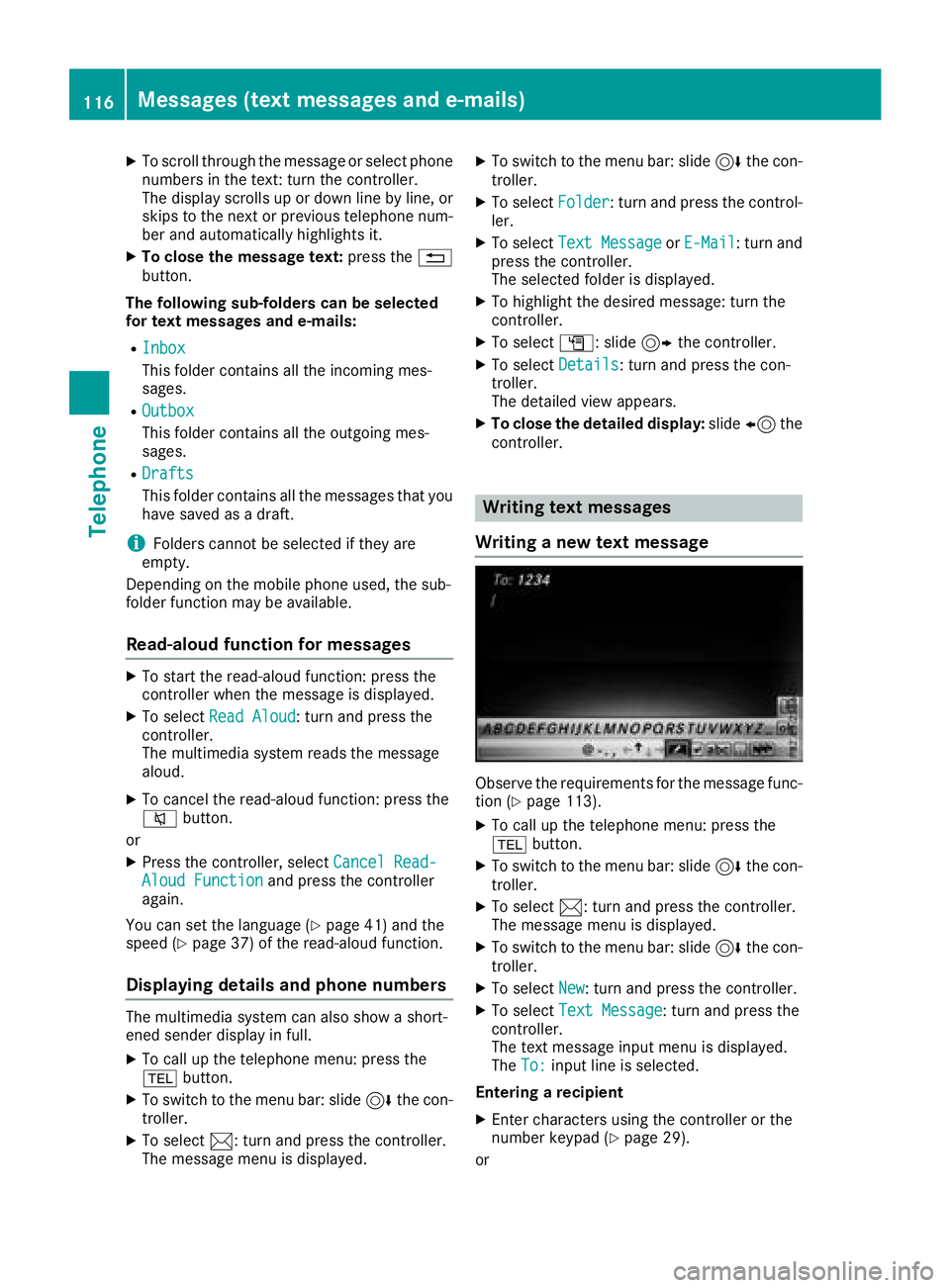
Observe the requirements for the message func-
tion (Ypage 113).
XTo call up the telephone menu: press the
% button.
XTo switch to the menu bar: slide 6the con-
troller.
XTo select 1: turn and press the controller.
The message menu is displayed.
XTo switch to the menu bar: slide 6the con-
troller.
XTo select New: turn and press the controller.
XTo selectText Message: turn and press the
controller.
The text message input menu is displayed.
The To:
input line is selected.
Entering a recipient
XEnter characters using the controller or the
number keypad (Ypage 29).
or
116Messages (text messages and e-mails)
Telephone
Page 119 of 198
XTo enter a phone number from the phone
book: select theÆsymbol.
The contacts from the address book which
have a phone number are displayed.
XSearch for and select an entry (Ypage 101).
The number is copied to the recipient line.
Entering text and sending text messages
XTo select an input line for text: select 5in the
character bar.
XEnter characters.
The multimedia system contains templates
which you can use to compile your messages
(
Ypage 118).
XTo send the text message: select OK.
Answering a text message
Observe the requirements for the message func-
tion (Ypage 113).
XDisplay the message (Ypage 115).
XPress the controller.
XTo selectReply: turn and press the controller.
The text message input menu is displayed.
The addressee's details are automatically fil-
led in using the details in the original mes-
sage.
Writing e-mails
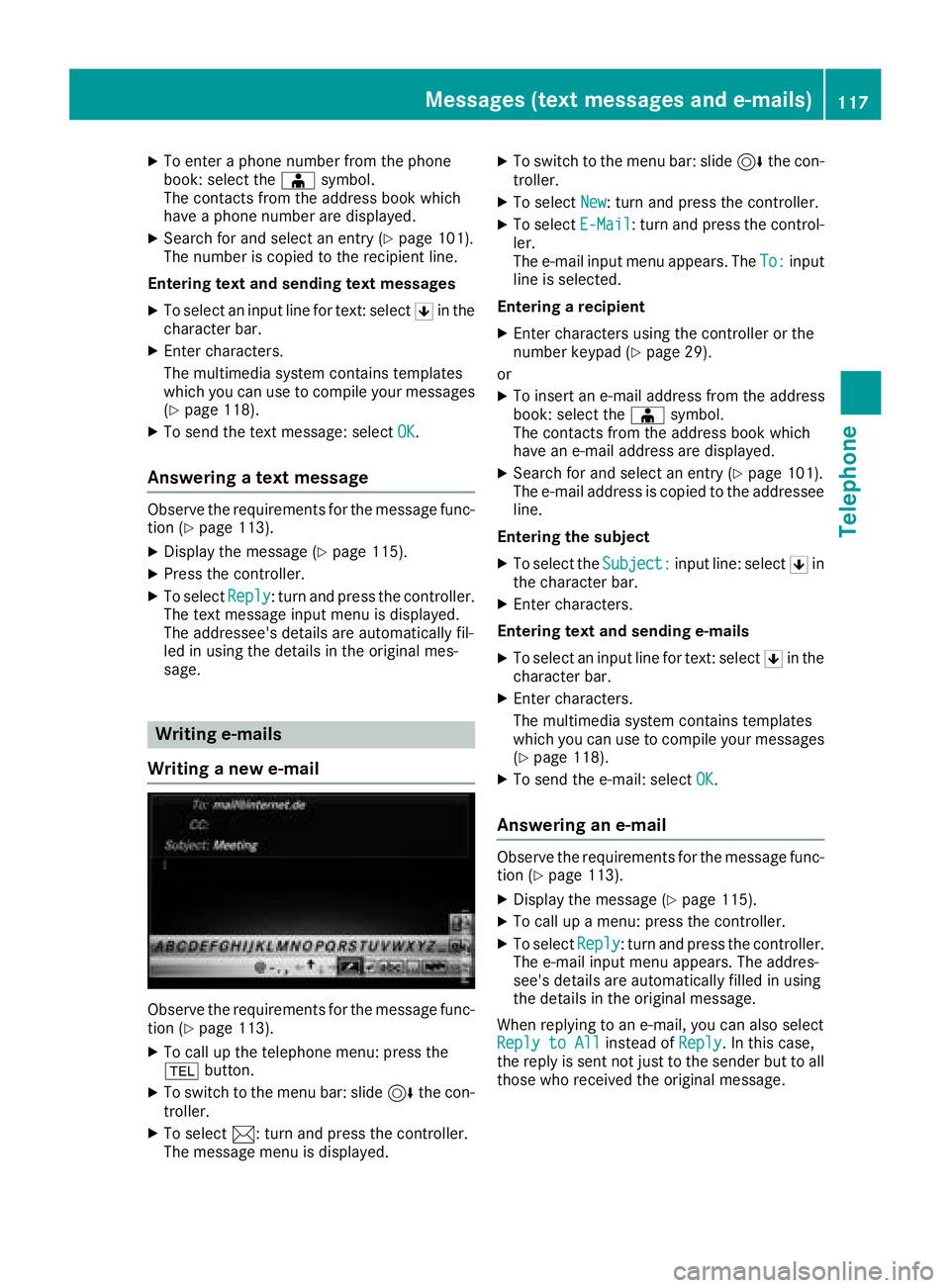
Writing a new e-mail
Observe the requirements for the message func-
tion (Ypage 113).
XTo call up the telephone menu: press the
% button.
XTo switch to the menu bar: slide 6the con-
troller.
XTo select 1: turn and press the controller.
The message menu is displayed.
XTo switch to the menu bar: slide 6the con-
troller.
XTo select New: turn and press the controller.
XTo selectE-Mail: turn and press the control-
ler.
The e-mail input menu appears. The To:
input
line is selected.
Entering a recipient
XEnter characters using the controller or the
number keypad (Ypage 29).
or
XTo insert an e-mail address from the address
book: select the Æsymbol.
The contacts from the address book which
have an e-mail address are displayed.
XSearch for and select an entry (Ypage 101).
The e-mail address is copied to the addressee
line.
Entering the subject
XTo select the Subject:input line: select 5in
the character bar.
XEnter characters.
Entering text and sending e-mails
XTo select an input line for text: select 5in the
character bar.
XEnter characters.
The multimedia system contains templates
which you can use to compile your messages
(
Ypage 118).
XTo send the e-mail: select OK.
Answering an e-mail
Observe the requirements for the message func-
tion (Ypage 113).
XDisplay the message (Ypage 115).
XTo call up a menu: press the controller.
XTo selectReply: turn and press the controller.
The e-mail input menu appears. The addres-
see's details are automatically filled in using
the details in the original message.
When replying to an e-mail, you can also select
Reply to All
instead of Reply. In this case,
the reply is sent not just to the sender but to all
those who received the original message.
Messages (text messages and e-mails)117
Telephone
Z
Page 120 of 198
Forwarding an e-mail
Observeth erequirements for th emessage func-
tion (Ypage 113).
XDisplay th emessage (Ypage 115).
XTo call up amenu: press th econtroller.
XTo select Forward:tur nand press th econ-
troller .
The input men uappears. The subject lin eis
automatically filled in wit hth esam edetails as
those in th eoriginal message .
Text templates
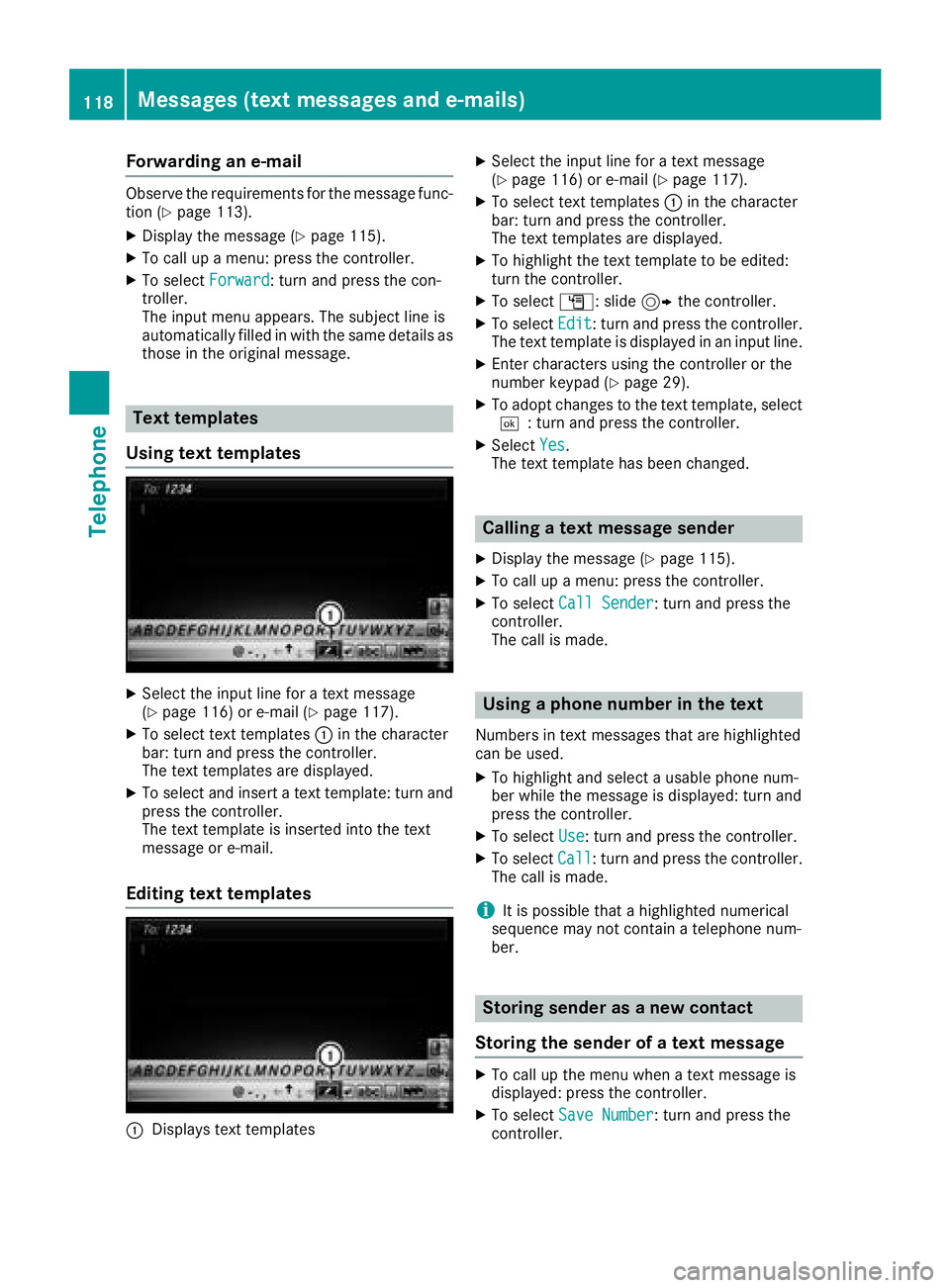
Using text templates
XSelec tth einput lin efor atext message
(Ypage 116) or e-mail (Ypage 117).
XTo select text templates :in th echaracte r
bar: tur nand press th econtroller.
The text template sare displayed.
XTo select and insert atext template: tur nand
press th econtroller.
The text template is inserted int oth etext
message or e-mail.
Editing text templates
:Displays text templates
XSelec tth einput lin efor atext message
(Ypage 116) or e-mail (Ypage 117).
XTo select text templates :in th echaracte r
bar: tur nand press th econtroller.
The text templates are displayed.
XTo highligh tth etext templat eto be edited:
tur nth econtroller.
XTo select G:slide9 thecontroller.
XTo select Edit:tur nand press th econtroller.
The text templat eis displayed in an input line.
XEnte rcharacters usin gth econtroller or th e
number keypad (Ypage 29).
XTo adopt changes to th etext template, select
¬: turnand press th econtroller.
XSelec tYes.
The text templat ehas been changed.
Calling a text message sender
XDisplay th emessage (Ypage 115).
XTo call up amenu: press th econtroller.
XTo select CallSender:tur nand press th e
controller.
The call is made .
Using a phone number in the text
Numbersin text message sthat are highlighte d
can be used.
XTo highligh tand select ausable phon enum -
ber while th emessage is displayed: tur nand
press th econtroller.
XTo select Use:tur nand press th econtroller.
XTo select Call:tur nand press th econtroller.
The call is made .
iIt is possible that ahighlighte dnumerical
sequenc emay no tcontain atelephon enum -
ber .
Storing sender as a new contact
Storing the sender of a text message
XTo call up th emen uwhen atext message is
displayed: press th econtroller.
XTo select SaveNumber:tur nand press th e
controller.
118Messages (text messages and e-mails)
Telephone
Page 121 of 198
XSelectNew Entry.
or
XSelect Add to Contact.
XSelect a number category, e.g. Home.
XSelect a telephone category, e.g. MobilePhone.
XSelectContinue.
The input line for the name of the new contact
is displayed. The input line for the telephone
number is filled in automatically.
XEnter characters using the controller
(Ypage 29) or the number keypad.
XTo finish the entry: select OK.
The new contact has been created.
Saving the sender of an e-mail
XTo call up the menu when an e-mail is dis-
played: press the controller.
XTo select SaveSender'sE-MailAddress:
turn and press the controller.
The input line for the name of the new contact
is displayed. The input line for the e-mail
address is filled in automatically.
XEnter characters using the controller or the
number keypad (Ypage 29).
XTo finish the entry: select OK.
The new contact has been created.
Deleting messages
XCall up the message folder (Ypage 115).
XTo select the message: turn and press the
controller.
XTo select G: slide 9the controller.
XTo select Delete: turn and press the control-
ler.
XTo select Yes: turn and press the controller.
The message is deleted from the multimedia
system and the mobile phone.
iThis delete function is not supported by all
mobile phones. The Delete failed.mes-
sage then appears.
Dictation function
Requirements
To use the dictation function, the connected
mobile phone must support the MAP Bluetooth®
profile. When connecting the mobile phone, you
may have to accept the prompt for the MAP
Bluetooth
®profile.
With some mobile phones, some settings still
have to be made after connecting to the multi-
media system (see the manufacturer's operat-
ing instructions).
An e-mail account must be set up on the mobile
phone for the e-mail function (see the manufac- turer’s operating instructions).
To read and write e-mails in the multimedia sys-
tem, the e-mail account first needs to be con-
figured (
Ypage 114).
Some mobile phones with the MAP Bluetooth®
profile:
Rdo not support the deleting or editing of text
messages
Rdo not support the drafts folder for text mes-
sages
Rdo not support the sending of text messages
Rdo not support the e-mail function
Rdo not send messages when in a locked sta-
tus
Calling up text messages or e-mails in
the message menu
XTo call up the telephone menu: press the
% button.
XTo switch to the menu bar: slide 6the con-
troller.
XTo select 1: turn and press the controller.
The message menu is displayed.
XTo switch to the menu bar: slide 6the con-
troller.
XTo select New: turn and press the controller.
XTo selectText MessageorE-Mail: turn and
press the controller.
The input menu for the message is displayed.
Dictation function119
Telephone
Z
Page 122 of 198
Calling up and using the dictation
function
XSelect theomicrophone.
The app for the dictation function is loaded.
If there was no prior Internet connection, a
connection is now established.
XTo start the dictation function: press the
controller.
XSay your message.
The dictation ends automatically after you
have finished speaking.
After the spoken message has been pro-
cessed, it is shown as text on the display.
XTo select words: turn and press the control-
ler.
XIn the correction menu, you can:
Radjust capitalization of words (if supported
by the character set)
Radd words
Rdelete words
Rreplace the dictated message with a new
one
XTo exit the menu: selectDone.
Send message
The dictated text is displayed in the message
input window.
XEnter the telephone number or e-mail address
into the addressee line.
XTo send the message: select OK.
Apple CarPlay™
Introduction
iPhone®functions can be used via the multime-
dia system using Apple CarPlay™. Apple Car-
Play™ can be operated using the controller or
Siri
®voice-operated control system. Whether
selected buttons are supported in the vehicle
depends on the iOS version of the mobile phone
and the apps available. You will find an overview
of the multimedia system's control panel and
available buttons here (
Ypage 18).
To activate voice-operated control, press and
hold the óbutton on the multifunction steer-
ing wheel (
Ypage 100). Apple CarPlay™ is only available for Apple
®mobile phones (see the
manufacturer's operating instructions). The
availability of Apple CarPlay™ may vary by coun- try and depending on vehicle equipment.
During Apple CarPlay™ use, various multimedia
system functions, such as navigation, are not
available.
The provider is responsible for its application
and related services and content.
Requirements
RApple CarPlay™ is available from the iPhone®
5. Mercedes-Benz recommends that you use
the latest operating system on the iPhone®.
RYou require a connector cable for the
iPhone®.
RThe full range of functions for Apple CarPlay™
is only possible when the Apple CarPlay™-
capable mobile phone is connected to the
Internet.
Connecting the iPhone®with the mul-
timedia system
In order to be able to use Apple CarPlay™, a
connection must be established between the
iPhone
®and the multimedia system.
XConnect the iPhone®via a connection cable
to the USB port ç.
The first time you connect an Apple CarPlay™-
capable mobile phone to the multimedia sys-
tem or switch between Apple CarPlay™-capa-
ble mobile phones, a prompt appears asking
whether you want future activation to be auto- matic or manual.
Activating Apple CarPlay™
Automatic activation
XTo select Auto: press the controller.
Apple CarPlay™ will start automatically each
time a connection has been established
between the iPhone
®and the multimedia sys-
tem.
Manual activation
120Apple CarPlay™
Telephone
Page 123 of 198
XTo call up the telephone menu: press the
%button.
XTo show the main function bar: slide 5the
controller.
XTo select Tel/®: turn and press the control-
ler.
XSelect Apple CarPlay.
Apple CarPlay™ starts.
iDepending on the operating status, not all of
the steps may be necessary. A message to
start Apple CarPlay™ appears on the display.
Confirm this.
Changing the activation type
When the mobile phone is disconnected from
the multimedia system, the activation mode can
be changed.
XTo call up the telephone menu: press the
% button.
XTo display the main function bar: slide 5the
controller.
XTo select Tel/®: turn and press the control-
ler.
XSelect Apple CarPlay.
XTo show the menu bar: slide 6the control-
ler.
XTo select Options: turn and press the con-
troller.
XDeactivate ªor activate OStart AppleCarPlay Automatically.
Ending Apple CarPlay™ mode
XRemove the connection cable from the USB
port ç.
The No Apple CarPlay Device Connec‐
ted Please ensure that your deviceisconnectedtothecorrectUSBport.message appears.
Transmitted vehicle data
When using Apple CarPlay™, specific vehicle
data are transmitted to the mobile phone. This
makes it possible to use selected mobile phone
services efficiently. The mobile phone does not
have active access to vehicle data. The following system information is transmitted:
RVehicle model
RVehicle model year
RMultimedia system software version
These data are transmitted in order to optimize
communication between the vehicle and mobile
phone.
A random vehicle code is generated for this pur-
pose and in order to assign multiple vehicles to the mobile phone.
This code is not related to the vehicle identifi-
cation number (VIN) and is deleted if the multi-
media system is reset (
Ypage 43).
The following driving status data is transmitted:
RGear position engaged
RDifference between parked, stationary,
coasting and driving
RInstrument cluster day/night mode
These data are transmitted in order to adapt the
content displayed to the driving situation.
The following position data is transmitted:
RGPS coordinates
RSpeed
RCompass direction
RAcceleration direction
RGyroscopic effects
These data are transmitted only when naviga-
tion is active in order to improve navigation (e.g.
when driving through a tunnel).
If you do not wish to have your vehicle data
transmitted, you can deactivate automatic start-
ing of Apple CarPlay™ (
Ypage 121) and briefly
terminate the mobile phone's USB connection
to the vehicle.
Android Auto™
Introduction
Functions on mobile phones with the Android™
operating system can be used with Android
Auto™:
RAndroid Auto™-capable apps from the mobile
phone are shown in the multimedia system.
RAudio content from the mobile phone is
played back in the multimedia system.
Only one mobile phone at a time can be con-
nected to the multimedia system via Android
Auto™.
Android Auto™121
Telephone
Z
Page 124 of 198
Various multimedia system functions such as
the navigation system are not available while
using Android Auto™.
The availability of Android Auto™ and Android
Auto™ apps may vary from country to country
and depending on the equipment in the vehicle.
The provider is responsible for its application
and related services and content.
Connecting a mobile phone via
Android Auto™
Requirements:
RFor safety reasons, the first time Android
Auto™ is activated on the multimedia system,
the vehicle must be stationary.
RThe mobile phone supports Android Auto™
from Android™ 5.0.
RThe Android Auto™ app is installed on the
mobile phone.
RIn order to use the telephone functions, a
mobile phone needs to be connected with the
multimedia system via Bluetooth
®.
RThe full range of functions for Android Auto™
is only possible with an Internet connection.
RThe mobile phone is connected to the USB
portç on the multimedia system via a USB
cable.
The multimedia system automatically estab-
lishes a connection to the mobile phone via
Bluetooth
®. If this is unsuccessful, an error mes-
sage will appear. In this case, you should con-
nect the mobile phone manually via Bluetooth
®
(Ypage 92).
Starting Android Auto™
Multimedia system
XTo call up the telephone menu: press the
% button.
XTo show the main function bar: slide 5the
controller.
XTo select Tel/®: turn and press the control-
ler.
XTo select Android Auto: turn and press the
controller.
You see a message informing you that no
Android Auto™ device is connected. Mobile phone
XConnect the mobile phone to the USB port
ç
in the center console.
When activated manually a message appears
on the display of the multimedia system when
Android Auto™ is started.
XTo confirm the message: press the controller.
The Android Auto™ app is shown in the mul-
timedia system display.
Setting up automatic connection
XTo call up the telephone menu: press the
% button.
XTo display the main function bar: slide 5the
controller.
XTo select Tel/®: turn and press the control-
ler.
XTo select Android Auto: turn and press the
controller.
XTo switch to the menu bar: slide 6the con-
troller.
XTo select Options: turn and press the con-
troller.
XTo select Start Android Auto Automati‐cally: turn and press the controller.
XAllow automatic connection O.
Android Auto™ starts automatically as soon
as the mobile phone is connected to the USB
port ç of the multimedia system.
Calling up the sound settings for
Android Auto™
If Android Auto™ is active, you can change the
sound settings in the radio menu.
XTo call up the radio menu: press the $
button.
XTo show the main function bar: slide 5the
controller.
XTo select Radio: turn and press the controller.
XTo switch to the menu bar: slide 6the con-
troller.
XTo select à: turn and press the controller.
Change the sound settings.
122Android Auto™
Telephone
Page 125 of 198
Activating the voice controlsystem
for Androi d Auto™
If Android Auto™ is active ,you can start th e
mobile phone's voice control system.
XPress and hold th e? buttonon th emulti-
function steering wheel.
Dependin gon th emobile phone atone
sounds.
Ending Androi d Auto™
XTerminate th eUS Bconnection between th e
mobile phone and th emultimedia system.
The No
Androi dAutoDeviceConnectedPlease ensure tha tyou rdevice isconnected to the correc tUSB port.message appear sin th emultifunction display
Trans mitted vehicle data
When usin gAndroid Auto™ ,specific vehicl e
dat aare transmitte dto th emobile phone .This
makes it possibl eto use selected mobile phone
services efficiently. The mobile phone does no t
hav eactive access to vehicl edata.
The followin gsystem information is transmitted:
RVehicl emodel
RVehicl emodel year
RMultimedia system software version
These dat aare transmitte din order to optimiz e
communication between th evehicl eand mobile
phone .
A random vehicl ecode is generated for this pur-
pos eand in order to assign multiple vehicles to
th emobile phone .
This code is no trelate dto th evehicl eidentifi-
cation number (VIN) and is delete dif th emulti-
media system is reset (
Ypage 43).
The followin gdrivin gstatus dat ais transmitted:
RGear position engage d
RDifferencebetween parked, stationary,
coasting and drivin g
RInstrumentcluste rday/night mod e
These dat aare transmitte din order to adapt th e
conten tdisplayed to th edrivin gsituation .
The followin gposition dat ais transmitted:
RGPS coordinate s
RSpeed
RCompass direction
RAcceleration direction
RGyroscopic effects
These dat aare transmitte donly when naviga-
ti on i
s active in order to improve navigation (e.g.
when drivin gthroug h atunnel).
If you do no twish to hav eyour vehicl edat a
transmitted, you can deactivat eautomatic start -
ing of Android Auto™ (
Ypage 122) and briefly
terminate th emobile phone's US Bconnection
to th evehicle.
Android Auto™123
Telephone
Z
Page 127 of 198
Conditions for a Bluetooth®connection:
RThe mobile phone supports at least one of the
Bluetooth®profiles DUN ( Dial-UpNetwork-
ing) or PAN (Personal AreaNetwork).
The Bluetooth
®profiles DUN and PAN enable
the Internet connection of the mobile phone
to be made available to the system.
The terms of use are shown when the system is used for the first time and then once a year
thereafter. Only read and accept the terms of
use when the vehicle is stationary.
The driver is not permitted to call up websites
while driving and use of the Mercedes-Benz
Apps is restricted.
iThe availability of individual Mercedes-Benz
Apps may vary depending on the country.
Setting up an Internet connection
(Canada)
Procedure and general information
USA: to use Mercedes-Benz Apps and Internet
access, mbrace must be activated and opera-
tional. Furthermore, mbrace must be activated
for Mercedes-Benz Apps and Internet access.
No further settings are required.
Canada: in order to set up a mobile phone for
Internet access, your mobile phone must be
connected via Bluetooth
®(Ypage 92) to the
multimedia system. If you are using Internet
access for the first time, you must enable the
connected mobile phone for Internet access
(
Ypage 125). If the connected mobile phone
supports the Bluetooth®PAN profile, you do not
need to make additional settings. The Internet
connection is established. If the connected
mobile phone does not support the named Blue-
tooth
®profile, predefined (Ypage 126) or man-
ual access data (Ypage 126) must be set.
Enabling the mobile phone for Inter-
net access
XTo call up the telephone menu: press the
% button.
XTo switch to the main function bar: slide 5
the controller.
XTo select Tel/®: press the controller.
XTo selectInternet: turn and press the con-
troller.
The menu with the Internet functions is dis-
played.
XTo switch to the menu bar: slide 6the con-
troller.
XTo select Settings: turn and press the con-
troller.
XTo select Configure Internet Settings:
turn and press the controller.
The device list is displayed.
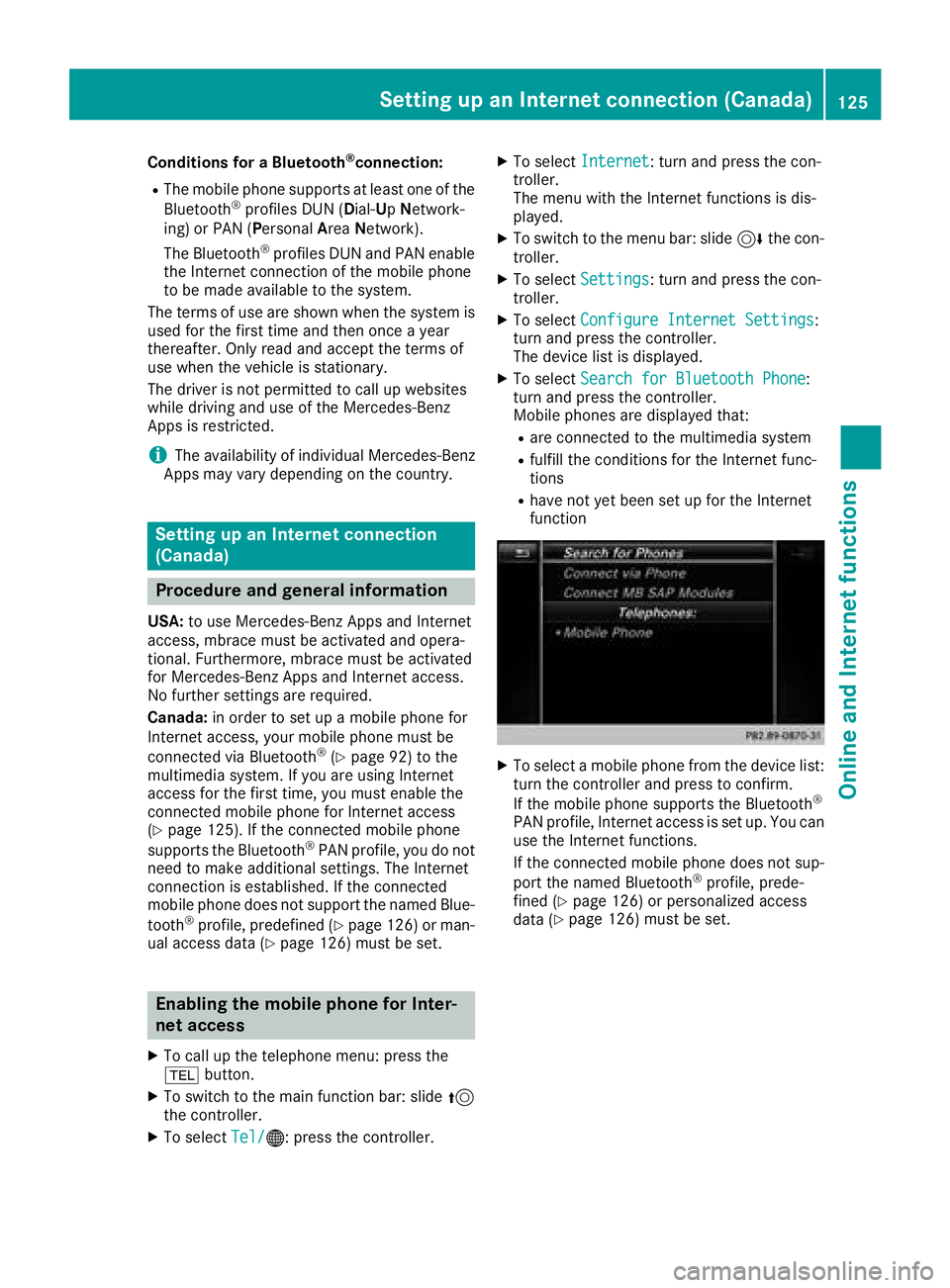
XTo select Search for Bluetooth Phone:
turn and press the controller.
Mobile phones are displayed that:
Rare connected to the multimedia system
Rfulfill the conditions for the Internet func-
tions
Rhave not yet been set up for the Internet
function
XTo select a mobile phone from the device list: turn the controller and press to confirm.
If the mobile phone supports the Bluetooth
®
PAN profile, Internet access is set up. You can
use the Internet functions.
If the connected mobile phone does not sup-
port the named Bluetooth
®profile, prede-
fined (Ypage 126) or personalized access
data (Ypage 126) must be set.
Setting up an Internet connection (Canada)125
Online and Internet functions
Z
Page 129 of 198
Input fieldMeaning
Auto DNS:Automatic allocation of
DNS servers is activated. If
the function is deactivated,
the DNS server addresses
must be entered manually.
DNS (DomainName
Service).
DNS1:
DNS2:
Fields for entering the DNS
server addresses manually.
The address can be
obtained from your mobile
phone network provider.
Managing existing access data
Calling up the device list
XTo call up the telephone menu: press the
% button.
XTo switch to the main function bar: slide 5
the controller.
XTo select Tel/®: press the controller.
XTo selectInternet: turn and press the con-
troller.
The menu with the Internet functions is dis-
played.
XTo switch to the menu bar: slide 6the con-
troller.
XTo select Settings: turn and press the con-
troller.
XTo select Configure Internet Settings:
turn and press the controller.
The device list is displayed.
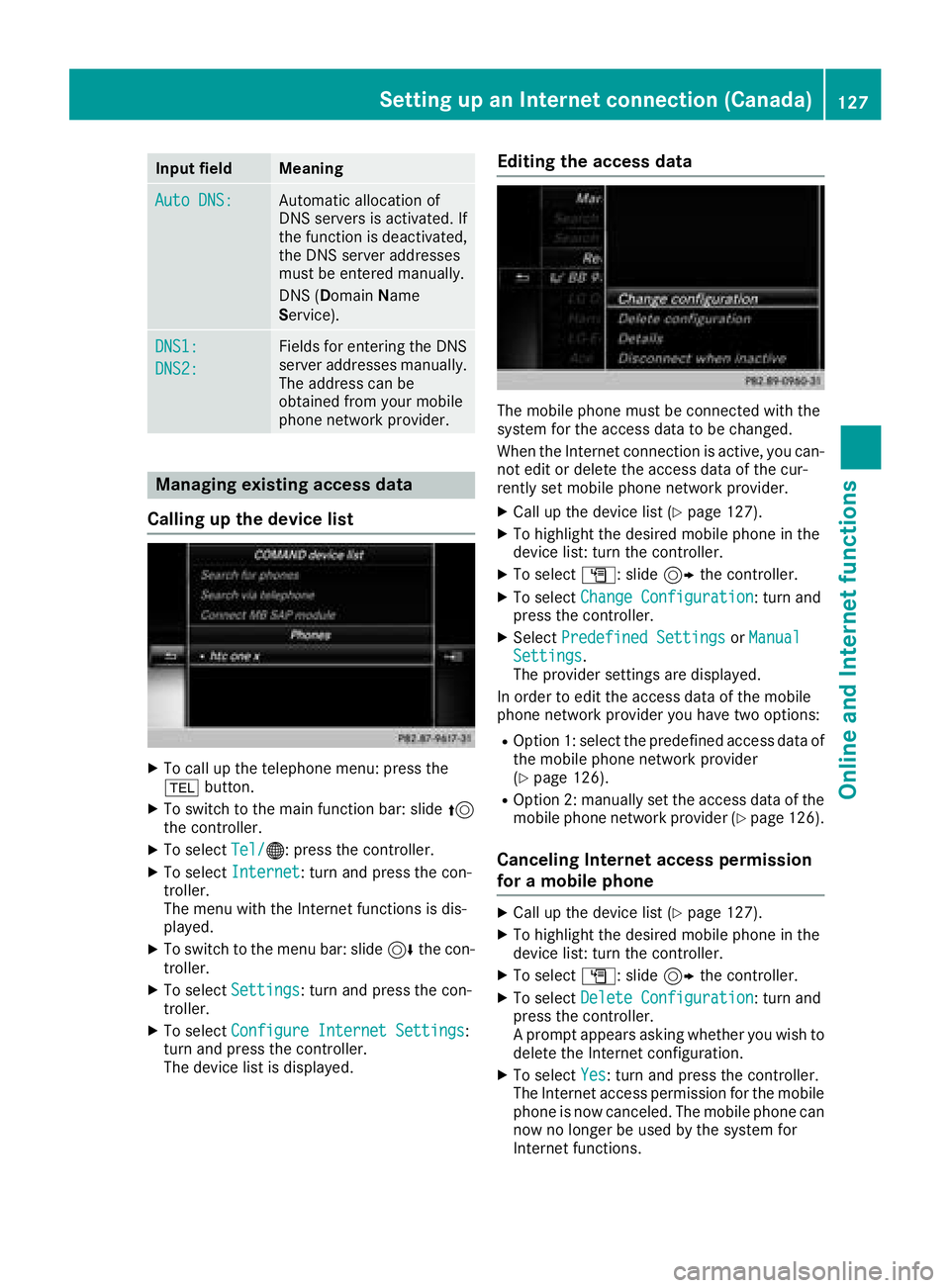
Editing the access data
The mobile phone must be connected with the
system for the access data to be changed.
When the Internet connection is active, you can-
not edit or delete the access data of the cur-
rently set mobile phone network provider.
XCall up the device list (Ypage 127).
XTo highlight the desired mobile phone in the
device list: turn the controller.
XTo select G: slide 9the controller.
XTo select Change Configuration: turn and
press the controller.
XSelect Predefined SettingsorManualSettings.
The provider settings are displayed.
In order to edit the access data of the mobile
phone network provider you have two options:
ROption 1: select the predefined access data of
the mobile phone network provider
(
Ypage 126).
ROption 2: manually set the access data of the
mobile phone network provider (Ypage 126).
Canceling Internet access permission
for a mobile phone
XCall up the device list (Ypage 127).
XTo highlight the desired mobile phone in the
device list: turn the controller.
XTo select G: slide 9the controller.
XTo select Delete Configuration: turn and
press the controller.
A prompt appears asking whether you wish to
delete the Internet configuration.
XTo select Yes: turn and press the controller.
The Internet access permission for the mobile
phone is now canceled. The mobile phone can
now no longer be used by the system for
Internet functions.
Setting up an Internet connection (Canada)127
Online and Internet functions
Z