ECU MERCEDES-BENZ G-CLASS 2018 COMAND Manual
[x] Cancel search | Manufacturer: MERCEDES-BENZ, Model Year: 2018, Model line: G-CLASS, Model: MERCEDES-BENZ G-CLASS 2018Pages: 198, PDF Size: 4.53 MB
Page 96 of 198
XTo selectConn. Device: turn and press the
controller.
The device list is displayed.
XTo select Search for Phones: turn and
press the controller.
A message is displayed that Bluetooth
®must
be activated on the mobile phone and must be
made visible to other devices.
XTo select StartSearch: press the controller.
The available mobile phones are displayed in
the device list.
The duration of the search depends on the num- ber of Bluetooth
®telephones within range and
their characteristics.
If a new phone is found, it appears in the device list with the Ïsymbol. You can now author-
ize (connect) the mobile phone found
(
Ypage 94).
If the maximum number of authorized devices in
the device list is reached, you will be requested
to de-authorize a mobile phone (
Ypage 96).
When you call up the device list again, de-
authorized devices will be removed from the list.
To update the device list, start the search again.
Symbols in the device list
Sym-
bolExplanation
ÏNew mobile phone found, not yet
authorized.
ÑMobile phone is authorized, but is
not connected.
#Mobile phone is authorized and
connected.
Authorizing a mobile phone (connect-
ing)
Authorization via Secure Simple Pairing
If the multimedia system has found your mobile
phone, you can authorize (connect) it.
XTo select a mobile phone from the device list: turn the controller and press to confirm.
A code is displayed in the multimedia system
and on the mobile phone. The code is the same
XMultimedia system:
selectYes.
XMobile phone: confirm the code. Depending
on the mobile phone used, you may have to
confirm the connection to the multimedia sys-
tem and for the PBAP and MAP Bluetooth
®
profiles separately. You may also save the
confirmation on the mobile phone (see the
manufacturer's operating instructions).
The mobile phone is now authorized and con-
nected to the multimedia system. You can
now speak using the hands-free system.
To ensure an optimum language quality, you can
set the mobile phone's transmission and recep-
tion volume (
Ypage 96).
The code is different
XMultimedia system: selectNo.
The process is canceled. Repeat the authori-
zation.
Authorization via passkey entry (access
code)
If the multimedia system has found your mobile
phone, you can authorize (connect) it.
XTo select a mobile phone from the device list: turn the controller and press to confirm.
The input menu for the passkey is displayed.
The passkey is a one- to sixteen-digit number
combination which you can choose yourself.
Depending on the mobile phone used, you
may have to enter a number sequence of four
digits or more.
XMultimedia system: enter the passkey using
the character bar.
XSelect ¬once all the numbers have been
entered.
XMobile phone: enter the same passkey and
confirm your entry. Depending on the mobile
phone used, you may have to confirm the
connection to the multimedia system and for
the PBAP and MAP Bluetooth
®profiles sepa-
rately. You may also save the confirmation on
the mobile phone (see the manufacturer's
operating instructions).
The mobile phone is now authorized and con-
nected to the multimedia system. You can
now speak using the hands-free system.
To ensure an optimum language quality, you can
set the mobile phone's transmission and recep-
tion volume (
Ypage 96).
94Connecting/disconnecting a mobile phone
Telephone
Page 97 of 198
If theAuthorization Failedmessage
appears, you may have entered a different pass-
key or exceeded the prescribed time limit.
Repeat the procedure.
iIf you wish to re-authorize the mobile phone
after de-authorizing it, you can choose
another passkey for it.
iMercedes-Benz recommends de-authoriza-
tion in the multimedia system as well as on
the mobile phone (
Ypage 96). Subsequent
authorization may otherwise fail.
Establishing the connection from the
mobile phone
The Bluetooth®device name of the multimedia
system is MB Bluetooth.
XMultimedia system: call up the telephone
menu.
XTo switch to the menu bar: slide 6the con-
troller.
XTo select Conn. Device: turn and press the
controller.
The device list is displayed.
XTo select Connect via Phone: turn and
press the controller.
A message is displayed, stating that you can
start the search on your mobile phone.
XMobile phone: start the search for a Blue-
tooth®device (see manufacturer's operating
instructions).
The multimedia system is displayed with the
name MB Bluetooth
in the mobile phone's
device list.
XSelect MB Bluetooth.
A prompt appears in the multimedia system's
display asking if the mobile phone should be
authorized.
XMultimedia system:select Yes.
If No
is selected, the procedure is canceled.
If your mobile phone supports Secure Simple
Pairing, a code is now displayed on both devi-
ces.
The code is the same
XMultimedia system:select Yes.
XMobile phone:confirm the code. Depending
on the mobile phone used, you may have to
confirm the connection to the multimedia sys-
tem and for the PBAP and MAP Bluetooth
®
profiles separately. You may also save the
confirmation on the mobile phone (see the
manufacturer's operating instructions).
The mobile phone is now authorized and con-
nected to the multimedia system. You can
now speak using the hands-free system.
To ensure an optimum language quality, you
can set the mobile phone's transmission and
reception volume (
Ypage 96).
The code is different
XMultimedia system:select No.
The process is canceled. Repeat the proce-
dure.
If your mobile phone does not support Secure
Simple Pairing, an input menu is displayed for
the passkey. The passkey is a one- to sixteen-
digit number combination which you can choose
yourself. Enter the same passkey in both the
multimedia system and on the mobile phone and
confirm. Depending on the mobile phone used,
you may have to confirm the connection to the
multimedia system and for the PBAP and MAP
Bluetooth
®profiles.
Reconnecting automatically
The multimedia system always searches for the
last connected mobile phone.
If no connection can be made to the most
recently connected mobile phone, the system
searches for the mobile phone that was con-
nected before that one.
Switching between mobile phones
If you have authorized more than one mobile
phone, you can switch between the individual
phones.
XTo call up the telephone menu: press the
% button.
XTo switch to the menu bar: slide 6the con-
troller.
XTo select Conn. Device: turn and press the
controller.
The device list is displayed.
XTo select the desired mobile phone: turn and press the controller.
The selected mobile phone is connected if it is
within Bluetooth
®range and if Bluetooth®is
activated.
Connecting/disconnecting a mobile phone95
Telephone
Z
Page 136 of 198
Your multimediasyste mequipment
These operatin ginstruction sdescribe all th e
standar dan doptional equipment of your multi-
media system, as available at th etime of going
to press. Country-specifi cdifference sare pos -
sible. Bear in min dthat your vehicle may no t
feature all function sdescribed here. Thi salso
applies to safety-relevan tsystems an dfunc-
tions.
Read th einformation on qualifie dspecialis t
workshop sin th evehicle Operator's Manual.
Switchin gon th eradi o
XPress th e$ button.
The radio display appears .You will hear th e
last station playe don th elast waveban d
selected.
Switching HD Radi oon/of f
XIn radio mode: slid e6 thecontroller .
XSelectOption s.
XBy selecting Oorª in fron tof HD Radi o,
you determin ewhether HD radio is switched
on or off.
If HD Radio is switched off, th esyste mdoe sno t
switch to digita lradio an dit is no tpossible to
selec tan ysub-channels.
iHD Radio ™Technology Manufactured
Under License From iBiquit yDigital Corp. U.S.
an dForeign Patents .The HD an dHD Radio
logos are proprietary trademark sof iBiquit y
Digital Corp.
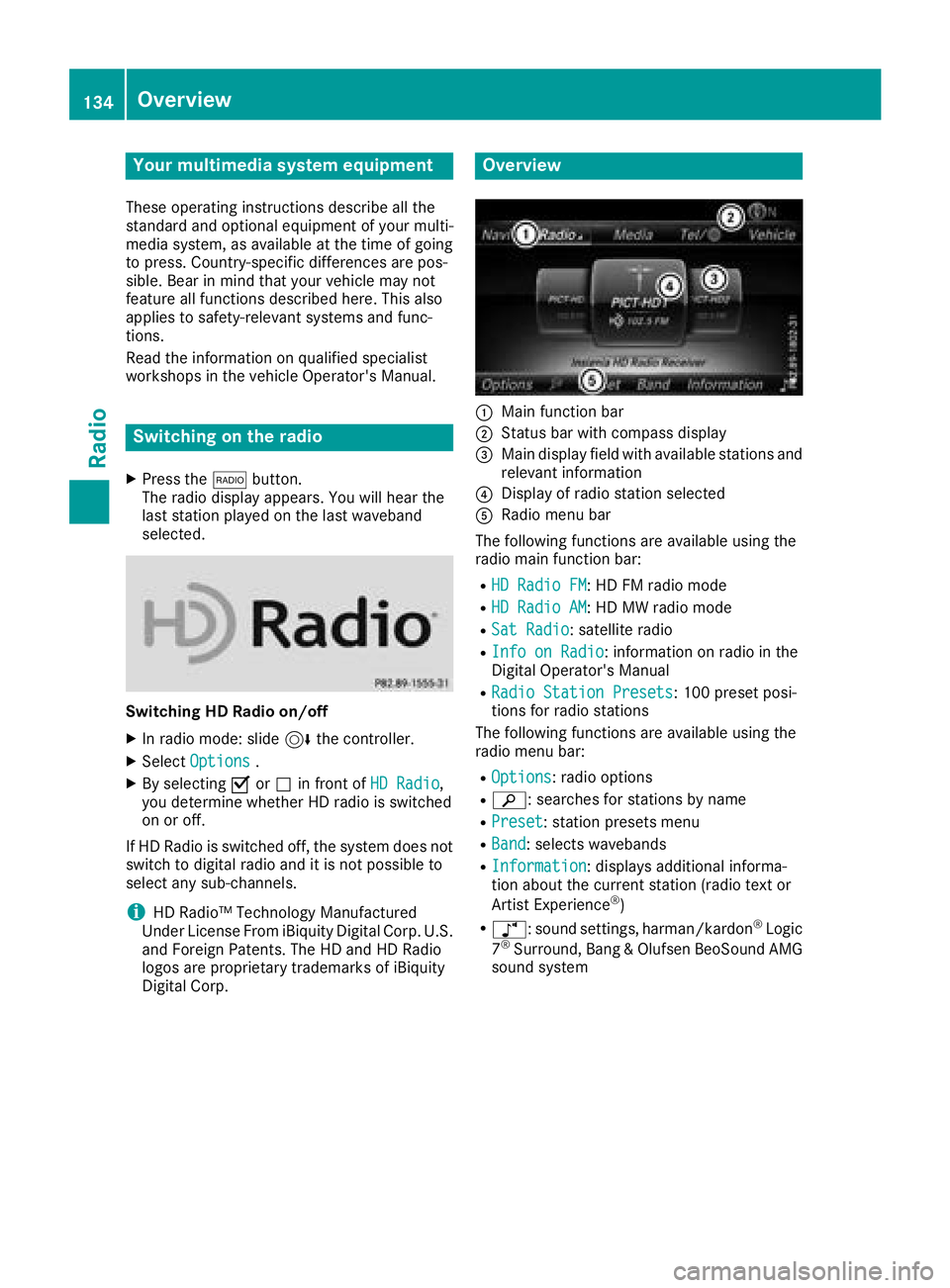
Overview
:Main function bar
;Status bar wit hcompass display
=Main display field wit havailable station san d
relevant information
?Display of radio station selecte d
ARadio menubar
The followin gfunction sare available usin gth e
radio main function bar :
RHD RadioFM:HD FM radio mode
RHD Radi oAM:HD MW radio mode
RSa tRadi o:satellite radio
RInfo on Radi o:information on radio in th e
Digital Operator's Manual
RRadi oStatio nPreset s:10 0preset posi-
tion sfo rradio station s
The followin gfunction sare available usin gth e
radio men ubar :
ROptions:radio option s
Rè:searches fo rstation sby name
RPreset:station preset smen u
RBand:selects wavebands
RInformatio n:displays additional informa-
tion about th ecurren tstation (radio text or
Artist Experience
®)
Rà :sound settings, harman/kardon®Logic
7®Surround ,Ban g &Olufsen BeoSoun dAM G
sound syste m
134Overview
Radio
Page 138 of 198
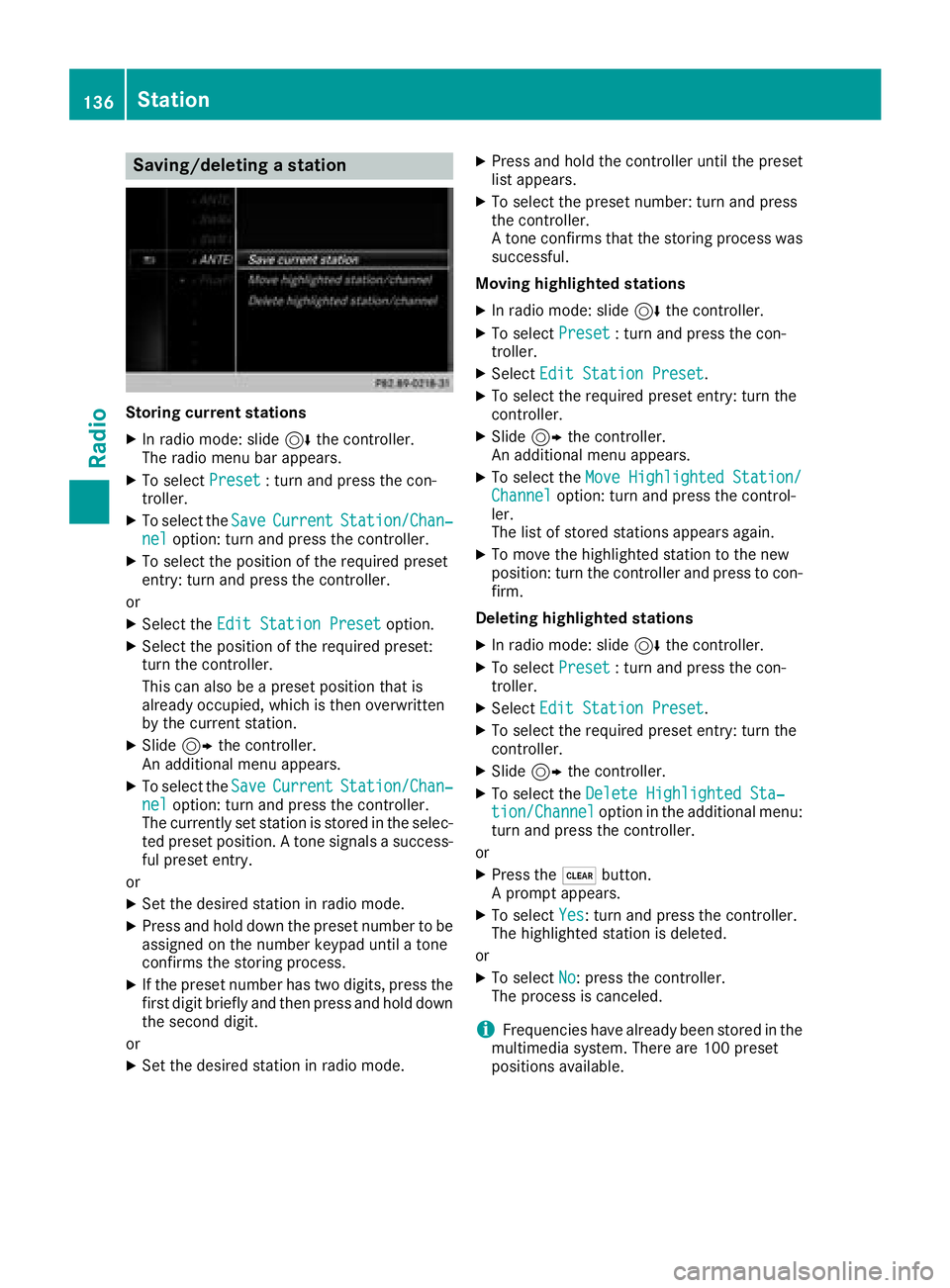
Saving/deleting a station
Storing current stations
XIn radio mode: slide6the controller.
The radio menu bar appears.
XTo select Preset: turn and press the con-
troller.
XTo select the SaveCurrentStation/Chan‐neloption: turn and press the controller.
XTo select the position of the required preset
entry: turn and press the controller.
or
XSelect the Edit Station Presetoption.
XSelect the position of the required preset:
turn the controller.
This can also be a preset position that is
already occupied, which is then overwritten
by the current station.
XSlide9the controller.
An additional menu appears.
XTo select the SaveCurrentStation/Chan‐neloption: turn and press the controller.
The currently set station is stored in the selec-
ted preset position. A tone signals a success-
ful preset entry.
or
XSet the desired station in radio mode.
XPress and hold down the preset number to be assigned on the number keypad until a tone
confirms the storing process.
XIf the preset number has two digits, press the
first digit briefly and then press and hold down the second digit.
or
XSet the desired station in radio mode.
XPress and hold the controller until the preset
list appears.
XTo select the preset number: turn and press
the controller.
A tone confirms that the storing process was
successful.
Moving highlighted stations
XIn radio mode: slide 6the controller.
XTo select Preset: turn and press the con-
troller.
XSelect Edit Station Preset.
XTo select the required preset entry: turn the
controller.
XSlide9the controller.
An additional menu appears.
XTo select the Move Highlighted Station/Channeloption: turn and press the control-
ler.
The list of stored stations appears again.
XTo move the highlighted station to the new
position: turn the controller and press to con-
firm.
Deleting highlighted stations
XIn radio mode: slide 6the controller.
XTo select Preset: turn and press the con-
troller.
XSelect Edit Station Preset.
XTo select the required preset entry: turn the
controller.
XSlide9the controller.
XTo select the Delete Highlighted Sta‐tion/Channeloption in the additional menu:
turn and press the controller.
or
XPress the $button.
A prompt appears.
XTo select Yes: turn and press the controller.
The highlighted station is deleted.
or
XTo select No: press the controller.
The process is canceled.
iFrequencies have already been stored in the
multimedia system. There are 100 preset
positions available.
136Station
Radio
Page 144 of 198
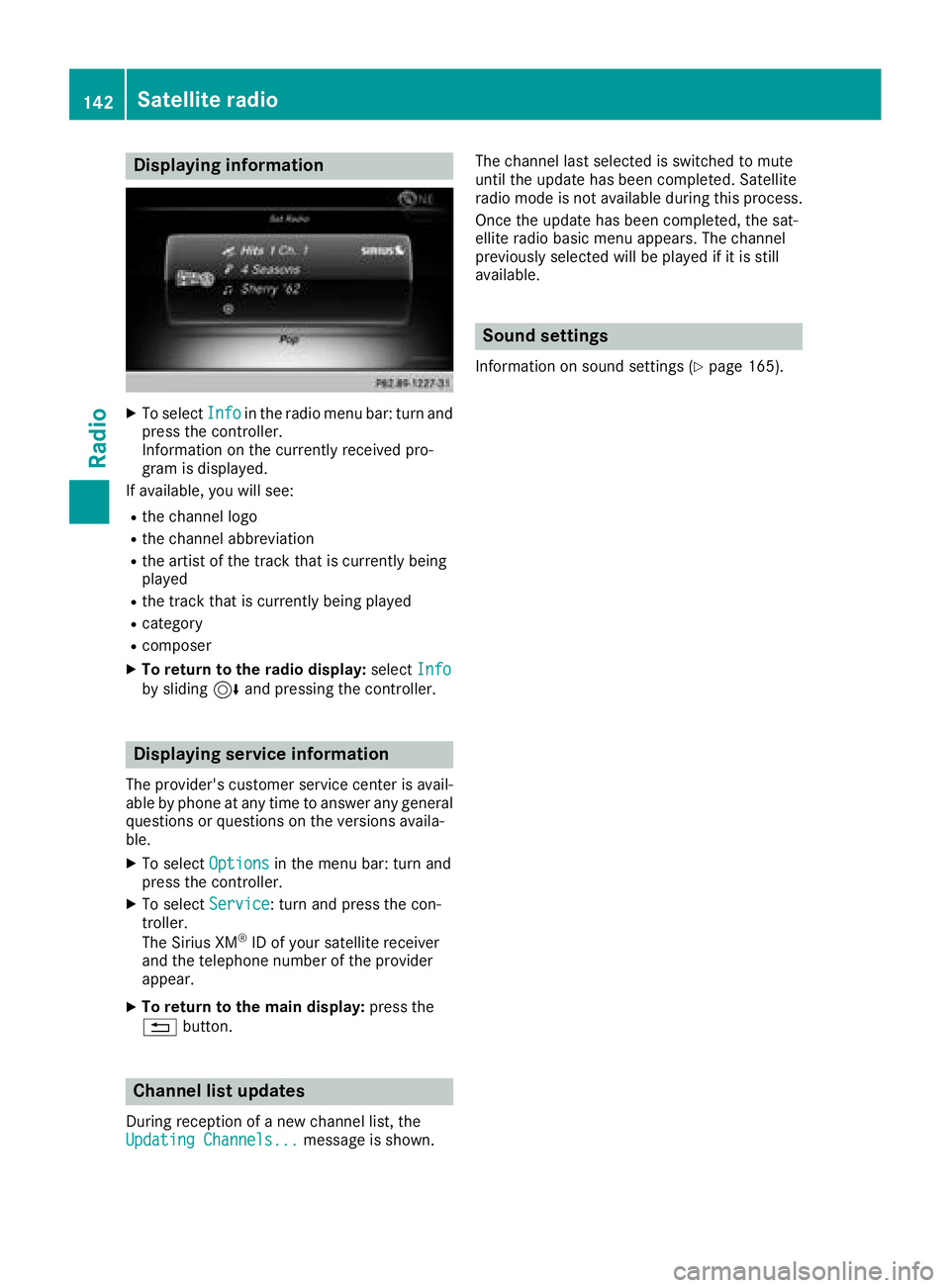
Displaying information
XTo selectInf oin th eradio men ubar :turn and
press th econtroller .
Information on th ecurrentl yreceived pro -
gram is displayed.
If available ,you will see :
Rthechannel log o
Rthechannel abbreviation
Rth eartist of th etrack that is currentl ybein g
playe d
Rthetrack that is currentl ybein gplaye d
Rcategory
Rcomposer
XTo return to th eradi odisplay :selec tInf oby slidin g6 and pressing th econtroller .
Displaying service information
The provider' scustomer servic ecenter is avail-
able by phone at any time to answer any genera l
question sor question son th eversions availa-
ble.
XTo selec tOption sin themen ubar :turn and
press th econtroller .
XTo selectServic e:turn and press th econ-
troller.
The Sirius XM
®ID of your satellite receiver
and th etelephon enumber of th eprovider
appear.
XTo return to th emain display :press th e
% button.
Channel list update s
Duringreception of ane wchannel list ,th e
Updating Channels...messag eis shown .The channel last selecte
dis switched to mut e
until th eupdat ehas bee ncompleted. Satellite
radio mode is no tavailable durin gthis process.
Once th eupdat ehas bee ncompleted, th esat -
ellite radio basi cmen uappears .The channel
previously selecte dwill be playe dif it is still
available .
Sound settings
Information on soun dsetting s (Ypage 165).
142Satellite radio
Radio
Page 150 of 198
Ejecting all CDs/DVDs
XTo show the magazine menu: press theV
button.
XSelect Eject All.
The last active disc is ejected.
The Please remove disc 1.
message
appears.
XRemove the disc.
XRepeat the last step until the magazine is
empty.
If you take too long removing the disc, the disc
is re-loaded.
Exiting a menu
XPress the Vbutton.
or
XSelect %in the magazine menu.
Inserting/removing an SD card
Important safety notes
GWARNING
SD cards are small parts. They can be swal-
lowed and cause choking. This poses an
increased risk of injury or even fatal injury.
Keep the SD card out of the reach of children. If a SD card is swallowed, seek medical atten-
tion immediately.
!If you are no longer using the SD card, you
should remove it and store it outside the vehi-
cle. High temperatures can damage the card.
The multimedia system supports SD cards
(Secure Digital), SDHC cards ( SecureDigital
High Capacity), and SDXC cards ( SecureDigital
eXtended Capacity.
Inserting an SD card
XInsert the SD card into the SD card slot on the
control panel until the SD card engages. The
side with the contacts must face down.
The medium is played and the files are loaded
in the background. If there are no supported
audio or video files, you will see a message to
this effect.
Removing an SD card
XPress the SD card.
The SD card is ejected.
XRemove the SD card.
Connecting USB devices
Two USB ports are located in the stowage space
under the armrest (Ypage 143).
XConnect the USB device with a suitable USB
port.
If the corresponding media display is visible,
the medium is played and the files are loaded
in the background. Otherwise, the system
does not automatically switch to USB. If there
are no supported audio or video files, you will
see a message to this effect.
iMP3 players must support Media Transfer
Protocol (MTP).
Selecting the playback option
XIn media mode, slide 6the controller.
The media menu bar is shown.
XTo select Options: turn and press the con-
troller.
Playing similar tracks
iThis option is available as soon as the music
collection has been read and analyzed.
XTo select Play More Like This: turn and
press the controller.
Selecting Play mode
XTo select PlaybackMode: turn and press the
controller.
XSelect Normal Track Sequence.
The current track list is played in the order it is
stored on the data medium.
XSelect Random Track List.
The current track list is played in random
order.
XSelect Random Medium.
All tracks on the data medium are played in
random order.
148Audio/video mode
Media
Page 156 of 198
Searching for and authorizing a Blue-
tooth®audio device
Searching for a Bluetooth®audio device
XSwitch on Bluetooth®audio mode
(Ypage 153).
XSlide 6the controller.
The media menu bar appears.
XTo select Options: turn and press the con-
troller.
XTo select BluetoothAudioDevices: press
the controller.
A new menu appears.
XTo select Search for Audio Devices:
press the controller.
A message appears.
XSelect Start Search.
The multimedia system searches for Blue-
tooth
®audio devices within range and adds
them to the Bluetooth®device list.
The duration of the search depends on the
number of Bluetooth
®audio devices within
range and their characteristics.
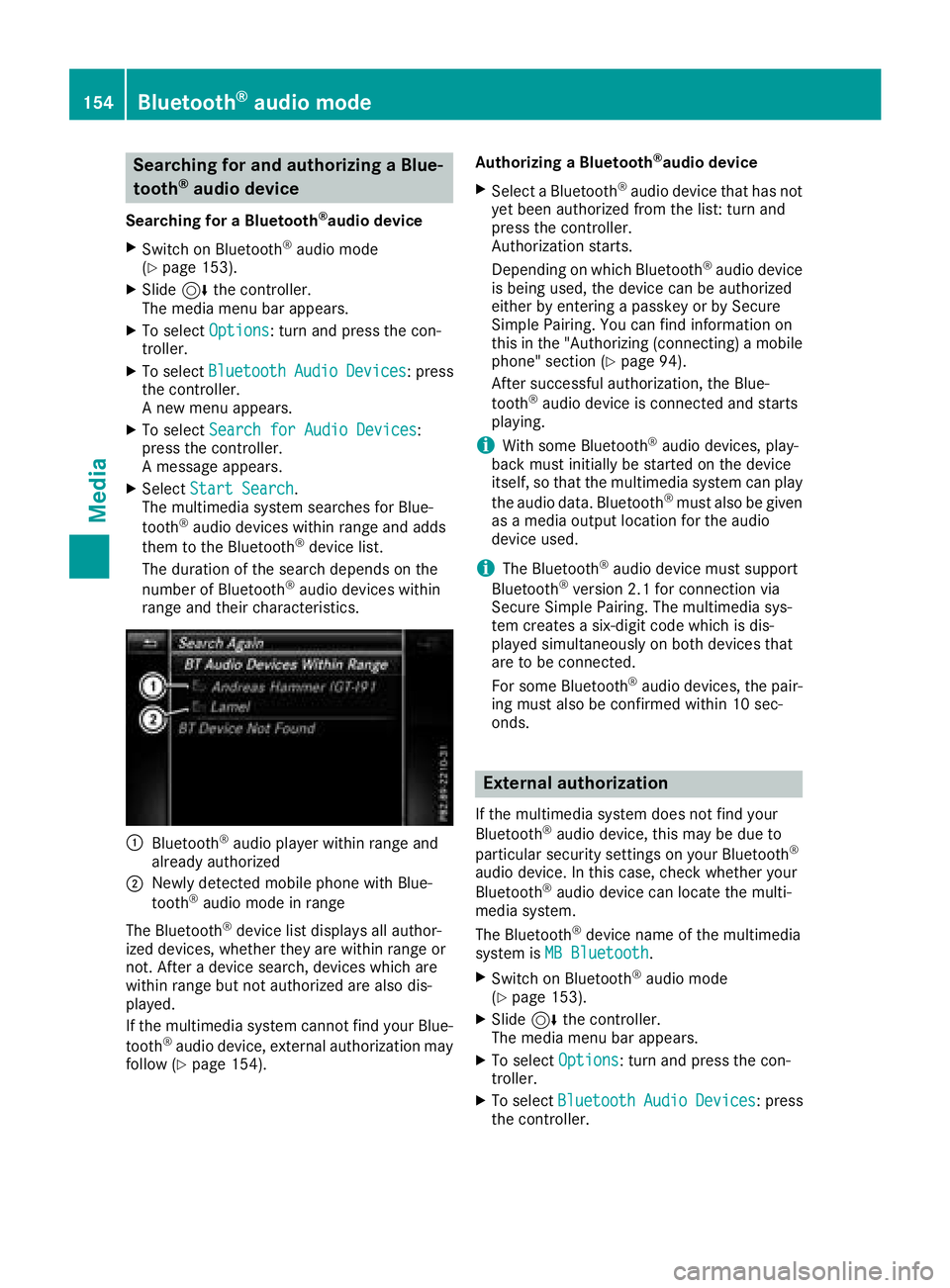
:Bluetooth®audio player within range and
already authorized
;Newly detected mobile phone with Blue-
tooth®audio mode in range
The Bluetooth
®device list displays all author-
ized devices, whether they are within range or
not. After a device search, devices which are
within range but not authorized are also dis-
played.
If the multimedia system cannot find your Blue-
tooth
®audio device, external authorization may
follow (Ypage 154). Authorizing a Bluetooth
®audio device
XSelect a Bluetooth®audio device that has not
yet been authorized from the list: turn and
press the controller.
Authorization starts.
Depending on which Bluetooth
®audio device
is being used, the device can be authorized
either by entering a passkey or by Secure
Simple Pairing. You can find information on
this in the "Authorizing (connecting) a mobile
phone" section (
Ypage 94).
After successful authorization, the Blue-
tooth
®audio device is connected and starts
playing.
iWith some Bluetooth®audio devices, play-
back must initially be started on the device
itself, so that the multimedia system can play
the audio data. Bluetooth
®must also be given
as a media output location for the audio
device used.
iThe Bluetooth®audio device must support
Bluetooth®version 2.1 for connection via
Secure Simple Pairing. The multimedia sys-
tem creates a six-digit code which is dis-
played simultaneously on both devices that
are to be connected.
For some Bluetooth
®audio devices, the pair-
ing must also be confirmed within 10 sec-
onds.
External authorization
If the multimedia system does not find your
Bluetooth®audio device, this may be due to
particular security settings on your Bluetooth®
audio device. In this case, check whether your
Bluetooth®audio device can locate the multi-
media system.
The Bluetooth
®device name of the multimedia
system is MB Bluetooth.
XSwitch on Bluetooth®audio mode
(Ypage 153).
XSlide 6the controller.
The media menu bar appears.
XTo select Options: turn and press the con-
troller.
XTo select BluetoothAudioDevices: press
the controller.
154Bluetooth®audio mode
Media
Page 181 of 198
Your multimediasyste mequipment
These operatin ginstruction sdescribe all th e
standar dan doptional equipment of your multi-
media system, as available at th etime of going
to press. Country-specifi cdifference sare pos -
sible. Bear in min dthat your vehicle may no t
feature all function sdescribed here. Thi salso
applies to safety-relevan tsystems an dfunc-
tions.
Read th einformation on qualifie dspecialis t
workshop sin th evehicle Operator's Manual.
Overview
Important safet ynotes
GWARNING
The CD/DVD drive is aclass 1lase rproduct.
If you ope nth ehousin gof th eCD/DVD drive,
there is aris kof exposure to invisible lase r
radiation .Thi slase rradiation could damage
your retina. There is aris kof injury.
Never ope nth ehousing. Always hav emain -
tenanc ean drepair wor kcarrie dout at aquali -
fie dspecialis tworkshop .
GWARNING
If objects suc has headphones/headset sor
external audio/video sources are no tsecure d
in th epassenger compartment, they can be
flun garound an dhit vehicle occupants .There
is aris kof injury, fo rexample in th eevent of
sudden braking or asudden change in direc -
tion .
Always stow these items or similar objects
carefully so that they canno tbe flung around ,
fo rexample in alockable vehicle stowag e
compartment.
Equipment
Observ ethat arange of Rear Seat Entertain -
men tSystems are available fo rMercedes-Ben z
vehicles .In this Operator's Manual, th eRear
Seat Entertainmen tSyste mCode 86 4is used
fo rillustration purposes. If you hav e adifferen t
Rear Seat Entertainmen tSyste min your vehicle,
please refer to th emanufacturer's operatin g
instructions.
Component s
The Rear Seat Entertainmen tSyste mincludes :
Rtwoscreens fo rth erea rbehin dth efront-seat
head restraints
Rtw oremot econtrols
Rasingle drive (rear-compartmen tdrive)
RAU Xjack son bot hrea rscreens (AUX display)
RAU Xjack son th erea rdrive (AUX drive)
Rheadphone sfo reac hrea rscree n
Rtwoset sof cordless headphone s
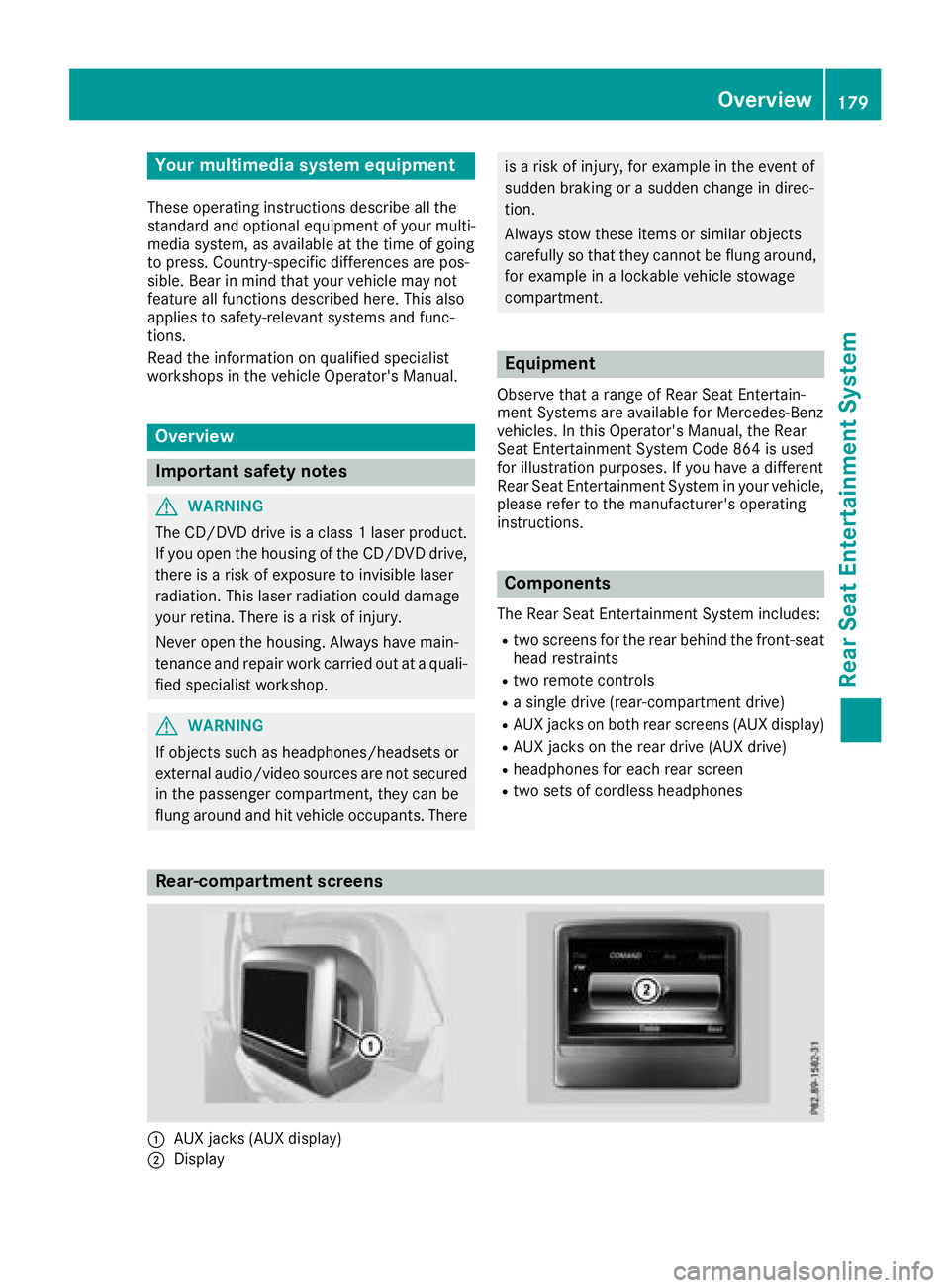
Rear-compartment screens
:AUXjack s(AUX display)
;Display
Overview179
Rear Seat Entertainment System
Z
Page 194 of 198
tings is determined by the DVD content. It may
also be possible to access the settings from the
DVD menu. This function is not available on all
DVDs.
XTo show the menu:press the9button on
the remote control.
XSelect DVD-Videoand press the 9button on
the remote control to confirm.
XSelect DVDFunctionsand press the 9but-
ton to confirm.
XSelect Audio Languageand press the 9
button to confirm.
A menu appears after a short while. The #dot
indicates the currently set language.
XSelect a language using the 9:but-
tons and press the 9button to confirm.
Subtitles and camera angle
These functions are not available on all DVDs.
The number of subtitle languages and camera
angles available depends on the content of the
DVD. It may also be possible to access the set-
tings from the DVD menu.
XTo show the menu: press the9button on
the remote control.
XSelect DVD-Videoand press the 9button on
the remote control to confirm.
XSelect DVDFunctionsand press the 9but-
ton to confirm.
XSelect SubtitlesorCamera Angleand
press the 9button to confirm.
In both cases, a menu appears after a few
seconds. The #dot indicates the current set-
ting.
XSelect a setting using the 9:buttons
and press the 9button to confirm.
Interactive content
DVDs can also contain interactive content (e.g.
a video game). In a video game, you may be able
to influence events, for example, by selecting
and triggering actions. The type and number of
actions depend on the DVD.
XSelect an action using the
9;:= buttons on the remote
control and press the 9button to execute it.
A menu appears and the first entry, Select
, is
highlighted.
XPress the 9button.
Active COMAND media source mode
Overview
You can transfer a media source selected in the
multimedia system to the Rear Seat Entertain-
ment System. If you switch the media source in
the multimedia system, this will not be transfer-
red to the Rear Seat Entertainment System.
You can transfer these media sources to the
Rear Seat Entertainment System:
RRadio
RCD or MP3 mode (CD, SD card, USB)
RMedia Interface
RVideo DVD mode
Follow the sequence described below when
playing a media source from the multimedia
system on the Rear Seat Entertainment System.
1. Switching on the function in the
multimedia system
XSwitch on the radio (Ypage 134).
XSwitch CD or MP3 mode on (CD, SD card,
USB) (Ypage 143).
XSwitch on the media interface (Ypage 157).
XSwitch to video DVD mode (Ypage 160).
192Active COMAND media source mode
Rear Seat Entertainment System