phone MERCEDES-BENZ G-CLASS 2018 COMAND Manual
[x] Cancel search | Manufacturer: MERCEDES-BENZ, Model Year: 2018, Model line: G-CLASS, Model: MERCEDES-BENZ G-CLASS 2018Pages: 198, PDF Size: 4.53 MB
Page 31 of 198
Character entry (telephony)
Entering characters using the charac-
ter bar
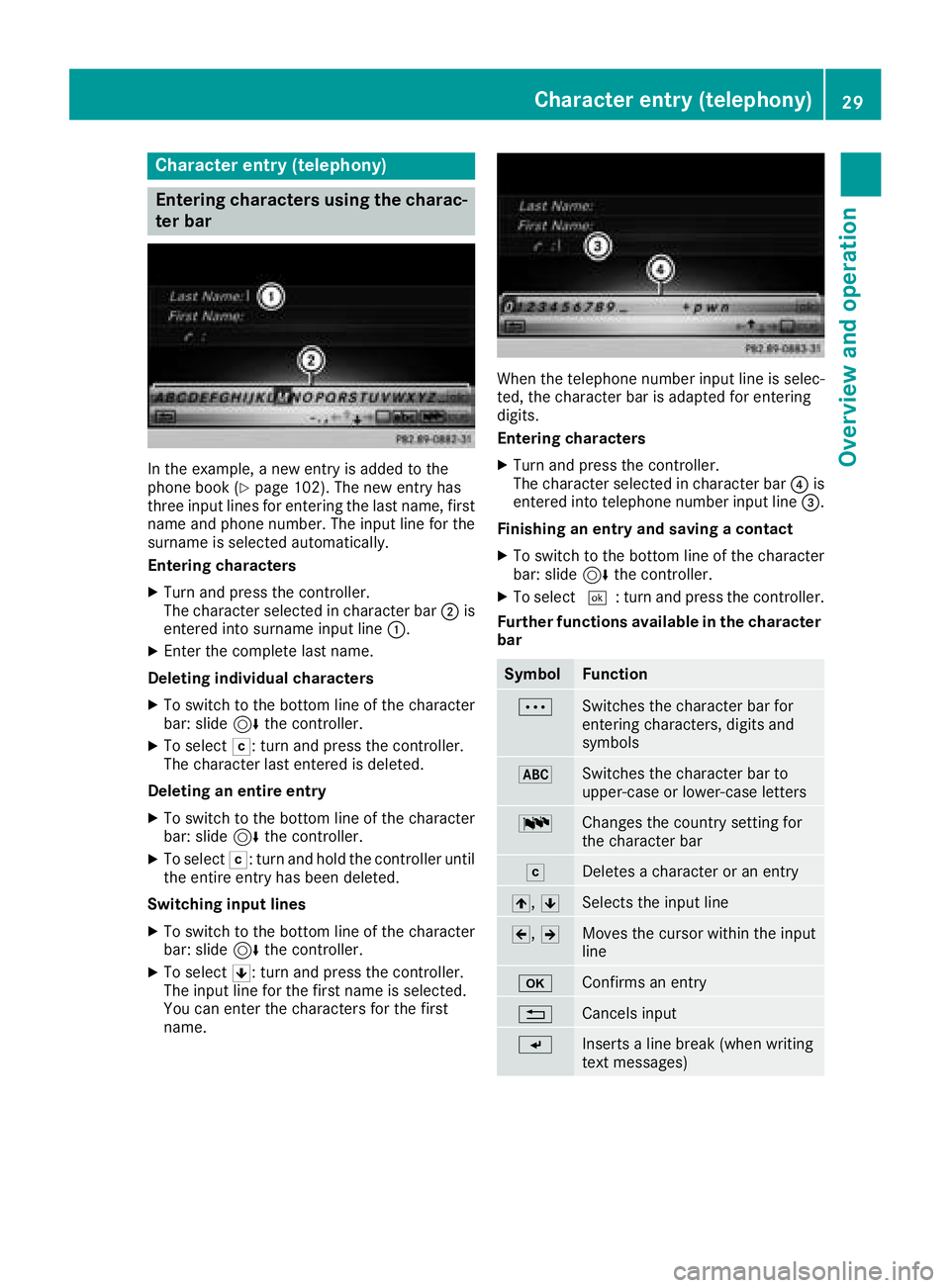
In the example, a new entry is added to the
phone book (Ypage 102). The new entry has
three input lines for entering the last name, first name and phone number. The input line for the
surname is selected automatically.
Entering characters
XTurn and press the controller.
The character selected in character bar ;is
entered into surname input line :.
XEnter the complete last name.
Deleting individual characters
XTo switch to the bottom line of the character
bar: slide 6the controller.
XTo select F: turn and press the controller.
The character last entered is deleted.
Deleting an entire entry
XTo switch to the bottom line of the character
bar: slide 6the controller.
XTo select F: turn and hold the controller until
the entire entry has been deleted.
Switching input lines
XTo switch to the bottom line of the character
bar: slide 6the controller.
XTo select 5: turn and press the controller.
The input line for the first name is selected.
You can enter the characters for the first
name.
When the telephone number input line is selec-
ted, the character bar is adapted for entering
digits.
Entering characters
XTurn and press the controller.
The character selected in character bar ?is
entered into telephone number input line =.
Finishing an entry and saving a contact
XTo switch to the bottom line of the character
bar: slide 6the controller.
XTo select ¬: turn and press the controller.
Further functions available in the character bar
SymbolFunction
ÄSwitches the character bar for
entering characters, digits and
symbols
*Switches the character bar to
upper-case or lower-case letters
BChanges the country setting for
the character bar
FDeletes a character or an entry
4, 5Selects the input line
2,3Moves the cursor within the input
line
bConfirms an entry
%Cancels input
SInserts a line break (when writing
text messages)
Character entry (telephony)29
Overview and operation
Page 34 of 198
Adding favorites
Adding predefined favorites
XPress th efavorite sbutto non th econtroller .
The favorite sare displayed.
XTo sho wthemen ubar :slid e6 thecon-
troller .
XTo select Reassign:tur nand press th econ-
troller .
The categorie sfor th eavailable favorite sare
displayed.
XTo select acategory: turnth econtroller and
press to confirm .
The corresponding favorite sare displayed.
XTo select afavorite: turnand press th econ-
troller .
XTo add afavorit eat th edesired position:
tur nand press th econtroller .
If there is already afavorite at this position ,
then this will be deleted.
Adding your own favorites
You can creat eyour own favorite sto help you to
use these functions, for example:
RCallin gup telephon enumber sfrom th etele-
phone book
RSelecting aradi ostation
RSkippin gto aspecific plac ein atrack or an
audio book
RCallin gup favore dmedia
RSelecting navigation destination sfor rout e
calculation
The exampl edescribes how to add acontact's
telephon enumber as afavorite .
XCall up th ephone book (Ypage 101).
XSelectth econtact .
XTo add atelephone number as afavorit e
at th edesired position: press and hold the
favorite sbutto non th econtroller until th e
favorite sare displayed.
XTurn and press th econtroller .
If there is already afavorite at this position ,it
will be delete dand replace dby ane wone.
Renaming favorites
XPress th efavorite sbutto non th econtroller .
The favorite sare displayed.
XTo select afavorit eto be renamed: turnth e
controller .
XTo showthemen ubar :slid e6 thecon-
troller .
XTo select Rename:tur nand press th econtrol -
ler .
XEnte rcharacters usin gth econtroller .
XTo finish th eentry :select OK.
The favorite is renamed .
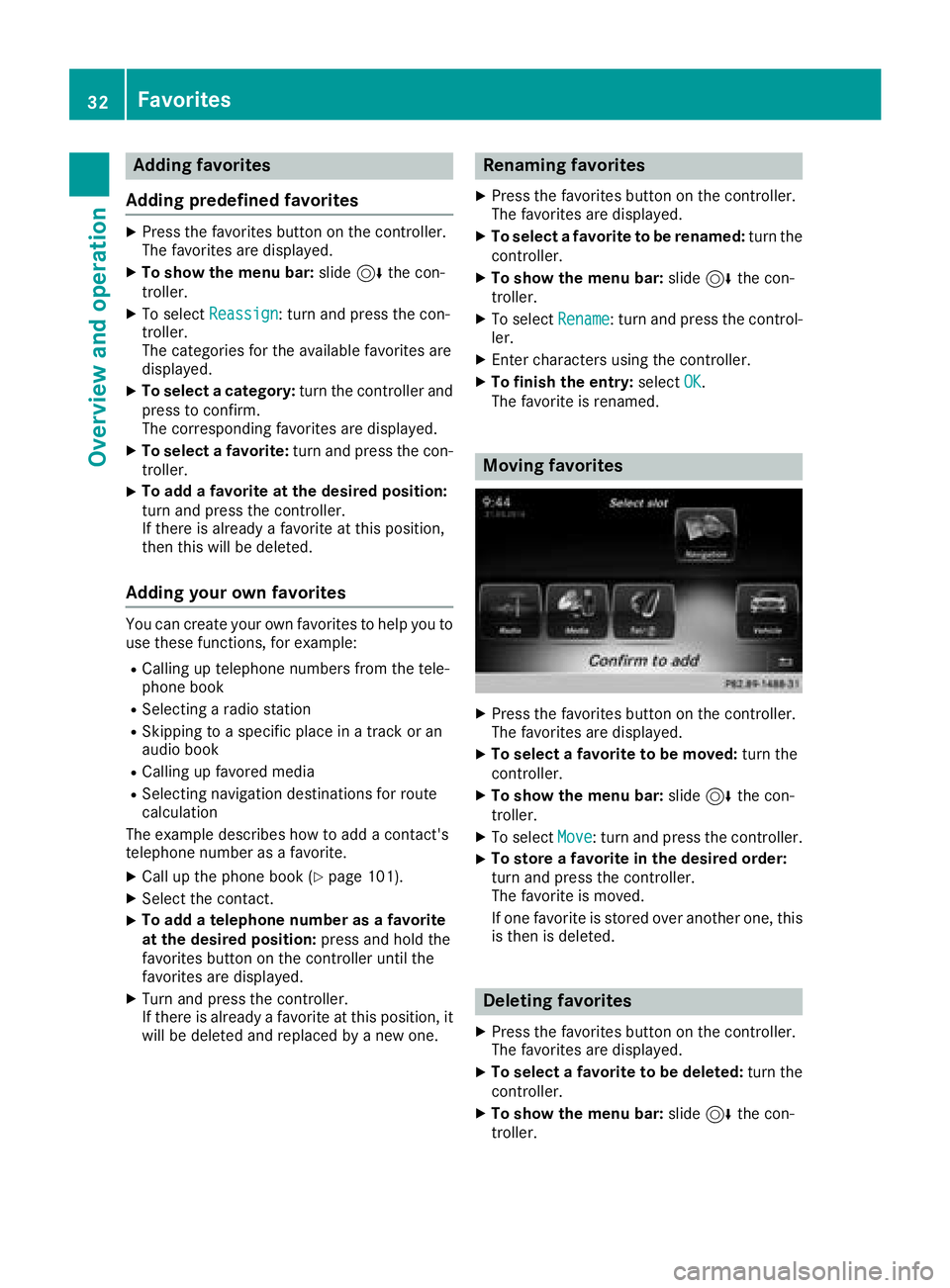
Moving favorites
XPress thefavorite sbutto non th econtroller .
The favorite sare displayed.
XTo select afavorit eto be moved: turnth e
controller .
XTo showthemen ubar :slid e6 thecon-
troller .
XTo select Move:tur nand press th econtroller .
XTo storeafavorit ein th edesired order:
tur nand press th econtroller .
The favorite is moved.
If on efavorite is store dove ranother one, this
is then is deleted.
Deleting favorites
XPress th efavorite sbutto non th econtroller .
The favorite sare displayed.
XTo select afavorit eto be deleted: turnth e
controller .
XTo showthemen ubar :slid e6 thecon-
troller .
32Favorites
Overview and operation
Page 39 of 198
AbbreviationMeaning
YYYY-MM-DDYear - Month - Day
date format, year (all
fourdigits)
YY/MM/DDYear/Month /Day
date format, year (two
digit s)
MM/DD/YYYYMonth /Day/Year
date format, year (all
four digits)
HH:MM (24 hrs)Hours : Minutes
(24 hour time format)
HH:MM (AM/PM)Hours : Minutes
(AM/PM time format)
Text reader settings
XPress the Øbutton on the control panel.
or
XPress Vehicleinthe main function bar.
The veh iclemenu is displ ayed.
XToswit ch to the menu bar: slide6the con-
troller.
XTo select System Settings: turn and press
the controller.
A menu appears.
XTo select Text Reader Speed: turn and
press the controller.
A list appears.
XSelect Fast,Mediumor Slow.
The #dot indicates the current setting.
Voice Control System settings
Opening/closing the help window
i
If the set system language isnot supported
by the Voice Control System, English will be
selected.
The help window also shows you information on
audible instructions:
Rduring individualization
Rduring subsequent operation of the Voice
Control System
XPress the Øbutton.
XToswit ch to the menu bar: slide 6the con-
troller.
XTo select System Settings: turn and press
the controller.
A menu appears.
XTo select VoiceControl: turn and press the
controller.
XTo activate Oor deactivate ªHelp Win‐dow: press the controller.
Further information on the Voice Control Sys-
tem; see the separate operating instructions.
Individualization
Using ind ividualization, you can fine-tune the
Voice Control System to your own voice. This
will help improve voice recognition; see the sep-
arate operating instructions.
Wi-Fi
Overview (USA)
Establishing a Wi-Fi connection between the
multimedia system and a Wi-Fi-enabled device,
such as a tablet computer or smartphone,
requires the foll owing:
RWi-Fi must be activated on the multimedia
system and on the device to be connected.
If the multimedia system isto be used as a Wi-Fi
hotspot:
RThe multimedia system must beconnected to
an Internet-enabled mobile phone via Blue-
tooth
®or USB.
RThe Internet access data for the mobile phone
network provider is selected or set inthe mul-
timedia system.
RAn Internet connection must be established
on the multimedia system.
Wi-Fi37
System settings
Z
Page 40 of 198
Overview (Canada)
The following requirements for establishing a
Wi-Fi connection between the multimedia sys-
tem and a Wi-Fi hotspot of a Wi-Fi-enabled
device, such as a smartphone, or another hot-
spot must be met:
RWi-Fi must be enabled on the multimedia sys-
tem.
RSwitch on Wi-Fi hotspot on the external
device; see the manufacturer's operating
instructions.
Activating Wi-Fi (USA)
XPress theØbutton.
or
XPress Vehiclein the main function bar.
The vehicle menu is displayed.
XTo switch to the menu bar: slide 6the con-
troller.
XTo select System Settings: press the con-
troller.
XTo select WiFi: turn and press the controller.
The Wi-Fi menu appears.
XTo select OActivate: press the controller.
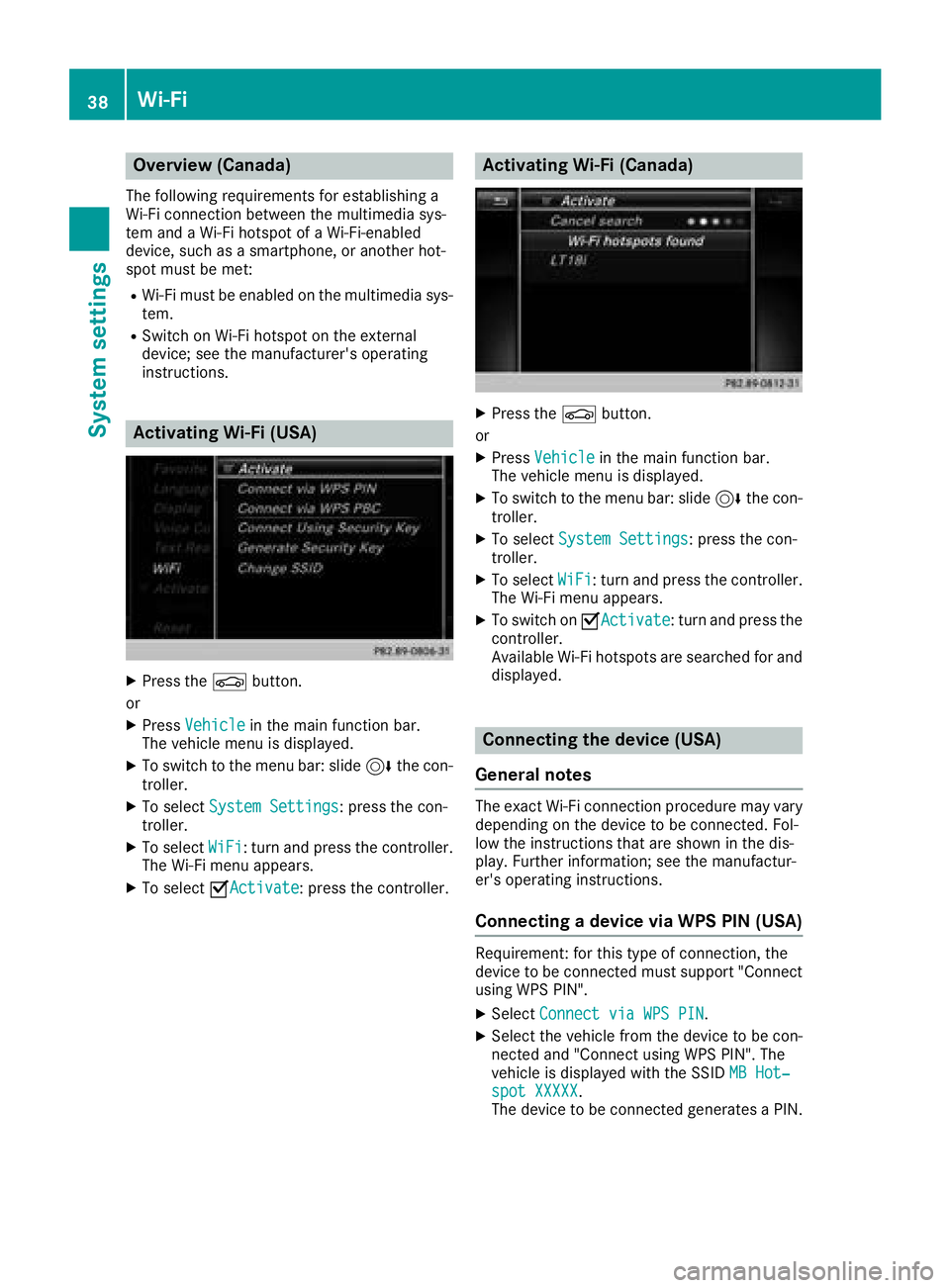
Activating Wi-Fi (Canada)
XPress the Øbutton.
or
XPress Vehiclein the main function bar.
The vehicle menu is displayed.
XTo switch to the menu bar: slide 6the con-
troller.
XTo select System Settings: press the con-
troller.
XTo select WiFi: turn and press the controller.
The Wi-Fi menu appears.
XTo switch on OActivate: turn and press the
controller.
Available Wi-Fi hotspots are searched for and
displayed.
Connecting the device (USA)
General notes
The exact Wi-Fi connection procedure may vary
depending on the device to be connected. Fol-
low the instructions that are shown in the dis-
play. Further information; see the manufactur-
er's operating instructions.
Connecting a device via WPS PIN (USA)
Requirement: for this type of connection, the
device to be connected must support "Connect
using WPS PIN".
XSelect Connect via WPS PIN.
XSelect the vehicle from the device to be con-
nected and "Connect using WPS PIN". The
vehicle is displayed with the SSID MB Hot‐
spot XXXXX.
The device to be connected generates a PIN.
38Wi-Fi
System settings
Page 42 of 198
Connecting the device (Canada)
General notes
The exact Wi-Fi connection procedure may vary
depending on the device to be connected. Fol-
low the instructions that are shown in the dis-
play. Further information; see the manufactur-
er's operating instructions.
Selecting a hotspot (Canada)
XPress the Øbutton.
or
XPress Vehiclein the main function bar.
The vehicle menu is displayed.
XTo switch to the menu bar: slide 6the con-
troller.
XTo select System Settings: turn and press
the controller.
XTo select WiFi: turn and press the controller.
The Wi-Fi menu appears. A search for hot-
spots is carried out.
XTo select a hotspot: turn and press the con-
troller.
Connecting a device via WPS PBC (Can-
ada)
Requirement: for this type of connection, the
device to be connected must support "Connect
via push button".
XPress the Øbutton.
or
XPress Vehiclein the main function bar.
The vehicle menu is displayed.
XTo switch to the menu bar: slide 6the con-
troller.
XSelect System Settings.
XSelectWiFi.
The Wi-Fi menu appears.
XTo select one of the hotspots that has been
found: turn and press the controller.
XSelect Connect via WPS PBC.
XPress the push button on the device to be
connected.
XTo confirm the entry: press the controller.
Connecting a device via WPS PIN (Can-
ada)
Requirement: for this type of connection, the
device to be connected must support "Connect
using WPS PIN".
XPress the Øbutton.
or
XPress Vehiclein the main function bar.
The vehicle menu is displayed.
XTo switch to the menu bar: slide 6the con-
troller.
XSelect System Settings.
XTo select WiFi: turn and press the controller.
The Wi-Fi menu appears.
XTo select one of the hotspots that has been
found: turn and press the controller.
XSelect Connect via WPS PIN.
XEnter the WPS PIN generated by the multime-
dia system into the device.
XTo confirm the entry: press the controller.
Bluetooth®settings
General information about Blue-
tooth®
Bluetooth®-capable devices, e. g. mobile
phones, need to comply with a certain profile in
order to be connected to the multimedia sys-
tem. Every Bluetooth
®device has its own spe-
cific Bluetooth®name.
Bluetooth®technology is a standard for short-
range wireless data transmissions up to approx-
imately 10 m.
You can use Bluetooth
®to connect your mobile
phone to the multimedia system, for example:
Ruse the hands-free system
Restablish an Internet connection
Rlisten to music using Bluetooth®Audio
Rexchange vCards
Bluetooth®is a registered trademark of Blue-
tooth Special Interest Group (SIG) Inc.
40Bluetooth®settings
System settings
Page 43 of 198
Activating/deactivating Bluetooth®
X
Press th eØ button.
or
XPress Vehicl ein themain function bar.
The vehicl emen uis displayed.
XTo switch to th emen ubar: slid e6 thecon-
troller .
XTo select System Settings:tur nand press
th econtroller .
A men uappears.
XTo activat eO or deactivat eª ActivateBluetooth:tur nand press th econtroller .
Setting the system language
General inform ation
This function allows you to determine th elan -
guage for th emen udisplays and th enavigation
messages. The selected language affects th e
characters available for entry.
iThe navigation announcements are no t
available in all languages. If alanguage is no t
available, th enavigation announcements will
be in English.
iWhen you set th esystem language ,th elan -
guage of th eVoic eControl Syste mwill
chang eaccordingly. If it is no tsupported by
th eVoic eControl System, Englis hwill be
selected.
Setting the system language
XPress th eØ button.
or
XPress Vehicl ein themain function bar.
The vehicl emen uis displayed.
XTo switch to th emen ubar: slid e6 thecon-
troller .
XTo select System Settings:tur nand press
th econtroller .
A men uappears.
XTo select Language:tur nand press th econ-
troller .
The list of language sappears. The #dot indi-
cates th ecurren tsetting .
XSelectth edesired language .
The multimedia system loads th eselected
language and set sit.
Calling up the favorite functions
The favorite sfunction can be called up as fol -
lows :
Rvia th eSystem Settingsmen u
Rvia th eFavorite sbutto non th econtroller
(Ypage 21)
Rvia th eFavorite sbutto non th etouchpad
(Ypage 22 )
Calling up th eFavorites function via th esys -
tem men u
XPress theØ button.
or
XPress Vehicl ein themain function bar.
The vehicl emen uis displayed.
XTo switch to th emen ubar: slid e6 thecon-
troller .
XTo select System Settings:tur nand press
th econtroller .
A men uappears.
XTo select Favorite Functions:press th e
controller .
The favorite sare displayed.
XTo select th edesired function ,e.g. Phone‐book:tur nand press th econtroller .
A men uappears.
Calling up th eFavorites function using th e
controller
XPress th efavorite sbutto non th econtroller .
The favorite sare displayed.
XTo select th edesired function ,e.g. Phone‐book:tur nand press th econtroller .
Calling up th eFavorites function via th e
touchpad
XPress th efavorite sbutto non th etouchpad.
The favorite sare displayed.
XTo select th edesired function ,e.g. Phone‐book:tur nand press th econtroller .
Calling up the favorite functions41
System settings
Z
Page 45 of 198
XTo switch to the menu bar: slide6the con-
troller.
XTo select System Settings: turn and press
the controller.
A menu appears.
XTo select Data Import/Export: turn and
press the controller.
XSelect Import DataorExport Data.
If PIN protection is activated, a PIN prompt
appears when you select Export Data
.
XTo enter the 4-digit PIN and select ¬: turn
and press the controller.
PIN protection is deactivated.
XTo select MemoryCard,USB 1or USB 2: turn
and press the controller.
This function exports all the data to the selec-
ted disc.
iYou can export address data, bookmarks,
system settings that you have made and radio
station lists, for example.
Mercedes-Benz is not liable for any loss of
data.
Reset function
General information
You can reset the multimedia system to the fac-
tory settings. This includes the deletion of all of
your personal data on the multimedia system.
These include:
RStation presets
REntries in the destination memory
REntries in the list of previous destinations in
the navigation system
REntries in the address book
RAuthorized telephone
In addition, an activated PIN protection, which
you have used to protect your data against
unwanted export, will be deactivated. Resetting
is recommended before selling or transferring
ownership of your vehicle, for example.
Mercedes-Benz is not liable for any loss of data.
Resetting the multimedia system
XPress the Øbutton.
or
XPress Vehiclein the main function bar.
The vehicle menu is displayed.
XTo switch to the menu bar: slide 6the con-
troller.
XTo select System Settings: turn and press
the controller.
XTo select Reset: turn and press the controller.
A prompt appears asking whether you wish to
reset.
XSelect Yes.
A prompt appears again asking whether you
really wish to reset.
XSelect Yes.
The multimedia system is reset to the factory
settings and restarted.
Reset function43
System settings
Z
Page 54 of 198
Your multimediasyste mequipment
These operatin ginstruction sdescribe all th e
standar dan doptional equipment of your multi-
media system, as available at th etime of going
to press. Country-specifi cdifference sare pos -
sible. Bear in min dthat your vehicle may no t
feature all function sdescribed here. Thi salso
applies to safety-relevan tsystems an dfunc-
tions.
Read th einformation on qualifie dspecialis t
workshop sin th evehicle Operator's Manual.
Introduction
Important safet ynotes
GWARNING
If you operat einformation systems an dcom-
munication equipment integrated in th evehi-
cl e whil edriving, you will be distracted from
traffic conditions. You could also los econtro l
of th evehicle. There is aris kof an accident.
Only operat eth eequipment when th etraffic
situation permits. If you are no tsur ethat this
is possible, par kth evehicle payin gattention
to traffic condition san doperat eth eequip-
men twhen th evehicle is stationary.
You mus tobserv eth elegal requirements fo rth e
country in whic hyou are currentl ydrivin gwhen
operatin gth emultimedia system.
The multimedia syste mcalculates th erout eto
th edestination without taking accoun tof th e
following, fo rexample:
Rtraffic lights
Rstop an dyield signs
Rmergin glanes
Rparking or stoppin gin ano parking/n ostop-
pin gzone
Rother road an dtraffic rule san dregulation s
Rnarrow bridge s
The multimedia syste mmay provid eincorrec t
navigation recommendation sif th eactual
street/traffic situation doe sno tcorrespon d
wit hth edigita lmap's data.
Examples of suc hdeviation sincl ude:
Ra
diverted rout e
Rachange in th edirection of aone-way stree tDigital map
sdo no tcover all areas no rall routes
in an area.
Fo rthis reason ,you mus talways observ eroad
an dtraffic rule san dregulation sdurin gyour
journey. Road an dtraffic rule san dregulation s
always hav epriorit yover th esystem' sdrivin g
recommendations.
Navigation announcement sare intended to
direc tyou whil edrivin gwithout divertin gyour
attention from th eroad an ddriving.
Please always use this feature instead of con-
sultin gth emap display fo rdirections. Lookin g
at th eicon sor map display can distract you from
traffic condition san ddriving, an dincrease th e
ris kof an accident.
General notes
Operationa lreadines sof th enavigation
syste m
The navigation syste mmus tdetermin eth eposi-
tion of th evehicle befor efirst use or wheneve r
operational status is restored .Therefore, you
may hav eto drive fo r awhil ebefor eprecise
rout eguidance is possible.
GP Sreception
Amon gother things, correc tfunctionin gof th e
navigation syste mdepends on GPS reception .In
certain situations, GPS reception may be
impaired, there may be interferenc eor there
may be no reception at all, e.g. in tunnels or
parking garages .
iUsing roof carriers may impair th ecorrec t
functionin gof aroof antenn a(phone, satellite
radio, GPS).
Entry restriction
Fo rvehicles in certain countries, there is adat a
entr yrestriction .
Entries can be mad ewhen th eselecto rlever is in
position Por th evehicle is stationary.
Whe nth erestriction is active ,certain entries
canno tbe made. Thi swill be indicated by th e
fac tthat certain men uitems are grayed out an d
canno tbe selected.
52Introduction
Navigation
Page 57 of 198
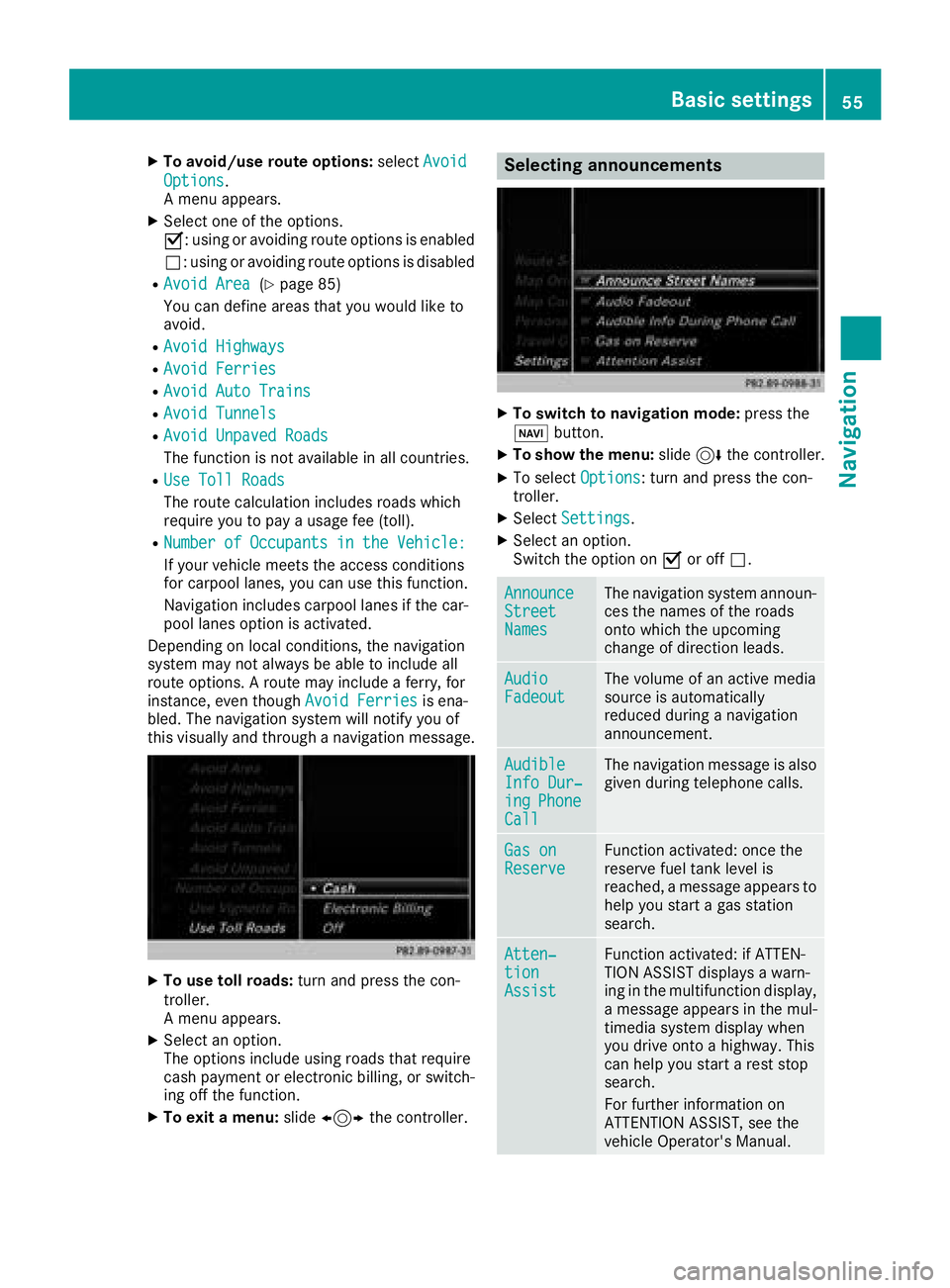
XTo avoid/use route options:selectAvoid
Options.
A menu appears.
XSelect one of the options.
O: using or avoiding route options is enabled
ª: using or avoiding route options is disabled
RAvoid Area(Ypage 85)
You can define areas that you would like to
avoid.
RAvoid Highways
RAvoid Ferries
RAvoid Auto Trains
RAvoid Tunnels
RAvoid Unpaved Roads
The function is not available in all countries.
RUse Toll Roads
The route calculation includes roads which
require you to pay a usage fee (toll).
RNumberofOccupantsintheVehicle:
If your vehicle meets the access conditions
for carpool lanes, you can use this function.
Navigation includes carpool lanes if the car-
pool lanes option is activated.
Depending on local conditions, the navigation
system may not always be able to include all
route options. A route may include a ferry, for
instance, even though Avoid Ferries
is ena-
bled. The navigation system will notify you of
this visually and through a navigation message.
XTo use toll roads: turn and press the con-
troller.
A menu appears.
XSelect an option.
The options include using roads that require
cash payment or electronic billing, or switch-
ing off the function.
XTo exit a menu: slide1 the controller.
Selecting announcements
XTo switch to navigation mode: press the
Ø button.
XTo show the menu: slide6the controller.
XTo select Options: turn and press the con-
troller.
XSelect Settings.
XSelect an option.
Switch the option on Oor off ª.
AnnounceStreetNames
The navigation system announ-
ces the names of the roads
onto which the upcoming
change of direction leads.
AudioFadeoutThe volume of an active media
source is automatically
reduced during a navigation
announcement.
AudibleInfo Dur‐ingPhoneCall
The navigation message is also
given during telephone calls.
Gas onReserveFunction activated: once the
reserve fuel tank level is
reached, a message appears to
help you start a gas station
search.
Atten‐tionAssist
Function activated: if ATTEN-
TION ASSIST displays a warn-
ing in the multifunction display,
a message appears in the mul-
timedia system display when
you drive onto a highway. This
can help you start a rest stop
search.
For further information on
ATTENTION ASSIST, see the
vehicle Operator's Manual.
Basic settings55
Navigation
Z
Page 62 of 198
XTo select POI:selectPOIs in the Vicin‐
ityorAllPOIsby turning and pressing con-
troller.
A list appears. The search results are dis-
played according to the linear distance, start-
ing with those closest.
XSelect a POI.
The POI is shown.
XTo start route calculation: select Start.
XTo select online search:selectOnline
Searchby turning and pressing the control-
ler.
The search switches to the online functions.
Online search requirement (USA): mbrace
must be activated for Internet access
(
Ypage 124).
Requirement for the online map display (Can-
ada): a mobile phone is connected to the mul-
timedia system via Bluetooth
®(Ypage 92)
or USB (Ypage 157).
Selecting search options
XTo switch to navigation mode: press the
Ø button.
XTo show the menu: slide6the controller.
XTo select Destination: turn and press the
controller.
XSelect Keyword Search.
XTo select Search Options: slide5, turn
and press the controller.
XSelect Fuzzy SearchorPOI Search.
Switch the setting on Oor off ª.
The error-tolerant search is useful if parts of
the address are incomplete or the spelling is
unclear.
The POI search takes into account points of
interest in the search.
Selecting a state/province
XTo switch to navigation mode: press the
Ø button.
XTo show the menu: slide6the controller.
XTo select Destination: turn and press the
controller.
XSelect Keyword Search.
XTo select State/Province: slide5, turn
and press the controller.
The states or provinces are sorted alphabeti-
cally.
XTo select a state/province: turn and press the
controller.
Using online search
Requirement (USA): mbrace must be activated
for Internet access (Ypage 124).
Requirement (Canada): a mobile phone is con-
nected to the multimedia system via Bluetooth
®
(Ypage 92) or USB (Ypage 157).
XTo switch to navigation mode: press the
Ø button.
XTo show the menu: slide6the controller.
XTo select Destination: turn and press the
controller.
XSelect Keyword Search.
XEnter the first few letters of the city and
street.
XTo select OnlineSearch: slide5, turn and
press the controller.
The search switches to the online functions.
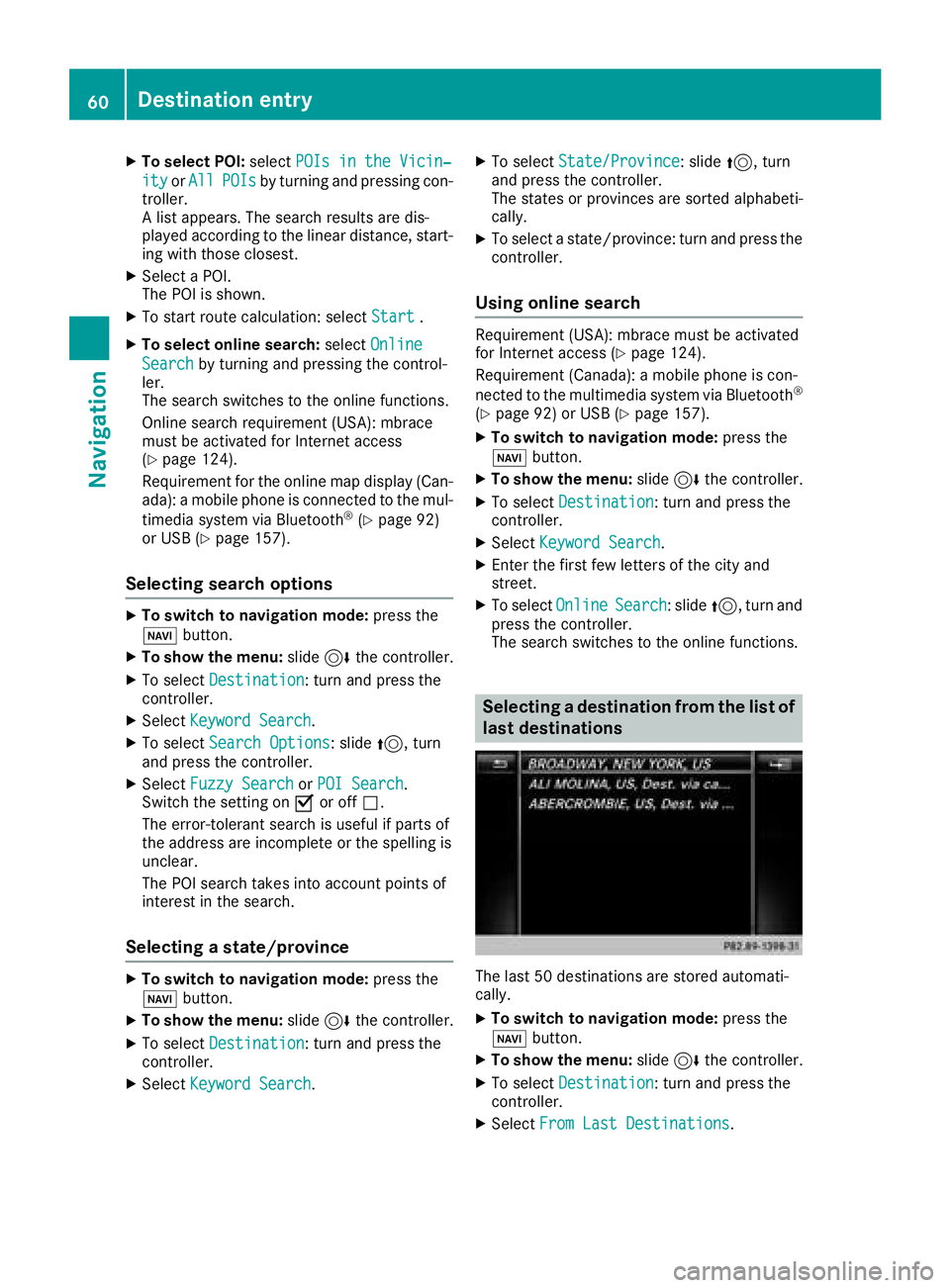
Selecting a destination from the list of
last destinations
The last 50 destinations are stored automati-
cally.
XTo switch to navigation mode: press the
Ø button.
XTo show the menu: slide6the controller.
XTo select Destination: turn and press the
controller.
XSelect From Last Destinations.
60Destination entry
Navigation