phone MERCEDES-BENZ G-CLASS 2018 COMAND Manual
[x] Cancel search | Manufacturer: MERCEDES-BENZ, Model Year: 2018, Model line: G-CLASS, Model: MERCEDES-BENZ G-CLASS 2018Pages: 198, PDF Size: 4.53 MB
Page 64 of 198
SelectionInstructions
Other City
After entering a city, the
search is performed
within the city's bounda-
ries
Option 1
XCall up the POI menu (Ypage 61).
XTo selectOther City: turn and press the controller.
XSelect the state/province (Ypage 57), if desired.
XEnter the city (Ypage 57).
XSelect a POI category (Ypage 62).
Option 2
XEnter a city in the address entry menu (Ypage 57).
XTo select POIs: slide6, turn and press the controller.
XSelect a POI category (Ypage 62).
Search By Name
Searches for all POIs on
the digital map or around
one of the three previ-
ously specified positions
XCall up the POI menu (Ypage 61).
XTo select Search By Name: turn and press the controller.
XSelectAllPOIsor one of the three previously selected positions.
The POI list with character bar appears.
XEnter a name.
or
XTo select Mercedes-BenzService: turn and press the controller.
Search By Phone Num‐ber
All POIs with a telephone
number can be selected.
XCall up the POI menu (Ypage 61).
XTo select SearchByPhoneNumber: turn and press the control-
ler.
You will see a list of phone numbers.
XEnter the telephone number.
The telephone number consists of:
Rthe country code (international dialing code)
Rthe area code
When entering the area code, omit the leading "0"
Rthe telephone number of the participating caller
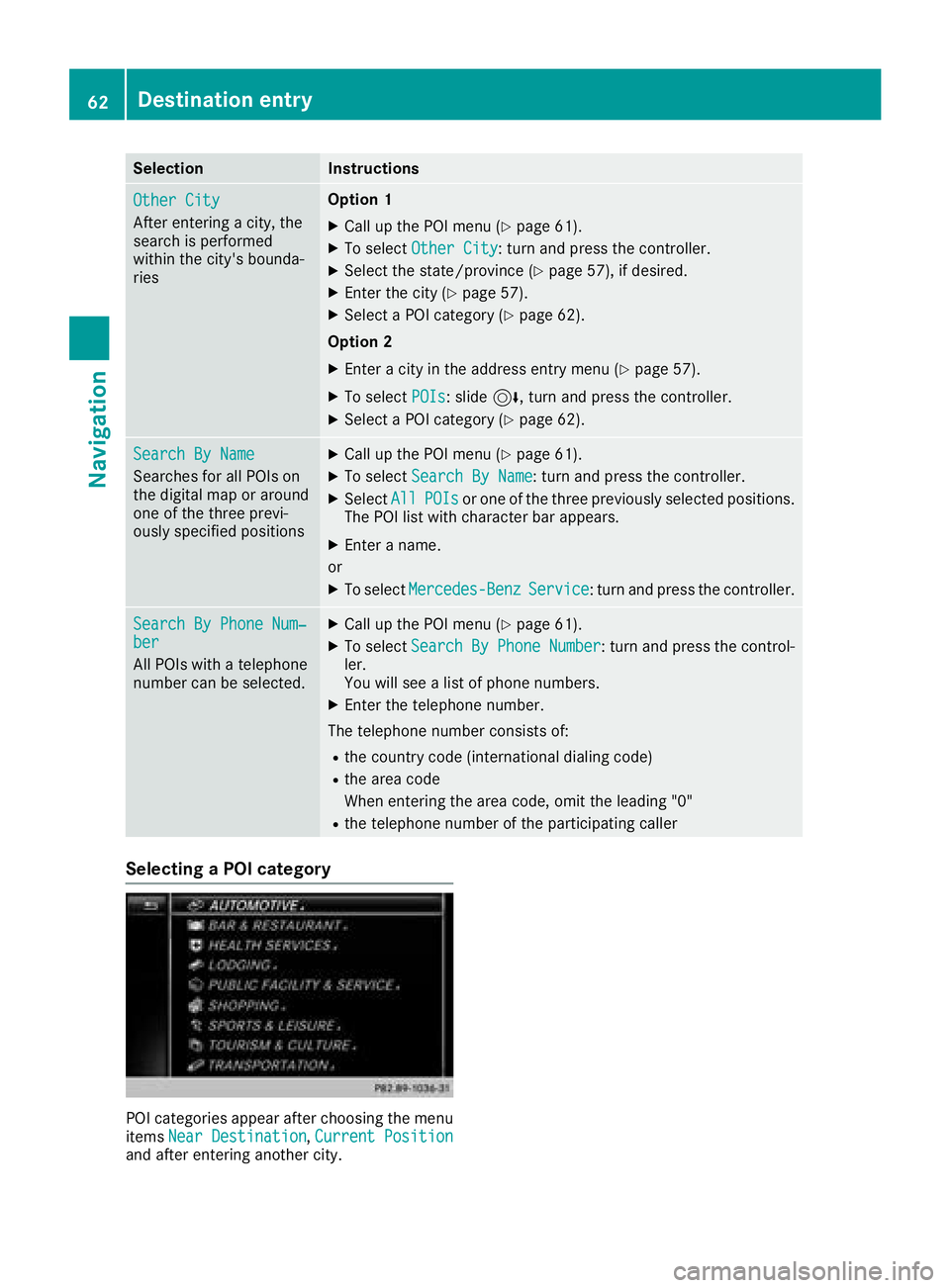
Selecting a POI category
POI categories appear after choosing the menu
items Near Destination,Current Positionand after entering another city.
62Destination entry
Navigation
Page 65 of 198
XTurn and press the controller.
TheGsymbol after an entry shows that fur-
ther categories are available.
XSelect a sub-category.
The POI search covers a 240 mi (400 km)
radius around the selected position.
Once the search is completed, the POI list is
displayed.
The search results display the following infor-
mation:
Ran arrow that shows the linear direction to
the POI (search around vehicle position)
Rthe linear distance to the POI
Rthe name of the POI
XSelect a POI.
The complete address of the POI is shown.
Selecting a POI
Requirement for "Calling up a POI": a mobile
phone must be connected to the multimedia
system (
Ypage 92).
Requirements for "Viewing the vicinity of the
destination" and "Loading data from the Inter-
net" (USA): mbrace must be activated for Inter-
net access (
Ypage 124).
Requirements for "Viewing the vicinity of the
destination" and "Loading data from the Inter-
net" (Canada): a mobile phone must be connec-
ted to the multimedia system via Bluetooth
®
(Ypage 92) or USB (Ypage 157).
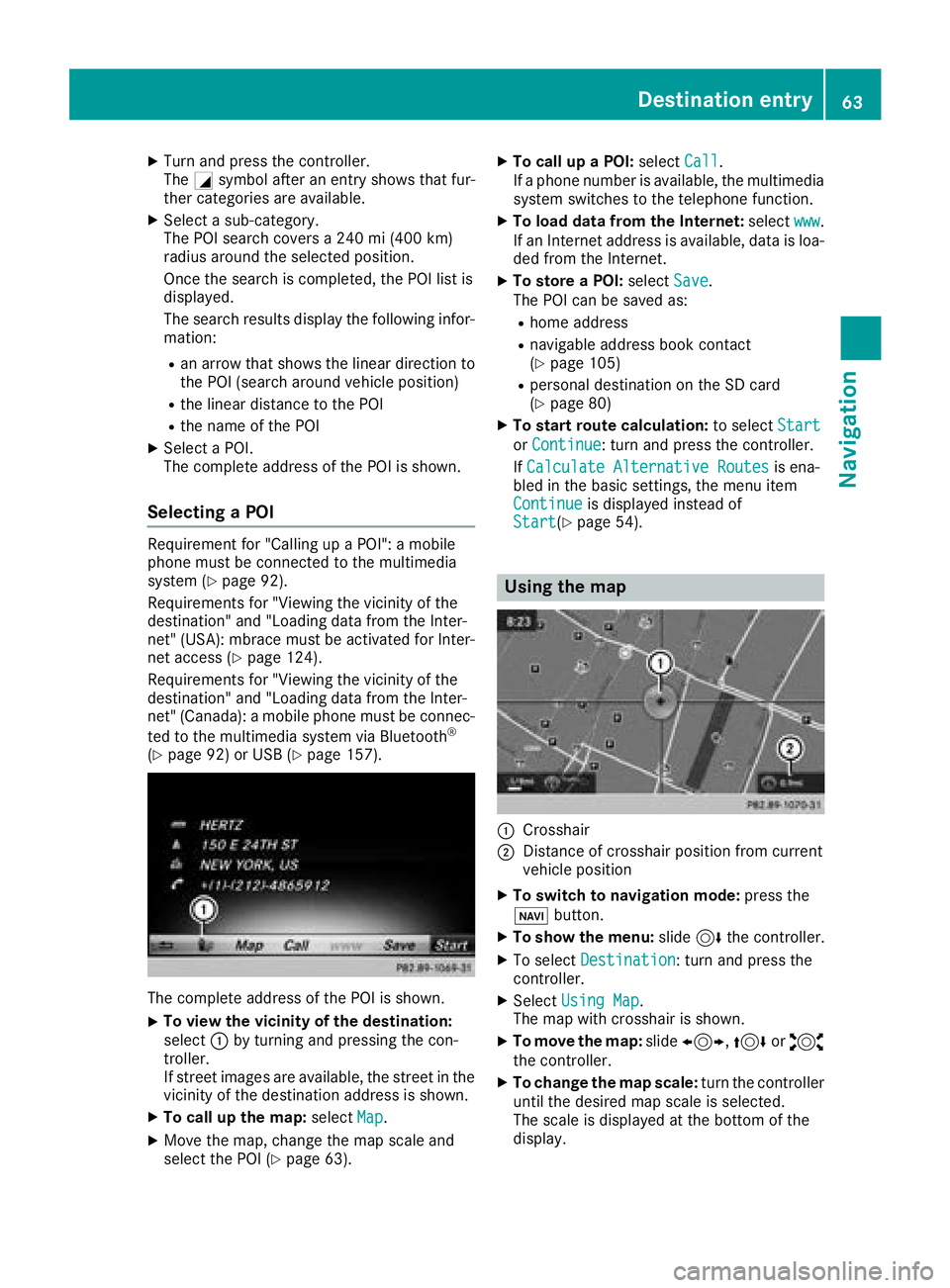
The complete address of the POI is shown.
XTo view the vicinity of the destination:
select :by turning and pressing the con-
troller.
If street images are available, the street in the
vicinity of the destination address is shown.
XTo call up the map: selectMap.
XMove the map, change the map scale and
select the POI (Ypage 63).
XTo call up a POI: selectCall.
If a phone number is available, the multimedia
system switches to the telephone function.
XTo load data from the Internet: selectwww.
If an Internet address is available, data is loa-
ded from the Internet.
XTo store a POI: selectSave.
The POI can be saved as:
Rhome address
Rnavigable address book contact
(Ypage 105)
Rpersonal destination on the SD card
(Ypage 80)
XTo start route calculation: to selectStart
orContinue: turn and press the controller.
If Calculate Alternative Routes
is ena-
bled in the basic settings, the menu item
Continue
is displayed instead of
Start(Ypage 54).
Using the map
:Crosshair
;Distance of crosshair position from current
vehicle position
XTo switch to navigation mode: press the
ß button.
XTo show the menu: slide6the controller.
XTo select Destination: turn and press the
controller.
XSelect Using Map.
The map with crosshair is shown.
XTo move the map: slide1, 4or2
the controller.
XTo change the map scale: turn the controller
until the desired map scale is selected.
The scale is displayed at the bottom of the
display.
Destination entry63
Navigation
Z
Page 67 of 198
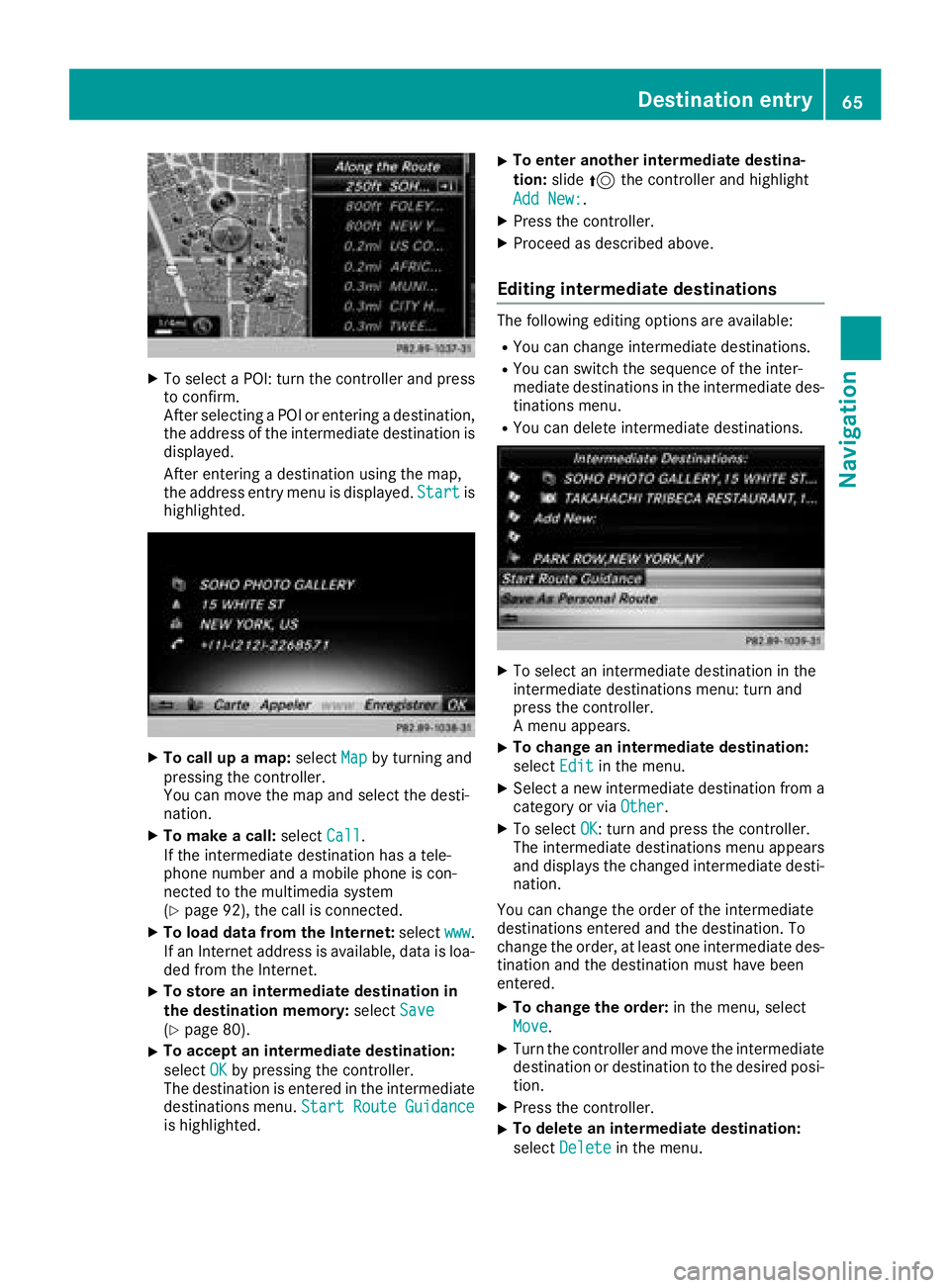
XTo select a POI: turn the controller and pressto confirm.
After selecting a POI or entering a destination,
the address of the intermediate destination is
displayed.
After entering a destination using the map,
the address entry menu is displayed. Start
is
highlighted.
XTo call up a map: selectMapby turning and
pressing the controller.
You can move the map and select the desti-
nation.
XTo make a call: selectCall.
If the intermediate destination has a tele-
phone number and a mobile phone is con-
nected to the multimedia system
(
Ypage 92), the call is connected.
XTo load data from the Internet: selectwww.
If an Internet address is available, data is loa- ded from the Internet.
XTo store an intermediate destination in
the destination memory: selectSave
(Ypage 80).
XTo accept an intermediate destination:
selectOK
by pressing the controller.
The destination is entered in the intermediate
destinations menu. Start Route Guidance
is highlighted.
XTo enter another intermediate destina-
tion:slide5the controller and highlight
Add New:
.
XPress the controller.
XProceed as described above.
Editing intermediate destinations
The following editing options are available:
RYou can change intermediate destinations.
RYou can switch the sequence of the inter-
mediate destinations in the intermediate des-
tinations menu.
RYou can delete intermediate destinations.
XTo select an intermediate destination in the
intermediate destinations menu: turn and
press the controller.
A menu appears.
XTo change an intermediate destination:
select Edit
in the menu.
XSelect a new intermediate destination from a
category or via Other.
XTo selectOK: turn and press the controller.
The intermediate destinations menu appears
and displays the changed intermediate desti-
nation.
You can change the order of the intermediate
destinations entered and the destination. To
change the order, at least one intermediate des- tination and the destination must have been
entered.
XTo change the order: in the menu, select
Move
.
XTurn the controller and move the intermediate
destination or destination to the desired posi-
tion.
XPress the controller.
XTo delete an intermediate destination:
select Delete
in the menu.
Destination entry65
Navigation
Z
Page 68 of 198
Accepting intermediate destinations
for theroute
XTo select Start Route Guidancein the
intermediat edestination smenu: press th e
controller .
The rout eis calculated wit hth eentered inter-
mediat edestinations.
If Calculate Alternative Routes
is ena-
bled in th ebasic settings, th eContinuemen u
item is displayed (Ypage 54).
If an intermediat edestination was passed
during rout eguidance , agreen tick mar kwill
be entered in th eintermediat edestination s
menu. Once th erout ehas been recalculated,
th eintermediat edestination is delete dfrom
th eintermediat edestination smenu.
Saving as a personal route
XInser tth eSD memory car d (Ypage 148).
XTo selectSaveAs Personal Routein th e
intermediat edestination smenu: tur nand
press th econtroller .
The rout eis saved on th eSD car dunder Per‐
sonal Routes.
Searching for a gas station when the
fuel level is low
Requirement :th esetting GasonReserv emust
be enabled (Ypage 55).
If th efuel tan kreserv elevel is displayed, you will
see th eReserv eFue lWould you lik eto
start asearch for surrounding gasstations?message .
XTo select YesorNo:tur nand press th econ-
troller .
If you select Yes
:th egas station search
starts. When th esearch is complete, alist of
th egas station savailable alon gth erout eor in
th evicinity is displayed.
If you select No
:th esearch is canceled.
XSelec tth egas station .
The address of th egas station is displayed.
XTo select Start:press th econtroller .
The gas station selected is set in th einter-
mediat edestination smen uas th enext inter-
mediat edestination no tyet reached. Rout e
guidance begins .
Entering a destination fr om
Mercedes-Benz Apps
Requirement (USA) :mbrace is activated for th e
Mercedes-Benz Apps (Ypage 124).
Requirement (Canada): amobile phone is con-
nected to th emultimedia system via Bluetoot h
®
(Ypage 92)or US B (Ypage 157).
XTo switch to navigation mode: press the
Ø button.
XTo sho wthemenu: slide6 thecontroller .
XTo select Destination:tur nand press th e
controller .
XSelectFro mMercedes-Ben zApp s.
The list of Mercedes-Benz Apps appears.
Using geo-coor dinates
XTo switch to navigation mode: press the
ß button.
XTo sho wthemenu: slide6 thecontroller .
XTo select Destination:tur nand press th e
controller .
XSelectUsing Geo-Coordinates.
Geo-coordinate sare entered in degrees ,
minute sand seconds.
XTo enter th elatitud eand longitude coor -
dinates: turnth econtroller to chang eth e
value .
XTo mov eth eselection within th eline: slid e
1 thecontroller .
XTo moveth eselection between lines: slid e
4 thecontroller .
XTo confirm th evalue :press th econtroller .
XTo save adestination :to select Save:tur n
and press th econtroller .
The destination can be store das:
Rahom eaddress in th eaddress book
Ranavigabl eaddress book contact
Fo rfurther information on th eaddress
book ,see (
Ypage 105)
Rapersonal destination on th eSD car d
(Ypage 80)
Starting route calculation
XTo select Start Route Guidance:tur nand
press th econtroller .
66Destination entry
Navigation
Page 71 of 198
XSelect personal POI or personal route
(Ypage 68).
XTo explore a personal POI or route:slide
5 and press the controller to select Map
.
The map with the crosshair appears and
shows the destination.
XScroll the map (Ypage 53).
XSet the map scale (Ypage 82).
XTo return to the menu: press the %button.
XTo call the personal POI: turn and press the
controller to select Call
.
If a mobile phone is connected to the multi-
media system and the telephone number is
available, the call is connected (
Ypage 98).
XTo change the name: turn and press the
controller to select Edit
.
XSelectChange NameorEdit Icon.
XTo change name: enter character (Ypage 30).
XTo delete a personal POI or route: turn and
press the controller to select Delete
.
A prompt will appear.
XSelect YesorNo.
If you select Yes, the personal destination or
personal route is deleted.
XTo select the outward and return routes:
select Swap
by turning and pressing the con-
troller.
The starting and destination positions of your
personal route, and thus the direction for
route guidance, are switched round. One-way
streets or restricted intersections are taken
into consideration. Therefore, the outward
and return routes may differ from each other.
XTo save a personal POI: turn and press the
controller to select Save
.
XContinue saving (Ypage 80).
XTo start route guidance: selectStartby
turning and pressing the controller.
Recording the route
General notes
When recording the route, bear in mind the fol-
lowing:
RIf the SD card is inserted, it must not be
removed during recording.
RIf route recording is started manually, it must
be finished manually before the multimedia
system is switched off.
RThe multimedia system minimizes the num-
ber of route points recorded. Therefore when
the recorded route is subsequently com-
menced, it may differ from the route that was
originally recorded.
Starting/finishing route recording
XInsert the SD memory card (Ypage 148).
XTo switch to navigation mode: press the
ß button.
XTo show the menu: slide6the controller.
XTo select Destination: turn and press the
controller.
XSelect From Memory Card.
XSelectStart Route Recording.
The route is recorded and RECappears at the
bottom edge of the screen.
XTo stop recording, select End RouteRecordingfrom the menu.
The route is stored under Personal Routes.
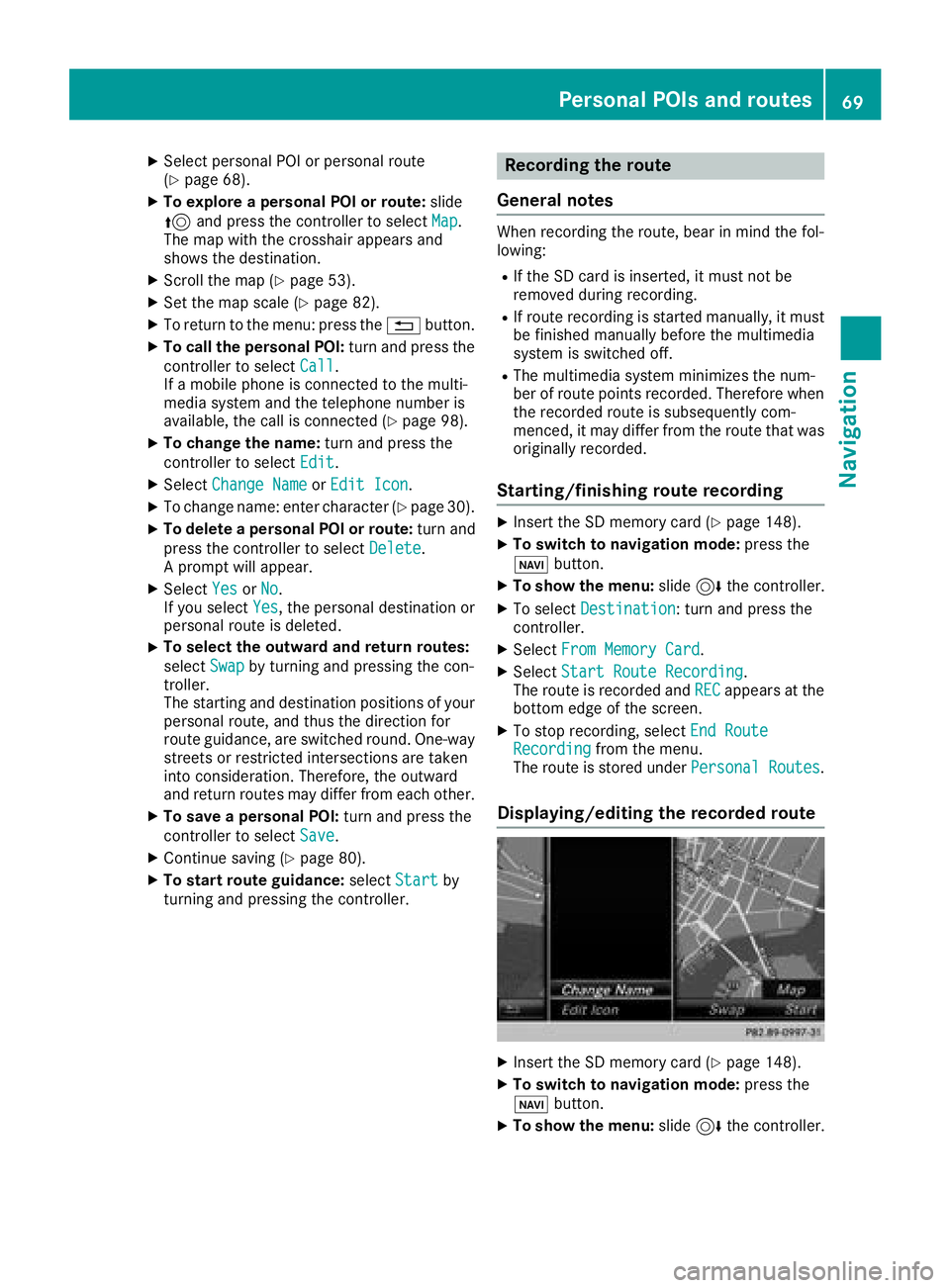
Displaying/editing the recorded route
XInsert the SD memory card (Ypage 148).
XTo switch to navigation mode: press the
ß button.
XTo show the menu: slide6the controller.
Personal POIs and routes69
Navigation
Z
Page 74 of 198
Lane recommendations are also shown in the
multifunction display of the instrument cluster
(see the vehicle Operator's Manual).
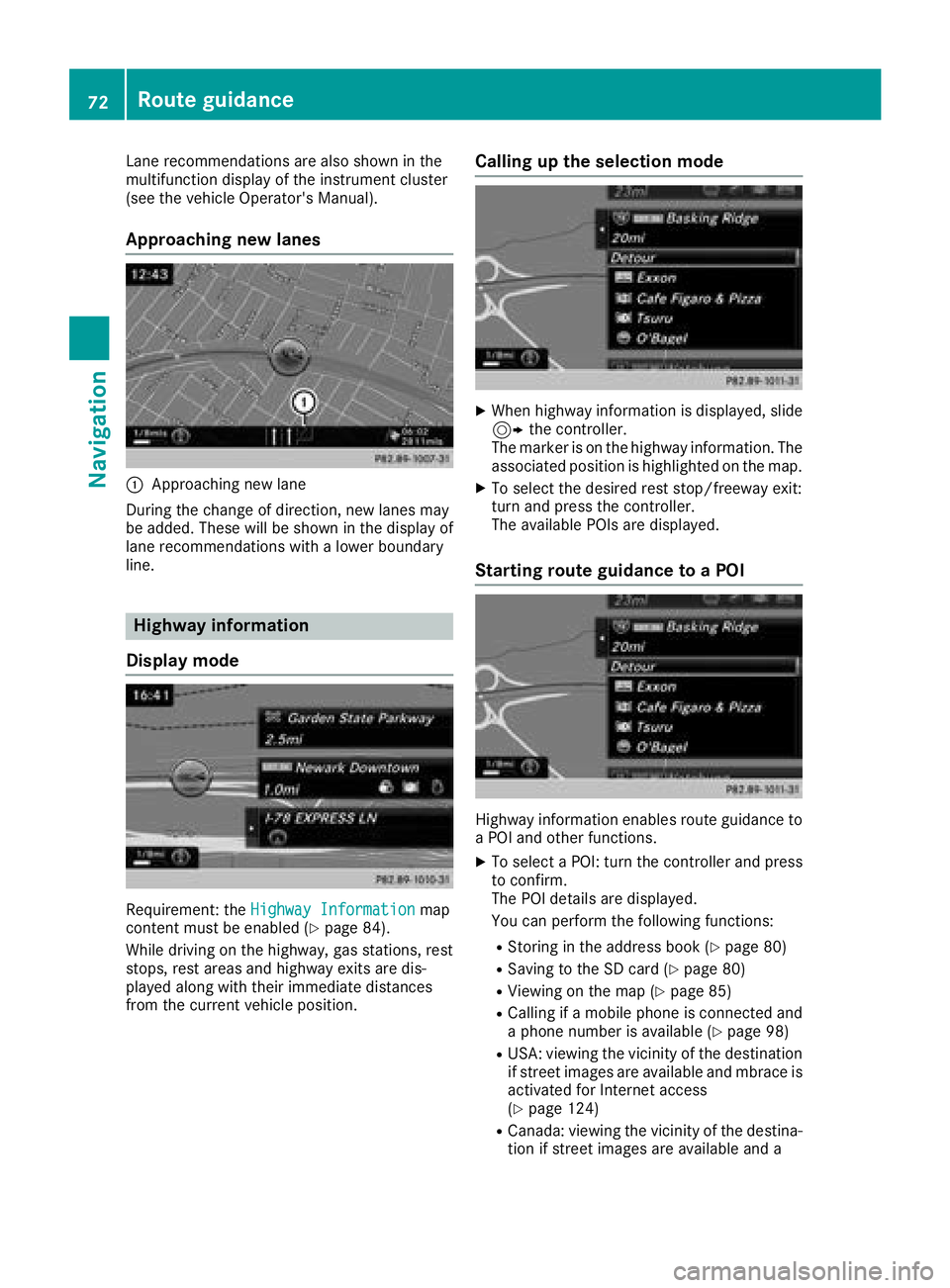
Approaching new lanes
:Approaching new lane
During the change of direction, new lanes may
be added. These will be shown in the display of
lane recommendations with a lower boundary
line.
Highway information
Display mode
Requirement: the Highway Informationmap
content must be enabled (Ypage 84).
While driving on the highway, gas stations, rest
stops, rest areas and highway exits are dis-
played along with their immediate distances
from the current vehicle position.
Calling up the selection mode
XWhen highway information is displayed, slide 9 the controller.
The marker is on the highway information. The
associated position is highlighted on the map.
XTo select the desired rest stop/freeway exit:
turn and press the controller.
The available POIs are displayed.
Starting route guidance to a POI
Highway information enables route guidance to
a POI and other functions.
XTo select a POI: turn the controller and press to confirm.
The POI details are displayed.
You can perform the following functions:
RStoring in the address book (Ypage 80)
RSaving to the SD card (Ypage 80)
RViewing on the map (Ypage 85)
RCalling if a mobile phone is connected and
a phone number is available (Ypage 98)
RUSA: viewing the vicinity of the destination
if street images are available and mbrace is
activated for Internet access
(
Ypage 124)
RCanada: viewing the vicinity of the destina- tion if street images are available and a
72Route guidance
Navigation
Page 75 of 198
mobile phone is connected to the multime-
dia system via Bluetooth®(Ypage 92) or
USB (Ypage 157)
RUSA: downloading data from the Internet if
an Internet address is available and mbrace
is activated for Internet access
(
Ypage 92)
RCanada: downloading data from the Inter-
net if an Internet address is available and a
mobile phone is connected to the multime-
dia system via Bluetooth
®(Ypage 92) or
USB (Ypage 157)
RSelecting for route guidance and calculate
a route to it (Ypage 58)
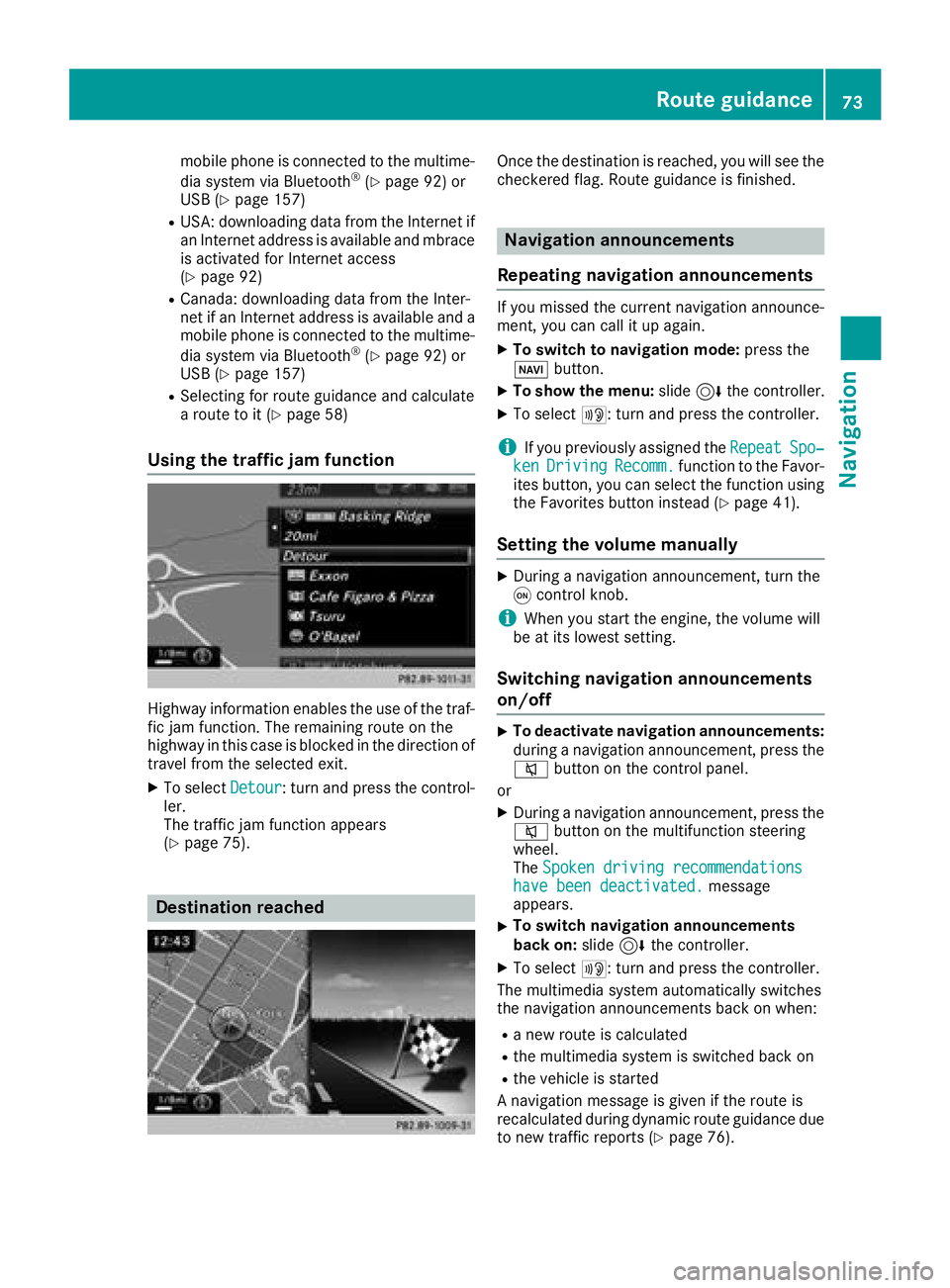
Using the traffic jam function
Highway information enables the use of the traf-
fic jam function. The remaining route on the
highway in this case is blocked in the direction of
travel from the selected exit.
XTo select Detour: turn and press the control-
ler.
The traffic jam function appears
(
Ypage 75).
Destination reached
Once the destination is reached, you will see the
checkered flag. Route guidance is finished.
Navigation announcements
Repeating navigation announcements
If you missed the current navigation announce-
ment, you can call it up again.
XTo switch to navigation mode: press the
Ø button.
XTo show the menu: slide6the controller.
XTo select +: turn and press the controller.
iIf you previously assigned the RepeatSpo‐kenDrivingRecomm.function to the Favor-
ites button, you can select the function using
the Favorites button instead (
Ypage 41).
Setting the volume manually
XDuring a navigation announcement, turn the
q control knob.
iWhen you start the engine, the volume will
be at its lowest setting.
Switching navigation announcements
on/off
XTo deactivate navigation announcements:
during a navigation announcement, press the
8 button on the control panel.
or
XDuring a navigation announcement, press the
8 button on the multifunction steering
wheel.
The Spoken driving recommendations
have been deactivated.message
appears.
XTo switch navigation announcements
back on: slide6the controller.
XTo select +: turn and press the controller.
The multimedia system automatically switches
the navigation announcements back on when:
Ra new route is calculated
Rthe multimedia system is switched back on
Rthe vehicle is started
A navigation message is given if the route is
recalculated during dynamic route guidance due
to new traffic reports (
Ypage 76).
Route guidance73
Navigation
Z
Page 76 of 198
Canceling/continuing route guidance
Canceling route guidance
XSlide 6the controller.
The menu is shown.
XTo select Destination: turn and press the
controller.
XSelect Cancel Route Guidance.
The blue route line is no longer shown on the
map.
Resuming route guidance
XSlide 6the controller.
The menu is shown.
XTo select Destination: turn and press the
controller.
XSelect Continue Route Guidance.
The multimedia system calculates the route.
Route information
Destination information
XTo switch to navigation mode: press the
Ø button.
XTo show the menu: slide6the controller.
XTo select Route: turn and press the controller.
XSelectDestination Information.
The destination and existing intermediate
destinations are displayed with distances,
travel time and arrival time.
XTo select destination or intermediate des-
tination: turn and press the controller.
The address appears.
You can use these functions for the destina-
tion or intermediate destination:
RStoring in the address book (Ypage 80)
RSaving to the SD card (Ypage 80)
RViewing on the map (Ypage 85)
RCalling if a mobile phone is connected and
a phone number is available (Ypage 98)
RUSA: viewing the vicinity of the destination
if street images are available and mbrace is
activated for Internet access
(
Ypage 124)
RCanada: viewing the vicinity of the destina-
tion if street images are available and a
mobile phone is connected to the multime-
dia system via Bluetooth
®(Ypage 92) or
USB (Ypage 157)
RUSA: downloading data from the Internet if
an Internet address is available and mbrace
is activated for Internet access
(
Ypage 92)
RCanada: downloading data from the Inter-
net if an Internet address is available and a
mobile phone is connected to the multime-
dia system via Bluetooth
®(Ypage 92) or
USB (Ypage 157)
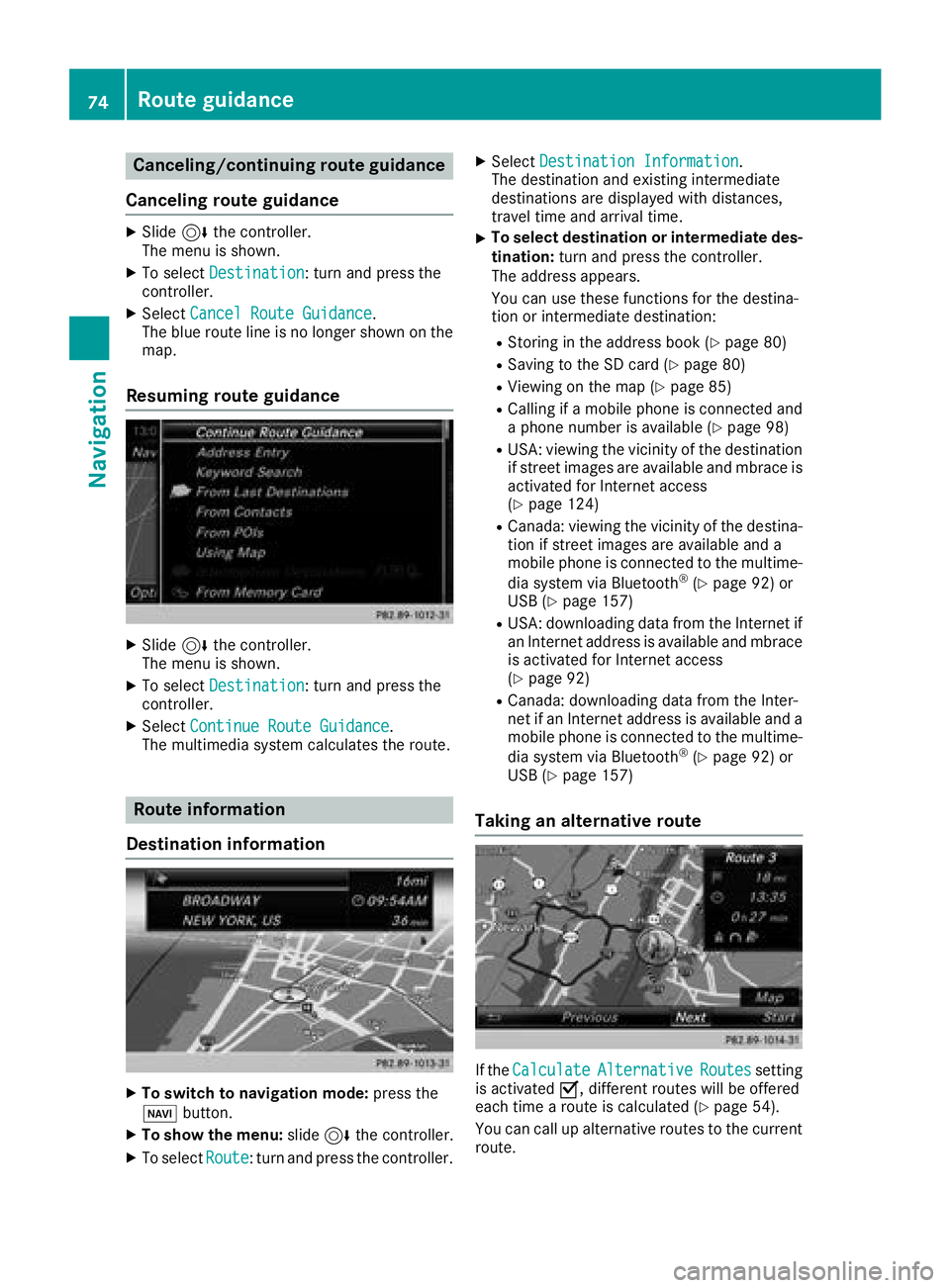
Taking an alternative route
If the CalculateAlternativeRoutessetting
is activated O, different routes will be offered
each time a route is calculated (
Ypage 54).
You can call up alternative routes to the current
route.
74Route guidance
Navigation
Page 82 of 198
Storing destinations
General notes
In the "Last destinations" memory, the following
are stored:
Rdestinations and intermediate destinations
according to the route calculation
Rthe current vehicle position or the crosshair
position, if these are saved
Rpersonal routes
If the memory is full, the oldest destination is
overwritten.
You can save destinations permanently in the
address book (
Ypage 80) and on an SD card
(Ypage 80). For instance, this is possible
immediately after entering an address.
For further information on the address book, see
(
Ypage 104)
Storing the destination in the address
book
Storing as a new contact
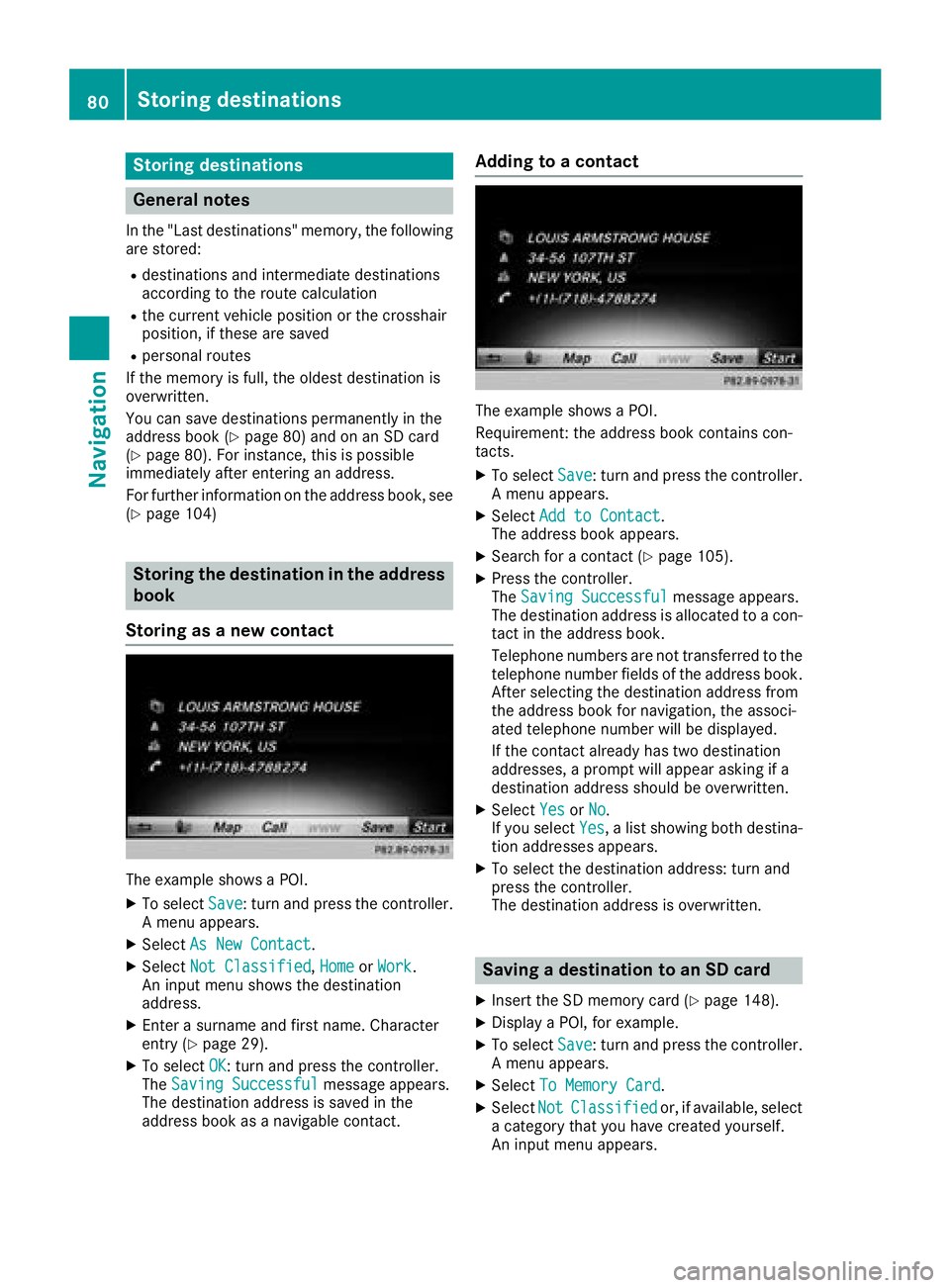
The example shows a POI.
XTo select Save: turn and press the controller.
A menu appears.
XSelect As New Contact.
XSelectNot Classified,Homeor Work.
An input menu shows the destination
address.
XEnter a surname and first name. Character
entry (Ypage 29).
XTo select OK: turn and press the controller.
The Saving Successfulmessage appears.
The destination address is saved in the
address book as a navigable contact.
Adding to a contact
The example shows a POI.
Requirement: the address book contains con-
tacts.
XTo select Save: turn and press the controller.
A menu appears.
XSelect Add to Contact.
The address book appears.
XSearch for a contact (Ypage 105).
XPress the controller.
The Saving Successfulmessage appears.
The destination address is allocated to a con-
tact in the address book.
Telephone numbers are not transferred to the
telephone number fields of the address book.
After selecting the destination address from
the address book for navigation, the associ-
ated telephone number will be displayed.
If the contact already has two destination
addresses, a prompt will appear asking if a
destination address should be overwritten.
XSelect YesorNo.
If you select Yes, a list showing both destina-
tion addresses appears.
XTo select the destination address: turn and
press the controller.
The destination address is overwritten.
Saving a destination to an SD card
XInsert the SD memory card (Ypage 148).
XDisplay a POI, for example.
XTo select Save: turn and press the controller.
A menu appears.
XSelect To Memory Card.
XSelectNotClassifiedor, if available, select
a category that you have created yourself.
An input menu appears.
80Storing destinations
Navigation
Page 89 of 198
SIRIUS XM service
Displaying SIRIUS XM service informa-
tion
You can display the SIRIUS XM service informa-
tion.
XTo switch to navigation mode: press the
Ø button.
XTo show the menu: slide6the controller.
XTo select Traffic: turn and press the con-
troller.
XSelect SIRIUS Service.
The provider's phone number (SIRIUS XM)
and the serial number of your service module
are displayed.
Registering the SIRIUS XM service
XCall the provider telephone number shown on
the multimedia system display.
iYou can also have the satellite service acti-
vated online. To do so, visit the SIRIUS XM
Radio website at http://www.sirius.com
(USA).
Once the connection has been established:
XFollow the service employee's instructions.
The activation process may take up to ten
minutes.
If registration is not included when purchasing
the system, your credit card details will be
required to activate your account.
Updating the digital map
Introduction
The digital maps generated by the map software
become outdated in the same way as conven-
tional road maps. Optimal route guidance can
only be provided by the navigation system in
conjunction with the most up-to-date map soft-
ware.
Information about new versions of the digital
map can be obtained from an authorized
Mercedes-Benz Center. You can have the digital
map updated there using a data medium, or you
can update it yourself.
For USA and Mexico, it is possible to update the
map data for the multimedia system free of
charge for a period of three years. Information on the availability of this service for your vehicle
can be obtained from an authorized Mercedes-
Benz Center.
Entitlement to the free update
For the first three years after your vehicle is reg-
istered, you are entitled to all available updates
to the map software for the multimedia system.
They are usually installed during a regular vehi-
cle service. After this period, you can purchase
further updates from an authorized Mercedes-
Benz Center.
The free updates relate to the vehicle and not to
an individual. If there is a change of ownership
within the three years after first registration, the
new owner is entitled to the map software
updates.
Updating at an authorized Mercedes-
Benz Center
If an update for your map software is available,
you will receive it free of charge at an authorized
Mercedes-Benz Center during your vehicle's
annual service. You can arrange a separate
appointment for this at an authorized Mercedes-
Benz Center on request.
The update can only be performed:
Rat an authorized Mercedes-Benz Center
Rfor navigation data for North America
The map software is not provided on DVD.
Carrying out a manual update
After the free update of the map data has
expired or when buying map data, you can
update the data yourself.
The update process may take some time (up to
45 minutes), depending on the size of the digital
map. The update will be completed more quickly if the vehicle is stationary. If you begin the
update while the vehicle is stationary and the
starter battery has insufficient power, the mul-
timedia system may switch off automatically.
This protects the battery. In order to prevent
this, a suitable power supply to the vehicle must
be maintained.
Map functions87
Navigation
Z