phone MERCEDES-BENZ G-CLASS 2018 User Guide
[x] Cancel search | Manufacturer: MERCEDES-BENZ, Model Year: 2018, Model line: G-CLASS, Model: MERCEDES-BENZ G-CLASS 2018Pages: 294, PDF Size: 4.86 MB
Page 64 of 294
Protection against theft
Immobilizer
The immobilizer prevents your vehicle from
being started without the correct SmartKey.
XTo activate:remove the SmartKey from the
ignition lock.
XTo deactivate: switch on the ignition.
When leaving the vehicle, always take the
SmartKey with you and lock the vehicle. The
engine can be started by anyone with a valid
SmartKey that is left inside the vehicle.
iThe immobilizer is always deactivated when
you start the engine.
In the event that the engine cannot be started
(yet the vehicle's battery is charged), the sys-
tem is not operational. Contact an authorized
Mercedes-Benz Center or call
1-800-FOR-MERCedes (in the USA) or
1-800-387-0100 (in Canada).
ATA (anti-theft alarm system)
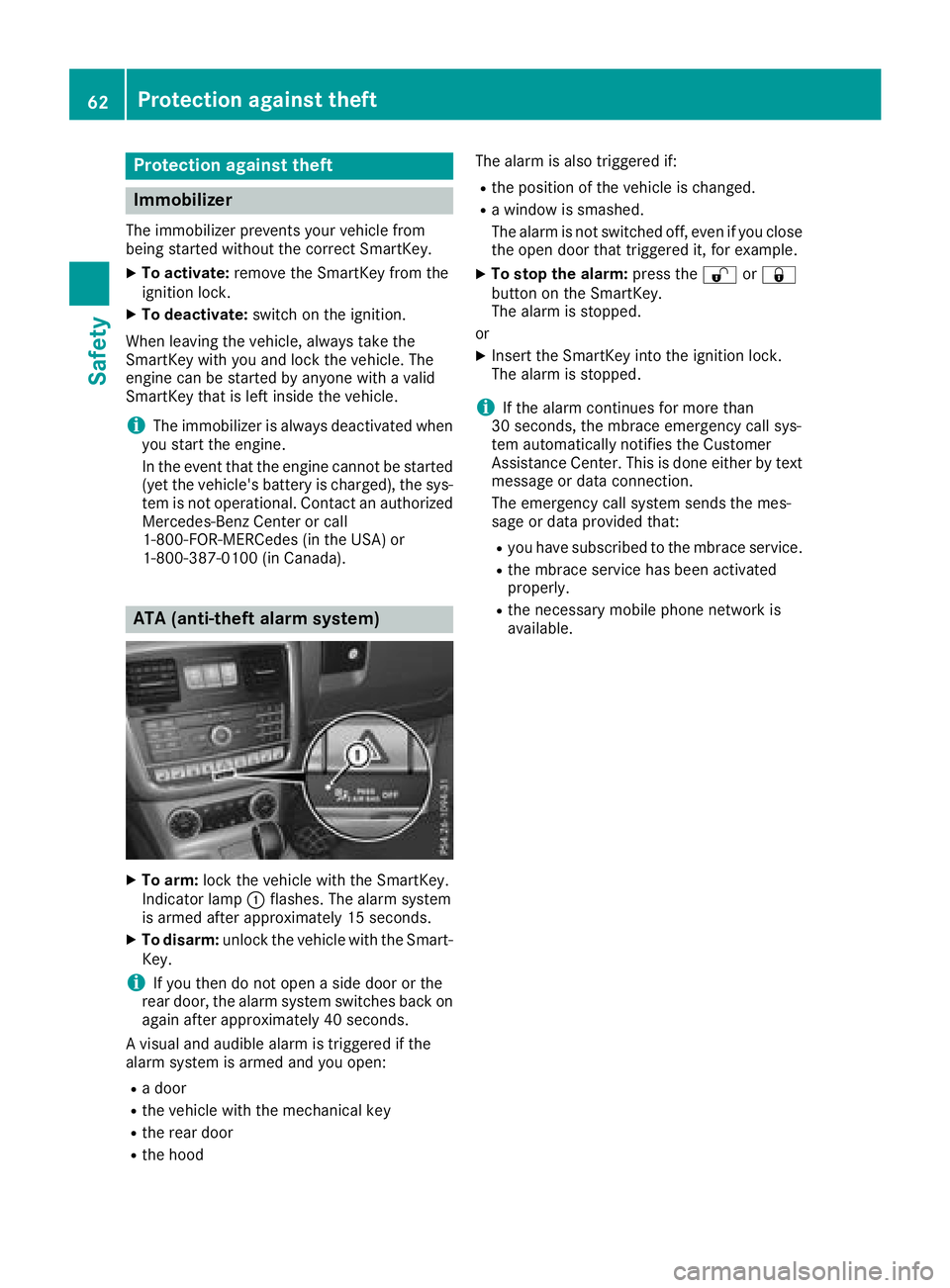
XTo arm: lock the vehicle with the SmartKey.
Indicator lamp :flashes. The alarm system
is armed after approximately 15 seconds.
XTo disarm: unlock the vehicle with the Smart-
Key.
iIf you then do not open a side door or the
rear door, the alarm system switches back on
again after approximately 40 seconds.
A visual and audible alarm is triggered if the
alarm system is armed and you open:
Ra door
Rthe vehicle with the mechanical key
Rthe rear door
Rthe hood The alarm is also triggered if:
Rthe position of the vehicle is changed.
Ra window is smashed.
The alarm is not switched off, even if you close the open door that triggered it, for example.
XTo stop the alarm: press the%or&
button on the SmartKey.
The alarm is stopped.
or
XInsert the SmartKey into the ignition lock.
The alarm is stopped.
iIf the alarm continues for more than
30 seconds, the mbrace emergency call sys-
tem automatically notifies the Customer
Assistance Center. This is done either by text
message or data connection.
The emergency call system sends the mes-
sage or data provided that:
Ryou have subscribed to the mbrace service.
Rthe mbrace service has been activated
properly.
Rthe necessary mobile phone network is
available.
62Protection against theft
Safety
Page 65 of 294
SmartKey
Important safety notes
GWARNING
If children are left unsupervised in the vehicle,
they could:
Ropen the doors, thus endangering other
people or road users.
Rget out and disrupt traffic.
Roperate the vehicle's equipment.
Additionally, children could set the vehicle in
motion if, for example, they:
Rrelease the parking brake.
Rshifting the automatic transmission out of
park position P
RStart the engine.
There is a risk of an accident and injury.
When leaving the vehicle, always take the
SmartKey with you and lock the vehicle. Never
leave children or animals unattended in the
vehicle. Always keep the SmartKey out of
reach of children.
GWARNING
If you attach heavy or large objects to the
SmartKey, the SmartKey could be uninten-
tionally turned in the ignition lock. This could
cause the engine to be switched off. There is a risk of an accident.
Do not attach any heavy or large objects to the
SmartKey. Remove any bulky key rings before
inserting the SmartKey into the ignition lock.
!Keep the SmartKey away from strong mag-
netic fields. Otherwise, the remote control
function could be affected.
Strong magnetic fields can occur in the vicin-
ity of powerful electrical installations.
Do not keep the SmartKey:
Rwith electronic devices, e.g. a mobile phone
or another SmartKey.
Rwith metallic objects, e.g. coins or metal foil.
Rinside metallic objects, e.g. a metal case.
This can affect the functionality of the Smart- Key. A check which periodically establishes a radio
connection between the vehicle and the Smart-
Key determines whether a valid SmartKey is in
the vehicle. This occurs, for example:
Rwhen starting the engine
Rwhile driving
SmartKey functions
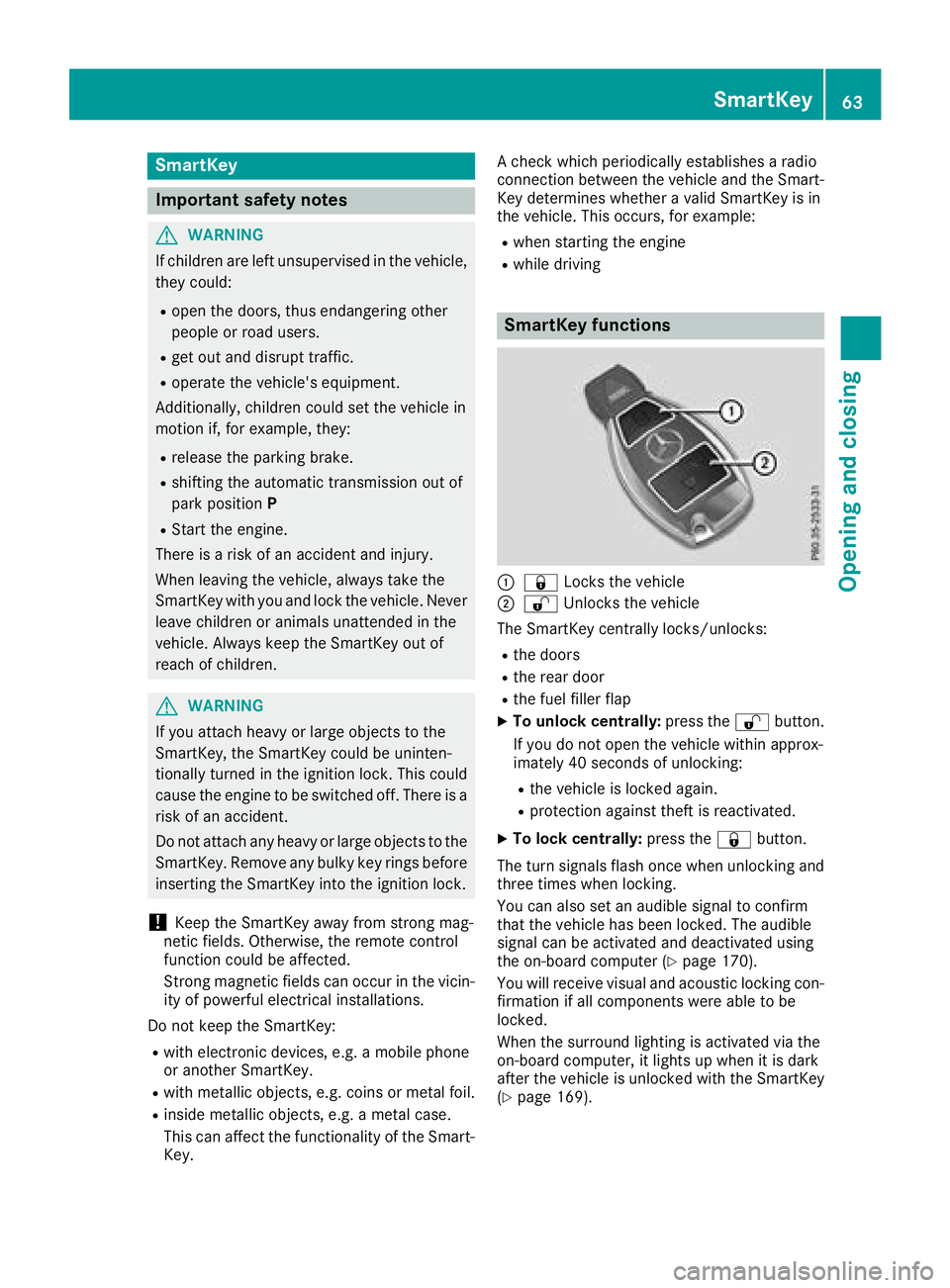
:&
Locks the vehicle
;%Unlocks the vehicle
The SmartKey centrally locks/unlocks:
Rthe doors
Rthe rear door
Rthe fuel filler flap
XTo unlock centrally: press the%button.
If you do not open the vehicle within approx-
imately 40 seconds of unlocking:
Rthe vehicle is locked again.
Rprotection against theft is reactivated.
XTo lock centrally: press the&button.
The turn signals flash once when unlocking and
three times when locking.
You can also set an audible signal to confirm
that the vehicle has been locked. The audible
signal can be activated and deactivated using
the on-board computer (
Ypage 170).
You will receive visual and acoustic locking con-
firmation if all components were able to be
locked.
When the surround lighting is activated via the
on-board computer, it lights up when it is dark
after the vehicle is unlocked with the SmartKey (
Ypage 169).
SmartKey63
Opening and closing
Z
Page 126 of 294
XTo apply:pull parking brake lever ;up
firmly.
When the ignition is switched on, the F
(USA only) or J(Canada only) indicator
lamp in the instrument cluster lights up.
XTo release: pull parking brake lever ;
slightly.
XPress release button :and guide parking
brake ;down to the stop.
The F (USA only) or J(Canada only)
indicator lamp in the instrument cluster goes
out.
The vehicle can also be braked during an emer-
gency by using the parking brake.
XTo brake in an emergency: press and hold
release button :and carefully pull parking
brake lever ;upwards.
If you drive on wet roads or dirt-covered surfa-
ces, road salt and/or dirt could get into the
parking brake.
In order to prevent corrosion and a reduction in
the braking power of the parking brake, observe
the following:
Rpull the parking brake up with release but-
ton :depressed from time to time before
beginning a journey
Rdrive for approximately 110 yds (100 m) at a
maximum speed of 12 mph (20 km/h)
Parking the vehicle for a long period
If you leave the vehicle parked for longer than
four weeks, the battery may be damaged by
exhaustive discharging.
If you leave the vehicle parked for longer than six
weeks, the vehicle may suffer damage as a
result of lack of use.
XVisit a qualified specialist workshop and seek
advice.
iYou can obtain information about trickle
chargers from a qualified specialist work-
shop.
Driving tips
General driving tips
Important safety notes
GWARNING
If you switch off the ignition while driving,
safety-relevant functions are only available
with limitations, or not at all. This could affect, for example, the power steering and the brake
boosting effect. You will require considerably
more effort to steer and brake. There is a risk
of an accident.
Do not switch off the ignition while driving.
GWARNING
If you operate mobile communication equip-
ment when driving, you may be distracted
from the traffic situation. You could also lose
control of the vehicle. There is a risk of an
accident.
Only operate this equipment when the vehicle
is stationary.
Observe the legal requirements for the country
in which you are driving. Some jurisdictions pro-
hibit the driver from using a mobile phone while driving a vehicle.
If you make a call while driving, always use
hands-free mode. Only operate the telephone
when the traffic situation permits. If you are
unsure, pull over to a safe location and stop
before operating the telephone.
Bear in mind that at a speed of only 30 mph
(approximately 50 km/h), the vehicle covers a
distance of 44 ft (approximately 14 m)per sec-
ond.
Drive sensibly – save fuel
Observe the following tips to save fuel:
XThe tires should always be inflated to the rec-
ommended tire pressure.
XRemove unnecessary loads.
XRemove roof carriers when they are not nee-
ded.
XWarm up the engine at low engine speeds.
124Driving tips
Driving and parking
Page 163 of 294
Coolant temperature gauge
GWARNING
Opening the hood when the engine is over-
heated or when there is a fire in the engine
compartment could expose you to hot gases
or other service products. There is a risk of
injury.
Let an overheated engine cool down before
opening the hood. If there is a fire in the
engine compartment, keep the hood closed
and contact the fire department.
!If the coolant temperature is too high, a dis-
play message is shown.
If the coolant temperature display is in the
area marked in red, do not continue driving.
Otherwise, the engine will be damaged.
The coolant temperature gage is in the instru-
ment cluster on the right-hand side (
Ypage 32).
Under normal operating conditions and at the
correct coolant level, the gauge may rise to the
H marking.
Operating the on-board computer
Overview
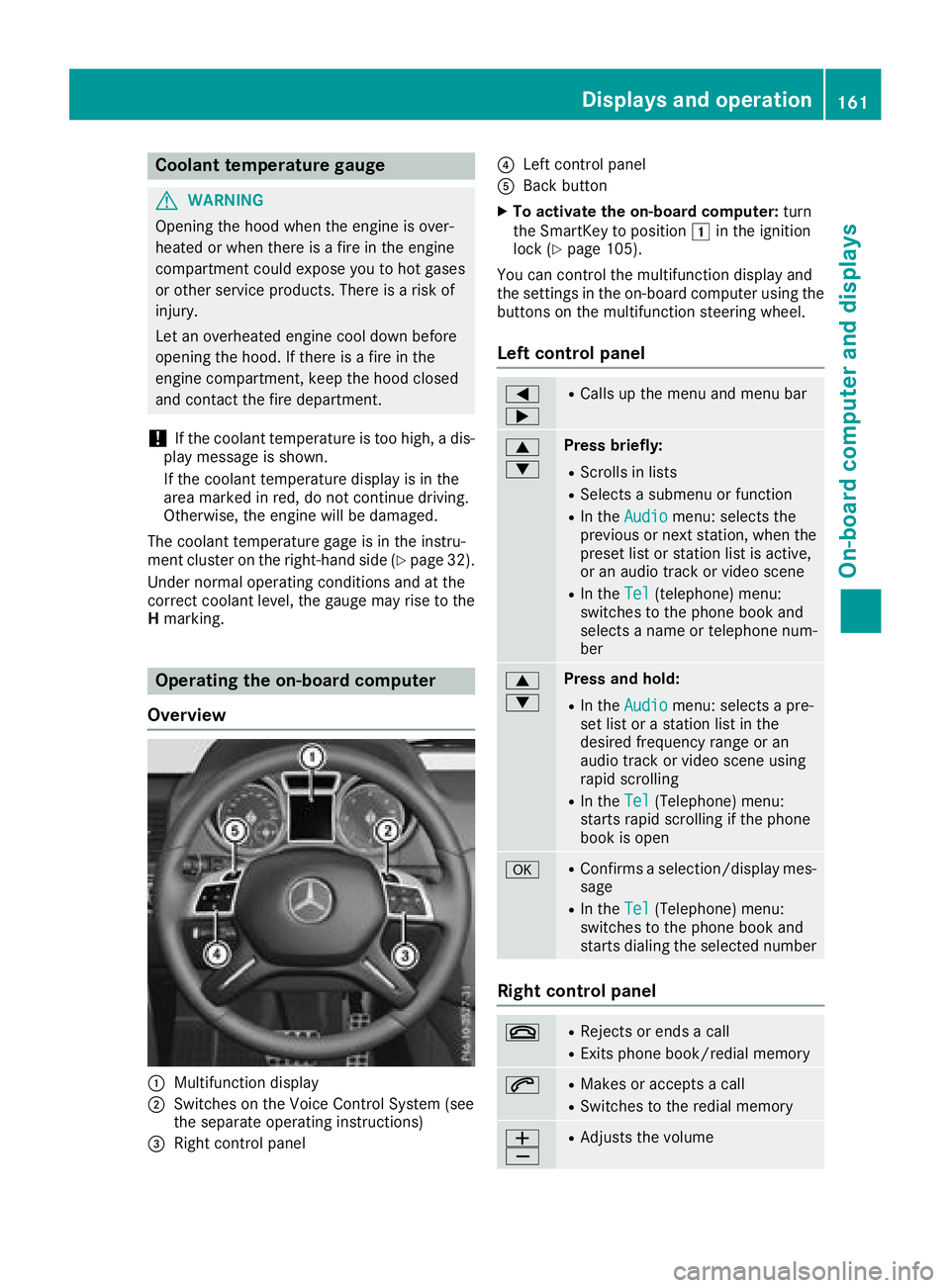
:Multifunction display
;Switches on the Voice Control System (see
the separate operating instructions)
=Right control panel
?Left control panel
ABack button
XTo activate the on-board computer: turn
the SmartKey to position 1in the ignition
lock (
Ypage 105).
You can control the multifunction display and
the settings in the on-board computer using the
buttons on the multifunction steering wheel.
Left control panel
=
;RCalls up the menu and menu bar
9
:Press briefly:
RScrolls in lists
RSelects a submenu or function
RIn the Audiomenu: selects the
previous or next station, when the
preset list or station list is active,
or an audio track or video scene
RIn the Tel(telephone) menu:
switches to the phone book and
selects a name or telephone num-
ber
9
:Press and hold:
RIn the Audiomenu: selects a pre-
set list or a station list in the
desired frequency range or an
audio track or video scene using
rapid scrolling
RIn the Tel(Telephone) menu:
starts rapid scrolling if the phone
book is open
aRConfirms a selection/display mes-
sage
RIn the Tel(Telephone) menu:
switches to the phone book and
starts dialing the selected number
Right control panel
~RRejects or ends a call
RExits phone book/redial memory
6RMakes or accepts a call
RSwitches to the redial memory
W
XRAdjusts the volume
Displays and operation161
On-board computer and displays
Z
Page 164 of 294
8RMute
?RSwitches on the Voice Control Sys-
tem (see the separate operating
instructions)
Back button
%Press briefly:
RBack
RSwitches off the Voice Control
System
RHides display messages/calls up
the lastTripmenu function used
RExits the telephone book/redial
memory
%Press and hold:
RCalls up the standard display in the
Tripmenu
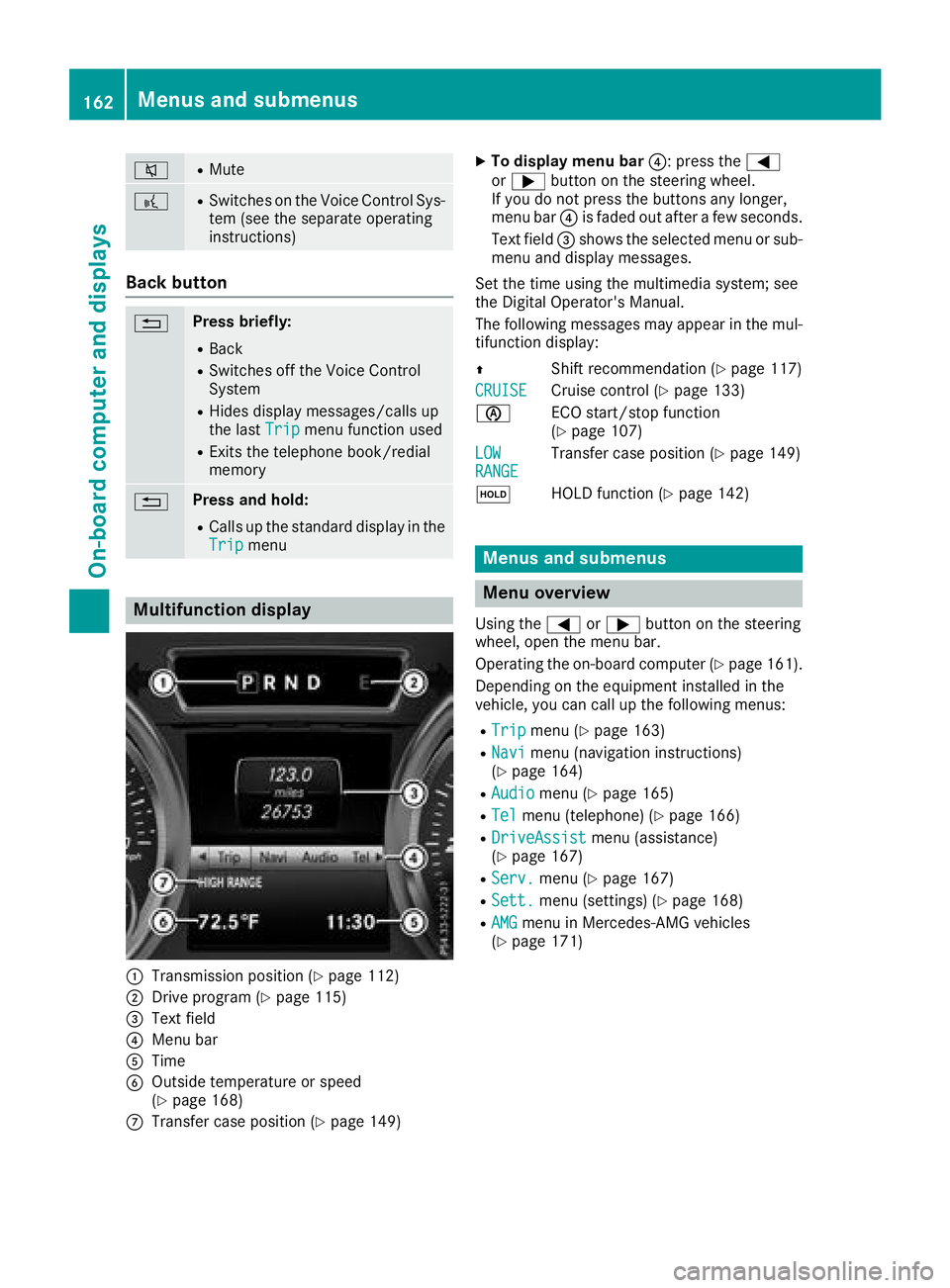
Multifunction display
:Transmission position (Ypage 112)
;Drive program (Ypage 115)
=Text field
?Menu bar
ATime
BOutside temperature or speed
(Ypage 168)
CTransfer case position (Ypage 149)
XTo display menu bar ?: press the=
or ; button on the steering wheel.
If you do not press the buttons any longer,
menu bar ?is faded out after a few seconds.
Text field =shows the selected menu or sub-
menu and display messages.
Set the time using the multimedia system; see
the Digital Operator's Manual.
The following messages may appear in the mul-
tifunction display:
Z Shift recommendation (
Ypage 117)
CRUISE
Cruise control (Ypage 133)
è ECO start/stop function
(
Ypage 107)
LOW
RANGETransfer case position (Ypage 149)
ë HOLD function (
Ypage 142)
Menus and submenus
Menu overview
Using the=or; button on the steering
wheel, open the menu bar.
Operating the on-board computer (
Ypage 161).
Depending on the equipment installed in the
vehicle, you can call up the following menus:
RTripmenu (Ypage 163)
RNavimenu (navigation instructions)
(Ypage 164)
RAudiomenu (Ypage 165)
RTelmenu (telephone) (Ypage 166)
RDriveAssistmenu (assistance)
(Ypage 167)
RServ.menu (Ypage 167)
RSett.menu (settings) (Ypage 168)
RAMGmenu in Mercedes-AMG vehicles
(Ypage 171)
162Menus and submenus
On-board computer and displays
Page 168 of 294
Video DVD operation
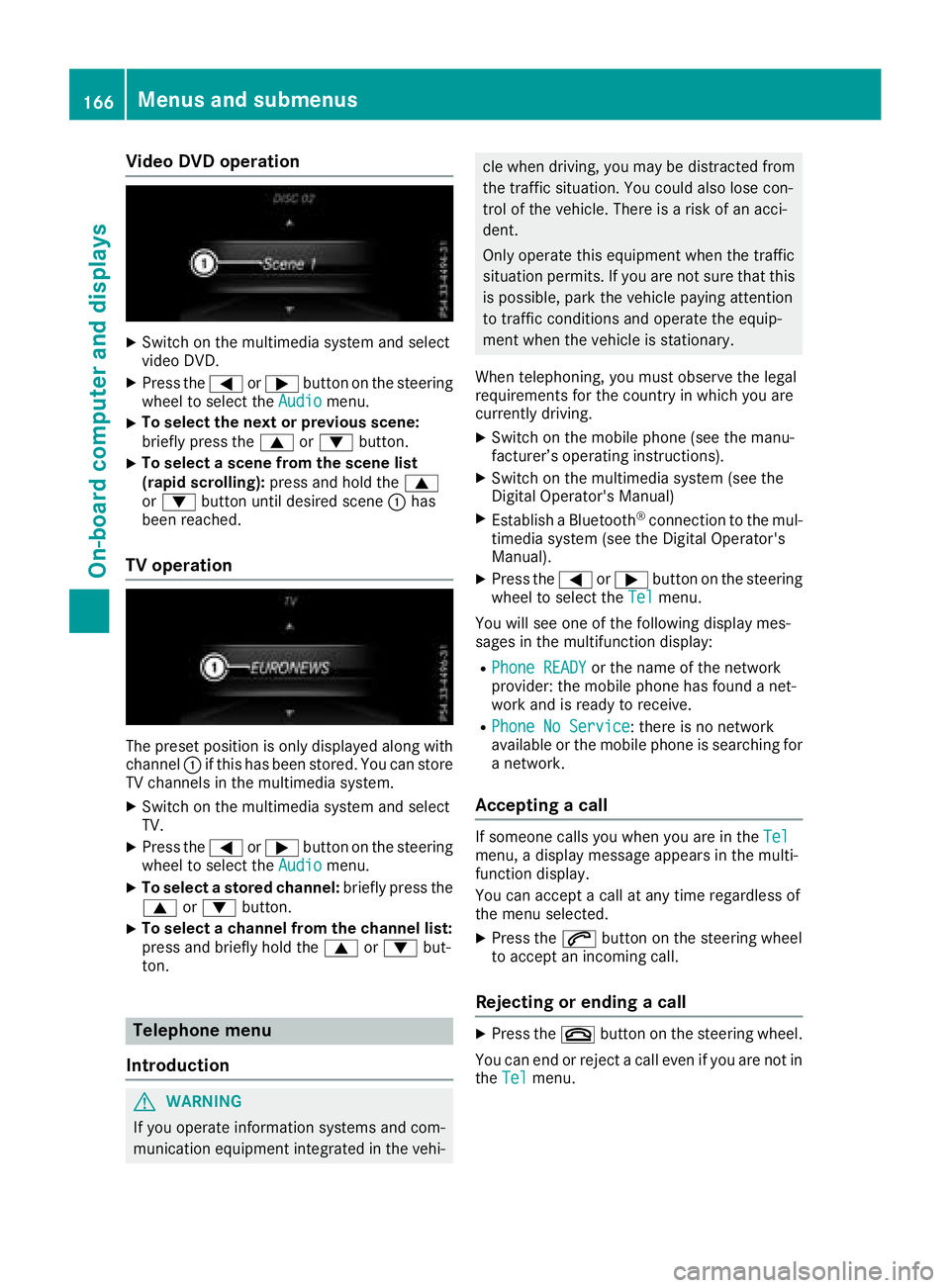
XSwitch on the multimedia system and select
video DVD.
XPress the=or; button on the steering
wheel to select the Audiomenu.
XTo select the next or previous scene:
briefly press the9or: button.
XTo select a scene from the scene list
(rapid scrolling): press and hold the 9
or : button until desired scene :has
been reached.
TV operation
The preset position is only displayed along with
channel :if this has been stored. You can store
TV channels in the multimedia system.
XSwitch on the multimedia system and select
TV.
XPress the =or; button on the steering
wheel to select the Audiomenu.
XTo select a stored channel: briefly press the
9 or: button.
XTo select a channel from the channel list:
press and briefly hold the 9or: but-
ton.
Telephone menu
Introduction
GWARNING
If you operate information systems and com-
munication equipment integrated in the vehi-
cle when driving, you may be distracted from
the traffic situation. You could also lose con-
trol of the vehicle. There is a risk of an acci-
dent.
Only operate this equipment when the traffic
situation permits. If you are not sure that this is possible, park the vehicle paying attention
to traffic conditions and operate the equip-
ment when the vehicle is stationary.
When telephoning, you must observe the legal
requirements for the country in which you are
currently driving.
XSwitch on the mobile phone (see the manu-
facturer’s operating instructions).
XSwitch on the multimedia system (see the
Digital Operator's Manual)
XEstablish a Bluetooth®connection to the mul-
timedia system (see the Digital Operator's
Manual).
XPress the =or; button on the steering
wheel to select the Telmenu.
You will see one of the following display mes-
sages in the multifunction display:
RPhone READYor the name of the network
provider: the mobile phone has found a net-
work and is ready to receive.
RPhone No Service: there is no network
available or the mobile phone is searching for
a network.
Accepting a call
If someone calls you when you are in the Telmenu, a display message appears in the multi-
function display.
You can accept a call at any time regardless of
the menu selected.
XPress the6button on the steering wheel
to accept an incoming call.
Rejecting or ending a call
XPress the ~button on the steering wheel.
You can end or reject a call even if you are not in
the Tel
menu.
166Menus and submenus
On-board computer and displays
Page 169 of 294
Dialinganumber from th ephone book
XPress th e= or; buttonon th esteerin g
whee lto selec tth eTelmenu.
XPress 9, :ora to switch to th e
phone book.
XAuthoriz eaccess to th ephone boo kon th e
phone .
XPress th e9 or: buttonto selec tth e
desire dname.
or
XTo star trapi dscrolling: press and hol d9
or : forlonger than on esecond.
Rapid scrollin gstops when you release th e
butto nor reach th een dof th elist .
XIf only one telephon enumber is stored for
a name :press th e6 ora buttonto
start dialing .
or
XIf ther eis more than one number for a
particular name :press th e6 ora
butto nto display th enumbers.
XPress th e9 or: buttonto selec tth e
number you wan tto dial.
XPress th e6 ora buttonto start dialing .
or
XTo exit th ephone book :press th e~ or
% button.
Redialing
The on-boar dcompute rsaves th elast names or
number sdiale din th eredial memory.
XPress th e= or; buttonon th esteerin g
whee lto selec tth eTelmenu.
XPress th e6 buttonto switch to th eredial
memory.
XPress th e9 or: buttonto selec tth e
desire dnam eor number .
XPress the6 ora buttonto start dialing .
or
XTo exit th eredial memory :press th e~
or % button.
Assistance menu
Introduction
In th eDriveAssistmenu, you hav eth efollow -
in g options:
RDisplayin gth eassistanc egraphi c
(Ypage 167)
RActivating/deactivatin gBlin dSpot Assis t
(Ypage 167)
Displaying th eassistance graphic
XPress th e= or; buttonon th esteerin g
whee lto selec tth eDriveAssistmenu.
XPress 9or: to selec tAssistanc eGraphic.
XPressa.
The DISTRONIC PLU Sdistanc edisplay
appears in th emultifunction display.
Activating/deactivating Blind Spot
Assis t
XPress th e= or; buttonon th esteerin g
whee lto selec tth eDriveAssistmenu.
XPress th e9 or: buttonto selec t
Blind Spo tAssist.
XPress a.
The curren tselection appears .
XTo activate/deactivate :press th ea but-
to nagain .
Fo rfurther information about Blind Spot Assist,
see (
Ypage 140).
Service menu
In th eServ.menu, you hav eth efollowin g
options:
RCallin gup display messages (Ypage 174)
RChecking thetire pressure electronically
(Ypage 264)
RCallin gup th eservic edue dat e
(Ypage 236)
RChecking th eengin eoil level (Ypage 232)
Menus and submenus167
On-board computer and displays
Z
Page 193 of 294
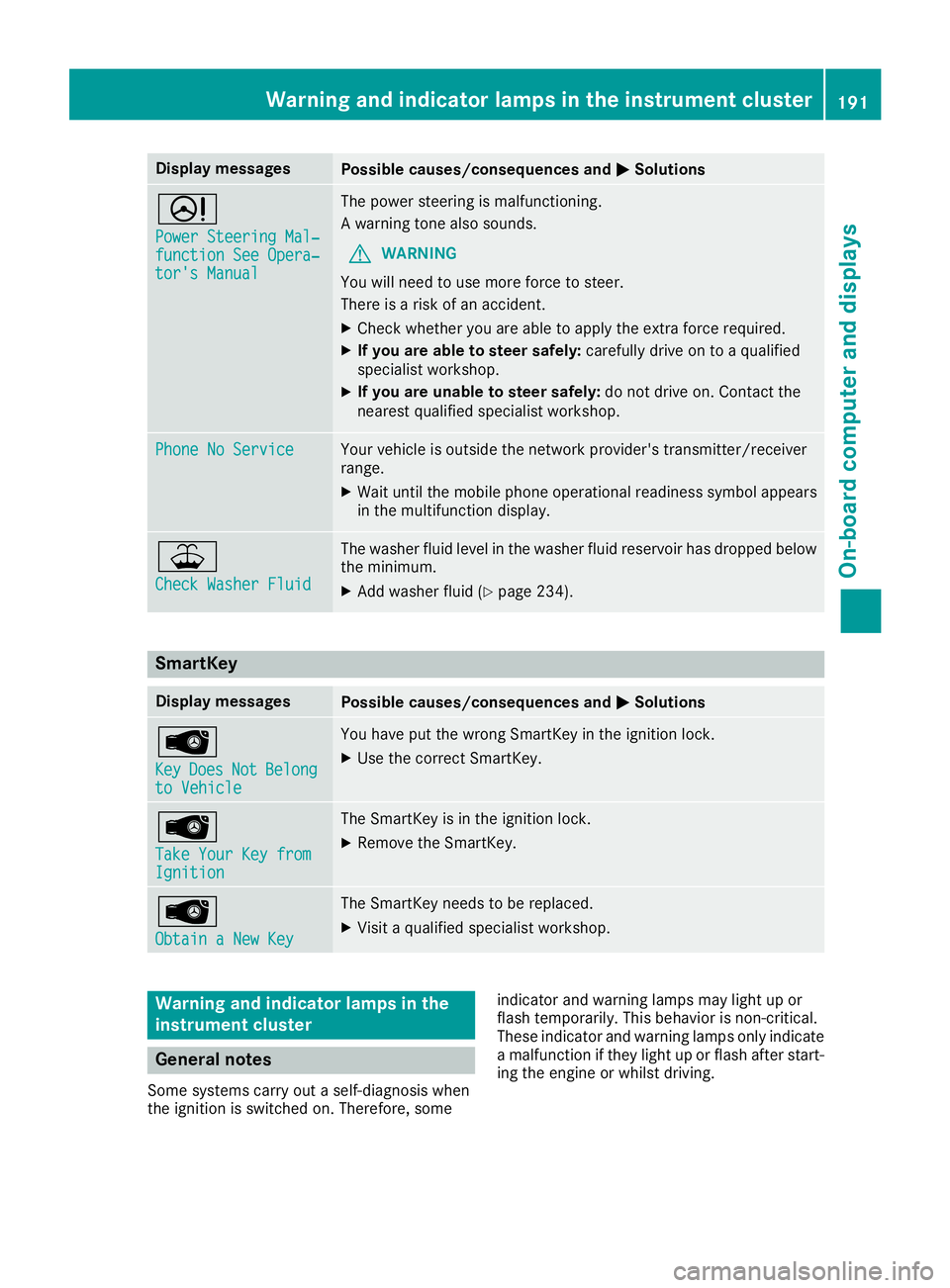
Display messagesPossible causes/consequences andMSolutions
D
Power Steering Mal‐function See Opera‐tor's Manual
The powersteering is malfunctioning .
A warning tone also sounds.
GWARNIN G
You will need to use mor eforce to steer .
There is aris kof an accident.
XChec kwhether you are able to apply th eextr aforce required.
XIf you ar eabl eto steer safely: carefully drive on to aqualified
specialist workshop .
XIf you areunable to steer safely: do notdrive on .Contac tth e
neares tqualified specialist workshop .
Phone No ServiceYour vehicleis outside th enetwork provider' stransmitter/receiver
range.
XWait until th emobile phone operational readiness symbol appear s
in th emultifunction display.
¥
Check Washer Fluid
The washer flui dlevel in th ewasher flui dreservoir has dropped belo w
th eminimum .
XAddwasher flui d (Ypage 234).
SmartKey
Display messagesPossible causes/consequences and MSolutions
Â
KeyDoesNotBelongto Vehicl e
You haveput th ewrong SmartKey in th eignition lock.
XUse th ecorrec tSmartKey.
Â
Tak eYou rKey fro mIgnition
The SmartKey is in th eignition lock.
XRemove th eSmartKey.
Â
Obtain aNew Key
The SmartKey needs to be replaced.
XVisit aqualified specialist workshop .
Warning and indicat orlamps in the
instrume nt cluster
General notes
Some systems carry out aself-diagnosis when
th eignition is switched on .Therefore ,som e indicator and warning lamp
smay ligh tup or
flas htemporarily. This behavio ris non-critical .
These indicator and warning lamp sonly indicat e
a malfunction if they ligh tup or flas hafter start -
ing th eengin eor whils tdriving.
Warning and indicator lamps in the instrument cluster191
On-board computer and displays
Z
Page 208 of 294
Notes for route options:
RUse Toll Roads
The route calculation includes roads which
require you to pay a usage fee (toll).
RNumber of Occupants in the Vehicle:(only available in the USA)
Prerequisite: your vehicle meets the access
conditions for carpool lanes.
Carpool lanes will be included if the carpool
lanes option is activated.
Entering an address
Multimedia system:
XSelectNaviQNavigation.
The map shows the vehicle's current position.
XSlide 6the controller.
XSelect DestinationQAddress Entry.
Enter an address, e.g. as follows:
Rcity or ZIP code, street, house number
Rstate/province, city or ZIP code
Rcity or ZIP code, center
Rstreet, city or ZIP code, intersection
XSelect City.
The city in which the vehicle is currently loca-
ted (current vehicle position) is at the top.
Below this, you will see locations for which
route guidance has already been carried out.
XEnter the city.
The Gsymbol: the location is contained on
the digital map multiple times.
XTo switch to the list: slide5the control-
ler.
XSelect the location.
If available, the ZIP code is shown. If there are
different ZIP codes available for the location,
the corresponding digits are displayed with an
X
.
XEnter the street and house number.
The address is in the menu.
Further options for destination entry:
Rsearch for a keyword
The keyword search finds destinations using
fragments of words.
Rselect the last destination
Rselect a contact
Rselect a POI
You can search for a POI by location, name or
telephone number.
Rselect destination on the map
Renter intermediate destination
You can map the route to the destination
yourself with up to four intermediate destina-
tions.
Rselect destinations from Mercedes-Benz
Apps
Rselect geo-coordinates
Calculating the route
Prerequisite: the address has been entered and
is in the menu.
XSelect StartorContinue.
The route is calculated with the selected route
type and the selected route options.
If route guidance has already been activated,
a prompt will appear asking whether you wish
to end the current route guidance.
XSelect Cancel Active Route Guidanceor
Set as Intermediate Destination.
Cancel Active Route Guidancecancels
the current route guidance and starts route
calculation to the new destination.
Set as Intermediate Destination
adds
the new destination in addition to the existing
destination and opens the intermediate des-
tinations list.
Connecting a mobile phone
(COMAND)
Requirements
For telephony via the Bluetooth®interface, you
require a Bluetooth®-capable mobile phone. The
mobile phone must support Hands-Free Profile
1.0 or above.
Multimedia system:
XSelect VehicleQSystem Set‐tingsQActivate Bluetooth.
XActivate Bluetooth®O.
Mobile phone:
XActivate Bluetooth®and, if necessary, Blue-
tooth®visibility for other devices (see the
manufacturer's operating instructions).
The Bluetooth
®device names for all of one man-
ufacturer's products might be identical. To
make it possible to clearly identify your mobile
206Operating system
Multimedia system
Page 209 of 294

phone, change the device name (see the man-
ufacturer's operating instructions).
If the mobile phone supports the PBAP (Phone
Book Access Profile) and MAP (M essage
Access Profile) Bluetooth
®profiles, the follow-
ing information will be transmitted after you
connect:
RPhone book
RCall lists
RText messages and e-mail
iFurther information on suitable mobile
phones can be found at: http://
www.mercedes-benz.com/connect
iIn the USA, you can get in touch with the
Mercedes-Benz Customer Assistance Center
on 1-800-FOR-MERCedes (1-800-367-6372).
In Canada, you can get in touch with the Cus-
tomer Relations Center on 1-800-387-0100.
Searching for and authorizing (connect-
ing) a mobile phone
Before using your mobile phone with the multi-
media system for the first time, you will need to
search for the phone and then authorize (con-
nect) it. Depending on the mobile phone, author-ization either takes place by means of Secure
Simple Pairing or by entering a passkey. The
multimedia system automatically makes the
procedure that is relevant for your mobile phone
available. The mobile phone is always connec-
ted automatically after authorization. Further
information on using a mobile phone with the
multimedia system (see the Digital Operator's
Manual).
If the multimedia system does not detect your
mobile phone, this may be due to particular
security settings on your mobile phone (see the
manufacturer's operating instructions).
Only one mobile phone can be connected to the
multimedia system at any one time.
Searching for a mobile phone
Multimedia system:
XSelect Tel/®QConn.DeviceQSearch for PhonesQStartSearch.
The available mobile phones are displayed. Symbols in the device list
Sym-
bolExplanation
ÏNew mobile phone found, not yet
authorized.
ÑMobile phone is authorized, but is
not connected.
#Mobile phone is authorized and
connected.
Connecting a mobile phone
Authorization using Secure Simple Pairing:
XSelect mobile phone.
A code is displayed in the multimedia system
and on the mobile phone.
XIf codes match:
selectYeson the multimedia
system.
XConfirm code on the mobile phone. Depend-
ing on the mobile phone used, confirm the
connection to the multimedia system and for
the PBAP and MAP Bluetooth
®profiles. The
prompt to confirm may take up to two
minutes to be displayed (see the manufactur-
er's operating instructions).
XIf the codes are different: selectNoon the
multimedia system.
The process is canceled.
Repeat authorization.
Authorization by entering a passkey (passcode):
XSelect the Bluetooth®name of the mobile
phone.
The input menu for the passkey is displayed.
XChoose a one to sixteen-digit number combi- nation as a passkey.
XEnter the passkey on the multimedia system.
XPress ¬to confirm.
XEnter and confirm the passkey on the mobile
phone. Depending on the mobile phone used,
confirm the connection to the multimedia sys-
tem and for the PBAP and MAP Bluetooth
®
profiles. The prompt to confirm may take up
to two minutes to be displayed (see the man-
ufacturer's operating instructions).
Operating system207
Multimedia system
Z