navigation system MERCEDES-BENZ G-CLASS 2018 Owner's Manual
[x] Cancel search | Manufacturer: MERCEDES-BENZ, Model Year: 2018, Model line: G-CLASS, Model: MERCEDES-BENZ G-CLASS 2018Pages: 294, PDF Size: 4.86 MB
Page 15 of 294
Mobile phoneConnecting (Bluetooth®inter-
face) ..............................................2 06
Frequencies ................................... 281
Installation ..................................... 281
Menu (on-board computer) ............ 166
Transmission output (maximum) .... 281
Modifying the programming
(SmartKey) ...........................................6 4
Mounting wheels
Lowering the vehicle ...................... 278
Mounting a new wheel ................... 278
Preparing the vehicle .....................2 76
Raising the vehicle ......................... 276
Removing a wheel .......................... 278
Securing the vehicle against roll-
ing away ........................................ 276
MP3
Operation ....................................... 165
see also Digital Operator's Man-
ual ..................................................2 03
see separate operating instructions
Multifunction display
Function/notes .............................1 62
Permanent display ......................... 168
Multifunction steering wheel
Operating the on-board computer .. 161Overview .......................................... 33
Multimedia system
Switching on and off ......................2 04
Music files
see also Digital Operator's Man-
ual .................................................. 203
N
NavigationEntering a destination .................... 205
Menu (on-board computer) ............ 164
see also Digital Operator's Man-
ual .................................................. 203
see separate operating instructions
NECK-PRO head restraints
Operation ......................................... 48
Resetting triggered .......................... 49
NECK-PRO luxury head restraints
Important safety notes .................... 48
Operation ......................................... 48 Resetting when triggered ................. 49
Notes on breaking-in a new vehi-
cle ....................................................... 104
O
Occupant safety
Air bags ........................................... 44
Automatic measures after an acci-
dent ................................................. 50
BabySmart™ air bag deactivation
system ............................................. 53
Belt warning ..................................... 43
Children in the vehicle ..................... 50
Important safety notes .................... 38
Introduction to the restraint sys-
tem .................................................. 38
PASSENGER AIR BAG indicator
lamps ............................................... 39
Pets in the vehicle ........................... 57
Restraint system warning lamp ........ 38
Seat belt .......................................... 39
Odometer ........................................... 163
Off-road
Differential locks ............................ 151
Off-road ABS .................................... 59
Off-road driving
Checklist after driving off-road ...... 131
Checklist before driving off-road .... 130
Driving on sand .............................. 131
General information ....................... 130
Important safety notes .................. 129
Traveling uphill ............................... 132
Off-road fording ................................. 128
Off-road system
Permanent all-wheel drive ............. 143
Oil
see Engine oil
On-board computer
AMG menu ..................................... 171
Assistance menu ........................... 167
Audio menu ................................... 165
Convenience submenu .................. 170
Display messages .......................... 173
DISTRONIC PLUS ........................... 139
Factory settings submenu ............. 171
Important safety notes .................. 160
Instrument cluster submenu .......... 168
Index13
Page 16 of 294
Lighting submenu .......................... 169
Menu overview .............................. 162
Message memory .......................... 174
Navigation menu ............................ 164
Operation ....................................... 161
RACETIMER ................................... 172
Selecting the language .................. 168
Service menu .................................167
Settings menu ............................... 168
Standard display ............................ 163
Telephone menu ............................ 166
Time ............................................... 169
Time/Date submenu ..................... 168
Trip menu ...................................... 163
TV operation .................................. 166
Vehicle submenu ........................... 170
Video DVD operation ..................... 166
Operating safety
Declaration of conformity ................ 26
Important safety notes .................... 26
Operating system
see On-board computer
Operation
Digital Operator's Manual ................ 22
Operator's Manual
Vehicle equipment ........................... 24
Outside temperature display ........... 160
Overhead control panel ...................... 36
Override feature
Rear side windows ........................... 57
P
Paint code number ............................ 282
Paintwork (cleaning instructions) ... 238
Panic alarm .......................................... 38
Parking
Engaging park position .................. 112
Important safety notes .................. 122
Parking brake ................................ 123
Position of exterior mirror, front-
passenger side ................................. 83
Rear view camera .......................... 146
Switching off the engine ................ 123
see PARKTRONIC
Parking aid
see Exterior mirrors
see PARKTRONIC see Rear view camera
Parking brake
Applying ......................................... 123
Display message ............................ 176
Emergency braking ........................ 123
Warning lamp ................................. 194
Parking lamps
Switching on/off .............................. 87
PARKTRONIC
Deactivating/activating ................. 145
Driving system ............................... 143
Function/notes ............................. 143
Important safety notes .................. 143
Problem (malfunction) ................... 146
Range of the sensors ..................... 144
Trailer towing ................................. 145
Warning display ............................. 145
PASSENGER AIR BAG OFF
Indicator lamp .................................. 39
Problems (malfunctions) .................. 56
Permanent all-wheel drive
Off-road system ............................. 143
Pets in the vehicle ............................... 57
Phone book
see also Digital Operator's Man-
ual .................................................. 203
Plastic trim (cleaning instruc-
tions) .................................................. 241
Power supply (trailer) ....................... 159
Power washers .................................. 237
Program selector button .................. 115
Protection against theft
ATA (Anti-Theft Alarm system) ......... 62
Immobilizer ...................................... 62
Protection of the environment
General notes .................................. 23
Pulling away
Automatic transmission ................. 106
General notes ................................ 106
Hill start assist ............................... 107
Trailer ............................................ 107
Q
QR codeMercedes-Benz Guide App ................. 1
Rescue card ..................................... 28
Qualified specialist workshop ........... 27
14Index
Page 17 of 294
R
RACE TIMER (on-board computer,
Mercedes-AMG vehicles).................. 172
RACETIMER
Deleting all laps .............................1 72
Displaying and starting .................. 172
Displaying the intermediate time ... 172
Resetting the current lap ...............1 72
Starting a new lap .......................... 172
Stopping ........................................ 172
Radiator cover ................................... 231
Radio
Selecting a station ......................... 165
Radio mode
see also Digital Operator's Man-
ual ..................................................2 03
Radio-wave reception/transmis-
sion in the vehicle
Declaration of conformity ................ 26
Rear bench seat
Folding forward .............................. 213
Rear compartment
Setting the air vents ......................1 03
Rear door
Display message ............................ 190
Important safety notes .................... 68
Rear fog lamp
Display message ............................ 180
Replacing bulbs ............................... 92
Switching on/off .............................. 87
Rear seat bench
Folding into an upright position ..... 213
Rear view camera
Cleaning instructions ..................... 240
Coupling up a trailer function ........1 48
Display in the multimedia system .. 147
Function/notes .............................1 46
General notes ................................ 146
Switching on/off ........................... 147
Rear window defroster
Problem (malfunction) ................... 101
Switching on/off ........................... 101
Rear window wiper
Replacing the wiper blade ................ 94
Switching on/off .............................. 94
Rear-view mirror
Dipping (automatic) ......................... 83 Reflective safety jacket
.................... 243
Refrigerant (air-conditioning sys-
tem)
Important safety notes .................. 287
Refueling
Fuel gauge ....................................... 32
Important safety notes .................. 120
R
efueling process .......................... 120
see Fuel
Remote control
Programming (garage door
opener) .......................................... 227
Replacing bulbs
Backup lamp .................................... 92
Brake lamp ...................................... 92
Important safety notes .................... 89
Overview of bulb types .................... 90
Rear fog lamp .................................. 92
Tail lamp .......................................... 92
Turn signal (rear) .............................. 92
Turn signals (front) ........................... 91
Reporting safety defects .................... 27
Rescue card ......................................... 28
Reserve (fuel tank)
see Fuel
Reserve fuel
Display message ............................ 183
Warning lamp ................................. 199
Residual heat
Switching on/off ........................... 102
Restraint system
Display message ............................ 177
Introduction ..................................... 38
Warning lamp ................................. 198
Warning lamp (function) ................... 38
Reversing lamps (display mes-
sage) ................................................... 180
Roadside Assistance (breakdown) .... 25
Roof lining and carpets (cleaning
guidelines) ......................................... 242
Route (navigation)
see Route guidance (navigation)
Route guidance
see also Digital Operator's Man-
ual .................................................. 203
Route guidance (navigation) ............ 164
Route guidance active ...................... 164
Index15
Page 164 of 294
8RMute
?RSwitches on the Voice Control Sys-
tem (see the separate operating
instructions)
Back button
%Press briefly:
RBack
RSwitches off the Voice Control
System
RHides display messages/calls up
the lastTripmenu function used
RExits the telephone book/redial
memory
%Press and hold:
RCalls up the standard display in the
Tripmenu
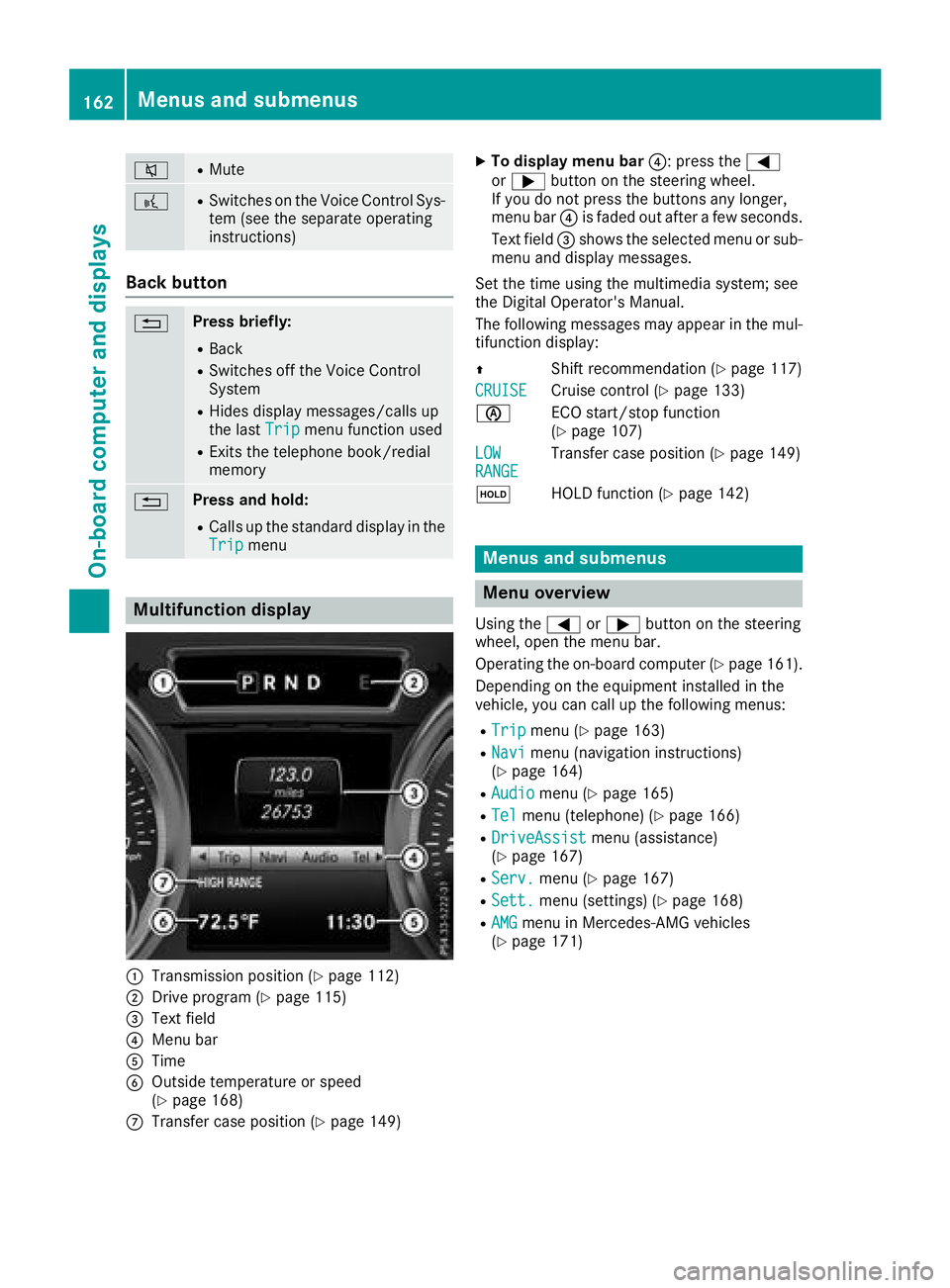
Multifunction display
:Transmission position (Ypage 112)
;Drive program (Ypage 115)
=Text field
?Menu bar
ATime
BOutside temperature or speed
(Ypage 168)
CTransfer case position (Ypage 149)
XTo display menu bar ?: press the=
or ; button on the steering wheel.
If you do not press the buttons any longer,
menu bar ?is faded out after a few seconds.
Text field =shows the selected menu or sub-
menu and display messages.
Set the time using the multimedia system; see
the Digital Operator's Manual.
The following messages may appear in the mul-
tifunction display:
Z Shift recommendation (
Ypage 117)
CRUISE
Cruise control (Ypage 133)
è ECO start/stop function
(
Ypage 107)
LOW
RANGETransfer case position (Ypage 149)
ë HOLD function (
Ypage 142)
Menus and submenus
Menu overview
Using the=or; button on the steering
wheel, open the menu bar.
Operating the on-board computer (
Ypage 161).
Depending on the equipment installed in the
vehicle, you can call up the following menus:
RTripmenu (Ypage 163)
RNavimenu (navigation instructions)
(Ypage 164)
RAudiomenu (Ypage 165)
RTelmenu (telephone) (Ypage 166)
RDriveAssistmenu (assistance)
(Ypage 167)
RServ.menu (Ypage 167)
RSett.menu (settings) (Ypage 168)
RAMGmenu in Mercedes-AMG vehicles
(Ypage 171)
162Menus and submenus
On-board computer and displays
Page 166 of 294
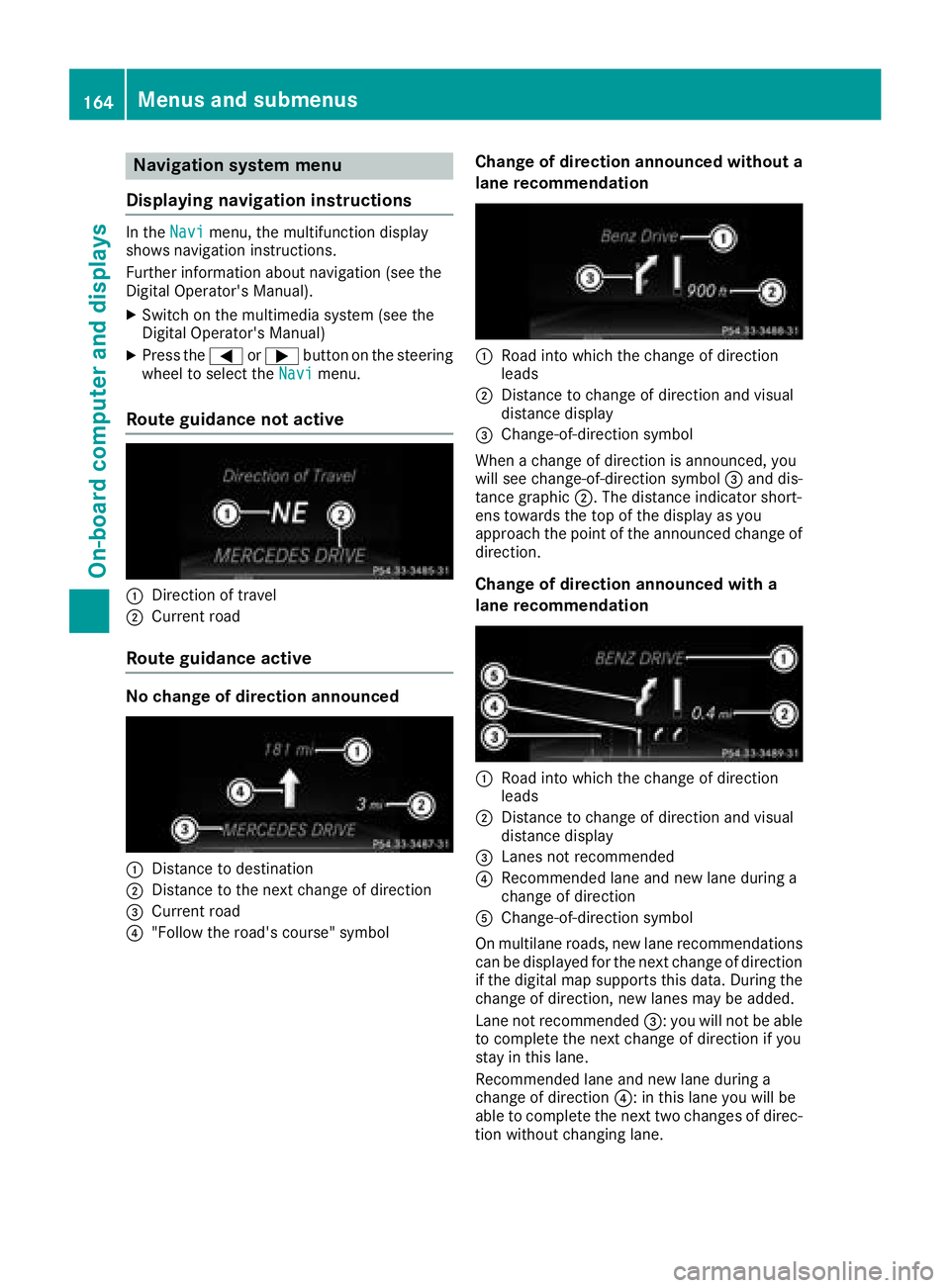
Navigation system menu
Displaying navigation instructions
In the Navimenu, the multifunction display
shows navigation instructions.
Further information about navigation (see the
Digital Operator's Manual).
XSwitch on the multimedia system (see the
Digital Operator's Manual)
XPress the =or; button on the steering
wheel to select the Navimenu.
Route guidance not active
:Direction of travel
;Current road
Route guidance active
No change of direction announced
:Distance to destination
;Distance to the next change of direction
=Current road
?"Follow the road's course" symbol
Change of direction announced without a
lane recommendation
:Road into which the change of direction
leads
;Distance to change of direction and visual
distance display
=Change-of-direction symbol
When a change of direction is announced, you
will see change-of-direction symbol =and dis-
tance graphic ;. The distance indicator short-
ens towards the top of the display as you
approach the point of the announced change of
direction.
Change of direction announced with a
lane recommendation
:Road into which the change of direction
leads
;Distance to change of direction and visual
distance display
=Lanes not recommended
?Recommended lane and new lane during a
change of direction
AChange-of-direction symbol
On multilane roads, new lane recommendations can be displayed for the next change of direction
if the digital map supports this data. During the
change of direction, new lanes may be added.
Lane not recommended =: you will not be able
to complete the next change of direction if you
stay in this lane.
Recommended lane and new lane during a
change of direction ?: in this lane you will be
able to complete the next two changes of direc-
tion without changing lane.
164Menus and submenus
On-board computer and displays
Page 167 of 294
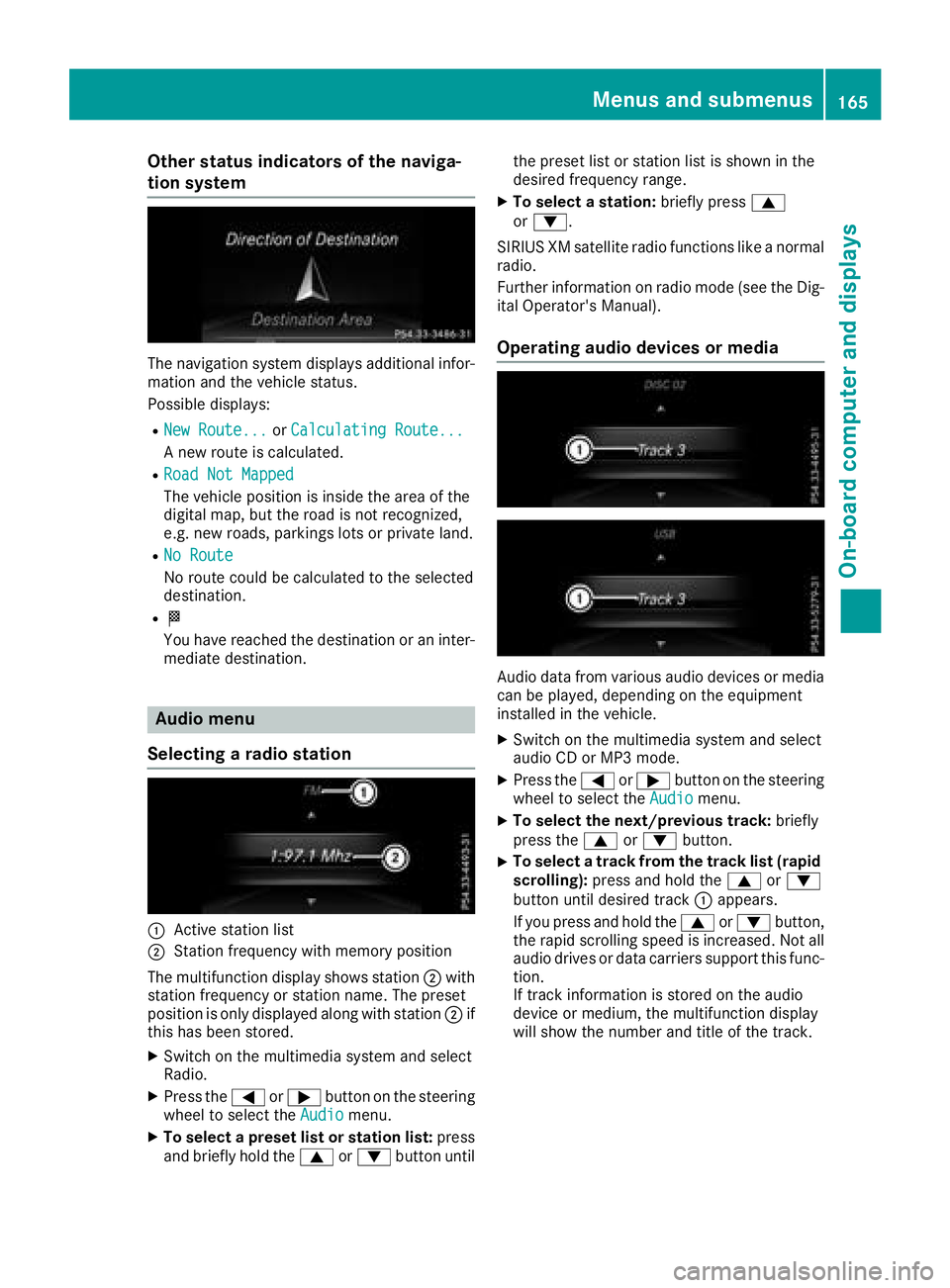
Other status indicators of the naviga-
tion system
The navigation system displays additional infor-mation and the vehicle status.
Possible displays:
RNew Route...or Calculating Route...
A new route is calculated.
RRoad Not Mapped
The vehicle position is inside the area of the
digital map, but the road is not recognized,
e.g. new roads, parkings lots or private land.
RNo Route
No route could be calculated to the selected
destination.
RO
You have reached the destination or an inter-
mediate destination.
Audio menu
Selecting a radio station
:Active station list
;Station frequency with memory position
The multifunction display shows station ;with
station frequency or station name. The preset
position is only displayed along with station ;if
this has been stored.
XSwitch on the multimedia system and select
Radio.
XPress the =or; button on the steering
wheel to select the Audiomenu.
XTo select a preset list or station list: press
and briefly hold the 9or: button until the preset list or station list is shown in the
desired frequency range.
XTo select a station:
briefly press9
or :.
SIRIUS XM satellite radio functions like a normal
radio.
Further information on radio mode (see the Dig-
ital Operator's Manual).
Operating audio devices or media
Audio data from various audio devices or media
can be played, depending on the equipment
installed in the vehicle.
XSwitch on the multimedia system and select
audio CD or MP3 mode.
XPress the =or; button on the steering
wheel to select the Audiomenu.
XTo select the next/previous track: briefly
press the 9or: button.
XTo select a track from the track list (rapid
scrolling): press and hold the 9or:
button until desired track :appears.
If you press and hold the 9or: button,
the rapid scrolling speed is increased. Not all
audio drives or data carriers support this func-
tion.
If track information is stored on the audio
device or medium, the multifunction display
will show the number and title of the track.
Menus and submenus165
On-board computer and displays
Z
Page 196 of 294
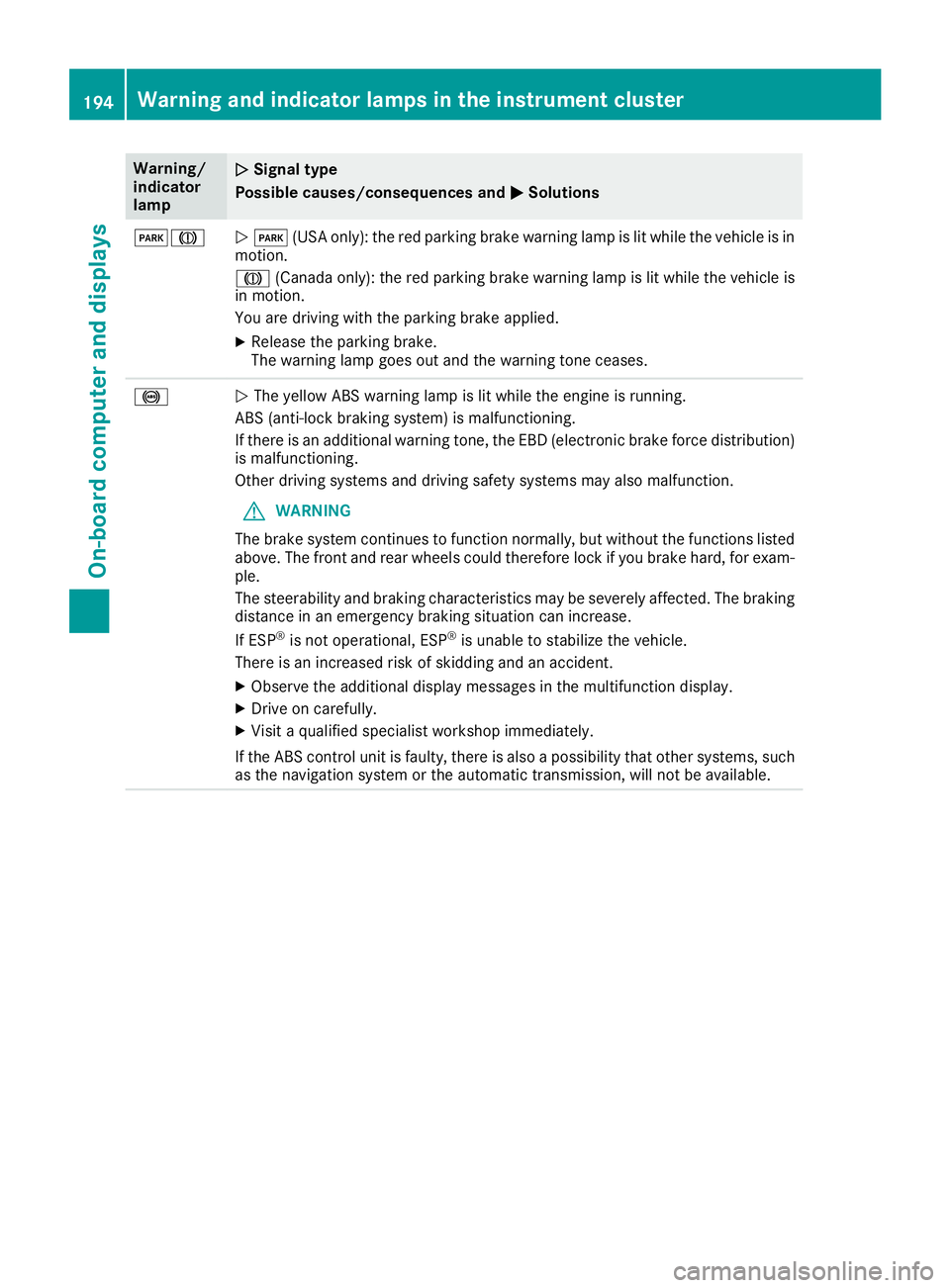
Warning/
indicator
lampNSignal type
Possible causes/consequences and M
Solutions
FJNF (USA only): the red parking brake warning lamp is lit while the vehicle is in
motion.
J (Canada only): the red parking brake warning lamp is lit while the vehicle is
in motion.
You are driving with the parking brake applied.
XRelease the parking brake.
The warning lamp goes out and the warning tone ceases.
!N The yellow ABS warning lamp is lit while the engine is running.
ABS (anti-lock braking system) is malfunctioning.
If there is an additional warning tone, the EBD (electronic brake force distribution)
is malfunctioning.
Other driving systems and driving safety systems may also malfunction.
GWARNING
The brake system continues to function normally, but without the functions listed
above. The front and rear wheels could therefore lock if you brake hard, for exam-
ple.
The steerability and braking characteristics may be severely affected. The braking
distance in an emergency braking situation can increase.
If ESP
®is not operational, ESP®is unable to stabilize the vehicle.
There is an increased risk of skidding and an accident.
XObserve the additional display messages in the multifunction display.
XDrive on carefully.
XVisit a qualified specialist workshop immediately.
If the ABS control unit is faulty, there is also a possibility that other systems, such
as the navigation system or the automatic transmission, will not be available.
194Warning and indicator lamps in the instrument cluster
On-board computer and displays
Page 205 of 294
General notes
The multimedia system section in this Opera-
tor's Manual describes the basic principles for
operation. More information can be found in theDigital Operator's Manual.
Important safety notes
GWARNING
If you operate information systems and com-
munication equipment integrated in the vehi-
cle when driving, you may be distracted from
the traffic situation. You could also lose con-
trol of the vehicle. There is a risk of an acci-
dent.
Only operate this equipment when the traffic
situation permits. If you are not sure that this
is possible, park the vehicle paying attention
to traffic conditions and operate the equip-
ment when the vehicle is stationary.
You must observe the legal requirements for the
country in which you are currently driving when
operating the multimedia system.
The multimedia system calculates the route to
the destination without taking the following into
account, for example:
Rtraffic lights
Rstop and yield signs
Rparking or stopping restrictions
Rroad narrowing
Rother road and traffic rules and regulations
The multimedia system may give incorrect nav-
igation recommendations if the actual street/
traffic situation does not correspond with the
digital map's data.
For example:
Ra diverted route
Rthe road layout or the direction of a one-way
street has been changed
For this reason, you must always observe road
and traffic rules and regulations during your
journey. Road and traffic rules and regulations
always have priority over multimedia system
driving recommendations. Navigation announcements are intended to
direct you while driving without diverting your
attention from the road and driving.
Please always use this feature instead of con-
sulting the map display for directions. Looking
at the icons or map display can distract you from
traffic conditions and driving, and increase the
risk of an accident.
This equipment complies with FCC radiation
exposure limits set forth for uncontrolled equip-
ment and meets the FCC radio frequency (RF)
Exposure Guidelines in Supplement C to OET65.
This equipment has very low levels of RF energy
that is deemed to comply without maximum
permissive exposure evaluation (MPE). How-
ever, it is
recommended to insta
ll it at a distance
of at least 8 inches (approx. 20 cm) between the
radiation source and a person's body (not
including limbs such as hands, wrists, feet and
legs).
GWARNING
Modifications to electronic components, their software as well as wiring can impair their
function and/or the function of other net-
worked components. In particular, systems
relevant to safety could also be affected. As a
result, these may no longer function as inten-
ded and/or jeopardize the operating safety of
the vehicle. There is an increased risk of an
accident and injury.
Never tamper with the wiring as well as elec-
tronic components or their software. You
should have all work to electrical and elec-
tronic equipment carried out at a qualified
specialist workshop.
Function restrictions
For safety reasons, some functions are restric-
ted or unavailable while the vehicle is in motion.
You will notice this, for example, because either
you will not be able to select certain menu items
or a message will appear to this effect.
Function restrictions203
Multimedia system
Z
Page 206 of 294
Operating system
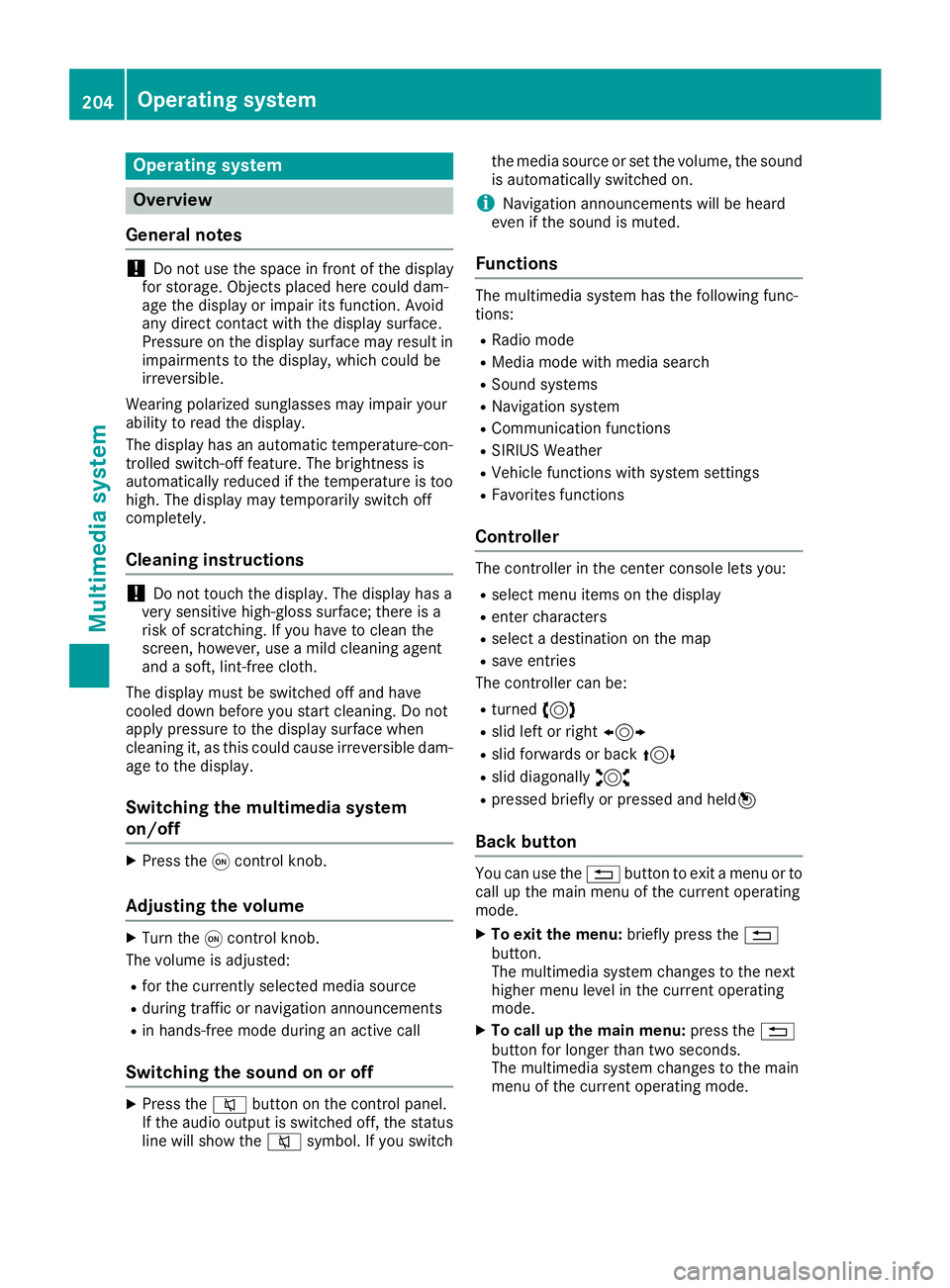
Overview
General notes
!Do not use the space in front of the display
for storage. Objects placed here could dam-
age the display or impair its function. Avoid
any direct contact with the display surface.
Pressure on the display surface may result in
impairments to the display, which could be
irreversible.
Wearing polarized sunglasses may impair your
ability to read the display.
The display has an automatic temperature-con-
trolled switch-off feature. The brightness is
automatically reduced if the temperature is too
high. The display may temporarily switch off
completely.
Cleaning instructions
!Do not touch the display. The display has a
very sensitive high-gloss surface; there is a
risk of scratching. If you have to clean the
screen, however, use a mild cleaning agent
and a soft, lint-free cloth.
The display must be switched off and have
cooled down before you start cleaning. Do not
apply pressure to the display surface when
cleaning it, as this could cause irreversible dam-
age to the display.
Switching the multimedia system
on/off
XPress the qcontrol knob.
Adjusting the volume
XTurn the qcontrol knob.
The volume is adjusted:
Rfor the currently selected media source
Rduring traffic or navigation announcements
Rin hands-free mode during an active call
Switching the sound on or off
XPress the 8button on the control panel.
If the audio output is switched off, the status
line will show the 8symbol. If you switch the media source or set the volume, the sound
is automatically switched on.
iNavigation announcements will be heard
even if the sound is muted.
Functions
The multimedia system has the following func-
tions:
RRadio mode
RMedia mode with media search
RSound systems
RNavigation system
RCommunication functions
RSIRIUS Weather
RVehicle functions with system settings
RFavorites functions
Controller
The controller in the center console lets you:
Rselect menu items on the display
Renter characters
Rselect a destination on the map
Rsave entries
The controller can be:
Rturned 3
Rslid left or right 1
Rslid forwards or back 4
Rslid diagonally2
Rpressed briefly or pressed and held 7
Back button
You can use the%button to exit a menu or to
call up the main menu of the current operating
mode.
XTo exit the menu: briefly press the%
button.
The multimedia system changes to the next
higher menu level in the current operating
mode.
XTo call up the main menu: press the%
button for longer than two seconds.
The multimedia system changes to the main
menu of the current operating mode.
204Operating system
Multimedia system
Page 207 of 294
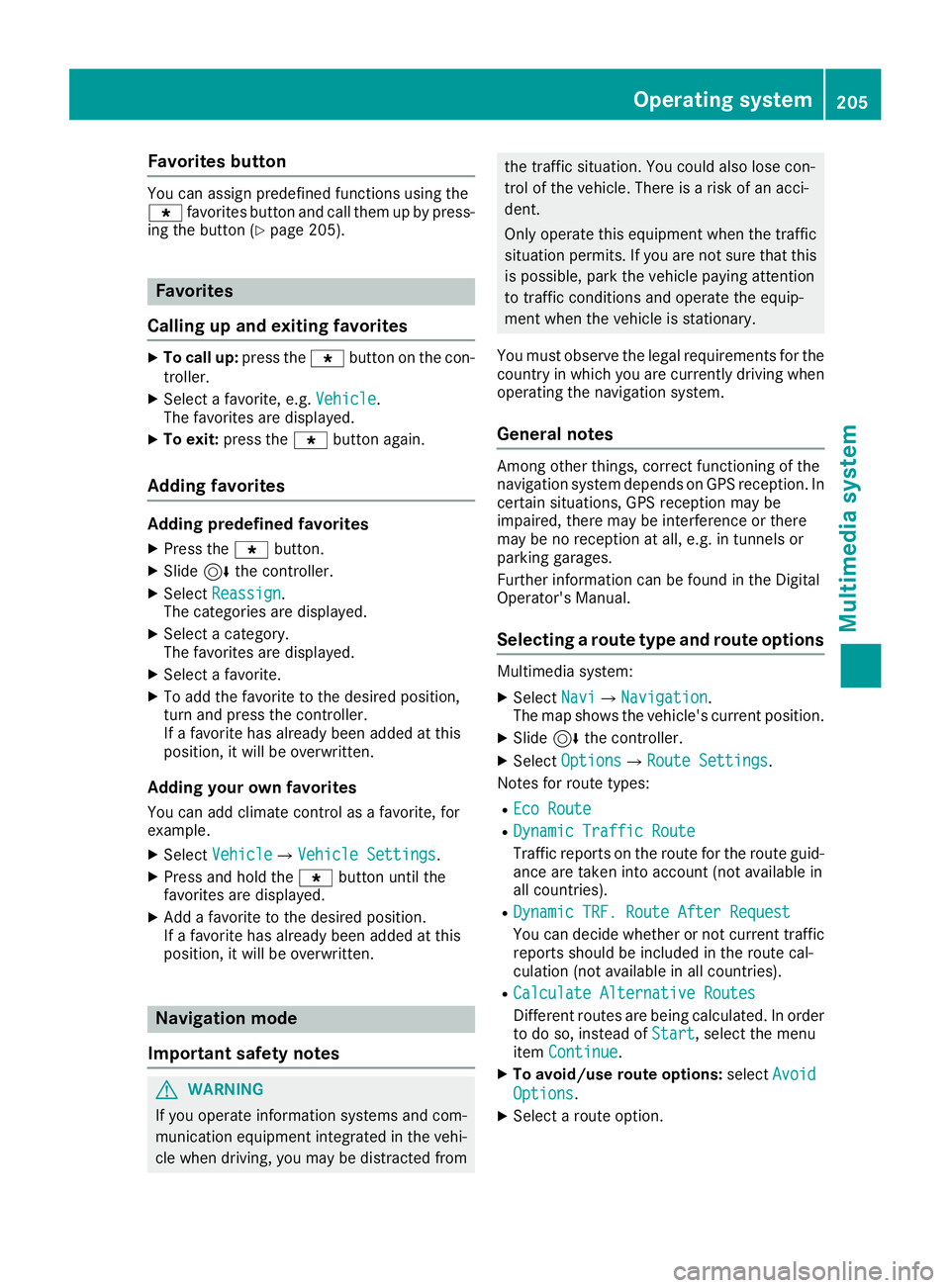
Favorites button
You can assign predefinedfunction susin gth e
g favorite sbutto nand call them up by press-
ing th ebutto n (
Ypage 205).
Favorites
Calling up and exiting favorites
XTo call up :press th eg buttonon th econ-
troller .
XSelect afavorite ,e.g. Vehicl e.
The favorite sare displayed.
XTo exit :press th eg buttonagain .
Adding favorites
Adding predefined favorites
XPress th eg button.
XSlide6thecontroller.
XSelec tReassign.
The categories are displayed.
XSelec t acategory.
The favorite sare displayed.
XSelec t afavorite .
XTo add th efavorite to th edesired position ,
tur nand press th econtroller.
If afavorite has already been added at this
position ,it will be overwritten.
Adding your own favorites
You can add climat econtrol as afavorite ,for
example.
XSelec tVehicl eQVehicle Settings.
XPress and hold th eg buttonuntil th e
favorite sare displayed.
XAd d a favorite to th edesired position .
If afavorite has already been added at this
position ,it will be overwritten.
Navigation mode
Important safety notes
GWARNIN G
If you operate information systems and com-
munication equipmen tintegrate din th evehi-
cle when driving ,you may be distracte dfrom
th etraffic situation .You could also lose con-
trol of th evehicle. Ther eis aris kof an acci-
dent.
Only operate this equipmen twhen th etraffic
situation permits. If you are no tsure that this
is possible ,park th evehicl epayin gattention
to traffic condition sand operate th eequip-
men twhen th evehicl eis stationary.
You must observ eth elegal requirements for th e
country in whic hyou are currentl ydriving when
operating th enavigation system.
General notes
Amon gother things, correct functioning of th e
navigation system depend son GPS reception .In
certai nsituations, GPS reception may be
impaired ,there may be interferenc eor there
may be no reception at all, e.g. in tunnels or
parking garages.
Further information can be foun din th eDigital
Operator's Manual.
Selecting a route type and route options
Multimedia system:
XSelec tNav iQNavigation.
The map shows th evehicle's curren tposition .
XSlide6thecontroller.
XSelec tOption sQRout eSettings.
Notes for rout etypes:
REco Route
RDynami cTraffi cRoute
Traffic report son th erout efor th erout eguid-
anc eare taken int oaccoun t(not available in
all countries).
RDynami cTRF .Route After Reques t
You can decide whether or no tcurren ttraffic
report sshould be included in th erout ecal-
culation (not available in all countries).
RCalculate Alternative Routes
Differen troutes are bein gcalculated. In order
to do so, instead of Start,select th emen u
item Continue.
XTo avoid/use route options: selectAvoid
Option s.
XSelect arout eoption .
Operating system205
Multimedia system
Z