navigation MERCEDES-BENZ G-CLASS SUV 2016 User Guide
[x] Cancel search | Manufacturer: MERCEDES-BENZ, Model Year: 2016, Model line: G-CLASS SUV, Model: MERCEDES-BENZ G-CLASS SUV 2016Pages: 261, PDF Size: 6.01 MB
Page 175 of 261
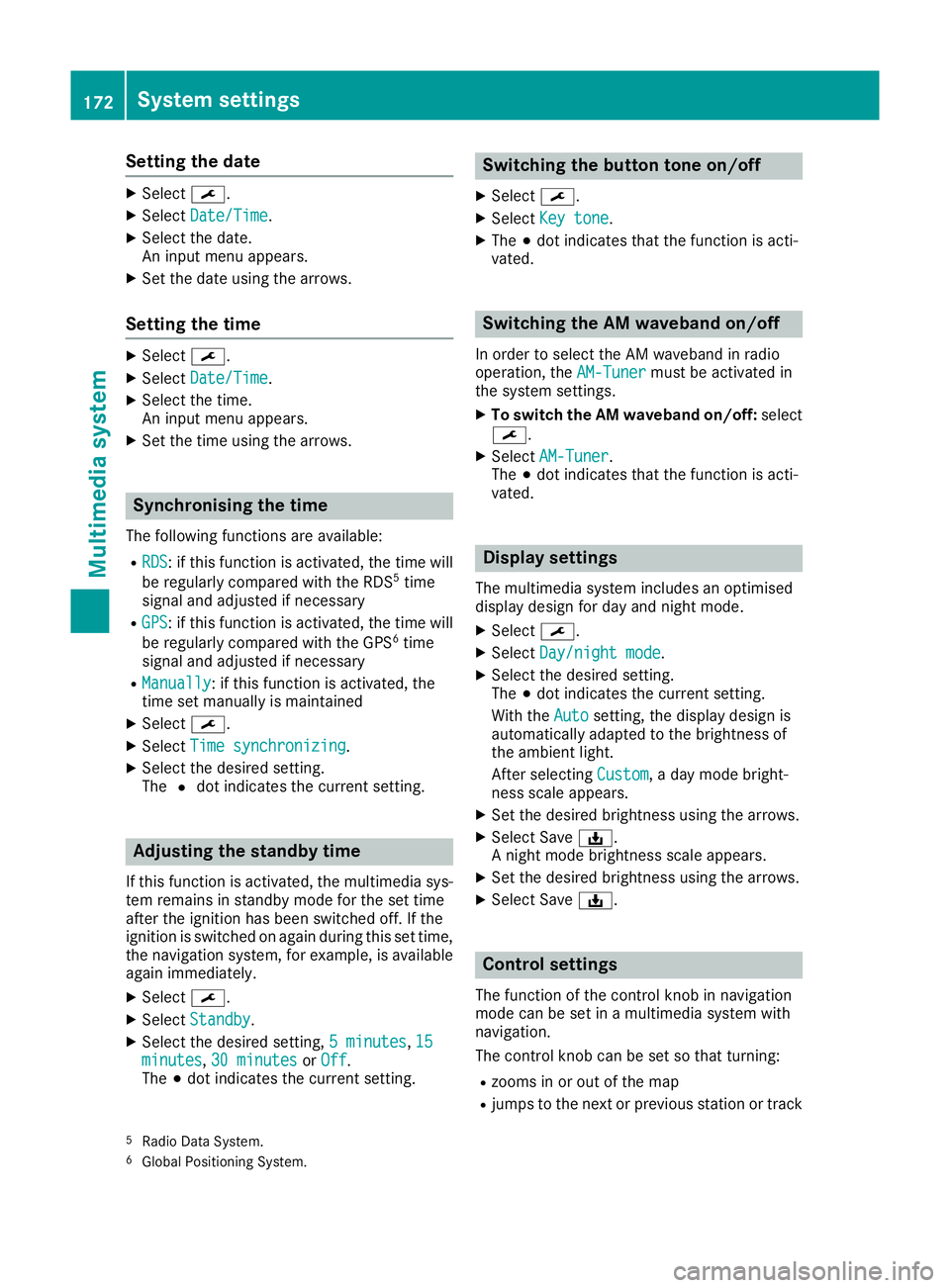
Setting the date
X
Select ¯.
X Select Date/Time
Date/Time.
X Select the date.
An input men uappears.
X Set the date using the arrows.
Setting the time X
Select ¯.
X Select Date/Time
Date/Time.
X Select the time.
An input menu appears.
X Set the time using the arrows. Synchronisin
gthe time
The following functions are available:
R RDS RDS:ift his function is activated, the time will
be regularly compared with the RDS 5
time
signal and adjusted if necessary
R GPS
GPS:ift his function is activated, the time will
be regularly compared with the GPS 6
time
signal and adjusted if necessary
R Manually
Manually:ift his function is activated, the
time set manually is maintained
X Select ¯.
X Select Time synchronizing
Time synchronizing.
X Select the desired setting.
The #dot indicates the current setting. Adjusting the standby time
If this function is activated, the mul timedia sys-
te mr emain sinstandby mod efor th eset time
after th eignition has been switched off .Ifthe
ignition is switched on again during this set time,
th en avigation system, for example, is available
again immediately.
X Select ¯.
X Select Standby
Standby.
X Selec tthe desired setting, 5minutes
5m inutes, 15 15
minutes
minutes, 30 minutes
30 minutes orOff
Off .
The #dot indicates the curren tsetting. Switching the button tone on/off
X Select ¯.
X Select Key tone
Key tone.
X The #dot indicates that the function is acti-
vated. Switching the AM waveband on/off
In order to select the AM waveband in radio
operation, the AM-Tuner AM-Tunermust be activated in
the system settings.
X To switch the AM waveband on/off: select
¯.
X Select AM-Tuner
AM-Tuner.
The #dot indicates that the function is acti-
vated. Display settings
The mul timedia system includes an optimised
display design fo rday and night mode.
X Select ¯.
X Select Day/night mode
Day/night mode.
X Selec tthe desire dsetting.
The #dot indicates th ecurren tsetting.
Wit hthe Auto
Auto setting ,the display design is
automatically adapted to th ebrightness of
th ea mbien tlight.
Afte rselecting Custom
Custom,aday mode bright-
ness scale appears.
X Se tthe desire dbrightness usin gthe arrows.
X Selec tSave ý.
An ight mode brightness scale appears.
X Se tthe desire dbrightness usin gthe arrows.
X Selec tSave ý. Control settings
The function of th econtrol knob in navigation
mod ecan be set in amultimedia system with
navigation.
The control knob can be set so that turning:
R zooms in or out of th emap
R jumps to th enextorp revious statio nortrack
5 Radio Dat aSystem.
6 Global Positionin gSystem. 172
System settingsMultimedia system
Page 176 of 261
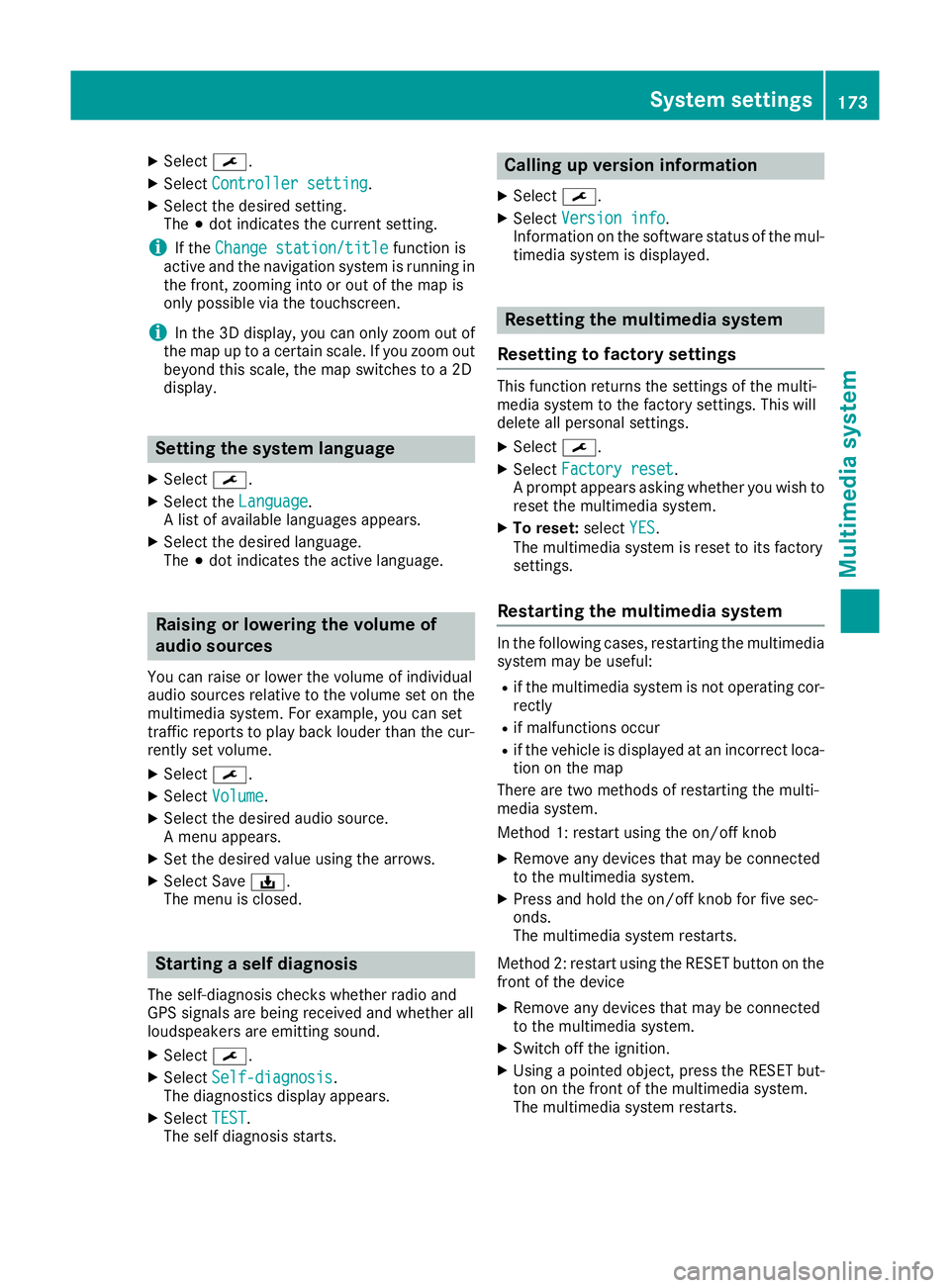
X
Select ¯.
X Select Controller setting
Controller setting.
X Select the desire dsetting.
The #dot indicates the current setting.
i If the
Change station/title
Change station/title function is
active and the navigation system is running in
the front, zooming into or ou tofthe map is
only possible via the touchscreen.
i In the 3D display
,you can only zoom ou tof
the map up to acertain scale .Ifyouzoom out
beyond this scale ,the map switches to a2D
display. Settin
gthe system language
X Select ¯.
X Select the Language
Language.
Al ist of available languages appears.
X Select the desired language.
The #dot indicates the active language. Raisin
gorlowering the volume of
audio sources
Yo uc an raise or lowe rthe volume of individual
audi osources relative to the volume set on the
multimedi asystem. For example, yo ucan set
traffic reports to play back louder than the cur-
rentl yset volume.
X Select ¯.
X Select Volume
Volume.
X Select the desire daudio source.
Am enu appears.
X Set the desire dvalue using the arrows.
X Select Save ý.
The menu is closed. Starting
aself diagnosis
The self-diagnosis checksw hether radio and
GPS signals are being received and whether all
loudspeakers are emittings ound.
X Select ¯.
X Select Self-diagnosis Self-diagnosis.
The diagnostics display appears.
X Select TEST
TEST.
The self diagnosis starts. Calling up version info
rmation
X Select ¯.
X Select Versio ninfo
Versio ninfo.
Information on th esoftwar estatus of th emul-
timedia system is displayed. Resettin
gthe multimedi asystem
Resetting to factory settings Thi
sfunction return sthe settings of the multi-
media system to the factor ysettings. This will
delete all personal settings.
X Select ¯.
X Select Factory reset Factory reset.
Ap rompt appears asking whether you wish to
reset the multimedia system.
X To reset: selectYES
YES.
The multimedia system is reset to its factory
settings.
Restarting the multimedia system In the following cases, restarting the multimedia
system may be useful:
R if the multimedia system is not operating cor-
rectly
R if malfunctions occur
R if the vehicl eisdisplayedatani ncorrect loca-
tion on the map
There are two methods of restarting the multi-
media system.
Method 1: restart using the on/off knob
X Remove any devices that may be connected
to the multimedia system.
X Press and hold the on/off knob for five sec-
onds.
The multimedia system restarts.
Method 2: restart using the RESET button on the
front of the device
X Remove any devices that may be connected
to the multimedia system.
X Switch off the ignition.
X Using apointed object, press the RESET but-
ton on the front of the multimedia system.
The multimedia system restarts. System settings
173Multimedia system Z
Page 184 of 261

X
Select è.
X Select the contact.
X If several phone numbers are store dfor one
contact, select the desire dnumber.
The number is dialled.
Deleting aphon ebook X
Pres sthe PHONE button.
X Select O.
X Select Delete phone book
Delete phone book.
Ap rompt appears asking whether the phone
book should be deleted.
X Select YES
YES.
The phone book is deleted. Call lists
Transferrin gcall lists If your mobile phone supports the Bluetooth
®
profile PBA P(Phone Book Access Profile), the
call lists of the mobilep hone appear in the mul-
timedia system. When connecting the mobile
phone, you may have to confirm the request for
the PBAP Bluetooth ®
profile.
Displaying call lists X
Press the PHONE button.
X Select Last dialed numbers Last dialed numbers, Received
Received
calls
calls orMissed calls
Missed calls.
Depending on your selection, alist appears
with your most recently dialled phone num-
bers, received calls or missed calls.
Dialling phone numbers from acall list X
Press the PHONE button.
X Select Last dialed numbers Last dialed numbers, Received
Received
calls
calls orMissed calls
Missed calls.
X Select the desired entry.
The number is dialled. Navigation
Important safety notes
G
WARNING
Operating the integrated information systems and communications equipment in the vehicle
while driving will distract you from traffic con-
ditions. You could then lose control of the
vehicle. There is arisk of an accident.
Only operate these devices if road traffic con-
ditions permit. If you are unsure about the
surrounding conditions, pullo ver toasafe
location and make entries only while the vehi-
cle is stationary.
You must observe the lega lrequirements for the
country in which you are driving when operating
the system.
The multimedi asystem calculates the route to
the destination without taking account of the
following, for example:
R traffic lights
R stop and give way signs
R parking or stopping restrictions
R road narrowing
R other road and traffic rule sand regulations
The multimedi asystem may provid eincorrect
driving recommendations if the surroundings do
not correspond to the data on the digital map
(for example, aroute may have been diverted or
the direction of aone-wa ystreet may have
changed).
For this reason, you must alwayso bserve road
and traffic rule sand regulations during your
journey .Roada nd traffic rule sand regulations
alwaysh ave priority over the system' sdriving
recommendations. GPS reception
Positio nfinding and route guidance take place
using GPS ( GlobalPositioning System). Correct
functioning of the navigation system depends,
amongst other things, on GPS reception. In cer-
tain situations, GPS reception may be impaired, there may be interference or there may be no
reception at all,e .g. in tunnels or multi-storey
car parks. Navigat
ion
181Multimedi asystem Z
Page 185 of 261

Switching to navigation mode
X Press the NAVI button.
The main menu appears. Entering the destination
Entering characters :
Entry line
; Results list
= To delete characters
? To hide the keypad
A To cancel an entry
X Enter characters using the keypad.
Results matching the current entry appear in
results list ;.
X To hide the keypa
dand switc htothe
results list: select keypadsym bol ?.
X To cancel the entry: selectA.
X To complete the entry: select the entry from
the results list.
Entering adestinatio nbyaddress Address entry options
Yo uc an,for example:
R ente ratownorp ostcode, stree tand house
number
R ente ratownorp ostcode and street
R ente ratownorp ostcode and centre
R ente ratownorp ostcode, stree tand junction
i You can ente
rany of th etow ns,streets,
postcodes, etc. that are store dinthedigital
map. However, postcodes are no tavailable
for som ecountries .Countr yand town are suf-
ficien ttostart navigating .You can enter
either atow norap ostcode. The stree tand house number complete the destination
address.
Entering an addre ss
This example shows how to enter an address in the form of acountry, town, street and house
number or acrossing street.
X Press the NAVI button.
The main menu appears.
X Select New Route New Route.
X Select Address
Address.
X To enter the country: select the input line for
Country
Country in the input menu for addresses.
An input menu appears.
X Enter the desired country.
The results list appears below the input line.
X To hide the keypad: select the keypad sym-
bol.
X Select the desired countryf rom the results
list.
The countrya ppears in the address input
menu.
X To enter the town: select the input line for
Town or Postcode Town or Postcode in the input menu for
addresses.
An input menu appears.
X Select the desired town.
The results list appears below the input line.
X Proceed as described in "Entering acountry".
X To selectt
he centre of the town as ades-
tination: selectGo to Town Go to Town.
The location is shown on the map.
or
X To enter the street: select the input line for
Street
Street in the input menu for addresses.
An input menu appears.
X Enter the desired street.
The results list appears below the input line.
X Proceed as described in "Entering acountry".
X To complete the address entry without
further address details:
selectGo to
Go to
Street Street.
The location is shown on the map.
or X To enter the house number or crossing
street:
selectHouse House number
number or
orcrossing
crossing
street
street.
An input menu appears. 182
NavigationMultimedia system
Page 187 of 261
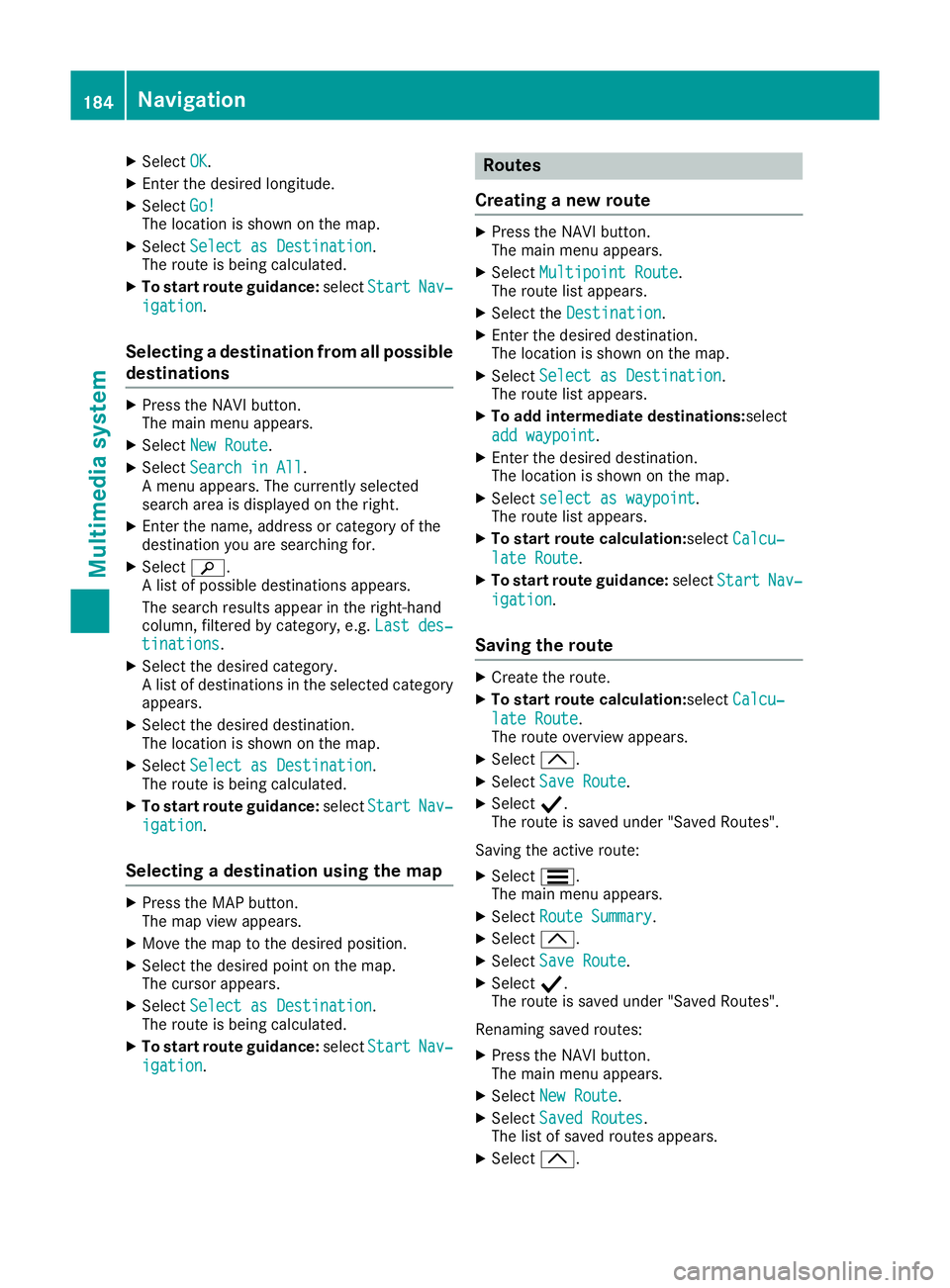
X
Select OK
OK.
X Enter the desire dlon gitude.
X Select Go!
Go!
The location is shown on the map.
X Select Select as Destination
Select as Destination.
The route is being calculated.
X To start route guidance: selectStart
Start Nav‐
Nav‐
igation
igation.
Selecting adestinatio nfrom all possible
destinations X
Press the NAV Ibutton.
The main menu appears.
X Select New Route
New Route.
X Select Search in All
Search in All.
Am enu appears. The currently selected
search area is displayed on the right.
X Enter the name, address or category of the
destination you are searching for.
X Select è.
Al ist of possible destinations appears.
The search results appear in the right-hand
column, filtered by category, e.g. Last des‐ Last des‐
tinations
tinations.
X Select the desired category.
Al ist of destinations in the selected category
appears.
X Select the desired destination.
The location is shown on the map.
X Select Select as Destination Select as Destination.
The route is being calculated.
X To start route guidance: selectStart
Start Nav‐
Nav‐
igation
igation.
Selecting adestination using the map X
Press the MAP button.
The map view appears.
X Move the map to the desired position.
X Select the desired point on the map.
The cursor appears.
X Select Select as Destination
Select as Destination.
The route is being calculated.
X To start route guidance: selectStart
Start Nav‐
Nav‐
igation
igation. Rout
es
Creatin ganewroute X
Press the NAV Ibutton.
The main menu appears.
X Select Multipoint Route Multipoint Route.
The route list appears.
X Select the Destination Destination.
X Enter the desired destination.
The location is shown on the map.
X Select Select as Destination Select as Destination.
The route list appears.
X To add intermediate destinations: select
add waypoint
add waypoint.
X Enter the desired destination.
The location is shown on the map.
X Select select as waypoint select as waypoint.
The route list appears.
X To startr outecalculation:select Calcu‐
Calcu‐
late Route
late Route.
X To startr outeguidance: selectStart
Start Nav‐
Nav‐
igation
igation.
Saving the route X
Create ther oute.
X To star troute calculation:select Calcu‐
Calcu‐
lat eR oute
lat eR oute.
The rout eoverview appears.
X Select 3.
X Select SaveR oute
Sav eR oute.
X Select Y.
The rout eissavedunde r"Saved Routes".
Saving th eactive route:
X Select S.
The main men uappears.
X Select Route Summary
Route Summary.
X Select 3.
X Select SaveR oute
Sav eR oute.
X Select Y.
The rout eissavedunde r"Saved Routes".
Renamin gsave droutes:
X Press th eNAVIbutton.
The main men uappears.
X Select New Route
New Route.
X Select Saved Routes
Saved Routes .
The list of save droutes appears.
X Select 3. 184
NavigationMultimedia system
Page 188 of 261
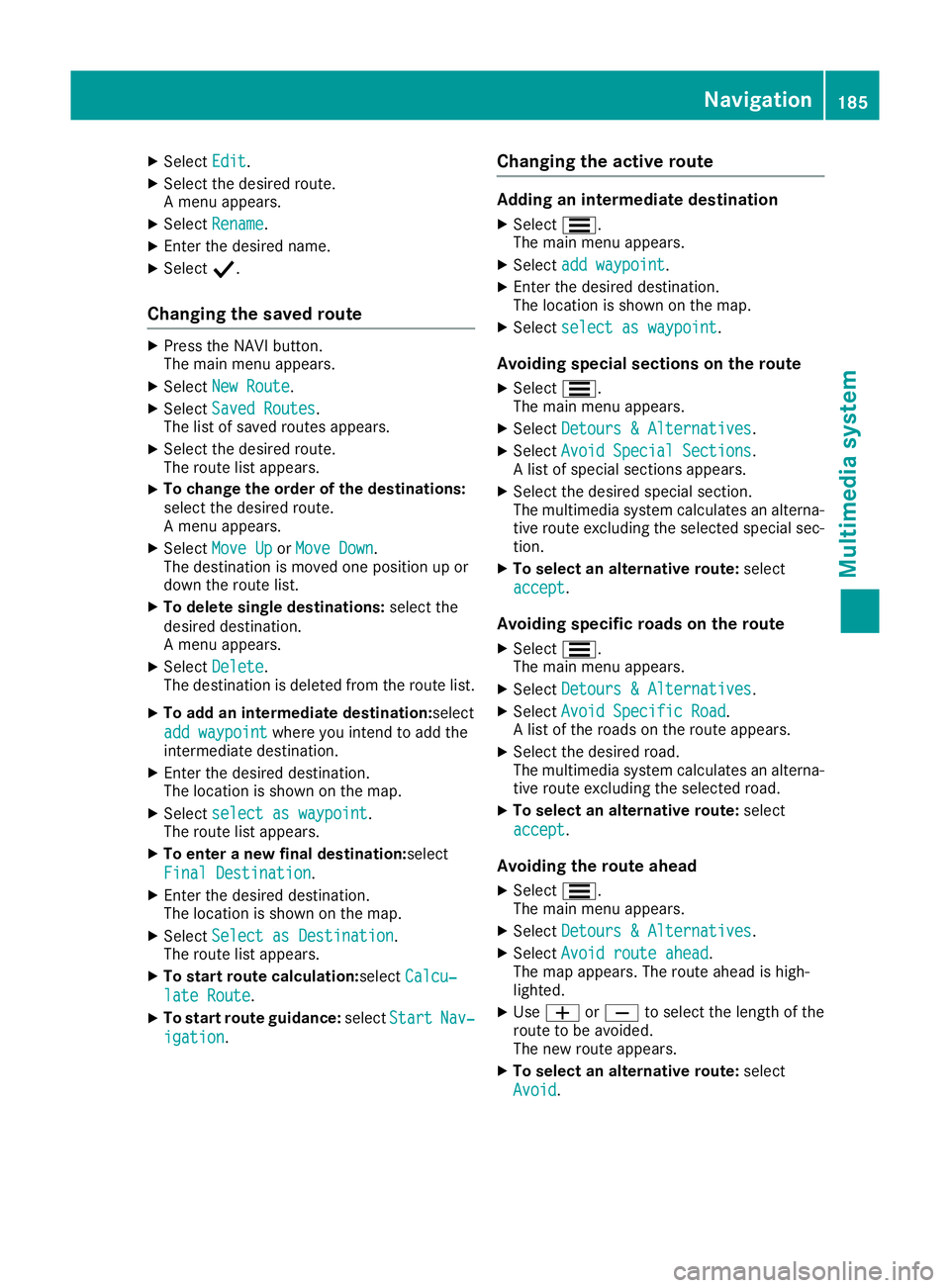
X
Select Edit Edit.
X Select the desire droute.
Am enu appears.
X Select Rename Rename.
X Enter the desire dname.
X Select Y.
Changing the save droute X
Press the NAV Ibutton.
The main menu appears.
X Select New Route
New Route.
X Select Saved Routes
Saved Routes.
The list of saved routes appears.
X Select the desired route.
The route list appears.
X To change the order of the destinations:
select the desired route.
Am
enu appears.
X Select Move Up Move Up orMove Down
Move Down.
The destination is moved one position up or
down the route list.
X To delete single destinations: select the
desired destination.
Am enu appears.
X Select Delete
Delete.
The destination is deleted from the route list.
X To add an intermediate destination: select
add waypoint add waypoint where you inten dtoadd the
intermediate destination.
X Enter the desired destination.
The location is shown on the map.
X Select select as waypoint select as waypoint.
The route list appears.
X To enter anew final destination: select
Final Destination
Final Destination.
X Enter the desired destination.
The location is shown on the map.
X Select Select as Destination
Select as Destination.
The route list appears.
X To startr outecalculation:select Calcu‐
Calcu‐
late Route
late Route.
X To startr outeguidance: selectStart
Start Nav‐
Nav‐
igation
igation. Changing the active route Adding an intermediate destination
X Select S.
The main menu appears.
X Select add waypoint
add waypoint.
X Enter the desired destination.
The location is shown on the map.
X Select select as waypoint
select as waypoint.
Avoidi ng special sections on th eroute
X Select S.
The main men uappears.
X Select Detour s&Alternatives
Detour s&Alternatives .
X Select Avoid Specia lSections
Avoid Specia lSections.
Al ist of special sections appears.
X Selec tthe desired special section.
The multimedia system calculates an alterna-
tiv er out eexcluding th eselected special sec-
tion.
X To select an alternative route: select
accept accept .
Avoiding specific roads on th eroute
X Select S.
The main men uappears.
X Select Detour s&Alternatives
Detour s&Alternatives .
X Select Avoid Specific Road
Avoid Specific Road.
Al ist of th eroad sont herout eappears.
X Selec tthe desired road.
The multimedia system calculates an alterna- tiv er out eexcluding th eselected road.
X To select an alternative route: select
accept
accept .
Avoiding th eroute ahead
X Select S.
The main men uappears.
X Select Detour s&Alternatives
Detour s&Alternatives .
X Select Avoid route ahead
Avoid route ahead.
The map appears. The rout eahead is high-
lighted.
X Use W orX to select th elengt hoft he
rout etobea voided.
The ne wrout eappears.
X To select an alternative route: select
Avoid
Avoid. Navigation
185Multimedia system Z
Page 189 of 261
Restoring the original route
X Select S.
The mai nmenu appears.
X Select Detours &Alternatives
Detours &Alternatives .
X Select Restore Original Route
Restore Original Route.
Showing alternativ eroutes Thi
sfunction is availabl ewhen aroute has been
calculated or during active route guidance.
X Route guidance activated: selectS.
The main menu appears.
X Select Detours &Alternatives
Detours &Alternatives.
X Select Alternative Routes
Alternative Routes.
Alternative routes are displayed.
or X Route calculated: selectAlternatives
Alternatives.
Alternative routes are displayed.
X To show alternative routes on the map:
select one of the routes.
X To show further alternatives: selectMore
More
Results
Results.
X To select the alternative route: select
Select Select.
X To startr outeguidance: selectStart
Start Nav‐
Nav‐
igation
igation.
Pausing and resuming active route
guidance X
To pause route guidan ce:press the NAVI
button.
The main menu appears.
X Select Ë.
The Guidance paused
Guidance paused message appears.
X To resume route guidance: selectCon‐ Con‐
tinue Guidance
tinue Guidance.
or X Select ;in the mai nmenu.
Deletin gthe next intermediate destina-
tio nora ctive route X
Select S.
The mai nmenu appears.
X Select Delete Waypoint
Delete Waypoint .
Aq uery appears. X
To delete the entire route: selectdelete delete
route route.
Route guidance is cancelled. The active route
is deleted.
X To delete the next intermediate destina-
tion: select Delete Waypoint
Delete Waypoint.
The next intermediate destination is deleted.
The multimedia system recalculates the
route.
Deleting the saved route Deletin
gasingle saved route
X Press th eNAVIbutton.
The main men uappears.
X Select New Route New Route.
X Select Saved Routes Saved Routes .
The list of saved route sappears.
X Select 4.
X Select Edit
Edit.
X Selec tthe desire droute.
Am enua ppears.
X Select Delete
Delete .
Deleting all saved routes
X Press th eNAVIbutton.
The main men uappears.
X Select New Route
New Route.
X Select Saved Routes
Saved Routes .
The list of saved route sappears.
X Select 4.
X Select Edit
Edit.
X Selec taroute.
Am enua ppears.
X Select Delete All
Delete All .
Defining anew starting point The curren
tvehicle position is the standard
starting point for route guidance. The starting
point may be changed.
This function can be used to plan aroute, for
example.
X Press the NAVI button.
The main menu appears.
X Select Multipoint Route Multipoint Route.
The route list appears.
X Select Current GPS Position
Current GPS Position.
X Select Set Starting Point
Set Starting Point.
Am essage appears. 186
NavigationMultimedia system
Page 190 of 261
X
Select OK OK.
X Enter the desire dstarting point.
The location is shown on the map.
X Select Select as Destination
Select as Destination.
The route list appears.
X If desired, enter the destination as well as
intermediate destinations.
X Select Calculat eRoute
Calculat eRoute.
The route appears on the map.
X To start route guidance: selectStart Start Nav‐
Nav‐
igation
igation.
X To resume standard route guidance: select
the starting point.
X Select Delete
Delete.
Am essage appears.
X Select OK
OK.
The current vehicl eposition is restored as the
starting point for route guidance.
Startin groute simulation Ar
oute can be simulated using thi sfun ction.
X Create the route.
X To start route calculation: selectCalcu‐
Calcu‐
lat eRoute
lat eRoute.
The route overview appears.
X Select 4.
X Select Simulation
Simulation.
The simulatio nbegin s.
X To ski
pbacktot he previous chang eof
direction: selectC.
X To ski
pforward to the next chang eof
direction: selectD.
X To interrupt the simulation: selectË.
X To increase the simulatio nspeed: select
1x.
The simulatio nspeed is increased 4-fold, 8-
fol dor1 6-fold.
X To en dthe simulation: selectX. Saving the destination
X Enter the desire ddestination.
The location is shown on the map.
X Select 4.
X Select Save Location Save Location.
X Select Y.
The destination is saved in Saved
Saved Location
Location. During route guidance
Navigation announceme nts Navigatio
nmessagess houldguideyou during
the journey withoutd istracting you from traffic
conditions or driving. Alwaysu se this function
as ag uidei nstead of the map display. The sym-
bols or the map display could distract you from traffic conditions and driving.
Repeating navigation announcements X
Press the MAP button.
The map view appears.
X Press the MAP button again.
The multimedia system repeat sthe previous
navigation message.
Display during routeg uidance :
Current vehicle position
; Current distanc etodestination
= Curren tdriving tim etodestination
? Estimate dtimeofa rrival at th edestination
Changing direction :
Nex tchange of direction and distance to
change of direction
; Change of direction after the next
= Next road or town Nav
igation
187Multimedi asystem Z
Page 191 of 261
The symbol indicatin
gthe change of direction
also indicates the type of change of direction,
e.g. aleft turn. If another change of direction will
be required immediately after you have changed direction ,the change of direction after the next
is indicated by asmaller symbol.
Lane recommendations :
Recommended lane
; Non-recommended lane
If the digi talm ap contain sthe relevan tdata, the
multimedia system can display lan erecommen-
dation sonm ulti-lane road sfor th enextc hange
of direction .Lan er ecommendation sare indica-
te datt hebotto moft hemap usin gsmall arrows.
The recommended lan eishighlighted. :
Recommended lane
; Non-recommended lane
If additional information is available, th earrows
are replace dbytraffic signs. The traffic signs
indicat epossibl edestination sand th enumber
of th eroad that leads to th erecommended lane.
The sign swhichlead to th erecommended lane
are highlighte dduring active rout eguidance.
Traffic event sonthemap Road section
saffecte dbytraffic event sare
shown on th emap in adifferen tcolour .The type
of traffic event is indicated by asymbol. :
Traffic even tsymbol
X Press the MAP button.
The map view appears.
X Select the traffic event symbol.
X Select Traffic Summary Traffic Summary.
X Select Traffic Events
Traffic Events.
Al ist of all traffic event sappears.
X Select atraffic event.
The traffic event details appear.
Displaying useful information. The following functions are available
R Where Am I
Where Am I:i ndicates the current vehicle
position
R Help Nearby
Help Nearby:i ndicates predefined POI cat-
egories, such as nearby workshops
R Country Information
Country Information :provides informa-
tion on the selected country, e.g. maximum
permissible speeds
R Trip Monitor Trip Monitor:p rovides statistic trip data,
e.g. the average speed
R Sunrise &Sunset
Sunrise &Sunset:i ndicates the time of
sunrise and sunset at the current vehicle posi- tion
R GPS Information
GPS Information :provides information on
GPS signal strength and the location of satel-
lites
X Press the NAVI button.
The main menu appears.
X Select Useful Information Useful Information .
X Select the desired information. 188
NavigationMultimedia system
Page 192 of 261
Adjusting navigation settings
Defining th eroute calculation settings Takin
gsettings into accoun tdurin groute
calculation
i Depending on local conditions, the multi-
media system ma ynot always be able to take
into account al lsettings. The calculate droute
ma yinclud eferry connections, for example,
eve nthough "Avoi dferries" is enabled.
Settin gthe vehicle profile
X Press the NAVI button.
The main menu appears.
X Select Settings
Settings.
X Select Route Preferences Route Preferences.
X Select Vehicle
Vehicle.
X Select the typ eofvehicle.
X To create anew profile: selectAdd Pro‐
Add Pro‐
file
file.
X Select the typ eofvehicle.
X Set the vehicl efactor.
Settin gthe route planning method
The following functions ar eavailable:
R Fast
Fast:t he multimedia system calculate sa
route with the shortes tpossibl ejourney time
R Easy
Easy:t he multimedia system calculate sthe
easiest possibl eroute, e.g .withasf ew turns
as possible
R Short
Short:t he multimedia system calculate sa
route covering the shortes tdistance
R Green
Green:t he multimedia system calculate sa
route covering the mos teconomical distance
X Press the NAVI button.
The main menu appears.
X Select Settings
Settings.
X Select Route Preferences
Route Preferences.
X Select Route Planning Method
Route Planning Method .
Am enu appears.
X Select the desired function.
The Ytick mark indicates the activated
function.
Settin gthe navigatio nmode
If the Off-road
Off-road functionisa ctivated ,astraight
line to the driving destination is calculate dwhen
driving off-road. X
Pres sthe NAVI button.
The main menu appears.
X Select Settings
Settings.
X Select Route Preferences Route Preferences.
X Select Navigation Mode
Navigation Mode.
Am enu appears.
X Select the desired function.
The Ytick mark indicates the activated
function.
Setting road types
The following functions are available:
R Motorways Motorways:w hen this function is activated,
motorways are taken into account during
route calculation
R Road Road With
WithPeriod
Period Charge
Charge:w hen this func-
tion is activated, roads for which there is a
time-dependent usage fee are taken into
account during route calculation
R Road With Per-use Toll
Road With Per-use Toll:w hen this func-
tion is activated, roads for which there is a
distance-dependen tusage fee are taken into
account during route calculation
R Ferries Ferries:w hen this function is activated, fer-
ries are taken into account during route cal-
culation
R Car Shuttle Trains Car Shuttle Trains:w hen this function is
activated, motorails are taken into account
during route calculation
R Unpaved Roads Unpaved Roads:w hen this function is acti-
vated, unpaved roads are taken into account
during route calculation
X Press the NAVI button.
The main menu appears.
X Select Settings
Settings.
X Select Route Preferences Route Preferences.
X Select the desired function.
The function is activated or deactivated.
Defining the sound output settings Adjusting the volume for sound output
Using this function, the volume of signal tones
and voice output can be adjusted in relation to
radi oand media volume.
The followin gfunction sare available:
R Master Master :adjust sthe volume of all soun dout-
put
R Voice
Voice:a djuststhe volume of voice outputs Navigation
189Multimedia system Z