bluetooth MERCEDES-BENZ G-CLASS SUV 2016 Owners Manual
[x] Cancel search | Manufacturer: MERCEDES-BENZ, Model Year: 2016, Model line: G-CLASS SUV, Model: MERCEDES-BENZ G-CLASS SUV 2016Pages: 261, PDF Size: 6.01 MB
Page 8 of 261
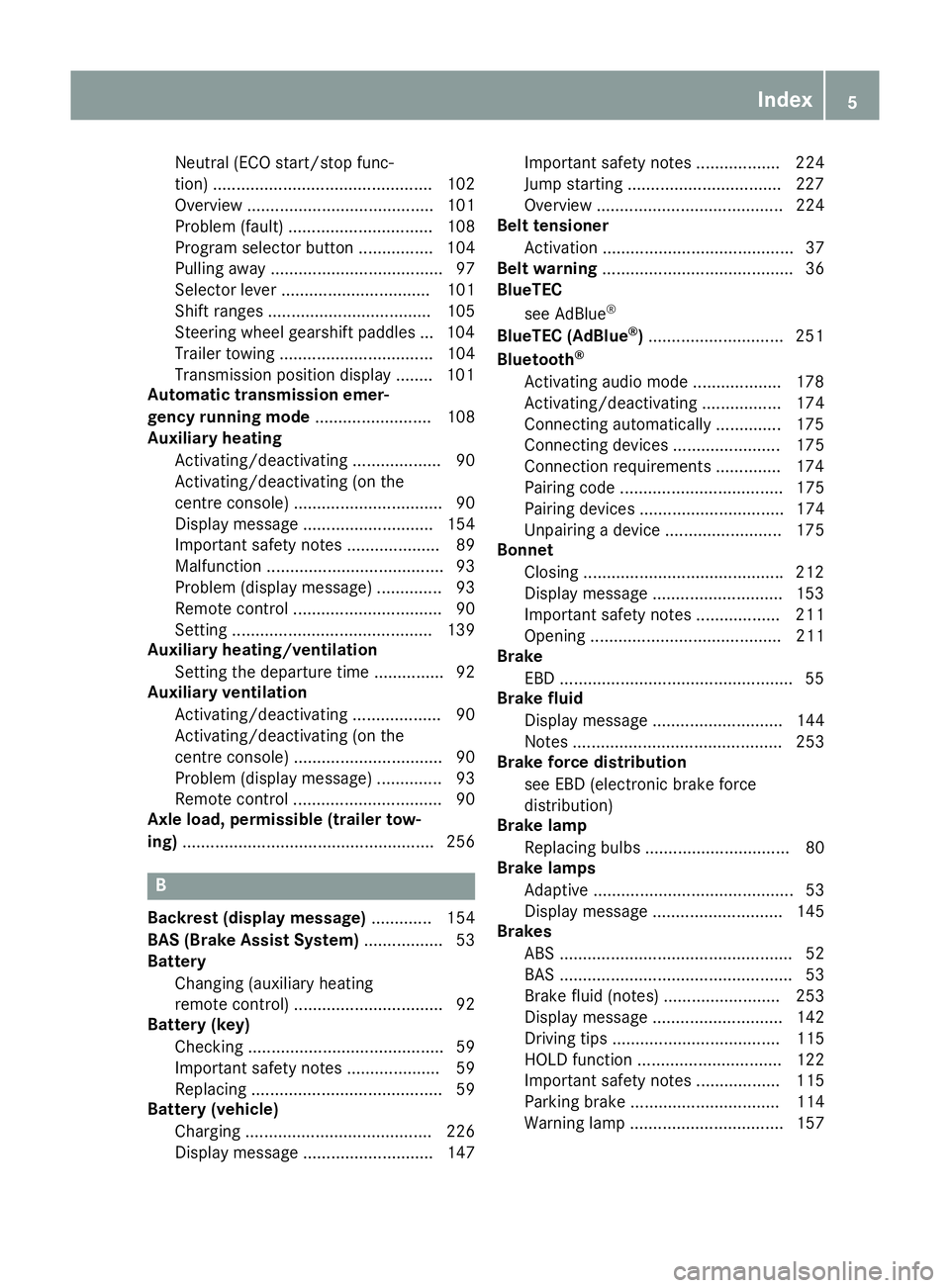
Neutral (ECO start/stop func-
tion) ............................................... 102
Overview ........................................ 101
Problem( fault) ............................... 108
Program selector button ................ 104
Pulling away. .................................... 97
Selector lever ................................ 101
Shift ranges ................................... 105
Steering whee lgearshift paddle s... 104
Trailer towing ................................. 104
Transmission position display ........ 101
Automatic transmission emer-
genc yrunnin gmode ......................... 108
Auxiliary heating
Activating/deactivating ................... 90
Activating/deactivating (o nthe
centre console )................................ 90
Displa ymessage ............................ 154
Important safety notes .................... 89
Malfunction ...................................... 93
Problem (displa ymessage) .............. 93
Remote control ................................ 90
Setting ........................................... 139
Auxiliary heating/ventilation
Setting the departur etime ............... 92
Auxiliary ventilation
Activating/deactivating ................... 90
Activating/deactivating (o nthe
centre console )................................ 90
Problem (displa ymessage) .............. 93
Remote control ................................ 90
Axle load, permissibl e(traile rtow-
ing) ...................................................... 256 B
Backres t(display message) ............. 154
BAS (Brake Assist System) ................. 53
Battery
Changing (auxiliary heating
remote control) ................................ 92
Battery (key)
Checking .......................................... 59
Important safety notes .................... 59
Replacing ......................................... 59
Battery (vehicle)
Charging ........................................ 226
Displa ymessage ............................ 147 Importan
tsafety notes .................. 224
Jump starting .................................2 27
Overview ........................................ 224
Belt tensioner
Activatio n......................................... 37
Belt warning ......................................... 36
BlueTEC
see AdBlue ®
BlueTE C(AdBlue ®
) ............................ .251
Bluetooth ®
Activating audio mode ................... 178
Activating/deactivating ................. 174
Connecting automatically .............. 175
Connecting devices ....................... 175
Connectio nrequirements .............. 174
Pairing code ................................... 175
Pairing devices ............................... 174
Unpairing adevice ......................... 175
Bonnet
Closing .......................................... .212
Display message ............................ 153
Important safety notes .................. 211
Opening ......................................... 211
Brake
EBD ................................................. .55
Brake fluid
Displa ymessage ............................ 144
Note s............................................. 253
Brake forc edistribution
see EBD (electroni cbrake force
distribution)
Brake lamp
Replacing bulb s............................... 80
Brake lamps
Adaptive ........................................... 53
Displa ymessage ............................ 145
Brakes
ABS .................................................. 52
BAS .................................................. 53
Brake fluid (notes) ......................... 253
Displa ymessage ............................ 142
Driving tip s.................................... 115
HOLD function ............................... 122
Important safety notes .................. 115
Parking brake ................................ 114
Warning lamp ................................. 157 Index
5
Page 19 of 261
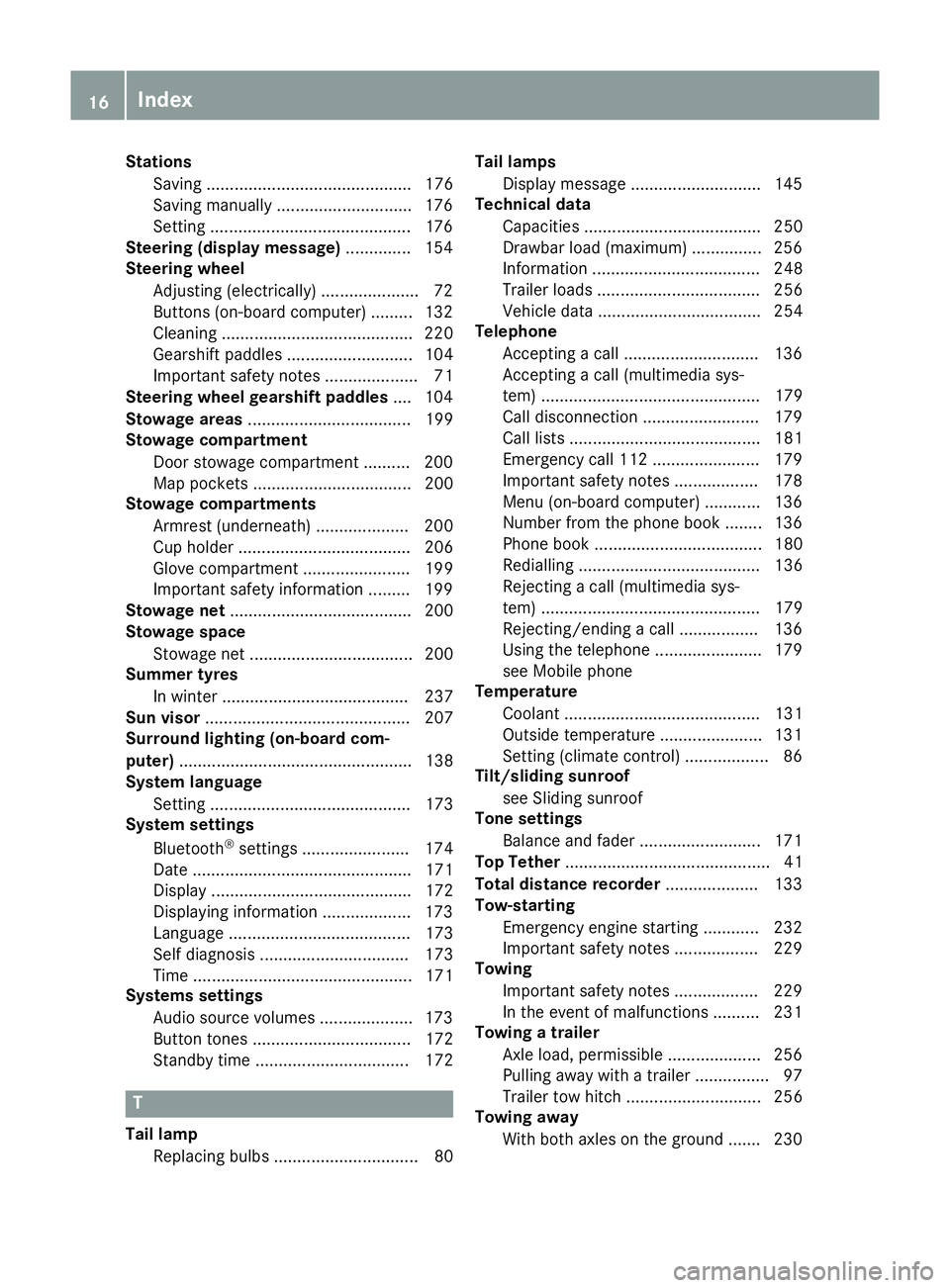
Stations
Saving ............................................ 176
Saving manually ............................. 176
Setting ...........................................1 76
Steering (display message) .............. 154
Steering wheel
Adjusting (electrically). .................... 72
Buttons (on-board computer) ......... 132
Cleaning ......................................... 220
Gearshift paddle s........................... 104
Important safety notes .................... 71
Steering whee lgearshift paddles .... 104
Stowag eareas ................................... 199
Stowag ecom partment
Door stowag ecompartment .......... 200
Ma pp ockets .................................. 200
Stowag ecom partments
Armrest (underneath) .................... 200
Cu ph olde r..................................... 206
Glove compartment ....................... 199
Important safety information ......... 199
Stowag enet....................................... 200
Stowag espace
Stowag enet ................................... 200
Summe rtyres
In winter ........................................ 237
Sun visor ............................................ 207
Surround lighting (on-board com-
puter) .................................................. 138
System language
Setting ........................................... 173
System settings
Bluetooth ®
settings ....................... 174
Date ............................................... 171
Displa y........................................... 172
Displaying information ................... 173
Languag e....................................... 173
Sel fdiagn osis................................ 173
Time ............................................... 171
Systems settings
Audio source volume s.................... 173
Butto ntones .................................. 172
Standby time ................................. 172 T
Tail lamp Replacing bulb s............................... 80 Tail lamps
Display message ............................ 145
Technical data
Capacities ...................................... 250
Drawbar load (maximum) ............... 256
Information .................................... 248
Trailer load s................................... 256
Vehicl edata. .................................. 254
Telephone
Accepting acall. ............................ 136
Accepting acall( multimedia sys-
tem) ............................................... 179
Call disconnectio n......................... 179
Call lists ......................................... 181
Emergency cal l112 ....................... 179
Important safety notes .................. 178
Menu (on-board computer) ............ 136
Numbe rfrom the phone boo k........ 136
Phone boo k.................................... 180
Redialling ....................................... 136
Rejecting acall( multimedia sys-
tem) ............................................... 179
Rejecting/ending acall. ................ 136
Using the telephone ....................... 179
see Mobil ephone
Temperature
Coolant .......................................... 131
Outsid etemperature ...................... 131
Setting (climate control ).................. 86
Tilt/slidin gsunroof
see Sliding sunroof
Ton esettings
Balance and fader .......................... 171
Top Tether ............................................ 41
Total distanc erecorder .................... 133
Tow-starting
Emergency engine starting ............ 232
Important safety notes .................. 229
Towing
Important safety notes .................. 229
In the event of malfunctions .......... 231
Towin gatrailer
Axle load ,permissibl e.................... 256
Pulling away with atraile r................ 97
Trailer tow hitch ............................. 256
Towin gaway
With both axles on the ground ....... 230 16
Index
Page 139 of 261
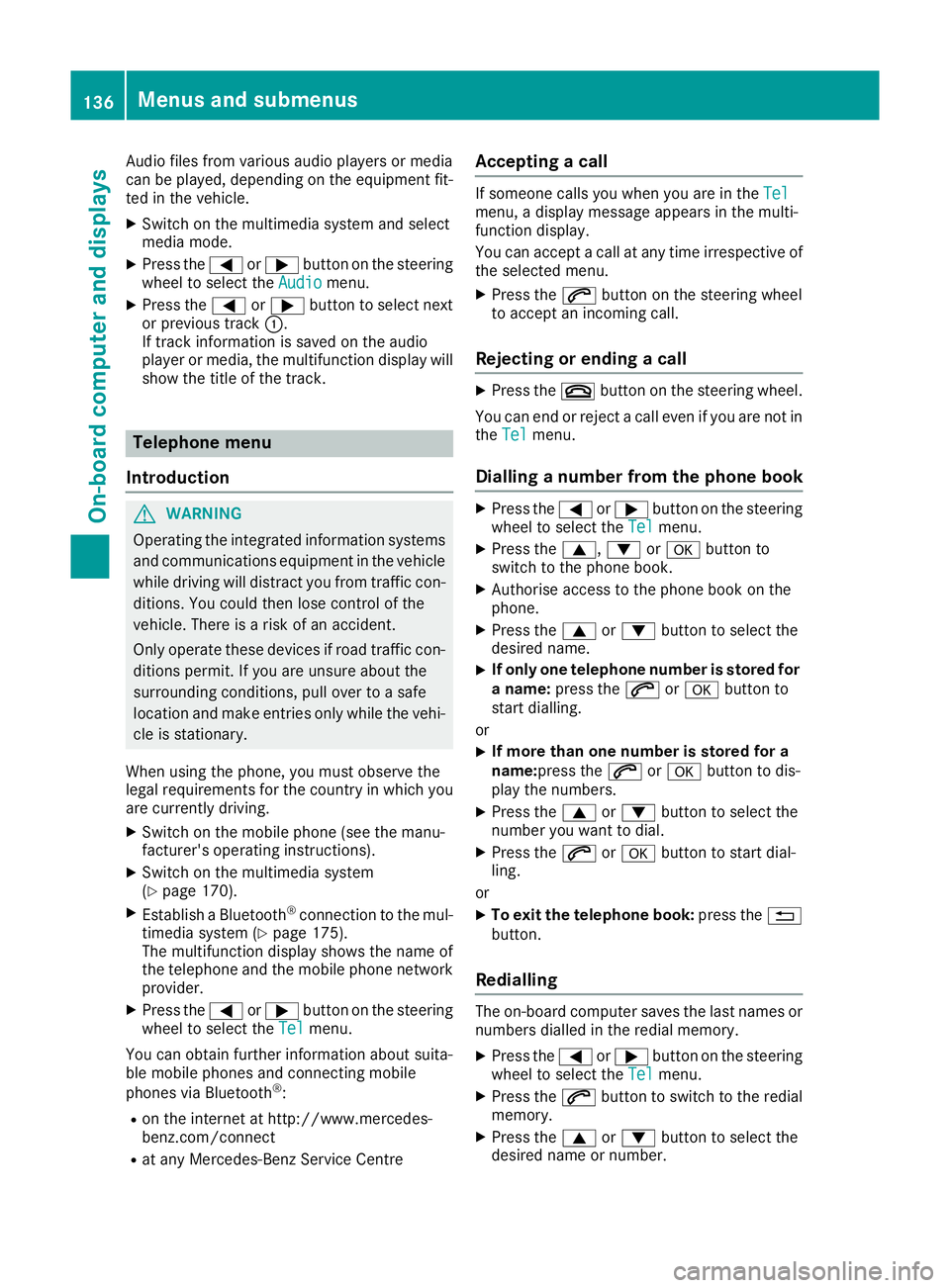
Audio files from various audi
oplayer sorm edia
can be played ,depen ding on the equipment fit-
ted in the vehicle.
X Switch on the multimedia system and select
media mode.
X Press the =or; button on the steering
whee ltoselect the Audio
Audio menu.
X Press the =or; button to select next
or previous track :.
If trac kinformatio niss aved on the audio
player or media ,the multifunctio ndisplay will
sho wthe titl eofthe track. Telephon
emenu
Introduction G
WARNING
Oper ating the integrated information systems
and communications equipment in the vehicle
while driving willd istract you from traffic con-
ditions. You coul dthen lose control of the
vehicle. There is arisk of an accident.
Only operate these devices if road traffic con-
ditions permit. If you are unsure about the
surrounding conditions, pullo ver toasafe
location and make entries only while the vehi-
cle is stationary.
When using the phone, you must observe the
lega lrequirements for the country in which you
are currently driving.
X Switch on the mobil ephone (see the manu-
facturer' soperating instructions).
X Switch on the multimedi asystem
(Y page1 70).
X Establish aBluetooth ®
connection to the mul-
timedi asystem (Y page175).
The multifunction display show sthe name of
the telephone and the mobil ephone network
provider.
X Press the =or; button on the steering
whee ltoselect the Tel Telmenu.
You can obtai nfurther information about suita-
ble mobil ephones and connecting mobile
phones via Bluetooth ®
:
R on the internet at http://www.mercedes-
benz.com/connect
R at any Mercedes-Benz Service Centre Accepting
acall If someon
ecalls you when you are in the Tel
Tel
menu, adisplay messag eappears in the multi-
function display.
You can accept acall at any time irrespective of
the selected menu.
X Press the 6button on the steering wheel
to accept an incoming call.
Rejecting or ending acall X
Press the ~button on the steering wheel.
You can end or reject acall even if you are not in
the Tel Tel menu.
Dialling anumber from the phone book X
Press the =or; button on the steering
wheel to select the Tel
Tel menu.
X Press the 9,:ora button to
switch to the phone book.
X Authorise access to the phone book on the
phone.
X Press the 9or: button to select the
desired name.
X If only one telephone number is stored for
an ame: press the 6ora button to
start dialling.
or X If more thano
ne number is stored for a
name:press the 6ora button to dis-
play the numbers.
X Press the 9or: button to select the
number you want to dial.
X Press the 6ora button to start dial-
ling.
or X To exit the telephone book: press the%
button.
Redialling The on-board computer saves the last names or
numbers dialled in the redial memory.
X Press the =or; button on the steering
wheel to select the Tel Telmenu.
X Press the 6button to switch to the redial
memory.
X Press the 9or: button to select the
desired name or number. 136
Menus and submenusOn-board computer and displays
Page 168 of 261
Introduction
Oper
ating safety
Important safet ynotes G
WARNING
Operating the integrated information systems and communications equipment in the vehicle
while driving will distract you from traffic con-
ditions. You could then lose control of the
vehicle. Ther eisarisk of an accident.
Only operate these devices if road traffic con-
ditions permit. If you are unsure about the
surrounding conditions, pullo ver toasafe
location and make entries only while the vehi-
cle is stationary.
Observe the lega lrequirements for the country
you are in.
The navigation system calculates the route to
the destination without taking account of the
following, for example:
R traffic lights
R stop and give way signs
R parking or stopping restrictions
R road narrowing
R other road and traffic rule sand regulations
The multimedi asystem may provid eincorrect
navigation announcements if the surroundings
do not correspond to the data on the digital map (for example, aroute may have been diverted or
the direction of aone-wa ystreet may have
changed).
For this reason, you must alwayso bserve road
and traffic rule sand regulations during your
journey .Roada nd traffic rule sand regulations
alwaysh ave priority over the system' sdriving
recommendations.
Remember that even at aspee dof50k m/h,
yourv ehiclecovers adistance of 14 mper sec-
ond.
When using the device please follow:
R the safety notes in this manual
R traffic rules and regulations
R laws and safety standards pertainin gtomotor
vehicles G
WARNING
Modifications to electronic components, their software as well as wiring could affect their
function and/or the oper ation of other net-
worked components. This coul dinparticular
alsobet he case for systems relevant to
safety .They might not function properly any-
more and/or jeopardise the operational
safety of the vehicle. There is an increased
risk of an accident and injury.
Do not attempt to modify the wiring as wellas
electronic components or their software.
Always have work on electrica land electronic
components carrie dout at aqualified special-
ist workshop. Correct use
Th em ultimedia system can be used for th efol-
lowing:
R to receive radio stations
R to play back audio file sonmemory cards and
other dat acarriers
R to mak ecalls via th eBluetooth ®
function
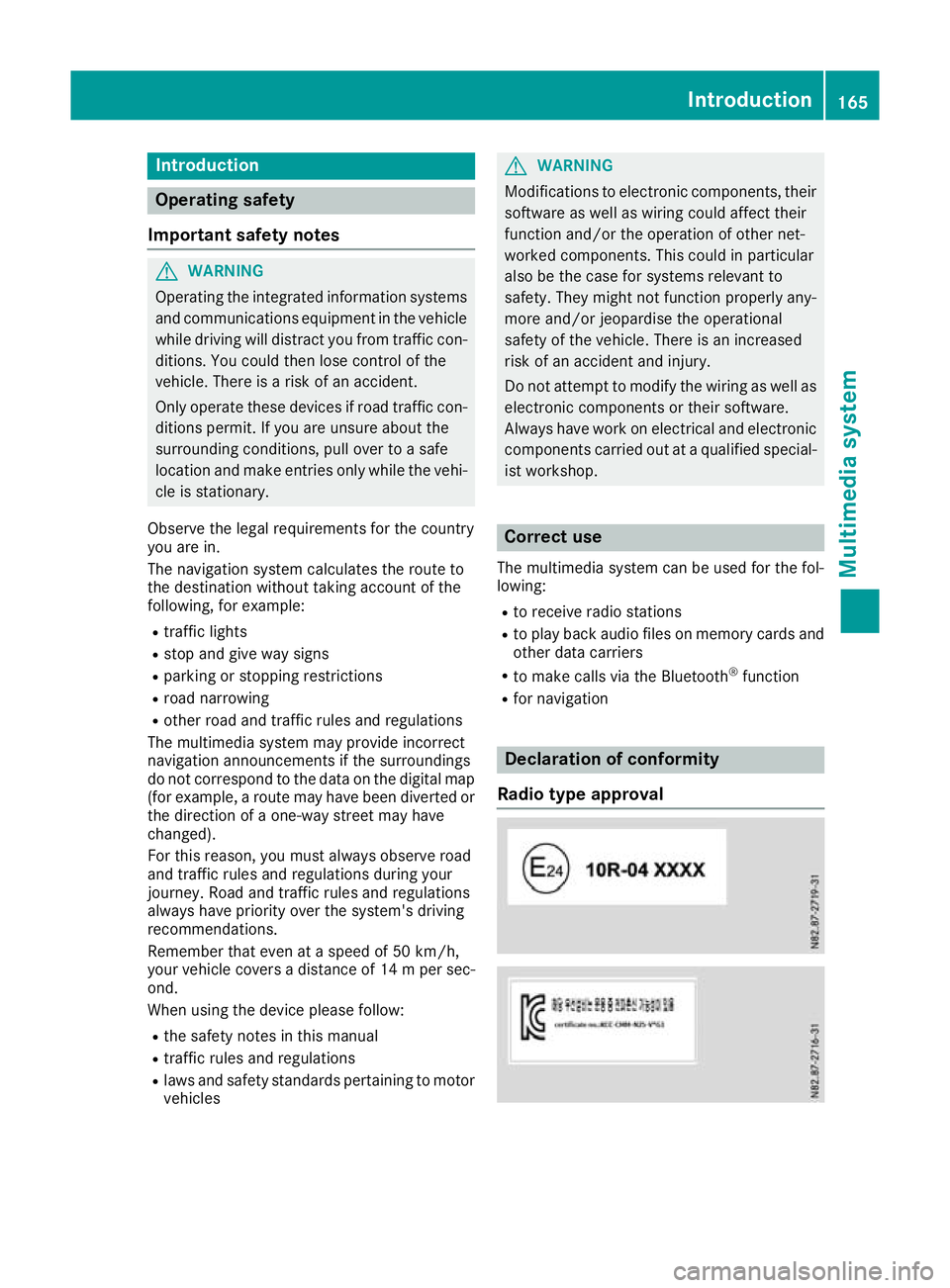
R for navigation Declaration of conformity
Radio type approval Introduction
165Multimedia system Z
Page 169 of 261
Copyright information
Registered trademarks Bluetooth
®
technolog yisastandard for short-
rang ewireless data transmissions up to approx-
imatel y10m etres.
Bluetooth ®
is ar egistered trademark of Blue-
tooth Specia lInterest Group (SIG )Inc. An SD card is
adigit al storag emedium.
SD cards carry the logo displayed above .This
logo is aregistere dtrademark of SanDisk Cor-
poration. Cleaning
To clean ,use aslightly damp cloth .The cloth
must be sof tand lint-free. For stubbor ndirt,y ou
can use amild cleanin gagent. In particular ,do
no tc lean th edisplay wit halcohol, acid or an
abrasive cleanin gagent. 166
IntroductionMultimedia system
Page 170 of 261
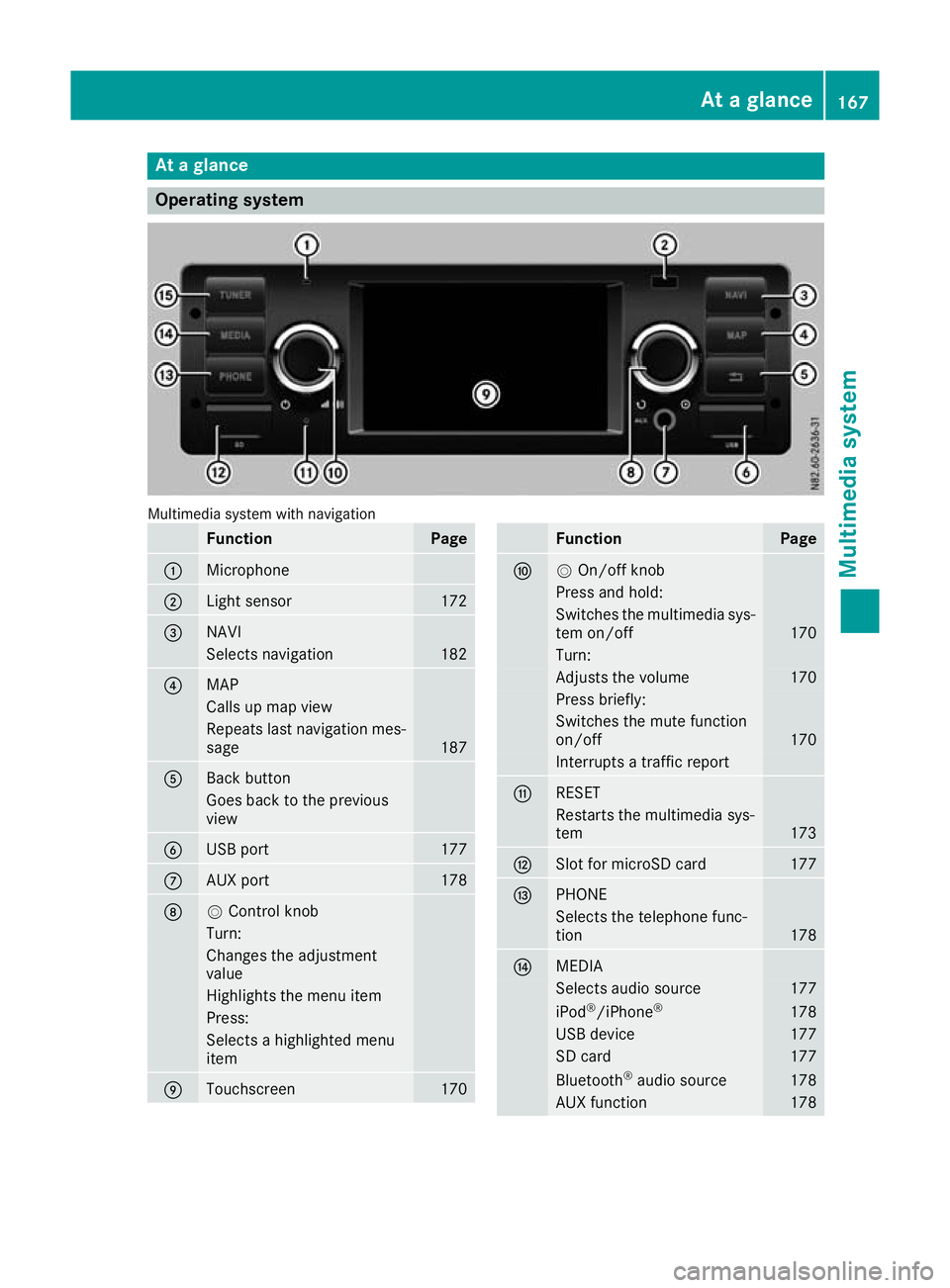
At
ag lance Oper
ating system Multimedia system with navigation
Function Page
:
Microphone
;
Light sensor 172
=
NAVI
Selects navigation 182
?
MAP
Calls up map view
Repeat
slast navigation mes-
sage 187
A
Back button
Goes back to th
eprevious
view B
USB port 177
C
AU
Xp ort 178
D
V
Control knob Turn:
Changes th
eadjustment
value Highlight
sthe menu item Press:
Selects
ahighlighte dmenu
item E
Touchscreen 170 Function Page
F
V
On/off knob Press and hold:
Switches the multimedi
asys-
tem on/off 170
Turn:
Adjusts the volume 170
Press briefly:
Switches the mute function
on/off
170
Interrupts
atraffic report G
RE
SET Restart
sthe multimedia sys-
tem 173
H
Slot fo
rmicroSD card 177
I
PHONE
Selects the telephone func-
tion
178
J
MEDIA
Selects audi
osource 177
iPod
®
/iPhone ® 178
USB device 177
SD card 177
Bluetooth
®
audi osource 178
AUX function 178At
ag lance
167Multimedia system Z
Page 172 of 261
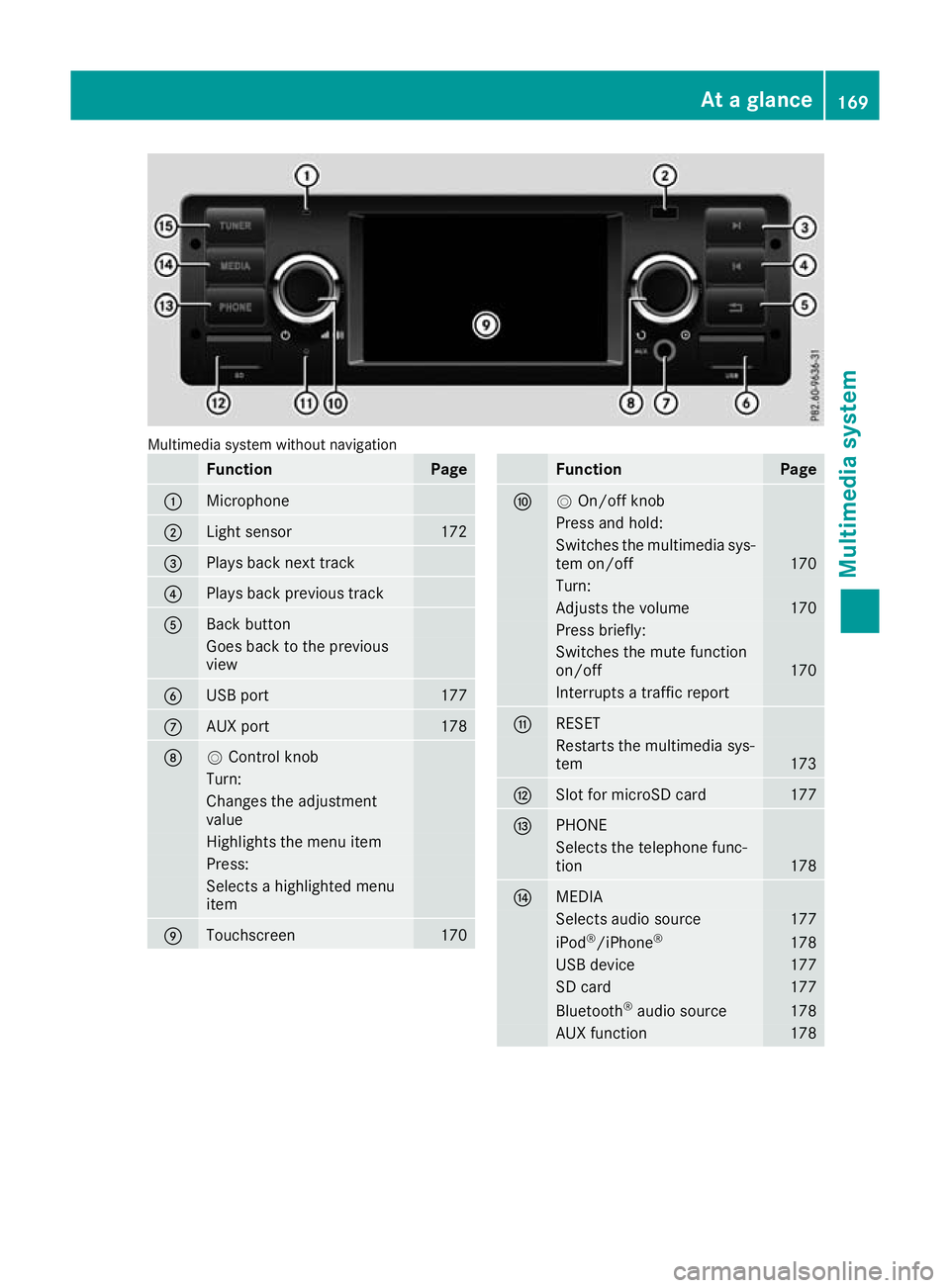
Multimedia system without navigation
Function Page
:
Microphone
;
Light sensor 172
=
Plays back next track
?
Plays back previous track
A
Back button
Goesb
ack to th eprevious
view B
USB port 177
C
AU
Xp ort 178
D
V
Control knob Turn:
Changes th
eadjustment
value Highlight
sthe menu item Press:
Selects
ahighlighte dmenu
item E
Touchscreen 170 Function Page
F
V
On/off knob Press and hold:
Switches the multimedi
asys-
tem on/off 170
Turn:
Adjusts the volume 170
Press briefly:
Switches the mute function
on/off
170
Interrupts
atraffic report G
RE
SET Restart
sthe multimedia sys-
tem 173
H
Slot fo
rmicroSD card 177
I
PHONE
Selects the telephone func-
tion
178
J
MEDIA
Selects audi
osource 177
iPod
®
/iPhone ® 178
USB device 177
SD card 177
Bluetooth
®
audi osource 178
AUX function 178At
ag lance
169Multimedia system Z
Page 177 of 261
Bluetooth
®
settings
Requirements for aBluetooth ®
connec-
tion Yo
uc an connec tBluetooth ®
-compatible mobile
phones and other audio equipmen ttothe mul-
timedia system.
To do so, the followin gcondition smust be met:
R mobile phones must support Hands Fre ePro-
file 1. 0ora bove
R the Bluetooth ®
devic emust be located inside
the vehicle in the vicinity of the multimedia
system
R every Bluetooth ®
devic emust have its own
Bluetooth ®
name, which you can assign your-
self
R Bluetooth ®
must be activate donboth the
multimedia syste mand on the respective
Bluetooth ®
device
R the Bluetooth ®
devic emust be visible for the
multimedia system
R the Bluetooth ®
devic emust support the audio
profile A2DP
i You can obtain further information about
suitable mobile phones:
R at aq ualified specialis tworkshop
R on the Internet at http://www.mercedes-
benz.com/connect
Activating or deactivating th eBlue-
tooth ®
function Switchin
gonthe Bluetooth ®
function on the
multimedi asystem is arequirement for:
R telephony with aBluetooth ®
-capable mobile
phone
R audi oplaybac kwithaB luetooth ®
-capable
mobil edevice
X Press the PHON Ebutton.
X Select O.
Am enu appears.
X Select Bluetooth
Bluetooth.
The #dot indicates that the function is
switched on. Searching for and pairin
gwithaBlue-
tooth ®
device When using your Bluetooth
®
device with the
multimedia system for the first time, you must
search for the Bluetooth ®
device and then pair
it.
Depending on the Bluetooth ®
device used, a
pairing code has to be entered into the Blue-
tooth ®
device or aprompt confirmed on the
Bluetooth ®
device.
There are two options for the search:
R on the Bluetooth ®
device, search for the mul-
timedia system
R on the multimedia system, search for the
Bluetooth ®
device
i Searchin
gonthe Bluetooth ®
device for the
multimedia system is, in most cases, easier.
Starting the search on the Bluetooth ®
device
X Press the PHONE button.
Al ist appears with Bluetooth ®
devices that
have already been paired.
X Start asearch for other Bluetooth ®
devices on
the Bluetooth ®
device (see the manufactur-
er's operating instructions).
i The Bluetooth ®
name "MB Bluetooth" has
been set as the default for the multimedia
system.
X Select the multimedia system on the Blue-
tooth ®
device.
Starting the search on the multimedia system X Press the PHONE button.
Al ist appears with Bluetooth ®
devices that
have already been paired.
X Select Add new device Add new device.
Am essage appears. The multimedia system
searches for available Bluetooth ®
devices.
If Bluetooth ®
devices are available, these
appear in alist. If no Bluetooth ®
devices are
available, amessage appears that no Blue-
tooth ®
device has been found. 174
System settingsMultimedia system
Page 178 of 261
X
Select the desire dBluetooth ®
device from the
list.
X To pair aBluetooth ®
device: enter the pair-
ing code on the Bluetooth ®
device or confirm
the prompt.
If the pairing process wa ssuccessful ,the
Bluetooth ®
device is automaticall yconnected
to the multimedi asystem.
i The pairing code is set to "1234" as default.
i You can pair
amaximum of 15 Bluetooth ®
device satone time.
Connecting paire dBluetooth ®
devices An already paire
dBluetooth ®
device can be con-
necte dwitht he multimedia system either man-
uall yora utomatically.
Whe nthe Aut oconnect
Aut oconnect functioniss witched
on, the multimedia system connects automati-
cally to paire dBluetooth ®
device snearby
(Y page 175).
Connecting manually
X Press the PHONE button.
Al ista ppears with Bluetooth ®
device sthat
have already been paired.
X Select the desired Bluetooth ®
device from the
list.
The Bluetooth ®
device is connected to the
multimedia system.
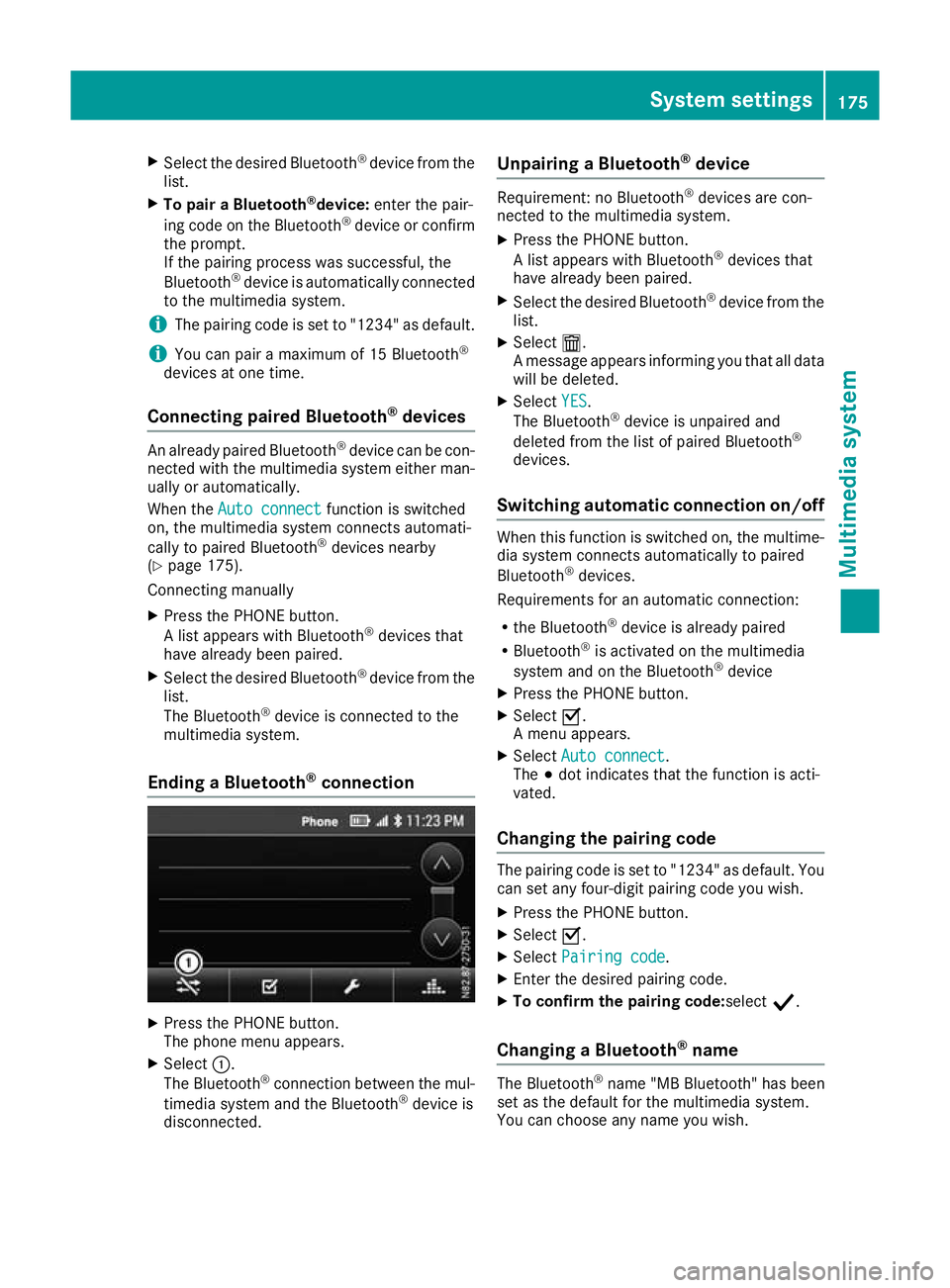
Endin gaBluetooth ®
connection X
Press the PHONE button.
The phone men uappears.
X Select :.
The Bluetooth ®
connection between the mul-
timedia system and the Bluetooth ®
device is
disconnected. Unpairing
aBluetooth ®
device Require
ment:noB luetooth ®
device sare con-
nected to th emultimedia system.
X Press th ePHONE button.
Al ist appear swithB luetooth ®
device sthat
hav ealready been paired.
X Selec tthe desired Bluetooth ®
device from the
list.
X Select æ.
Am essage appear sinforming you that all data
will be deleted.
X Select YES
YES .
The Bluetooth ®
device is unpaire dand
deleted from th elist of paired Bluetooth ®
devices.
Switchin gautomatic connection on/off When this func
tion is switched on, the multime-
dia system connects automatically to paired
Bluetooth ®
devices.
Requirements for an automatic connection:
R the Bluetooth ®
device is already paired
R Bluetooth ®
is activated on the multimedia
system and on the Bluetooth ®
device
X Press the PHONE button.
X Select O.
Am enu appears.
X Select Auto connect Auto connect.
The #dot indicates that the function is acti-
vated.
Changing the pairing code The pairing code is set to "1234" as default. You
can set any four-digit pairing code you wish.
X Press the PHONE button.
X Select O.
X Select Pairing code
Pairing code.
X Enter the desired pairing code.
X To confirm the pairing code:select Y.
Changing aBluetooth ®
name The Bluetooth
®
name "MB Bluetooth "has been
set as the default for the multimedia system.
You can choose any name you wish. System settings
175Multimedia system Z
Page 179 of 261
X
Press the PHONE button.
X Select O.
X Select BT name
BT name.
X Enter the desired Bluetooth ®
name.
X To save aBluetooth ®
name: selectOK
OK.
X To delete individua lcharacters: select
¨.
X To switch to number entry: selectG.
i The new Bluetooth ®
name of the multimedia
system does not appear on the Bluetooth ®
devices that have already been paired. In
order for the new Bluetooth ®
name to appear,
Bluetooth ®
devices already paired must be
unpaired (Y page 175). In addition, the mul-
timedia system must be deleted from the list
of paired devices on the Bluetooth ®
device
(see the manufacturer's operating instruc-
tions). The Bluetooth ®
device must then be
paired once more (Y page 174).Radio
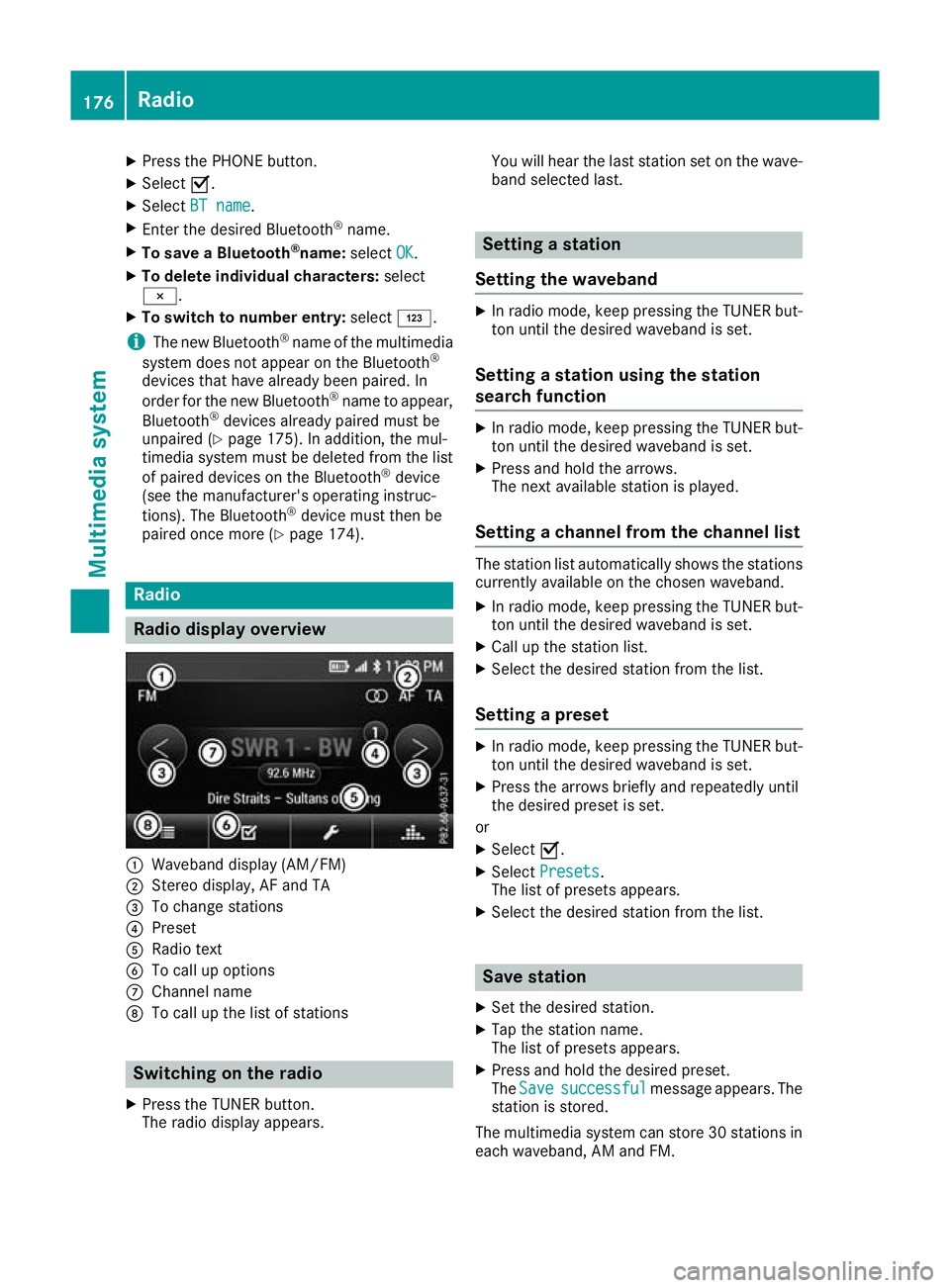
Radio display overv
iew:
Waveband display (AM/FM)
; Stereo display, AF and TA
= To change stations
? Preset
A Radio text
B To call up options
C Channel name
D To call up the list of stations Switching on the radio
X Press the TUNER button.
The radio display appears. You will hear the last station set on the wave-
band selected last. Setting
astation
Setting the waveband X
In radio mode, keep pressin gthe TUNER but-
ton until the desire dwaveband is set.
Setting astation using the station
search function X
In radiom ode, keep pressing the TUNER but-
ton until the desire dwaveband is set.
X Press and hold the arrows.
The next available station is played.
Setting achanne lfrom the channell ist The statio
nlist automatically shows the stations
currently availabl eonthe chosen waveband.
X In radio mode, keep pressing the TUNER but-
ton until the desired waveband is set.
X Call up the station list.
X Select the desired station from the list.
Setting apreset X
In radio mode, keep pressing the TUNER but-
ton until the desired waveband is set.
X Press the arrows briefly and repeatedly until
the desired preset is set.
or X Select O.
X Select Presets Presets.
The list of preset sappears.
X Select the desire dstation from the list. Save station
X Set the desired station.
X Tap the station name.
The list of presets appears.
X Press and hold the desired preset.
The Save Save successful
successful message appears. The
station is stored.
The multimedia system can store 30 stations in each waveband,A Mand FM. 176
RadioMultimedia system