light MERCEDES-BENZ G-CLASS SUV 2018 Owners Manual
[x] Cancel search | Manufacturer: MERCEDES-BENZ, Model Year: 2018, Model line: G-CLASS SUV, Model: MERCEDES-BENZ G-CLASS SUV 2018Pages: 549, PDF Size: 10.22 MB
Page 279 of 549
#
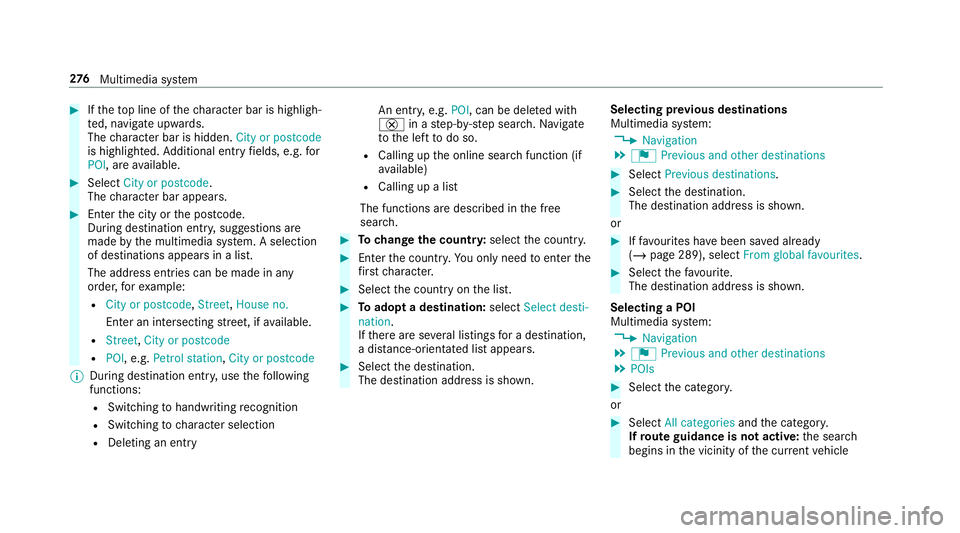
Ifth eto p line of thech aracter bar is highligh‐
te d, navigate upwards.
The character bar is hidden. City or postcode
is highlighted. Additional ent ryfields, e.g. for
POI, are available. #
Select City or postcode.
The character bar appears. #
Enterth e city or the postcode.
During destination entry , suggestions are
made bythe multimedia sy stem. A selection
of destinations appears in a list.
The address entri es can be made in any
order, forex ample:
R City or postcode, Street,House no.
En ter an intersecting stre et, if available.
R Street, City or postcode
R POI , e.g. Petrol station, City or postcode
% During destination ent ry, use thefo llowing
functions:
R Swit ching tohandwriting recognition
R Switching tocharacter selection
R Deleting an ent ry An entr
y,e.g. POI, can be dele ted with
£ in astep-b y-step sear ch.Na vigate
to the left todo so.
R Calling up the online sear chfunction (if
av ailable)
R Calling up a list
The functions are desc ribed in the free
sear ch. #
Tochange the count ry:select the count ry. #
Enter the count ry.Yo u on ly need toenter the
fi rs tch aracter. #
Select the count ryon the list. #
Toadopt a destination: selectSelect desti-
nation.
If th ere are se veral listings for a destination,
a dis tance-o rientated list appears. #
Select the destination.
The destination address is shown. Selecting pr
evious destinations
Multimedia sy stem:
4 Navigation
5 ¬ Previous and other destinations #
Select Previous destinations. #
Select the destination.
The destination address is shown.
or #
Iffavo urites ha vebeen sa ved already
(/ page 289), select From global favourites . #
Select thefa vo urite.
The destination address is shown.
Selecting a POI
Multimedia sy stem:
4 Navigation
5 ¬ Previous and other destinations
5 POIs #
Select the categor y.
or #
Select All categories andthe categor y.
If ro ute guidance is not active: the sear ch
begins in the vicinity of the cur rent vehicle 276
Multimedia sy stem
Page 280 of 549
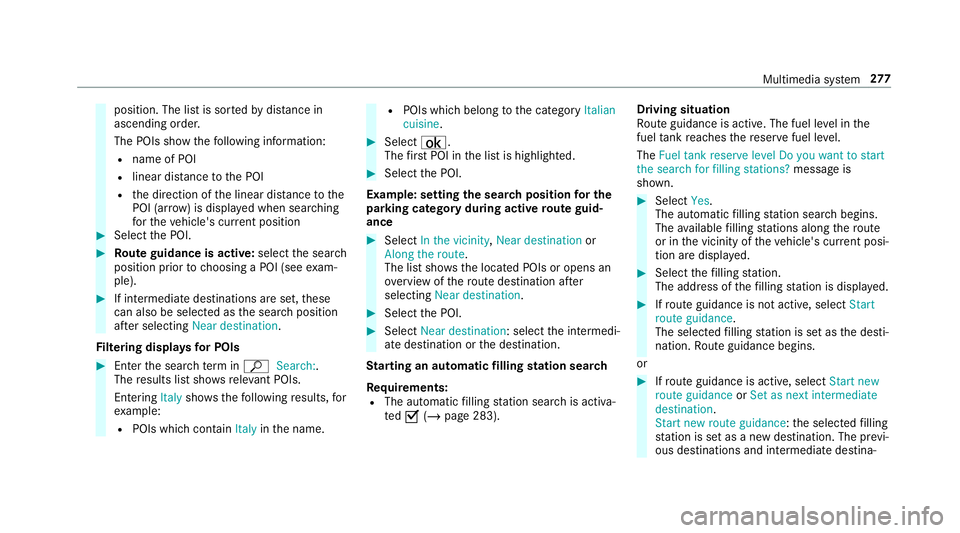
position. The list is sor
tedby distance in
ascending orde r.
The POIs show thefo llowing information:
R name of POI
R linear dis tance tothe POI
R the direction of the linear dis tance tothe
POI (ar row) is displa yed when sear ching
fo rth eve hicle's cur rent position #
Select the POI. #
Route guidance is active: selectthe sear ch
position prior tochoosing a POI (see exam‐
ple). #
If intermediate destinations are set, these
can also be selected as the sear chposition
af te r selecting Near destination.
Fi ltering displa ysfor POIs #
Enter the sear chterm inª Search:.
The results list sho wsreleva nt POIs.
Entering Italyshowsthefo llowing results, for
ex ample:
R POIs which con tain Italy inthe name. R
POIs which belong tothe category Italian
cuisine . #
Select ¡.
The firs t POI in the list is highlighted. #
Select the POI.
Example: setting the sear chposition for the
parking ca tegory during active route guid‐
ance #
Select In the vicinity ,Near destination or
Along the route.
The list sho ws the located POIs or opens an
ove rview of thero ute destination af ter
selecting Near destination. #
Select the POI. #
Select Near destination: select the intermedi‐
ate destination or the destination.
St arting an automatic filling station sear ch
Re quirements:
R The automatic filling station sear chis activa‐
te dO (/ page 283). Driving situation
Ro
ute guidance is active. The fuel le vel in the
fuel tank reaches there ser vefuel le vel.
The Fuel tank reserve level Do you want to start
the search for filling stations? message is
shown. #
Select Yes.
The automatic filling station sear chbegins.
The available filling stations along thero ute
or in the vicinity of theve hicle's cur rent posi‐
tion are displ ayed. #
Select thefilling station.
The address of thefilling station is displa yed. #
Ifro ute guidance is not active, select Start
route guidance .
The selected filling station is set as the desti‐
nation. Route guidance begins.
or #
Ifro ute guidance is active, select Start new
route guidance orSet as next intermediate
destination .
Start new route guidance: the selected filling
st ation is set as a new destination. The pr evi‐
ous destinations and intermediate destina‐ Multimedia sy
stem 277
Page 281 of 549
tions are dele
ted. Ro ute guidance tothefill‐
ing station begins.
Set as next intermediate destination: the
selected filling station is set as the next inter‐
mediate destination. Route guidance begins. #
Ifth ere are already four intermediate des‐
tinations: selectYesinthe prom pt.
The selected filling station is entered into
position 1 of the intermediate destinations
menu. Intermediate destination 4 is dele ted.
Ro ute guidance begins.
Entering an intermediate destination
Re quirements:
R A destination is entered.
Multimedia sy stem:
4 Navigation
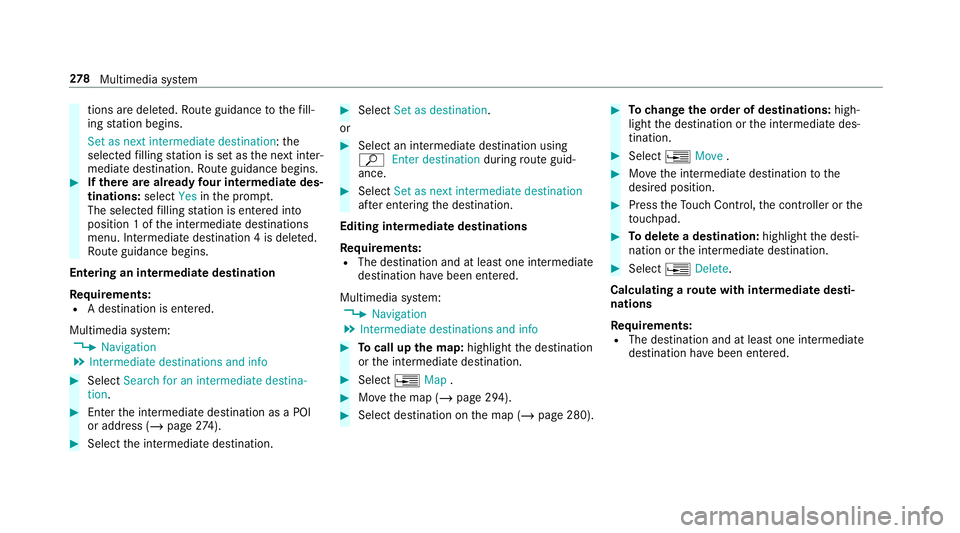
5 Intermediate destinations and info #
Select Search for an intermediate destina-
tion . #
Ente rth e intermediate destination as a POI
or address (/ page274). #
Select the intermediate destination. #
Select Set as destination.
or #
Select an intermediate destination using
ª Enter destination duringroute guid‐
ance. #
Select Set as next intermediate destination
af te r entering the destination.
Editing intermedia tedestinations
Re quirements:
R The destination and at least one intermediate
destination ha vebeen entered.
Multimedia sy stem:
4 Navigation
5 Intermediate destinations and info #
Tocall up the map: highlight the destination
or the intermediate destination. #
Select ¥Map. #
Movethe map (/ page 294). #
Select destination on the map (/ page 280). #
Tochange the order of destinations: high‐
light the destination or the intermediate des‐
tination. #
Select ¥Move . #
Movethe intermediate destination tothe
desired position. #
Press theTo uch Control, the controller or the
to uchpad. #
Todel ete a destination: highlightthe desti‐
nation or the intermediate destination. #
Select ¥Delete.
Calculating a route with intermediate desti‐
nations
Re quirements:
R The destination and at least one intermediate
destination ha vebeen entered. 278
Multimedia sy stem
Page 282 of 549
Multimedia sy
stem:
4 Navigation
5 Intermediate destinations and info #
Select Start new route guidance.
The route is calculated with the set inter‐
mediate destinations.
Selecting a contact for destination entry
Re quirements:
R A mobile phone is connec tedto the multime‐
dia sy stem (/ page 301).
R Contacts ha vebeen downloaded
(/ page 309).
Multimedia sy stem:
4 Navigation
5 ¬ Previous and other destinations
5 Contacts #
Select the conta ct.
The contact de tails are displa yed. #
Select the address. Fi
ltering displa ysfor contacts #
Enter a name or telephone number, forex am‐
ple, into the sear chfield. #
Select ¡.
The firs t contact in the list is highlighted. #
Select the conta ct. #
Select the address.
Entering geo-coordina tes
Multimedia sy stem:
4 Navigation
5 ¬ Previous and other destinations
5 Geo-coordinates #
Ente rge o-coordinates as latitude and longi‐
tude coordinates in degrees, minutes and
seconds.
The map sho ws the position. #
Confirm the entry. #
Tocalculate a route: select Start route
guidance. #
If a route has already been created, select
Start new route guidance orSet as inter-
mediate destination . Entering
the destination as a 3 wordaddress
Re quirements:
R Sear ching for a destination using 3 word
addresses is possible in the online sear ch
( / page 274).
R There is an Internet connection.
% Sear ching for a destination using 3 word
addresses is not possible in all countries.
Multimedia sy stem:
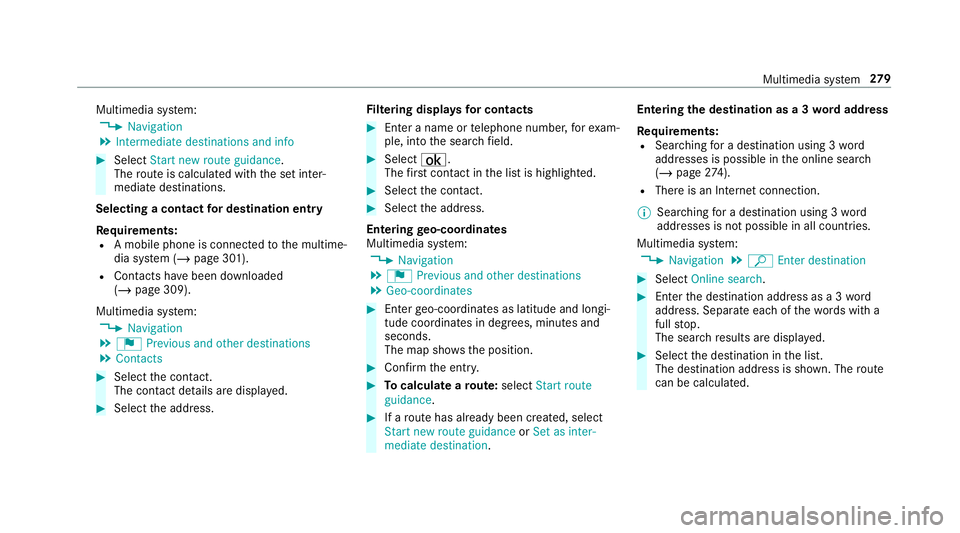
4 Navigation 5
ª Enter destination #
Select Online search. #
Ente rth e destination address as a 3 word
address. Separate each of thewo rds with a
full stop.
The sear chresults are displa yed. #
Select the destination in the list.
The destination address is shown. The route
can be calculated. Multimedia sy
stem 279
Page 283 of 549
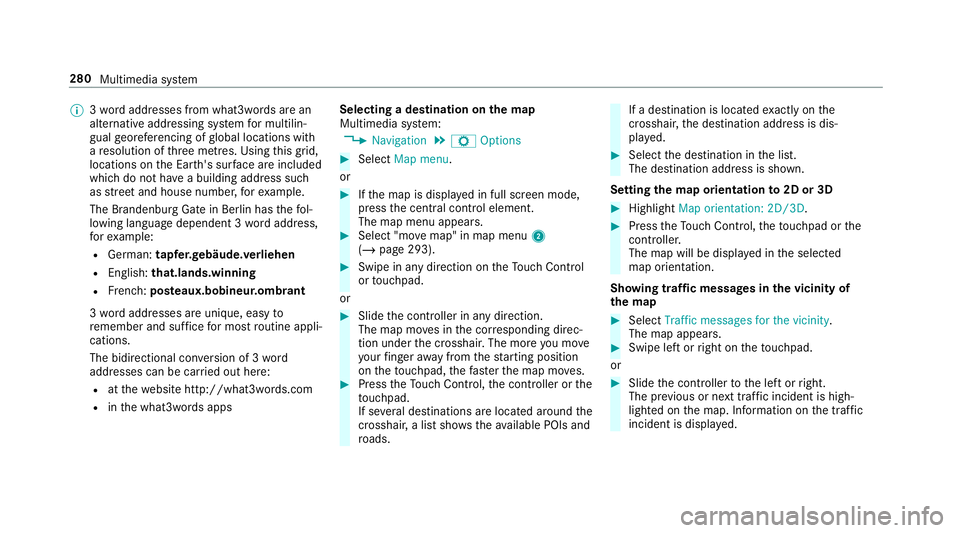
%
3wo rdaddresses from what3words are an
alternative addressing sy stem for multilin‐
gual georeferencing of global locations with
a re solution of thre e metres. Using this grid,
locations on the Ear th's sur face are included
whi chdo not ha vea building address such
as stre et and house number, forex ample.
The Brandenburg Gate in Berlin has thefo l‐
lowing language dependent 3 wordaddress,
fo rex ample:
R German: tapfer.ge bäude.verliehen
R Engl ish:that.lands.winning
R French: posteaux.bobineur.ombrant
3 wo rdaddresses are unique, easy to
re member and suf fice for most routine appli‐
cations.
The bidirectional co nversion of 3 word
addresses can be car ried out here:
R atthewe bsite http://what3words.com
R inthe what3words apps Selecting a destination on
the map
Multimedia sy stem:
4 Navigation 5
Z Options #
Select Map menu.
or #
Ifth e map is displa yed in full screen mode,
press the cent ral control element.
The map menu appears. #
Select "mo vemap" in map menu 2
(/ page 293). #
Swipe in any direction on theTo uch Control
or touchpad.
or #
Slide the controller in any direction.
The map mo ves in the cor responding direc‐
tion under the crosshair. The more you mo ve
yo ur finger away from thest arting position
on theto uchpad, thefast erthe map mo ves. #
Press theTo uch Control, the controller or the
to uchpad.
If se veral destinations are located around the
crosshair, a li stsho wstheav ailable POIs and
ro ads. If a destination is located
exact ly on the
crosshair, the destination address is dis‐
pla yed. #
Select the destination in the list.
The destination address is shown.
Setting the map orientation to2D or 3D #
Highlight Map orientation: 2D/3D. #
Press theTo uch Control, theto uchpad or the
controller.
The map will be displ ayed in the selected
map orientation.
Showing traf fic messages in the vicinity of
th e map #
Select Traffic messages for the vicinity.
The map appears. #
Swipe left or right on theto uchpad.
or #
Slide the controller tothe left or right.
The pr evious or next traf fic incident is high‐
lighted on the map. Information on the tra ffic
incident is displa yed. 280
Multimedia sy stem
Page 288 of 549

Driving instructions may di
ffer from the actual
ro ad and traf fic conditions if:
R The route is diver ted
R The direction of a one-w aystre et has been
ch anged
Fo rth is reason, you must alw ays obser veroad
and traf fic ru les and regulations during your
journey as well as the pr evailing traf fic condi‐
tions.
The route may dif fer from the ideal route due to
th efo llowing:
R Roadwor ks
R Incomple tedigital map data
Note s on GPS reception
The cor rect function of the navigation sy stem
depends amongst other things on GPS recep‐
tion. In cer tain situations GPS reception can be
impaired, defective or even not possible, e.g. in
tunnels or in multi-s torey car par ks. Changing direction
overview There are
thre e phases when changing direction:
R Preparation phase
Ifth ere is enough time between thech anges
of direction, the multimedia sy stem prepares
yo ufo rth e upcoming change of direction. A
navigation announcement is issued, e.g.
"Prepare toturn right". The map appears in full-screen mode.
R Announcement phase
The multimedia sy stem announces the
upcoming change of direction, e.g. by
announcing "Turn right in 100 m".
The display is split into two parts. The map is
displa yed on the lef t;on theright, there is a
de tailed image of the junction or a 3D image
of the upcoming change of direction.
R Chan ge-of-direction phase
The multimedia sy stem announces the immi‐
nent change of direction, e.g. byannouncing
"N ow turn right".
The display is split into two parts.
The vehicle has successfully changed direc‐
tion when the light-coloured bar on theright
drops down to0 m and the cur rent vehicle
position symbol has reached the highlighted
ch ange-of-direction point.
When thech ange of direction is comple te,
th e map appears in full-screen mode.
% Changes of direction are also shown in the
Instrument Displa y. Multimedia sy
stem 285
Page 292 of 549
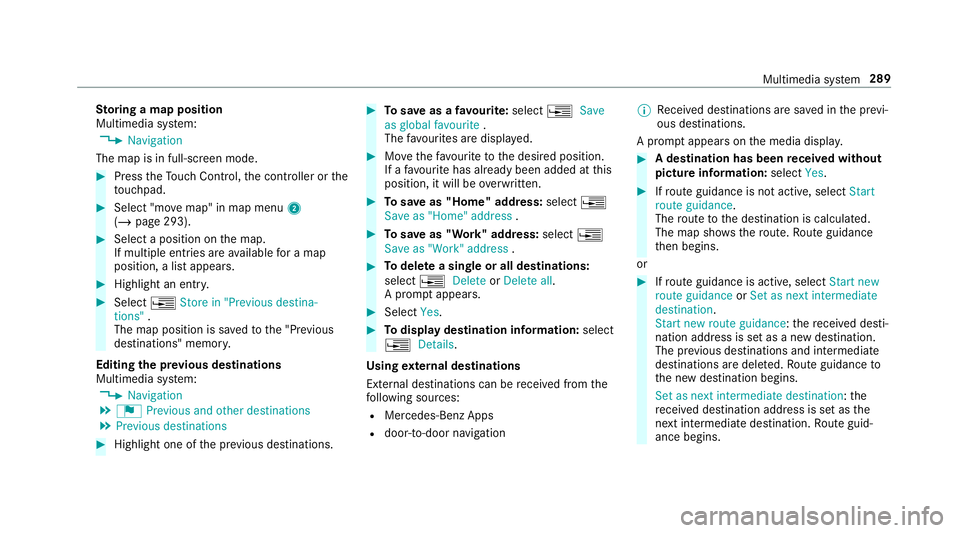
St
oring a map position
Multimedia sy stem:
4 Navigation
The map is in full-screen mode. #
Press theTo uch Control, the controller or the
to uchpad. #
Select "mo vemap" in map menu 2
(/ page 293). #
Select a position on the map.
If multiple entri es areavailable for a map
position, a list appears. #
Highlight an entr y. #
Select ¥Store in "Previous destina-
tions" .
The map position is sa vedto the "Pr evious
destinations" memo ry.
Editing the pr evious destinations
Multimedia sy stem:
4 Navigation
5 ¬ Previous and other destinations
5 Previous destinations #
Highlight one of the pr evious destinations. #
Tosave as a favo urite: select ¥Save
as global favourite .
The favo urites are displ ayed. #
Movethefa vo urite tothe desired position.
If a favo urite has already been added at this
position, it will be overwritten. #
Tosave as "Home" address: select¥
Save as "Home" address . #
Tosave as "Work" address: select¥
Save as "Work" address . #
Todel ete a single or all destinations:
select ¥Delete orDelete all.
A prom ptappears. #
Select Yes. #
Todispl aydestination information: select
¥ Details.
Using extern al destinations
External destinations can be recei ved from the
fo llowing sources:
R Mercedes-Benz Apps
R door-to-door navigation %
Recei ved destinations are sa ved in the pr evi‐
ous destinations.
A prom ptappears on the media displa y. #
A destination has been received without
picture information: selectYes. #
Ifro ute guidance is not active, select Start
route guidance .
The route tothe destination is calculated.
The map sho ws thero ute. Route guidance
th en begins.
or #
Ifro ute guidance is active, select Start new
route guidance orSet as next intermediate
destination .
Start new route guidance: there cei ved desti‐
nation address is set as a new destination.
The pr evious destinations and intermediate
destinations are dele ted. Ro ute guidance to
th e new destination begins.
Set as next intermediate destination: the
re cei ved destination address is set as the
next intermedia tedestination. Route guid‐
ance begins. Multimedia sy
stem 289
Page 299 of 549
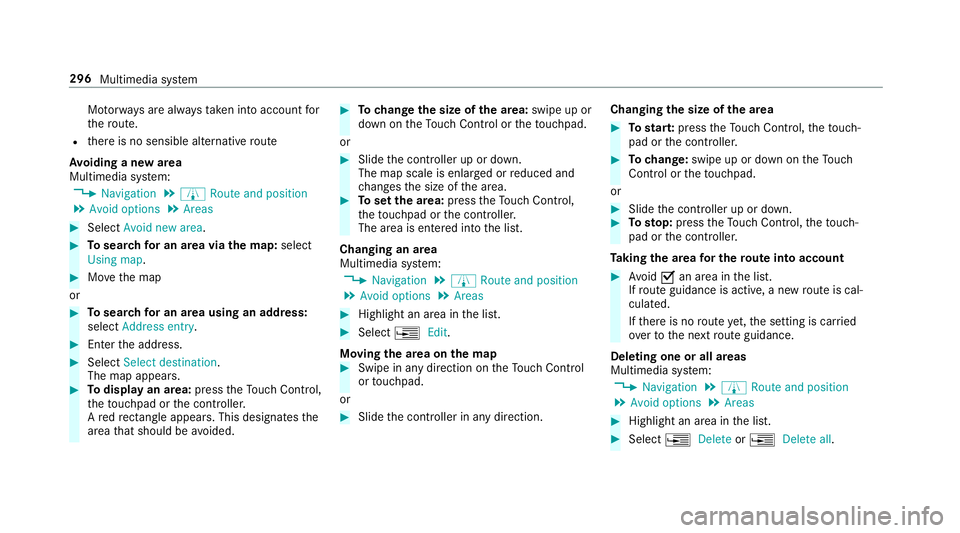
Mo
torw ays are alw aysta ke n into account for
th ero ute.
R there is no sensible alternative route
Av oiding a new area
Multimedia sy stem:
4 Navigation 5
À Route and position
5 Avoid options 5
Areas #
Select Avoid new area. #
Tosear chfor an area via the map: select
Using map. #
Movethe map
or #
Tosear chfor an area using an address:
select Address entry .#
Enter the address. #
Select Select destination.
The map appears. #
Todispl ayan area: presstheTo uch Control,
th eto uchpad or the controller.
A redre ctangle appea rs. This designates the
area that should be avoided. #
Tochange the size of the area: swipe up or
down on theTo uch Control or theto uchpad.
or #
Slide the controller up or down.
The map scale is enlar ged or reduced and
ch anges the size of the area. #
Toset the area: presstheTo uch Control,
th eto uchpad or the controller.
The area is entered into the list.
Changing an area
Multimedia sy stem:
4 Navigation 5
À Route and position
5 Avoid options 5
Areas #
Highlight an area in the list. #
Select ¥Edit.
Moving the area on the map #
Swipe in any direction on theTo uch Control
or touchpad.
or #
Slide the controller in any direction. Changing
the size of the area #
Tostar t:press theTo uch Control, theto uch‐
pad or the controller. #
Tochange: swipe up or down on theTo uch
Control or theto uchpad.
or #
Slide the controller up or down. #
Tosto p:press theTo uch Control, theto uch‐
pad or the controller.
Ta king the area for the route into account #
Avoid Oan area in the list.
If ro ute guidance is active, a new route is cal‐
culated.
If th ere is no route yet,th e setting is car ried
ove rto the next route guidance.
Deleting one or all areas
Multimedia sy stem:
4 Navigation 5
À Route and position
5 Avoid options 5
Areas #
Highlight an area in the list. #
Select ¥Delete or¥ Delete all. 296
Multimedia sy stem
Page 306 of 549
Fu
nctions of the mobile phone in two phone
mode
Fu nctions overview Mobile phone in
the
fo re gr ound Mobile phone in
the
bac kground
Fu llra nge of func‐
tions Incoming calls Using a SIM card
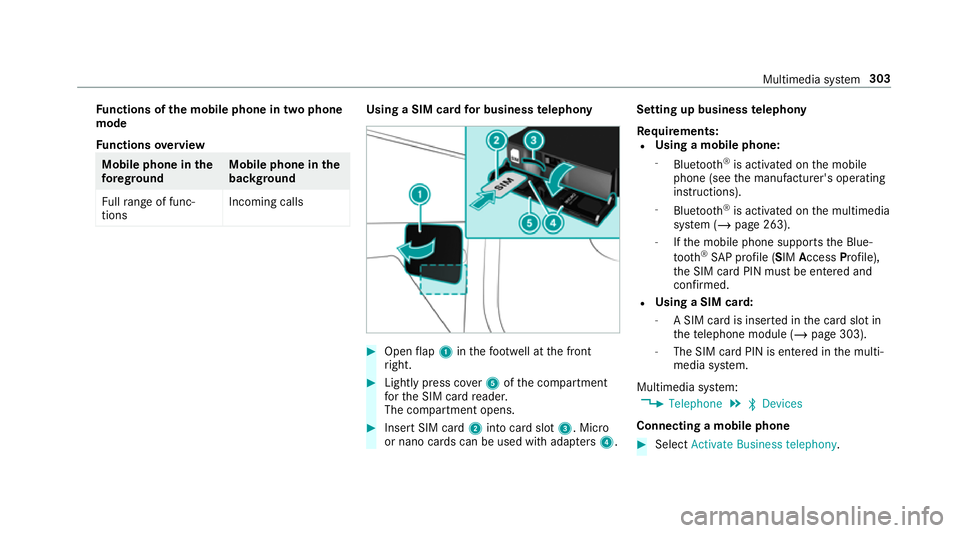
for business telephony #
Open flap 1 inthefo ot we ll at the front
ri ght. #
Lightly press co ver5 ofthe compartment
fo rth e SIM card reader.
The compartment opens. #
Insert SIM card 2into card slot 3. Micro
or nano cards can be used with adap ters 4 . Setting up business
telephony
Re quirements:
R Using a mobile phone:
- Blue tooth ®
is activated on the mobile
phone (see the manufacturer's operating
instructions).
- Blue tooth ®
is activated on the multimedia
sy stem (/ page 263).
- Ifth e mobile phone supports the Blue‐
to oth ®
SA P profile (SIM AccessProfile),
th e SIM card PIN must be entered and
confi rmed.
R Using a SIM card:
- A SIM card is inser ted in the card slot in
th ete lephone module (/ page 303).
- The SIM card PIN is entered in the multi‐
media sy stem.
Multimedia sy stem:
4 Telephone 5
ª Devices
Connecting a mobile phone #
Select Activate Business telephony . Multimedia sy
stem 303
Page 308 of 549
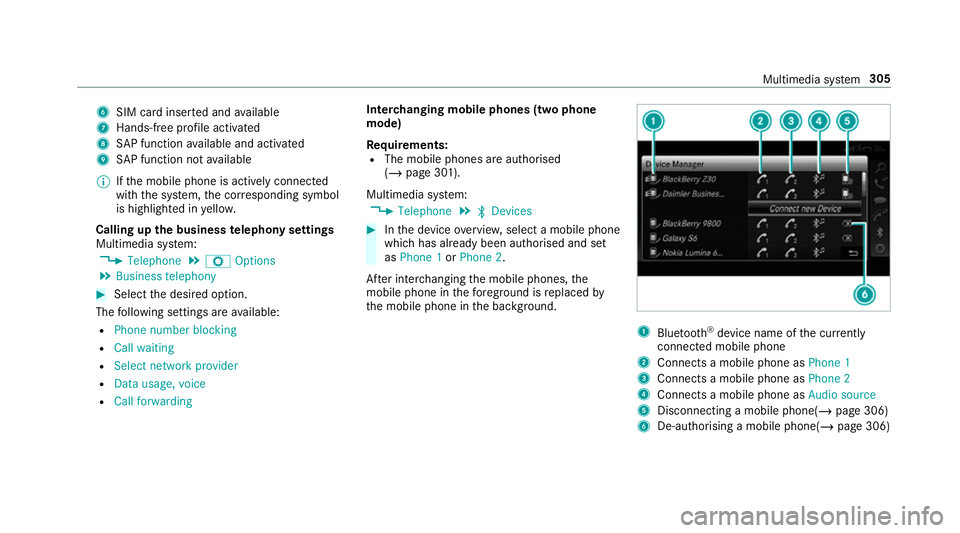
6
SIM card inse rted and available
7 Hands-free profile activated
8 SAP function available and activated
9 SAP function not available
% Ifth e mobile phone is actively connected
with the sy stem, the cor responding symbol
is highlighte d inyello w.
Calling up the business telephony settings
Multimedia sy stem:
4 Telephone 5
Z Options
5 Business telephony #
Select the desired option.
The following settings are available:
R Phone number blocking
R Call waiting
R Select network provider
R Data usage, voice
R Call forwarding Inter
changing mobile phones (two phone
mode)
Re quirements:
R The mobile phones are authorised
(/ page 301).
Multimedia sy stem:
4 Telephone 5
ª Devices #
Inthe device overview, select a mobile phone
which has already been authorised and set
as Phone 1 orPhone 2.
Af ter inter changing the mobile phones, the
mobile phone in thefo re ground isreplaced by
th e mobile phone in the bac kground. 1
Blue tooth ®
device name of the cur rently
connected mobile phone
2 Connects a mobile phone as Phone 1
3 Connects a mobile phone as Phone 2
4 Connects a mobile phone as Audio source
5 Disconnecting a mobile phone(/ page 306)
6 De-au thorising a mobile phone(/ page 306) Multimedia sy
stem 305