light MERCEDES-BENZ G-CLASS SUV 2018 Owners Manual
[x] Cancel search | Manufacturer: MERCEDES-BENZ, Model Year: 2018, Model line: G-CLASS SUV, Model: MERCEDES-BENZ G-CLASS SUV 2018Pages: 549, PDF Size: 10.22 MB
Page 331 of 549
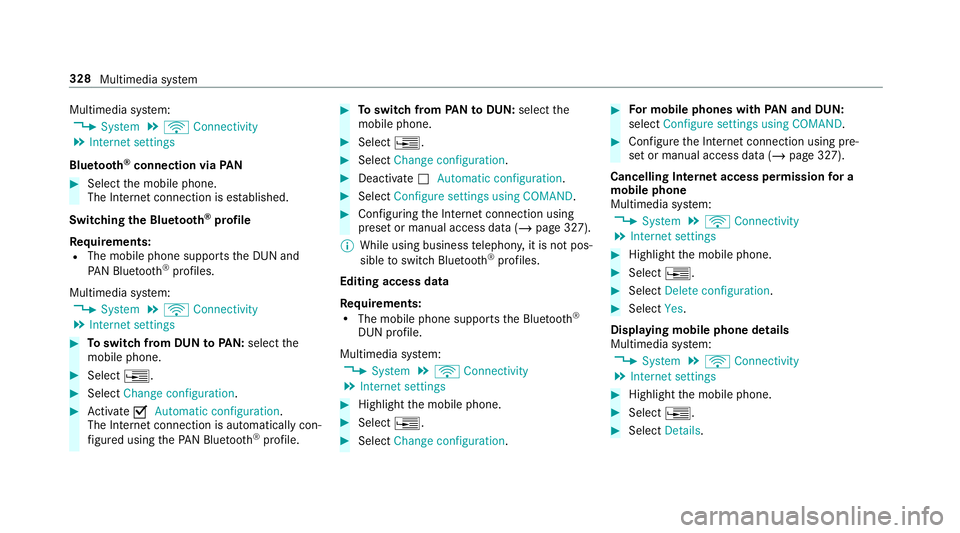
Multimedia sy
stem:
4 System 5
ö Connectivity
5 Internet settings
Blue tooth ®
connection via PAN#
Select the mobile phone.
The Internet connection is es tablished.
Switching the Blu etoo th®
pr ofile
Re quirements:
R The mobile phone supports the DUN and
PA N Blue tooth®
profiles.
Multimedia sy stem:
4 System 5
ö Connectivity
5 Internet settings #
Toswitch from DUN toPAN: select the
mobile phone. #
Select ¥. #
Select Change configuration. #
Activate OAutomatic configuration.
The Internet connection is au tomatical lycon‐
fi gured using thePA N Blue tooth®
profile. #
Toswitch from PANto DUN: select the
mobile phone. #
Select ¥. #
Select Change configuration. #
Deactivate ªAutomatic configuration. #
Select Configure settings using COMAND . #
Configuri ngthe Internet connection using
preset or manual access data (/ page 327).
% While using business telephon y,it is not pos‐
sible toswitch Blue tooth ®
profiles.
Editing access data
Requ irements:
R The mobile phone supports the Blue tooth®
DUN profile.
Multimedia sy stem:
4 System 5
ö Connectivity
5 Internet settings #
Highlight the mobile phone. #
Select ¥. #
Select Change configuration . #
For mobile phones with PAN and DUN:
select Configure settings using COMAND. #
Configure the Internet connection using pre‐
set or manual access data (/ page 327).
Cancelling Internet access permission for a
mobile phone
Multimedia sy stem:
4 System 5
ö Connectivity
5 Internet settings #
Highlight the mobile phone. #
Select ¥. #
Select Delete configuration. #
Select Yes.
Displaying mobile phone details
Multimedia sy stem:
4 System 5
ö Connectivity
5 Internet settings #
Highlight the mobile phone. #
Select ¥. #
Select Details. 328
Multimedia sy stem
Page 335 of 549
Creating a bookmark
#
Select Add new bookmark. #
Enter a URL and a name. #
Select ¡.
Editing a bookmark #
Highlight a bookmar k.#
Select p. #
Select Edit. #
Enter a URL and a name. #
Select ¡.
Deleting a bookmark #
Highlight a bookmar k.#
Select p. #
Select Delete. #
Select Yes.
Closing the br owser
Multimedia sy stem:
4 Connect 5
z Browser #
Select åClose browser . Internet
radio Calling up In
ternetradio
Re quirements:
R There is an account on http://
www.me rcedes.me.
R The Internet radio service is activated.
R The data volume is available.
Depending on the count ry, data volume may
need tobe pur chased.
R Afast Internet connection for data transmis‐
sion free of inter fere nce.
The services are countr y-dependent.
Fo r more information, consult a Mercedes-
Benz service centre.
Multimedia sy stem:
4 Radio 5
Þ Radio source #
Select TuneIn radio.
The Internet radio display appears. The last
st ation set starts playing.
% The connection quality depends on the local
mobile phone reception. In
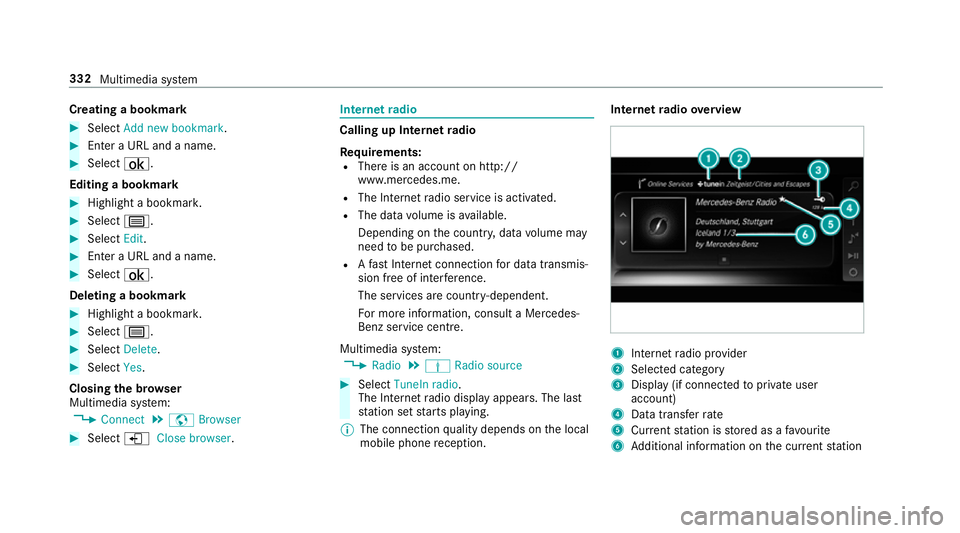
tern etradio overview 1
Inte rn et radio pr ovider
2 Selec ted category
3 Display (if connec tedto private user
account)
4 Data transfer rate
5 Current station is stored as a favo urite
6 Additional information on the cur rent station 332
Multimedia sy stem
Page 349 of 549
Selecting
the media pla yer on the Blue tooth ®
audio device
Multimedia sy stem:
4 Media 5
ª #
Select theBluetooth audio players category.
If multiple media pla yers are present on the
Blu etoo th®
audio equipment a list appears. #
Select a media pla yer.
Playback starts.
% The function is not suppo rted byeve ry
mobile phone.
Sear ching for a music track on the Blue‐
to oth ®
audio device
Multimedia sy stem:
4 Media 5
à Media sources
5 á Bluetooth audio #
Select ª. #
Select a categor y.
A track li stappears. #
Select a trac k. %
The function is only available when the
mobile phone and the media pla yer selected
on the mobile phone support this function.
Switching Blu etoo th®
audio equipment via
NFC
Requ irements:
R Obser vethe no tes on using NFC
(/ page 306).
R The Blue tooth ®
audio overview is displa yed
( / page 344). #
Lightly press the NFC area on the mobile
phone (see the manufacturer's operating
instructions).
If th e mobile phone has already been author‐
ised on the multimedia sy stem as Blue tooth®
audio equipment, it is now connec ted.
If th e mobile phone is authorised on the mul‐
timedia sy stem as Blue tooth ®
audio equip‐
ment forth efirs t time, it is connected af ter
confirming the instructions forth e mobile
phone (see the manufacturer's operating
instructions). Disconnecting Blue
tooth ®
audio equipment
Multimedia sy stem:
4 Telephone 5
á Media sources #
Select thei symbol in the line of the
mobile phone.
The disconnection of the mobile phone takes
place without a con firm ation prom pt. The
mobile phone remains auth orised inthe sys‐
te m. St
arting cinema mode Multimedia sy
stem:
4 Media 5
à Media sources
5 Loudspeaker audio source
In cinema mode, a media source connected to
th eRe ar Seat En tertainment Sy stem is simulta‐
neously pla yed in the multimedia sy stem. #
Select theRe ar Seat En tertainment Sy stem
device.
The media source is also pla yed on the multi‐
media sy stem. 346
Multimedia sy stem
Page 352 of 549
Setting
the frequency band Multimedia sy
stem:
4 Radio 5
Þ Radio source #
Select a frequency band. Selecting a
radio station Multimedia sy
stem:
4 Radio #
Navigate up or down. Calling up
thera dio station list Multimedia sy
stem:
4 Radio 5
è #
Select a station. Sear
ching forra dio stations using station
names or direct frequency entry Multimedia sy
stem:
4 Radio 5
è 5
è #
Ente r astation name or frequenc y. #
Select a.
The sea rchre sults are displa yed. #
Select a station. St
oring radio stations Multimedia sy
stem:
4 Radio 5
ß Presets #
Select Store current station in the presets . Editing
radio station presets Multimedia sy
stem:
4 Radio 5
ß Presets
Moving stations: #
Highlight a preset entry and navigate tothe
left. #
Select Move highlighted station. #
Select a memo rypreset.
Deleting stations: #
Highlight a preset entry and navigate tothe
left. #
Select Delete highlighted station. #
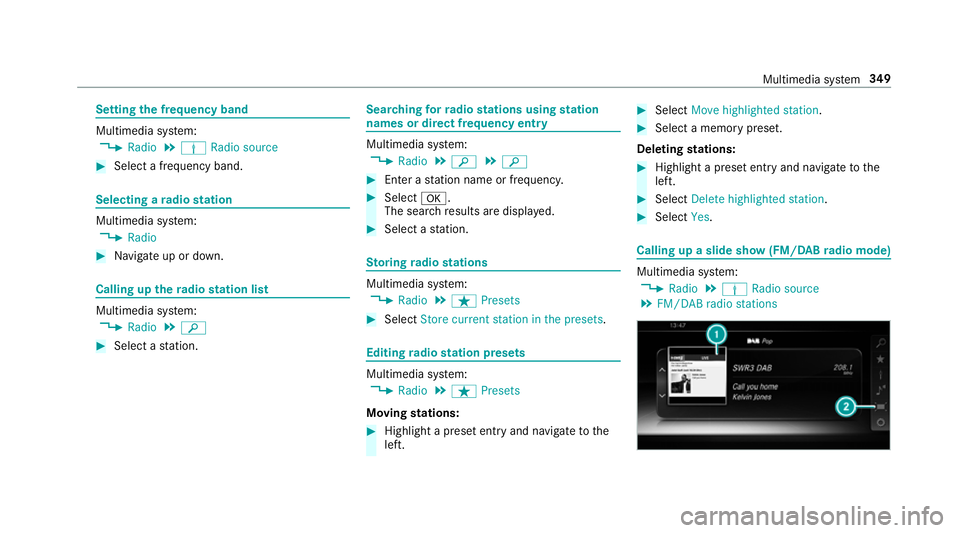
Select Yes. Calling up a slide show (FM/DAB
radio mode) Multimedia sy
stem:
4 Radio 5
Þ Radio source
5 FM/DAB radio stations Multimedia sy
stem 349
Page 359 of 549
Quic
k-saving a TVchannel
Multimedia sy stem:
4 Media 5
à Media sources 5
TV #
In full-screen mode, press theto uchpad for
longer than thre e seconds.
The cur rent TV channel is stored in the
fa vo urites in the next available position.
St oring TVchannels
Multimedia sy stem:
4 Media 5
à Media sources 5
TV
5 ß Presets #
Select Store current station in the presets .
or #
Highlight a channel in thech annel list and
st ore as a favo urite.
The cur rent channel is stored in thefa vo ur‐
ites in the next available position.
Moving channels in thefa vo urites #
Highlight a channel in thefa vo urites. #
Select ¥Move highlighted station. #
Highlight the new position. #
Confirm the position.
Deleting channels #
Highlight a channel in thefa vo urites. #
Select ¥Delete highlighted station. #
Select Yes. TV
prog ramme Overvi
ewof audio language and subtitles
Au dio language
R It is possible tochoose between se veral
audio languages when a programme is broad‐
cast in multiple languages.
R If En glish, forex ample, is set as the sy stem
language and a TVchannel is broadcasting in
th is language, En glish is selec ted automati‐
cally.
The prog ramme transmission may be indica ted
with thefo llowing symbols:
m Programme with audio explanations for
th e visually impaired
o Stereo broadcast n
Programme forth e hearing impaired
O Broadcast in sur round sound
If a symbol is not shown, the programme is
either broadcast in mono or the transmission
properties are unkn own.
Subtitles
R The function is switched on: subtitles are
shown in the selected language forth e cur‐
re nt programme (if available).
Setting theTV audio language
Multimedia sy stem:
4 Media 5
à Media sources 5
TV
5 Z Options #
Select Audio/subtitles. #
Select one of theav ailable audio languages.
The audio language selec ted only applies to
th e cur rent programme. 356
Multimedia sy stem
Page 364 of 549
&
WARNING Risk of inju ryfrom unsecu red
items in theve hicle
If objects such as headphones/headsets or
ex tern al audio/video sources are not
secured in theve hicle interior, they can be
fl ung around and hit vehicle occupants. #
Alw aysstow these items or similar
objects carefully so that they cannot be
fl ung around, forex ample in a loc kable
ve hicle stowage compartment. Obse
rveth e no tes on loading theve hicle. &
WARNING Risk of accident and inju ry
caused byspilling liquids on a display
Spilled liquids could result in a fire or an
electric shoc k. #
Do not pour or sp ray any liquids on to
th e displa y. *
NO
TEDama getothere ar display and/or
th ere ar ben chseat The
rear displa ysoftheRe ar Seat En tertain‐
ment Sy stem and/or there ar ben chseat can
be damaged when folding there ar ben ch
seat forw ards. #
Make sure that when folding there ar
ben chseat forw ards it does not come
into con tact wi th there ar displa ysand
th e front seats. *
NO
TEDama getocomponent pa rts when
adjusting the front seats The
rear displa ysoftheRe ar Seat En tertain‐
ment Sy stem, the front seats or other com‐
ponent parts can be damaged when adjust‐
ing the front seats. #
When adjusting the front seats and the
fi tted rear displa ysmake sure that they
do not come into con tact wi thother
component parts. Obser
vethe no tes on adjusting the front seats. Fu
nction restrictions
Ra dio-based elect ronic devices, e.g. mobile
phones, can inter fere with theRe ar Seat En ter‐
ta inment Sy stem and adversely af fect thequ ality
of the playbac k.Ke ep the number of these devi‐
ces in theve hicle tothe minimum necessar y.
Note s ontemp eratures: intheev ent that a
re ar display overheats a saf ety shutoff is car ried
out. Pr otect there ar displa ysfrom cons tant
di re ct sunlight.
If th ete mp erature fluctuates widel y,condensa‐
tion could occur on the inside of the screen. This
can adversely af fect the function. Only switch on
th ere ar displa yswhen they have adjus tedto the
ambient temp erature.
Declarations of conformity
Obser vethe no tes on thefo llowing topics:
R Elect romagnetic compatibility (/ page 22)
R Wireless vehicle components (/ page 22) Multimedia sy
stem 361
Page 367 of 549
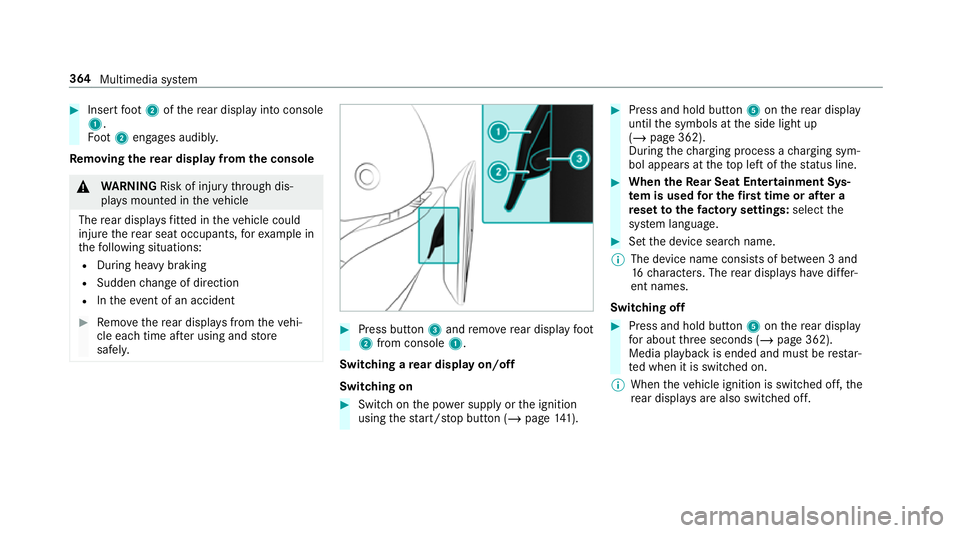
#
Insert foot 2 ofthere ar display into console
1.
Fo ot 2 engages audibly.
Re moving the rear display from the console &
WARNING Risk of inju rythro ugh dis‐
pla ysmounted in theve hicle
The rear displa ysfitted in theve hicle could
injure there ar seat occupants, forex ample in
th efo llowing situations:
R During heavy braking
R Sudden change of direction
R Intheev ent of an accident #
Remo vethere ar displa ysfrom theve hi‐
cle each time af ter using and store
safel y. #
Press button 3and remo verear display foot
2 from console 1.
Switching a rear display on/off
Switching on #
Switch on the po wer supp lyor the ignition
using thest art/ stop button (/ page141). #
Press and hold but ton5 onthere ar display
until the symbols at the side light up
(/ page 362).
During thech arging process a charging sym‐
bol appears at theto p left of thest atus line. #
When theRe ar Seat Entertainment Sys‐
te m is used for the firs t time or af ter a
re set tothefa ctory settings: selectthe
sy stem language. #
Set the device sear chname.
% The device name consi sts of between 3 and
16 characters. The rear displa yshave differ‐
ent names.
Switching off #
Press and hold button 5onthere ar display
fo r about thre e seconds (/ page 362).
Media playback is ended and must be restar‐
te d when it is switched on.
% When theve hicle ignition is switched off, the
re ar displa ysare also swit ched off. 364
Multimedia sy stem
Page 380 of 549
#
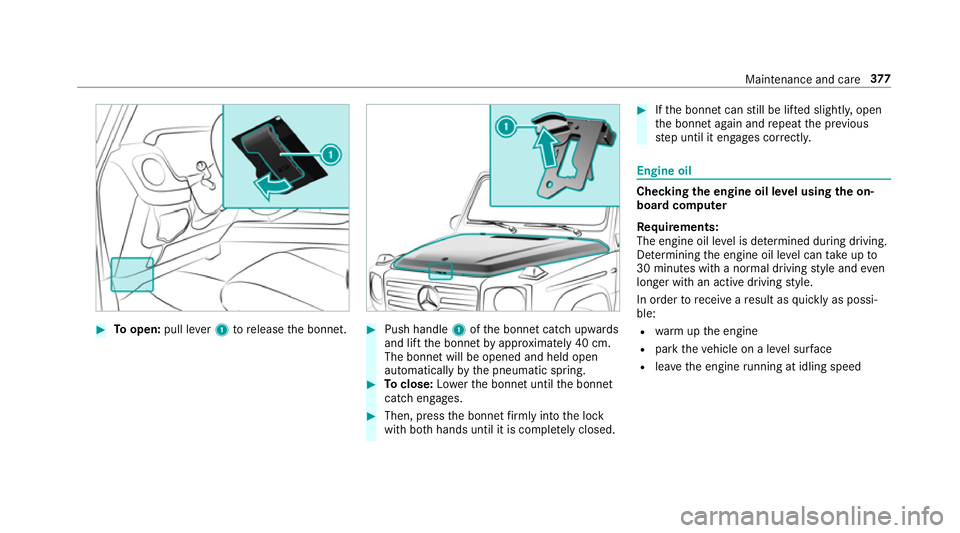
Toopen: pull lever1 torelease the bonn et. #
Push handle 1ofthe bonn etcatch up wards
and lift the bonn etby appr oximately 40 cm.
The bonn etwill be opened and held open
automatically bythe pneumatic spring. #
Toclose: Lowe rth e bonn etuntil the bonn et
catch engages. #
Then, press the bonn etfirm lyinto the lock
with bo thhands until it is comple tely closed. #
Ifth e bonn etcan still be lif ted slightl y,open
th e bonn etagain and repeat the pr evious
st ep until it engages cor rectl y. Engine oil
Checking
the engine oil le vel using the on-
board compu ter
Re quirements:
The engine oil le vel is de term ined during driving.
De term ining the engine oil le vel can take up to
30 minutes with a normal driving style and even
longer with an active driving style.
In order torecei veare sult as quickly as possi‐
ble:
R warm upthe engine
R park theve hicle on a le vel sur face
R leave the engine running at idling speed Maintenance and care
377
Page 385 of 549
R
the windscreen wiper switch is in position
g.
R in car washes with a con veyo r sy stem: neu‐
tral iis engaged.
% Ifyo uwo uld like tolea vetheve hicle while it
is being washed, make sure theke y is loca‐
te d in theve hicle. The Bgear is other‐
wise automatically engaged.
% If, af terth e car wash, youre mo vethewax
from the windscreen and wiper rubbers, this
will pr event smearing and reduce wiper
noise. Information on using a high-p
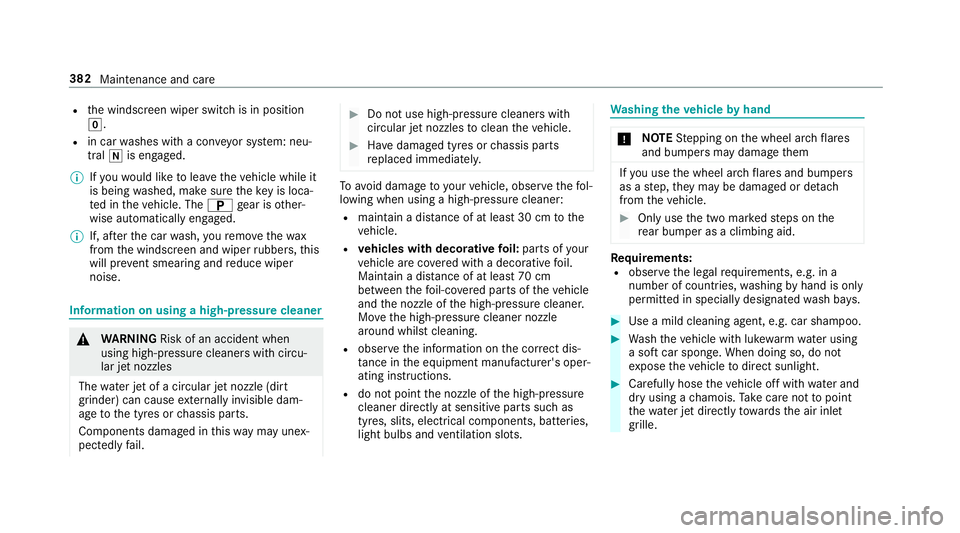
ressure cleaner &
WARNING Risk of an accident when
using high-pressure cleane rswith circu‐
lar jet nozzles
The wate r jet of a circular jet nozzle (dirt
grinder) can cause extern ally invisible dam‐
age tothe tyres or chassis parts.
Components damaged in this wa y may unex‐
pec tedly fail. #
Do not use high-pressure cleaners with
circular jet nozzles toclean theve hicle. #
Have damaged tyres or chassis parts
re placed immediatel y. To
avo id damage to yourvehicle, obser vethefo l‐
lowing when using a high-pressure cleaner:
R maintain a dis tance of at least 30 cm tothe
ve hicle.
R vehicles with deco rative foil: parts of your
ve hicle are co vered with a decorative foil.
Maintain a dis tance of at least 70 cm
between thefo il-c ove red parts of theve hicle
and the nozzle of the high-pressure cleaner.
Mo vethe high-pressure cleaner nozzle
around whilst cleaning.
R obser vethe information on the cor rect dis‐
ta nce in the equipment manufacturer's oper‐
ating instructions.
R do not point the nozzle of the high-pressure
cleaner directly at sensitive parts such as
tyres, slits, electrical components, bat teries,
light bulbs and ventilation sl ots. Wa
shing theve hicle byhand *
NO
TEStepping on the wheel ar chflares
and bumpers may damage them If
yo u use the wheel ar chflares and bumpers
as a step, they may be dama ged or de tach
from theve hicle. #
Only use the two mar kedsteps on the
re ar bumper as a climbing aid. Re
quirements:
R obser vethe legal requ irements, e.g. in a
number of countries, washing byhand is only
permitted in specially designated wash ba ys. #
Use a mild cleaning agent, e.g. car shampoo. #
Washtheve hicle with luk ewarmwate r using
a soft car sponge. When doing so, do not
ex pose theve hicle todirect sunlight. #
Carefully hose theve hicle off with water and
dry using a chamois. Take care not topoint
th ewate r jet directly towa rdsth e air inlet
grille. 382
Maintenance and care
Page 386 of 549
Note
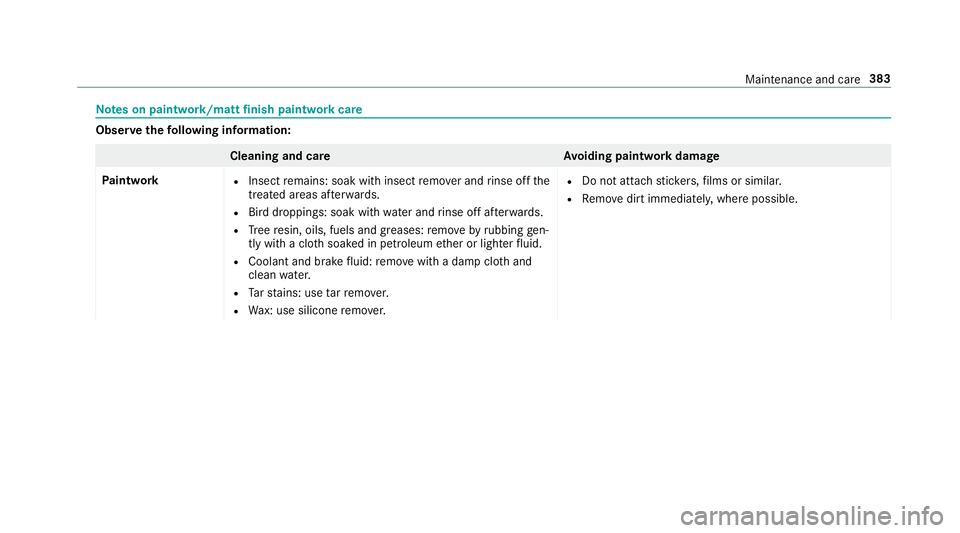
s on paint work/matt finish paint workcare Obser
vethefo llowing information: Cleaning and car
eA voiding paintwork damage
Pa intwork R
Insect remains: soak with insect remo ver and rinse off the
trea ted areas af terw ards.
R Bird droppings: soak with water and rinse off af terw ards.
R Tree resin, oils, fuels and greases: remo veby rubbing gen‐
tly wi tha clo thsoaked in petroleum ether or lighter fluid.
R Coolant and brake fluid: remo vewith a damp clo thand
clean water.
R Tarst ains: use tarre mo ver.
R Wax: use silicone remo ver. R
Do not attach sticke rs,fi lms or similar.
R Remo vedirt immediatel y,where possible. Maintenance and care
383