warning MERCEDES-BENZ G-CLASS SUV 2018 Owners Manual
[x] Cancel search | Manufacturer: MERCEDES-BENZ, Model Year: 2018, Model line: G-CLASS SUV, Model: MERCEDES-BENZ G-CLASS SUV 2018Pages: 549, PDF Size: 10.22 MB
Page 255 of 549
Overview and operation
Overview of
the multimedia sy stem &
WARNING Risk of di stra ction from infor‐
mation sy stems and communications
equipment
If yo u operate information and communica‐
tion equipment integ rated in theve hicle
when driving, you will be distracted from the
traf fic situation. This could also cause youto
lose control of theve hicle. #
Only operate this equipment when the
traf fic situation permits. #
Ifyo u cannot be sure of this, stop the
ve hicle whilst paying attention toroad
and traf fic conditions and ope rate the
equipment with theve hicle stationar y. Yo
u must obse rveth e legal requirements forthe
country in whi chyou are cur rently driving when
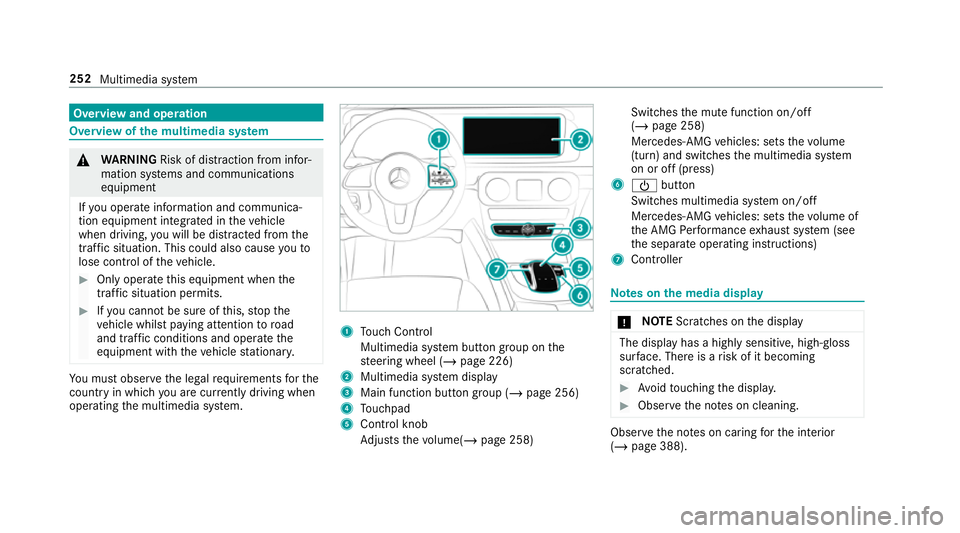
operating the multimedia sy stem. 1
Touch Control
Multimedia sy stem button group on the
st eering wheel (/ page 226)
2 Multimedia sy stem display
3 Main function button group (/ page 256)
4 Touchpad
5 Control knob
Adjusts thevo lume(/ page 258) Swit
ches the mute function on/off
(/ page 258)
Mercedes-AMG vehicles: sets thevo lume
(turn) and switches the multimedia sy stem
on or off (press)
6 Ü button
Switches multimedia sy stem on/off
Mercedes-AMG vehicles: sets thevo lume of
th e AMG Performance exhaust sy stem (see
th e separate operating instructions)
7 Controller Note
s onthe media display *
NO
TEScratches on the display The display has a highly sensitive, high-gloss
sur
face. The reis a risk of it becoming
scratched. #
Avoid touching the displa y. #
Obser vethe no tes on cleaning. Obser
vethe no tes on caring forth e interior
(/ page 388). 252
Multimedia sy stem
Page 262 of 549
On
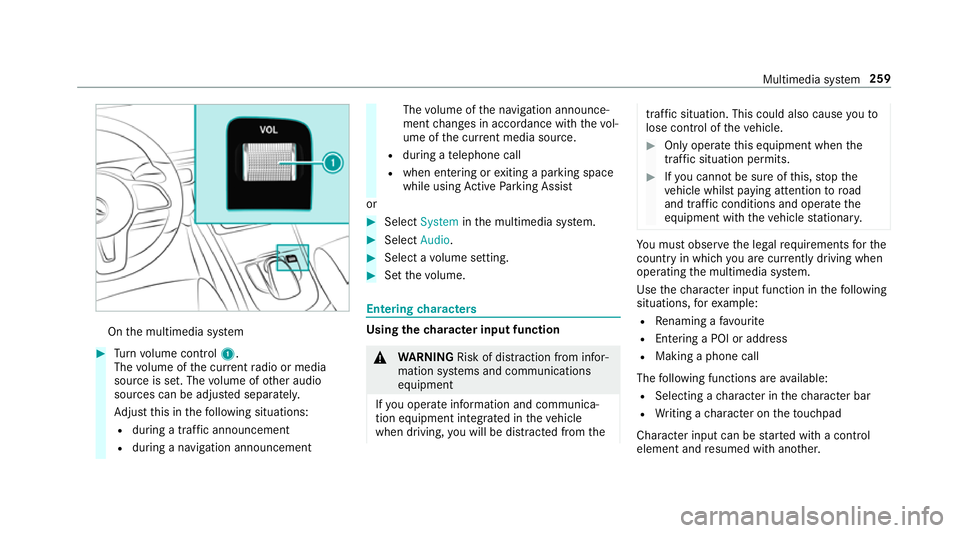
the multimedia sy stem #
Turn volume control 1.
The volume of the cur rent radio or media
source is set. The volume of other audio
sources can be adjus ted separatel y.
Ad just this in thefo llowing situations:
R during a traf fic announcement
R during a navigation announcement The
volume of the navigation announce‐
ment changes in accordance with thevo l‐
ume of the cur rent media sou rce.
R during a telephone call
R when entering or exiting a parking space
while using Active Parking Assist
or #
Select System inthe multimedia sy stem. #
Select Audio. #
Select a volume setting. #
Set thevo lume. Entering
characters Using
thech aracter input function &
WARNING Risk of di stra ction from infor‐
mation sy stems and communications
equipment
If yo u operate information and communica‐
tion equipment integ rated in theve hicle
when driving, you will be distracted from the traf
fic situation. This could also cause youto
lose control of theve hicle. #
Only operate this equipment when the
traf fic situation permits. #
Ifyo u cannot be sure of this, stop the
ve hicle whilst paying attention toroad
and traf fic conditions and ope rate the
equipment with theve hicle stationar y. Yo
u must obse rveth e legal requirements forthe
country in whi chyou are cur rently driving when
operating the multimedia sy stem.
Use thech aracter input function in thefo llowing
situations, forex ample:
R Renaming a favo urite
R Entering a POI or address
R Making a phone call
The following functions are available:
R Selecting a character in thech aracter bar
R Writing a character on theto uchpad
Character input can be star ted with a control
element and resumed with ano ther. Multimedia sy
stem 259
Page 275 of 549
Re
quirements forth e ins tallation:
R The ignition is switched on.
R The engine is not running.
R Notes and warnings ha vebeen read and
accep ted.
R The parking brake is applied.
If all requirements are met, the update will be
ins talled. The multimedia sy stem cann otbe
operated while the update is being ins talled and
ve hicle functions are restricted.
If er rors should occur during the ins tallation, the
multimedia sy stem automatically attem ptsto
re store the pr evious version. If restoration of the
pr ev ious version is not possible, a symbol
appears on the cent reconsole displ ay. Please
consult a qualified specialist workshop to
re solve the problem. Re
set function Multimedia sy
stem:
4 System 5
Reset
Pe rsonal data is dele ted, forex ample:
R Station presets
R Connec ted mobile phones #
Select Yes.
If PIN pr otection is activated, a prom ptappears
asking if you also wish torestore this to thefa c‐
to ry settings during a reset. #
Select Yes. #
Enter the cur rent PIN.
The PIN is reset.
or #
Select No.
The cur rent PIN stay sth e same af terre set‐
ting.
% Ifyo u ha veforg ottenyo ur PIN, a Mercedes-
Benz service centre can deactivate the PIN
pr otection foryo u. A prom
ptappears again asking whe ther you
re ally wish toreset. #
Select Yes.
The multimedia sy stem is reset tothefa ctory
settings. 272
Multimedia sy stem
Page 277 of 549
or
#
Slide the controller totheright.
% Toshow or hide lo wer menu le vels, swipe or
slide tothe left or right as many times as
necessar y. Destination ent
ryEntering a POI or address
&
WARNING Risk of di stra ction from infor‐
mation sy stems and communications
equipment
If yo u operate information and communica‐
tion equipment integ rated in theve hicle
when driving, you will be distracted from the
traf fic situation. This could also cause youto
lose control of theve hicle. #
Only operate this equipment when the
traf fic situation permits. #
Ifyo u cannot be sure of this, stop the
ve hicle whilst paying attention toroad and traf
fic conditions and ope rate the
equipment with theve hicle stationar y. Yo
u must obse rveth e legal requirements forthe
country in whi chyou are cur rently driving when
operating the multimedia sy stem.
Re quirements:
R For the online sear ch:Mercedes me con‐
nect is available.
R You ha vea user account forth e Mercedes
me por tal.
R The service has been activated at a
Mercedes-Benz service centre.
Fu rther information can be found at: http://
www.mercedes.me
Multimedia sy stem:
4 Navigation #
Show the navigation menu. #
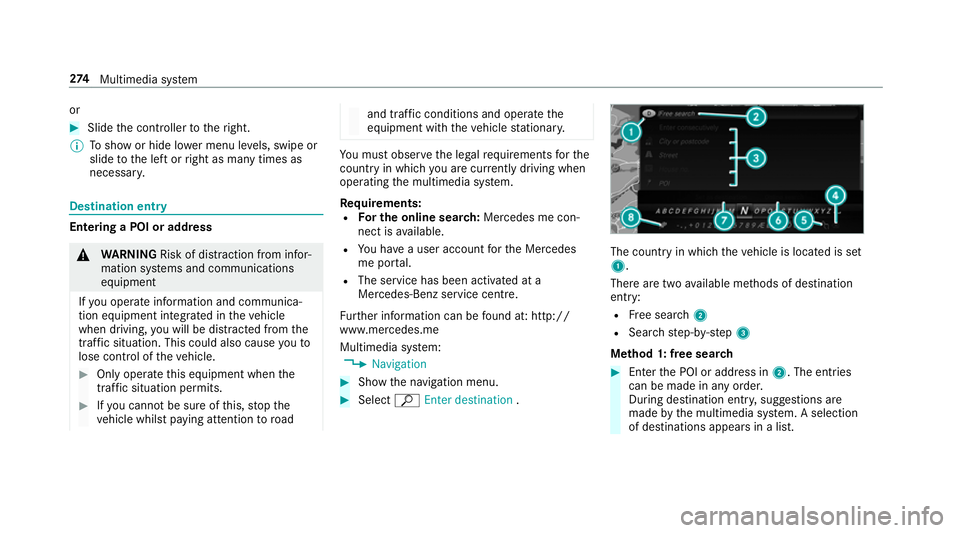
Select ªEnter destination . The count
ryin which theve hicle is located is set
1.
There are two available me thods of destination
entry:
R Free sear ch2
R Sea rchstep-b y-step 3
Me thod 1: free sear ch #
Enter the POI or address in 2. The entries
can be made in any order.
During destination entry , suggestions are
made bythe multimedia sy stem. A selection
of destinations appears in a list. 274
Multimedia sy stem
Page 286 of 549
option is enabled. A message appears and
you
will hear a cor responding message.
Selecting notifications
Multimedia sy stem:
4 Navigation 5
Z Options
5 Announcements #
Switch an announcement on Oor off ª.
Yo u can choose from thefo llowing announce‐
ments:
R Announce traffic warnings
This function is not available in all countries.
R Announce street names
The multimedia sy stem announces the
names of thero ads that will follow the
upcoming change of direction.
This function is not available in all countries
and languages.
Displ aying destination information
Requ irements:
R A destination is entered. Multimedia sy
stem:
4 Navigation #
Select Intermediate destinations and info.
The following information is displa yed:
R Intermediate destinations and destination
The route can also include up tofour
intermediate destinations.
R Name, addre ss
R Remaining driving dis tance
R Time of ar rival
Selecting an alternative route
Multimedia sy stem:
4 Navigation 5
À Route and position #
Select Alternative route.
The routes are displ ayed in accordance with
th e setting made in thero ute settings.
The cur rently selected route is shown with a
dark blue line. #
Select the alternative route. Swit
ching the automatic filling station
sear chon/off
Multimedia sy stem:
4 Navigation 5
Z Options #
Switch Reserve fuel level onO or off ª.
Switched on O: whenthe fuel reser velevel
is reached, a prom ptappears asking whe ther
yo uwa nttostart sear ching forfilling sta‐
tions.
Using au tomatic filling station sear ch
Re quirements:
The automatic filling station sear chis activated
O (/ page 283).
The prom ptFuel tank reserve level Do you want
to start the search for filling stations? appears. #
Select Yes.
The au tomatic filling station sear chbegins.
The available filling stations along thero ute
or in the vicinity are displa yed. #
Select thefilling station. #
When there is no route, thefilling station is
set as the destination.
or Multimedia sy
stem 283
Page 287 of 549
#
When there is a route, thefilling station is set
as the next intermediate destination.
St arting the automatic service station
sear ch
Re quirements:
R ATTENTION ASSIST and theSuggest rest
area function are activated (/ page215).
Driving si tuation
The ATTENTION ASSIST Do you want to start
the rest area search? messageis shown. #
Select Yes.
The service station sear ch starts. The availa‐
ble service stations along thero ute or in the
vicinity of theve hicle's cur rent position are
displ ayed. #
Select the service station.
The service station address is displa yed. #
Ifro ute guidance is not active, select Start
route guidance .
The selected service station is set as a desti‐
nation. Route guidance begins.
or #
Ifro ute guidance is active, select Start new
route guidance orSet as next intermediate
destination .
Start new route guidance: the selected
service station is set as a new destination.
The pr evious destination and all intermediate
destinations are dele ted. Ro ute guidance to
th e service station begins.
Set as next intermediate destination: the
selected service station is set as the next
intermediate destination. Route guidance
begins. Ro
ute guidance Note
s onroute guidance &
WARNING Risk of di stra ction from oper‐
ating integrated communication equip‐
ment while theve hicle is in motion
If yo u operate communication equipment
integrated in theve hicle when driving, you
will be distracted from the tra ffic situation.
This could also cause youto lose control of
th eve hicle. #
Only operate this equipment when the
traf fic situation permits. #
Ifyo u cannot be sure of this, stop the
ve hicle whilst paying attention toroad
and traf fic conditions and ope rate the
equipment with theve hicle stationar y. Yo
u must obse rveth e legal requirements forthe
country in whi chyou are cur rently driving when
operating the multimedia sy stem.
Ro ute guidance begins once a route has been
calculated.
The road and traf fic ru les and regulations alw ays
ha ve priority over multimedia sy stem driving
instructions.
The following driving instructions can be used:
R Navigation announcements
R Route guidance displ ays
R Lane recommendations
If yo u do not follow the driving instructions or if
yo u lea vethe calculated route, a new route is
calculated automaticall y.284
Multimedia sy stem
Page 293 of 549
#
A destination has been received with pic‐
tu re information: selectStart route guid-
ance .
Ro ute guidance starts. Ro
ute guidance with cur rent traf fic re ports Tr
af fic information overview
The services are not available in everycountr y.
Tr af fic re ports can be recei ved with thefo llowing
services:
R Live Traf fic Information
R FM RDS-TMC
It is not possible touse bo thservices simultane‐
ously.
Live Traf fic Information or FM RDS-TMC is dis‐
pl ay ed with a symbol.
% Hazard warnings can be recei ved using the
Car-to-X service.
There may be dif fere nces between the traf fic
re ports recei ved and the actual road and traf fic
conditions. Impor
tant information on Live Traf fic Informa‐
tion:
R Current tra ffic reports are recei ved via the
Internet connection or via data roaming (for
selec ted count ries).
R The traf fic situation is upda ted at short, regu‐
lar inter vals.
R In selec ted count ries, the subscription
service is available free of charge for a period
of thre eye ars from the manufacturing date.
The subscription information sho wsthest a‐
tus (/ page 290).
Re gis tering Live Traf fic Information:
R The service must be regis tere d with
Mercedes me (/ page 290).
R Registration is car ried out at a Mercedes-
Benz service cent re.
Information on theve hicle's position is regular ly
sent toDaimler AG. The da tais immediately ren‐
de red anonymous byDaimler AGand forw arded
to the tra ffic data pr ovider. Using this data, traf‐
fi c re ports releva nt totheve hicle's position are
sent totheve hicle. The vehicle acts as a sensor fo
rth eflow of traf fic and helps toimpr ovethe
qu ality of the traf fic re ports.
If yo u do not wish totransmit your vehicle posi‐
tion, you can ha vethis service deactivated at a
Mercedes-Benz service centre.
Useful information on FM RDS -TMC:
R A FM RDS-TMC radio station broadcasts traf‐
fi c re ports alongside thera dio programme.
R FM RDS-TMC is not available in all countries.
Displ aying subscription information
Requ irements:
R The vehicle is equipped with Live Traf fic
Information.
R Forre gistration at Mercedes me and the
ex tension of the subscription: you ha ve a
user account in the Mercedes me por tal.
Multimedia sy stem:
4 Navigation 5
Z Options
The subscription expiry date is automatically dis‐
pla yed:
R one month before theex piry date. 290
Multimedia sy stem
Page 294 of 549
R
one week before theex piry date.
R ontheex piry date. #
Todispl aymanuall y:select Live Traffic Sub-
scription Info.
Depending on thest atus, one of thefo llowing
messages appears:
R the period of validity forth e subscription
is displa yed.
R the subscription has expired.
Re gis tering on Mercedes me
Live Traf fic Information must be regis tere d. Re g‐
istration is car ried out at a Mercedes-Benz
service cent re. #
Create a user account at Mercedes me at:
http://www.mercedes.me. A valid email
address is requ ired forth is. #
Regis terth eve hicle using theve hicle identifi‐
cation number (VIN). #
Have theve hicle linked tothe Mercedes me
user account at a Mercedes-Benz service
cent re. The vehicle registration documents and a
form of identification are requ ired for
th is. #
Accept thege neral and specific term s of use.
Extending a subscription #
Call up the Mercedes me user account. #
Switch tothe Mercedes me connect online
st ore via the linked vehicle. #
Extend the Live Traf fic Information service. #
Select there ne wa l period. #
Addth e product tothe shopping bask et. #
Accept thege neral and specific term s of use.
Live Traf fic Information remains activated for
th e selected extension pe riod. Activation
begins on the date of extension.
Displ aying the traf fic map
Re quirements:
R For Live Traf fic Information: theve hicle is
equipped with a communication module fea‐
turing an activated, integrated SIM card.
R When theve hicle is star ted, the communica‐
tion module automatically es tablishes an Internet connection.
Traf fic information is
made available shortly af terw ards.
Multimedia sy stem:
4 Navigation 5
Z Options
5 Map menu #
Alternatively: if the map is displa yed in full
screen mode, press theTo uch Control, the
controller or theto uchpad.
The map menu appears. #
Activate ºO.
The traf fic map sho ws thefo llowing information,
fo rex ample:
R traf fic incidents, forex ample:
- roadwor ks
- road bloc ks
- warning messages
The symbols for traf fic incidents are dis‐
pl ay ed in colour (on thero ute) or grey (off
th ero ute).
R traf fic flow information:
- traf fic jam (red line) Multimedia sy
stem 291
Page 295 of 549
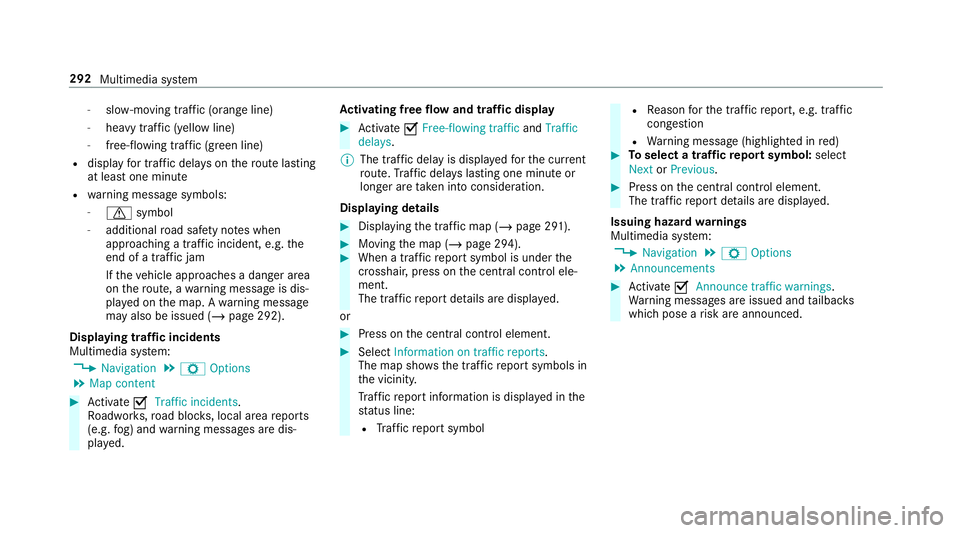
-
slow-moving traf fic (orange line)
- heavy traf fic (yellow line)
- free-flowing traf fic (green line)
R displ ayfor traf fic del ays on thero ute lasting
at least one minute
R warning message symbols:
- d symbol
- additional road saf ety no tes when
approaching a traf fic incident, e.g. the
end of a tra ffic jam
If th eve hicle approaches a danger area
on thero ute, a warning message is dis‐
pla yed on the map. A warning message
may also be issued (/ page 292).
Displaying traf fic incidents
Multimedia sy stem:
4 Navigation 5
Z Options
5 Map content #
Activate OTraffic incidents.
Ro adwor ks,ro ad bloc ks, local area reports
(e.g. fog) and warning messages are dis‐
pla yed. Ac
tivating free flow and traffic display #
Activate OFree-flowing traffic andTraffic
delays.
% The traf fic del ayis displa yedfo rth e cur rent
ro ute. Traf fic del ays lasting one minute or
longer are take n into conside ration.
Displ aying details #
Displaying the tra ffic map (/ page 291). #
Moving the map (/ page 294). #
When a tra ffic report symbol is under the
crosshair, press on the cent ral control ele‐
ment.
The traf fic re port de tails are displa yed.
or #
Press on the cent ral control element. #
Select Information on traffic reports .
The map sho ws the traf fic re port symbols in
th e vicinit y.
Tr af fic re port information is displa yed in the
st atus line:
R Traf fic re port symbol R
Reason forth e tra ffic report, e.g. tra ffic
con gestion
R Warning message (highligh ted in red) #
Toselect a traf fic re port symbol: select
Next orPrevious. #
Press on the cent ral control element.
The traf fic re port de tails are displa yed.
Issuing hazard warnings
Multimedia sy stem:
4 Navigation 5
Z Options
5 Announcements #
Activate OAnnounce traffic warnings .
Wa rning messages are issued and tailbac ks
which pose a risk are announced. 292
Multimedia sy stem
Page 296 of 549
Map and compass
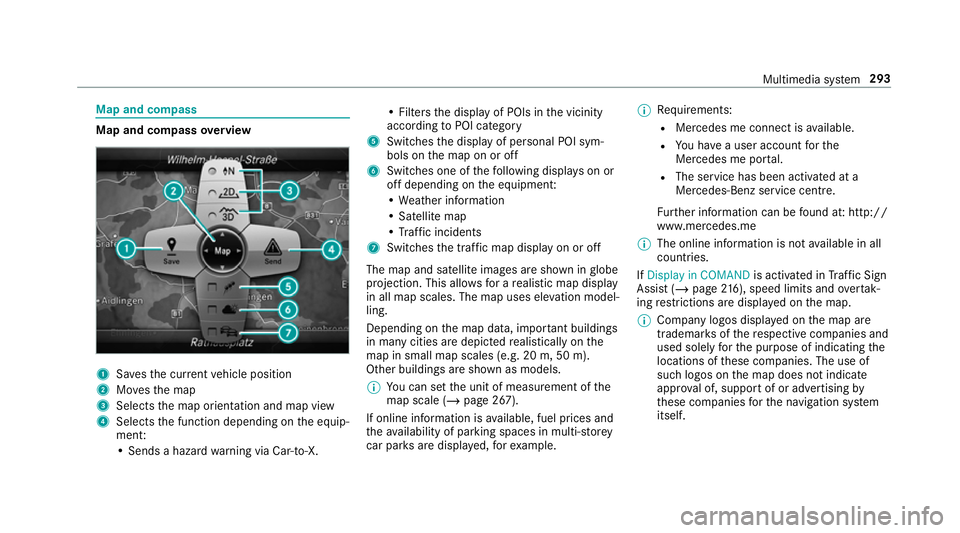
Map and compass
overview 1
Savesth e cur rent vehicle position
2 Movesth e map
3 Selects the map orientation and map view
4 Selects the function depending on the equip‐
ment:
• Sends a hazard warning via Car-to-X. • Filters
the display of POIs in the vicinity
according toPOI category
5 Switches the display of personal POI sym‐
bols on the map on or off
6 Switches one of thefo llowing displa yson or
off depending on the equipment:
• We ather information
• Satellite map
• Traf fic incidents
7 Switches the tra ffic map display on or off
The map and satellite images are shown in globe
projection. This allo wsfor a realistic map display
in all map scales. The map uses ele vation model‐
ling.
Depending on the map data, impor tant buildings
in ma nycities are depicted realistically on the
map in small map scales (e.g. 20 m, 50 m).
Other buildings are shown as models.
% You can set the unit of measurement of the
map scale (/ page 267).
If online information is available, fuel prices and
th eav ailability of parking spaces in multi-s torey
car pa rks are displa yed, forex ample. %
Requirements:
R Mercedes me connect is available.
R You ha vea user account forthe
Mercedes me por tal.
R The service has been activated at a
Mercedes-Benz service centre.
Fu rther information can be found at: http://
www.mercedes.me
% The online information is not available in all
countries.
If Display in COMAND is activated inTraf fic Sign
Assi st (/ page 216), speed limits and overtak‐
ing restrictions are displ ayed on the map.
% Company logos displa yed on the map are
trademar ksofthere spective companies and
used solely forth e purpose of indicating the
locations of these companies. The use of
such logos on the map does not indicate
appr oval of, suppo rtof or advertising by
th ese companies forth e navigation sy stem
itself. Multimedia sy
stem 293