reset MERCEDES-BENZ G-CLASS SUV 2018 User Guide
[x] Cancel search | Manufacturer: MERCEDES-BENZ, Model Year: 2018, Model line: G-CLASS SUV, Model: MERCEDES-BENZ G-CLASS SUV 2018Pages: 549, PDF Size: 10.22 MB
Page 234 of 549
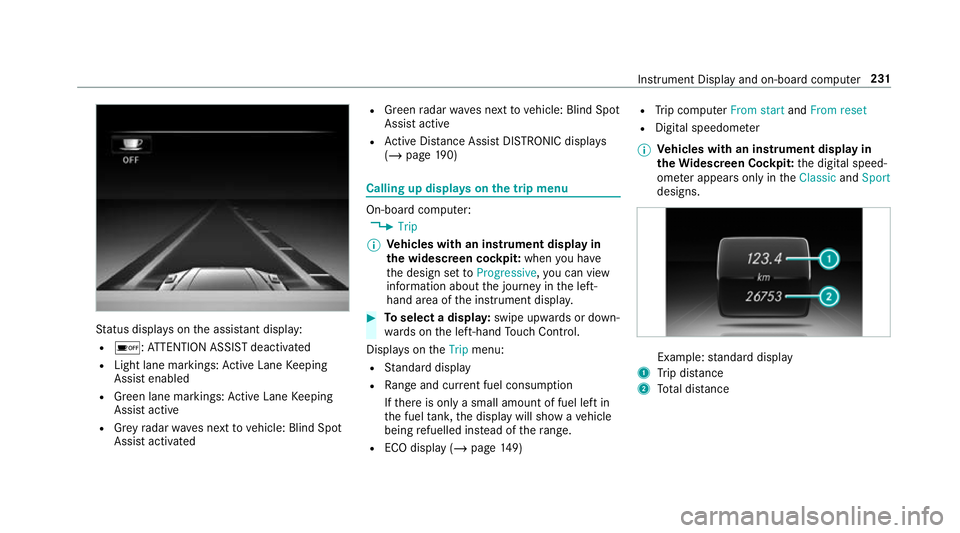
St
atus displa yson the assis tant displ ay:
R é :AT TENTION ASSIST deactivated
R Light lane markings: Active Lane Keeping
Assist enabled
R Green lane markings: Active Lane Keeping
Assist active
R Grey radar waves next tovehicle: Blind Spot
Assist activated R
Green radar waves next tovehicle: Blind Spot
Assist active
R Active Dis tance Assi stDISTRONIC displa ys
( / page 190) Calling up
displays on the trip menu On-board computer:
4 Trip
% Ve
hicles with an instrument display in
th e widescreen cockpit: whenyou ha ve
th e design set toProgressive ,yo u can view
information about the journey in the left-
hand area of the instrument displa y. #
Toselect a displa y:swipe upwards or down‐
wa rds on the left-hand Touch Control.
Displa yson theTrip menu:
R Standard display
R Range and cur rent fuel consu mption
If th ere is only a small amount of fuel left in
th e fuel tank, the display will show a vehicle
being refuelled ins tead of thera nge.
R ECO displ ay (/page 149) R
Trip computer From startandFrom reset
R Digital speedom eter
% Ve
hicles with an instrument display in
th eWi descreen Co ckpit: the digital speed‐
ome ter appears only in theClassic andSport
designs. Example:
standard display
1 Trip dis tance
2 Total dis tance Instrument Display and on-boa
rdcompu ter231
Page 235 of 549
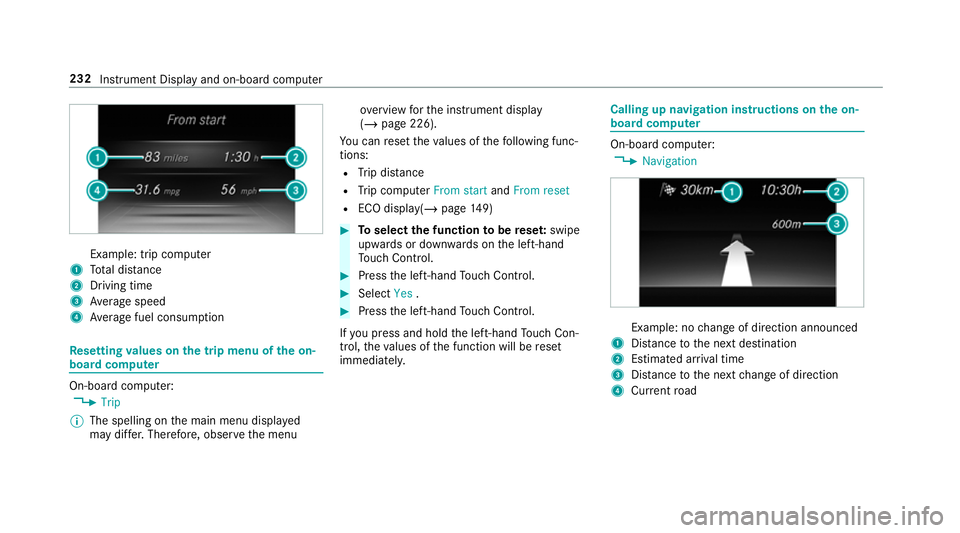
Example: trip computer
1 Total dis tance
2 Driving time
3 Average speed
4 Average fuel consum ption Re
setting values on the trip menu of the on-
board compu terOn-board computer:
4 Trip
% The spelling on the main menu displa yed
may dif fer. Therefore, obser vethe menu ove
rview forth e instrument display
(/ page 226).
Yo u can reset theva lues of thefo llowing func‐
tions:
R Trip dis tance
R Trip computer From startandFrom reset
R ECO displa y(/ page 149) #
Toselect the function tobe rese t:swipe
upwards or down wards on the left-hand
To uch Control. #
Press the left-hand Touch Control. #
Select Yes. #
Press the left-hand Touch Control.
If yo u press and hold the left-hand Touch Con‐
trol, theva lues of the function will be reset
immediatel y. Calling up navigation instructions on
the on-
board compu ter On-board computer:
4 Navigation Example: no
change of direction announced
1 Distance tothe next destination
2 Estimated ar riva l time
3 Distance tothe next change of direction
4 Current road 232
Instru ment Display and on-board computer
Page 237 of 549
Selecting
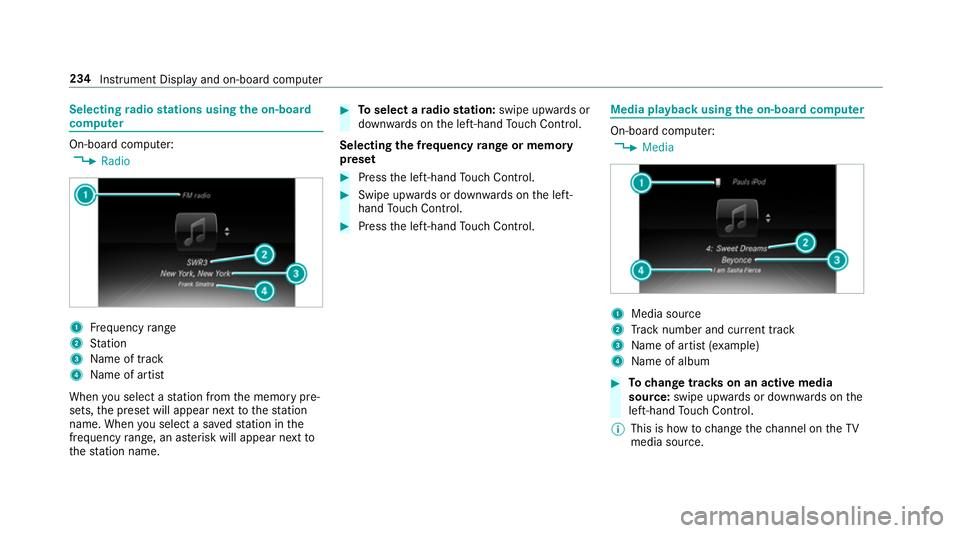
radio stations using the on-boa rd
compu ter On-board computer:
4 Radio 1
Frequency range
2 Station
3 Name of track
4 Name of artist
When you select a station from the memory pre‐
sets, the preset will appear next tothest ation
name. When you select a sa vedstation in the
frequency range, an as terisk will appear next to
th est ation name. #
Toselect a radio station: swipe upwards or
down wards on the left-hand Touch Control.
Selecting the frequency range or memory
preset #
Press the left-hand Touch Control. #
Swipe upwards or down wards on the left-
hand Touch Control. #
Press the left-hand Touch Control. Media playba
ckusing the on-boa rdcompu ter On-board computer:
4 Media 1
Media source
2 Track number and cur rent track
3 Name of artist (e xamp le)
4 Name of album #
Tochange trac kson an active media
source: swipe upwards or down wards on the
left-hand Touch Control.
% This is how tochange thech annel on theTV
media source. 234
Instrument Display and on-board computer
Page 259 of 549
#
Tohide the control menu: swipe down with
two fingers. The swipe mu st start in the
upper area of theto uchpad. Main functions
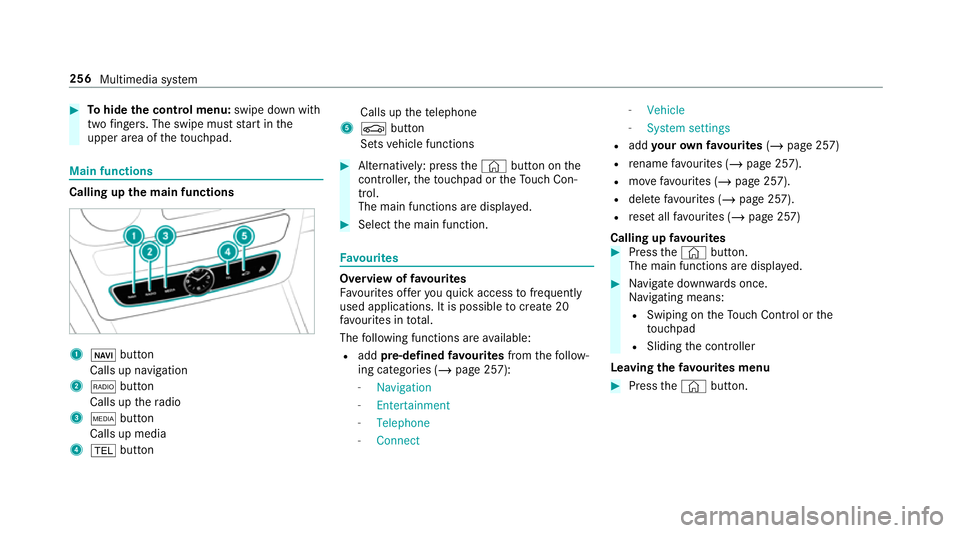
Calling up
the main functions 1
ß button
Calls up navigation
2 $ button
Calls up thera dio
3 Õ button
Calls up media
4 % button Calls up
thete lephone
5 Ø button
Sets vehicle functions #
Alternatively: press the© button on the
controller, theto uchpad or theTo uch Con‐
trol.
The main functions are displ ayed. #
Select the main function. Favo
urites Overview of
favo urites
Fa vourites of feryo uqu ick access tofrequently
used applications. It is possible tocrea te20
fa vo urites in tota l.
The following functions are available:
R add pre-defined favo urites fromthefo llow‐
ing categories (/ page 257):
- Navigation
- Entertainment
- Telephone
- Connect -
Vehicle
- System settings
R add your ow nfa vo urites (/page 257)
R rename favo urites (/ page 257).
R movefavo urites (/ page 257).
R dele tefavo urites (/ page 257).
R reset all favo urites (/ page 257)
Calling up favo urites #
Press the© button.
The main functions are displa yed. #
Navigate down wards once.
Na vigating means:
R Swiping on theTo uch Control or the
to uchpad
R Sliding the controller
Leaving thefa vo urites menu #
Press the© button. 256
Multimedia sy stem
Page 260 of 549
Ad
ding favo urites
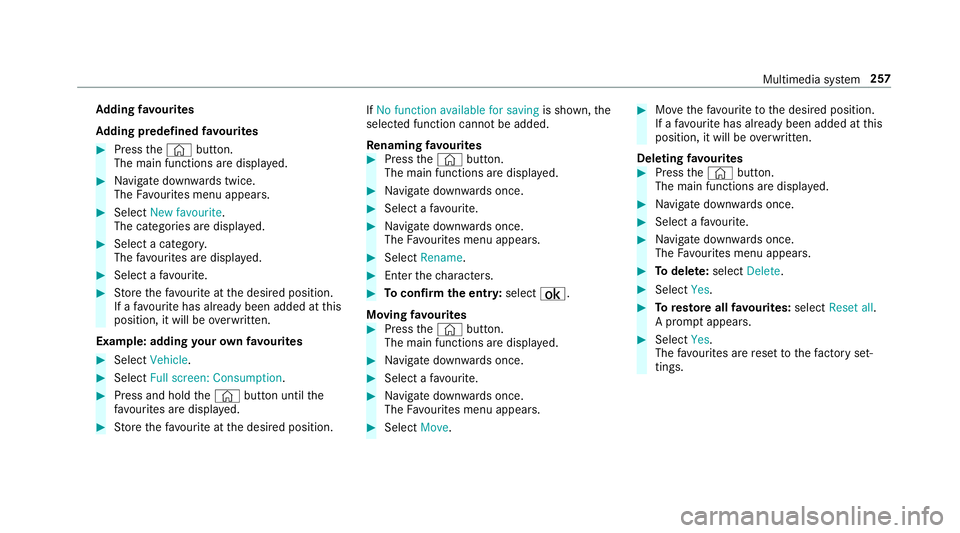
Ad ding prede fined favo urites #
Press the© button.
The main functions are displa yed. #
Navigate down wards twice.
The Favourites menu appears. #
Select New favourite.
The categories are displ ayed. #
Select a categor y.
The favo urites are displ ayed. #
Select a favo urite. #
Store thefa vo urite at the desired position.
If a favo urite has already been added at this
position, it will be overwritten.
Example: adding your ow nfa vo urites #
Select Vehicle. #
Select Full screen: Consumption .#
Press and hold the© button until the
fa vo urites are displ ayed. #
Store thefa vo urite at the desired position. If
No function available for saving is shown,the
selected function cannot be added.
Re naming favo urites #
Press the© button.
The main functions are displa yed. #
Navigate down wards once. #
Select a favo urite. #
Navigate down wards once.
The Favourites menu appears. #
Select Rename. #
Enterth ech aracters. #
Toconfirm the entr y:select ¡.
Moving favo urites #
Press the© button.
The main functions are displa yed. #
Navigate down wards once. #
Select a favo urite. #
Navigate down wards once.
The Favourites menu appears. #
Select Move. #
Movethefa vo urite tothe desired position.
If a favo urite has already been added at this
position, it will be overwritten.
Deleting favo urites #
Press the© button.
The main functions are displa yed. #
Navigate down wards once. #
Select a favo urite. #
Navigate down wards once.
The Favourites menu appears. #
Todel ete: select Delete. #
Select Yes. #
Toresto reall favo urites: selectReset all.
A prom ptappears. #
Select Yes.
The favo urites are reset tothefa ctory set‐
tings. Multimedia sy
stem 257
Page 272 of 549
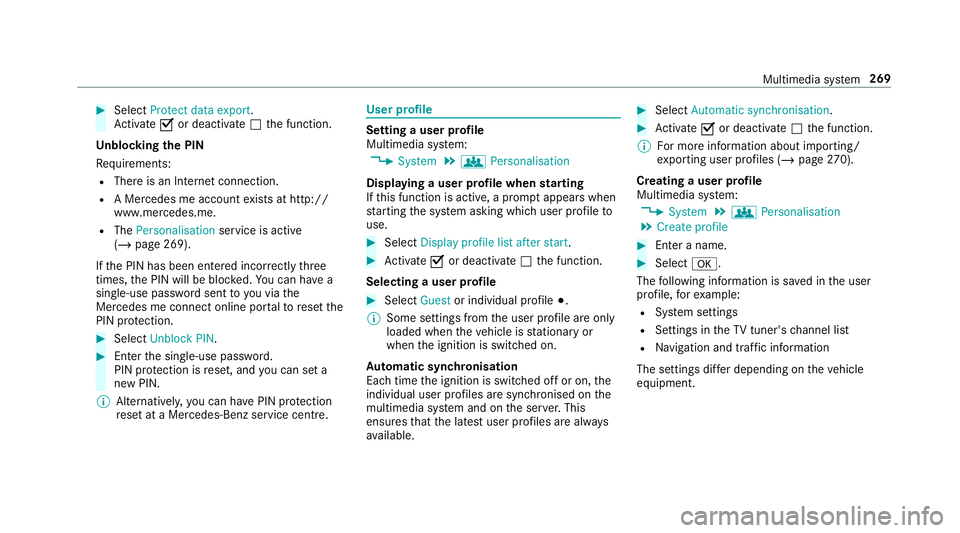
#
Select Protect data export .
Ac tivate Oor deacti vate ª the function.
Un blocking the PIN
Re quirements:
R There is an Internet connection.
R A Mercedes me account exists at http://
www.me rcedes.me.
R The Personalisation service is active
(/ page 269).
If th e PIN has been entered incor rectly three
times, the PIN will be bloc ked. You can ha ve a
single-use password sent to you via the
Mercedes me connect online por talto reset the
PIN pr otection. #
Select Unblock PIN. #
Ente rth e single-use password.
PIN pr otection is reset, and you can set a
new PIN.
% Alternativel y,yo u can ha vePIN pr otection
re set at a Mercedes-Benz service centre. User profile
Setting a user profile
Multimedia sy
stem:
4 System 5
g Personalisation
Displaying a user profile when starting
If th is function is active, a prom ptappears when
st arting the sy stem asking which user profile to
use. #
Select Display profile list after start . #
Activate Oor deacti vate ª the function.
Selecting a user profile #
Select Guestor individual profile #.
% Some settings from the user profile are only
loaded when theve hicle is stationary or
when the ignition is switched on.
Au tomatic syn chronisation
Each time the ignition is switched off or on, the
individual user profiles are synchronised on the
multimedia sy stem and on the ser ver.This
ensures that the latest user profiles are alw ays
av ailable. #
Select Automatic synchronisation. #
Activate Oor deacti vate ª the function.
% For more information about importing/
ex porting user profiles (/ page270).
Creating a user profile
Multimedia sy stem:
4 System 5
g Personalisation
5 Create profile #
Ente r a name. #
Select a.
The following information is sa ved in the user
profile, forex ample:
R System settings
R Settings in theTV tuner's channel list
R Navigation and traf fic information
The settings di ffer depending on theve hicle
equipment. Multimedia sy
stem 269
Page 273 of 549
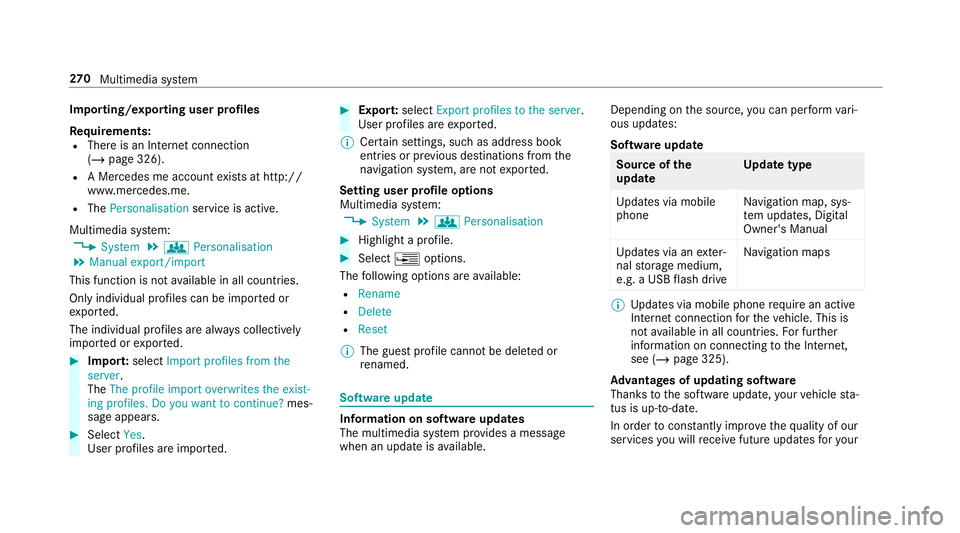
Importing/exporting user profiles
Re
quirements:
R There is an Internet connection
(/ page 326).
R A Mercedes me account exists at http://
www.me rcedes.me.
R The Personalisation service is active.
Multimedia sy stem:
4 System 5
g Personalisation
5 Manual export/import
This function is not available in all countries.
On ly individu al profiles can be impor ted or
ex por ted.
The individual profiles are alw ays collectively
impor ted or expor ted. #
Impor t:select Import profiles from the
server.
The The profile import overwrites the exist-
ing profiles. Do you want to continue? mes‐
sage appears. #
Select Yes.
User profiles are impor ted. #
Expor t:select Export profiles to the server.
User profiles are expor ted.
% Certain settings, such as address book
ent ries or pr evious destinations from the
navigation sy stem, are not expor ted.
Setting user profile options
Multimedia sy stem:
4 System 5
g Personalisation #
Highlight a profile. #
Select ¥options.
The following options are available:
R Rename
R Delete
R Reset
% The guest profile cannot be dele ted or
re named. So
ftwa reupdate Information on software updates
The multimedia sy
stem pr ovides a message
when an update is available. Depending on
the source, you can per form vari‐
ous updates:
Software update Source of
the
update Up
date type
Up dates via mobile
phone Na
vigation map, sys‐
te m updates, Digital
Owner's Manual
Up dates via an exter‐
nal storage medium,
e.g. a USB flash drive Na
vigation maps %
Updates via mobile phone requ ire an active
Internet connection forth eve hicle. This is
not available in all countries. For fur ther
information on connecting tothe Internet,
see (/ page 325).
Ad vantages of updating software
Thanks tothe software update, your vehicle sta‐
tus is up-to-date.
In order tocons tantly impr ovethequ ality of our
services you will recei vefuture updates foryo ur 270
Multimedia sy stem
Page 275 of 549
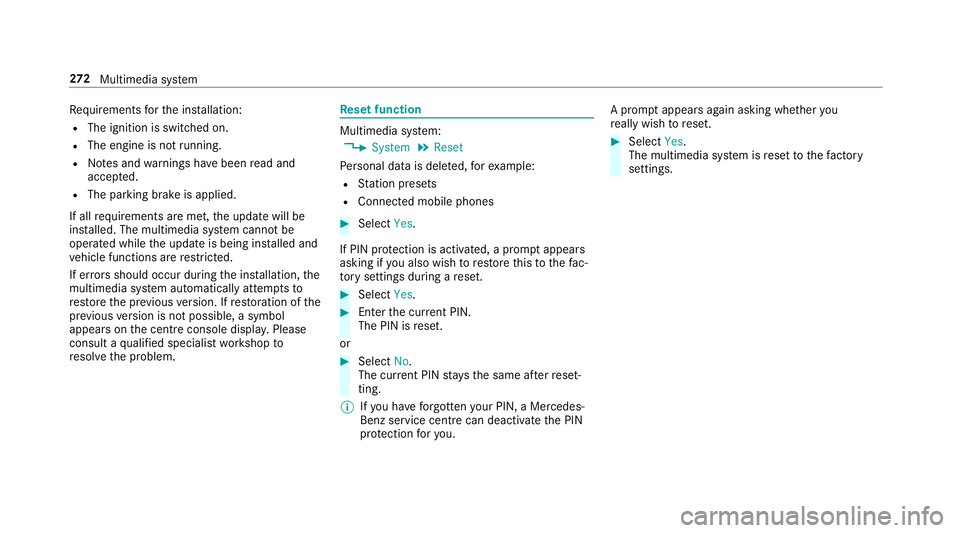
Re
quirements forth e ins tallation:
R The ignition is switched on.
R The engine is not running.
R Notes and warnings ha vebeen read and
accep ted.
R The parking brake is applied.
If all requirements are met, the update will be
ins talled. The multimedia sy stem cann otbe
operated while the update is being ins talled and
ve hicle functions are restricted.
If er rors should occur during the ins tallation, the
multimedia sy stem automatically attem ptsto
re store the pr evious version. If restoration of the
pr ev ious version is not possible, a symbol
appears on the cent reconsole displ ay. Please
consult a qualified specialist workshop to
re solve the problem. Re
set function Multimedia sy
stem:
4 System 5
Reset
Pe rsonal data is dele ted, forex ample:
R Station presets
R Connec ted mobile phones #
Select Yes.
If PIN pr otection is activated, a prom ptappears
asking if you also wish torestore this to thefa c‐
to ry settings during a reset. #
Select Yes. #
Enter the cur rent PIN.
The PIN is reset.
or #
Select No.
The cur rent PIN stay sth e same af terre set‐
ting.
% Ifyo u ha veforg ottenyo ur PIN, a Mercedes-
Benz service centre can deactivate the PIN
pr otection foryo u. A prom
ptappears again asking whe ther you
re ally wish toreset. #
Select Yes.
The multimedia sy stem is reset tothefa ctory
settings. 272
Multimedia sy stem
Page 301 of 549
Displaying
the compass
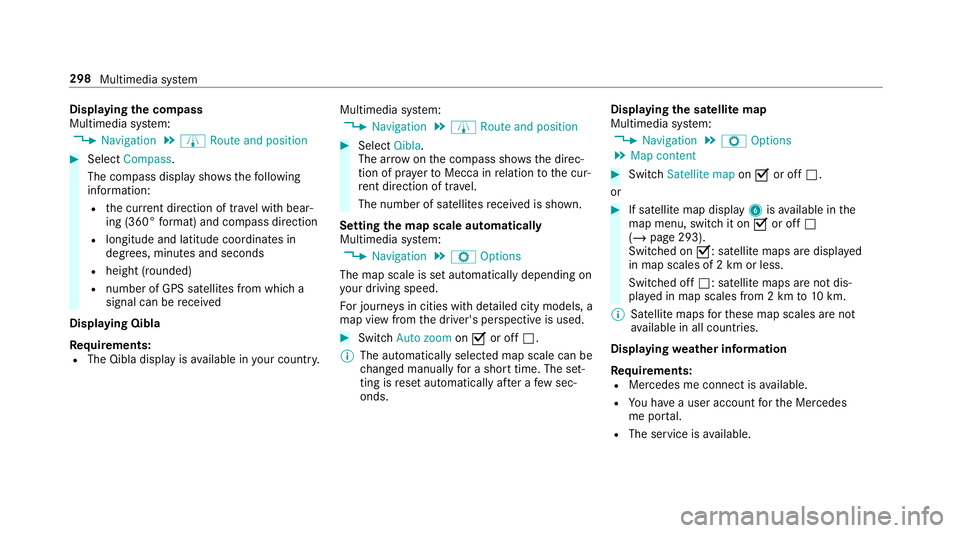
Multimedia sy stem:
4 Navigation 5
À Route and position #
Select Compass.
The compass display sho wsthefo llowing
information:
R the cur rent di rection of tr avel with bear‐
ing (360° form at) and compass direction
R longitude and latitude coo rdinates in
degrees, minutes and seconds
R height (rounded)
R number of GPS satellites from which a
signal can be recei ved
Displaying Qibla
Requ irements:
R The Qibla display is available in your count ry.Multimedia sy
stem:
4 Navigation 5
À Route and position #
Select Qibla.
The ar rowonthe compass sho wsthe direc‐
tion of pr ayer toMecca in relation tothe cur‐
re nt di rection of tr avel.
The number of satellites recei ved is shown.
Setting the map scale automatically
Multimedia sy stem:
4 Navigation 5
Z Options
The map scale is set automatically depending on
yo ur driving speed.
Fo r journe ysin cities with de tailed city models, a
map view from the driver's perspective is used. #
Switch Auto zoom onO or off ª.
% The automatically selected map scale can be
changed manually for a short time. The set‐
ting is reset automatically af ter a few sec‐
onds. Displaying
the satellite map
Multimedia sy stem:
4 Navigation 5
Z Options
5 Map content #
Switch Satellite map onO or off ª.
or #
If satellite map display 6isavailable in the
map menu, switch it on Oor off ª
(/ page 293).
Switched on O: satellite maps are displa yed
in map scales of 2 km or less.
Swit ched off ª: satellite maps are not dis‐
pla yed in map scales from 2 km to10 km.
% Satelli temaps forth ese map scales are not
av ailable in all countries.
Displ aying weather information
Re quirements:
R Mercedes me connect is available.
R You ha vea user account forth e Mercedes
me por tal.
R The service is available. 298
Multimedia sy stem
Page 315 of 549
Re
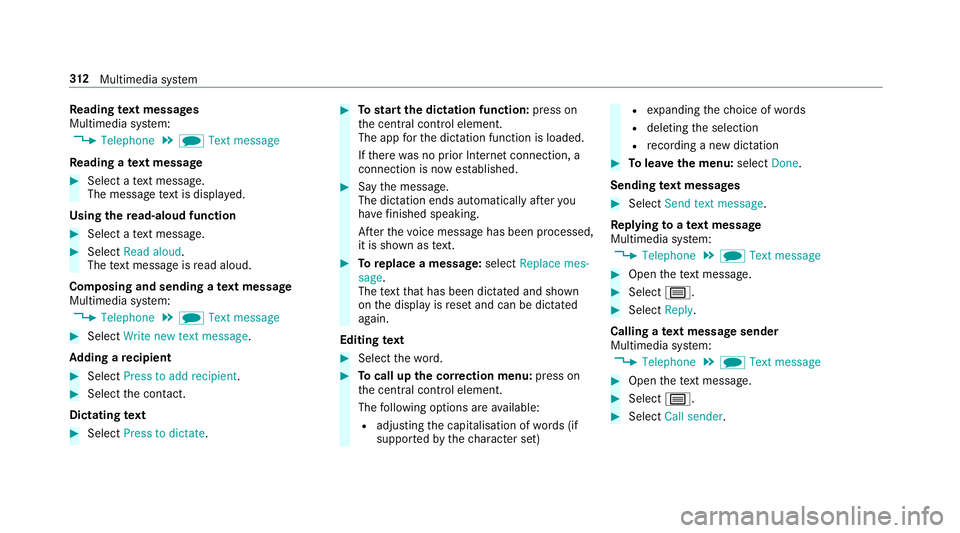
ading text messages
Multimedia sy stem:
4 Telephone 5
i Text message
Re ading a text message #
Select a text messa ge.
The message text is displ ayed.
Using there ad-aloud function #
Select a text messa ge. #
Select Read aloud .
The text messa geisread aloud.
Composing and sending a text message
Multimedia sy stem:
4 Telephone 5
i Text message #
Select Write new text message.
Ad ding a recipient #
Select Press to add recipient. #
Select the conta ct.
Dictating text #
Select Press to dictate. #
Tostart the dictation function: press on
th e cent ral control element.
The app forth e dictation function is loaded.
If th ere was no prior Internet connection, a
connection is now es tablished. #
Say the message.
The dictation ends automatically af teryou
ha ve finished speaking.
Af terth evo ice message has been processed,
it is shown as text. #
Toreplace a message: selectReplace mes-
sage.
The text that has been dictated and shown
on the display is reset and can be dictated
again.
Editing text #
Select thewo rd. #
Tocall up the cor rection menu: press on
th e cent ral control element.
The following options are available:
R adjusting the capitalisation of words (if
suppor tedby thech aracter set) R
expanding thech oice of words
R deleting the selection
R recording a new dictation #
Tolea vethe menu: selectDone.
Sending text messages #
Select Send text message .
Re plying toate xt message
Multimedia sy stem:
4 Telephone 5
i Text message #
Open thete xt messa ge. #
Select p. #
Select Reply.
Calling a text message sender
Multimedia sy stem:
4 Telephone 5
i Text message #
Open thete xt messa ge. #
Select p. #
Select Call sender. 312
Multimedia sy stem