reset MERCEDES-BENZ G-CLASS SUV 2018 Owner's Manual
[x] Cancel search | Manufacturer: MERCEDES-BENZ, Model Year: 2018, Model line: G-CLASS SUV, Model: MERCEDES-BENZ G-CLASS SUV 2018Pages: 549, PDF Size: 10.22 MB
Page 321 of 549
%
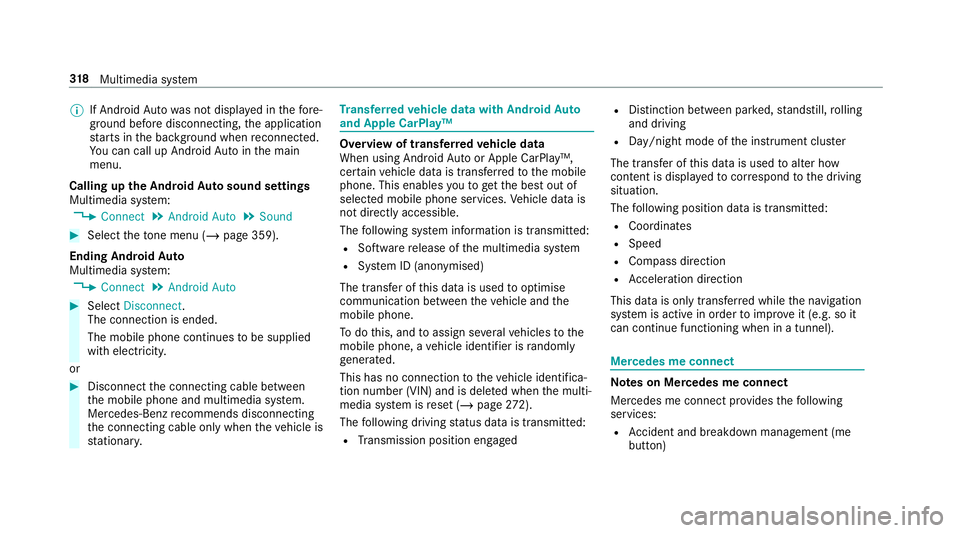
If Android Autowa s not displa yed in thefo re‐
ground before disconnecting, the application
st arts in the bac kground when reconnected.
Yo u can call up Android Autointhe main
menu.
Calling up the Android Autosound settings
Multimedia sy stem:
4 Connect 5
Android Auto 5
Sound #
Select theto ne menu (/ page 359).
Ending Android Auto
Multimedia sy stem:
4 Connect 5
Android Auto #
Select Disconnect.
The connection is ended.
The mobile phone continues tobe supplied
with elect ricity.
or #
Disconnect the connecting cable between
th e mobile phone and multimedia sy stem.
Mercedes-Benz recommends disconnecting
th e connecting cable only when theve hicle is
st ationar y. Tr
ansfer redve hicle data with Android Auto
and Apple CarPlay™ Overview of transfer
redve hicle data
When using Android Autoor Apple CarPlay™,
cer tain vehicle data is transfer redto the mobile
phone. This enables youto getth e best out of
selected mobile phone services. Vehicle data is
not directly accessible.
The following sy stem information is transmit ted:
R Software release of the multimedia sy stem
R System ID (anonymised)
The transfer of this data is used tooptimise
communication between theve hicle and the
mobile phone.
To do this, and toassign se veralve hicles tothe
mobile phone, a vehicle identifier is randomly
ge nerated.
This has no connection totheve hicle identifica‐
tion number (VIN) and is dele ted when the multi‐
media sy stem is reset (/ page272).
The following driving status data is transmitted:
R Transmission position engaged R
Distinction between par ked, standstill, rolling
and driving
R Day/night mode of the instrument clus ter
The transfer of this data is used toalter how
con tent is displ ayed tocor respond tothe driving
situation.
The following position data is transmitte d:
R Coordinates
R Speed
R Compass direction
R Acceleration di rection
This da tais only transfer red while the navigation
sy stem is active in order toimpr oveit (e.g. so it
can continue functioning when in a tunnel). Mercedes me connect
Note
s on Mercedes me connect
Mercedes me connect pr ovides thefo llowing
services:
R Accident and breakdown mana gement (me
button) 318
Multimedia sy stem
Page 331 of 549
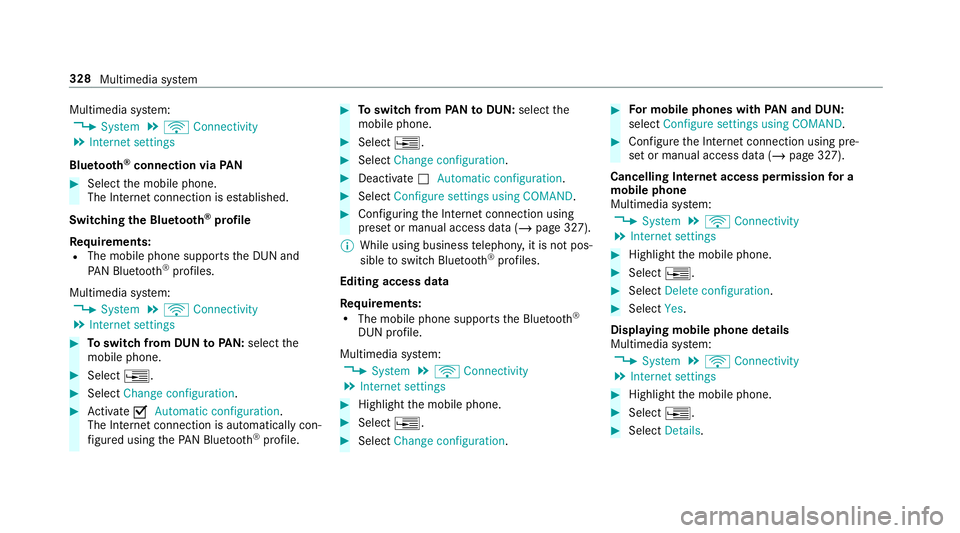
Multimedia sy
stem:
4 System 5
ö Connectivity
5 Internet settings
Blue tooth ®
connection via PAN#
Select the mobile phone.
The Internet connection is es tablished.
Switching the Blu etoo th®
pr ofile
Re quirements:
R The mobile phone supports the DUN and
PA N Blue tooth®
profiles.
Multimedia sy stem:
4 System 5
ö Connectivity
5 Internet settings #
Toswitch from DUN toPAN: select the
mobile phone. #
Select ¥. #
Select Change configuration. #
Activate OAutomatic configuration.
The Internet connection is au tomatical lycon‐
fi gured using thePA N Blue tooth®
profile. #
Toswitch from PANto DUN: select the
mobile phone. #
Select ¥. #
Select Change configuration. #
Deactivate ªAutomatic configuration. #
Select Configure settings using COMAND . #
Configuri ngthe Internet connection using
preset or manual access data (/ page 327).
% While using business telephon y,it is not pos‐
sible toswitch Blue tooth ®
profiles.
Editing access data
Requ irements:
R The mobile phone supports the Blue tooth®
DUN profile.
Multimedia sy stem:
4 System 5
ö Connectivity
5 Internet settings #
Highlight the mobile phone. #
Select ¥. #
Select Change configuration . #
For mobile phones with PAN and DUN:
select Configure settings using COMAND. #
Configure the Internet connection using pre‐
set or manual access data (/ page 327).
Cancelling Internet access permission for a
mobile phone
Multimedia sy stem:
4 System 5
ö Connectivity
5 Internet settings #
Highlight the mobile phone. #
Select ¥. #
Select Delete configuration. #
Select Yes.
Displaying mobile phone details
Multimedia sy stem:
4 System 5
ö Connectivity
5 Internet settings #
Highlight the mobile phone. #
Select ¥. #
Select Details. 328
Multimedia sy stem
Page 351 of 549
Ra
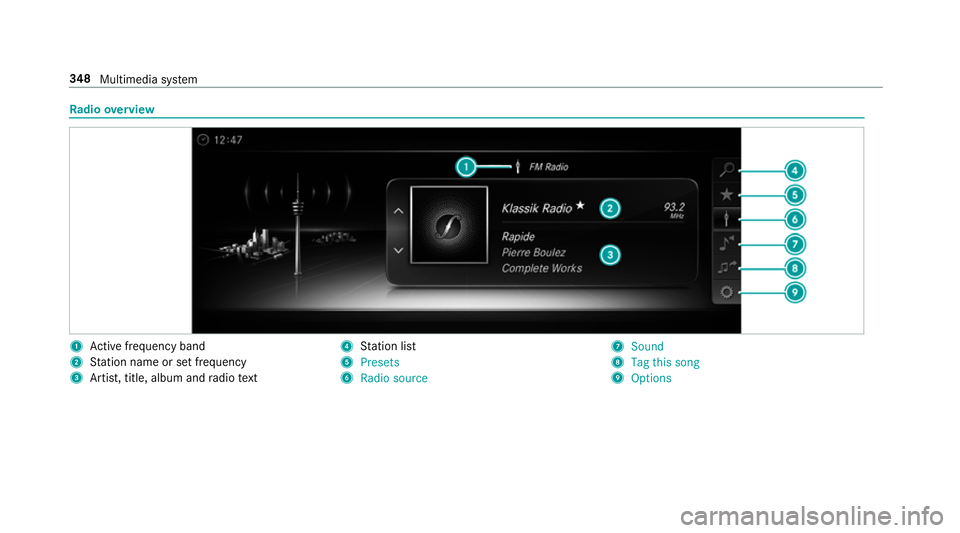
dio overview 1
Active frequency band
2 Station name or set frequency
3 Artist, title, album and radio text 4
Station list
5 Presets
6 Radio source 7
Sound
8 Tag this song
9 Options 348
Multimedia sy stem
Page 352 of 549
Setting
the frequency band Multimedia sy
stem:
4 Radio 5
Þ Radio source #
Select a frequency band. Selecting a
radio station Multimedia sy
stem:
4 Radio #
Navigate up or down. Calling up
thera dio station list Multimedia sy
stem:
4 Radio 5
è #
Select a station. Sear
ching forra dio stations using station
names or direct frequency entry Multimedia sy
stem:
4 Radio 5
è 5
è #
Ente r astation name or frequenc y. #
Select a.
The sea rchre sults are displa yed. #
Select a station. St
oring radio stations Multimedia sy
stem:
4 Radio 5
ß Presets #
Select Store current station in the presets . Editing
radio station presets Multimedia sy
stem:
4 Radio 5
ß Presets
Moving stations: #
Highlight a preset entry and navigate tothe
left. #
Select Move highlighted station. #
Select a memo rypreset.
Deleting stations: #
Highlight a preset entry and navigate tothe
left. #
Select Delete highlighted station. #
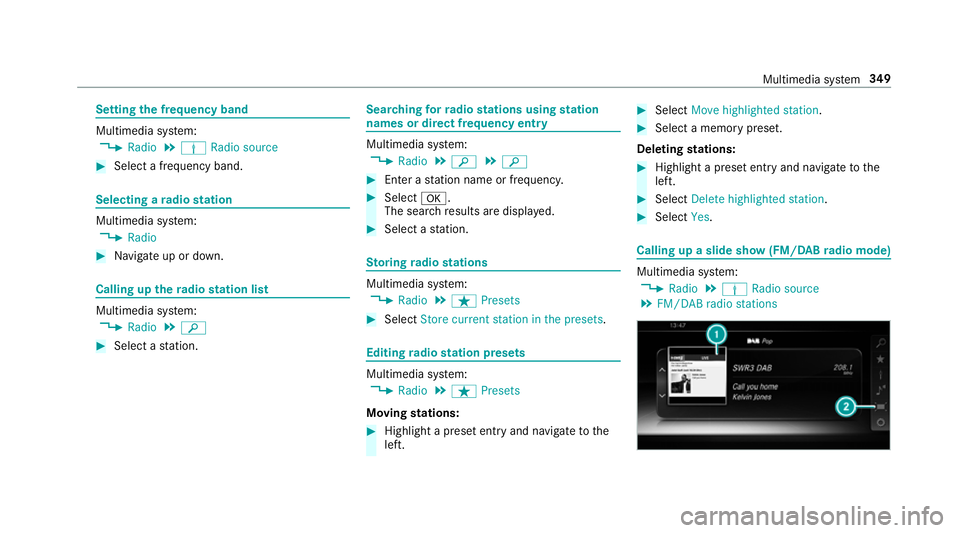
Select Yes. Calling up a slide show (FM/DAB
radio mode) Multimedia sy
stem:
4 Radio 5
Þ Radio source
5 FM/DAB radio stations Multimedia sy
stem 349
Page 356 of 549
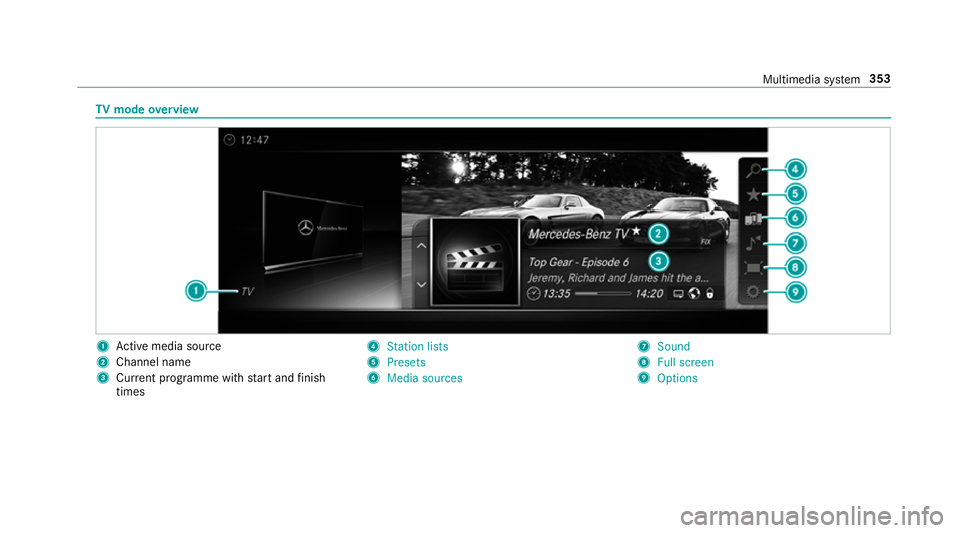
TV
mode overview 1
Active media sou rce
2 Channel name
3 Current programme wi thstart and finish
times 4
Station lists
5 Presets
6 Media sources 7
Sound
8 Full screen
9 Options Multimedia sy
stem 353
Page 357 of 549
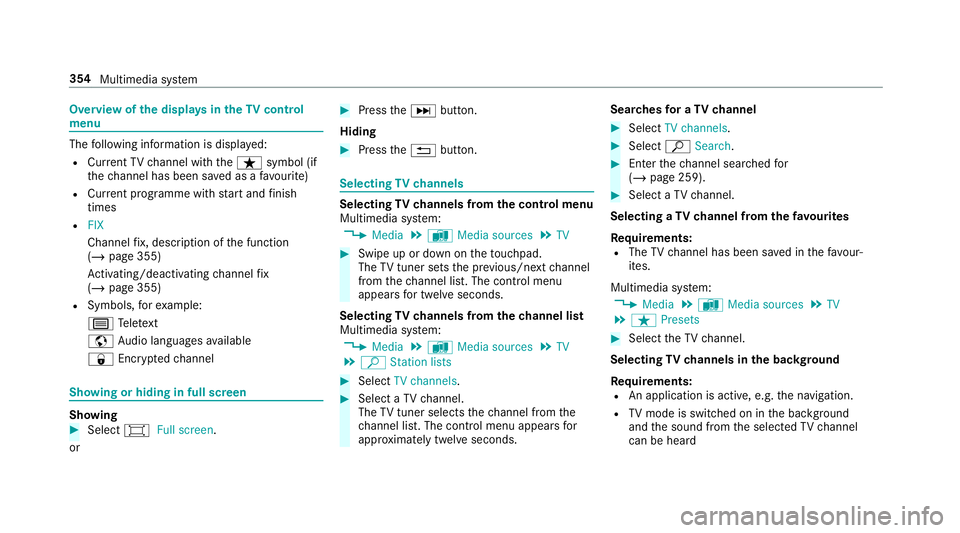
Overview of
the displa ysintheTV cont rol
menu The
following information is displa yed:
R Cur rent TV channel with theß symbol (if
th ech annel has been sa ved as a favo urite)
R Cur rent programme wi thstart and finish
times
R FIX
Channel fix, description of the function
(/ page 355)
Ac tivating/deactivating channel fix
( / page 355)
R Symbols, forex ample:
p Telete xt
z Audio languages available
r Encryp tedch annel Showing or hiding in full screen
Showing
#
Select #Full screen .
or #
Press theD button.
Hiding #
Press the% button. Selecting
TVchannels Selecting
TVchannels from the control menu
Multimedia sy stem:
4 Media 5
à Media sources 5
TV #
Swipe up or down on theto uchpad.
The TVtuner sets the pr evious/n extch annel
from thech annel list. The control menu
appears for twelve seconds.
Selecting TVchannels from thech annel list
Multimedia sy stem:
4 Media 5
à Media sources 5
TV
5 ª Station lists #
Select TV channels. #
Select a TVchannel.
The TVtuner selects thech annel from the
ch annel list. The control menu appears for
appr oximately twelve seconds. Sear
ches for a TVchannel #
Select TV channels . #
Select ªSearch . #
Enter thech annel sear ched for
( / page 259). #
Select a TVchannel.
Selecting a TVchannel from thefa vo urites
Re quirements:
R The TVchannel has been sa ved in thefa vo ur‐
ites.
Multimedia sy stem:
4 Media 5
à Media sources 5
TV
5 ß Presets #
Select theTV channel.
Selecting TVchannels in the bac kground
Re quirements:
R An application is active, e.g. the navigation.
R TVmode is switched on in the bac kground
and the sound from the selected TVchannel
can be heard 354
Multimedia sy stem
Page 359 of 549
Quic
k-saving a TVchannel
Multimedia sy stem:
4 Media 5
à Media sources 5
TV #
In full-screen mode, press theto uchpad for
longer than thre e seconds.
The cur rent TV channel is stored in the
fa vo urites in the next available position.
St oring TVchannels
Multimedia sy stem:
4 Media 5
à Media sources 5
TV
5 ß Presets #
Select Store current station in the presets .
or #
Highlight a channel in thech annel list and
st ore as a favo urite.
The cur rent channel is stored in thefa vo ur‐
ites in the next available position.
Moving channels in thefa vo urites #
Highlight a channel in thefa vo urites. #
Select ¥Move highlighted station. #
Highlight the new position. #
Confirm the position.
Deleting channels #
Highlight a channel in thefa vo urites. #
Select ¥Delete highlighted station. #
Select Yes. TV
prog ramme Overvi
ewof audio language and subtitles
Au dio language
R It is possible tochoose between se veral
audio languages when a programme is broad‐
cast in multiple languages.
R If En glish, forex ample, is set as the sy stem
language and a TVchannel is broadcasting in
th is language, En glish is selec ted automati‐
cally.
The prog ramme transmission may be indica ted
with thefo llowing symbols:
m Programme with audio explanations for
th e visually impaired
o Stereo broadcast n
Programme forth e hearing impaired
O Broadcast in sur round sound
If a symbol is not shown, the programme is
either broadcast in mono or the transmission
properties are unkn own.
Subtitles
R The function is switched on: subtitles are
shown in the selected language forth e cur‐
re nt programme (if available).
Setting theTV audio language
Multimedia sy stem:
4 Media 5
à Media sources 5
TV
5 Z Options #
Select Audio/subtitles. #
Select one of theav ailable audio languages.
The audio language selec ted only applies to
th e cur rent programme. 356
Multimedia sy stem
Page 360 of 549
Setting
theTV subtitles
Multimedia sy stem:
4 Media 5
à Media sources 5
TV
5 Z Options #
Select Audio/subtitles. #
Select Show subtitles.
Switch the subtitles on Oor off ª. #
Select one of theav ailable languages forthe
subtitles. Te
lete xt Te
lete xt ove rview
Te lete xt pa ges are located between page 100
and page 899.
A dynamic telete xt pa geconsi sts of se veral sub‐
pages.
Information on MHEG-5 digital telete xt:
R digi taltelete xt is only available in some coun‐
tries, e.g. the UK and New Zealand
R interactive multimedia applications such as
weather fore casts, ne wsreports and sport
re sults are available R
it may take some time before all the pages
load
Showing telete xt
Multimedia sy stem:
4 Media 5
à Media sources 5
TV
5 Z Options 5
Teletext #
Tocall up the pr evious or next telete xt
page: swipe upwards or down wards on the
to uchpad. #
Toenter numbers: press and holdthe
to uchpad. #
Enterth e numbers in quick succession. #
Toselect a subpage: swipe left orright on
th eto uchpad.
% The subpage cur rently selected is ma rked by
a blue symbol. #
Toreturn totheTV prog ramme: press and
hold the% button. MHEG-5 digital
telete xt #
Ifth ete lete xt is displ ayed, press and hold on
th eto uchpad.
A colour selection bar appears. #
Select a colour.
The data content is displ ayed. #
Toenter numbers: select123. #
Enterth e numbers in quick succession. #
Toreturn totheTV prog ramme: selectTV. Pictu
resettings Picture settings
overview
The following picture form at settings are availa‐
ble:
R Automatic
The brightness is automatically set with this
option.
R 16:9
R 4:3
R Zoom Multimedia sy
stem 357
Page 371 of 549
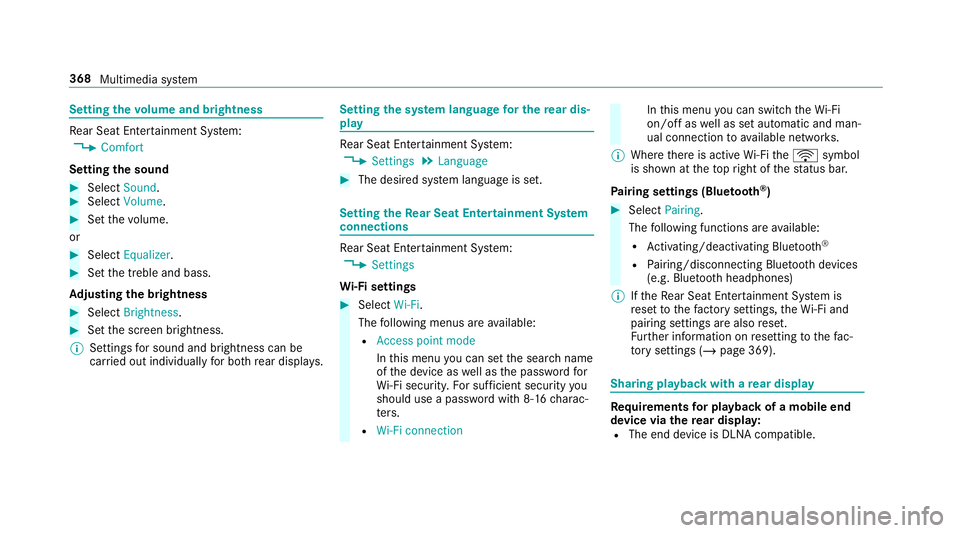
Setting
thevo lume and brightness Re
ar Seat En tertainment Sy stem:
4 Comfort
Setting the sound #
Select Sound. #
Select Volume . #
Set thevo lume.
or #
Select Equalizer. #
Set the treble and bass.
Ad justing the brightness #
Select Brightness . #
Set the screen brightness.
% Settings for sound and brightness can be
car ried out individually for bo threar displa ys. Setting
the sy stem language for the rear dis‐
play Re
ar Seat En tertainment Sy stem:
4 Settings 5
Language #
The desired sy stem language is set. Setting
theRe ar Seat Entertainment Sy stem
connections Re
ar Seat En tertainment Sy stem:
4 Settings
Wi -Fi settings #
Select Wi-Fi.
The following menus are available:
R Access point mode
Inthis menu you can set the sear chname
of the device as well as the password for
Wi -Fi secu rity. For suf ficient secu rity you
should use a password with 8-16 charac‐
te rs.
R Wi-Fi connection In
this menu you can swit chtheWi -Fi
on/o ffas well as set automatic and man‐
ual connection toavailable networ ks.
% Where there is active Wi-Fi theö symbol
is shown at theto pright of thest atus bar.
Pa iring settings (Blue tooth ®
) #
Select Pairing.
The following functions are available:
R Activating/deactivating Blu etoo th®
R Pairing/disconnecting Blue tooth devices
(e.g. Blue tooth headphones)
% Ifth eRe ar Seat En tertainment Sy stem is
re set tothefa ctory settings, theWi -Fi and
pairing settings are also reset.
Fu rther information on resetting tothefa c‐
to ry settings (/ page 369). Sharing playback with a
rear display Re
quirements for playba ckof a mobile end
device via there ar displa y:
R The end device is DLNA compatible. 368
Multimedia sy stem
Page 372 of 549
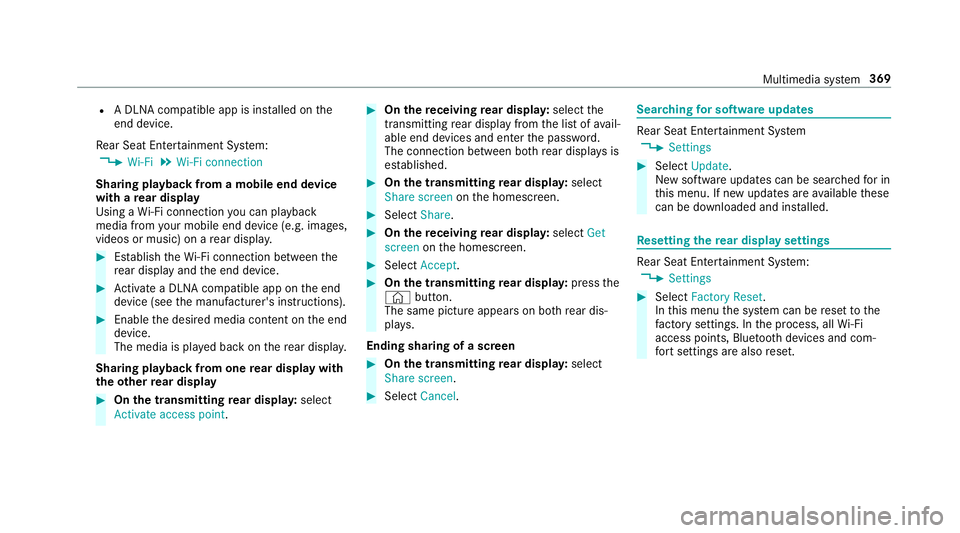
R
A DLNA compatible app is ins talled on the
end device.
Re ar Seat En tertainment Sy stem:
4 Wi-Fi 5
Wi-Fi connection
Sharing playback from a mobile end device
with a rear display
Using a Wi-Fi connection you can playback
media from your mobile end device (e.g. images,
videos or music) on a rear displa y. #
Establish theWi -Fi connection between the
re ar display and the end device. #
Activate a DLNA compatible app on the end
device (see the manufacturer's instructions). #
Enable the desired media conte nt onthe end
device.
The media is pla yed back on there ar displa y.
Sharing playback from one rear display with
th eot her rear display #
On the transmitting rear displa y:select
Activate access point. #
On there ceiving rear displa y:select the
transmitting rear display from the list of avail‐
able end devices and enter the password.
The connection between bo threar displa ysis
es tablished. #
On the transmitting rear displa y:select
Share screen onthe homescreen. #
Select Share. #
On there ceiving rear displa y:select Get
screen onthe homescreen. #
Select Accept . #
On the transmitting rear displa y:press the
© button.
The same picture appears on bo threar dis‐
pla ys.
Ending sha ring of a screen #
On the transmitting rear displa y:select
Share screen. #
Select Cancel. Sear
ching for so ftwa reupdates Re
ar Seat En tertainment Sy stem
4 Settings #
Select Update.
New software updates can be sear ched for in
th is menu. If new updates are available these
can be downloaded and ins talled. Re
setting there ar display settings Re
ar Seat En tertainment Sy stem:
4 Settings #
Select Factory Reset.
In this menu the sy stem can be reset tothe
fa ctory settings. In the process, all Wi-Fi
access points, Blu etoo th devices and com‐
fo rt settings are also reset. Multimedia sy
stem 369