light MERCEDES-BENZ GL-Class 2016 X166 Comand Manual
[x] Cancel search | Manufacturer: MERCEDES-BENZ, Model Year: 2016, Model line: GL-Class, Model: MERCEDES-BENZ GL-Class 2016 X166Pages: 246, PDF Size: 6.72 MB
Page 44 of 246
XSelect the country you are currently in by
turning and pressing the controller.
The country is accepted.
A time zone list may also be displayed,
depending on the country selected.
XTo select the desired time zone:turn and
press the controller.
The time zone is accepted.
A list of available options for setting sum-
mer time appears (
Ypage 42).
Setting summer and standard time
The Daylight Saving Timemenu is not
available in all countries.
You can use the Daylight Saving Time
menu to set automatic summer time change-
over or switch the summer time setting on or
off. The changeover to summer time advan-
ces the time by one hour.
XPress theØbutton on the COMAND
control panel.
or
XPress Vehiclein the main function bar.
The vehicle menu is displayed.
XTo select Time: slide6, turn and press
the controller to confirm.
A menu appears.
XTo select Daylight Saving Time: turn
and press the controller.
A list with options appears.
XTo select Automatic,Onor Off: turn and
press the controller.
SettingFunction
AutomaticThe summer and
standard time are
automatically
changed over.
OnThe clock is
advanced one hour
ahead of standard
time.
OffThe standard time
for the chosen time
zone is selected.
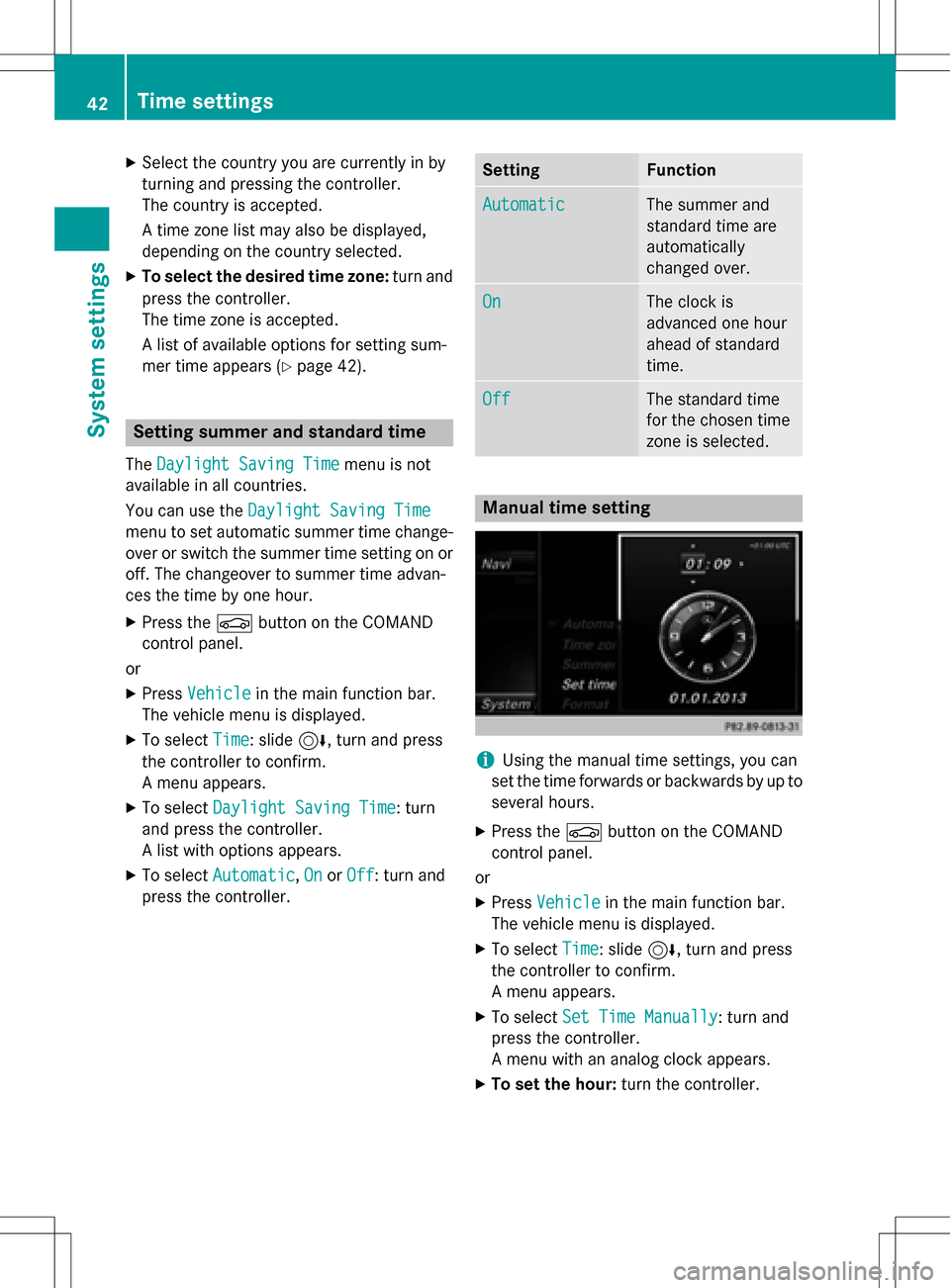
Manual time setting
iUsing the manual time settings, you can
set the time forwards or backwards by up to
several hours.
XPress the Øbutton on the COMAND
control panel.
or
XPress Vehiclein the main function bar.
The vehicle menu is displayed.
XTo select Time: slide6, turn and press
the controller to confirm.
A menu appears.
XTo select Set Time Manually: turn and
press the controller.
A menu with an analog clock appears.
XTo set the hour: turn the controller.
42Time settings
System settings
Page 45 of 246

XTo highlight the minutes:slide9 the
controller.
XTo set the minutes: turn and press the
controller.
The time is accepted.
The Automatic Time Settings
function
is deactivated ª.
If Automatic
is set for the summer time
changeover, a prompt will appear asking
whether the automatic changeover should
be maintained between summer and winter
time.
iIf Automatic Time Settingsis reacti-
vated, the previous settings for time zone
and summer time changeover are restored.
Setting the time and date format
Use this function to set the time and date for-
mat for all displays in the vehicle.
XPress the Øbutton on the COMAND
control panel.
or
XPress Vehiclein the main function bar.
The vehicle menu is displayed.
XTo select Time: slide6, turn and press
the controller to confirm.
A menu appears.
XTo select Format: turn and press the con-
troller.
XTo select the desired date format: turn
and press the controller.
The #dot indicates the current setting.
XTo select the desired time format: turn
and press the controller.
The #dot indicates the current setting.
AbbreviationMeaning
DD.MM.YYYYDay.Month.Yea
r
date format,
year (all four
digits)
DD/MM/YYYYDay/Month/
Year
date format,
year (all four
digits)
MM/DD/YYYYMonth/Day/
Year
date format,
year (all four
digits)
YY/MM/DDYear/
Month/Day
date format,
year (two dig-
its)
YYYY/MM/DDYear/
Month/Day
date format,
year (all four
digits)
YYYY-MM-DDDay - Month -
Year
date format,
year (all four
digits)
HH:MM (24 hrs)Hours : Minutes
(24 hour time
format)
HH:MM (AM/PM)Hours : Minutes
(AM/PM time
format)
Time settings43
System settings
Z
Page 56 of 246
Your COMANDequipment
i
These operatin ginstruction sdescribe all
th estandar dan doptional equipmen tof
your COMAN Dsystem, as available at th e
time of going to print .Country-specifi cdif -
ference sare possible. Bear in min dthat
your vehicle may no tfeature all function s
described here. Thi salso applies to safety-
relevant systems an dfunctions.
iRead th einformation on qualified special-
ist workshop sin th evehicle Operator's
Manual.
Important safet ynotes
GWARNING
If you operat emobile communication equip-
men twhil edriving, you will be distracted from
traffic conditions. You could also los econtro l
of th evehicle. There is aris kof an accident.
Only operat ethis equipment when th evehicle
is stationary.
You mus tobserv eth elega lrequirements fo r
th ecountry in whic hyou are currentl ydrivin g
when operatin gmobile communication s
equipmen tin th evehicle.
Vehicl esettings
Calling up vehicle settings
XPress th eØ buttonon th eCOMAN D
contro lpanel.
or
XPress Vehicl ein themain function bar .
The vehicle men uis displayed.
XTo selec tVehicl eSettings:turn an d
press th econtroller .
XTo selectth edesired vehicle setting:
turn an dpress th econtroller .
The main are awit hth esetting elemen tis
active . Selecting
adifferent vehicle setting:
XTo activat eth emen ufo rselecting th evehi-
cl e setting :slid e5 thecontroller .
Exitin gth evehicle settings:
XTo selec t&: slide6 andpress th econ-
troller.
Ambien tlighting
General notes
You can set th efollowin gfo rth eambien t
lighting :
RInteriorwelcom eligh t
Ambien tlighting is activated fo r ashort
time when th edriver's doo ris opened.
RBrightness
Thi ssetting makes an additional change to
th ebrightness of th eambien tlighting .
RColor
Thi ssetting changes th ecolor of th eambi-
en tlighting .
Setting th ebrightness
XCall up VehicleSettings(Ypage 54).
XTo selec tAmbien tLigh tBrightness:
turn an dpress th econtroller .
The setting elemen tis active .
XPress thecontroller .
XTo change th ebrightness value: turn an d
press th econtroller .
You can fin dfurther information on th einte -
rio rlighting in th evehicle Operator's Manual.
Setting th ecolor
XCall up VehicleSettings(Ypage 54).
XTo selec tAmbien tLightColor:turn an d
press th econtroller .
The setting elemen tis active .
XTo selec t acolor :turn th econtroller .
You can fin dfurther information on th einte -
rio rlighting in th evehicle Operator's Manual.
54Vehicle settings
Vehicle functions
Page 57 of 246
Setting the interior welcome light
XCall upVehicle Settings(Ypage 54).
XTo select Interior welcome light: turn
and press the controller.
XPress the controller.
The function is switched on or off, depend-
ing on the previous status.
You can find further information on the inte-
rior lighting in the vehicle Operator's Manual.
Switching locator lighting on/off
If you switch on the LocatorLightingfunc-
tion, the exterior lighting is switched on for a
short time when it is dark. The light switch
must be set to Ã.
The exterior lighting remains on for
40 seconds after the vehicle is unlocked.
When you start the engine, the locator light-
ing is switched off and automatic headlamp
mode is activated.
You can find further information on the auto-
matic headlamp mode in the vehicle Opera-
tor's Manual.
XCall up Vehicle Settings(Ypage 54).
XTo select Locator Lighting: turn and
press the controller.
XPress the controller.
The function is switched on or off, depend-
ing on the previous status.
You can find further information on the lock-
ing feature in the vehicle Operator's Manual.
iThere may be fewer settings or none
depending on your vehicle's equipment.
Setting the delayed switch-off time
Interior lighting delayed switch-off
The interior lighting is activated for the dura-
tion of the delayed switch-off time when the
SmartKey is removed from the ignition lock.
XCall up Vehicle Settings(Ypage 54).
XTo select Interior Lighting Delayed
Switch-off: turn and press the controller.
The setting element is active.
XTo change the delayed switch-off time: turn the controller.
You can find further information on the inte-
rior lighting in the vehicle Operator's Manual.
Exterior lighting delayed switch-off
If you switch on the Exterior Lighting
Delayed Switch-offfunction, the exterior
lighting is switched on for a short time after
the engine is switched off. The light switch
must be set to Ã.
The exterior lighting remains on for
60 seconds after the engine is switched off. If
you close all the doors and the tailgate, the
exterior lighting switches off after the set
time.
XCall up Vehicle Settings(Ypage 54).
XTo select Exterior Lighting Delayed
Switch-off: turn and press the controller.
The setting element is active.
XTo change the delayed switch-off time: turn the controller.
Displaying energy consumption and
generated electrical energy
A bar graph displays the energy consumption
and the generated electrical energy.
XCall up Vehicle Settings(Ypage 54).
XTo select Consumption: turn and press the
controller.
The energy consumption and the generated
electrical energy for the last 15 minutes of
the journey is shown.
For further information on energy consump-
tion, see the vehicle Operator's Manual.
Displaying the fuel consumption
A bar graph displays the fuel consumption.
Vehicle settings55
Vehicle functions
Z
Page 66 of 246
Your COMANDequipment
i
These operatin ginstruction sdescribe all
th estandar dan doptional equipmen tof
your COMAN Dsystem, as available at th e
time of going to print .Country-specifi cdif -
ference sare possible. Bear in min dthat
your vehicle may no tfeature all function s
described here. Thi salso applies to safety-
relevant systems an dfunctions.
iRead th einformation on qualified special-
ist workshop sin th evehicle Operator's
Manual.
Introduction
Important safet ynotes
GWARNING
If you operat einformation systems an dcom-
munication equipment integrated in th evehi-
cl e whil edriving, you will be distracted from
traffic conditions. You could also los econtro l
of th evehicle. There is aris kof an accident.
Only operat eth eequipment when th etraffic
situation permits. If you are no tsur ethat this
is possible, par kth evehicle payin gattention
to traffic condition san doperat eth eequip-
men twhen th evehicle is stationary.
You mus tobserv eth elega lrequirements fo r
th ecountry in whic hyou are currentl ydrivin g
when operatin gCOMAND.
COMAN Dcalculates th erout eto th edestina -
tion without taking accoun tof th efollowing,
fo rexample:
Rtraffic lights
Rstop an dyield signs
Rmergin glanes
Rparking or stoppin gin ano parking/n o
stoppin gzone
Rother road an dtraffic rule san dregulation s
Rnarrow bridge s
COMAN Dcan giv eincorrec tnavigation com-
mands if th eactual street/traffic situation doe
sno tcorrespon dwit hth edigita lmap's
data. Digital map sdo no tcover all areas no r
all routes in an area. Fo rexamp
le,arou
t emay
hav ebee ndiverted or th edirection of aone-
way stree tmay hav echanged .
Fo rthis reason ,you mus talways observ e
road an dtraffic rule san dregulation sdurin g
your journey. Road an dtraffic rule san dreg -
ulation salways hav epriorit yover th esys -
tem' sdrivin grecommendations.
Navigation announcement sare intended to
direc tyou whil edrivin gwithout divertin gyour
attention from th eroad an ddriving.
Please always use this feature instead of con-
sultin gth emap display fo rdirections. Look -
in g at th eicon sor map display can distract
you from traffic condition san ddriving, an d
increase th eris kof an accident.
General notes
Operationa lreadines sof th enavigation
syste m
The navigation syste mmus tdetermin eth e
position of th evehicle befor efirst use or
wheneve roperational status is restored .
Therefore, you may hav eto drive fo r awhil e
befor eprecise rout eguidance is possible.
GP Sreception
Amon gother things, correc tfunctionin gof
th enavigation syste mdepend son GPS recep-
tion .In certain situations, GPS reception may
be impaired, there may be interferenc eor
there may be no reception at all, e.g. in tun-
nels or parking garages .
iUsing roof carriers may impair th ecorrec t
functionin gof aroof antenn a(phone, sat -
ellite radio, GPS).
Entry restriction
Fo rvehicles in certain countries, there is a
dat aentr yrestriction .
64Introduction
Navigation
Page 68 of 246

Moving the map
Requirement: the map is in full screen mode,
the menu is faded out (
Ypage 65).
XPress the controller.
The crosshair is shown.
XSlide1, 4or2 the controller.
The map moves in the corresponding direc- tion under the crosshair.
XPress the controller to show the menu.
XSelect Menu.
Basic settings
Selecting the route type
XTo switch to navigation mode: press the
Ø button.
XTo show the menu: slide6the control-
ler.
XTo select Options: turn and press the con-
troller.
XTo select Route Settings: press the con-
troller.
XTo select the route type: turn and press the
controller.
A filled circle indicates the current selec-
tion.
RWith active route guidance, COMAND
calculates a new route.
Route guidance active: a destination has
been entered and the route has been cal-
culated.
RIf there has been no route calculated,
COMAND uses the selection as the new
basic setting.
Fast
Route
COMAND calculates a route
with a short journey time.
Dynamic
Traffic
Route
Based on the Fast Route
route type and includes traf-
fic reports on the route for
the route guidance.
Dynamic
TRF.
Route
After
Request
If there are traffic reports, a
prompt appears asking
whether these reports
should be considered in the
route calculation.
Eco RouteCOMAND calculates an
economical route. The jour-
ney may take slightly longer
compared to taking the fast
route.
Short
Route
COMAND calculates a
shorter route.
The route types Dynamic Traffic Route
andDynamic TRF. Route After Request
use real-time traffic reports from SIRIUS sat-
ellite radio.
Further Information on real-time traffic
reports (
Ypage 94).
XTo calculate alternative routes: select
Calculate Alternative Routes
.
Switch the function on Oor off ª.
66Basic settings
Navigation
Page 75 of 246
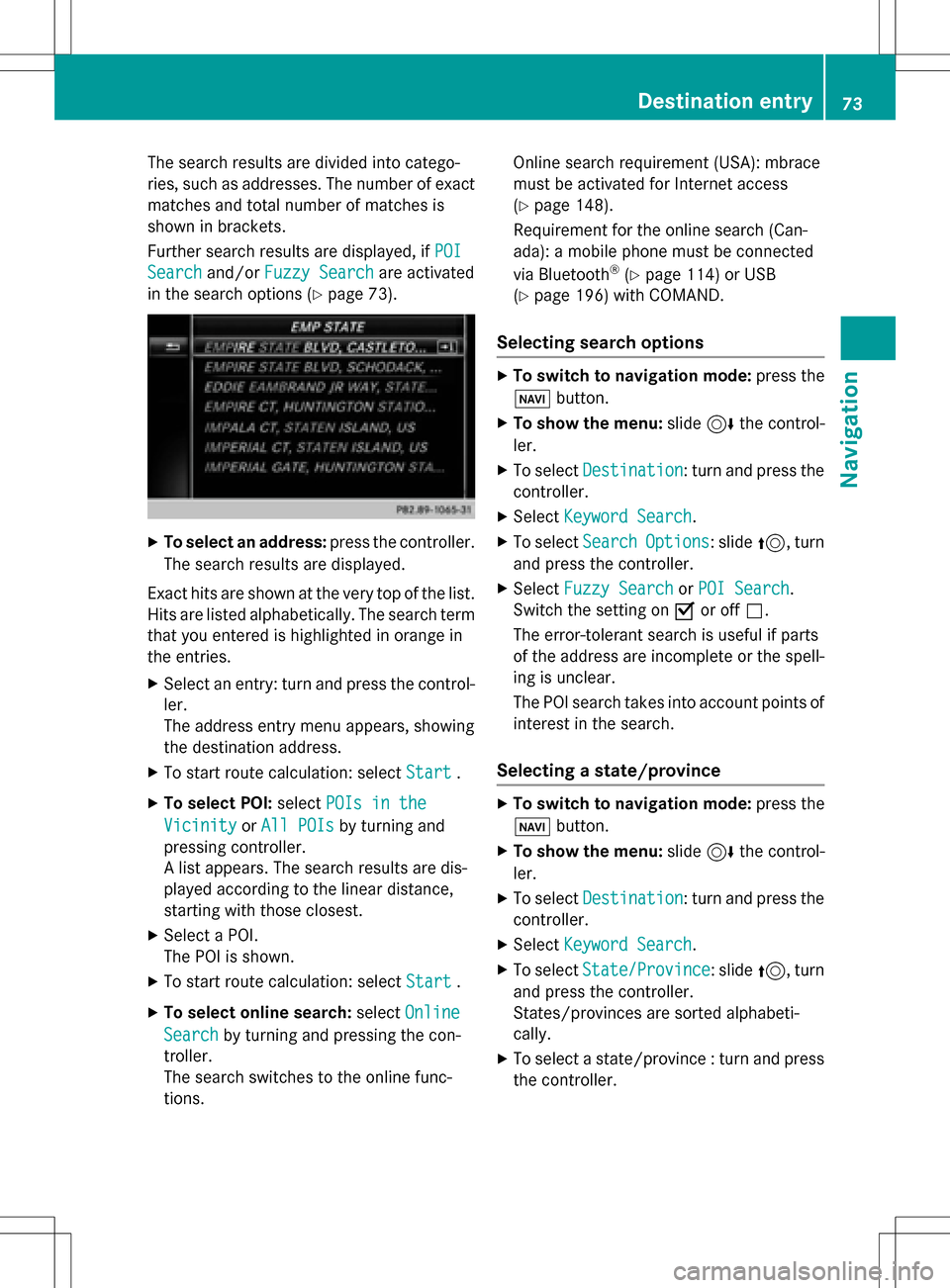
The search results are divided into catego-
ries, such as addresses. The number of exact
matches and total number of matches is
shown in brackets.
Further search results are displayed, ifPOI
Searchand/orFuzzy Searchare activated
in the search options (
Ypage 73).
XTo select an address: press the controller.
The search results are displayed.
Exact hits are shown at the very top of the list.
Hits are listed alphabetically. The search term that you entered is highlighted in orange in
the entries.
XSelect an entry: turn and press the control-ler.
The address entry menu appears, showing
the destination address.
XTo start route calculation: select Start.
XTo select POI:selectPOIs in the
VicinityorAll POIsby turning and
pressing controller.
A list appears. The search results are dis-
played according to the linear distance,
starting with those closest.
XSelect a POI.
The POI is shown.
XTo start route calculation: select Start.
XTo select online search:selectOnline
Searchby turning and pressing the con-
troller.
The search switches to the online func-
tions. Online search requirement (USA): mbrace
must be activated for Internet access
(
Ypage 148).
Requirement for the online search (Can-
ada): a mobile phone must be connected
via Bluetooth
®(Ypage 114) or USB
(
Ypage 196) with COMAND.
Selecting search options
XTo switch to navigation mode: press the
Ø button.
XTo show the menu: slide6the control-
ler.
XTo select Destination: turn and press the
controller.
XSelect Keyword Search.
XTo select SearchOptions: slide5, turn
and press the controller.
XSelect Fuzzy SearchorPOI Search.
Switch the setting on Oor off ª.
The error-tolerant search is useful if parts
of the address are incomplete or the spell-
ing is unclear.
The POI search takes into account points of interest in the search.
Selecting a state/province
XTo switch to navigation mode: press the
Ø button.
XTo show the menu: slide6the control-
ler.
XTo select Destination: turn and press the
controller.
XSelect Keyword Search.
XTo select State/Province: slide5, turn
and press the controller.
States/provinces are sorted alphabeti-
cally.
XTo select a state/province : turn and press
the controller.
Destination entry73
Navigation
Z
Page 82 of 246

SelectionStep
Address
Entry
XEnter a destination by
address (
Ypage 70).
Keyword
Search
XSelect a destination by
means of a keyword
search (
Ypage 72).
From Last
Destinations
XSelect a destination
from the list of last des-
tinations (
Ypage 74).
From Con‐
tacts
XSelect a contact from
the address book as
the destination
(
Ypage 74).
From POIsXSelect a point of inter-
est (
Ypage 75).
Using MapXEnter a destination
using the map
(
Ypage 78).
From Memory
Card
XSelect a personal POI
(
Ypage 85).
From
Mercedes-
Benz Apps
XEnter a destination
from Mercedes-Benz
Apps (
Ypage 82).
Using Geo-
Coordinates
XEnter a destination
using the geo-coordi-
nates (
Ypage 82).
XTo select a POI: turn the controller and
press to confirm.
After selecting a POI or entering a destina-
tion, the address of the intermediate des-
tination is displayed.
After entering a destination using the map,
the address entry menu is displayed.Start
is highlighted.
XTo call up a map:selectMapby turning and
pressing the controller.
You can move the map and select the des-
tination.
XTo make a call: selectCall.
If the intermediate destination has a tele-
phone number and a mobile phone is con-
nected to COMAND (
Ypage 114), the call
is connected.
XTo load data from the Internet: select
www
.
If an Internet address is available, data is
loaded from the Internet.
XTo store an intermediate destination in
the destination memory: selectSave
(Ypage 98).
XTo accept an intermediate destination:
selectOK
by pressing the controller.
The destination is entered in the intermedi-
ate destinations menu.
80Destination entry
Navigation
Page 85 of 246

Settings for personal POIs
Displaying on the map
Requirement: an SD memory card with per-
sonal POIs is inserted (
Ypage 183).
All personal POIs of the selected category are
displayed on the map with a corresponding
symbol.
If the "Alert when approaching" (
Ypage 83)
function is activated, the symbols are dis-
played up to a map scale of 2 km.
XTo switch to navigation mode: press the
ß button.
XTo show the menu: slide6the control-
ler.
XTo select Options: turn and press the con-
troller.
XSelect Personal POIs.
XSelectDisplay on the Map.
The menu displays the categories available
on the SD memory card.
XTo select a category: turn the controller and
press to confirm.
All personal POIs in the selected category
are displayed Oor not displayed ª,
depending on the previous status.
Alert when approaching
Requirement: an SD memory card with per-
sonal POIs is inserted (
Ypage 183).
If the vehicle is approaching a personal POI
and the functions are enabled, the personal
POI is highlighted on the map and an audible
signal sounds.
For this purpose, both the corresponding
function Alert When Approaching
and the
category containing the personal POI must be
activated.
XTo switch to navigation mode: press the
ß button.
XTo show the menu: slide6the control-
ler.
XTo select Options: turn and press the con-
troller.
XSelect Personal POIs.
XSelectAlert When Approaching.
The menu displays the categories available
on the SD memory card.
XSelect AudibleorOptical.
The function is switched on Oor off ª,
depending on the previous status.
XTo select a category: turn the controller and
press to confirm.
The function is switched on Oor off ª, for
all personal POIs of this category, depend-
ing on the previous setting.
Personal POIs and routes83
Navigation
Z
Page 89 of 246

Route guidance
General notes
Always observe the traffic regulations when
driving. Road and traffic rules and regulations
always have priority over system driving rec-
ommendations.
COMAND calculates the route to the destina-
tion without taking account of the following,
for example:
Rtraffic lights
Rstop and yield signs
Rparking or stopping restrictions
Rroad narrowing
Rtemporary traffic rules and regulations
COMAND can give differing navigation com-
mands if the actual street/traffic situation
does not correspond with the digital map's
data. For example, if the road layout or the
direction of a one-way street has been
changed.
Route guidance begins once a route has been
calculated (
Ypage 71).
COMAND guides you to your destination by
means of navigation announcements in the
form of audible navigation announcements
and route guidance displays.
Navigation messages guide you during the
journey without distracting you from traffic
conditions or driving. Please always use this
feature instead of consulting the map display
for directions. The symbols or the map display
could distract you from traffic conditions and
driving.
The route guidance displays can be seen if
navigation mode is switched on.
If you do not follow the navigation announce-
ments or if you leave the ca
lculated route,
COMAND automatically calculates a new
route to the destination.
If the digital map contains the corresponding information, the following applies:
Rduring route guidance, COMAND tries to
avoid roads with restricted access. These include, for example, roads which are
closed to through-traffic.
Rroads that have time restrictions (e.g.
closed on Sundays and public holidays) are
considered for route guidance on days
when they are open. For this purpose, the
relevant times must be correctly stored in
the database.
Change of direction
Overview
Changes of direction have three phases:
RPreparation phase
RAnnouncement phase
RChange-of-direction phase
Changes in direction are also shown in the
multifunction display of the instrument clus-
ter (see the vehicle Operator's Manual).
Preparation phase
COMAND prepares you for the upcoming
change of direction, e.g. with the announce-
ment "Prepare to turn right". You see the full-
screen map.
Announcement phase
:Point at which the change of direction
takes place (white dot)
;Change of direction (turn right here)
=Distance to the next change of direction
COMAND announces the imminent change of
direction. The change of direction is
Route guidance87
Navigation
Z