bluetooth MERCEDES-BENZ GLA SUV 2018 COMAND Manual
[x] Cancel search | Manufacturer: MERCEDES-BENZ, Model Year: 2018, Model line: GLA SUV, Model: MERCEDES-BENZ GLA SUV 2018Pages: 190, PDF Size: 4.48 MB
Page 74 of 190
to the multimedia system via Bluetooth®
(Ypage 90) or USB (Ypage 152).
RLoad data from the Internet
Requirements USA: an Internet address is
available and mbrace is activated for Inter-
net access (
Ypage 90).
Requirements Canada: an Internet address
is available and a mobile phone is connec-
ted to the multimedia system via Blue-
tooth
®(Ypage 90) or USB (Ypage 152).
RSelect for route guidance and calculate a
route to it (Ypage 57)
Using the traffic jam function
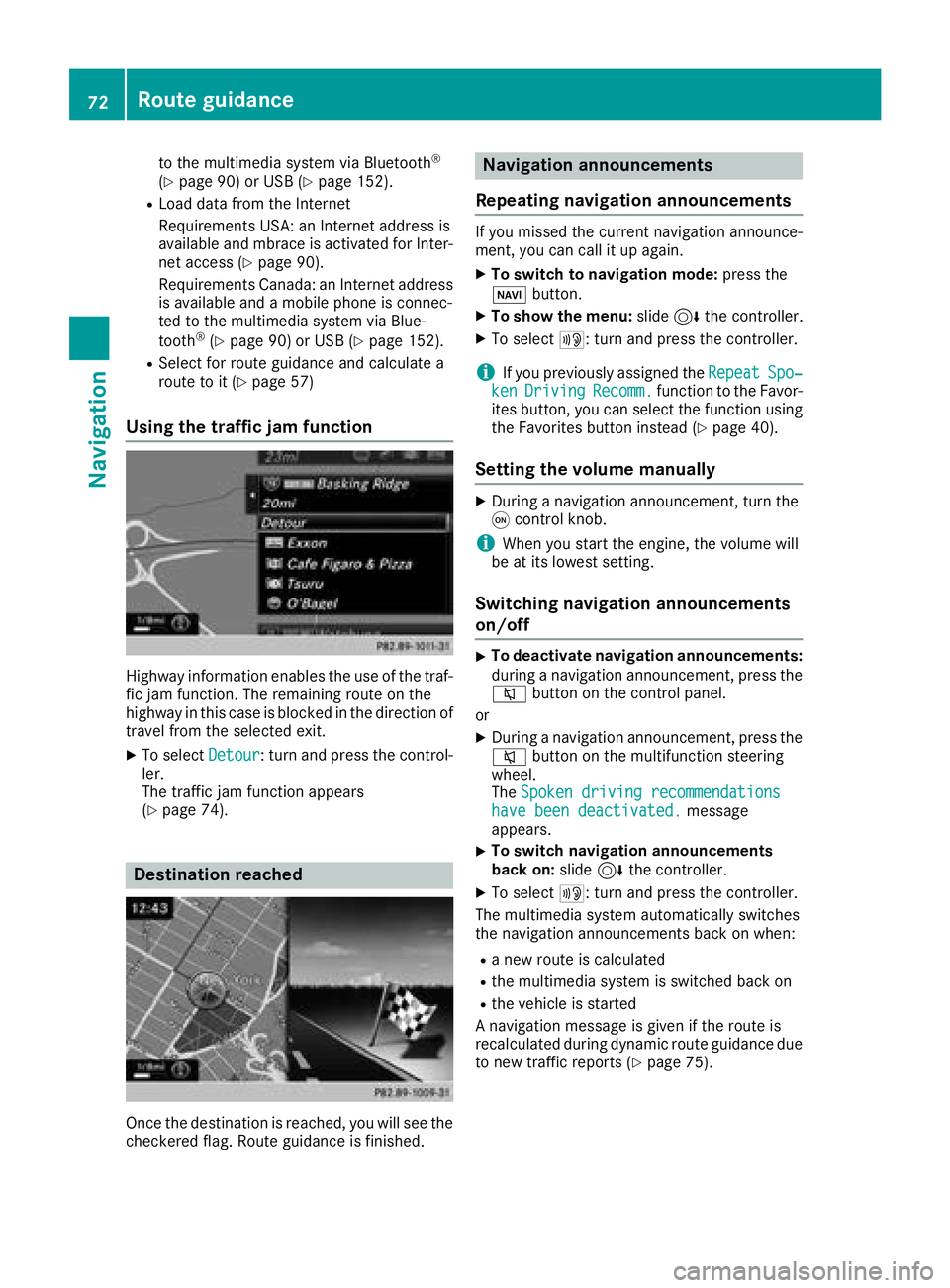
Highway information enables the use of the traf-
fic jam function. The remaining route on the
highway in this case is blocked in the direction of
travel from the selected exit.
XTo select Detour: turn and press the control-
ler.
The traffic jam function appears
(
Ypage 74).
Destination reached
Once the destination is reached, you will see the
checkered flag. Route guidance is finished.
Navigation announcements
Repeating navigation announcements
If you missed the current navigation announce-
ment, you can call it up again.
XTo switch to navigation mode: press the
Ø button.
XTo show the menu: slide6the controller.
XTo select +: turn and press the controller.
iIf you previously assigned the RepeatSpo‐kenDrivingRecomm.function to the Favor-
ites button, you can select the function using
the Favorites button instead (
Ypage 40).
Setting the volume manually
XDuring a navigation announcement, turn the
q control knob.
iWhen you start the engine, the volume will
be at its lowest setting.
Switching navigation announcements
on/off
XTo deactivate navigation announcements:
during a navigation announcement, press the
8 button on the control panel.
or
XDuring a navigation announcement, press the
8 button on the multifunction steering
wheel.
The Spoken driving recommendations
have been deactivated.message
appears.
XTo switch navigation announcements
back on: slide6the controller.
XTo select +: turn and press the controller.
The multimedia system automatically switches
the navigation announcements back on when:
Ra new route is calculated
Rthe multimedia system is switched back on
Rthe vehicle is started
A navigation message is given if the route is
recalculated during dynamic route guidance due
to new traffic reports (
Ypage 75).
72Route guidance
Navigation
Page 75 of 190
Canceling/continuing route guidance
Canceling route guidance
XSlide 6the controller.
The menu is shown.
XTo select Destination, turn and press the
controller.
XSelect Cancel Route Guidance.
The blue route line is no longer shown on the
map.
Resuming route guidance
XSlide 6the controller.
The menu is shown.
XTo select Destination: turn and press the
controller.
XSelect Continue Route Guidance.
The multimedia system calculates the route.
Route information
Destination information
XTo switch to navigation mode: press the
Ø button.
XTo show the menu: slide6the controller.
XTo select Route: turn and press the controller.
XSelectDestination Information.
The destination and existing intermediate
destinations are displayed with distances,
travel time and arrival time.
XTo select destination or intermediate des-
tination: turn and press the controller.
The address appears.
You can use these functions for the destina-
tion or intermediate destination:
RStore in the address book (Ypage 79)
RSave to the SD card (Ypage 79)
RView on the map (Ypage 84)
RCall if a mobile phone is connected and a
phone number is available (Ypage 96)
RView the vicinity of the destination
Requirements USA: street images are avail-
able and mbrace is activated for Internet
access (
Ypage 121).
Requirements Canada: street images are
available and a mobile phone is connected
to the multimedia system via Bluetooth
®
(Ypage 90) or USB (Ypage 152).
RLoad data from the Internet
Requirements USA: an Internet address is
available and mbrace is activated for Inter-
net access (
Ypage 90).
Requirements Canada: an Internet address
is available and a mobile phone is connec-
ted to the multimedia system via Blue-
tooth
®(Ypage 90) or USB (Ypage 152).
Taking an alternate route
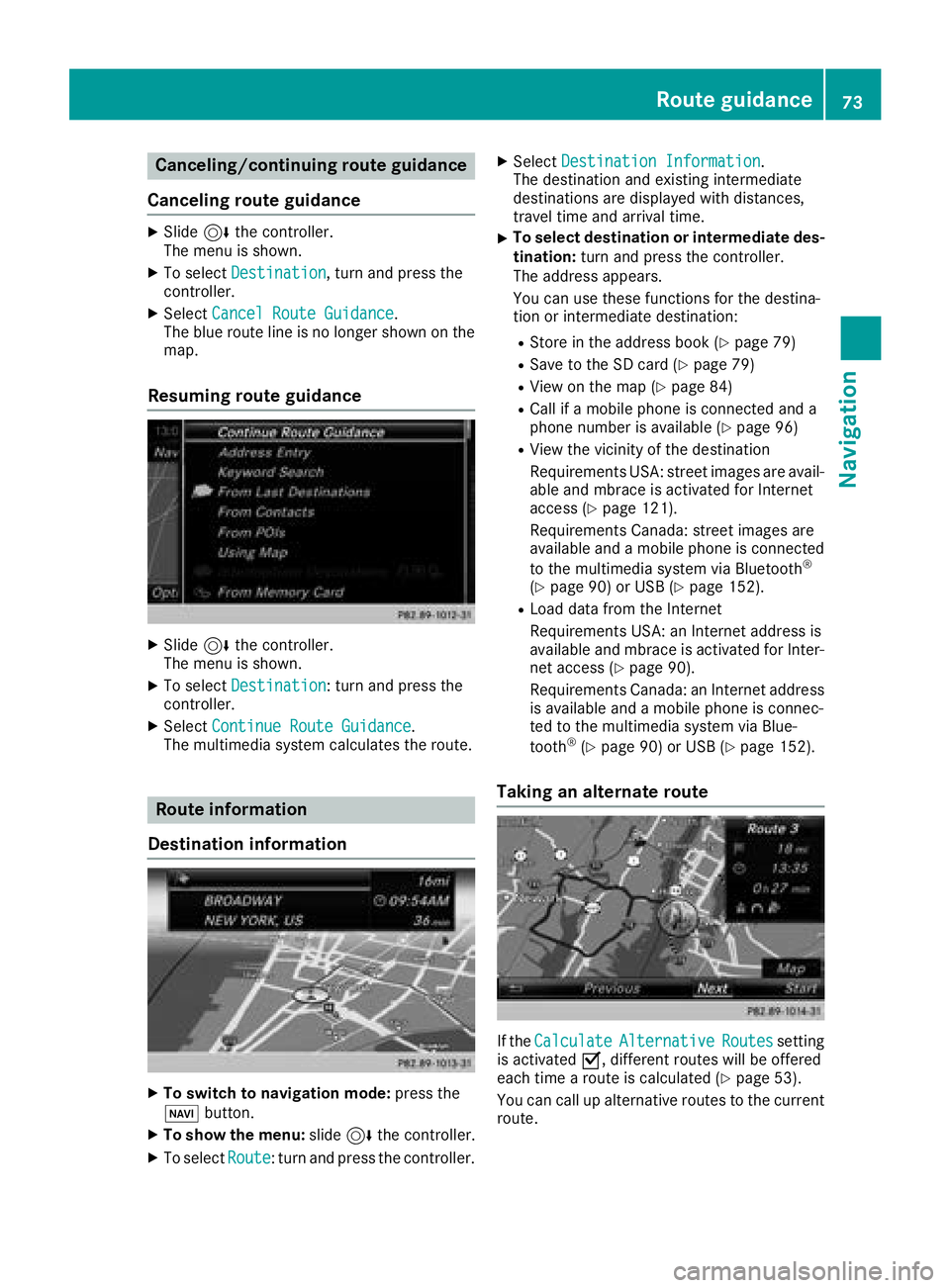
If the CalculateAlternativeRoutessetting
is activated O, different routes will be offered
each time a route is calculated (
Ypage 53).
You can call up alternative routes to the current
route.
Route guidance73
Navigation
Z
Page 92 of 190
pressing
Rusing the6or~ button on the multi-
function steering wheel
Rusing the Voice Control System (see the sep-
arate operating instructions)
Function restrictions
You may have to wait to use telephony via the
multimedia system in the following situations:
Rthe mobile phone is switched off
RBluetooth®is switched off on the mobile
phone
Rthe mobile phone has not logged on to a
mobile phone network
Rif the Bluetooth®function is switched off in
the multimedia system
The telephone automatically tries to log on to a network. If no network is available, you may not
be able to make a " 911" emergency call. If you
attempt to make an outgoing call, the No Ser‐
vicemessage will appear for a short while.
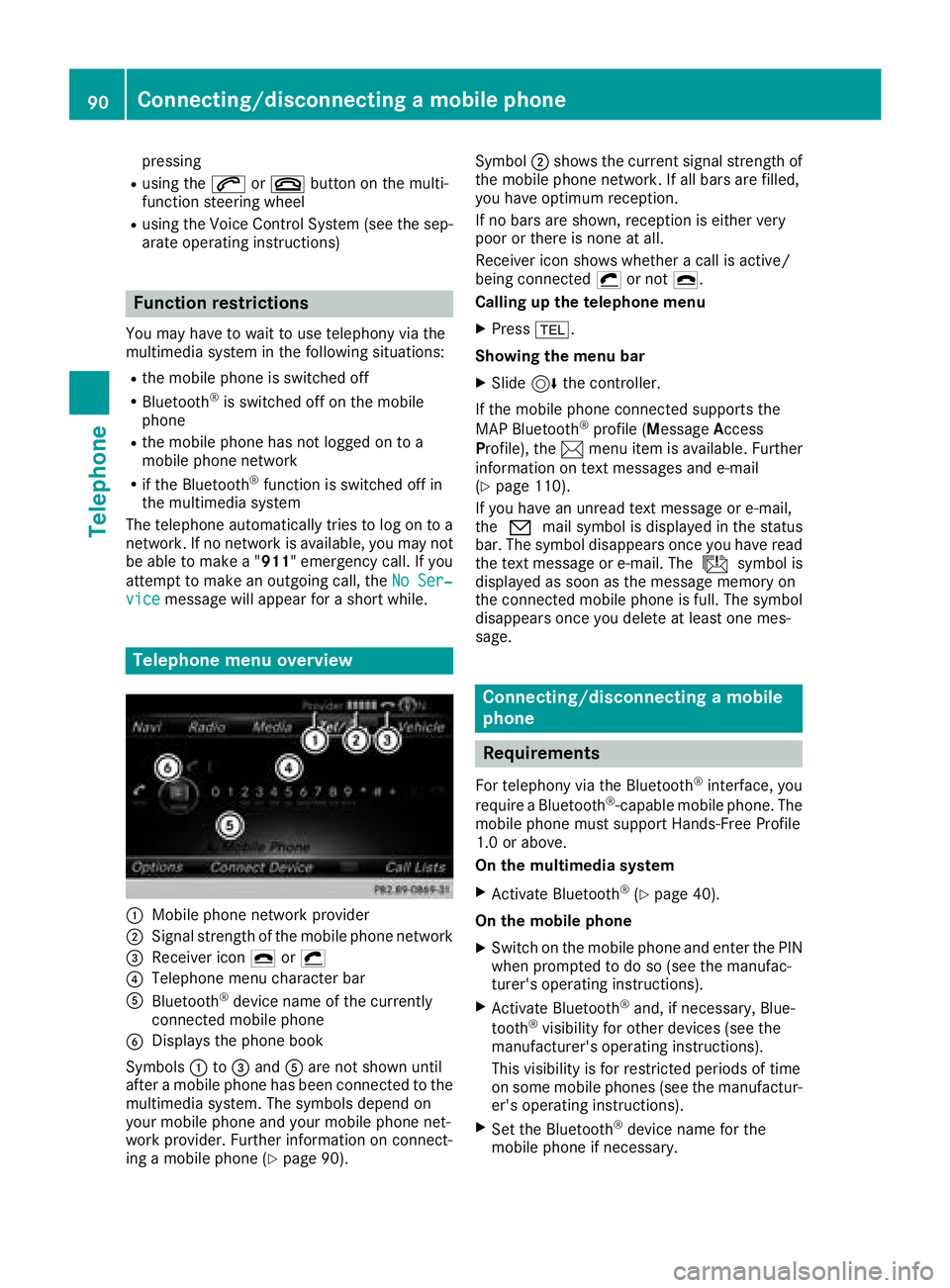
Telephone menu overview
:Mobile phone network provider
;Signal strength of the mobile phone network
=Receiver icon¢or¡
?Telephone menu character bar
ABluetooth®device name of the currently
connected mobile phone
BDisplays the phone book
Symbols :to= and Aare not shown until
after a mobile phone has been connected to the
multimedia system. The symbols depend on
your mobile phone and your mobile phone net-
work provider. Further information on connect-
ing a mobile phone (
Ypage 90). Symbol
;shows the current signal strength of
the mobile phone network. If all bars are filled,
you have optimum reception.
If no bars are shown, reception is either very
poor or there is none at all.
Receiver icon shows whether a call is active/
being connected ¡or not ¢.
Calling up the telephone menu
XPress %.
Showing the menu bar
XSlide 6the controller.
If the mobile phone connected supports the
MAP Bluetooth
®profile (M essageAccess
Profile), the 1menu item is available. Further
information on text messages and e-mail
(
Ypage 110).
If you have an unread text message or e-mail,
the 0 mail symbol is displayed in the status
bar. The symbol disappears once you have read
the text message or e-mail. The úsymbol is
displayed as soon as the message memory on
the connected mobile phone is full. The symbol
disappears once you delete at least one mes-
sage.
Connecting/disconnecting a mobile
phone
Requirements
For telephony via the Bluetooth®interface, you
require a Bluetooth®-capable mobile phone. The
mobile phone must support Hands-Free Profile
1.0 or above.
On the multimedia system
XActivate Bluetooth®(Ypage 40).
On the mobile phone
XSwitch on the mobile phone and enter the PIN
when prompted to do so (see the manufac-
turer's operating instructions).
XActivate Bluetooth®and, if necessary, Blue-
tooth®visibility for other devices (see the
manufacturer's operating instructions).
This visibility is for restricted periods of time
on some mobile phones (see the manufactur-
er's operating instructions).
XSet the Bluetooth®device name for the
mobile phone if necessary.
90Connecting/disconnecting a mobile phone
Telephone
Page 93 of 190
The device names for all of one manufacturer's
products might be identical. To make it possible
to clearly identify your mobile phone, change
the device name (see the manufacturer's oper-
ating instructions). The name can be freely
selected.
If the mobile phone supports the PBAP (Phone
BookAccess Profile) and MAP (M essage
Access Profile) Bluetooth
®profiles, the follow-
ing information will be transmitted after you
connect:
RPhone book
RCall lists
RText messages and e-mail
Further information on allowing or suppressing
the automatic download of the phone book
(
Ypage 106).
The battery of the mobile phone should always
be kept sufficiently charged in order to prevent
malfunctions.
iNot all mobile phones available on the mar-
ket are equally suitable. You can obtain fur-
ther information about suitable mobile
phones and about the connection between
the mobile phone and the multimedia system on the Internet at http://www.mercedes-
benz.com/connect .
You can also obtain more information by call-
ing.
In the USA, you can get in touch with the
Mercedes-Benz Customer Assistance Center
on 1-800 FOR-MERCEDES
(1-800-367-6372).
In Canada, you can get in touch with the Cus-
tomer Relations Center on 1-800-387-0100.
iSome displays (e.g. the signal strength) are
shown depending on the supported version of
the Hands-Free Profile.
Procedure and general information
Authorizing a mobile phone (connect-
ing)
Before using your mobile phone with the multi-
media system for the first time, you will need to search for the phone (
Ypage 91) and then
authorize it (Ypage 92). Depending on the
mobile phone, authorization either takes place
by means of Secure Simple Pairing or by enter- ing a passkey. The multimedia system automat-
ically makes the procedure that is relevant for
your mobile phone available. You can recognize
Secure Simple Pairing by the fact that a code is
displayed on the mobile phone and on the mul-
timedia system. You can recognize the passkey
system by the fact that you have to enter a code
on the mobile phone and on the multimedia sys-
tem. The mobile phone is connected automati-
cally after authorization. Further information
about automatically reconnecting authorized
mobile phones (
Ypage 93).
If the multimedia system does not detect your
mobile phone, this may be due to particular
security settings on your mobile phone. You can
also start the search procedure and authoriza-
tion on the mobile phone (
Ypage 93).
Device-specific information on authorizing and
connecting Bluetooth
®-capable mobile phones
can be obtained from an authorized Mercedes-
Benz Center or via the Internet at http://
www.mercedes-benz.com/connect .
You can authorize up to 15 mobile phones. After
authorization, the connection of the last two tel-
ephones used always functions automatically.
For telephony, only one mobile phone can be
connected to the multimedia system at any one
time.
De-authorizing (disconnecting) a mobile
phone
The connection is terminated automatically if
you leave the receiver range of the multimedia
system or deactivate Bluetooth
®on your mobile
phone.
If you no longer want the Bluetooth
®connection
to be established automatically, the mobile
phone must be de-authorized (disconnected)
(
Ypage 94).
Searching for a mobile phone
XTo call up the telephone menu: press the
% button.
XTo switch to the menu bar: slide 6the con-
troller.
XTo select Conn. Device: turn and press the
controller.
The device list is displayed.
Connecting/disconnecting a mobile phone91
Telephone
Z
Page 94 of 190
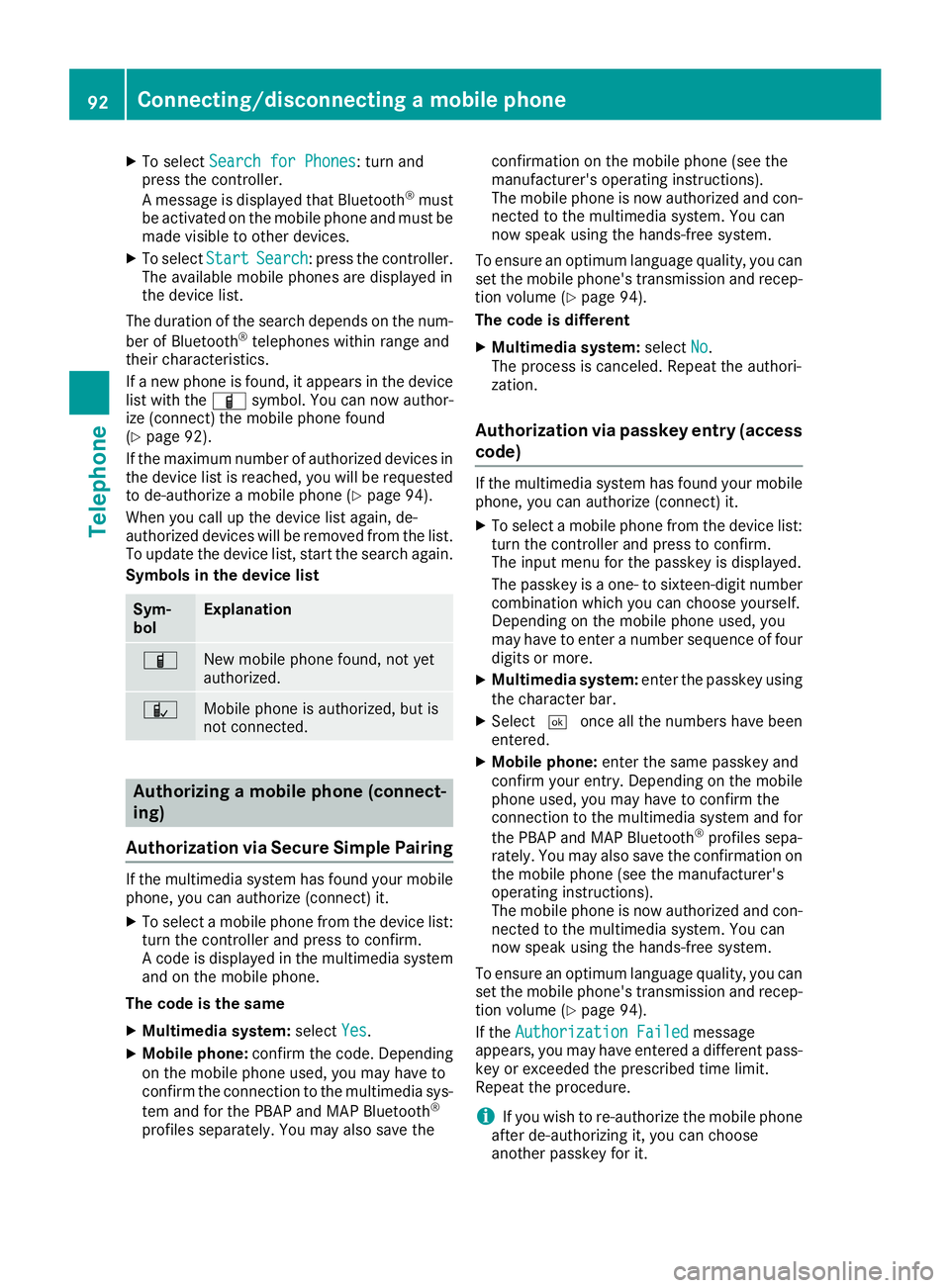
XTo selectSearch for Phones: turn and
press the controller.
A message is displayed that Bluetooth
®must
be activated on the mobile phone and must be
made visible to other devices.
XTo select StartSearch: press the controller.
The available mobile phones are displayed in
the device list.
The duration of the search depends on the num- ber of Bluetooth
®telephones within range and
their characteristics.
If a new phone is found, it appears in the device list with the Ïsymbol. You can now author-
ize (connect) the mobile phone found
(
Ypage 92).
If the maximum number of authorized devices in
the device list is reached, you will be requested
to de-authorize a mobile phone (
Ypage 94).
When you call up the device list again, de-
authorized devices will be removed from the list.
To update the device list, start the search again.
Symbols in the device list
Sym-
bolExplanation
ÏNew mobile phone found, not yet
authorized.
ÑMobile phone is authorized, but is
not connected.
Authorizing a mobile phone (connect-
ing)
Authorization via Secure Simple Pairing
If the multimedia system has found your mobile
phone, you can authorize (connect) it.
XTo select a mobile phone from the device list: turn the controller and press to confirm.
A code is displayed in the multimedia system
and on the mobile phone.
The code is the same
XMultimedia system: selectYes.
XMobile phone: confirm the code. Depending
on the mobile phone used, you may have to
confirm the connection to the multimedia sys-
tem and for the PBAP and MAP Bluetooth
®
profiles separately. You may also save the confirmation on the mobile phone (see the
manufacturer's operating instructions).
The mobile phone is now authorized and con-
nected to the multimedia system. You can
now speak using the hands-free system.
To ensure an optimum language quality, you can
set the mobile phone's transmission and recep-
tion volume (
Ypage 94).
The code is different
XMultimedia system: selectNo.
The process is canceled. Repeat the authori-
zation.
Authorization via passkey entry (access code)
If the multimedia system has found your mobile
phone, you can authorize (connect) it.
XTo select a mobile phone from the device list:
turn the controller and press to confirm.
The input menu for the passkey is displayed.
The passkey is a one- to sixteen-digit number
combination which you can choose yourself.
Depending on the mobile phone used, you
may have to enter a number sequence of fourdigits or more.
XMultimedia system: enter the passkey using
the character bar.
XSelect ¬once all the numbers have been
entered.
XMobile phone: enter the same passkey and
confirm your entry. Depending on the mobile
phone used, you may have to confirm the
connection to the multimedia system and for
the PBAP and MAP Bluetooth
®profiles sepa-
rately. You may also save the confirmation on
the mobile phone (see the manufacturer's
operating instructions).
The mobile phone is now authorized and con-
nected to the multimedia system. You can
now speak using the hands-free system.
To ensure an optimum language quality, you can
set the mobile phone's transmission and recep-
tion volume (
Ypage 94).
If the Authorization Failed
message
appears, you may have entered a different pass-
key or exceeded the prescribed time limit.
Repeat the procedure.
iIf you wish to re-authorize the mobile phone
after de-authorizing it, you can choose
another passkey for it.
92Connecting/disconnecting a mobile phone
Telephone
Page 95 of 190
iMercedes-Benz recommends de-authoriza-
tion in the multimedia system as well as on
the mobile phone (
Ypage 94). Subsequent
authorization may otherwise fail.
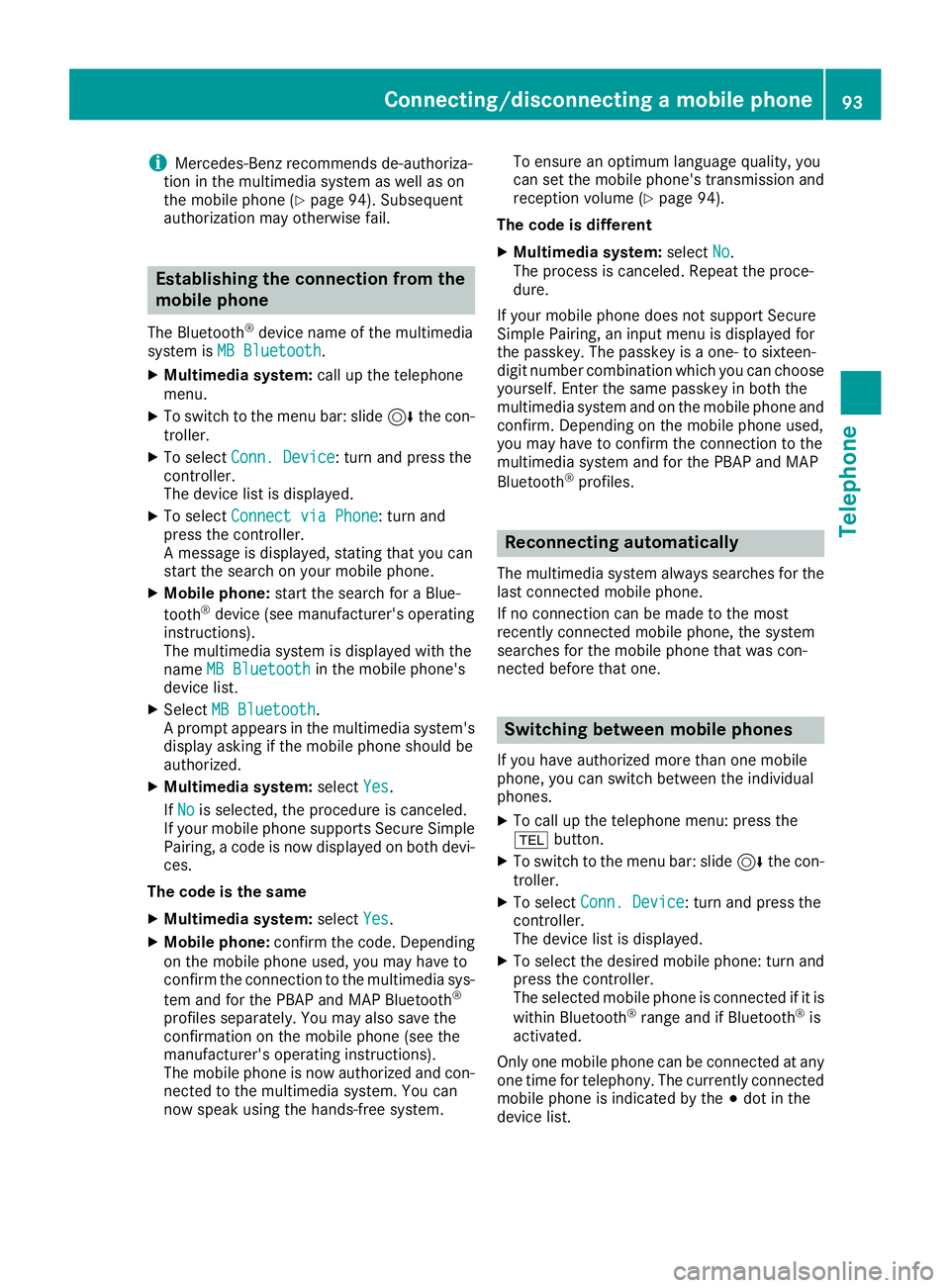
Establishing the connection from the
mobile phone
The Bluetooth®device name of the multimedia
system is MB Bluetooth.
XMultimedia system: call up the telephone
menu.
XTo switch to the menu bar: slide 6the con-
troller.
XTo select Conn. Device: turn and press the
controller.
The device list is displayed.
XTo select Connect via Phone: turn and
press the controller.
A message is displayed, stating that you can
start the search on your mobile phone.
XMobile phone: start the search for a Blue-
tooth®device (see manufacturer's operating
instructions).
The multimedia system is displayed with the
name MB Bluetooth
in the mobile phone's
device list.
XSelect MB Bluetooth.
A prompt appears in the multimedia system's
display asking if the mobile phone should be
authorized.
XMultimedia system: selectYes.
If No
is selected, the procedure is canceled.
If your mobile phone supports Secure Simple
Pairing, a code is now displayed on both devi-
ces.
The code is the same
XMultimedia system: selectYes.
XMobile phone: confirm the code. Depending
on the mobile phone used, you may have to
confirm the connection to the multimedia sys-
tem and for the PBAP and MAP Bluetooth
®
profiles separately. You may also save the
confirmation on the mobile phone (see the
manufacturer's operating instructions).
The mobile phone is now authorized and con-
nected to the multimedia system. You can
now speak using the hands-free system. To ensure an optimum language quality, you
can set the mobile phone's transmission and
reception volume (
Ypage 94).
The code is different
XMultimedia system: selectNo.
The process is canceled. Repeat the proce-
dure.
If your mobile phone does not support Secure
Simple Pairing, an input menu is displayed for
the passkey. The passkey is a one- to sixteen-
digit number combination which you can choose
yourself. Enter the same passkey in both the
multimedia system and on the mobile phone and
confirm. Depending on the mobile phone used,
you may have to confirm the connection to the
multimedia system and for the PBAP and MAP
Bluetooth
®profiles.
Reconnecting automatically
The multimedia system always searches for the
last connected mobile phone.
If no connection can be made to the most
recently connected mobile phone, the system
searches for the mobile phone that was con-
nected before that one.
Switching between mobile phones
If you have authorized more than one mobile
phone, you can switch between the individual
phones.
XTo call up the telephone menu: press the
% button.
XTo switch to the menu bar: slide 6the con-
troller.
XTo select Conn. Device: turn and press the
controller.
The device list is displayed.
XTo select the desired mobile phone: turn and press the controller.
The selected mobile phone is connected if it is
within Bluetooth
®range and if Bluetooth®is
activated.
Only one mobile phone can be connected at any
one time for telephony. The currently connected
mobile phone is indicated by the #dot in the
device list.
Connecting/disconnecting a mobile phone93
Telephone
Z
Page 96 of 190
iYou can only switch to another authorized
mobile phone if you are not currently making
a call.
De-authorizing (disconnecting) a
mobile phone
Mercedes-Benz USA, LLC recommends de-
authorization in the multimedia system as well
as on the mobile phone. Subsequent authoriza-
tion may otherwise fail.
XTo call up the telephone menu: press the
% button.
XTo switch to the menu bar: slide 6the con-
troller.
XTo select Conn. Device: turn and press the
controller.
The device list is displayed.
XTo highlight the desired mobile phone in the
device list: turn the controller.
XTo select G: slide 9the controller.
XTo select Deauthorize: turn and press the
controller.
A prompt appears, asking whether you really
wish to de-authorize this device.
XTo select Yes: turn and press the controller.
The mobile phone is de-authorized.
Displaying connection details
XTo call up the telephone menu: press the
% button.
XTo switch to the menu bar: slide 6the con-
troller.
XTo select Conn. Device: turn and press the
controller.
The device list is displayed.
XTo highlight the desired mobile phone: turn
the controller.
XTo select G: slide 9the controller.
XTo select Details: turn and press the con-
troller.
The following information concerning the
selected mobile phone is shown:
RBluetooth®device name
RBluetooth®address
RAuthorization status
Setting the reception and transmis-
sion volume
Once the mobile phone has been authorized,
you can optimize the transmission and recep-
tion volume settings. To find out about the best
possible settings for your mobile phone, visit
http://www.mercedes-benz.com/connect .
You can also obtain more information by calling.
In the USA, you can get in touch with the
Mercedes-Benz Customer Assistance Center on
1-800 FOR-MERCEDES (1-800-367-6372).
In Canada, you can get in touch with the Cus-
tomer Relations Center on 1-800-387-0100.
XTo call up the telephone menu: press the
% button.
XTo switch to the menu bar: slide 6the con-
troller.
XTo select Conn. Device: turn and press the
controller.
The device list appears.
XTo highlight the desired mobile phone in the
device list: turn the controller.
XTo select G: slide 9the controller.
XTo select Reception VolumeorTransmis‐sion Volume: turn and press the controller.
XTo set the volume: turn the controller.
XTo accept changes: press the controller.
iIncorrect settings may have an impact on
the quality of calls.
Using the telephone
Accepting a call
XTo select wAccept: press the controller.
or
XPress 6on the multifunction steering
wheel.
The call is accepted.
Additional functions available during a call
(
Ypage 96).
Adjusting the call volume (
Ypage 94).
Further information about ending a call
(
Ypage 98).
iIf the phone number of the caller is trans-
ferred, it appears in the display. If the phone
number is saved in the phone book, the con-
94Using the telephone
Telephone
Page 98 of 190
XTo selectSpeed Dial Preset List: turn
and press the controller.
The speed dial list is displayed.
XTo select an entry and make a call: turn and
press the controller.
The telephone menu displays the selected
entry. The number is dialed.
Further information on setting up speed dial
(
Ypage 110).
Further information about ending a call
(
Ypage 98).
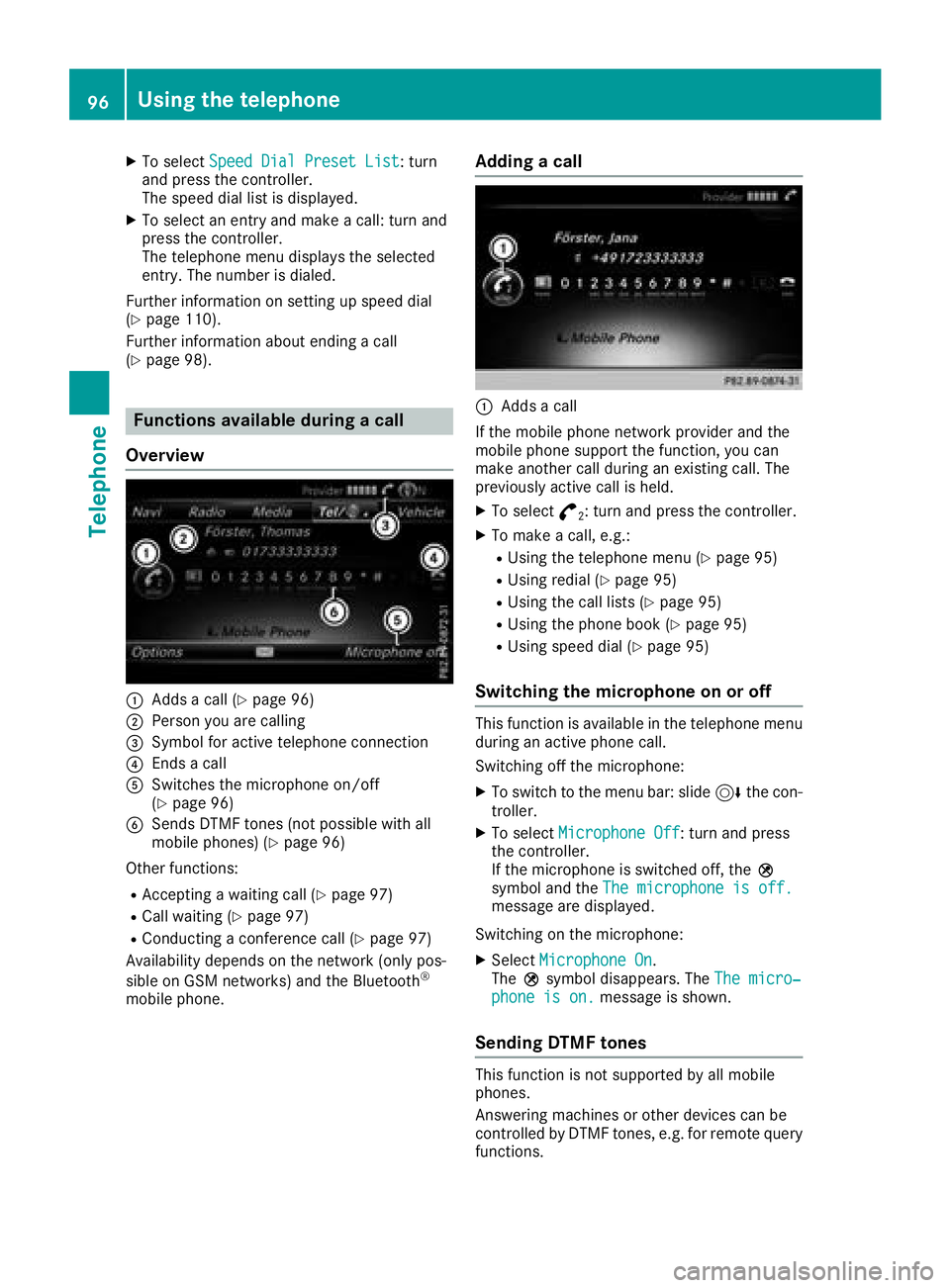
Functions available during a call
Overview
:Adds a call (Ypage 96)
;Person you are calling
=Symbol for active telephone connection
?Ends a call
ASwitches the microphone on/off
(Ypage 96)
BSends DTMF tones (not possible with all
mobile phones) (Ypage 96)
Other functions:
RAccepting a waiting call (Ypage 97)
RCall waiting (Ypage 97)
RConducting a conference call (Ypage 97)
Availability depends on the network (only pos-
sible on GSM networks) and the Bluetooth
®
mobile phone.
Adding a call
:Adds a call
If the mobile phone network provider and the
mobile phone support the function, you can
make another call during an existing call. The
previously active call is held.
XTo select °2: turn and press the controller.
XTo make a call, e.g.:
RUsing the telephone menu (Ypage 95)
RUsing redial (Ypage 95)
RUsing the call lists (Ypage 95)
RUsing the phone book (Ypage 95)
RUsing speed dial (Ypage 95)
Switching the microphone on or off
This function is available in the telephone menu
during an active phone call.
Switching off the microphone:
XTo switch to the menu bar: slide 6the con-
troller.
XTo select Microphone Off: turn and press
the controller.
If the microphone is switched off, the Q
symbol and the The microphone is off.
message are displayed.
Switching on the microphone:
XSelect Microphone On.
The Qsymbol disappears. The The micro‐
phone is on.message is shown.
Sending DTMF tones
This function is not supported by all mobile
phones.
Answering machines or other devices can be
controlled by DTMF tones, e.g. for remote query
functions.
96Using the telephone
Telephone
Page 101 of 190
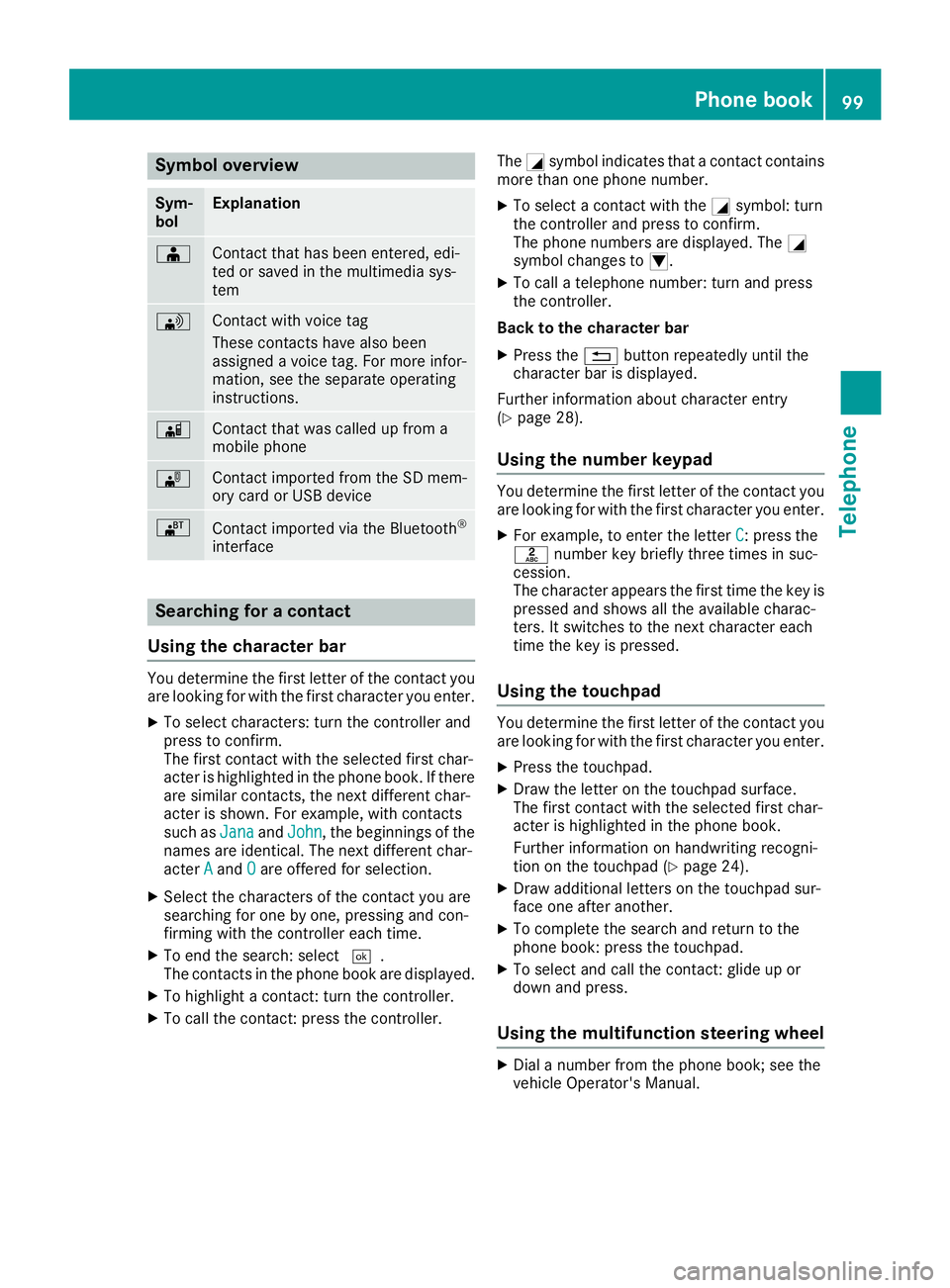
Symbol overview
Sym-
bolExplanation
ÆContact that has been entered, edi-
ted or saved in the multimedia sys-
tem
\Contact with voice tag
These contacts have also been
assigned a voice tag. For more infor-
mation, see the separate operating
instructions.
ÃContact that was called up from a
mobile phone
¯Contact imported from the SD mem-
ory card or USB device
®Contact imported via the Bluetooth®
interface
Searching for a contact
Using the character bar
You determine the first letter of the contact you
are looking for with the first character you enter.
XTo select characters: turn the controller and
press to confirm.
The first contact with the selected first char-
acter is highlighted in the phone book. If there
are similar contacts, the next different char-
acter is shown. For example, with contacts
such as Jana
andJohn, the beginnings of the
names are identical. The next different char-
acter A
andOare offered for selection.
XSelect the characters of the contact you are
searching for one by one, pressing and con-
firming with the controller each time.
XTo end the search: select ¬.
The contacts in the phone book are displayed.
XTo highlight a contact: turn the controller.
XTo call the contact: press the controller. The
Gsymbol indicates that a contact contains
more than one phone number.
XTo select a contact with the Gsymbol: turn
the controller and press to confirm.
The phone numbers are displayed. The G
symbol changes to I.
XTo call a telephone number: turn and press
the controller.
Back to the character bar
XPress the %button repeatedly until the
character bar is displayed.
Further information about character entry
(
Ypage 28).
Using the number keypad
You determine the first letter of the contact you
are looking for with the first character you enter.
XFor example, to enter the letter C: press the
l number key briefly three times in suc-
cession.
The character appears the first time the key is
pressed and shows all the available charac-
ters. It switches to the next character each
time the key is pressed.
Using the touchpad
You determine the first letter of the contact you
are looking for with the first character you enter.
XPress the touchpad.
XDraw the letter on the touchpad surface.
The first contact with the selected first char-
acter is highlighted in the phone book.
Further information on handwriting recogni-
tion on the touchpad (
Ypage 24).
XDraw additional letters on the touchpad sur-
face one after another.
XTo complete the search and return to the
phone book: press the touchpad.
XTo select and call the contact: glide up or
down and press.
Using the multifunction steering wheel
XDial a number from the phone book; see the
vehicle Operator's Manual.
Phone book99
Telephone
Z
Page 108 of 190
The contacts are sorted by surname and dis-
played with a comma.
RLast Name First Name
The contacts are sorted by surname and dis-
played without a comma.
RFirst Name Last Name
The contacts are sorted by first name and dis-
played without a comma.
XTo select the required option: turn and press
the controller.
The contacts are sorted and displayed
according to the selection.
Automatically importing contacts
from the phone
Depending on the mobile phone used, you can
set whether the contacts should be called up
automatically after the mobile phone is connec-
ted to the multimedia system.
XConnect a mobile phone (Ypage 90).
XCall up the address book (Ypage 102).
XTo switch to the menu bar: slide6the con-
troller.
XTo select Options: turn and press the con-
troller.
XTo select Import Contacts Automati‐cally: turn and press the controller.
You can allow Oor suppress ªthe auto-
matic download. If the function is deactiva-
ted, contacts which have already been called
up will continue to be displayed.
Saving a contact
Saved contacts are indicated in the phone book
by different symbols (Ypage 99).
XCall up the address book (Ypage 102).
XTo select a contact: turn and press the con-
troller.
The details for the contact are displayed.
XTo select G: slide 9the controller.
XTo select Save: turn and press the controller.
The contact has now been saved.
iIf the saved address book entry contains a
phone number, the entry is also displayed in
the phone book. Saving or editing the contact data in the mul-
timedia system does not change the contacts
on the mobile phone. If automatic download-
ing of phone contacts is activated, the multi-
media system displays the copy ¥with the
changed data. To add additional data, such as additional phone numbers or e-mail
addresses, select this contact. In this way,
you avoid creating additional copies of the
mobile phone entry.
Deleting a name
XCall up the address book (Ypage 102).
XSearch for a contact (Ypage 102).
XTo select G: slide 9the controller.
XTo select Delete: turn and press the control-
ler.
XTo select Yes: turn and press the controller.
The contact is deleted.
Closing the address book
XPress the %button.
Importing contacts
Information and requirements
Contacts can be imported as vCards (vcf files). A
vCard is an electronic business card. A memory
card, USB device or a Bluetooth
®connection
can be used for importing.
iUp to 2000 entries can be imported into the
address book. A message notifies you when
the maximum number is reached. In order to
be able to then import new contacts, you have
to delete existing contacts (
Ypage 106).
SourceRequirements
Memory cardThe SD card is inserted. It
contains importable contact
details.
106Importing contacts
Telephone