light MERCEDES-BENZ GLA SUV 2018 COMAND Manual
[x] Cancel search | Manufacturer: MERCEDES-BENZ, Model Year: 2018, Model line: GLA SUV, Model: MERCEDES-BENZ GLA SUV 2018Pages: 190, PDF Size: 4.48 MB
Page 168 of 190
selected location. The data is supplied by the
nearest weather station.
Option 2: selecting the area in the
weather map
XCall up the weather map (Ypage 166).
XMove the weather map so that the crosshair is
over the desired area (Ypage 166).
XPress the controller.
The information chart shows the weather
forecast for the selected area. The data is
supplied by the nearest weather station.
Memory functions
Storing the area in the weather memory
You can save locations that are called up fre-
quently in ten preset positions (0, 1-9) in the
weather memory.
XIn the weather memory: select the area for
the weather forecast (Ypage 164).
The selected location appears at the top in the status bar.
XTo select Positionin the information chart:
turn and press the controller.
XSelect Preset.
XSelect a preset using the controller.
XPress and hold the controller until you hear a
tone.
The area is entered on the selected preset.
XTo store rapidly: in the daily forecast
(Ypage 163) press and hold a number key,
e.g. l, until the preset position number is
shown in the status bar in front of the area
name.
iYou can also use this function in the five-day
forecast (Ypage 163), and in the detailed
information view (Ypage 164).
Selecting an area from the weather
memory
XDirectly from the weather memory: select
Position
from the information chart: turn
and press the controller.
XSelect Preset.
XSelect the memory position which contains
the location you require.
The weather data for the selected area is dis-
played.
XQuick select: if a location is stored in the
weather memory, for example when the cur-
rent forecast display is active, briefly press a
number key, e.g. l.
The weather data for the selected area is dis-
played.
Weather map
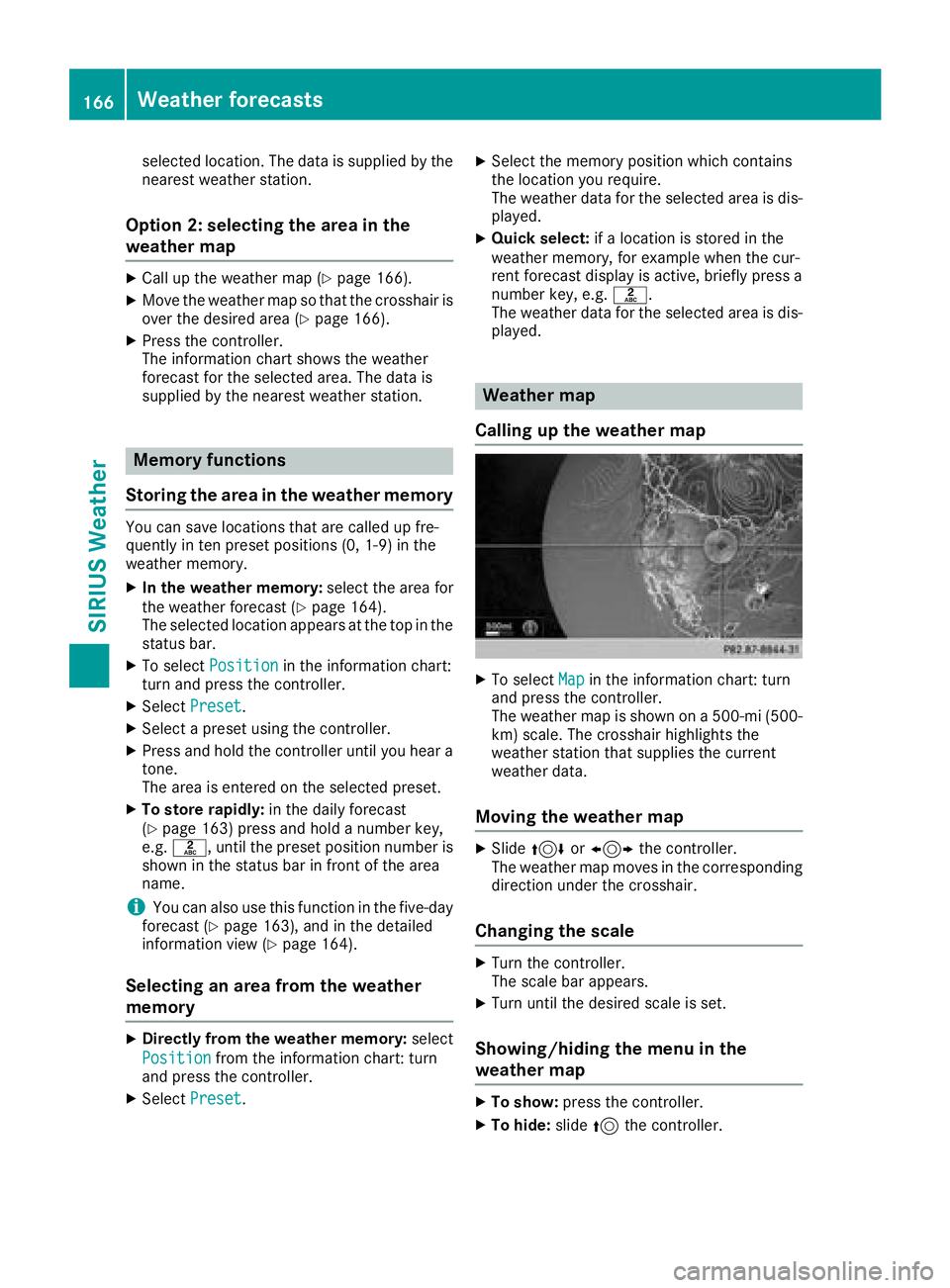
Calling up the weather map
XTo select Mapin the information chart: turn
and press the controller.
The weather map is shown on a 500-mi (500-
km) scale. The crosshair highlights the
weather station that supplies the current
weather data.
Moving the weather map
XSlide 4 or1 the controller.
The weather map moves in the corresponding
direction under the crosshair.
Changing the scale
XTurn the controller.
The scale bar appears.
XTurn until the desired scale is set.
Showing/hiding the menu in the
weather map
XTo show: press the controller.
XTo hide:slide5the controller.
166Weather forecasts
SIRIUS Weather
Page 171 of 190

You can find out more information about cyclo-
nes in the Storm Guide (Ypage 170).
The following information is shown (if available):
Rname of the tropical storm and category
Rtime stamp
Rdirectional movement speed and path
Rmaximum wind speed
Propagation speed: the speed at which the
storm cell of a tropical cyclone is advancing.
A tropical storm is categorized according to
where it originated.
Region of origincategory
Atlantic, North
and South Pacific
OceansName of tropical low-
pressure system (Trop‐
ical Low Press.Sys.)
Atlantic, North
and South Pacific
OceansName of tropical storm
(Tropical Storm)
Atlantic, North
and South Pacific
OceansName of tropical storm
(Hurricane Category
3)
Displays hurricane cate-
gories 1 through 5
Northwestern
Pacific OceanName of tropical storm
(Tropical Low
Press. Sys.)
Northwestern
Pacific OceanName of tropical storm
(Tropical Cyclone)
Northwestern
Pacific OceanName of tropical storm
(Typhoon)
Northwestern
Pacific OceanName of tropical storm
(Super-Typhoon)
You can also see the time stamp for the weather
data on map scales of 50 miles and smaller.
The weather map shows wind directions and
wind speeds.
Legend (precipitation radar and storms)
XDisplay the menu on the weather map
(Ypage 166).
XTo selectView: turn and press the controller.
XSelectLegend.
iThe symbol for a tornadic storm is also valid
for a cyclone (mesocyclone).
Precipita-
tion typeColor scale
RainEleven shades from light to
heavy (light green to red)
MixedShades from light to heavy
(light purple to purple)
SnowShades from light to heavy
(light turquoise to turquoise)
Time stamp
The time stamp shows when the weather data
was created by the weather station.
A time stamp corresponds to the time at the
vehicle's current position. The changeover from
summer time to standard time is performed
automatically.
XDisplay the menu on the weather map
(Ypage 166).
XTo select View: turn and press the controller.
XSelectTime Stamp.
Changing to the information chart
XDisplay the menu on the weather map
(Ypage 166).
XTo select WeatherTable: turn and press the
controller.
Weather forecasts169
SIRIUS Weather
Page 172 of 190
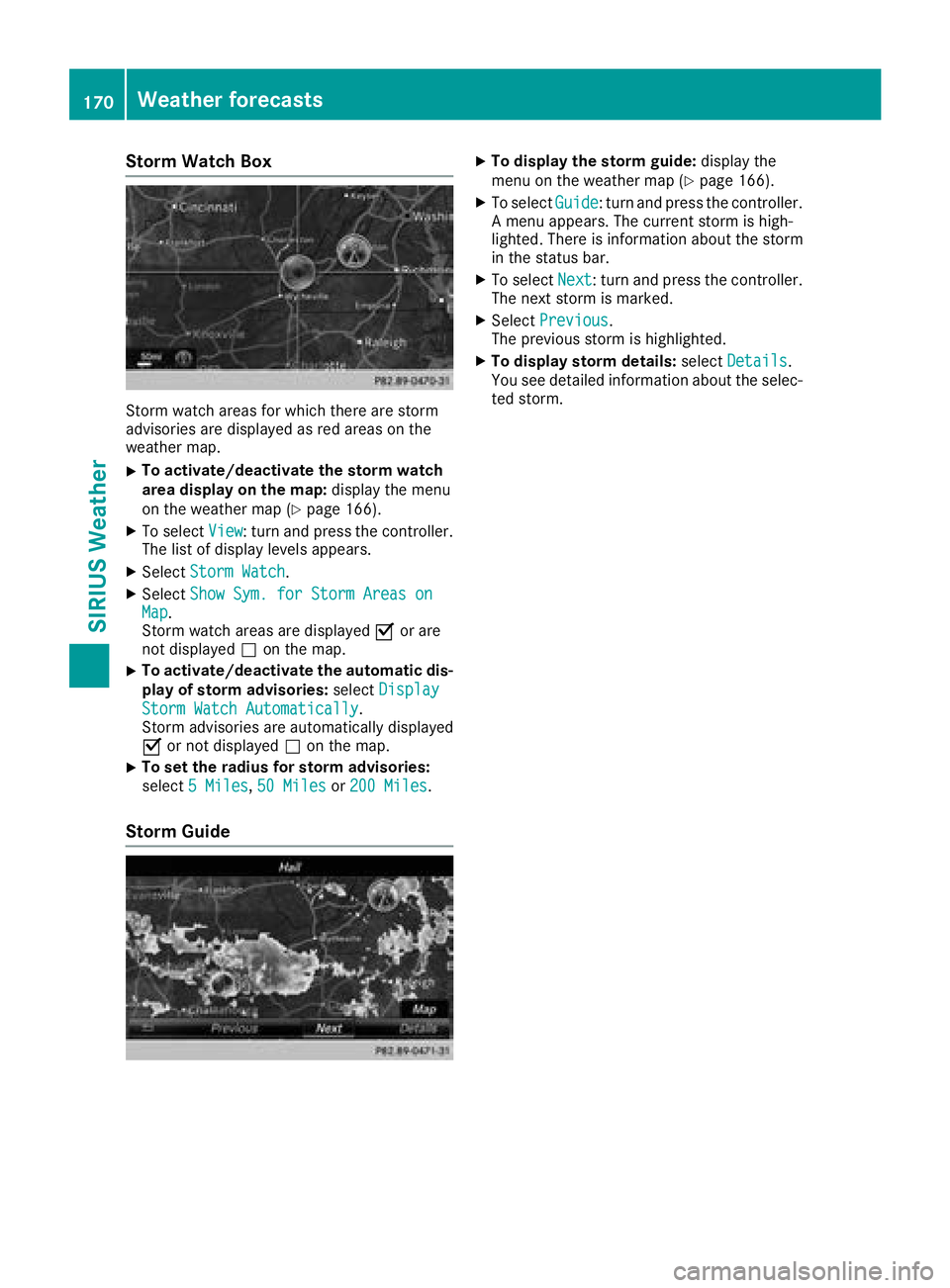
Storm Watch Box
Storm watch areas for which there are storm
advisories are displayed as red areas on the
weather map.
XTo activate/deactivate the storm watch
area display on the map:display the menu
on the weather map (
Ypage 166).
XTo select View: turn and press the controller.
The list of display levels appears.
XSelect Storm Watch.
XSelectShow Sym. for Storm Areas onMap.
Storm watch areas are displayed Oor are
not displayed ªon the map.
XTo activate/deactivate the automatic dis-
play of storm advisories: selectDisplay
Storm Watch Automatically.
Storm advisories are automatically displayed
O or not displayed ªon the map.
XTo set the radius for storm advisories:
select 5 Miles
,50 Milesor 200 Miles.
Storm Guide
XTo display the storm guide: display the
menu on the weather map (Ypage 166).
XTo select Guide: turn and press the controller.
A menu appears. The current storm is high-
lighted. There is information about the storm
in the status bar.
XTo select Next: turn and press the controller.
The next storm is marked.
XSelect Previous.
The previous storm is highlighted.
XTo display storm details: selectDetails.
You see detailed information about the selec-
ted storm.
170Weather forecasts
SIRIUS Weather
Page 174 of 190
The same AUX jacks (AUX drive) can be found in the rear-compartment drive (Ypage 173).
Remote control
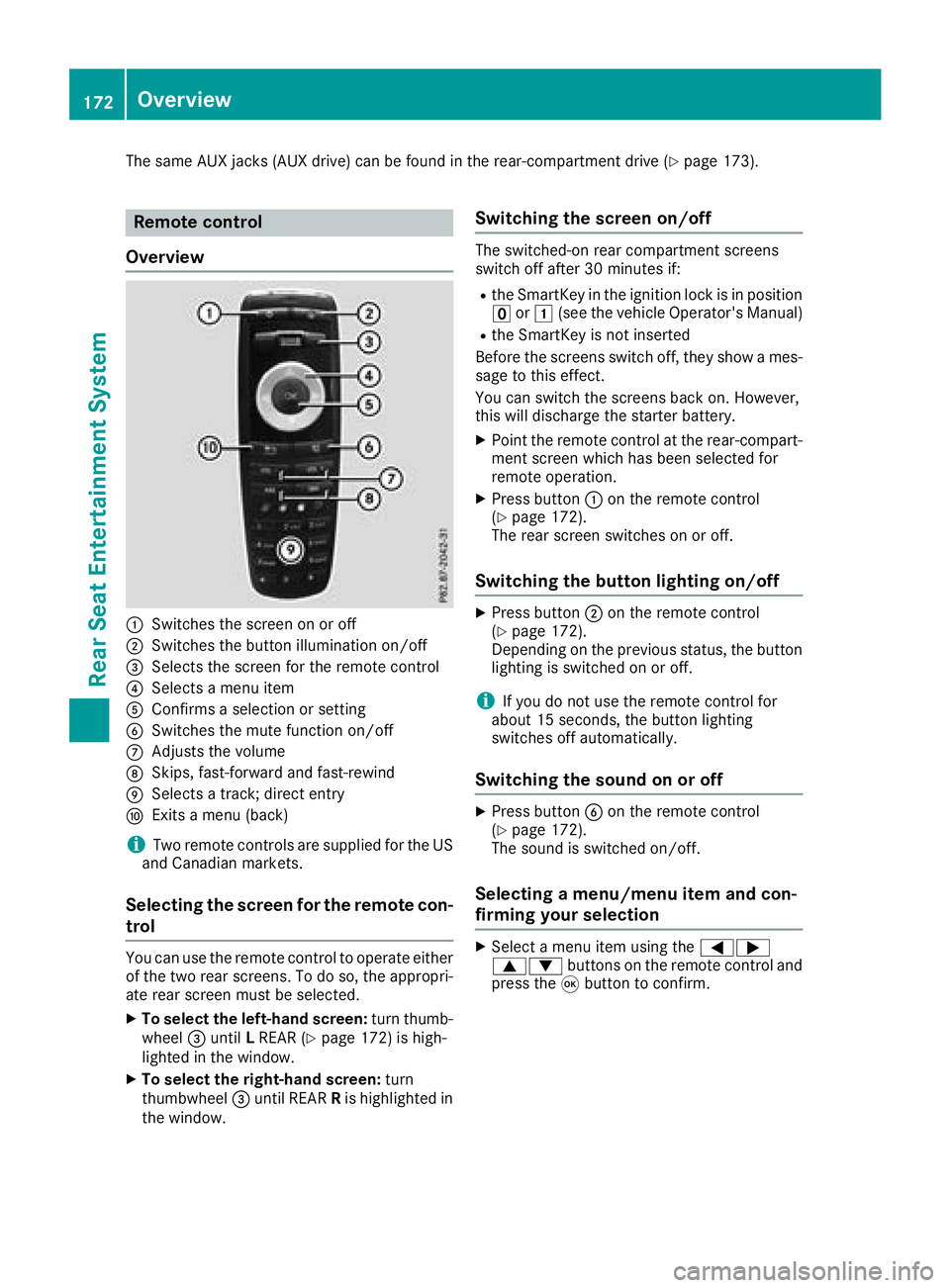
Overview
:Switches the screen on or off
;Switches the button illumination on/off
=Selects the screen for the remote control
?Selects a menu item
AConfirms a selection or setting
BSwitches the mute function on/off
CAdjusts the volume
DSkips, fast-forward and fast-rewind
ESelects a track; direct entry
FExits a menu (back)
iTwo remote controls are supplied for the US
and Canadian markets.
Selecting the screen for the remote con-
trol
You can use the remote control to operate either
of the two rear screens. To do so, the appropri-
ate rear screen must be selected.
XTo select the left-hand screen: turn thumb-
wheel =until LREAR (Ypage 172) is high-
lighted in the window.
XTo select the right-hand screen: turn
thumbwheel =until REAR Ris highlighted in
the window.
Switching the screen on/off
The switched-on rear compartment screens
switch off after 30 minutes if:
Rthe SmartKey in the ignition lock is in position u or1 (see the vehicle Operator's Manual)
Rthe SmartKey is not inserted
Before the screens switch off, they show a mes-
sage to this effect.
You can switch the screens back on. However,
this will discharge the starter battery.
XPoint the remote control at the rear-compart-
ment screen which has been selected for
remote operation.
XPress button :on the remote control
(Ypage 172).
The rear screen switches on or off.
Switching the button lighting on/off
XPress button ;on the remote control
(Ypage 172).
Depending on the previous status, the button
lighting is switched on or off.
iIf you do not use the remote control for
about 15 seconds, the button lighting
switches off automatically.
Switching the sound on or off
XPress button Bon the remote control
(Ypage 172).
The sound is switched on/off.
Selecting a menu/menu item and con-
firming your selection
XSelect a menu item using the =;
9: buttons on the remote control and
press the 9button to confirm.
172Overview
Rear Seat Entertainment System
Page 177 of 190
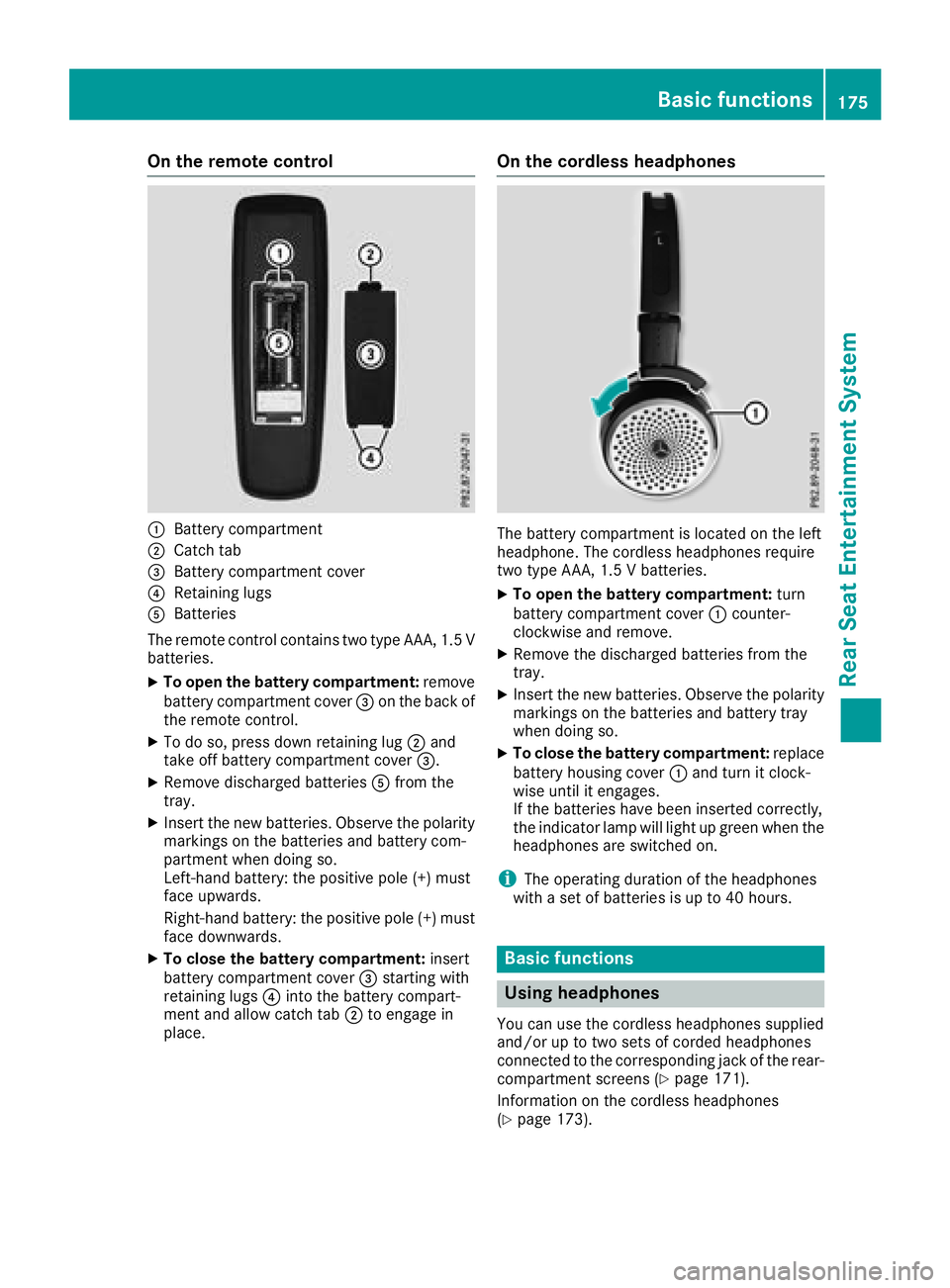
On the remote control
:Battery compartment
;Catch tab
=Battery compartment cover
?Retaining lugs
ABatteries
The remote control contains two type AAA, 1.5 V
batteries.
XTo open the battery compartment: remove
battery compartment cover =on the back of
the remote control.
XTo do so, press down retaining lug ;and
take off battery compartment cover =.
XRemove discharged batteriesAfrom the
tray.
XInsert the new batteries. Observe the polarity markings on the batteries and battery com-
partment when doing so.
Left-hand battery: the positive pole (+) must
face upwards.
Right-hand battery: the positive pole (+) must
face downwards.
XTo close the battery compartment: insert
battery compartment cover =starting with
retaining lugs ?into the battery compart-
ment and allow catch tab ;to engage in
place.
On the cordless headphones
The battery compartment is located on the left
headphone. The cordless headphones require
two type AAA, 1.5 V batteries.
XTo open the battery compartment: turn
battery compartment cover :counter-
clockwise and remove.
XRemove the discharged batteries from the
tray.
XInsert the new batteries. Observe the polarity markings on the batteries and battery tray
when doing so.
XTo close the battery compartment: replace
battery housing cover :and turn it clock-
wise until it engages.
If the batteries have been inserted correctly,
the indicator lamp will light up green when the
headphones are switched on.
iThe operating duration of the headphones
with a set of batteries is up to 40 hours.
Basic functions
Using headphones
You can use the cordless headphones supplied
and/or up to two sets of corded headphones
connected to the corresponding jack of the rear-
compartment screens (
Ypage 171).
Information on the cordless headphones
(
Ypage 173).
Basic functions175
Rear Seat Entertainment System
Z
Page 179 of 190

XSelectDVD-Videousing the :=;
buttons and press the 9button to confirm.
XSelect Brightness,Contrastor Colorusing the 9: buttons and press the 9
button to confirm.
A scale appears.
XSelect a setting using the 9:buttons
and press the 9button to confirm.
Changing the picture format
XTo show the menu: press the9button on
the remote control.
XSelect DVD-Videousing the :=;
buttons and press the 9button to confirm.
The dot in front of one of the menu items
16:9
, 4:3or Zoomshows the currently set
picture format.
XSelect a format using the 9:buttons
and press the 9button to confirm.
System settings
Note
You can adjust all system settings individually
for each rear screen without affecting the other
screen.
Selecting the display language
XSelect Systemusing the 9=; but-
tons on the remote control and press 9to
confirm.
You see the system menu on the selected rear screen.
XSelect Settingsusing the :button and
press 9to confirm.
XPress the 9button to confirm Language.
The list of languages appears. The #dot indi-
cates the current setting.
XSelect a language using the 9:but-
tons and press the 9button to confirm.
The Rear Seat Entertainment System sets the
selected language.
Switching the display design
XSelect Settingsusing the :button and
press 9to confirm.
XSelect Day Mode,Night Modeor Automaticwith the 9: buttons and confirm with
the 9button.
The dot indicates the current setting.
DesignExplanation
Day ModeThe display is set perma-
nently to day design.
Night ModeThe display is set perma-
nently to night design.
AutomaticThe display design
changes depending on
the vehicle instrument
cluster illumination.
Setting the brightness
XSelect Settingsusing the :button and
press 9to confirm.
XSelect Brightnesswith the 9: but-
tons and confirm with the 9button.
A scale appears.
XAdjust the brightness using the 9:
buttons and press the 9button to confirm.
The bar moves up or down. The picture
becomes lighter or darker.
Showing/hiding the picture
XTo hide the picture: selectDisplayin the
system menu using the :;buttons on
the remote control and press the 9button to
confirm.
The picture is hidden.
XTo display the picture: press the9button.
Audio CD/DVD and MP3 mode
Important safety notes
GWARNING
The CD/DVD drive is a class 1 laser product.
If you open the housing of the CD/DVD drive,
there is a risk of exposure to invisible laser
Audio CD/DVD and MP3 mode177
Rear Seat Entertainment System
Z
Page 182 of 190
XTo pause playback:press the9button in
full-screen mode.
The Ë display changes to Ì.
XSelectËusing the :=; but-
tons on the remote control and confirm with
the 9button.
The Ë display changes to Ì.
XTo continue playback: selectÌand
press the 9button to confirm.
The Ì display changes to Ë.
Stop function
This function is available in audio DVD mode.
XTo interrupt playback: press the9button
in full-screen mode.
XSelect Éusing the :=; but-
tons on the remote control and confirm with
the 9button.
The Ë display changes to Ì.
XTo continue playback: selectÌand
press the 9button to confirm.
Playback continues from the point where it
was interrupted.
XTo stop playback: while playback is inter-
rupted, select Éagain and press the 9
button to confirm.
Playback stops and returns to the beginning
of the DVD. Ìis highlighted.
XTo restart playback: selectÌand press
the 9button to confirm.
Playback starts from the beginning of the
DVD.
Setting the audio format
The content of an audio DVD can be split into a
maximum of nine groups. The availability and
type of group depends on the respective DVD. A
group can contain music of different sound qual-
ities (stereo and multichannel formats, for
example), or bonus tracks.
XIn full-screen mode press the 9button.
XSelect DVD-Ausing the :=; but-
tons on the remote control and press 9to
confirm.
XSelect Groupusing the 9: buttons
and press the 9button to confirm.
The list of available audio formats appears.
The #dot indicates the format currently
selected.
XSelect an audio format using the 9:
buttons and press the 9button to confirm.
XTo exit the menu: press the=or;
button.
Playback options
XSelect CD,DVD-Aor MP3using
the :=; buttons on the remote
control and press the 9button to confirm.
A list appears. The #dot indicates the play-
back option currently selected.
XSelect Normal Track Sequence,RandomTracksor Random Folderusing the
9: buttons and press the 9button to
confirm.
The option is switched on. For all options
except Normal Track Sequence
, you will
see a corresponding display in the selection
window.
iIf you switch the data carrier which you are
currently listening to, the Normal Track
Sequenceoption is activated automatically. If
an option is selected, it remains selected after
the Rear Seat Entertainment System is
switched on or off.
Switching track information on/off
(MP3 mode only)
If the function is switched on, folder and track
names are displayed.
If the function is switched off, disc and file
names are displayed.
XSelect MP3using the :=; buttons
on the remote control and press the 9button
to confirm.
XSelect Display Track Informationusing
the 9: buttons and press the 9but-
ton to confirm.
The function is switched on Oor off ª,
depending on the previous status.
180Audio CD/DVD and MP3 mode
Rear Seat Entertainment System
Page 184 of 190
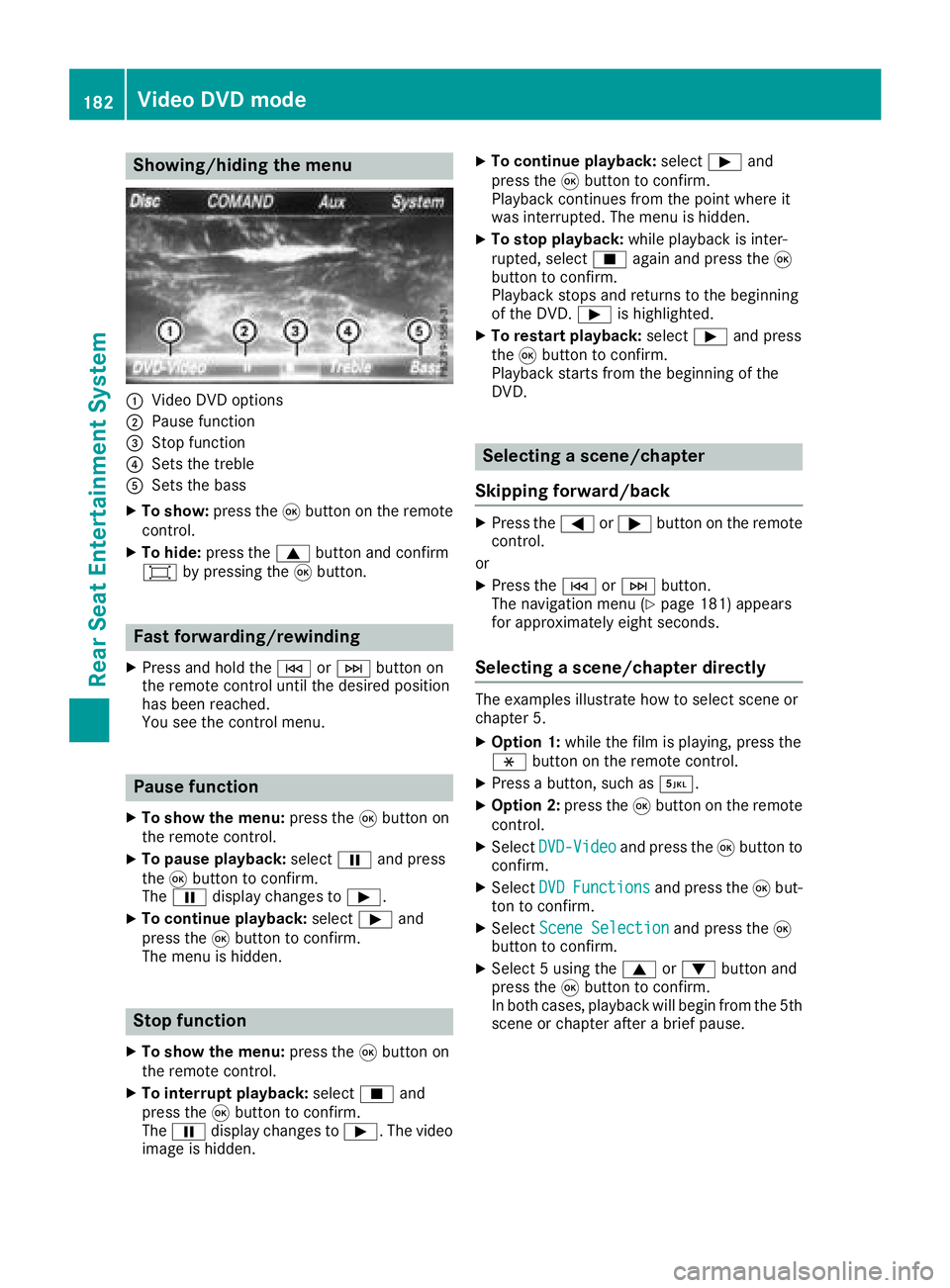
Showing/hiding the menu
:Video DVD options
;Pause function
=Stop function
?Sets the treble
ASets the bass
XTo show:press the9button on the remote
control.
XTo hide: press the 9button and confirm
# by pressing the 9button.
Fast forwarding/rewinding
XPress and hold the EorF button on
the remote control until the desired position
has been reached.
You see the control menu.
Pause function
XTo show the menu: press the9button on
the remote control.
XTo pause playback: selectËand press
the 9button to confirm.
The Ë display changes to Ì.
XTo continue playback: selectÌand
press the 9button to confirm.
The menu is hidden.
Stop function
XTo show the menu: press the9button on
the remote control.
XTo interrupt playback: selectÉand
press the 9button to confirm.
The Ë display changes to Ì. The video
image is hidden.
XTo continue playback: selectÌand
press the 9button to confirm.
Playback continues from the point where it
was interrupted. The menu is hidden.
XTo stop playback: while playback is inter-
rupted, select Éagain and press the 9
button to confirm.
Playback stops and returns to the beginning
of the DVD. Ìis highlighted.
XTo restart playback: selectÌand press
the 9button to confirm.
Playback starts from the beginning of the
DVD.
Selecting a scene/chapter
Skipping forward/back
XPress the =or; button on the remote
control.
or
XPress the EorF button.
The navigation menu (Ypage 181) appears
for approximately eight seconds.
Selecting a scene/chapter directly
The examples illustrate how to select scene or
chapter 5.
XOption 1: while the film is playing, press the
h button on the remote control.
XPress a button, such as ¿.
XOption 2:press the9button on the remote
control.
XSelect DVD-Videoand press the 9button to
confirm.
XSelect DVDFunctionsand press the 9but-
ton to confirm.
XSelect Scene Selectionand press the 9
button to confirm.
XSelect 5 using the 9or: button and
press the 9button to confirm.
In both cases, playback will begin from the 5th
scene or chapter after a brief pause.
182Video DVD mode
Rear Seat Entertainment System
Page 186 of 190
tings is determined by the DVD content. It may
also be possible to access the settings from the
DVD menu. This function is not available on all
DVDs.
XTo show the menu:press the9button on
the remote control.
XSelect DVD-Videoand press the 9button on
the remote control to confirm.
XSelect DVDFunctionsand press the 9but-
ton to confirm.
XSelect Audio Languageand press the 9
button to confirm.
A menu appears after a short while. The #dot
indicates the currently set language.
XSelect a language using the 9:but-
tons and press the 9button to confirm.
Subtitles and camera angle
These functions are not available on all DVDs.
The number of subtitle languages and camera
angles available depends on the content of the
DVD. It may also be possible to access the set-
tings from the DVD menu.
XTo show the menu: press the9button on
the remote control.
XSelect DVD-Videoand press the 9button on
the remote control to confirm.
XSelect DVDFunctionsand press the 9but-
ton to confirm.
XSelect SubtitlesorCamera Angleand
press the 9button to confirm.
In both cases, a menu appears after a few
seconds. The #dot indicates the current set-
ting.
XSelect a setting using the 9:buttons
and press the 9button to confirm.
Interactive content
DVDs can also contain interactive content (e.g.
a video game). In a video game, you may be able
to influence events, for example, by selecting
and triggering actions. The type and number of
actions depend on the DVD.
XSelect an action using the
9;:= buttons on the remote
control and press the 9button to execute it.
A menu appears and the first entry, Select
, is
highlighted.
XPress the 9button.
Active COMAND media source mode
Overview
You can transfer a media source selected in the
multimedia system to the Rear Seat Entertain-
ment System. If you switch the media source in
the multimedia system, this will not be transfer-
red to the Rear Seat Entertainment System.
You can transfer these media sources to the
Rear Seat Entertainment System:
RRadio
RCD or MP3 mode (CD, SD card, USB)
RMedia Interface
RVideo DVD mode
Follow the sequence described below when
playing a media source from the multimedia
system on the Rear Seat Entertainment System.
1. Switching on the function in the
multimedia system
XSwitch on the radio (Ypage 130).
XSwitch CD or MP3 mode on (CD, SD card,
USB) (Ypage 138).
XSwitch on the media interface (Ypage 152).
XSwitch to video DVD mode (Ypage 154).
184Active COMAND media source mode
Rear Seat Entertainment System
Page 187 of 190
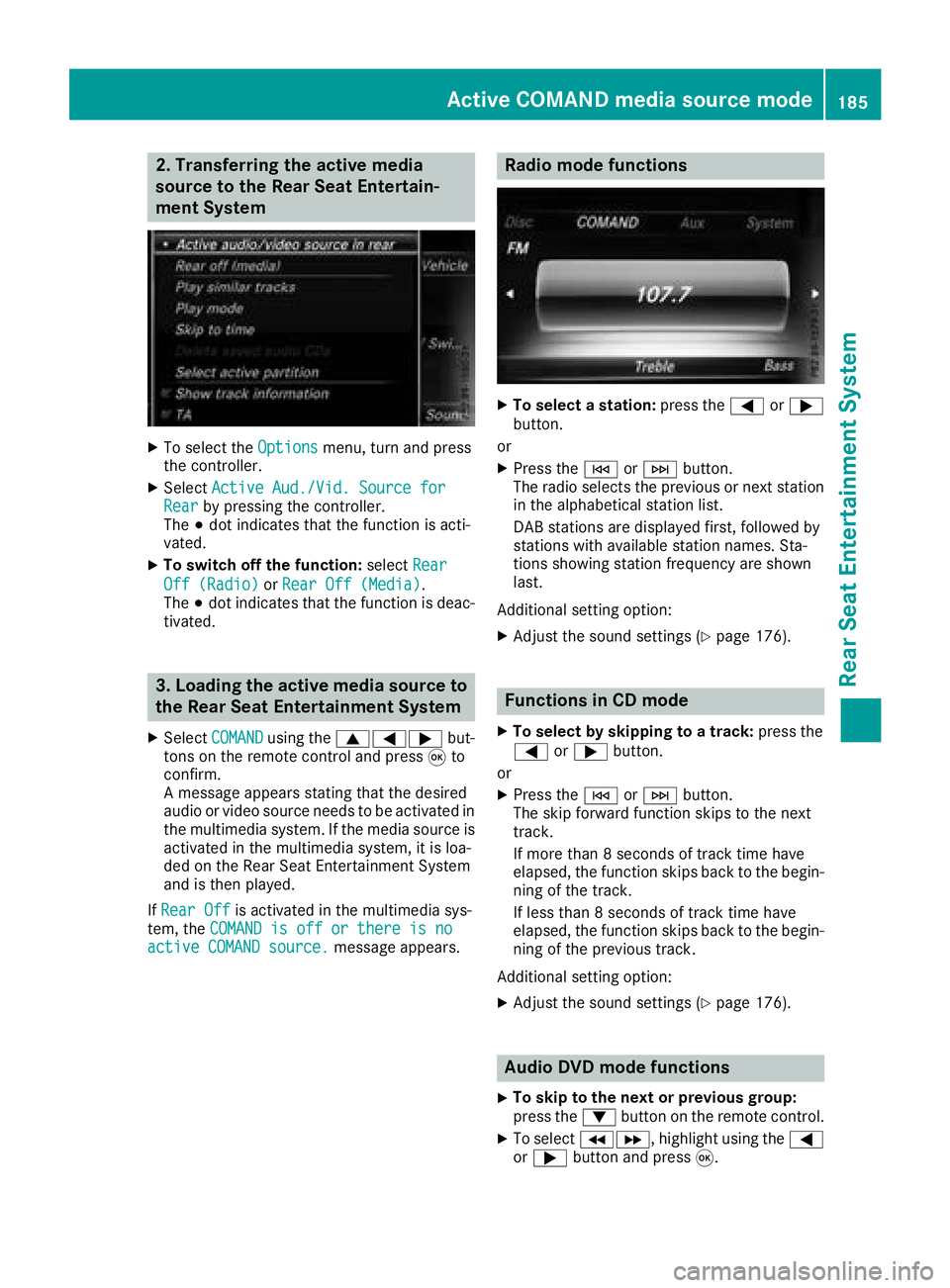
2. Transferring the active media
source to the Rear Seat Entertain-
ment System
XTo select theOptionsmenu, turn and press
the controller.
XSelect Active Aud./Vid. Source forRearby pressing the controller.
The #dot indicates that the function is acti-
vated.
XTo switch off the function: selectRear
Off (Radio)orRear Off (Media).
The #dot indicates that the function is deac-
tivated.
3. Loading the active media source to
the Rear Seat Entertainment System
XSelect COMANDusing the 9=; but-
tons on the remote control and press 9to
confirm.
A message appears stating that the desired
audio or video source needs to be activated in
the multimedia system. If the media source is
activated in the multimedia system, it is loa-
ded on the Rear Seat Entertainment System
and is then played.
If Rear Off
is activated in the multimedia sys-
tem, the COMAND is off or there is no
active COMAND source.message appears.
Radio mode functions
XTo select a station: press the=or;
button.
or
XPress the EorF button.
The radio selects the previous or next station in the alphabetical station list.
DAB stations are displayed first, followed by
stations with available station names. Sta-
tions showing station frequency are shown
last.
Additional setting option:
XAdjust the sound settings (Ypage 176).
Functions in CD mode
XTo select by skipping to a track: press the
= or; button.
or
XPress the EorF button.
The skip forward function skips to the next
track.
If more than 8 seconds of track time have
elapsed, the function skips back to the begin-
ning of the track.
If less than 8 seconds of track time have
elapsed, the function skips back to the begin-
ning of the previous track.
Additional setting option:
XAdjust the sound settings (Ypage 176).
Audio DVD mode functions
XTo skip to the next or previous group:
press the :button on the remote control.
XTo select KL, highlight using the =
or ; button and press 9.
Active COMAND media source mode185
Rear Seat Entertainment System
Z