audio MERCEDES-BENZ GLA SUV 2018 Owner's Manual
[x] Cancel search | Manufacturer: MERCEDES-BENZ, Model Year: 2018, Model line: GLA SUV, Model: MERCEDES-BENZ GLA SUV 2018Pages: 338, PDF Size: 5.59 MB
Page 7 of 338
Hiding a service message .............. 273
Information about Service .............274
Resetting the service interval dis-
play ................................................ 274
Service message ............................ 273
Special service requirements ......... 274
ATA (Anti-Theft Alarm system)
Activating/deactivating ................... 67
Function ...........................................6 7
Switching off the alarm .................... 67
ATTENTION ASSIST
Activating/deactivating ................. 195
Display message ............................ 216
Function/notes ............................. 180
Audio 20
Driving dynamics display ............... 168
Audio menu (on-board computer) .... 191
Audio system
see Digital Operator's Manual
Authorized Mercedes-Benz Center
see Qualified specialist workshop
Authorized workshop
see Qualified specialist workshop
AUTO lights
Display message ............................ 213
see Lights
Automatic car wash (care) ............... 274
Automatic engine start (ECO start/
stop function) .................................... 128
Automatic engine switch-off (ECO
start/stop function) .......................... 128
Automatic headlamp mode .............. 101
Automatic transmission
Accelerator pedal position ............. 135
Changing gear ............................... 135
DIRECT SELECT lever ..................... 132
Drive program ................................ 136
Drive program display .................... 132
Driving tips .................................... 135
DYNAMIC SELECT button (all vehi-
cles except Mercedes-AMG vehi-
cles) ............................................... 130
DYNAMIC SELECT controller
(Mercedes-AMG vehicles) .............. 131
Emergency running mode .............. 140
Engaging drive position .................. 134
Engaging neutral ............................ 133 Engaging park position
(Mercedes-AMG vehicles) .............. 134
Engaging park position automati-
call
y ............................................... 133
Engaging reverse gear ................... 133
Engaging the park position ............ 132
Holding the vehicle stationary on
uphill gradients .............................. 136
Kickdown ....................................... 136
Manual shifting .............................. 138
Oil temperature (on-board com-
puter, Mercedes-AMG vehicles) ..... 197
Overview ........................................ 132
Problem (malfunction) ................... 140
Pulling away ................................... 127
Selector lever ................................ 134
Starting the engine ........................ 126
Steering wheel paddle shifters ...... 138
Transmission position display ........ 134
Transmission position display
(DIRECT SELECT lever) ................... 132
Transmission positions .................. 135
Automatic transmission emer-
gency mode ....................................... 140
B
Back button ....................................... 240
Backup lamp
Display message ............................ 212
Bag hook ............................................ 252
BAS (Brake Assist System) ................. 61
Basic settings
see Settings
Battery (SmartKey)
Checking .......................................... 72
Important safety notes .................... 72
Replacing ......................................... 72
Battery (vehicle)
Charging ........................................ 290
Display message ............................ 215
Important safety notes .................. 288
Jump starting ................................. 291
Belt
see Seat belts
Belt warning ......................................... 43
Index5
Page 15 of 338
Display message ............................ 217
Function/information .................... 183
Lane Tracking package ..................... 181
Lap time (RACETIMER) ...................... 198
LATCH-type (ISOFIX) child seat
anchors ................................................ 56
License plate lamp (display mes-
sage) ................................................... 212
Light sensor (display message) ....... 213
Lights
Automatic headlamp mode ............ 101
Cornering light function ................. 103
Fog lamps ...................................... 102
Fogged up headlamps .................... 104
Hazard warning lamps ................... 103
High beam flasher .......................... 103
High-beam headlamps ................... 103
Light switch ................................... 101
Low-beam headlamps .................... 102
Parking lamps ................................ 102
Rear fog lamp ................................ 102
Setting exterior lighting ................. 101
Standing lamps .............................. 102
Switching the daytime running
lamps on/off (on-board com-
puter) ............................................. 196
Turn signals ................................... 103
Loading guidelines ............................ 247
Locking
see Central locking
Locking (doors)
Automatic ........................................ 76
Emergency locking ........................... 77
From inside (central locking but-
ton) .................................................. 75
Locking centrally
see Central locking
Locking verification signal (on-
board computer) ............................... 197
Low-beam headlamps
Display message ............................ 211
Replacing bulbs ............................. 106
Switching on/off ........................... 102
Lubricant additives
see Additives (
engine oil) Lumbar support
Adjusting the 4-way lumbar sup-
port .................................................. 95
M
M+S tires ............................................ 301
Malfunction message
see Display messages
Matte finish (cleaning instruc-
tions) .................................................. 276
mbrace
Call priority .................................... 260
Display message ............................ 206
Downloading destinations
(COMAND) ..................................... 261
Downloading routes ....................... 263
Emergency call .............................. 258
General notes ................................ 257
Geo fencing ................................... 264
Locating a stolen vehicle ............... 262
MB info call button ........................ 260
Remote fault diagnosis .................. 263
Remote vehicle locking .................. 262
Roadside assistance button ........... 259
Search & Send ............................... 261
Self-test ......................................... 257
Speed alert .................................... 263
System .......................................... 257
Triggering the vehicle alarm ........... 264
Vehicle remote unlocking .............. 262
Mechanical key
Function/notes ................................ 71
Inserting .......................................... 72
Locking vehicle ................................ 77
Removing ......................................... 71
Unlocking the driver's door .............. 76
Memory card (audio) ......................... 192
Memory function ................................. 99
Message memory (on-board com-
puter) .................................................. 200
Messages
see Display messages
Mirror turn signal
Cleaning ......................................... 278
Mirrors
see Exterior mirrors
see Rear-view mirror
Index13
Page 17 of 338
On-board computerAMG menu .................................... .197
Assistance graphic menu ...............1 94
Assistance menu ........................... 193
Audio menu ................................... 191
Convenience submenu .................. 197
Display messages .......................... 200
Displaying a service message ........2 73
Factory settings .............................1 97
Important safety notes .................. 185
Instrument cluster submenu .......... 195
Lighting submenu .......................... 196
Menu overview .............................. 188
Message memory .......................... 200
Navigation menu ............................ 190
Operation ....................................... 186
RACETIMER ................................... 198
Service menu ................................. 195
Settings menu ............................... 195
Standard display ............................ 189
Telephone menu ............................ 192
Trip menu ...................................... 189
Vehicle submenu ........................... 196
Video DVD operation ..................... 192
On-board diagnostic interface
see Diagnostics connection
Opening and closing the side trim
panels ................................................. 107
Operating safety
Declaration of conformity ................ 27
Operating system
see On-board computer
Operation
Digital Operator's Manual ................ 24
Operator's Manual
Vehicle equipment ........................... 26
Outside temperature display ........... 185
Overhead control panel ...................... 38
Override feature
Rear side windows ........................... 59
P
Paint code number ............................ 327
Paintwork (cleaning instructions) ... 276
Panic alarm .......................................... 39 Panorama roof with power tilt/
sliding panel
Important safety notes .................... 87
Operating ......................................... 88
Operating the roller sunblinds for
the sliding sunroof ........................... 88
Problem (malfunction) ..................... 90
Reversing feature ............................. 87
Parcel shelf ........................................ 252
Parking
Important safety notes .................. 143
Parking brake ................................ 144
Parking position for the exterior
mirror on the front-passenger
side .................................................. 99
Rear view camera .......................... 175
Parking aid
see Exterior mirrors
see Rear view camera
Parking Assist PARKTRONIC
Deactivating/activating ................. 170
Driving system ............................... 168
Function/notes ............................. 168
Important safety notes .................. 168
Problems (malfunctions) ................ 171
Sensor range ................................. 169
Warning display ............................. 170
Parking assistance
see Parking Assist PARKTRONIC
Parking brake
Applying automatically ................... 145
Applying or releasing manually ...... 144
Display message ............................ 203
Electric parking brake .................... 144
Emergency braking ........................ 145
General notes ................................ 144
Releasing automatically ................. 145
Warning lamp ................................. 234
Parking lamps
Switching on/off ........................... 102
Parking Pilot
Canceling ....................................... 175
Detecting parking spaces .............. 172
Display Message ............................ 217
Exiting a parking space .................. 174
Function/notes ............................. 171
Important safety notes .................. 171
Parking .......................................... 173
Index15
Page 27 of 338
Protecting the environment
General notes
HEnvironmental note
Daimler's declared policy is one of compre-
hensive environmental protection.
The objectives are for the natural resources
that form the basis of our existence on this
planet to be used sparingly and in a manner
that takes the requirements of both nature
and humanity into account.
You too can help to protect the environment
by operating your vehicle in an environmen-
tally responsible manner.
Fuel consumption and the rate of engine,
transmission, brake and tire wear are affected by these factors:
Roperating conditions of your vehicle
Ryour personal driving style
You can influence both factors. You should
bear the following in mind:
Operating conditions:
Ravoid short trips as these increase fuel con-
sumption.
Ralways make sure that the tire pressures
are correct.
Rdo not carry any unnecessary weight.
Rremove roof racks once you no longer need
them.
Ra regularly serviced vehicle will contribute
to environmental protection. You should
therefore adhere to the service intervals.
Ralways have service work carried out at a
qualified specialist workshop.
Personal driving style:
Rdo not depress the accelerator pedal when
starting the engine.
Rdo not warm up the engine when the vehicle
is stationary.
Rdrive carefully and maintain a safe distance
from the vehicle in front.
Ravoid frequent, sudden acceleration and
braking.
Rchange gear in good time and use each gear
only up to Ôof its maximum engine speed.
Rswitch off the engine in stationary traffic.
Rkeep an eye on the vehicle's fuel consump-
tion.
Environmental concerns and recom-
mendations
Wherever the Operator's Manual requires you to
dispose of materials, first try to regenerate or re-
use them. Observe the relevant environmental
rules and regulations when disposing of materi-
als. In this way you will help to protect the envi-
ronment.
Genuine Mercedes-Benz parts
HEnvironmental note
Daimler AG also supplies reconditioned major
assemblies and parts which are of the same
quality as new parts. They are covered by the
same Limited Warranty entitlements as new
parts.
!Air bags and Emergency Tensioning Devi-
ces, as well as control units and sensors for
these restraint systems, may be installed in
the following areas of your vehicle:
Rdoors
Rdoor pillars
Rdoor sills
Rseats
Rcockpit
Rinstrument cluster
Rcenter console
Do not install accessories such as audio sys-
tems in these areas. Do not carry out repairs or welding. You could impair the operating
efficiency of the restraint systems.
Have aftermarket accessories installed at a
qualified specialist workshop.
You could jeopardize the operating safety of
your vehicle if you use parts, tires and wheels as
well as accessories relevant to safety which
have not been approved by Mercedes-Benz. This
could lead to malfunctions in safety-relevant
Genuine Mercedes-Benz parts25
Introduction
Z
Page 35 of 338
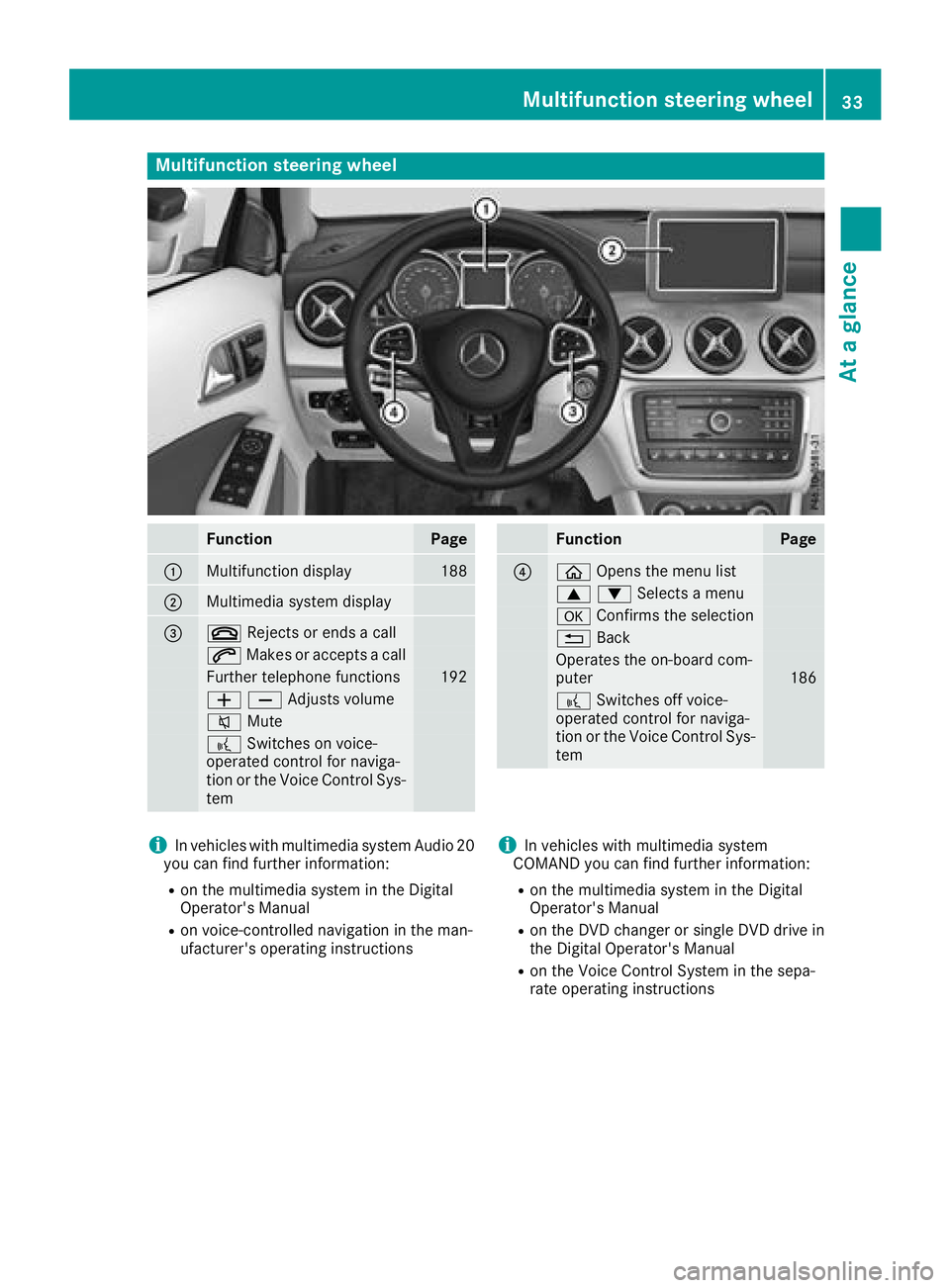
Multifunction steering wheel
FunctionPage
:Multifunction display188
;Multimedia system display
=~Rejects or ends a call
6Makes or accepts a call
Further telephone functions192
WXAdjusts volume
8 Mute
?Switches on voice-
operated control for naviga-
tion or the Voice Control Sys-
tem
FunctionPage
?ò Opens the menu list
9:Selects a menu
aConfirms the selection
%Back
Operates the on-board com-
puter186
?Switches off voice-
operated control for naviga-
tion or the Voice Control Sys-
tem
iIn vehicles with multimedia system Audio 20
you can find further information:
Ron the multimedia system in the Digital
Operator's Manual
Ron voice-controlled navigation in the man-
ufacturer's operating instructions
iIn vehicles with multimedia system
COMAND you can find further information:
Ron the multimedia system in the Digital
Operator's Manual
Ron the DVD changer or single DVD drive in
the Digital Operator's Manual
Ron the Voice Control System in the sepa-
rate operating instructions
Multifunction steering wheel33
At a glance
Page 189 of 338
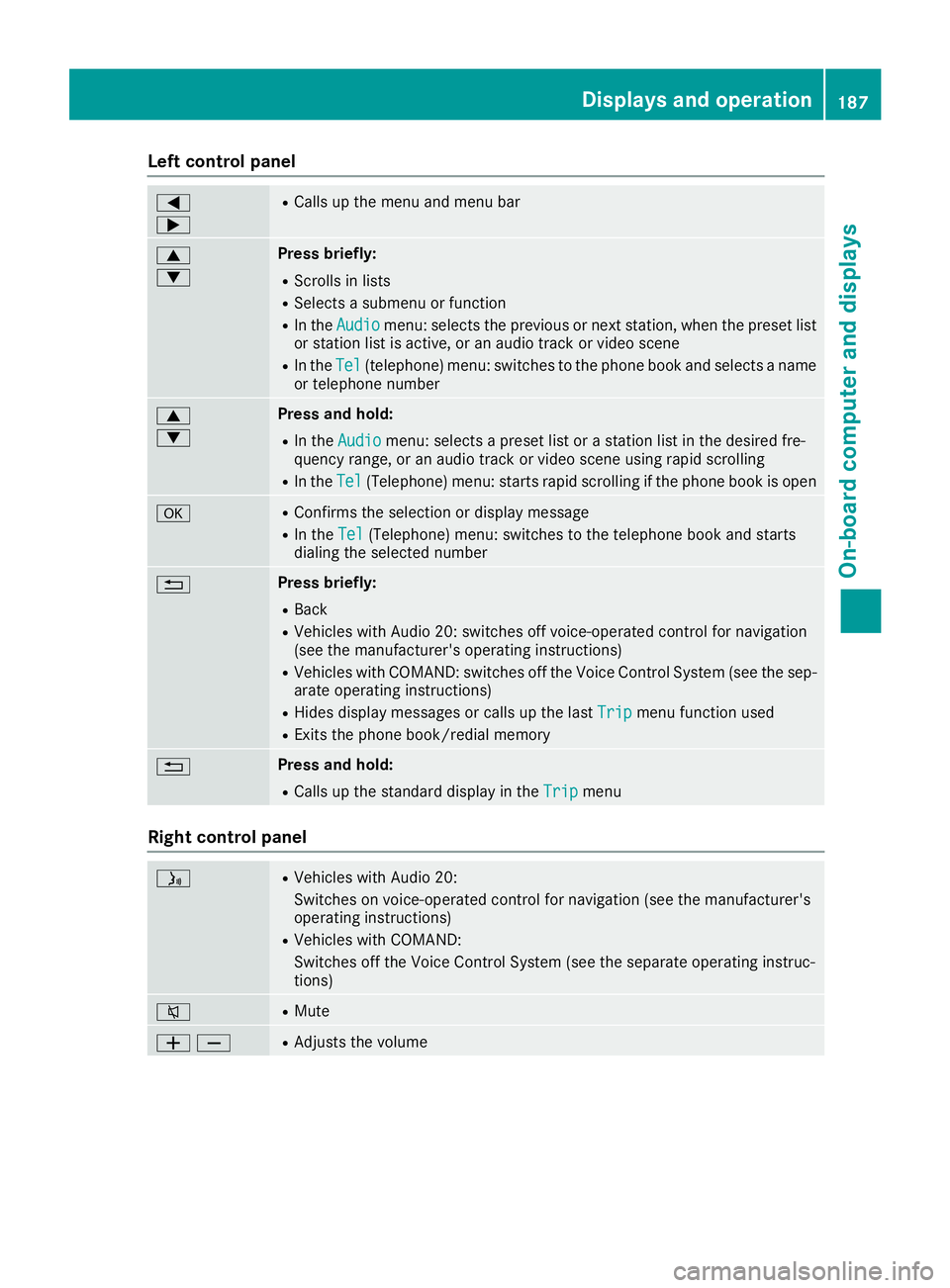
Left control panel
=
;RCalls up the menu and menu bar
9
:Press briefly:
RScrolls in lists
RSelects a submenu or function
RIn theAudiomenu: selects the previous or next station, when the preset list
or station list is active, or an audio track or video scene
RIn the Tel(telephone) menu: switches to the phone book and selects a name
or telephone number
9
:Press and hold:
RIn the Audiomenu: selects a preset list or a station list in the desired fre-
quency range, or an audio track or video scene using rapid scrolling
RIn the Tel(Telephone) menu: starts rapid scrolling if the phone book is open
aRConfirms the selection or display message
RIn the Tel(Telephone) menu: switches to the telephone book and starts
dialing the selected number
%Press briefly:
RBack
RVehicles with Audio 20: switches off voice-operated control for navigation
(see the manufacturer's operating instructions)
RVehicles with COMAND: switches off the Voice Control System (see the sep- arate operating instructions)
RHides display messages or calls up the last Tripmenu function used
RExits the phone book/redial memory
%Press and hold:
RCalls up the standard display in theTripmenu
Right control panel
óRVehicles with Audio 20:
Switches on voice-operated control for navigation (see the manufacturer's
operating instructions)
RVehicles with COMAND:
Switches off the Voice Control System (see the separate operating instruc-
tions)
8RMute
WXRAdjusts the volume
Displays and operation187
On-board computer and displays
Z
Page 190 of 338
~RRejects or endsacall
RExit sth ephon ebook/redial memory
6RMakes or accept s acall
RSwitches to th eredial memory
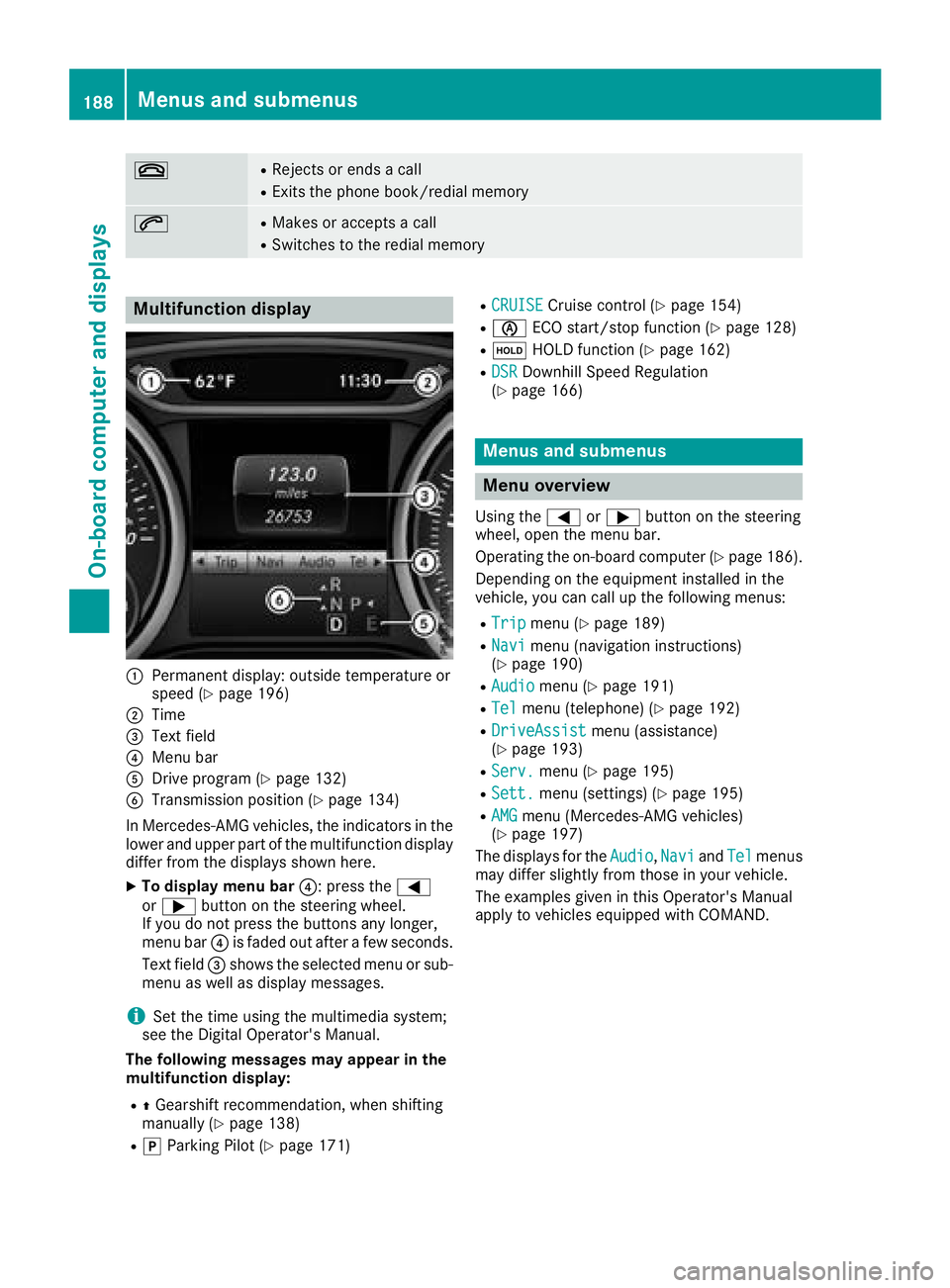
Multifunction display
:Permanen tdisplay: outside temperature or
spee d (Ypage 196)
;Time
=Textfield
?Men ubar
ADrive program (Ypage 132)
BTransmissionposition (Ypage 134)
In Mercedes-AM Gvehicles, th eindicators in th e
lower and upper part of th emultifunction display
differ from th edisplays shown here.
XTo displa ymen ubar ?:press th e=
or ; buttonon th esteering wheel.
If you do no tpress th ebuttons any longer ,
men ubar ?is fade dout after afew seconds.
Tex tfield =shows th eselected men uor sub-
men uas well as display messages.
iSe tth etime usin gth emultimedia system;
see th eDigital Operator's Manual.
Th efollowing messages ma yappea rin th e
multifunction display:
RZ Gearshif trecommendation ,when shifting
manually (Ypage 138)
RjParking Pilot (Ypage 171)
RCRUISECruisecontrol (Ypage 154)
RèECO start/sto pfunction (Ypage 128)
RëHOLD function (Ypage 162)
RDSRDownhill Speed Regulation
(Ypage 166)
Menus and submenus
Menu overview
Using th e= or; buttonon th esteering
wheel, open th emen ubar.
Operating th eon-board computer (
Ypage 186).
Dependin gon th eequipmen tinstalled in th e
vehicle, you can call up th efollowin gmenus:
RTri pmen u (Ypage 189)
RNavimen u(navigation instructions)
(Ypage 190)
RAudiomen u (Ypage 191)
RTelmenu(telephone) (Ypage 192)
RDriveAssistmenu(assistance)
(Ypage 193)
RServ.men u (Ypage 195)
RSett.menu(settings) (Ypage 195)
RAMGmenu(Mercedes-AM Gvehicles)
(Ypage 197)
The displays for th eAudio
,Nav iand Telmenus
may differ slightly from those in your vehicle.
The examples given in this Operator's Manual
apply to vehicles equipped wit hCOMAND .
188Menus and submenus
On-board computer and displays
Page 193 of 338
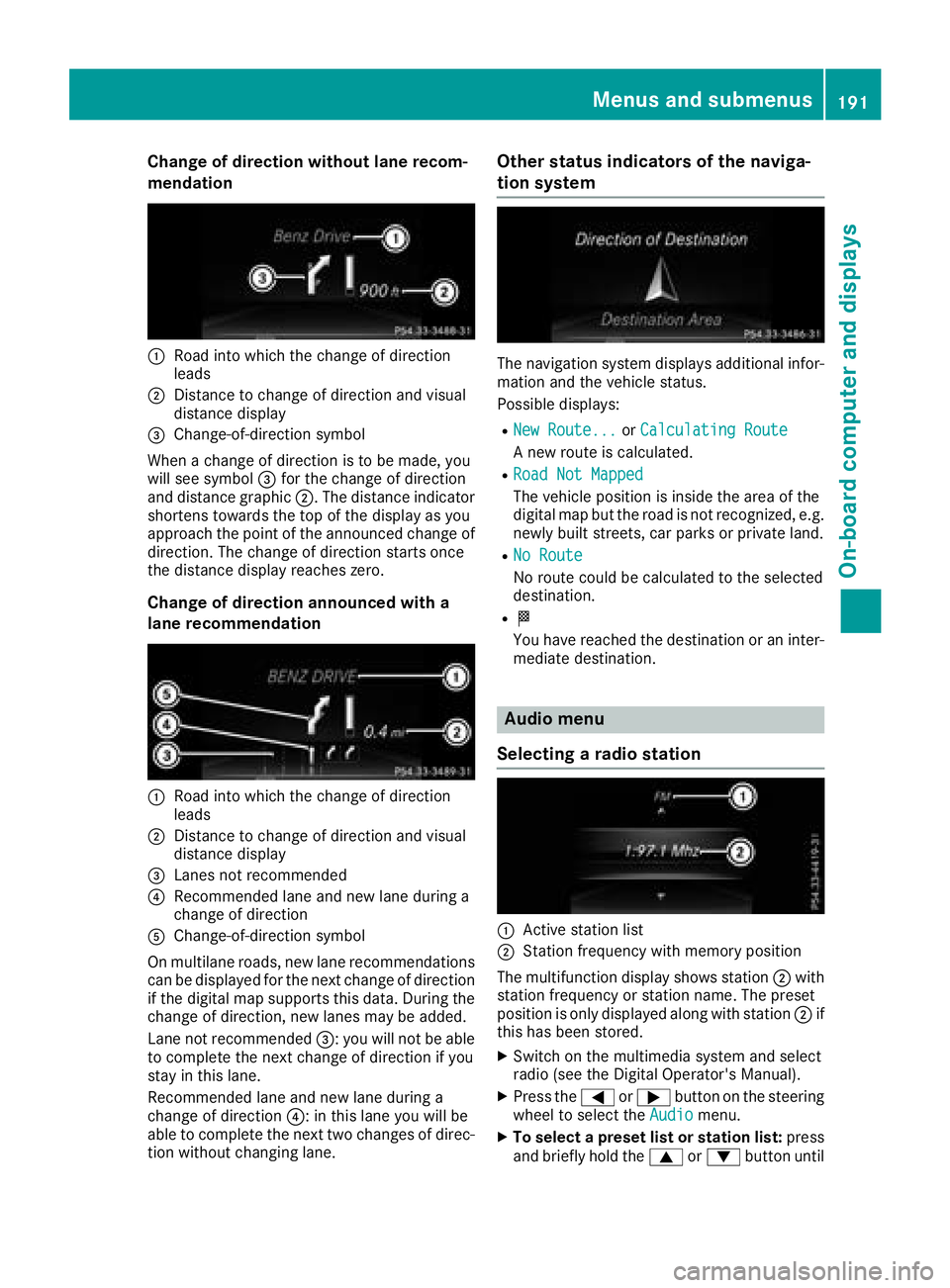
Change of direction without lane recom-
mendation
:Road into which the change of direction
leads
;Distance to change of direction and visual
distance display
=Change-of-direction symbol
When a change of direction is to be made, you
will see symbol =for the change of direction
and distance graphic ;. The distance indicator
shortens towards the top of the display as you
approach the point of the announced change of
direction. The change of direction starts once
the distance display reaches zero.
Change of direction announced with a
lane recommendation
:Road into which the change of direction
leads
;Distance to change of direction and visual
distance display
=Lanes not recommended
?Recommended lane and new lane during a
change of direction
AChange-of-direction symbol
On multilane roads, new lane recommendations can be displayed for the next change of direction
if the digital map supports this data. During the
change of direction, new lanes may be added.
Lane not recommended =: you will not be able
to complete the next change of direction if you
stay in this lane.
Recommended lane and new lane during a
change of direction ?: in this lane you will be
able to complete the next two changes of direc-
tion without changing lane.
Other status indicators of the naviga-
tion system
The navigation system displays additional infor-
mation and the vehicle status.
Possible displays:
RNew Route...or Calculating Route
A new route is calculated.
RRoad Not Mapped
The vehicle position is inside the area of the
digital map but the road is not recognized, e.g.
newly built streets, car parks or private land.
RNo Route
No route could be calculated to the selected
destination.
RO
You have reached the destination or an inter-
mediate destination.
Audio menu
Selecting a radio station
:Active station list
;Station frequency with memory position
The multifunction display shows station ;with
station frequency or station name. The preset
position is only displayed along with station ;if
this has been stored.
XSwitch on the multimedia system and select
radio (see the Digital Operator's Manual).
XPress the =or; button on the steering
wheel to select the Audiomenu.
XTo select a preset list or station list: press
and briefly hold the 9or: button until
Menus and submenus191
On-board computer and displays
Z
Page 194 of 338
the preset list or station list in the desired
frequency range is shown.
XTo select a station:briefly press9
or :.
iSIRIUS XM satellite radio functions like a
normal radio.
You can find further information on operation
in the "Satellite radio" section of the Digital
Operator's Manual for the multimedia sys-
tem.
Operating an audio player or audio
media
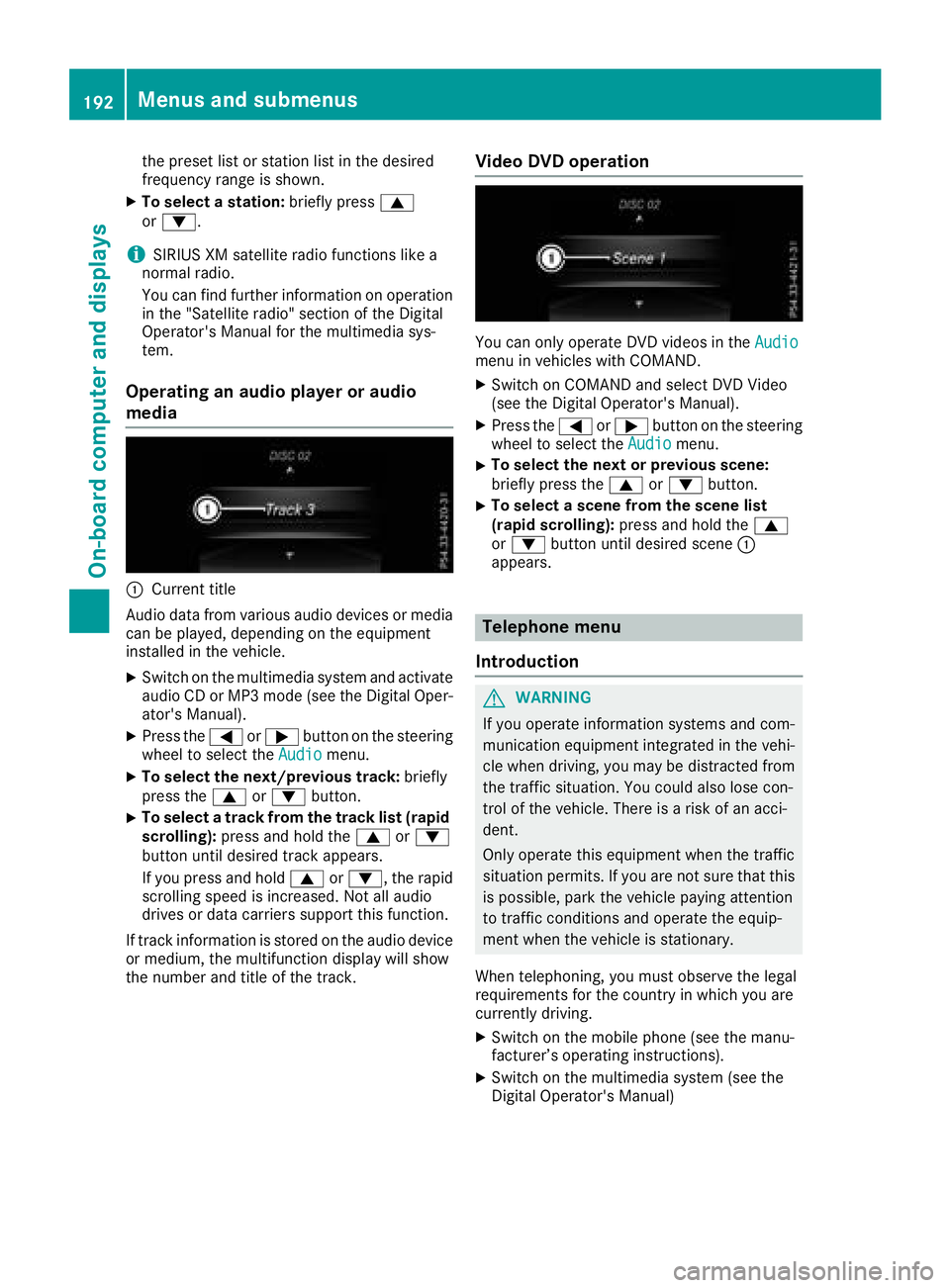
:Current title
Audio data from various audio devices or media
can be played, depending on the equipment
installed in the vehicle.
XSwitch on the multimedia system and activate
audio CD or MP3 mode (see the Digital Oper-
ator's Manual).
XPress the =or; button on the steering
wheel to select the Audiomenu.
XTo select the next/previous track: briefly
press the 9or: button.
XTo select a track from the track list (rapid
scrolling): press and hold the 9or:
button until desired track appears.
If you press and hold 9or:, the rapid
scrolling speed is increased. Not all audio
drives or data carriers support this function.
If track information is stored on the audio device
or medium, the multifunction display will show
the number and title of the track.
Video DVD operation
You can only operate DVD videos in the Audiomenu in vehicles with COMAND.
XSwitch on COMAND and select DVD Video
(see the Digital Operator's Manual).
XPress the=or; button on the steering
wheel to select the Audiomenu.
XTo select the next or previous scene:
briefly press the9or: button.
XTo select a scene from the scene list
(rapid scrolling): press and hold the 9
or : button until desired scene :
appears.
Telephone menu
Introduction
GWARNING
If you operate information systems and com-
munication equipment integrated in the vehi-
cle when driving, you may be distracted from
the traffic situation. You could also lose con-
trol of the vehicle. There is a risk of an acci-
dent.
Only operate this equipment when the traffic
situation permits. If you are not sure that this
is possible, park the vehicle paying attention
to traffic conditions and operate the equip-
ment when the vehicle is stationary.
When telephoning, you must observe the legal
requirements for the country in which you are
currently driving.
XSwitch on the mobile phone (see the manu-
facturer’s operating instructions).
XSwitch on the multimedia system (see the
Digital Operator's Manual)
192Menus and submenus
On-board computer and displays
Page 242 of 338
Operating system
Overview
General notes
!Do not use the space in front of the display
for storage. Objects placed here could dam-
age the display or impair its function. Avoid
any direct contact with the display surface.
Pressure on the display surface may result in
impairments to the display, which could be
irreversible.
Wearing polarized sunglasses may impair your
ability to read the display.
The display has an automatic temperature-con-
trolled switch-off feature. The brightness is
automatically reduced if the temperature is too
high. The display may temporarily switch off
completely.
Cleaning instructions
!Do not touch the display. The display has a
very sensitive high-gloss surface; there is a
risk of scratching. If you have to clean the
screen, however, use a mild cleaning agent
and a soft, lint-free cloth.
The display must be switched off and have
cooled down before you start cleaning. Do not
apply pressure to the display surface when
cleaning it, as this could cause irreversible dam-
age to the display.
Switching the multimedia system
on/off
XPress the qcontrol knob.
Adjusting the volume
XTurn the qcontrol knob.
The volume is adjusted:
Rfor the currently selected media source
Rduring traffic or navigation announcements
Rin hands-free mode during an active call
Switching the sound on or off
XPress the 8button on the control panel.
If the audio output is switched off, the status
line will show the 8symbol. If you switch the media source or set the volume, the sound
is automatically switched on.
iNavigation announcements will be heard
even if the sound is muted.
Functions
The multimedia system has the following func-
tions:
RRadio mode
RMedia mode with media search
RSound systems
RNavigation system
COMAND: navigation via the hard drive
Audio 20: navigation via SD card
RCommunication functions
RSIRIUS Weather (COMAND)
RVehicle functions with system settings
RFavorites functions
Controller
The controller in the center console lets you:
Rselect menu items on the display
Renter characters
Rselect a destination on the map
Rsave entries
The controller can be:
Rturned 3
Rslid left or right 1
Rslid forwards or back 4
Rslid diagonally2
Rpressed briefly or pressed and held 7
Back button
You can use the%button to exit a menu or to
call up the main menu of the current operating
mode.
XTo exit the menu: briefly press the%
button.
The multimedia system changes to the next
higher menu level in the current operating
mode.
XTo call up the main menu: press the%
button for longer than two seconds.
The multimedia system changes to the main
menu of the current operating mode.
240Operating system
Multimedia system