navigation MERCEDES-BENZ GLB SUV 2019 User Guide
[x] Cancel search | Manufacturer: MERCEDES-BENZ, Model Year: 2019, Model line: GLB SUV, Model: MERCEDES-BENZ GLB SUV 2019Pages: 689, PDF Size: 11.39 MB
Page 302 of 689
R
Radio
R Media
R Styles and display
R Service 4
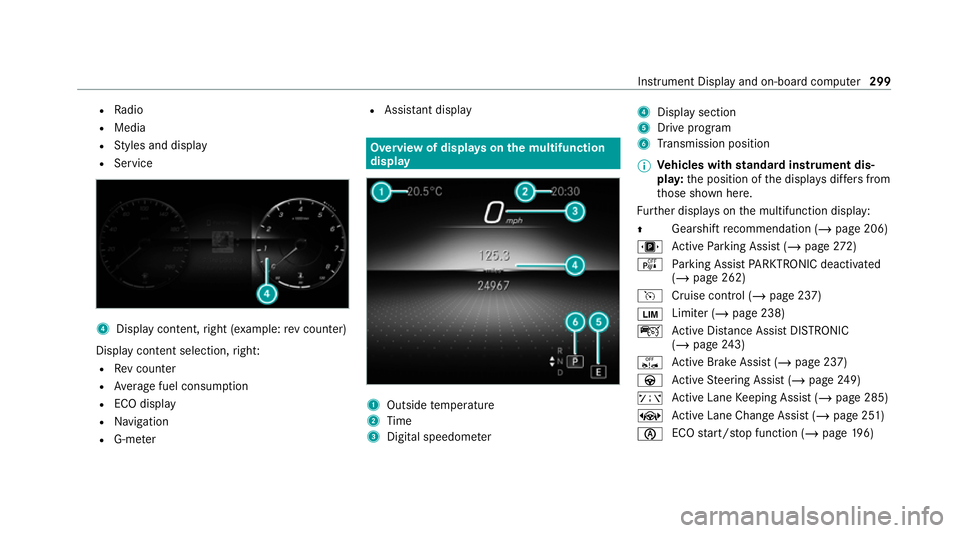
Display conte nt,right (e xamp le:rev counter)
Display content selection, right:
R Rev counter
R Average fuel consum ption
R ECO display
R Navigation
R G-me ter R
Assi stant display Overview of displa
yson the multifunction
display 1
Outside temp erature
2 Time
3 Digital speedome ter 4
Displ aysection
5 Drive program
6 Transmission position
% Ve
hicles with standard instrument dis‐
pla y:the position of the displa ysdiffers from
th ose shown here.
Fu rther displa yson the multifunction display:
Z Gearshift
recommendation (/ page 206)
u Active Parking Assist (/ page272)
é Parking Assist PARKTRONIC deacti vated
( / page 262)
h Cruise control (/ page 237)
È Limiter (/
page 238)
ç Active Dis tance Assi stDISTRONIC
(/ page 243)
ê Active Brake Assi st (/ page 237)
à Active Steering Assist (/ page249)
ð Active Lane Keeping Assist (/ page 285)
± Active Lane Change Assi st (/ page 251)
è ECO
start/ stop function (/ page196) In
stru ment Display and on-board computer 299
Page 306 of 689
Calling up navigation instructions on
the on-
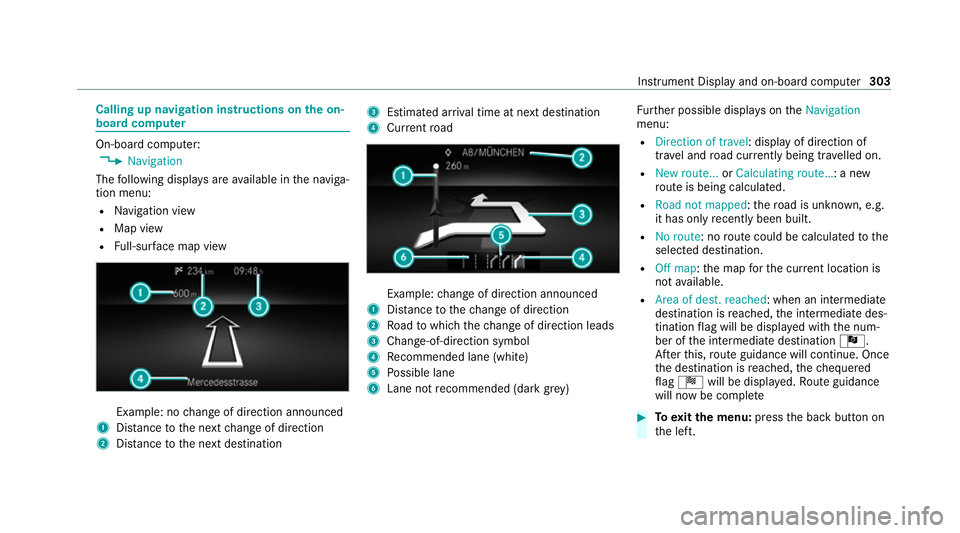
board compu ter On-board computer:
4 Navigation
The following displa ysare available in the naviga‐
tion menu:
R Navigation view
R Map view
R Full-sur face map view Example: no
change of direction announced
1 Distance tothe next change of direction
2 Distance tothe next destination 3
Estimated ar riva l time at next destination
4 Current road Example:
change of direction announced
1 Distance tothech ange of direction
2 Road towhich thech ange of direction leads
3 Chan ge-of-direction symbol
4 Recommended lane (white)
5 Possible lane
6 Lane not recommended (da rkgrey) Fu
rther possible displa yson theNavigation
menu:
R Direction of travel: display of direction of
tra vel and road cur rently being tr avelled on.
R New route... orCalculating route… : a new
ro ute is being calculated.
R Road not mapped :th ero ad is unknown, e.g.
it has on lyrecently been built.
R No route: no route could be calculated tothe
selected destination.
R Off map: the map forth e cur rent location is
not available.
R Area of dest. reached: when an intermediate
destination is reached, the intermediate des‐
tination flag will be displa yed with the num‐
ber of the intermediate destination Î.
Af terth is, route guidance will continue. Once
th e destination is reached, thech equered
fl ag Í will be displa yed. Ro ute guidance
will now be co mplete #
Toexitth e menu: pressthe back button on
th e left. Instrument Display and on-board computer
303
Page 307 of 689
Ve
hicles with the MBUX multimedia sy stem:
Yo u can also start navigation toone of the
re cent destinations on theNavigation menu: #
Press the left-hand Touch Control. #
Toselect a destination: swipe upwards or
down wards on the left-hand Touch Control. #
Press the left-hand Touch Control.
Ro ute guidance will start.
If ro ute guidance has already been activated,
a qu ery will appear asking whe ther you wish
to end the cur rent route guidance. #
Select Yes. #
Press the left-hand Touch Control.
Ro ute guidance will start. Selecting
radio stations using the on-boa rd
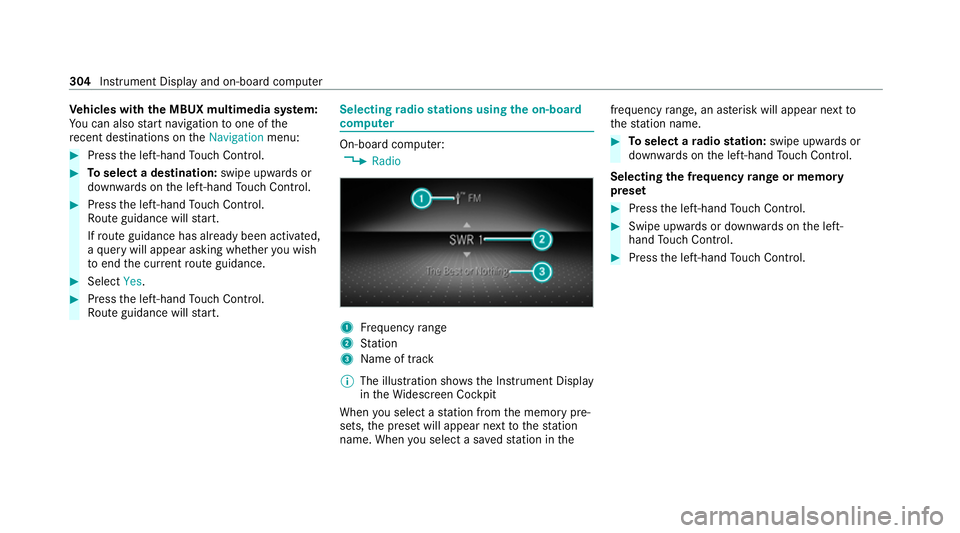
compu ter On-board computer:
4 Radio 1
Frequency range
2 Station
3 Name of track
% The illustration sho wsthe Instrument Display
in theWi descreen Cockpit
When you select a station from the memory pre‐
sets, the preset will appear next tothest ation
name. When you select a sa vedstation in the frequency
range, an as terisk will appear next to
th est ation name. #
Toselect a radio station: swipe upwards or
down wards on the left-hand Touch Control.
Selecting the frequency range or memory
preset #
Press the left-hand Touch Control. #
Swipe upwards or down wards on the left-
hand Touch Control. #
Press the left-hand Touch Control. 304
Instru ment Display and on-board computer
Page 310 of 689
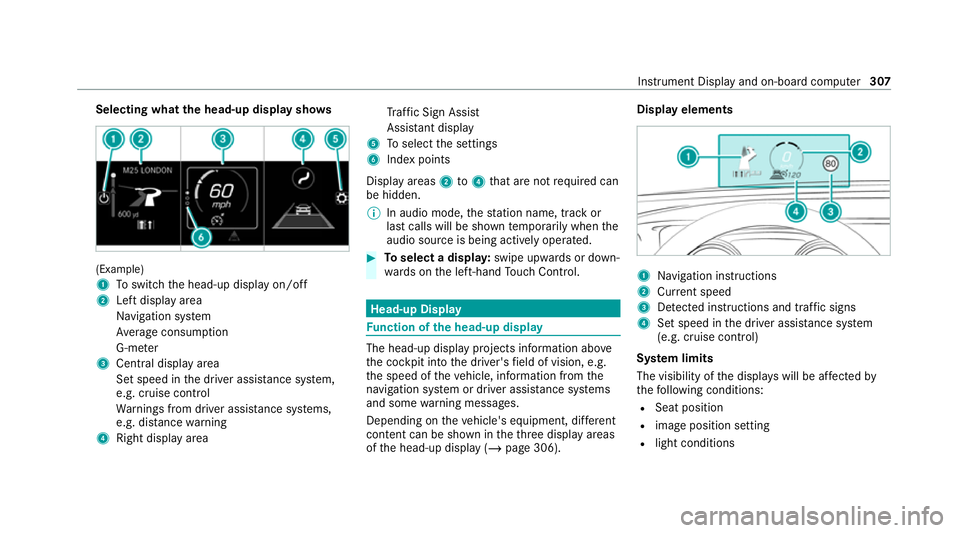
Selecting what
the head-up display sho ws(Example)
1
Toswitch the head-up display on/off
2 Left display area
Navigation sy stem
Av erage consum ption
G-me ter
3 Central displ ayarea
Set speed in the driver assis tance sy stem,
e.g. cruise control
Wa rnings from driver assis tance sy stems,
e.g. dis tance warning
4 Right display area Tr
af fic Sign Assi st
Assi stant display
5 Toselect the settings
6 Index points
Display areas 2to4 that are not requ ired can
be hidden.
% In audio mode, thest ation name, track or
last calls will be shown temp orarily when the
audio source is being actively operated. #
Toselect a displa y:swipe upwards or down‐
wa rds on the left-hand Touch Control. Head-up Display
Fu
nction of the head-up display The head-up display projects information abo
ve
th e cockpit into the driver's field of vision, e.g.
th e speed of theve hicle, information from the
navigation sy stem or driver assis tance sy stems
and some warning messages.
Depending on theve hicle's equipment, dif fere nt
content can be shown in theth re e display areas
of the head-up display (/ page 306). Display elements
1
Navigation instructions
2 Curr ent speed
3 Detected instructions and traf fic signs
4 Set speed in the driver assis tance sy stem
(e.g. cruise control)
Sy stem limits
The visibility of the displa yswill be af fected by
th efo llowing conditions:
R Seat position
R image position setting
R light conditions Instrument Display and on-board computer
307
Page 314 of 689
#
Tocor rect an ent ry:say theCorrection
vo ice command. #
Toselect an entry from the selection lis t:
say the line number or the conte nts. #
Tobrows eth e selection lis t:say theNext
or Back voice command. #
Tointer rupt the dialogue: saythePause
vo ice command.
The dialogue can be continued with the
"Hello Mercedes" voice command or by
pressing up the£ rock er switch on the
multifunction steering wheel. #
Tojump tothe preceding dialogue: saythe
Back voice command. #
Tojump back totheto p dialogue le vel:
say theHome voice command. #
Tocancel the dialogue: saytheClose voice
command or press the8 or~ button
on the multifunction steering wheel. #
Tointer rupt avo ice output: speak inthe
middle of a voice dialogue when the sy stem
is still answering.
The voice output is shor tened and the con‐
clusion is reached more quickl y.
% The Voice barge-in option must be switched
on in the multimedia sy stem forth is
(/ page 312). Overvi
ewof operable functions in LINGUA‐
TRONIC Yo
u can use the LINGU ATRO NIC voice control
sy stem tooperate thefo llowing functions
depending on theve hicle equipment:
R Telephone
R Text messa geand e-mail
R Navigation
R Address book
R Radio
R Media
R Vehicle functions
R Weather Fu
ll functionality is only available foryo u with
activation of online voice control (/ page312). Note
s onthe language setting Yo
u can change the language of LINGU ATRO NIC
via the sy stem language settings. If the set sys‐
te m language is not suppor tedby LINGUA‐
TRONIC, English will be selected.
LINGU ATRO NIC is available in thefo llowing lan‐
guages:
R German
R English
R French
R Italian
R Dutch
R Polish
R Portuguese
R Russian
R Swedish
R Spanish
R Czech LINGU
ATRO NIC 311
Page 317 of 689
%
Con tent in angled brac kets, e.g.
comple tedby yo u with the desired term . The
vo ice command Set
could,forex ample, be comple ted
with: Set Mercedes-Benz Arena as intermedi-
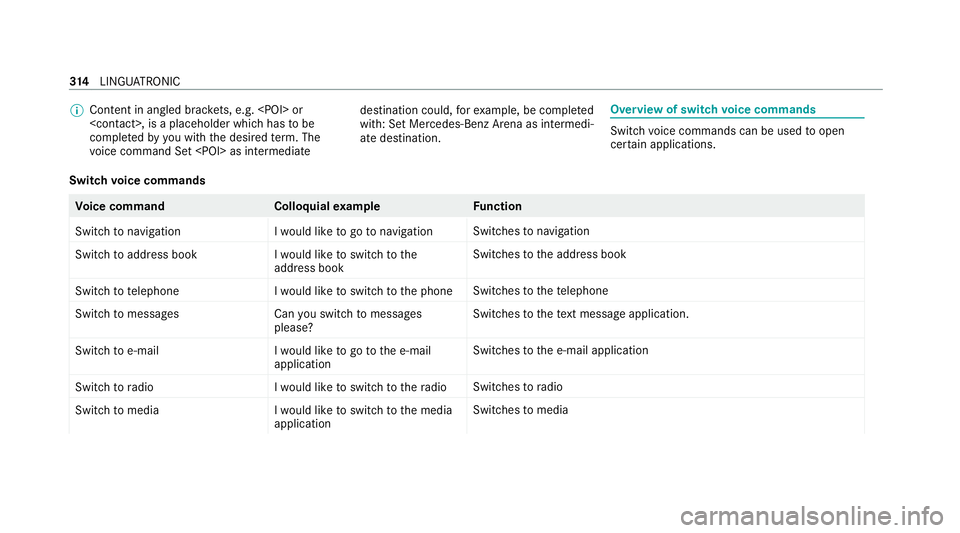
ate destination. Overview of switch
voice commands Swit
chvoice commands can be used toopen
cer tain applications.
Switch voice commands Vo
ice command Colloquialexample Function
Switch to navigation I would like to go to navigationSwitches
tonavigation
Switch to address book I would like to switch to the
address bookSwitches
tothe address book
Switch to telephon eI would like to switch to the phone Swit
ches tothete lephone
Switch to messages Can you switch to messages
please?Swit
ches tothete xt messa geapplication.
Switch to e-mail I would like to go to the e-mail
applicationSwit
ches tothe e-mail application
Switch to radio I would like to switch to the radioSwitches
toradio
Switch to media I would like to switch to the media
applicationSwitches
tomedia 314
LINGU ATRO NIC
Page 318 of 689
Vo
ice command Colloquialexample Function
Switch to comfort I would like to go to the comfort
applicationSwitches
tothe comfort settings
Switch to vehicle info I would like to go to the vehicle
applicationSwitches
tovehicle information
Switch to settings I would like to go to the settings
menuSwitches
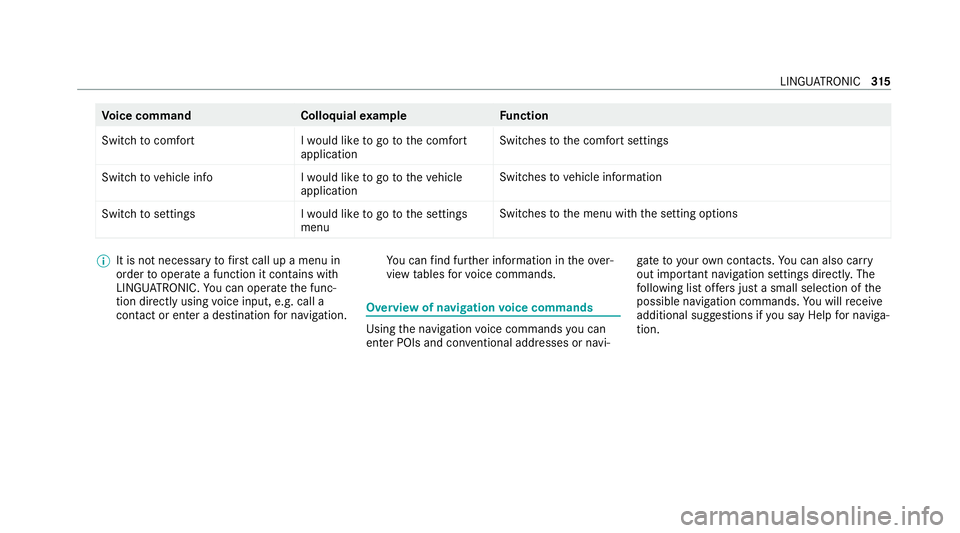
tothe menu with the setting options %
It is not necessary tofirs t call up a menu in
order tooperate a function it contains with
LINGU ATRO NIC. You can operate the func‐
tion directly using voice input, e.g. call a
con tact or enter a destination for navigation. Yo
u can find fur ther information in theove r‐
view tables forvo ice commands. Overview of navigation
voice commands Using
the navigation voice commands you can
en ter POIs and con ventional addresses or navi‐ ga
te to your ow n contacts. You can also car ry
out impor tant navigation settings di rectl y.The
fo llowing list of fers just a small selection of the
possible navigation commands. You will recei ve
additional suggestions if you say Help for naviga-
tion. LINGU
ATRO NIC 315
Page 332 of 689
Overview and operation
Overview of
the MBUX multimedia sy stem &
WARNING Risk of di stra ction from infor‐
mation sy stems and communications
equipment
If yo u operate information and communica‐
tion equipment integ rated in theve hicle
when driving, you will be distracted from the
traf fic situation. This could also cause youto
lose control of theve hicle. #
Only operate this equipment when the
traf fic situation permits. #
Ifyo u cannot be sure of this, stop the
ve hicle whilst paying attention toroad
and traf fic conditions and ope rate the
equipment with theve hicle stationar y. Yo
u must obse rveth e legal requirements forthe
country in whi chyou are cur rently driving when
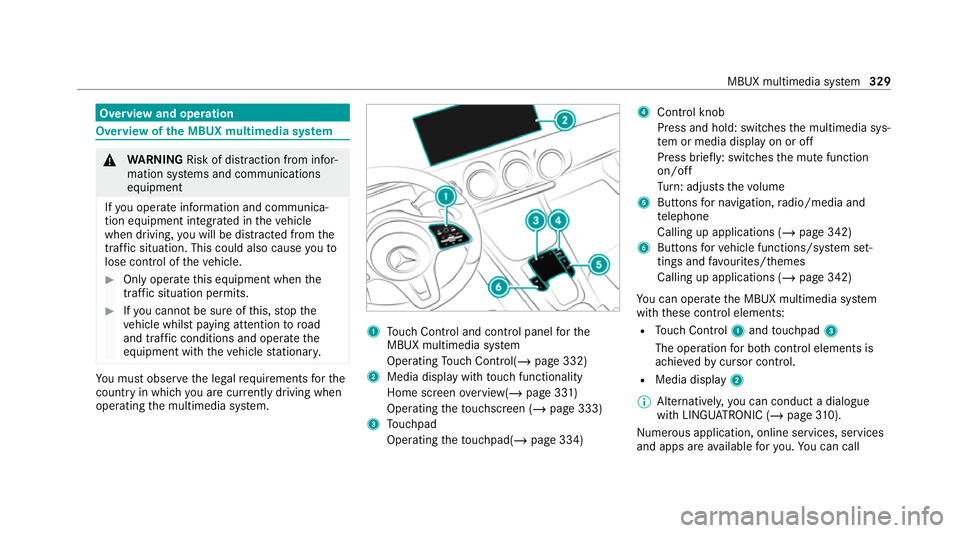
operating the multimedia sy stem. 1
Touch Control and cont rol panel forthe
MBUX multimedia sy stem
Operating Touch Control(/ page 332)
2 Media displ aywith touch functionality
Home sc reen ove rview(/ page 331)
Operating theto uchsc reen (/ page 333)
3 Touchpad
Operating theto uchpad( /page 334) 4
Control knob
Press and hold: swit ches the multimedia sys‐
te m or media display on or off
Press brief ly: switches the mute function
on/off
Tu rn: adjusts thevo lume
5 Buttons for navigation, radio/media and
te lephone
Calling up applications (/ page 342)
6 Buttons forve hicle functions/sy stem set‐
tings and favo urites/ themes
Calling up applications (/ page 342)
Yo u can operate the MBUX multimedia sy stem
with these control elements:
R Touch Control 1and touchpad 3
The operation for bo thcontrol elements is
achie vedby cursor control.
R Media displ ay2
% Alternati vely, you can conduct a dialogue
with LINGU ATRO NIC (/ page310).
Nu merous application, online services, services
and apps are available foryo u. You can call MBUX multimedia sy
stem 329
Page 333 of 689
th
ese up using the home screen or using buttons
5 and 6next totheto uchpad.
Yo u can co nveniently call up and add favo urites
using theß rocker switch on thesteering
wheel or using theß button next tothe
to uchpad. Quic k-access in the home screen and
in the applications ser vetoselect functions
more quickl y.
If yo u use the learn function of the multimedia
sy stem, you will recei vesuggestions during oper‐
ation of the most probable navigation destina‐
tions, radio stations and con tacts. The configu‐
ra tion of the suggestions take s place in your pro‐
fi le. You can co mpileyour profile from various
ve hicle settings and settings of the multimedia
sy stem. You can create themes forva rious driv‐
ing situations in the home screen as well as
using theß rocker switch or theß but‐
to n.
The Notifications Centre collects incoming notifi‐
cations, e.g. about an available software update.
Depending on the type of notification it of fers
va rious actions. You can call up the Notifications
Centre on the home screen and in the applica‐
tion menus. Wi
th th eglobal sear chintheve hicle you can
sear chon-board across many categories as well
as online in the Internet. You can use theglobal
sear chinthe home screen and in the notifica‐
tions.
Anti-theft pr otection
This device is equipped with tech nical pr ovisions
to protect it against theft. More de tailed informa‐
tion about anti-theft pr otection can be obtained
at a qualified specialist workshop. Note
s onthe media display Obser
vethe no tes on caring forth e interior
(/ page 499).
Au tomatic temperature-cont rolled switch-
off feature: ifth ete mp erature is too high, the
brightness is initially reduced automatically. The
media display may then switch off comple tely for
a while.
% Ifyo u are wearing polarised sun glasses, it
may be dif ficult toread the multimedia sys‐
te m displa y. 330
MBUX multimedia sy stem
Page 338 of 689
Swiping
tothe left of right across ~:
selects the pr evious or next radio station/
music track
3 © button
Pressing: sho ws the home screen and calls
up applications
4 Touchpad
% Calls up suggestions, themes and favo urites:
when the home screen is shown, swipe
down on touchpad 4.
Yo u can navigate in menus and lists via the
to uch-sensitive sur face of touchpad 4byusing
a single-finger swipe .#
Toselect the menu item or entr y:mo ve
th e selection byswiping up, down, left or
ri ght. #
Confirm the selection bypressing on touch‐
pad 4.
or #
IfTouchpad tap is activated,tapping is suf fi‐
cient (/ page 335). #
Toenter a character: select acharacter on
th eke yboard ( /page 357).
or #
Write a character on theto uchpad with hand‐
writing input. #
Tomo vethe digital map: whenthe digital
map is shown with the navigation menu,
swipe up with one finger. #
Press theto uchpad.
The digital map can be mo ved. #
Swipe in all directions.
Use thefo llowing functions with a two-finger
swipe: #
Tocall up theNo tifications Centre: swipe
down wi thtwo fingers. #
Toclose theNo tifications Centre: swipe
up wi thtwo fingers. #
Tocall up the control menu of the last
active audio source: swipe up with twofin‐
ge rs. #
Tozoom in and out of the map: movetwo
fi ngers toget her or apart. #
Toenlar georreduce the size of a section
of a website: movetwo fingers toget her or
apart.
Setting the sensitivity for the touchpad
Multimedia sy stem:
4 © 5
Settings 5
System
5 Controls 5
Touchpad sensitivity #
Select Fast,Medium orSlow . #
Toset the pressure sensitivit y:switch
Touchpad tap on or off.
If th e function is switched on, a tap on the
to uchpad is enough toselect a menu item.
Switching there ad-aloud function for hand‐
writing recognition on/off
Re quirements:
R The multimedia sy stem is equipped with a
vo ice control sy stem.
R The read-aloud function is available forthe
selected sy stem language. MBUX multimedia sy
stem 335