display MERCEDES-BENZ GLB SUV 2019 Manual PDF
[x] Cancel search | Manufacturer: MERCEDES-BENZ, Model Year: 2019, Model line: GLB SUV, Model: MERCEDES-BENZ GLB SUV 2019Pages: 689, PDF Size: 11.39 MB
Page 304 of 689
R
Engine oil level: engine oil le vel
R Consumption info: fuel life cycle consump‐
tion Calling up displa
yson the Assistance menu On-board computer:
4 Assistance
The following displa ysare available on the Assis‐
ta nce menu:
R Assi stance
R Attention le vel (/ page 277)
R Vehicles with an instrument display in
th e widescreen cockpit: full screen#
Toswitch between the displa ys:swipe
upwards or down wards on the left-hand
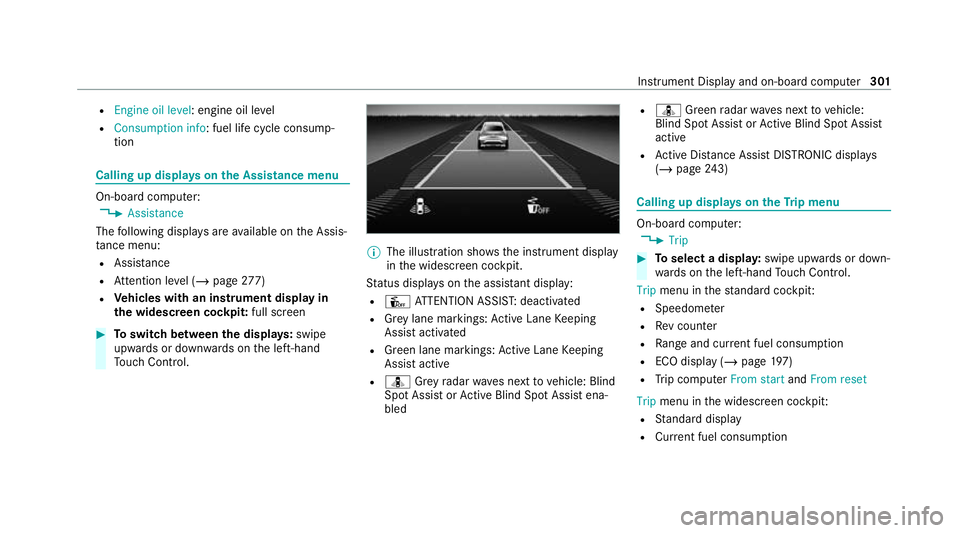
To uch Control. %
The illustration sho wsthe instrument display
in the widescreen cockpit.
St atus displa yson the assis tant displ ay:
R Û ATTENTION ASSIS T:deactivated
R Grey lane markings: Active Lane Keeping
Assist activated
R Green lane markings: Active Lane Keeping
Assist active
R ¸ Grey radar waves next tovehicle: Blind
Spot Assist or Active Blind Spot Assi stena‐
bled R
¸ Green radar waves next tovehicle:
Blind Spot Assist or Active Blind Spot Assi st
active
R Active Dis tance Assi stDISTRONIC displa ys
( / page 243) Calling up
displays on theTr ip menu On-board computer:
4 Trip #
Toselect a displa y:swipe upwards or down‐
wa rds on the left-hand Touch Control.
Trip menu in thest andard cockpi t:
R Speedom eter
R Rev counter
R Range and cur rent fuel consu mption
R ECO display (/ page 197)
R Trip computer From startandFrom reset
Trip menu in the widescreen cockpit:
R Standard display
R Cur rent fuel consu mption Instrument Displ
ayand on-board computer 301
Page 305 of 689
R
ECO display (/ page 197)
R Trip computer From startandFrom reset
R Full screen St
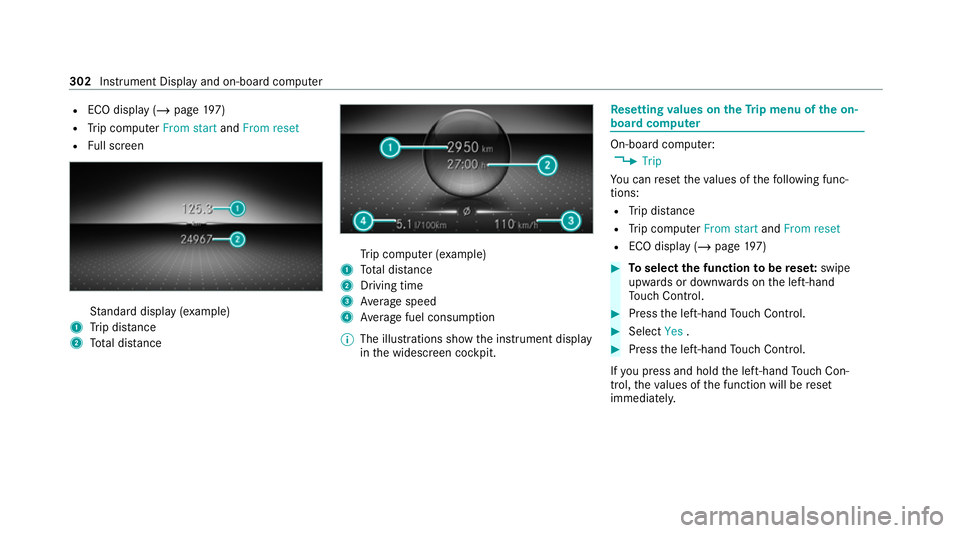
andard display (e xamp le)
1 Trip dis tance
2 Total dis tance Tr
ip computer (e xamp le)
1 Total dis tance
2 Driving time
3 Average speed
4 Average fuel consum ption
% The illustrations show the instrument display
in the widescreen cockpit. Re
setting values on theTr ip menu of the on-
board compu ter On-board computer:
4 Trip
Yo u can reset theva lues of thefo llowing func‐
tions:
R Trip dis tance
R Trip computer From startandFrom reset
R ECO display (/ page197) #
Toselect the function tobe rese t:swipe
upwards or down wards on the left-hand
To uch Control. #
Press the left-hand Touch Control. #
Select Yes. #
Press the left-hand Touch Control.
If yo u press and hold the left-hand Touch Con‐
trol, theva lues of the function will be reset
immediatel y. 302
Instrument Display and on-board computer
Page 306 of 689
Calling up navigation instructions on
the on-
board compu ter On-board computer:
4 Navigation
The following displa ysare available in the naviga‐
tion menu:
R Navigation view
R Map view
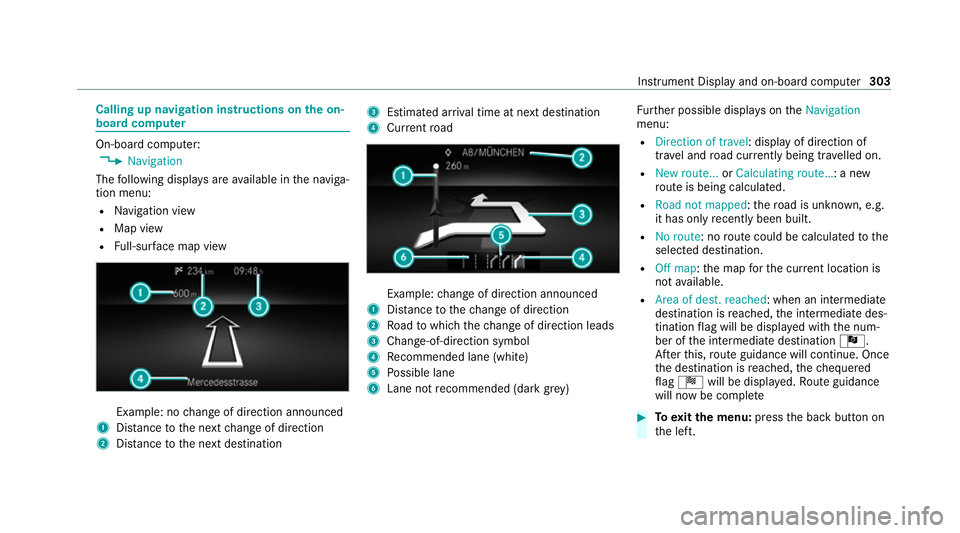
R Full-sur face map view Example: no
change of direction announced
1 Distance tothe next change of direction
2 Distance tothe next destination 3
Estimated ar riva l time at next destination
4 Current road Example:
change of direction announced
1 Distance tothech ange of direction
2 Road towhich thech ange of direction leads
3 Chan ge-of-direction symbol
4 Recommended lane (white)
5 Possible lane
6 Lane not recommended (da rkgrey) Fu
rther possible displa yson theNavigation
menu:
R Direction of travel: display of direction of
tra vel and road cur rently being tr avelled on.
R New route... orCalculating route… : a new
ro ute is being calculated.
R Road not mapped :th ero ad is unknown, e.g.
it has on lyrecently been built.
R No route: no route could be calculated tothe
selected destination.
R Off map: the map forth e cur rent location is
not available.
R Area of dest. reached: when an intermediate
destination is reached, the intermediate des‐
tination flag will be displa yed with the num‐
ber of the intermediate destination Î.
Af terth is, route guidance will continue. Once
th e destination is reached, thech equered
fl ag Í will be displa yed. Ro ute guidance
will now be co mplete #
Toexitth e menu: pressthe back button on
th e left. Instrument Display and on-board computer
303
Page 307 of 689
Ve
hicles with the MBUX multimedia sy stem:
Yo u can also start navigation toone of the
re cent destinations on theNavigation menu: #
Press the left-hand Touch Control. #
Toselect a destination: swipe upwards or
down wards on the left-hand Touch Control. #
Press the left-hand Touch Control.
Ro ute guidance will start.
If ro ute guidance has already been activated,
a qu ery will appear asking whe ther you wish
to end the cur rent route guidance. #
Select Yes. #
Press the left-hand Touch Control.
Ro ute guidance will start. Selecting
radio stations using the on-boa rd
compu ter On-board computer:
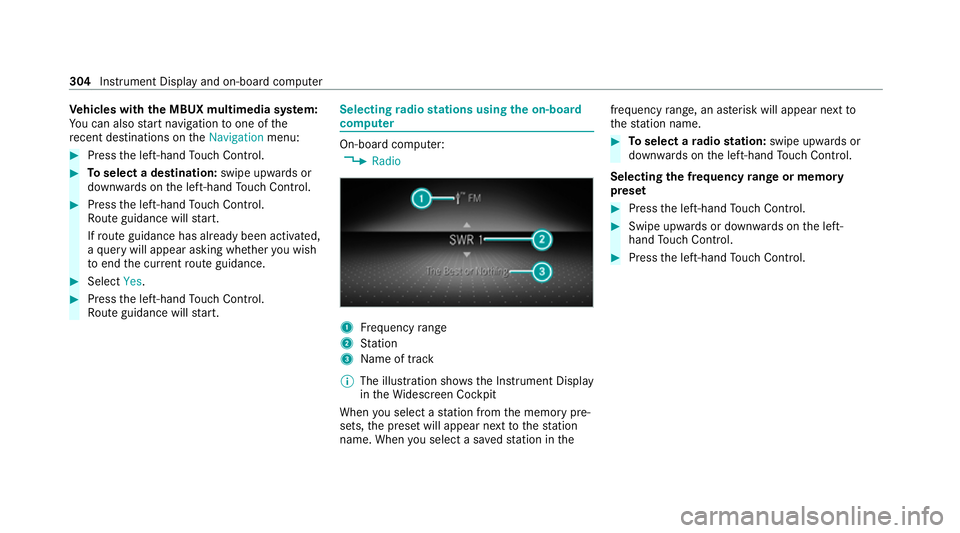
4 Radio 1
Frequency range
2 Station
3 Name of track
% The illustration sho wsthe Instrument Display
in theWi descreen Cockpit
When you select a station from the memory pre‐
sets, the preset will appear next tothest ation
name. When you select a sa vedstation in the frequency
range, an as terisk will appear next to
th est ation name. #
Toselect a radio station: swipe upwards or
down wards on the left-hand Touch Control.
Selecting the frequency range or memory
preset #
Press the left-hand Touch Control. #
Swipe upwards or down wards on the left-
hand Touch Control. #
Press the left-hand Touch Control. 304
Instru ment Display and on-board computer
Page 308 of 689
Operating media playback using
the on-
board compu ter On-board computer:
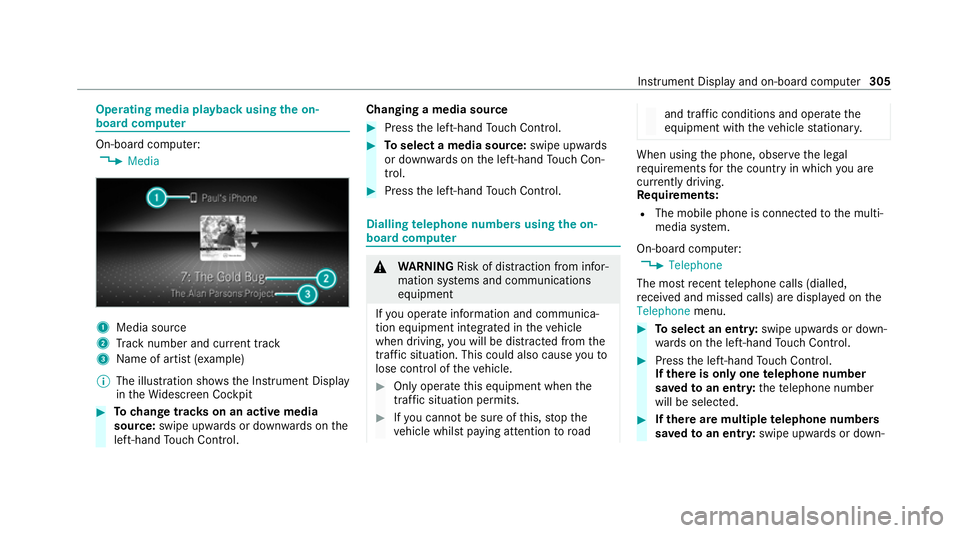
4 Media 1
Media source
2 Track number and cur rent track
3 Name of artist (e xamp le)
% The illustration sho wsthe Instrument Display
in theWi descreen Cockpit #
Tochange trac kson an active media
source: swipe upwards or down wards on the
left-hand Touch Control. Changing a media source #
Press the left-hand Touch Control. #
Toselect a media source: swipe upwards
or down wards on the left-hand Touch Con‐
trol. #
Press the left-hand Touch Control. Dialling
telephone numbers using the on-
board compu ter &
WARNING Risk of di stra ction from infor‐
mation sy stems and communications
equipment
If yo u operate information and communica‐
tion equipment integ rated in theve hicle
when driving, you will be distracted from the
traf fic situation. This could also cause youto
lose control of theve hicle. #
Only operate this equipment when the
traf fic situation permits. #
Ifyo u cannot be sure of this, stop the
ve hicle whilst paying attention toroad and traf
fic conditions and ope rate the
equipment with theve hicle stationar y. When using
the phone, obser vethe legal
re qu irements forth e count ryin which you are
cur rently driving.
Re quirements:
R The mobile phone is connec tedto the multi‐
media sy stem.
On-board computer: 4 Telephone
The most recent telephone calls (dialled,
re cei ved and missed calls) are displa yed on the
Telephone menu. #
Toselect an entr y:swipe upwards or down‐
wa rds on the left-hand Touch Control. #
Press the left-hand Touch Control.
If th ere is only one telephone number
sa ve dto an entr y:thete lephone number
will be selec ted. #
Ifth ere are multiple telephone numbers
sa ve dto an entr y:swipe upwards or down‐ Instrument Display and on-board computer
305
Page 309 of 689
wa
rds on the left-hand Touch Control to
select the desired telephone number. #
Press the left-hand Touch Control.
The telephone number will be dialled.
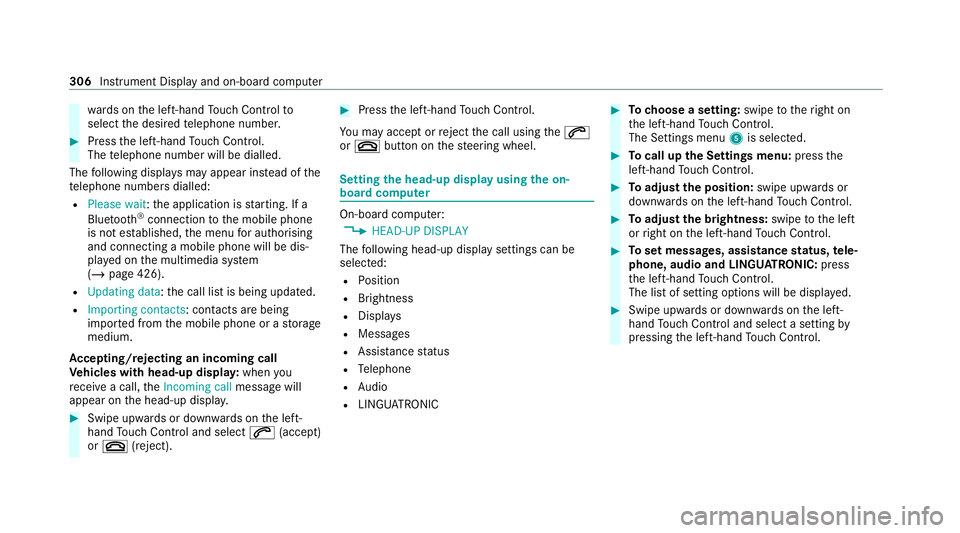
The following displa ysmay appear ins tead of the
te lephone numbers dialled:
R Please wait :th e application is starting. If a
Blue tooth ®
connection tothe mobile phone
is not es tablished, the menu for auth orising
and connecting a mobile phone will be dis‐
pla yed on the multimedia sy stem
(/ page 426).
R Updating data: the call list is being updated.
R Importing contacts : contacts are being
impor ted from the mobile phone or a storage
medium.
Ac cepting/rejecting an incoming call
Ve hicles with head-up displa y:when you
re cei vea call, theIncoming call message will
appear on the head-up displa y.#
Swipe up wards or down wards on the left-
hand Touch Control and select 6(accept)
or ~ (reject). #
Press the left-hand Touch Control.
Yo u may accept or reject the call using the6
or ~ button on thesteering wheel. Setting
the head-up display using the on-
board compu ter On-board computer:
4 HEAD-UP DISPLAY
The following head-up display settings can be
selec ted:
R Position
R Brightness
R Displa ys
R Messages
R Assis tance status
R Telephone
R Audio
R LINGU ATRO NIC #
Tochoose a setting: swipetotheright on
th e left-hand Touch Control.
The Settings menu 5is selected. #
Tocall up the Settings menu: pressthe
left-hand Touch Control. #
Toadjust the position: swipe upwards or
down wards on the left-hand Touch Control. #
Toadjust the brightness: swipetothe left
or right on the left-hand Touch Control. #
Toset messages, assistance status, tele‐
phone, audio and LINGU ATRO NIC: press
th e left-hand Touch Control.
The list of setting options will be displ ayed. #
Swipe upwards or down wards on the left-
hand Touch Control and select a setting by
pressing the left-hand Touch Control. 306
Instru ment Display and on-board computer
Page 310 of 689
Selecting what
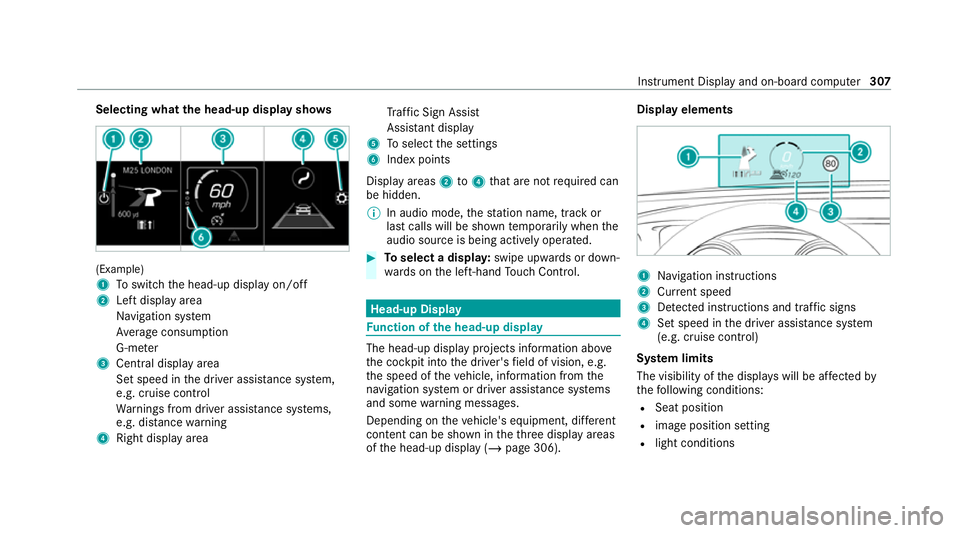
the head-up display sho ws(Example)
1
Toswitch the head-up display on/off
2 Left display area
Navigation sy stem
Av erage consum ption
G-me ter
3 Central displ ayarea
Set speed in the driver assis tance sy stem,
e.g. cruise control
Wa rnings from driver assis tance sy stems,
e.g. dis tance warning
4 Right display area Tr
af fic Sign Assi st
Assi stant display
5 Toselect the settings
6 Index points
Display areas 2to4 that are not requ ired can
be hidden.
% In audio mode, thest ation name, track or
last calls will be shown temp orarily when the
audio source is being actively operated. #
Toselect a displa y:swipe upwards or down‐
wa rds on the left-hand Touch Control. Head-up Display
Fu
nction of the head-up display The head-up display projects information abo
ve
th e cockpit into the driver's field of vision, e.g.
th e speed of theve hicle, information from the
navigation sy stem or driver assis tance sy stems
and some warning messages.
Depending on theve hicle's equipment, dif fere nt
content can be shown in theth re e display areas
of the head-up display (/ page 306). Display elements
1
Navigation instructions
2 Curr ent speed
3 Detected instructions and traf fic signs
4 Set speed in the driver assis tance sy stem
(e.g. cruise control)
Sy stem limits
The visibility of the displa yswill be af fected by
th efo llowing conditions:
R Seat position
R image position setting
R light conditions Instrument Display and on-board computer
307
Page 311 of 689
R
wet car riag ewa ys
R objects on the display co ver
R polarisation in sunglasses
% Inextreme sunlight, sections of the display
may appear washed out. You can co rrect this
by deactivating and reactivating the head-up
displa y. Switching
the head-up display on/off via the
mu ltimedia sy stem Multimedia sy
stem:
4 © 5
Settings 5
Quick access #
Select HUD.
The head-up-display is activated. 308
Instrument Display and on-board computer
Page 330 of 689
Vo
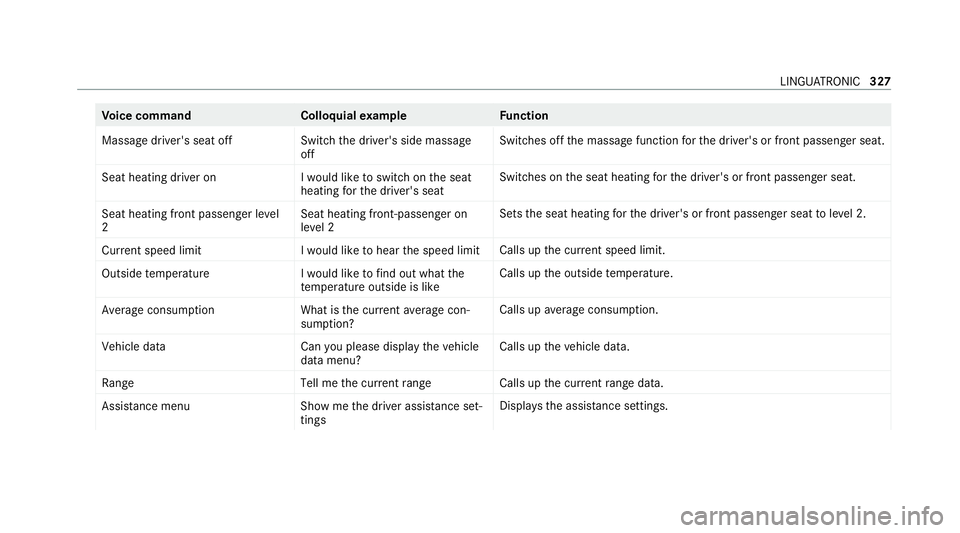
ice command Colloquialexample Function
Massage driver's seat off Switch the driver's side massage
offSwitches off
the massage function forth e driver's or front passenger seat.
Seat heating driver on I would like to switch on the seat
heating for the driver's seatSwitches on
the seat heating forth e driver's or front passenger seat.
Seat heating front passenger level
2 Seat heating front-passenger on
level 2Sets
the seat heating forth e driver's or front passenger seat toleve l 2.
Current speed limit I would like to hear the speed limitCalls up
the cur rent speed limit.
Outside temperature I would like to find out what the
temperature outside is likeCalls up
the outside temp erature.
Average consumption What is the current average con-
sumption? Calls up
average consu mption.
Vehicle data Can you please display the vehicle
data menu?Calls up
theve hicle data.
Range Tell me the current rangeCalls up
the cur rent range da ta.
Assistance menu Show me the driver assistance set-
tingsDispl
aysth e assis tance settings. LING
UATRONIC 327
Page 332 of 689
Overview and operation
Overview of
the MBUX multimedia sy stem &
WARNING Risk of di stra ction from infor‐
mation sy stems and communications
equipment
If yo u operate information and communica‐
tion equipment integ rated in theve hicle
when driving, you will be distracted from the
traf fic situation. This could also cause youto
lose control of theve hicle. #
Only operate this equipment when the
traf fic situation permits. #
Ifyo u cannot be sure of this, stop the
ve hicle whilst paying attention toroad
and traf fic conditions and ope rate the
equipment with theve hicle stationar y. Yo
u must obse rveth e legal requirements forthe
country in whi chyou are cur rently driving when
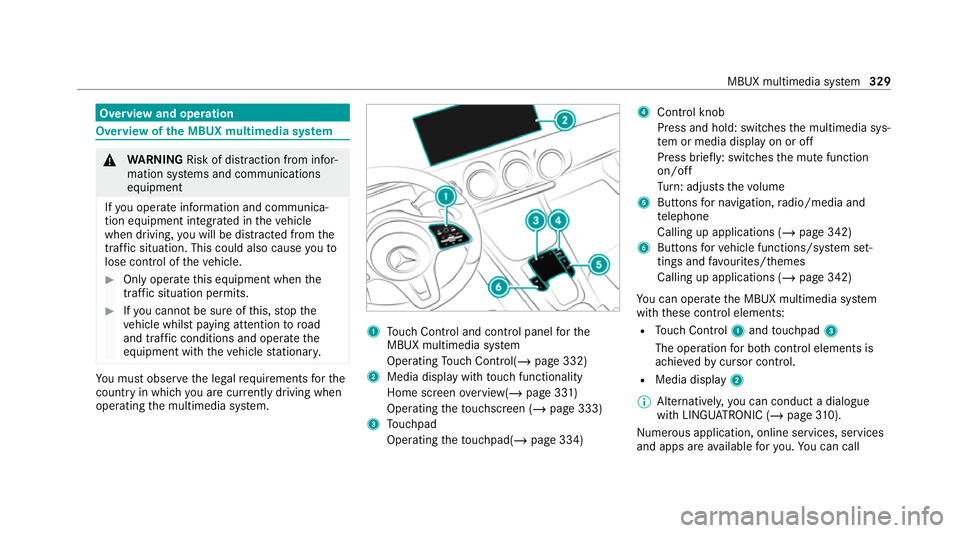
operating the multimedia sy stem. 1
Touch Control and cont rol panel forthe
MBUX multimedia sy stem
Operating Touch Control(/ page 332)
2 Media displ aywith touch functionality
Home sc reen ove rview(/ page 331)
Operating theto uchsc reen (/ page 333)
3 Touchpad
Operating theto uchpad( /page 334) 4
Control knob
Press and hold: swit ches the multimedia sys‐
te m or media display on or off
Press brief ly: switches the mute function
on/off
Tu rn: adjusts thevo lume
5 Buttons for navigation, radio/media and
te lephone
Calling up applications (/ page 342)
6 Buttons forve hicle functions/sy stem set‐
tings and favo urites/ themes
Calling up applications (/ page 342)
Yo u can operate the MBUX multimedia sy stem
with these control elements:
R Touch Control 1and touchpad 3
The operation for bo thcontrol elements is
achie vedby cursor control.
R Media displ ay2
% Alternati vely, you can conduct a dialogue
with LINGU ATRO NIC (/ page310).
Nu merous application, online services, services
and apps are available foryo u. You can call MBUX multimedia sy
stem 329