phone MERCEDES-BENZ GLC-Class 2016 X253 Comand Manual
[x] Cancel search | Manufacturer: MERCEDES-BENZ, Model Year: 2016, Model line: GLC-Class, Model: MERCEDES-BENZ GLC-Class 2016 X253Pages: 222, PDF Size: 6.39 MB
Page 200 of 222
Selecting playback options
XTo selectOptions: turn and press the con-
troller.
XSelect Playback Mode.
A # dot indicates the current setting.
XSelect the desired option.
If you select Random
TrackList, you will
see a corresponding message in the display
or selection window.
Increasing the volume using COMAND
XTo select Options: slide6and press the
controller.
XTo select Volume: turn and press the con-
troller.
A menu appears. The #dot indicates the
current setting.
XSelect StandardorBoost.
Information on sound settings
(
Ypage 208).
Operation with the Media Interface
General notes
Media Interface is a universal interface for the
connection of mobile audio and video devi-
ces. Media Interface in COMAND has two
USB connections.
The USB connection sockets are located in
the stowage compartment under the armrest.
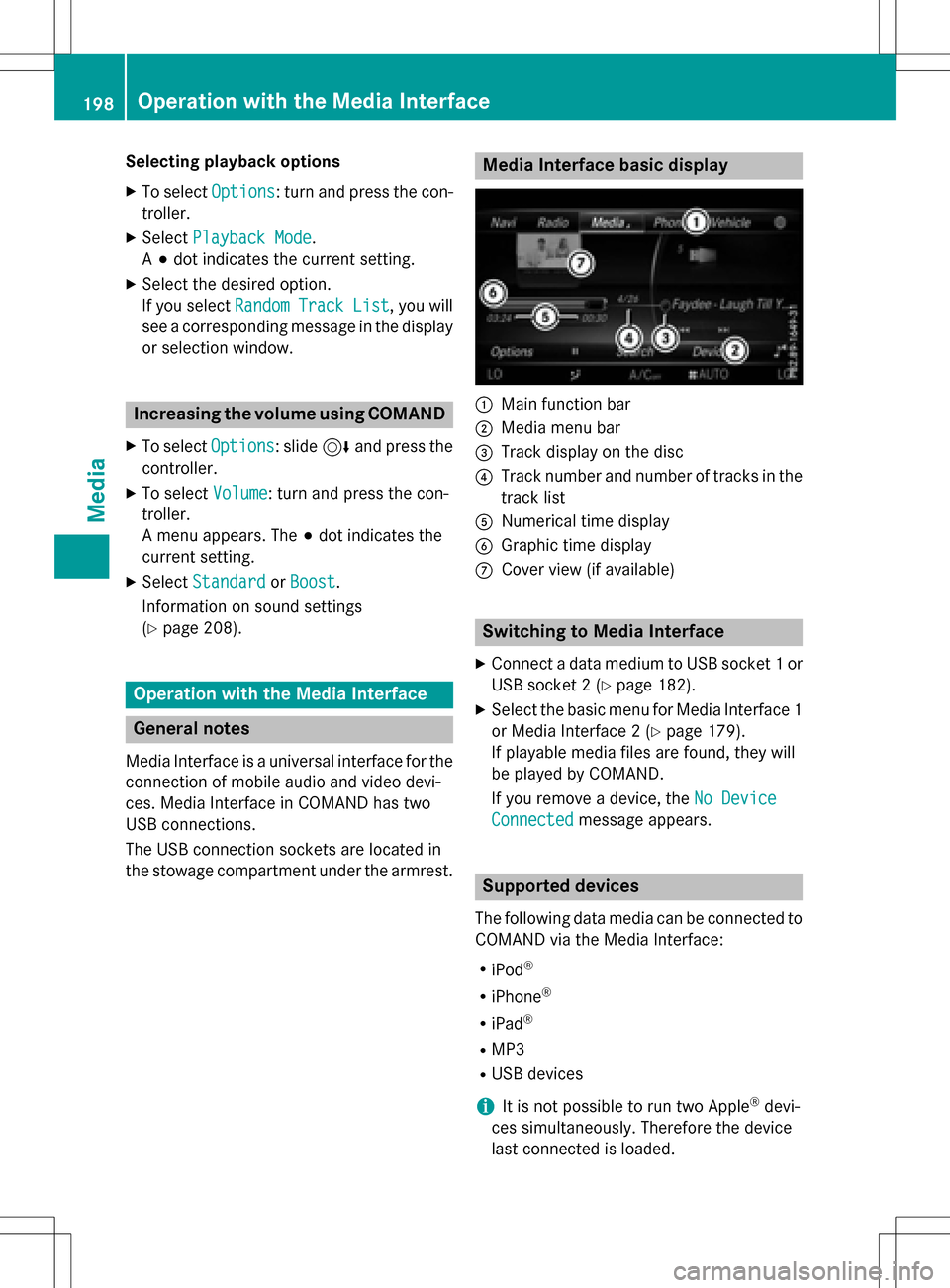
Media Interface basic display
:Main function bar
;Media menu bar
=Track display on the disc
?Track number and number of tracks in the
track list
ANumerical time display
BGraphic time display
CCover view (if available)
Switching to Media Interface
XConnect a data medium to USB socket 1 or
USB socket 2 (
Ypage 182).
XSelect the basic menu for Media Interface 1
or Media Interface 2 (
Ypage 179).
If playable media files are found, they will
be played by COMAND.
If you remove a device, the No Device
Connectedmessage appears.
Supported devices
The following data media can be connected to
COMAND via the Media Interface:
RiPod®
RiPhone®
RiPad®
RMP3
RUSB devices
iIt is not possible to run two Apple®devi-
ces simultaneously. Therefore the device
last connected is loaded.
198Operation with the Media Interface
Media
Page 201 of 222

iiPod®, iPhone®and iPad®are registered
trademarks of Apple Inc., Cupertino, Cali-
fornia, USA.
iAudio files, photos and video files can be
played back.
For details and a list of supported devices,
visit our website at http://www.mercedes-
benz-mobile.com/ . Then follow the instruc-
tions in the "Media Interface" section.
Or call the Mercedes-Benz Customer Assis-
tance Center at 1-800-FOR-MERCedes
(1-800-367-6372) (for the USA) or Customer
Relations at 1-800-387-0100 (for Canada).
Supported data formats
Musicmp3, wma, aac
Videompeg, wmv, mov,
avi, mp4
Imagesjpg, jpeg, bmp, png
Selecting a music file
Selecting with the controller
XTo display the current track list: press
the controller in the basic display.
The track list for the active data medium
appears.
XTo select a track: turn the controller and
press to confirm.
XTo skip forwards or backwards to a
track: turn the controller in the basic dis-
play.
The selected track is played.
Fast forward/rewind
XWith the media source active in the basic
display, slide 8or9 the controller
and hold it until the desired position has
been reached.
Search function
Selecting Search using media menu bar
XSlide 6the controller.
The media menu bar is shown.
XTo select Search: turn and press the con-
troller.
The category list appears.
Overview
The following categories are listed:
RCurrent Tracklist
RFolder
RSelect By Cover
RKeyword Search
RPlaylists
RArtists
RAlbums
RTrack
RGenres
RYear
RComposers
RVideos
RPhotos
RPodcasts
RAudiobooks
iThe functions are available as soon as the
entire media content has been read and
analyzed.
If the same device is reconnected with
unchanged media content, these functions
are available more quickly.
The audio books and podcasts categories
are only available for Apple
®devices.
When connecting Apple
®devices, the cat-
egories “Folder”, “Year” and “Photos” are
not available.
Operation with the Media Interface199
Media
Z
Page 214 of 222
Your COMANDequipment
These operatin ginstruction sdescribe all th e
standar dan doptional equipmen tfo ryour
COMAN Dsystem, as available at th etime of
going to print .Country-specifi cdifference s
are possible. Please note that your COMAN D
syste mmay no tbe equipped wit hall th efea-
tures described .
Weather forecasts
Introduction
Thisfunction is currentl yno tavailable fo r
Canada.
Fo rth ereception of weather forecast svia
satellite radio, you will need aSIRIU SXM Sat -
ellite Weather subscription .
If th emessage: Call
SIRIUStoactivate
system at: 888-539-747 4ESN:
SIRIUSIDappears alon gwit hth eID number
of th eSIRIU Sdevice, you will need to hav eth e
weather servic eactivated first .
XTo selectCal lorCancel:turn an dpress
th econtroller .
If amobile phone is connecte dto COMAN D
(
Ypage 112), th ecal lwill connec tto aSIR-
IU Sservic eemploye eafter selecting Call
.
The ID number of th eSIRIU Sdevic ewill be
transferred to th etelephon edisplay.
XThi swill be followed by instruction sfrom
th eservic eemployee.
COMAN Dcan receiv eweather forecast svia
satellite radio fo rth eentire US A(includin g
Alask aan dHawaii).
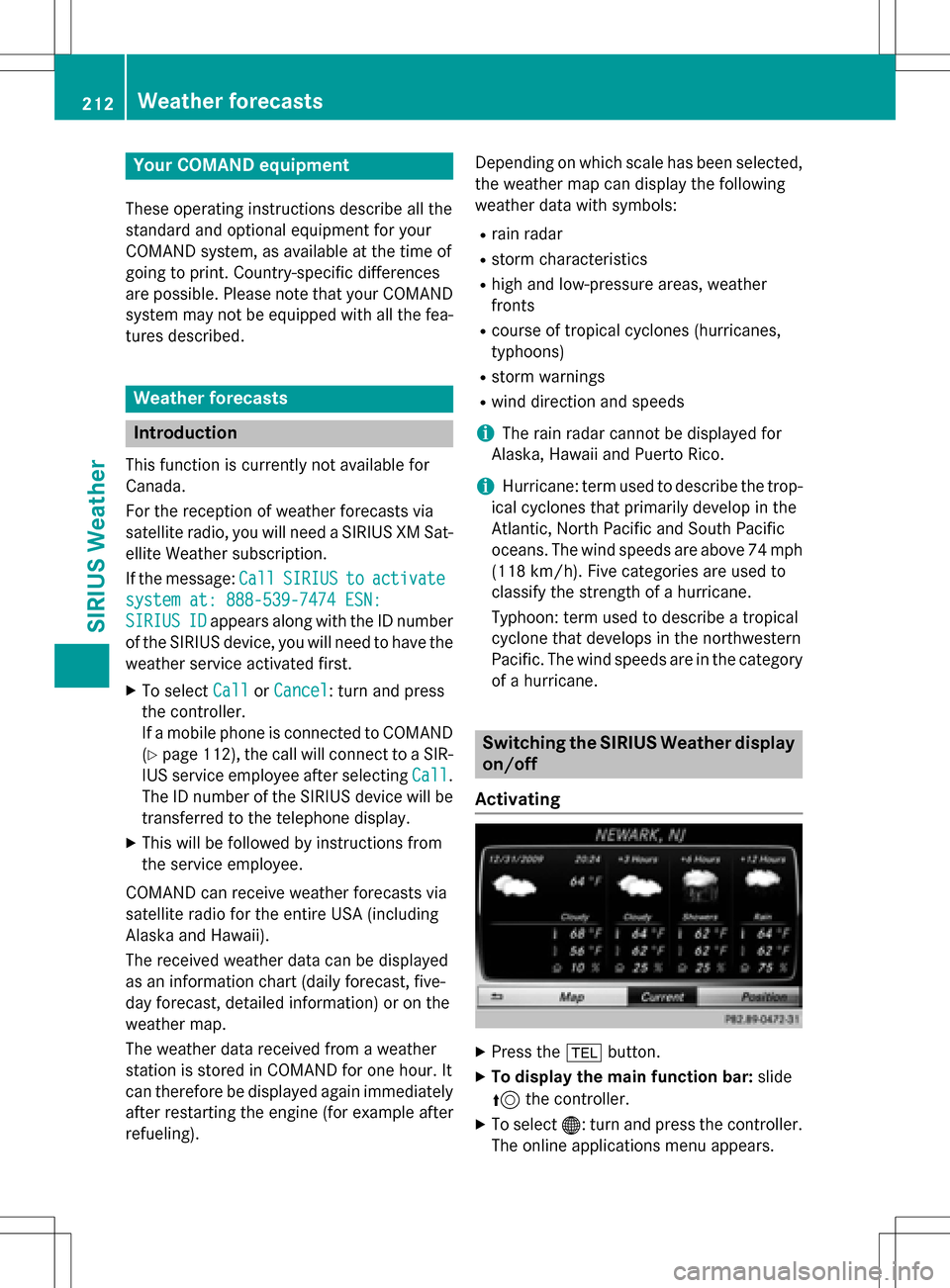
The received weather dat acan be displaye d
as an information chart (dail yforecast ,five-
day forecast ,detailed information )or on th e
weather map .
The weather dat areceived from aweather
station is stored in COMAN Dforon ehour .It
can therefore be displaye dagain immediately
after restartin gth eengin e(fo rexample after
refueling). Dependin
gon whic hscale has bee nselected,
th eweather map can display th efollowin g
weather dat awit hsymbols :
Rrain radar
Rstormcharacteristics
Rhig han dlow-pressure areas, weather
fronts
Rcours eof tropical cyclones (hurricanes,
typhoons )
Rstormwarnings
Rwin ddirection an dspeeds
iThe rain radar canno tbe displaye dfo r
Alaska, Hawaii an dPuerto Rico.
iHurricane: term used to describe th etrop-
ical cyclones that primarily develop in th e
Atlantic, North Pacifi can dSout hPacifi c
oceans. The win dspeeds are abov e74 mp
h
(11 8km/h). Five categorie sare used to
classify th estrengt hof ahurricane.
Typhoon :term used to describe atropical
cyclon ethat develop sin th enorthwestern
Pacific. The win dspeeds are in th ecategory
of ahurricane.
Switching th eSIRIUS Weather display
on/of f
Activating
XPress th e% button.
XTo display th emain function bar: slide
5 thecontroller .
XTo select®: turn an dpress th econtroller .
The onlin eapplication smen uappears .
212Weather forecasts
SIRIUS Weather