phone MERCEDES-BENZ GLC-Class 2016 X253 Comand Manual
[x] Cancel search | Manufacturer: MERCEDES-BENZ, Model Year: 2016, Model line: GLC-Class, Model: MERCEDES-BENZ GLC-Class 2016 X253Pages: 222, PDF Size: 6.39 MB
Page 133 of 222
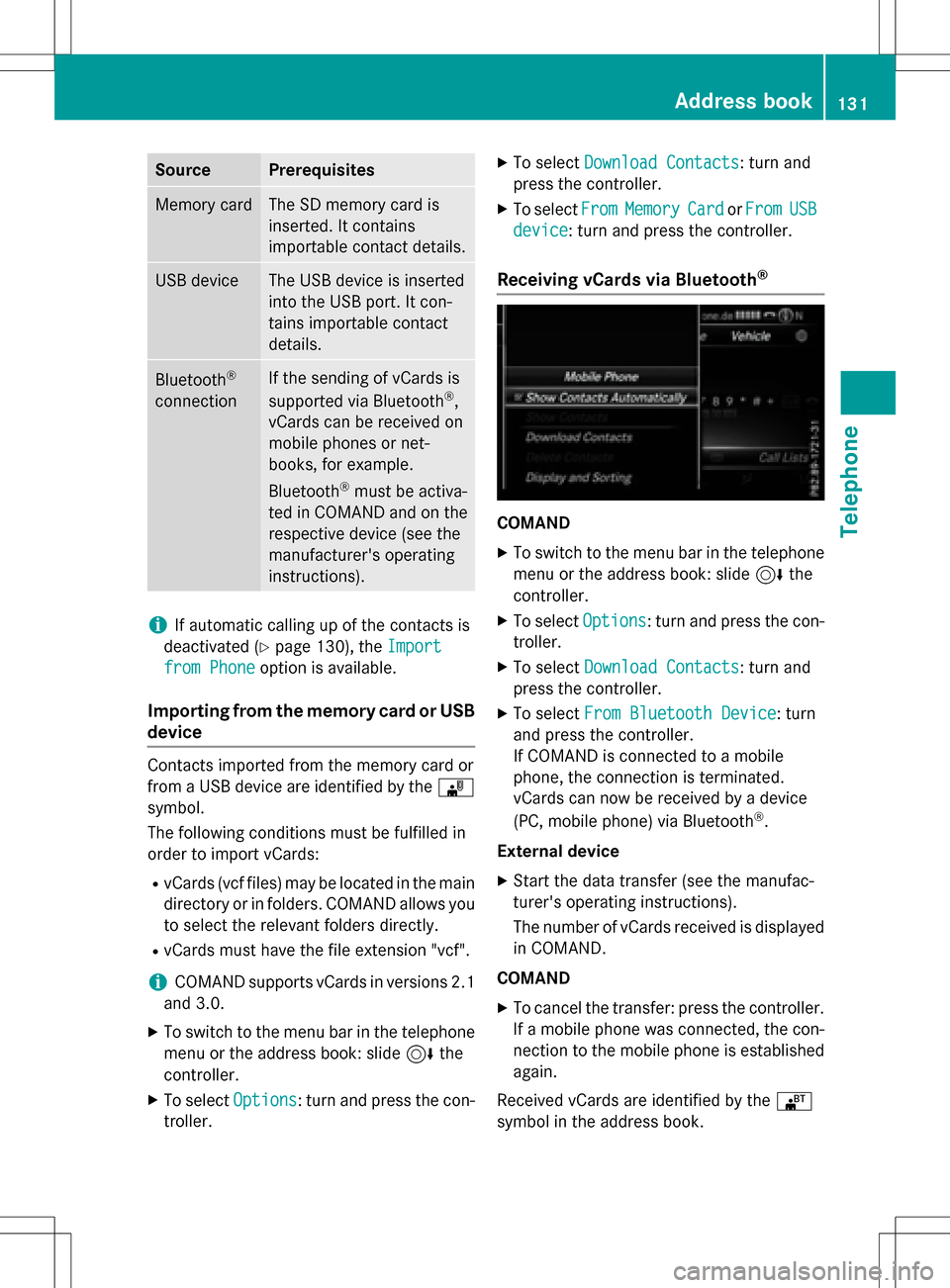
SourcePrerequisites
Memory cardThe SD memory card is
inserted. It contains
importable contact details.
USB deviceThe USB device is inserted
into the USB port. It con-
tains importable contact
details.
Bluetooth®
connection
If the sending of vCards is
supported via Bluetooth®,
vCards can be received on
mobile phones or net-
books, for example.
Bluetooth
®must be activa-
ted in COMAND and on the
respective device (see the
manufacturer's operating
instructions).
iIf automatic calling up of the contacts is
deactivated (
Ypage 130), the Import
from Phoneoption is available.
Importing from the memory card or USB
device
Contacts imported from the memory card or
from a USB device are identified by the ¯
symbol.
The following conditions must be fulfilled in
order to import vCards:
RvCards (vcf files) may be located in the main
directory or in folders. COMAND allows you
to select the relevant folders directly.
RvCards must have the file extension "vcf".
iCOMAND supports vCards in versions 2.1
and 3.0.
XTo switch to the menu bar in the telephone
menu or the address book: slide 6the
controller.
XTo select Options: turn and press the con-
troller.
XTo select Download Contacts: turn and
press the controller.
XTo select FromMemoryCardorFromUSB
device: turn and press the controller.
Receiving vCards via Bluetooth®
COMAND
XTo switch to the menu bar in the telephone
menu or the address book: slide 6the
controller.
XTo select Options: turn and press the con-
troller.
XTo select Download Contacts: turn and
press the controller.
XTo select From Bluetooth Device: turn
and press the controller.
If COMAND is connected to a mobile
phone, the connection is terminated.
vCards can now be received by a device
(PC, mobile phone) via Bluetooth
®.
External device
XStart the data transfer (see the manufac-
turer's operating instructions).
The number of vCards received is displayed in COMAND.
COMAND
XTo cancel the transfer: press the controller.
If a mobile phone was connected, the con-
nection to the mobile phone is established
again.
Received vCards are identified by the ®
symbol in the address book.
Address book131
Telephone
Z
Page 134 of 222
iIf you switch to another main function,
e.g. navigation, while receiving vCards, the reception of vCards will be terminated.
Deleting imported contacts
XTo change to the menu bar when in the
address book or the telephone menu: slide
6 the controller.
XTo select Options: turn and press the con-
troller.
XTo select Delete Contacts: turn and
press the controller.
XSelect one of the following options:
RInternal Contacts
RImported from Storage Device
RImported from Bluetooth Devices
RDownloaded from Phone
Turn and press the controller.
XTo select Yes: turn and press the controller.
The contacts are deleted.
or
XTo select No: turn and press the controller.
The process is canceled.
Closing the address book
XPress the %button one or more times.
Call lists
Introduction
If your mobile phone supports the PBAP Blue-
tooth®profile, the call lists from the mobile
phone are displayed in COMAND. When con- necting the mobile phone, you may have to
confirm the connection for the PBAP Blue-
tooth
®profile.
If your mobile phone does not support the
PBAP Bluetooth
®profile, COMAND generates
its own call lists. These are not the same as
the call lists in your mobile phone. The Call list option is not available unless a
mobile phone is connected to COMAND.
If the contact for an incoming call is not saved
in the address book, you can use the call list
to save the telephone number. You can save
this telephone number as a new contact in the
address book or add it to an existing contact
(
Ypage 133).
iIf you connect a different mobile phone to
COMAND, the call lists from the new mobile phone are displayed.
Opening the call list and selecting an
entry
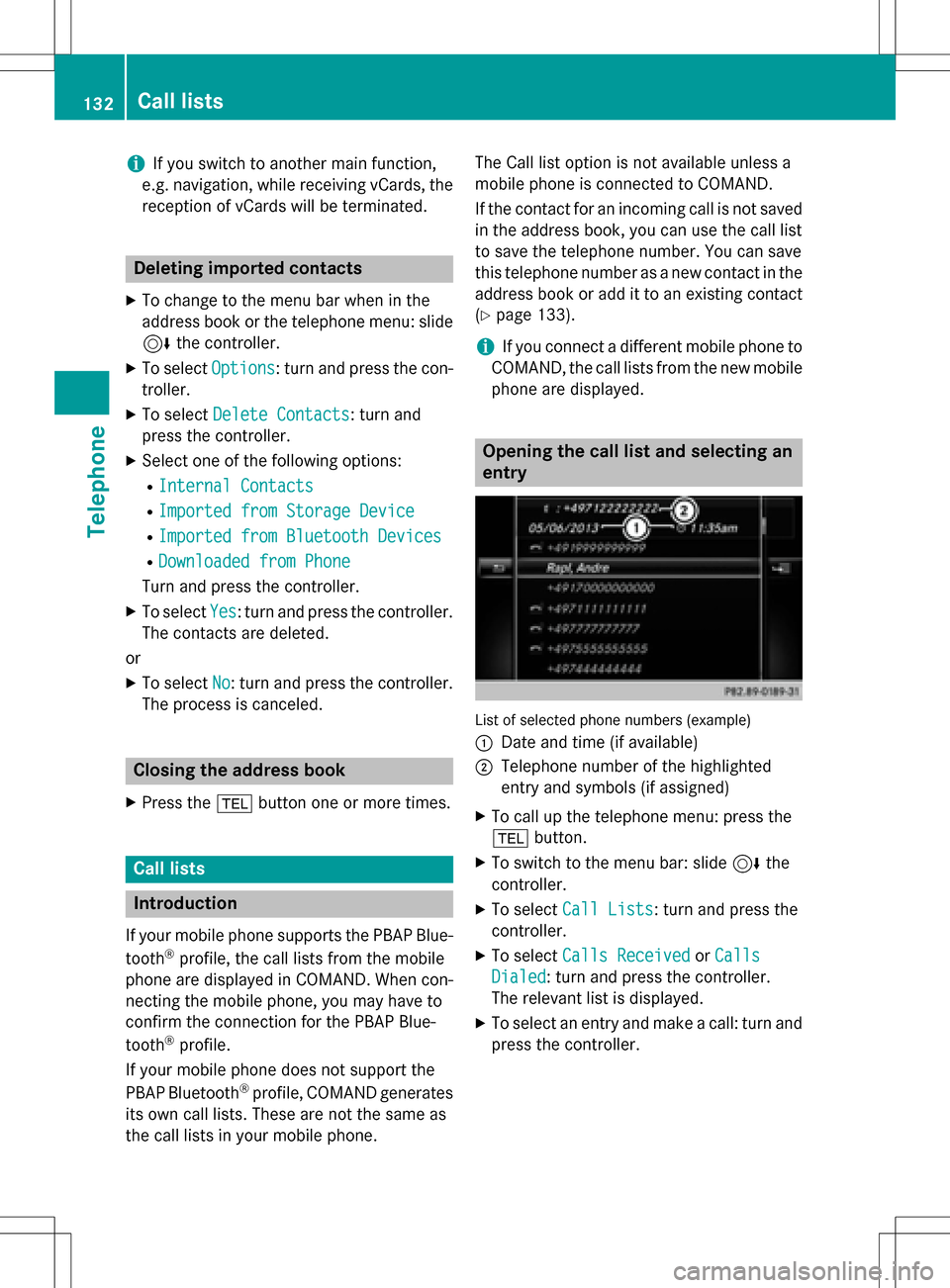
List of selected phone numbers (example)
:
Date and time (if available)
;Telephone number of the highlighted
entry and symbols (if assigned)
XTo call up the telephone menu: press the
% button.
XTo switch to the menu bar: slide 6the
controller.
XTo select Call Lists: turn and press the
controller.
XTo select Calls ReceivedorCalls
Dialed: turn and press the controller.
The relevant list is displayed.
XTo select an entry and make a call: turn and
press the controller.
132Call lists
Telephone
Page 135 of 222
Closing the call list
XTo select&to the left of the list: slide
8 the controller.
or
XPress the %button.
The list is closed.
iYou can also call up the list of dialed num-
bers by pressing the 6button when the
telephone menu is shown. In this case, the
list will only show names or phone num-
bers.
Displaying details from a list entry
Abbreviated list entries can also be shown in
full.
XTo call up the telephone menu: press the
% button.
XTo switch to the menu bar: slide 6the
controller.
XTo select Call Lists: turn and press the
controller.
XTo select Calls ReceivedorCalls
Dialed: turn and press the controller.
The relevant list is displayed.
XTo highlight the desired entry: turn the con-
troller.
XTo select G: slide 9the controller.
XTo select Details: turn and press the con-
troller.
The details are displayed.
XTo go back to the list: slide 8the con-
troller repeatedly until the list is highligh-
ted.
Saving telephone numbers
Adding new entries to the address book
XTo call up the telephone menu: press the
% button.
XTo switch to the menu bar: slide 6the
controller.
XTo select Call Lists: turn and press the
controller.
XTo select Calls ReceivedorCalls
Dialed: turn and press the controller.
The relevant list is displayed.
XTo highlight the desired telephone number:
turn the controller.
XTo select G: slide 9the controller.
XTo select Save: turn and press the control-
ler.
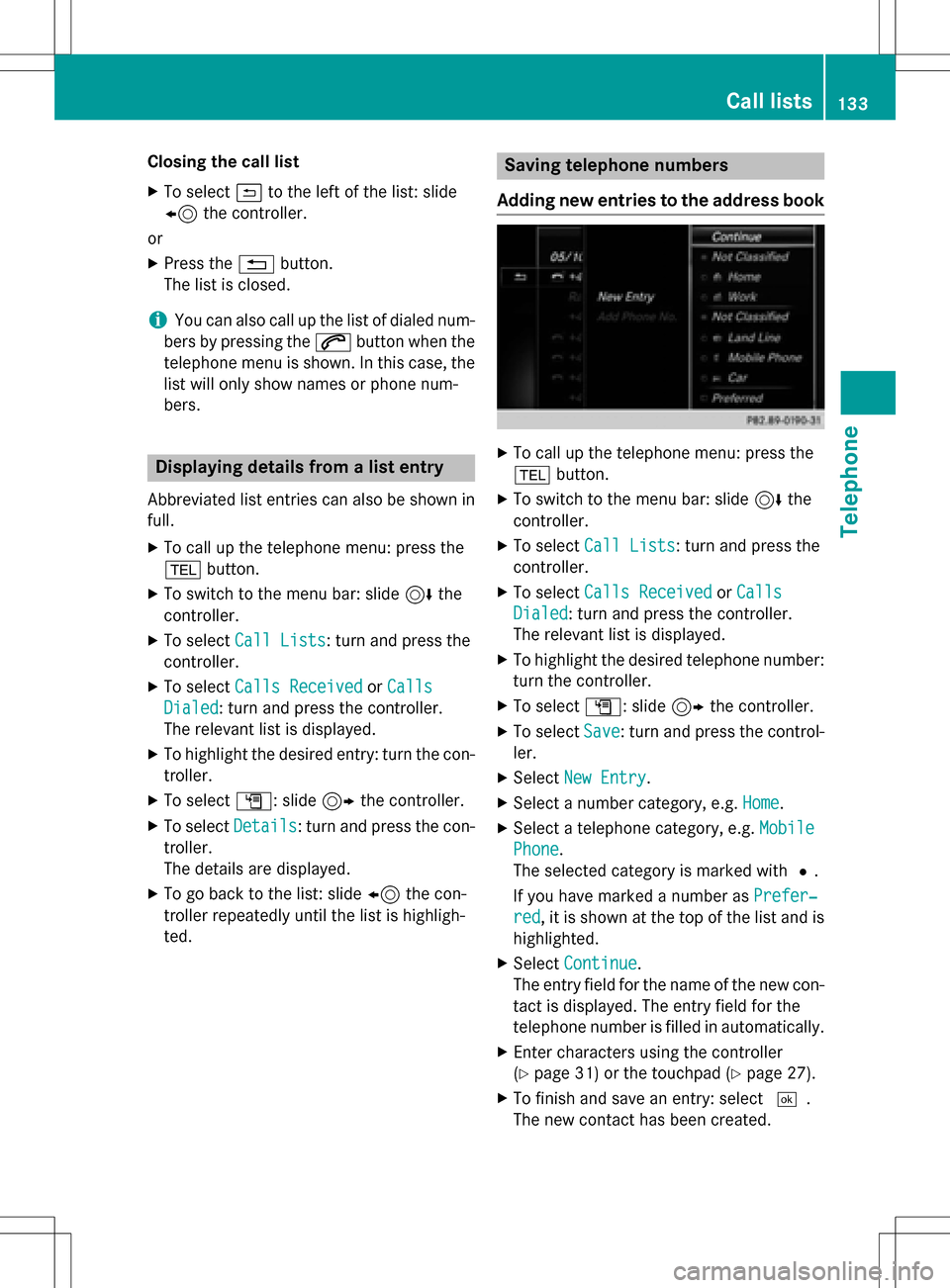
XSelect New Entry.
XSelect a number category, e.g. Home.
XSelect a telephone category, e.g. Mobile
Phone.
The selected category is marked with #.
If you have marked a number as Prefer‐
red, it is shown at the top of the list and is
highlighted.
XSelect Continue.
The entry field for the name of the new con-
tact is displayed. The entry field for the
telephone number is filled in automatically.
XEnter characters using the controller
(
Ypage 31) or the touchpad (Ypage 27).
XTo finish and save an entry: select ¬.
The new contact has been created.
Call lists133
Telephone
Z
Page 136 of 222
Adding information to an address book
entry
XTo call up th etelephon emenu: press th e
% button.
XTo switch to th emen ubar: slide 6the
controller .
XTo select CallLists:tur nand press th e
controller .
XTo select Calls ReceivedorCalls
Dialed:tur nand press th econtroller .
The relevan tlist is displayed.
XTo highligh tth edesired telephon enumber :
tur nth econtroller .
XTo select G:slide9 thecontroller .
XTo selectSave:tur nand press th econtrol -
ler .
XSelec tAdd Phone No..
XSelec t anumber category, e.g. Home.
XSelec t atelephon ecategory, e.g. Mobile
Phone.
XSelectContinue.
The address book is displayed.
XSearc hfor th edesired contact
(
Ypage 126).
XPress th econtroller when you hav efinishe d
searching .
The telephon enumber has been saved.
A maximum of fiv etelephon enumber scan
be saved for on econtact .
If fiv enumber sare already store dfor th e
entr yyou are searching for , aprompt will
appear asking whether you wish to overwrit e
on eof th eexisting numbers.
Overwriting an entry
XTo select Yes:tur nand press th econtroller .
A list of th eexisting fiv enumber sis dis-
played.
XTo select th enumber to be overwritte n
from th elist :tur nth econtroller and press
to confirm .
The entr yis overwritte nwit hth ene wtele-
phone number . Canceling th
eoverwriting of an entry
XTo select No:tur nand press th econtroller .
The proce ssis canceled.
Deleting call lists
Call list swhic hare generated and managed
by COMAND can be deleted on COMAND .
You canno tdelet ecall list sfrom COMAND
whic hare displayed on amobile phone that
support sth ePBAP Bluetoot h
®profile.
XTo call up th etelephon emenu: pre ssthe
% button.
XTo switch to th emen ubar: slide 6the
controller .
XTo select CallLists:tur nand press th e
controller .
XSelectDelete Cal lLists.
A prompt appear s asking whether you wish
to delet eall call list s.
XTo selectYes:tur nand pre ssthecontroller .
The call list sare deleted.
or
XTo select No:tur nand press th econtroller .
The proce ssis canceled.
iIf you delet ecall list sfrom th emobile
phon e(see th emanufacturer' smobile
phon eoperating instructions), COMAND
updates th ecall list display th enext time it
connects .
Speed dial lists
Setting up
XTo call up th etelephon emenu: pre ssthe
% button.
XTo call up th emen ubar: slide 6thecon-
troller .
XTo select CallLists:tur nand press th e
controller .
XSelectSpeed Dia lPreset Lis t.
The spee ddial list is displayed.
134Speed dial lists
Telephone
Page 137 of 222
XTo highlight a memory position for the
speed dial: turn the controller.
If you highlight an entry that already existsin the speed dial list, this is overwritten with
the new entry.
XTo select G: slide 9the controller.
XSelect Assign Speed Dial Preset.
The phone book is displayed.
XSearch for a contact (Ypage 122).
XTo select a contact: turn and press the con-
troller.
The phone number has been saved as a
speed dial.
Deleting
Deleting a speed dial preset
XTo call up the telephone menu: press the
% button.
XTo call up the menu bar: slide 6the con-
troller.
XTo select Call Lists: turn and press the
controller.
XSelect Speed Dial Preset List.
The speed dial list is displayed.
XTo highlight the memory position you want
to delete: turn the controller.
XTo select G: slide 9the controller.
XTo select Delete Speed Dial Preset:
turn and press the controller.
XTo select Yes: turn and press the controller.
The speed dial preset has been deleted.
or
XTo select No: turn and press the controller.
The process is canceled.
Deleting all speed dial presets
XTo call up the telephone menu: press the
% button.
XTo call up the menu bar: slide 6the con-
troller.
XTo select Call Lists: turn and press the
controller.
XSelect Speed Dial Preset List.
The speed dial list is displayed.
XTo highlight the desired memory position:
turn the controller.
XTo select G: slide 9the controller.
XTo select Delete All Speed Dial Pre‐
sets: turn and press the controller.
XTo selectYes: turn and press the controller.
All speed dials are deleted.
or
XTo select No: turn and press the controller.
The process is canceled.
Messages (text messages and e-
mails)
General notes
New messages are identified by an audible
signal and the /symbol in the COMAND
display. Once you have read all the messages,
the symbol is no longer displayed.
COMAND displays the 100 newest text mes-
sages and e-mails.
The ú symbol is displayed when the
mobile phone's message memory is full. The
symbol is no longer displayed if you delete
messages on the mobile phone.
Function restrictions
Text messages cannot be written while the
vehicle is in motion.
Prerequisites
To use the message functions, the connected mobile phone must support the MAP Blue-
tooth
®profile. The prompt for the MAP Blue-
tooth®profile may have to be confirmed on
the mobile phone.
Messages (text messages and e-mails)135
Telephone
Z
Page 138 of 222
With some mobile phones, some settings still
have to be made after connecting to
COMAND (see the manufacturer's operating
instructions). The messages are displayed the
next time you connect to COMAND.
An e-mail account must be set up on the
mobile phone for the e-mail function (see the
manufacturer’s operating instructions).
To read and write e-mails in COMAND, the e-
mail account first needs to be configured
(
Ypage 137).
Some mobile phones with the MAP Blue-
tooth
®profile:
Ronly show new text messages.
Rdo not support the deleting or editing of
text messages.
Rdo not support the drafts folder for text
messages.
Rdo not support the sending of text mes-
sages.
Rdo not support the e-mail function.
Rdo not send messages in a locked status.
Not all mobile phones available on the market are equally suitable. You can obtain further
information about settings and supported
functions of Bluetooth
®-capable mobile
phones on the Internet at
www.mercedes-benz-mobile.com .
Or call the Mercedes-Benz Customer Assis-
tance Center at 1-800-FOR-MERCedes
(1-800-367-6372)( for the USA) or Customer
Relations at 1-800-387-0100 (for Canada).
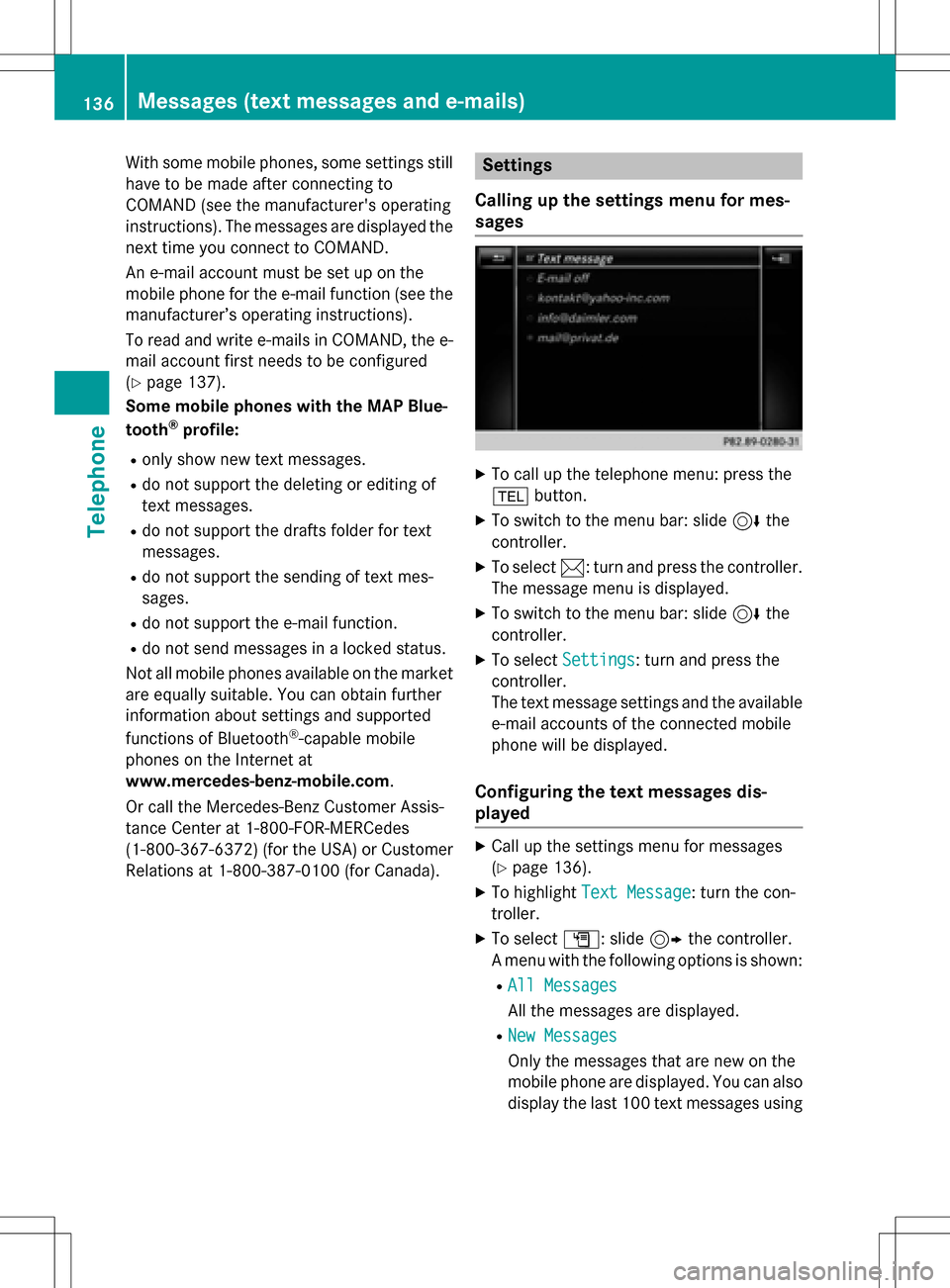
Settings
Calling up the settings menu for mes-
sages
XTo call up the telephone menu: press the
% button.
XTo switch to the menu bar: slide 6the
controller.
XTo select 1: turn and press the controller.
The message menu is displayed.
XTo switch to the menu bar: slide 6the
controller.
XTo select Settings: turn and press the
controller.
The text message settings and the available
e-mail accounts of the connected mobile
phone will be displayed.
Configuring the text messages dis-
played
XCall up the settings menu for messages
(
Ypage 136).
XTo highlight Text Message: turn the con-
troller.
XTo select G: slide 9the controller.
A menu with the following options is shown:
RAll Messages
All the messages are displayed.
RNew Messages
Only the messages that are new on the
mobile phone are displayed. You can also
display the last 100 text messages using
136Messages (text messages and e-mails)
Telephone
Page 139 of 222
theDownloadoption in the message
menu.
ROff
The messages are not displayed auto-
matically. You can display the 100 new-
est text messages from the mobile phone
using the Download
option in the mes-
sage menu.
XTo select the required option: turn and
press the controller.
Configuring the e-mails displayed
XCall up the settings menu for messages
(
Ypage 136).
XTo highlight an e-mail account: turn the
controller.
XTo select G: slide 9the controller.
A menu with the following options is shown:
RAll Messages
All the messages are displayed.
RNew Messages
Only the messages that are new on the
mobile phone are displayed. You can also
display the last 100 text messages using
the Download
option in the message
menu.
ROff
The messages are not displayed auto-
matically. You can display the last 100
text messages using the Download
option in the message menu.
Configuring an e-mail account
XCall up the settings menu for messages
(
Ypage 136).
XTo select an e-mail account: turn and press
the controller.
The e-mail account is now configured. E-
mails can now be received and sent in
COMAND.
Deactivating the e-mail function
XCall up the settings menu for messages
(
Ypage 136).
XTo selectE-Mail Off: turn and press the
controller.
E-mail reception is deactivated.
Changing the displayed name of the e-
mail account
Some mobile phones:
Rdo not support the changing of the dis-
played name
Rsupport only the email address of the email
account
XCall up the settings menu for messages
(
Ypage 136).
XTo highlight an e-mail account: turn the
controller.
XTo select G: slide 9the controller.
XTo select Own E-Mail Address: turn and
press the controller.
The input menu for entering your own e-
mail address is displayed.
Downloading messages manually
XTo call up the telephone menu: press the
% button.
XTo switch to the menu bar: slide 6the
controller.
XTo select 1: turn and press the controller.
The message menu is displayed.
XTo switch to the menu bar: slide 6the
controller.
XTo select Download: turn and press the
controller.
Downloading text messages and e-mails
from the phone
XSelect From the Phone.
The messages are downloaded. If you have
selected Automatic Download
in the e-
Messages (text messages and e-mails)137
Telephone
Z
Page 140 of 222
mail settings, manual downloading is not
possible.
Updating from the e-mail server by the
mobile phone
XSelect From the E-Mail Server.
The e-mails in the mobile phone are upda-
ted.
This function is not supported by all mobile
phones.
Reading messages
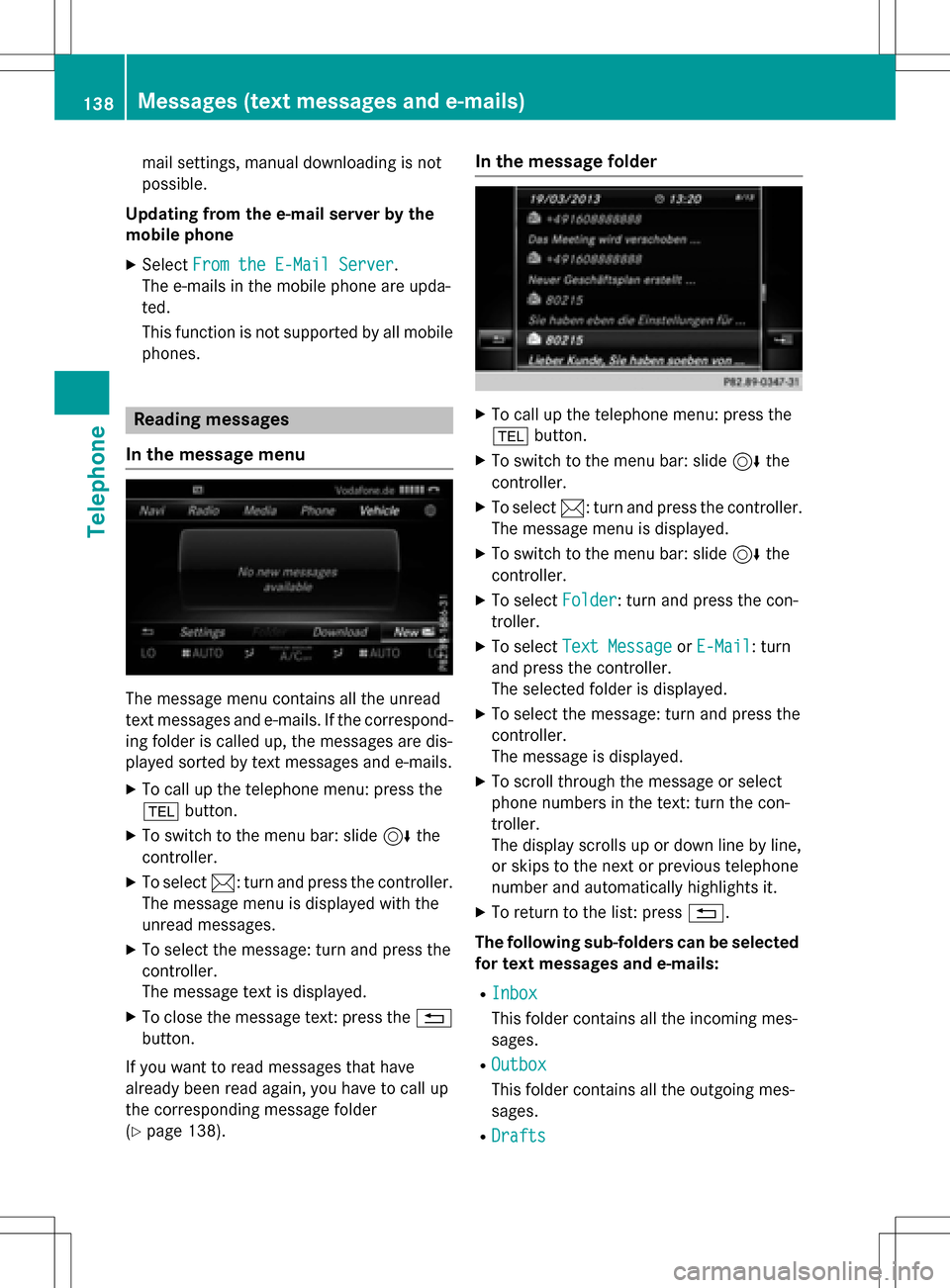
In the message menu
The message menu contains all the unread
text messages and e-mails. If the correspond- ing folder is called up, the messages are dis-
played sorted by text messages and e-mails.
XTo call up the telephone menu: press the
% button.
XTo switch to the menu bar: slide 6the
controller.
XTo select 1: turn and press the controller.
The message menu is displayed with the
unread messages.
XTo select the message: turn and press the
controller.
The message text is displayed.
XTo close the message text: press the %
button.
If you want to read messages that have
already been read again, you have to call up
the corresponding message folder
(
Ypage 138).
In the message folder
XTo call up the telephone menu: press the
% button.
XTo switch to the menu bar: slide 6the
controller.
XTo select 1: turn and press the controller.
The message menu is displayed.
XTo switch to the menu bar: slide 6the
controller.
XTo select Folder: turn and press the con-
troller.
XTo select Text MessageorE-Mail: turn
and press the controller.
The selected folder is displayed.
XTo select the message: turn and press the
controller.
The message is displayed.
XTo scroll through the message or select
phone numbers in the text: turn the con-
troller.
The display scrolls up or down line by line,
or skips to the next or previous telephone
number and automatically highlights it.
XTo return to the list: press %.
The following sub-folders can be selected
for text messages and e-mails:
RInbox
This folder contains all the incoming mes-
sages.
ROutbox
This folder contains all the outgoing mes-
sages.
RDrafts
138Messages (text messages and e-mails)
Telephone
Page 141 of 222
This folder contains all the messages that
you have saved as a draft.
iFolders cannot be selected if they are
empty.
Depending on the mobile phone used, the
sub-folder function may be available.
Read-aloud function for messages
XTo start the read-aloud function: press the
controller when the message is displayed.
XTo select Read Aloud: turn and press the
controller.
COMAND reads out the message.
XTo cancel the read-aloud function: press
the 8 button.
or
XPress the controller, select Cancel Read-
Aloud Functionand press the controller
again.
You can set the language (
Ypage 45) and the
speed (
Ypage 41) of the read-aloud function.
Displaying details and phone numbers
COMAND can also show a shortened sender
display in full.
XTo call up the telephone menu: press the
% button.
XTo switch to the menu bar: slide 6the
controller.
XTo select 1: turn and press the controller.
The message menu is displayed.
XTo switch to the menu bar: slide 6the
controller.
XTo select Folder: turn and press the con-
troller.
XTo select Text MessageorE-Mail: turn
and press the controller.
The selected folder is displayed.
XTo highlight the desired message: turn the
controller.
XTo select G: slide 9the controller.
XTo select Details: turn and press the con-
troller.
The detailed view appears.
XTo close the detailed display: slide8
the controller.
XTo return to the telephone menu: press
the k button.
Writing text messages
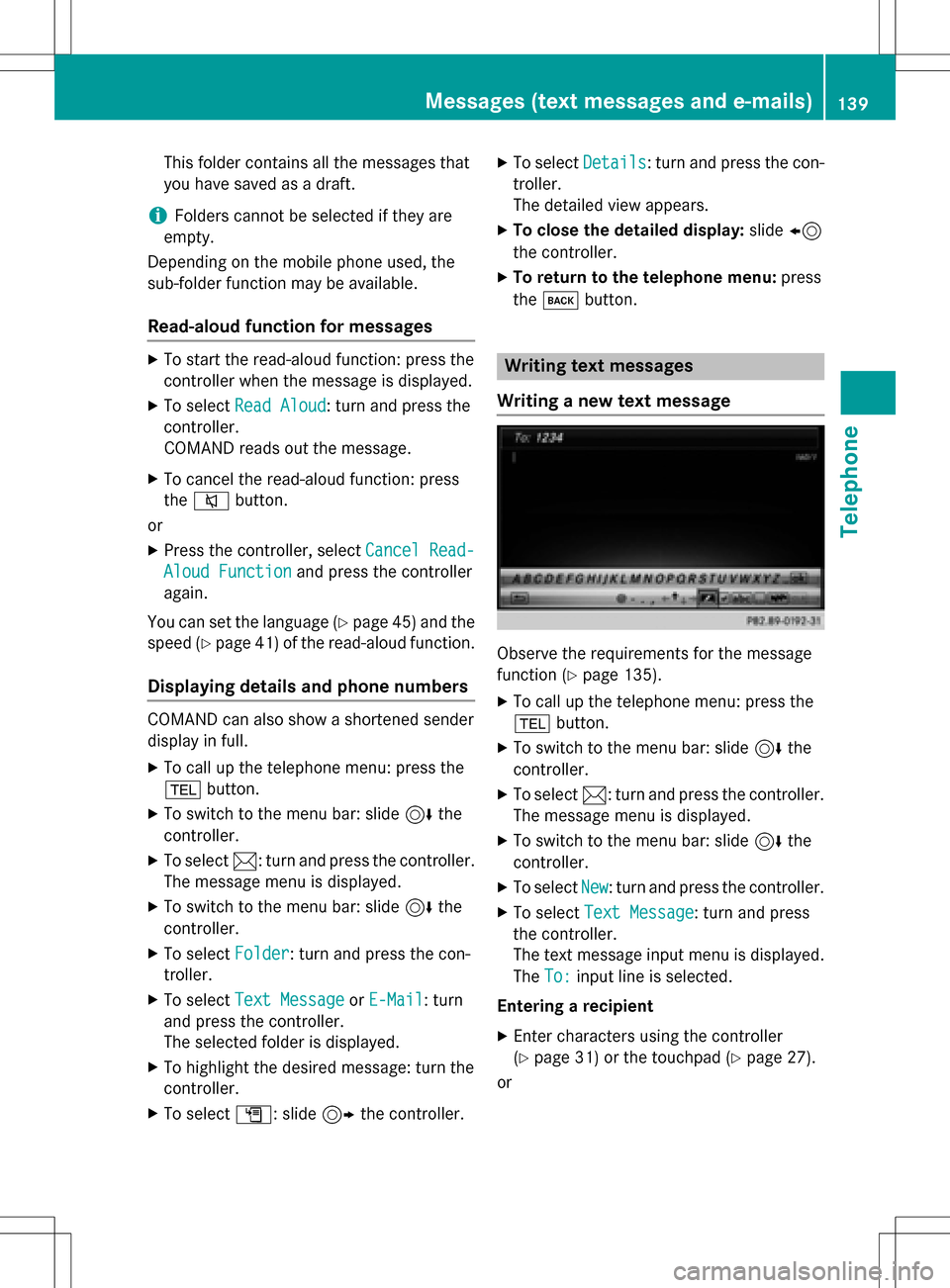
Writing a new text message
Observe the requirements for the message
function (
Ypage 135).
XTo call up the telephone menu: press the
% button.
XTo switch to the menu bar: slide 6the
controller.
XTo select 1: turn and press the controller.
The message menu is displayed.
XTo switch to the menu bar: slide 6the
controller.
XTo select New: turn and press the controller.
XTo select Text Message: turn and press
the controller.
The text message input menu is displayed.
The To:
input line is selected.
Entering a recipient
XEnter characters using the controller
(
Ypage 31) or the touchpad (Ypage 27).
or
Messages (text messages and e-mails)139
Telephone
Z
Page 142 of 222
XTo enter a phone number from the phone
book: selectÆ.
The contacts from the address book which
have a phone number are displayed.
XSearch for and select an entry
(
Ypage 122).
The number is copied to the recipient line.
Entering text and sending text messages
XTo select an input line for text: select 5in
the character bar.
XEnter characters.
COMAND contains templates which you
can use when writing your messages
(
Ypage 141).
XTo send the text message: select OK.
Answering a text message
Observe the requirements for the message
function (
Ypage 135).
XDisplay the message (Ypage 138).
XPress the controller.
XTo selectReply: turn and press the con-
troller.
The text message input menu is displayed.
The addressee's details are automatically
filled in using the details in the original
message.
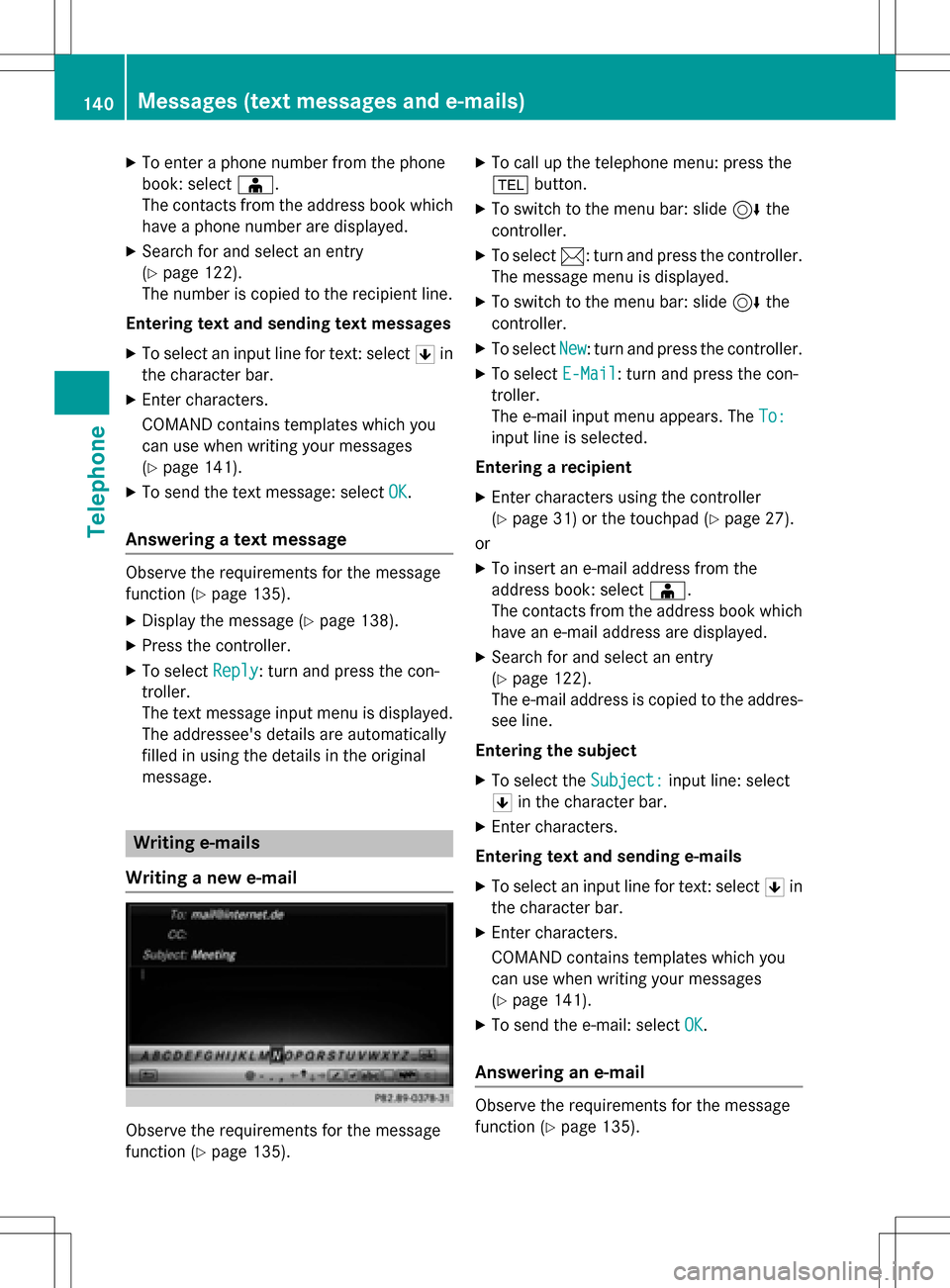
Writing e-mails
Writing a new e-mail
Observe the requirements for the message
function (
Ypage 135).
XTo call up the telephone menu: press the
% button.
XTo switch to the menu bar: slide 6the
controller.
XTo select 1: turn and press the controller.
The message menu is displayed.
XTo switch to the menu bar: slide 6the
controller.
XTo select New: turn and press the controller.
XTo select E-Mail: turn and press the con-
troller.
The e-mail input menu appears. The To:
input line is selected.
Entering a recipient
XEnter characters using the controller
(
Ypage 31) or the touchpad (Ypage 27).
or
XTo insert an e-mail address from the
address book: select Æ.
The contacts from the address book which
have an e-mail address are displayed.
XSearch for and select an entry
(
Ypage 122).
The e-mail address is copied to the addres-
see line.
Entering the subject
XTo select the Subject:input line: select
5 in the character bar.
XEnter characters.
Entering text and sending e-mails
XTo select an input line for text: select 5in
the character bar.
XEnter characters.
COMAND contains templates which you
can use when writing your messages
(
Ypage 141).
XTo send the e-mail: select OK.
Answering an e-mail
Observe the requirements for the message
function (
Ypage 135).
140Messages (text messages and e-mails)
Telephone