reset MERCEDES-BENZ GLC-Class 2016 X253 User Guide
[x] Cancel search | Manufacturer: MERCEDES-BENZ, Model Year: 2016, Model line: GLC-Class, Model: MERCEDES-BENZ GLC-Class 2016 X253Pages: 418, PDF Size: 9.23 MB
Page 108 of 418
Problems with the panorama roof with power tilt/sliding panel
GWARNING
If you close the sliding sunroof again immediately after it has been blocked or reset, the sliding
sunroof closes with increased or maximum force. The reversing feature is then not active. Parts
of the body could be trapped in the closing area in the process. This poses an increased risk of
injury or even fatal injury.
Make sure that no parts of the body are in the closing area.
If somebody becomes trapped:
Rrelease the switch immediately, or
Rpress the switch in any direction during the automatic closing process
The closing process is stopped.
!If the sliding sunroof still cannot be opened or closed as a result of a malfunction, contact
a qualified specialist workshop.
ProblemPossible causes/consequences and MSolutions
The panorama roof with
power tilt/sliding panel
cannot be closed and
you cannot see the
cause.If the panorama roof with power tilt/sliding panel is obstructed
during closing and reopens again slightly:
XImmediately after it blocks, pull the3switch down again to
the point of resistance until the panorama roof with power tilt/
sliding panel is closed.
The panorama roof with power tilt/sliding panel is closed with
more force.
If the panorama roof with power tilt/sliding panel is obstructed
again during closing and reopens again slightly:
XImmediately after it blocks, pull the 3switch down again to
the point of resistance until the panorama roof with power tilt/
sliding panel is closed.
The panorama roof with power tilt/sliding panel is closed with-
out the automatic reversing function.
106Panorama roof with power tilt/sliding panel
Opening and closing
Page 121 of 418
Adjusting the exterior mirrors
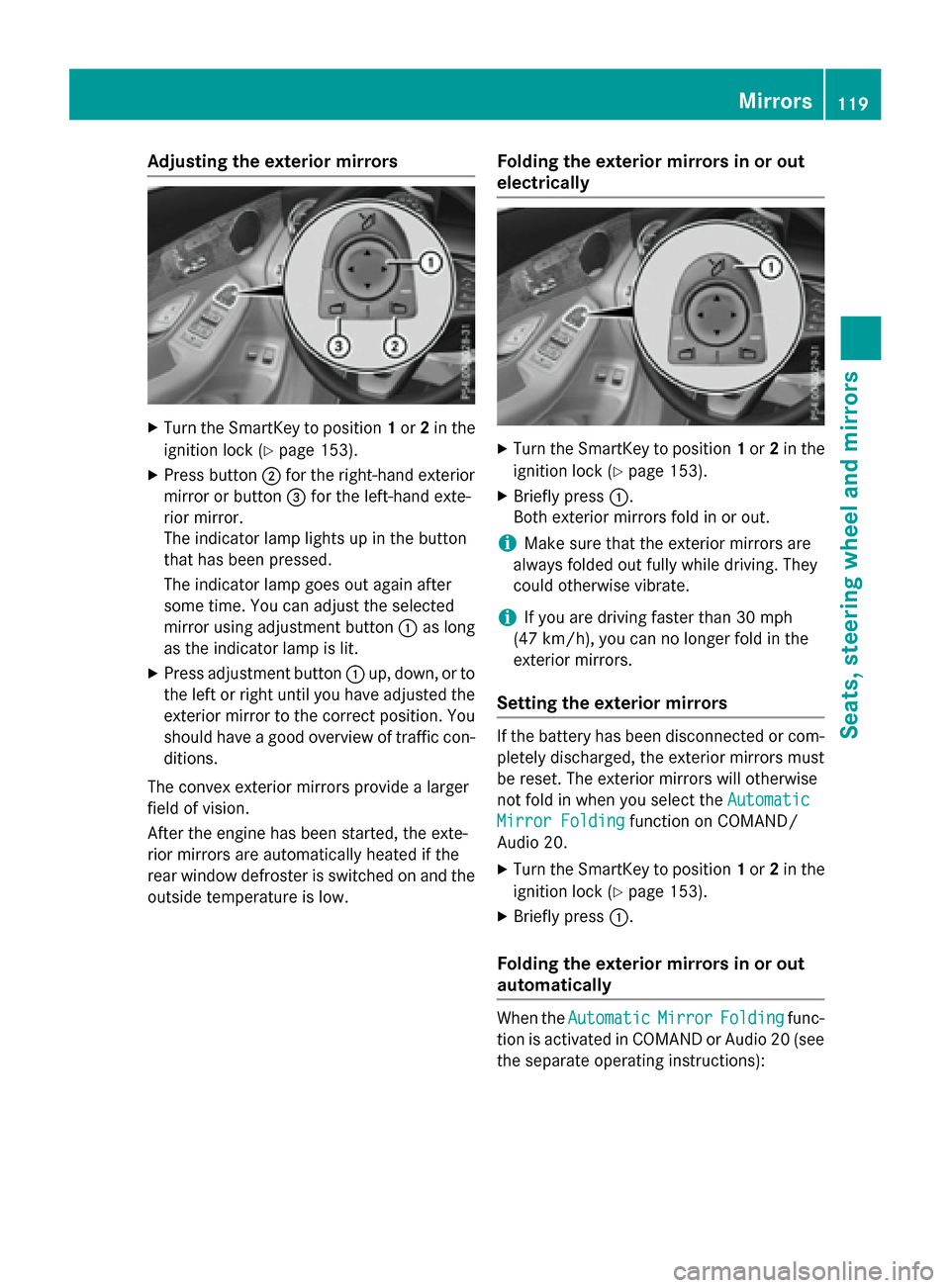
XTurn theSmartKey to position 1or 2in th e
ignition loc k (
Ypage 153).
XPress butto n; for th eright-hand exterio r
mirror or butto n= for th eleft-han dexte -
rio rmirror .
The indicator lamp lights up in th ebutto n
that has been pressed.
The indicator lamp goes out again after
som etime. You can adjust th eselected
mirror usin gadjustmen tbutto n: as lon g
as th eindicator lamp is lit .
XPress adjustmentbutto n: up, down ,or to
th elef tor right until you hav eadjusted th e
exterio rmirror to th ecorrec tposition .You
should hav e agoo doverview of traffic con-
ditions.
The convex exterio rmirror sprovide alarger
field of vision .
Afte rth eengin ehas been started, th eexte -
rio rmirror sare automatically heated if th e
rear window defroste ris switched on and th e
outside temperature is low.
Folding the exteri or mirrorsinor out
electri cally
XTurn th eSmartKey to position 1or 2in th e
ignition loc k (
Ypage 153).
XBriefly press :.
Both exterio rmirror sfol din or out .
iMakesur ethat th eexterio rmirror sare
always folded out fully while driving .The y
could otherwise vibrate .
iIf you are driving fasterthan 30 mph
(47 km/ h), you can no longer fold in the
exterior mirrors.
Setting the exterior mirrors
If the battery has been disconnected or com-
pletely discharged, the exterior mirrors must
be reset. The exterior mirrors will otherwise
not fold in when you select the Automatic
Mirror Foldingfunction on COMAND/
Audio 20.
XTurn the SmartKey to position 1or 2in the
ignition lock (
Ypage 153).
XBriefly press :.
Folding the exterior mirrors in or out
automatically
When theAutomaticMirrorFoldingfunc-
tion is activated in COMAND or Audio 20 (see
the separate operating instructions):
Mirrors119
Seats, steering wheel and mirrors
Z
Page 123 of 418
XTurn the SmartKey to position2in the igni-
tion lock (
Ypage 153).
XPress button =for the exterior mirror on
the front-passenger side.
XEngage reverse gear.
The exterior mirror on the front-passenger
side moves to the preset parking position.
XUse adjustment button ;to adjust the
exterior mirror to a position that allows you
to see the rear wheel and the curb.
The parking position is stored.
iIf you shift the transmission to another
position, the exterior mirror on the front-
passenger side returns to the driving posi-
tion.
Using the memory button
You can store the parking position of the
exterior mirror on the front-passenger side
using memory button M:. The reverse gear
must not be engaged.
XTurn the SmartKey to position 2in the igni-
tion lock (
Ypage 153).
XPress button =for the exterior mirror on
the front-passenger side.
XUse adjustment button ;to adjust the
exterior mirror to a position that allows you
to see the rear wheel and the curb.
XPress memory button M: and one of the
arrows on adjustment button ;within
three seconds.
The parking position is stored if the exterior mirror does not move.
XIf the mirror moves out of position, repeat
the steps.
XAfter successfully storing, reset the driving
position of the exterior mirror.
Calling up a stored parking position set-
ting
XTurn the SmartKey to position 2in the igni-
tion lock (
Ypage 153).
XAdjust the exterior mirror on the front-
passenger side using button =.
XEngage reverse gear.
The exterior mirror on the front-passenger
side moves to the stored parking position.
The exterior mirror on the front-passenger
side moves back to its original position:
Ras soon as you exceed a speed of 9 mph
(15 km/h)
Rabout ten seconds after you have disen-
gaged reverse gear
Rif you press button ?for the exterior mir-
ror on the driver's side
Memory function
Important safety notes
GWARNING
If you use the memory function on the driver's side while driving, you could lose control of
the vehicle as a result of the adjustments
being made. There is a risk of an accident.
Only use the memory function on the driver's
side when the vehicle is stationary.
GWARNING
When the memory function adjusts the seat or steering wheel, you and other vehicle occu-
pants – particularly children – could become
trapped. There is a risk of injury.
While the memory function is making adjust-
ments, make sure that no one has any body
parts in the sweep of the seat or steering
wheel. If somebody becomes trapped, imme-
diately release the memory function position
button. The adjustment process is stopped.
Memory function121
Seats, steering wheel and mirrors
Z
Page 124 of 418
GWARNING
Children could become trapped if they acti-
vate the memory function, particularly when
unattended. There is a risk of injury.
When leaving the vehicle, always take the
SmartKey with you and lock the vehicle. Never
leave children unsupervised in the vehicle.
The memory function can be used at any time,
e.g. even when the key is not in the ignition
lock.
Storing settings
With the memory function, you can store up
to three different settings, e.g. for three dif-
ferent people.
The following settings are stored as a single
memory preset:
Rposition of the seat, backrest and head
restraint
Rdriver's side: position of the exterior mir-
rors on the driver's and front-passenger
sides
Rposition of the head-up display
XAdjust the seat accordingly (Ypage 110).
XOn the driver's side, adjust the steering
wheel (
Ypage 116) and the exterior mirrors
(
Ypage 119).
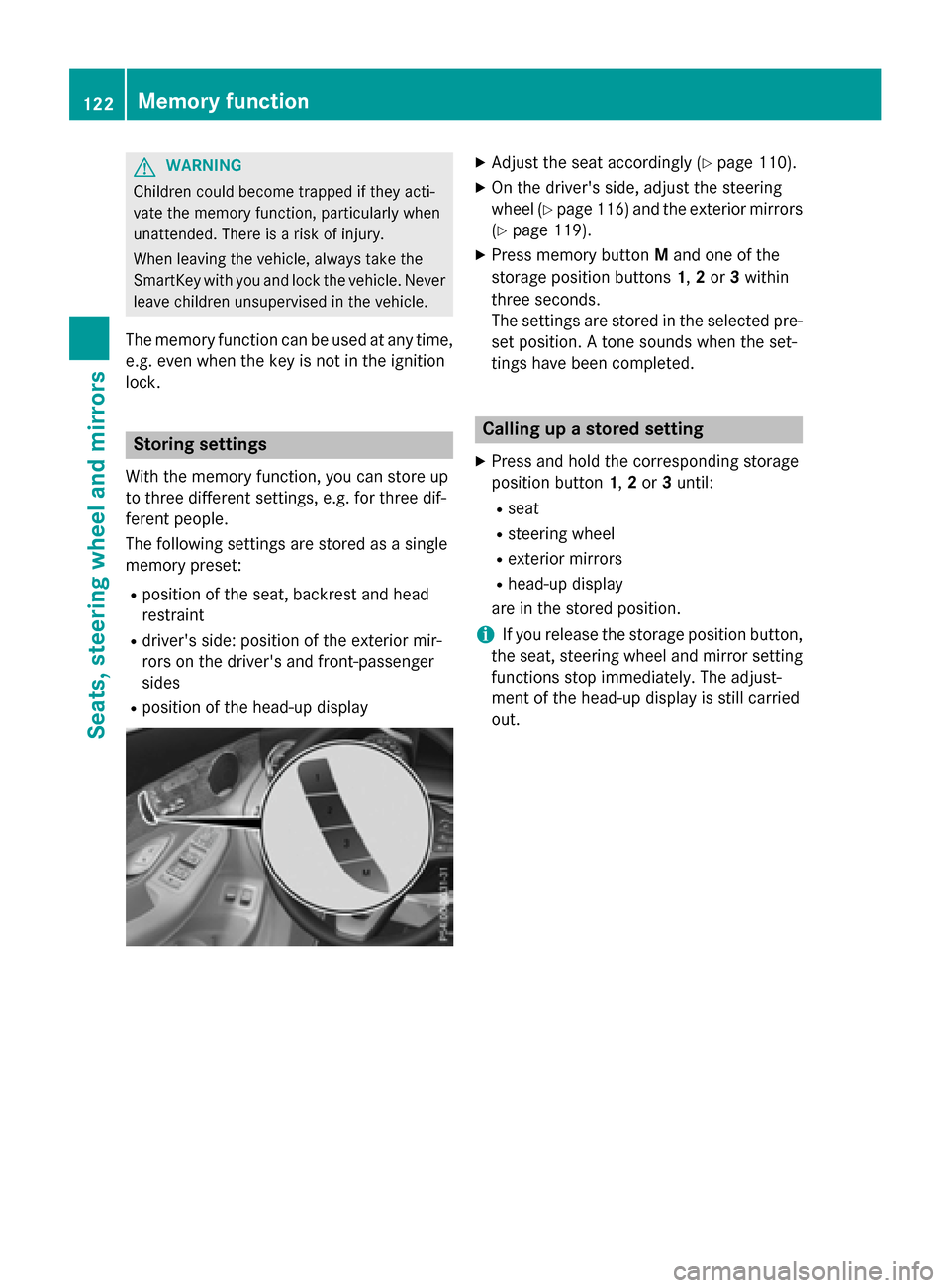
XPress memory button Mand one of the
storage position buttons 1,2or 3within
three seconds.
The settings are stored in the selected pre-
set position. A tone sounds when the set-
tings have been completed.
Calling up a stored setting
XPress and hold the corresponding storage
position button 1,2or 3until:
Rseat
Rsteering wheel
Rexterior mirrors
Rhead-up display
are in the stored position.
iIf you release the storage position button,
the seat, steering wheel and mirror setting
functions stop immediately. The adjust-
ment of the head-up display is still carried
out.
122Memory function
Seats, steering wheel and mirrors
Page 246 of 418
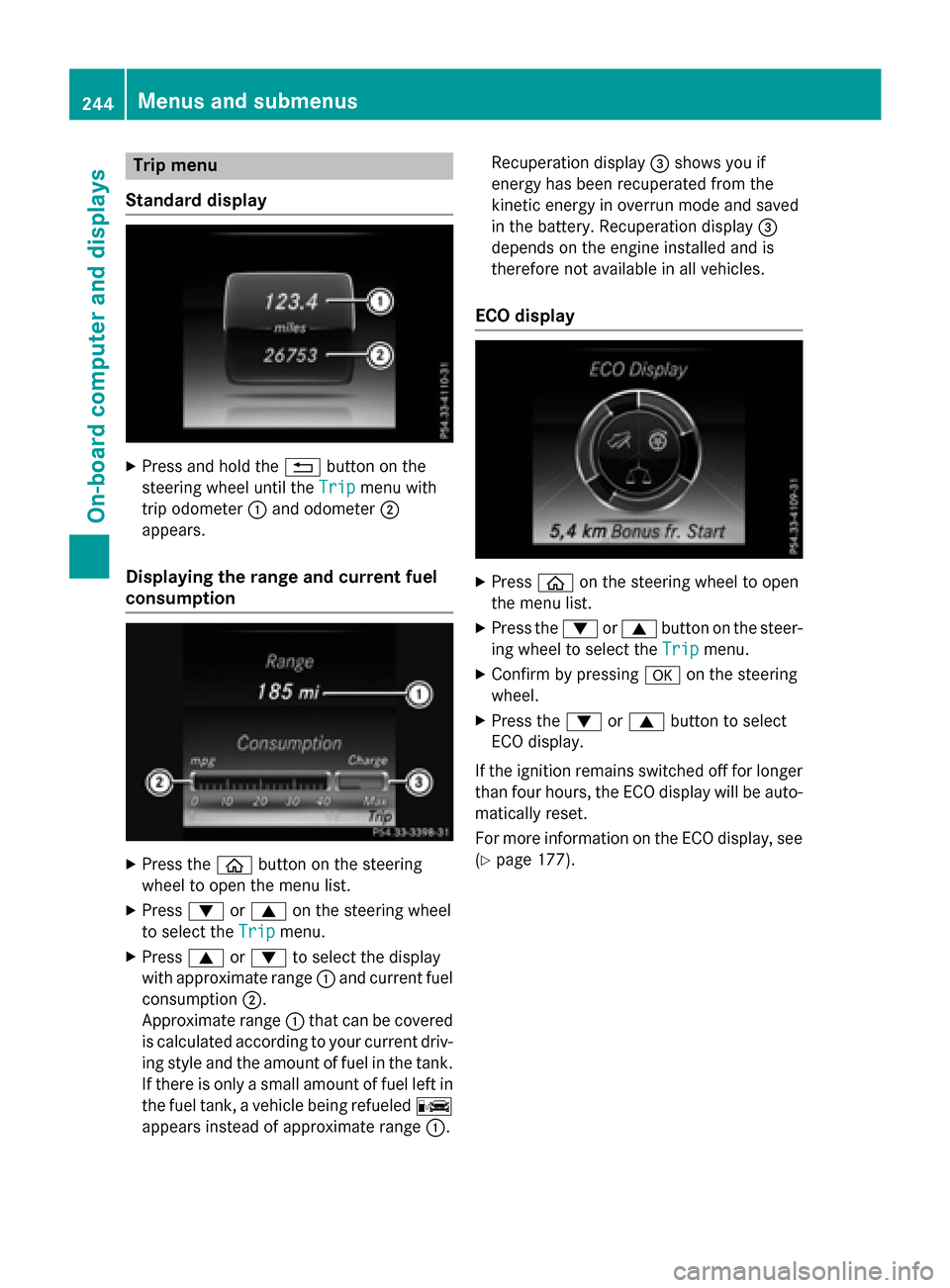
Trip menu
Standard display
XPress and hold the %button on the
steering wheel until the Trip
menu with
trip odometer :and odometer ;
appears.
Displaying the range and current fuel
consumption
XPress the òbutton on the steering
wheel to open the menu list.
XPress :or9 on the steering wheel
to select the Trip
menu.
XPress9or: to select the display
with approximate range :and current fuel
consumption ;.
Approximate range :that can be covered
is calculated according to your current driv-
ing style and the amount of fuel in the tank.
If there is only a small amount of fuel left in
the fuel tank, a vehicle being refueled C
appears instead of approximate range :.Recuperation display
=shows you if
energy has been recuperated from the
kinetic energy in overrun mode and saved
in the battery. Recuperation display =
depends on the engine installed and is
therefore not available in all vehicles.
ECO display
XPress òon the steering wheel to open
the menu list.
XPress the :or9 button on the steer-
ing wheel to select the Trip
menu.
XConfirm by pressingaon the steering
wheel.
XPress the :or9 button to select
ECO display.
If the ignition remains switched off for longer
than four hours, the ECO display will be auto- matically reset.
For more information on the ECO display, see
(
Ypage 177).
244Menus and submenus
On-board computer and displays
Page 247 of 418
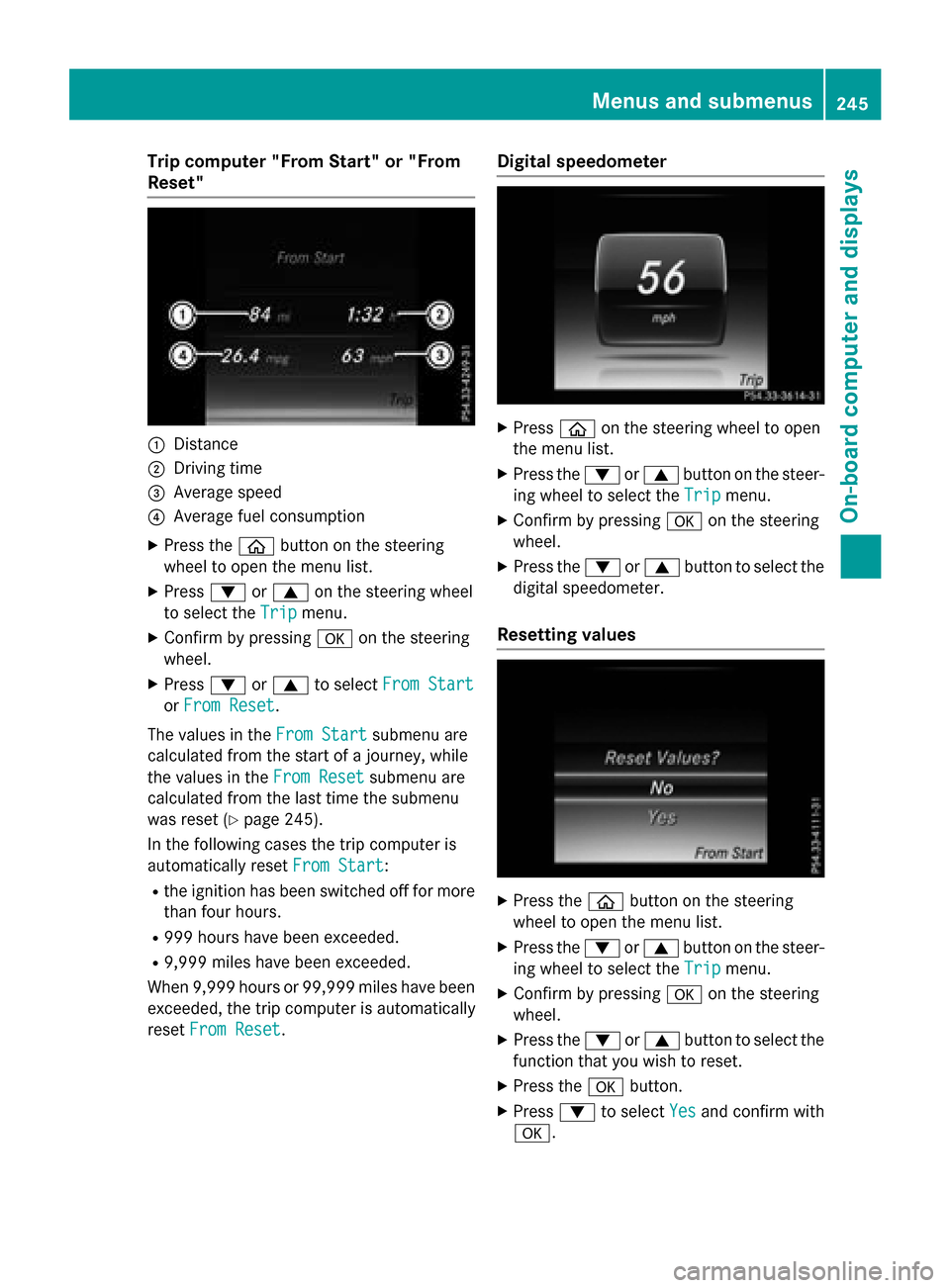
Trip computer "From Start" or "From
Reset"
:Distance
;Driving time
=Average speed
?Average fuel consumption
XPress theòbutton on the steering
wheel to open the menu list.
XPress :or9 on the steering wheel
to select the Trip
menu.
XConfirm by pressing aon the steering
wheel.
XPress :or9 to select From Start
orFrom Reset.
The values in the From Start
submenu are
calculated from the start of a journey, while
the values in the From Reset
submenu are
calculated from the last time the submenu
was reset (
Ypage 245).
In the following cases the trip computer is
automatically reset From Start
:
Rthe ignition has been switched off for more
than four hours.
R999 hours have been exceeded.
R9,999 miles have been exceeded.
When 9,999 hours or 99,999 miles have been
exceeded, the trip computer is automatically
reset From Reset
.
Digital speedometer
XPress òon the steering wheel to open
the menu list.
XPress the :or9 button on the steer-
ing wheel to select the Trip
menu.
XConfirm by pressingaon the steering
wheel.
XPress the :or9 button to select the
digital speedometer.
Resetting values
XPress the òbutton on the steering
wheel to open the menu list.
XPress the :or9 button on the steer-
ing wheel to select the Trip
menu.
XConfirm by pressingaon the steering
wheel.
XPress the :or9 button to select the
function that you wish to reset.
XPress the abutton.
XPress :to select Yesand confirm with
a.
Menus and submenus245
On-board computer and displays
Z
Page 248 of 418
You can reset the values of the following func-
tions:
RTrip odometer
R"From Start" trip computer
R"From Reset" trip computer
RECO display
If you reset the values in the ECO display, the
values in the "From Start" trip computer are
also reset. If you reset the values in the "From
Start" trip computer, the values in the ECO
display are also reset.
Navigation system menu
Displaying navigation instructions
In the Navimenu, the multifunction display
shows navigation instructions.
Additional information on navigation can be
found in the separate Audio 20 or COMAND
operating instructions.
XSwitch on Audio 20 or COMAND, see the
separate operating instructions.
XPress the òbutton on the steering
wheel to open the menu list.
XPress :or9 on the steering wheel
to select the Navi
menu.
XConfirm by pressing aon the steering
wheel.
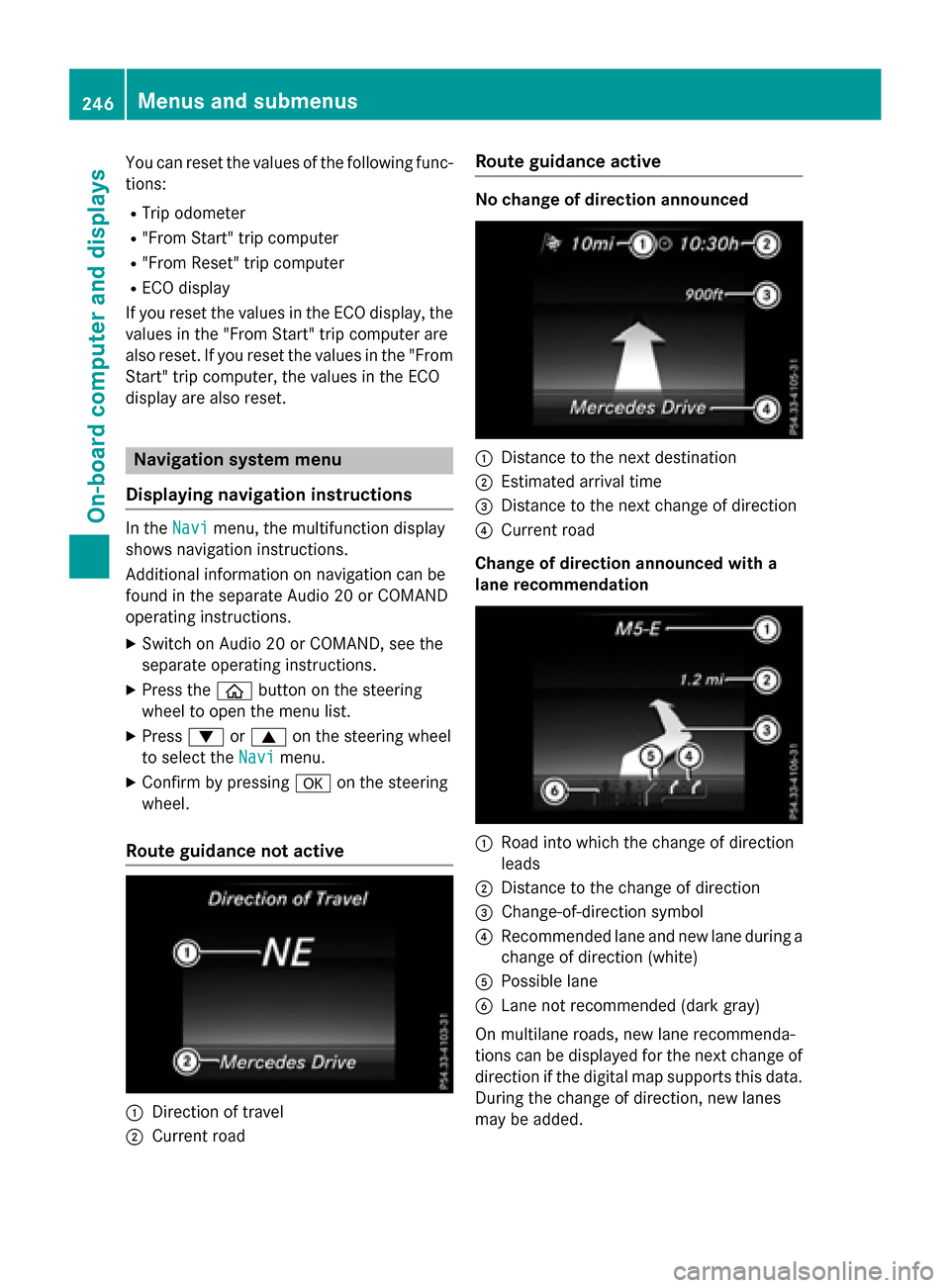
Route guidance not active
:Direction of travel
;Current road
Route guidance active
No change of direction announced
:Distance to the next destination
;Estimated arrival time
=Distance to the next change of direction
?Current road
Change of direction announced with a
lane recommendation
:Road into which the change of direction
leads
;Distance to the change of direction
=Change-of-direction symbol
?Recommended lane and new lane during a
change of direction (white)
APossible lane
BLane not recommended (dark gray)
On multilane roads, new lane recommenda-
tions can be displayed for the next change of
direction if the digital map supports this data.
During the change of direction, new lanes
may be added.
246Menus and submenus
On-board computer and displays
Page 250 of 418
No route could be calculated to the selec-
ted destination.
RO
You have reached the destination or an
intermediate destination.
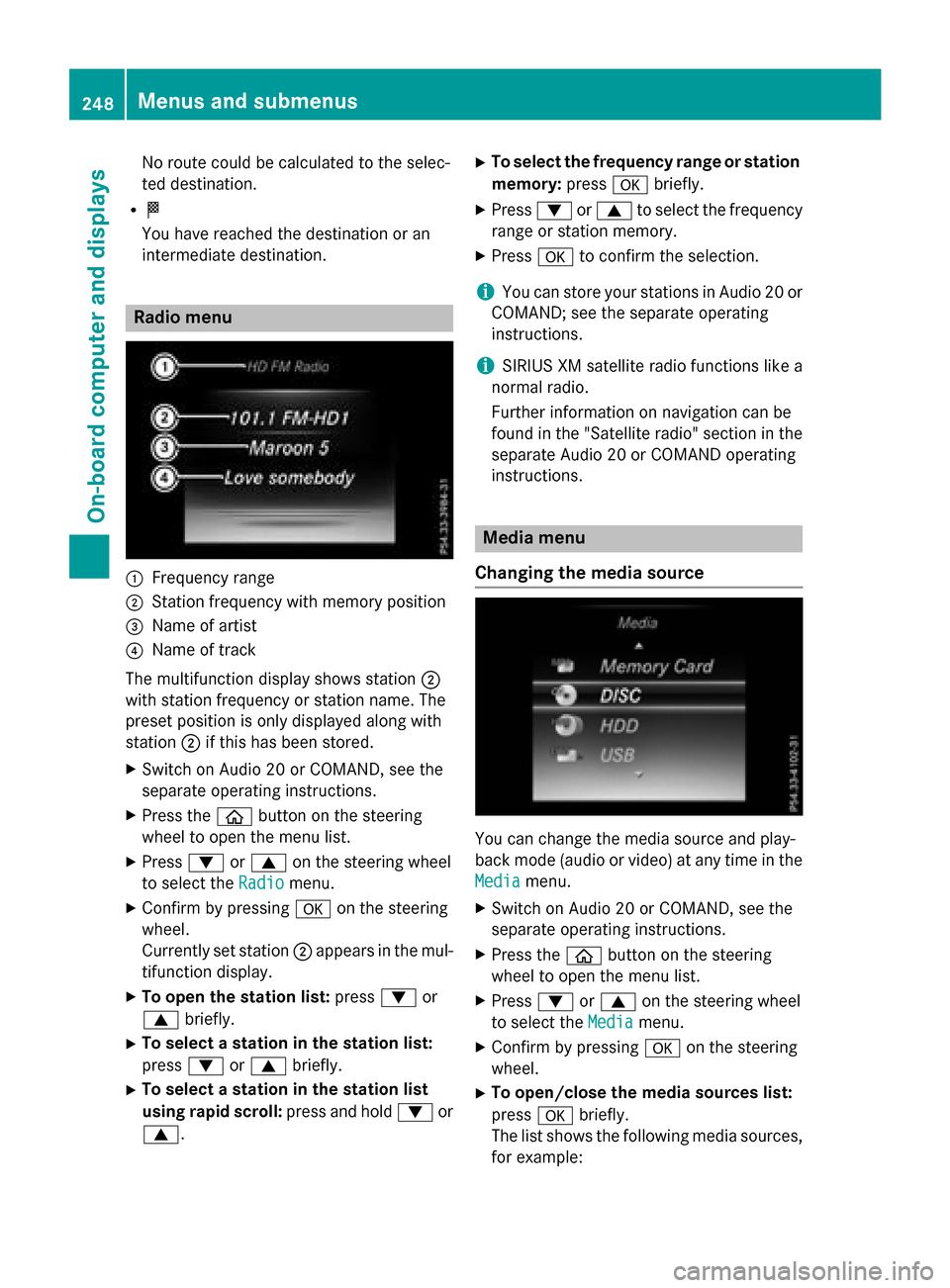
Radio menu
:Frequency range
;Station frequency with memory position
=Name of artist
?Name of track
The multifunction display shows station ;
with station frequency or station name. The
preset position is only displayed along with
station ;if this has been stored.
XSwitch on Audio 20 or COMAND, see the
separate operating instructions.
XPress the òbutton on the steering
wheel to open the menu list.
XPress :or9 on the steering wheel
to select the Radio
menu.
XConfirm by pressing aon the steering
wheel.
Currently set station ;appears in the mul-
tifunction display.
XTo open the station list: press:or
9 briefly.
XTo select a station in the station list:
press :or9 briefly.
XTo select a station in the station list
using rapid scroll: press and hold:or
9.
XTo select the frequency range or station memory: pressabriefly.
XPress :or9 to select the frequency
range or station memory.
XPress ato confirm the selection.
iYou can store your stations in Audio 20 or
COMAND; see the separate operating
instructions.
iSIRIUS XM satellite radio functions like a
normal radio.
Further information on navigation can be
found in the "Satellite radio" section in the
separate Audio 20 or COMAND operating
instructions.
Media menu
Changing the media source
You can change the media source and play-
back mode (audio or video) at any time in the
Media
menu.
XSwitch on Audio 20 or COMAND, see the
separate operating instructions.
XPress the òbutton on the steering
wheel to open the menu list.
XPress :or9 on the steering wheel
to select the Media
menu.
XConfirm by pressing aon the steering
wheel.
XTo open/close the media sources list:
press abriefly.
The list shows the following media sources,
for example:
248Menus and submenus
On-board computer and displays
Page 256 of 418
XConfirmbypressing aon the steering
wheel.
XUse : or9 to select the DriveAs‐
sistsubmenu.
XPressato confirm.
XPress :or9 to select Lane Keep‐
ing Assist.
XPressato confirm.
The current selection, Standard
orAdap‐
tive, appears.
XTo change the setting: pressaagain.
For further information about Lane Keeping
Assist, see (
Ypage 220).
For further information about Active Lane
Keepin g Assist, see (
Ypage 225).
Head-up display submenu
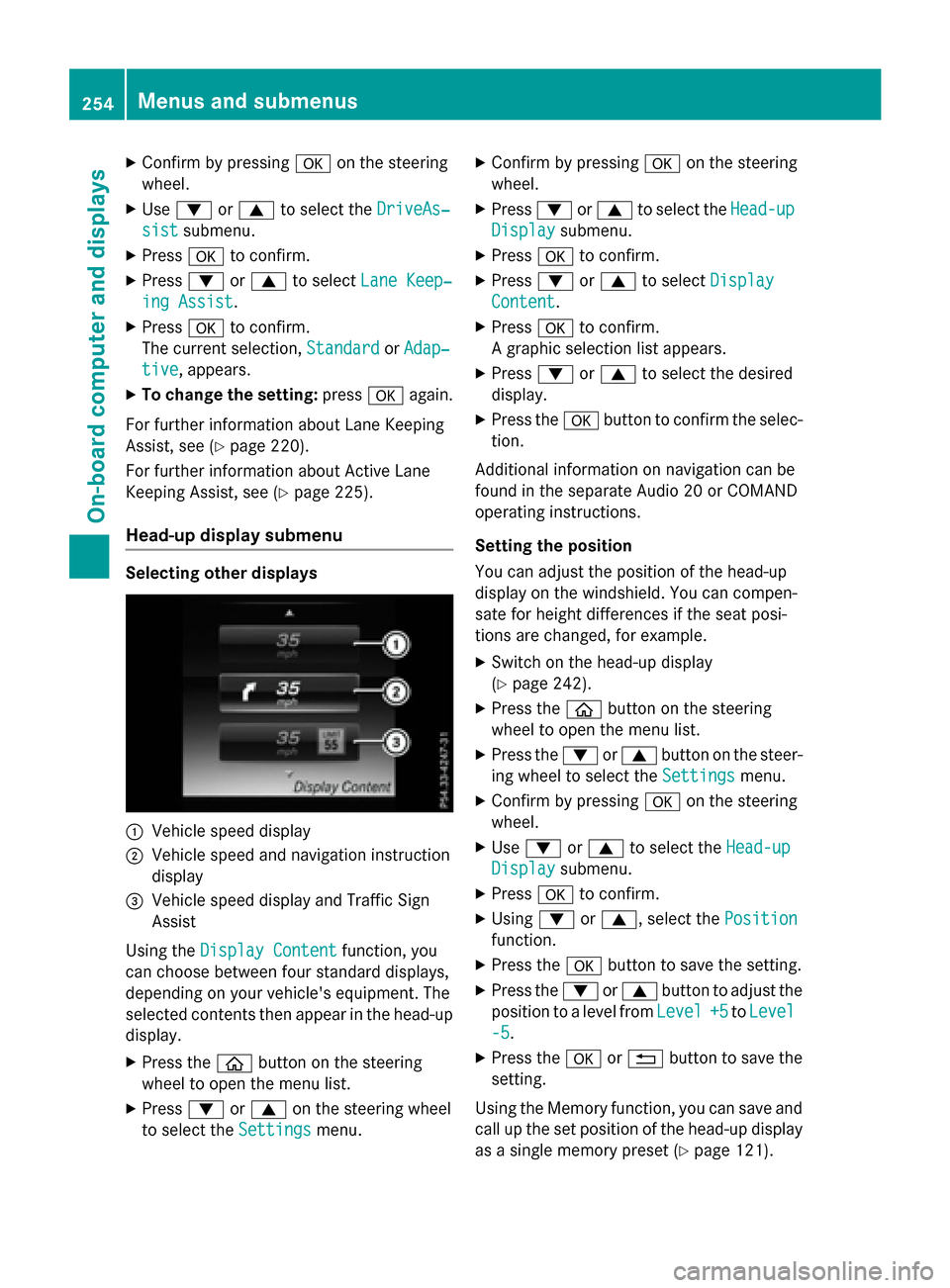
Selecting other displays
:Vehicle speed display
;Vehiclespeed and navigation instruction
disp lay
=Vehicle speed display and Traffic Sign
Assist
Using the Display Content
function, you
can choose between four standard displays,
depe nding on your vehicle's equipment. The
selected contents then appear inthe head-up
disp lay.
XPress the òbutton on the steering
wheel to open the menu list.
XPress :or9 on the steering wheel
to select the Settings
menu.
XConfirmbypressing aon the steering
wheel.
XPress :or9 to select the Head-up
Displaysubmenu.
XPressato confirm.
XPress :or9 to select Display
Content.
XPressato confirm.
A graphic selection listappears.
XPress :or9 to select the desired
display.
XPress the abutton to confirm the selec-
tion.
Ad ditional information on navigation can be
found inthe separate Aud io20 or COMAND
operating instructions.
Setting the positi on
You can adjust the position of the head-up
display on the windshield. You can compen-
sate for height differences ifthe seat posi-
tions are changed, for example.
XSwit ch on the head-up display
(
Ypage 242).
XPress the òbutton on the steering
wheel to open the menu list.
XPress the :or9 button on the steer-
ing wheel to select the Settings
menu.
XConfirmbypressing aon the steering
wheel.
XUse : or9 to select the Head-up
Displaysubmenu.
XPressato confirm.
XUsing :or9, select the Position
function.
XPress theabutton to save the setting.
XPress the :or9 button to adjust the
position to a level from Level
+5toLevel
-5.
XPress the aor% button to save the
setting.
Using the Memory function, you can save and
call up the set position of the head-up display
as a single memory preset (
Ypage 121).
254Menus and submenus
On-board computer and displays
Page 258 of 418
the speed digitally. The unit in the additional
speedometer is always inverse to the speed-
ometer unit.
XPress theòbutton on the steering
wheel to open the menu list.
XPress :or9 on the steering wheel
to select the Settings
menu.
XConfirm by pressing aon the steering
wheel.
XPress :or9 to select the Instru‐
ment Clustersubmenu.
XPressato confirm.
XUsing :or9, select the Addi‐
tional Speedometer [km/h]function.
The current selection appears.
XTo activate/deactivate: press thea
button again.
Restoring the factory settings
XPress the òbutton on the steering
wheel to open the menu list.
XPress the :or9 button on the steer-
ing wheel to select the Settings
menu.
XConfirm by pressingaon the steering
wheel.
XUse : or9 to select the Factory
Settingssubmenu.
XPressato confirm.
The Reset All Settings?
function
appears.
XPress :or9 to select NoorYes.
XPress ato confirm the selection.
If you have selected Yes
, the multifunction
display shows a confirmation message.
For safety reasons, the Daytime Running
Lightsfunction in theLightssubmenu is
only reset when the vehicle is stationary.
256Menus and submenus
On-board computer and displays