USB MERCEDES-BENZ GLC COUPE 2016 Owners Manual
[x] Cancel search | Manufacturer: MERCEDES-BENZ, Model Year: 2016, Model line: GLC COUPE, Model: MERCEDES-BENZ GLC COUPE 2016Pages: 389, PDF Size: 7.34 MB
Page 11 of 389
Demisting the windows .................. 133
Demisting the windscreen ............ .132
ECO start/stop function ................ 129
Indicator lamp ................................ 130
Ionisation ....................................... 137
Ionisation (multimedia system) ...... 297
Notes on using the automatic cli-
mate control .................................. 129
Overview ........................................ 296
Overview of systems ..................... .127
Perfume atomiser (multimedia
system) .......................................... 296
Perfume atomizer .......................... 135
Pre-entry climate control (via key) (multimedia system) ..................... .297
Pre-entry climate control at
departure time (multimedia sys-
tem) ............................................... 297
Problem with the rear window
heating .......................................... 133
Problems with cooling with air
dehumidification ............................ 130
Rear control panel ......................... 128
Setting the air distribution ............. 131
Setting the air vents ..................... .141
Setting the airflow ......................... 132
Setting the climate mode .............. .131
Setting the climate mode (multi-
media system) ............................... 296
Setting the temperature ................ 131
Switching air-recirculation mode
on/off ............................................ 134
Switching on/off ........................... 129
Switching residual heat on/off ...... 135
Switching the rear window heat-
ing on/off ...................................... 133
Switching the synchronisation
function on and off ........................ 132
Synchronisation function (multi-
media system) ............................... 297
THERMOTRONIC control panel (3-
zone automatic climate control) .... 128
Climate control settings
Multimedia system ........................ 296
Coat hooks ......................................... 313
Cockpit
Overview .......................................... 32 COLLISION PREVENTION ASSIST
PLUS
Activating/deactivating ................. 241
Display message ............................ 255
Operation/notes .............................. 70
COMAND display
Cleaning ......................................... 336
Combination switch .......................... 117
Connecting a USB device
See also Digital Owner's Manual ... 292
Consumption statistics (on-board
computer) .......................................... 233
Controller .......................................... .293
Controlling speed
see DISTRONIC PLUS
Convenience closing feature .............. 97
Convenience opening feature ............ 96
Convenience opening/closing (air-
recirculation mode) ........................... 134
Coolant (engine)
Checking the level ......................... 329
Display message ............................ 263
Important safety notes .................. 378
Temperature display in the instru-
ment cluster .................................. 229
Warning lamp ................................. 287
Cooling
see Climate control
Copyright ............................................. 31
Cornering light function
Display message ............................ 261
Function/notes ............................ .118
Crosswind Assist ................................. 76
Cruise control
Cruise control lever ....................... 174
Deactivating ................................... 175
Display message ............................ 271
Driving system ............................... 174
General notes ................................ 174
Important safety notes .................. 174
LIM indicator lamp ......................... 174
Selecting ........................................ 175
Setting a speed .............................. 175
Storing and maintaining current
speed ............................................. 175
Storing the current speed or call-
ing up the last stored speed .......... 175 8
Index
Page 24 of 389
Stowage compartments
Armrest (under) ............................. 307
Centre console .............................. 306
Cup holder .....................................3 15
Door ............................................... 307
Glove compartment ....................... 306
Important safety information ......... 305
Rear ............................................... 307
Spectacles compartment .............. .306
see Stowage areas
Stowage net ....................................... 307
Stowage space
Stowage net ................................... 307
Summer tyres
In winter ........................................ 358
Sun blind
Rear side windows ......................... 317
Sun visor ............................................ 317
Suspension settings
AIR BODY CONTROL ..................... .188
Suspension tuning
AMG sports suspension based on
AIR BODY CONTROL ..................... .190
Switching
the interior motion sensor on/off .... 81
Switching on media mode
Via the device lis t.......................... 303
Switching the auxiliary heating/
ventilation
On/off ........................................... 138 T
Tail lamps Display message ............................ 261
Tailgate
Display message ............................ 276
Emergency unlocking ....................... 95
Important safety notes .................... 90
Limiting the opening angle ............... 94
Obstruction detectio n...................... 91
Opening dimensions ...................... 379
Opening/closing .............................. 90
Opening/closing (automatically
from inside) ...................................... 94
Opening/closing (automatically
from outside) ................................... 91 Technical data
Capacities ...................................... 373
Drawbar load (maximum) ............... 380
Information .................................... 371
Trailer load s................................... 380
Vehicle data ................................... 379
Telephone
Accepting a call (multifunction
steering wheel) .............................. 239
Authorising a mobile phone (con-
necting) ......................................... 299
Connecting a Mobile phone (gen-
eral information) ............................ 299
Display message ............................ 279
Introduction ................................... 238
Menu (on-board computer) ............ 238
Number from the phone book ........ 239
Redialling ....................................... 239
Rejecting/ending a call ................. 239
See also Digital Owner's Manua l... 292
Switching between mobile
phones ........................................... 300
Telephone compartment ................ 307
see Mobile phone
Telephone module with Bluetooth ®
(SAP profile) Activating and connecting the
module ........................................... 301
Charging a mobile phone ............... 303
Connecting the mobile phone ........ 301
Connecting the module via a USB
cable .............................................. 301
Data modem mode ........................ 302
Installing the module ..................... 300
Introduction ................................... 300
Saving/deleting the PIN for the
SIM card ........................................ 302
Setting s......................................... 302
SIM card mode .............................. 301
Text messages ............................... 302
Transferring the phone book .......... 302
Temperature
Coolant (display in the instrumentcluster) .......................................... 229
Engine oil (on-board computer,
Mercedes-AMG vehicles) ............... 245
Outside temperature ...................... 229
Setting (climate control )................ 131 Index
21
Page 26 of 389
Switching on/of
f........................... 117
TV
Operating (on-board computer) ..... 238
Two-way radio
Frequencies ................................... 371
Installation ..................................... 371
Transmission output (maximum) .... 371
Type identification plate
see Vehicle identification plate
Tyre changing tool kit ....................... 340
Tyre inflation compressor
see TIREFIT kit
Tyre pressure
Calling up (on-board computer) ..... 361
Display message ............................ 273
Not reached (TIREFIT) .................... 344
Reached (TIREFIT) .......................... 344
Recommended ............................... 359
Tyre pressure loss warning
General notes ................................ 360
Important safety notes .................. 361
Restarting ...................................... 361
Tyre pressure monitor
Checking the tyre pressure elec-
tronically ........................................ 362
Function/note s............................. 361
General notes ................................ 361
Important safety notes .................. 362
Radio type approval for the tyre
pressure monitor ........................... 364
Restarting ...................................... 363
Warning lamp ................................. 290
Warning message .......................... 363
Tyres
Changing a whee l.......................... 364
Checking ........................................ 356
Direction of rotation ...................... 365
Display message ............................ 273
Important safety notes .................. 356
Information on driving .................... 356
MOExtended tyre s......................... 358
Replacing ....................................... 364
Service life ..................................... 357
Snow chains .................................. 359
Storing ........................................... 365
Summer tyres in winter ................. 358
Tyre size (data ).............................. 368
Tyre tread ...................................... 357 Wheel and tyre combinations ........ 368
see Flat tyre U
Unlocking Emergency unlocking ....................... 90
From inside the vehicle (central
unlocking button) ............................. 89
USB devices
Connecting to the Media Inter-
face ............................................... 304
Using the TIREFIT
tyre pressure kit ............................ 343 V
Vanity mirror (in sun visor) .............. 317
Variable SPEEDTRONIC
see SPEEDTRONIC
Vehicle
Correct use ...................................... 30
Data acquisition ............................... 30
Display message ............................ 275
Electronics ..................................... 371
Equipment ....................................... 27
Implied warranty .............................. 30
Individual settings .......................... 240
Leaving parked up ......................... 170
Locking (in an emergency) ............... 90
Locking (key) ................................... 83
Lowering ........................................ 368
Operating safety .............................. 27
Parking .......................................... 167
Pulling away ................................... 146
Raising ........................................... 366
Registration ..................................... 30
Securing from rolling away ............ 365
Technical data ............................... 371
Towing away .................................. 350
Transporting .................................. 353
Unlocking (in an emergency) ........... 90
Unlocking (key) ................................ 83
Vehicle data ................................... 379
Vehicle dimensions ........................... 379
Vehicle emergency locking ................ 90
Vehicle identification number
see VIN Index
23
Page 240 of 389
X
Confirm by pressing aon the steering
wheel.
X To open the media sources list: pressa
briefly.
The list shows the following media sources,
for example:
R CD or DVD (DVD only in the COMAND
Online multimedia system)
R SD card
R Media Register (only in the COMAND
Online multimedia system)
R USB storage device
R Bluetooth ®
-capable audio device
Please observe further information on media
support and media operation in the multimedia
system (see Digital Owner's Manual).
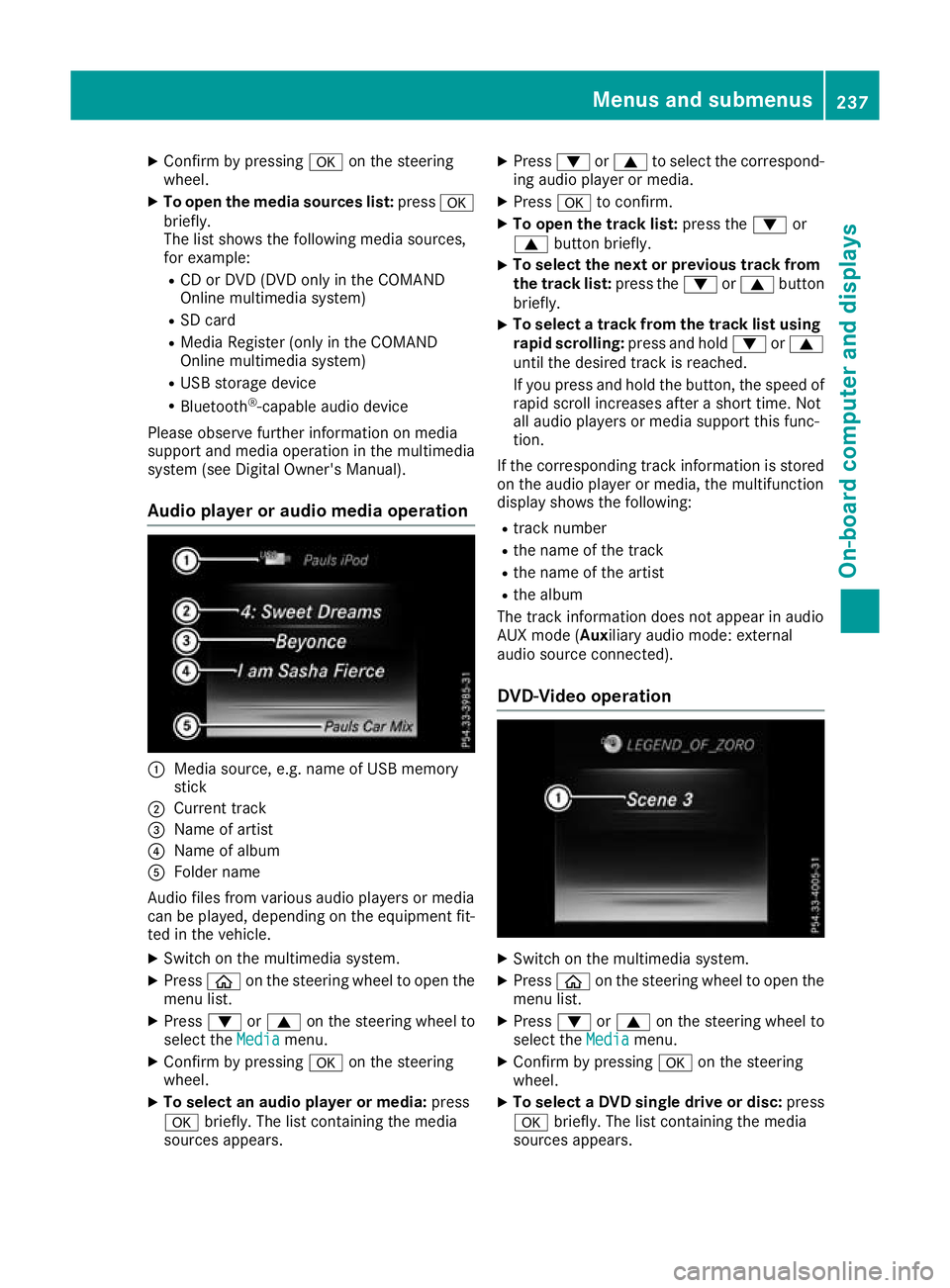
Audio player or audio media operation :
Media source, e.g. name of USB memory
stick
; Current track
= Name of artist
? Name of album
A Folder name
Audio files from various audio players or media
can be played, depending on the equipment fit- ted in the vehicle.
X Switch on the multimedia system.
X Press òon the steering wheel to open the
menu list.
X Press :or9 on the steering wheel to
select the Media
Media menu.
X Confirm by pressing aon the steering
wheel.
X To select an audio player or media: press
a briefly. The list containing the media
sources appears. X
Press :or9 to select the correspond-
ing audio player or media.
X Press ato confirm.
X To open the track list: press the:or
9 button briefly.
X To select the next or previous track from
the track list: press the:or9 button
briefly.
X To select a track from the track list using
rapid scrolling: press and hold:or9
until the desired track is reached.
If you press and hold the button, the speed of rapid scroll increases after a short time. Not
all audio players or media support this func-
tion.
If the corresponding track information is stored on the audio player or media, the multifunction
display shows the following:
R track number
R the name of the track
R the name of the artist
R the album
The track information does not appear in audio
AUX mode (Aux iliary audio mode: external
audio source connected).
DVD-Video operation X
Switch on the multimedia system.
X Press òon the steering wheel to open the
menu list.
X Press :or9 on the steering wheel to
select the Media Mediamenu.
X Confirm by pressing aon the steering
wheel.
X To select a DVD single drive or disc: press
a briefly. The list containing the media
sources appears. Menus and submenus
237On-board computer and displays Z
Page 303 of 389
Authorisation using Secure Simple Pairing:
X Select the mobile phone.
A code is displayed in the multimedia system
and on the mobile phone.
X If codes match: selectYes Yeson the multimedia
system.
X Confirm the code on the mobile phone.
Depending on the mobile phone used, con-
firm the connection to the multimedia system
and for the PBAP and MAP Bluetooth ®
pro-
files. The prompt to confirm may take up to
two minutes to be displayed (see the manu-
facturer's operating instructions).
X If the codes are different: selectNo
No on the
multimedia system.
The process is cancelled.
Repeat authorisation.
Authorisation by entering a passkey (passcode): X Select the Bluetooth ®
name of the mobile
phone.
The input menu for the passkey is displayed.
X Choose a one- to sixteen-digit number com-
bination as a passkey.
X Enter the passkey on the multimedia system.
X Press ¬to confirm.
X Enter and confirm the passkey on the mobile
phone. Depending on the mobile phone used,
confirm the connection to the multimedia sys-
tem and for the PBAP and MAP Bluetooth ®
profiles. The prompt to confirm may take up
to two minutes to be displayed (see the man- ufacturer's operating instructions).
i Mobile phones that are connected to the
optionally available telephone module with
Bluetooth ®
(SAP profile) are displayed sepa-
rately in the device list. These are found below
the entry MB SAP module phones
MB SAP module phones .
Switching between mobile phones If you have authorised more than one mobile
phone, you can switch between the individual
phones.
Multimedia system:
X Select Connect device Connect device .
X Select a mobile phone from the device list. Telephone module with Bluetooth
®
(SAP profile)
Introduction The module can be used as a permanently instal-
led telephone with its own SIM card
(Y page 301) or in conjunction with a mobile
phone (Y page 301).
If you wish to use the module in conjunction with
your mobile telephone, the mobile phone must
support the Bluetooth ®
SAP profile (SIM Access
Profile).
The following functions are available using the
module:
R data modem mode (Y page 302)
R sending and receiving text messages
(Y page 302)
R accessing the phone book of the mobile
phone (Y page 302)
R charging a mobile phone via the USB connec-
tion (Y page 303)
A list of compatible mobile phones can be found at:
http://www.mercedes-benz.com/connect
i The module is not available in all vehicles,
depending on the equipment.
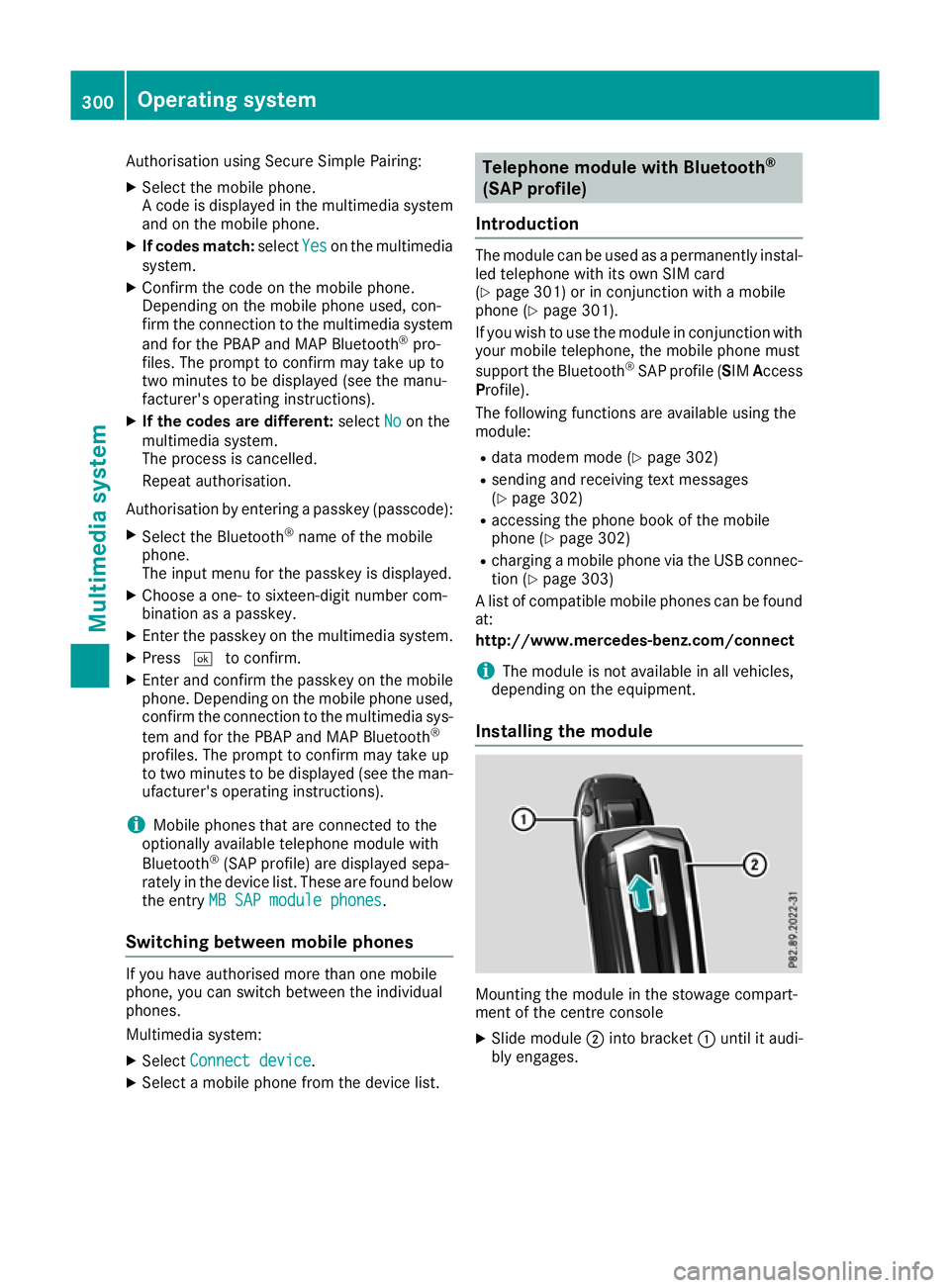
Installing the module Mounting the module in the stowage compart-
ment of the centre console
X Slide module ;into bracket :until it audi-
bly engages. 300
Operating systemMultimedia system
Page 304 of 389
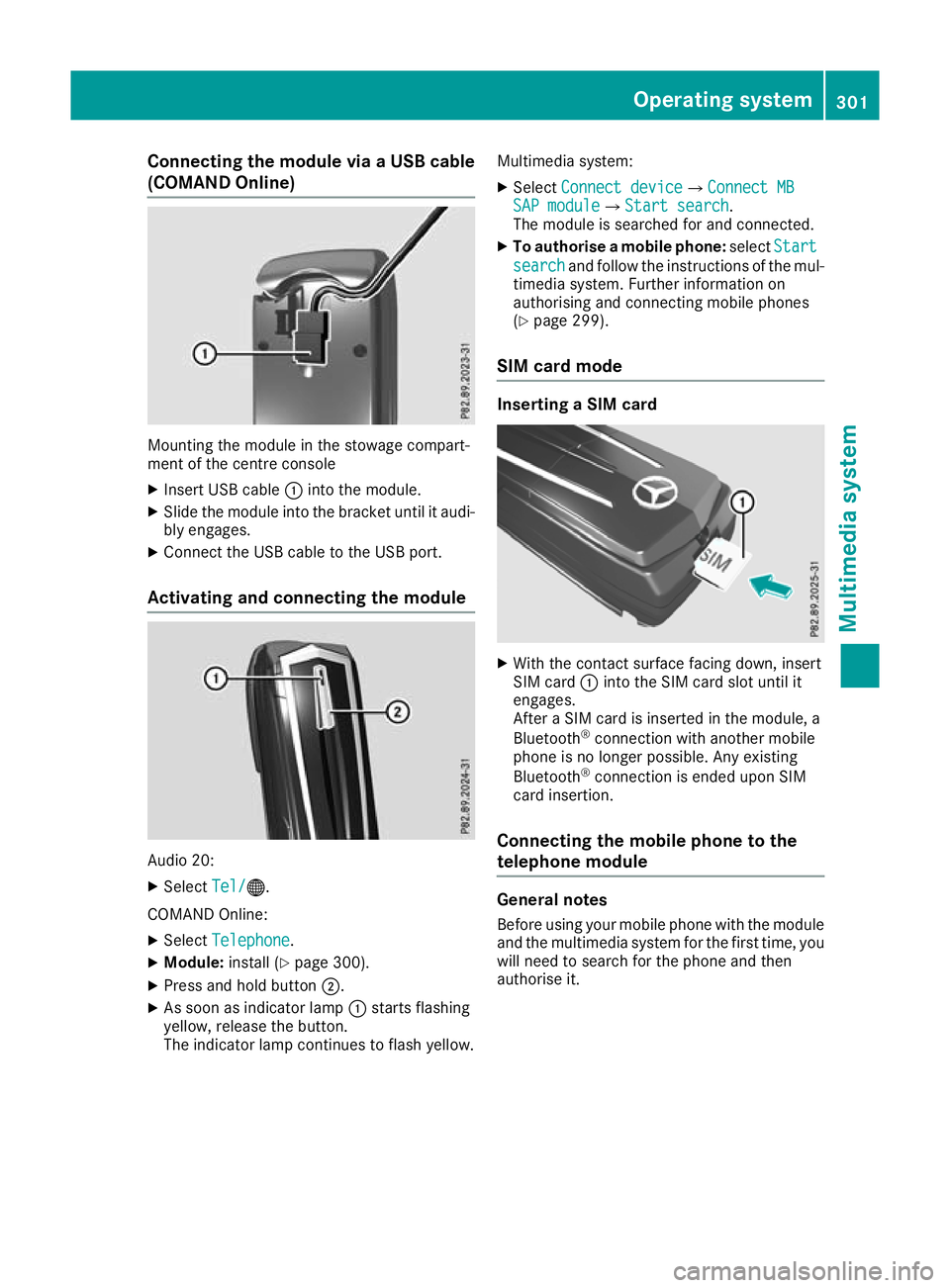
Connecting the module via a USB cable
(COMAND Online) Mounting the module in the stowage compart-
ment of the centre console
X Insert USB cable :into the module.
X Slide the module into the bracket until it audi-
bly engages.
X Connect the USB cable to the USB port.
Activating and connecting the module Audio 20:
X Select Tel/ Tel/®.
COMAND Online:
X Select Telephone Telephone .
X Module: install (Y page 300).
X Press and hold button ;.
X As soon as indicator lamp :starts flashing
yellow, release the button.
The indicator lamp continues to flash yellow. Multimedia system:
X Select Connect device
Connect device QConnect MBConnect MB
SAP module SAP module QStart searchStart search .
The module is searched for and connected.
X To authorise a mobile phone: selectStart
Start
search
search and follow the instructions of the mul-
timedia system. Further information on
authorising and connecting mobile phones
(Y page 299).
SIM card mode Inserting a SIM card
X
With the contact surface facing down, insert
SIM card :into the SIM card slot until it
engages.
After a SIM card is inserted in the module, a
Bluetooth ®
connection with another mobile
phone is no longer possible. Any existing
Bluetooth ®
connection is ended upon SIM
card insertion.
Connecting the mobile phone to the
telephone module General notes
Before using your mobile phone with the module
and the multimedia system for the first time, you will need to search for the phone and then
authorise it. Operating system
301Multimedia system Z
Page 306 of 389
Activating/deactivating text message
downloading from the mobile phone Dial number Function
00080 Text message down-
loading is deactiva-
ted.
00081 Text message down-
loading is activated.
For further information on receiving text mes-
sages when using the telephone module; see
Digital Owner's Manual.
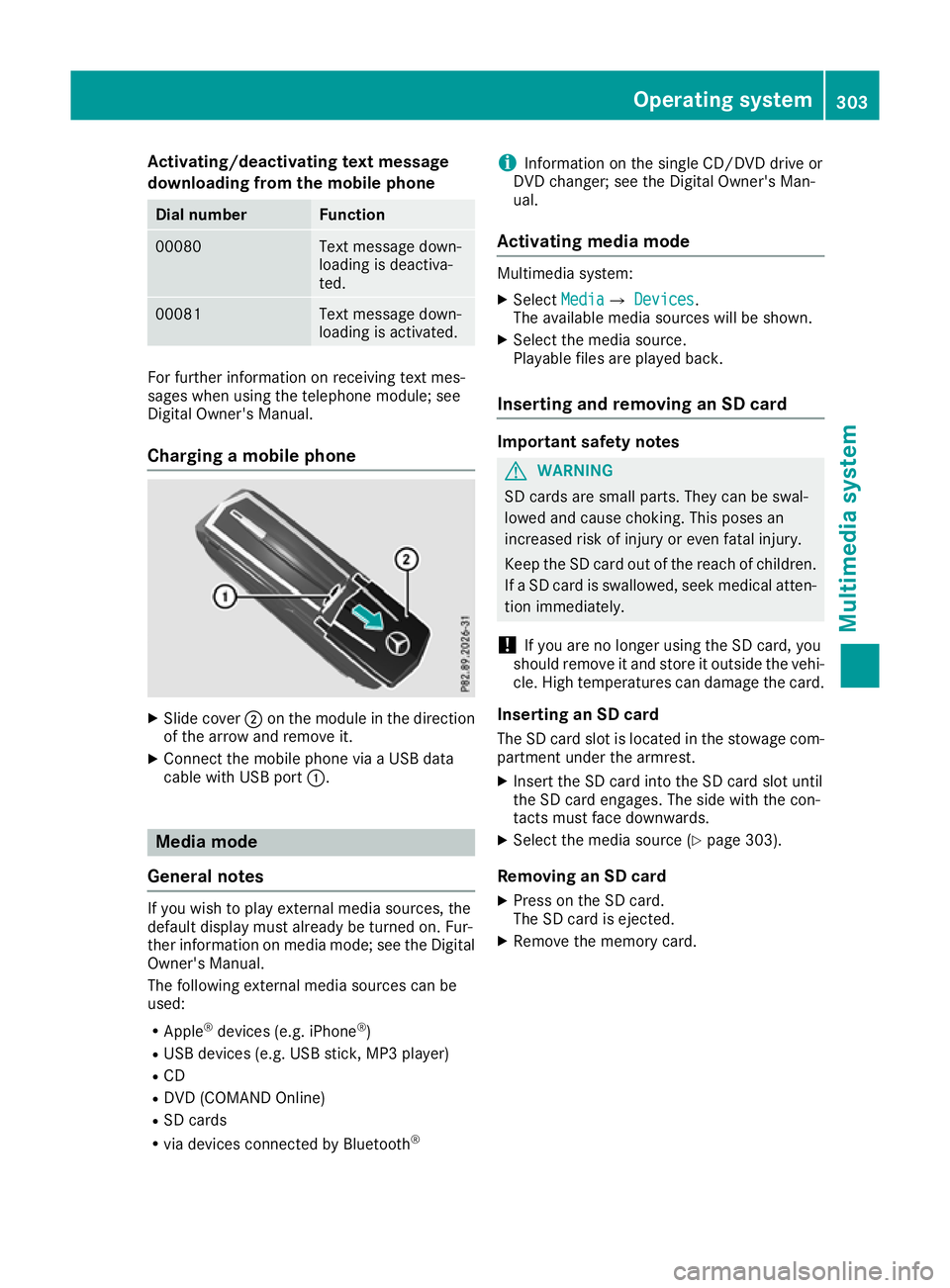
Charging a mobile phone X
Slide cover ;on the module in the direction
of the arrow and remove it.
X Connect the mobile phone via a USB data
cable with USB port :. Media mode
General notes If you wish to play external media sources, the
default display must already be turned on. Fur-
ther information on media mode; see the Digital
Owner's Manual.
The following external media sources can be
used:
R Apple ®
devices (e.g. iPhone ®
)
R USB devices (e.g. USB stick, MP3 player)
R CD
R DVD (COMAND Online)
R SD cards
R via devices connected by Bluetooth ®i
Information on the single CD/DVD drive or
DVD changer; see the Digital Owner's Man-
ual.
Activating media mode Multimedia system:
X Select Media
MediaQ Devices Devices.
The available media sources will be shown.
X Select the media source.
Playable files are played back.
Inserting and removing an SD card Important safety notes
G
WARNING
SD cards are small parts. They can be swal-
lowed and cause choking. This poses an
increased risk of injury or even fatal injury.
Keep the SD card out of the reach of children. If a SD card is swallowed, seek medical atten-
tion immediately.
! If you are no longer using the SD card, you
should remove it and store it outside the vehi-
cle. High temperatures can damage the card.
Inserting an SD card
The SD card slot is located in the stowage com- partment under the armrest.
X Insert the SD card into the SD card slot until
the SD card engages. The side with the con-
tacts must face downwards.
X Select the media source (Y page 303).
Removing an SD card X Press on the SD card.
The SD card is ejected.
X Remove the memory card. Operating system
303Multimedia system Z
Page 307 of 389
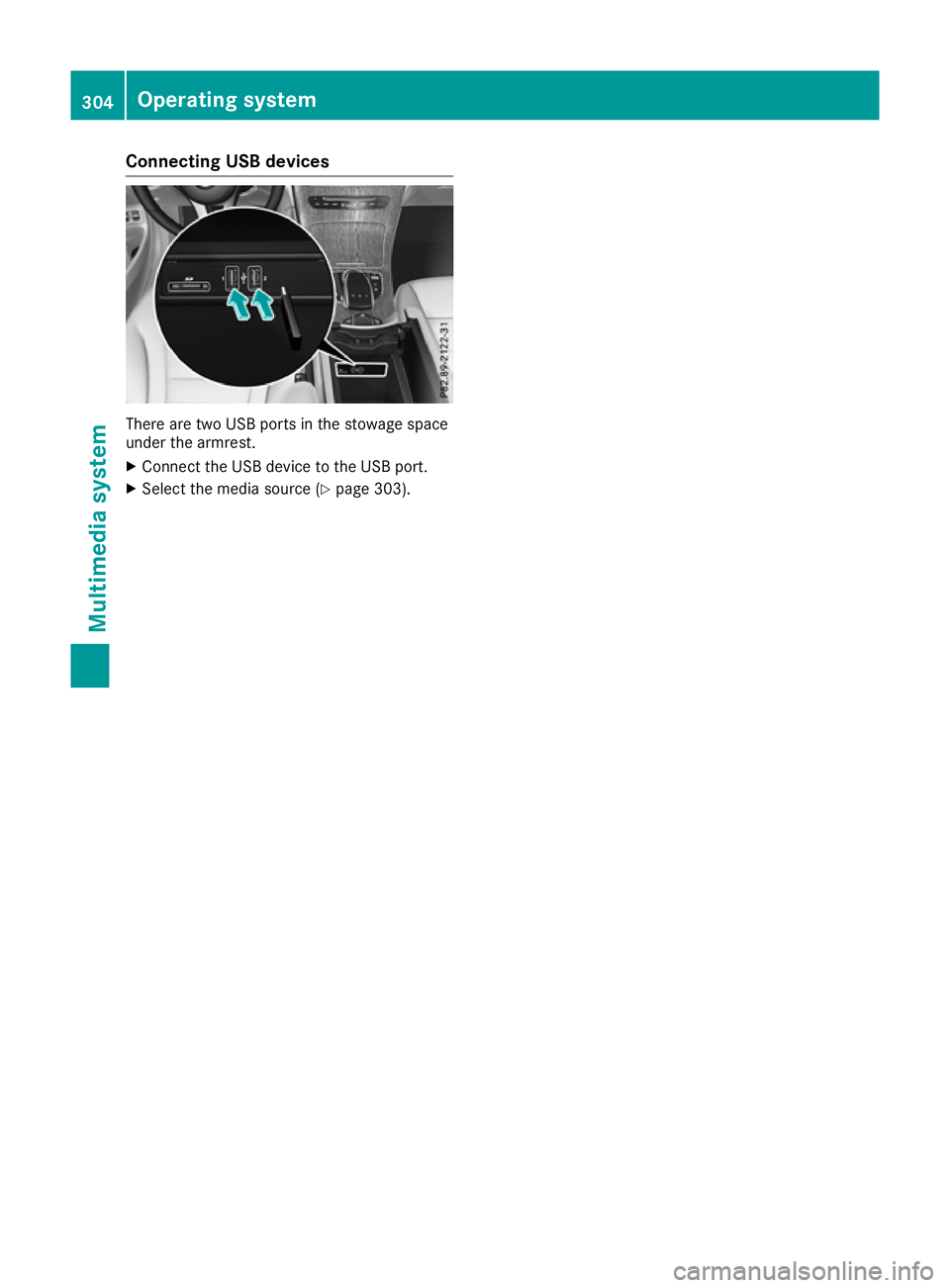
Connecting USB devices
There are two USB ports in the stowage space
under the armrest.
X Connect the USB device to the USB port.
X Select the media source (Y page 303).304
Operating systemMulti
media system
Page 310 of 389
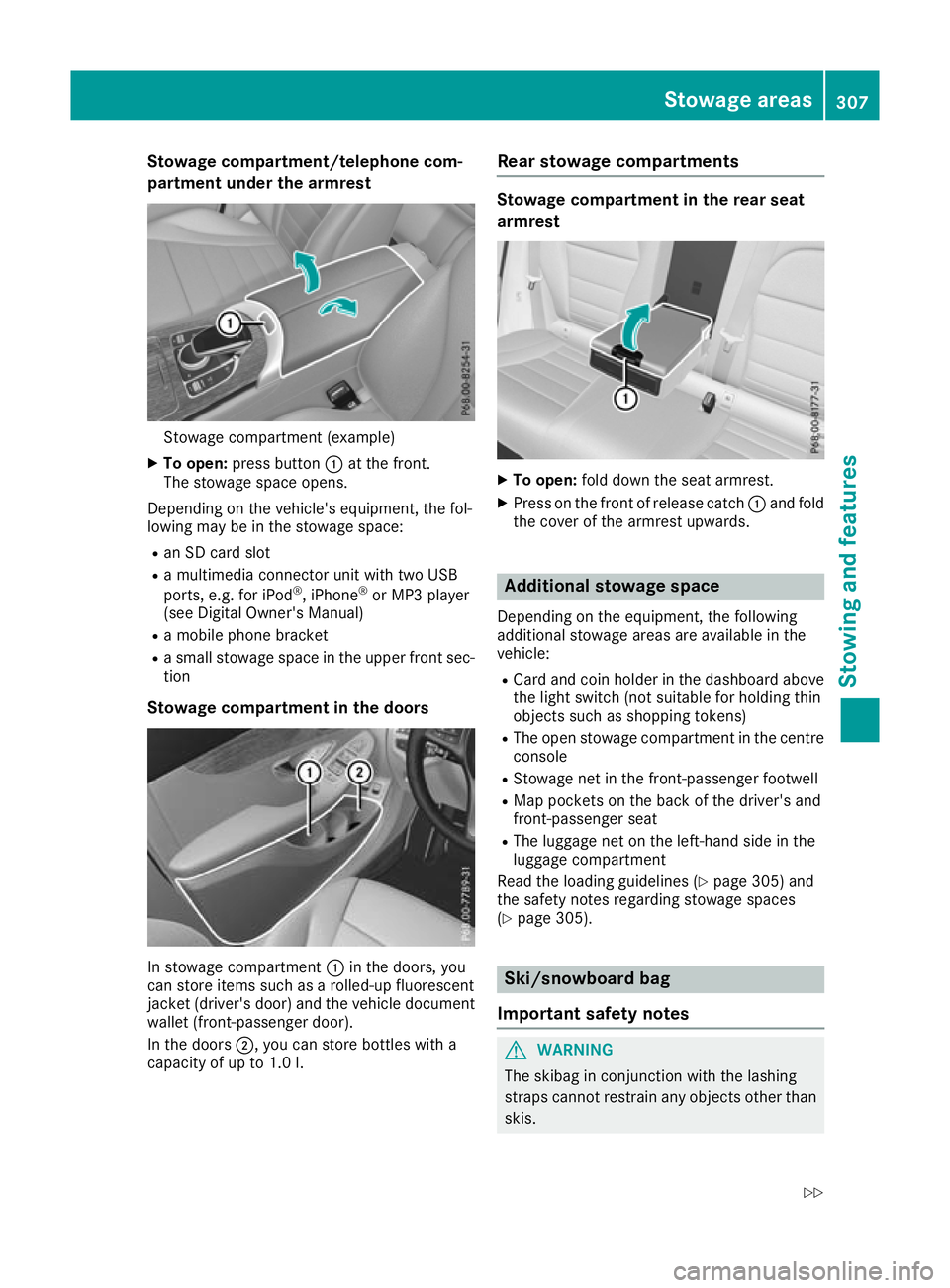
Stowage compartment/telephone com-
partment under the armrest Stowage compartment (example)
X To open: press button :at the front.
The stowage space opens.
Depending on the vehicle's equipment, the fol-
lowing may be in the stowage space:
R an SD card slot
R a multimedia connector unit with two USB
ports, e.g. for iPod ®
, iPhone ®
or MP3 player
(see Digital Owner's Manual)
R a mobile phone bracket
R a small stowage space in the upper front sec-
tion
Stowage compartment in the doors In stowage compartment
:in the doors, you
can store items such as a rolled-up fluorescent
jacket (driver's door) and the vehicle document wallet (front-passenger door).
In the doors ;, you can store bottles with a
capacity of up to 1.0 l. Rear stowage compartments Stowage compartment in the rear seat
armrest
X
To open: fold down the seat armrest.
X Press on the front of release catch :and fold
the cover of the armrest upwards. Additional stowage space
Depending on the equipment, the following
additional stowage areas are available in the
vehicle:
R Card and coin holder in the dashboard above
the light switch (not suitable for holding thin
objects such as shopping tokens)
R The open stowage compartment in the centre
console
R Stowage net in the front-passenger footwell
R Map pockets on the back of the driver's and
front-passenger seat
R The luggage net on the left-hand side in the
luggage compartment
Read the loading guidelines (Y page 305) and
the safety notes regarding stowage spaces
(Y page 305). Ski/snowboard bag
Important safety notes G
WARNING
The skibag in conjunction with the lashing
straps cannot restrain any objects other than skis. Stowage areas
307Stowing and features
Z
Page 326 of 389
cause you to lose control of the vehicle. There
is a risk of an accident.
Use this device only when the vehicle is sta-
tionary.
You must observe the legal requirements for the country in which you are currently driving whenoperating mobile communications equipment in
the vehicle.
If it is permitted by law to operate communica-
tions equipment while the vehicle is in motion,
you may do so only if the traffic situation per-
mits. You may otherwise be distracted from the traffic conditions, cause an accident and injure
yourself and others.
Excessive levels of electromagnetic radiation
may cause damage to your health and to the
health of others. The use of an exterior aerial
takes into consideration the scientific discus-
sion surrounding the possible health risk posed
by electromagnetic fields.
Mercedes-Benz recommends the use of an
approved exterior aerial. This ensures:
R optimal mobile phone reception quality in the
vehicle
R that mutual interference between the vehicle
electronics and mobile phones is minimised
An exterior aerial has the following advantages:
R it conducts the electromagnetic fields gener-
ated by a wireless device to the exterior
R the field strength in the vehicle interior is
lower than in a vehicle that does not have an exterior aerial
Information on retrofitting two-way radios and
mobile phones (RF transmitters) (Y page 371).
General notes Depending on the vehicle equipment, there are
various mobile phone brackets that may be fit-
ted in your vehicle; in some cases, these are
country-specific.
More information on suitable mobile phones,
mobile phone brackets and on connecting Blue-
tooth ®
-capable mobile phones with the multi-
media system can be obtained:
R at a qualified specialist workshop
R on the internet at http://www.mercedes-
benz.com/connect The functions and services available when you
use the phone depend on your mobile phone
model and service provider.
Using a mobile phone To connect a mobile phone to the exterior aerial
and charge it, insert it into the mobile phone
bracket.
X Open the telephone compartment
(Y page 307).
X Place the mobile phone bracket into the pre-
installed fitting; see the separate installation
instructions for the mobile phone fitting.
X Insert the mobile phone into the mobile phone
bracket; see the separate installation instruc-
tions for the mobile phone fitting.
i The mobile phone can also be operated
without being in the bracket. However, the
charging function and aerial function are not
available.
In order to use Bluetooth ®
(SAP profile) on your
telephone module, you must first insert the tele-
phone module into the pre-installed fitting. This connects it to the exterior aerial. If you wish to
charge the mobile phone, you must connect it to
a USB port.
Further information on the telephone module
with Bluetooth ®
(SAP profile) can be found in the
Digital Owner's Manual.
Operating the mobile phone You can operate the phone using the
6and
~ buttons on the multifunction steering
wheel. You can operate other mobile phone
functions via the on-board computer
(Y page 238).
When you remove the key from the ignition lock, the mobile phone is disconnected from the vehi-cle. You can then no longer make calls using the
hands-free system.
If a call is active and you remove the key from
the ignition lock, the conversation is transferred
over to the mobile phone. It is then possible to
continue the conversation on the mobile phone. Features
323Stowing and features Z