ECU MERCEDES-BENZ GLC COUPE 2017 X253 Comand Manual
[x] Cancel search | Manufacturer: MERCEDES-BENZ, Model Year: 2017, Model line: GLC COUPE, Model: MERCEDES-BENZ GLC COUPE 2017 X253Pages: 178, PDF Size: 4.19 MB
Page 133 of 178
Your multimediasyste mequipment
These operatin ginstruction sdescribe all th e
standar dan doptional equipment of your multi-
media system, as available at th etime of going
to press. Country-specifi cdifference sare pos -
sible. Bear in min dthat your vehicle may no t
feature all function sdescribed here. Thi salso
applies to safety-relevan tsystems an dfunc-
tions.
Read th einformation on qualifie dspecialis t
workshop sin th evehicle Operator's Manual.
Switchin gon th eradi o
XPress th e$ button.
The radio display appears .You will hear th e
last station set on th ewaveban dselecte d
last .
Switching HD Radi oon/of f
XIn radio mode: slid e6 thecontroller .
XTo selectOptions:turn an dpress th econ-
troller.
XBy selecting Oorª in fron tof HD Radi o,
you determin ewhether HD radio is switched
on or off.
If HD Radio is switched off, th esyste mdoe sno t
switch to digita lradio an dit is no tpossible to
selec tan ysub-channels.
iHD Radio ™an dth eHD ,HD Radio ,an d“Arc ”
logos are proprietary trademark sof iBiquit y
Digital Corp.
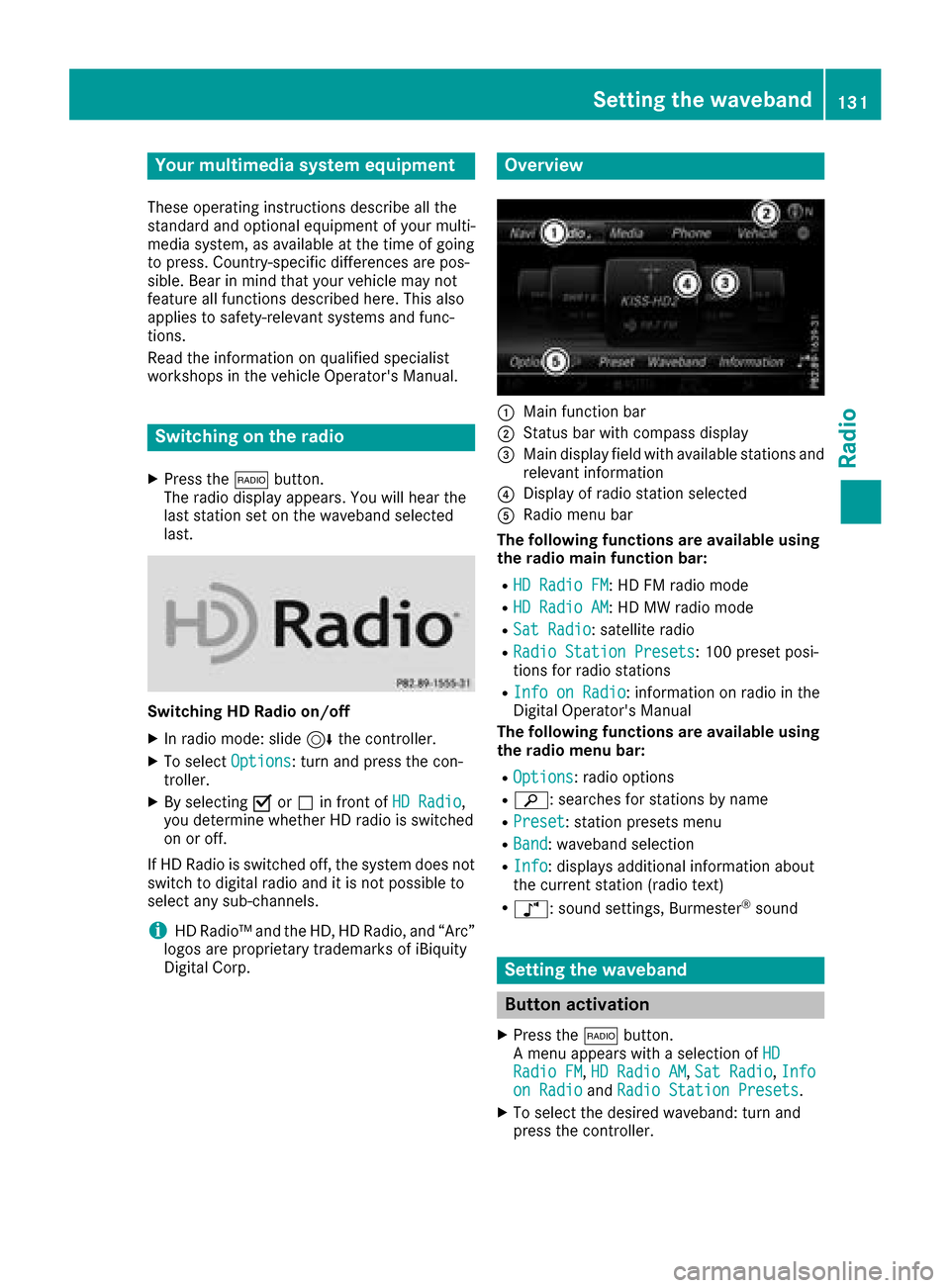
Overview
:Main function bar
;Status bar wit hcompass display
=Main display field wit havailable station san d
relevant information
?Display of radio station selecte d
ARadio menubar
Th efollowin gfunctions ar eavailable using
th eradi omain function bar:
RHD Radi oFM:HD FM radio mode
RHD Radi oAM:HD MW radio mode
RSa tRadi o:satellite radio
RRadi oStatio nPreset s:10 0preset posi-
tion sfo rradio station s
RInfo on Radi o:information on radio in th e
Digital Operator's Manual
Th efollowin gfunctions ar eavailable using
th eradi omenu bar:
ROption s:radio option s
Rè:searches fo rstation sby name
RPreset:station preset smen u
RBand:waveban dselection
RInfo:displays additional information about
th ecurren tstation (radio text )
Rà:sound settings, Burmeste r®sound
Setting thewaveband
Button activation
XPress th e$ button.
A men uappears wit h aselection of HD
RadioFM,HD Radi oAM,Sa tRadi o,Infoon Radi oandRadi oStatio nPreset s.
XTo selec tth edesire dwaveband: turn an d
press th econtroller .
Setting the waveband131
Radio
Page 135 of 178
Using the preset position
XIn radio mode: slide6the controller.
XTo select Preset: turn and press the control-
ler.
XTo select Enter Preset: turn and press the
controller.
XEnter the station preset of the desired station.
Station list
XIn radio mode, press the controller.
The station list appears with the stations cur-
rently available.
Saving/deleting a station
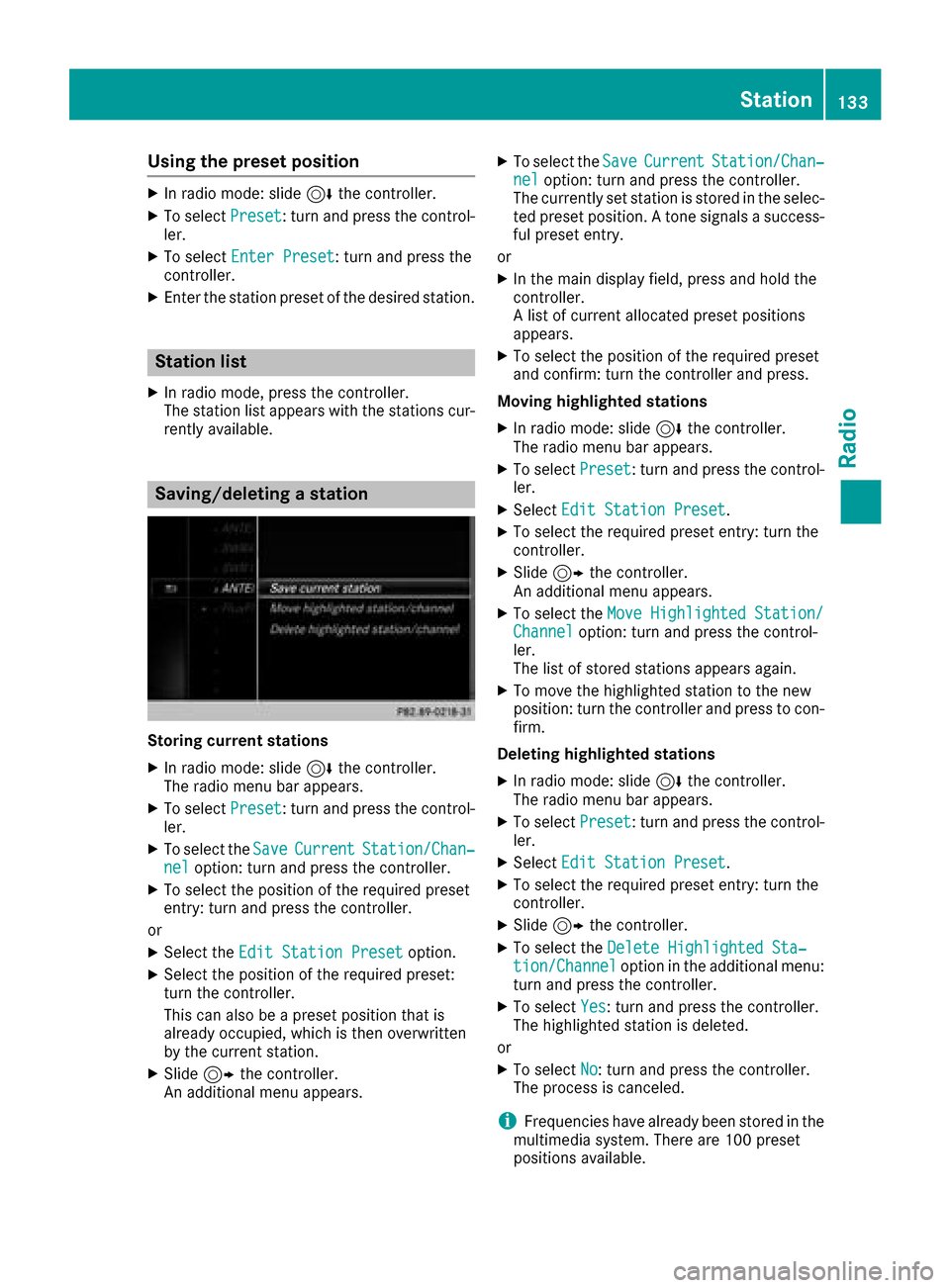
Storing current stations
XIn radio mode: slide 6the controller.
The radio menu bar appears.
XTo select Preset: turn and press the control-
ler.
XTo select the SaveCurrentStation/Chan‐neloption: turn and press the controller.
XTo select the position of the required preset
entry: turn and press the controller.
or
XSelect the Edit Station Presetoption.
XSelect the position of the required preset:
turn the controller.
This can also be a preset position that is
already occupied, which is then overwritten
by the current station.
XSlide9the controller.
An additional menu appears.
XTo select the SaveCurrentStation/Chan‐neloption: turn and press the controller.
The currently set station is stored in the selec-
ted preset position. A tone signals a success-
ful preset entry.
or
XIn the main display field, press and hold the
controller.
A list of current allocated preset positions
appears.
XTo select the position of the required preset
and confirm: turn the controller and press.
Moving highlighted stations
XIn radio mode: slide 6the controller.
The radio menu bar appears.
XTo select Preset: turn and press the control-
ler.
XSelect Edit Station Preset.
XTo select the required preset entry: turn the
controller.
XSlide9the controller.
An additional menu appears.
XTo select the Move Highlighted Station/Channeloption: turn and press the control-
ler.
The list of stored stations appears again.
XTo move the highlighted station to the new
position: turn the controller and press to con-
firm.
Deleting highlighted stations
XIn radio mode: slide 6the controller.
The radio menu bar appears.
XTo select Preset: turn and press the control-
ler.
XSelect Edit Station Preset.
XTo select the required preset entry: turn the
controller.
XSlide9the controller.
XTo select the Delete Highlighted Sta‐tion/Channeloption in the additional menu:
turn and press the controller.
XTo select Yes: turn and press the controller.
The highlighted station is deleted.
or
XTo select No: turn and press the controller.
The process is canceled.
iFrequencies have already been stored in the
multimedia system. There are 100 preset
positions available.
Station133
Radio
Page 136 of 178
Activating/deactivating the station
presets display
You can use this function to changeto th esta-
tion preset sdisplay.
Activating
XIn radi omode: slid e6 thecontroller .
XTo selectPreset:tur nand press th econtrol -
ler .
XTo select StationPreset View: On:tur n
and press th econtroller .
The station preset display appears.
XTo switch between th estore dstations: tur n
th econtroller .
Deactivating
XIn radi omode: slid e6 thecontroller .
XTo selectPreset:tur nand press th econtrol -
ler .
XTo select StationPresetView:Off:tur n
and press th econtroller .
The vie wof th elast hear dwaveban dappears.
Tagging music tracks
If an Apple®device is connected, th emusic
track sand artist displayed in th eradi otext can
be stored. You hav eth eoption of purchasing
this track usin giTunes Store
®.Not all radi osta-
tion ssupport this function .
XIn radiomode: slid e6 thecontroller .
The radi omen ubar appears.
XTo select Options:tur nand press th econ-
troller .
XSelectTag Thi sTrack.
A message appear sabout storing th etrack
information .
Displaying station inform ation
XIn radiomode: slid e6 thecontroller .
The radi omen ubar appears.
XTo select Options:tur nand press th econ-
troller .
XYou can determine whether or no tth eartist ,
track or station nam eare shown in th emain
display area wit hO orª before Show
Sta‐tionInformation.
Calling up sound settings
XIn radi omode: slid e6 thecontroller .
The radi omen ubar appears.
XTo select à:turnand press th econtroller .
The soun dmen uappear s (Ypage 164).
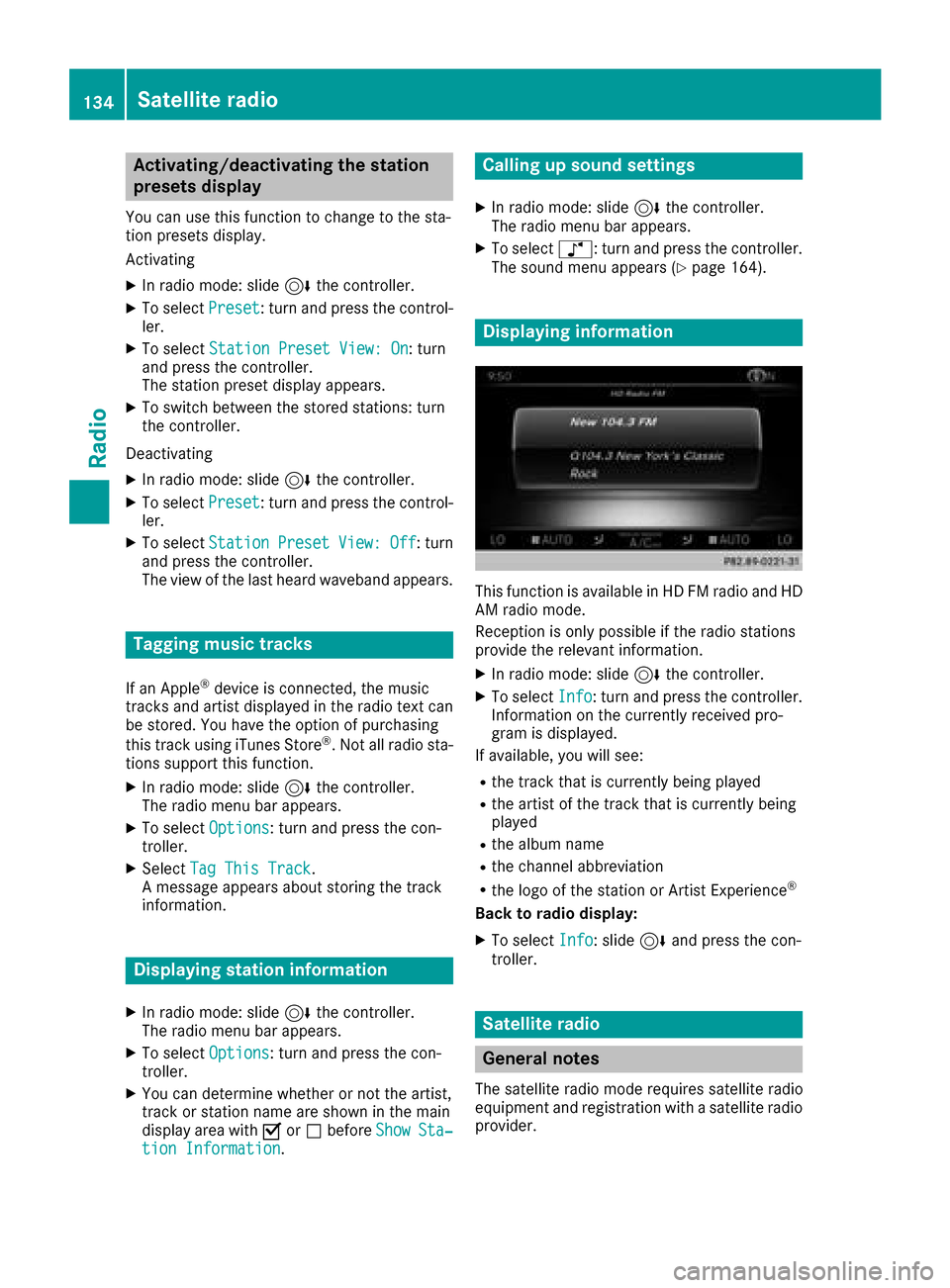
Displaying inform ation
This function is available in HD FM radi oand HD
AM radi omode.
Reception is only possibl eif th eradi ostation s
provid eth erelevan tinformation .
XIn radiomode: slid e6 thecontroller .
XTo selectInfo:tur nand press th econtroller .
Information on th ecurrentl yreceived pro -
gram is displayed.
If available, you will see :
Rthetrack that is currentl ybein gplayed
Rth eartist of th etrack that is currentl ybein g
played
Rth ealbum nam e
Rthechannel abbreviation
Rth elogo of th estation or Artist Experience®
Back to radio display:
XTo select Info:slid e6 and press th econ-
troller .
Satellite radio
Gene ral notes
The satellit eradi omod erequire ssatellit eradi o
equipmen tand registration wit h asatellit eradi o
provider.
134Satellite radio
Radio
Page 143 of 178
Activating media using the device list
XIn media mode, slide6 thecontroller .
The media men ubar is shown.
XTo select Devices:tur nand press th econ-
troller .
The available media source swill be shown.
The #dot indicates th ecurren tsetting .
XSelectth emedia source .
If th emedia source contain smusic or video
files, these will be played .The corresponding
basic men uwill be shown.
Switching onautomatically
Afte rinserting aCD or DVD, th ecorresponding
media mod eis automatically switched on by th e
multimedia system.
If playable music file sare found, they will be
played by th emultimedia system.
If amedia function is already switched on in th e
multimedia system, this will be interrupted and
th ebasic display of th eCD or DV Dmod ewill
appear .If another function ,suc has navigation ,
is bein goperated, th ebasic display will no t
change. Only th emusic from th elast inserted
CD or DV Dwill be played .
Audio/video mode
Import ant safety notes
GWARNIN G
The CD/DV Ddrive is aclas s 1laser product.
If you open th ehousing of th eCD/DV Ddrive,
there is aris kof exposure to invisible laser
radiation .This laser radiation could damag e
your retina .There is aris kof injury.
Never open th ehousing .Always hav emain -
tenance and repair wor kcarrie dout at aquali-
fie dspecialis tworkshop .
GWARNING
Handlin gdisc swhile drivin gmay distrac tyou
from traffic conditions. You could also lose
control of th evehicle. There is aris kof an
accident.
Handle disc sonly when th evehicl eis station -
ary.
Bear in min dthat at aspee dof only 30 mph
(approximately 50 km/h), th evehicl ecover s a
distanc eof 44 ft (approximately 14 m)per sec-
ond.
Notes on audio/video mode
Permissible data carriers
RCD audio, CD-R and CD-RW
RDVD-R, DVD-V and DVD-RW
RSD card
RUSB storage device
Permissible file systems
RISO 9660/Joliet standard for CDs
RUDF for video DVDs
RFAT16, FAT32, exFAT and NTFS for SD card
and USB storage media
Multisession CDs
For multisession CDs, the content of the first
session determines how the multimedia system
processes the CD. The multimedia system plays
only one CD session and gives priority to CD
sessions with audio files.
File structure of a data carrier
When you create a disc with compressed music files, the tracks can be organized in folders. A
folder may also contain subfolders. The disc
may contain no more than eight directory levels.
Files beyond the eighth level will not be recog-
nized by the system.
iThe multimedia system supports data carri-
ers with up to 50,000 files.
In the case of a data carrier with more than
64 GB of stored data, only files in folders with the following names are supported: Music,
Pictures, Video.
Track and file names
When you create a disc with compressed music
files, you can assign names to the tracks and
folders.
Audio/video mode141
Media
Z
Page 145 of 178
Playback problems may occur when playing
copied discs.
There may be playback problems if you play CDs
that you have copied yourself with a storage
capacity of more than 700 MB.
iThe multimedia system is able to play back
audio CDs in multichannel audio format.
Inserting and removing a disc from
the single CD/DVD drive
Before inserting or removing a CD or DVD,
ensure that the cup holder is empty.
Inserting
XPress the þbutton on the single drive.
If there is a disc already inserted, it will be
ejected.
XInsert a disc into the disc slot with the printed
side facing up.
The drive closes and the disc is played.
If the CD or DVD is started in Media mode, the
corresponding basic menu will be shown. If
the CD or DVD is started from another appli-
cation (e.g. navigation), the display will not
change.
iThe drive may not be able to play discs with
copy protection.
Removing
XPress the þbutton.
The drive ejects the disc.
XRemove the ejected disc from the slot.
If you do not take the disc out of the slot, it is
drawn in again automatically after a short
while.
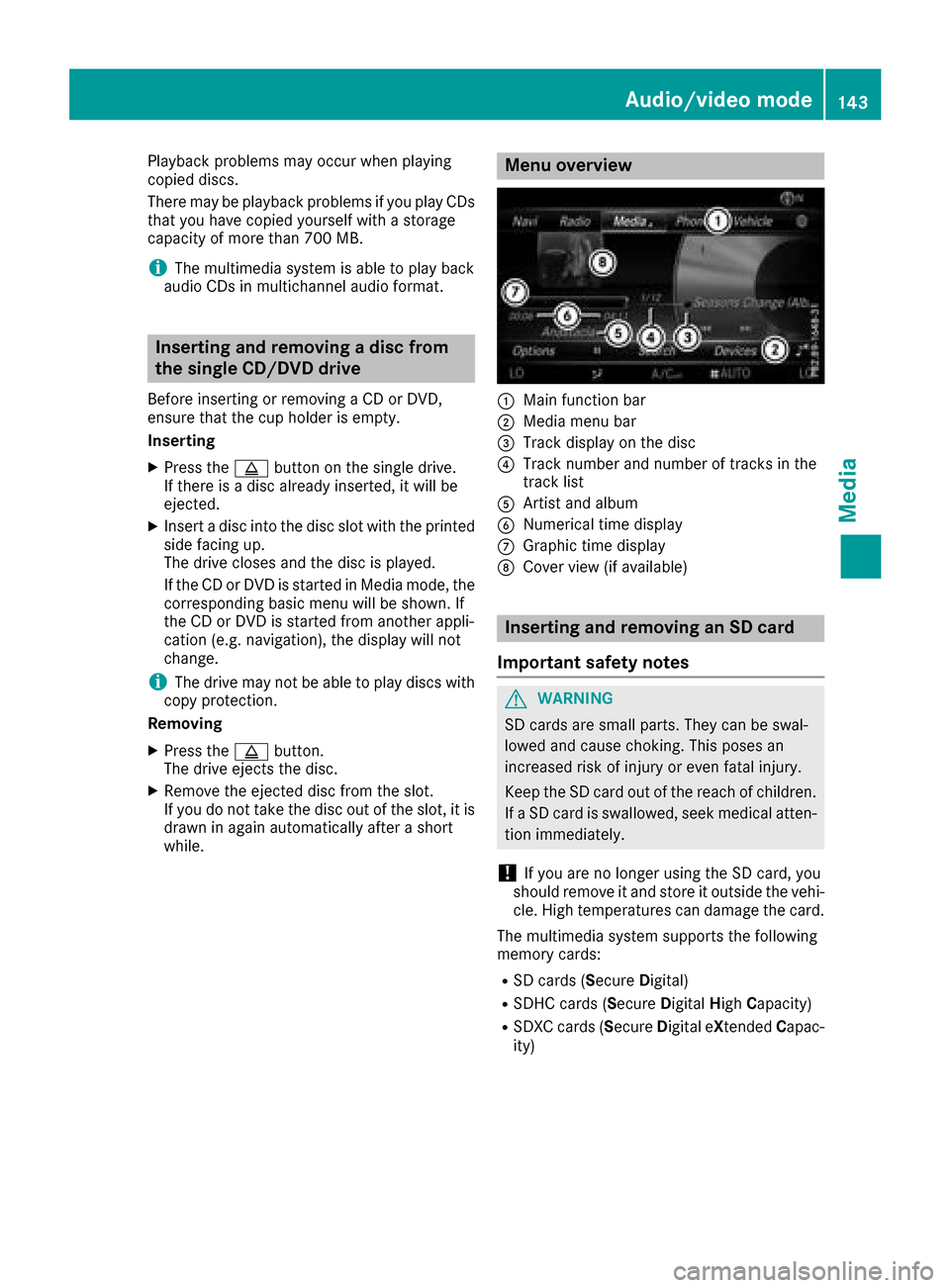
Menu overview
:Main function bar
;Media menu bar
=Track display on the disc
?Track number and number of tracks in the
track list
AArtist and album
BNumerical time display
CGraphic time display
DCover view (if available)
Inserting and removing an SD card
Important safety notes
GWARNING
SD cards are small parts. They can be swal-
lowed and cause choking. This poses an
increased risk of injury or even fatal injury.
Keep the SD card out of the reach of children. If a SD card is swallowed, seek medical atten-
tion immediately.
!If you are no longer using the SD card, you
should remove it and store it outside the vehi-
cle. High temperatures can damage the card.
The multimedia system supports the following
memory cards:
RSD cards ( SecureDigital)
RSDHC cards (Secure DigitalHighCapacity)
RSDXC cards (Secure Digital eXtendedCapac-
ity)
Audio/video mode143
Media
Z
Page 150 of 178
Searching for a track via a keyword
XTo selectKeywordSearchin the category list
(Ypage 147): turn and press the controller.
The input field appears.
XTo select the required characters: turn and
press the controller for each one (Ypage 29).
Entering just part of the name of a track or
artist is enough. The search result then dis-
plays the entire text.
XSelect ¬.
The search results are displayed.
The numbers behind the results, for example
Tracks
(5/0), mean: 5 results that contain
the exact keyword searched for and 0 results
that are similar.
XSelect one of the results.
Keywords that have already been searched
for are displayed in the "Search history" with-
out having to enter them completely. They
can be accepted directly and displayed in the
search result.
XSelect an entry.
Albums and covers (if available) are shown.
The multimedia system searches in all media
sources.
XSelect an album.
The tracks are listed.
XSelect a track.
The basic display appears and playback
starts.
Media Register
General notes
You can store music files, photos or video files in the Media Register. The memory has a capacity
of 10.8 GB.
iKeep your original music files, photos and
video files in a secure location. An error in the multimedia system may result in the loss of
files stored in the Media Register. Mercedes-
Benz is not liable for any loss of data.
Switching on the Media Register
XIn media mode press the Õbutton.
A menu appears with the available media
sources.
XTo select Media Register: turn and press
the controller.
Playback begins at the point last listened to.
If there are no files, you will see a message to
this effect.
Further options for switching on:
Rusing the main function bar: (Ypage 140)
Rusing the device list: (Ypage 141)
Rusing the Õbutton: (Ypage 140)
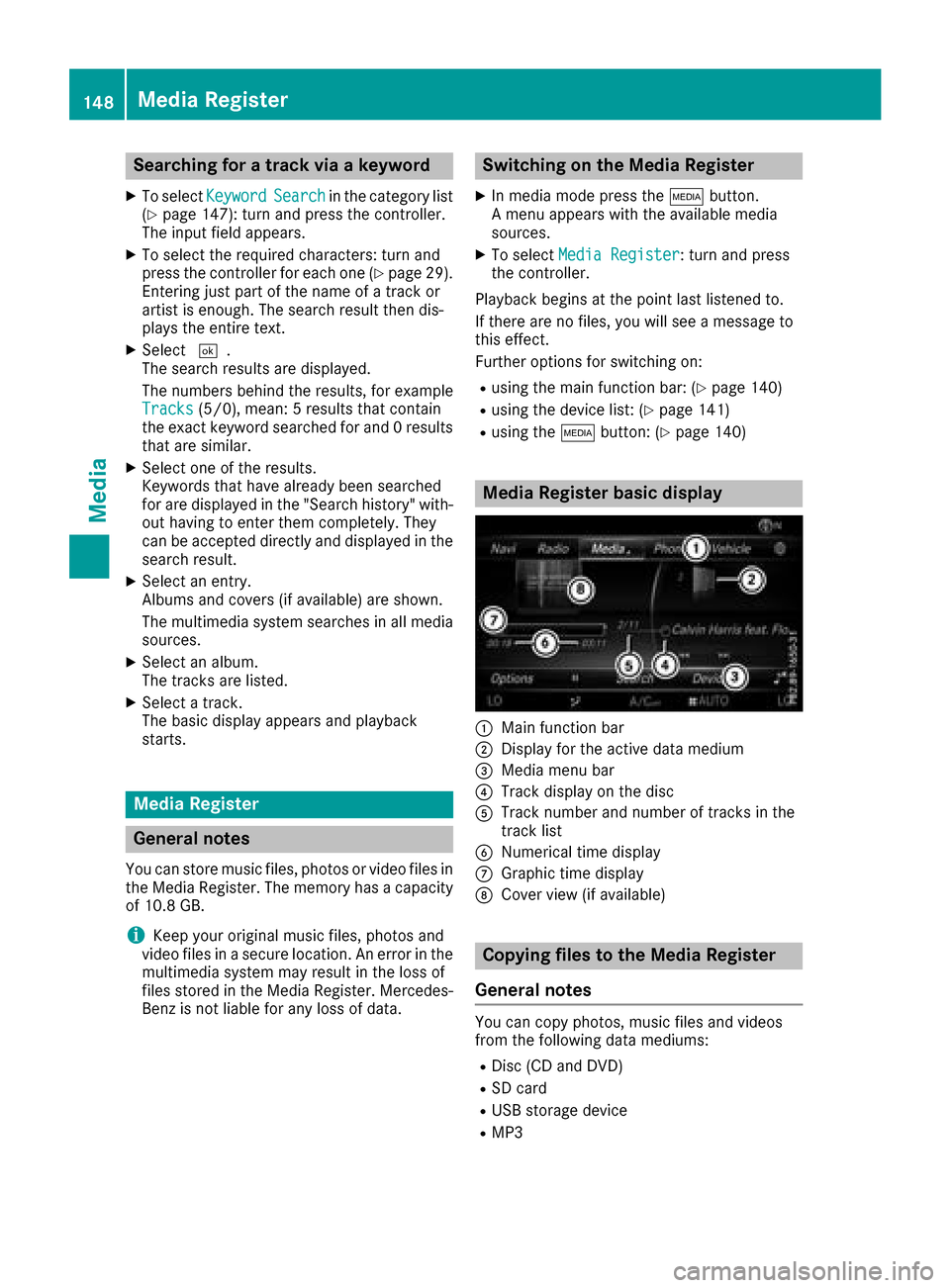
Media Register basic display
:Main function bar
;Display for the active data medium
=Media menu bar
?Track display on the disc
ATrack number and number of tracks in the
track list
BNumerical time display
CGraphic time display
DCover view (if available)
Copying files to the Media Register
General notes
You can copy photos, music files and videos
from the following data mediums:
RDisc (CD and DVD)
RSD card
RUSB storage device
RMP3
148Media Register
Media
Page 155 of 178
Searching for and authorizing a Blue-
tooth®audio device
Searching for a Bluetooth®audio device
XSwitch on Bluetooth®audio mode
(Ypage 152).
XSlide 6the controller.
The media menu bar is shown.
XTo select Connect Device: turn and press
the controller.
XTo select Search for Audio Devices:
press the controller.
A message appears.
XSelect Start Search.
The multimedia system searches for Blue-
tooth
®audio devices within range and adds
them to the Bluetooth®device list.
The duration of the search depends on the
number of Bluetooth
®audio devices within
range and their characteristics.
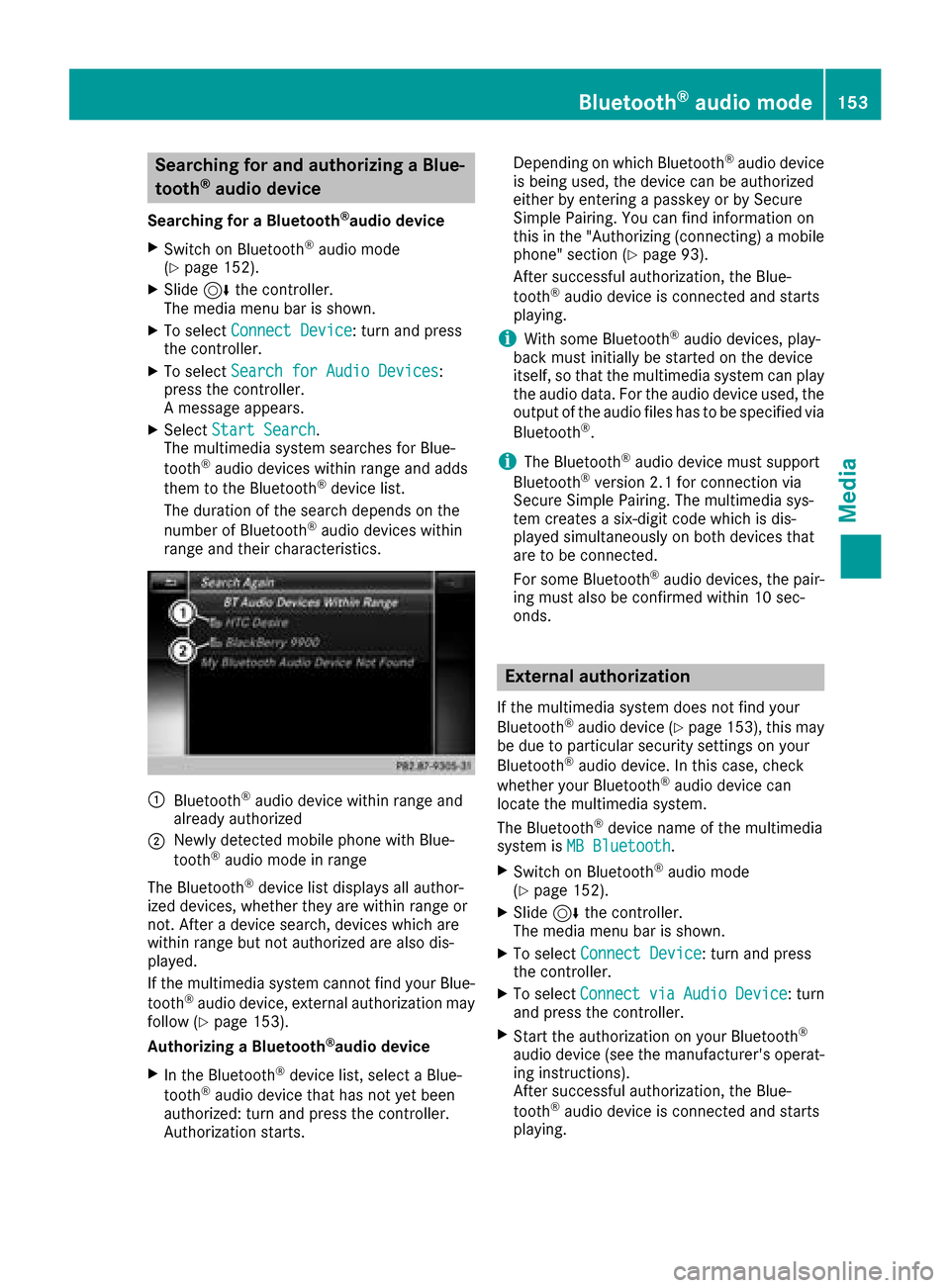
:Bluetooth®audio device within range and
already authorized
;Newly detected mobile phone with Blue-
tooth®audio mode in range
The Bluetooth
®device list displays all author-
ized devices, whether they are within range or
not. After a device search, devices which are
within range but not authorized are also dis-
played.
If the multimedia system cannot find your Blue-
tooth
®audio device, external authorization may
follow (Ypage 153).
Authorizing a Bluetooth
®audio device
XIn the Bluetooth®device list, select a Blue-
tooth®audio device that has not yet been
authorized: turn and press the controller.
Authorization starts. Depending on which Bluetooth
®audio device
is being used, the device can be authorized
either by entering a passkey or by Secure
Simple Pairing. You can find information on
this in the "Authorizing (connecting) a mobile
phone" section (
Ypage 93).
After successful authorization, the Blue-
tooth
®audio device is connected and starts
playing.
iWith some Bluetooth®audio devices, play-
back must initially be started on the device
itself, so that the multimedia system can play
the audio data. For the audio device used, the
output of the audio files has to be specified via
Bluetooth
®.
iThe Bluetooth®audio device must support
Bluetooth®version 2.1 for connection via
Secure Simple Pairing. The multimedia sys-
tem creates a six-digit code which is dis-
played simultaneously on both devices that
are to be connected.
For some Bluetooth
®audio devices, the pair-
ing must also be confirmed within 10 sec-
onds.
External authorization
If the multimedia system does not find your
Bluetooth®audio device (Ypage 153), this may
be due to particular security settings on your
Bluetooth
®audio device. In this case, check
whether your Bluetooth®audio device can
locate the multimedia system.
The Bluetooth
®device name of the multimedia
system is MB Bluetooth.
XSwitch on Bluetooth®audio mode
(Ypage 152).
XSlide 6the controller.
The media menu bar is shown.
XTo select Connect Device: turn and press
the controller.
XTo select ConnectviaAudioDevice: turn
and press the controller.
XStart the authorization on your Bluetooth®
audio device (see the manufacturer's operat- ing instructions).
After successful authorization, the Blue-
tooth
®audio device is connected and starts
playing.
Bluetooth®audio mode153
Media
Z
Page 169 of 178
Your multimediasyste mequipment
These operatin ginstruction sdescribe all th e
standar dan doptional equipment of your multi-
media system, as available at th etime of going
to press. Country-specifi cdifference sare pos -
sible. Bear in min dthat your vehicle may no t
feature all function sdescribed here. Thi salso
applies to safety-relevan tsystems an dfunc-
tions.
Read th einformation on qualifie dspecialis t
workshop sin th evehicle Operator's Manual.
Weather forecasts
Introduction
Thi sfunction is currentl yno tavailable fo rCan -
ada.
Fo rth ereception of weather forecast svia sat -
ellite radio, you will need aSIRIU SXM Satellite
Weather subscription .
If th emessag eappears alon gwit hth eSIRIU S
telephon ean dID numbers, you will need to hav e
th eweather servic eactivated first .
XTo selectCal lorCancel:turn an dpress th e
controller .
If amobile phone is connecte dto th emulti-
media syste m (
Ypage 91), when you selec t
Cal lacal lis placed to amember of th eSIR-
IU Sservic estaff .The ID number of th eSIRIU S
devic ewill be transferred to th etelephon e
display.
XThi swill be followed by instruction sfrom th e
servic eemployee.
Weather forecast scan be received via th esat -
ellite radio fo rth eUS A(includin gAlask aan d
Hawaii).
The received weather dat acan be displaye das
an information chart (dail yforecast ,five-day
forecast ,detailed information )or on th e
weather map .
The weather dat areceived from th eweather
station is stored fo ron ehour in th emultimedia
system. It can therefore be displaye dagain
immediately after restartin gth eengin e(fo r
example after refueling). Dependin
gon whic hscale has bee nselected,
th eweather map can display th efollowin g
weather dat awit hsymbols :
Rrain radar
Rstormcharacteristics
Rhig han dlow-pressure areas, weather fronts
Rcours eof tropical cyclones (hurricanes,
typhoons )
Rstormwarnings
Rwin ddirection an dspeeds
iThe rain radar canno tbe displaye dfo r
Alaska, Hawaii an dPuerto Rico.
iHurricane: term used to describe th etropi-
cal cyclones that primarily develo pin th e
At lantic, No
rth Pacifi
can dSout hPacifi c
oceans. Awin dspeeds are abov e74 mph
(11 8km/h). Five categorie sare used to clas-
sif yth estrengt hof ahurricane.
Typhoon :term used to describe atropical
cyclon ethat develops in th enorthwestern
Pacific. The win dspeeds are in th ecategory of
a hurricane.
Switching th eSIRIUS Weather display
on/of f
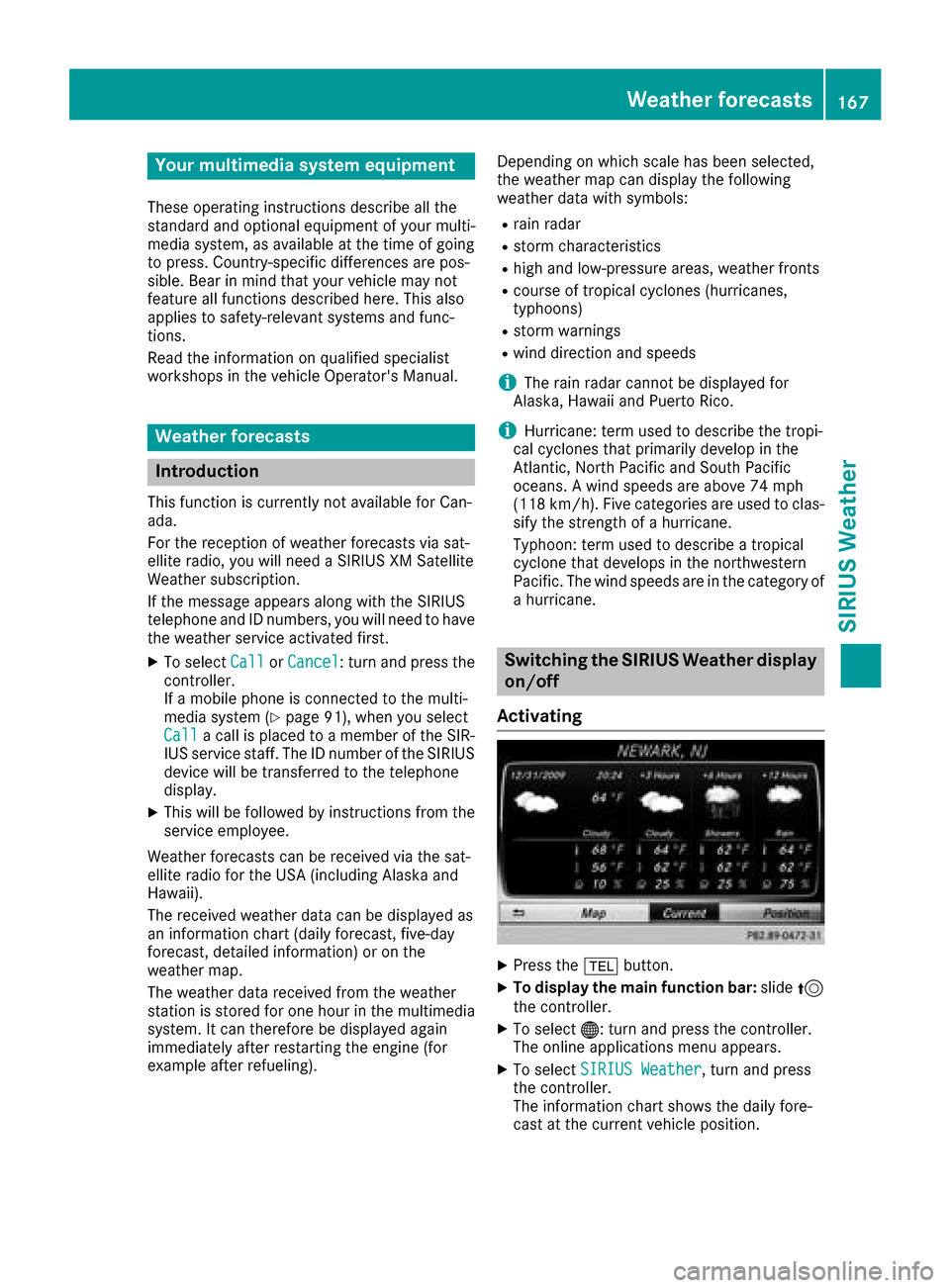
Activating
XPress th e% button.
XTo display th emain function bar: slide5
th econtroller .
XTo select® :turn an dpress th econtroller .
The onlin eapplication smen uappears .
XTo selec tSIRIUS Weathe r,turn an dpress
th econtroller .
The information chart shows th edaily fore-
cas tat th ecurren tvehicle position .
Weather forecasts167
SIRIUS Weather