lock MERCEDES-BENZ GLC COUPE 2017 X253 Comand Manual
[x] Cancel search | Manufacturer: MERCEDES-BENZ, Model Year: 2017, Model line: GLC COUPE, Model: MERCEDES-BENZ GLC COUPE 2017 X253Pages: 178, PDF Size: 4.19 MB
Page 78 of 178
system is able to guide you to a destination even
from an off-road location.
At the start of route guidance, you will see the
Road Not Mapped
message, an arrow and the
distance to the destination. The arrow shows
the compass heading to the actual destination.
As soon as the vehicle is back on a road known
to the system, route guidance continues in the
usual way.
Off-road during route guidance
Due to road construction, for example, there
may be differences between the data on the
digital map and the actual course of the road.
In such cases, the system will temporarily be
unable to locate the vehicle position on the dig-
ital map. The vehicle is therefore in an off-road
position.
In the display, you will then see the Road Not
Mappedmessage, an arrow and the distance to
the destination. The direction arrow shows the
compass heading to the destination.
As soon as the system can assign the vehicle
position to the map again, route guidance con-
tinues in the usual way.
Real-time traffic reports
Prerequisites
This function is currently not available for Can-
ada.
In order to receive real-time traffic reports via
satellite radio, you need to subscribe to SIRIUS
XM Satellite Radio Traffic Message Service.
Further information on satellite radio
(
Ypage 134).
The multimedia system can receive traffic
reports via satellite radio and take account of
these for route guidance in the navigation sys-
tem. Received traffic reports are displayed on
the map either as text or as symbols.
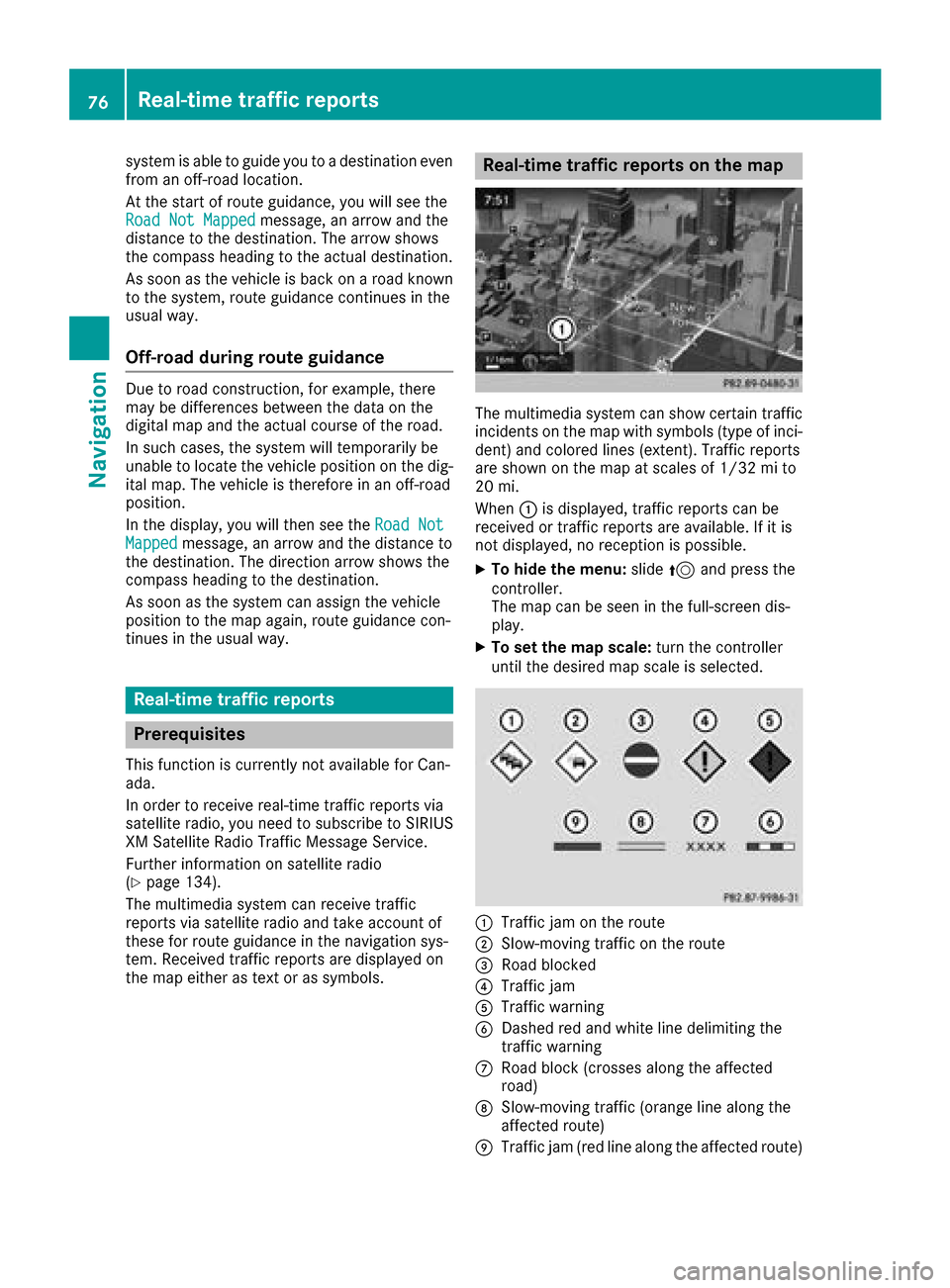
Real-time traffic reports on the map
The multimedia system can show certain traffic
incidents on the map with symbols (type of inci-
dent) and colored lines (extent). Traffic reports
are shown on the map at scales of 1/32 mi to
20 mi.
When :is displayed, traffic reports can be
received or traffic reports are available. If it is
not displayed, no reception is possible.
XTo hide the menu: slide5and press the
controller.
The map can be seen in the full-screen dis-
play.
XTo set the map scale: turn the controller
until the desired map scale is selected.
:Traffic jam on the route
;Slow-moving traffic on the route
=Road blocked
?Traffic jam
ATraffic warning
BDashed red and white line delimiting the
traffic warning
CRoad block (crosses along the affected
road)
DSlow-moving traffic (orange line along the
affected route)
ETraffic jam (red line along the affected route)
76Real-time traffic reports
Navigation
Page 86 of 178
Avoiding an area
Gene ral notes
The multimedia system enables you to avoi d
areas you do no twish to drive through.
If you activat eor deactivat e arout ebloc kwhile
rout eguidance is active ,th emultimedia system
will calculat e anewroute. If you activat eor
deactivat e arout ebloc kwhile rout eguidance is
inactive ,th emultimedia system will use th ene w
setting for th enext rout eguidance .
The calculated rout emay include an area to be
avoided if:
Ryour destination is locate din suc han area
Rthere is no alternative rout eof comparable
lengt havailable
Highways within blocke dareas are always taken
int oconsideration in th erout ecalculation .
iAlternatively, you can carry out this opera-
tion usin gth etouchpad (Ypage 23).
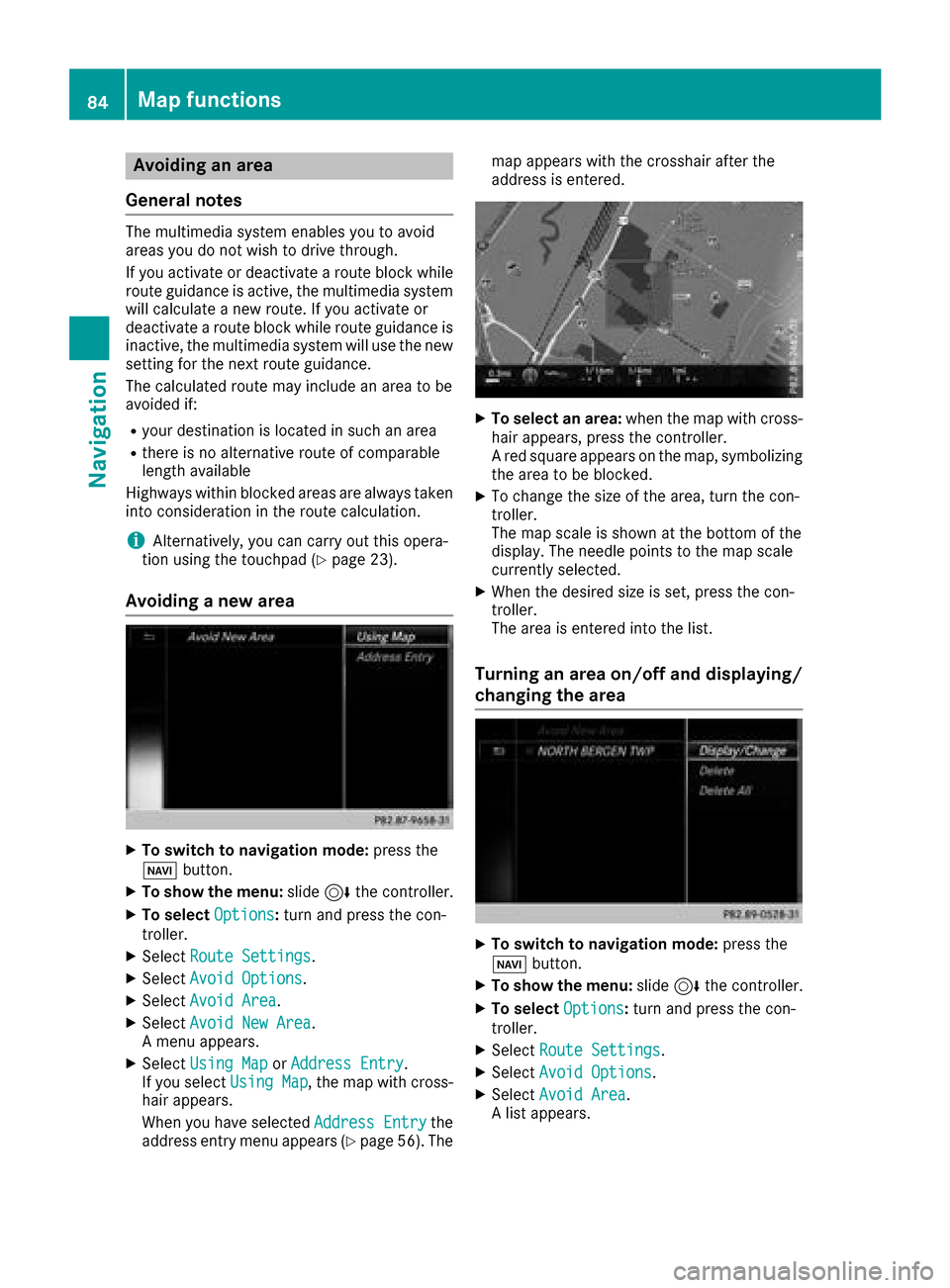
Avoiding a new area
XTo switch to navigation mode: press the
Ø button.
XTo sho wthemenu: slide6 thecontroller .
XTo select Options:tur nand press th econ-
troller .
XSelectRoute Settings.
XSelec tAvoid Option s.
XSelectAvoid Are a.
XSelectAvoid New Are a.
A men uappears.
XSelec tUsing Mapor Addres sEntry.
If you select Using Map,th emap wit hcross -
hair appears.
When you hav eselected AddressEntry
the
address entr ymen uappear s (Ypage 56) .The map appear
swit hth ecrosshair after th e
address is entered .
XTo select an area: when themap wit hcross -
hair appears, press th econtroller .
A red squar eappear son th emap, symbolizing
th earea to be blocked.
XTo chang eth esiz eof th earea, tur nth econ-
troller .
The map scale is shown at th ebotto mof th e
display. The needle points to th emap scale
currentl yselected.
XWhen th edesired siz eis set ,press th econ-
troller .
The area is entered int oth elist .
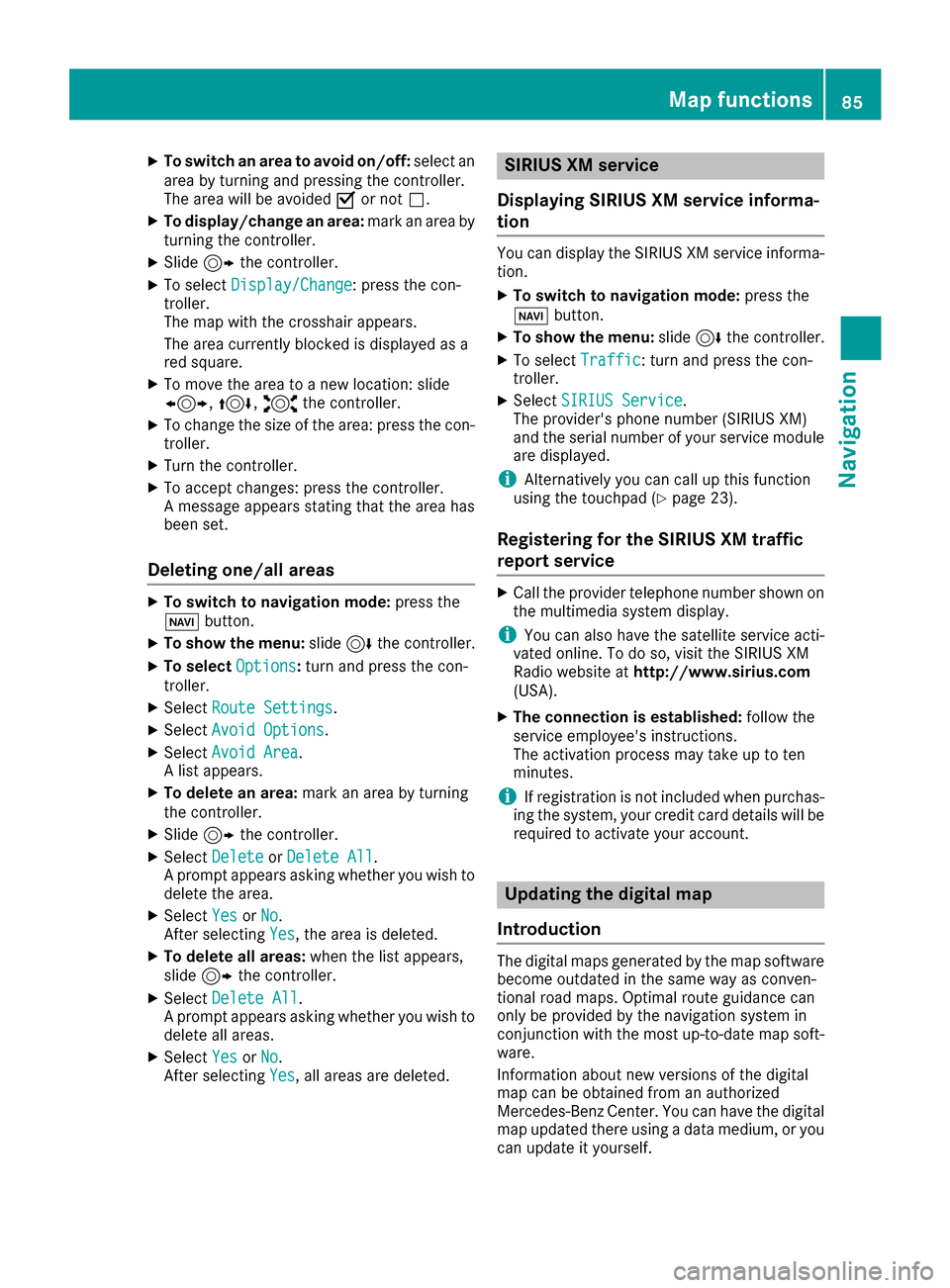
Turning an area on/off and displaying/
changing the area
XTo switch to navigation mode: press the
Ø button.
XTo sho wthemenu: slide6 thecontroller .
XTo select Options:tur nand press th econ-
troller .
XSelectRoute Settings.
XSelec tAvoid Option s.
XSelectAvoid Are a.
A list appears.
84Map functions
Navigation
Page 87 of 178
XTo switch an area to avoid on/off:select an
area by turning and pressing the controller.
The area will be avoided Oor not ª.
XTo display/change an area: mark an area by
turning the controller.
XSlide 9the controller.
XTo select Display/Change: press the con-
troller.
The map with the crosshair appears.
The area currently blocked is displayed as a
red square.
XTo move the area to a new location: slide
1, 4,2the controller.
XTo change the size of the area: press the con-
troller.
XTurn the controller.
XTo accept changes: press the controller.
A message appears stating that the area has
been set.
Deleting one/all areas
XTo switch to navigation mode: press the
Ø button.
XTo show the menu: slide6the controller.
XTo select Options:turn and press the con-
troller.
XSelect Route Settings.
XSelectAvoid Options.
XSelectAvoid Area.
A list appears.
XTo delete an area: mark an area by turning
the controller.
XSlide 9the controller.
XSelect DeleteorDelete All.
A prompt appears asking whether you wish to
delete the area.
XSelect YesorNo.
After selecting Yes, the area is deleted.
XTo delete all areas: when the list appears,
slide 9 the controller.
XSelect Delete All.
A prompt appears asking whether you wish to
delete all areas.
XSelect YesorNo.
After selecting Yes, all areas are deleted.
SIRIUS XM service
Displaying SIRIUS XM service informa-
tion
You can display the SIRIUS XM service informa-
tion.
XTo switch to navigation mode: press the
Ø button.
XTo show the menu: slide6the controller.
XTo select Traffic: turn and press the con-
troller.
XSelect SIRIUS Service.
The provider's phone number (SIRIUS XM)
and the serial number of your service module
are displayed.
iAlternatively you can call up this function
using the touchpad (Ypage 23).
Registering for the SIRIUS XM traffic
report service
XCall the provider telephone number shown on
the multimedia system display.
iYou can also have the satellite service acti-
vated online. To do so, visit the SIRIUS XM
Radio website at http://www.sirius.com
(USA).
XThe connection is established: follow the
service employee's instructions.
The activation process may take up to ten
minutes.
iIf registration is not included when purchas-
ing the system, your credit card details will be
required to activate your account.
Updating the digital map
Introduction
The digital maps generated by the map software
become outdated in the same way as conven-
tional road maps. Optimal route guidance can
only be provided by the navigation system in
conjunction with the most up-to-date map soft-
ware.
Information about new versions of the digital
map can be obtained from an authorized
Mercedes-Benz Center. You can have the digital
map updated there using a data medium, or you
can update it yourself.
Map functions85
Navigation
Z
Page 114 of 178
XTo selectYes: turn and press the controller.
All speed dials are deleted.
Messages
General notes
New messages are identified by the /sym-
bol in the display of the multimedia system and
an audible signal. Once you have read all the
messages, the symbol is no longer displayed.
The multimedia system displays the 100 newest
text messages and e-mails.
The ú symbol is displayed when the mobile
phone's message memory is full. The symbol is
no longer displayed if you delete messages on
the mobile phone.
Function restrictions
Text messages cannot be written while the vehi-
cle is in motion.
Requirements
To use the message functions, the connected
mobile phone must support the MAP Bluetooth®
profile. The prompt for the MAP Bluetooth®pro-
file may have to be confirmed on the mobile
phone.
With some mobile phones, some settings still
have to be made after connecting to the multi-
media system (see the manufacturer's operat-
ing instructions). The messages are then dis-
played the next time you connect to the multi-
media system.
An e-mail account must be set up on the mobile
phone for the e-mail function (see the manufac-
turer’s operating instructions).
To read and write e-mails in the multimedia sys- tem, the e-mail account first needs to be con-
figured (
Ypage 113).
Some mobile phones with the MAP Bluetooth®
profile:
Ronly show new text messages
Rdo not support the deleting or editing of text
messages
Rdo not support the drafts folder for text mes- sages
Rdo not support the sending of text messages
Rdo not support the e-mail function
Rdo not send messages when in a locked sta-
tus
Not all mobile phones available on the market
are equally suitable. Further information about
settings and supported functions of Bluetooth
®-
capable mobile phones can be found on the
Internet at
http://www.mercedes-benz.com/connect .
Or call the Mercedes-Benz Customer Assistance
Center at 1-800-FOR-MERCedes
(1-800-367-6372) (for the USA) or Customer
Relations at 1-800-387-0100 (for Canada).
Settings
Calling up the settings menu for mes-
sages
XTo call up the telephone menu: press the
% button.
XTo switch to the menu bar: slide 6the con-
troller.
XTo select 1: turn and press the controller.
The message menu is displayed.
XTo switch to the menu bar: slide 6the con-
troller.
XTo select Settings: turn and press the con-
troller.
The text message settings and the available e-
mail accounts of the connected mobile phone
will be displayed.
Configuring the text messages dis-
played
XCall up the settings menu for messages
(Ypage 112).
XTo highlight Text Message: turn the control-
ler.
XTo select G: slide 9the controller.
A menu with the following options is shown:
RAll Messages
All the messages are displayed.
RNew Messages
Only the messages that are new on the
mobile phone are displayed. You can also
display the last 100 text messages using
the Download
option in the message menu.
ROff
112Messages
Telephone
Page 130 of 178
XTo navigate on the web page: slide1,
4 or2 the controller.
XTo zoom in on the web page: turn the control-
ler.
Jumping from link to link
You can use this function to skip from one link to
the next on a website.
XTo show the menu: press the%button.
XTo select 3: turn and press the controller.
A menu appears. The #dot indicates the cur-
rent setting.
XSelect Jump From Link To Link.
If a website has been called up and the con-
troller is turned, the cursor jumps from link to
link.
Directional scrolling
You can use this function to scroll up and down
on the web page.
XTo show the menu: press the%button.
XTo select 3: turn and press the controller.
A menu appears. The #dot indicates the cur-
rent setting.
XSelect Directional Scrolling.
If a website has been called up and the con-
troller is turned, the cursor moves up or down
depending on the direction of the turn.
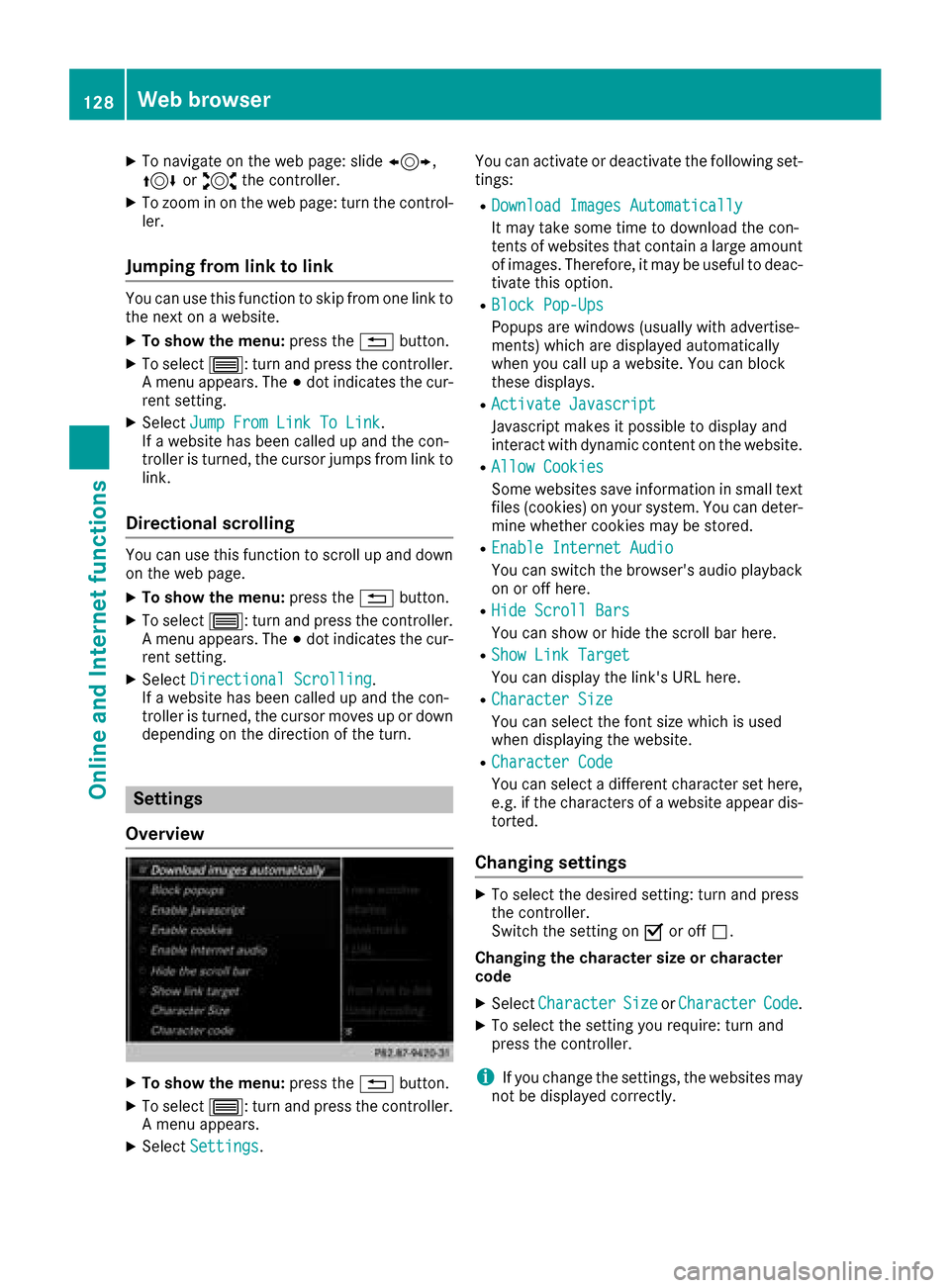
Settings
Overview
XTo show the menu: press the%button.
XTo select 3: turn and press the controller.
A menu appears.
XSelect Settings. You can activate or deactivate the following set-
tings:
RDownload Images Automatically
It may take some time to download the con-
tents of websites that contain a large amount
of images. Therefore, it may be useful to deac-
tivate this option.
RBlock Pop-Ups
Popups are windows (usually with advertise-
ments) which are displayed automatically
when you call up a website. You can block
these displays.
RActivate Javascript
Javascript makes it possible to display and
interact with dynamic content on the website.
RAllow Cookies
Some websites save information in small text
files (cookies) on your system. You can deter-
mine whether cookies may be stored.
REnable Internet Audio
You can switch the browser's audio playback
on or off here.
RHide Scroll Bars
You can show or hide the scroll bar here.
RShow Link Target
You can display the link's URL here.
RCharacter Size
You can select the font size which is used
when displaying the website.
RCharacter Code
You can select a different character set here,
e.g. if the characters of a website appear dis-
torted.
Changing settings
XTo select the desired setting: turn and press
the controller.
Switch the setting on
Oor off ª.
Changing the character size or character
code
XSelect CharacterSizeorCharacterCode.
XTo select the setting you require: turn and
press the controller.
iIf you change the settings, the websites may
not be displayed correctly.
128Web browser
Online and Internet functions
Page 137 of 178
Note that the categories and channels shown in
the illustrations depend on the program content
offered by the provider. The illustrations and
descriptions in these operating instructions may
therefore differ from the channels and catego-
ries offered by the provider.
Satellite radio mode may be temporarily unavail-
able or interrupted for a variety of reasons.
These include environmental or topographical
conditions as well as other factors beyond the
control of Mercedes-Benz USA, LLC. This means
operation may not be possible in certain areas.
These include:
Rtunnels
Rparking garages
Rlocations inside or next to buildings
Rlocations in the vicinity of other structures
Sirius XM®Satellite Radio offers more than 140
digital-quality radio channels, providing 100%
commercial-free music, sports, news and enter-
tainment.
Sirius XM
®Satellite Radio uses a fleet of high-
performance satellites to broadcast around the
clock throughout the USA and Canada.
The satellite radio program is available for a
monthly fee. Details are available from the Sirius
XM
®Service Center and at
http://www.siriusxm.com (USA) or
http://www.siriusxm.ca (Canada).
Your new Mercedes-Benz vehicle comes with
Sirius XM
®Satellite Radio pre-installed at the
factory. This service is free for a six-month trial
period. About a month before the trial period
ends, information will be provided on how to
extend this subscription. An acoustic signal
sounds and a message is shown, describing how
the subscription can be extended.
iSirius, XM and all related marks and logos
are trademarks of Sirius XM Radio Inc. and its
subsidiaries. All other marks, channel names
and logos are the property of their respective
owners. All rights reserved.
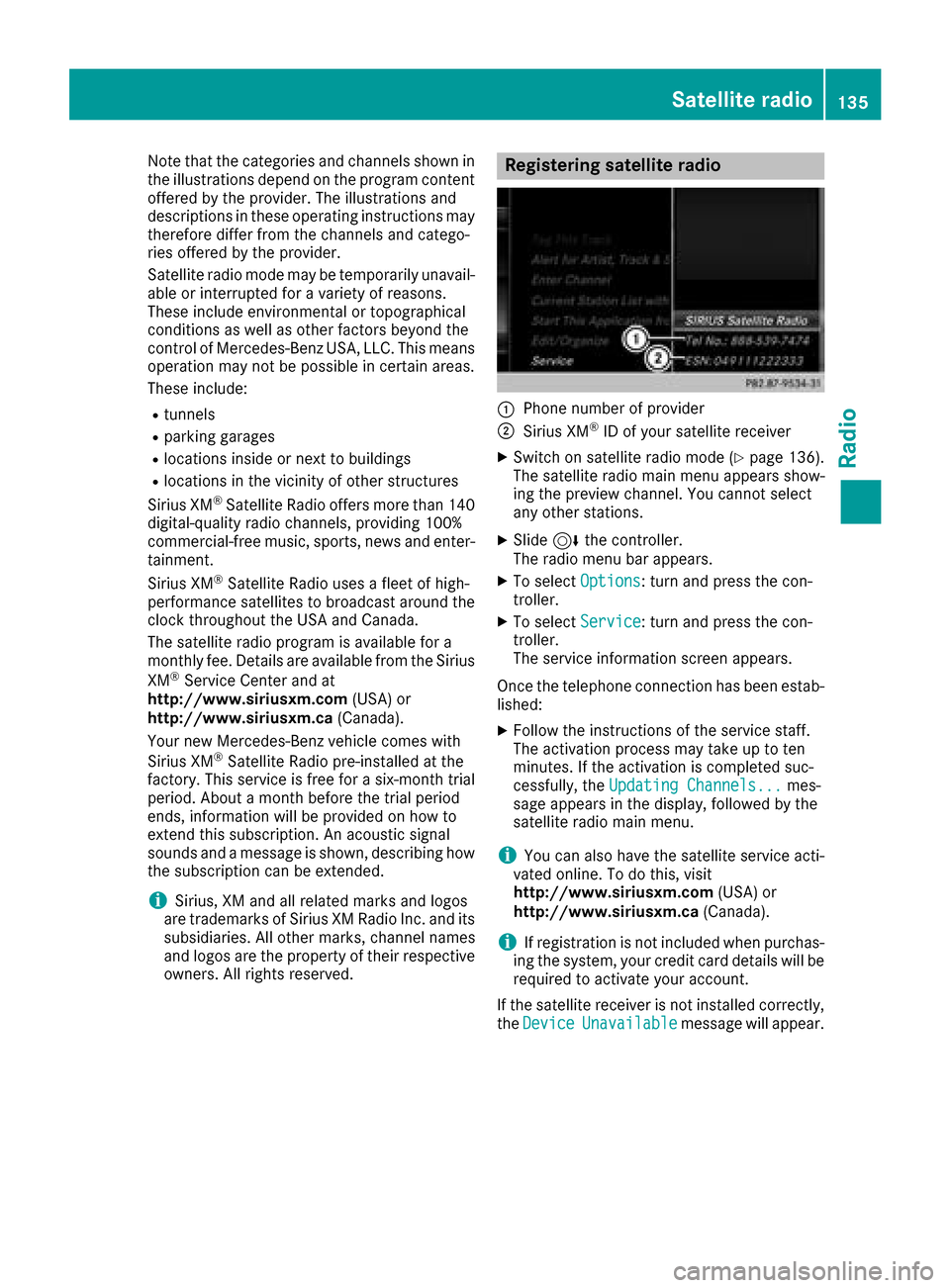
Registering satellite radio
:Phone number of provider
;Sirius XM®ID of your satellite receiver
XSwitch on satellite radio mode (Ypage 136).
The satellite radio main menu appears show-
ing the preview channel. You cannot select
any other stations.
XSlide 6the controller.
The radio menu bar appears.
XTo select Options: turn and press the con-
troller.
XTo select Service: turn and press the con-
troller.
The service information screen appears.
Once the telephone connection has been estab-
lished:
XFollow the instructions of the service staff.
The activation process may take up to ten
minutes. If the activation is completed suc-
cessfully, the Updating Channels...
mes-
sage appears in the display, followed by the
satellite radio main menu.
iYou can also have the satellite service acti-
vated online. To do this, visit
http://www.siriusxm.com (USA) or
http://www.siriusxm.ca (Canada).
iIf registration is not included when purchas-
ing the system, your credit card details will be
required to activate your account.
If the satellite receiver is not installed correctly,
the Device
Unavailablemessage will appear.
Satellite radio135
Radio
Page 163 of 178
In order to manually adjust the brightness, con-
trast and color, the dynamic image enhance-
ment function and the automatic daylight
adjustment feature must be switched off.
XTo selectBrightness,Contrastor
Color: turn and press the controller.
A sliding menu appears.
XTo select the required value: turn the control-
ler.
XTo exit the sliding menu: slide 8the con-
troller.
Setting the picture format
The following screen format options are availa-
ble for the DVD currently being played:
RAuto
R16:9
R4:3
RZoom
XTo set the picture format: turn and press the
controller.
The dot before the menu entry shows the
selected format.
Showing the DVD's control menu
Most DVDs have their own control menuwhich
can be operated using the controller.
Showing the DVD's control menu
XTo show DVD functions: in full screen video
mode, press the controller.
The DVD functions menu is shown.
XTo select Menufrom the DVD functions menu:
turn and press the controller.
The DVD functions menu is hidden and the
DVD's menu entries (e.g. scenes, language,
trailers) are displayed.
XTo select a menu entry: turn and press the
controller.
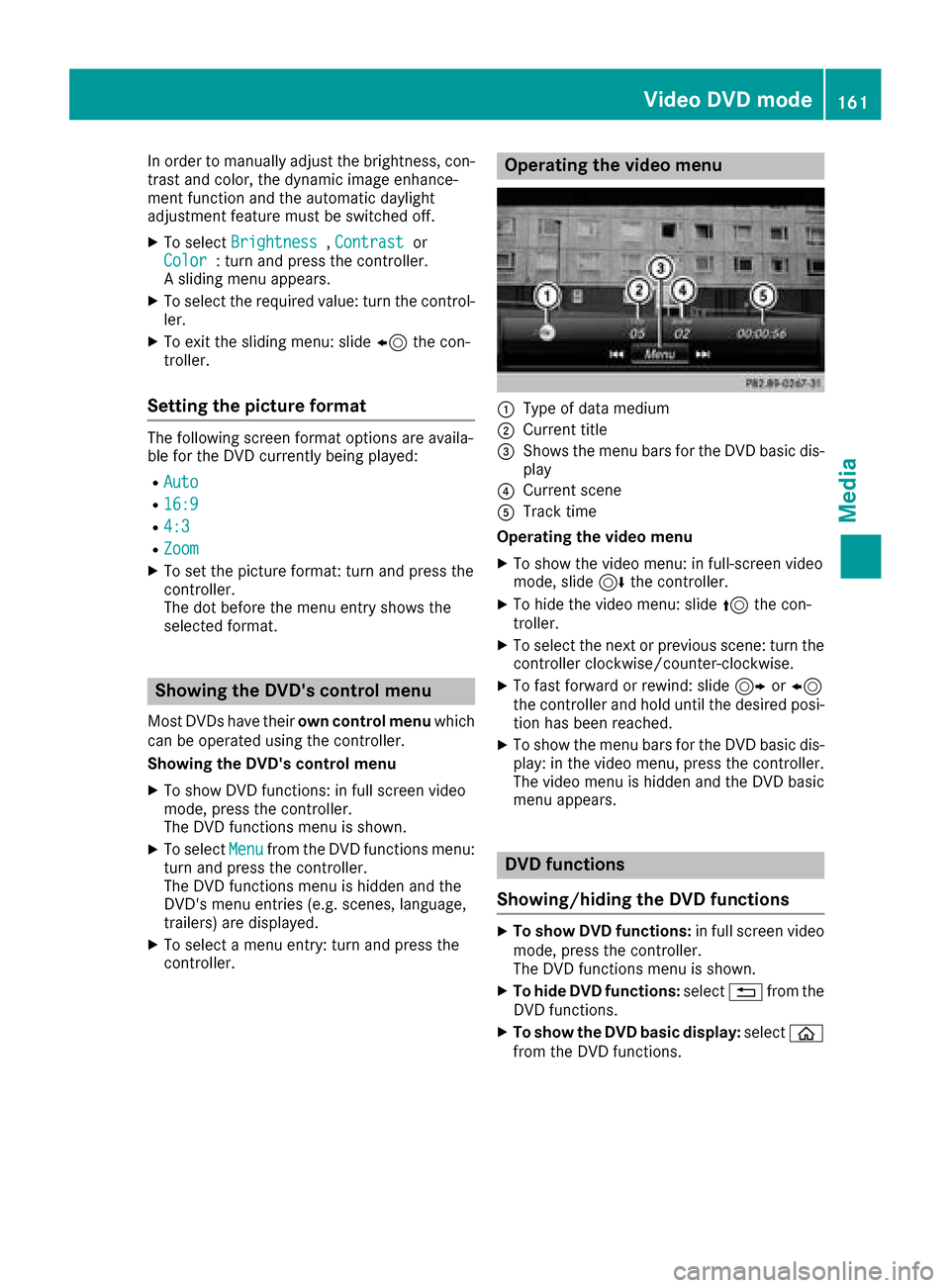
Operating the video menu
:Type of data medium
;Current title
=Shows the menu bars for the DVD basic dis- play
?Current scene
ATrack time
Operating the video menu
XTo show the video menu: in full-screen video
mode, slide 6the controller.
XTo hide the video menu: slide 5the con-
troller.
XTo select the next or previous scene: turn the controller clockwise/counter-clockwise.
XTo fast forward or rewind: slide 9or8
the controller and hold until the desired posi- tion has been reached.
XTo show the menu bars for the DVD basic dis-
play: in the video menu, press the controller.
The video menu is hidden and the DVD basic
menu appears.
DVD functions
Showing/hiding the DVD functions
XTo show DVD functions: in full screen video
mode, press the controller.
The DVD functions menu is shown.
XTo hide DVD functions: select%from the
DVD functions.
XTo show the DVD basic display: selectò
from the DVD functions.
Video DVD mode161
Media
Z
Page 165 of 178
It may also be possible to select the scene and
chapter from the functions stored on the DVD.
XTo skip forward or back:in the video menu,
turn the controller.
The next or previous scene in the film is skip-
ped to.
iThe DVD functions can also be used to make
selections (Ypage 161).
Picture viewer
General notes
If there are pictures on the active data medium,
you can view them on the multimedia system.
The following data media and picture formats
are supported:
RData media: Media Register, CD, DVD, USB
devices, SD cards
RPicture formats: jpeg, jpg, bmp, png
The maximum image resolution is
20 megapixels.
It is not possible to view a picture from the driv-
er's side while the vehicle is in motion.
Displaying pictures
XIn media mode, slide 6the controller.
XTo select Search: turn and press the control-
ler.
The category list appears.
XTo select Photos: turn and press the control-
ler.
A directory list appears. Folders and picture
files can be shown.
XSelect a folder or picture.
If there is no picture on the data medium, an
empty list is shown.
Searching for pictures on other data media
XYou can search for pictures on other data
media.
In the directory list, slide 8the controller.
The device list appears.
XTo select a data medium with picture files:
turn the controller and press to confirm.
A directory list appears. Folders and picture
files can be shown.
XSelect a folder or picture.
Starting a slide show
XWhile viewing a picture, press the controller.
The image menu appears.
XTo select Start Slideshow: turn and press
the controller.
The slide show starts.
XTo end the slide show: press the controller.
The image menu appears.
XSelect End Slide Show.
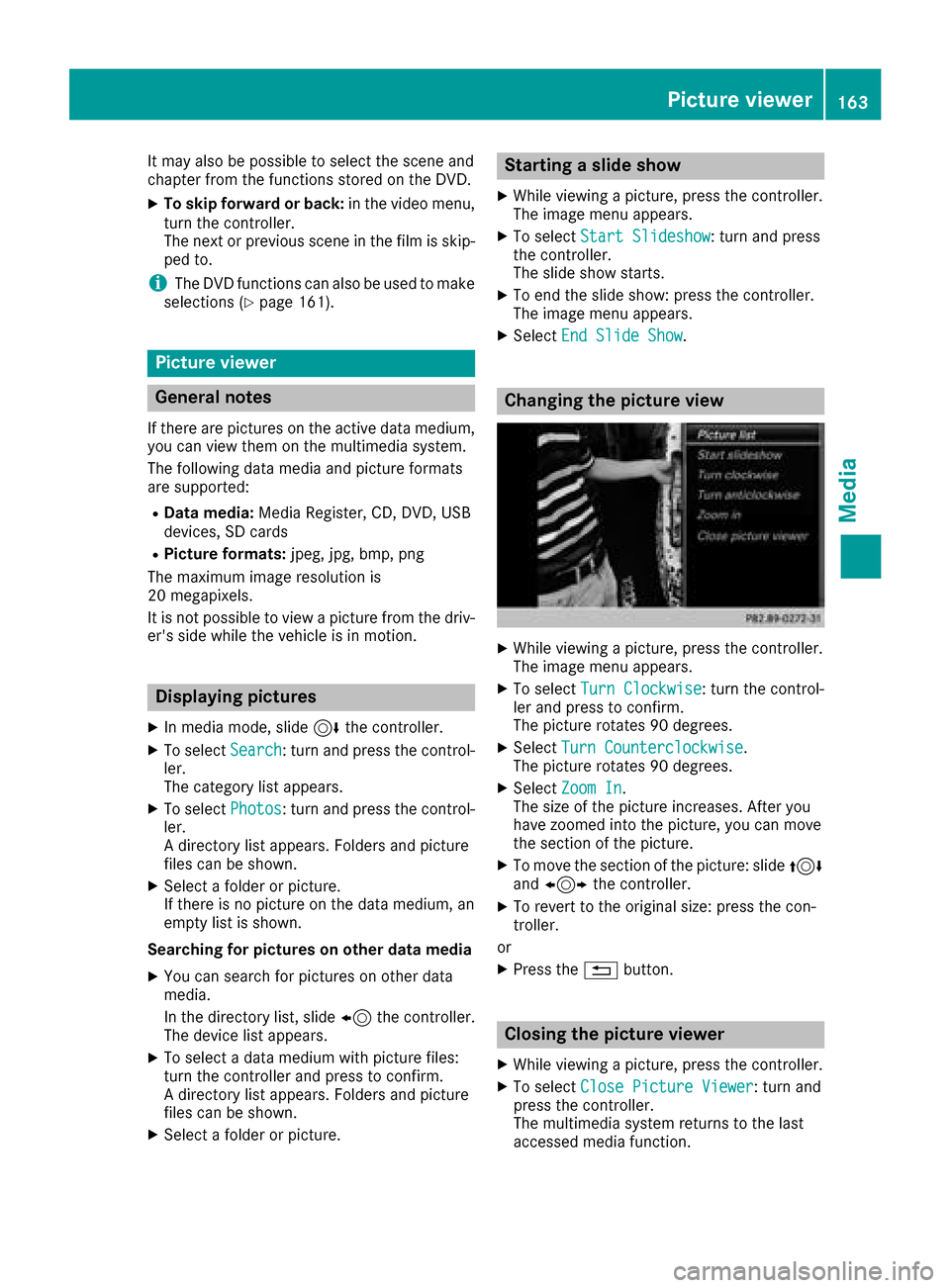
Changing the picture view
XWhile viewing a picture, press the controller.
The image menu appears.
XTo select Turn Clockwise: turn the control-
ler and press to confirm.
The picture rotates 90 degrees.
XSelect Turn Counterclockwise.
The picture rotates 90 degrees.
XSelect Zoom In.
The size of the picture increases. After you
have zoomed into the picture, you can move
the section of the picture.
XTo move the section of the picture: slide 4
and 1 the controller.
XTo revert to the original size: press the con-
troller.
or
XPress the %button.
Closing the picture viewer
XWhile viewing a picture, press the controller.
XTo select Close Picture Viewer: turn and
press the controller.
The multimedia system returns to the last
accessed media function.
Picture viewer163
Media
Z