steering MERCEDES-BENZ GLC COUPE 2017 X253 Comand Manual
[x] Cancel search | Manufacturer: MERCEDES-BENZ, Model Year: 2017, Model line: GLC COUPE, Model: MERCEDES-BENZ GLC COUPE 2017 X253Pages: 178, PDF Size: 4.19 MB
Page 103 of 178
names are identical. The next different char-
actersAandOare offered for selection.
XSelect the characters of the contact you are
searching for one by one, pressing and con-
firming with the controller each time.
XTo select ¬: turn and press the controller.
The contacts in the phone book are displayed.
XTo select a contact: turn and press the con-
troller.
The Gsymbol indicates that a contact contains
more than one phone number.
XTo select a contact with the Gsymbol: turn
the controller and press to confirm.
The phone numbers are displayed. The G
symbol changes to I.
Back to the character bar
XPress the %button repeatedly until the
character bar is displayed.
Information about character entry (
Ypage 29).
Using the touchpad
You determine the first letter of the contact you
are looking for with the first character you enter.
XDraw the letter on the touchpad surface.
The first contact with the selected first char-
acter is highlighted in the phone book.
Further information on handwriting recogni-
tion on the touchpad (
Ypage 25).
XDraw additional letters on the touchpad sur-
face one after another.
XTo complete the search and return to the
phone book: press the touchpad.
XTo select and call the contact: glide up or
down and press.
Using the multifunction steering wheel
XDial a number from the phone book; see the
vehicle Operator's Manual.
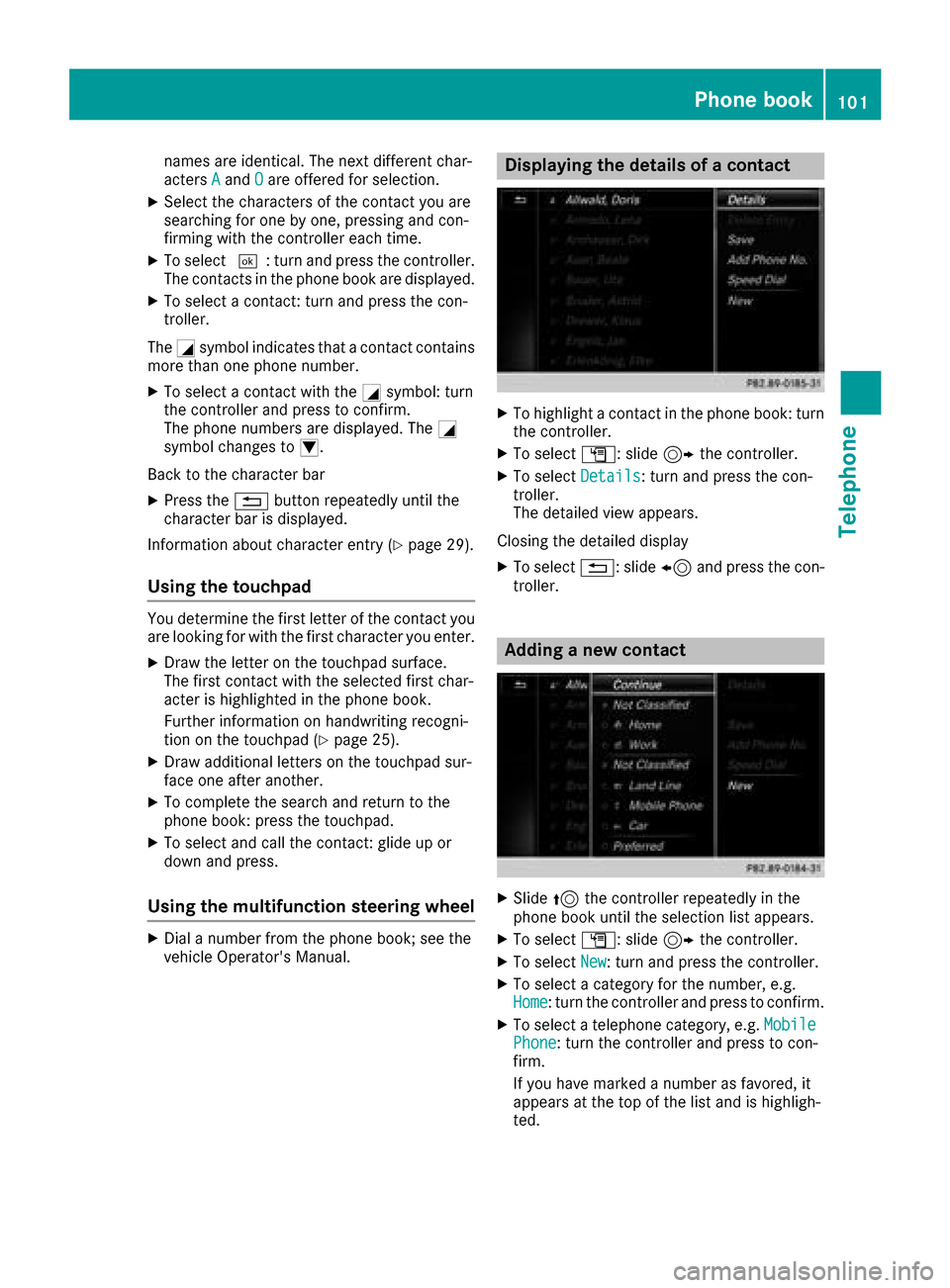
Displaying the details of a contact
XTo highlight a contact in the phone book: turn
the controller.
XTo select G: slide 9the controller.
XTo select Details: turn and press the con-
troller.
The detailed view appears.
Closing the detailed display
XTo select %: slide 8and press the con-
troller.
Adding a new contact
XSlide 5the controller repeatedly in the
phone book until the selection list appears.
XTo select G: slide 9the controller.
XTo select New: turn and press the controller.
XTo select a category for the number, e.g.
Home: turn the controller and press to confirm.
XTo select a telephone category, e.g. MobilePhone: turn the controller and press to con-
firm.
If you have marked a number as favored, it
appears at the top of the list and is highligh-
ted.
Phone book101
Telephone
Z
Page 157 of 178
XUse the multifunction steering wheel to
switch to the media menu in the on-board
computer; see the vehicle Operator's Manual.
XTo skip forward or back to a track:press
the 9 or: button on the multifunction
steering wheel.
XRapid scroll: press and hold the 9
or : button on the multifunction steering
wheel until the desired track is reached.
If you press and hold the 9or: but-
tons, the rapid scrolling speed increases after a short time.
iDuring rapid scrolling, track names are not
displayed but only Track+1, Track+2, etc. (or
Track-1, Track-2, etc.). There are no playback
times shown for tracks that have been played.
This is available as an optional function start-
ing with AVRCP Version 1.3.
Playback options
General notes
If the Bluetooth®audio device supports the cor-
responding function, the following options are
available:
RNormal Track Sequence: the tracks are
played in the normal order (e.g. track 1, 2, 3
etc.).
Audio data playback is determined by the
order in which the tracks are written to the
data medium. Alphabetical order is the most
common. Once all the tracks in a folder have
been played, the tracks in the next folder are played.
RRandomTrackList: the current track list is
played in random order (e.g. 3, 8, 5 etc.).
RRandom Medium: all tracks on the data
medium are played in random order (e.g.
track 3, 8, 5 etc.).
Playback options are optional functions and
are not, or only partially, supported by Blue-
tooth
®audio devices.
Selecting the playback option
XSlide 6the controller in the Bluetooth®
audio basic display (Ypage 152).
XTo select Options: turn and press the con-
troller.
XSelect Playback Mode.
A # dot indicates the current setting.
XSelect the desired option.
If you select Random Track List, a corre-
sponding message appears in the display or
selection window.
Increasing the volume in the multime-
dia system
XSlide 6the controller in the Bluetooth®
audio basic display (Ypage 152).
XTo select Options: turn and press the con-
troller.
XTo select Volume: turn and press the control-
ler.
A menu appears. The #dot indicates the cur-
rent setting.
XSelect StandardorBoost.
iIf playback on the Bluetooth®audio device
is too quiet, the Boostfunction may be used.
It is recommended, however, that you
increase the volume on the Bluetooth
®audio
device directly.
Reconnecting a Bluetooth®audio
device
The Bluetooth®audio profiles are connected
automatically under the following circumstan-
ces:
Rone of the last two mobile phones to have
been connected has also been used as a Blue-
tooth
®audio device (if the function is sup-
ported by the mobile phone).
Rthe mobile phone is automatically connected.
The Bluetooth®audio device is then connec-
ted.
iFor an automatic connection with the mul-
timedia system, the mobile phone must be
within range.
For most Bluetooth
®audio devices, the "auto-
matic connection" must be activated by tick-
ing a box. Depending on the device used, this
prompt often occurs during authorization (see
the manufacturer's operating instructions).
If the No Bluetooth Audio Device Connec‐
tedmessage appears, you have two options to
reconnect the Bluetooth®audio device.
Bluetooth®audio mode155
Media
Z