display MERCEDES-BENZ GLC COUPE 2018 COMAND Manual
[x] Cancel search | Manufacturer: MERCEDES-BENZ, Model Year: 2018, Model line: GLC COUPE, Model: MERCEDES-BENZ GLC COUPE 2018Pages: 170, PDF Size: 4.1 MB
Page 122 of 170
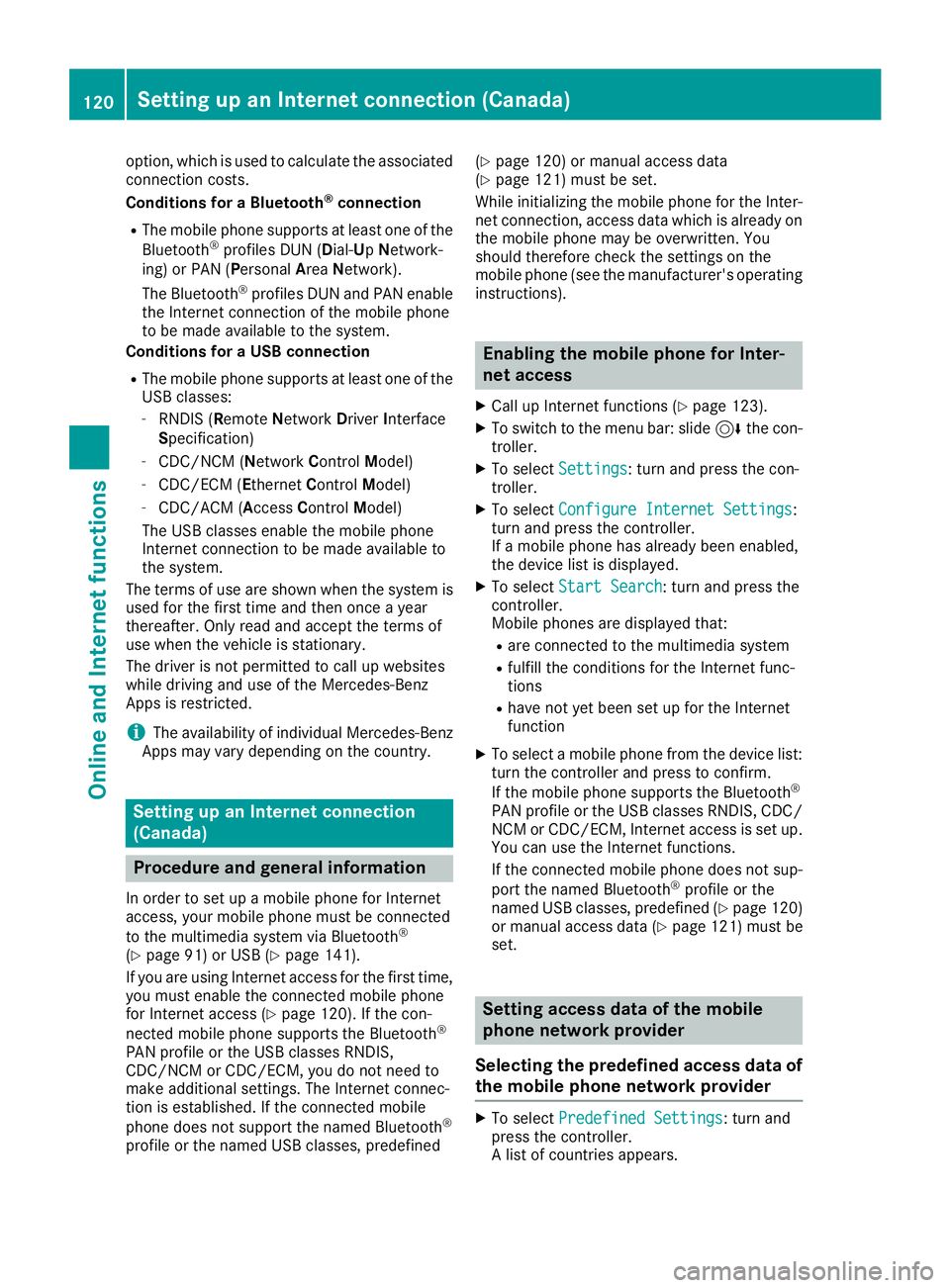
option, which is used to calculate the associated
connection costs.
Conditions for a Bluetooth
®connection
RThe mobile phone supports at least one of the
Bluetooth®profiles DUN (Dial- UpNetwork-
ing) or PAN (Personal AreaNetwork).
The Bluetooth
®profiles DUN and PAN enable
the Internet connection of the mobile phone
to be made available to the system.
Conditions for a USB connection
RThe mobile phone supports at least one of the
USB classes:
-RNDIS (Remote Network DriverInterface
Specification)
-CDC/NCM (Network ControlModel)
-CDC/ECM (Ethernet ControlModel)
-CDC/ACM (Access ControlModel)
The USB classes enable the mobile phone
Internet connection to be made available to
the system.
The terms of use are shown when the system is
used for the first time and then once a year
thereafter. Only read and accept the terms of
use when the vehicle is stationary.
The driver is not permitted to call up websites
while driving and use of the Mercedes-Benz
Apps is restricted.
iThe availability of individual Mercedes-Benz
Apps may vary depending on the country.
Setting up an Internet connection
(Canada)
Procedure and general information
In order to set up a mobile phone for Internet
access, your mobile phone must be connected
to the multimedia system via Bluetooth
®
(Ypage 91) or USB (Ypage 141).
If you are using Internet access for the first time,
you must enable the connected mobile phone
for Internet access (
Ypage 120). If the con-
nected mobile phone supports the Bluetooth®
PAN profile or the USB classes RNDIS,
CDC/NCM or CDC/ECM, you do not need to
make additional settings. The Internet connec-
tion is established. If the connected mobile
phone does not support the named Bluetooth
®
profile or the named USB classes, predefined (
Ypage 120) or manual access data
(Ypage 121) must be set.
While initializing the mobile phone for the Inter-
net connection, access data which is already on
the mobile phone may be overwritten. You
should therefore check the settings on the
mobile phone (see the manufacturer's operating
instructions).
Enabling the mobile phone for Inter-
net access
XCall up Internet functions (Ypage 123).
XTo switch to the menu bar: slide 6the con-
troller.
XTo select Settings: turn and press the con-
troller.
XTo select Configure Internet Settings:
turn and press the controller.
If a mobile phone has already been enabled,
the device list is displayed.
XTo select Start Search: turn and press the
controller.
Mobile phones are displayed that:
Rare connected to the multimedia system
Rfulfill the conditions for the Internet func-
tions
Rhave not yet been set up for the Internet
function
XTo select a mobile phone from the device list: turn the controller and press to confirm.
If the mobile phone supports the Bluetooth
®
PAN profile or the USB classes RNDIS, CDC/
NCM or CDC/ECM, Internet access is set up.
You can use the Internet functions.
If the connected mobile phone does not sup-
port the named Bluetooth
®profile or the
named USB classes, predefined (Ypage 120)
or manual access data (Ypage 121) must be
set.
Setting access data of the mobile
phone network provider
Selecting the predefined access data of
the mobile phone network provider
XTo select Predefined Settings: turn and
press the controller.
A list of countries appears.
120Setting up an Internet connection (Canada)
Online and Internet functions
Page 123 of 170
If the mobile phone network provider provides
multiple access data options, the relevant
access data still has to be selected. This
depends on the data package used, for example.
To check whether the predetermined dial-in
data corresponds with the dial-in data providedby your mobile phone network provider, pro-
ceed as follows (
Ypage 122) and select Man‐ual Settings. The access data is displayed.
The access data for the mobile phone network
provider is selected once for the mobile phone
connected and is loaded again each time the
mobile phone is connected. Establishing a con-
nection (
Ypage 123).
You must set the access data of the mobile
phone network provider who provides the SIM
card and the associated data package (access
settings) for the connected mobile phone. The
access data remains the same when you are in a
different country (roaming). The access data of
another network is notselected.
Manually setting the access data of the
mobile phone network provider
XTo select Manual Settings: turn and press
the controller.
An overview of the provider settings appears.
XSet access data (Ypage 121).
XTo select ConfirmSettings: turn and press
the controller.
The access data for the mobile phone network
provider is selected once for the mobile phone
connected and is loaded again each time the
mobile phone is connected. Establishing a con-
nection (
Ypage 123).
You must set the access data of the mobile
phone network provider who provides the SIM
card and the associated data package (access
settings) for the connected mobile phone. The
access data remains the same when you are in a
different country (roaming). The access data of
another network is notselected.
Setting access data
Set the access data in accordance with your
data package. You can contact your mobile
phone network provider to obtain the precise
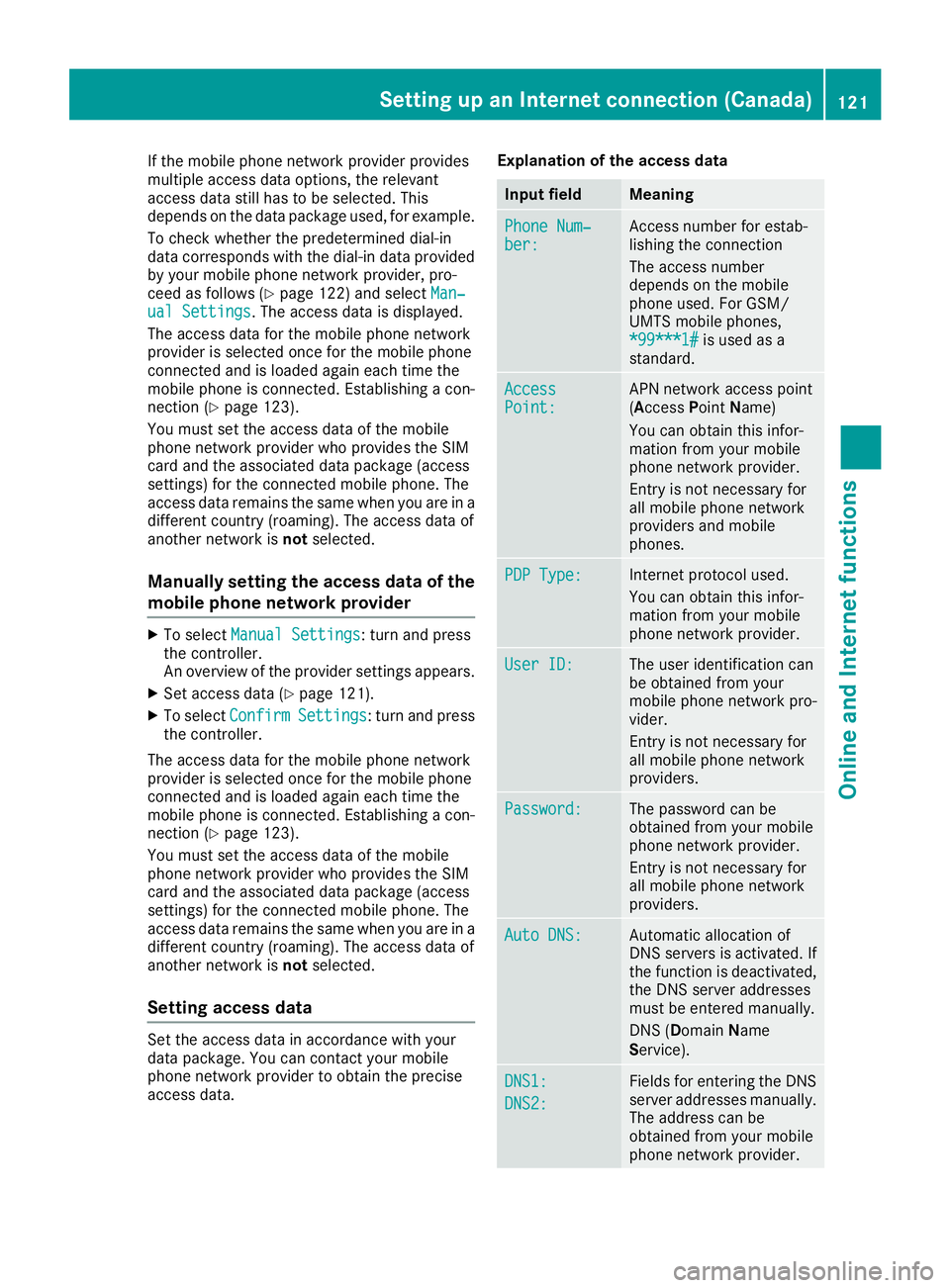
access data. Explanation of the access data
Input fieldMeaning
Phone Num‐ber:Access number for estab-
lishing the connection
The access number
depends on the mobile
phone used. For GSM/
UMTS mobile phones,
*99***1#
is used as a
standard.
AccessPoint:APN network access point
(A ccess PointName)
You can obtain this infor-
mation from your mobile
phone network provider.
Entry is not necessary for
all mobile phone network
providers and mobile
phones.
PDP Type:Internet protocol used.
You can obtain this infor-
mation from your mobile
phone network provider.
User ID:The user identification can
be obtained from your
mobile phone network pro-
vider.
Entry is not necessary for
all mobile phone network
providers.
Password:The password can be
obtained from your mobile
phone network provider.
Entry is not necessary for
all mobile phone network
providers.
Auto DNS:Automatic allocation of
DNS servers is activated. If
the function is deactivated,
the DNS server addresses
must be entered manually.
DNS ( Domain Name
Service).
DNS1:
DNS2:
Fields for entering the DNS
server addresses manually. The address can be
obtained from your mobile
phone network provider.
Setting up an Internet connection (Canada)121
Online and Internet functions
Z
Page 124 of 170
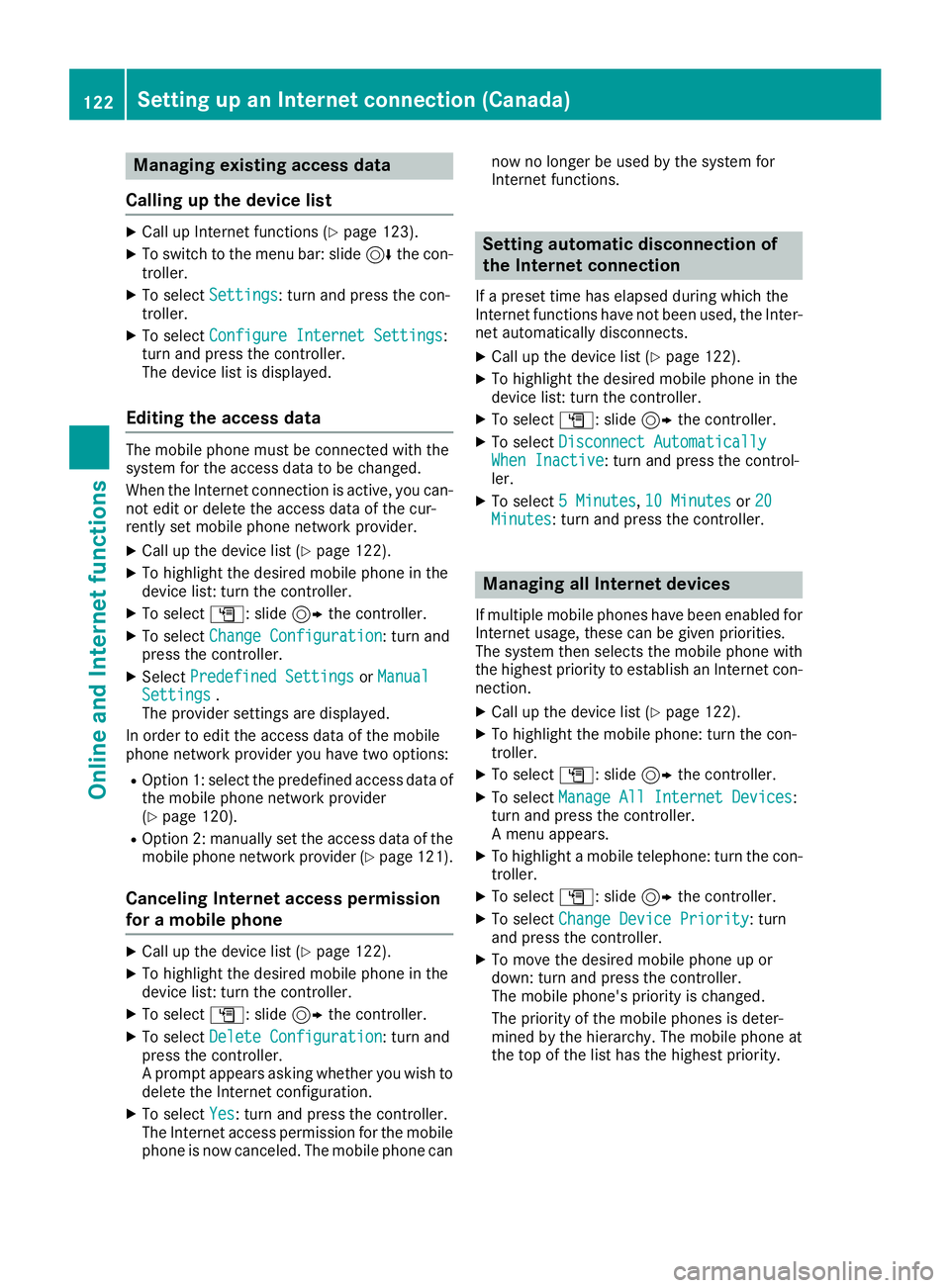
Managing existing access data
Calling up the device list
XCall up Internet functions (Ypage 123).
XTo switch to the menu bar: slide 6the con-
troller.
XTo select Settings: turn and press the con-
troller.
XTo select Configure Internet Settings:
turn and press the controller.
The device list is displayed.
Editing the access data
The mobile phone must be connected with the
system for the access data to be changed.
When the Internet connection is active, you can-
not edit or delete the access data of the cur-
rently set mobile phone network provider.
XCall up the device list (Ypage 122).
XTo highlight the desired mobile phone in the
device list: turn the controller.
XTo select G: slide 9the controller.
XTo select Change Configuration: turn and
press the controller.
XSelect Predefined SettingsorManualSettings.
The provider settings are displayed.
In order to edit the access data of the mobile
phone network provider you have two options:
ROption 1: select the predefined access data of
the mobile phone network provider
(
Ypage 120).
ROption 2: manually set the access data of the
mobile phone network provider (Ypage 121).
Canceling Internet access permission
for a mobile phone
XCall up the device list (Ypage 122).
XTo highlight the desired mobile phone in the
device list: turn the controller.
XTo select G: slide 9the controller.
XTo select Delete Configuration: turn and
press the controller.
A prompt appears asking whether you wish to
delete the Internet configuration.
XTo select Yes: turn and press the controller.
The Internet access permission for the mobile
phone is now canceled. The mobile phone can now no longer be used by the system for
Internet functions.
Setting automatic disconnection of
the Internet connection
If a preset time has elapsed during which the
Internet functions have not been used, the Inter-
net automatically disconnects.
XCall up the device list (Ypage 122).
XTo highlight the desired mobile phone in the
device list: turn the controller.
XTo select
G: slide 9the controller.
XTo select Disconnect AutomaticallyWhen Inactive: turn and press the control-
ler.
XTo select 5 Minutes,10 Minutesor 20Minutes: turn and press the controller.
Managing all Internet devices
If multiple mobile phones have been enabled for
Internet usage, these can be given priorities.
The system then selects the mobile phone with
the highest priority to establish an Internet con-
nection.
XCall up the device list (Ypage 122).
XTo highlight the mobile phone: turn the con-
troller.
XTo select G: slide 9the controller.
XTo select Manage All Internet Devices:
turn and press the controller.
A menu appears.
XTo highlight a mobile telephone: turn the con-
troller.
XTo select G: slide 9the controller.
XTo select Change Device Priority: turn
and press the controller.
XTo move the desired mobile phone up or
down: turn and press the controller.
The mobile phone's priority is changed.
The priority of the mobile phones is deter-
mined by the hierarchy. The mobile phone at
the top of the list has the highest priority.
122Setting up an Internet connection (Canada)
Online and Internet functions
Page 125 of 170
Establishing/ending the connection
Establishing a connection
Read the conditions for establishing a connec-
tion (Ypage 119).
A connection can be established, for example
by:
Rentering a web address (Ypage 124)
Rcalling up a Mercedes-Benz App
(Ypage 123)
Rcalling up a favorite
Ending the connection
XPress Cancelin the connections window.
Calling up Internet functions
XTo display the main function bar: slide 5the
controller.
XTo select ®: turn and press the controller.
The menu with the Internet functions is dis-
played.
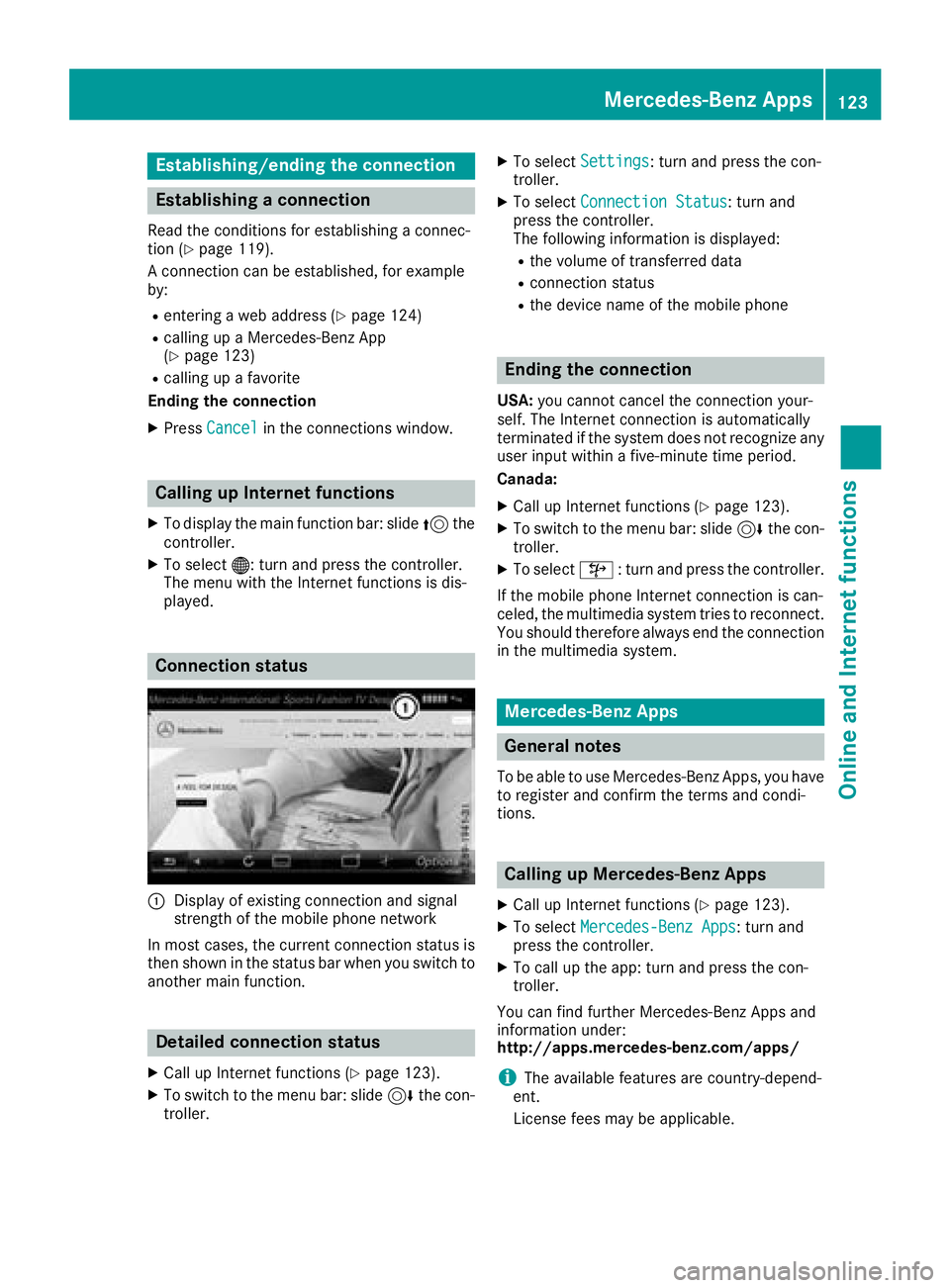
Connection status
:Display of existing connection and signal
strength of the mobile phone network
In most cases, the current connection status is
then shown in the status bar when you switch to
another main function.
Detailed connection status
XCall up Internet functions (Ypage 123).
XTo switch to the menu bar: slide 6the con-
troller.
XTo select Settings: turn and press the con-
troller.
XTo select Connection Status: turn and
press the controller.
The following information is displayed:
Rthe volume of transferred data
Rconnection status
Rthe device name of the mobile phone
Ending the connection
USA: you cannot cancel the connection your-
self. The Internet connection is automatically
terminated if the system does not recognize any
user input within a five-minute time period.
Canada:
XCall up Internet functions (Ypage 123).
XTo switch to the menu bar: slide 6the con-
troller.
XTo select ©: turn and press the controller.
If the mobile phone Internet connection is can-
celed, the multimedia system tries to reconnect.
You should therefore always end the connection
in the multimedia system.
Mercedes-Benz Apps
General notes
To be able to use Mercedes-Benz Apps, you have
to register and confirm the terms and condi-
tions.
Calling up Mercedes-Benz Apps
XCall up Internet functions (Ypage 123).
XTo select Mercedes-Benz Apps: turn and
press the controller.
XTo call up the app: turn and press the con-
troller.
You can find further Mercedes-Benz Apps and
information under:
http://apps.mercedes-benz.com/apps/
iThe available features are country-depend-
ent.
License fees may be applicable.
Mercedes-Benz Apps123
Online and Internet functions
Z
Page 126 of 170
Door-to-door navigation
Mercedes-Benz Companion
The Mercedes-BenzCompanion app is available
in th eUSA.
Mercedes-Ben zCompanion enable sdoor-to -
doo rnavigation .
Door-to-doo rnavigation means :
RThe currentdestination is transferred from
th evehicle' smultimedia syste mto an exter-
nal devic e(mobile phone or smartwatch).
Thi senable syou to continue navigatin gto a
destination whic his in apedestrian zone ,fo r
example.
RConversely, adestination can be selecte don
th eexternal devic eand transferred to th e
vehicle' smultimedia system.
Other functions:
RNavigatin gto th evehicle' slocation
RDisplayin gvarious information about th evehi-
cl e
Mor einformation on suitable mobile phones:
http://www.mercedes-benz.com/connec t
Further information on Mercedes-Ben zCom -
panion (se eAp pStor edescription).
Web browser
Calling up awebsite
Function restrictions
Internet page scanno tbe shown whil eth evehi-
cl e is in motion .
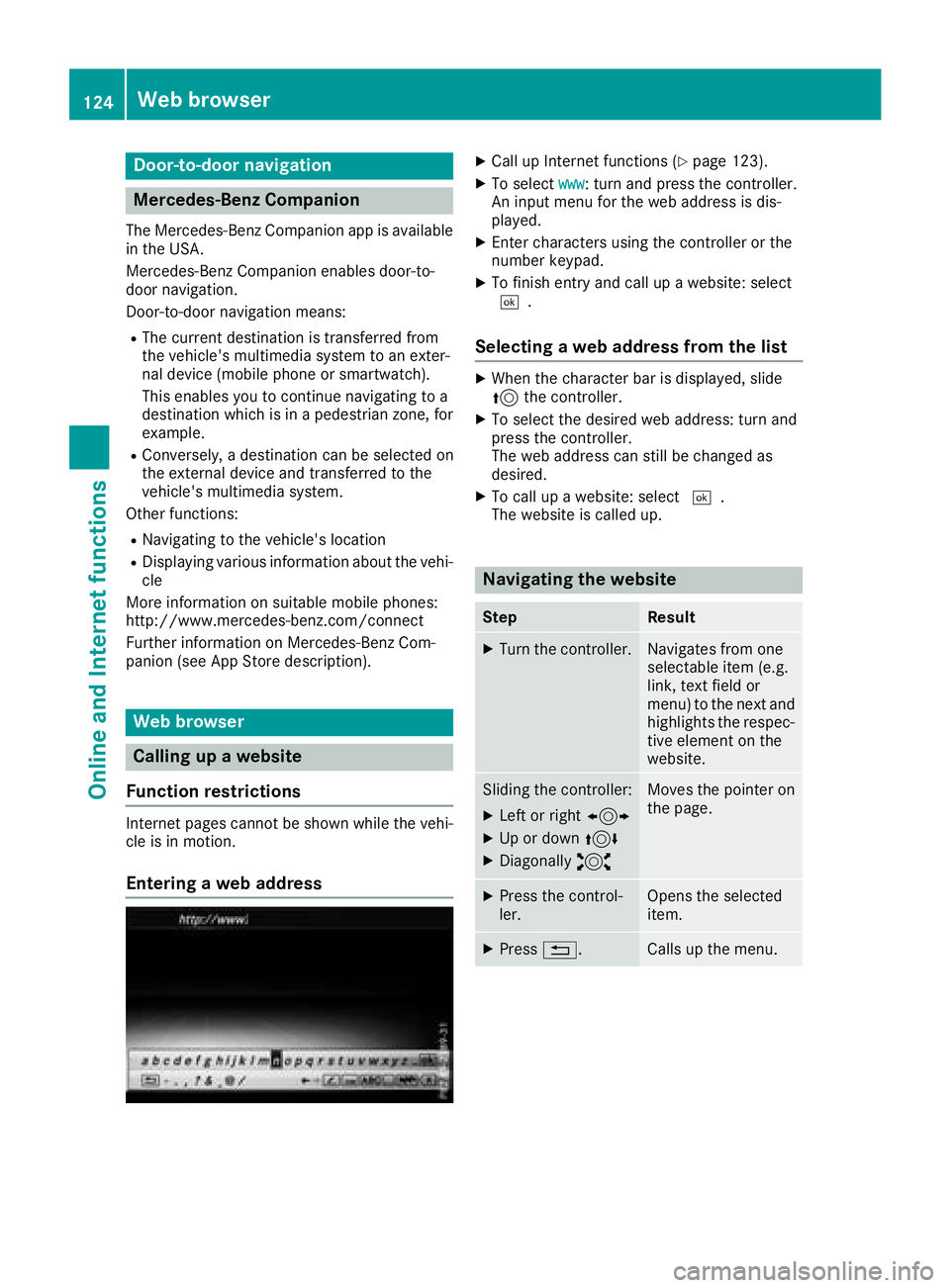
Enteringaweb address
XCall up Internet function s (Ypage 123).
XTo selectwww:turn and press th econtroller .
An input men ufo rth eweb address is dis -
played.
XEnte rcharacters usin gth econtroller or th e
number keypad.
XTo finish entr yand cal lup awebsite: selec t
¬.
Selecting aweb address from th elist
XWhe nth echaracte rbar is displayed, slid e
5 thecontroller .
XTo selectth edesire dweb address :turn and
press th econtroller .
The web address can still be changed as
desired.
XTo cal lup awebsite: selec t¬.
The websit eis called up.
Navigating th ewebsite
StepResult
XTur nth econtroller .Navigates from on e
selectable item (e.g.
link, text field or
menu) to th enext and
highlight sth erespec -
tive elemen ton th e
website.
Slidin gth econtroller :
XLeftor right 1
XUp or down 4
XDiagonally2
Moves thepointe ron
th epage .
XPress th econtrol-
ler .Opens th eselecte d
item.
XPress %.Calls up th emenu.
124Web browser
Online and Internet functions
Page 128 of 170
XTo navigate on the web page: slide1,
4 or2 the controller.
XTo zoom in on the web page: turn the control-
ler.
Jumping from link to link
You can use this function to skip from one link to
the next on a website.
XTo show the menu: press the%button.
XTo select 3: turn and press the controller.
A menu appears. The #dot indicates the cur-
rent setting.
XSelect Jump From Link To Link.
If a website has been called up and the con-
troller is turned, the cursor jumps from link to
link.
Directional scrolling
You can use this function to scroll up and down
on the web page.
XTo show the menu: press the%button.
XTo select 3: turn and press the controller.
A menu appears. The #dot indicates the cur-
rent setting.
XSelect Directional Scrolling.
If a website has been called up and the con-
troller is turned, the cursor moves up or down
depending on the direction of the turn.
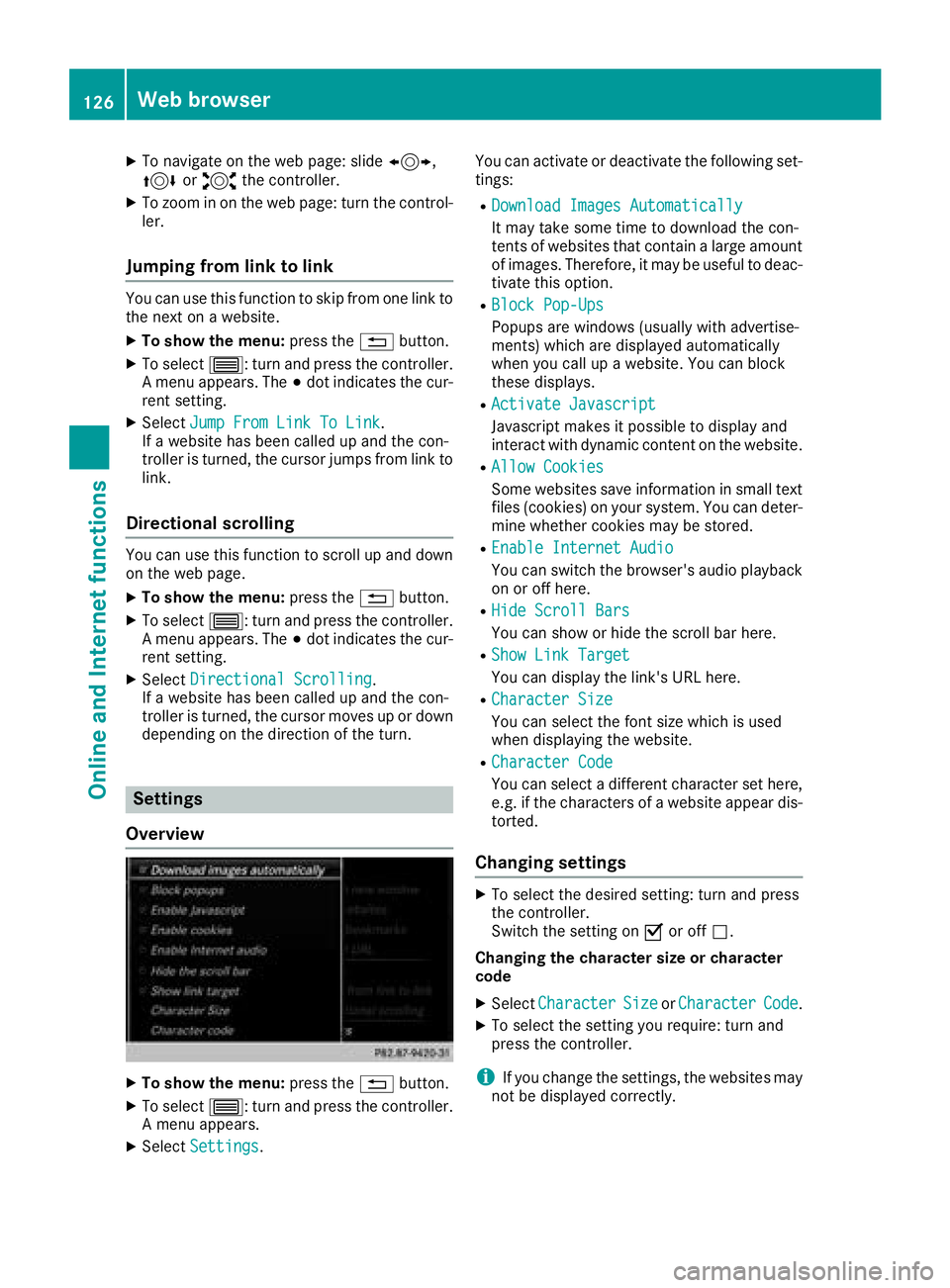
Settings
Overview
XTo show the menu: press the%button.
XTo select 3: turn and press the controller.
A menu appears.
XSelect Settings. You can activate or deactivate the following set-
tings:
RDownload Images Automatically
It may take some time to download the con-
tents of websites that contain a large amount
of images. Therefore, it may be useful to deac-
tivate this option.
RBlock Pop-Ups
Popups are windows (usually with advertise-
ments) which are displayed automatically
when you call up a website. You can block
these displays.
RActivate Javascript
Javascript makes it possible to display and
interact with dynamic content on the website.
RAllow Cookies
Some websites save information in small text
files (cookies) on your system. You can deter-
mine whether cookies may be stored.
REnable Internet Audio
You can switch the browser's audio playback
on or off here.
RHide Scroll Bars
You can show or hide the scroll bar here.
RShow Link Target
You can display the link's URL here.
RCharacter Size
You can select the font size which is used
when displaying the website.
RCharacter Code
You can select a different character set here,
e.g. if the characters of a website appear dis-
torted.
Changing settings
XTo select the desired setting: turn and press
the controller.
Switch the setting on
Oor off ª.
Changing the character size or character
code
XSelect CharacterSizeorCharacterCode.
XTo select the setting you require: turn and
press the controller.
iIf you change the settings, the websites may
not be displayed correctly.
126Web browser
Online and Internet functions
Page 131 of 170
Your multimediasyste mequipment
These operatin ginstruction sdescribe all th e
standar dan doptional equipment of your multi-
media system, as available at th etime of going
to press. Country-specifi cdifference sare pos -
sible. Bear in min dthat your vehicle may no t
feature all function sdescribed here. Thi salso
applies to safety-relevan tsystems an dfunc-
tions.
Read th einformation on qualifie dspecialis t
workshop sin th evehicle Operator's Manual.
Switchin gon th eradi o
XPress th e$ button.
The radio men uappears .You will hear th elast
station set on th ewaveban dselecte dlast .
Switching HD Radi oon/of f
XIn radio mode: slid e6 thecontroller .
XTo selectOptions:turn an dpress th econ-
troller.
XSwitch HD Radi oonO or of fª .
If HD
Radiois switched off, th esyste mdoe sno t
switch to digita lradio an dit is no tpossible to
selec tan ysub-channels.
iHD Radio ™an dth eHD ,HD Radio ,an d“Arc ”
logos are proprietary trademark sof iBiquit y
Digital Corp.
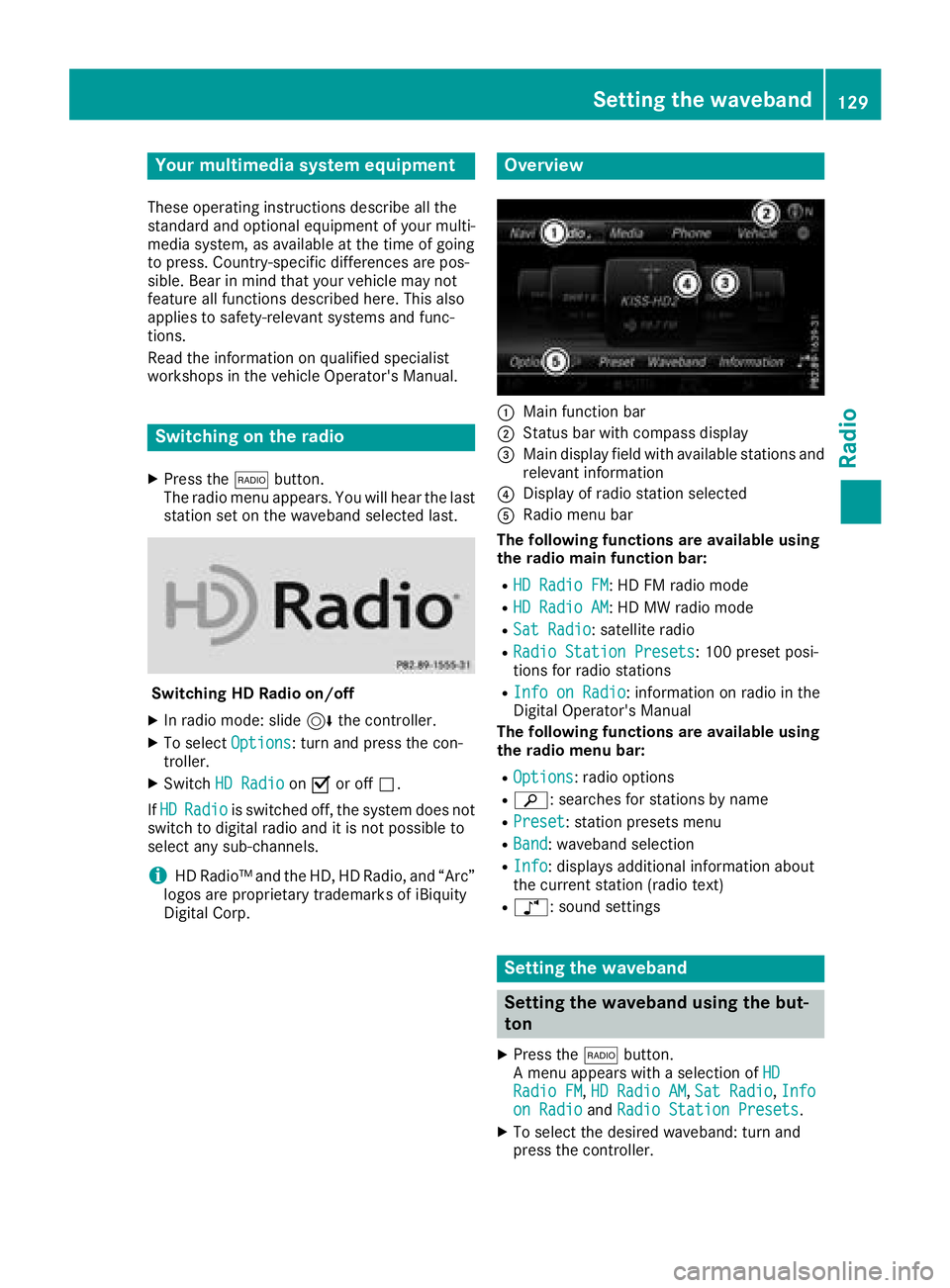
Overview
:Main function bar
;Status bar wit hcompass display
=Main display field wit havailable station san d
relevant information
?Display of radio station selecte d
ARadio menubar
Th efollowin gfunctions ar eavailable using
th eradi omain function bar:
RHD Radi oFM:HD FM radio mode
RHD Radi oAM:HD MW radio mode
RSa tRadi o:satellite radio
RRadi oStatio nPreset s:10 0preset posi-
tion sfo rradio station s
RInfo on Radi o:information on radio in th e
Digital Operator's Manual
Th efollowin gfunctions ar eavailable using
th eradi omenu bar:
ROption s:radio option s
Rè:searches fo rstation sby name
RPreset:station preset smen u
RBand:waveban dselection
RInfo:displays additional information about
th ecurren tstation (radio text )
Rà:sound setting s
Setting thewaveband
Setting th ewaveband using th ebut-
to n
XPress th e$ button.
A men uappears wit h aselection of HD
RadioFM,HD Radi oAM,Sa tRadi o,Infoon Radi oandRadi oStatio nPreset s.
XTo selec tth edesire dwaveband: turn an d
press th econtroller .
Setting the waveband129
Radio
Page 132 of 170
Setting the waveband using the main
function bar
XIn radio mode: slide5the controller.
The radio main function bar and menu bar
appear. Radio
is active.
XPress the controller.
A menu appears with a selection of HD
RadioFM,HDRadioAM,SatRadio,RadioStation Presetsand Info on Radio.
XTo select the desired waveband: turn and
press the controller.
Setting the waveband using the menu
bar
XIn radio mode: slide 6the controller.
The radio menu bar appears.
XTo select Band: turn and press the controller.
A menu appears with a selection of HD
Radio FM,HD Radio AMand Sat Radio.
XTo select the desired waveband: turn and
press the controller.
Station
Selecting a station
Setting a station from the main display
field
All currently available stations are displayed.
XIn radio mode, turn the controller until the
desired station is in the center.
Setting a station from the current sta-
tion list
iThe station list is available in HD FM radio
mode or HD AM radio mode. It includes all
stations that can be received.
XIn radio mode, press the controller.
The station list appears with the stations cur-
rently available.
XTo select the desired station: turn and press
the controller.
Entering the station frequency
XIn radio mode: slide 6the controller.
The radio menu bar appears.
XTo select Options: turn and press the con-
troller.
XSelect Direct Entry.
An additional menu appears.
HD FM radio mode:
XTo select the HDFM Frequencyoption: turn
and press the controller.
XEnter the frequency of the desired station in
the entry field.
HD MW radio mode:
XTo select the HDAM Frequencyoption: turn
and press the controller.
XEnter the frequency of the desired station in
the entry field.
Satellite radio operation
XTo select the SatRadioChanneloption: turn
and press the controller.
XEnter the number of the desired channel in
the entry field.
Station presets:
XTo select the Radio Station Presetsoption: turn and press the controller.
XEnter the station preset of the desired station.
Finding a station
XIn radio mode: slide 6the controller.
The radio menu bar appears.
XSelect èand enter the first letters of the
required station using the controller.
XPress OKto confirm.
The multimedia system displays a list of avail-
able stations.
XTo select stations from the list: turn the con-
troller and press to confirm.
Entering a preset
XIn radio mode: slide 6the controller.
XTo select Preset: turn and press the control-
ler.
XTo select Enter Preset: turn and press the
controller.
XEnter the station preset of the desired station.
130Station
Radio
Page 133 of 170
Station list
XIn radio mode, press the controller.
The station list appears with the stations cur-
rently available.
Saving a station
Storing current stations
XIn radio mode: slide6the controller.
The radio menu bar appears.
XTo select Preset: press the controller.
XTo select the SaveCurrentStation/Chan‐neloption: turn and press the controller.
XTo select the position of the required preset
entry: turn and press the controller.
The currently set station is stored in the selec-
ted preset position. A tone signals a success-
ful preset entry.
Storing a station using the controller
XSet the desired station in radio mode.
XPress and hold the controller until the preset
list appears.
XTo select the preset number: turn and press
the controller.
iFrequencies have already been stored in the
multimedia system. There are 100 preset
positions available.
Moving highlighted stations
XIn radio mode: slide 6the controller.
The radio menu bar appears.
XTo select Preset: press the controller.
XSelectEdit Station Preset.
XTo select the required preset entry: turn the
controller.
XSlide9the controller.
An additional menu appears.
XTo select Move Highlighted Station/Channel: turn and press the controller.
The list of stored stations appears again.
XTo move the highlighted station to the new
position: turn the controller and press to con-
firm.
Deleting highlighted stations
XIn radio mode: slide 6the controller.
The radio menu bar appears.
XTo select Preset: turn and press the control-
ler.
XSelect Edit Station Preset.
XTo select the required preset entry: turn the
controller.
XSlide9the controller.
XTo select Delete Highlighted Station/Channel: turn and press the controller.
XTo selectYes: turn and press the controller.
The highlighted station is deleted.
Activating/deactivating the station
presets display
You can use this function to change to the sta-
tion presets display.
Activating
XIn radio mode: slide 6the controller.
XTo select Preset: turn and press the control-
ler.
XTo select Station Preset View: On: turn
and press the controller.
The station preset display appears.
XTo switch between the stored stations: turn
the controller.
Deactivating
XIn radio mode: slide 6the controller.
XTo select Preset: turn and press the control-
ler.
XTo select StationPresetView:Off: turn
and press the controller.
The view of the last heard waveband appears.
Tagging music tracks
If an Apple®device is connected, the music
tracks and artist displayed in the radio text can be stored. You have the option of purchasing
this track using iTunes Store
®. Not all radio sta-
tions support this function.
Tagging music tracks131
Radio
Page 134 of 170
XIn radio mode: slide6the controller.
The radio menu bar appears.
XTo select Options: turn and press the con-
troller.
XSelect Tag This Track.
A message appears about storing the track
information.
Displaying station information
XIn radio mode: slide 6the controller.
The radio menu bar appears.
XTo select Options: turn and press the con-
troller.
XSwitch Show Station InformationonO
or off ª.
If the function is activated, the artist, track or
the name of the station will be displayed in the
main display field.
Calling up sound settings
XIn radio mode: slide 6the controller.
The radio menu bar appears.
XTo select à: turn and press the controller.
The sound menu appears (Ypage 159).
Displaying information
This function is available in HD FM radio and HD
AM radio mode.
Reception is only possible if the radio stations
provide the relevant information.
XIn radio mode: slide 6the controller.
XTo select Info: turn and press the controller.
Information on the currently received pro-
gram is displayed.
If available, you will see:
Rthe track that is currently being played
Rthe artist of the track that is currently being
played
Rthe album name
Rthe channel abbreviation
Rthe logo of the station or Artist Experience®
Returning to the radio menu:
XTo select Info: slide6and press the con-
troller.
Satellite radio
General notes
The satellite radio mode requires satellite radio
equipment and registration with a satellite radio
provider.
Note that the categories and channels shown in
the illustrations depend on the program content
offered by the provider. The illustrations and
descriptions in these operating instructions may
therefore differ from the channels and catego-
ries offered by the provider.
Satellite radio mode may be temporarily unavail-
able or interrupted for a variety of reasons.
These include environmental or topographical
conditions as well as other factors beyond the
control of Mercedes-Benz USA, LLC. This means
operation may not be possible in certain areas.
These include:
Rtunnels
Rparking garages
Rlocations inside or next to buildings
Rlocations in the vicinity of other structures
Sirius XM®Satellite Radio offers more than 140
digital-quality radio channels, providing 100%
commercial-free music, sports, news and enter-
tainment.
Sirius XM
®Satellite Radio uses a fleet of high-
performance satellites to broadcast around the
clock throughout the USA and Canada.
The satellite radio program is available for a
monthly fee. Details are available from the SIR-
IUS XM
®Service Center and at
http://www.siriusxm.com (USA) or
http://www.siriusxm.ca (Canada).
Your new Mercedes-Benz vehicle comes with
Sirius XM
®Satellite Radio pre-installed at the
factory. This service is free for a six-month trial
period. About a month before the trial period
ends, information will be provided on how to
extend this subscription. An acoustic signal
sounds and a message is shown, describing how the subscription can be extended.
iSirius, XM and all related marks and logos
are trademarks of Sirius XM Radio Inc. and its
132Satellite radio
Radio