display MERCEDES-BENZ GLC COUPE 2019 Owners Manual
[x] Cancel search | Manufacturer: MERCEDES-BENZ, Model Year: 2019, Model line: GLC COUPE, Model: MERCEDES-BENZ GLC COUPE 2019Pages: 657, PDF Size: 11.28 MB
Page 397 of 657
Fu
rther information about available services and
about displaying information in the map scales
can be found at: http://www.mercedes.me
% Weather information is not available in all
countries.
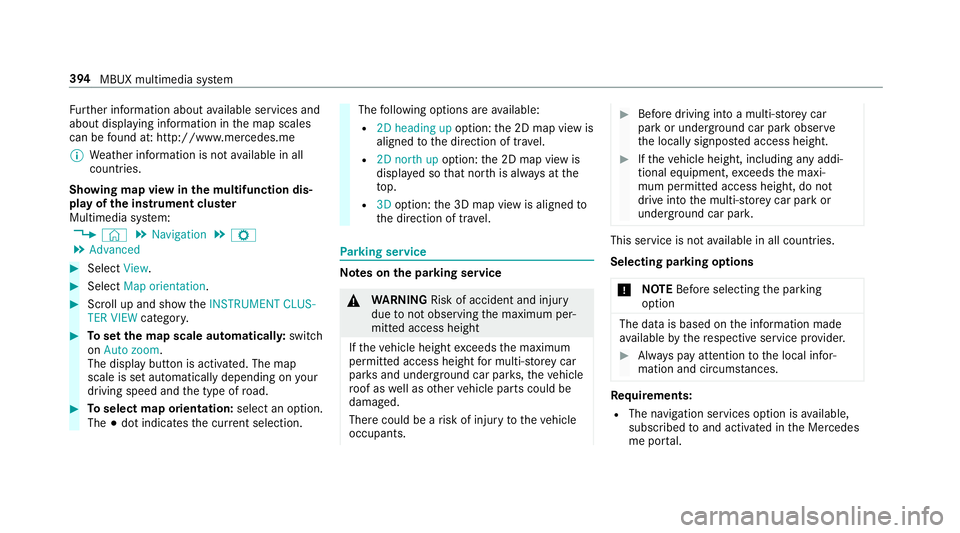
Showing map view in the multifunction dis‐
play of the instrument clus ter
Multimedia sy stem:
4 © 5
Navigation 5
Z
5 Advanced #
Select View. #
Select Map orientation. #
Scroll up and show theINSTRUMENT CLUS-
TER VIEW category. #
Toset the map scale automaticall y:switch
on Auto zoom.
The display button is activated. The map
scale is set automatically depending on your
driving speed and the type of road. #
Toselect map orientation: select an option.
The #dot indicates the cur rent selection. The
following options are available:
R 2D heading up option:the 2D map view is
aligned tothe direction of tra vel.
R 2D north up option:the 2D map view is
displa yed so that no rth is alw ays at the
to p.
R 3Doption: the 3D map view is aligned to
th e direction of tra vel. Pa
rking service Note
s onthe pa rking service &
WARNING Risk of accident and inju ry
due tonot observing the maximum per‐
mitted access height
If th eve hicle height exceeds the maximum
permitted access height for multi-s torey car
par ksand unde rgro und car par ks,th eve hicle
ro of as well as other vehicle parts could be
damaged.
There could be a risk of injury totheve hicle
occupants. #
Before driving into a multi-s torey car
park or under ground car pa rkobser ve
th e locally signpos ted access height. #
Ifth eve hicle height, including any addi‐
tional equipment, exceeds the maxi‐
mum permitted access height, do not
drive into the multi-s torey car park or
underground car par k. This service is not
available in all countries.
Selecting pa rking options
* NO
TEBefore selecting the parking
option The data is based on
the information made
av ailable bythere spective service pr ovider. #
Alw ays pay attention tothe local infor‐
mation and circums tances. Re
quirements:
R The navigation services option is available,
subsc ribed toand activated in the Mercedes
me por tal. 394
MBUX multimedia sy stem
Page 398 of 657
R
The parking service is within the scope of the
navigation service.
R Parking is activated (/ page 395).
Multimedia sy stem:
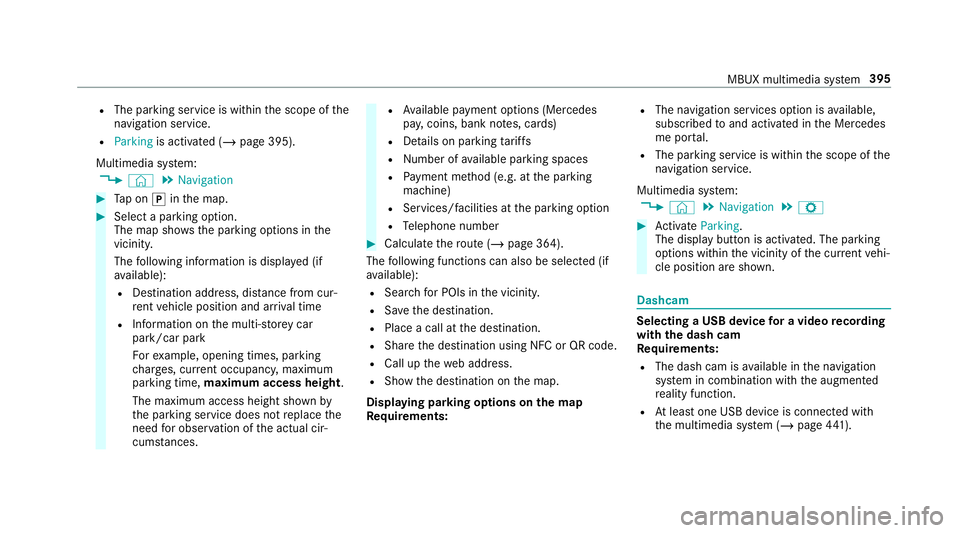
4 © 5
Navigation #
Tap on jinthe map. #
Select a parking option.
The map sho ws the parking options in the
vicinity.
The following information is displa yed (if
av ailable):
R Destination address, dis tance from cur‐
re nt vehicle position and ar riva l time
R Information on the multi-s torey car
park/car park
Fo rex ample, opening times, parking
ch arge s, cur rent occupancy, maximum
pa rking time, maximum access height .
The maximum access height shown by
th e parking service does not replace the
need for obser vation of the actual cir‐
cums tances. R
Available payment options (Mercedes
pa y,coins, bank no tes, cards)
R Details on parking tariffs
R Numb er ofavailable parking spaces
R Payment me thod (e.g. at the parking
machine)
R Services/ facilities at the parking option
R Telephone number #
Calculate thero ute (/ page 364).
The following functions can also be selec ted (if
av ailable):
R Sear chfor POIs in the vicinit y.
R Save the destination.
R Place a call at the destination.
R Share the destination using NFC or QR code.
R Call up thewe b address.
R Show the destination on the map.
Displaying parking options on the map
Requ irements: R
The navigation services option is available,
subsc ribed toand activated in the Mercedes
me por tal.
R The parking service is within the scope of the
navigation service.
Multimedia sy stem:
4 © 5
Navigation 5
Z #
Activate Parking.
The display button is acti vated. The parking
options within the vicinity of the cur rent vehi‐
cle position are shown. Dashcam
Selecting a USB device
for a video recording
with the dash cam
Re quirements:
R The dash cam is available in the navigation
sy stem in combination with the augmented
re ality function.
R Atleast one USB device is connec ted with
th e multimedia sy stem (/ page441). MBUX multimedia sy
stem 395
Page 400 of 657
#
Select Delete. #
Select Yes. #
Todel ete all video files: select Ä. #
Select Delete all entries.
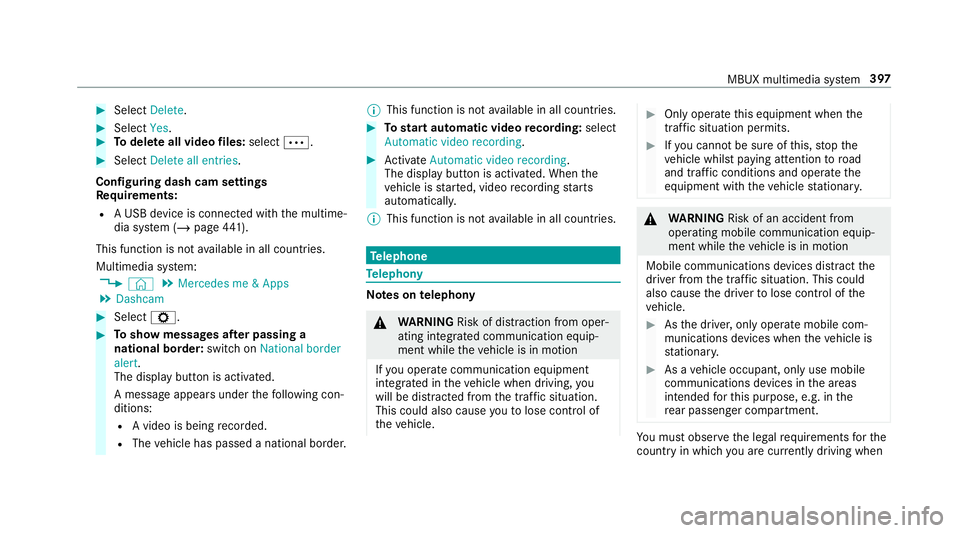
Configuring dash cam settings
Re quirements:
R A USB device is connec ted with the multime‐
dia sy stem (/ page441).
This function is not available in all countries.
Multimedia sy stem:
4 © 5
Mercedes me & Apps
5 Dashcam #
Select Z. #
Toshow messages af ter passing a
national bo rder: swit chon National border
alert.
The display button is activated.
A message appears under thefo llowing con‐
ditions:
R A video is being recorded.
R The vehicle has passed a national border. %
This function is not available in all countries. #
Tostart automatic video recording: select
Automatic video recording . #
Activate Automatic video recording .
The display button is acti vated. When the
ve hicle is star ted, video recording starts
automaticall y.
% This function is not available in all countries. Te
lephone Te
lephony Note
s ontelephony &
WARNING Risk of di stra ction from oper‐
ating integrated communication equip‐
ment while theve hicle is in motion
If yo u operate communication equipment
integrated in theve hicle when driving, you
will be distracted from the tra ffic situation.
This could also cause youto lose control of
th eve hicle. #
Only operate this equipment when the
traf fic situation permits. #
Ifyo u cannot be sure of this, stop the
ve hicle whilst paying attention toroad
and traf fic conditions and ope rate the
equipment with theve hicle stationar y. &
WARNING Risk of an accident from
ope rating mobile communication equip‐
ment while theve hicle is in motion
Mobile communications devices distract the
driver from the traf fic situation. This could
also cause the driver tolose control of the
ve hicle. #
Asthe driver, only operate mobile com‐
munications devices when theve hicle is
st ationar y. #
As a vehicle occupant, only use mobile
communications devices in the areas
intended forth is purpose, e.g. in the
re ar passenger compartment. Yo
u must obse rveth e legal requirements forthe
country in whi chyou are cur rently driving when MBUX multimedia sy
stem 397
Page 408 of 657
Contacts
Information about
the contacts menu
The con tacts menu contains all contacts from
ex isting data sources, e.g. mobile phone or data
st orage medium.
Depending on the data source, it is possible to
sa ve /load thefo llowing number of con tacts:
R Perm anently sa ved con tacts: 3,000 entries
R Contacts loaded from the mobile phone:
5,000 entri es per mobile phone
Fr om the conta cts menu, you can per form the
fo llowing actions:
R Make a call, forex ample call a con tact
(/ page 406)
R Navigation (/ page 361)
R Compose messa ges (/ page410)
R Additional options (/ page 407)
If a mobile phone is connec tedto the multimedia
sy stem (/ page 400) and automatic calling up
(/ page 405) is activated, the mobile phone's
contac ts are displa yed in the address book. The multimedia sy
stem can show suggestions
based on frequently used conta cts aswell as
incoming and outgoing calls (/ page 324).
These are shown at theto p of the conta ct list.
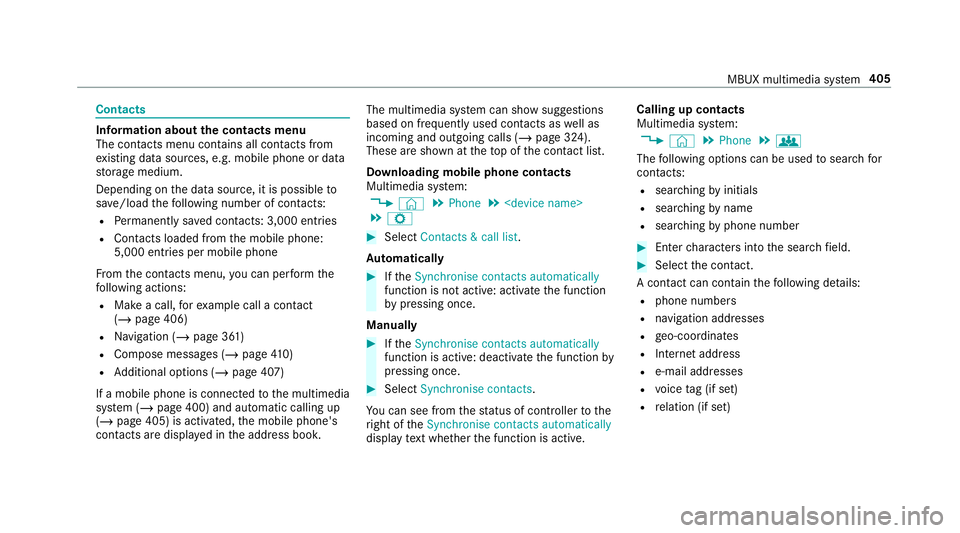
Downloading mobile phone contacts
Multimedia sy stem:
4 © 5
Phone 5
5 Z #
Select Contacts & call list.
Au tomatically #
Ifth eSynchronise contacts automatically
function is not active: activate the function
by pressing once.
Manually #
Ifth eSynchronise contacts automatically
function is active: deactivate the function by
pressing once. #
Select Synchronise contacts .
Yo u can see from thest atus of controller tothe
ri ght of theSynchronise contacts automatically
display text wh ether the function is active. Calling up contacts
Multimedia sy
stem:
4 © 5
Phone 5
g
The following options can be used tosear chfor
contacts:
R searching byinitials
R sear ching byname
R searching byphone number #
Ente rch aracters into the sear chfield. #
Select the conta ct.
A contact can contain thefo llowing de tails:
R phone numbers
R navigation addresses
R geo-coordinates
R Internet address
R e-mail addresses
R voice tag (if set)
R relation (if set) MBUX multimedia sy
stem 405
Page 412 of 657
#
For pr eviously stored contacts: select r
in the line of an entry.
The sear chresults are displa yed. #
For contacts who ha venot been stored:
select i.
Selecting options for sug gestions in the call
list
Re quirements:
R A profile has been created (/ page319).
R The Allow contact suggestions setting is
switched on (/ page 324).
Multimedia sy stem:
4 © 5
Phone #
Select +Call list . #
Select Vinthe line of a sugges ted ent ry.
The following options are available:
R Save as favourite
R Do not suggest #
Select an option. Deleting
the call list
Multimedia sy stem:
4 © 5
Phone 5
5 Z #
Select Contacts & call list. #
Select Delete call list. #
Select Yes.
% This function is only available if your mobile
does not suppo rtthe PBAP Blue tooth®
pro‐
fi le. Te
xt messages Overview of message functions
In
the messages menu you can recei veand send
te xt messa ges.
If th e connected mobile phone supports the
Blu etoo th®
MAP profile, the message function
can be used on the multimedia sy stem.
Yo u can obtain fur ther information about set‐
tings and suppor ted functions of Blue tooth®
-
capable mobile phones from a Mercedes-Benz service centre or at: http://www.mercedes-
benz.com/connect
Some mobile phones require fur ther settings
af te r being connected tothe multimedia sy stem
(see manufacturer's operating instructions).
Setting message displa ys
Multimedia sy stem:
4 © 5
Phone 5
5 Z #
Select Message display .
The following options are available:
R All messages
R New and unread messages
R Messages while the vehicle is in motion
R Off (the message function is no lon ger
av ailable.) #
Select a setting. MBUX multimedia sy
stem 409
Page 414 of 657
Fo
rw arding a message
Multimedia sy stem:
4 © 5
Phone 5
5 l
A message list is shown. #
Select rnexttoa con tact.
The messaging his tory with this con tact is
shown. #
Press and hold on a message. #
Toforw ard a message: selectForward.
Calling a message sender
Multimedia sy stem:
4 © 5
Phone 5
5 l
A message list is shown. #
Select rnexttoa con tact.
The messaging his tory with this con tact is
shown. #
Select Ä. #
Select Call. Using
telephone numbers or URLs from a
te xt message
Re quirements:
R An Internet connection is available tocall up
a URL.
Multimedia sy stem:
4 © 5
Phone 5
5 l
A message list is shown. #
Select rnexttoa con tact.
The messaging his tory with this con tact is
shown. #
Select a telephone number or a URL in the
messa ge.
If a URL is selected thewe b br ows er opens.
If a telephone number is selec tedth efo llow‐
ing options are available:
R Call
R Write new text message #
Select an option. Deleting a message
Multimedia sy
stem:
4 © 5
Phone 5
5 l #
Select a conta ct. #
Press and hold on a message. #
Todel eteth e message: selectDelete. In-Car Of
fice In-Car Of
fice functions
Using In-Car Of fice, you can connect your online
services with the multimedia sy stem.
The following functions are available:
R Display of the upcoming appointments in the
calenda r.
R Start navigation toan appointment. It is a
re qu irement that the appointment conta ins a
navigable destination forth e location.
R Display the appointment.
R Display and selection of tasks and calls to
compl ete. MBUX multimedia sy
stem 411
Page 421 of 657
%
Apple CarPl ay®
starts automatically when
th e iPhone ®
is connected with the sy stem
using a cable. If Apple CarPlay ®
wa s not dis‐
pla yed in thefo re ground be fore disconnect‐
ing, the application starts in the bac kground
when reconnected. You can call up Apple
CarPlay ®
in the main menu.
Calling up Apple CarPlay ®
to ne settings
Multimedia sy stem:
4 © 5
Mercedes me & Apps
5 Smartphone 5
Apple CarPlay 5
Z #
Select sound settings.
Setting control of the application but tons
(Apple CarPlay ®
)
Multimedia sy stem:
4 © 5
Mercedes me & Apps
5 Smartphone 5
Apple CarPlay 5
Z
5 General #
Toswitch on Control via application buttons :
activate the display button. #
Toswitch off Control via application buttons :
deactivate the display button. Ending Apple CarPlay
® #
Toend the connection of Apple Car‐
Play ®
(with cable): disconnectthe connec‐
tion via the connecting cable between the
mobile phone and multimedia sy stem.
% Mercedes-Benz recommends disconnecting
th e connecting cable only when theve hicle
is stationar y. Android
Auto Android
Autoove rview &
WARNING Risk of di stra ction from infor‐
mation sy stems and communications
equipment
If yo u operate information and communica‐
tion equipment integ rated in theve hicle
when driving, you will be distracted from the
traf fic situation. This could also cause youto
lose control of theve hicle. #
Only operate this equipment when the
traf fic situation permits. #
Ifyo u cannot be sure of this, stop the
ve hicle whilst paying attention toroad
and traf fic conditions and ope rate the
equipment with theve hicle stationar y. Yo
u must obse rveth e legal requirements forthe
country in whi chyou are cur rently driving when
operating the multimedia sy stem.
Mobile phone functions can be used with
Android Autousing the Android operating sys‐
te m on the multimedia sy stem. It is operated
using theto uchsc reen or thevo ice-operated
control sy stem. You can activate thevo ice-oper‐
ated control sy stem bypressing and holding the
£ button on the multifunction steering wheel.
When using Android Autovia thevo ice-operated
control sy stem, the multimedia sy stem can still
be opera ted via LINGU ATRO NIC (/ page 285).
Only one mobile phone at a time can be connec‐
te d via Android Autowith the multimedia sys‐
te m.
Also for use of Android Autowith two phone
mode, only one additional mobile phone can be 41 8
MBUX multimedia sy stem
Page 423 of 657
Setting control of
the application but tons
(Android Auto)
Multimedia sy stem:
4 © 5
Mercedes me & Apps
5 Smartphone 5
Android Auto 5
Z
5 General #
Toswitch on Control via application buttons :
activate the display button. #
Toswitch off Control via application buttons :
deactivate the display button.
Ending Android Auto #
Toend the connection of Android Auto
(with cable): disconnectthe connection via
th e connecting cable between the mobile
phone and multimedia sy stem.
% Mercedes-Benz recommends disconnecting
th e connecting cable only when theve hicle
is stationar y. Tr
ansfer redve hicle data with Android Auto
and Apple CarPlay ® Overview of transfer
redve hicle data
When using Android Autoor Apple CarPlay ®
, cer‐
ta in vehicle data is transfer redto the mobile
phone. This enables youto getth e best out of
selected mobile phone services. Vehicle data is
not directly accessible.
The following sy stem information is transmit ted:
R Software release of the multimedia sy stem
R System ID (anonymised)
The transfer of this data is used tooptimise
communication between theve hicle and the
mobile phone.
To do this, and toassign se veralve hicles tothe
mobile phone, a vehicle identifier is randomly
ge nerated.
This has no connection totheve hicle identifica‐
tion number (VIN) and is dele ted when the multi‐
media sy stem is reset (/ page 349).
The following driving status data is transmit ted:
R Transmission position engaged R
Distinction between par ked, standstill, rolling
and driving
R Day/night mode of the instrument clus ter
The transfer of this data is used toalter how
con tent is displ ayed tocor respond tothe driving
situation.
The following position data is transmitte d:
R Coordinates
R Speed
R Compass direction
R Acceleration di rection
This da tais only transfer red while the navigation
sy stem is active, in order toimpr oveit (e.g. so it
can continue functioning when in a tunnel). Mercedes me calls
Making a call via the
overhead control panel
% Mercedes me calls are not possible in every
count ry. Find out at a Mercedes-Benz
service centre if these functions are availa‐
ble in your count ry. 420
MBUX multimedia sy stem
Page 429 of 657
necessa
rily indica tecompl etefa ilure of the
emer gency call sy stem. Emer gency calls call
st ill be transmitted.
The display only refers to theve hicle and
does not take account of theav ailability of
mobile phone networ ksand the Mercedes-
Benz emer gency call centre.
The functional readiness of the emer gency
call sy stem on theve hicle can be seen when
th eSOS NOT READY display disappears once
th e ignition is switched on.
R G: The icon appears in the display during
an active emer gency call.
% Ifth ere is a malfunction in the Mercedes-
Benz emer gency call sy stem (e.g. a fault with
th e speaker, microphone, airbag, SOS but‐
to n), a cor responding message appears in
th e multifunction display of the instrument
clus ter.
Tr iggering an automatic Mercedes-Benz
emer gency call
Re quirements:
R The ignition is switched on. R
The star ter battery is suf ficiently charge d.
The Mercedes-Benz emer gency call sy stem trig‐
ge rs an emer gency call au tomatical lyin thefo l‐
lowing cases:
R After activation of there stra int sy stems such
as airbags or seat belt tensioners af ter an
accident.
R After an auto maticallyinitiated emer gency
st op byActive Emergency Stop Assist.
The emer gency call has been made:
R Avo ice connection is made tothe Mercedes-
Benz emer gency call centre.
R A messa gewith accident data is transmitted
to the Mercedes-Benz emer gency call centre.
The Mercedes-Benz emergency call centre
can transmit theve hicle position data toone
of the public emer gency services call cen‐
tres.
R Under cer tain circums tances da tais also
transmitte d inthevo ice channel tothe
Mercedes-Benz emer gency call centre. This allo
wsmeasu resfo rre scue, reco very or
to wing toa Mercedes-Benz Service Cent reto
be initiated quickl y.
The SOS button in theove rhead control panel
fl ashes until the emer gency call is finished.
It is not possible toimmediately end an auto‐
matic emer gency call.
If th e Mercedes-Benz emer gency call sy stem
cann otconnect tothe Mercedes-Benz emer‐
ge ncy call centre, the emer gency call is au tomat‐
ically sent tothe public emer gency services call
centre.
If no connection can be made tothe public
emer gency services, a cor responding message
appears inthe displa y. #
Dial the emer gency number 11 2onyour
mobile phone.
If an eme rgency call has been initiated:
R Remain in theve hicle if thero ad and traf fic
conditions permit youto do so until a voice
connection is es tablished with the emer‐
ge ncy call centre service pr ovider. 426
MBUX multimedia sy stem
Page 431 of 657
R
Whe ther the emer gency call was initiated
manually or automatically
R Time of the accident
R Language setting on the multimedia sy stem
Fo r accident clarification purposes, thefo llowing
measures can be take n up toan hour af terthe
emer gency call has been initia ted:
R The cur rent vehicle position can be called up.
R Avo ice connection totheve hicle occupants
can be es tablished
% ForRu ssia: various functions, e.g. receiving
traf fic information, cannot be per form ed for
up totwo hou rsafte r sending an emer gency
call.
Fu nction of the emer gency call sy stem self-
diagnosis (Russia)
Yo ur car verifies the operability of the emer‐
ge ncy call sy stem each time the ignition is ON.
In case of sy stem failure, you will be informed
with text messa geon the instrument clus ter and
with red indicator SOS NOT READY onthe media
displa y. Please, make sure,
that during 30 seconds af ter
switching ignition ON there d indicator SOS
NOT READY inthe upper right corner of the
media display is switched OFF, this means the
emer gency call sy stem passed diagnostics suc‐
cessfully. If necessar y,switch ON the media dis‐
pla y,if it was switched OFF before.
St arting/ending ERA-GLONASS test mode
(Russia)
Re quirements:
R The star ter battery is suf ficiently charge d.
R The ignition is switched on.
R The vehicle has been stationary for at least
one minute. #
Tostart thete st mode: press and hold the
~ button on the multifunction steering
wheel for at least five seconds.
The test mode is star ted and automatically
ends af terth e language test has been per‐
fo rm ed. #
Toend thete st mode manuall y:switch off
th e ignition.
The test mode is ended. Online and Internet functions
Internet connection
Information on connecting
tothe Internet &
WARNING Risk of di stra ction from infor‐
mation sy stems and communications
equipment
If yo u operate information and communica‐
tion equipment integ rated in theve hicle
when driving, you will be distracted from the
traf fic situation. This could also cause youto
lose control of theve hicle. #
Only operate this equipment when the
traf fic situation permits. #
Ifyo u cannot be sure of this, stop the
ve hicle whilst paying attention toroad
and traf fic conditions and ope rate the
equipment with theve hicle stationar y. Yo
u must obse rveth e legal requirements forthe
country in whi chyou are cur rently driving when
operating the multimedia sy stem. 428
MBUX multimedia sy stem