display MERCEDES-BENZ GLC COUPE 2019 Owners Manual
[x] Cancel search | Manufacturer: MERCEDES-BENZ, Model Year: 2019, Model line: GLC COUPE, Model: MERCEDES-BENZ GLC COUPE 2019Pages: 657, PDF Size: 11.28 MB
Page 320 of 657
Settings
for the MBUX In terior Assistant
Multimedia sy stem:
4 © 5
Settings 5
System
5 Interior assistant #
Toswitch on full functionality of the
MBUX Interior Assistant: selectOn.
The option is activated #.#
Toactivate additional functions forre ad‐
ing and sear chlights: selectIncluding read-
ing light.
When the option is switched on, the display
button is activated.
The functions forth ere ading and sear ch
lights are activated in addition tothe pr oxim‐
ity functions. #
Toswitch off the MBUX Interior Assis‐
tant: select Off.
The option is activated #. Main functions
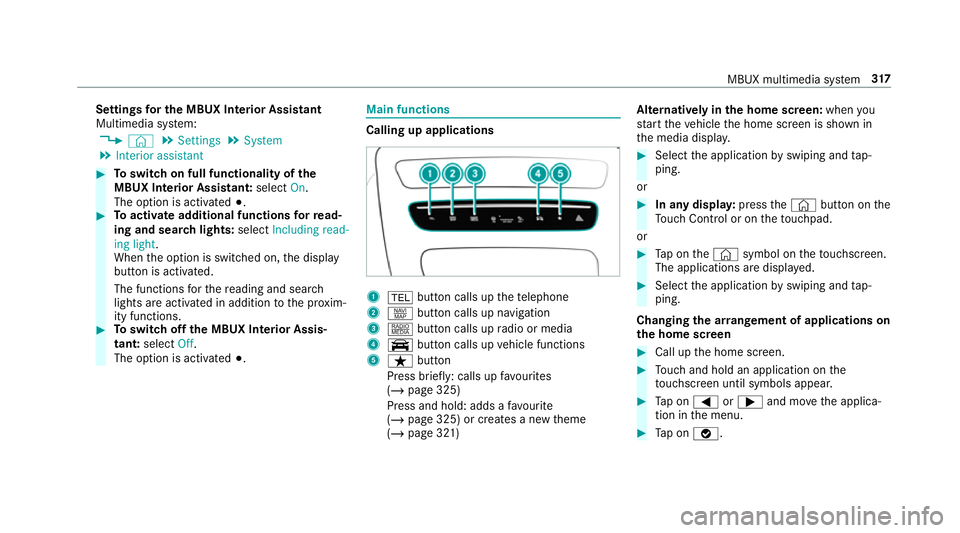
Calling up applications
1
% button calls up thete lephone
2 z button calls up navigation
3 | button calls up radio or media
4 y button calls up vehicle functions
5 ß button
Press brief ly: calls up favo urites
(/ page 325)
Press and hold: adds a favo urite
(/ page 325) or creates a new theme
(/ page 321) Alternatively in
the home screen: whenyou
st art theve hicle the home screen is shown in
th e media displa y. #
Select the application byswiping and tap‐
ping.
or #
In any displa y:press the© button on the
To uch Control or on theto uchpad.
or #
Tap on the© symbol on theto uchsc reen.
The applications are displa yed. #
Select the application byswiping and tap‐
ping.
Changing the ar rangement of applications on
th e home screen #
Call up the home screen. #
Touch and hold an application on the
to uchsc reen until symbols appear. #
Tap on = or; and mo vethe applica‐
tion in the menu. #
Tap on ø. MBUX multimedia sy
stem 317
Page 321 of 657
Profile
Note
s on profiles
The driver's seat is equipped with an anti-entra p‐
ment feature.
If th e driver's door is open, the driver's seat will
not be set af ter calling up the driver's profile.
Overview of profiles
Using the multimedia sy stem up toseven pro‐
fi les can be created in theve hicle.
Profiles store your personal vehicle settings and
settings forth e multimedia sy stem.
If th eve hicle is used byseveral drivers, the
driver can select their profile before the journe y,
without changing the settings of other drivers.
Yo u can select the profile:
R When entering (/ page 320)
R Using the home screen (/ page 306)
The profile settings are activated as soon as a
profile is selected.
% Ifyo u call up your profile when driving then
th e driver's seat position will not be adjus‐
te d. Yo
u can cancel the setting process with the
fo llowing actions:
R Tap on thePositioning seat and steering
wheel. Please tap to cancel. warning on
th e media displa y.
R Press one of the seat operating buttons
in the driver's door.
Profile content
Depending on theve hicle equipment, thefo llow‐
ing settings can be stored in your profile, for
ex ample:
R Driver's seat memory
R Radio (including station list)
R Last destinations
R Climate control
R Ambient lighting
R DYNA MIC SELECT I (individual)
R Instrument Displa y,Head-up Display and
st yle (display style of the multimedia sy stem)
R Themes, suggestions and favo urites %
Settings for driver assi stance sy stems can‐
not be sa ved in the profile.
Mercedes me connect profile
If yo u use a profile from Mercedes me connect,
th efo llowing online functions are available, for
ex ample:
R You can configure the settings in theve hicle
using the Mercedes me app and the
Mercedes me por tal.
R You can syn chronise your profile on
Mercedes me connect with the profile in the
ve hicle (/ page 320).
R You can add a personal profile pho tothat is
shown in theve hicle.
R You can take your profile and some of your
settings with you in new vehicles.
Requ irements for using Me rcedes me con‐
nect profiles:
Fo rth eve hicle owner:
R You ha vea Mercedes me user account.
R The vehicle has been connected with the
user account. 318
MBUX multimedia sy stem
Page 324 of 657
Themes
Overvi
ewofthemes
Yo u can configure theve hicle settings according
to yo ur preferences and sa veas a theme. A
th eme can be called up any time via the home
screen. There is then no need tomake the
desired settings again.
There are pre-defined themes available, e.g.
Journe y,Efficiency and Lounge.
Example for the use of themes
Fo rre cur ring driving situations, su chas long
drives on the mo torw ay,yo u can sa veyour pre‐
fe rred settings in a theme in theve hicle.
Yo u can sa vethefo llowing settings in a theme,
fo rex ample:
R Displa ys(e.g. navigation map or tach ome ter)
R Prefer redra dio station
R Favo ured drive program
These settings are sa ved under the name you
wish when setting up a theme (/ page 321). On
th e next mo torw ay jou rney yo u can select this
th eme and thereby restore your settings. Content of a
theme
Depending on vehicle equipment thefo llowing
settings can be sa ved in a theme:
R Setting of the Instrument Display
(/ page 270)
R Setting of the Head-up Display (/ page 281)
R Setting of the ambient lighting (/ page146)
R Active audio sou rce, e.g. radio or USB
R Starting sc reen forth e media display
R Visual style (/ page 340)
R DYNA MIC SELECT drive program
(/ page 178)
R Eco start/ stop setting (/ page174)
R Navigation sy stem settings
% Atheme conta insthe cur rently acti veset‐
tings in theve hicle.
Calling up themes
Multimedia sy stem:
4 © #
When the home screen is shown, swipe up
until THEMES appears. #
Select a theme.
Creating new themes
Re quirements:
R The settings which are tobe sa ved in the
th eme are active.
The overview sho wsthe settings which can
be sa ved in a theme (/ page 321).
Multimedia sy stem:
4 © 5
THEMES #
Select WSet theme.
The settings which are sa ved in theth eme
are shown. #
Select Continue r. #
Select additional settings which are tobe
sa ve d in theth eme.
R Select Audio, tosave the active audio set‐
tings in theth eme.
R Select Navigation (Navigation), tosave
th e active navigation settings in the
th eme. #
Select Continue r. MBUX multimedia sy
stem 321
Page 327 of 657
Calling up suggestions
Re
quirements:
R A profile has been created and is selected
(/ page 320). #
Tap on © inthe media displa y.
The home screen is shown. #
Swipe up until theSUGGESTIONS menu is
shown. #
Select a navigation destination, a media
source, a radio station or a con tact.
If ro ute guidance is already active, you can‐
not start a new route guidance or set an
intermediate destination forth eex isting
ro ute.
Configuring sug gestions
Re quirements:
R Toprotect settings using a PIN: your pro‐
fi le is connec ted with Mercedes me and your
Mercedes me account is PIN pr otected.
Multimedia sy stem:
4 © 5
f Profiles #
Select ufor a profile. #
Select Suggestions settings . #
Toswitch suggestions display on/off:
switch Allow destination suggestions ,Allow
music suggestions andAllow contact sugges-
tions on or off.
If an option is switched on, suggestions for
navigation de stinations, media sources, radio
st ations or con tacts are shown.
If th e option is switched off, no suggestions
are shown. #
Todeactivate the learn function for one
da y:activate Deact. learn. for 24h .
Fo r24 hours no new actions will be trained
and no data recorded forth e active profile.
Suggestions will continue tobe shown. The
re maining time is shown next toDeact.
learn. for 24h .
Before the time runs out, a messa geis
shown that the multimedia sy stem will con‐
tinue the learn function shortl y.
Example: if the option is switched on and a
ro ute toa new destination has been calcula‐
te d, this destination would not be take n into
account forth e learn function. #
Toreset the suggestion his tory:select
Reset suggestion history.
% This process cannot be reve rsed. #
Select Yes. #
Toprotect settings with a PIN: switchon
PIN protection.
If PIN pr otection is switched on, you must
en terth e Mercedes me PIN toset the sug‐
ge stions. This PIN will be set in the Mercedes
me por talfo rth e personalisation service to
pr otect your personal settings.
Re naming suggestions
Only navigation destinations can be renamed. #
Tap on the© symbol in the media displa y.
The home screen is shown. #
Swipe up until theSUGGESTIONS menu is
shown. #
Highlight a navigation destination and press
until theOPTIONS menu is shown. #
Select Rename. #
Ente rth e name. #
Toconfirm the entr y:select Yes. 324
MBUX multimedia sy stem
Page 328 of 657

Deleting a sug
gestion #
Tap on © inthe media displa y.
The home screen is shown. #
Swipe up until theSUGGESTIONS menu is
shown. #
Highlight a suggestion and press until the
OPTIONS menu is shown. #
Select Delete.
The query as towhe ther the suggestion is
dele tedte mp orarily or permanent lyappears. #
Ifth e suggestion should be shown again
at a later time: selectNot now. #
Ifth e suggestion should not be shown
again: selectNever. Favo
urites Overview of
favo urites
Fa vourites of feryo uqu ick access tofrequently
used applications. It is possible tocrea te20
fa vo urites in tota l.
Yo u can select favo urites from categories or you
add favo urites direct lyfrom an application. Calling up
favo urites
In the media display #
Tap on ©.
The home screen is shown. #
Swipe up until FAVOURITESis shown.
On thest eering wheel or theto uchpad #
Press theß rocker switch on thesteering
wheel down.
or #
Press theß button next totheto uchpad.
Ad ding favo urites
Selecting favo urites from catego ries #
Tap on © inthe media displa y.
The home screen is shown. #
Swipe up until FAVOURITESis shown. #
Select WCreate favourite .
The categories are displa yed. #
Select the categor y.
The favo urites are displ ayed. #
Select a favo urite.
The favo urite is stored at the next available
position. #
All positions in thefa vo urites are taken:
confirm the message shown with OK.
A list sho wsallthefa vo urites. #
Select a favo urite which should be overwrit‐
te n.
Ad ding a favo urite from an application
Examples of adding from an application are:
R Saving a contact.
R Storing a radio station.
R Adding a media source.
R Saving a navigation destination.
R Adding an ENE RGIZING comfort program (if
av ailable). #
Tosave a contact as a global favo urite:
select a contact (/ page 405).
The de tails are displa yed. #
Press on a telephone number until the
OPTIONS menu is shown. MBUX multimedia sy
stem 325
Page 331 of 657
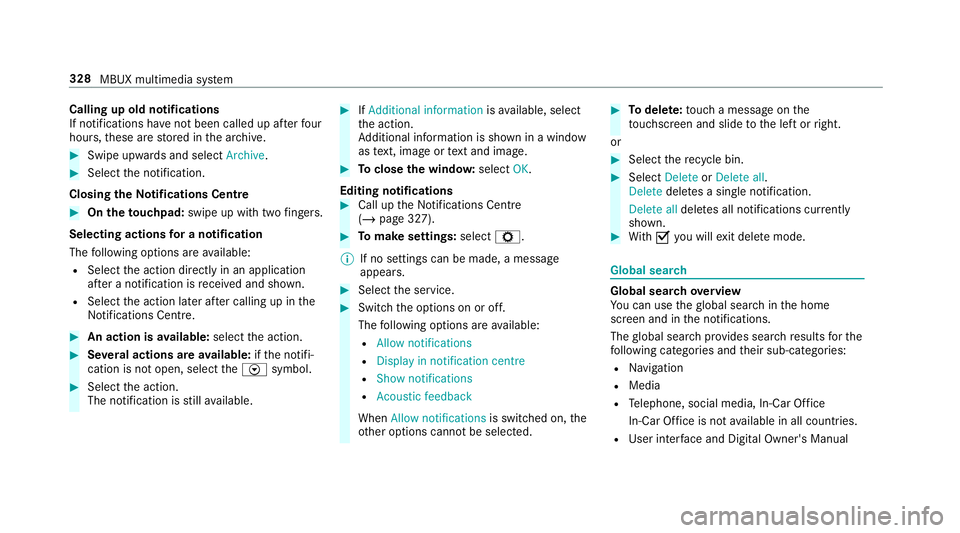
Calling up old notifications
If notifications ha
venot been called up af terfo ur
hours, these are stored in the ar chive. #
Swipe upwards and select Archive.#
Select the notification.
Closing theNo tifications Centre #
On the touchpad: swipe up with two fingers.
Selecting actions for a notification
The following options are available:
R Select the action directly in an application
af te r a notification is recei ved and shown.
R Select the action later af ter calling up in the
Noti fications Centre. #
An action is available: selectthe action. #
Several actions are available: ifth e notifi‐
cation is not open, select theV symbol. #
Select the action.
The notification is still available. #
IfAdditional information isavailable, select
th e action.
Ad ditional information is shown in a window
as text, ima geortext and ima ge. #
Toclose the windo w:select OK.
Editing notifications #
Call up the Notifications Centre
(/ page 327). #
Tomake settings: selectZ.
% If no settings can be made, a messa ge
appears. #
Select the service. #
Switch the options on or off.
The following options are available:
R Allow notifications
R Display in notification centre
R Show notifications
R Acoustic feedback
When Allow notifications is switched on, the
ot her options cannot be selected. #
Todel ete: touch a message on the
to uchsc reen and slide tothe left or right.
or #
Select there cycle bin. #
Select Delete orDelete all.
Delete deletes a single notification.
Delete all deletes all notifications cur rently
shown. #
With O you will exit dele temode. Global sear
ch Global sear
chove rview
Yo u can use theglobal sear chinthe home
screen and in the notifications.
The global sear chprov ides sear chresults forthe
fo llowing categories and their sub-categories:
R Navigation
R Media
R Telephone, social media, In-Car Of fice
In-Car Of fice is not available in all countries.
R User inter face and Digi tal Owner's Manual 328
MBUX multimedia sy stem
Page 335 of 657
R
For the handwriting recognition read-
aloud function: the multimedia sy stem is
equipped with a voice control sy stem.
R The read-aloud function is available forthe
selected sy stem language.
R The handwriting recognition read-aloud func‐
tion is activated.
Character ent rycan be car ried out with these
control elements:
R Touch Control
R Touchsc reen (media display)
R Touchpad
Character input can be star ted with a control
element and resumed with ano ther. #
When theke ypad is shown, en terth ech arac‐
te rs on the control element byswiping and
pressing or bytapping (touchscreen).
or #
Write thech aracters on theto uchpad or the
to uchsc reen.
Character input on theto uchpad is suppo rted by
th efo llowing functions:
R The handwriting recognition suppo rts ch arac‐
te r entry with character suggestions.
R Ifth ere ad aloud function is activated for
handwriting recognition then the entered
ch aracters are read aloud. Examples of
character ent ry:
R Renaming a favo urite
R Entering a de stination address in the naviga‐
tion sy stem
R Ente ring a web address
Entering characters on theto uchpad
Re quirements:
R Ifyo u wish tohave thech aracter input read
aloud: there ad aloud function of the hand‐
writing recognition is switched on
(/ page 311).
R An online connection is requiredfor some
functions. 332
MBUX multimedia sy stem
Page 341 of 657
If
av ailable, thep symbol allo wsyouto
ch ange tovoice input. #
Call up thech aracter ent ryto rename a
fa vo urite, forex ample (/ page 326).
The keyboard is shown. #
Brief lypress on a character.
The character is entered in input line 1.
Suggestions are shown in 2. #
Toselect a suggestion: select one ofthe
entri es. #
Ifav ailable, display additional suggestions
with q orr. #
Resume character input. #
Toenter an alternative character: press
and hold a character. #
Select thech aracter. #
Toend character entr y:press briefly on
G.
% The available editing functions depend on
th e editing task, the language set and the
ch aracter le vel. 338
MBUX multimedia sy stem
Page 343 of 657
#
Toselect a suggestion: select one ofthe
entri es. #
Ifav ailable, display additional suggestions
with q orr. #
Resume character input. The letters can be
written next toeach other or abo veeach
ot her. #
Toend character entr y:press briefly on
G.
Setting theke yboard forch aracter entry
Multimedia sy stem:
4 Settings 5
System 5
Controls
5 Keyboards and handwriting #
Confirm Select keyboards.
Select theke yboard language in the list. Sy
stem settings Display
Configuring display settings
Multimedia sy
stem:
4 © 5
Settings 5
System
5 Styles & display
Setting the design #
Select Styles. #
Select Classic ,Sport orProgressive .
The multimedia sy stem display changes
depending on thest yle selected. If youre ve rt
to thefa ctory settings, theClassic style is
set. #
Toadjust the ambient lighting toastyl e:
select Ambient lighting adjustment.
This function adjusts the ambient lighting for
th e selected display style.
Setting the display brightness #
Select Display brightness . #
Select a brightness value. Switching
the display off/on #
Off: select Display off . #
On: press a button, %,forex ample.
Selecting the display design #
Select Day/night design . #
Select Automatic, Day design orNight
design .
Switching thetemp erature display on/off #
Select Temperature display . #
Select Outside temp. orCoolant temp..
The selec tedte mp erature is displa yed in the
instrument clus ter. 340
MBUX multimedia sy stem
Page 347 of 657
#
Select Connect using WPS PIN input .
The multimedia sy stem generates an eight-
digit PIN. #
Enter this PIN on the device tobe connec ted. #
Confirm the entry.
Connecting using a but ton#
Select the options rofthe desired Wi-Fi
networ k. #
Select Connect via WPS PBC .#
Select "Connect via WPS PBC" in the options
on the device tobe connec ted (see the man‐
ufacturer's operating instructions). #
Press the WPS button on the device tobe
connec ted. #
Select Continue inthe multimedia sy stem.
Ac tivating automatic connection #
Select Connect via Wi-Fi .#
Select the options rofthe desired Wi-Fi
networ k. #
Activate Permanent Internet connection .Connecting with a known
Wi-Fi #
Select Connect via Wi-Fi . #
Select a Wi-Fi networ k.
The connection is es tablished again.
Setting up a Wi-Fi hotspot
Multimedia sy stem:
4 © 5
Settings 5
System
5 Wi-Fi & Bluetooth
Configuring the multimedia sy stem as a Wi-
Fi hotspot
The type of connection es tablished depends on
th e device tobe connec ted. The function must
be suppor tedby the multimedia sy stem and by
th e device tobe connec ted. The type of connec‐
tion es tablished must be selected on the multi‐
media sy stem and on the device tobe connec‐
te d. #
Select Vehicle hotspot. #
Select Connect device to vehicle hotspot .
Connecting using WPS PIN generation #
Select Connect using WPS PIN generation. #
Ente rth e PIN shown in the media display on
th e device tobe connec ted and con firm.
Connecting using WPS PIN entry #
Select Connect using WPS PIN input. #
Enterth e PIN that is shown on theex tern al
device's display on the multimedia sy stem.
Connecting using a button #
Select Connect via WPS PBC. #
Press the push button on the device tobe
connec ted (see the manufacturer's operating
instructions). #
Select Continue.
Connecting using a security key #
Select Connect device to vehicle hotspot .
A secu rity key is displa yed. #
Select theve hicle from the device tobe con‐
nec ted. The vehicle is displa yed with theMB
Hotspot XXXXX network name. #
Ente rth e security key which is shown in the
media display on the device tobe connec ted. #
Confirm the entry. 344
MBUX multimedia sy stem