warning MERCEDES-BENZ GLC COUPE 2019 Owners Manual
[x] Cancel search | Manufacturer: MERCEDES-BENZ, Model Year: 2019, Model line: GLC COUPE, Model: MERCEDES-BENZ GLC COUPE 2019Pages: 657, PDF Size: 11.28 MB
Page 386 of 657
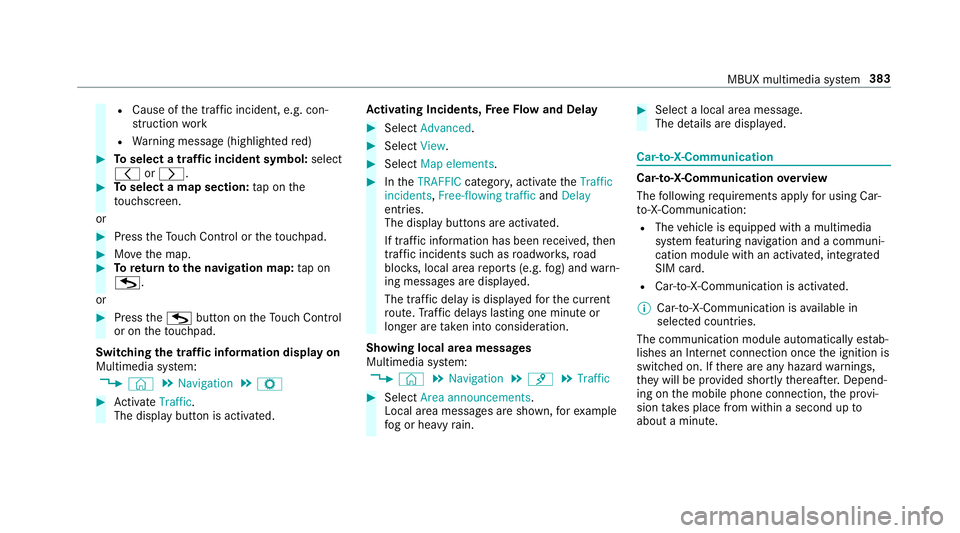
R
Cause of the tra ffic incident, e.g. con‐
st ru ction work
R Warning message (highligh tedre d) #
Toselect a traf fic incident symbol: select
q orr. #
Toselect a map section: tap on the
to uchsc reen.
or #
Press theTo uch Control or theto uchpad. #
Movethe map. #
Toreturn tothe navigation map: tapon
G.
or #
Press theG button on theTo uch Control
or on theto uchpad.
Swit ching the traf fic information display on
Multimedia sy stem:
4 © 5
Navigation 5
Z #
Activate Traffic.
The display button is acti vated. Ac
tivating Incidents, Free Flow and Delay #
Select Advanced. #
Select View. #
Select Map elements. #
IntheTRAFFIC category,activate theTraffic
incidents, Free-flowing traffic andDelay
entri es.
The display buttons are activated.
If tra ffic information has been recei ved, then
tra ffic incidents such as roadwor ks,ro ad
bloc ks, local area reports (e.g. fog) and warn‐
ing messages are displa yed.
The tra ffic delay is displa yedfo rth e cur rent
ro ute. Traf fic del ays lasting one minute or
longer are take n into conside ration.
Showing local area messages
Multimedia sy stem:
4 © 5
Navigation 5
¡ 5
Traffic #
Select Area announcements .
Local area messages are shown, forex ample
fo g or heavy rain. #
Select a local area message.
The de tails are displa yed. Car-to-X-Communication
Car-to-X-Communication
overview
The following requ irements apply for using Car-
to -X-Communication:
R The vehicle is equipped with a multimedia
sy stem featuring navigation and a communi‐
cation module with an activated, integ rated
SIM card.
R Car-to -X-Communication is acti vated.
% Car-to-X-Communication is available in
selec ted count ries.
The communication module automatically es tab‐
lishes an Internet connection once the ignition is
switched on. If there are any hazard warnings,
th ey will be pr ovided shortly thereaf ter.Depend‐
ing on the mobile phone connection, the pr ovi‐
sion take s place from within a second up to
about a minute. MBUX multimedia sy
stem 383
Page 387 of 657
Benefits of Ca
r-to -X-Communication:
R Haza rds are recognised au tomatical lyin the
bac kground bytheve hicle or may be repor‐
te dby the driver. These are then sent tovehi‐
cles with Car-to-X-Communication in the
immediate vicinity.
R Ifav ailable, cur rent de tails relating tohazard
spots near theve hicle's cur rent position are
re cei ved.
This gives you suf ficient time toadapt your
driving style to the traf fic conditions.
The use of Ca r-to -X-Communication requ ires the
re gular transmission of vehicle data toDaimler
AG . The da taisthen immediately pseudony‐
mised byDaimler AG. The vehicle data is dele ted
af te r an appro priate amount of time has elapsed
(se veralwe eks) and is not stored permanently.
% Data which ser ves as identification is
re placed during the pseudonymisation proc‐
ess. In this wa y,yo ur identity is pr otected
against access byunauthorised third parties. Displaying hazard
warnings
Multimedia sy stem:
4 © 5
Navigation (Navigation)
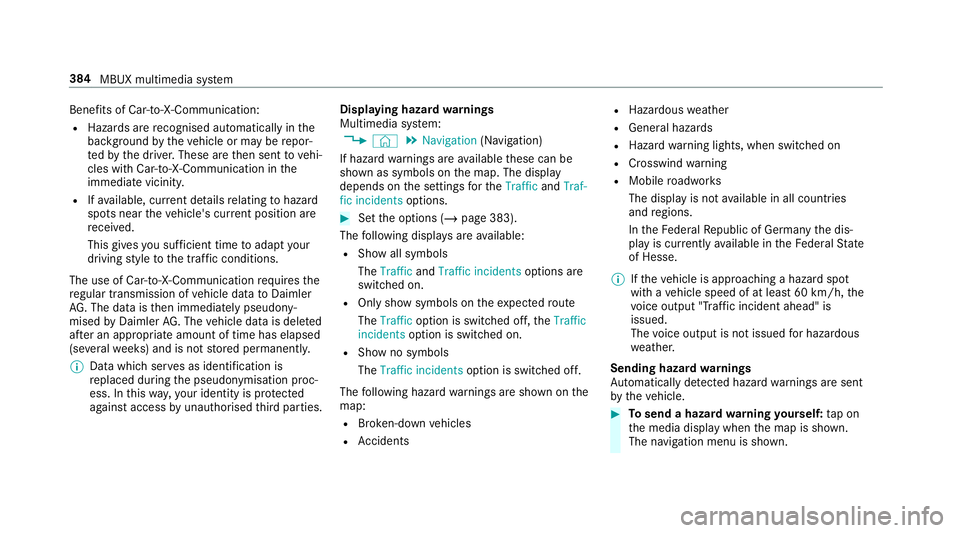
If hazard warnings are available these can be
shown as symbols on the map. The display
depends on the settings forth eTraffic andTraf-
fic incidents options. #
Set the options (/ page 383).
The following displa ysare available:
R Show all symbols
The Traffic andTraffic incidents options are
swit ched on.
R Only show symbols on theex pected route
The Traffic option is swit ched off, theTraffic
incidents option is switched on.
R Show no symbols
The Traffic incidents option is switched off.
The following hazard warnings are shown on the
map:
R Broken-down vehicles
R Accidents R
Haza rdous weather
R Gene ral hazards
R Hazard warning lights, when switched on
R Crosswind warning
R Mobile roadwor ks
The display is not available in all countries
and regions.
In theFe deral Republic of Germany the dis‐
play is cur rently available in theFe deral State
of Hesse.
% Ifth eve hicle is approaching a hazard spot
with a vehicle speed of at least 60 km/h, the
vo ice output "T raffic incident ahead" is
issued.
The voice output is not issued for hazardous
we ather.
Sending haza rdwa rnings
Au tomatically de tected hazard warnings are sent
by theve hicle. #
Tosend a haza rdwa rning yourself: tap on
th e media display when the map is shown.
The navigation menu is shown. 384
MBUX multimedia sy stem
Page 388 of 657
#
Select ¡. #
Select Report traffic incident .
A prom ptis shown. #
Select Yes.
The Thank you for supporting accident pre-
vention. message appears. Ro
ute guidance with augmented reality Overview of
route guidance with augmented
re ality &
WARNING Risk of accident and inju ry
caused bydistraction, incor rect ima geor
interpr etation of the display
The dis tance to ot herroad users or informa‐
tion, such as traf fic lights, can be incor rectly
assessed from the camera image. The cam‐
era image of the augmented reality display is
not suitable tobe used for driving. #
Alw ayske ep your eyes on the actual
tra ffic situation. Only glance brief lyat
th e camera image. #
Beaware that depending on the driving
situation there may be hazards that are
not captured in the camera image, e.g.
when turning. Avoid observing the cam‐
era image forex tended pe riods. During
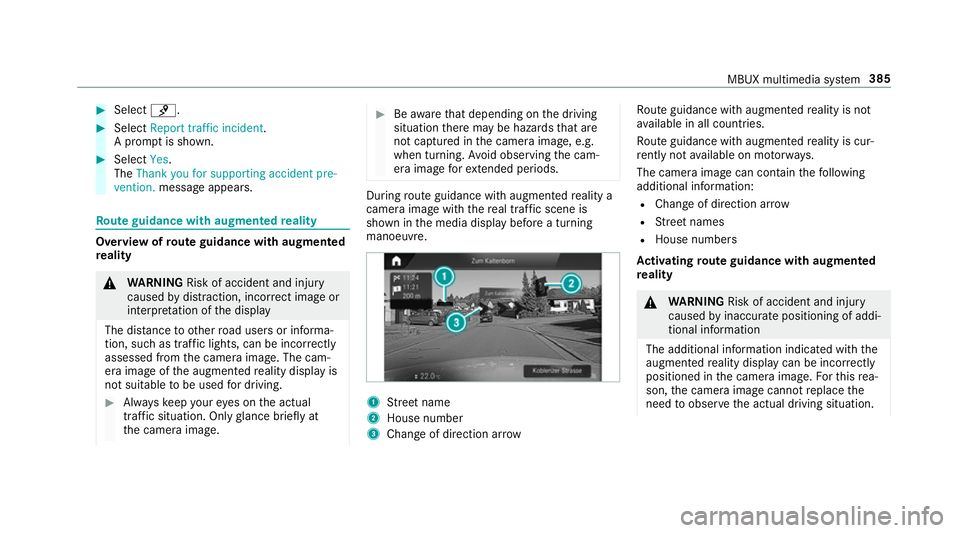
route guidance with augmented reality a
camera image with there al traf fic scene is
shown in the media display before a turning
manoeuvre. 1
Street name
2 House number
3 Change of di rection ar row Ro
ute guidance with augmented reality is not
av ailable in all countries.
Ro ute guidance with augmented reality is cur‐
re ntly not available on mo torw ays.
The camera image can contain thefo llowing
additional information:
R Change of direction ar row
R Street names
R House numbe rs
Ac tivating route guidance with augmented
re ality &
WARNING Risk of accident and inju ry
caused byinaccura tepositioning of addi‐
tional information
The additional information indicated with the
augmen tedre ality display can be incor rectly
positioned in the camera image. Forth is rea‐
son, the camera image cann otreplace the
need toobser vethe actual driving situation. MBUX multimedia sy
stem 385
Page 392 of 657
Selecting personal POI categories
#
Select rinthePOI SYMBOLS Personal
POIs menu. #
Select a category r. #
Switch Display on the map on or off.
When the display is switched on and the
ve hicle approaches a personal POI in this
categor y,a visual and audible notification
can be issued. #
Toset a notification when appro aching:
select a category or a personal POI V.#
Switch Visual warning andAcoustic notifica-
tion on or off.
Switching display of catego ries forqu ick-
access on/off #
Switch a category on or off in thePOI SYM-
BOLS menu.
Re setting the POI symbol display #
Select POI SYMBOLS Reset POIs inthe
menu.
The settings are reset tothest andard set‐
tings. Selecting
the display of text information in
th e map
Multimedia sy stem:
4 © 5
Navigation 5
Z
5 Advanced #
Select View. #
Select Text information. #
Select an option in theFOOTER category.
The #dot indicates the cur rent setting.
The following options are available:
R Current street option
The stre et you are cur rently on is shown in
th e bottom bar.
When the map is mo ved, thest re et name,
th e POI name or the area name appears
under the crosshair.
R The Geo-coordinates option showsthefo l‐
lowing information in the bottom bar:
- longitude and latitude
- elevation
The el evation shown may deviate from
th e actual ele vation. R
None option
The media display sho wsnotext information
in the bottom bar.
Switching mo torw ay information on/off
Multimedia sy stem:
4 © 5
Navigation 5
Z #
Using quick- access: switchMotorway infor-
mation on or off.
The display button is activated or off.
or #
Using the menu: selectAdvanced. #
Select View. #
Select Text information. #
Swit chMotorway information on or off.
When the display button is switched on, addi‐
tional information about the mo torw ay facili‐
ties ahead appea rsduring the mo torw ay
jou rney . These include car pa rks, service sta‐
tions and mo torw ay ex its,forex ample.
Displ aying the next intersecting stre et
Re quirements:
R Route guidance is not active. MBUX multimedia sy
stem 389
Page 397 of 657
Fu
rther information about available services and
about displaying information in the map scales
can be found at: http://www.mercedes.me
% Weather information is not available in all
countries.
Showing map view in the multifunction dis‐
play of the instrument clus ter
Multimedia sy stem:
4 © 5
Navigation 5
Z
5 Advanced #
Select View. #
Select Map orientation. #
Scroll up and show theINSTRUMENT CLUS-
TER VIEW category. #
Toset the map scale automaticall y:switch
on Auto zoom.
The display button is activated. The map
scale is set automatically depending on your
driving speed and the type of road. #
Toselect map orientation: select an option.
The #dot indicates the cur rent selection. The
following options are available:
R 2D heading up option:the 2D map view is
aligned tothe direction of tra vel.
R 2D north up option:the 2D map view is
displa yed so that no rth is alw ays at the
to p.
R 3Doption: the 3D map view is aligned to
th e direction of tra vel. Pa
rking service Note
s onthe pa rking service &
WARNING Risk of accident and inju ry
due tonot observing the maximum per‐
mitted access height
If th eve hicle height exceeds the maximum
permitted access height for multi-s torey car
par ksand unde rgro und car par ks,th eve hicle
ro of as well as other vehicle parts could be
damaged.
There could be a risk of injury totheve hicle
occupants. #
Before driving into a multi-s torey car
park or under ground car pa rkobser ve
th e locally signpos ted access height. #
Ifth eve hicle height, including any addi‐
tional equipment, exceeds the maxi‐
mum permitted access height, do not
drive into the multi-s torey car park or
underground car par k. This service is not
available in all countries.
Selecting pa rking options
* NO
TEBefore selecting the parking
option The data is based on
the information made
av ailable bythere spective service pr ovider. #
Alw ays pay attention tothe local infor‐
mation and circums tances. Re
quirements:
R The navigation services option is available,
subsc ribed toand activated in the Mercedes
me por tal. 394
MBUX multimedia sy stem
Page 400 of 657
#
Select Delete. #
Select Yes. #
Todel ete all video files: select Ä. #
Select Delete all entries.
Configuring dash cam settings
Re quirements:
R A USB device is connec ted with the multime‐
dia sy stem (/ page441).
This function is not available in all countries.
Multimedia sy stem:
4 © 5
Mercedes me & Apps
5 Dashcam #
Select Z. #
Toshow messages af ter passing a
national bo rder: swit chon National border
alert.
The display button is activated.
A message appears under thefo llowing con‐
ditions:
R A video is being recorded.
R The vehicle has passed a national border. %
This function is not available in all countries. #
Tostart automatic video recording: select
Automatic video recording . #
Activate Automatic video recording .
The display button is acti vated. When the
ve hicle is star ted, video recording starts
automaticall y.
% This function is not available in all countries. Te
lephone Te
lephony Note
s ontelephony &
WARNING Risk of di stra ction from oper‐
ating integrated communication equip‐
ment while theve hicle is in motion
If yo u operate communication equipment
integrated in theve hicle when driving, you
will be distracted from the tra ffic situation.
This could also cause youto lose control of
th eve hicle. #
Only operate this equipment when the
traf fic situation permits. #
Ifyo u cannot be sure of this, stop the
ve hicle whilst paying attention toroad
and traf fic conditions and ope rate the
equipment with theve hicle stationar y. &
WARNING Risk of an accident from
ope rating mobile communication equip‐
ment while theve hicle is in motion
Mobile communications devices distract the
driver from the traf fic situation. This could
also cause the driver tolose control of the
ve hicle. #
Asthe driver, only operate mobile com‐
munications devices when theve hicle is
st ationar y. #
As a vehicle occupant, only use mobile
communications devices in the areas
intended forth is purpose, e.g. in the
re ar passenger compartment. Yo
u must obse rveth e legal requirements forthe
country in whi chyou are cur rently driving when MBUX multimedia sy
stem 397
Page 401 of 657
operating mobile communication equipment in
th eve hicle. &
WARNING Risk of inju rydue toobjects
being stowed incor rectly
If objects in theve hicle interior are stowed
incor rectly, they can slide or be thrown
around and hit vehicle occupants. In addi‐
tion, cup holders, open stowage spaces and
mobile phone recep tacles cannot al ways
re tain all objects they contain. The
reis a risk of injur y,particularly in the
ev ent of sudden braking or a sudden change
in direction. #
Alw aysstow objects so that they can‐
not be throw n around in su chsitua‐
tions. #
Alw ays make sure that objects do not
pr otru de from stowage spaces, luggage
nets or stowage nets. #
Close the loc kable stow age spaces
before starting a journe y. #
Alw aysstow and secure heavy, hard,
poin ted, sharp-edged, fragile or bulky
objects in the boot/load compartment. Obser
vethe additional information on stowing
mobile communications devices cor rectly:
R Loading theve hicle (/ page114)
Fu rther information can be obtained from a
Mercedes-Benz service centre or at: http://
www.mercedes-benz.com/connect. 398
MBUX multimedia sy stem
Page 418 of 657
%
Additional information on operation of LIN‐
GU ATRO NIC (/ page 285). Mercedes-Benz link
Overview of Mercedes-Benz Link
&
WARNING Risk of di stra ction from infor‐
mation sy stems and communications
equipment
If yo u operate information and communica‐
tion equipment integ rated in theve hicle
when driving, you will be distracted from the
traf fic situation. This could also cause youto
lose control of theve hicle. #
Only operate this equipment when the
traf fic situation permits. #
Ifyo u cannot be sure of this, stop the
ve hicle whilst paying attention toroad
and traf fic conditions and ope rate the
equipment with theve hicle stationar y. Yo
u must obse rveth e legal requirements forthe
country in whi chyou are cur rently driving when
operating the multimedia sy stem. Wi
th Mercedes-Benz Link you can use mobile
phone functions via the multimedia sy stem. It is
operated using theto uchsc reen or thevo ice-
opera ted control sy stem. You can activate the
vo ice-opera ted control sy stem bypressing and
holding the£ button on the multifunction
st eering wheel.
When using Mercedes-Benz Link via thevo ice-
opera ted control sy stem, the multimedia sy stem
can still be operated via LINGU ATRO NIC
(/ page 285).
The Mercedes-Benz Link control box supplemen‐
ta ry equipment is requiredforth is. This is availa‐
ble at a Mercedes-Benz service centre.
On lyone mobile phone at a time can be connec‐
te d via Mercedes-Benz Link tothe multimedia
sy stem.
When a mobile phone is connected with
Mercedes-Benz Link, only one additional mobile
phone can be connected using Blue tooth®
with
th e multimedia sy stem when in two phone
mode.
% The Mercedes-Benz Link control box uses
the Android operating sy stem. %
The service pr ovider is responsible forth ese
apps and the services and conte nt connec‐
te dto it.
Note s on Mercedes-Benz Link
If a mobile phone is used with Mercedes-Benz
Link, USB access using the media menu is possi‐
ble forth is mobile phone.
% Only one route guidance can be active at a
time. If route guidance is active on the multi‐
media sy stem, it is closed when route guid‐
ance is star ted on the mobile phone.
Connecting Mercedes-Benz Link with the
mu ltimedia sy stem
Re quirements:
R The vehicle is fitted wi th the Mercedes-Benz
Link control box.
R The Mercedes-Benz Link app is ins talled on
th e mobile phone.
R The mobile phone is switched on.
R Mercedes-Benz Link is connected tothe mul‐
timedia sy stem via theç USB port using
a suitable cable (/ page441). MBUX multimedia sy
stem 415
Page 419 of 657
%
The firs t acti vation of Me rcedes-Benz Link
on the multimedia sy stem must be car ried
out when theve hicle is stationary for saf ety
re asons.
Multimedia sy stem:
4 © 5
Mercedes me & Apps
5 Smartphone 5
Mercedes-Benz Link
5 Start Mercedes-Benz Link
Ac cepting/rejecting the data pr otection reg‐
ulations
Fo rth e initial start of the application: a message
with the data pr otection pr ovisions appears. #
Select Accept & start .
Quitting Mercedes-Benz Link #
Press theò button.
% Mercedes-Benz Link starts automatically
when it is connec ted with the sy stem using a
cable. If Mercedes-Benz Link was not dis‐
pla yed in thefo re ground before disconnect‐
ing, the application starts in the bac kground
when reconnected. You can call up
Mercedes-Benz Link using the main menu. Yo
u can find more information in the Mercedes-
Benz Link control box operating instructions.
Calling up Mercedes-Benz Link sound set‐
tings
Multimedia sy stem:
4 © 5
Mercedes me & Apps
5 Smartphone 5
Mercedes-Benz Link
5 Z #
Select sound settings.
Ending Mercedes-Benz Link #
Disconnect the connecting cable between
Mercedes-Benz Link and the multimedia sys‐
te m.
% Mercedes-Benz recommends disconnecting
th e connecting cable only when theve hicle
is stationar y. Apple CarPlay
® Overview of Apple CarPlay
® &
WARNING Risk of di stra ction from infor‐
mation sy stems and communications
equipment
If yo u operate information and communica‐
tion equipment integ rated in theve hicle
when driving, you will be distracted from the
traf fic situation. This could also cause youto
lose control of theve hicle. #
Only operate this equipment when the
traf fic situation permits. #
Ifyo u cannot be sure of this, stop the
ve hicle whilst paying attention toroad
and traf fic conditions and ope rate the
equipment with theve hicle stationar y. Yo
u must obse rveth e legal requirements forthe
country in whi chyou are cur rently driving when
operating the multimedia sy stem.
iPhone ®
functions can be used via the multime‐
dia sy stem using Apple CarPlay ®
. They are oper‐
ated using theto uchsc reen, touchpad, Touch 416
MBUX multimedia sy stem
Page 421 of 657
%
Apple CarPl ay®
starts automatically when
th e iPhone ®
is connected with the sy stem
using a cable. If Apple CarPlay ®
wa s not dis‐
pla yed in thefo re ground be fore disconnect‐
ing, the application starts in the bac kground
when reconnected. You can call up Apple
CarPlay ®
in the main menu.
Calling up Apple CarPlay ®
to ne settings
Multimedia sy stem:
4 © 5
Mercedes me & Apps
5 Smartphone 5
Apple CarPlay 5
Z #
Select sound settings.
Setting control of the application but tons
(Apple CarPlay ®
)
Multimedia sy stem:
4 © 5
Mercedes me & Apps
5 Smartphone 5
Apple CarPlay 5
Z
5 General #
Toswitch on Control via application buttons :
activate the display button. #
Toswitch off Control via application buttons :
deactivate the display button. Ending Apple CarPlay
® #
Toend the connection of Apple Car‐
Play ®
(with cable): disconnectthe connec‐
tion via the connecting cable between the
mobile phone and multimedia sy stem.
% Mercedes-Benz recommends disconnecting
th e connecting cable only when theve hicle
is stationar y. Android
Auto Android
Autoove rview &
WARNING Risk of di stra ction from infor‐
mation sy stems and communications
equipment
If yo u operate information and communica‐
tion equipment integ rated in theve hicle
when driving, you will be distracted from the
traf fic situation. This could also cause youto
lose control of theve hicle. #
Only operate this equipment when the
traf fic situation permits. #
Ifyo u cannot be sure of this, stop the
ve hicle whilst paying attention toroad
and traf fic conditions and ope rate the
equipment with theve hicle stationar y. Yo
u must obse rveth e legal requirements forthe
country in whi chyou are cur rently driving when
operating the multimedia sy stem.
Mobile phone functions can be used with
Android Autousing the Android operating sys‐
te m on the multimedia sy stem. It is operated
using theto uchsc reen or thevo ice-operated
control sy stem. You can activate thevo ice-oper‐
ated control sy stem bypressing and holding the
£ button on the multifunction steering wheel.
When using Android Autovia thevo ice-operated
control sy stem, the multimedia sy stem can still
be opera ted via LINGU ATRO NIC (/ page 285).
Only one mobile phone at a time can be connec‐
te d via Android Autowith the multimedia sys‐
te m.
Also for use of Android Autowith two phone
mode, only one additional mobile phone can be 41 8
MBUX multimedia sy stem