warning MERCEDES-BENZ GLC COUPE 2019 Owners Manual
[x] Cancel search | Manufacturer: MERCEDES-BENZ, Model Year: 2019, Model line: GLC COUPE, Model: MERCEDES-BENZ GLC COUPE 2019Pages: 657, PDF Size: 11.28 MB
Page 321 of 657
Profile
Note
s on profiles
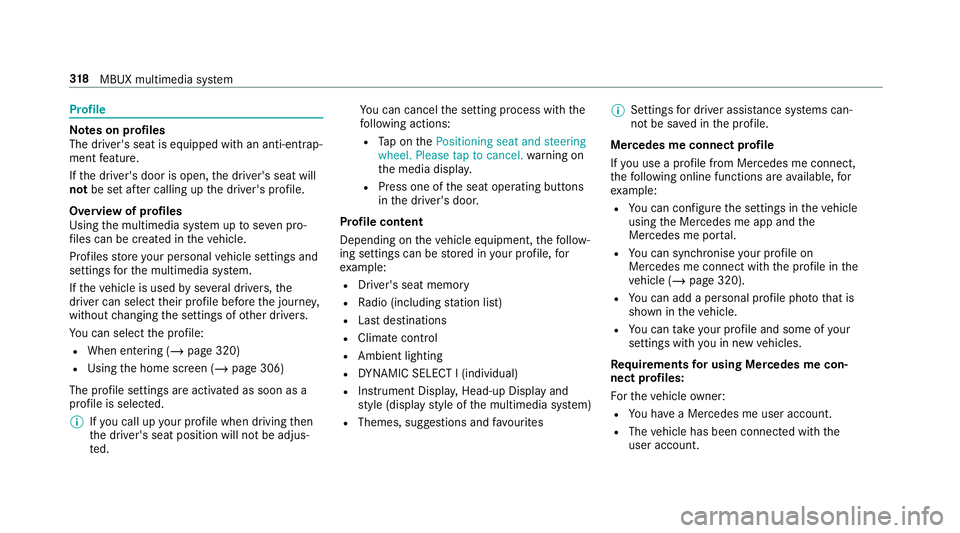
The driver's seat is equipped with an anti-entra p‐
ment feature.
If th e driver's door is open, the driver's seat will
not be set af ter calling up the driver's profile.
Overview of profiles
Using the multimedia sy stem up toseven pro‐
fi les can be created in theve hicle.
Profiles store your personal vehicle settings and
settings forth e multimedia sy stem.
If th eve hicle is used byseveral drivers, the
driver can select their profile before the journe y,
without changing the settings of other drivers.
Yo u can select the profile:
R When entering (/ page 320)
R Using the home screen (/ page 306)
The profile settings are activated as soon as a
profile is selected.
% Ifyo u call up your profile when driving then
th e driver's seat position will not be adjus‐
te d. Yo
u can cancel the setting process with the
fo llowing actions:
R Tap on thePositioning seat and steering
wheel. Please tap to cancel. warning on
th e media displa y.
R Press one of the seat operating buttons
in the driver's door.
Profile content
Depending on theve hicle equipment, thefo llow‐
ing settings can be stored in your profile, for
ex ample:
R Driver's seat memory
R Radio (including station list)
R Last destinations
R Climate control
R Ambient lighting
R DYNA MIC SELECT I (individual)
R Instrument Displa y,Head-up Display and
st yle (display style of the multimedia sy stem)
R Themes, suggestions and favo urites %
Settings for driver assi stance sy stems can‐
not be sa ved in the profile.
Mercedes me connect profile
If yo u use a profile from Mercedes me connect,
th efo llowing online functions are available, for
ex ample:
R You can configure the settings in theve hicle
using the Mercedes me app and the
Mercedes me por tal.
R You can syn chronise your profile on
Mercedes me connect with the profile in the
ve hicle (/ page 320).
R You can add a personal profile pho tothat is
shown in theve hicle.
R You can take your profile and some of your
settings with you in new vehicles.
Requ irements for using Me rcedes me con‐
nect profiles:
Fo rth eve hicle owner:
R You ha vea Mercedes me user account.
R The vehicle has been connected with the
user account. 318
MBUX multimedia sy stem
Page 323 of 657
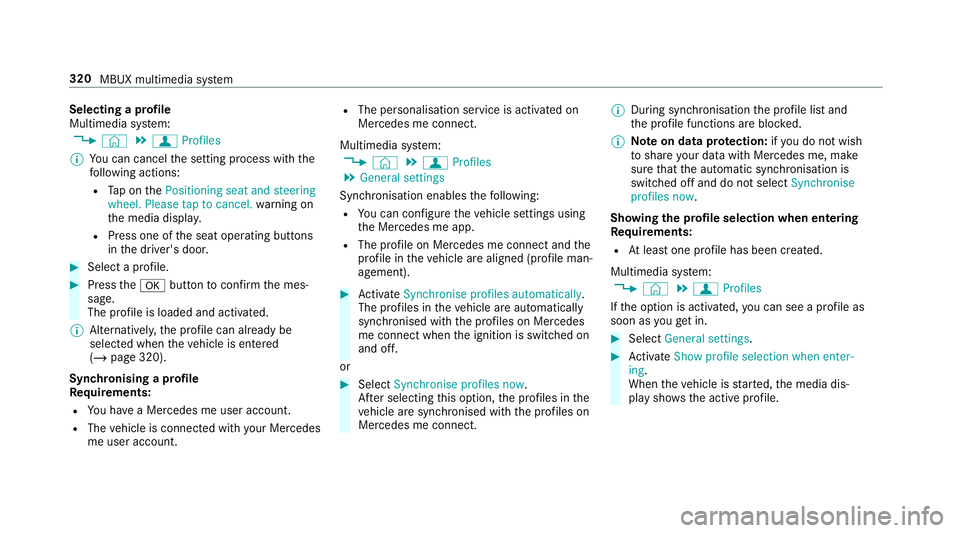
Selecting a profile
Multimedia sy
stem:
4 © 5
f Profiles
% You can cancel the setting process with the
fo llowing actions:
R Tap on thePositioning seat and steering
wheel. Please tap to cancel. warning on
th e media displa y.
R Press one of the seat operating buttons
in the driver's door. #
Select a profile. #
Press thea button toconfirm the mes‐
sage.
The profile is loaded and activated.
% Alternatively, the profile can already be
selected when theve hicle is entered
(/ page 320).
Synchronising a profile
Re quirements:
R You ha vea Mercedes me user account.
R The vehicle is connected with your Mercedes
me user account. R
The personalisation service is activated on
Mercedes me connect.
Multimedia sy stem:
4 © 5
f Profiles
5 General settings
Synchronisation enables thefo llowing:
R You can configure theve hicle settings using
th e Mercedes me app.
R The profile on Mercedes me connect and the
profile in theve hicle are aligned (profile man‐
agement). #
Activate Synchronise profiles automatically.
The profiles in theve hicle are automatically
synchronised with the profiles on Mercedes
me connect when the ignition is switched on
and off.
or #
Select Synchronise profiles now.
Af ter selecting this option, the profiles in the
ve hicle are synchronised with the profiles on
Mercedes me connect. %
During synchronisation the profile lis tand
th e profile functions are bloc ked.
% Note on data pr otection: ifyo u do not wish
to share your data with Mercedes me, make
sure that the automatic synchronisation is
switched off and do not select Synchronise
profiles now .
Showing the profile selection when entering
Re quirements:
R Atleast one profile has been created.
Multimedia sy stem:
4 © 5
f Profiles
If th e option is activated, you can see a profile as
soon as youget in. #
Select General settings. #
Activate Show profile selection when enter-
ing .
When theve hicle is star ted, the media dis‐
play sho wsthe active profile. 320
MBUX multimedia sy stem
Page 334 of 657
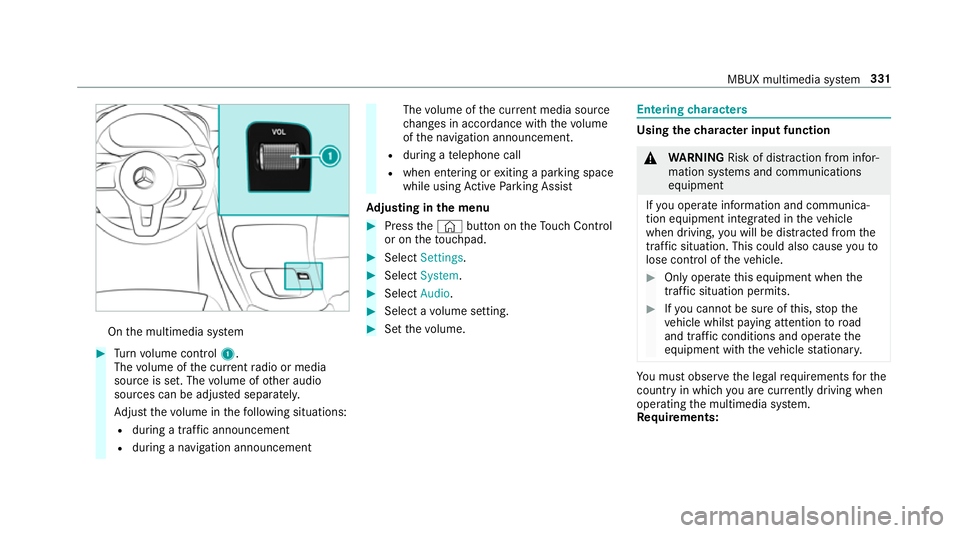
On
the multimedia sy stem #
Turn volume control 1.
The volume of the cur rent radio or media
source is set. The volume of other audio
sources can be adjus ted separatel y.
Ad just thevo lume in thefo llowing situations:
R during a traf fic announcement
R during a navigation announcement The
volume of the cur rent media sou rce
ch anges in accordance with thevo lume
of the navigation announcement.
R during a telephone call
R when entering or exiting a parking space
while using Active Parking Assist
Ad justing in the menu #
Press the© button on theTo uch Control
or on theto uchpad. #
Select Settings . #
Select System. #
Select Audio. #
Select a volume setting. #
Set thevo lume. Entering
characters Using
thech aracter input function &
WARNING Risk of di stra ction from infor‐
mation sy stems and communications
equipment
If yo u operate information and communica‐
tion equipment integ rated in theve hicle
when driving, you will be distracted from the
traf fic situation. This could also cause youto
lose control of theve hicle. #
Only operate this equipment when the
traf fic situation permits. #
Ifyo u cannot be sure of this, stop the
ve hicle whilst paying attention toroad
and traf fic conditions and ope rate the
equipment with theve hicle stationar y. Yo
u must obse rveth e legal requirements forthe
country in whi chyou are cur rently driving when
operating the multimedia sy stem.
Re quirements: MBUX multimedia sy
stem 331
Page 352 of 657
when
theve hicle is stationary and the ignition is
switched off.
If th e download of a deep sy stem update is com‐
ple ted and the update is ready for ins tallation,
yo u will be informed of this af terth e next igni‐
tion cycle, forex ample.
% Park theve hicle safely in a suitable location
before starting the ins tallation.
Re quirements forth e ins tallation:
R The ignition is switched off.
R Notes and warnings ha vebeen read and
accep ted.
R The elect ric pa rking brake is applied.
If all requirements are met, the update will be
ins talled. The multimedia sy stem cann otbe
operated while the update is being ins talled and
ve hicle functions are restricted.
If er rors should occur during the ins tallation, the
multimedia sy stem automatically attem ptsto
re store the pr evious version. If restoration of the
pr ev ious version is not possible, a symbol
appears on the media displa y.Please consult a qu
alified specialist workshop toresol vethe
problem. Re
setting the multimedia sy stem (reset func‐
tion) Multimedia sy
stem:
4 © 5
Settings 5
System 5
Reset
Pe rsonal data is dele ted, forex ample:
R Station presets
R Connec ted mobile phones
R individual user profiles
% The guest profile is reset when the settings
are restored tothefa ctory settings.
A prom ptappears again asking whe ther you
re ally wish toreset. #
Select Yes.
The multimedia sy stem is reset tothefa ctory
settings. If you ha veset a PIN foryo ur sys‐
te m, this will also be reset. Fi
t & Healthy Setting ENE
RGIZING seat kinetics Re
quirements:
% These functions are available on lyfor fully
electric seats with a memory function.
Multimedia sy stem:
4 © 5
Comfort 5
Seat comfort #
Select Seat kinetics .
ENERG IZING seat kinetics can support back
health bychanging the seat position during a
journe y.The muscles and joints are repeatedly
st re ssed and relie vedby means of minor mo ve‐
ments of the cushion and backrest.
St arting seat kinetics #
Select Ìforth e desired seat. #
The program will runfo rth e set duration.
Configuring seat kinetics #
Select Zforth e desired seat. #
Select Backrest orBackrest and seat sur-
face. MBUX multimedia sy
stem 349
Page 355 of 657
St
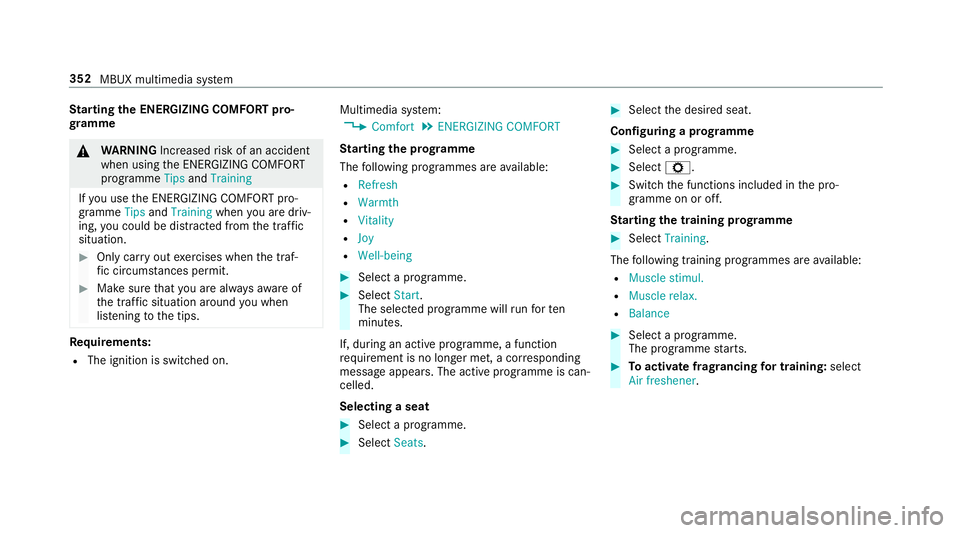
arting the ENERGIZING COMFORT pro‐
gr amme &
WARNING Increased risk of an accident
when using the ENERG IZINGCOMFORT
programme TipsandTraining
If yo u use the ENERG IZINGCOMFORT pro‐
gramme TipsandTraining whenyou are driv‐
ing, you could be distracted from the tra ffic
situation. #
Only car ryout exercises when the traf‐
fi c circums tances pe rmit. #
Make sure that you are alw aysaw are of
th e traf fic situation around you when
lis tening tothe tips. Re
quirements:
R The ignition is switched on. Multimedia sy
stem:
4 Comfort 5
ENERGIZING COMFORT
St arting the prog ramme
The following programmes are available:
R Refresh
R Warmth
R Vitality
R Joy
R Well-being #
Select a programme. #
Select Start.
The selec ted prog ramme will runfo rten
minutes.
If, during an active programme, a function
re qu irement is no longer met, a cor responding
message appears . The activeprog ramme is can‐
celled.
Selecting a seat #
Select a programme. #
Select Seats. #
Select the desired seat.
Configuring a prog ramme #
Select a prog ramme. #
Select Z. #
Switch the functions included in the pro‐
gramme on or off.
St arting the training prog ramme #
Select Training.
The following training prog rammes are available:
R Muscle stimul.
R Muscle relax.
R Balance #
Select a programme.
The programme starts. #
Toactivate frag rancing for training: select
Air freshener . 352
MBUX multimedia sy stem
Page 359 of 657
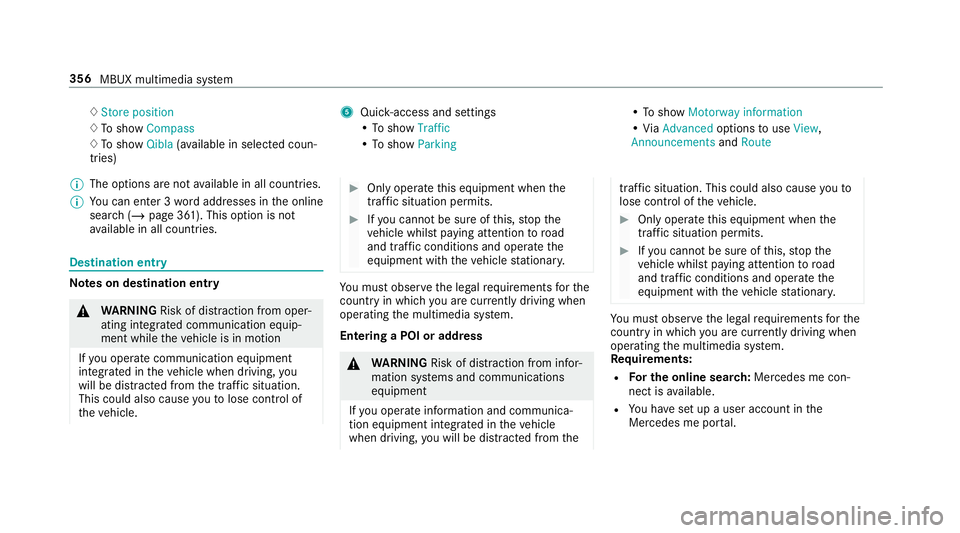
♢
Store position
♢ To show Compass
♢ To show Qibla(ava ilable in selec ted coun‐
tries) 5
Quic k-access and settings
• To show Traffic
• To show Parking •
To show Motorway information
• ViaAdvanced optionstouse View ,
Announcements andRoute
% The options are not available in all countries.
% You can en ter 3 wordaddresses in the online
sear ch (/page 361). This option is not
av ailable in all countries. Destination ent
ryNote
s on destination entry &
WARNING Risk of di stra ction from oper‐
ating integrated communication equip‐
ment while theve hicle is in motion
If yo u operate communication equipment
integrated in theve hicle when driving, you
will be distracted from the tra ffic situation.
This could also cause youto lose control of
th eve hicle. #
Only operate this equipment when the
traf fic situation permits. #
Ifyo u cannot be sure of this, stop the
ve hicle whilst paying attention toroad
and traf fic conditions and ope rate the
equipment with theve hicle stationar y. Yo
u must obse rveth e legal requirements forthe
country in whi chyou are cur rently driving when
operating the multimedia sy stem.
Entering a POI or addre ss &
WARNING Risk of di stra ction from infor‐
mation sy stems and communications
equipment
If yo u operate information and communica‐
tion equipment integ rated in theve hicle
when driving, you will be distracted from the traf
fic situation. This could also cause youto
lose control of theve hicle. #
Only operate this equipment when the
traf fic situation permits. #
Ifyo u cannot be sure of this, stop the
ve hicle whilst paying attention toroad
and traf fic conditions and ope rate the
equipment with theve hicle stationar y. Yo
u must obse rveth e legal requirements forthe
country in whi chyou are cur rently driving when
operating the multimedia sy stem.
Re quirements:
R For the online sear ch:Me rcedes me con‐
nect is available.
R You ha veset up a user account in the
Mercedes me por tal. 356
MBUX multimedia sy stem
Page 371 of 657
This function is not
available in all coun‐
tries and languages.
R Announce warnings
Warning messages are announced, e.g.
before tailbac ksthat pose a risk (if availa‐
ble).
This function is not available in all coun‐
tries and languages.
Au dible indication when approaching a per‐
sonal POI #
Select thePersonal POIs option inthe
ALERTS category. #
Activate a categor y.
The display button is activated. When
approaching a personal POI in this category
an audible indication will be issued.
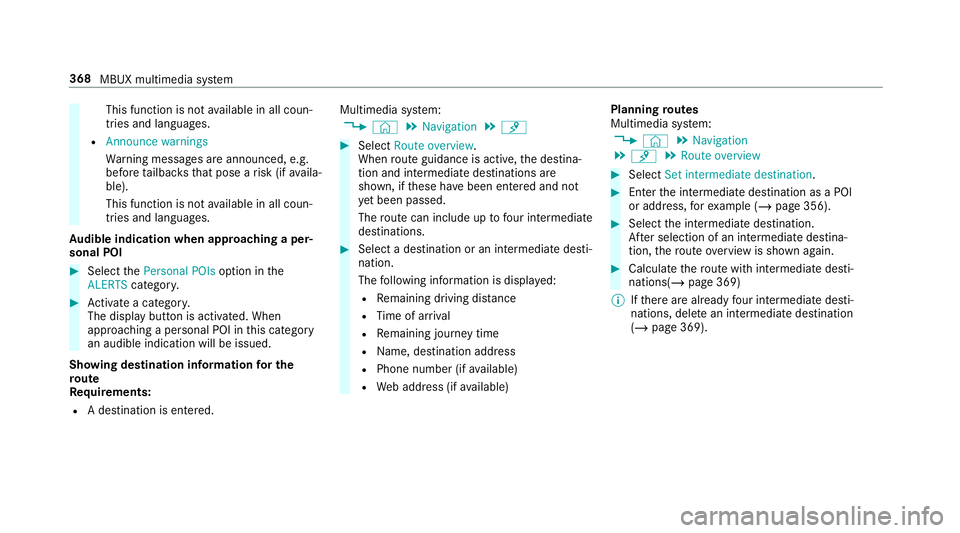
Showing destination information for the
ro ute
Re quirements:
R A destination is entered. Multimedia sy
stem:
4 © 5
Navigation 5
¡ #
Select Route overview .
When route guidance is active, the destina‐
tion and intermediate destinations are
shown, if these ha vebeen entered and not
ye t been passed.
The route can include up tofour intermediate
destinations. #
Select a destination or an intermediate desti‐
nation.
The following information is displa yed:
R Remaining driving dis tance
R Time of ar rival
R Remaining journey time
R Name, destination addre ss
R Phone number (if available)
R Web address (if available) Planning
routes
Multimedia sy stem:
4 © 5
Navigation
5 ¡ 5
Route overview #
Select Set intermediate destination. #
Ente rth e intermediate destination as a POI
or address, forex ample (/ page 356). #
Select the intermediate destination.
Af ter selection of an intermediate destina‐
tion, thero ute overview is shown again. #
Calculate thero ute with intermediate desti‐
nations(/ page 369)
% Ifth ere are already four intermediate desti‐
nations, dele tean intermediate destination
(/ page 369). 368
MBUX multimedia sy stem
Page 375 of 657
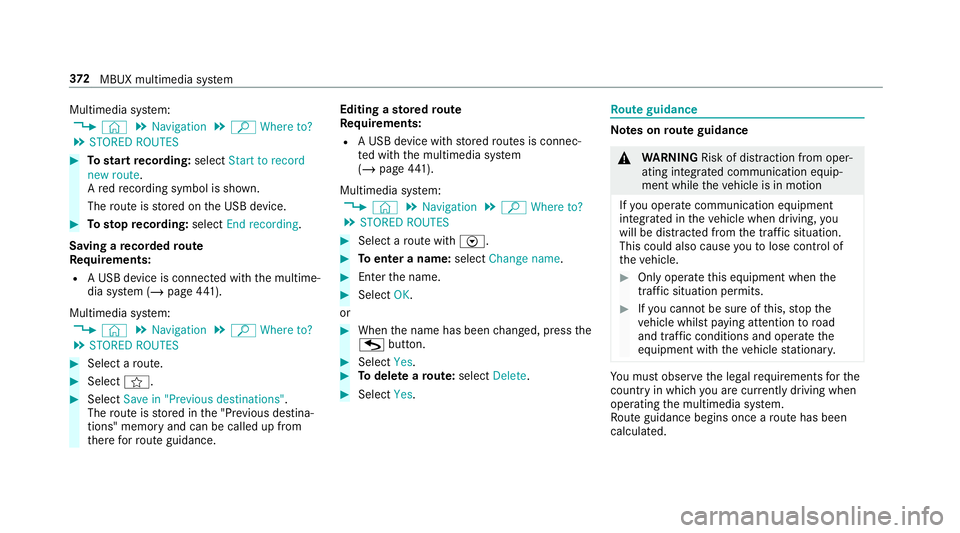
Multimedia sy
stem:
4 © 5
Navigation 5
ª Where to?
5 STORED ROUTES #
Tostart recording: selectStart to record
new route.
A redre cording symbol is shown.
The route is stored on the USB device. #
Tosto pre cording: selectEnd recording.
Saving a recorded route
Re quirements:
R A USB device is connec ted with the multime‐
dia sy stem (/ page441).
Multimedia sy stem:
4 © 5
Navigation 5
ª Where to?
5 STORED ROUTES #
Select a route. #
Select f. #
Select Save in "Previous destinations" .
The route is stored in the "Pr evious destina‐
tions" memo ryand can be called up from
th ere forro ute guidance. Editing a
storedro ute
Re quirements:
R A USB device with stored routes is connec‐
te d with the multimedia sy stem
(/ page 441).
Multimedia sy stem:
4 © 5
Navigation 5
ª Where to?
5 STORED ROUTES #
Select a route with V. #
Toenter a name: selectChange name . #
Enterth e name. #
Select OK.
or #
When the name has been changed, press the
G button. #
Select Yes. #
Todel ete a route: select Delete. #
Select Yes. Ro
ute guidance Note
s onroute guidance &
WARNING Risk of di stra ction from oper‐
ating integrated communication equip‐
ment while theve hicle is in motion
If yo u operate communication equipment
integrated in theve hicle when driving, you
will be distracted from the tra ffic situation.
This could also cause youto lose control of
th eve hicle. #
Only operate this equipment when the
traf fic situation permits. #
Ifyo u cannot be sure of this, stop the
ve hicle whilst paying attention toroad
and traf fic conditions and ope rate the
equipment with theve hicle stationar y. Yo
u must obse rveth e legal requirements forthe
country in whi chyou are cur rently driving when
operating the multimedia sy stem.
Ro ute guidance begins once a route has been
calculated. 372
MBUX multimedia sy stem
Page 383 of 657
or
#
If a destination has been recei ved from an
app, select Details. #
Calculate thero ute. #
Aro ute has been received: selectYes. #
Select Start route guidance from the begin-
ning orStart route guidance from current
location.
Ro ute guidance starts from the selected
position. Ro
ute guidance with cur rent traf fic re ports Tr
af fic information overview
The services are not available in everycountr y.
Tr af fic re ports can be recei ved with thefo llowing
services:
R Live Traf fic Information
R FM RDS-TMC
It is not possible touse bo thservices simultane‐
ously.
Live Traf fic Information or FM RDS-TMC is dis‐
pl ay ed with a symbol. %
Hazard warnings can be recei ved using the
Car-to-X service.
There may be dif fere nces between the traf fic
re ports recei ved and the actual road and traf fic
conditions.
Impor tant information on Live Traf fic Informa‐
tion:
R Current tra ffic reports are recei ved via the
Internet connection or via data roaming (for
selec ted count ries).
R The traf fic situation is upda ted at short, regu‐
lar inter vals.
R In selec ted count ries, the subscription
service is available free of charge for a period
of thre eye ars from the manufacturing date.
The subscription information sho wsthest a‐
tus (/ page 380).
Re gis tering Live Traf fic Information:
R The service must be regis tere d with
Mercedes me (/ page 380).
R Registration is car ried out at a Mercedes-
Benz service cent re. Information on
theve hicle's position is regular ly
sent toDaimler AG. The da tais immediately ren‐
de red anonymous byDaimler AGand forw arded
to the tra ffic data pr ovider. Using this data, traf‐
fi c re ports releva nt totheve hicle's position are
sent totheve hicle. The vehicle acts as a sensor
fo rth eflow of traf fic and helps toimpr ovethe
qu ality of the traf fic re ports.
If yo u do not wish totransmit your vehicle posi‐
tion, you can ha vethis service deactivated at a
Mercedes-Benz service centre.
Useful information on FM RDS -TMC:
R A FM RDS-TMC radio station broadcasts traf‐
fi c re ports alongside thera dio programme.
R FM RDS-TMC is not available in all countries.
Showing information from the service pro‐
vider for Li veTraf fic Information
Requ irements:
R The vehicle is equipped with Live Traf fic
Information. 380
MBUX multimedia sy stem
Page 385 of 657
Multimedia sy
stem:
4 © #
Select Navigation.
The map sho ws thefo llowing traf fic information:
R traf fic incidents, forex ample:
- roadwor ks
- road bloc ks
- warning messages
When route guidance is active, the symbols
fo r traf fic incidents will be shown in colour
on thero ute. Off thero ute they are gr ey.
R warning message symbols:
- symbol d
- road saf ety no tes, e.g. when approaching
th e end of a traf fic jam
If th eve hicle approaches a danger area
on thero ute, a warning message is dis‐
pla yed on the map. In addition, an audible
notification can follow a hazard warning.
R traf fic flow information:
- traf fic jam (red line) -
slow-moving traf fic (orange line)
- heavy traf fic (yellow line)
- free-flowing traf fic (green line)
R displ ayfor traf fic del ays on thero ute lasting
at least one minute
Displaying traf fic incidents
Requ irements:
R The Traffic incidents display is switched on
(/ page 383).
Multimedia sy stem:
4 © 5
Navigation 5
¡ 5
Traffic #
Select Traffic announcements .
If th ere are traf fic re ports, you will see a list.
Tr af fic re ports include accidents and other
traf fic eve nts, forex ample. The list is sor ted
according todis tance and sho wsthe traf fic
re ports recei ved bo thon and off thero ute.
A traf fic re port sho wsthefo llowing informa‐
tion:
R Street number
R Traf fic incident symbol On
thero ute: coloured
Off thero ute: gr ey
R Cause
R Street symbol for a traf fic incident on the
ro ute
R Distance from cur rent vehicle position #
Select a traf fic re port r.
The de tailed information is shown, forex am‐
ple thero ute section.
Showing traf fic incidents in the vicinity of
th e map #
Select a traf fic incident symbol on the map.
The de tails about the traf fic incident are dis‐
pl ay ed. #
Select Ä. #
Select Traffic incidents in vicinity.
The map sho ws the traf fic incident symbols
in the vicinit y.
Tr af fic incident information is displ ayed in
th est atus line:
R Traf fic incident symbol 382
MBUX multimedia sy stem