camera MERCEDES-BENZ GLC COUPE 2019 Owner's Manual
[x] Cancel search | Manufacturer: MERCEDES-BENZ, Model Year: 2019, Model line: GLC COUPE, Model: MERCEDES-BENZ GLC COUPE 2019Pages: 657, PDF Size: 11.28 MB
Page 258 of 657
R
Ifth e time has been set incor rectly.
R In acti vedriving situations, if youch ange
lanes and vary your speed frequentl y.
The ATTENTION ASSIST tiredness or alertness
assessment is dele ted and restar ted when con‐
tinuing the journey in thefo llowing situations:
R Ifyo u swit choff the engine.
R Ifyo u unfas tenyo ur seat belt and open the
driver's door (e.g. changing drivers or taking
a break).
Setting ATTENTION ASSI ST
Multimedia sy stem:
4 © 5
Settings 5
Assistance
5 Attention Assist
Setting options #
Select Standard, SensitiveorOff.
Suggesting a rest area #
Select Suggest rest area . #
Activate or deacti vate the function.
If AT TENTION ASSIST de tects fatigue or
increasing la ckof attention, it suggests a
re st area in the vicinit y. #
Select the sugges tedre st area.
Yo u are guided tothe selected rest area. Tr
af fic Sign Assist Fu
nction of Traf fic Sign Assist Tr
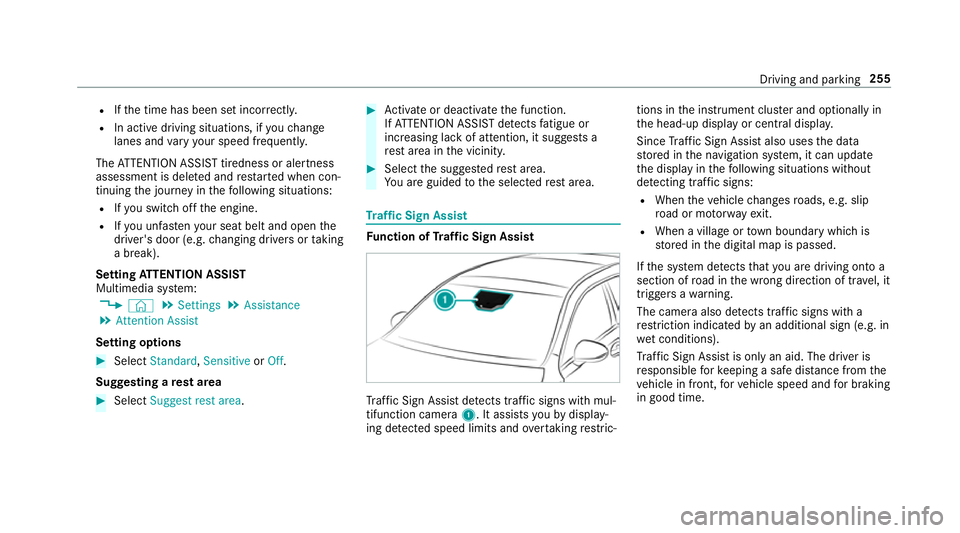
af fic Sign Assi stdetects traf fic signs wi thmul‐
tifunction camera 1. It assistsyo uby display‐
ing de tected speed limits and overtaking restric‐ tions in
the instrument clus ter and optionally in
th e head-up display or cent ral displa y.
Since Traf fic Sign Assi stalso uses the data
st ored in the navigation sy stem, it can update
th e display in thefo llowing situations without
de tecting traf fic signs:
R When theve hicle changes roads, e.g. slip
ro ad or mo torw ay ex it.
R When a village or town boundary which is
st ored in the digital map is passed.
If th e sy stem de tects that you are driving on to a
section of road in the wrong direction of tr avel, it
triggers a warning.
The camera also de tects traf fic signs wi th a
re striction indicated byan additional sign (e.g. in
we t conditions).
Tr af fic Sign Assi stis only an aid. The driver is
re sponsible forke eping a safe dis tance from the
ve hicle in front, forve hicle speed and for braking
in good time. Driving and parking
255
Page 260 of 657
R
Ifth e windscreen in the area of the multi‐
function camera is dirty, or if the camera is
mis ted up, damaged or co vered.
R Ifth e traf fic signs are ha rdtodetect, e.g. due
to dirt or sno w,or because they are co vered
or due toinsuf ficient lighting.
R Ifth e information in the navigation sy stem's
digital map is incor rect or out-of-da te.
R Ifth e signs are ambiguous, e.g. tra ffic signs
on con stru ction sites or in adjacent lanes.
R Ifyo u turn sharpl y,when passing traf fic signs
outside the camera's field of vision.
Setting Traf fic Sign Assist
Re quirements:
R Only vehicles with Driving Assistance
Pa ckage:
Ac tive Dis tance Assi stDISTRONIC mu stbe
activated forth e automatic adoption of
speed limits. Multimedia sy
stem:
4 © 5
Settings 5
Assistance
5 Traffic Sign Assist
Ac tivating/deactivating automatic adoption
of speed limits (only vehicles with Driving
Assistance Package) #
Select Adopt limit. #
Activate or deacti vate the function.
The speed limits de tected byTraf fic Sign
Assi stare automatically adop tedby Active
Dis tance Assi stDISTRONIC.
% If one of thefo llowing sy stems is activated,
th e speed de tected can be manually adop ted
as the speed limit:
R Active Dis tance Assi stDISTRONIC
R Cruise control
R Variable limiter
Fu rther information (/ page218).
Dis playing de tected traf fic signs in the
medi a display #
Select Display in head unit. #
Activate or deacti vate the function.
Ad justing the type of warning #
Select Visual & audible ,Visual orNone.
Ad justing the warning threshold
This value de term ines the speed at which a
wa rning is issued when exceeded. #
Select Warning threshold. #
Set the desired speed. Blind Spot Assist and
Active Blind Spot
Assi stwith exitwa rning Fu
nction of Blind Spot Assist and Active
Blind Spot Assi stwith exitwa rning
Blind Spot Assist and Active Blind Spot Assi st
use two lateral, rear-facing radar sensors to
monitor the area up to40 m behind your vehicle
and 3 m directly next to yourvehicle.
If a vehicle is de tected at speeds ab ove appr ox‐
imately 12km/h and this vehicle subsequently
enters the monitoring range di rectly next to your
ve hicle, thewa rning lamp in the outside mir ror
lights up red. Driving and parking
257
Page 263 of 657
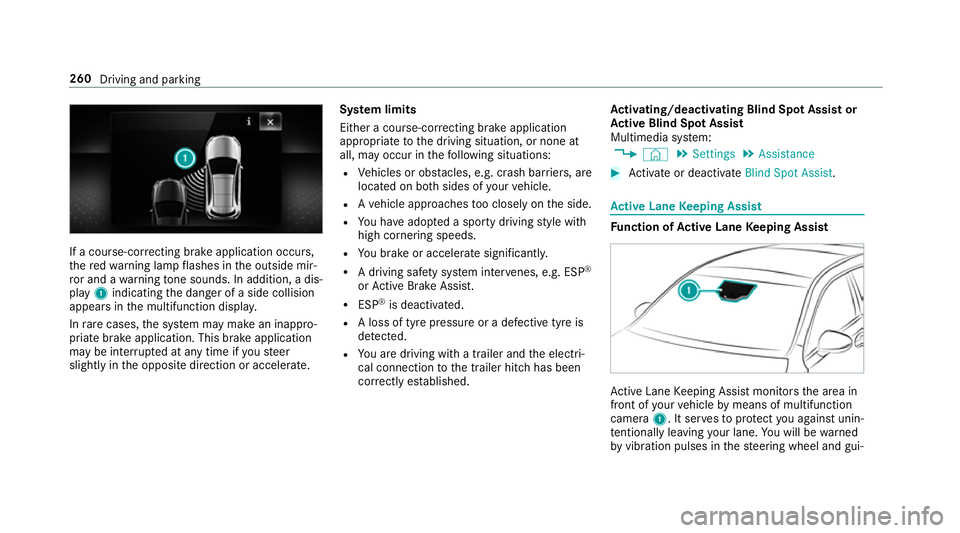
If a course-cor
recting brake application occu rs,
th ere dwa rning lamp flashes in the outside mir‐
ro r and a warning tone sounds. In addition, a dis‐
pl ay 1 indicating the danger of a side collision
appears in the multifunction displa y.
In rare cases, the sy stem may make an inappro‐
priate brake application. This brake application
may be inter rupte d at any time if yousteer
slightly in the opposite direction or accelera te.Sy
stem limits
Either a course-cor recting brake application
appropria teto the driving situation, or none at
all, may occur in thefo llowing situations:
R Vehicles or obs tacles, e.g. crash ba rriers, are
located on bo thsides of your vehicle.
R Ave hicle approaches too closely on the side.
R You ha veadop ted a sporty driving style with
high cornering speeds.
R You brake or accelerate significantl y.
R A driving sa fety sy stem inter venes, e.g. ESP ®
or Active Brake Assi st.
R ESP ®
is deacti vated.
R A loss of tyre pressure or a defective tyre is
de tected.
R You are driving with a trailer and the electri‐
cal connection tothe trailer hitch has been
cor rectly es tablished. Ac
tivating/deactivating Blind Spot Assi stor
Ac tive Blind Spot Assi st
Multimedia sy stem:
4 © 5
Settings 5
Assistance #
Activate or deacti vate Blind Spot Assist . Ac
tive Lane Keeping Assist Fu
nction of Active Lane Keeping Assist Ac
tive Lane Keeping Assist monitors the area in
front of your vehicle bymeans of multifunction
camera 1. It ser vesto protect you against unin‐
te ntional lyleaving your lane. You will be warned
by vibration pulses in thesteering wheel and gui‐ 260
Driving and parking
Page 265 of 657
The sy
stem may be impaired or may not function
in thefo llowing situations:
R Ifth ere is poor visibility, e.g. due toinsuf fi‐
cient illumination of thero ad, if there are
highly variable shade conditions or in rain,
sno w,fog or heavy spr ay.
R Ifth ere is glare, e.g. from oncoming traf fic,
th e sun or reflections.
R Ifth e windscreen in the area of the multi‐
function camera is dirty, or if the camera is
mis ted up, damaged or co vered.
R Ifth ere are no lane markings, or se veral
unclear lane markings are present for one
lane, e.g. around roadwor ks.
R Ifth e lane markings are worn, dark or cov‐
ered.
R Ifth e dis tance totheve hicle in front is too
short and thus the lane markings cann otbe
de tected.
R Ifth e lane markings change quickl y,e.g.
lanes branch off, cross one ano ther or
mer ge. R
Ifth e car riag ewa y is very nar row and wind‐
ing.
Ac tivating/deactivating Active Lane Keeping
Assist
Multimedia sy stem:
4 © 5
Settings 5
Quick access
5 Active Lane Keeping Assist #
Activate or deacti vate the function.
Setting Active Lane Keeping Assist
Multimedia sy stem:
4 © 5
Settings 5
Assistance
5 Active Lane Keeping Assist
Setting the sensitivity
% The availability of this function is dependent
on the count ry. #
Select Standard ,Sensitive orOff.
Ac tivating/deactivating the haptic warning #
Select Warning.
Ac tivate or deacti vate the function. Tr
ailer hitch Note
s on trailer operation Mercedes‑AMG
vehicles: be sure toobser ve
th e no tes in the Supplement. Otherwise, you
may failto recognise dangers.
Plug-in hybrid: obser vethe no tes in the Supple‐
ment. Otherwise, you may failto recognise dan‐
ge rs.
Obser vethefo llowing no tes on theto ngue
we ight:
R Do not use a tongue weight that exceeds or
fa lls below the permissible tongue weight
R Use a tongue weight as close as possible to
th e maximum tongue weight
Do not exceed thefo llowing values:
R Perm issible trailer load
R Perm issible rear axle load of theto wing vehi‐
cle
R Perm issible gross mass of theto wing vehicle
R Perm issible gross mass of the trailer
R Maximum permissible speed of the trailer 262
Driving and parking
Page 268 of 657
Coupling up / uncoupling a trailer
&
WARNING Risk of inju ryfrom theve hicle
le ve l being changed
Ve hicles with le vel control sy stem: the
ve hicle le vel may be changed unin tentional ly,
e.g. by ot her persons. You may become trap‐
ped if you couple up or uncouple a trailer
while theve hicle le vel is changing. In addi‐
tion, other people could become trapped if
th eir limbs are between theve hicle body and
th e tyres or underneath theve hicle.
When coupling up or uncoupling a trailer,
make sure that: #
The doors or tailgate are not opened or
closed. #
You do not initiate the le vel control sys‐
te m and do not operate theDY NA MIC
SELECT switch. #
Do not lock or unlock theve hicle. Re
quirements:
R The ball neck must be extended and engaged
in a secu rely loc ked position Tr
ailers with a 7-pin plug can be connec tedto
th eve hicle with thefo llowing adap ters:
R Adapter plug
R Adapter cable
The trailer will be cor rectly de tected bytheve hi‐
cle only if thefo llowing conditions are me t:
R The trailer is connected cor rectly
R The trailer lighting sy stem is in working order
The functions of thefo llowing sy stems are af fec‐
te dby a cor rectly connected traile r:
R Active Lane Keeping Assist
R ESP ®
trailer stabilisation
R Parking Assist PARKTRONIC
R Active Parking Assist
R Blind Spot Assist or Active Blind Spot Assi st
R Drive AwayAssi st
R Cross Traf fic Alert
R Trailer Manoeuv ring Assi st
R Reversing camera
R 360° camera Coupling up a trailer
* NO
TEDama getotheve hicle battery due
to full discharge Charging
the trailer battery using the po wer
supply of the trailer can damage theve hicle
batter y. #
Do not use theve hicle's po wer supply
to charge the trailer batter y. #
Remo vethe co ver from the ball head and
st ore it in a safe place (/ page114). #
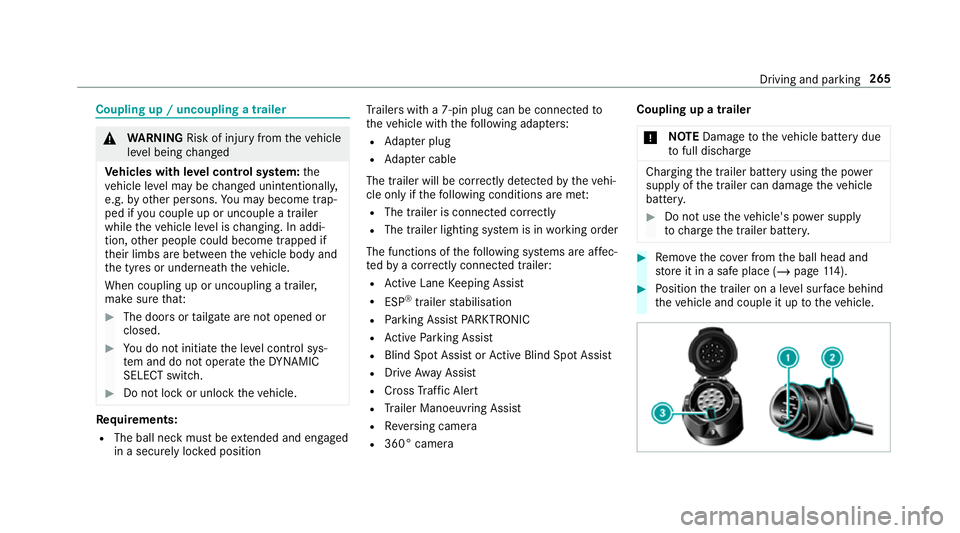
Position the trailer on a le vel sur face behind
th eve hicle and couple it up totheve hicle. Driving and parking
265
Page 315 of 657
MBUX Interior Assistant
Note
s on lasers and laser classification &
WARNING Risk of inju ryfrom laser radi‐
ation from the camera
This product uses a laser sy stem. If the hous‐
ing is opened or damaged, invisible laser
beams can escape in an uncontrolled man‐
ner.
Laser radiation can damage your retina. #
Do not open the housing. #
Alw ays ha vemaintenance workand
re pairs car ried out byaqu alified spe‐
cialist workshop. This device is a class 1 laser product in accord‐
ance with DIN EN 60825-1:20
14 &
WARNING Risk of di stra ction from infor‐
mation sy stems and communications
equipment
If yo u operate information and communica‐
tion equipment integ rated in theve hicle
when driving, you will be distracted from the
traf fic situation. This could also cause youto
lose control of theve hicle. #
Only operate this equipment when the
traf fic situation permits. #
Ifyo u cannot be sure of this, stop the
ve hicle whilst paying attention toroad and traf
fic conditions and ope rate the
equipment with theve hicle stationar y. Yo
u must obse rveth e legal requirements forthe
country in whi chyou are cur rently driving when
operating the multimedia sy stem.
Overview of the MBUX Interior Assistant
If th eve hicle is fitted wi th the MBUX Interior
Assis tant, selected functions of the multimedia
sy stem can be operated conta ct-free. In addi‐
tion, there ading light or sear chlight can be
switched on or off con tact-free.
The MBUX Interior Assi stant can dif fere ntia te
between driver and front passenger interactions.
The MBUX Interior Assis tant recognises cer tain
hand positions (poses). 312
MBUX multimedia sy stem
Page 318 of 657
Ac
tivating co verch ange in thera dio menu
and media menu
The MBUX Interior Assi stant reduces the number
of operating steps. #
Movea hand towa rdsth eto uchsc reen or
to uchpad.
The cur rent information, e.g. about thera dio
st ation, track and artist are hidden. Co ver
ch ange is activated. #
Continue operation and select a co ver. #
Asthe hand is mo vedaw ay from the
to uchsc reen or touchpad, the cur rent infor‐
mation is shown again.
% Further information on thera dio menu
(/ page 446) and the media menu
(/ page 440).
Showing the navigation menu on the map
The MBUX In terior Assis tant sho wsthe naviga‐
tion menu. #
Movea hand towa rdsth eto uchsc reen or
to uchpad.
The navigation menu is shown. #
Continue operation and select a symbol. #
Asthe hand is mo vedaw ay from the
to uchsc reen or touchpad, the media display
hides the navigation menu.
% Further information on the navigation menu
(/ page 354).
Showing operating symbols in theAc tive
Pa rking Assist camera ima ge(only from driv‐
er's seat)
The MBUX In terior Assis tant facilitates quick-
access forth e driver tovarious camera vie ws. #
With th eAc tive Parking Assist display active,
mo vethe hand in the direction of the
to uchsc reen.
The camera operation symbols are displa yed. #
Continue operation and display the desired
front, rear, left and right camera vie ws.
% Further information on Active Parking Assist
functions (/ page247).
Operating functions using poses
Re quirements:
R Tocall up favo urites: there is at least one
fa vo urite. R
The area forre cognition of thefa vo urite's
pose is abo vethe cent reconsole at the
height of the climate control vents and the
media displa y.The hand should ha vea dis‐
ta nce of at least 10cm from the media dis‐
pla y.
R The pose is held for a brief time.
Calling up favo urites
A pose calls up a favo urite.
% If afavo urite has not yet been sa ved and
connec ted with the MBUX Interior Assis tant,
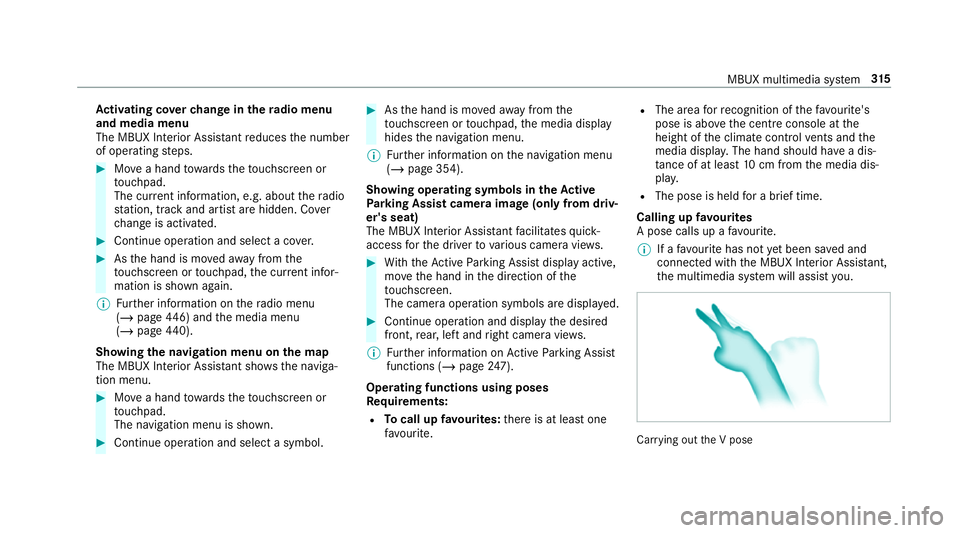
th e multimedia sy stem will assist you. Car
rying out the V pose MBUX multimedia sy
stem 315
Page 388 of 657
#
Select ¡. #
Select Report traffic incident .
A prom ptis shown. #
Select Yes.
The Thank you for supporting accident pre-
vention. message appears. Ro
ute guidance with augmented reality Overview of
route guidance with augmented
re ality &
WARNING Risk of accident and inju ry
caused bydistraction, incor rect ima geor
interpr etation of the display
The dis tance to ot herroad users or informa‐
tion, such as traf fic lights, can be incor rectly
assessed from the camera image. The cam‐
era image of the augmented reality display is
not suitable tobe used for driving. #
Alw ayske ep your eyes on the actual
tra ffic situation. Only glance brief lyat
th e camera image. #
Beaware that depending on the driving
situation there may be hazards that are
not captured in the camera image, e.g.
when turning. Avoid observing the cam‐
era image forex tended pe riods. During
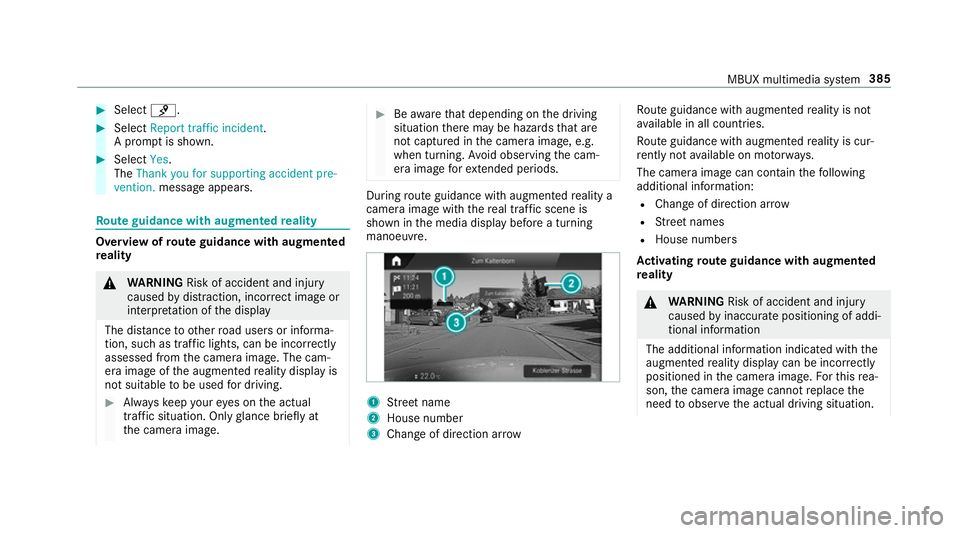
route guidance with augmented reality a
camera image with there al traf fic scene is
shown in the media display before a turning
manoeuvre. 1
Street name
2 House number
3 Change of di rection ar row Ro
ute guidance with augmented reality is not
av ailable in all countries.
Ro ute guidance with augmented reality is cur‐
re ntly not available on mo torw ays.
The camera image can contain thefo llowing
additional information:
R Change of direction ar row
R Street names
R House numbe rs
Ac tivating route guidance with augmented
re ality &
WARNING Risk of accident and inju ry
caused byinaccura tepositioning of addi‐
tional information
The additional information indicated with the
augmen tedre ality display can be incor rectly
positioned in the camera image. Forth is rea‐
son, the camera image cann otreplace the
need toobser vethe actual driving situation. MBUX multimedia sy
stem 385
Page 389 of 657
#
Maintain the actual driving situation in
view for all driving manoeuvres , e.g.
when turning and when changing lanes. Re
quirements:
R Route guidance is active.
Multimedia sy stem:
4 © 5
Navigation #
Ifth e de tailed junction view appears during
ro ute guidance, tap on the camera symbol.
The display button is activated. The camera
image is shown in the media display depend‐
ing on the situation.
The camera image will be shown ins tead of
th e navigation map before a turning manoeu‐
vre and will show the additional information. #
Toreturn tothe navigation map: tapon
th e camera symbol again.
The display button is off.
Showing stre et names forro ute guidance
with augmented reality
Re quirements: R
Augmented reality is activated
(/ page 385).
Multimedia sy stem:
4 © 5
Navigation 5
Z
5 Advanced 5
Augmented Reality #
Activate Street names andHouse numbers.
The display buttons are acti vated. During
ro ute guidance, stre et names and house
numbe rsare shown as additional information
in the video image.
Switching on display of traf fic lights with
augmented reality forro ute guidance
Re quirements:
R Augmented reality is activated
(/ page 385).
R The Traffic light zoom option is switched on.
When theve hicle is standing in firs t position at a
junction, the camera image will show an
enlar ged tra ffic lights displa y.
% When theve hicle pulls away the navigation
map is shown again. Multimedia sy
stem:
4 © 5
Navigation 5
Z
5 Advanced 5
Augmented Reality #
Activate Traffic light zoom.
The display button is acti vated. #
Under TRAFFIC LIGHT VIEW select one ofthe
Off, After asking orAutomatic options.
If After asking is set,theTraffic light indica-
tor available message is shown. The camera
image is shown af ter confirmation of the
messa ge.
If Automatic is set,the traf fic lights displ ayis
shown automatically in the camera image
when available. #
Toreturn tothe navigation map: pressthe
G button. 386
MBUX multimedia sy stem
Page 399 of 657
This function is not
available in all countries.
Obse rveth e count ry-specific regulations.
Multimedia sy stem:
4 © 5
Mercedes me & Apps
5 Dashcam #
Select the USB device.
St arting/ stopping video recording with the
da sh cam
Re quirements:
R A USB device is connec ted with the multime‐
dia sy stem (/ page441).
R The ignition is switched on.
This function is not available in all countries.
Multimedia sy stem:
4 © 5
Mercedes me & Apps
5 Dashcam #
If se veral USB devices are connec ted with
th e multimedia sy stem, select the USB
device (/ page 395). #
Toselect a recording mode: selectIndivid-
ual recording orLoop recording .
If Individual recording is selected and the
memory is full there cording stops. An indi‐
vidual recording is au tomatical lyprotected
against being overwritten.
If Loop recording has been selected, se veral
short video files are recorded. When the
memory limit is reached, the oldest video file
is dele ted and recording is continued au to‐
matical ly. #
Tostar t:select Start recording.
The length of there cording is shown. The
Please do not remove the storage medium.
message appea rs. The video file is stored on
th e USB device. #
Toend: select End recording .
A report may appear in thefo llowing cases:
R Forth eIndividual recording recording mode:
th e memory is full or there are only a few
minutes recording time available. The video
re cording stops or will be stopped immi‐
nently.
Chan gethe USB device or dele tea video file. R
If a video recording has star ted and a
national border is de tected, theNational bor-
der crossed. Please observe the countryspe-
cific regulations regarding video recording.
message appears.
This function is not available in all countries.
R The camera is not functional, theCamera
unavailable message appears.
Ha ve the camera checked in a Mercedes-
Benz service centre.
Deleting a dash cam video recording
Requ irements:
R A USB device with video recordings is con‐
nected wi th the multimedia sy stem
(/ page 441).
This fu nction is not available in all countries.
Multimedia sy stem:
4 © 5
Mercedes me & Apps
5 Dashcam #
Select thep symbol.
The RECORDINGS menu appears. #
Select Vfor a video file. 396
MBUX multimedia sy stem